
This guide explains how you pay for LinkedIn Automation in Snov.io. It covers volume discounts, billing periods and the free trial. It also shows what happens when you add slots, cancel slots or change your billing period.
LinkedIn Automation free trial
LinkedIn slots automatic renewal
LinkedIn Automation free trial
If you haven't used LinkedIn Automation before, you can try it for free. To start the trial, open the LinkedIn Accounts page and look for the pop-up.
The trial works on any Snov.io plan, including the Trial plan. In Teams, only the team leader can start the trial. The trial slot can't be moved to other team members.
The trial adds a monthly LinkedIn Automation subscription to your account. The first 7 days are free.
When the trial ends, your slot switches to monthly billing automatically. You pay a prorated amount for the rest of the monthly period. To avoid this, turn off automatic renewal in your Billing settings before the trial ends.

What you can do during the trial
You get one slot with access to all LinkedIn Automation features:
- Connect your LinkedIn account
- Launch LinkedIn sequences with connection requests, messages, profile views, likes and skill endorsements
- Monitor your LinkedIn actions, SSI score and profile engagement
Billing periods
You can pay for slots monthly, every 3 months or once a year. A longer billing period gives you an extra discount on top of your volume slot discount.
All your slots are under one subscription with one billing period.

Monthly
Billed every 30 days, with no extra discount.
3 months
Billed every 3 months, with an extra 5% discount.
Annual
Billed once a year, with an extra 20% discount. Annual billing gives you the highest discount at every level. With 50 or more slots on annual billing, you save up to 71% on each slot.
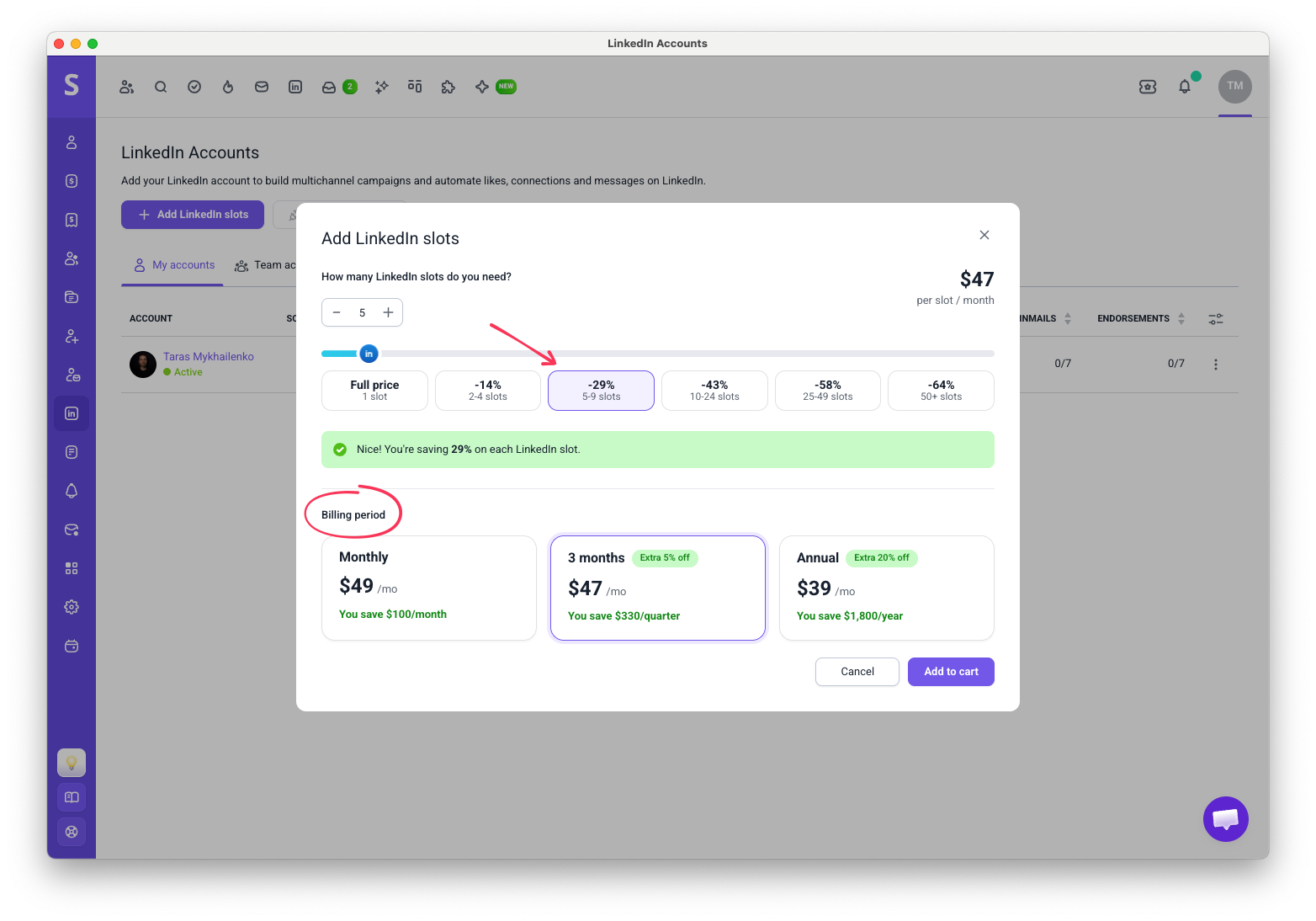
Choose your billing period
- Open the LinkedIn Accounts page and click Add LinkedIn slots. You can also go to Billing settings, open the LinkedIn accounts tab and click Add LinkedIn slots.
- Pick the number of slots you need with the slider.
- Under Billing period, pick Monthly, 3 months or Annual.
- Click Add to cart and complete the purchase.
Change your billing period
You can switch to a longer or shorter billing period at any time. All your slots switch to the new period.
To switch, open the Add LinkedIn slots window, pick a new billing period and confirm. You don't need to add new slots.
| Change | Proration for unused time |
|---|---|
| Monthly to 3 months or Annual | Deducted from the price of your new period |
| 3 months to Annual | Deducted from the price of your new period |
| Annual to 3 months or monthly | No refund. Your current slots keep working until the period ends. |
| 3 months to monthly | No refund. Your current slots keep working until the period ends. |
Switch to a longer period
The new period starts on the day you switch. You don't lose the time you already paid for. It's deducted from the price of your new period as a prorated discount. You'll see it in the price breakdown at checkout.
Example: You have 1 monthly slot and switch it to 3 months. Your 3-month period starts today, and you pay less for it because of the unused time on your monthly subscription.
Switch to a shorter period
Your current subscription is cancelled without a refund for the unused time, and the new one starts right away. The slots you already paid for keep working until the end of your current period.

Add more slots
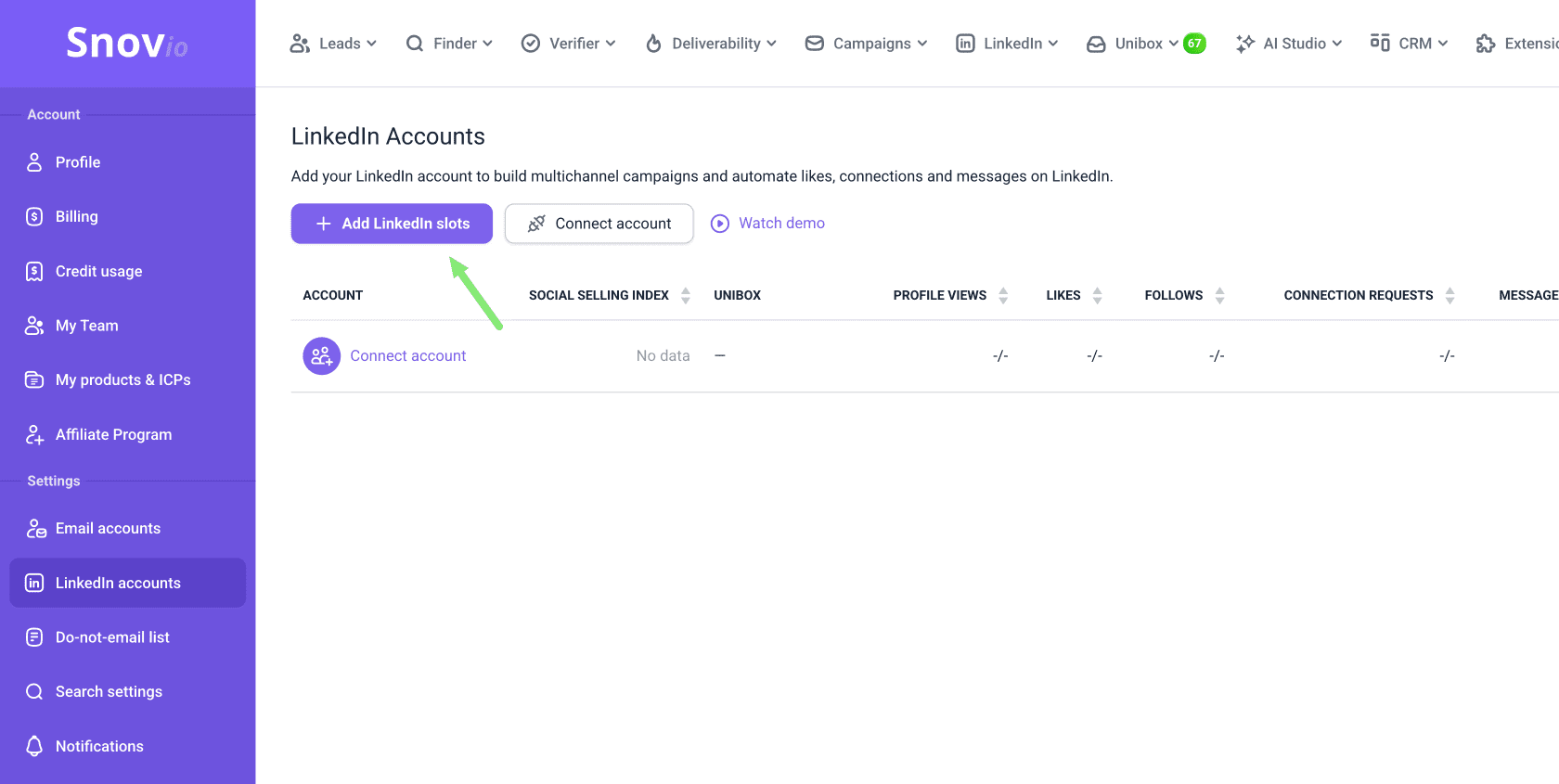
To add slots, open the LinkedIn Accounts page and click Add LinkedIn slots. You can also go to Billing settings, open the LinkedIn accounts tab and click Add LinkedIn slots.
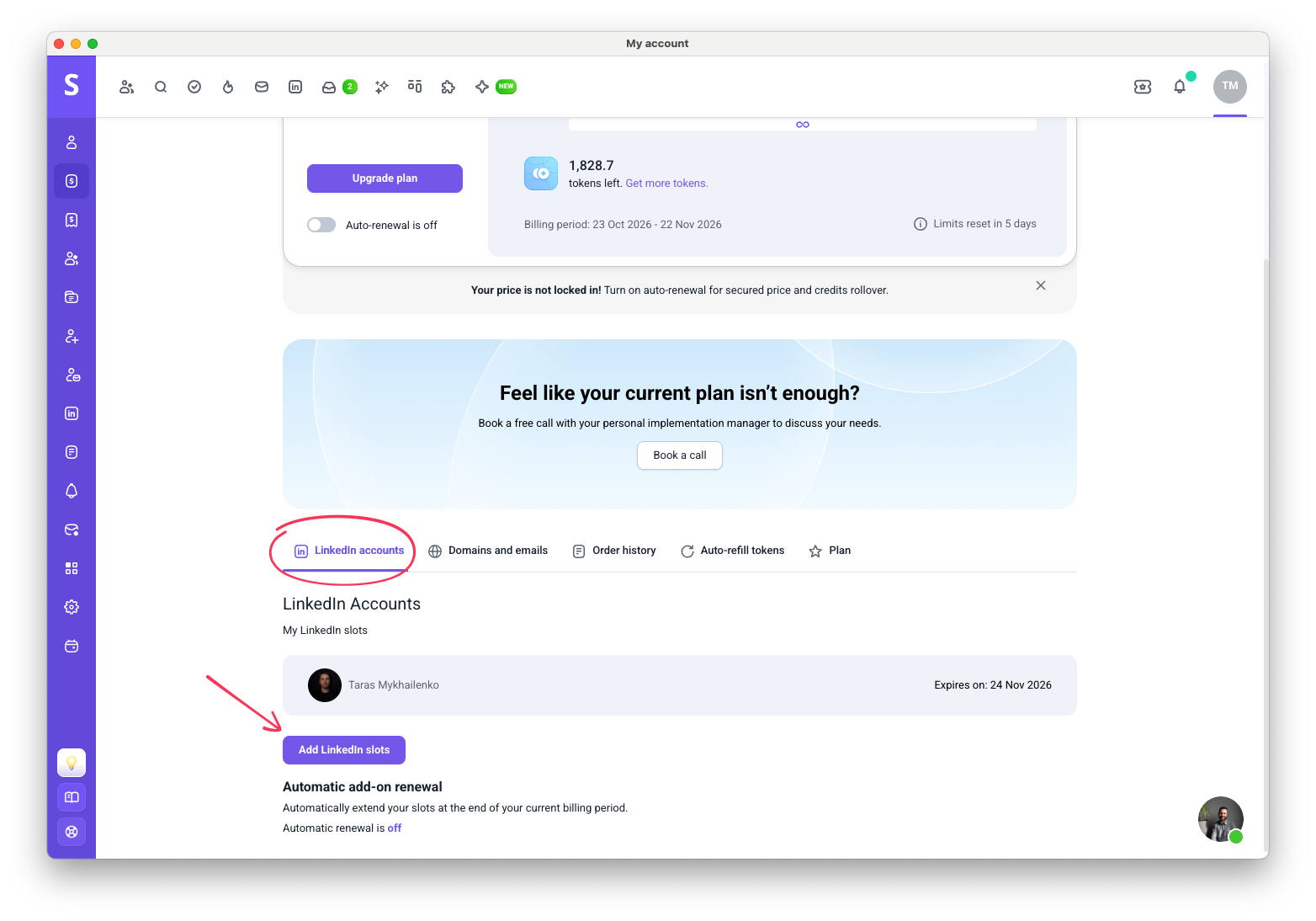
How you pay for new slots depends on whether automatic renewal is on or off. Here's how proration works in each case.
If automatic renewal is on
The new slots join your current subscription. You pay only for the days left until the next charge date of your current slots. After that, all your slots renew on the same date.
Each slot you add can lower the price of all your slots. Learn how in Volume slot discounts.
If automatic renewal is off
The new slots start a separate subscription with its own billing date. You pay for the full billing period, with no proration. Your volume discount is based only on the new slots. Your old slots keep working until their expiration date. After that, only the new slots stay in your LinkedIn Automation subscription.
Example: You have 5 slots with automatic renewal off and add 2. You get the 14% discount for 2–4 slots, not the 29% discount for 5–9 slots. Your 5 old slots stay active until they expire.
Volume slot discounts
Your price per slot depends on the number of active slots in your account. The discount starts at 2 slots and grows with each tier.
To get a volume discount, pick the number of slots you need with the slider. Your discount level and price per slot show right away.
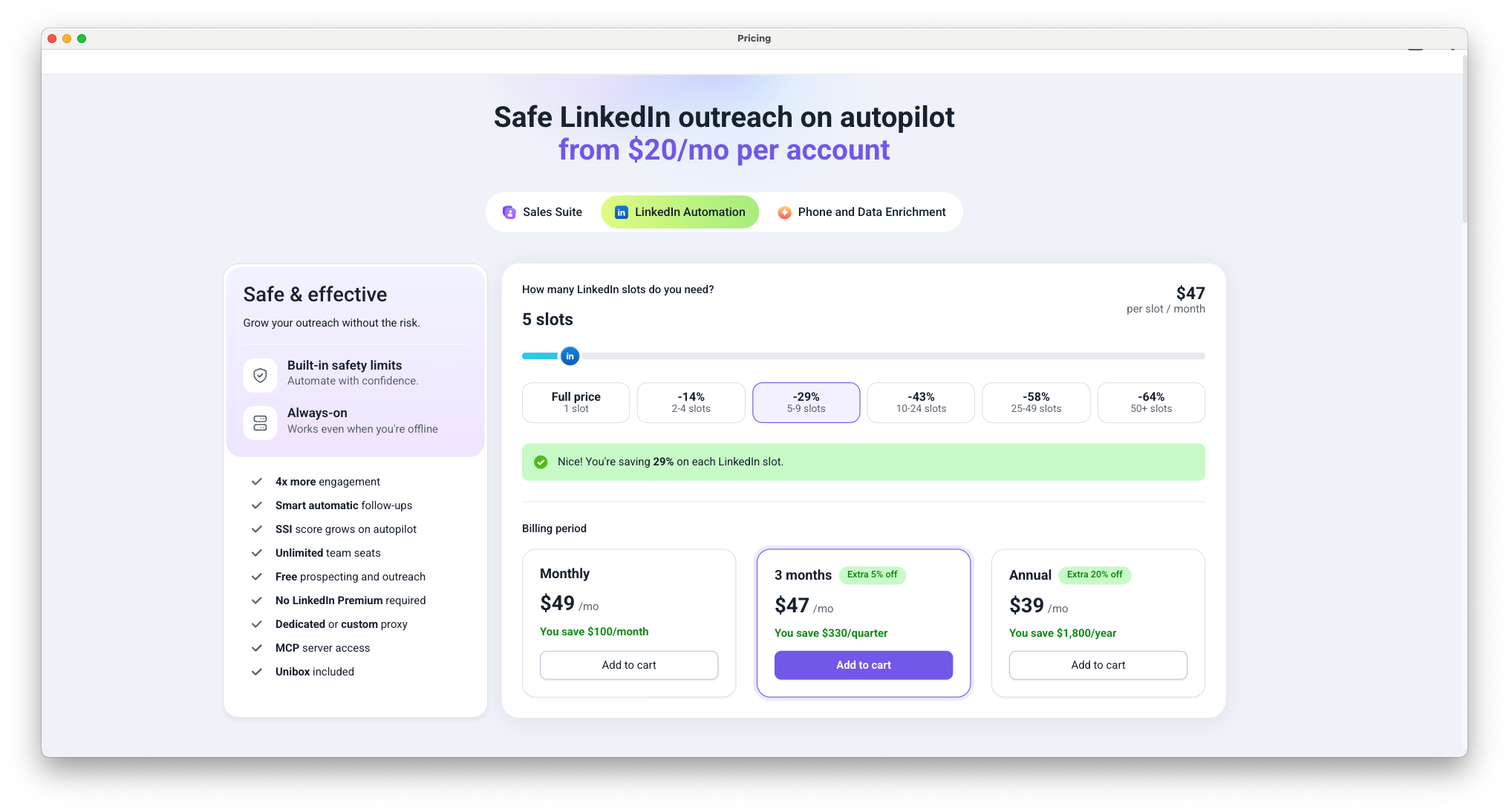
| Active slots | Discount per slot |
|---|---|
| 1 | Full price |
| 2–4 | 14% |
| 5–9 | 29% |
| 10–24 | 43% |
| 25–49 | 58% |
| 50+ | 64% |
Combine it with a longer billing period for an extra discount. Before you pay, check the price breakdown at checkout. It shows your volume slot discount and your billing period discount separately.
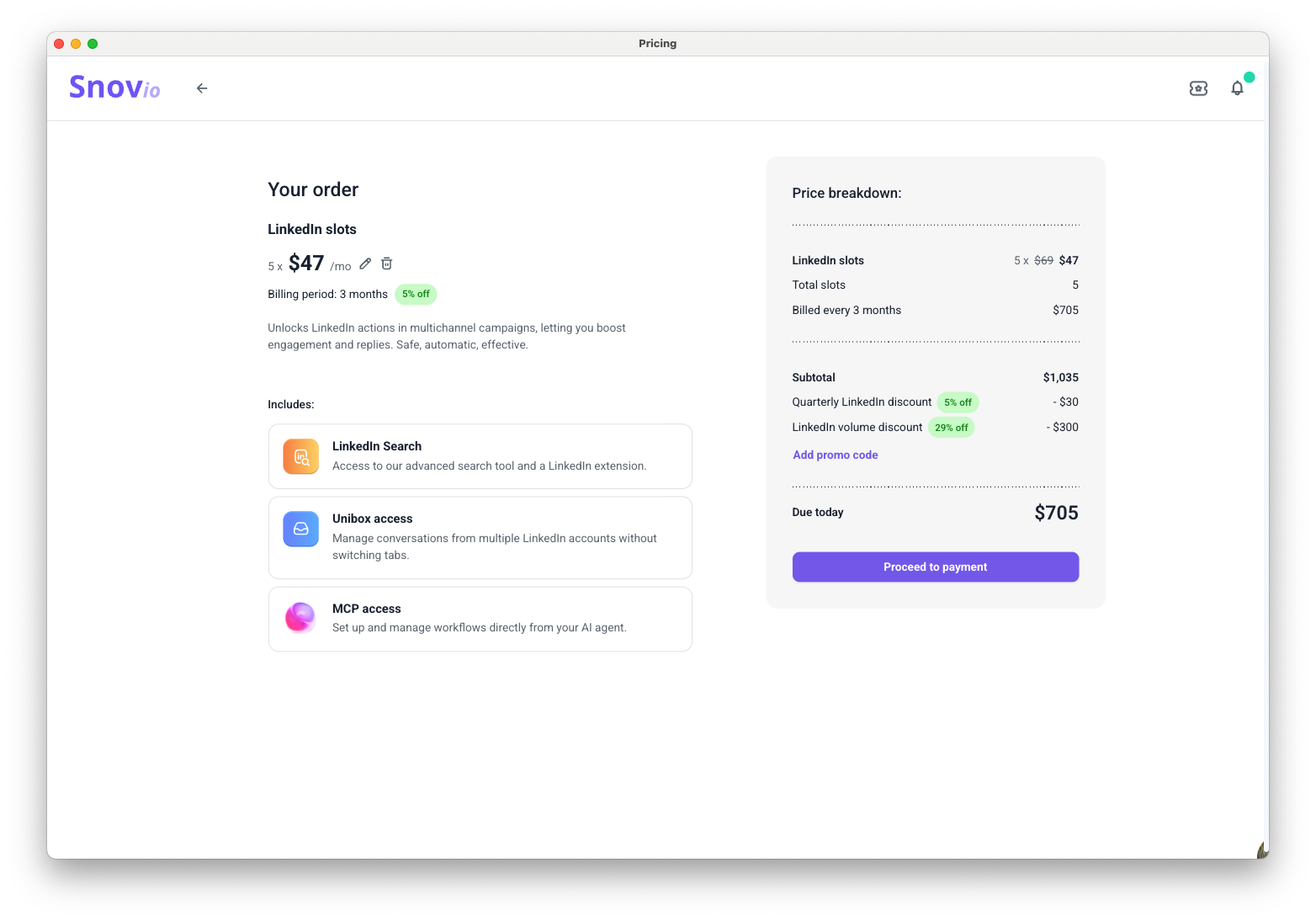
When you add slots
Your discount is based on all your active slots plus the new ones. If you reach a new discount level, all your slots get the lower price at the next renewal. If automatic renewal is off, only the new slots count toward your discount. See Add more slots.
Example: You have 4 slots and add 1. You now have 5 slots, so every slot gets the 29% discount at your next renewal.
When you cancel slots
If cancelling a slot moves you to a lower discount level, the price of your other slots goes up at the next renewal. You'll see the new price and confirm it before you cancel.
Example: You have 5 slots and cancel 1. You now have 4 slots, so every slot gets the 14% discount at your next renewal.
Cancel slots
You can cancel single slots and keep your LinkedIn Automation subscription active.
To cancel a slot, go to your Billing settings. In the LinkedIn Accounts section, click Cancel renewal next to the slot.
The slot stays active until the expiration date shown next to it. After that, it's removed from your account, and you won't pay for it again.
- If cancelling a slot moves you to a lower discount level, you'll see the new price per slot and confirm it first. Learn more in Volume slot discounts.
- You can't cancel your last slot this way. To stop LinkedIn Automation, turn off automatic renewal.
LinkedIn slots automatic renewal
Enable automatic renewal
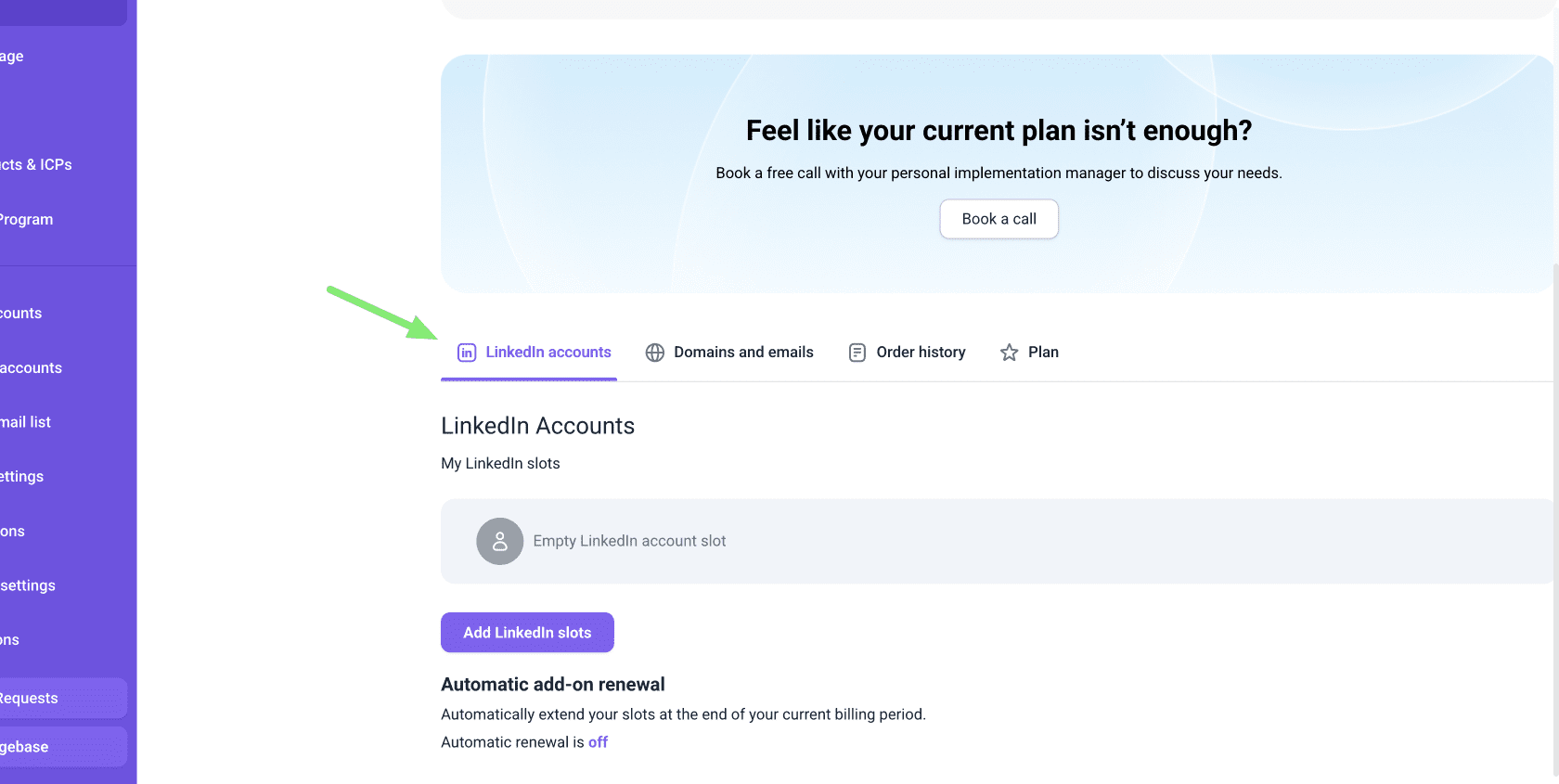
To renew your slots at the end of each billing period, turn on automatic renewal in your Billing settings. Each renewal charge covers all active slots in your subscription.
Disable automatic renewal
To stop automatic renewal, open the LinkedIn accounts section in your Billing settings and turn it off.
Your slots stay active until the end of the current billing period. Then they're deactivated. Check the expiration date in your Billing settings. You can still renew your slots manually before that date.
FAQs
Read answers to frequently asked questions about LinkedIn slots.


Sinto por isso 😢
Como podemos melhorar?