This guide explains everything you need to know about LinkedIn Automation in Snov.io: trial terms, how to get slots at a discounted price, and how to manage your subscription and individual slots.
Manage LinkedIn Automation subscription
LinkedIn Automation free trial
If you haven't used LinkedIn Automation before, you can get a trial on your Snov.io account. To activate a trial, go to the LinkedIn Accounts page and look for a pop-up notification.
You can get access on any Snov.io plan, including the free plan. In Teams, only the team leader can activate the trial. The trial slot cannot be transferred to other team members.
Starting the trial adds a monthly LinkedIn Automation subscription to your account, with the first 7 days for free.
After the trial ends, you'll be charged a prorated amount for the remainder of the monthly period. You can disable the automatic renewal anytime in your Billing settings before the trial ends.

What you can do during the trial:
You get one slot with access to LinkedIn Automation features.
- Connect your LinkedIn account
- Launch LinkedIn sequences with connection requests, messages, profile views, likes, and skill endorsements
- Monitor your LinkedIn actions, SSI score and profile engagements
LinkedIn Automation pricing
The price per slot depends on whether you purchase slots separately or together with a plan.
LinkedIn slots + Sales Suite plan
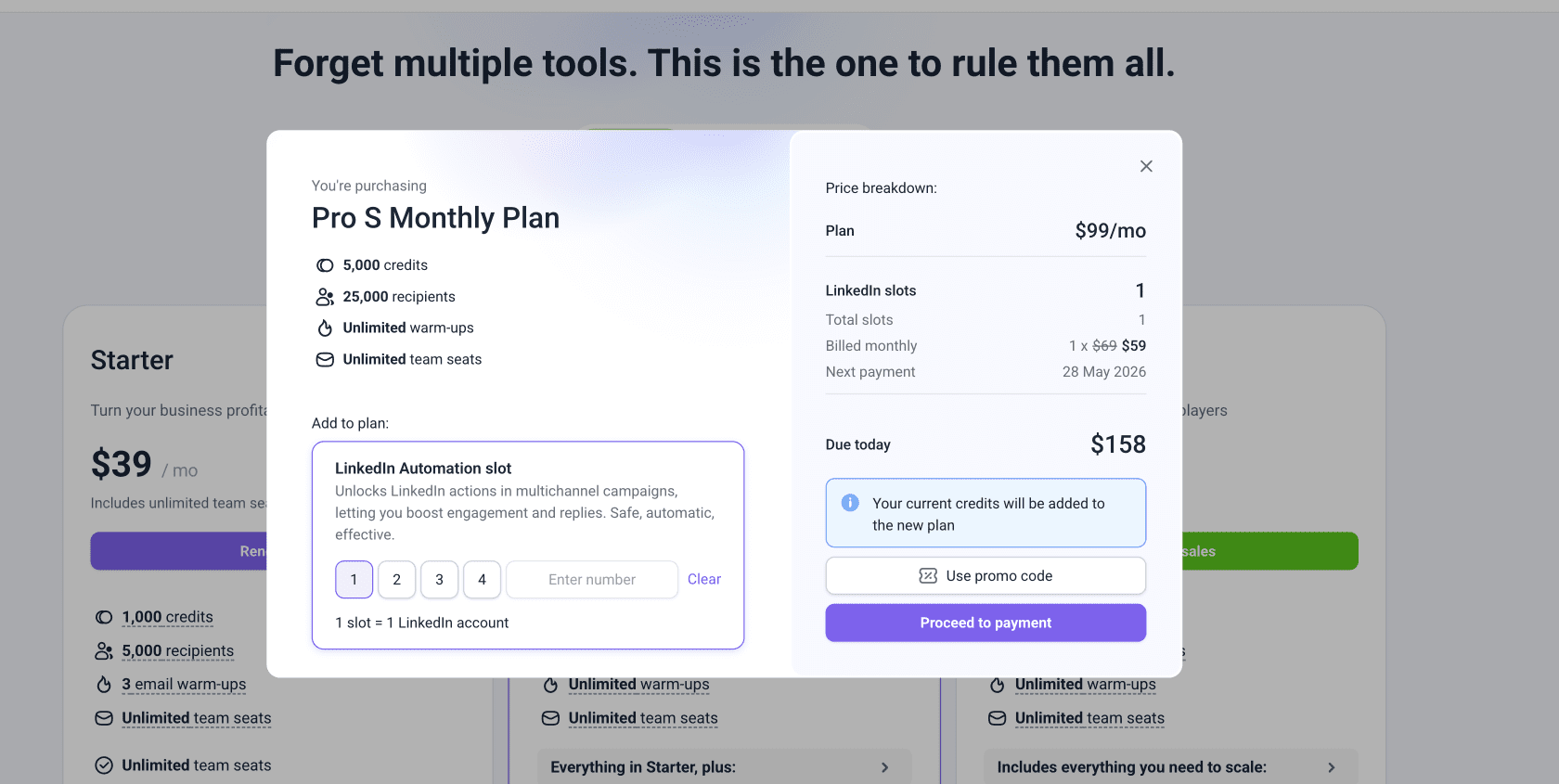
For accounts that bundle slots and any paid plan, slots are available at the discounted price of $59/slot per month.
Here's when the discount activates:
Plan subscription is currently active:
If you already have an active paid plan at the time of purchasing slots, the discount applies automatically.
Plan and slots purchased together:
If you add LinkedIn slots to a plan in the same cart, the discounted rate of $59/slot per month applies automatically.
Upgrade from free to any paid plan:
If you start a plan subscription while your LinkedIn Automation is active, the discounted rate of $59/slot per month applies at your next slot renewal.

LinkedIn slots only
For accounts where only LinkedIn Automation is active, slots are charged at the standard price of $69/slot per month.
Purchased without a plan:
You can purchase LinkedIn slots at any time without a plan. Each slot is charged at the standard price of $69/slot per month.
Downgrade from any plan to free:
If your plan expires while LinkedIn Automation is active, the slot price adjusts to the standard rate of $69/slot per month at your next slot renewal.
Manage LinkedIn Automation subscription
LinkedIn Automation is billed monthly, every 30 days. All slots you purchase are grouped under one subscription to simplify billing.
You can manage the subscription as a whole service and individual slots separately, depending on your current needs.
Enable automatic renewal
Check your LinkedIn Automation subscription details in the Billing settings.
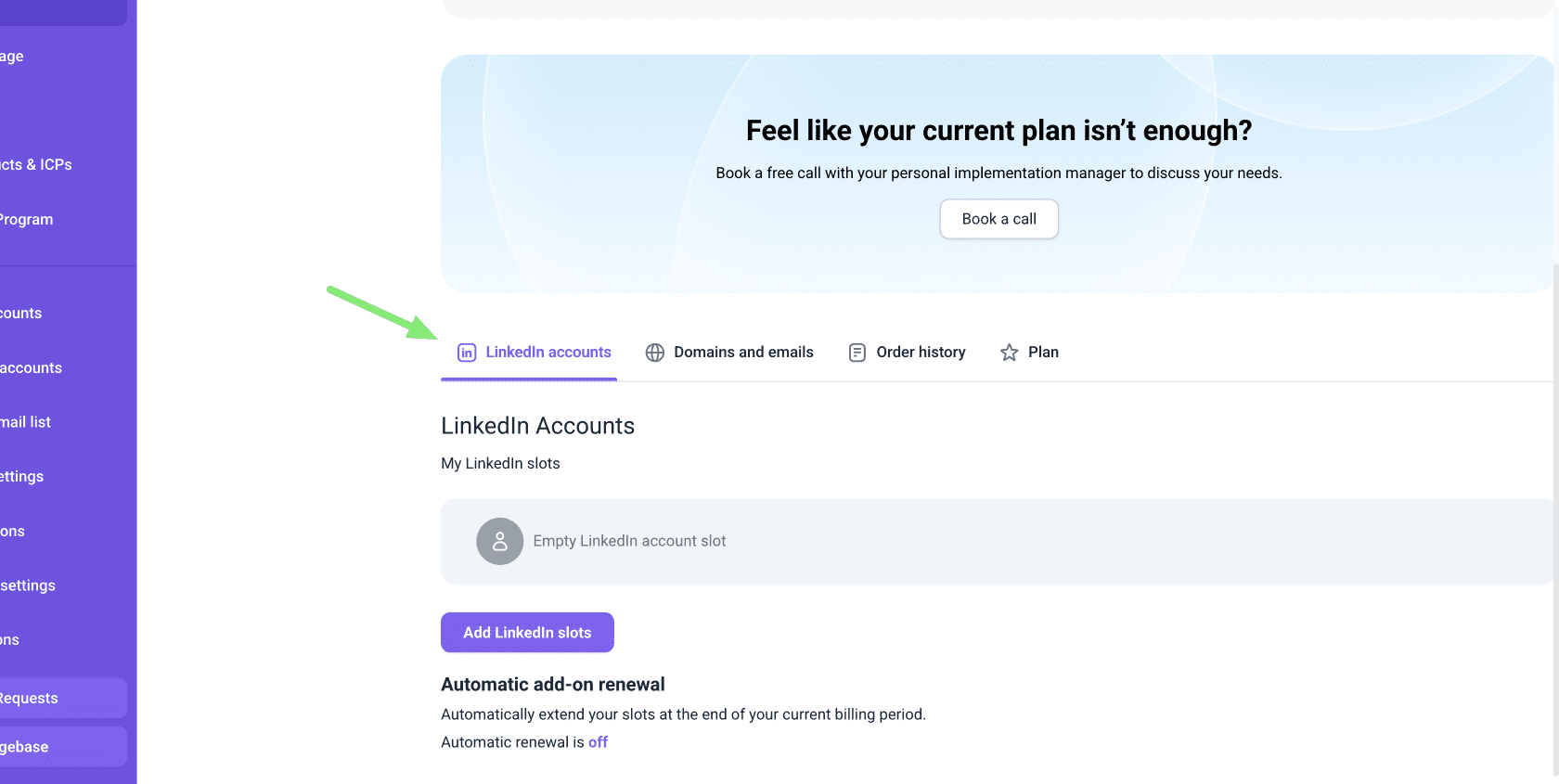
To extend slots automatically every month, turn on automatic renewal. The renewal charge covers all active LinkedIn slots in your subscription.
Disable automatic renewal
If you don't want your subscription to renew automatically, you can disable automatic renewal.
Go to the LinkedIn accounts in the Billing settings to do it.
At the end of the current billing period, all slots will be deactivated. Check the expiry date in the Billing settings. Before the expiration date, you have the option to renew slots manually.
Add more LinkedIn slots
When you add more slots to your LinkedIn Automation, the cost is prorated automatically based on the number of days remaining in your current billing period.
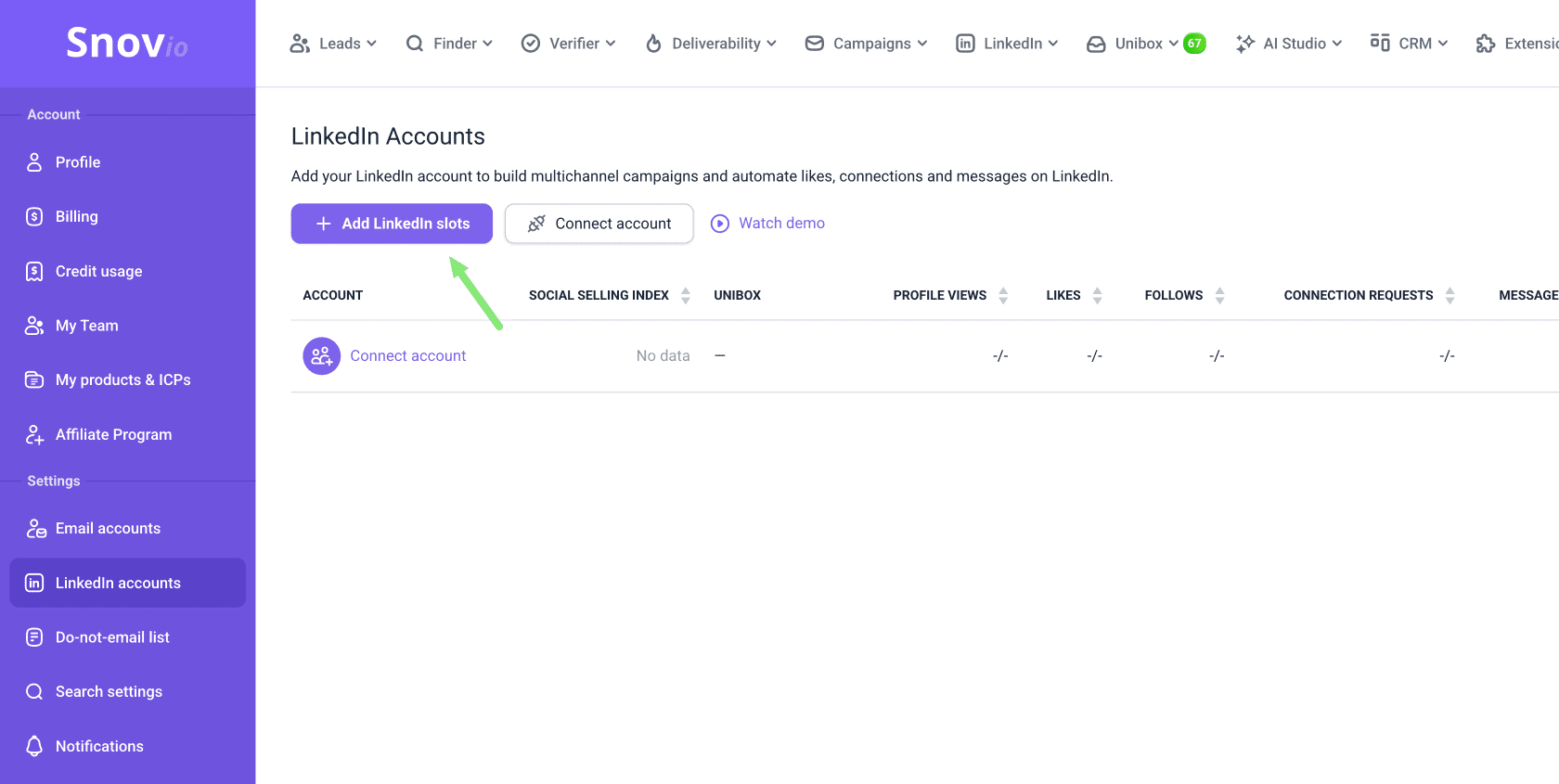
Get additional slots from the LinkedIn Accounts page or in your Billing settings.
Cancel LinkedIn slots
You can cancel individual LinkedIn slots while keeping the LinkedIn Automation subscription active.
Go to the Billing settings. In the LinkedIn Accounts section, click Cancel renewal next to the slot you want to deactivate.
The slot will remain active until the expiration date shown next to it. After that, it will be removed from your account and you won't be billed for it again.

FAQs
Read answers to frequently asked questions about LinkedIn Automation.
If you have a question that we haven't covered, feel free to reach out to our Customer Care team. You can contact us at help@snov.io or through live chat. We're here to assist you!


Sorry about that 😢
How can we improve it?