Use Snov.io's free email tracker to track email opens in Gmail and see when someone clicks a link. You know when the email was seen, so you can decide when to follow up.
Where to see if your email was opened
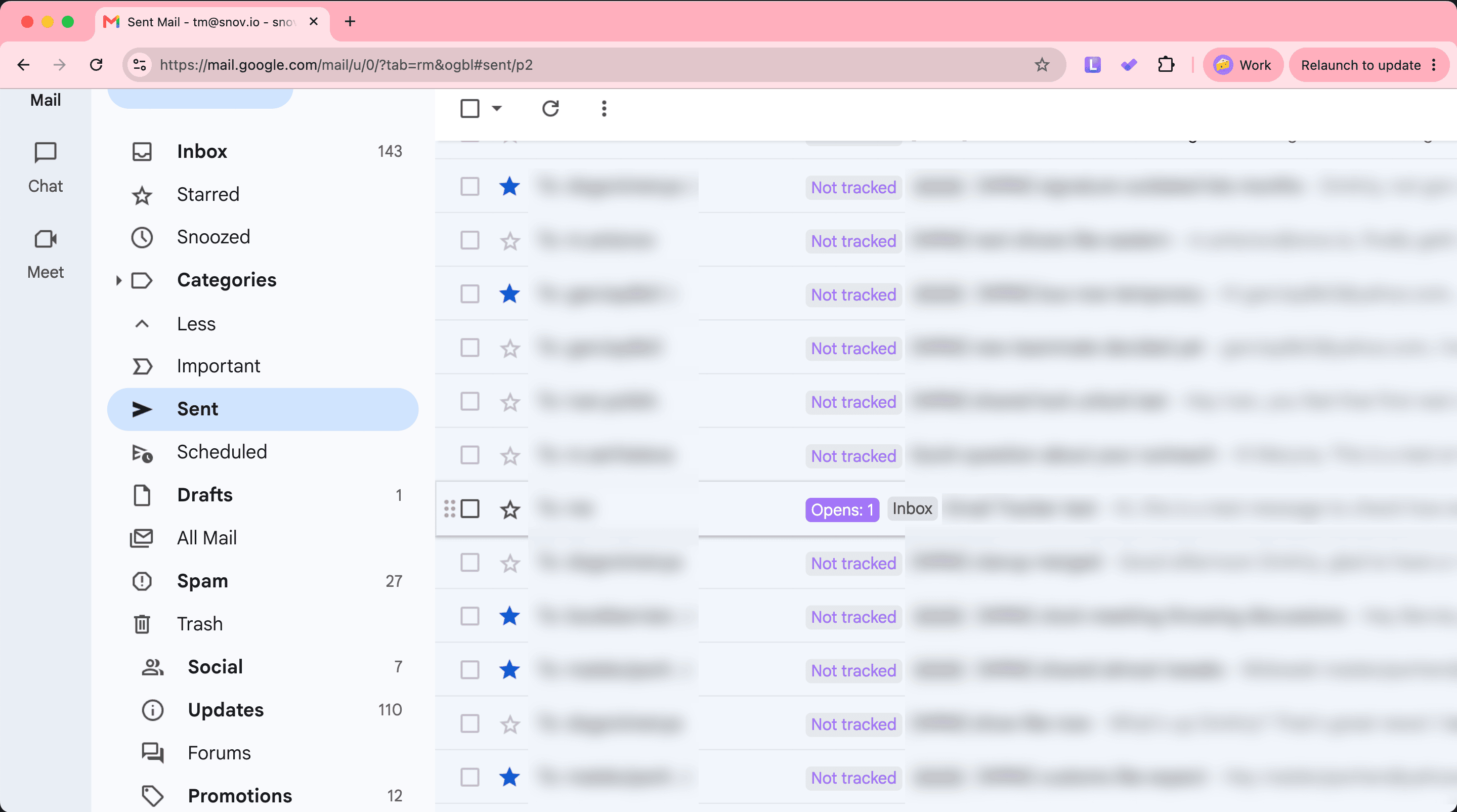
Check the label in your email list
Get a notification for each open
Manage notifications from Email Tracker

Before you start. To use Email Tracker, you need:
1) Google Chrome to install the extension
2) A Gmail or Google Workspace account to send the emails you want to track
3) A Snov.io account to activate the extension
Email Tracker adds a small invisible image to each email you send.
When the recipient opens the email, the image loads and Email Tracker records the open.
Links in the email are tracked in the same way, so you also see clicks. Email Tracker adds no watermarks or logos to your emails.
For example, you send a proposal on Monday. The label next to it reads Unopened until the recipient opens it. Then it changes to Opens: 1.
Set up Email Tracker
Install the extension
- Open the Email Tracker page in the Chrome Web Store
- Click Add to Chrome
- Open your Gmail inbox, or refresh the page if it is already open
Sign in to Snov.io
Click the Email Tracker icon in the top bar of Gmail.
Then sign in to your Snov.io account, or sign up for free if you do not have one yet. After you sign in, refresh Gmail.
Turn on tracking
Click the Email Tracker icon in the top bar of Gmail. Make sure the toggle next to your email address is on.
Email Tracker then tracks every email you send from this account. Turn the toggle off to stop tracking.
Where to see if your email was opened
Email Tracker shows opens in four places. The label in your email list gives the quickest answer.
Check the label in your email list
Open the Sent folder in Gmail. Each tracked email has a label before its subject.
The label Unopened means nobody has opened the email yet. A purple Opens label with a number shows how many times the email was opened.
A green Clicks label with a number shows how many times a link was clicked.

See when each open happened
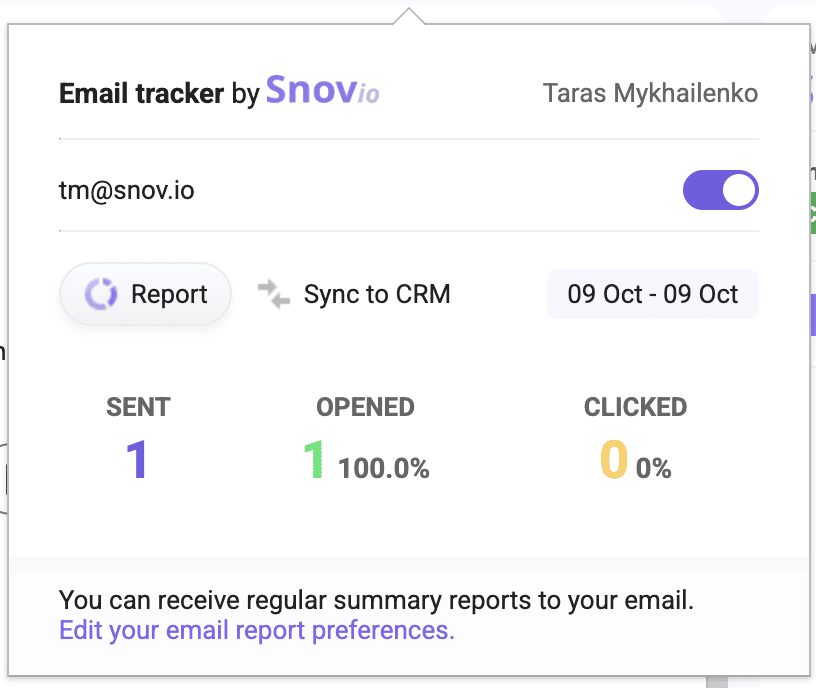
Click a tracked email in your Sent folder. The Email Tracker panel opens on the right side of Gmail.
It shows the number of opens and clicks, and the date and time of each open.
Check total opens in Gmail
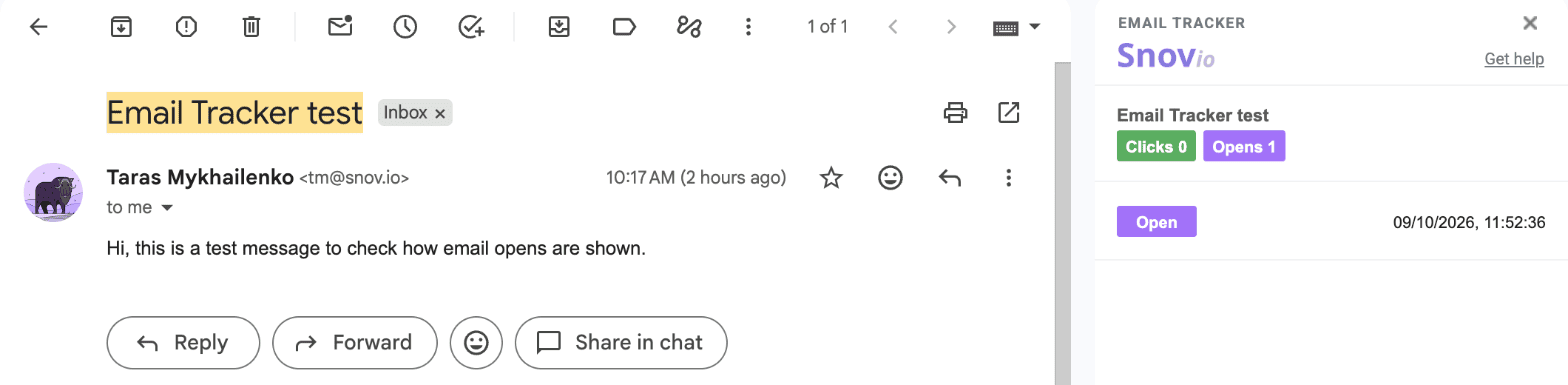
Click the Email Tracker icon in the top bar of Gmail. The window shows how many emails you sent, how many were opened, and how many had a link clicked for the date range shown.
Check total opens in Snov.io
- Log in to Snov.io and hover over Extensions in the top menu
- Select Gmail Email Tracker
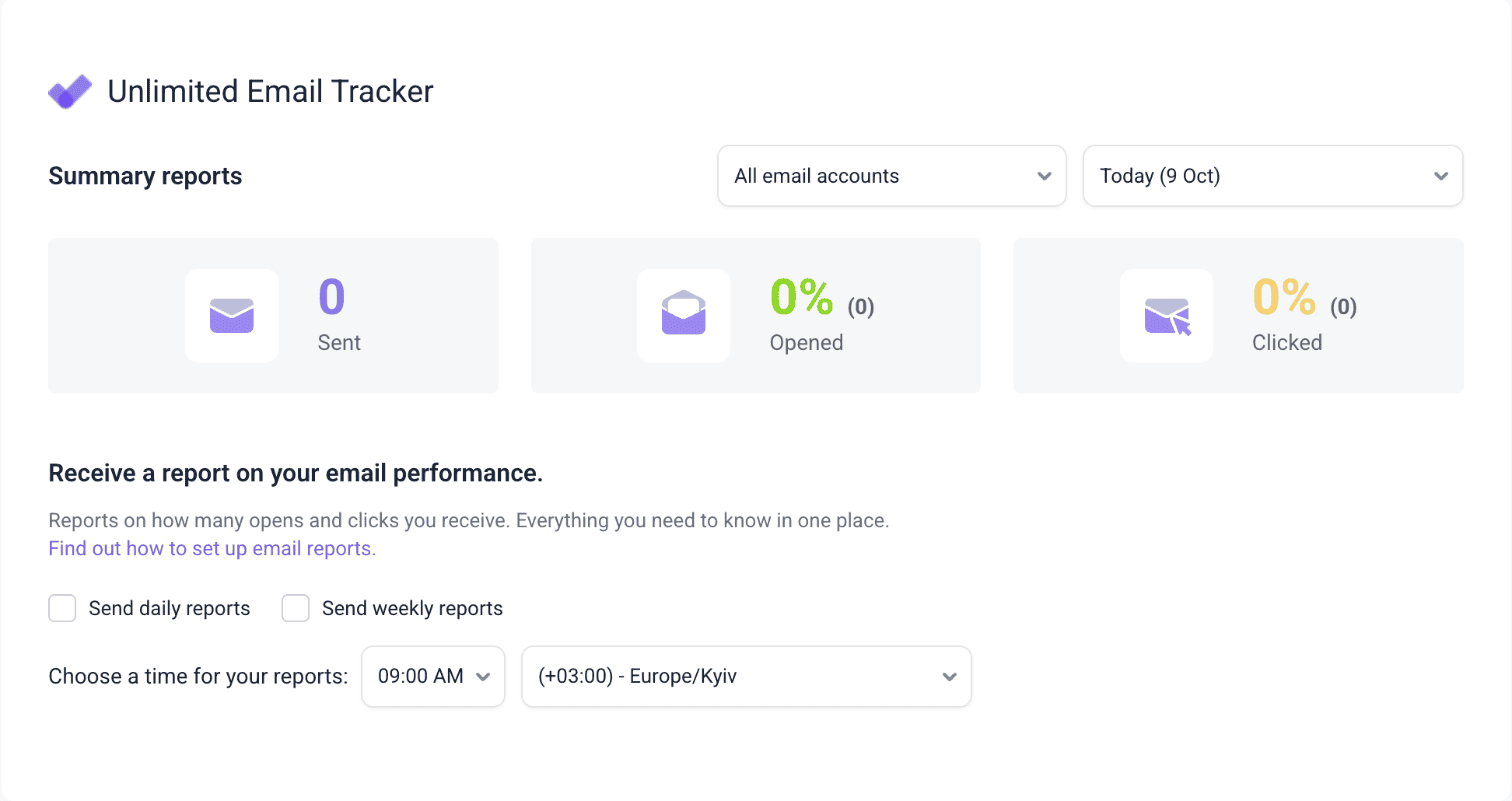
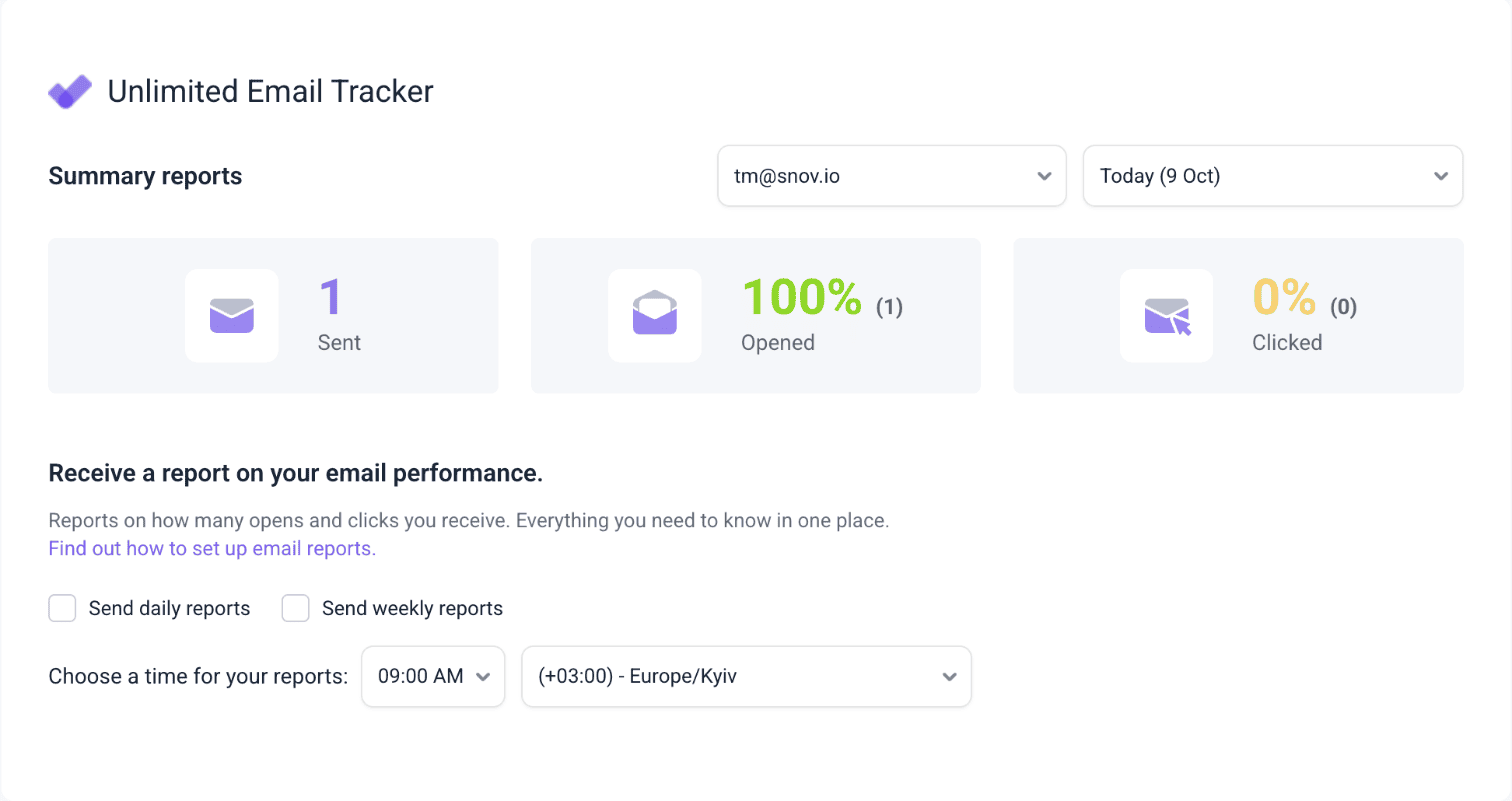
- Under Summary reports, choose an email account and a date range
The page shows the number of sent emails, the share of opened emails, and the share of emails with a link click.
Get a notification for each open
Email Tracker sends a notification each time someone opens your email or clicks a link in it. Allow notifications in Chrome when it asks.
Manage notifications from Email Tracker
This section explains how to turn each Email Tracker notification on or off.
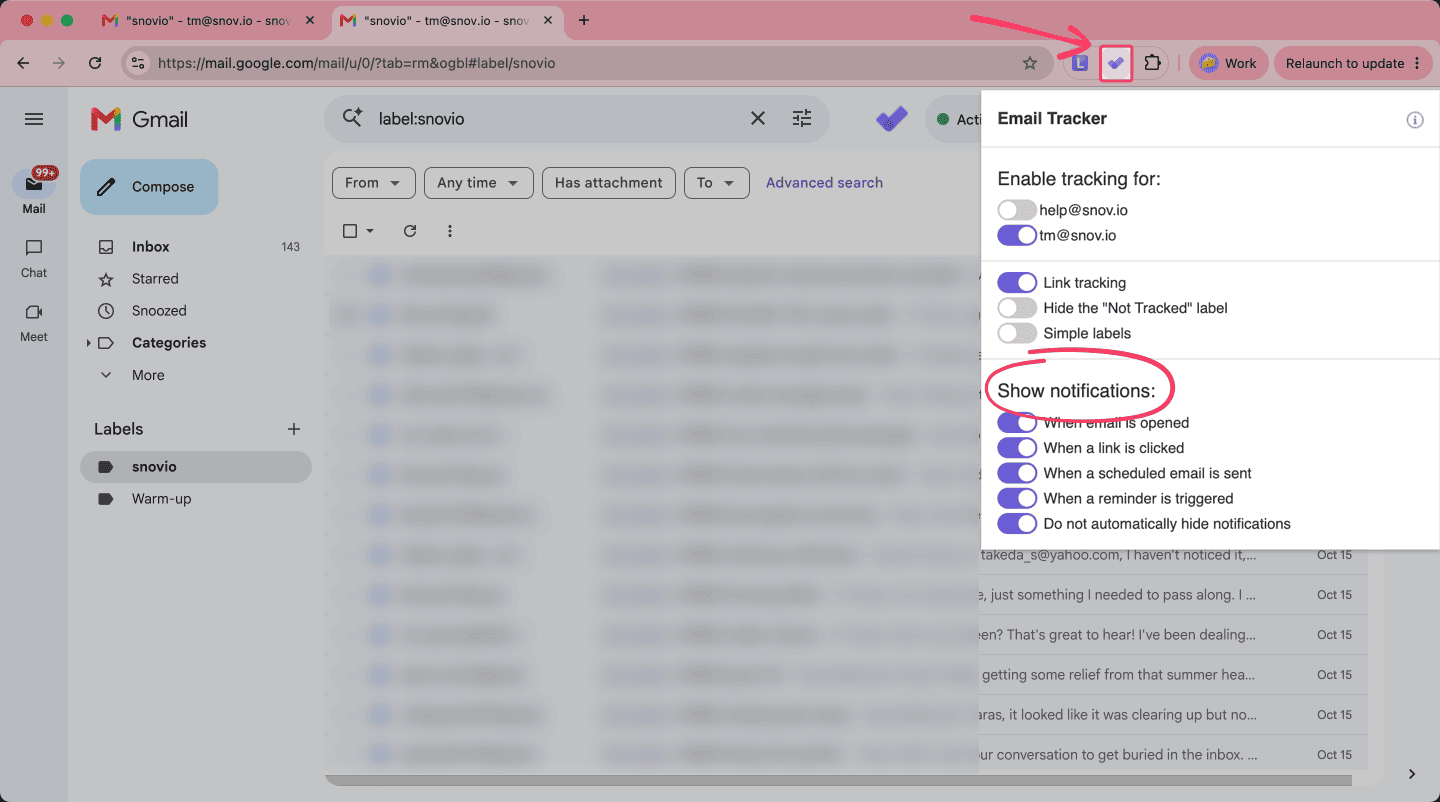
Click the Email Tracker icon in the top bar of Gmail. In the Show notifications part of the panel, turn each option on or off with its toggle.
- When email is opened sends a notification each time a tracked email is opened.
- When a link is clicked sends a notification each time a link in a tracked email is clicked.
- When a scheduled email is sent sends a notification when a scheduled email goes out.
- When a reminder is triggered sends a notification when a follow-up reminder goes off.
- Do not automatically hide notifications keeps each notification on screen until you close it.
To stop a type of notification, turn its toggle off. Leave a toggle on to keep receiving that notification.
What the labels mean
| Label | What it means |
|---|---|
| Unopened | Nobody has opened the email yet |
| Opens | The email was opened. The number shows how many times |
| Clicks | A link in the email was clicked. The number shows how many times |
| Not tracked | The email was sent before you turned on tracking, from a device without the extension, or with Gmail's Schedule send. Tracking cannot be added afterward |
Your own opens in the browser with the extension are not counted. Opens from another device or browser are counted.

Read this guide to see how Google's email policy affects open tracking.
Set a reminder for follow-ups
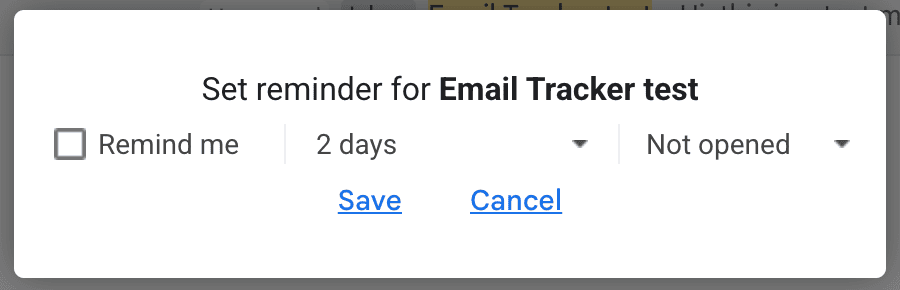
Remind me alerts you when an email does not get the response you expect.
- Hover over a tracked email in your Sent folder and click the alarm clock icon
- Check Remind me
- Choose how long to wait and a condition
- Click Save
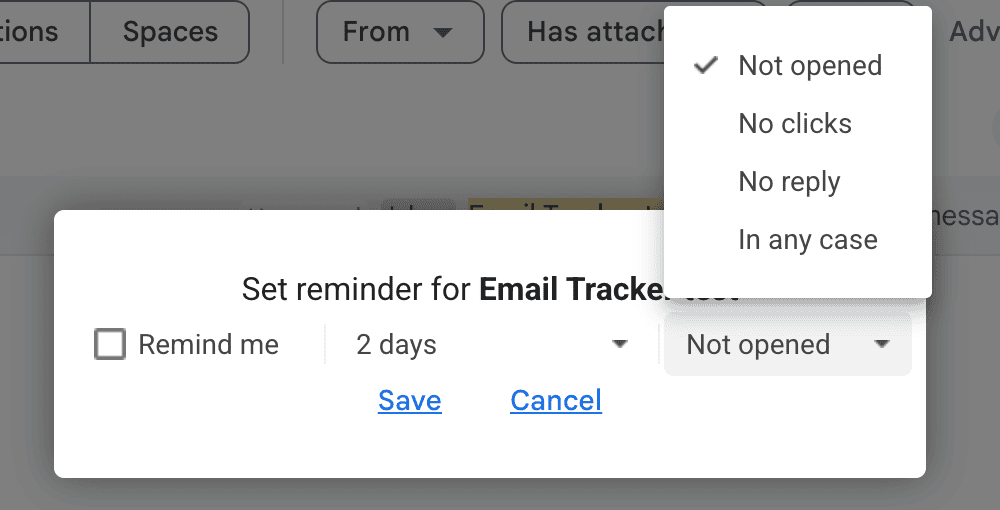
Choose one of these conditions:
- Not opened reminds you if the email was not opened
- No clicks reminds you if no link was clicked
- No reply reminds you if the email got no reply
- In any case reminds you whatever the recipient does
Get summary reports
Email Tracker can email you a daily or weekly summary of your opens and clicks.
Click the Email Tracker icon in Gmail and select Edit your email report preferences.
You can also hover over Extensions in the top menu of Snov.io, select Gmail Email Tracker, and select Send daily reports or Send weekly reports.
Read this guide for the full steps.



Sorry about that 😢
How can we improve it?