This article explains how to export campaign statistics from Snov.io. You can download a CSV report with statistics for all campaigns or export a visual PNG report for a specific campaign.
To export recipient lists and engagement reports for specific campaigns, refer to this article.

Data export is available with premium plans. Upgrade your plan in account settings to access the export feature.
Export statistics for all campaigns
On the All campaigns page, you can download a CSV file with statistics for all campaigns in your account. By default, the export includes campaigns of all statuses, including archived campaigns.
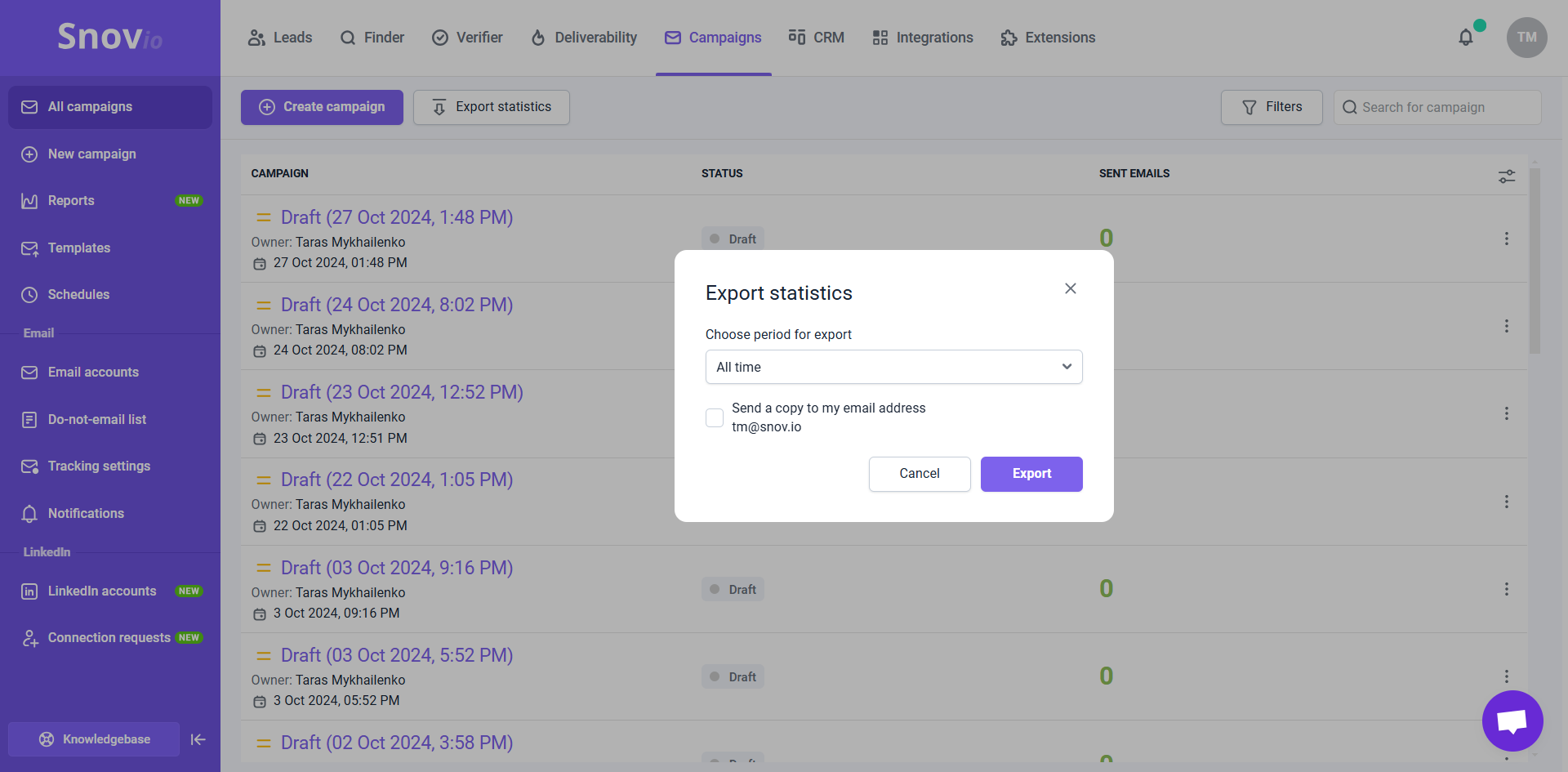
To download campaign statistics, click Export statistics at the top. In the pop-up window, select a time period for the export: from Today to All time, or a custom period.

The time period for export refers to when the activities occurred, not when the campaign was created.
The export file will automatically download to your computer in CSV format. You can find it in your default Downloads folder.
Export campaign statistics as a PNG
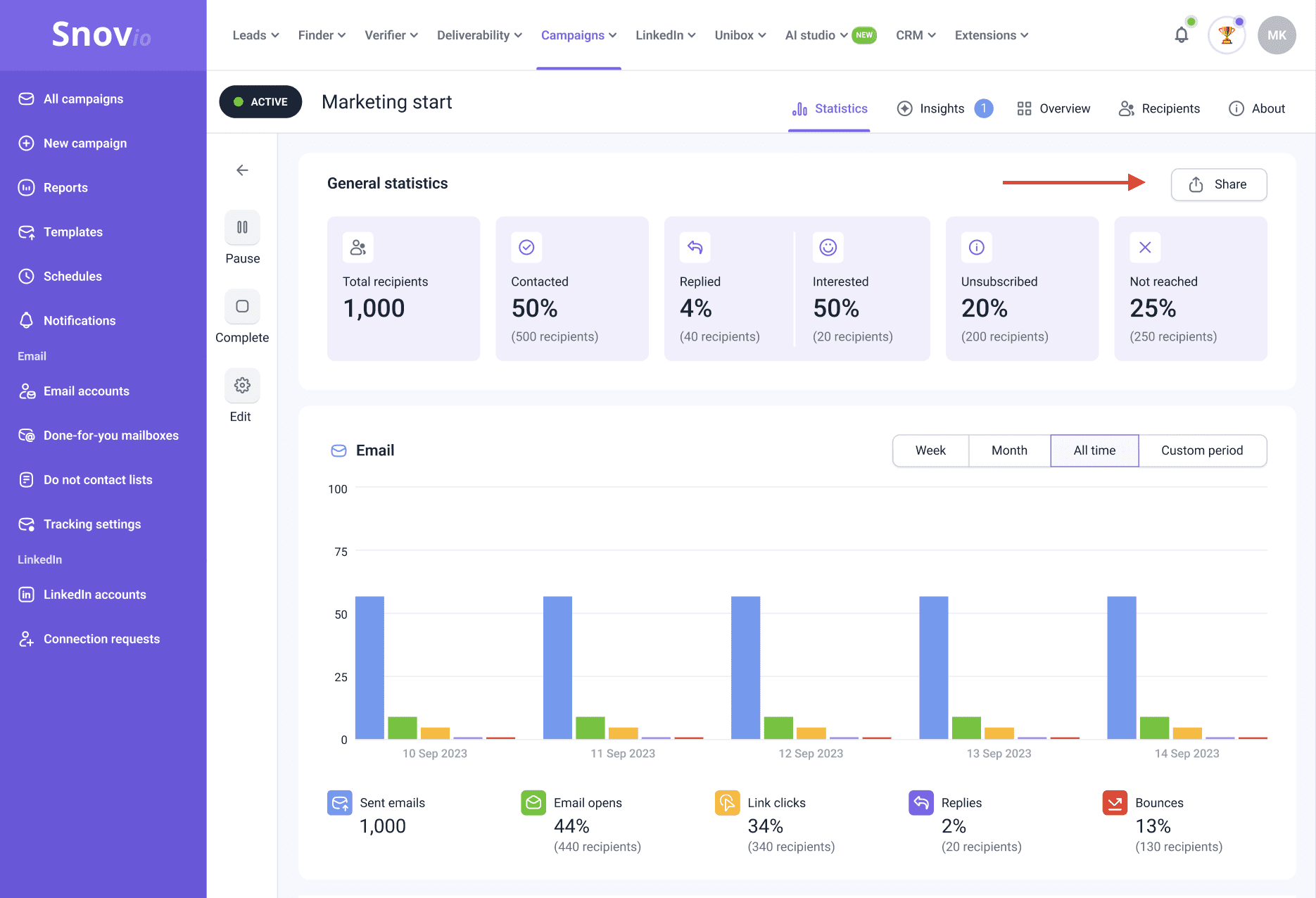
You can export a visual report for a specific campaign to present data to clients, share performance with teammates, or highlight results on social media.
To export a campaign report as a PNG:
Go to Campaigns and open the campaign you want to review. In the Statistics tab, click Share in the top-right corner.
The PNG report includes your key outreach metrics: Contacted, Replied, Interested, and charts showing outreach volume over time for email and LinkedIn.
Filter campaigns
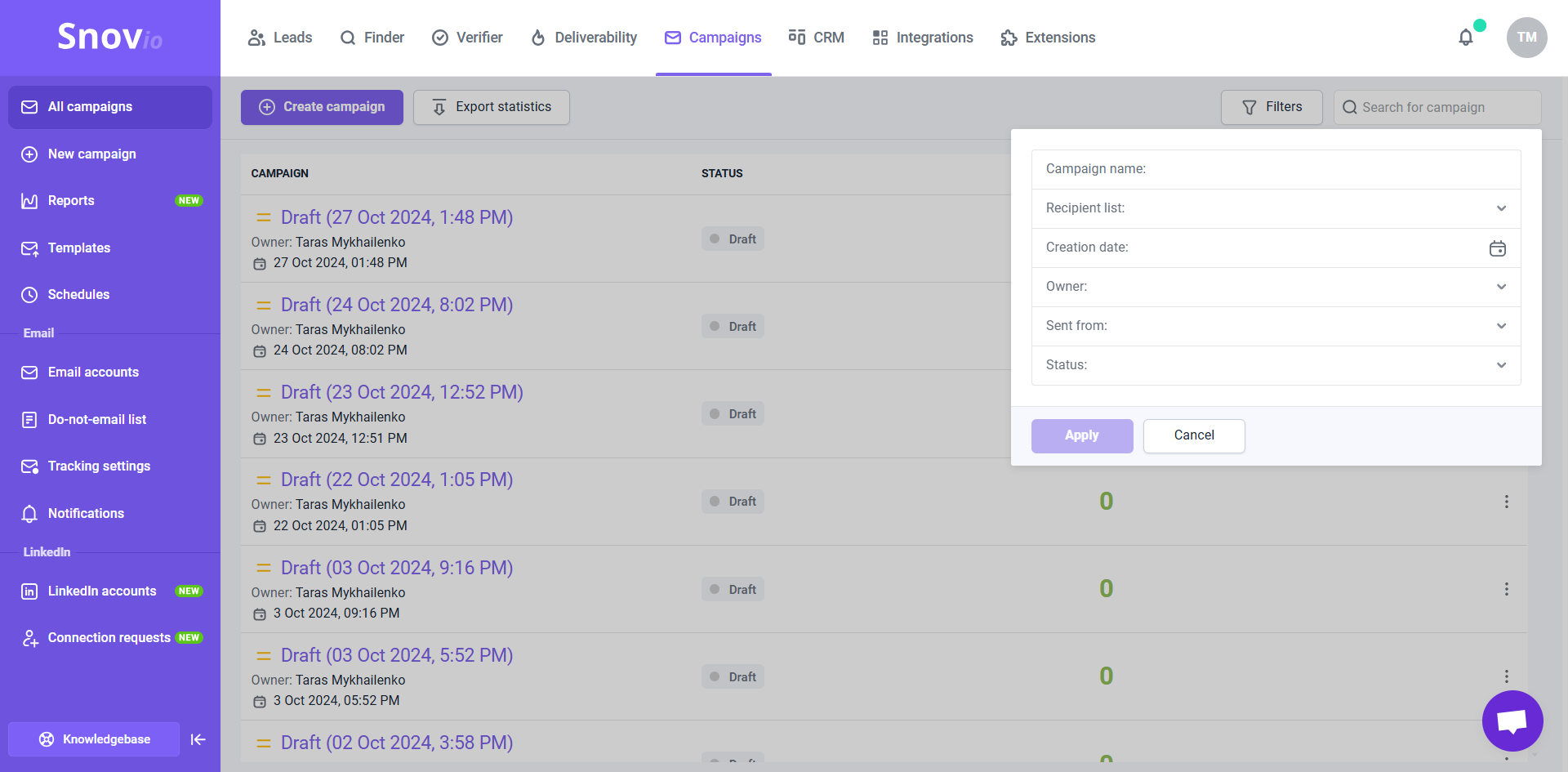
You can customize which campaigns are included in the CSV export by applying filters to the campaign list. Use the Filters menu in the top-right corner.
For example, add a Status filter to include only campaigns with a certain status. The export will only contain data for the campaigns visible in the list based on your selected filters.
Data and metrics included in the report
The CSV report includes general details, such as campaign status, sender accounts, owner, and all engagement metrics tracked for each campaign separately.

The export file includes statistics for both channels: Email and LinkedIn automation.
If a metric has no data because tracking was disabled or there was no recipient activity during the selected time period, it will still appear in the file with zero values.
The statistics for the Email channel are:
- Total recipients: The total number of prospects added to the campaign.
- Contacted: The number and percentage of unique recipients who received at least one email.
- Emails sent: The total number of emails sent to prospects.
- Email opens: The number and percentage of recipients who opened the email at least once.
- Email clicks: The number and percentage of recipients who clicked a link in your emails at least once.
- Email replies: The number and percentage of recipients who replied to at least one email sent during the selected period.
- Unsubscribed: The number and percentage of recipients who unsubscribed from your campaign.
- Bounced: The number and percentage of recipients who didn’t receive at least one email due to a delivery error.
- Auto-reply: The number and percentage of recipients who replied with an auto-reply to at least one email.
For the LinkedIn channel, the statistics include:
To get statistics for LinkedIn activities, add LinkedIn actions to your sequence. Enable a LinkedIn slot in your account settings to use LinkedIn automation.
- Profile views: The number of prospects’ profiles visited.
- Post likes: The total number of prospects’ posts liked on LinkedIn.
- Connection requests: The number of connection requests sent to prospects.
- Accepted requests: The number and percentage of recipients who accepted your connection request.
- Messages sent: The number of messages sent to prospects on LinkedIn.
- Message replies: The number and percentage of recipients who replied to your LinkedIn messages at least once.
You can also access campaign statistics on the Reports dashboard. It allows you to view overall analytics for your account and export CSV reports with recipient data.
Have more questions? Feel free to contact our support team via live chat or at help@snov.io.



Sorry about that 😢
How can we improve it?