Quickly select and update multiple campaigns. This guide shows how to use bulk actions and which actions you can apply to multiple campaigns to make changes more efficiently.
Overview
Quick actions give you a faster way to manage campaigns in Snov.io. Perform regular and repetitive tasks in bulk (with multiple campaigns at once).
With bulk actions, handle routine tasks with your campaigns more easily, such as when you need to update campaign statuses, clean up completed campaigns, or make changes across a large number of campaigns.
How to use quick actions
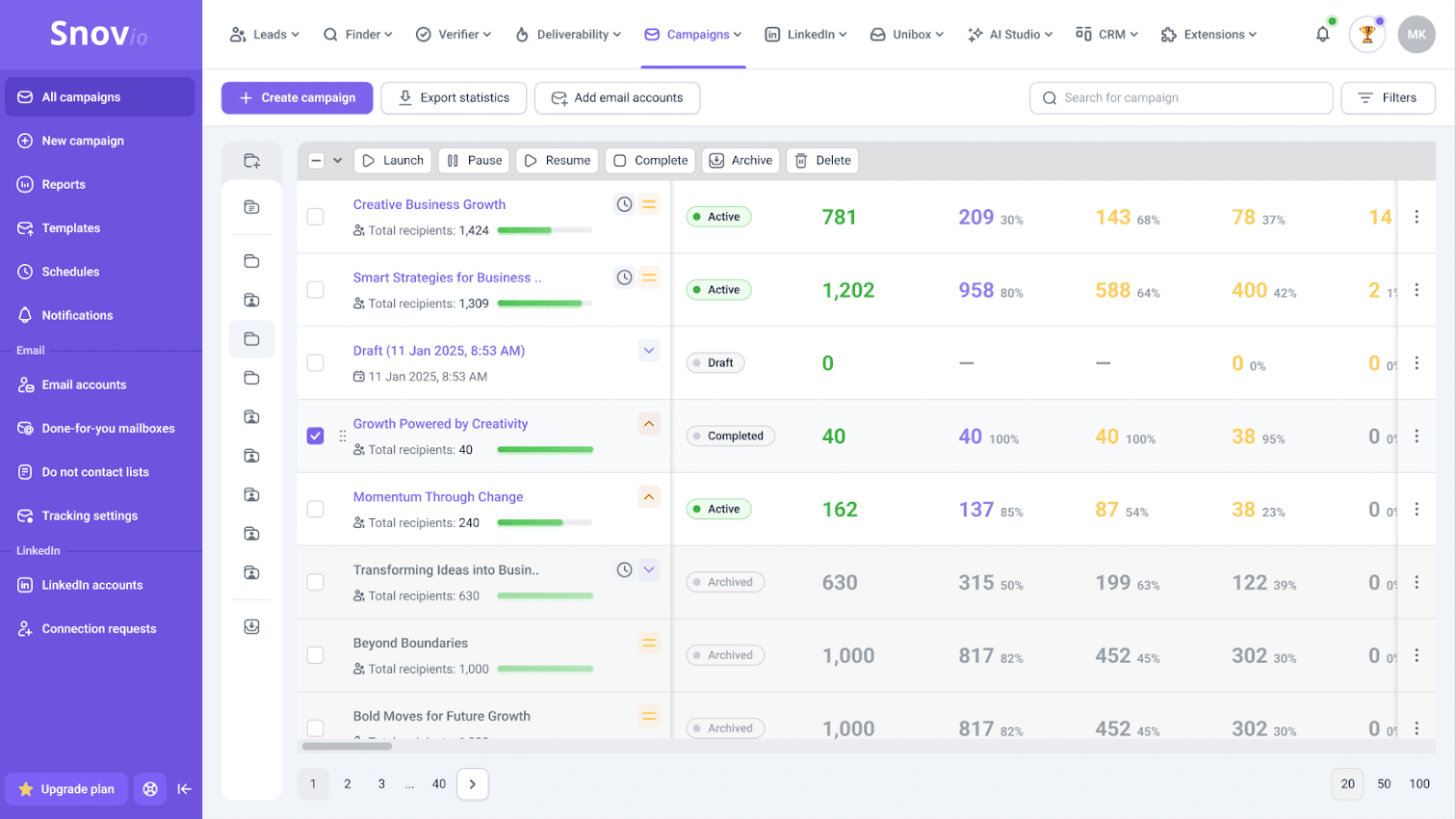
To manage campaigns with quick actions, select one or more campaigns in the Campaigns list, then use the top bar to apply the action you need. Available actions depend on the current campaign status.
Select campaigns
Go to the Campaigns list in your account.
Select the campaigns you need using the checkbox on the right of each row to see quick actions.
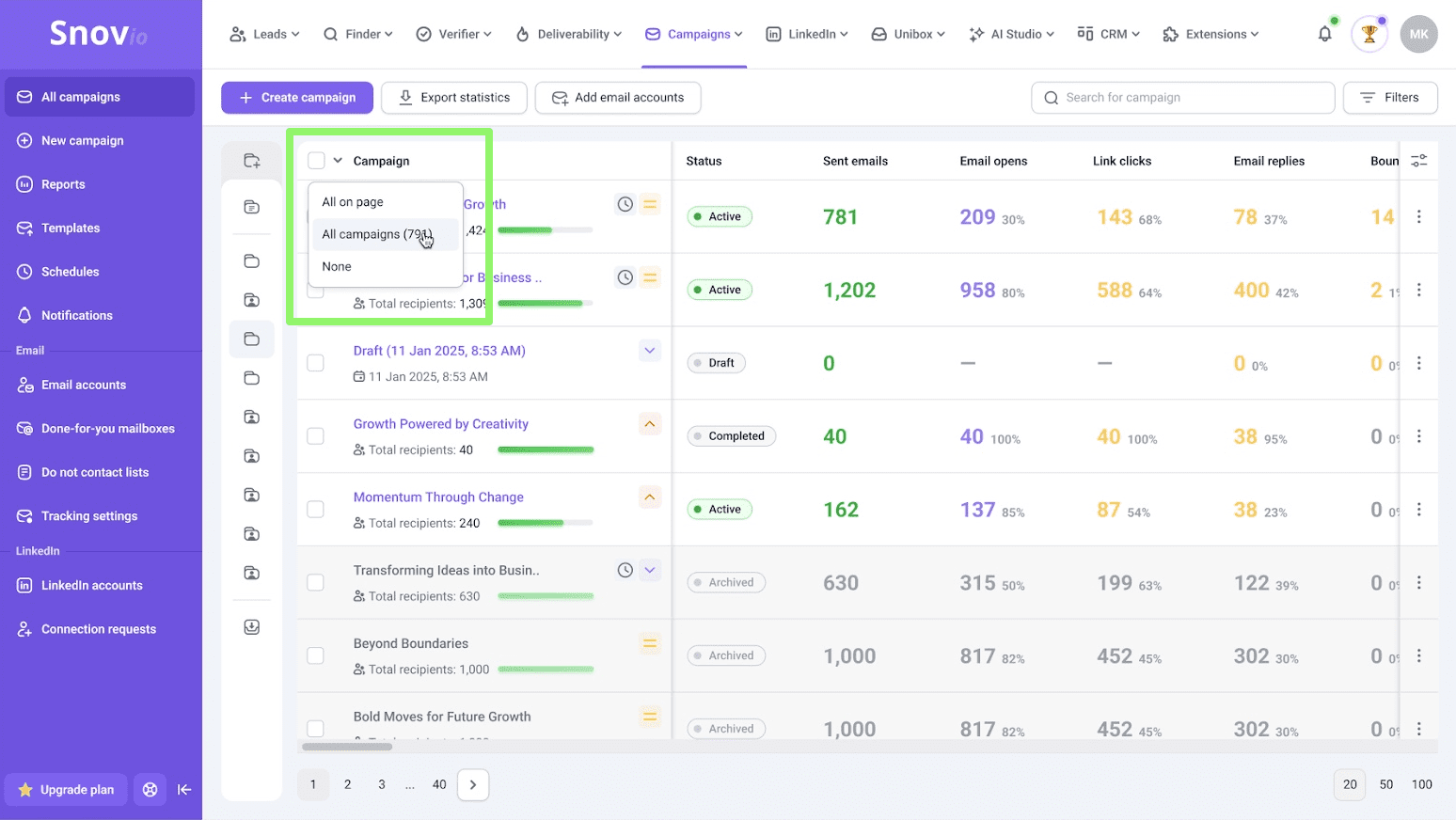
To select multiple campaigns at once, use the option in the top right corner. You can select all campaigns on the current page (up to 25) or all campaigns in your account.
Select action
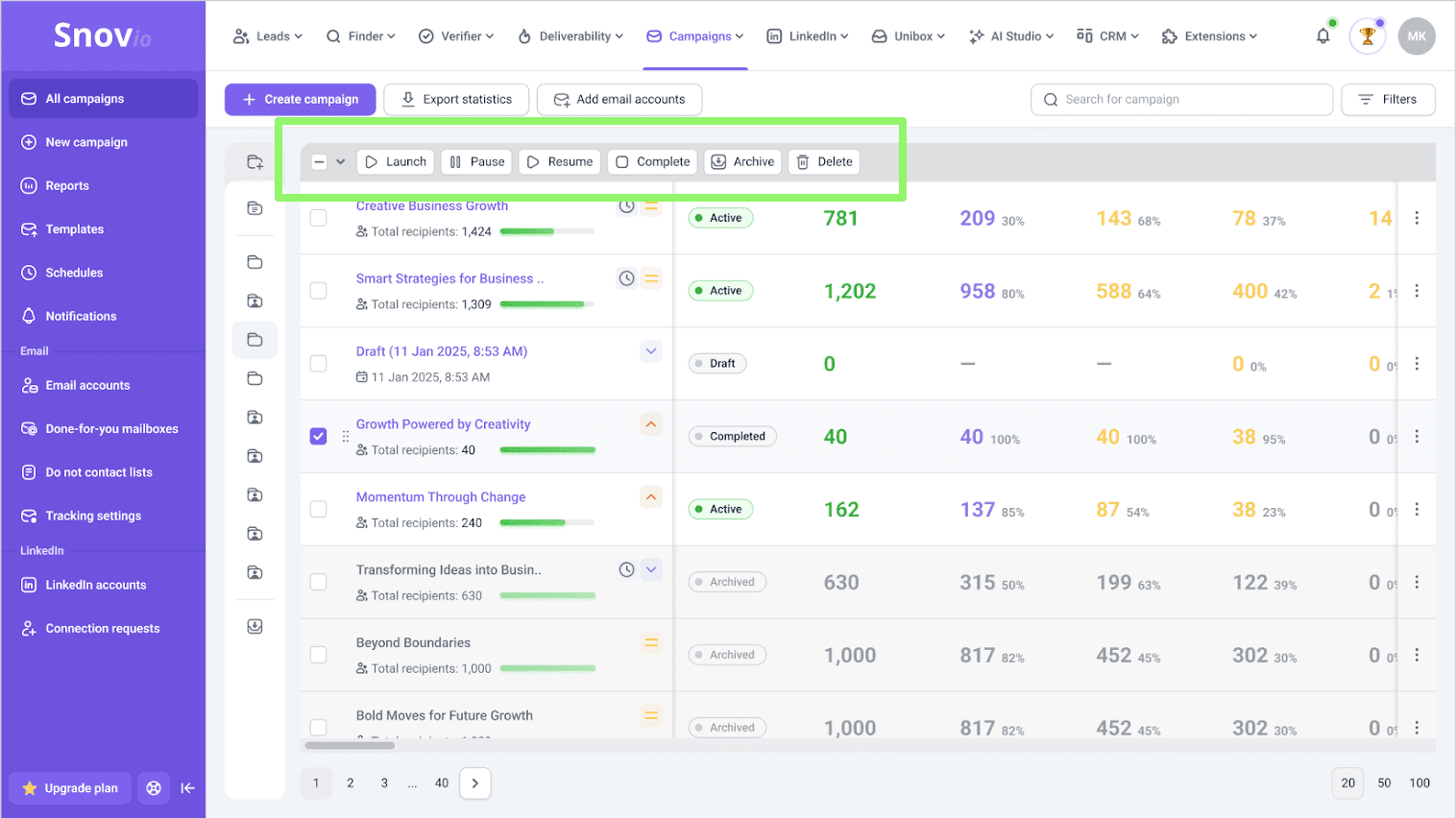
After you select campaigns, the quick actions appear at the top.
Here are the actions you can do in bulk: Launch, Pause, Resume, Complete, Archive and Delete.
Why some actions are inactive
If an action is grayed out on your quick actions menu, it means it isn’t available for any of the selected campaigns based on their current status.
For example:
- Paused campaigns can’t be deleted. Complete them first
- Archived or Completed campaigns can’t be resumed
- Active campaigns can’t be archived. Complete them first
Why some actions may not be completed
For some selected campaigns, certain actions may not be available. This happens because each campaign status supports specific quick actions, and some actions only work for certain statuses.
A quick action will be completed only if the current campaign status allows it. If the action can’t be applied to some selected campaigns, those campaigns will be skipped.
Quick actions list
See what exactly each action does and the campaign statuses it applies to.
- Launch: Starts the selected campaigns. Available for campaigns with the Draft status
- Pause: Stops the selected campaigns. Available for campaigns with the Active status
- Resume: Restarts the selected campaigns. Available for campaigns with the Paused status. Campaigns with errors cannot be resumed. Check the notifications at the top to see what needs to be fixed
- Complete: Permanently stops the selected campaigns. Available for campaigns with the Active or Paused status
- Archive: Removes the selected campaigns from the main campaign list. You can still find them using the Archived filter. Available for campaigns with the Completed status
- Delete: Permanently removes campaigns from your account. Available for campaigns with the Draft or Completed status
Note: Irreversible actions
Use bulk actions carefully, as some of them can’t be undone. After you select an action, a confirmation pop-up will appear. Review it carefully to understand how the action will affect your campaigns.
- Complete: the selected campaigns will be permanently stopped and can’t be reactivated
- Delete: the selected campaigns will be permanently removed from your account and can’t be recovered
How to use one-time actions
Some additional useful actions can be done for one campaign only. The actions you can do depend on the campaign’s current status.
One-time actions list
Click the three dots next to the campaign to see the actions menu.
- Rename: Change the campaign name
- Edit: Pause the campaign and make changes to its sequence, content, schedule, tracking settings
- Copy: Create a duplicate of the campaign with the same sequence, content, and settings. To launch the copied campaign, you’ll need to select a prospect list and sender accounts
- Save as template: Save the campaign to your templates so you can reuse it later
- Move to folder: Add the campaign to a folder


Sorry about that 😢
How can we improve it?