This guide walks through the full outreach workflow in Snov.io: setting up your sender infrastructure, building and sending sequences, managing replies, and moving qualified leads into your pipeline.
Cold outreach works when the setup is right. You need the right prospects, messages that speak to real pain points, and a consistent process for following up and prioritizing engaged leads.
Here's what you can do with Snov.io:
Create and manage a sending setup
A reliable sending setup keeps your outreach out of spam and your pipeline moving. Set it up right from the start, and you avoid the deliverability issues that kill reply rates later.
Connect your existing mailboxes, or get pre-configured accounts and skip the technical setup.
Go to Email Accounts, click Add email account, and choose your flow.
Connect existing accounts
Connect mailboxes from any provider:
- Google Workspace or Microsoft Outlook: sign in directly through the API
- Any other provider: connect through SMTP or IMAP
Features that save setup time and protect deliverability:
- Domain Health checker: see right away whether your domain is set up correctly and ready for outreach
- Custom tracking domain: track opens and clicks without hurting deliverability or triggering spam filters
- Bulk account import via CSV: connect multiple sender accounts at once instead of adding them one by one
- Account tags and filters: group sender accounts by team, campaign, or region, and run bulk actions on selected accounts
Buy done-for-you mailboxes
If you don't have outreach domains set up yet, skip the technical configuration entirely. Buy domains directly in Snov.io and get sender accounts that are ready to warm up and send.
- Domains come with SPF, DKIM, DMARC, and a custom tracking domain already configured
- Snov.io uses Google Workspace as the provider for stability and high deliverability
- Create multiple accounts in bulk so you can scale your sending infrastructure without manual work
Which path to choose
- Connect existing if you already own domains and mailboxes: verify health and start sending
- Buy done-for-you if you're starting from scratch and want everything pre-configured with zero technical setup
Improve sender reputation and deliverability
Send from accounts that aren't ready, and your deliverability is at risk. Warm up multiple accounts at once to prepare for outreach or maintain sender reputation during a campaign.
To add accounts to warm-up, go to Email Accounts, select the mailboxes, then click Start warm-up.
Features you'll find useful:
- Quick warm-up launch: start with an optimal preset in one click
- Premium sender pool: warm up using business domains only
- Specific provider warm-up: improve placement on Google, Outlook, and other providers
- API methods: manage account warm-up automatically
Define ICPs and research pain points
Relevance beats volume every time. Defining your customer profile focuses outreach on prospects who have a real need your offer can address.
Open Products & ICPs. Describe what your company does, what you sell, and the problem it solves. Snov.io suggests buyer personas likely to fit your solution.
Beyond job title, industry, company size, and location, research pain points and work priorities for each persona. Use these details to decide which segments to target first, and shape your messaging and value proposition around them.
Research companies and find decision-makers
Don't waste outreach on companies that don't fit. Domain Search lets you qualify a company against your ICP and pull the right contacts in the same workflow.
How it works
- Look up the company. Go to Finder → Domain Search and enter a domain or company name.
- Qualify in seconds. The Overview tab shows industry, size, description, employee count, and LinkedIn followers. That's everything you need to confirm the company matches your ICP before you spend a credit.
- Save the company. Click Save company to add it to your Companies list. You can export company data (name, website, industry, location, size, HQ phone) as a CSV anytime, or use saved company names as input for Bulk Domain Search and AI Prospect Search later.
- Find the right people. Switch to the Prospects tab to see everyone at the company with their role and LinkedIn profile link. Use the position search to filter by job title. Enter multiple titles at once (for example, "VP Sales" and "Sales Director") to surface decision-makers fast.
- Collect contacts. Save prospects one by one or in bulk (20 per page). Each saved prospect costs 1 credit and comes with a verified email. If you want every email on the domain, check the All Domain Emails tab. For general inboxes like info@ or support@, use the Generic Contacts tab.
Make your first touch relevant
Before you write, check the company's quick links to LinkedIn and Crunchbase right from the profile. Look for trigger events such as recent funding, leadership changes, product launches, or growth signals, and use that context to shape a value proposition that speaks to what's happening at the company right now.

Pro tip: Visit a prospect's LinkedIn profile directly from the Prospects tab to find a recent post or promotion. A new role often means new budget and new priorities. That's the perfect time to reach out.
Collect a targeted lead list
Use your ICP details to build a list of prospects who match your target profile. The more precise your list, the higher your reply rate. You're reaching people who are likely to need what you sell.
In Snov.io's Finder tools, you can find leads with email addresses and LinkedIn URLs, so you can reach them through both channels in the same campaign.
How to build your list
- Open Finder → Database Search.
- Enter your ICP filters: industry, company size, job title, location, and any other criteria that match your buyer persona.
- Use AI Search to describe your ideal prospect in plain text if filters feel too narrow or you want to test a new segment.
- Apply the Management level and Department filters to target decision-makers and avoid wasting outreach on contacts who can't move deals forward.
- Set a Prospects-per-company limit to control how many contacts from the same company enter a campaign. This keeps you from oversaturating one account and damaging the relationship.
- Review results and click Add to list to save prospects to a new or existing list.
- Verify emails before launching your campaign.
Features that help you build a precise list:
- AI Search: describe your ideal prospect in plain text and let Snov.io find matching profiles
- Management level filter: target decision-makers and avoid wasting outreach on contacts who can't move deals forward
- Department filter: narrow your list by function or team to stay relevant to a specific buyer persona
- Prospects-per-company limit: control how many contacts from the same company enter a campaign, so you don't oversaturate one account
Verify imported prospects
A list captured from forms, events, or third-party sources often contains invalid or risky emails that will bounce. One bad batch can damage your sender reputation for weeks. Verify your list before every campaign launch. It protects your deliverability and makes sure you're reaching real people.
How to verify
Upload your CSV to the Bulk Email Verifier and let Snov.io check every address before it enters a campaign.
What the results mean
- Valid: the email is safe to send. Add these contacts to your campaign
- Invalid: the email doesn't exist or is malformed. Remove these immediately to protect your reputation
- Catch-all: the domain accepts all emails, but the specific inbox may not exist. Use these for low-volume, high-value outreach only
- Unverifiable: the server blocked the check, so the risk is unknown. Exclude these from bulk campaigns and use them sparingly
Protect your deliverability
- Email status filters: segment valid prospects and exclude risky addresses in one click
- Risk detection: remove unverifiable contacts that could hurt your sender reputation
Speed up email writing with AI
Writing templates for every segment from scratch eats into selling time. Use AI to generate first drafts that are already relevant to your target persona, so you launch faster.
How it works
In Snov.io, you can generate email drafts using your ICP profiles as input. If your list includes different roles or seniority levels, create a personalized draft for each persona.
- Open AI Studio.
- Select an ICP profile as your input. The AI grounds its suggestions in that persona's pain points and priorities.
- Generate a draft with messaging angles tailored to that segment.
- Rewrite with formulas and styles to adjust tone, length, and structure automatically based on your email goal.
- Save the best version as a template and add it directly to a campaign step.
Features that speed up your workflow:
- ICP-based selling points: generate messaging angles grounded in your prospect's pain points
- Rewrite with formulas and styles: adjust tone, length, and structure automatically based on your email goal
Pro tip: If your list has multiple personas, create one template per segment to send the right message.
Make sure emails get into the inbox
Test your accounts to confirm sender health and see how your emails place on different providers. Optimize your copy for deliverability before you send it to real prospects.
Run your first test in the Deliverability check and review the results.
Features you'll find useful:
- A quick test: send to multiple recipients or run a campaign simulation
- Domain Health checker: confirm whether your sender health is affecting performance
- Custom email copy test: check how your real template is delivered
- Spam word checker: catch wording that may hurt inbox placement
- Blacklist checker: scan your sending domain or IP against known blocklists
Reach leads through multichannel sequences
Snov.io sequences combine email and LinkedIn actions into one flow, so you can follow up and nurture leads across both channels without extra manual work.
When you add new leads to your campaign list, the sequence picks them up and keeps your pipeline moving.
In Campaigns, click Create a campaign. Use the sequence builder, or start with one of the templates, and build a flow scheduled to reach people at the right time.
Features you'll find useful:
- A/B tests: send tested versions to your prospects and find the winning copy
- Schedule presets: match your leads' time zone
- Conditions: branch the follow-up flow based on prospect behavior and switch to the right channel
- Provider matching: send through the same provider ecosystem for better inbox placement
- Mailbox rotation: distribute your growing volume safely
- Sending priority: prioritize new leads or follow-ups
- Campaign templates: launch a prebuilt sequence or reuse a setup that's worked before
Manage replies across multiple accounts
Replies from multiple sender accounts are easy to miss or delay. Keep all conversations in one place so no warm lead goes unanswered.
Open Unibox to review, prioritize, and follow up with leads directly.
Features you'll find useful:
- Leads only filter: view only conversations with Snov.io prospects
- Starred folder: keep priority follow-ups visible in Unibox
- Channel filters: review only email or only LinkedIn conversations
Identify and export your warmest prospects
The faster you can spot who's worth following up with, the more time you have for conversations that move deals forward.
Snov.io tracks engagement and analyzes replies so you can prioritize warm prospects within a specific campaign or across all campaigns at once.
- Interest level: interested, neutral, or not interested
- Email opens: how many times a prospect viewed your email
- Link clicks: whether they clicked any links in the sequence
- Campaign goal: whether they reached a certain step without replying
To filter and export prospects, use the Recipients tab in campaigns or the Reports dashboard.
Move qualified leads and keep data in sync
Copying records between tools by hand wastes time and loses context, and warm leads don't wait. Push qualified prospects to your CRM automatically, so they move forward while the conversation is still fresh.
Set up data sync in Integrations. If your team works in HubSpot or Pipedrive, Snov.io supports native integrations with both.
Features that keep your pipeline moving:
- One-way or two-way sync: control how data moves between Snov.io and your CRM based on your team's workflow
- Custom field mapping: keep lead data aligned across systems without manual cleanup
- Deal creation automations: automatically push engaged prospects into the pipeline based on their actions in the sequence. For example, create a deal when a prospect is marked Interested, replies to your email, or reaches a specific campaign goal step
Scale based on metrics & share stats
Scale too fast, and you can damage your sending infrastructure. Scale too slow, and you lose momentum. After launch, check campaign results regularly, and use reply rate and bounce rate as your primary signals before you increase volume.
Use the Campaigns page for a quick overview, or open a campaign to see the detailed Statistics dashboard.
You can't scale what you don't measure. Whether you're optimizing your own sequences or reporting pipeline progress to a manager or client, you need clear visibility into what's working, and a fast way to share it.
Two ways to check your progress
- Campaign Statistics: look at one active campaign in detail. See email and LinkedIn performance side by side, spot which sequence step is driving replies, and grab a shareable snapshot in one click
- Reports dashboard: get the full picture across all campaigns and sender accounts. As your outreach scales, per-campaign stats aren't enough. You need to see total volume, deliverability, and engagement in one place to know where to double down and where to fix leaks
- Weekly and monthly trends: compare performance over time to spot what's working and when to scale
Share reports as PNG
You don't need to screenshot dashboards or build slides from scratch.
- Open the Statistics tab on any active campaign, or go to the Reports dashboard.
- Click Share.
- Download a ready-made PNG report with your key metrics.
Use it in team standups, client updates, or quarterly reviews. The visual report covers both email and LinkedIn channels at a glance.
Turn data into decisions
- Contacted & Interested metrics: quickly see whether your messaging and targeting are resonating
- Performance by channel, account, and time period: see which senders, channels, and campaigns are driving the most replies, and reallocate volume to what's working instead of guessing
- Engagement stage filters and export: pull prospects at any stage of engagement (opened, clicked, replied, interested) and move them into the right follow-up workflow, or hand them off to sales
Pro tip: Export your warmest prospects directly from the Reports dashboard and push them into your CRM or a dedicated nurture sequence. The report tells you what's working; the export lets you act on it immediately.
Increase touchpoints through LinkedIn
Most prospects won't reply to your first email. That's normal in cold outreach. Add LinkedIn touchpoints between your email steps to stay visible and open another way to start a conversation before you follow up again.
Activate LinkedIn Automation in LinkedIn Accounts and connect your profile. Then open Campaigns, create a campaign, and add LinkedIn actions to your sequence.
Features that make LinkedIn outreach safer and more effective:
- Built-in safety limits: stay within LinkedIn's daily action limits to protect your profile
- Warm-up mode: gradually ramp up connection requests so your profile doesn't get flagged
- Location-based proxy: match automation activity with your regular working location to avoid suspicious activity
- LinkedIn rotation: distribute outreach volume across multiple profiles to scale without overloading one account
- Variables and dynamic content: personalize connection requests and messages at scale without writing each one manually
Enrich prospects before outreach
Job title and industry alone will not give you enough to work with. Lead enrichment in Snov.io adds the detail you need to know a prospect better, so you can reference it in your value proposition and messaging.
To enrich a list, go to your Prospects, open the list, and click Enrich & AI tools.
- Find emails or phone numbers via our data partners
- Pull a prospect's LinkedIn or get a full company profile from our database
- Use AI enrichments to find deeper insights and qualify on existing data
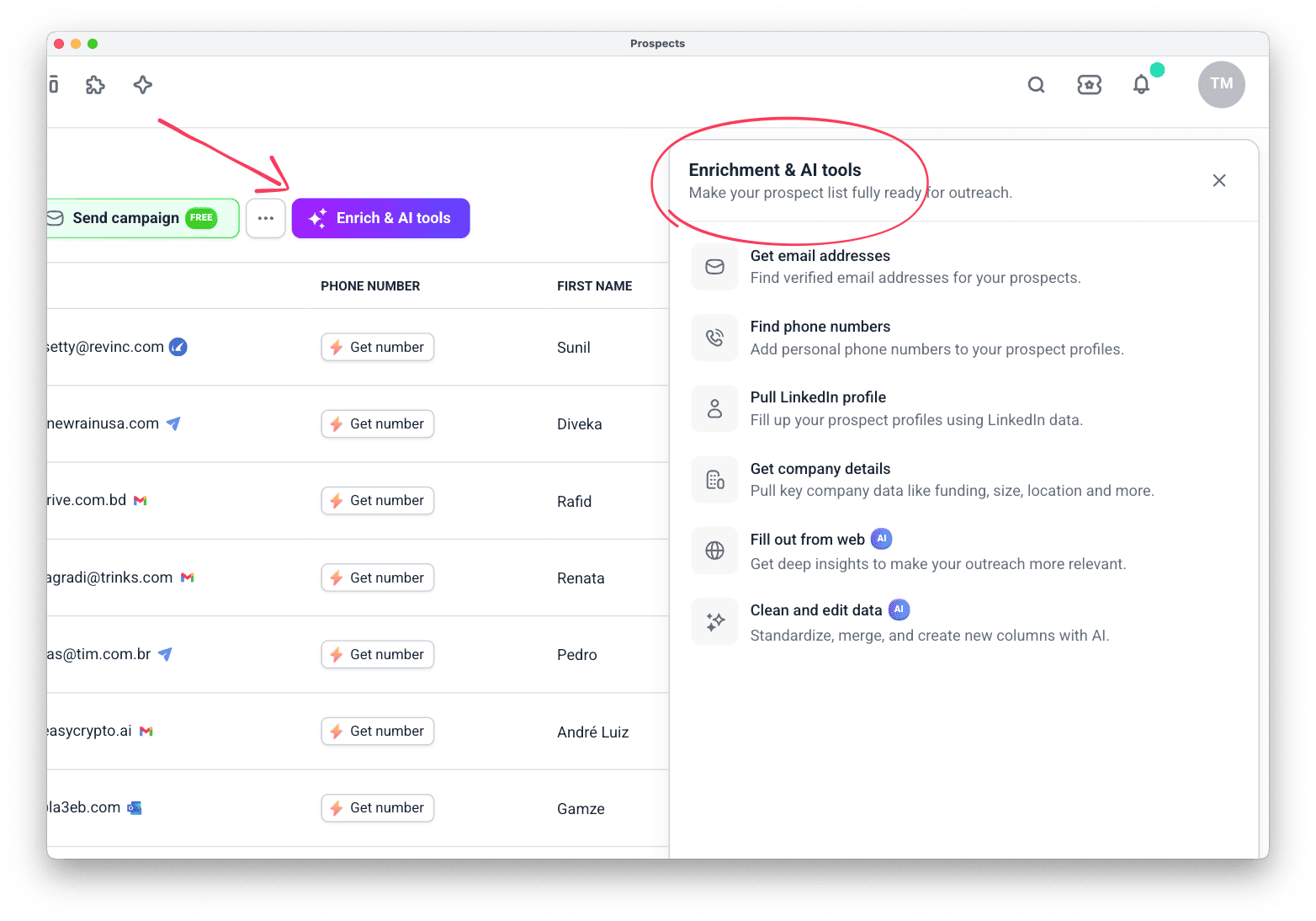
See all the data points you can pull in our enrichment tools. You can combine tools into workflows, like the one below.
Qualify prospects on pain point
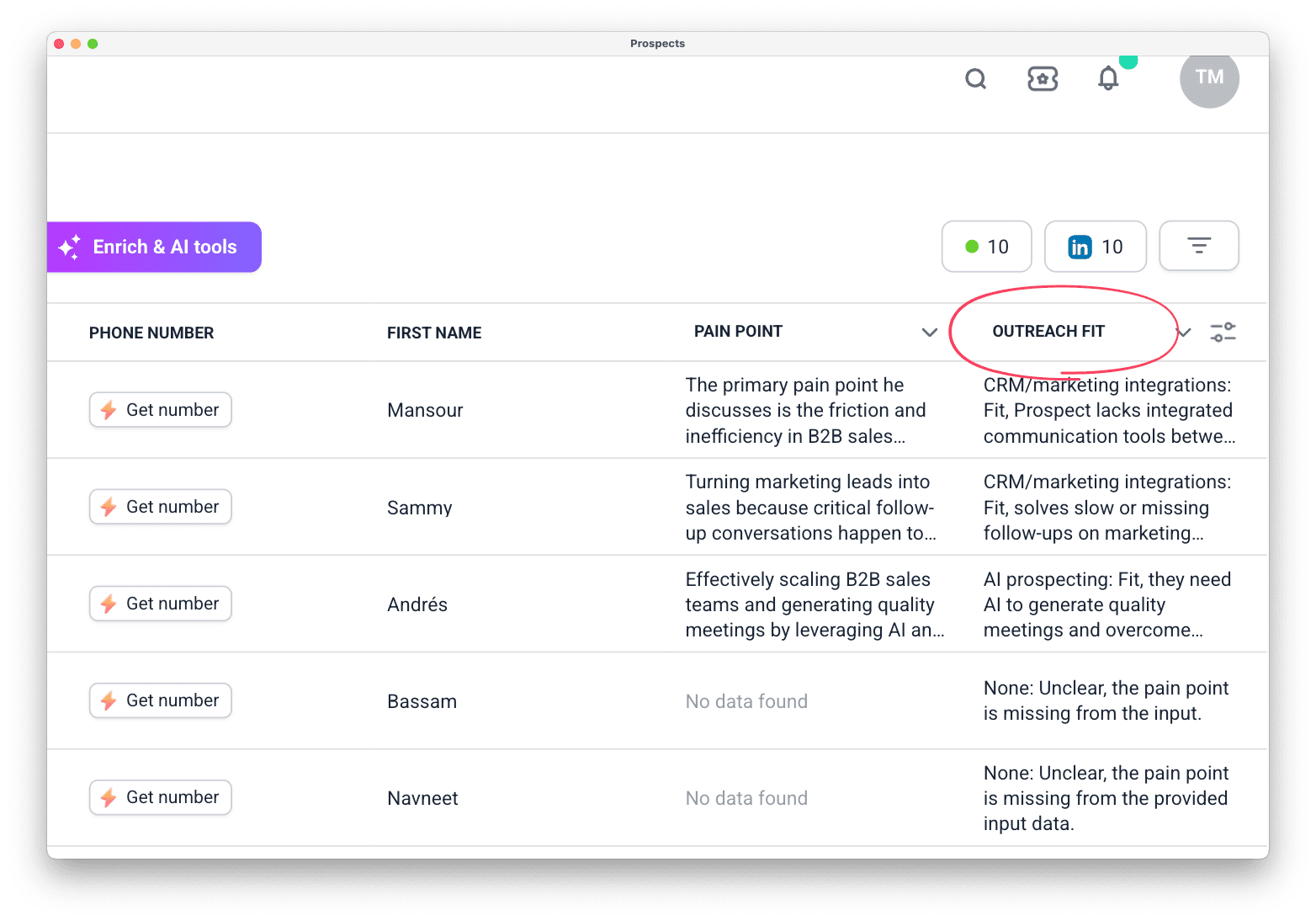
This workflow uses two AI agent prompts. The first finds a problem each prospect has mentioned. The second checks whether your offer can fix it. You end up with a prioritized list, a reason to reach out, and a detail for your icebreaker.
Start from your prospect list. Use Fill out from web to find the pain point, then Clean and edit to check it against your product.
Add phone to your outreach
Email and LinkedIn will only get you so far. Most prospects won't reply on the first touch, or the third. When a prospect opens your emails but stays silent, a call is often the nudge that moves them from "aware" to "interested."
When to pick up the phone
- A prospect has opened your email multiple times but hasn't replied
- A deal is stuck in a sequence and needs a human touch to move forward
- Your ICP responds better to calls (enterprise, high-ACV, or relationship-driven buyers)
- You need to reach a decision-maker quickly and email is too slow
How it works
Snov.io finds direct phone numbers for decision-makers using the same enrichment engine. It works whether you found the prospect in Snov.io or imported them from a file.
- Open your prospect list.
- Select the contacts you want to call.
- Click Enrich → Find phone numbers (or click Get number next to an individual prospect).
- Numbers appear in the Phone Number column and in each prospect's profile.
What you need to know
- Tokens are only deducted when a number is successfully found. No result, no charge
- Export your enriched list or share numbers with teammates who own the follow-up
Quick win: After your first email sequence goes out, filter your list for prospects with high open counts but no replies. Enrich their numbers and add a call step to your playbook. That's your warmest call list. They already know who you are.
Work as a team
Cold outreach at scale is rarely a one-person job. Snov.io gives teams shared tools and data, so reps stay aligned without duplicating work or interfering with each other's campaigns.
Team management
Add team members and control what each member can access and manage. Assign the right level of permissions so reps can run their own campaigns while the team owner retains full visibility across the team.
Invite teammates and set their permissions in Team settings.
Features that support team workflows:
- Team member permissions: control which team members can view shared data
- Shared prospect lists: build and maintain contact lists that the whole team can access and contribute to
- Shared email templates: create a library of proven templates your team can reuse across campaigns
- Shared sender accounts: pool email and LinkedIn accounts across the team to increase total sending volume
- Team-level reporting: track performance across all team members and campaigns from one dashboard
Shared inbox
When multiple reps run campaigns from different sender accounts, replies get scattered and warm leads get missed. Unibox gives your whole team one place to manage every conversation.
Assign replies to specific reps so ownership is clear. Add internal notes to keep context from getting lost between handoffs. Use channel filters to prioritize email or LinkedIn conversations based on urgency.
The Leads only filter keeps non-prospect noise out, and the Starred folder lets reps flag high-priority follow-ups that need attention today.
Automate multichannel outreach via API
The Snov.io web app handles most workflows. But when your team needs to move faster than clicks allow, or connect outreach to your own systems, the Campaigns API takes over.
What you can do
- Build and launch campaigns from code: create email and LinkedIn sequences, assign sender accounts, and set schedules without opening the app. This works well for teams running outreach across hundreds of micro-segments, or for teams integrating prospecting into a custom workflow
- Auto-enroll new leads in real time: add prospects to a recipient list through the API after the campaign is already live. New sign-ups, event attendees, or CRM-qualified leads enter the sequence automatically, with no manual imports and no delays
- React to prospects instantly with webhooks: get real-time notifications when someone replies, accepts a LinkedIn connection, responds to an InMail, or sends an autoreply. Push these events straight to your CRM, Slack, or internal dashboards so your team can follow up while the lead is hot
- Sync everything back to your stack: pull campaign performance, recipient engagement, and reply data into your own analytics tools or reporting layer
The full workflow
- Prepare your infrastructure. Connect and warm up sender accounts, create sending schedules, and set up do-not-contact lists. Some of this happens through the API, some in the app. (Note: Gmail and Microsoft OAuth connections must be set up in the app.)
- Source and verify prospects. Use the Email Finder API to find contacts, the Email Verifier API to clean them, and the Prospect List API to organize them into a list ready for outreach.
- Build the campaign. Create a campaign draft through the API, assign sender accounts and schedules, add your email copy step by step, and configure sending rules. Skip duplicates automatically to protect your sender reputation.
- Launch and control. Start, pause, resume, or close campaigns programmatically. Adjust a single prospect's status mid-sequence if they reply through a different channel or need to be excluded.
- Monitor and optimize. Subscribe to webhooks for real-time events, then pull aggregated analytics to see what's working and where to iterate.
When to use it
- Your team runs high-volume, data-driven outreach and needs to trigger campaigns from your own app or CRM
- You want to reduce manual list management and let prospects flow straight from lead gen into active sequences
- You need tight integration between Snov.io and your internal tools, with real-time sync instead of daily CSV exports
Quick start tip: Even if you manage campaigns in the app, set up webhooks first. Getting real-time reply notifications in your CRM is the fastest way to close the gap between outreach and follow-up.
Automate workflows with n8n or Make
Manual data entry kills momentum. When leads flow in from forms, events, or your CRM, the gap between "new contact" and "first touch" is where deals die. Automation closes that gap.
What you can do
Connect Snov.io to n8n (self-hosted) or Make and build workflows that run in the background while you sell:
- Auto-build lead pipelines: a new row appears in your Google Sheet. Snov.io finds the email, verifies it, enriches the LinkedIn profile, and adds the contact to your outreach list, with no copy and paste required
- Sync contacts with your CRM: push verified leads from Snov.io into HubSpot, Salesforce, or Pipedrive automatically. Keep both systems in sync without manual exports
- Alert your team in real time: send a Slack message when a prospect replies, clicks a link, or reaches a campaign goal. Your team can follow up while the lead is hot
- Feed your dashboards: pull campaign performance data into Notion, Airtable, or a BI tool, so you always know what's working
How it works
The Snov.io node for n8n gives you over 100 actions, from domain search and email finding to prospect enrichment and campaign management. Build your workflow once, and let it run without you.
- Trigger: start from any event, a new form submission, a CRM update, a scheduled time, or a webhook
- Process: use Snov.io actions to find, verify, and enrich contacts. Add condition branches to route leads based on role, company size, or email status
- Route: send clean data to your CRM, spreadsheet, team chat, or back into Snov.io as a campaign-ready list
Getting started
- n8n (self-hosted): Install the Snov.io community node via Settings → Community nodes using the package
n8n-nodes-snovio. Connect your Snov.io API credentials and start building. (Note: the Snov.io node is currently available for self-hosted n8n only. On n8n Cloud, use manually configured API requests.) - Make: Use Snov.io's API modules or HTTP requests to connect Snov.io actions into your Make scenarios visually. No code required
When to use it
- You generate leads from multiple sources such as website forms, events, or ads, and need them cleaned and routed before outreach
- Your team lives in Slack or Teams and needs real-time alerts on prospect engagement
- You want to reduce the manual steps between finding a lead and launching a campaign from hours to minutes
Pro tip: Start with one workflow, for example, "new Typeform submission → find email → verify → add to Snov.io list → notify Slack." Once it runs smoothly, layer in enrichment and CRM sync. Small automations compound fast.
Integrate Snov.io into your AI assistant
Researching prospects, verifying emails, and updating CRM records eats into selling time. The Snov.io MCP integration connects your account directly to AI assistants like Claude, ChatGPT, and Cursor, so you can run lead generation tasks with plain language instead of clicks.
What it means for your workflow
Instead of switching between tabs and tools, ask your AI assistant to:
- Find and save prospects. "Find 50 VPs of Sales at Series B SaaS companies in the US and save them to my 'Q3 Outreach' list."
- Verify and enrich on the spot. "Verify the emails for everyone in my 'Webinar Attendees' list and pull their LinkedIn profiles."
- Manage your pipeline. "Move the deal with Acme Corp to 'Negotiation' and add a follow-up task for Thursday."
- Run LinkedIn outreach. "Send connection requests to everyone in my 'Warm Leads' list with a personalized note about their recent post."
Your AI handles the actions in Snov.io behind the scenes. You review and approve, and you don't need any API knowledge.
What you can automate
Snov.io MCP includes over 100 actions across your entire stack:
- Prospect search and enrichment: database search, domain search, email verification, list management, exports
- CRM: pipeline and deal management, task creation, notes, loss reasons
- LinkedIn: connection requests, messages, profile visits, post engagement, account setup
How to connect it
- Make sure you're logged into your Snov.io account.
- In your AI assistant (for example, Claude Desktop), go to Settings → Connectors → Add custom connector.
- Enter:
- Name:
Snovio MCP - URL:
https://mcp.snov.io/mcp
- Name:
- Click Add, then Connect, and Approve the OAuth access.
- Set tool permissions to match your comfort level. Allow full access for hands-free help, or require approval for actions that spend credits.
Pro tip: Start with read-only tasks like "Show me all prospects in my 'Hot Leads' list who haven't been emailed yet." Once you trust the workflow, let your AI handle saves, verifications, and CRM updates while you focus on the conversation.
Your first week with Snov.io
You now have the full playbook. Here's how to put it into action, in the order that helps you build momentum fast and avoid the mistakes that stall new teams.
Day 1
Lock down your infrastructure. Connect your sender accounts and run a Domain Health checker. If you don't have domains yet, buy done-for-you mailboxes and start warm-up immediately. Do not skip this. Sending from cold accounts is the fastest way to land in spam.
Day 2
Know who you're selling to. Define your ICP in Products & ICPs. Be specific about pain points and priorities. This is the input that powers everything else: list building, AI writing, and personalization.
Day 3
Build your first list. Use Database Search or Domain Search to find 50 to 100 prospects who match your ICP. Set a prospects-per-company limit so you don't oversaturate single accounts.
Day 4
Clean and enrich. Run your list through the Bulk Email Verifier and remove invalid or unverifiable contacts. Then enrich your top 20 prospects. Pull LinkedIn profiles and run AI Web Search to find trigger events you can reference in your copy.
Day 5
Write and launch. Generate your first draft in AI Studio using your ICP profile, save it as a template, and build a short multichannel sequence in Campaigns: email plus one LinkedIn touch. Launch to a small test batch first.
Week 2
Optimize and scale. Review replies in Unibox, sync warm leads to your CRM, and double down on what works. Use the Reports dashboard to compare performance by channel and sender, then increase volume only when your reply rate and bounce rate look healthy.

Want to learn more? Open Snov.io Navigator inside your account for guided support at every step, or reach out to the Snov.io team if you get stuck. The sooner you launch your first campaign, the sooner you learn what resonates.


Sorry about that 😢
How can we improve it?