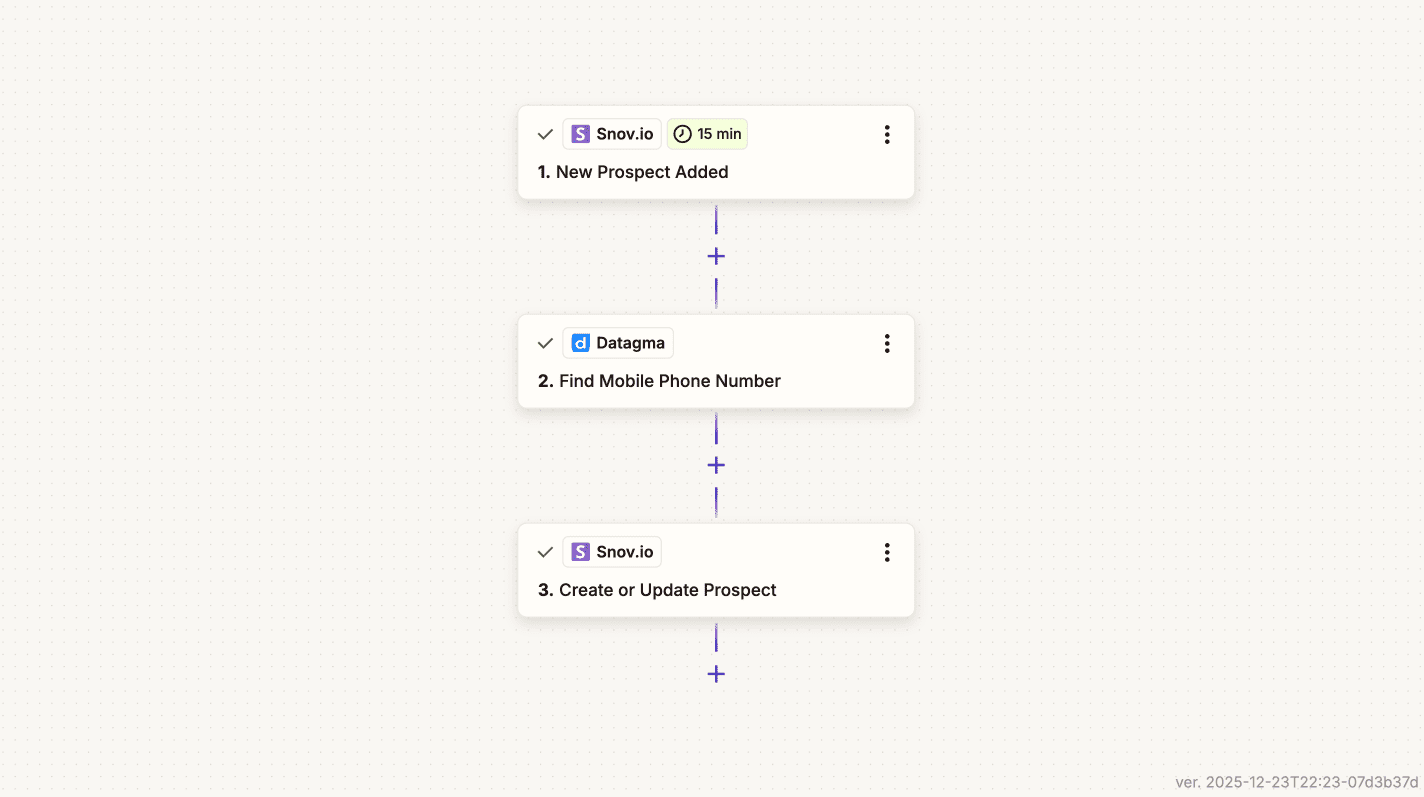
This guide shows how to build a workflow that automatically enriches mobile/direct phone numbers for new prospects added to your Snov.io list.
Before you start
You’ll need:
- A Snov.io premium plan (with API access and integrations)
- A Zapier account
- A data enrichment provider account you’ll use to enrich phone number

After completing this guide, you’ll build the automation that:
Triggers when a new prospect is added to a Snov.io list --> Runs phone enrichment via your selected provider in Zapier --> Updates the prospect in Snov.io with the returned phone number
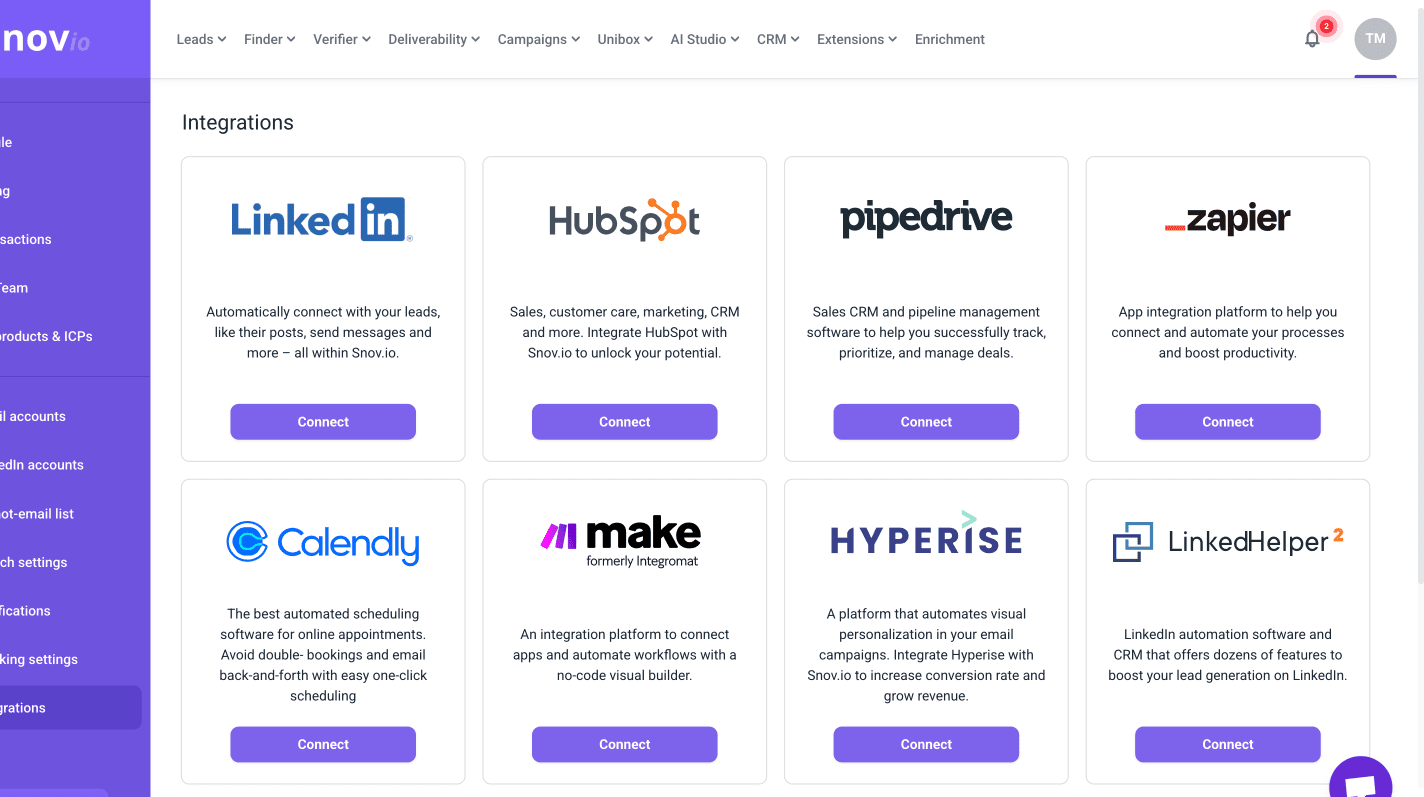
Connect Zapier integration
In Snov.io, go to your Account settings → Integrations, click Connect under Zapier.
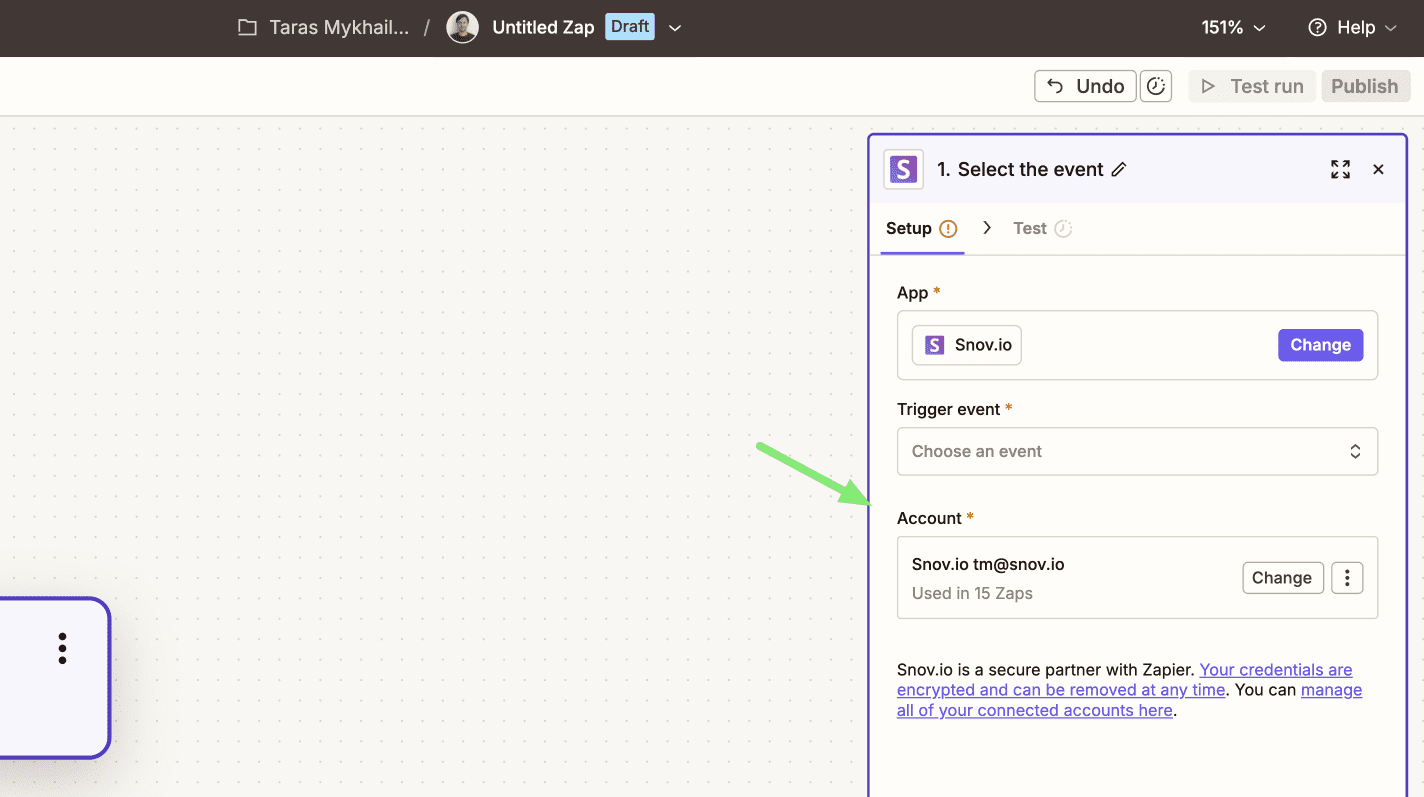
In Zapier (when you’re prompted to create a Zap), create a connection under account.
Paste User ID and API Secret from your Snovio API settings.
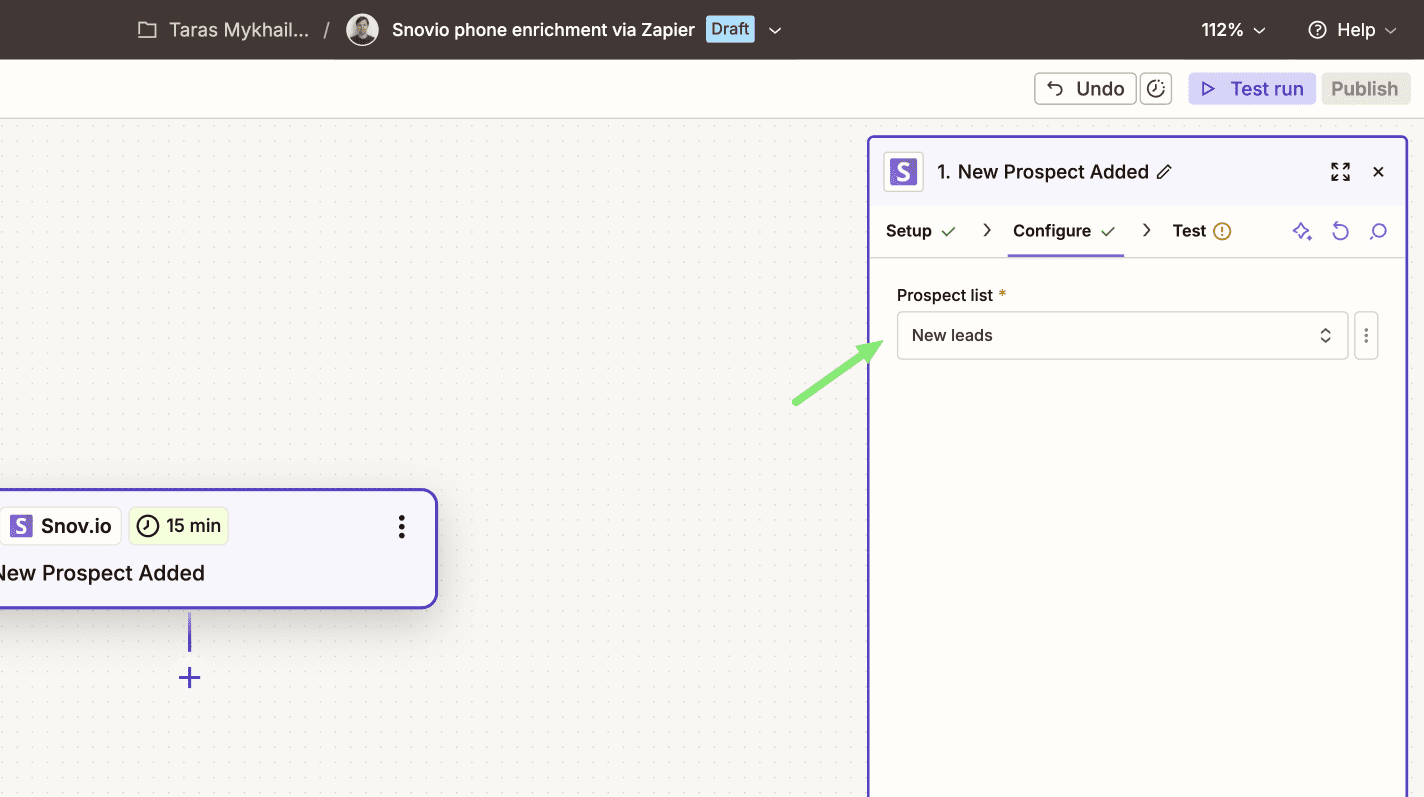
Create the trigger event (new prospect in Snovio)
In the zap editor, add a new step.
- Trigger app: Select Snov.io
- Trigger event: Select event New Prospect Added.
In the next tab, select the prospect list for this integration. All prospects in that list will be sent for enrichment.

Test your trigger
To confirm the trigger is set up correctly, Zapier will pull a few recent prospects from that list in your Snovio account.
Add conditions
This step is optional. Add it if you want your zap to continue only if your conditions are met.
To do this, add a new step and choose Filter (a default Zapier action).

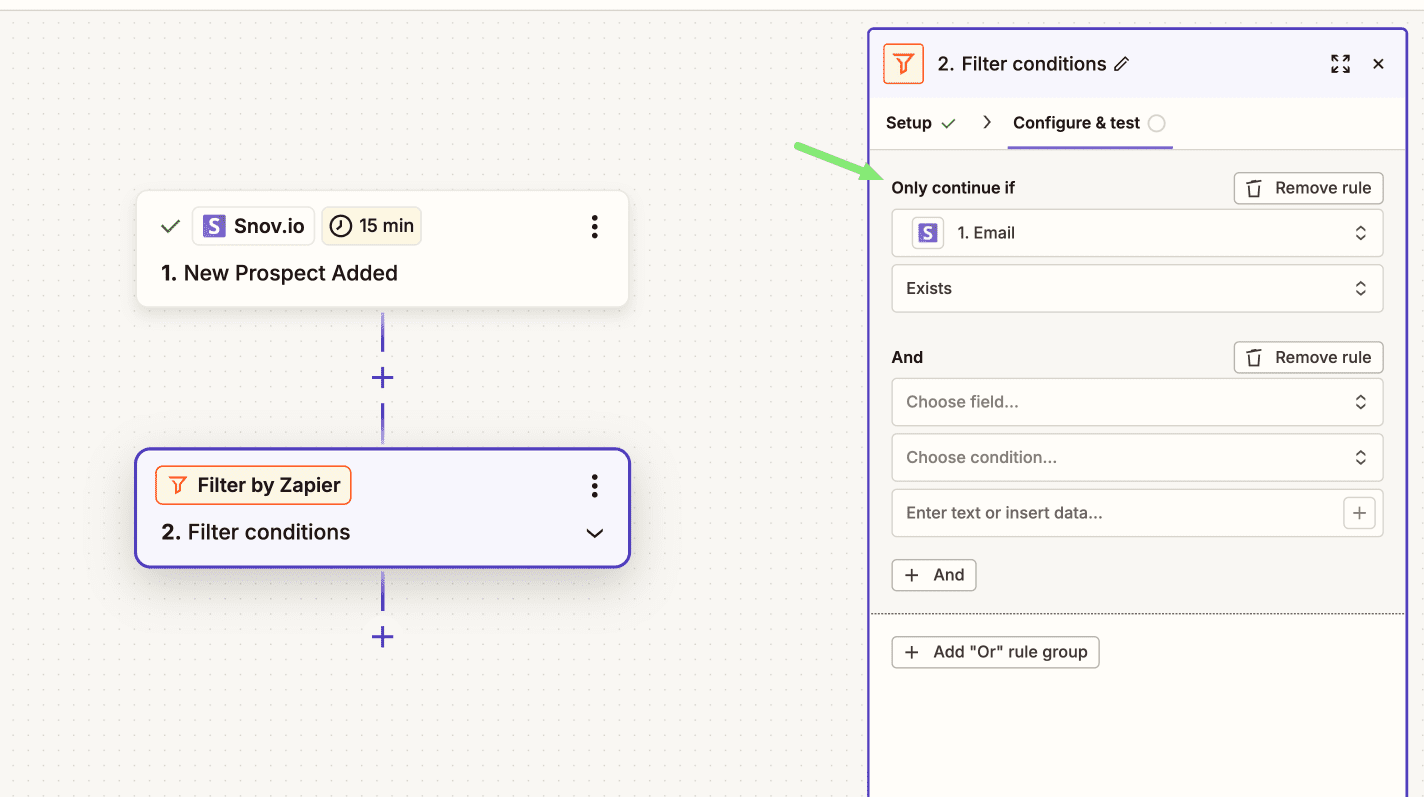
Create the action event (enrich phone)
Click Add step in the editor. This step will run after the trigger event occurs (New prospect added → phone enriched).
Action app
Select the data enrichment provider you’ll use for phone enrichment. We tested this workflow with Datagma.
Action event
Select the action Find Mobile Phone Number.
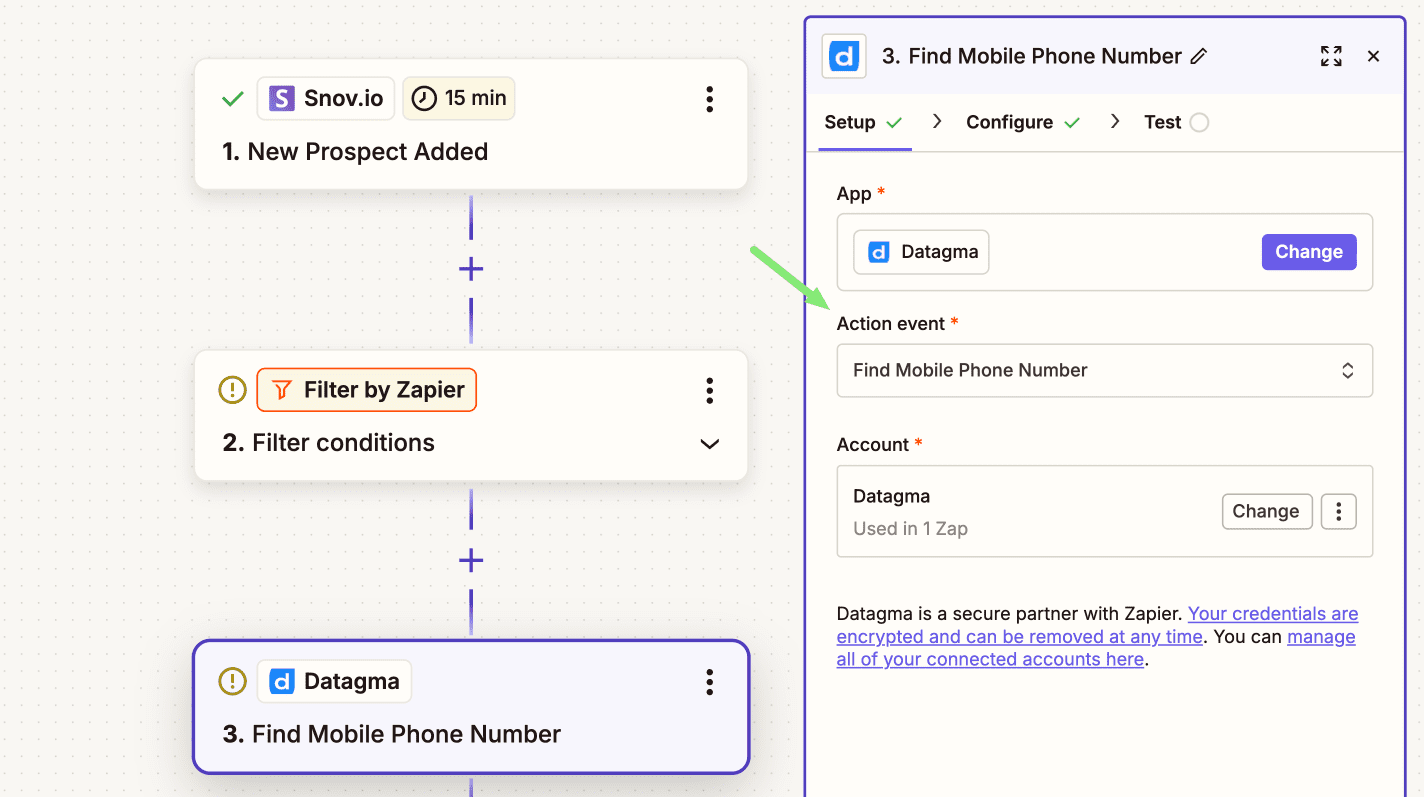
Configure fields
Map the fields you want to use as enrichment inputs. These values should come from your prospect record in Snovio.
- Email address → prospect email
- LinkedIn URL → link to prospect’s LinkedIn profile
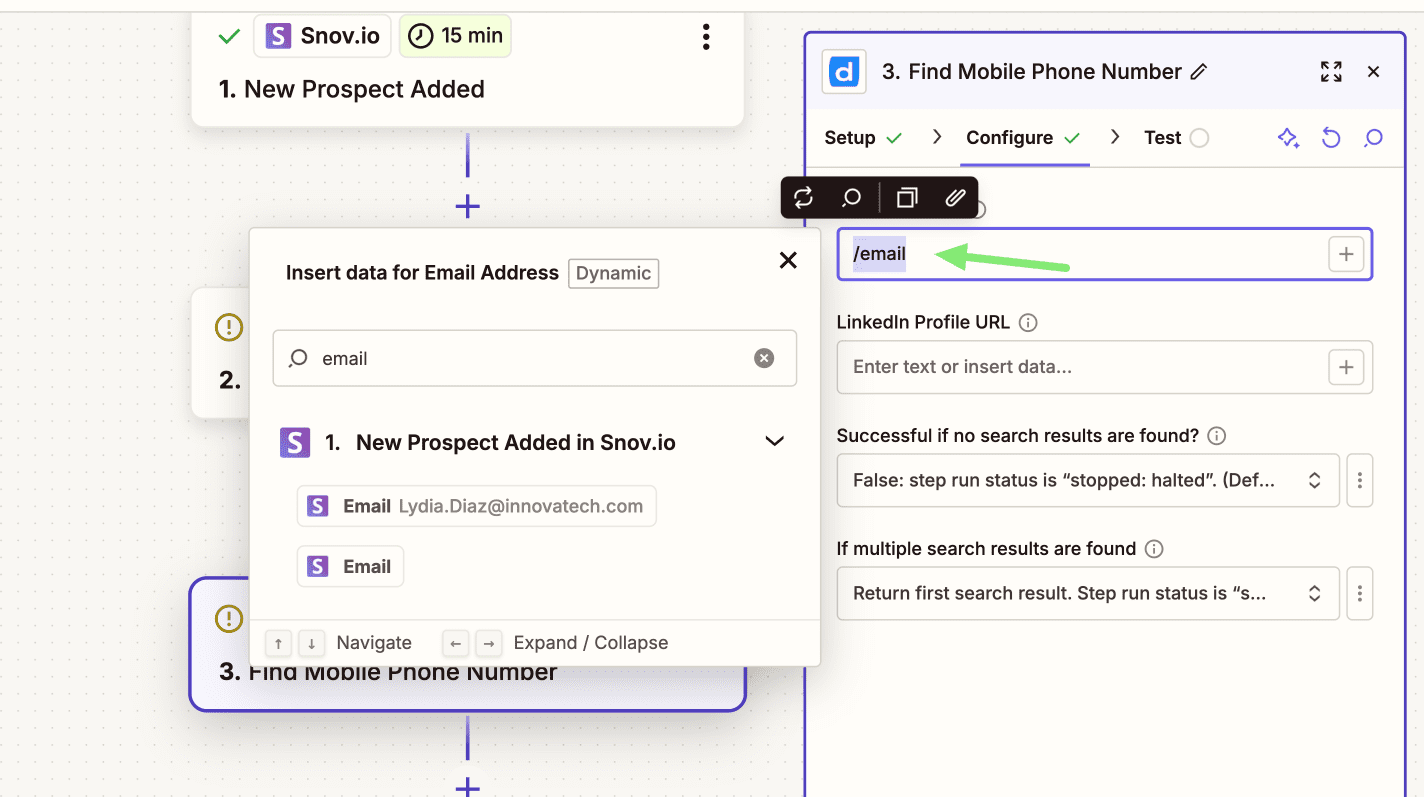
Update the prospect
Add the next action step. It will update the prospect’s profile in your Snov.io list with the phone number.
Action app
Select your Snov.io connection.
Action event
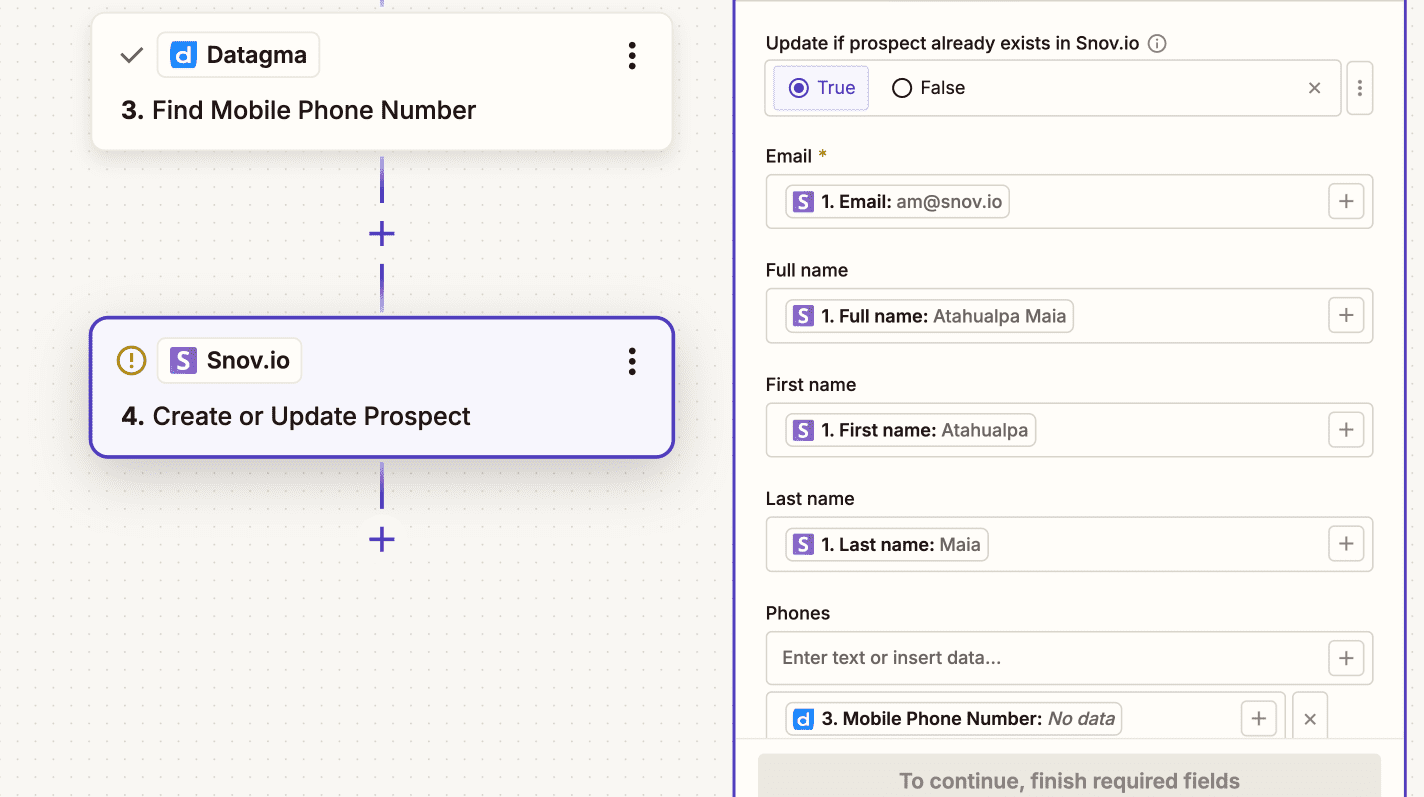
Select action Create or Update Prospect.
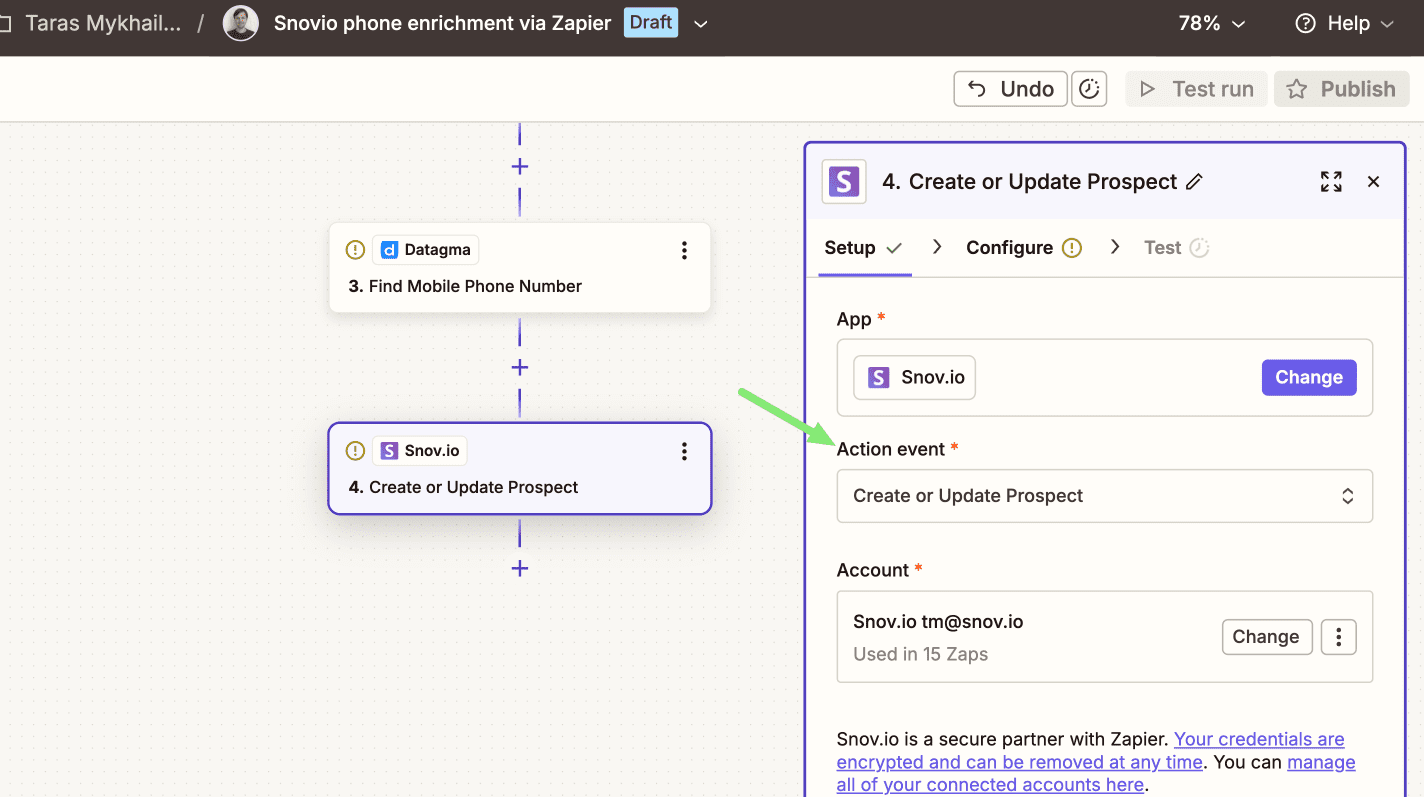
Configure fields
Set Update if prospect already exists to True. This updates existing profiles instead of creating duplicates.
- Email: Map the prospect’s email field from a Snovio prospect.
- Phone: Map the phone number returned by the enrichment step.
- Prospect list (optional): Select the same Snovio list used in the first step (trigger).
Publish zap
When everything looks good, turn on the automation (click Publish). Then start adding prospects to your integration list in Snovio.
The workflow runs automatically whenever you add new prospects to that list. Use any of Snov.io’s lead Finder tools to populate it.
Finally, open the prospect in your Snov.io list. Confirm the phone number is saved in the correct field.


Sorry about that 😢
How can we improve it?