This article explains how to add missing variables on the To Check tab before sending your campaign.
Update prospect fields manually
Skip missing variables and use a fallback
Update prospect fields in bulk
Fill in missing data using enrichment
Using variables, you can automatically populate email content with information from the prospect profile, resulting in a more personalized message.
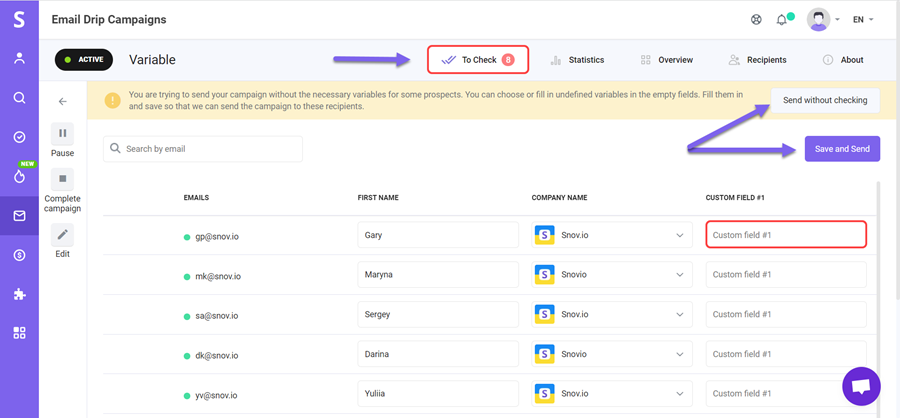
The To Check tab on the email campaign dashboard warns that the email sequence includes variables for empty fields in the prospect's profile.
For example, the profile is missing a first name or company name while at least one of the emails has a corresponding variable.
It allows you to review prospects with missing variable data and update as necessary before sending out an email sequence.
There are a few ways to manage missing variable data in your email campaign:
Update prospect fields manually
After launching a campaign, prospects with missing variables will be transferred to the To Check tab and will not receive any emails until they are managed.
- Open the To Check tab on your email campaign dashboard.
- Fill in the missing information in the empty fields.
- Click the Save and Send button to update prospect fields and start a campaign.
Skip missing variables and use a fallback
If you want to skip the variable check, click Send without checking on the To Check tab to populate missing variables with the fallback text (if it's added). Read more about fallbacks and how to add them to variables here.
Update prospect fields in bulk
If there are a lot of undefined variables on your list and you have the necessary data in a spreadsheet, you can upload a file and update existing prospect profiles in bulk.
- Upload a file using import option.
- Configure import settings to Update existing contacts with new data.
More on how to import prospects to your account here.
Fill in missing data using enrichment
If you don't have the missing data on hand, run Enrich & AI tools instead of typing it in or searching for it yourself.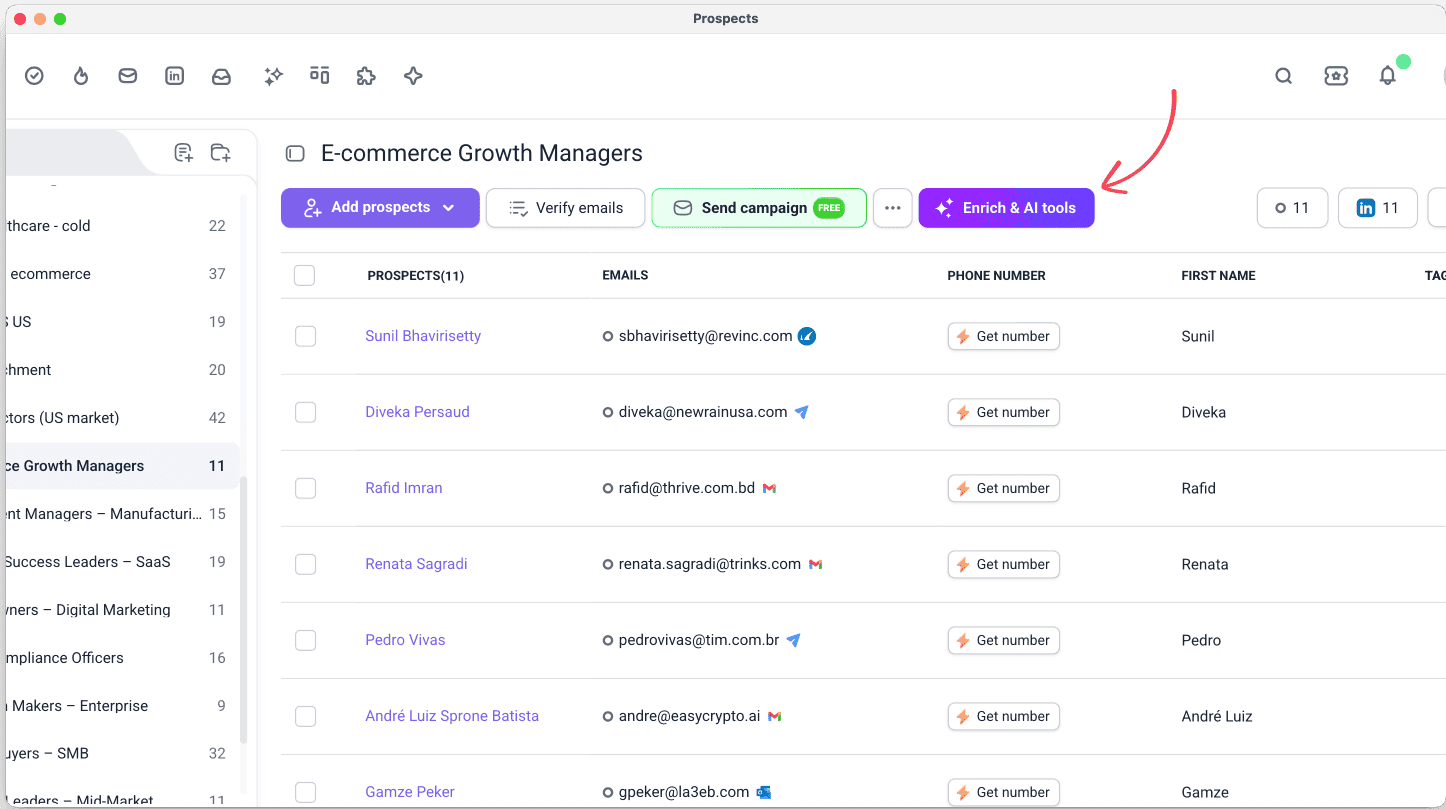 Fix this with an enrichment tool, and the one you need depends on what's missing:
- A standard field like company details or LinkedIn background: → run Get company details or Pull LinkedIn profile
- Something custom, like a pain point or icebreaker line that isn't a standard field: → run Fill out from web with a prompt describing what you need
- Data that exists but is part of a larger field, not in its own column yet: → run Clean and edit to extract it into a single column
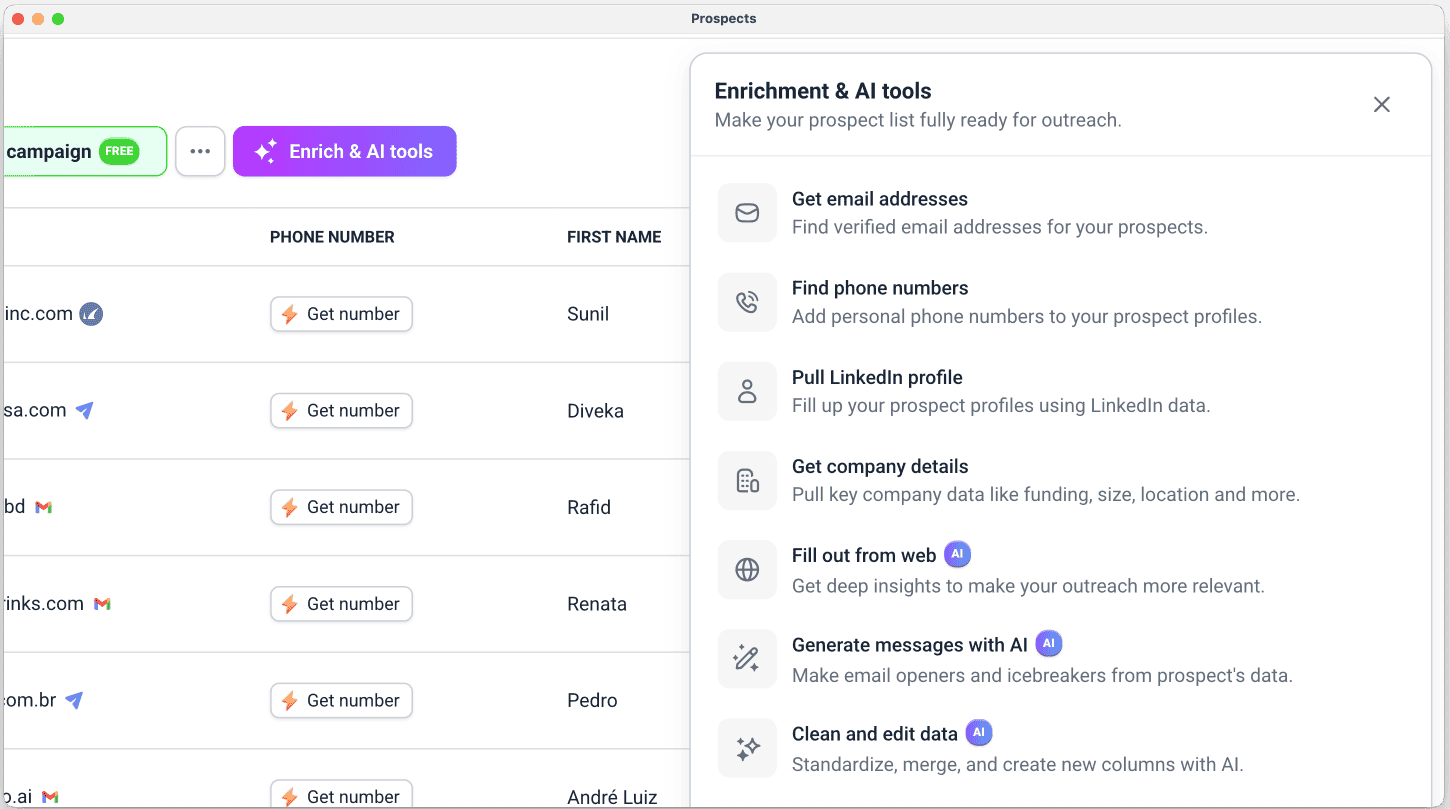
Select the flagged prospects from To Check and run the matching tool. Snov.io finds the data and fills the column for you, and once the column has values, the variable stops being flagged as missing.
See the full list of enrichment actions to find the right one for your specific case.
Enriched columns work as personalization variables for emails and messages in your campaigns the same way manually filled fields do.
Have more questions? Contact our support team at any time at help@snov.io.



Sorry about that 😢
How can we improve it?