
Got an email but little else? That’s enough to start some real detective work.
A few smart search methods can take you from a single email address to who’s behind it and their social profiles.
In this guide, I’m going to explain how to look up social media accounts by email and, just as importantly, verify that you’ve found the right person.
TL;DR: How to find all social media accounts with an email (best approaches)
You can find social media accounts by email, but no single method works every time. For the best chance of identifying the right profiles:
- Start with Google: Search the exact email in quotation marks, then use site: to narrow the search to platforms like LinkedIn, Instagram, or X.
- Work with what the email gives you: If the full address returns nothing, search the name or company separately. For work emails, use the company domain in Snov.io’s Domain Search to find matching prospects and their LinkedIn profiles.
- Try a reverse email lookup: Tools like Social Catfish, BeenVerified, or CocoFinder can uncover names, company details, or public social profiles connected to an email. If you get a name and company but no profile, use those details in Snov.io to find the prospect’s LinkedIn profile.
- Verify before you call it a match: Check at least 2, preferably 3, details such as company, role, location, or username.
Just remember that not every account can be found by email. Mix approaches to spot the target profile.
Key challenges of searching for social media accounts by email
Searching by email can work, but not every account will be discoverable this way. Here are key problems you can face:
- Work vs. personal email: A work address may uncover LinkedIn but nothing on Instagram or TikTok.
- Hidden discoverability: Privacy settings can keep an account out of contact-based search results.
- Old work emails: The address may still point to a company the person has already left.
- Role-based addresses: sales@company.com or info@company.com may belong to a team, not one person.
- Different usernames: Personal accounts may use handles that have nothing to do with the person’s real name or email.
When you hit one of these roadblocks, try another route. A different email, username, company, or job title may lead you to the profile the original address couldn’t.
How to find social media accounts by email address: 3 key methods
An email address gives you a few ways to start searching. Here are 3 methods I’d try, from simplest to most advanced.
1. Search the exact email on Google
Google is the easiest place to start. It supports exact-match searches with quotation marks and the site: operator to restrict results to a particular domain.
Just search the exact address in quotation marks:
“alex@company.com”
Or narrow your search to a particular website:
“alex@company.com” site:linkedin.com
If your search comes up empty, don’t automatically assume the person isn’t on social media. It could simply be that they use a personal email for social accounts, keep their contact info private, or have never shared that address online.
2. Use clues from the email address
An unsuccessful search isn’t a reason to throw in the towel. The address itself may give you enough information to try a different route.
I know, it sounds obvious, but take a closer look at the email itself. The part before @ might point to a name you can search across Google and social platforms.
And if it’s a work email, the company domain paired with Snov.io’s Domain Search gives you another way to continue your search.
Simply open Domain Search in the Snov.io app and enter the company domain.
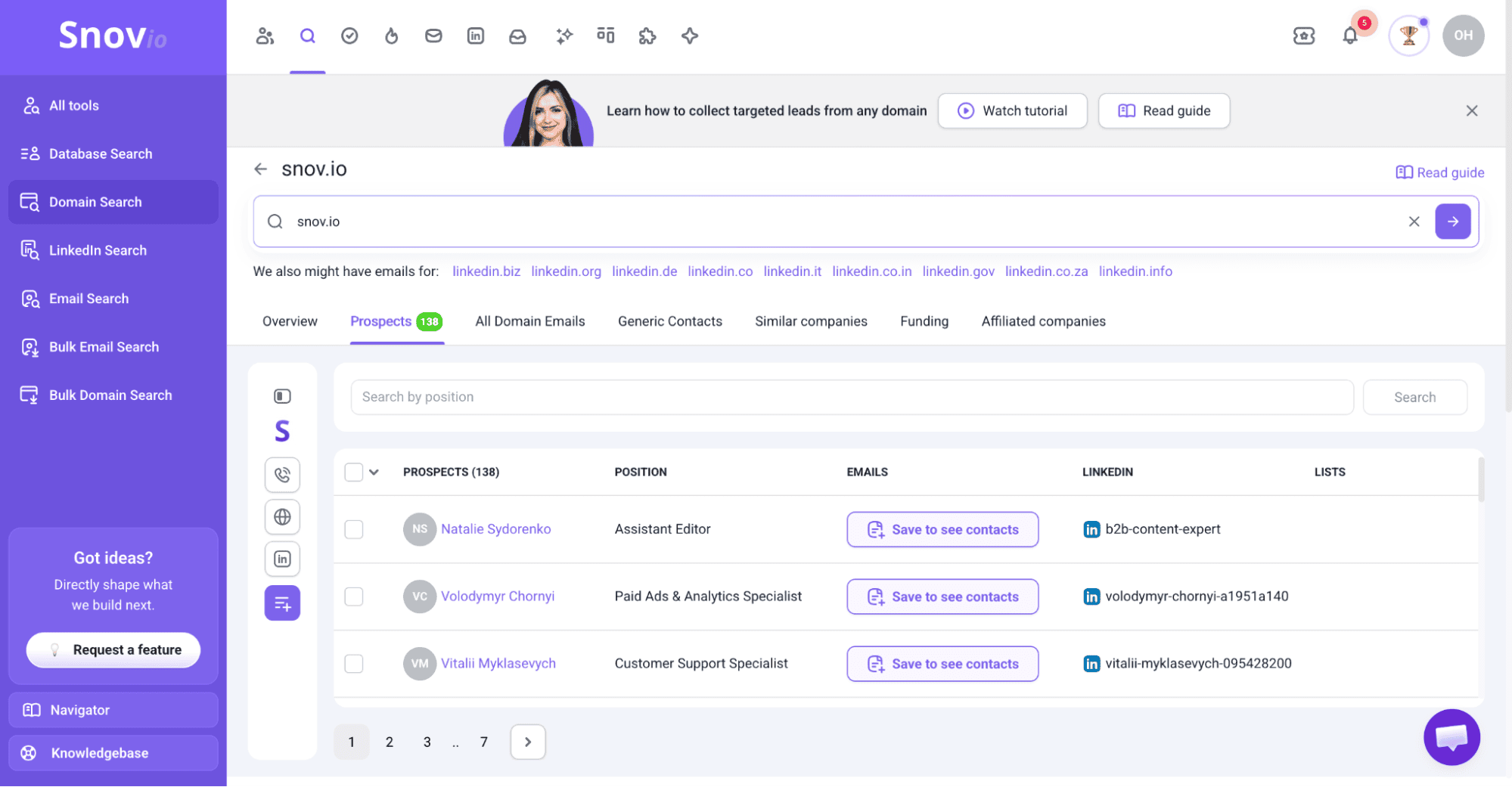
Snov.io will then find contacts associated with the company, along with details such as their names, job titles, email addresses, and LinkedIn profiles.
3. Try a reverse email lookup tool
If manual searches come up empty, a reverse email lookup tool can help you dig a little deeper.
Try a service like Social Catfish, BeenVerified, or CocoFinder and enter the email address to see what’s connected to it. Depending on the available data, you might find a name, phone number, company details, social media profiles, or other useful information.
If the lookup gives you a name and company but no social media profiles, you still have another option. Enter those details into Snov.io to find the prospect’s professional profile, including their LinkedIn URL.


How can you find social media accounts by email on different platforms?
So, how do you actually search by email on individual social platforms? The answer depends heavily on the network, since each has its own approach to email-based discovery.
Let’s take a closer look at what your options are.
How to find a LinkedIn account by email
LinkedIn doesn’t offer direct reverse-email lookup. But you can absolutely try pasting the email into LinkedIn search. If it contains a name, you might even get a few promising matches. Just don’t take them at face value since you’ll still probably need to figure out which one, if any, is actually your person.
If it’s a work email, you’re in a much better position. Look for a recognizable name or company domain, then use those details to refine your LinkedIn search.
Already found the right LinkedIn profile but need their professional email?
Snov.io LinkedIn Email Finder can help you find and save professional emails from LinkedIn profiles and search results.
Can’t find the right profile? Your next stop is Google, where you can check publicly indexed LinkedIn pages for the full email:
“user@example.com” site:linkedin.com
How to find an X account by email
X gives you a more direct option: contact syncing.
Just save the email to your device contacts, then go to Settings and privacy, open Privacy and safety, select Discoverability and contacts, and turn on Sync address book contacts.
X can then show accounts associated with your uploaded contacts.
There’s an important catch, though. This only works when the person allows others to find their account using their email address. X lets every user turn email discoverability off, so no match doesn’t mean they don’t have an account.
If syncing gets you nowhere, try:
“user@example.com” site:x.com
How to find a Facebook account by email
Facebook can also use uploaded contacts to help you discover accounts.
To enable this, go to Accounts Center in the app, open Your information and permissions, and select Upload contacts.
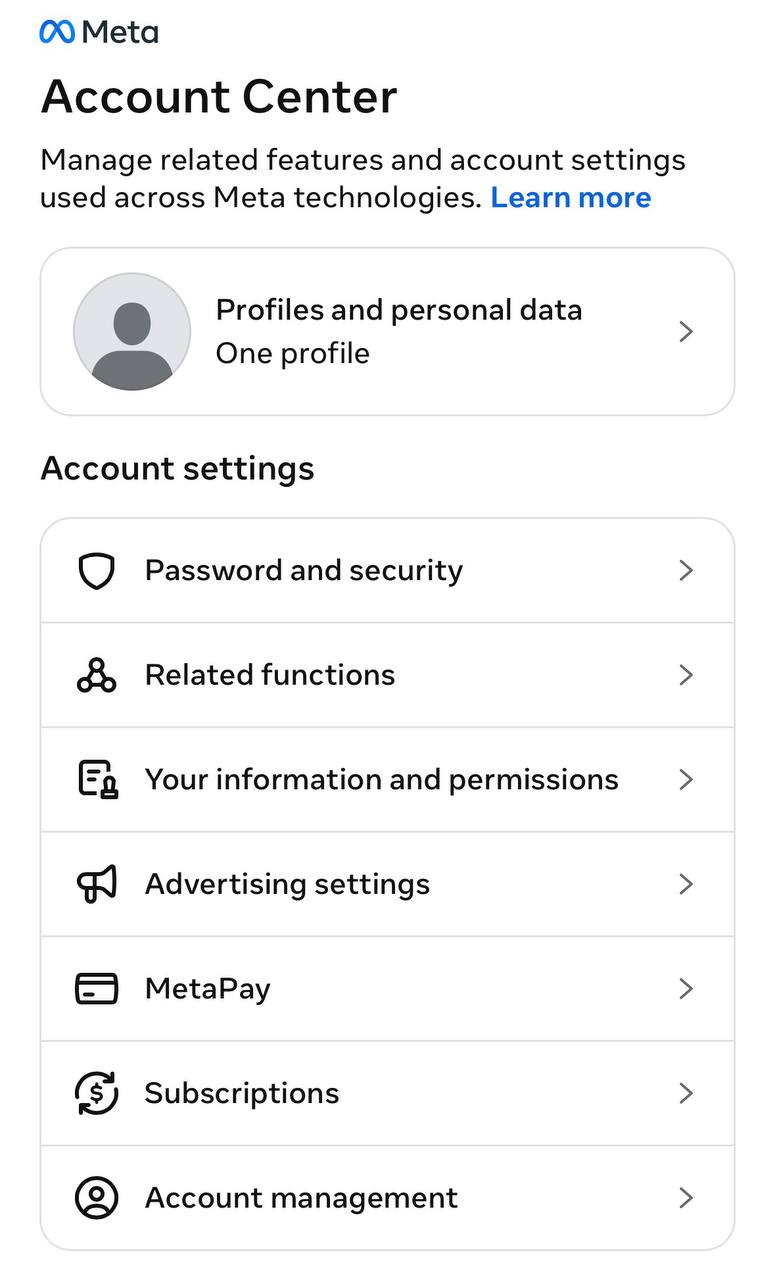
But don’t expect a guaranteed one-to-one match. Uploaded contacts are one of the signals Facebook can use for account suggestions, and what appears will depend on the information and privacy settings available to Facebook.
How to find an Instagram account by email
Instagram doesn’t give you a public reverse-email search where you can enter an address and retrieve the account attached to it.
So, instead of searching the full email in Instagram, extract useful clues from it. A recognizable name, company domain, or username pattern can give you something to search for directly.
Meta also allows users to sync certain profile information, including names and usernames, across Facebook and Instagram, so a Facebook profile you’ve already found may provide another useful lead.
Google can also surface publicly indexed Instagram pages:
“user@example.com” site:instagram.com
Just remember that the absence of a result tells you very little. The email may simply never have appeared publicly.
How to find a TikTok account by email
TikTok is another platform where contact syncing is more useful than typing an email into search.
Just save the address to your contacts, then go to Settings and privacy and turn on contact syncing in Contacts and location.
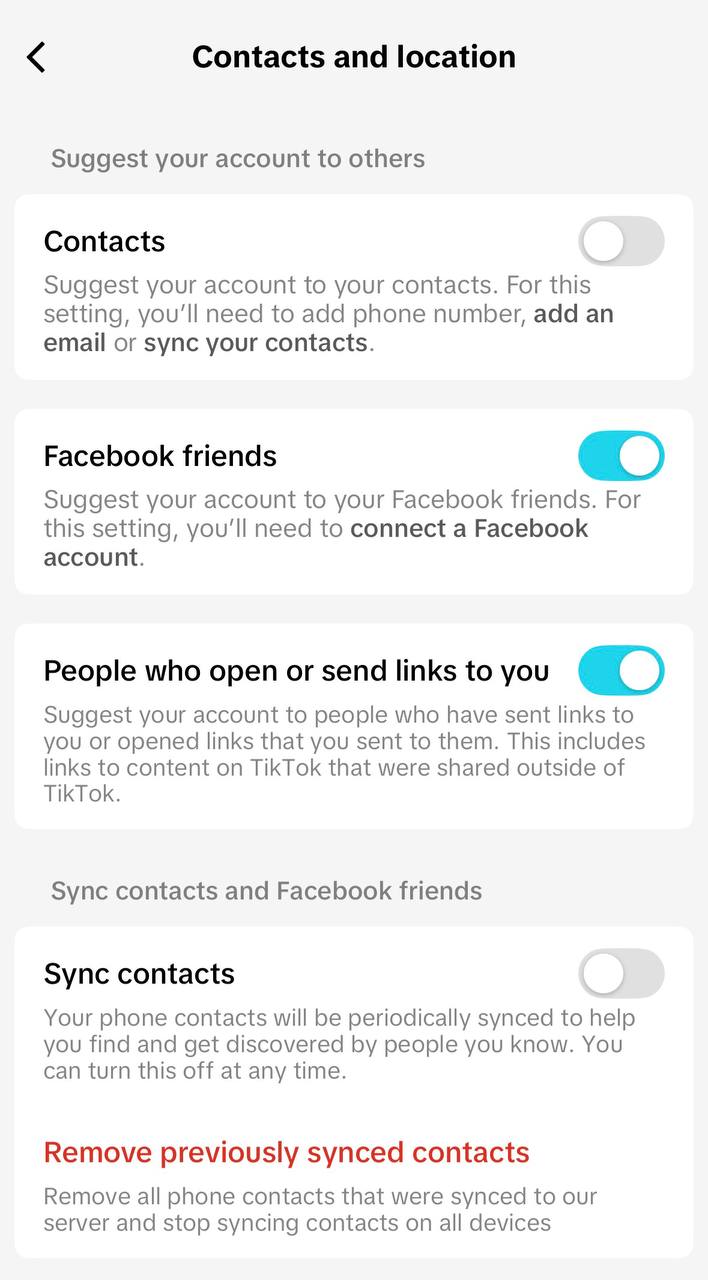
TikTok can use synced contacts to suggest people you may know. But there’s a privacy limitation here too, as the platform lets users control whether their accounts are suggested to contacts.
TikTok notes that it may suggest an account when its phone number or email matches information in someone’s synced contacts, provided the relevant discovery settings are enabled.
So, just like with X, no suggestion doesn’t prove there’s no TikTok account.
How to find a GitHub account by email
GitHub works differently because email addresses can be tied to commits, not just account discovery.
When someone pushes commits from the command line, Git uses the email configured locally for those commits. If that email is connected to their GitHub account, GitHub can use it to associate the commits with their profile.
That means an email can sometimes lead you to a developer through their public commit history. You can also check whether it appears on indexed GitHub pages:
“user@example.com” site:github.com
But there’s a big limitation: GitHub lets users keep their real address private with a GitHub-provided noreply address. Users can use that address for both web-based and command-line commits, and GitHub even offers an option to block command-line pushes that would expose a personal email.
A typical private address can look something like:
12345678+username@users.noreply.github.com
So, if you inspect a commit and see a users.noreply.github.com address instead of the email you started with, that doesn’t necessarily mean you have the wrong developer. It may simply mean they’ve enabled GitHub’s email privacy features.
How to verify you’ve found the right social media account
Found a profile that seems to match? I wouldn’t call it a win just yet.
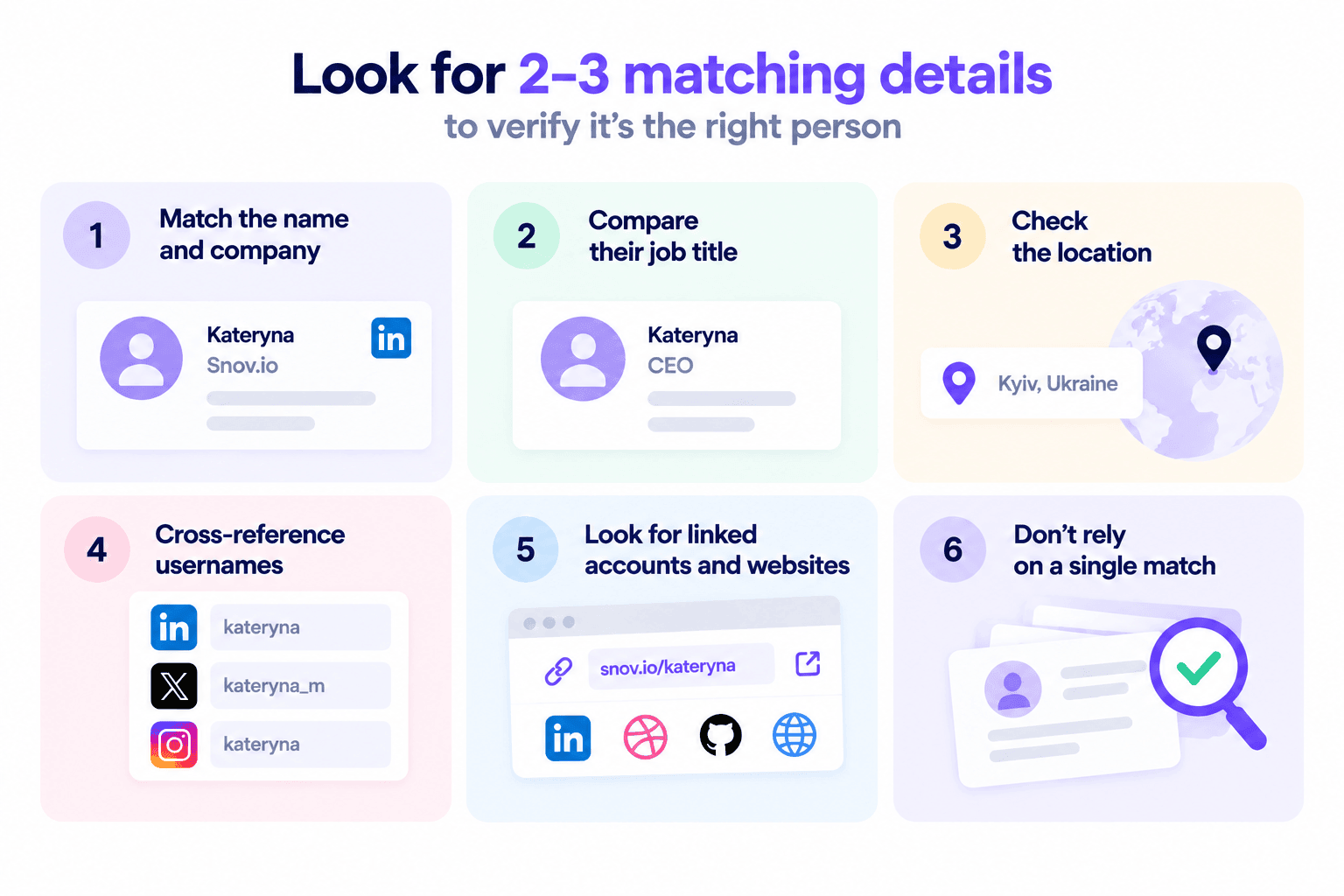
A matching name usually isn’t enough; it’s way better to look for 2 or more independent details that point to the same identity.
- Name + company: Does the name and email domain match their employer?
- Job title: Is the role consistent with what you already know?
- Location: Does it roughly match your existing data?
- Username: Do similar handles appear across platforms?
- Linked accounts: Do their website or profiles connect to each other?
- Conflicting details: Does anything suggest you’ve found someone else?
The more independent details line up, the more confident you can be in the match.
How to use found social profiles for B2B outreach
Finding the right social profile gives you context for making your outreach more relevant. Here’s how to put that information to good use.
Research prospects before reaching out
Look at the information the prospect shares publicly in a professional context. Depending on the platform, this might include:
- Their current role and responsibilities
- Recent job changes
- Company news and initiatives
- Topics they post or comment about
- Professional interests and challenges
Focus on details that help you understand whether the prospect is a good fit and why they might care about your offer.
Personalize without being intrusive
Social profiles can reveal a lot, but not everything you find belongs in your outreach. Use what you find to make your message more relevant to the prospect.
For example, referencing a company’s recent expansion when you’re offering a tool for scaling its sales process can make sense. But mentioning unrelated personal information you found on someone’s Instagram usually doesn’t.
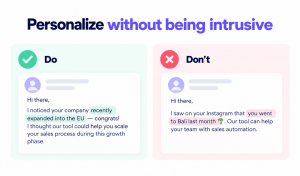
Here’s an easy way to check yourself: if the prospect would be surprised that you know or mention something, it’s probably better left out.
Verify contact information before outreach
Even if you’ve identified the right person, the email you started with may be outdated, misspelled, or no longer active.
Don’t overthink it. Just drop the address into Snov.io’s Email Verifier and get it validated in seconds with 98% accuracy.
This reduces unnecessary bounces and prevents you from building outreach around inaccurate contact data.

Format
Type
Server status
Auto-generated
Catch-all
Combine email and LinkedIn outreach
A LinkedIn profile gives you another channel to use alongside email. In fact, warming up prospects on LinkedIn can improve response rates by up to 78%.
So your sequence might look like this:
- LinkedIn profile view
- Connection request
- Follow-up email
- LinkedIn message
And if switching between email and LinkedIn sounds like extra work, in Snov.io, you can pair emails with automated LinkedIn actions such as profile visits, likes, follows, connection requests, and messages.
Key takeaways
You can get social media accounts by email, but no method will reliably uncover every account linked to an address.
Start with Google and site: searches. If those come up empty, try the email username, name, or company, or use a reverse email lookup tool. Whatever you find, verify at least 2, preferably 3, details before calling it a match.
And to make the search easier, use Snov.io to find LinkedIn profiles, verify emails, and reach out across both channels.