This guide shows you how to connect Snov.io to your AI tool, and what you can do through MCP.
Connect MCP in Claude (Connectors)
Connect MCP in ChatGPT (Plugins)
MCP tools: What you can do in Snov.io through AI
What is Snov.io MCP
Snov.io MCP connects your Snov.io account to any AI tool.

To start using Snov.io MCP, you'll need:
- An active Snov.io account (any Sales Suite or LinkedIn Automation plan)
- Your preferred AI: Claude, ChatGPT, or any other MCP client or agent
- MCP server URL: https://mcp.snov.io/mcp
Connect Snov.io to Claude
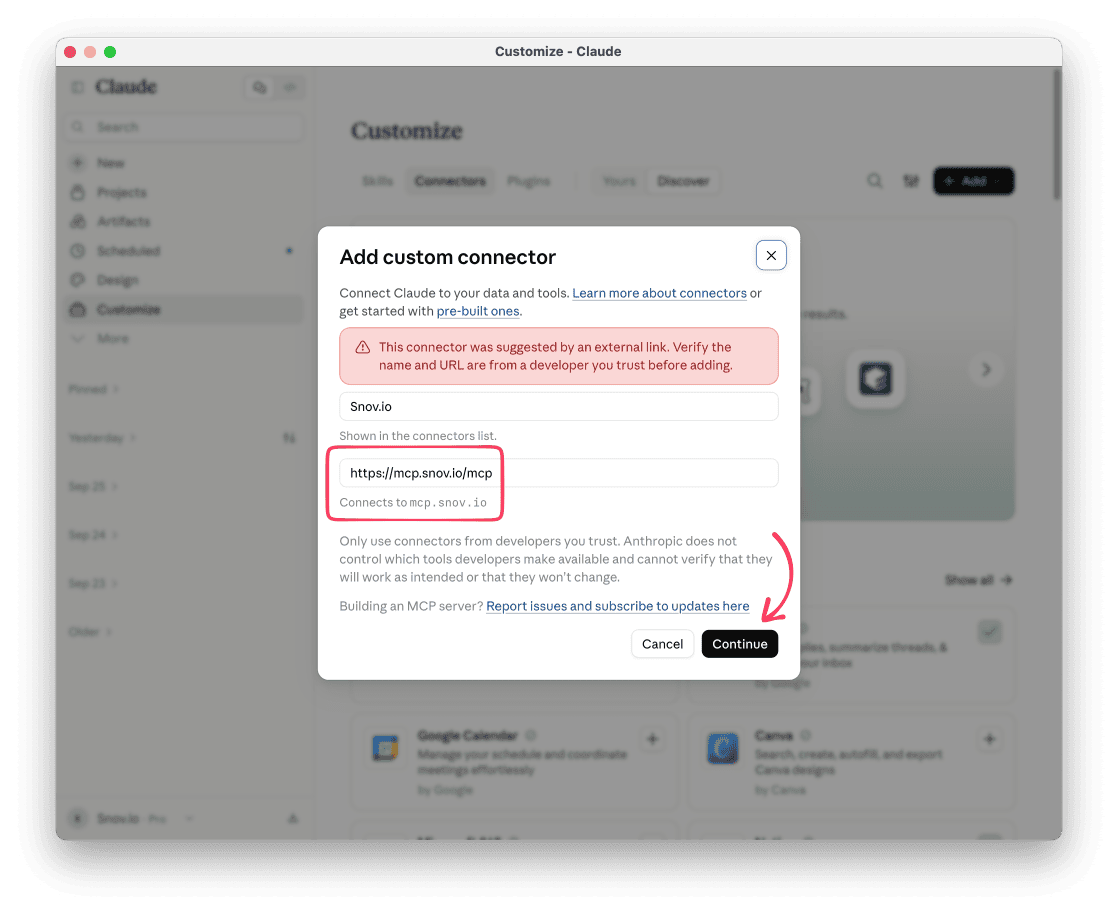
Open the connector setup on this link: Add MCP in Claude -->
Check that the name is Snov.io.
The MCP server URL is: https://mcp.snov.io/mcp
Click Continue and sign in with your Snov.io account to complete the setup.
Connect Snov.io to ChatGPT
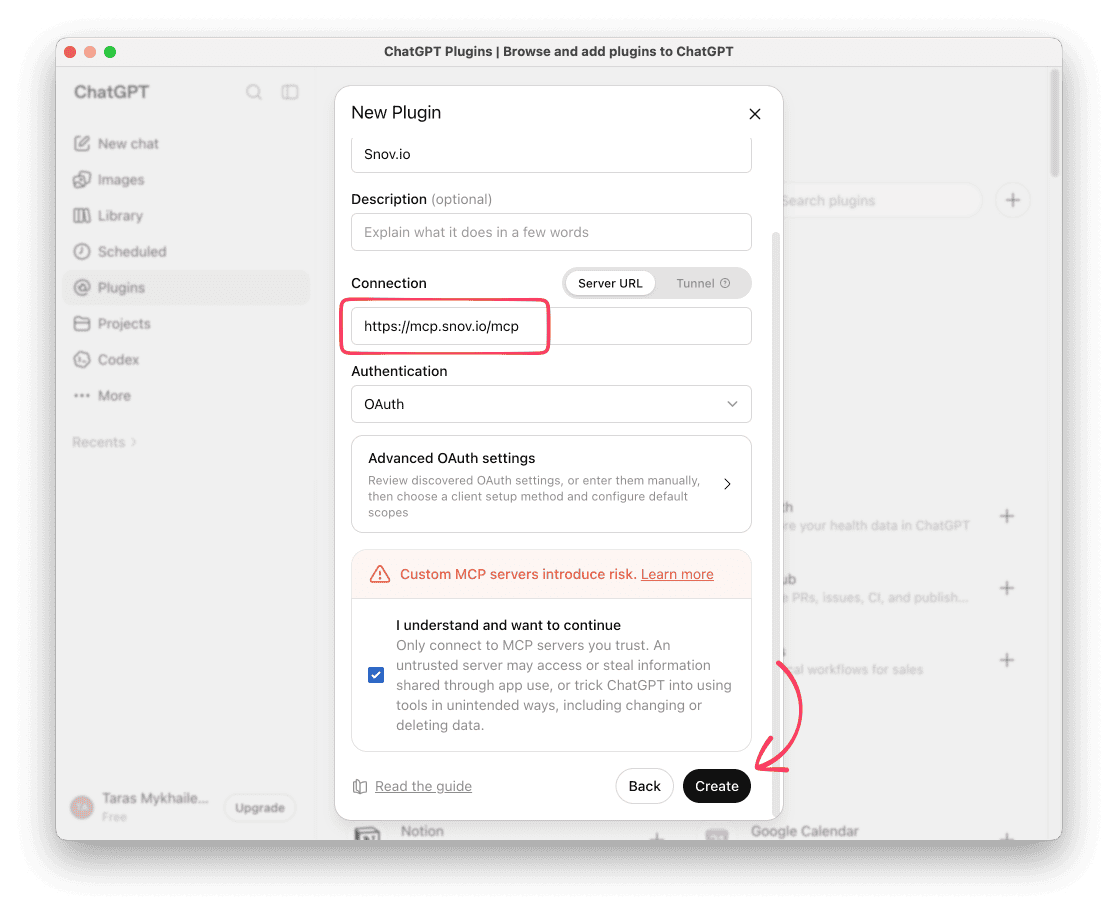
Open the plugin setup on this link:
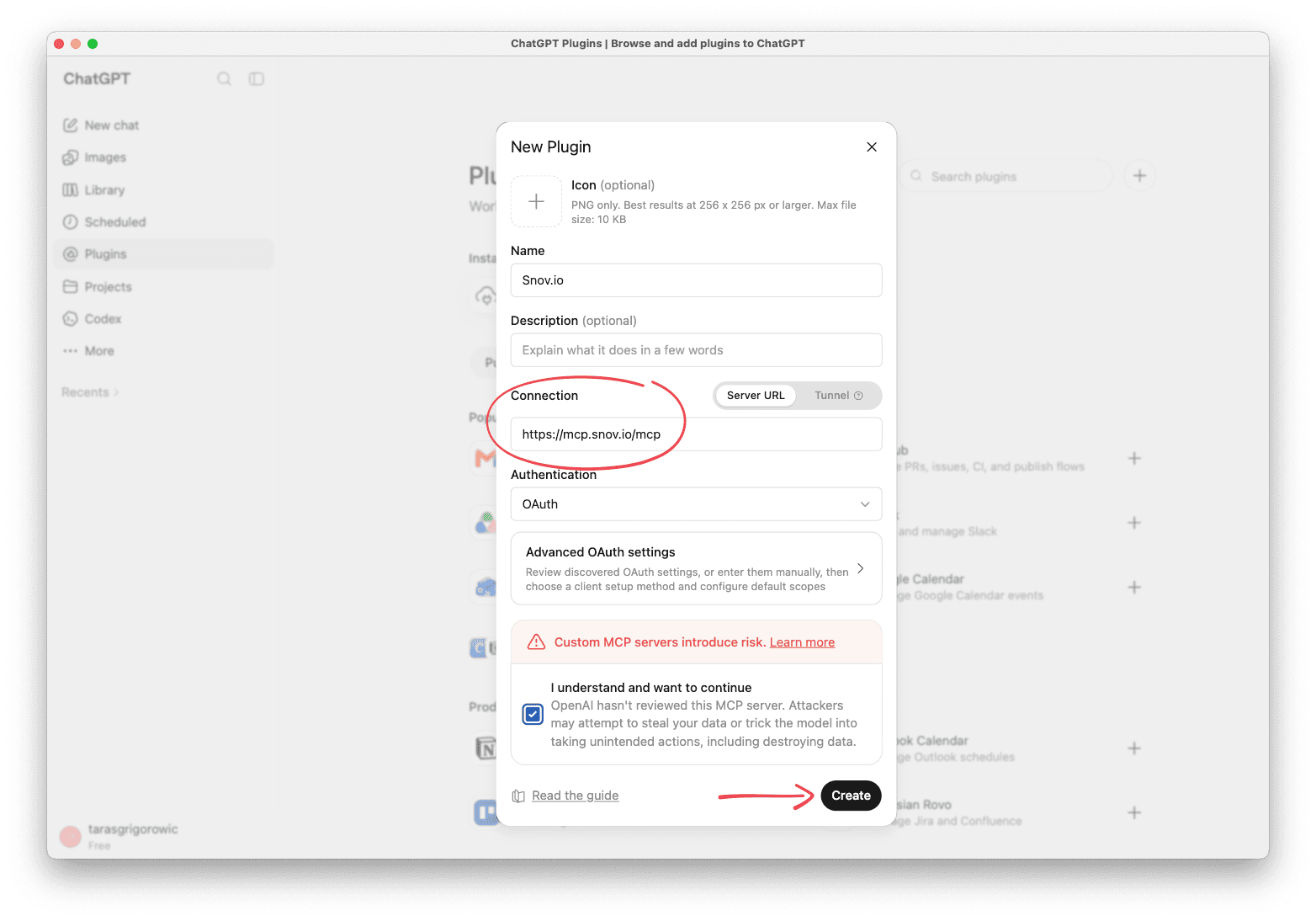
Enter the name Snov.io.
Paste the server URL: https://mcp.snov.io/mcp
Tick the I understand and want to continue box, click Create, then sign in with your Snov.io account and approve access.
MCP tools & workflows
MCP tools are actions AI can perform on your behalf.
Start with a prompt like "Let's do some work in my Snov.io account" and the AI responds with a list of actions it can take.
You can run one action, like verify an email address, or combine multiple actions in one chat: find leads or verify an imported list, launch a campaign, then reply in Unibox.

Each action is one of two types:
- View only: looks up data and changes nothing in your account
- Take action: creates, sends, or updates something in your account. Your AI tool should ask you to confirm before it runs these actions
Run multi-step workflows in one chat: find leads → verify imported lists → create and launch campaigns → manage communication in Unibox.
Here is what you can do in Snov.io through MCP:
Lead Finder
Search the Snov.io database for prospects and companies, find emails by name and company, and run LinkedIn searches by filters or by a saved search URL.
Here’s what you can start with:
- Check which search filters are available for prospects or companies
- Search the database for prospects that match your ICP
- Find an email address by prospect's name
- Save prospects you found to a new list
See the full list of Lead Finder actions.
Email Verifier
Verify one email or a whole batch, track the status of a bulk verification, and save the results to a list.
Here's an example workflow:
- Start a bulk verification from CSV or a pasted list
- Check if the verification is finished
- Review the results by email status
- Save the valid emails to a list
See the full list of Email Verifier actions.
Leads & Data
Create lists and folders for lead storage, add prospects and companies, and update or remove them. Export the list when it’s ready.
For example, you can ask your AI to:
- See your lists, filter them by your criteria, and split them into segments
- Create a new list and move it into a folder
- Remove prospects who haven't qualified
- Export the list
See the full list of Leads & Data actions.
Campaigns
Build sequences, add content and recipients, check domain health and assign senders. Pull stats and reports to analyze performance.
Try something like this:
- Connect sender email accounts and check domain health
- Create a campaign for a prospect list
- Improve the copy in email step
- Preview the email for a specific prospect
- Start the campaign
- Check statistics from the last week
See the full list of Campaigns actions.
Unibox
Sync or remove accounts, check new replies, filter inbox and reply to prospects.
Here’s one way to use it:
- Check unread replies
- Reply to the prospect
- Add conversation to the starred folder
See the full list of Unibox actions.
LinkedIn outreach
Send connection requests and messages to your prospects. Check LinkedIn chat history, pull contacts from your network into a prospect list.
Try this workflow:
- Send a connection invite with a short note
- Check which invites are still pending
- Send a message if request is accepted
- Check for unread replies in LinkedIn chats
See the full list of LinkedIn Automation actions.
LinkedIn accounts
Connect LinkedIn accounts, set daily safety limits. Add or update an account’s proxy, location, and timezone. Check SSI score and profile engagement, and manage account slots for your team.
For example:
- Check if you have empty account slots
- Connect a LinkedIn account
- Set the account timezone
- Set safe daily limits and warm-up
See the full list of LinkedIn Automation actions.
CRM
Create and update deals, move them between stages, add notes, and see a deal’s full history.
Here’s what that can look like:
- Create deals for prospects who replied
- Move the deals to the right stage
- Add a deal note
See the full list of CRM actions.
Team and tasks
View your team members, and create, edit, or delete tasks in your Snov.io calendar.
You can start with something like this:
-
Show who is on my team and their status
-
Schedule a follow-up task for {{prospect}} next Tuesday and assign it to {{Julia}}.
See the full list of Team and tasks actions.
Connect Snov.io MCP in Claude
The MCP integration works on the Claude website and in the Claude Desktop app.
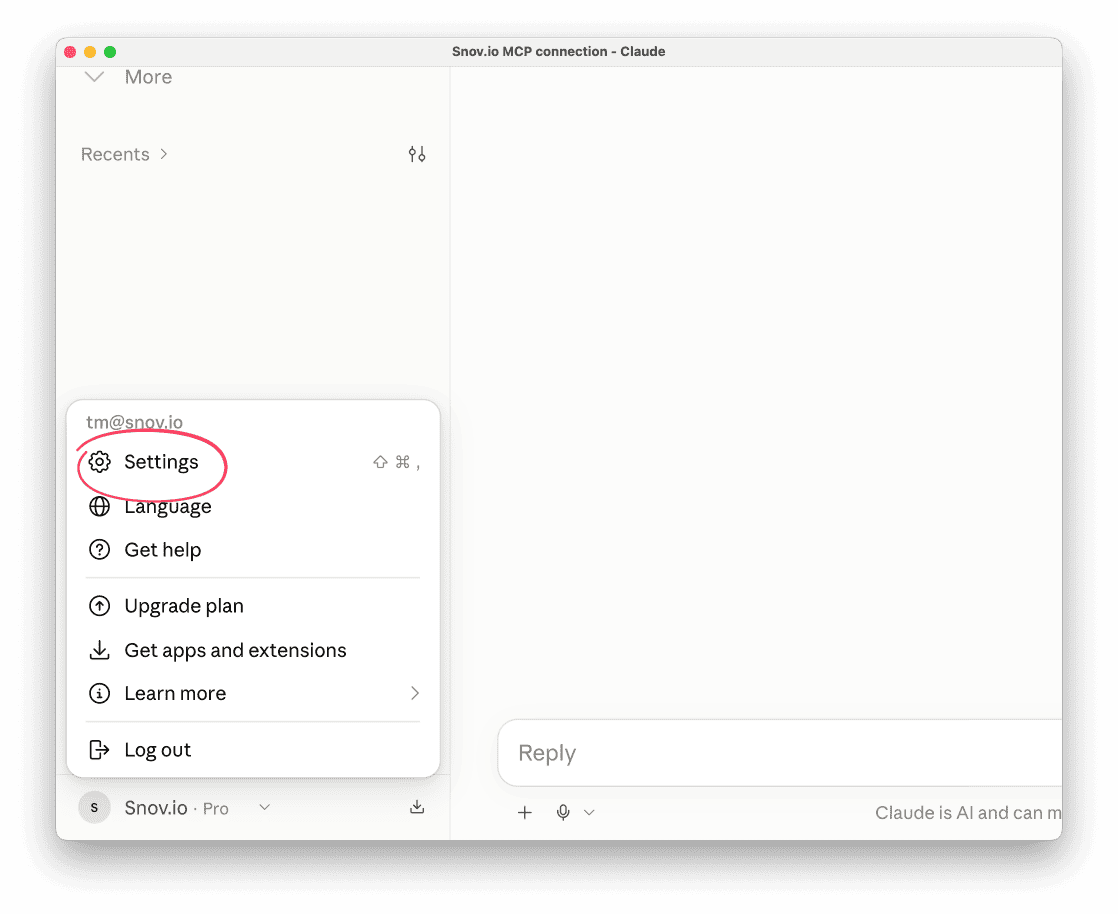
Open Claude and go to Settings.
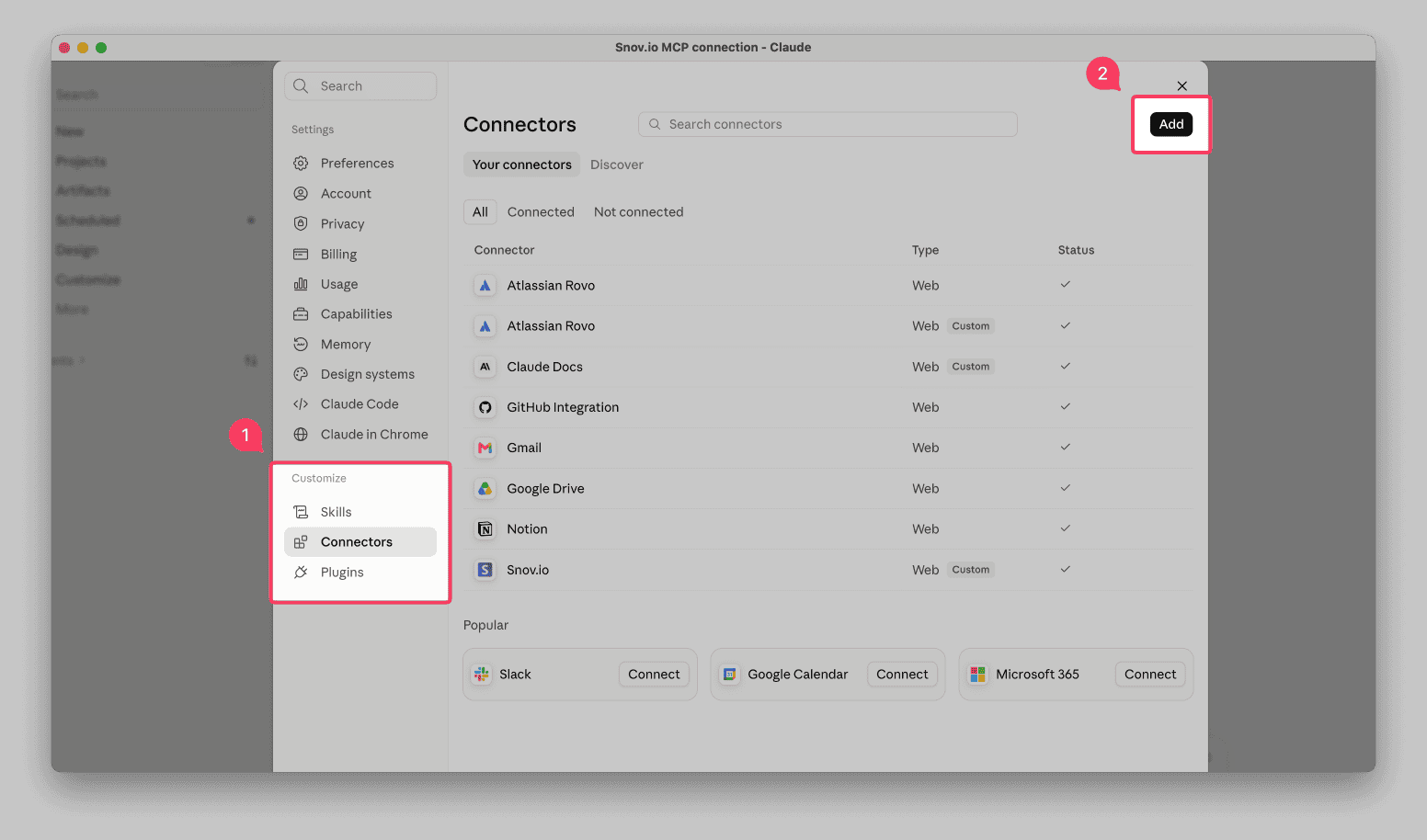
Under Customize → Go to Connectors and click Add.
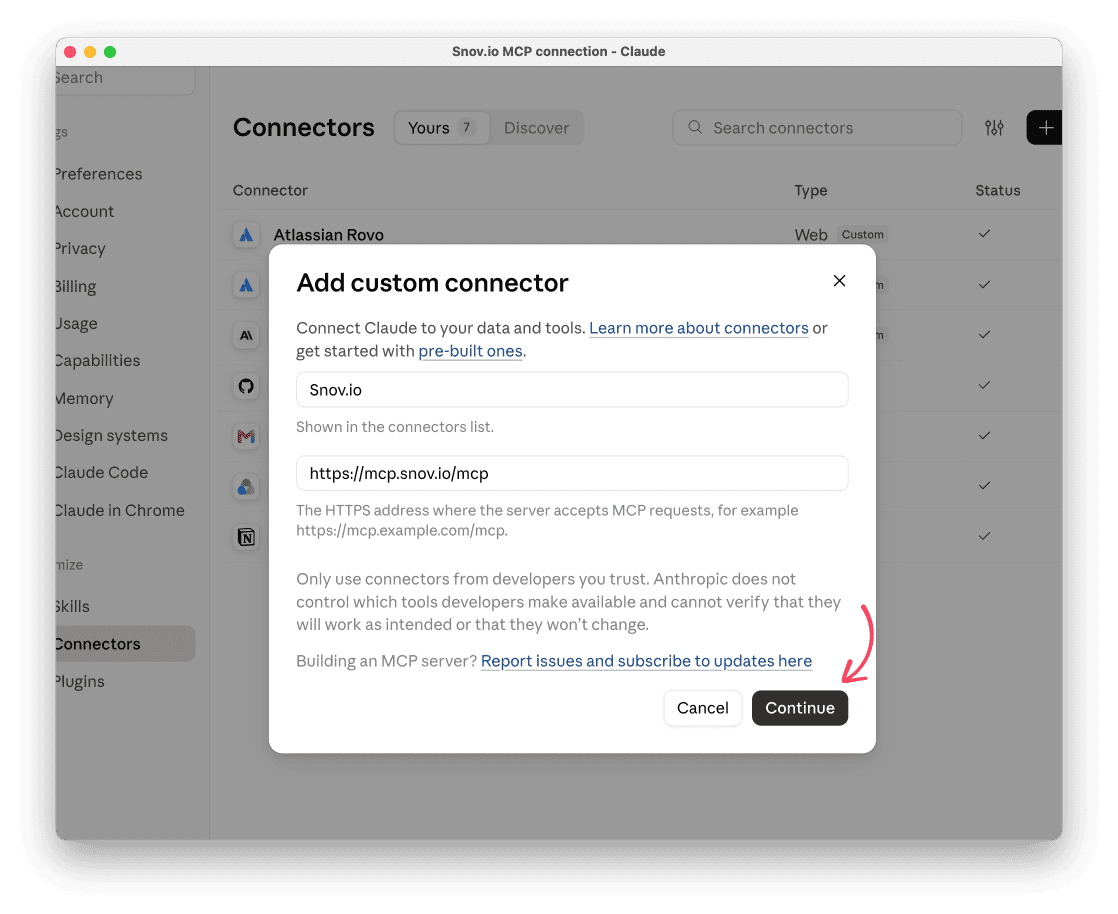
Enter the name: Snov.io
Paste the server URL: https://mcp.snov.io/mcp
Click Continue.
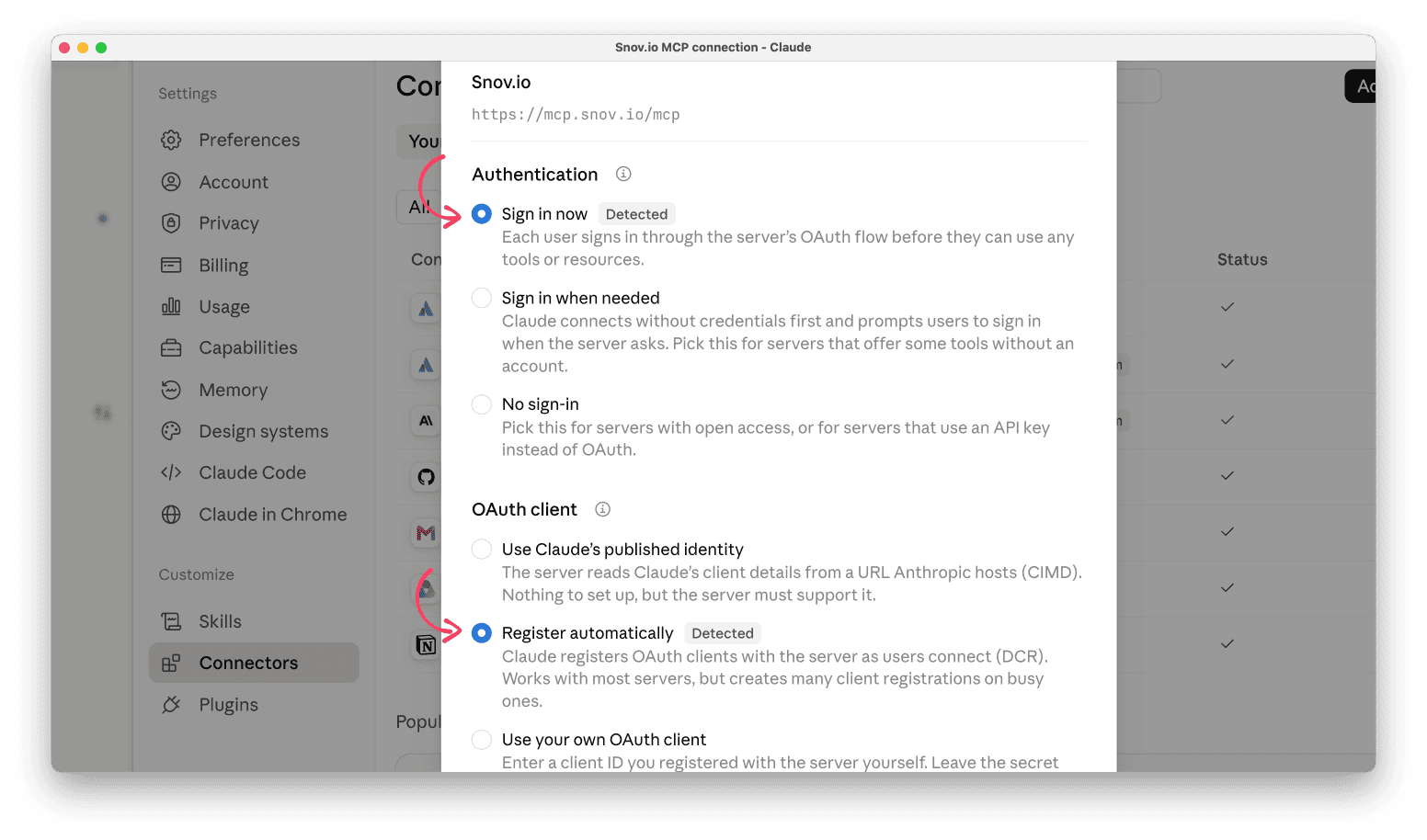
On the next pop-up window, confirm default choices and click Add below.
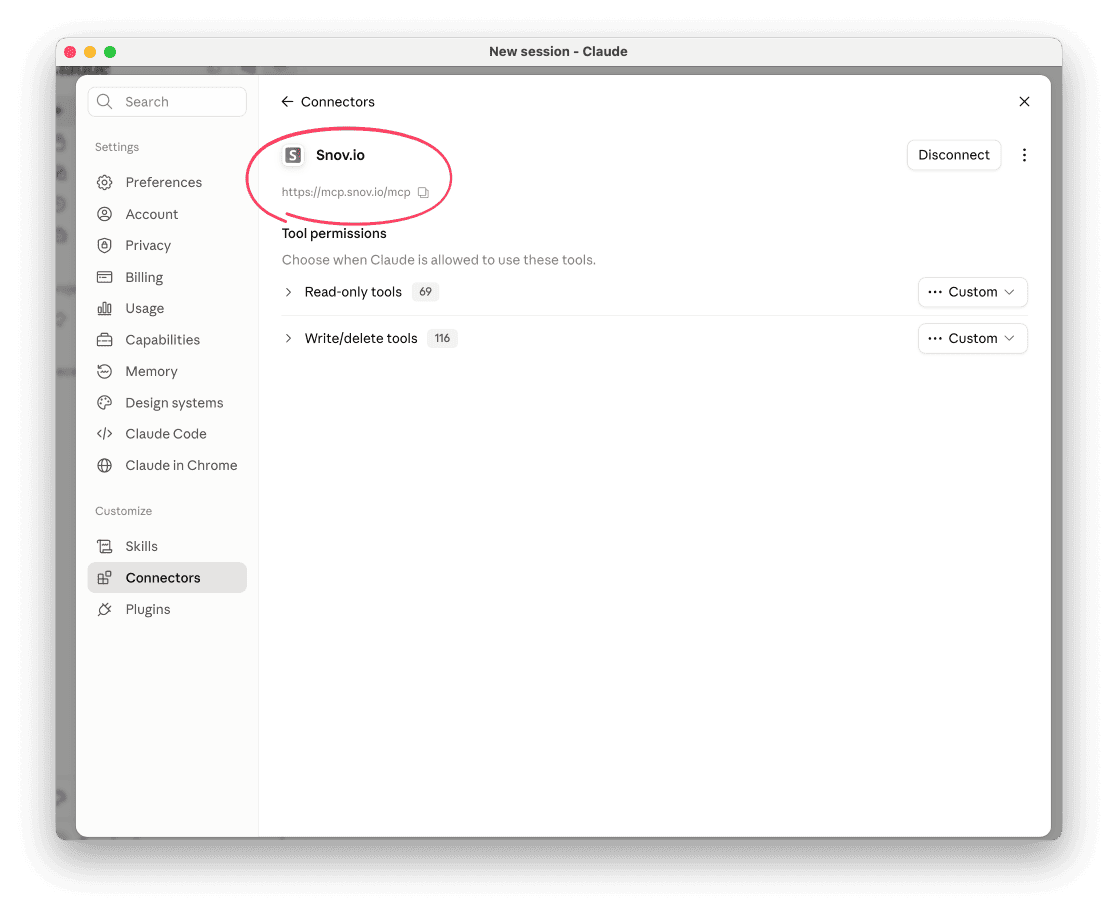
Connect your Snov.io account and approve permissions. Snov.io will appear in your list of connectors.
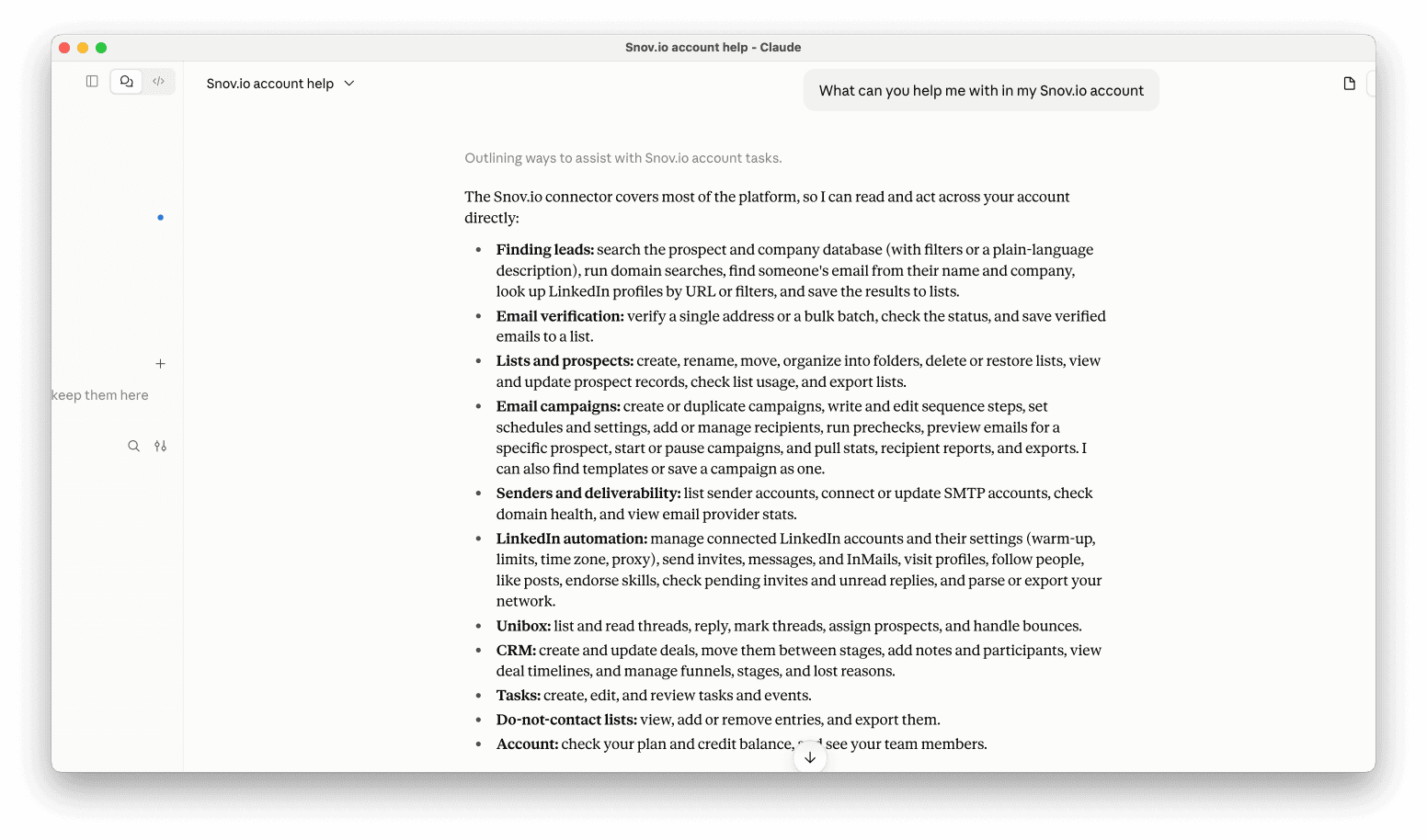
Start a new chat and ask something like "What can you help me with in my Snov.io account?"
Now you're ready to work in Snov.io through Claude.
Connect Snov.io MCP in ChatGPT
The MCP integration works on the ChatGPT website and in the ChatGPT Desktop app.
In ChatGPT, go to Settings.
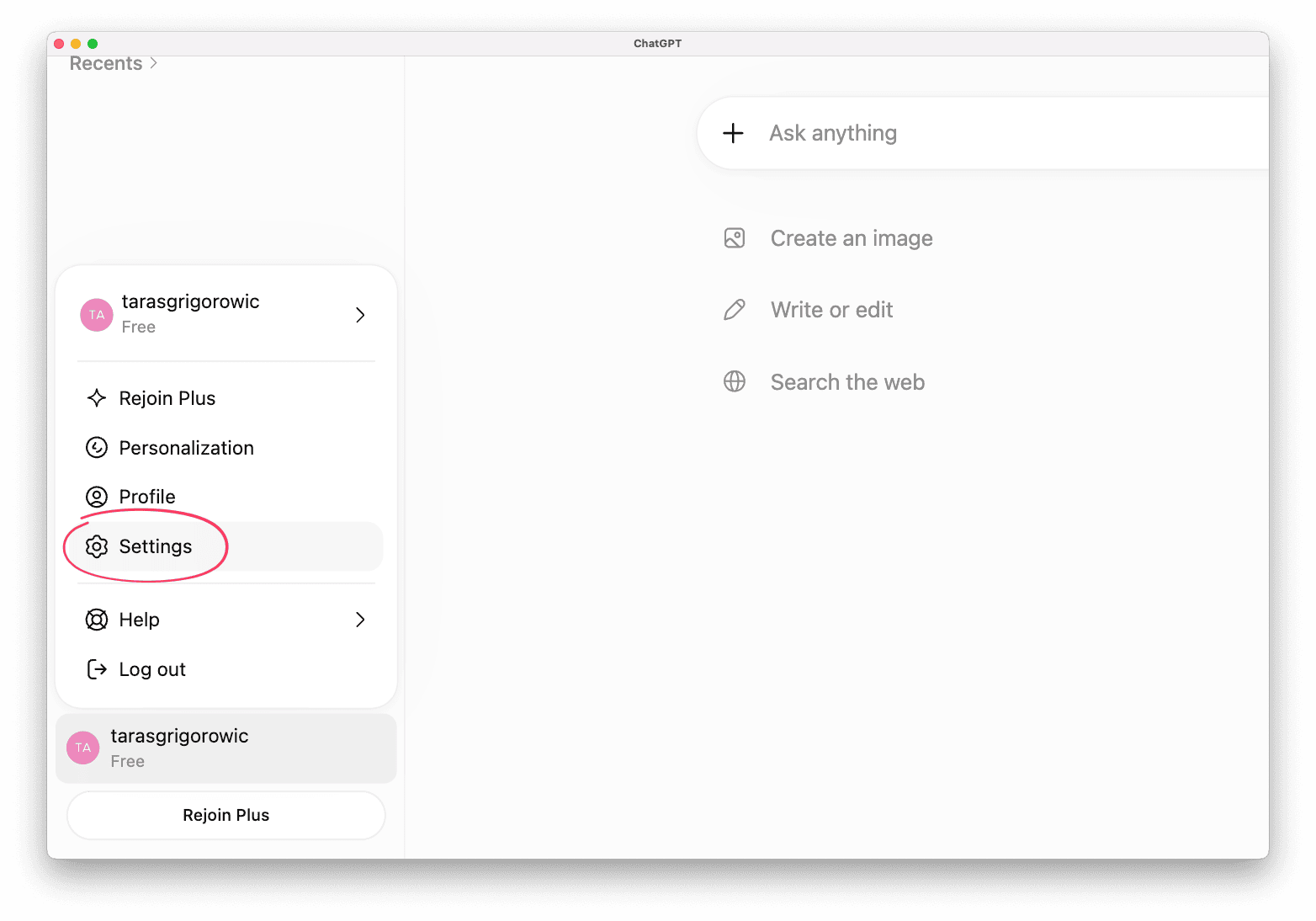
Choose Plugins.
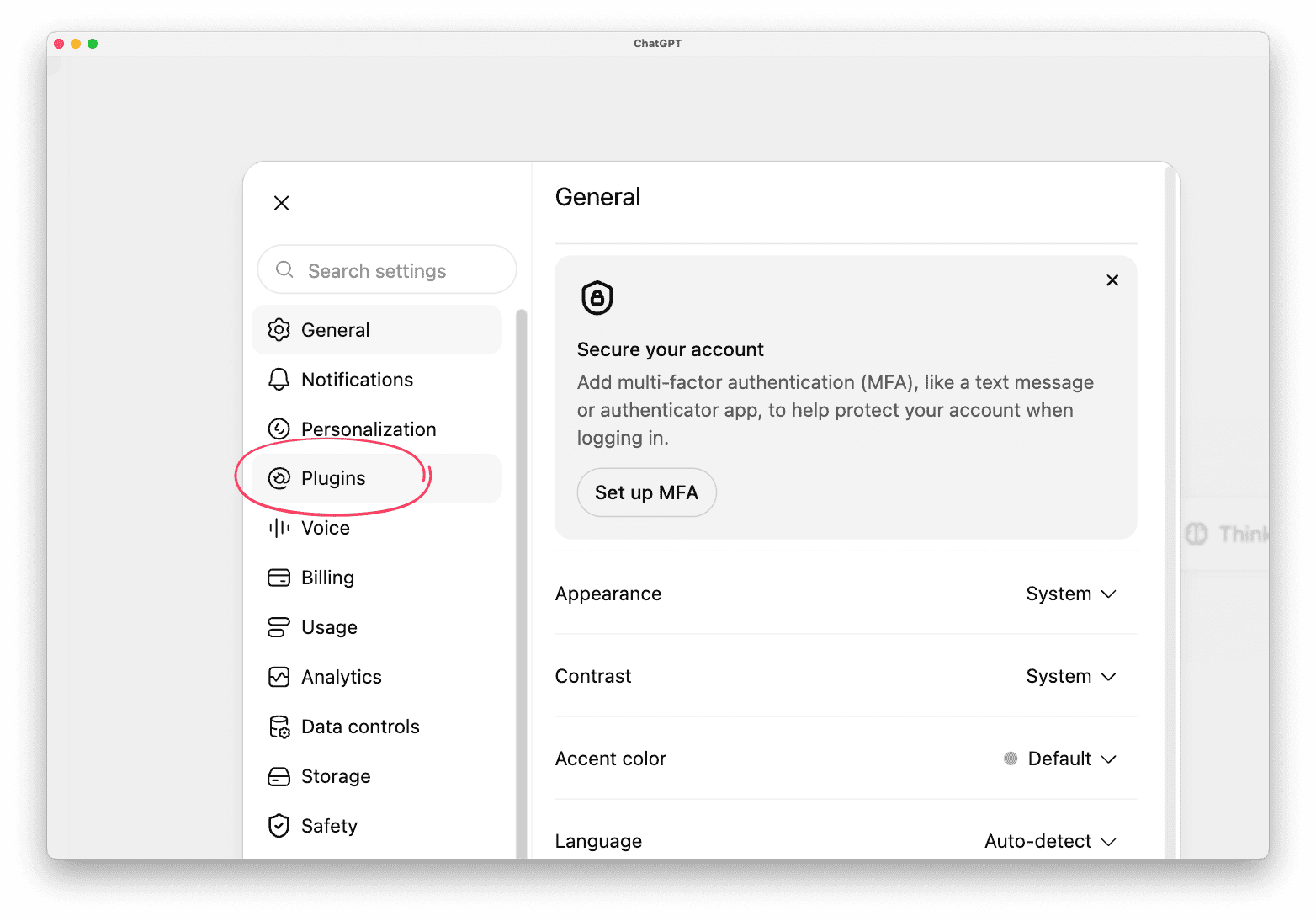
Scroll down to Developer mode and turn it on. You need it to add custom MCP servers
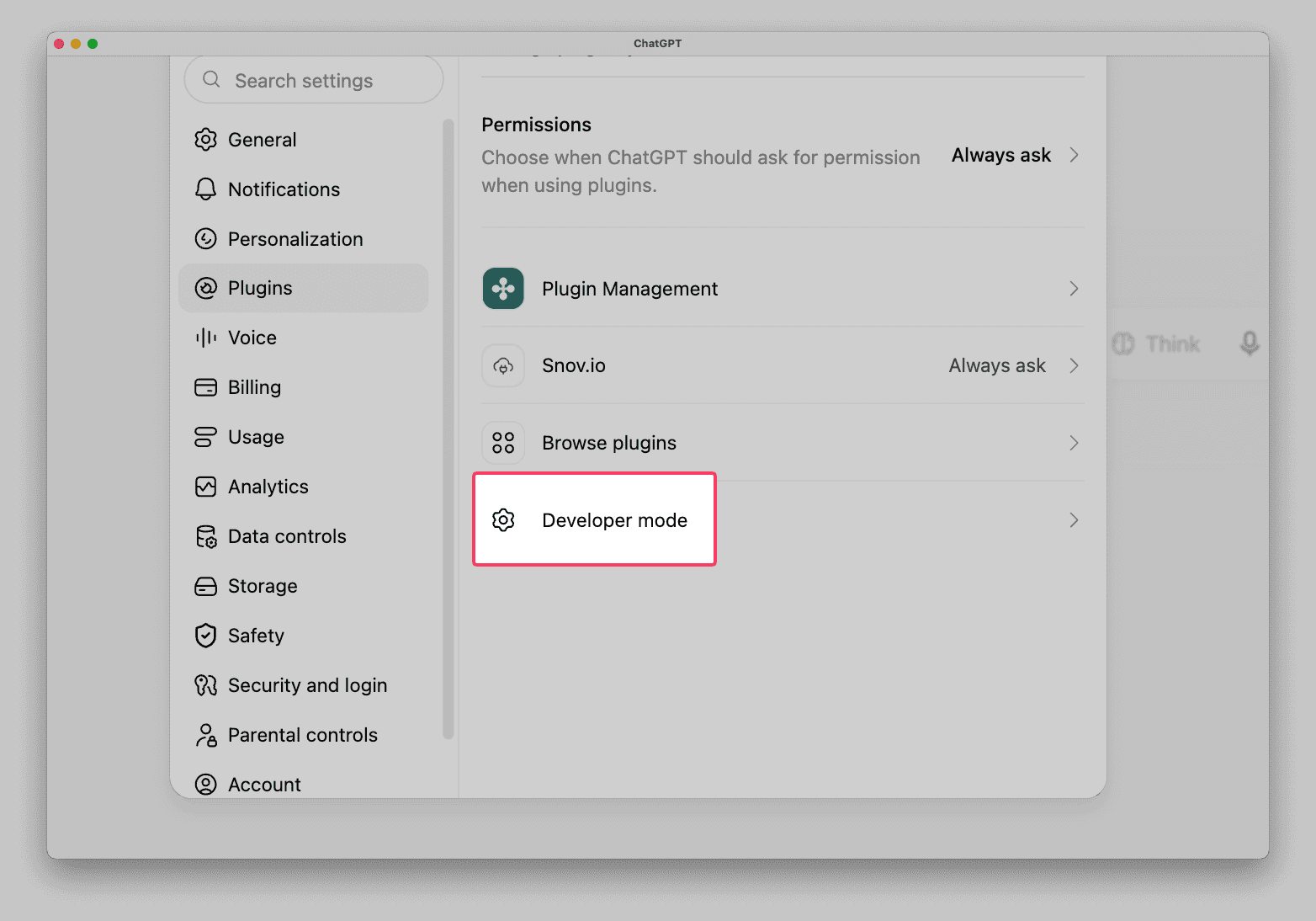
Then in Plugins, click + at the top right to add a new plugin
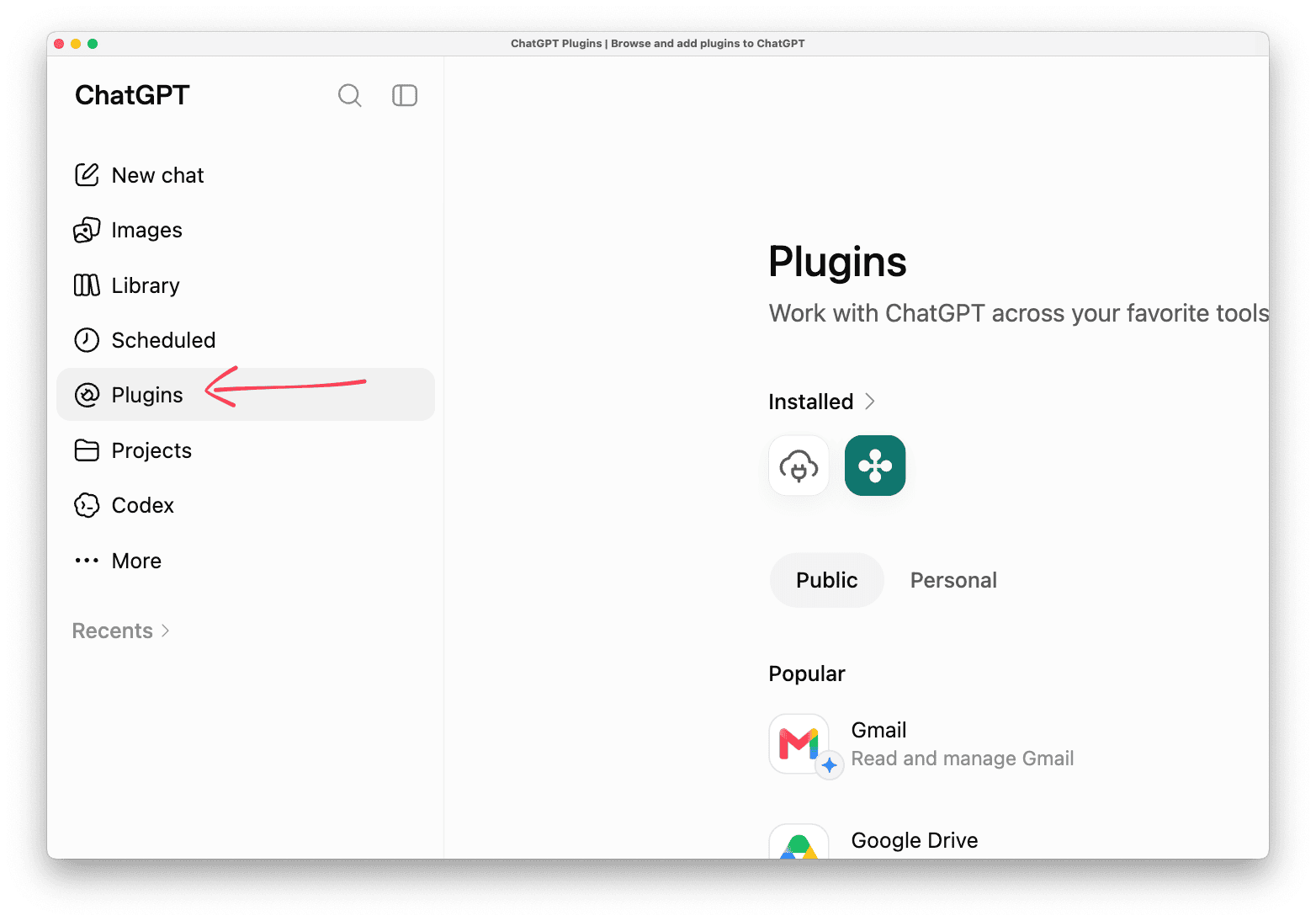
Enter the name: Snov.io
In the Connection field, paste the server URL: https://mcp.snov.io/mcp
Keep Authentication as OAuth (default)
Click Create, then sign in with your Snov.io account in the pop-up. (Make sure your Snov.io account is open in another tab.)
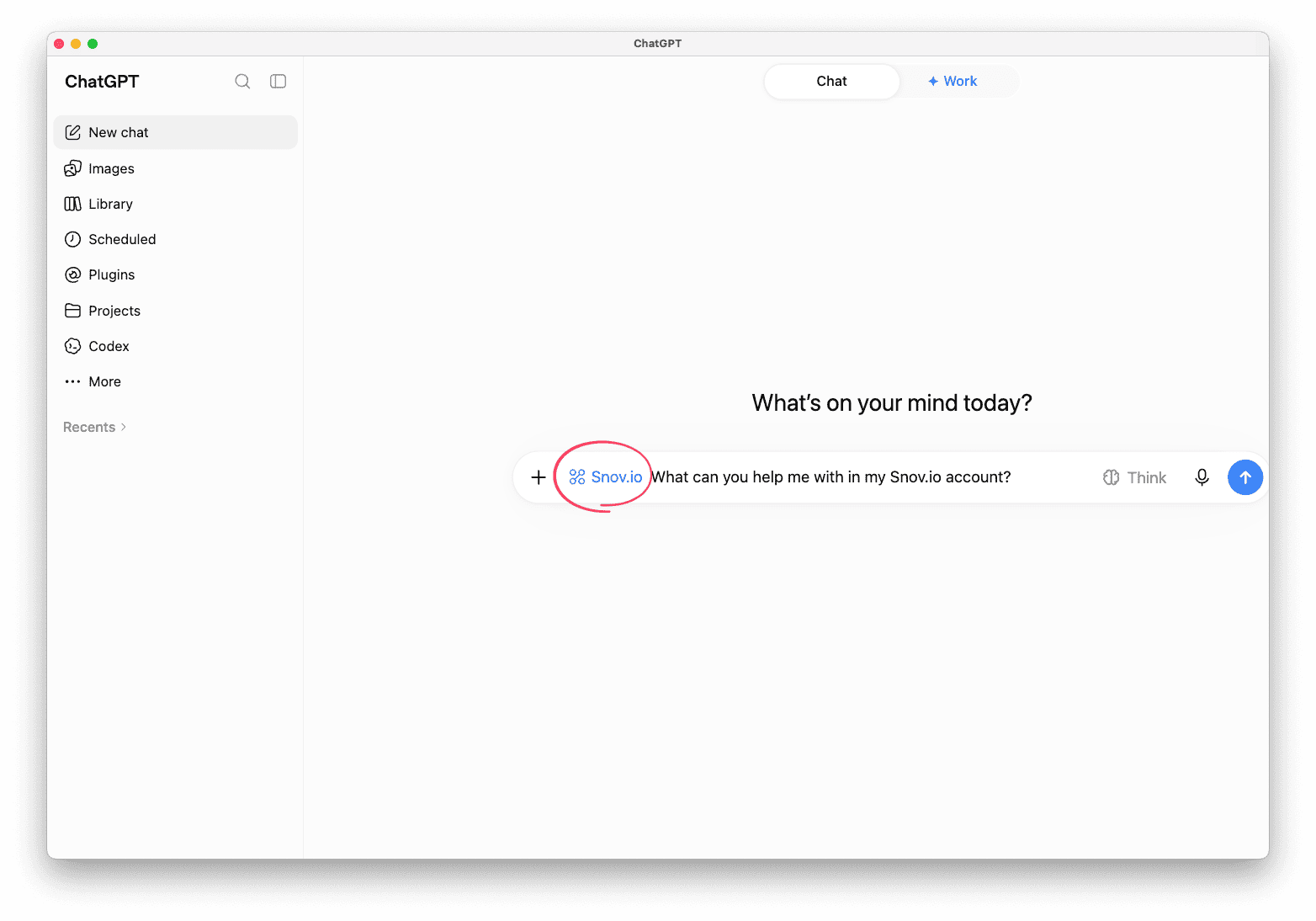
Start a new chat. Snov.io will appear in your list of plugins.
To verify the connection, ask something in chat: "Show me my Snov.io account info" or "What can you help me with in my Snov.io account?"


Sorry about that 😢
How can we improve it?