In this article, we’ll explain when to use API and SMTP connection types for Gmail and Outlook email accounts in Snov.io.
Why connection type matters
Your email connection type plays a big role when using Snov.io. Choosing the right connection for sending can improve deliverability and replies.
Select connection depending on the current usage:
- Gmail/Outlook API → for sending campaigns
- Gmail/Outlook SMTP → for warm-up and advanced settings (using alias sender account, tracking replies on another address)

Both Gmail and Outlook mailboxes can be connected using either API or SMTP in Snov.io. The choice depends on the current usage stage of the mailbox.
When to choose API connection
Snov.io recommends using API connections for campaigns. For best deliverability, keep campaign volume low (up to 30 emails/day per account).
For API-connected accounts, the default recommended sending limits are:
- 15 emails/day for Gmail
- 5 emails/day for Outlook
API connection for campaigns
Emails sent via API:
- Use the provider’s native sending infrastructure
- Are treated as personal or manual emails
- Are less likely to land in spam
- Align better with Gmail and Outlook sending rules
Emails sent via SMTP
- Use shared sender IP addresses
- Spam filters apply stricter rules (impacts deliverability)
- Lower average deliverability for cold outreach
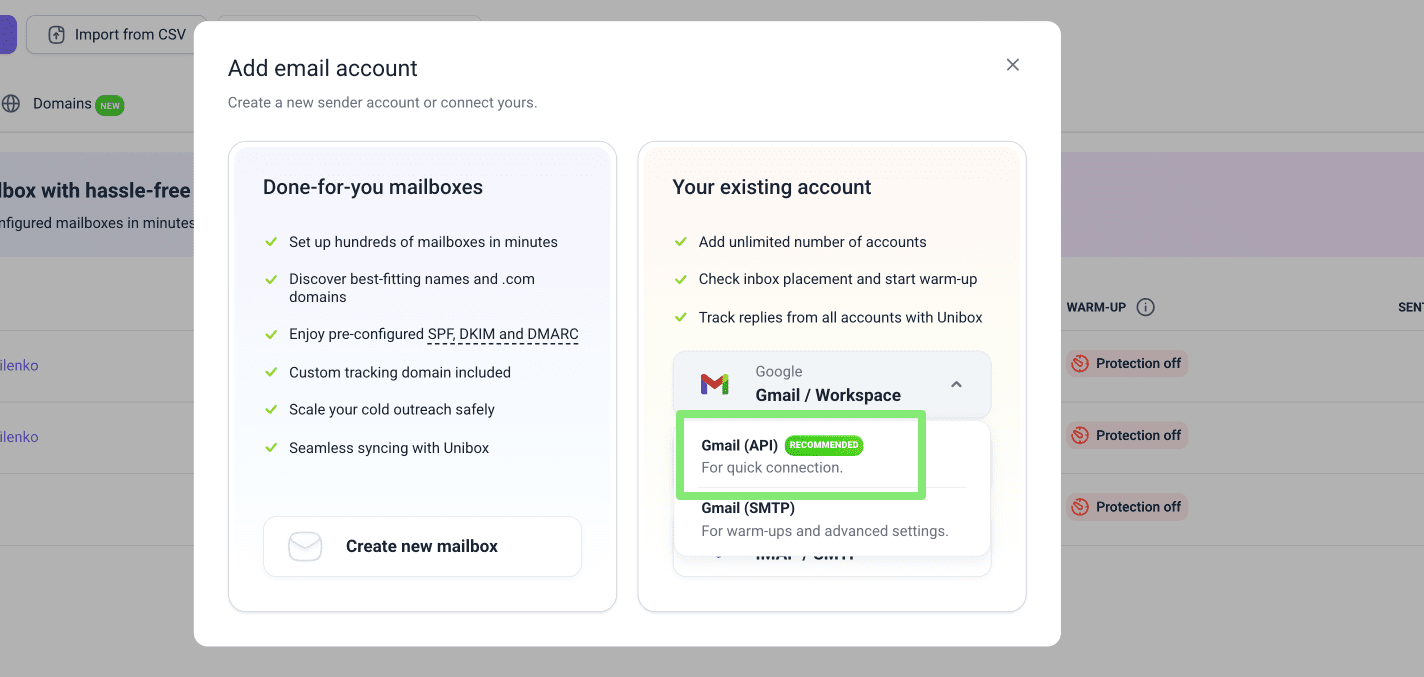
To connect your mailbox via API, select it for the Gmail or Microsoft during the email connection.
When to choose SMTP connection
SMTP connections are required to warm-up Gmail mailboxes or when you need advanced sending settings.
SMTP connection for warm-up
For warm-up, you’ll need a higher daily limit (the recommended warm-up goal is 40 emails/day).
Since warm-up emails count as real sends, running warm-up above the recommended API limits (15 emails/day) can affect sender reputation.
To warm up account, use a separate SMTP connection and set the daily sending limit to 40 emails/day.
Recommended setup for email connection
Create two separate connections for the same email account — one via API and one via SMTP.
To warm-up your account, use the SMTP connection. After your warm-up is finished, choose the API-connected account for sending campaigns.
You can safely add the same email account twice in Snov.io using different connection types, using both API and SMTP.
Just make sure to select the correct type depending on the current usage:
- Gmail/Outlook API → for email campaigns
- Gmail/Outlook SMTP → for warm-up
Connect the account via SMTP → Run warm-up until completed → Switch back to API for sending campaigns.
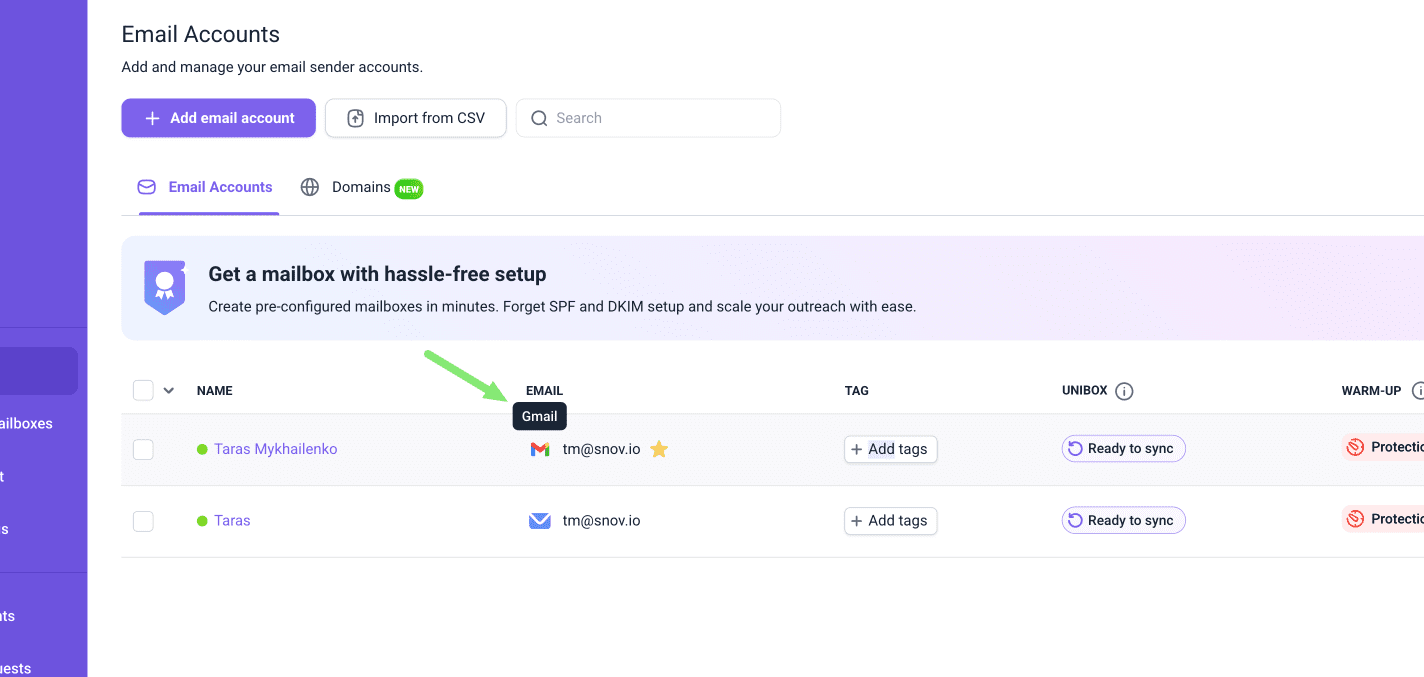
This is what the Gmail API connection type looks like in your email account settings.
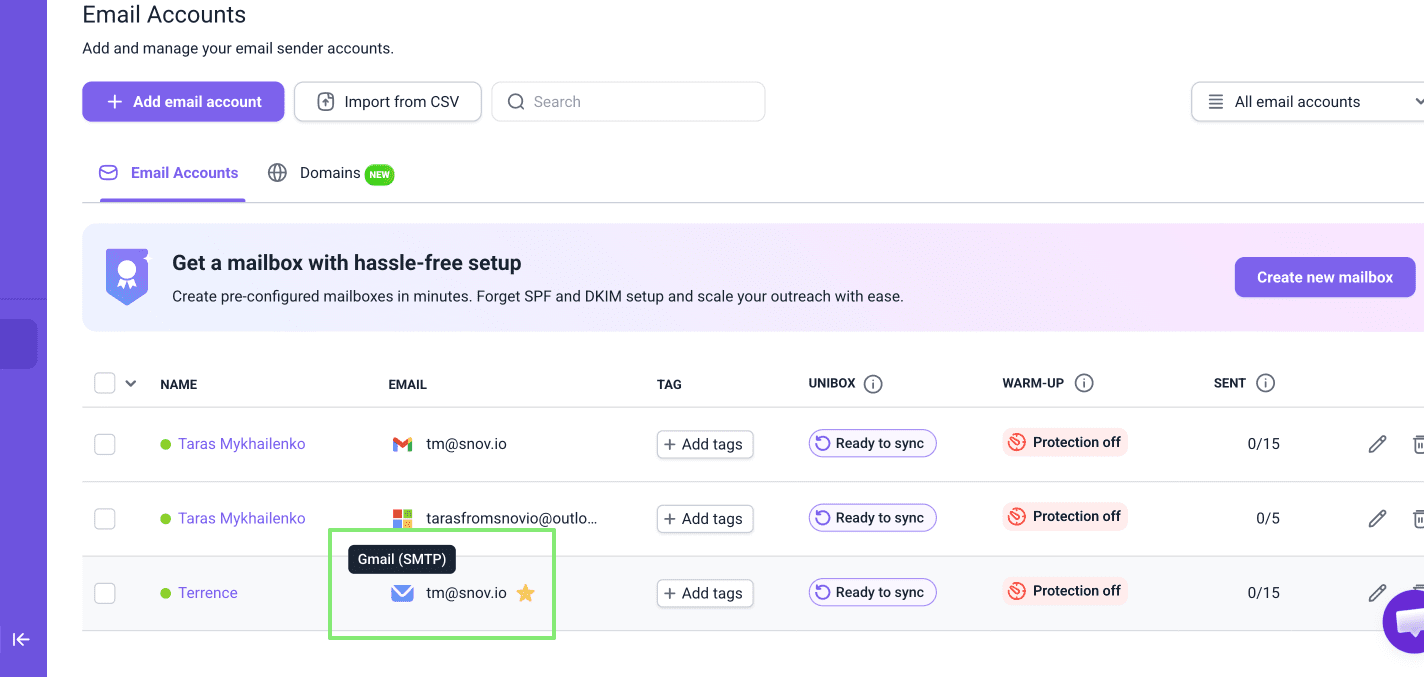
This is what the SMTP connection type looks like in your email account settings:
Warming-up Gmail accounts
Gmail API connections are not supported in Email Warm-up. Change your account’s connection type to SMTP to add it to warm-up.
SMTP-connected accounts have full compatibility with warm-up features, including:
- Warm-up per provider (Gmail / Outlook)
- Custom tracking domain warm-up
- Premium warm-up pool (with business domains)
Connect Gmail account via SMTP
- The password must be a third-party app password, not your main email password
- Two-factor authentication must be enabled in the Security settings
- App password is different from your email login password
To enable third-party app passwords with Gmail, you need to enable two-factor authentication as well. Learn how to create third-party app passwords on Google accounts.
Warming-up Microsoft Outlook accounts
If your email is hosted on Office 365:
- Make sure SMTP AUTH is enabled in your Microsoft email settings
- If you’re not sure how to check or enable this, reach out to your Office 365 admin
Connect Microsoft Outlook via SMTP
- Use a third-party app password, not your main email password
- App passwords must be enabled in your Microsoft account
Learn how to configure third-party app passwords for Microsoft accounts.
SMTP for advanced settings
You may also benefit from SMTP connection when you need advanced email sending settings.
These email settings are only available for SMTP connections.
Advanced SMTP settings include
- Use alias sender name: Send from a different From email address than the actual mailbox
- Use a different reply-to address: Automatically forward replies to another mailbox
- Track replies on another address: Set a different IMAP account for tracking replies
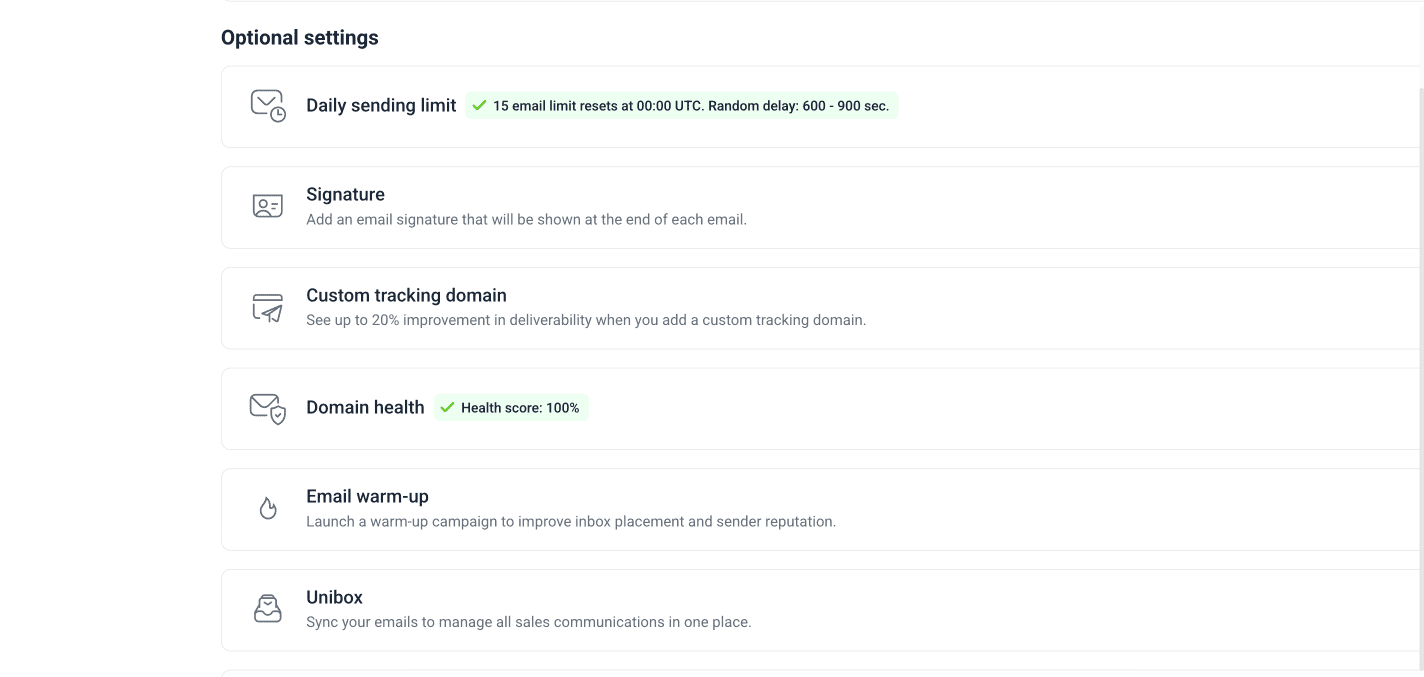
For both API- and SMTP-connected accounts, you can:
- Check domain health
- Run deliverability tests
- Add custom tracking domains
- Sync inboxes with Unibox
Find them in Optional settings for each account.


Sorry about that 😢
How can we improve it?