In this article, you'll learn how to view, message, and manage your LinkedIn connections directly from Snov.io without switching platforms.
What is My Network?
My Network syncs your LinkedIn connections to Snov.io. You can view your network, message contacts, and manage your list from one place.
What you can do:
- View all LinkedIn connections in one list
- Message contacts directly
- Turn connections into prospects for campaigns
- Remove contacts you no longer need
- Keep contact information updated
- Export your connection list to CSV
Before you start: To access My Network and sync your connections to Snov.io, connect your LinkedIn account.

Don't have a LinkedIn account linked yet?
Go to Account settings > LinkedIn account to connect one now. Learn more about adding LinkedIn to your outreach in our article.
Setting up My Network
Select your LinkedIn account
Go to My Network page (accessible through the top menu LinkedIn button). If you have at least one LinkedIn account connected, it will be selected by default in the dropdown.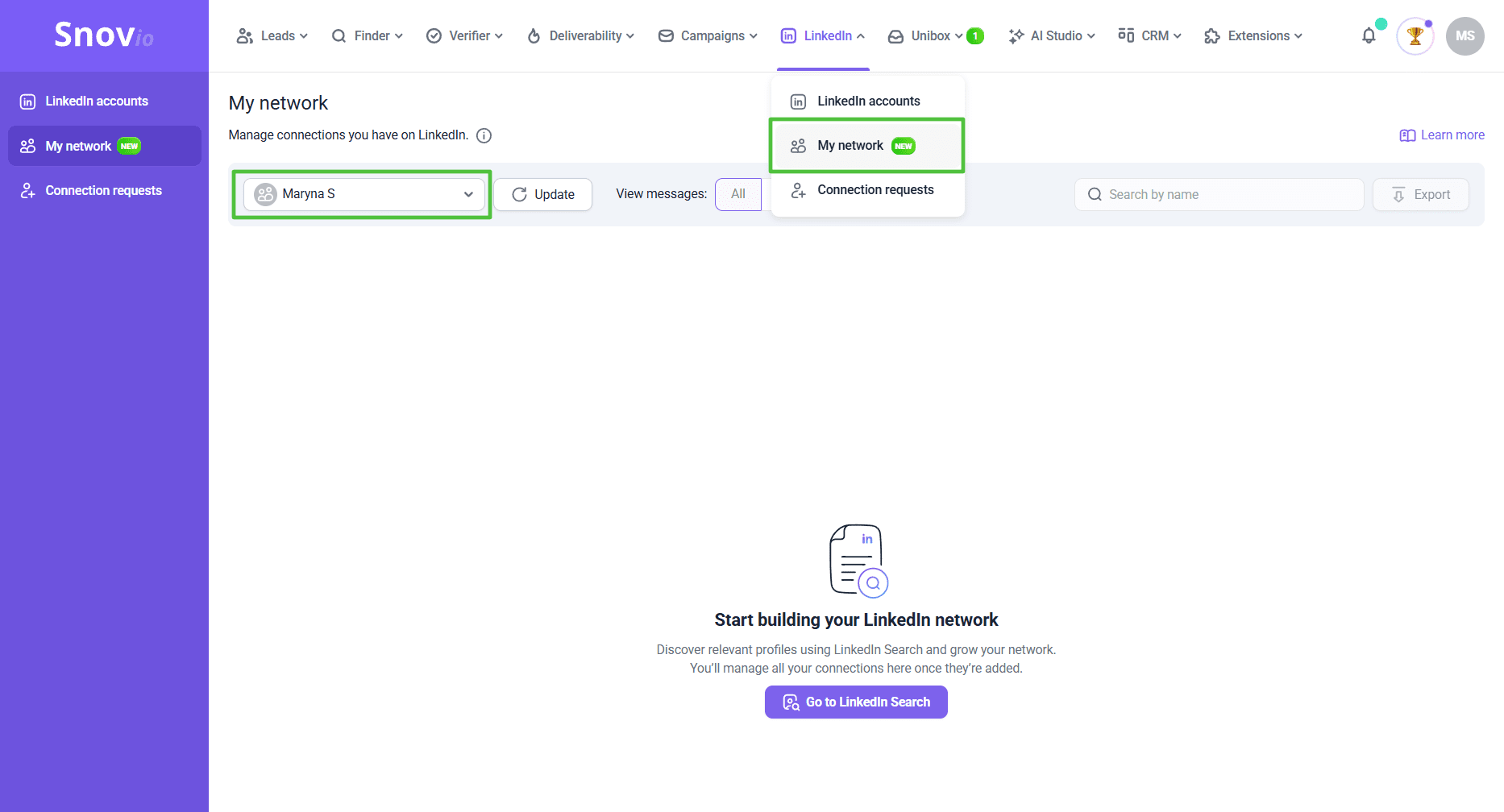 If you have no connected accounts, you'll need to select one:
- Click the account dropdown
- Choose a connected LinkedIn account
Now wait for the initial sync to complete to see all your LinkedIn connections appear in the list.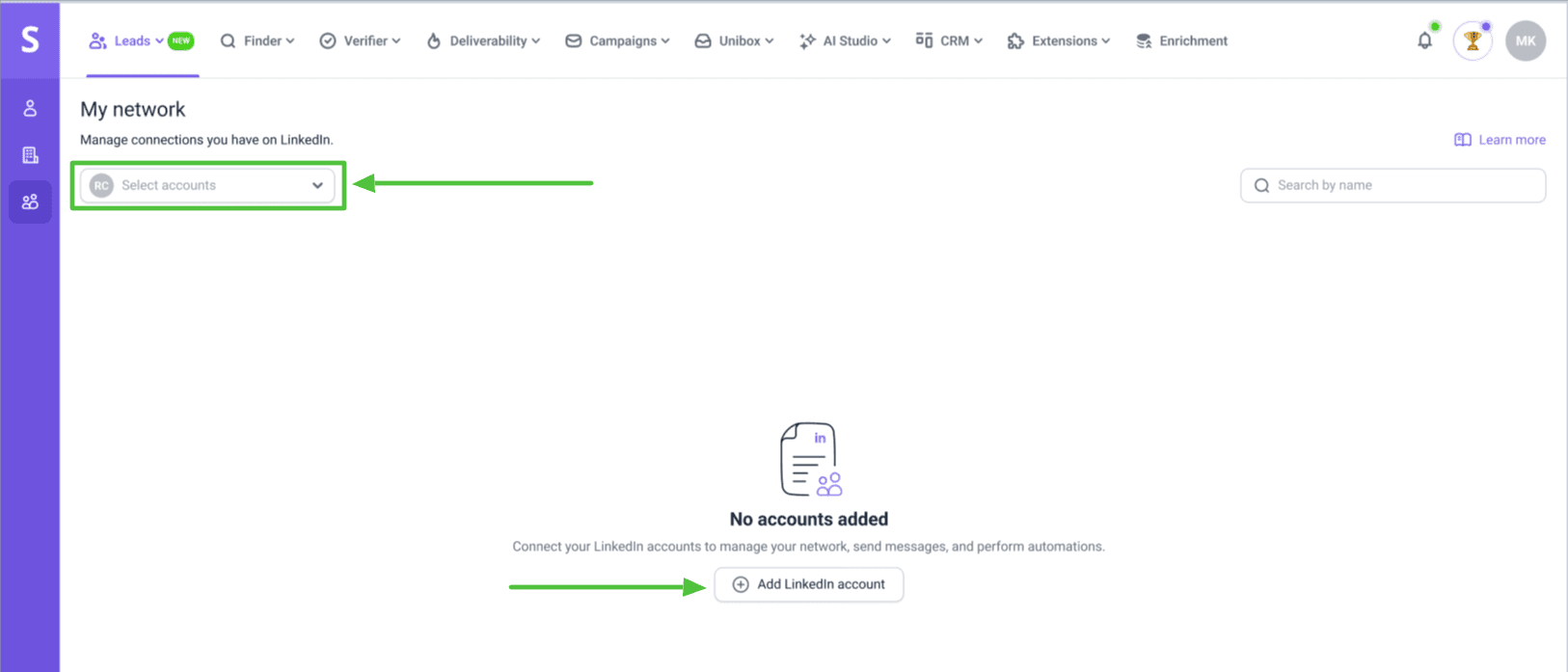
Need more account slots? Click Add LinkedIn slots to purchase additional connections.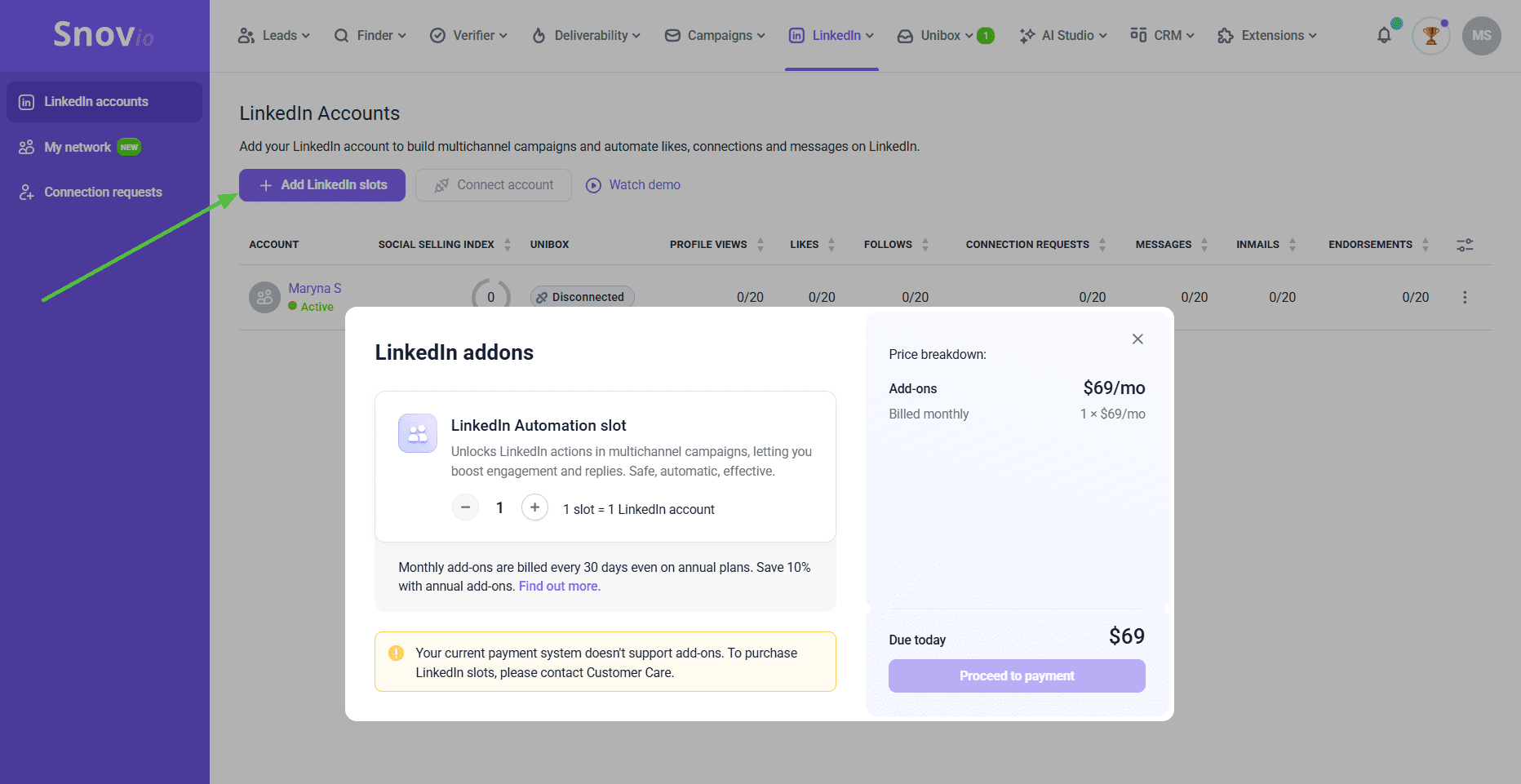 After selecting an account, Snov.io automatically pulls your connections from LinkedIn.
If you see disconnected accounts:
To reactivate the account, click Reconnect this account in the LinkedIn account settings drop-down.

Note: LinkedIn's displayed connection count may differ from what you see in My Network. This inconsistency comes from LinkedIn, not Snov.io.
How to manage your connections
In the connections list, you can:
- View contact’s name, company and job title
- Check their prospect status
- Add a contact to list
- See when you connected
- See if you have unread messages
- Send a message
- Remove a contact
To view contact details and open their LinkedIn profile, click a contact's name.
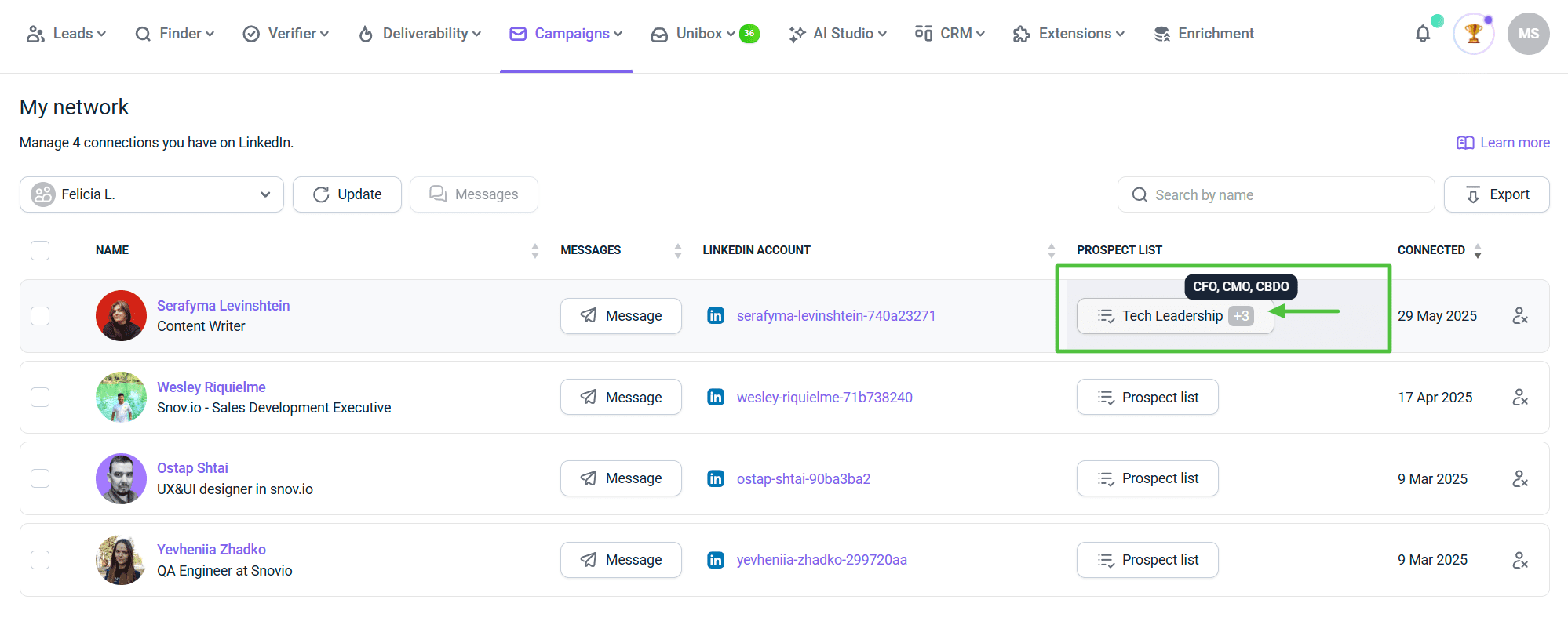
If the contact already exists as a prospect (matched by LinkedIn URL), you'll see:
- Prospect name (click to open profile)
- List name (click to view that list)
Add connections to prospect lists
To create a prospect from their LinkedIn profile, click Add to list next to any contact.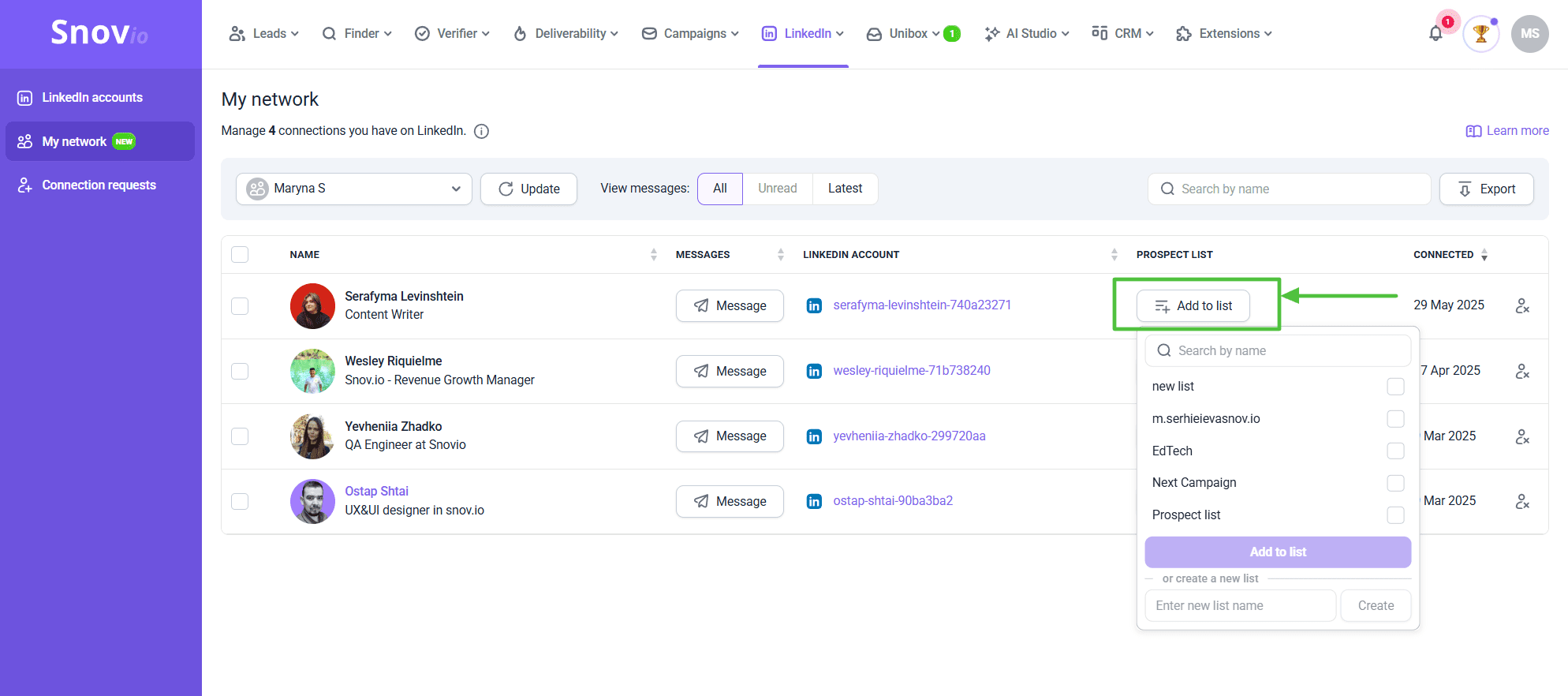 For existing prospects: You'll see all lists they belong to, separated by commas. Click any list name to open it.
 For the new lists: choose the field Create a new list and type its name. Click Create to save it.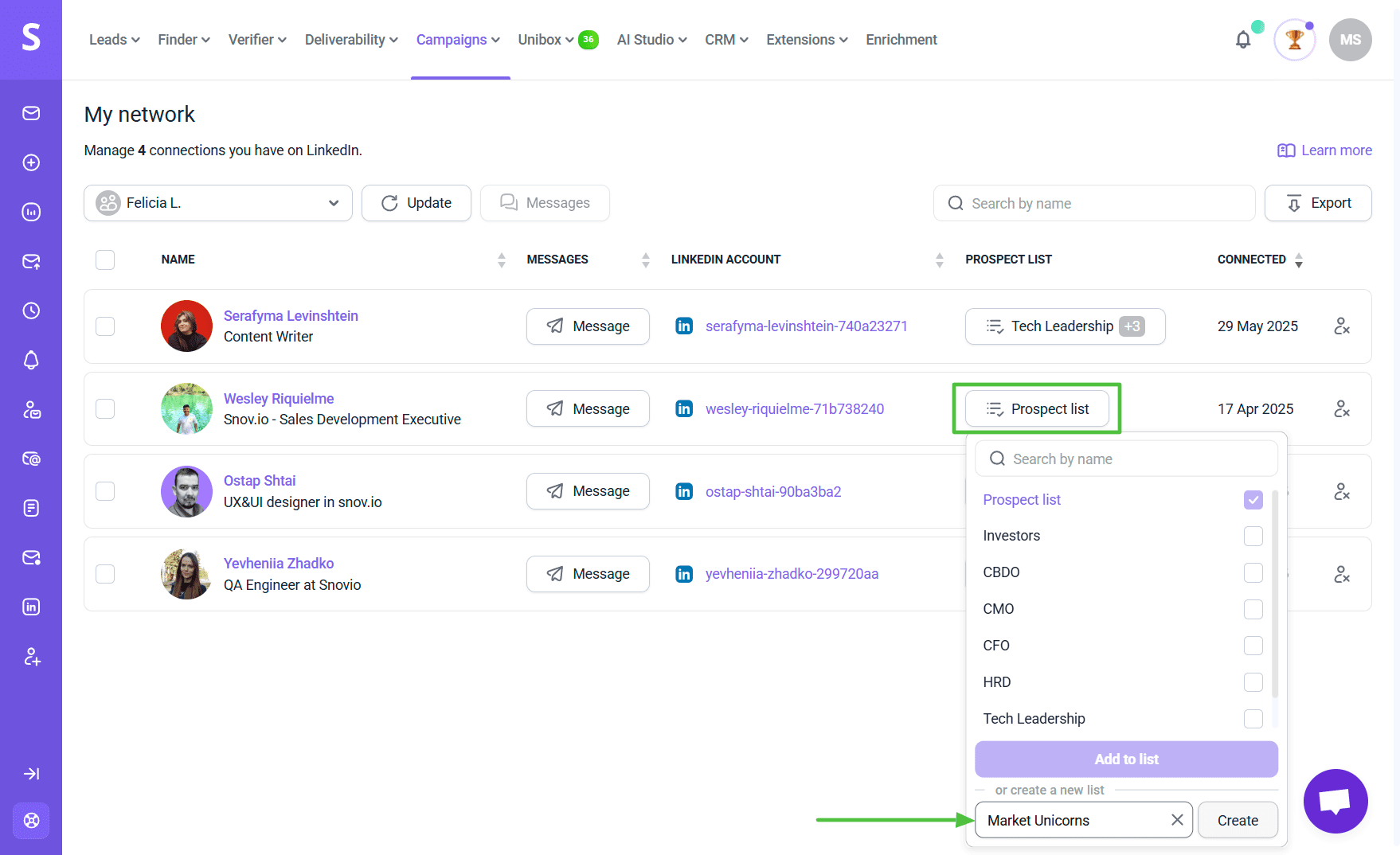
You can use You can use bulk actions to add several contacts to a prospect list:
- Select multiple contacts using checkboxes
- Click Add to list at the top.
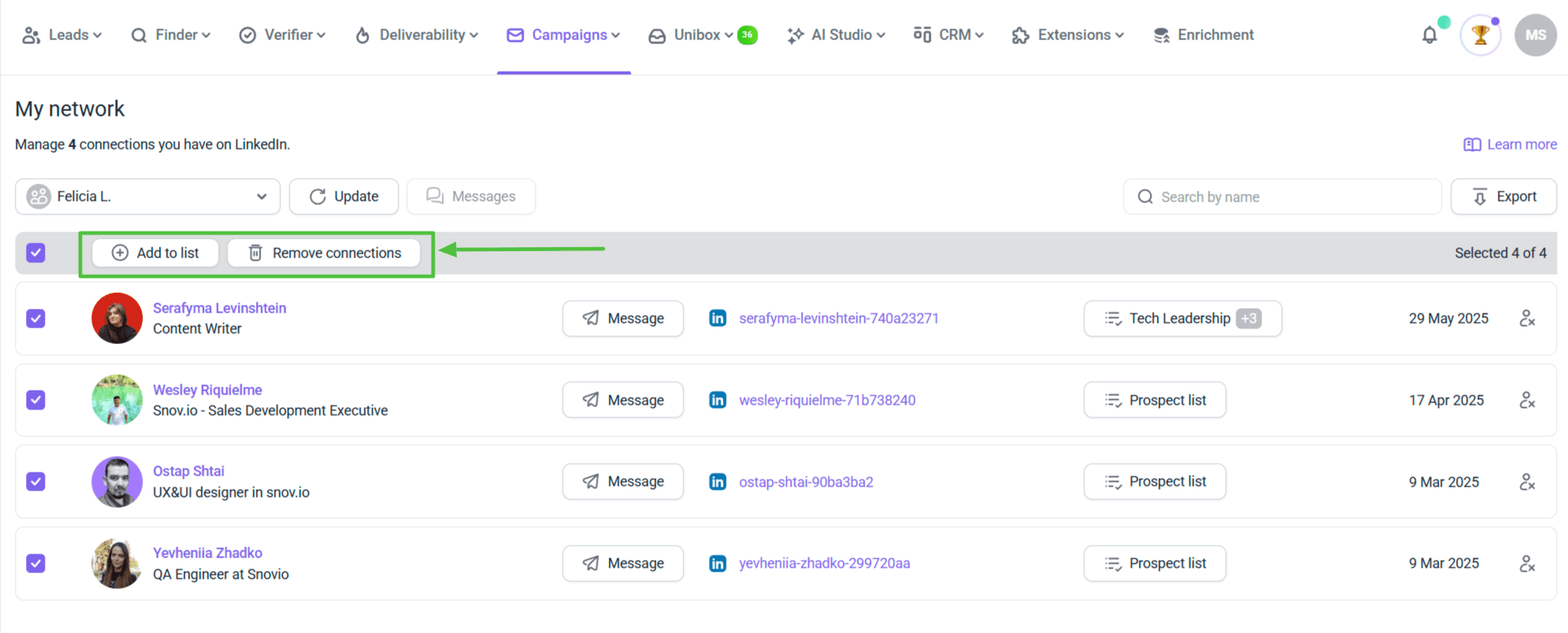 You can also remove connections using bulk actions.
How to message connections
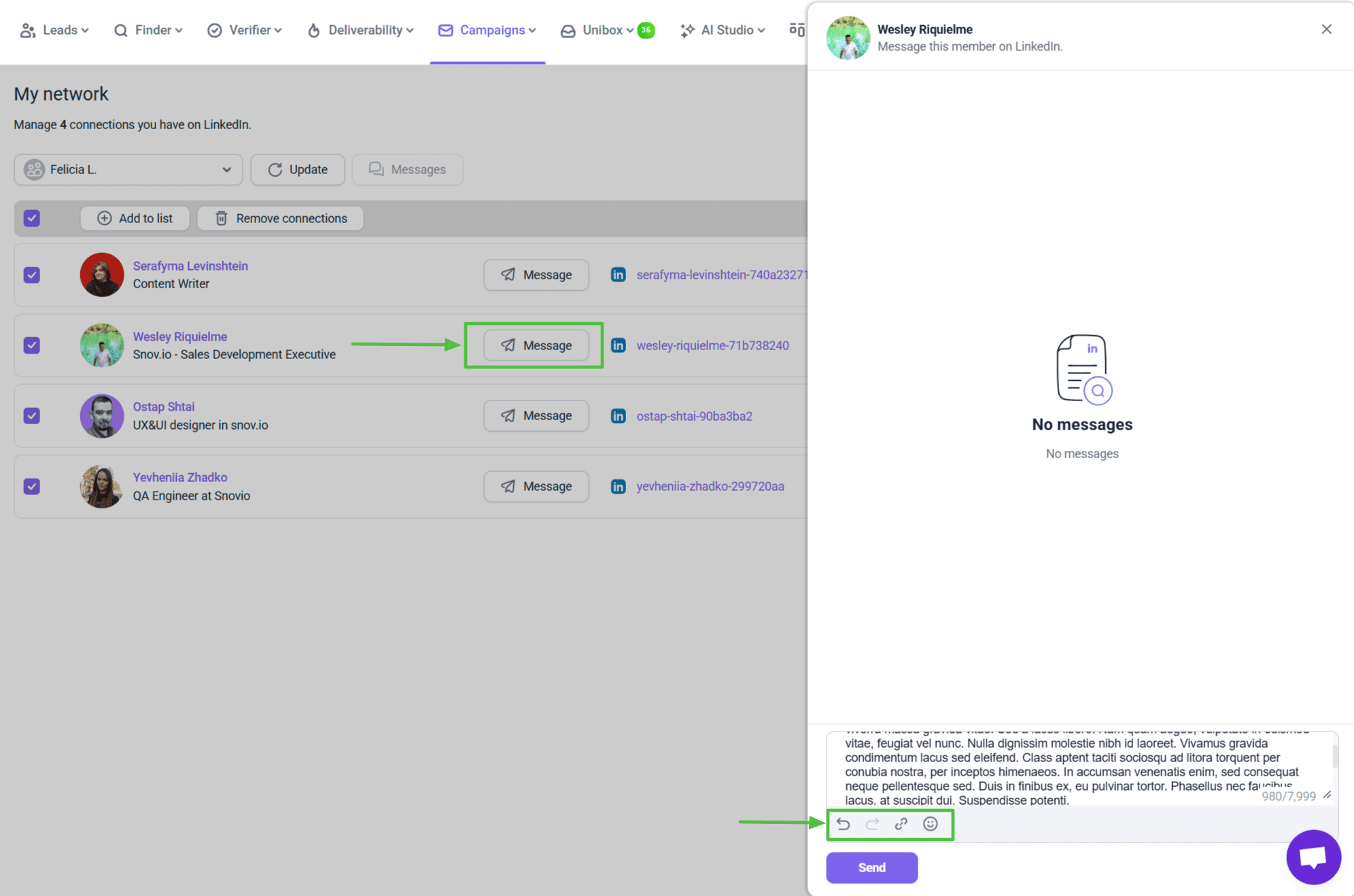
Click Message next to any contact to open the chat window on the right side.
My Network chat features include:
- Conversation history syncs from LinkedIn
- Last messages load automatically
- Real-time message sending
- File attachments for pitch decks, PDFs, or presentations
 To see only new conversations, click the Unread messages filter. The counter shows how many you currently have.
How to remove connections
Remove single contact
Click Remove connection (the icon with a person with X) next to any contact.
Note: Removals run one at a time. You can click Delete for several contacts, and they will queue in order. 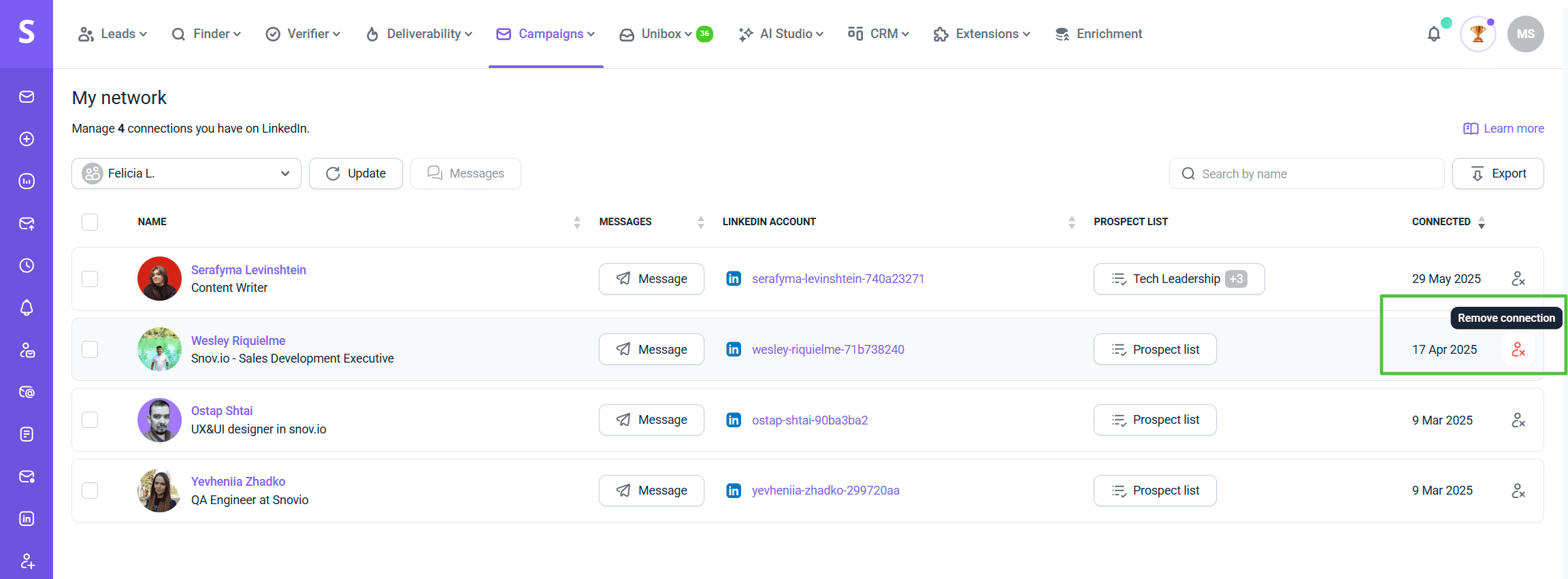 For bulk removal:
- Select multiple contacts using checkboxes
- Click Remove connections at the top of the list
- Contacts are removed one by one in order
- You'll see a progress indicator for each removal
How to search and export
Use the Search field in the top right corner to find contacts by name. Results filter automatically as you type.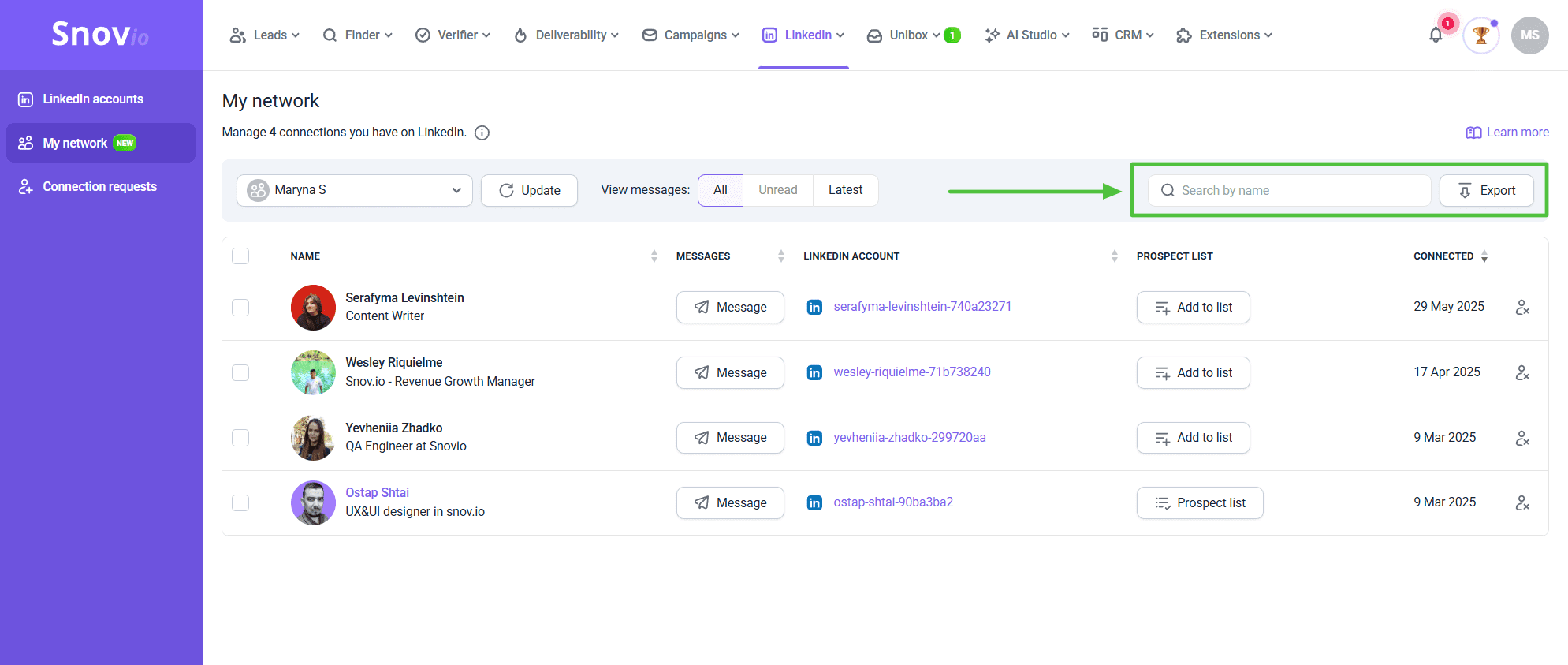 Click Export to download your connections as a CSV file.
The export includes:
- Contact name
- Company and job title
- LinkedIn profile URL
- Connection date
How to refresh your data
Click the Update button to manually sync the latest data from LinkedIn. A loading indicator appears during the update, followed by a success message.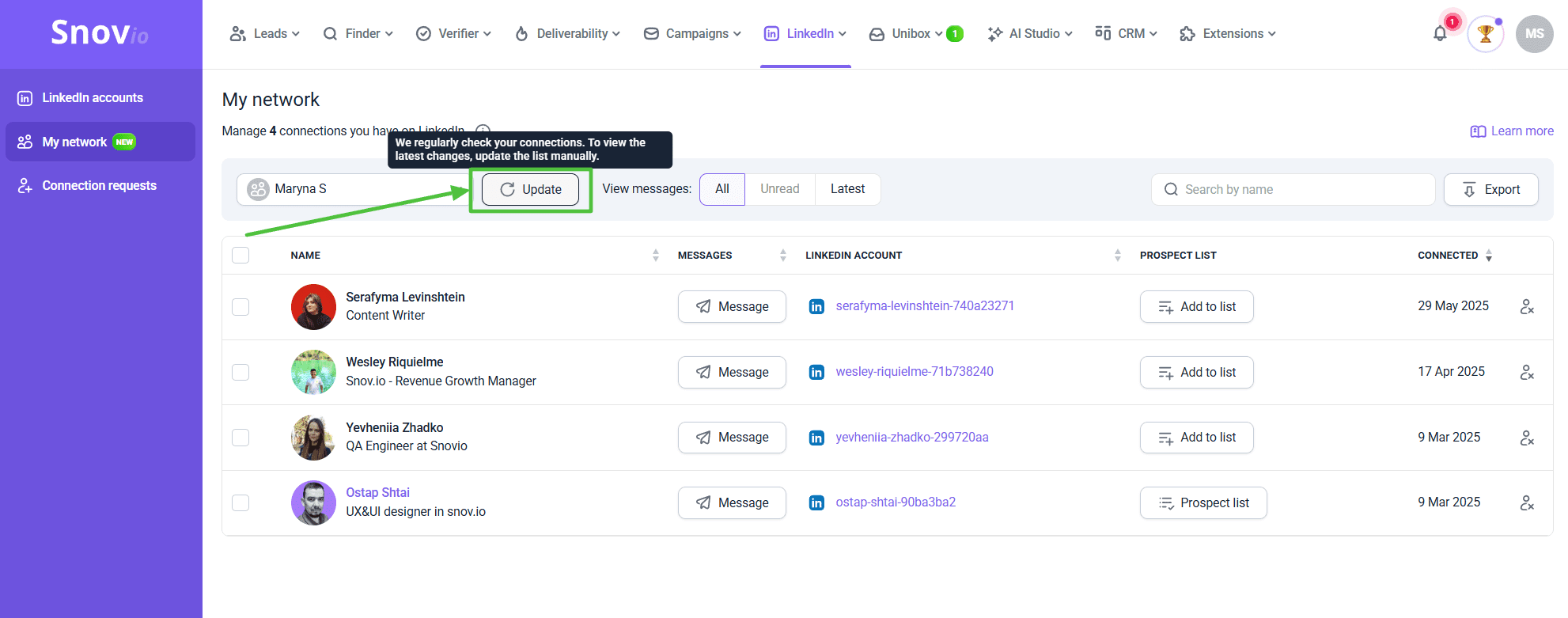 Automatic updates: Your connection list updates automatically via background sync, but you can force refresh anytime for the latest data.
FAQs
Can I sync multiple LinkedIn accounts to My Network?
Yes. Connect multiple LinkedIn accounts in your settings, then use the account dropdown in My Network to switch between them and view each account's connections separately.
How do I keep my connection list organized?
Add valuable connections to prospect lists as you go. This makes it easy to build targeted campaigns later without searching through your entire network. Use the Add to list button or bulk selection to organize multiple contacts at once.
What happens to my connections if I disconnect my LinkedIn account?
Your connection data stays in Snov.io until you reconnect. However, you won't be able to message contacts or sync new connections until the account is reconnected.
Why don't I see all my LinkedIn connections in My Network?
The initial sync can take a few minutes depending on how many connections you have. Click the Update button to force a refresh. If connections are still missing, check that your LinkedIn account is connected in Account settings. Plus, LinkedIn may show a different connection count on your profile than what appears in My Network. This discrepancy comes from LinkedIn's data inconsistencies, not Snov.io.
Can I message connections who aren't in my prospect lists?
Yes. You can message any LinkedIn connection directly from My Network without adding them to a prospect list first. Add them to lists later if you want to include them in campaigns.
Can I add LinkedIn connections to multiple prospect lists at once?
Yes. When you click Add to list for a contact, you can select multiple lists or create new ones. If a contact already belongs to lists, you'll see all of them displayed.
Can team members access My Network?
Each team member manages their own LinkedIn connections. My Network shows only the connections from LinkedIn accounts you've personally connected, not shared team accounts.
Should I regularly clean up my connection list?
Yes. Removing connections you no longer engage with keeps your network focused and makes it easier to find relevant contacts. It also ensures your prospect lists contain only active, valuable connections for campaigns.


Sorry about that 😢
How can we improve it?