This guide shows how to add phone numbers to prospects in Snov.io using the Clay integration, then use calling as a follow-up to email outreach.
This flow works best when:
You want to start with email, then switch to phone after no replies, and use phone as a backup contact method.

What you’ll build:
Collect prospects in Snov.io or filter by engagement filters → Enrich phone numbers in Clay → Sync phone numbers back to a Snov.io list → Create deals in Snov CRM or sync to Pipedrive for calling workflow
The stack you’ll need:
- Snov.io → sourcing prospects + email outreach
- Clay → phone enrichment
- Pipedrive (optional) → pipeline + calling + tracking funnel
Step 1. Prepare prospect list
In this workflow, you’ll enrich phone numbers in Clay using prospect data from Snov.io.
Go to Prospects and create a list for phone number enrichment. Add new prospects or export recipients from your existing email campaigns.
Find new prospects
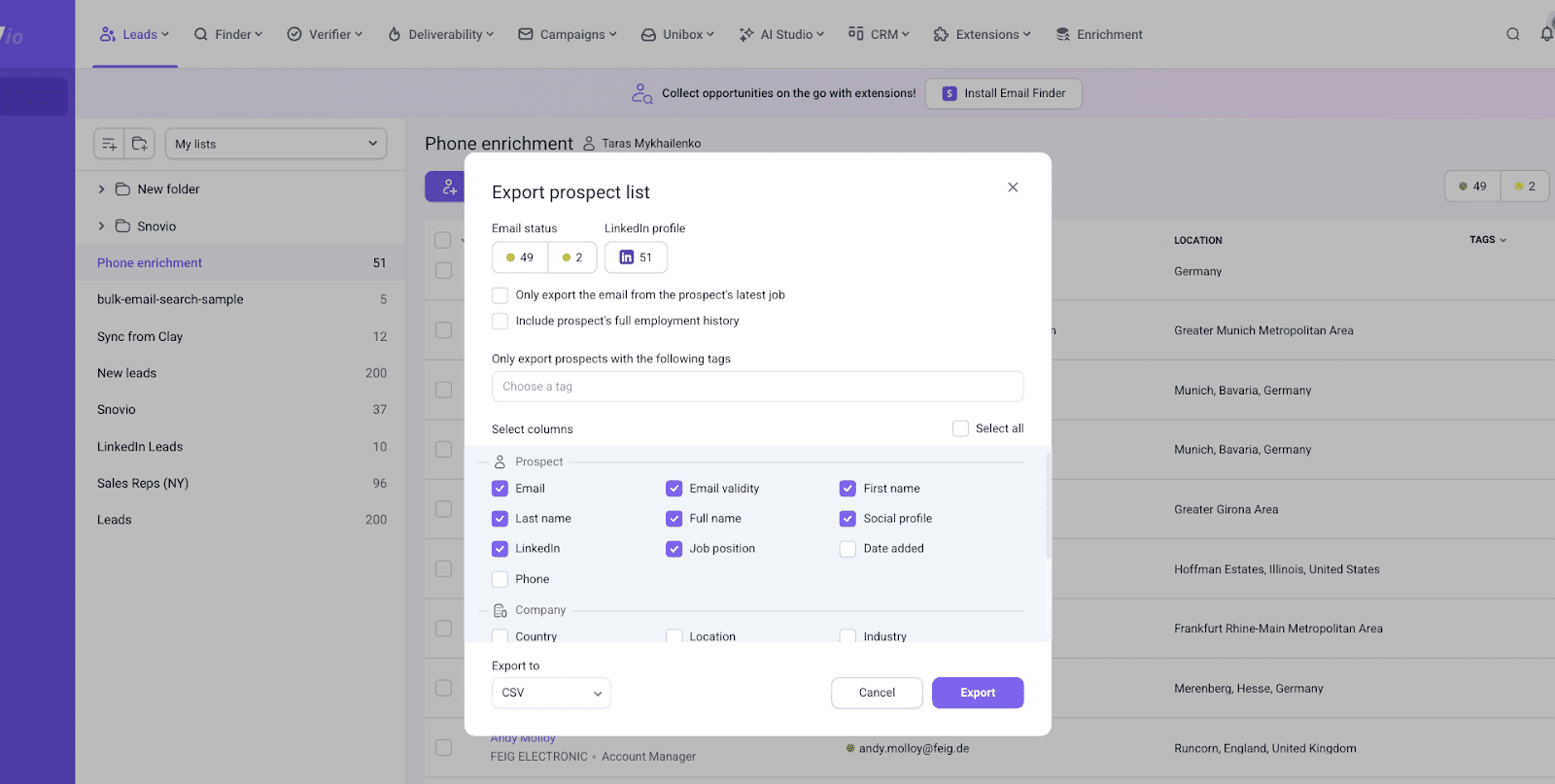
Use the Database Search to collect more prospects based on your ICP filters. Snov.io provides all the key data needed for further enrichment.
Once your list is ready, export it as a CSV file to use in Clay.
Export existing prospects from campaigns
To keep this workflow efficient, create a list of prospects qualified for calling based on engagement filters. Enrich phone numbers only for leads who showed some interest.
Here’s the example criteria you can use:
- No reply after email sequence
- Opened emails (but didn’t reply)
- Clicked (but didn’t reply)
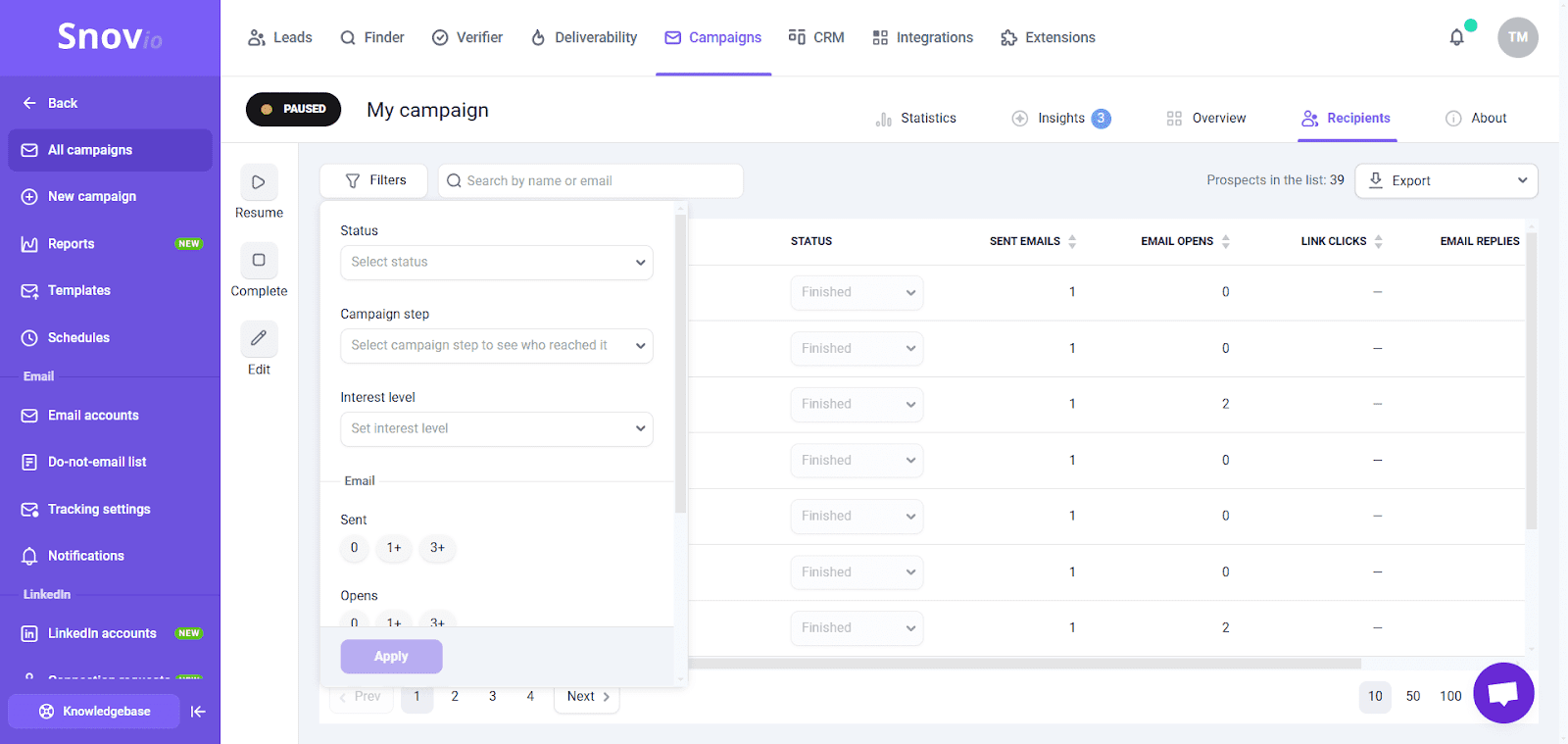
Campaigns allow you to filter recipients based on these precise criteria.
Go to the Recipients tab in your campaign and use the Filter option. Read this guide on how to export prospects based on engagement.
Step 2: Enrich phone numbers in Clay
Prepare your Clay table
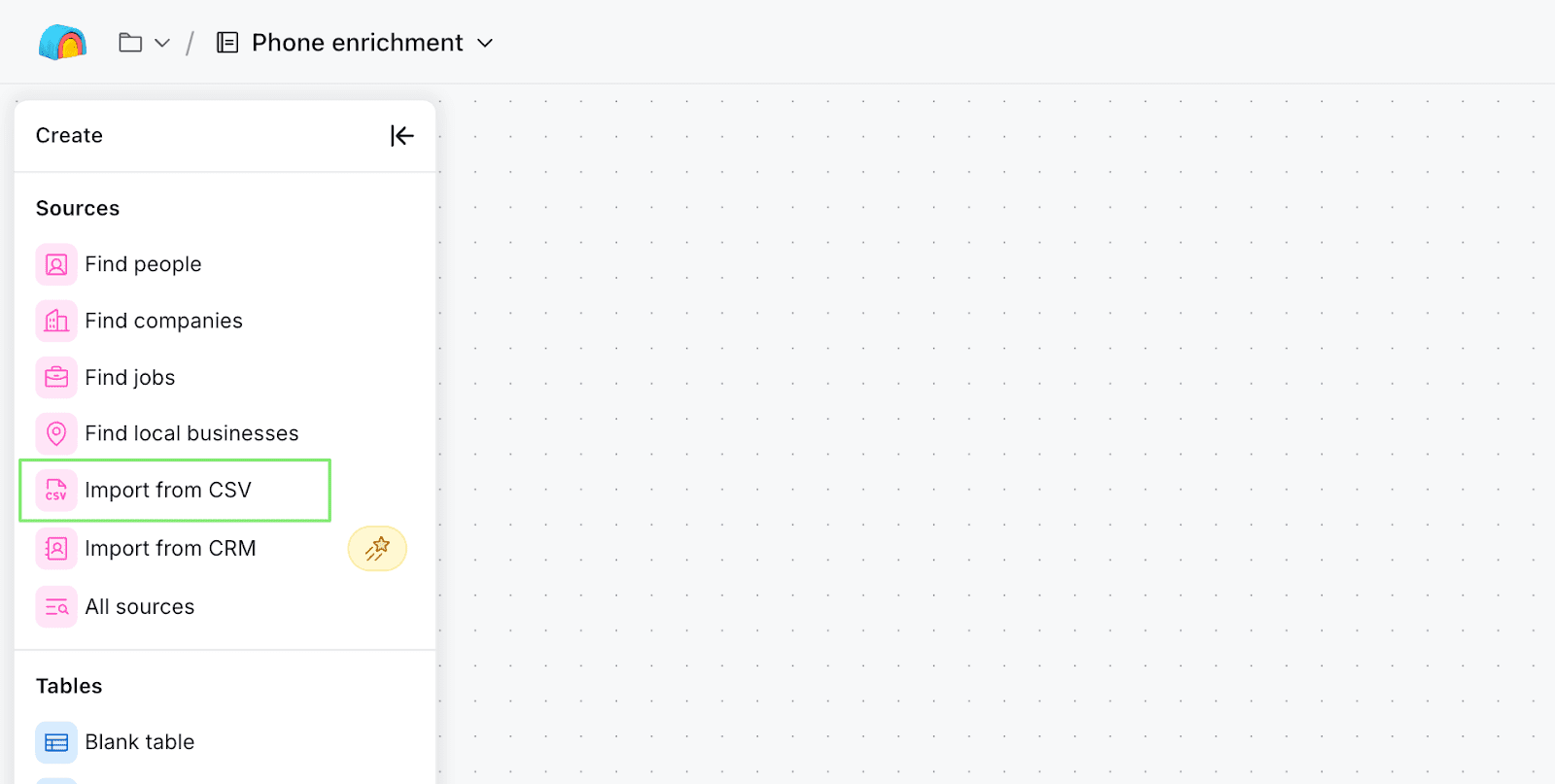
Create a new table in Clay. Use Import CSV to upload the file with prospects you exported from Snov.io.
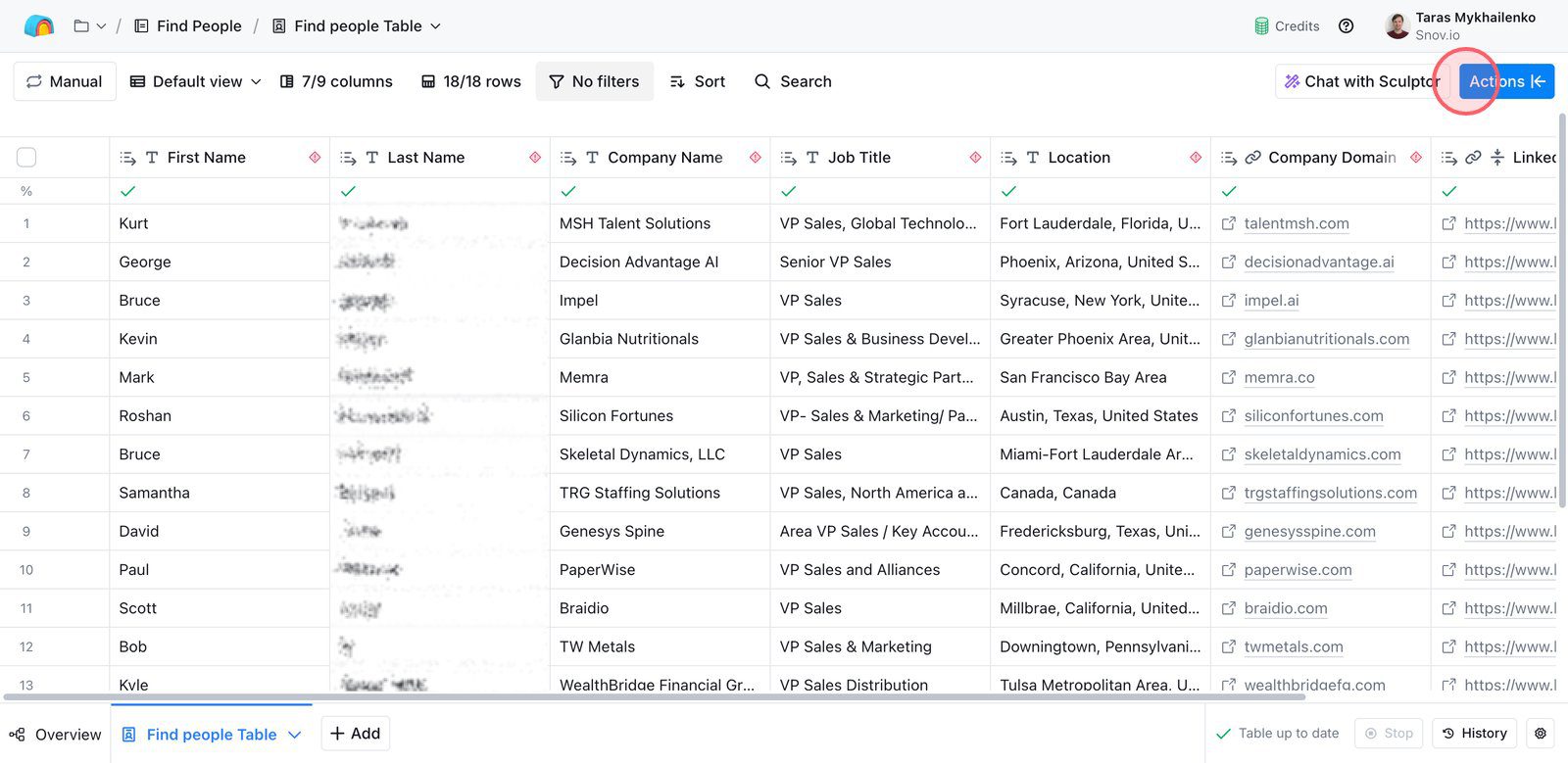
When your prospect list is ready in Clay, click Actions in the top right. Then search for Mobile Phone enrichment.
Add phone enrichment
To maximize successful results and reduce manual retry loops, use the waterfall option.
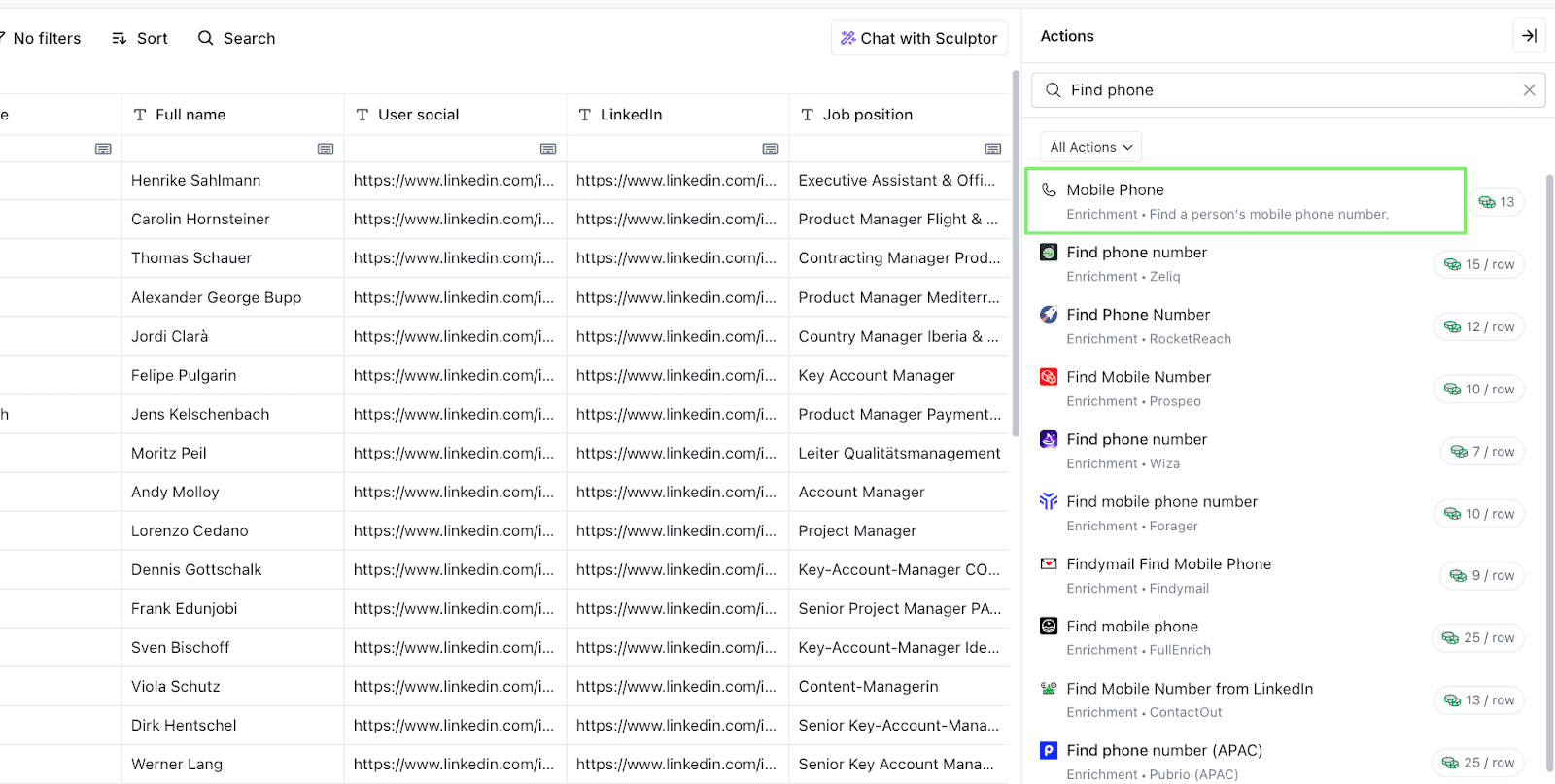
Select Mobile Phone enrichment option in Clay. This checks multiple sources/providers sequentially until it finds a good number.
Map inputs
In the Inputs, we already have all the necessary data fields from Snov.io.
- Prospect’s First Name and Last Name
- Company Name and Domain
- Verified Email Address
- A LinkedIn URL
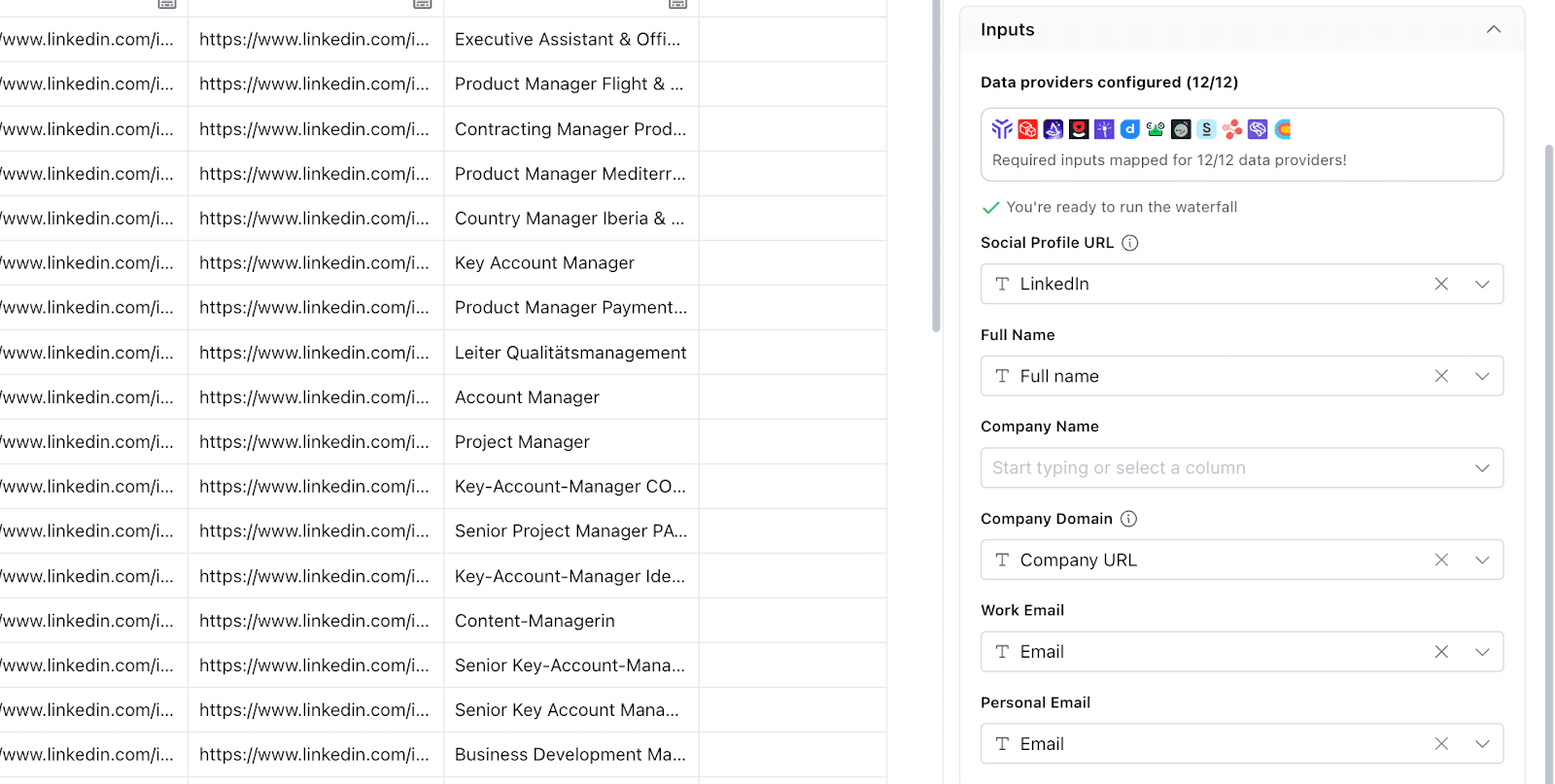
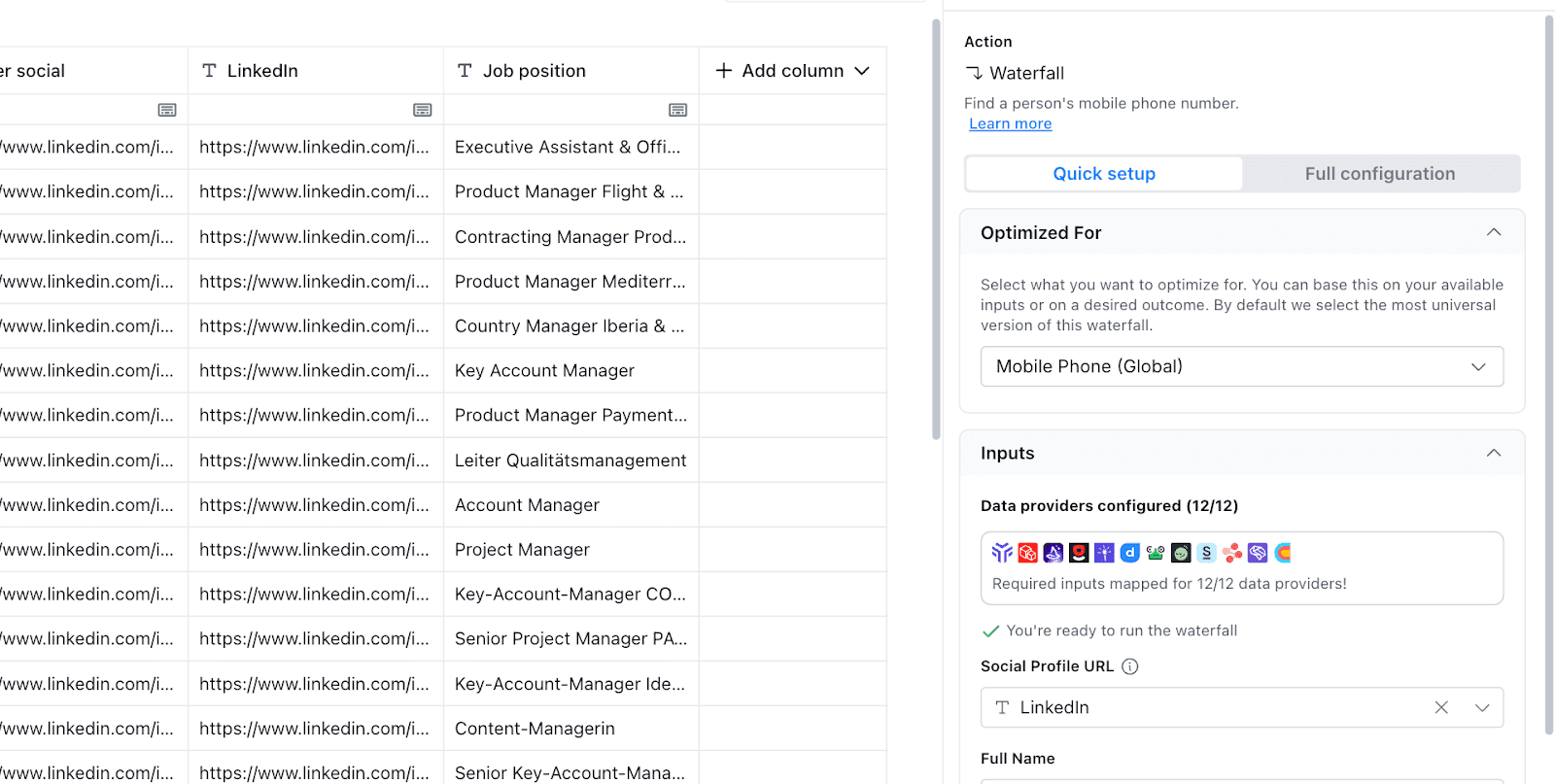
Advanced settings
Clay uses a preconfigured waterfall with default providers. To change it, open Full configuration. There you can adjust validation and turn off providers you don’t need.
Run enrichment for a few prospects. Click the Start button next to any row in your table.
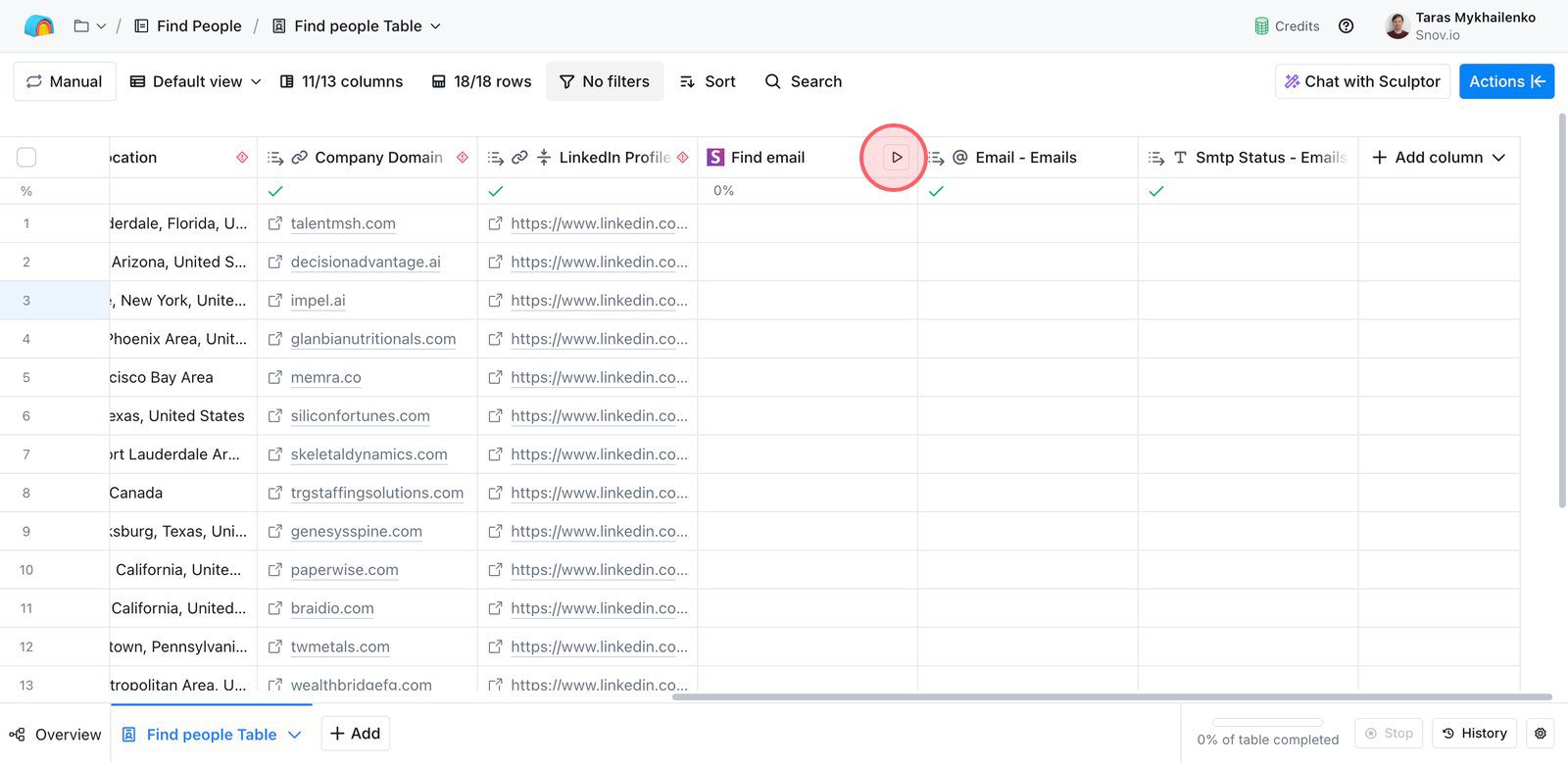
Step 3: Send phone-enriched prospects from Clay to a Snov.io list
Now you can send prospects with added phone numbers to your Snov.io list.
Click Actions at the top and search for Add prospect to list (Snov.io) action.
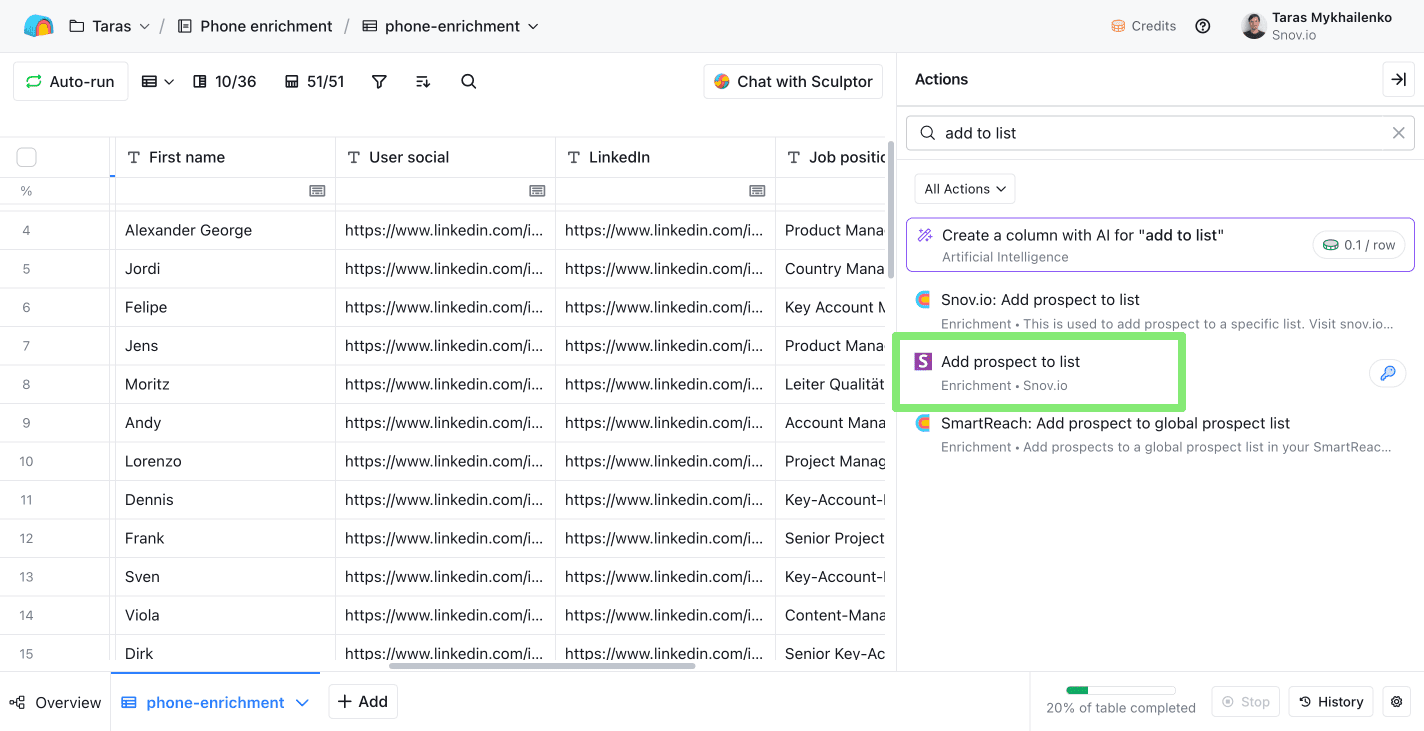
Connect your Snov.io account to Clay
This action requires a Snov.io account connected to Clay via API.
To connect your account, go to your Snov.io API settings, copy your **API User ID** and **User Secret** and add a connection in Clay.
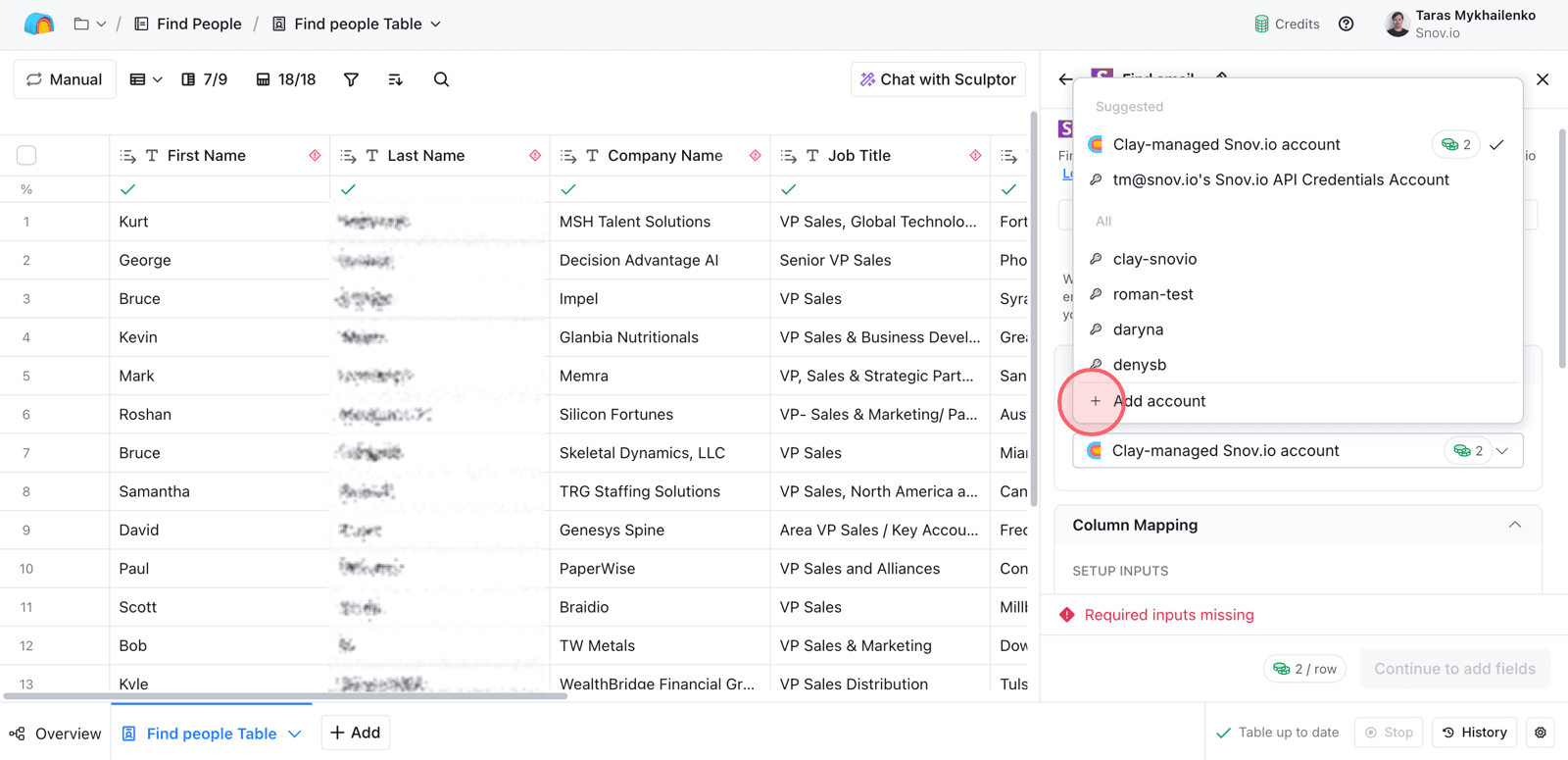
Select Snov.io list
In the settings, select the Snov.io prospect list you created in Step 1.
Scroll down and choose the Snov.io list where Clay should send your prospects. If you need a new list, create it in Snov.io first, then refresh the fields for it to appear in Clay.
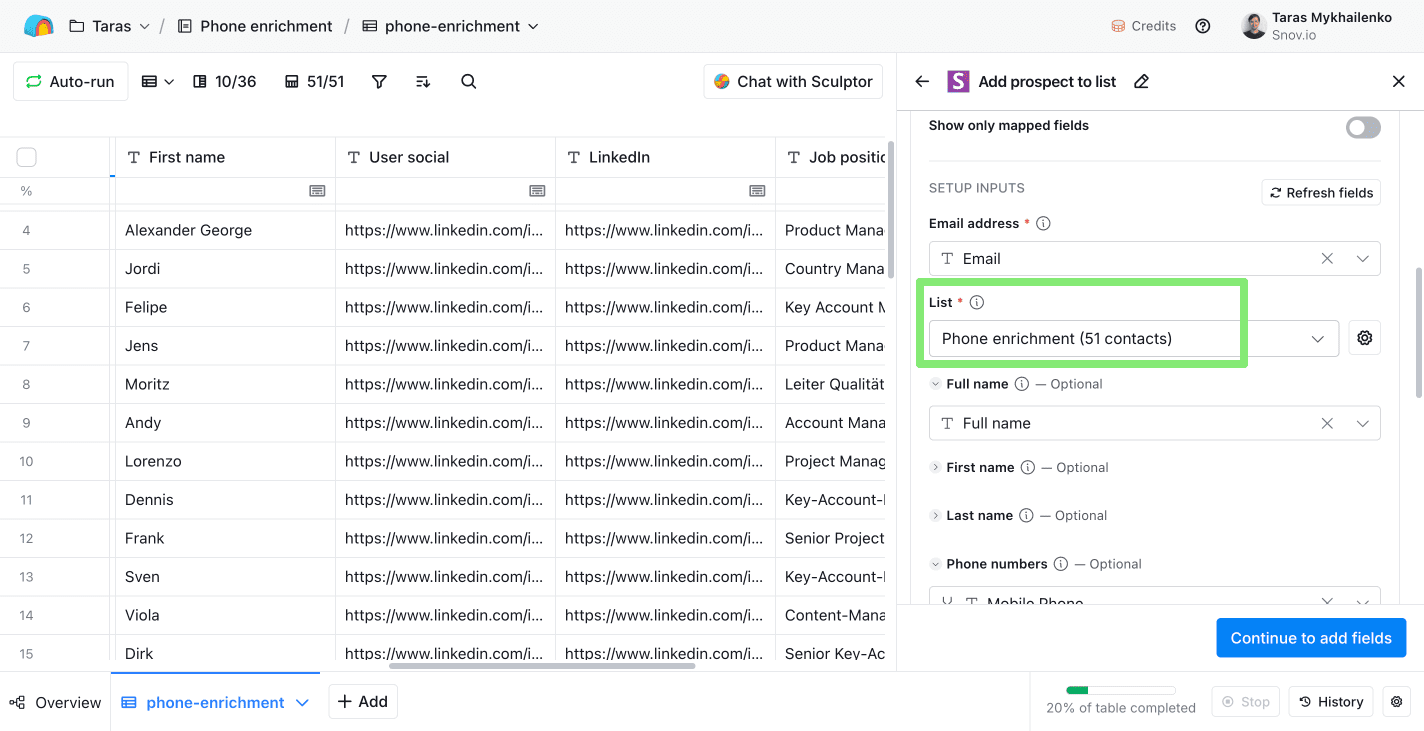
Map fields
Snov.io has separate phone fields for prospects (Mobile Phone) and companies (HQ Phone).
In Clay field mapping, map your Phone numbers column to the Mobile Phone field in Snov.io.
Add lead qualification
Add a qualification rule so only call-ready prospects sync.
In Clay, open Run settings and use Only run if. Set the condition that the phone is present. This way, Clay sends to Snov.io only prospects with a phone number found (so you avoid unnecessary duplicates).
Add to Snov.io list
Activate the action for a few prospects to push them to Snov.io.
Step 4. Check prospects in Snov.io
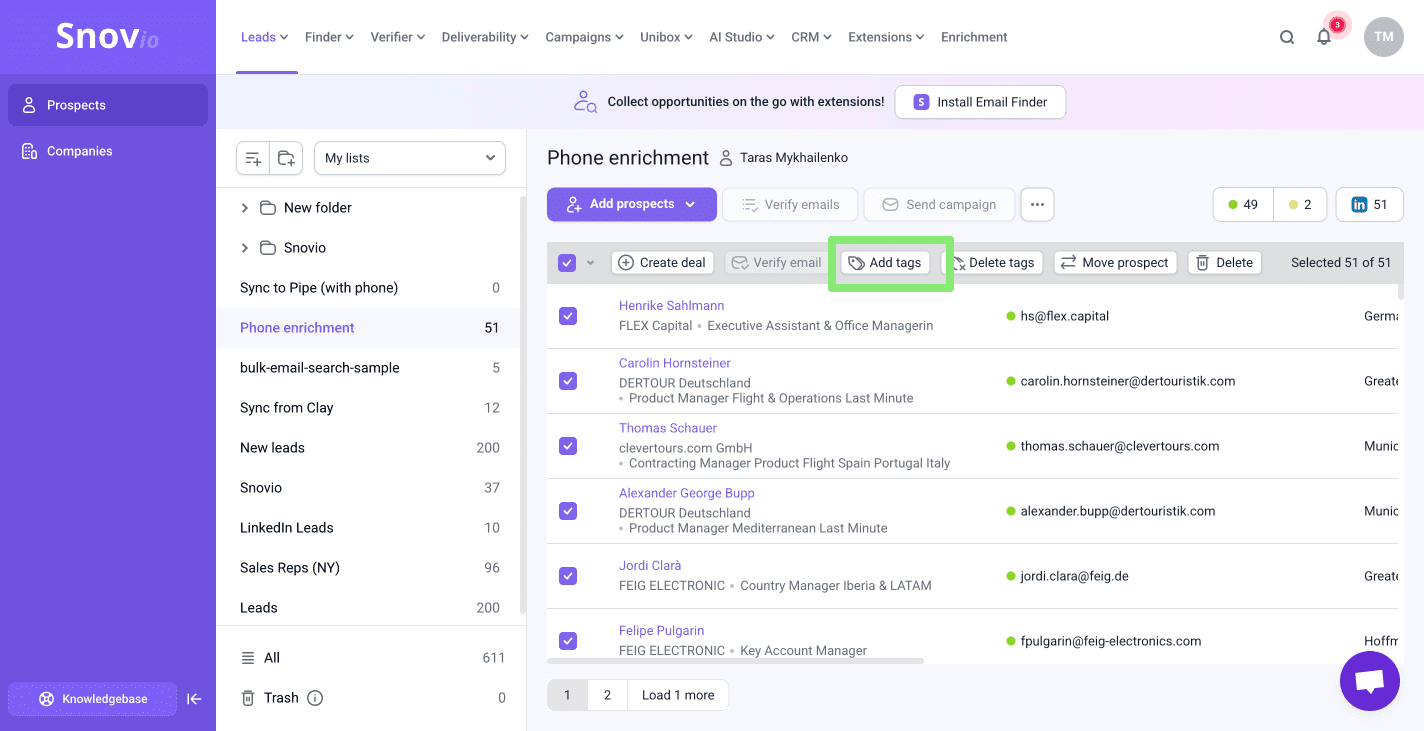
Check the list and confirm the phone number is saved in the right field. Add a tag to prospects with phone numbers for easy filtering later.
You can tag them in bulk: select all prospects and click Add tag in the quick actions menu.
Step 5. Calling workflow after email
Once phone numbers are added, you can start planning your calling process.
Calling guidelines
- Check if cold calling is allowed in your target region
- Call during the prospect’s local business hours
- Make 1–2 call attempts per prospect
- Wait 2–3 days between attempts
- Mid-morning or early afternoon usually works best
How calling fits into your email outreach
Phone outreach works best as a follow-up step, not a replacement for email.
- Send an email sequence (2–4 emails with delays)
- Wait for engagement or no reply
- After the last email, wait 1–2 business days
- Enrich phone numbers for qualified prospects
- Start calling as a secondary touchpoint
Step 6. Track calls and pipeline progress
Choose how to track calling activity. You can stay in Snov.io or sync data to an external CRM using native integrations.
Snov.io CRM
Use the built-in CRM to manage prospects after enrichment. Here’s what you can do:
- Create deals directly from your prospect list using quick actions (bulk creation supported)
- Move deals through pipeline stages to reflect the progress
- Schedule call tasks for deals and track them in the Tasks tab.
- Use notes in prospects or deals to log call results
If you need extra tracking, create custom fields in Snov.io. For example, add a Call status field so you can export this data later.
To create a custom field in Snov.io: open a prospect list → use options menu under three dots → Manage custom fields and data tabs → Enter field name → click Save.
Add prospects to dialer via Zapier integration
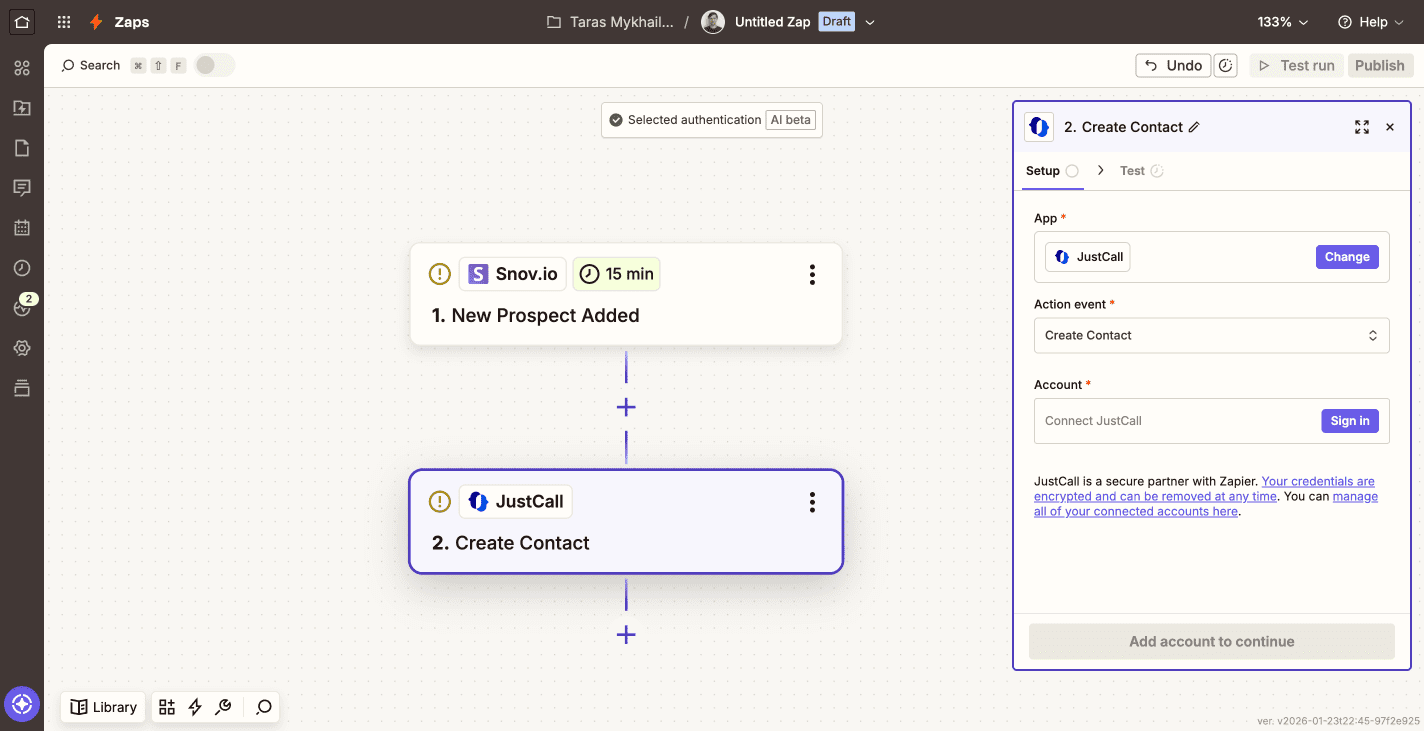
If you already use a dialer app, you can connect it to Snov.io through Zapier. This lets you automatically send prospects to your dialer as soon as they are added to a list in Snov.io. It helps you build a call queue without manual exports.
In Zapier, use Snov.io as the trigger app.
Choose New Prospect Added so the Zap runs when a new prospect appears in your selected list. Then add your dialer app (for example, JustCall) as the action and select Create Contact.
Snov.io & Pipedrive CRM
Choose this option if your team already uses Pipedrive or needs a more advanced CRM.
To sync prospects from Snov.io to Pipedrive, first connect and configure the integration in Snov.io.
Go to Snov.io Account settings → Integrations → Pipedrive and click Connect. Sign in to Pipedrive and approve the OAuth request.
After connecting, the integration may show as Paused until you finish setup.
Recommended integration settings
Choose sync direction
The integration can run one-way or two-way. For this workflow, use one-way sync from Snov.io to Pipedrive.
Select which lists sync
In the integration settings, use Sync from Snov.io lists to pick only the list(s) you want to send into Pipedrive.
Map fields
Map Snov.io’s Mobile Phone to Pipedrive’s Phone field.
After sync is complete, confirm that:
- The person is created or updated in Pipedrive
- The phone number is correctly populated
Calling directly from Pipedrive
Pipedrive lets you make calls directly from the CRM using calling apps from the Pipedrive Marketplace.
How to set up calls in Pipedrive
Open Pipedrive Marketplace. Search for a calling app (for example, Aircall, JustCall, CloudTalk, or similar).
Install the app and connect your calling account.
Once it’s connected, you can call prospects from the person or deal page in Pipedrive. Calls can be logged to the timeline automatically.
This setup helps you add calling to your outreach without changing your email-first workflow.


Sorry about that 😢
How can we improve it?