This guide explains how to prepare your Outlook or Microsoft 365 mailbox for sending emails and tracking replies in Snov.io.
To connect your Outlook mailbox successfully, you may need to enable SMTP and IMAP access in your Microsoft account.

Without these settings, you may see SMTP or IMAP errors when connecting the mailbox or during active campaigns. Use the steps in this guide to prevent these issues or fix them if they have already occurred.
The setup steps vary depending on where your Outlook account was purchased: directly from Microsoft or through GoDaddy.
See the instructions for your account type:

Enable SMTP and IMAP for Microsoft Outlook accounts
Follow these steps to enable SMTP for Outlook accounts purchased directly from Microsoft.
How to do it:
Open the Microsoft 365 admin page: https://admin.cloud.microsoft/
If you can’t open this page and see a message saying your account doesn’t have permission to view or manage it, contact your IT department or Microsoft 365 admin for help.
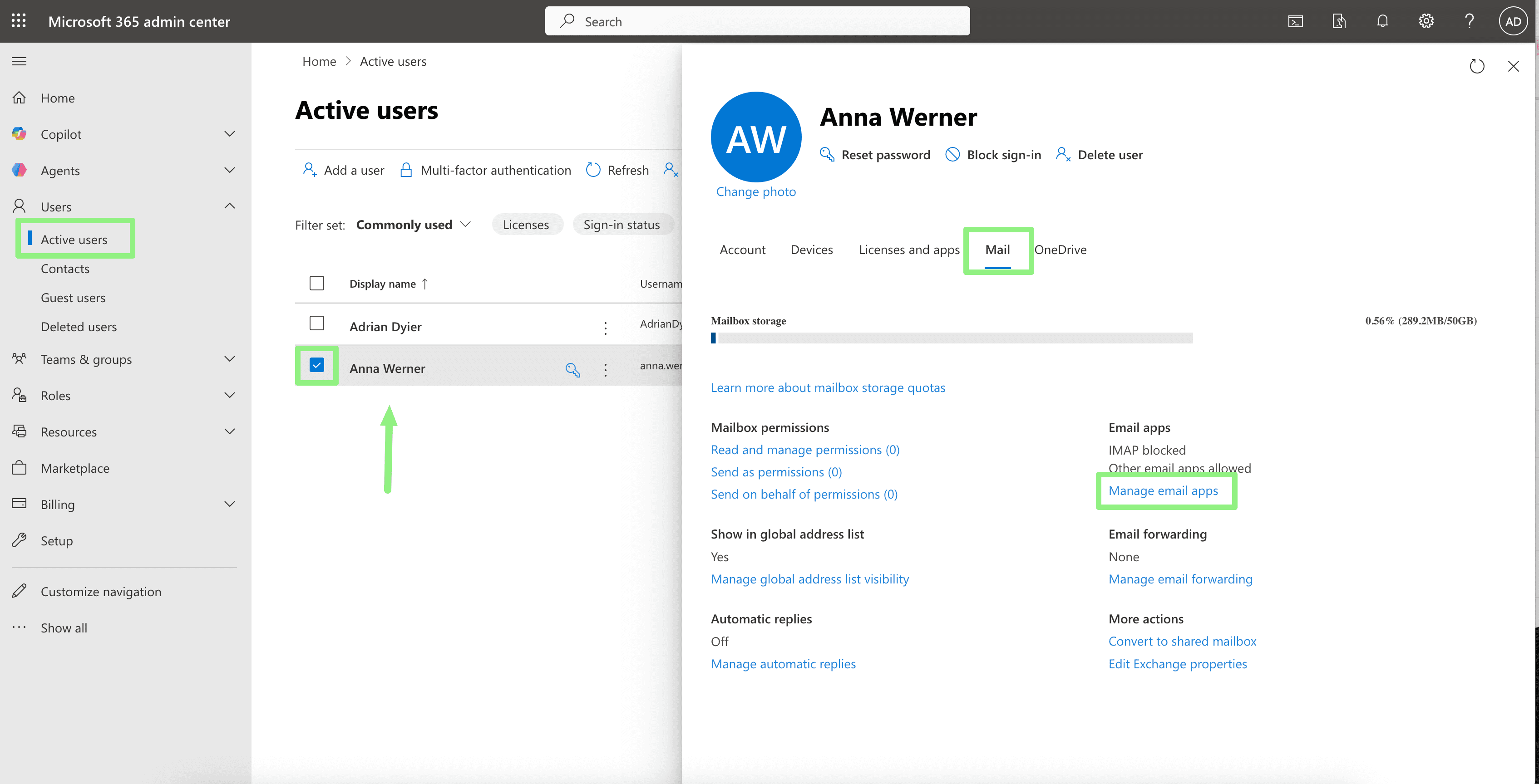
In the left menu, go to: Users → select Active users.
Select the email address you want to connect to Snov.io.
Open the Mail tab in the user profile and click Manage email apps.
In the list of options, make sure the checkboxes for IMAP and Authenticated SMTP are selected.
- SMTP access is needed to connect your mailbox and send emails through Snov.io
- IMAP access enables accurate reply tracking in your campaign statistics and reports
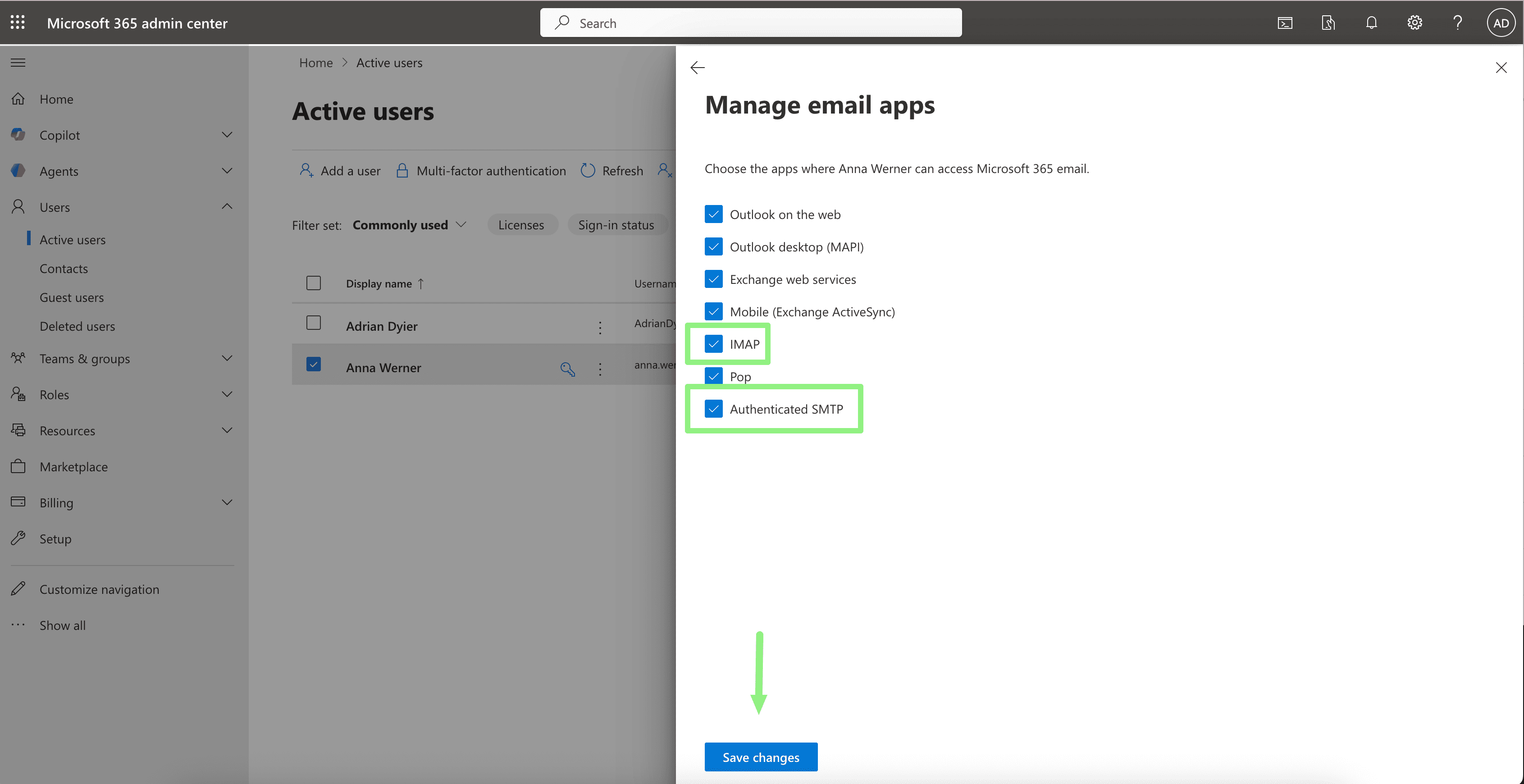
Click Save changes to apply the new settings in Microsoft.
Note: These changes may take some time to fully apply in Microsoft Admin Center.
After waiting up to 1 hour, return to the connection process in Snov.io and continue setup.
Enable SMTP for GoDaddy Outlook accounts
Follow these steps to enable SMTP authentication for Outlook accounts purchased through GoDaddy.
For Microsoft Outlook accounts hosted by GoDaddy, these settings are not managed in Microsoft Admin Center. SMTP access for email apps is configured in your GoDaddy dashboard instead.
How to do it:
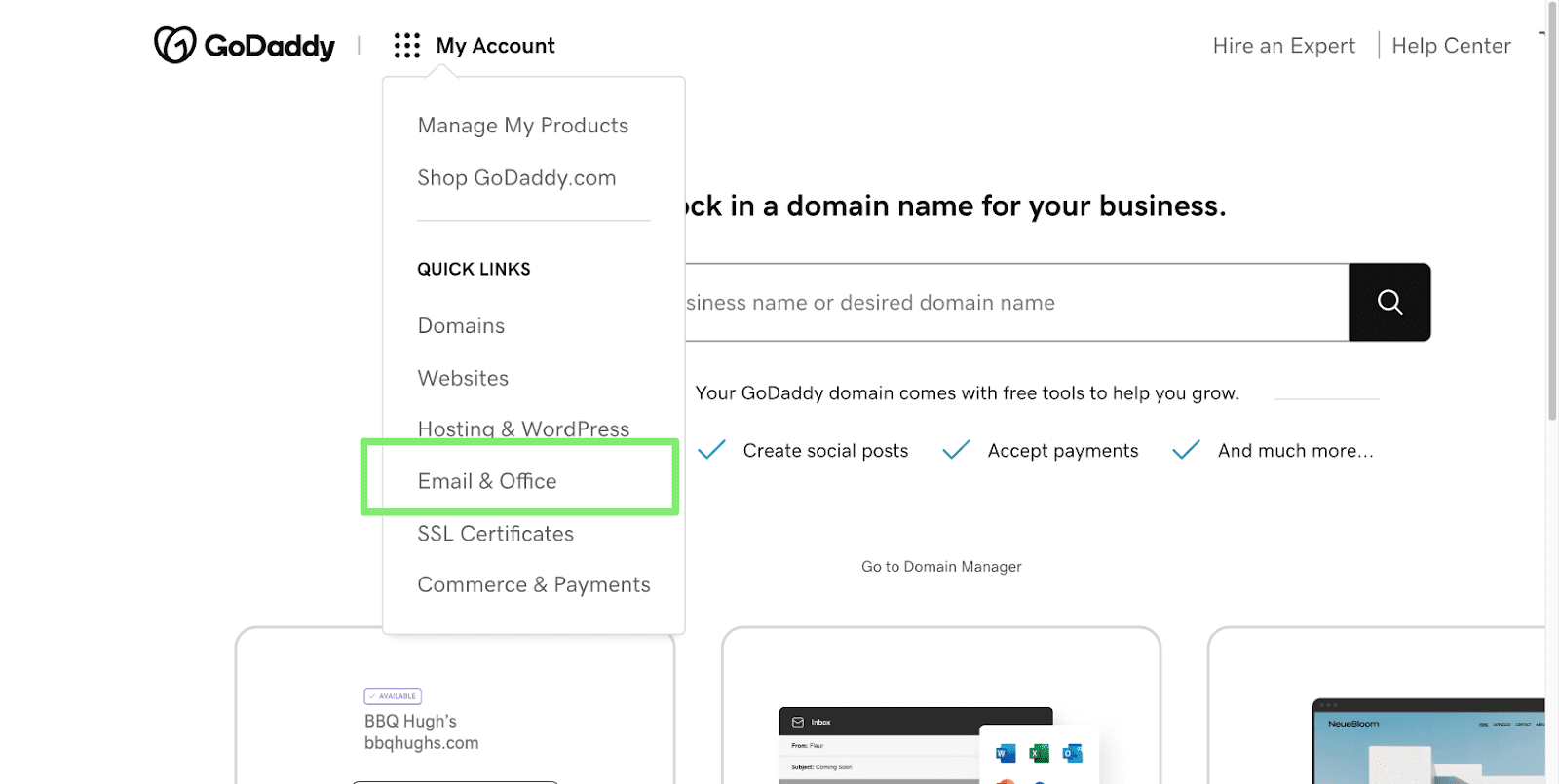
Log in to your GoDaddy account and open the Email & Office menu.
In the Users section, find the account you want to update. Click Manage next to their email address.
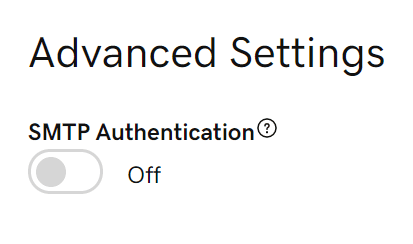
Scroll down to Account information and select Advanced Settings. Make sure SMTP Authentication is enabled. If not, turn it on.
Click Continue to save the new settings in GoDaddy. Then wait up to 1 hour before returning to the connection process in Snov.io and continuing setup.
Reconnect your account
If you updated a mailbox that was already connected to Snov.io, reconnect it so the new settings can take effect.
To reconnect the mailbox:
Go to Email Accounts and click Edit next to the mailbox.
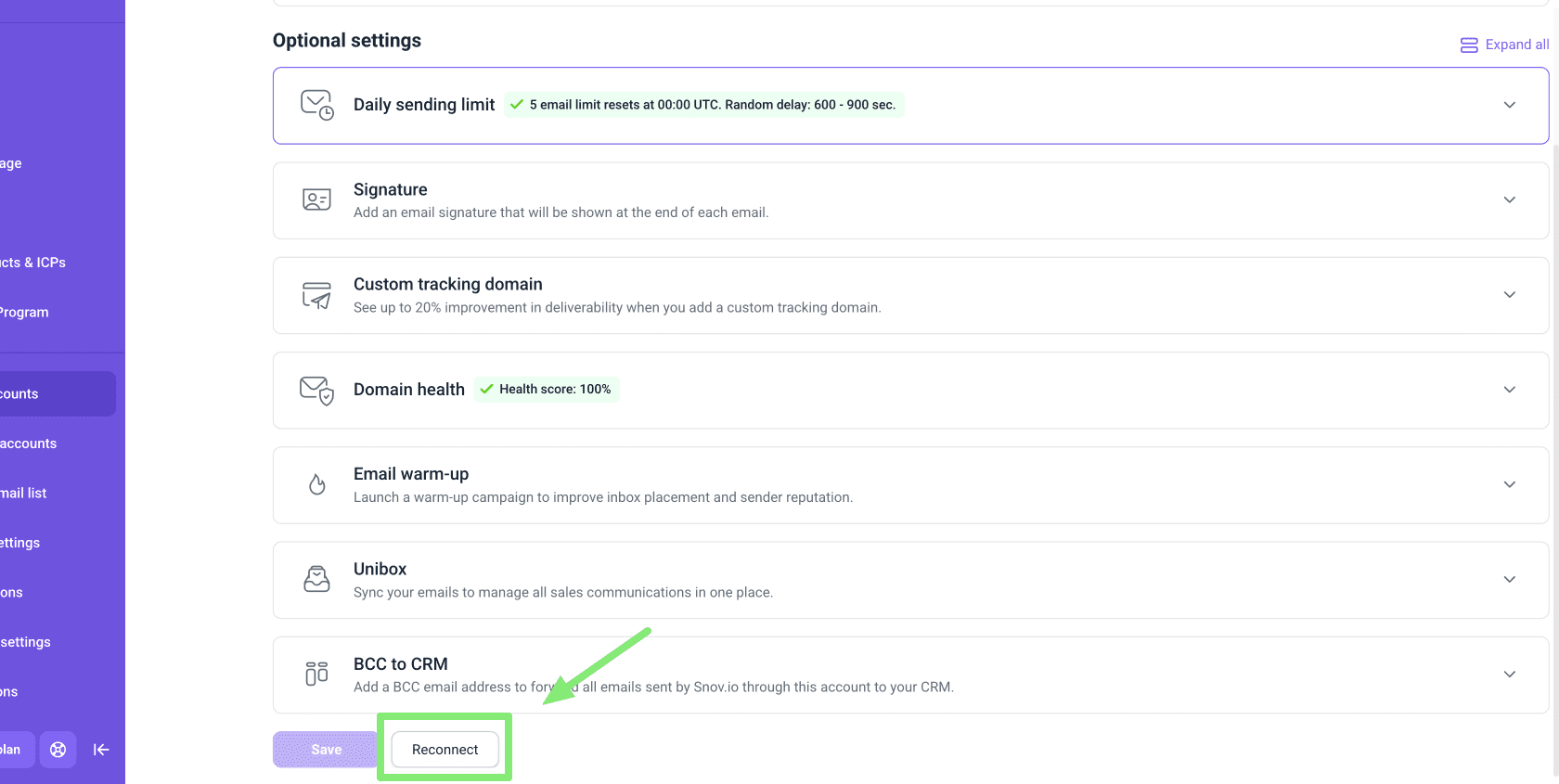
Scroll down past the optional settings and click Reconnect.


Sorry about that 😢
How can we improve it?