This guide explains what AI Assistant is and how to use it to find prospects, manage campaigns and Unibox conversations, and run LinkedIn outreach. It also covers asking it help questions about Snov.io.
What is AI Assistant
When AI Assistant helps
Open AI Assistant
Describe the task
Review the details
AI chats
AI Assistant settings
What AI Assistant can help with
- Database Search
- Domain Search and Email Search
- Prospects and lists
- Email Verifier
- Campaigns
- Unibox
- Sales CRM
- LinkedIn Automation
- Knowledge Base
- View only and Takes action
What AI Assistant can't do yet
Related articles
What is AI Assistant
AI Assistant is a chat inside Snov.io that carries out tasks in your account. You describe what you need in plain language, and it runs the matching actions, such as searching the database, managing lists, building campaigns, or reading Unibox conversations.
AI Assistant works inside Snov.io. If you want to use Snov.io tools from Claude or ChatGPT, see this guide.
When AI Assistant helps
AI Assistant is most useful for repetitive setup and routine checks that take many clicks in the app:
- Build a prospect list from a plain-language description of your ideal customer profile (ICP), with the search filters set for you
- Clean and segment lists, for example by removing bounced prospects or exporting only valid emails
- Set up a multichannel campaign with email and LinkedIn steps, delays, and follow-up conditions
- Pull campaign metrics or check unread replies without opening each section
- Get answers to how-to questions without leaving the app
Every action appears in the task execution summary, and AI Assistant asks when a request is unclear. Some tasks, such as LinkedIn Search and writing email copy, happen in other parts of Snov.io. See what AI Assistant can't do yet for alternatives.
Open AI Assistant
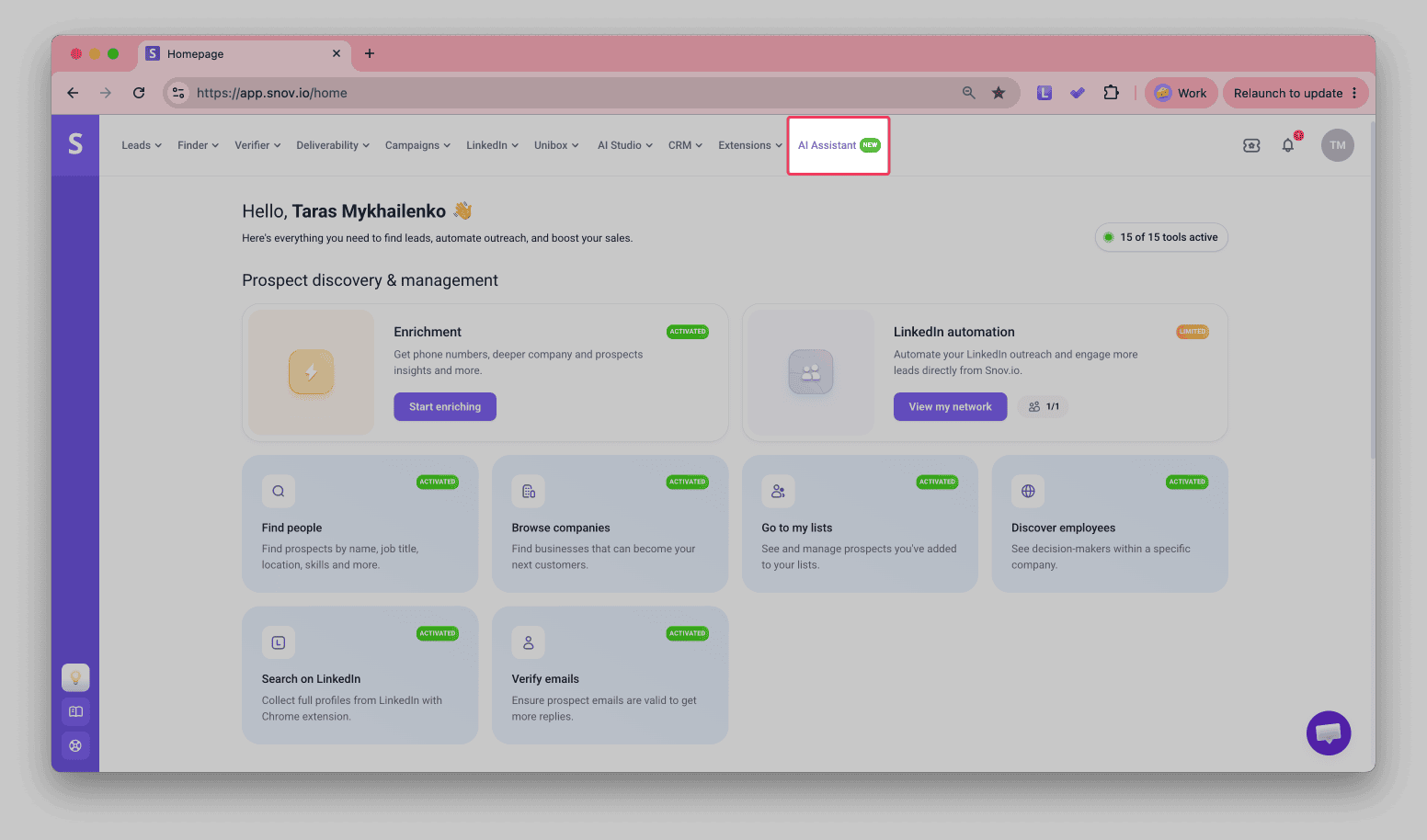
Open Snov.io and click AI Assistant in the top menu.
Describe the task
Type your request in the field and press Enter.
Be specific about what you want. For a new list, describe the prospects you are looking for.
If the task involves an existing list, campaign, or deal, name it so AI Assistant picks the right one.

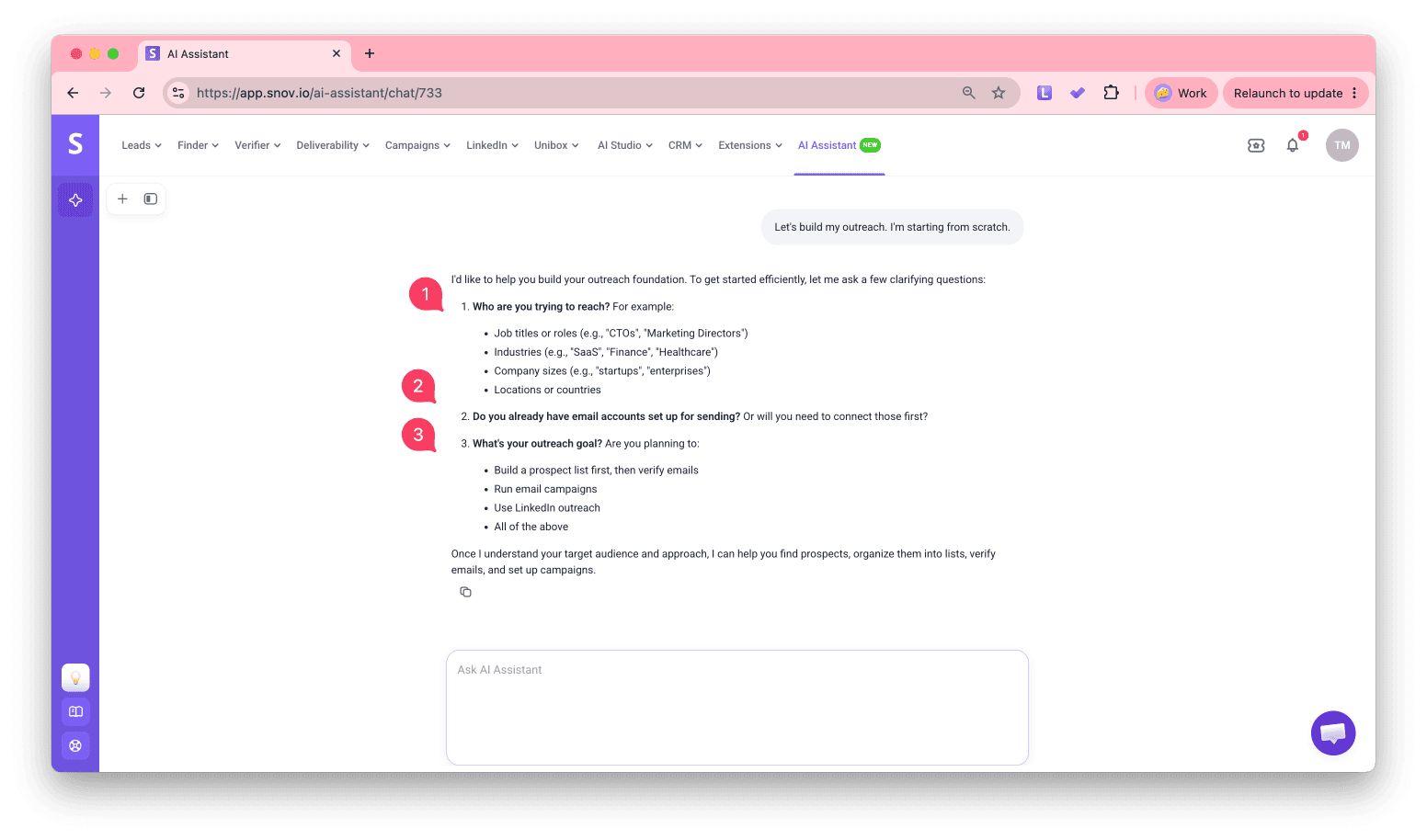
For example, start with a broad request: "Let's build my outreach. I'm starting from scratch."
AI Assistant asks what it needs to know, such as who you want to reach, whether your email accounts are connected, and what your outreach goal is.
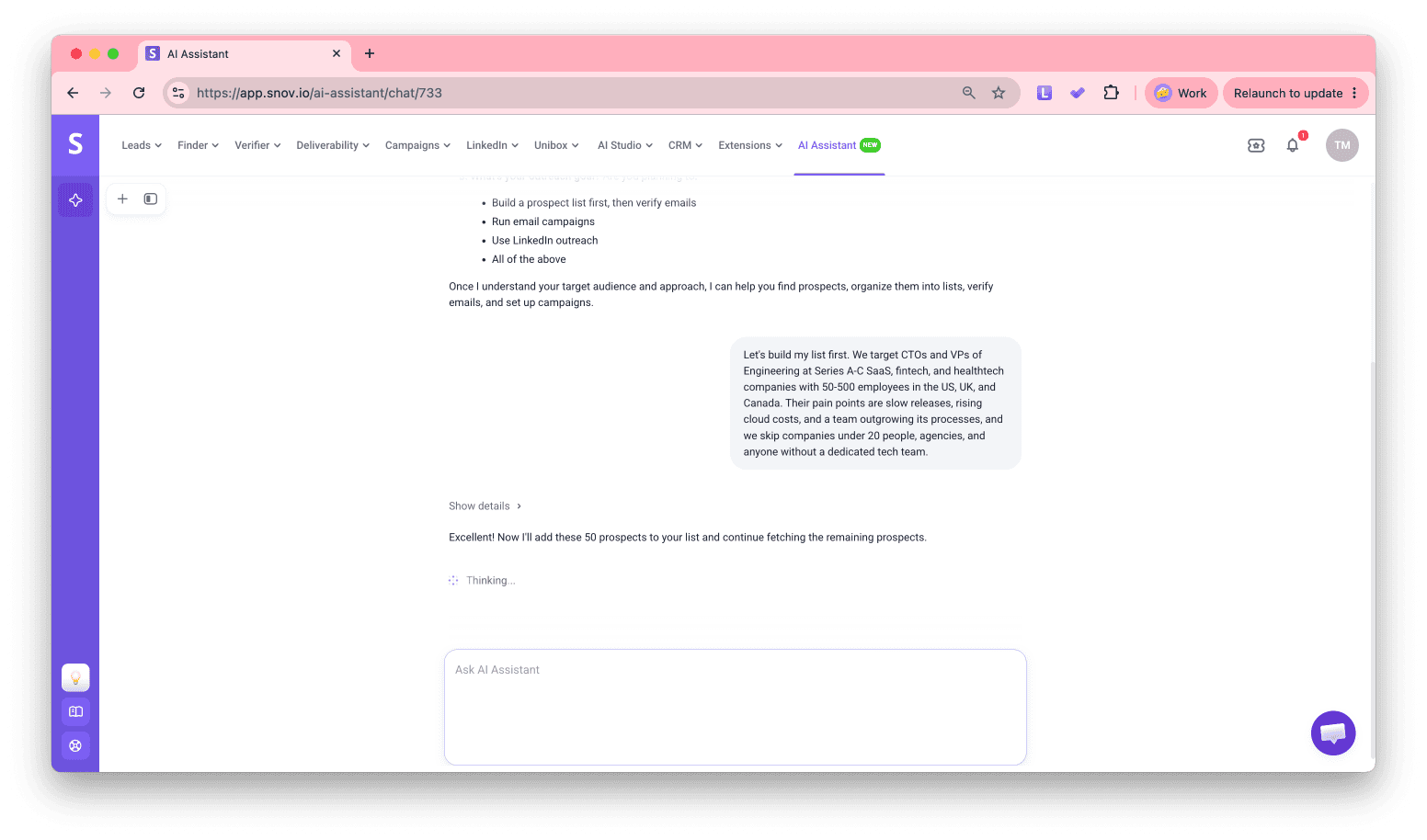
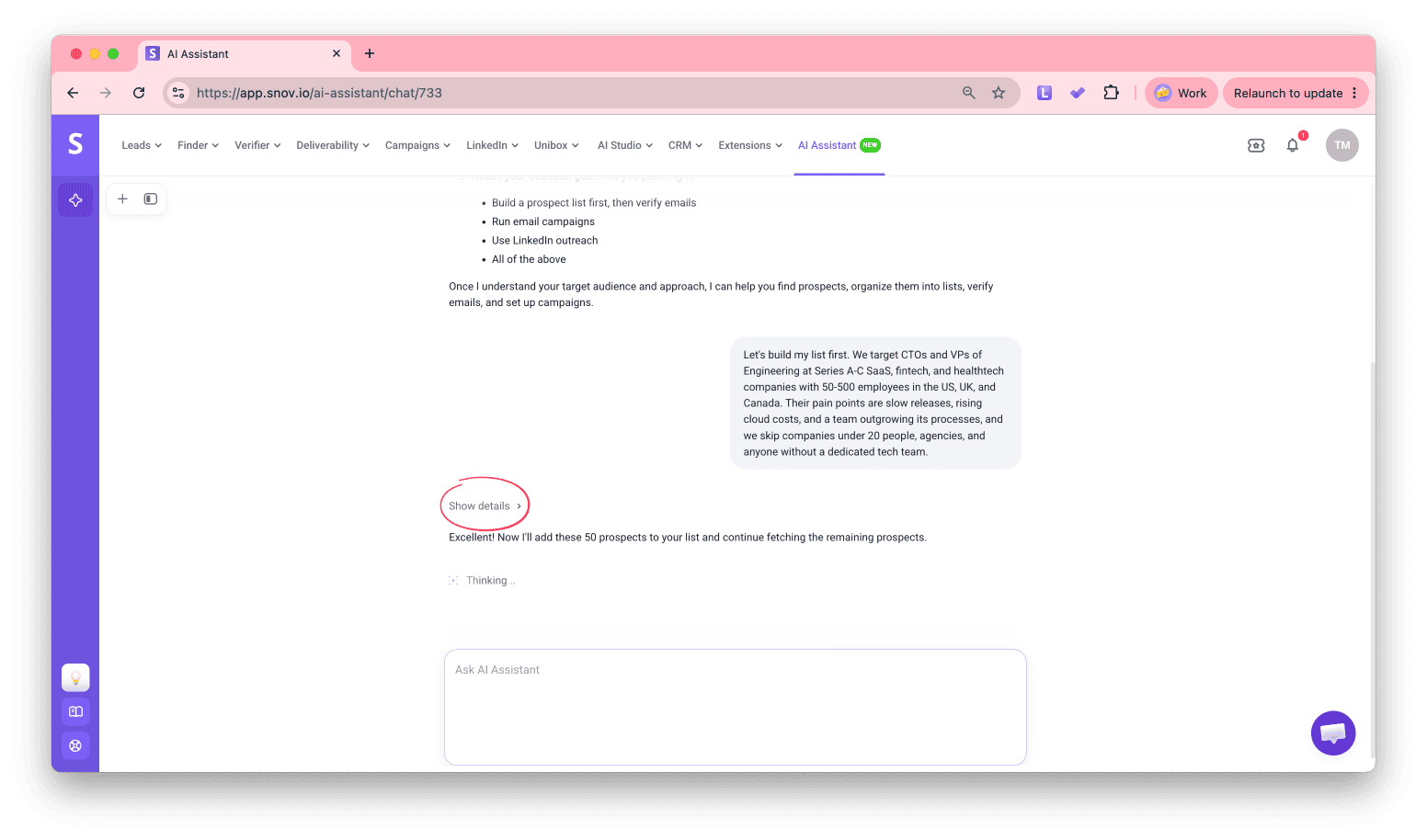
Then describe your ideal customer in detail: "Let's build my list first. We target CTOs and VPs of Engineering at Series A-C SaaS, fintech, and healthtech companies with 50-500 employees in the US, UK, and Canada. Their pain points are slow releases, rising cloud costs, and a team outgrowing its processes, and we skip companies under 20 people, agencies, and anyone without a dedicated tech team."
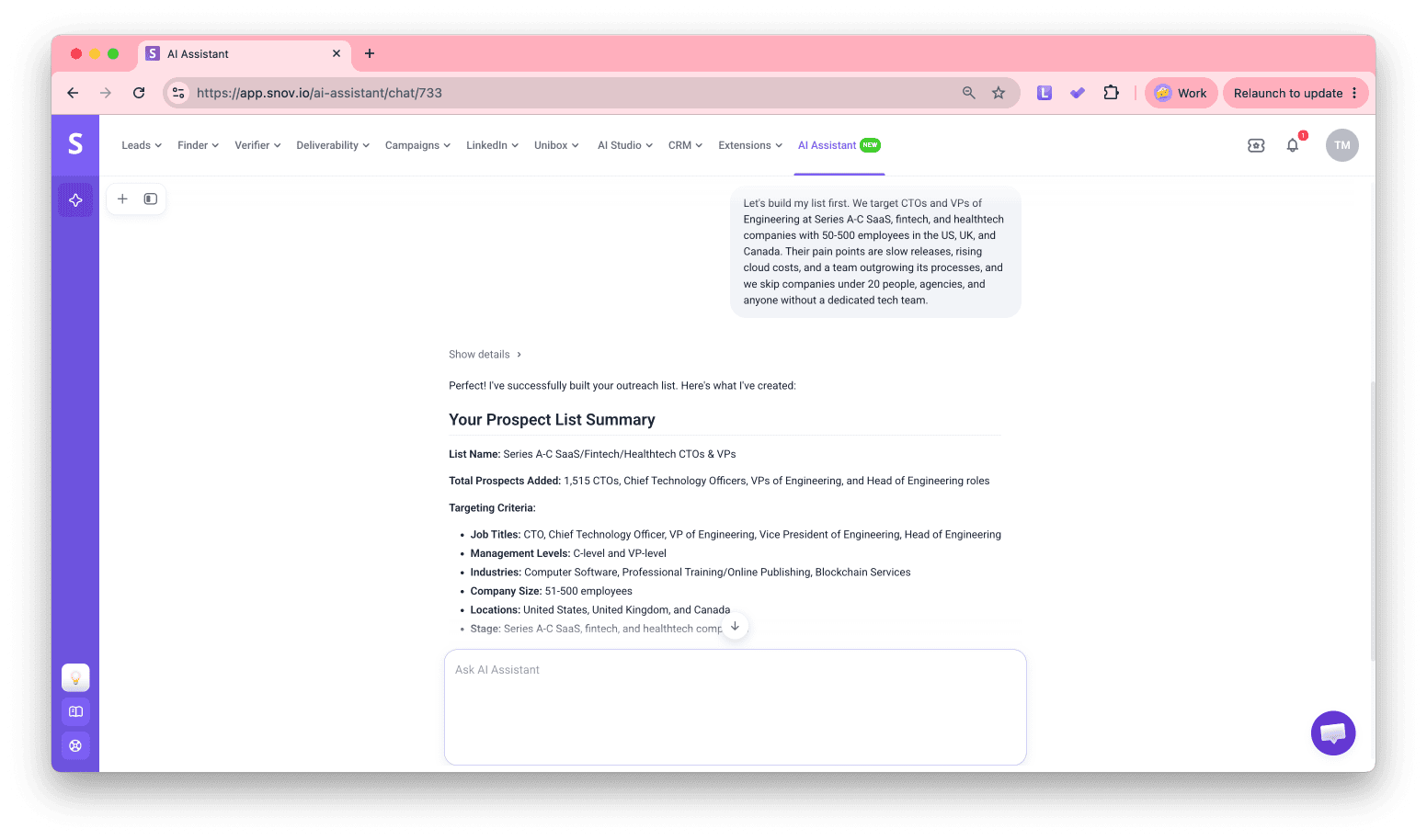
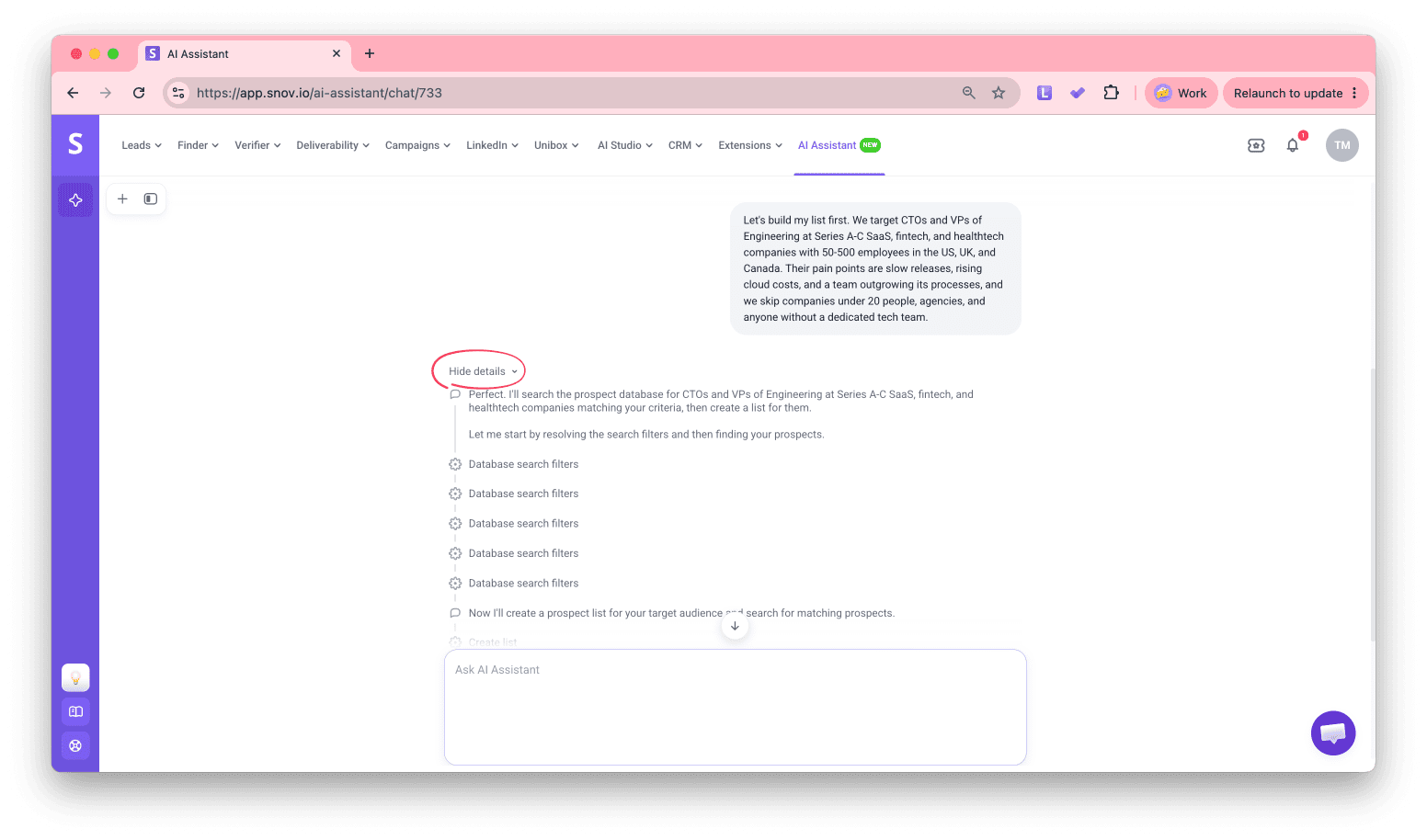
AI Assistant resolves the search filters, creates a list, searches Snov.io's database, and adds matching prospects to it.
Review the details
While AI Assistant works, it lists each action it takes in the task execution summary.
Click Show details to see its reasoning step by step, or Hide details to see a summary of what it did.
AI chats
AI Assistant saves every chat, so each task keeps its own history. Click the plus icon above your chat list to start a New chat for each new task.
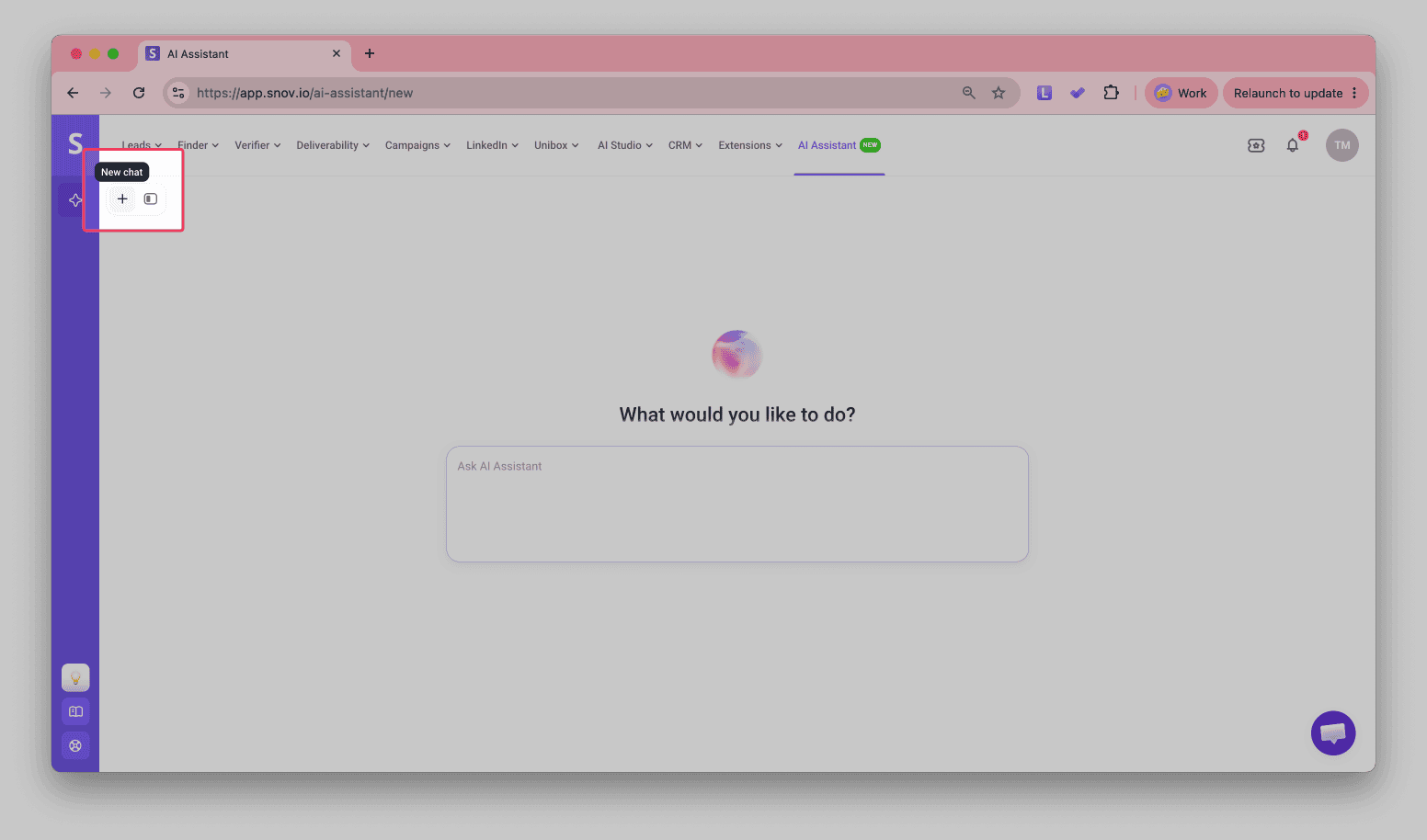
To find an earlier chat, open it from the chat list or search for it by name. To rename or delete a chat, hover over it, click the three dots, and choose Rename or Delete.
AI Assistant settings
Custom instructions tell AI Assistant how to work in every chat. You add your language, tone, and business context once, so you do not repeat them in each request.
To add instructions, click Settings at the bottom of the chat list. Type your instructions in the Custom instructions field and click Save.
Instructions can cover:
- The language AI Assistant uses to answer you
- The tone you want, such as formal or casual
- What your company sells and who you sell to
What AI Assistant can help with
AI Assistant works with these areas of Snov.io.
Database Search
- Search the database for prospects and companies that match your ideal customer profile
- Save results to lists and folders
- Export lists
Domain Search and Email Search
- Look up decision-makers at a company
- Find a specific person's email from a name and company domain
Prospects and lists
- Create and update prospects, lists, folders, and custom fields
- Filter and segment prospects
- Export lists with the columns or email statuses you choose
Email Verifier
- Verify single emails, lists already in your account, or lists you upload
- To keep older lists accurate, use re-verification in the app. It rechecks emails verified more than 30 days ago
Campaigns
- Create campaigns with email and LinkedIn steps, delays, and follow-up conditions
- Start from a template and set up A/B variants
- Preview emails for a specific prospect
- Add recipients and manage running campaigns
- Read campaign metrics
Unibox
- Read email and LinkedIn conversations and check unread replies
- Reply to prospects by email when you ask
- Assign prospects to teammates
Sales CRM
- Create and update deals and move them across your funnels
- Schedule tasks and follow-ups
LinkedIn Automation
- Connect LinkedIn accounts
- Manage LinkedIn slots and campaigns
- Send invites, messages, and other outreach
Knowledge Base
- Use AI Assistant as your personal support agent for help questions and FAQs about Snov.io, with answers based on Help Center content
View only and Takes action
Each task is either View only or Takes action:
- A View only task shows you information
- A Takes action task changes something in your account, like creating a list or sending a message
What AI Assistant can't do yet
AI Assistant doesn't do the following yet. Use these options instead:
- LinkedIn Search: run the search in LinkedIn Automation or with the LinkedIn Prospect Finder extension, then ask AI Assistant to work with the saved list
- Email copy: generate outreach copy directly in your prospect lists with Enrich & AI tools. The AI Writer uses the data in the list for personalization. You can also save a copy as a template, which AI Assistant can then use in a campaign
- LinkedIn replies: reply to LinkedIn messages in Unibox. AI Assistant can read LinkedIn conversations but replies by email only
- ICP from a website: create your ICP on the Product and ICP page in the app


Sorry about that 😢
How can we improve it?