This guide explains how to use Fill out from web, a data enrichment tool in Snov.io, to search the web and find insights for multiple prospects at once.

Before you start. To use Fill out from web, make sure you have:
1) Prospects in a list. Enrichment requires existing data (like a Company name or Domain). Add prospects from a file, or use Database Search. Learn what starting data each action requires.
2) Tokens. All enrichments use tokens, a separate currency from your plan credits. Learn more about tokens.
Fill out from web is an AI enrichment in Snov.io that lets you search any public data about your prospects and pull that data directly from the web or generate new insights based on the data found.
Why use it
Unlike manual research of each prospect, Snov.io runs it for as many prospects as you need, a few or a whole list.
Instead of fixed data points you get in other enrichments, in Web search you decide what insights you need.
How it works
Write a prompt where you tell what data you want. Snov.io finds it and adds it to your list as a data column.
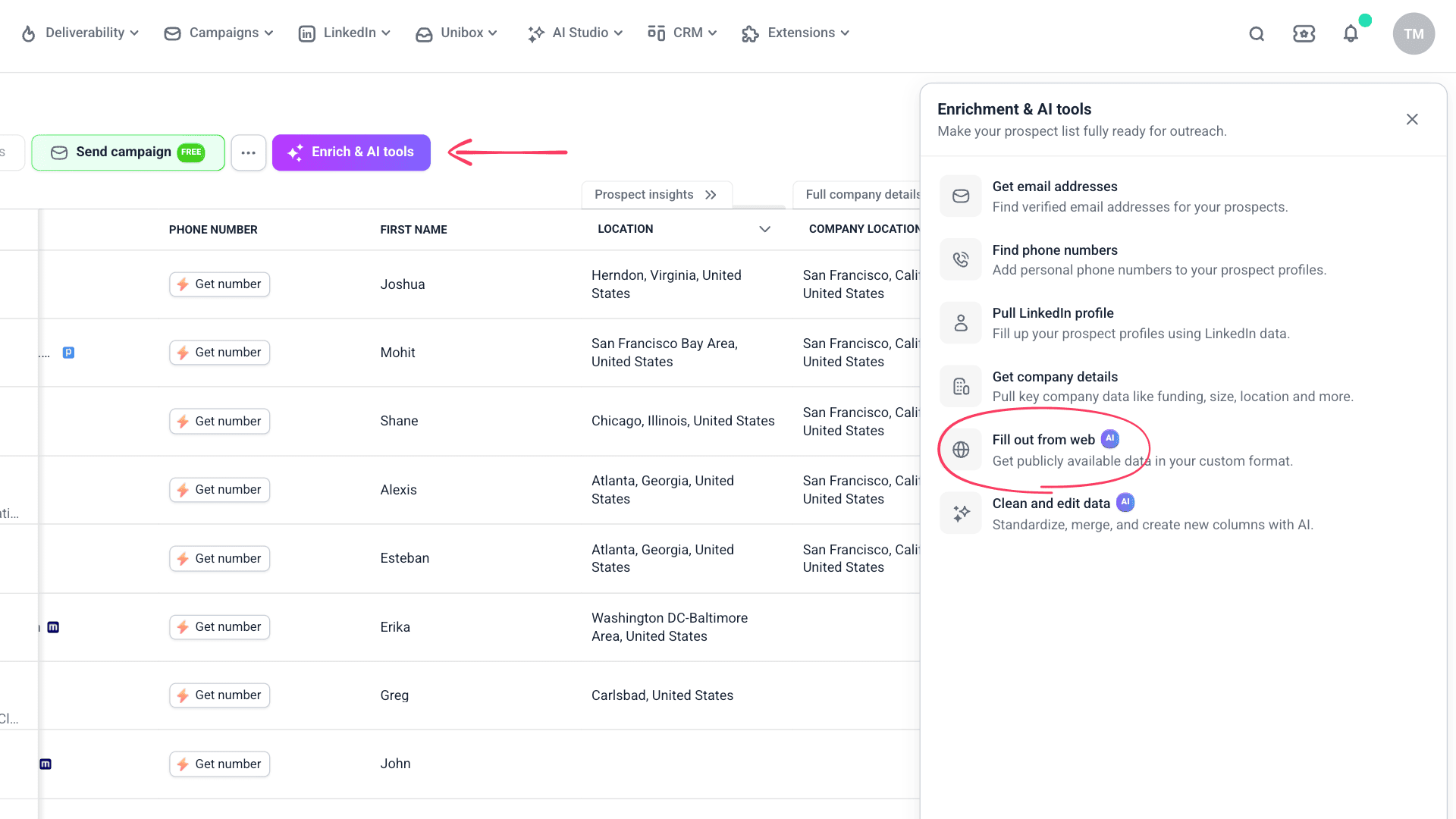
Open Enrich & AI tools
Go to your Prospects and choose the list you want to enrich. Click Enrich & AI tools and choose Fill out from web.
You can start enrichment on selected prospects, a segment filtered by tags, or your entire list.
Write your prompt
Describe what data you want to find.

Add data variables
To start the search, your prompt should reference the data already in your list. Variables in the Fill out from web action define the input the AI uses to run each search.
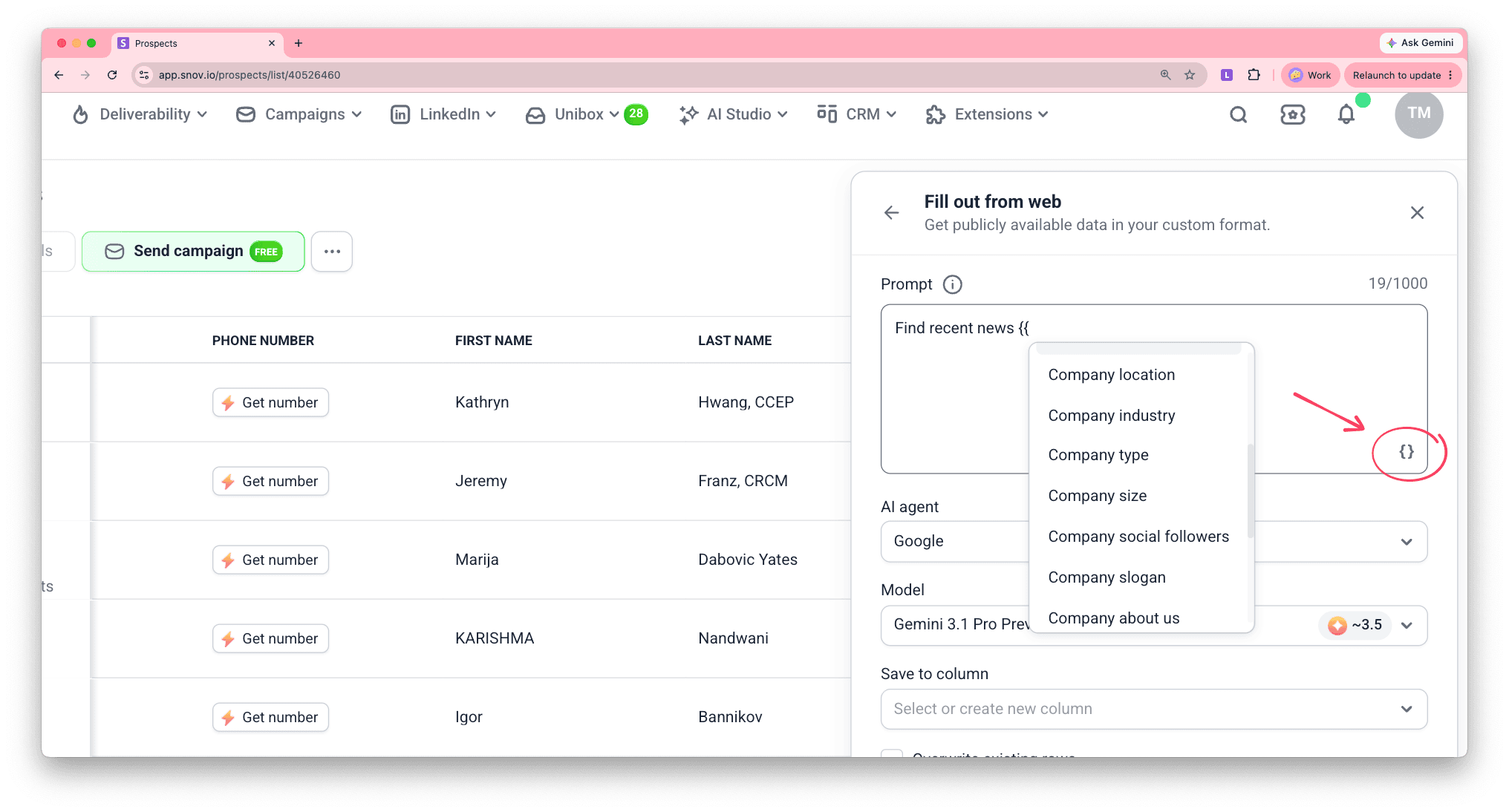
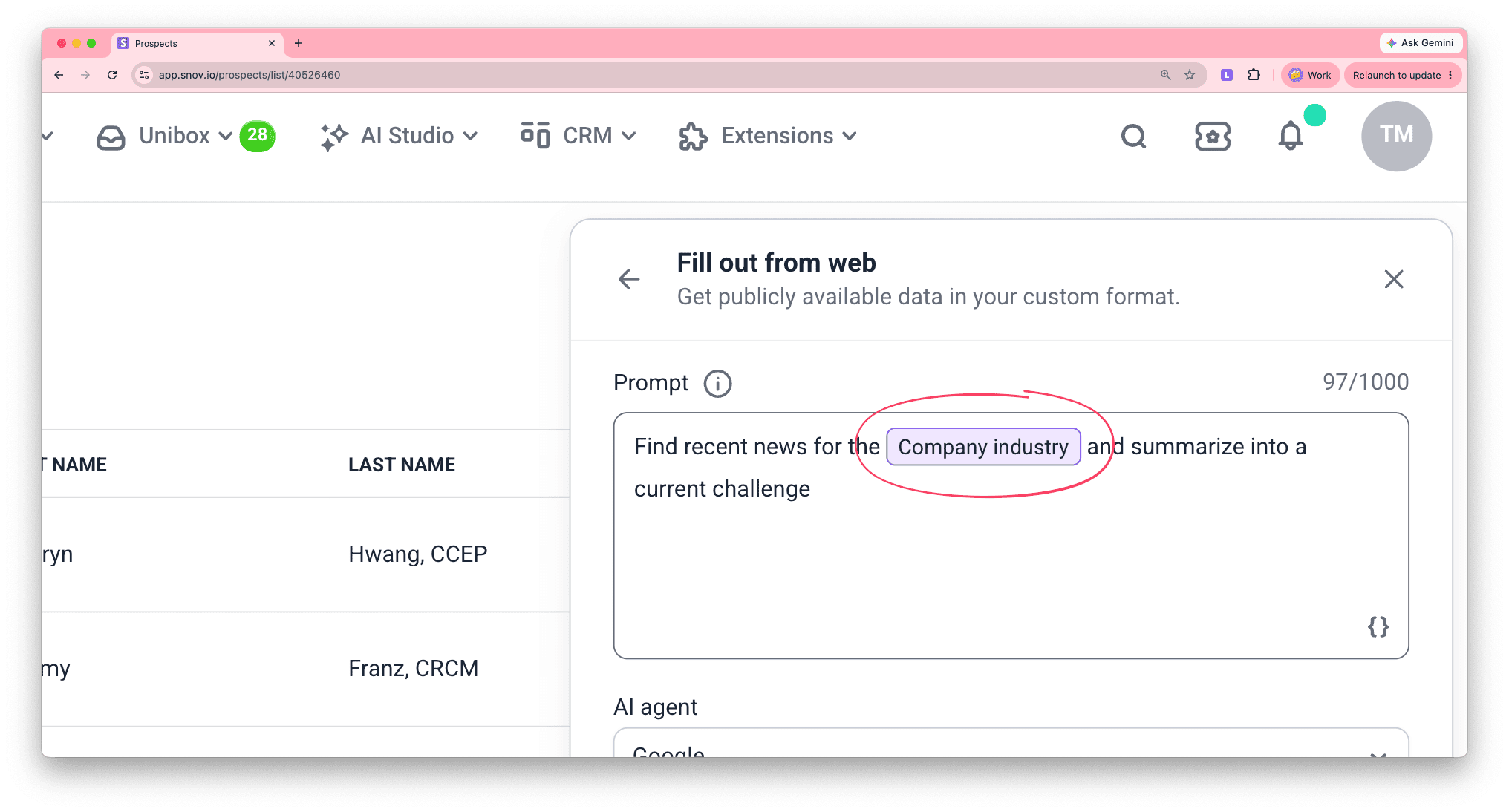
To insert a variable, click the { } icon in the bottom left or type {{}}.
Correctly added variables appear as colored tags.

Column types (single vs bulk)
Some data columns contain more than one record or value per prospect, making them bulk columns.
With bulk columns (like a prospect's work experience), the search uses all the column's data. To reference a specific record, extract it to a separate column, manually or in bulk. Read more about column types in this guide.
Prompt tips
The result you get depends on the prompt. Make sure your searches specify these:
- How much detail you want: The result is one sentence, or the result is one word or three words, with no explanation
- Your search subject: Ask for exactly what you want from the search, not just "news" or "info"
- How to process the raw data found: Tell what insights you want extracted, not just what to find
Prompt templates
Here are some searches you can use to get started:
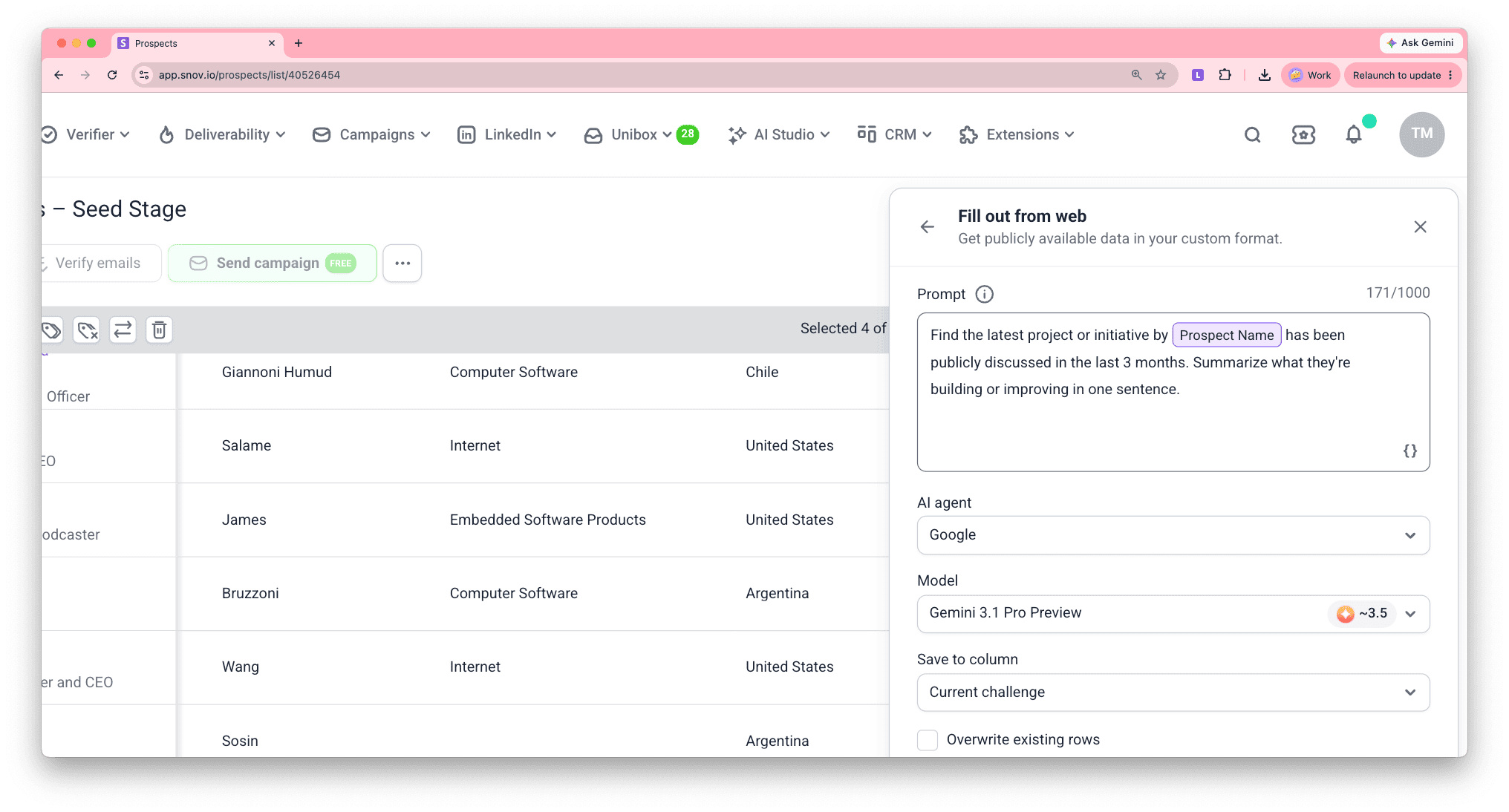
What are they working on?
Find the latest project or initiative {{Prospect Name}} publicly discussed in the last 3 months. Summarize what they're building or improving in one sentence.
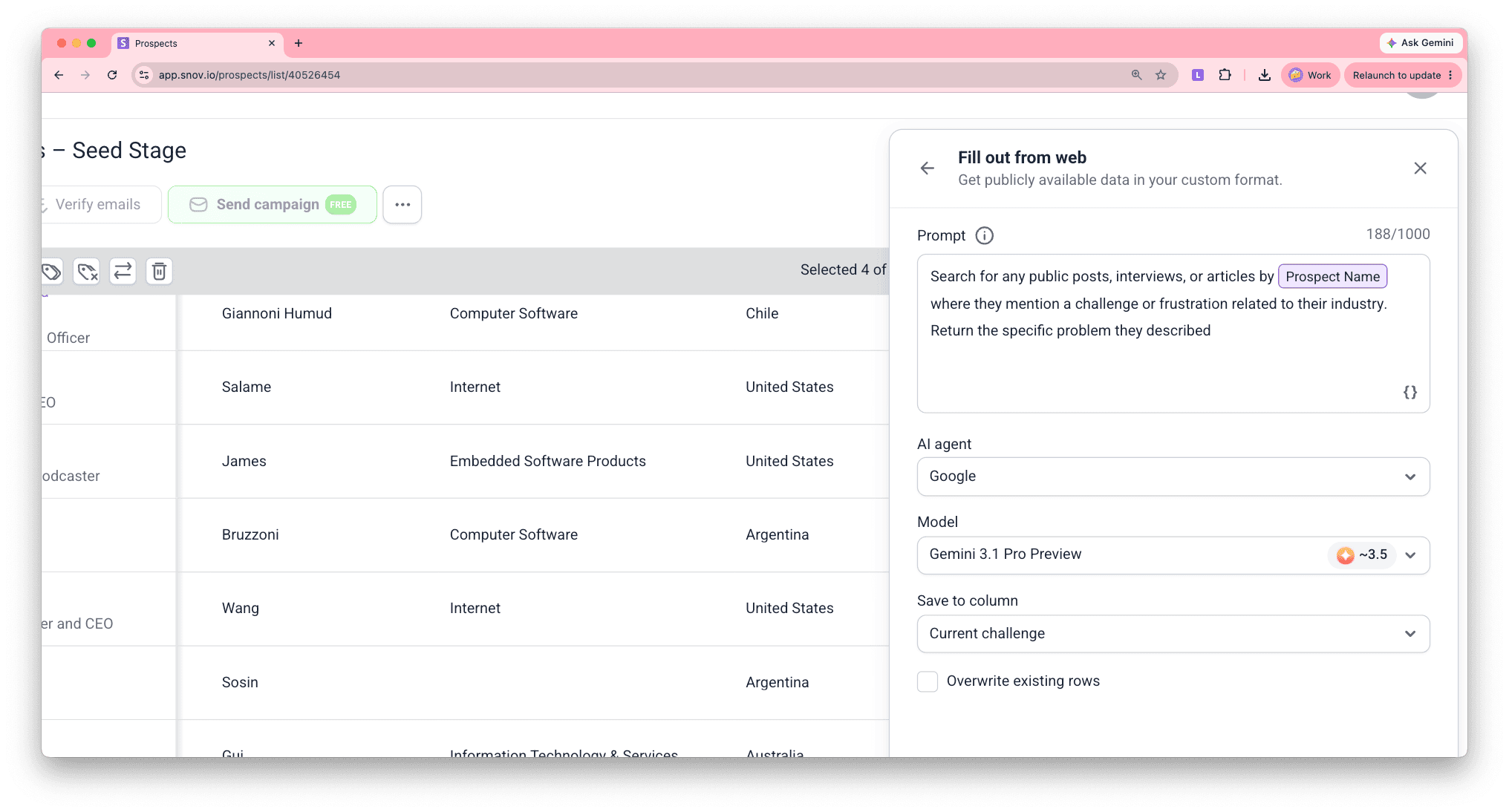
What challenges are they dealing with?
Search for any public posts, interviews, or articles by {{Prospect Name}} where they mention a challenge or frustration related to their industry. Provide the specific problem they described.
What recent news might make them receptive right now?
Find any details about funding, product launches, partnerships, or leadership changes about {{Company URL}} from the last 90 days. Identify which event most likely increases their need for [your solution] and explain why in one sentence.
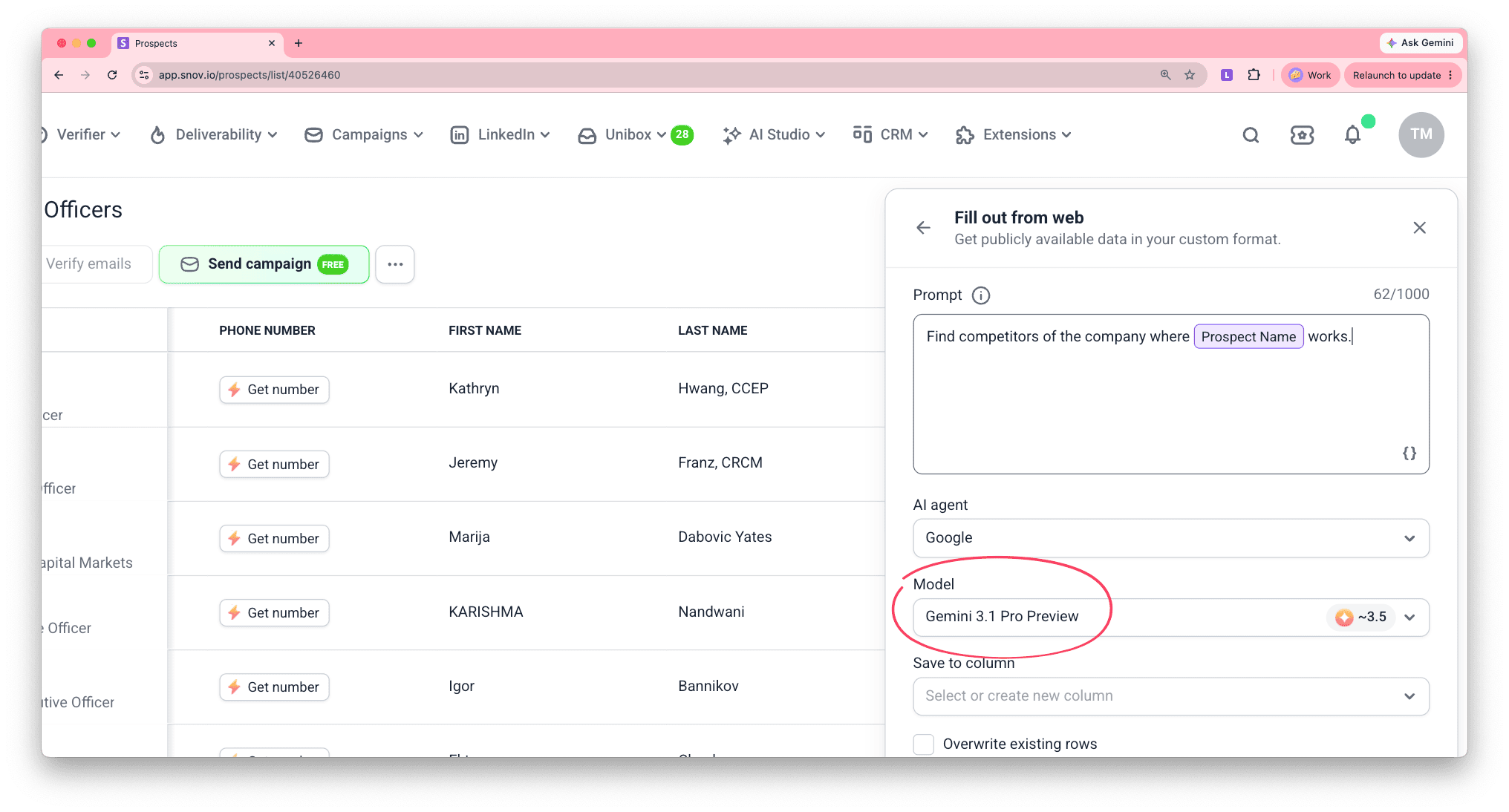
Choose AI model
Select the AI provider used for your search: OpenAI (ChatGPT), Google (Gemini), or Anthropic (Claude).
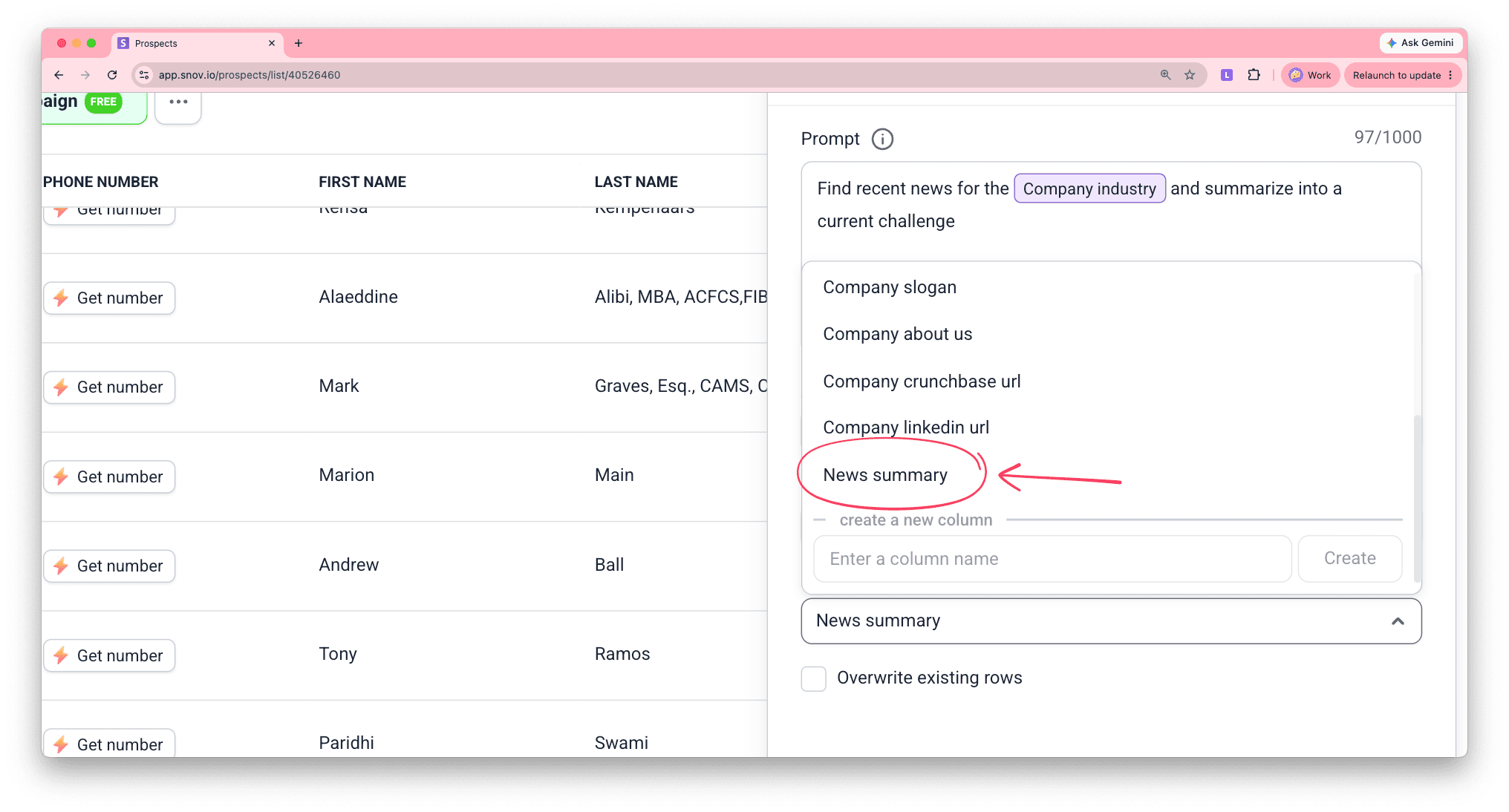
Choose column for results
Select a column to store the enriched data.
- Save results to a new column
In most cases, you'll need a new column for unique data.
- Save results to an existing column
Choose an existing column if you're enriching new prospects in the same list. If it already contains data from previous searches, you can keep it or update using the overwrite option.
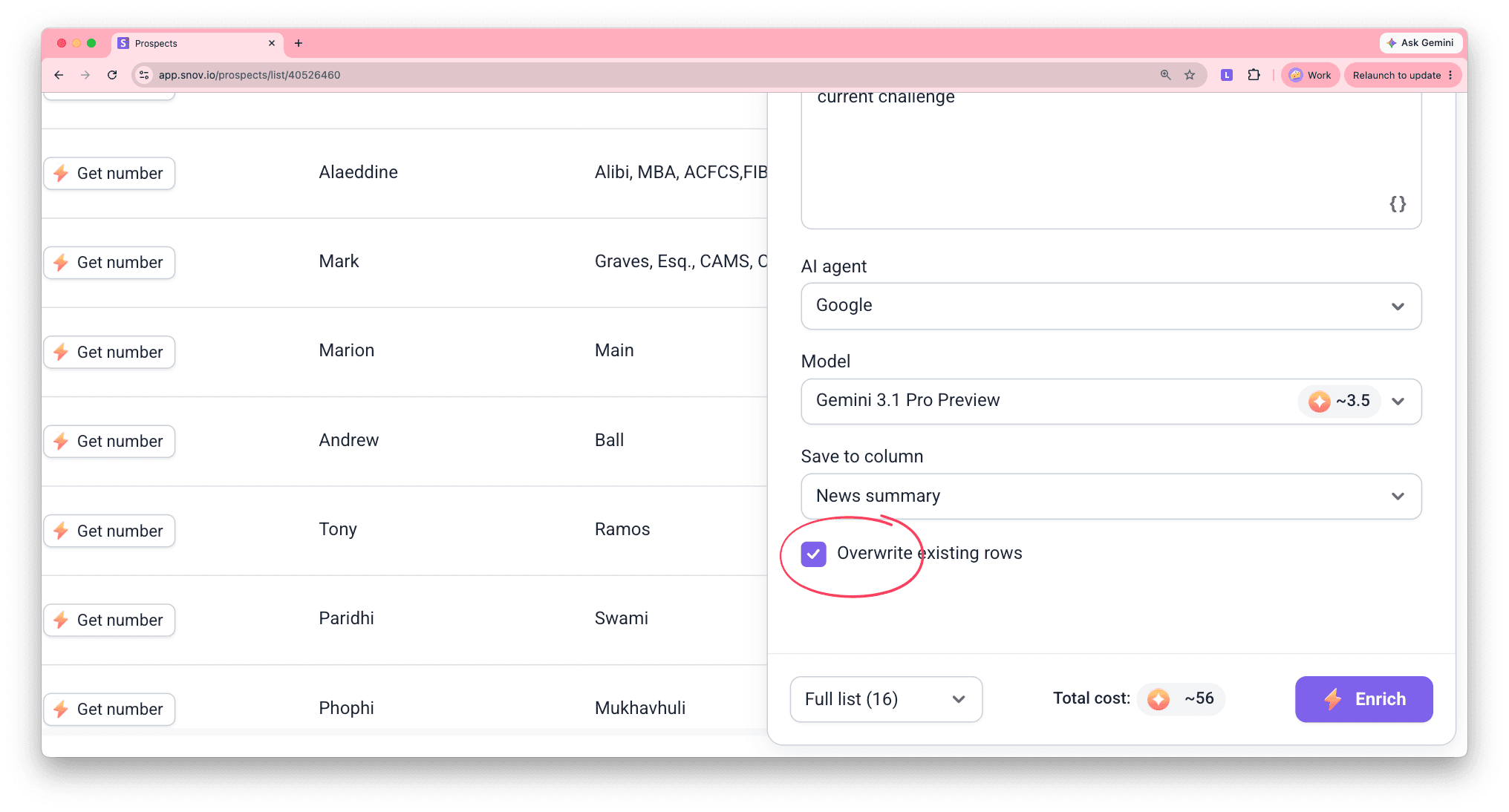
Manage data overwrite
If you choose an existing column, use the Overwrite option to keep or update any previous data.
- Overwrite existing rows OFF (default) — skips prospects that already have data filled from previous enrichments.
- Overwrite existing rows ON — replaces existing data with new results.
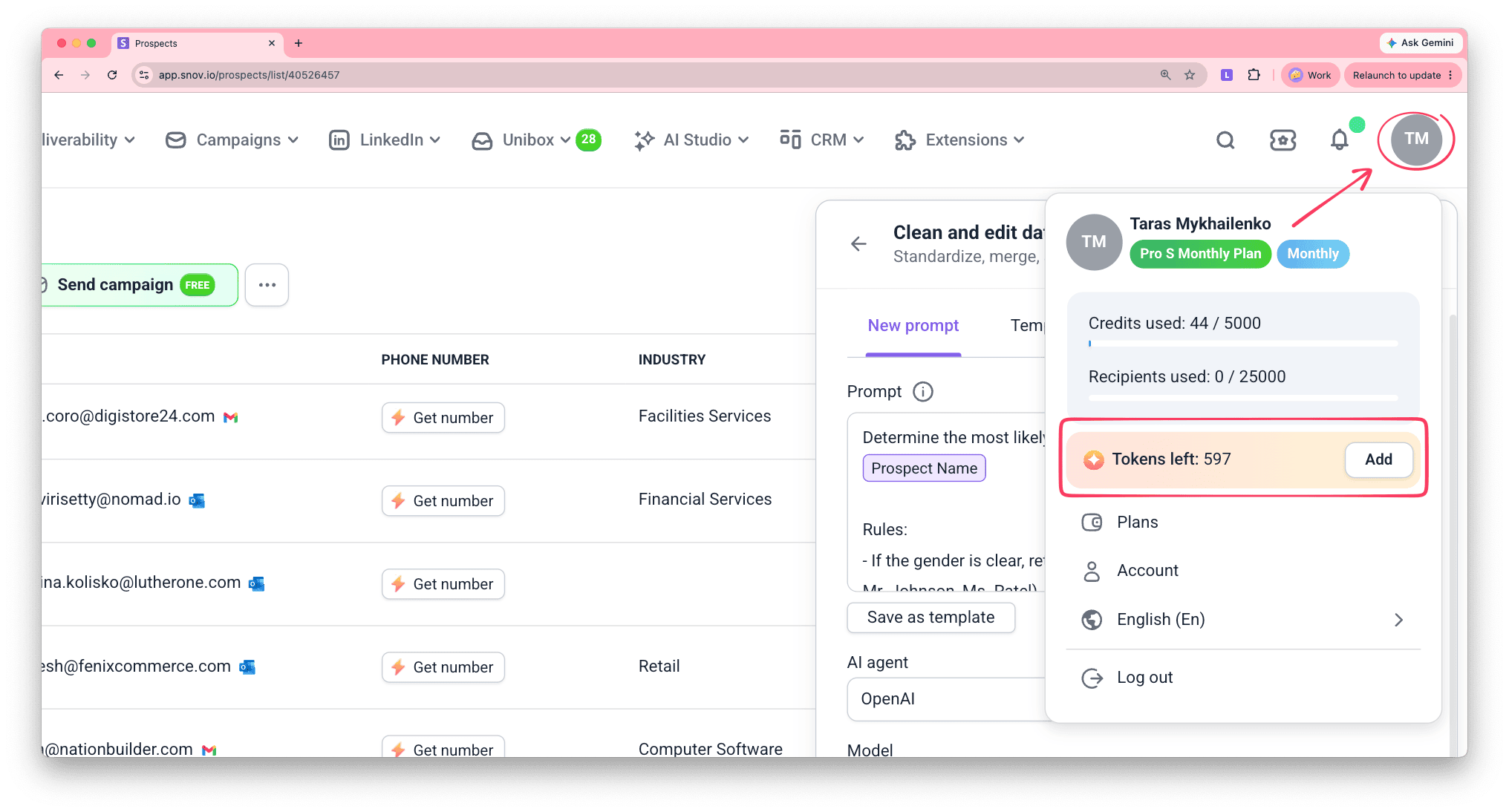
Check your tokens
The token cost depends on the AI model you select and the size of your list. Make sure you have enough tokens to cover the Total cost shown. Get more tokens from Billing settings.
Fill out from web tool charges tokens for every prospect included, even if no public data is found. Prospects updated with new data through Overwrite also cost tokens.
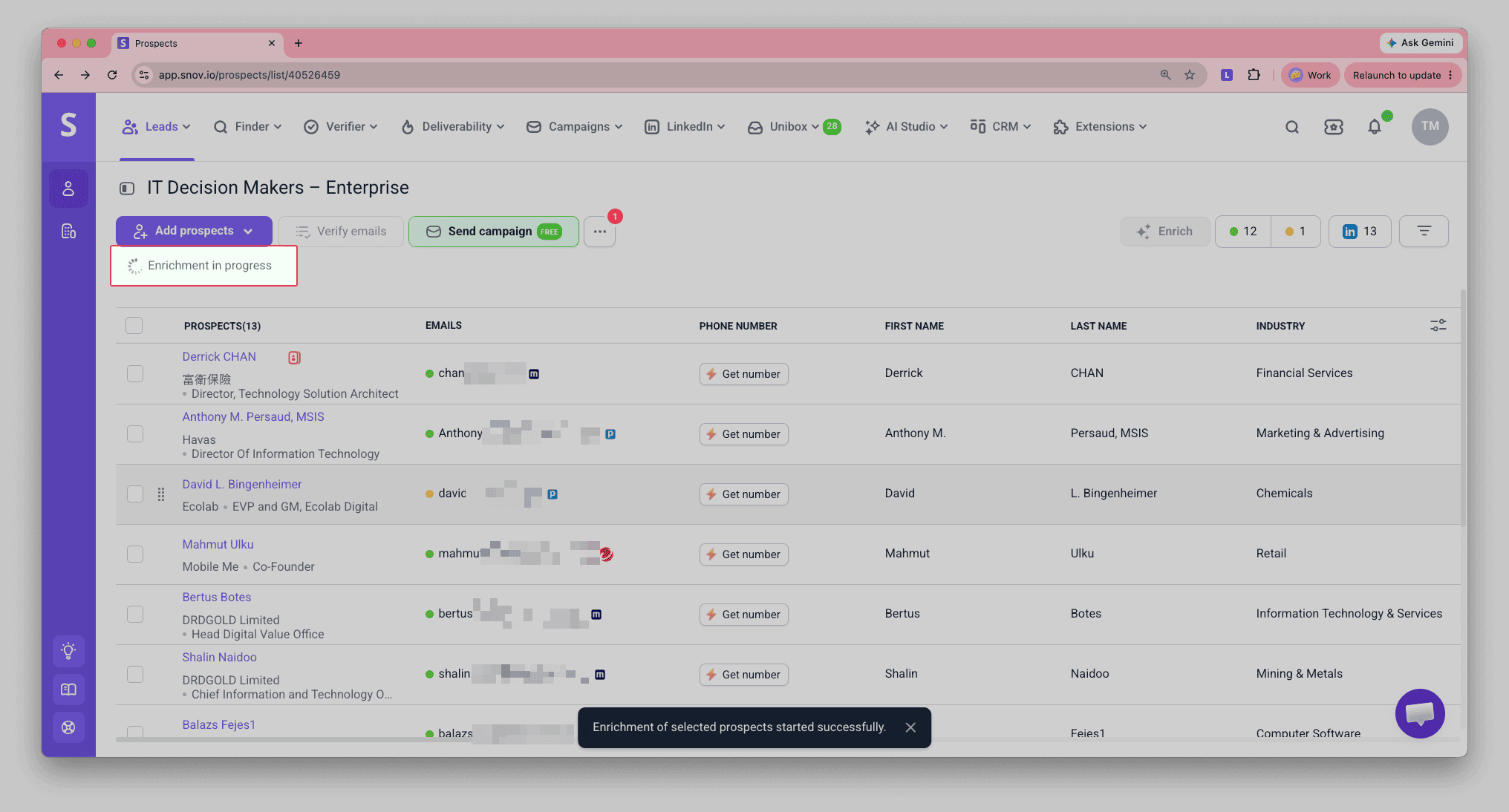
Start search
Click Enrich to start the web search. When the "in progress" icon disappears, your data is ready.
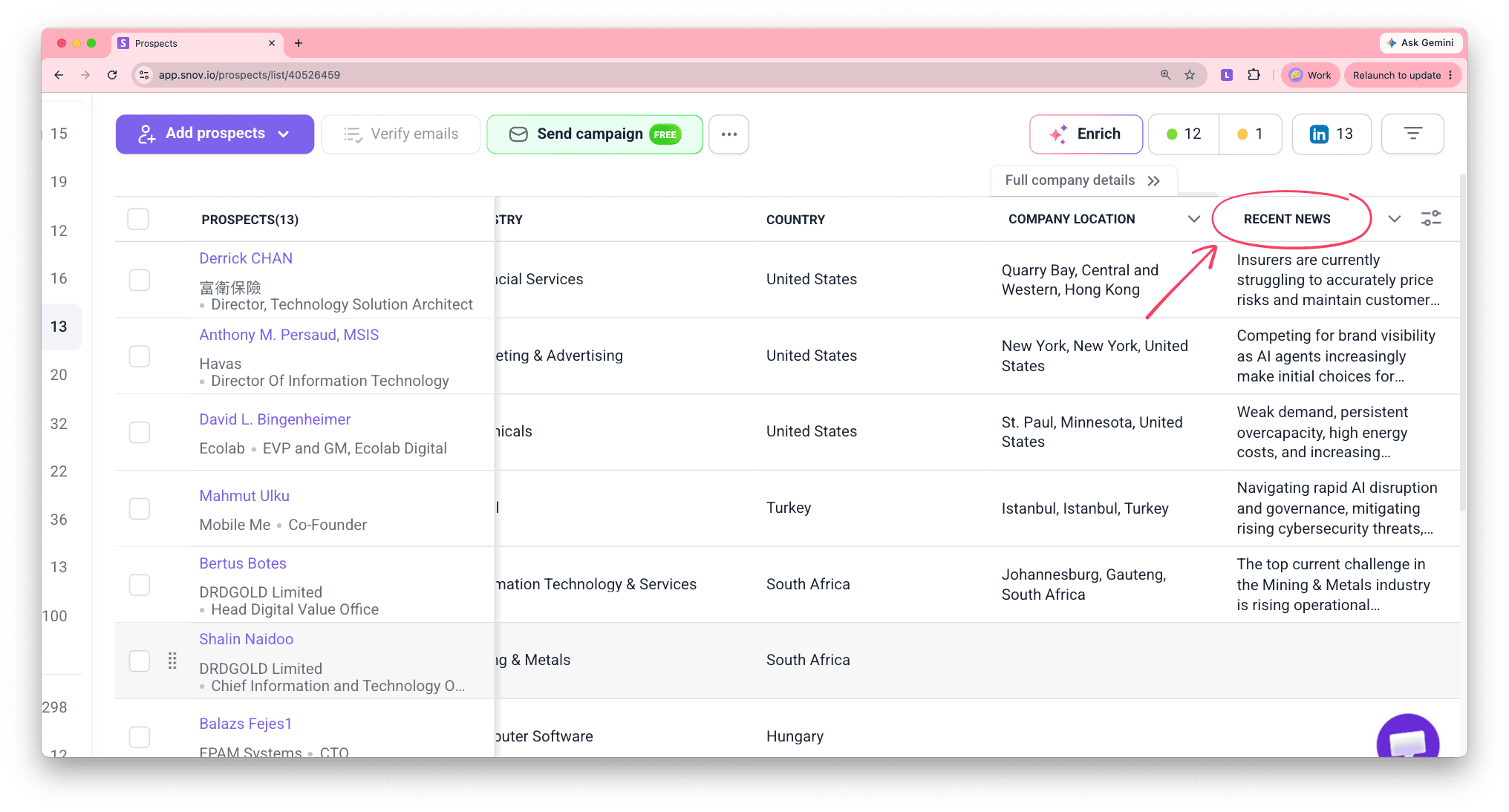
View enriched data
The data found appears in the prospect list, in the column you selected for results. Adjust which columns to show or hide through column display settings.
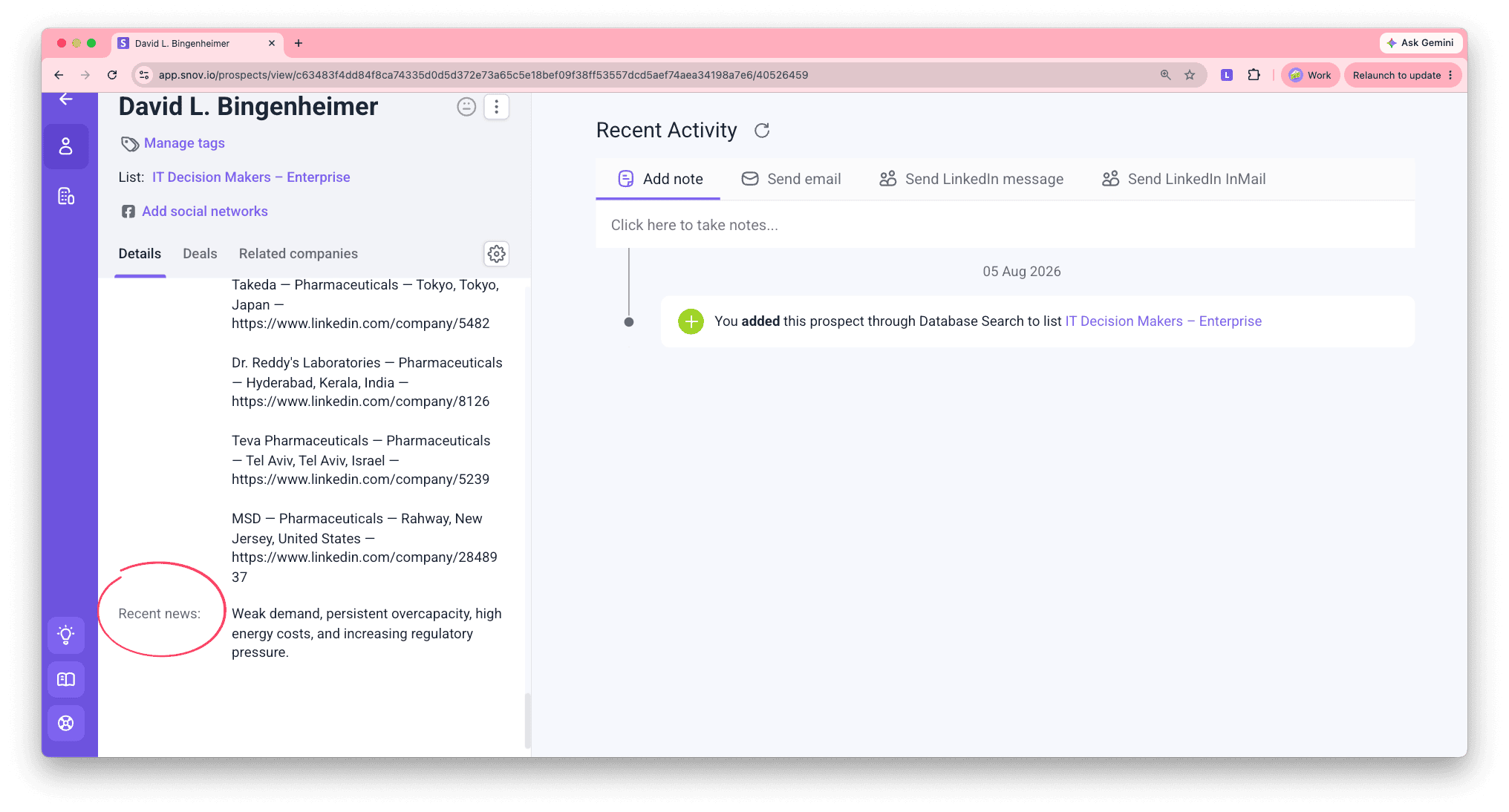
This field also appears in individual prospect profiles. Click any prospect's name to open their full profile. Below the native and custom fields, you'll find the Additional info section with all enriched data.
Next steps
Once your data is enriched, here's how to use it:
Export to CSV
In your prospect list, click Export and select the fields you need to download the data to a file.
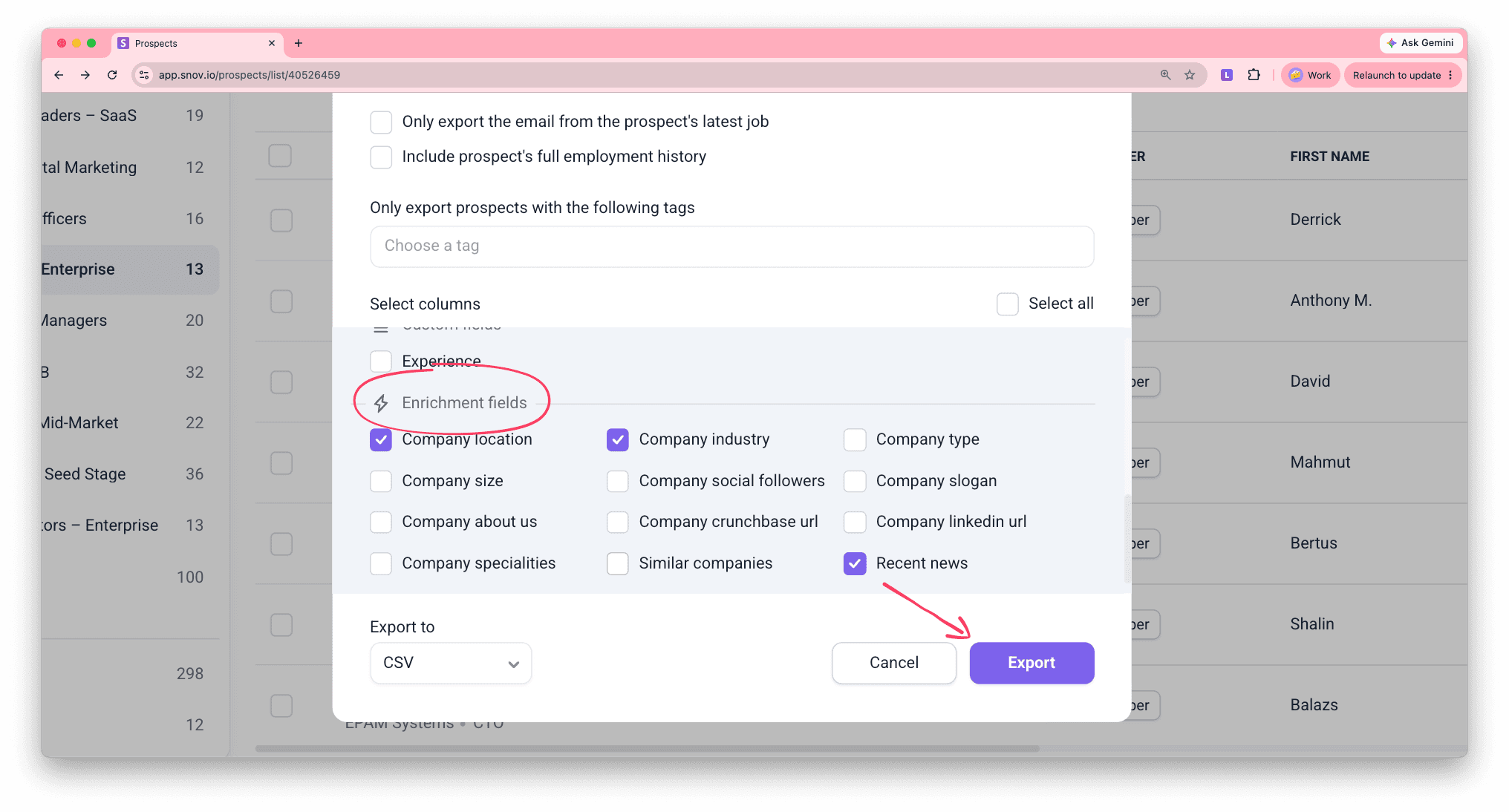
Use results as data variables
Reference the data you found as a variable in other actions, like Clean and edit or Fill out from web. Learn more about using variables in AI enrichment tools.
You can also use it as a personalization variable to insert what you found directly into an email or LinkedIn message, the kind of specific detail default or custom fields can't provide on their own.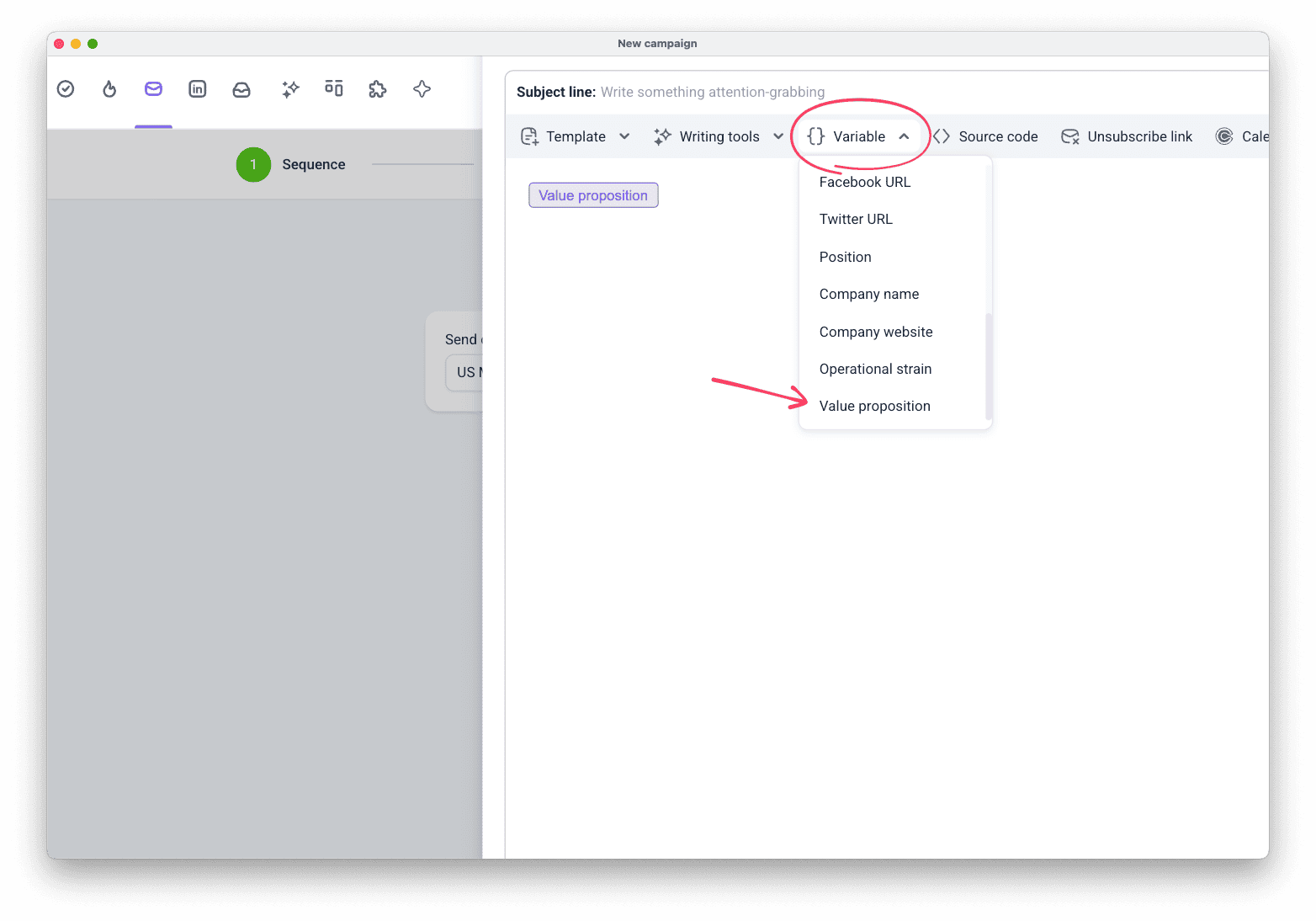 In the Campaigns email step, click Variable and select the column with your AI Web search results.


Sorry about that 😢
How can we improve it?