This guide shows how to set up data enrichment in your lists, where to find enriched data, and what you can do with it next.
Enrichment & AI tools in Snov.io add the data you need to reach your prospects and personalize your messages, so you don't have to research every profile by hand.
- Get verified email addresses, phone numbers, and personal or company insights to make your outreach more relevant
- Enrich predefined fields from data providers, request a specific insight found on the web, or compile a new one from your existing data
- Create emails and messages for the whole list based on the insights you gain
- View in prospect list
- View data in columns with multiple values
- Extract data from bulk columns
- View in prospect profile
Personalize campaigns with enriched data

Before you start. To use any enrichment, make sure you have:
1) Prospects in a list. All enrichments need existing data to start. Add prospects to a list first, import from a file, or use Database Search. Learn what data each action requires.
2) Tokens. All enrichments cost tokens.
How to use Enrichment
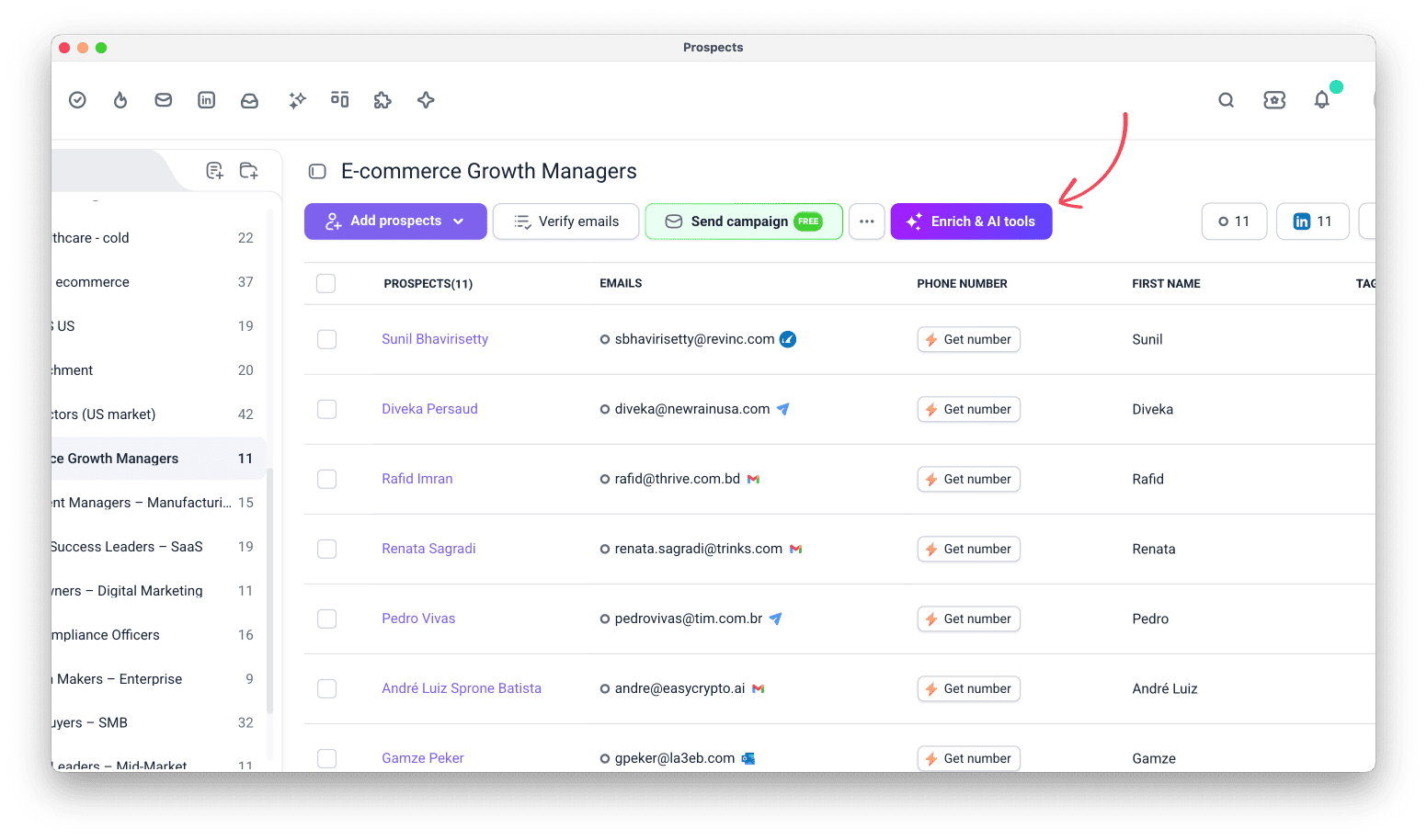
Go to your Prospects and choose the list you want to enrich. Click Enrich & AI tools and choose the tool you need.
You can start enrichment on selected prospects, a segment filtered by tags, or your entire list.
Pick action
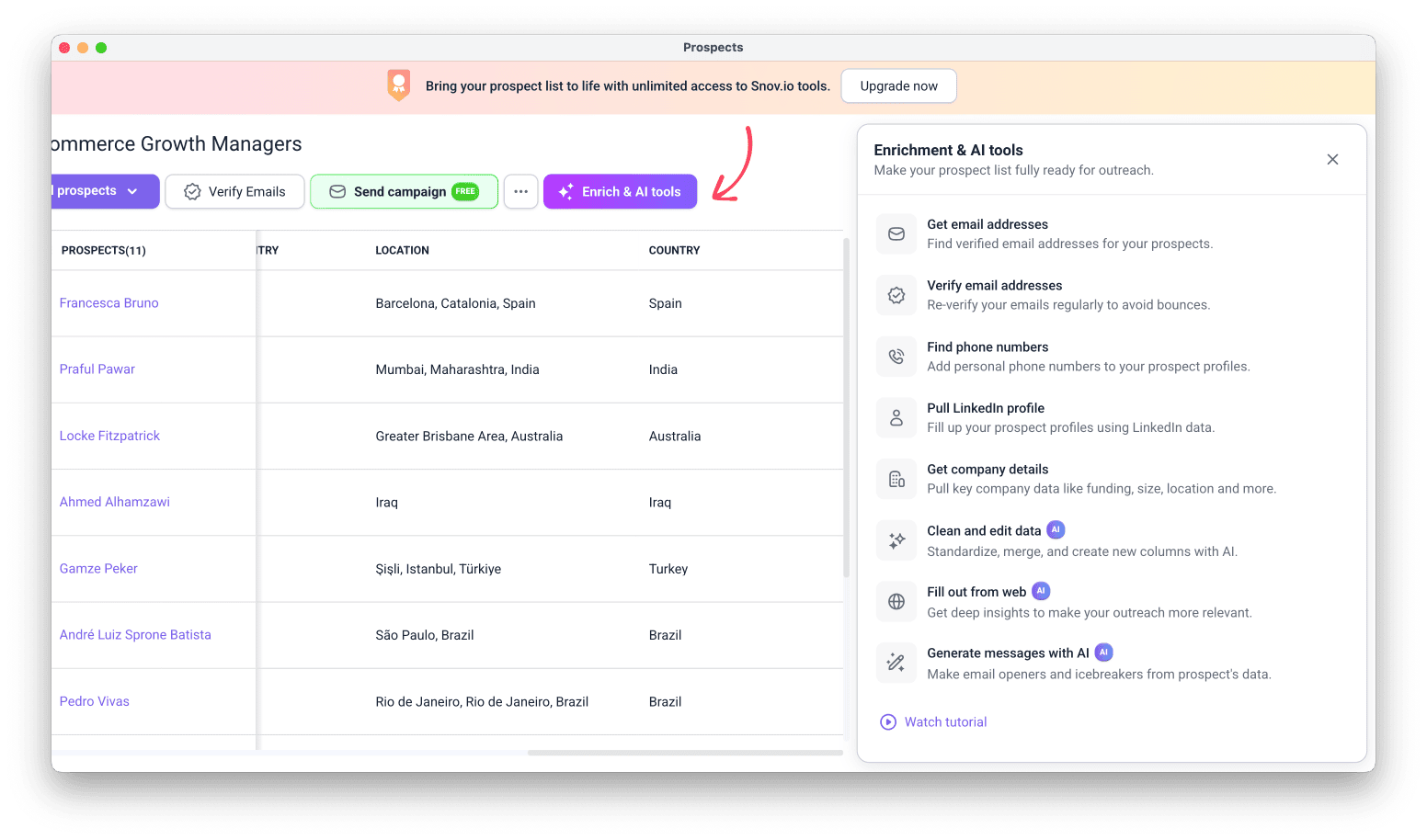
Depending on the data you need, choose the enrichment option.
Click a link below to see what exact data you get with each option, or scroll down for setup steps and where to find your enriched data.
- Get email addresses
- Verify email addresses
- Find phone numbers
- Pull LinkedIn profile
- Get company details
- Fill out from web
- Clean and edit data
- Generate messages with AI
Choose prospects to enrich
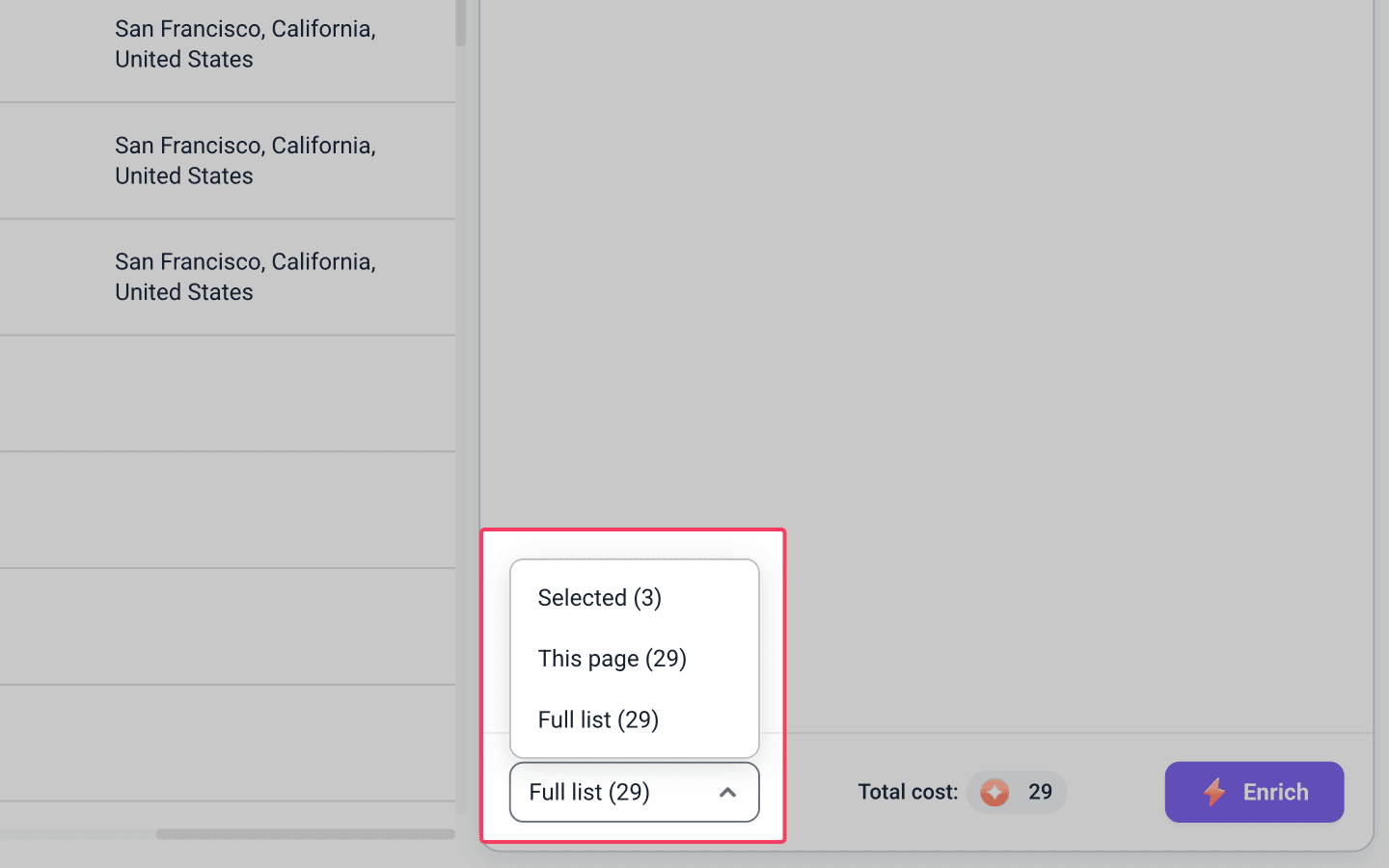
After selecting the data you need, choose which prospects to enrich. The dropdown at the bottom of the sidebar gives you these options:
- Selected prospects: only the prospects you manually checked
- Current page: all prospects shown on the page you're viewing
- List: all prospects in the list
Check your token balance
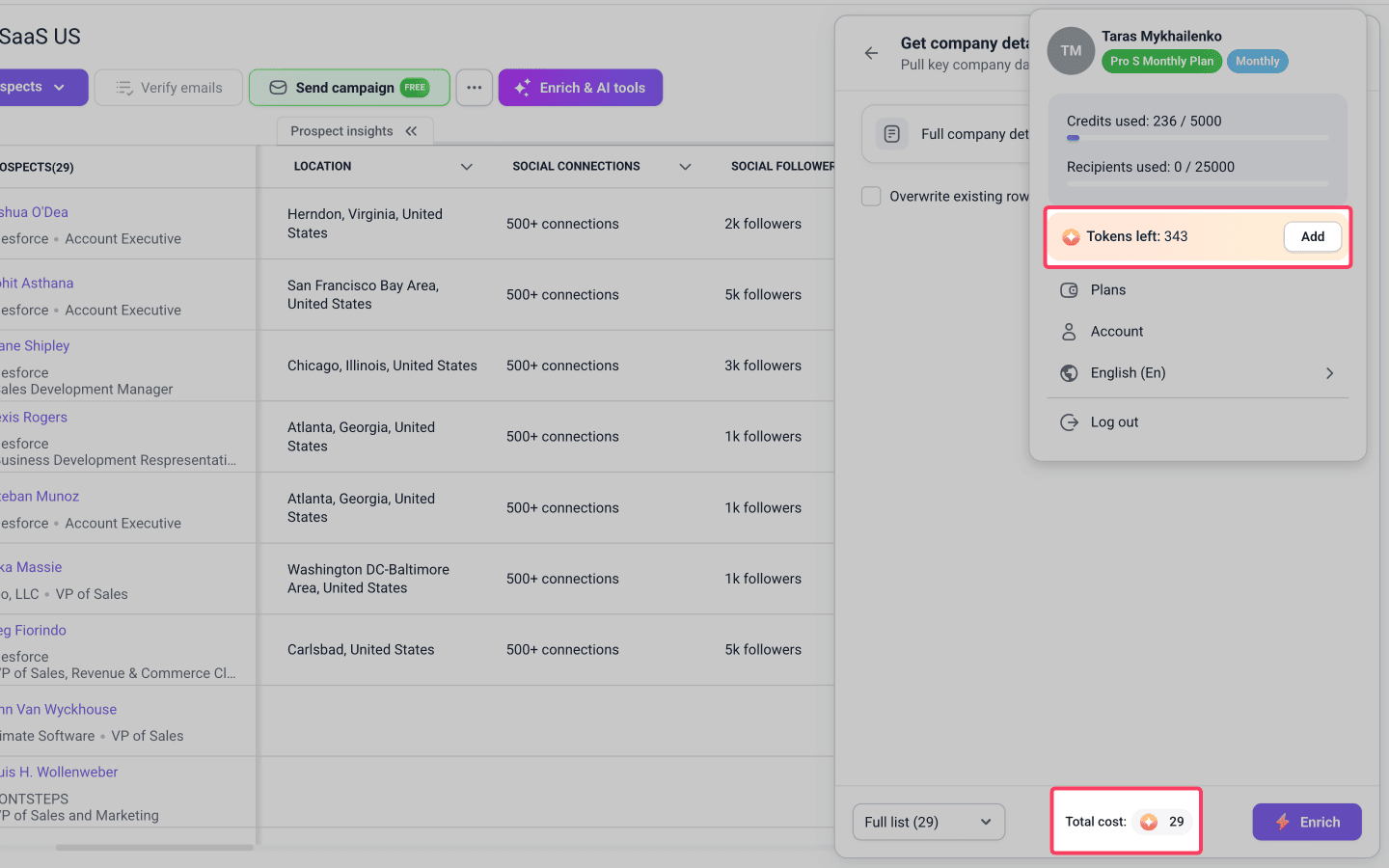
The total cost shown is an estimated maximum. It depends on the enrichment, the provider you select, and your list size.

Token charging varies by enrichment tool.
Data tools like Find email addresses, Pull LinkedIn profile, and Get company details charge only for successful results.
AI enrichments charge for every prospect. See token cost for each tool in the tokens guide.
Your token balance in Billing includes:
- Plan tokens. They renew monthly while your subscription is active and don't roll over.
- Token packages. Purchased tokens accumulate on your balance and stay valid for 90 days from purchase.
Start the enrichment
Click Enrich to start the data search. When the "in progress" icon disappears, your data is ready and you can view it.
The time it takes depends on your list size and the enrichment you're running.
View enriched data
Snov.io automatically creates new fields and columns to store enriched data.
You can view the new data directly in the prospect list or by opening prospects' profiles.
View in prospect list
Each enrichment adds one new column to your list. Scroll right to find it by name. All the enriched data is stored inside that column.
Click the link in the prospect's row to open the full data pop-up.
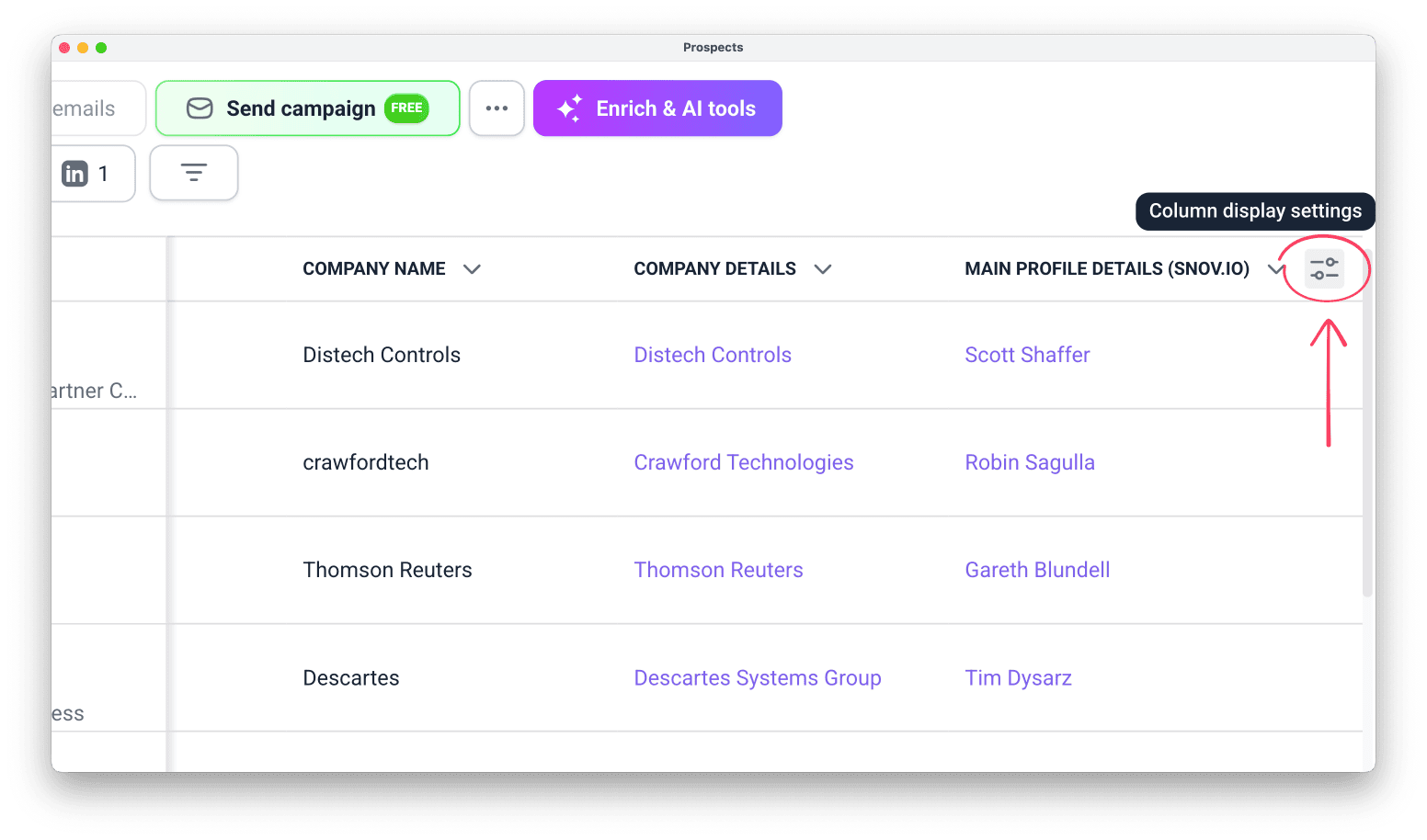
Here are examples of the columns added after enrichment:
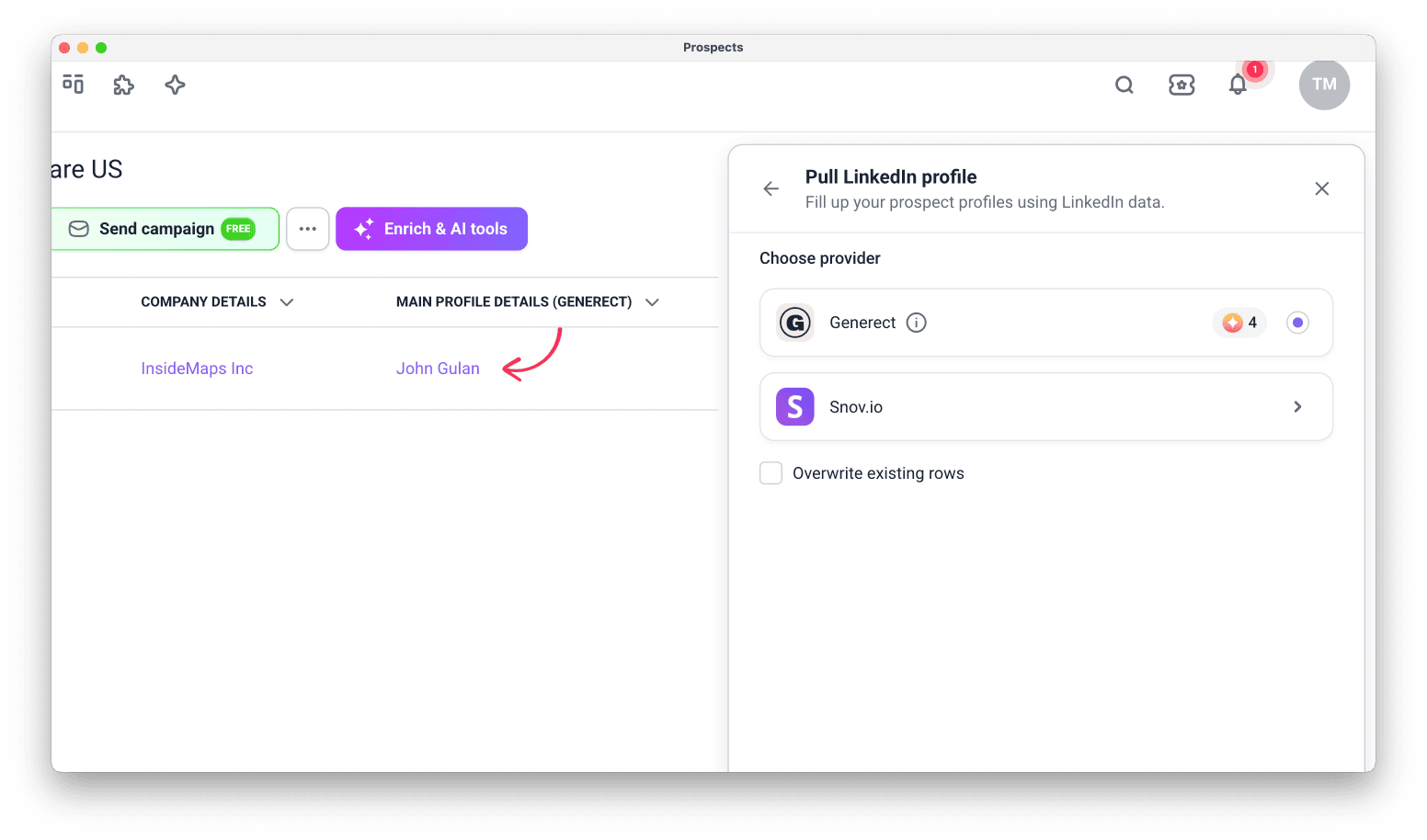
Main profile data (LinkedIn)
LinkedIn data enrichment results are stored in the Main profile details column.
It contains the full set of LinkedIn data: current job position, experience, skills, company info, and more.
The pop-up shows all enriched fields, depending on the provider.
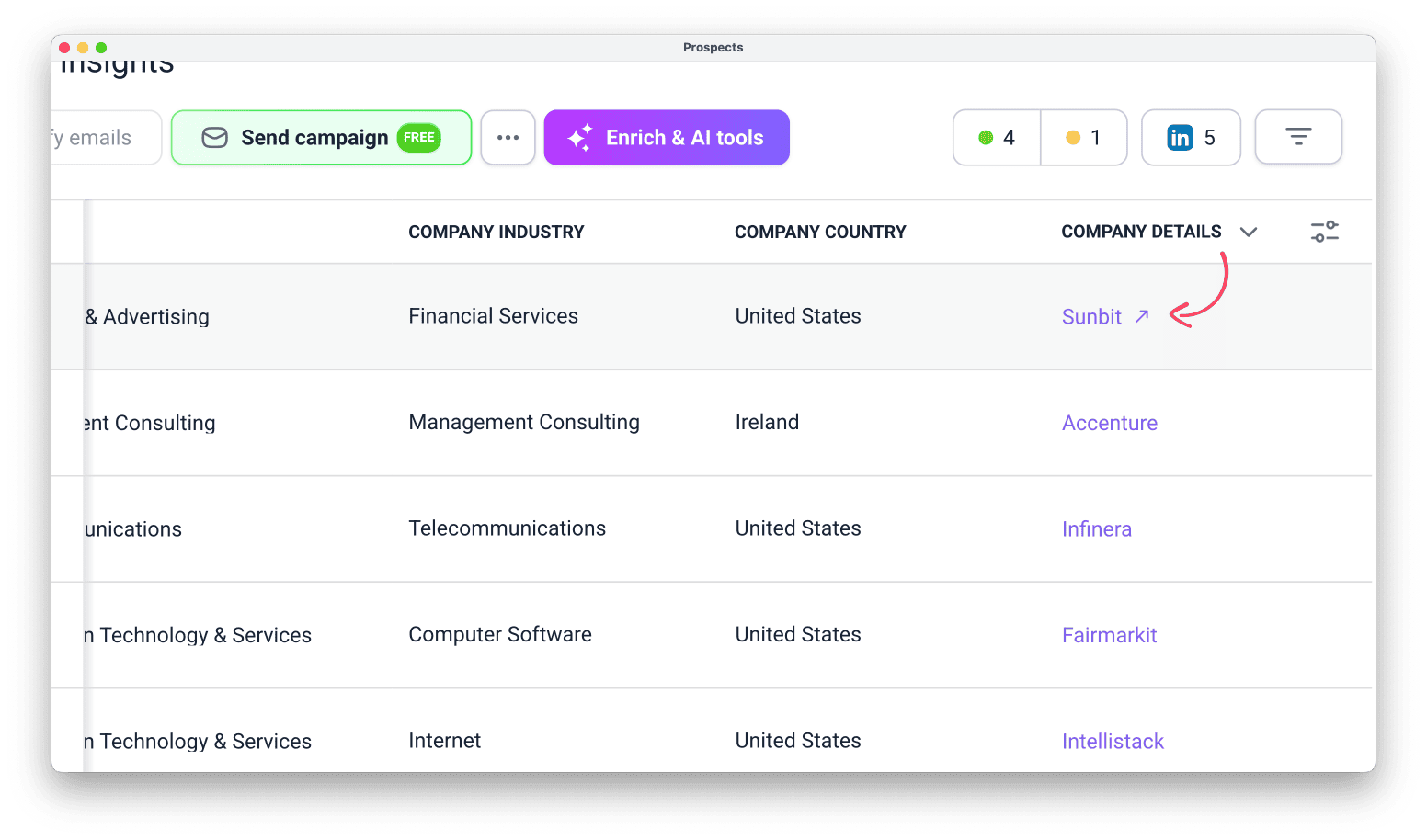
Company details
Company data enrichment results appear in the Company details column.
The pop-up shows all enriched fields.
View data in columns with multiple values
Some enriched columns include multiple fields, like Profile details or Company details.
These are bulk columns, meaning all enriched fields and data points are grouped under one column.
To open the full data of a bulk column, click the linked value in the column you need.
Some fields also store more than one value per prospect.
For example, Experience stores each past job as a separate record, which further expands into additional fields like company, job title, etc.
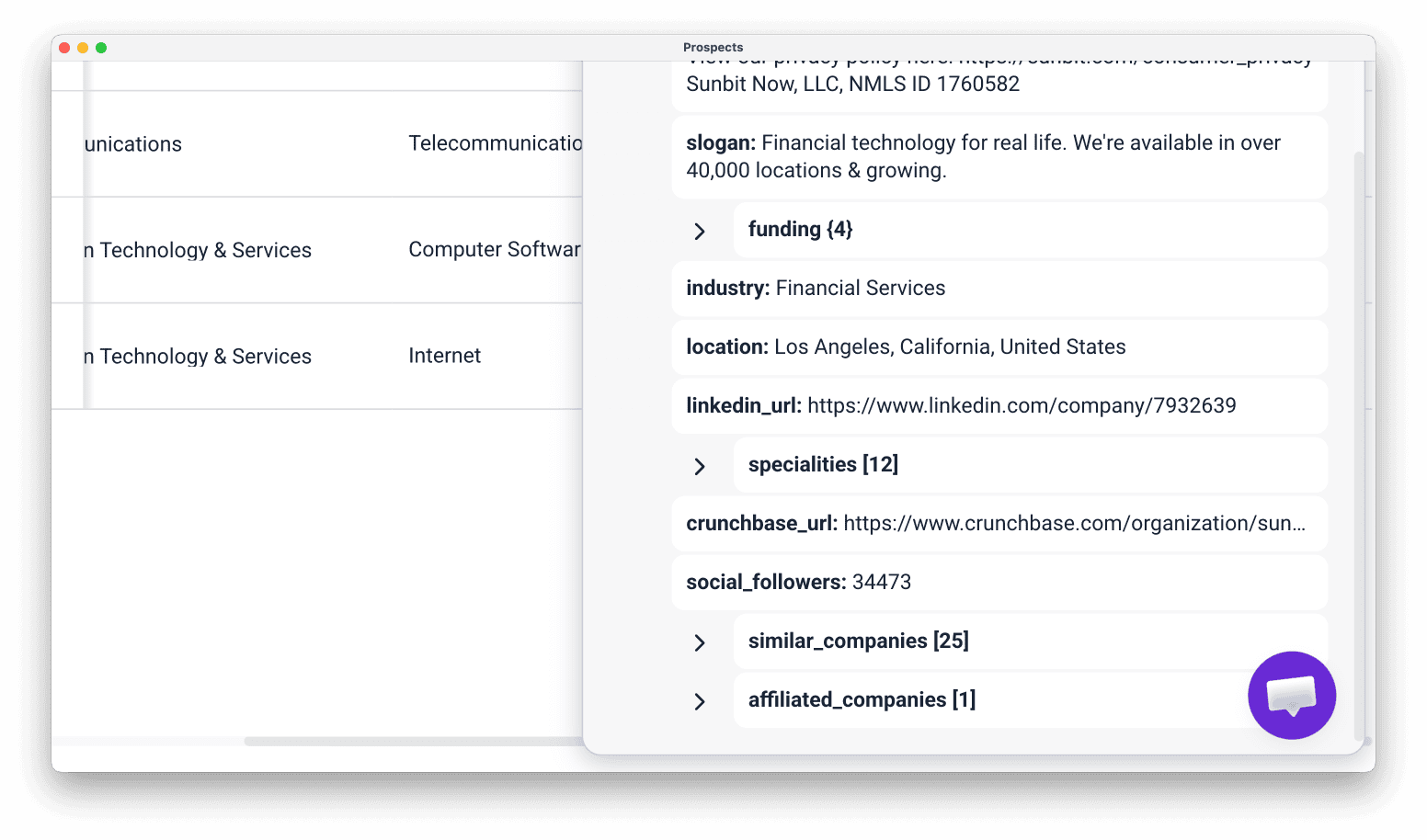
Company funding stores each funding round, which further contains data points like round date and sum.
Extract data from bulk columns
Bulk enrichment columns are a dataset you can export or feed to AI tools to find new insights or generate messages.
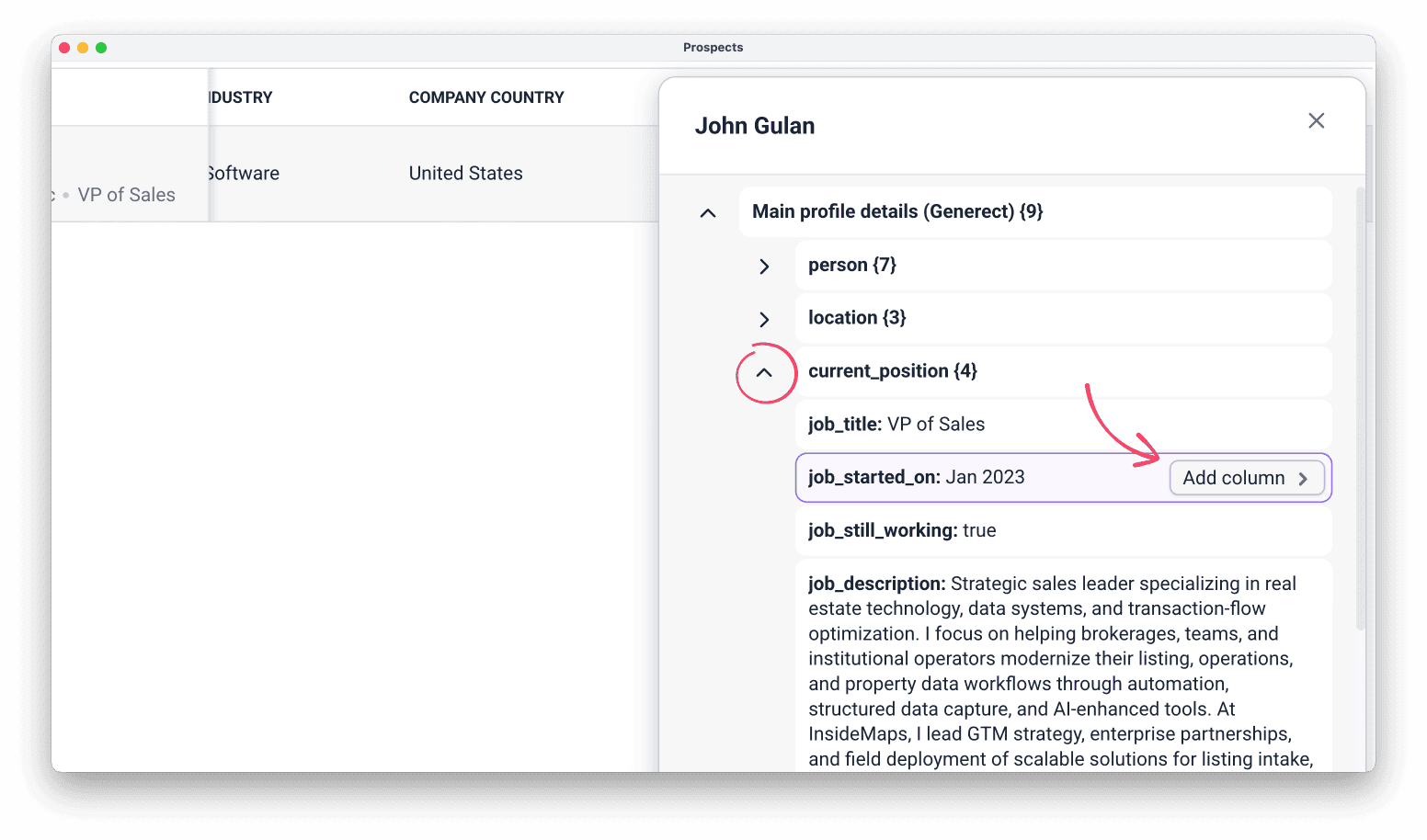
Learn more in the Data fields and columns guide.
View in prospect profile
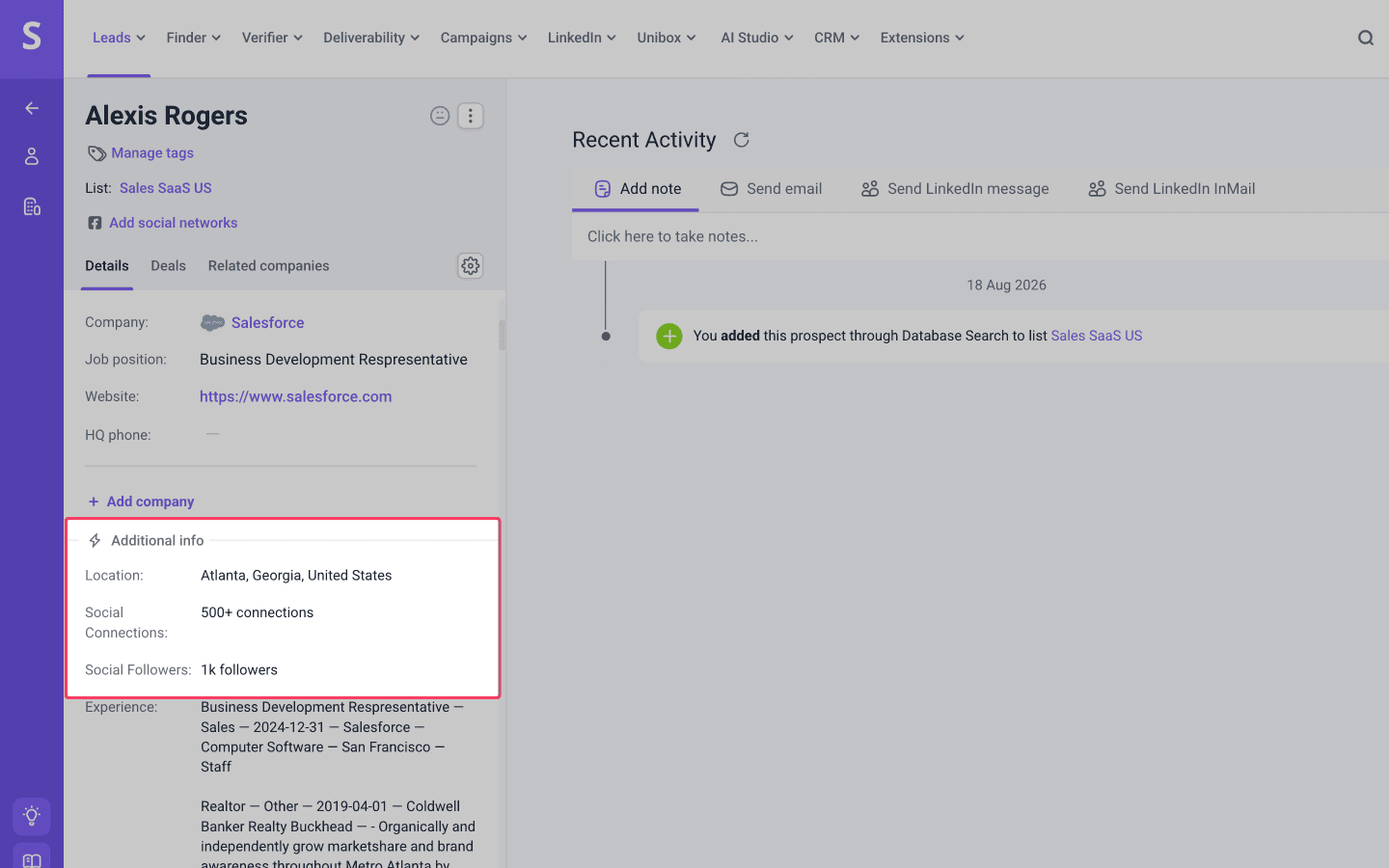
After enrichment, new data appears in each prospect's profile. Click a prospect's name to open the full profile.
Look for the Additional info section below the native and custom fields.
This is where all new details appear after each enrichment run, in chronological order.
Manage data overwrite
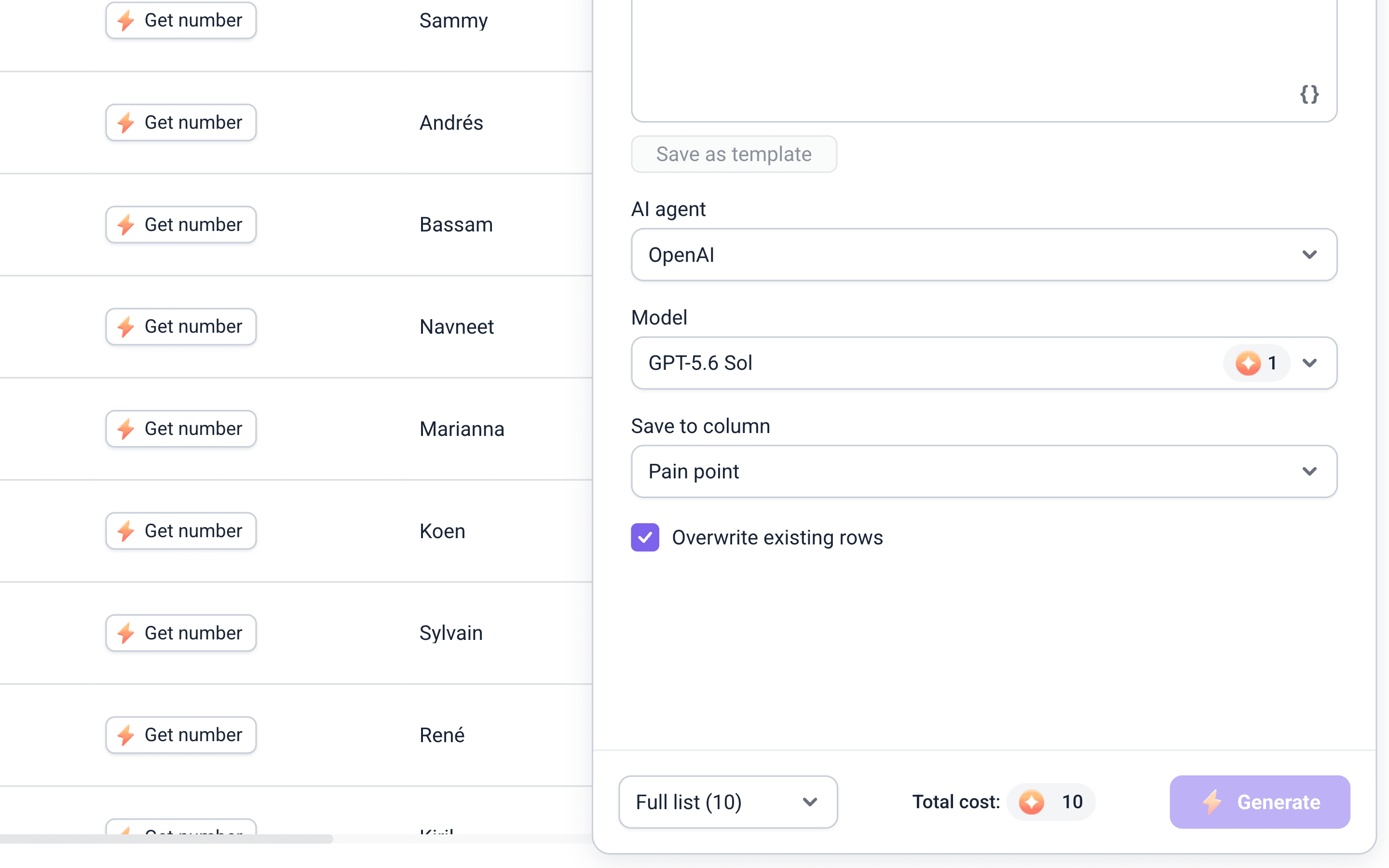
When re-running enrichment on an existing list, you can choose whether to Overwrite existing rows, replacing data fields already filled from previous enrichments or imports.
Keep it off when:
- Enriching the list for the first time
- You only want to update new prospects in an already-enriched list
Turn it on when:
- You want to refresh an old list with the most recent data
Next steps
Once your prospects are enriched, here's how to use the new data.
Work with enriched data in AI tools
You can use the enriched columns or fields in AI tools:
- as context for generating or finding new insights
- pull the specific data points from bulk columns
- create messages from each prospect's data
Export to CSV
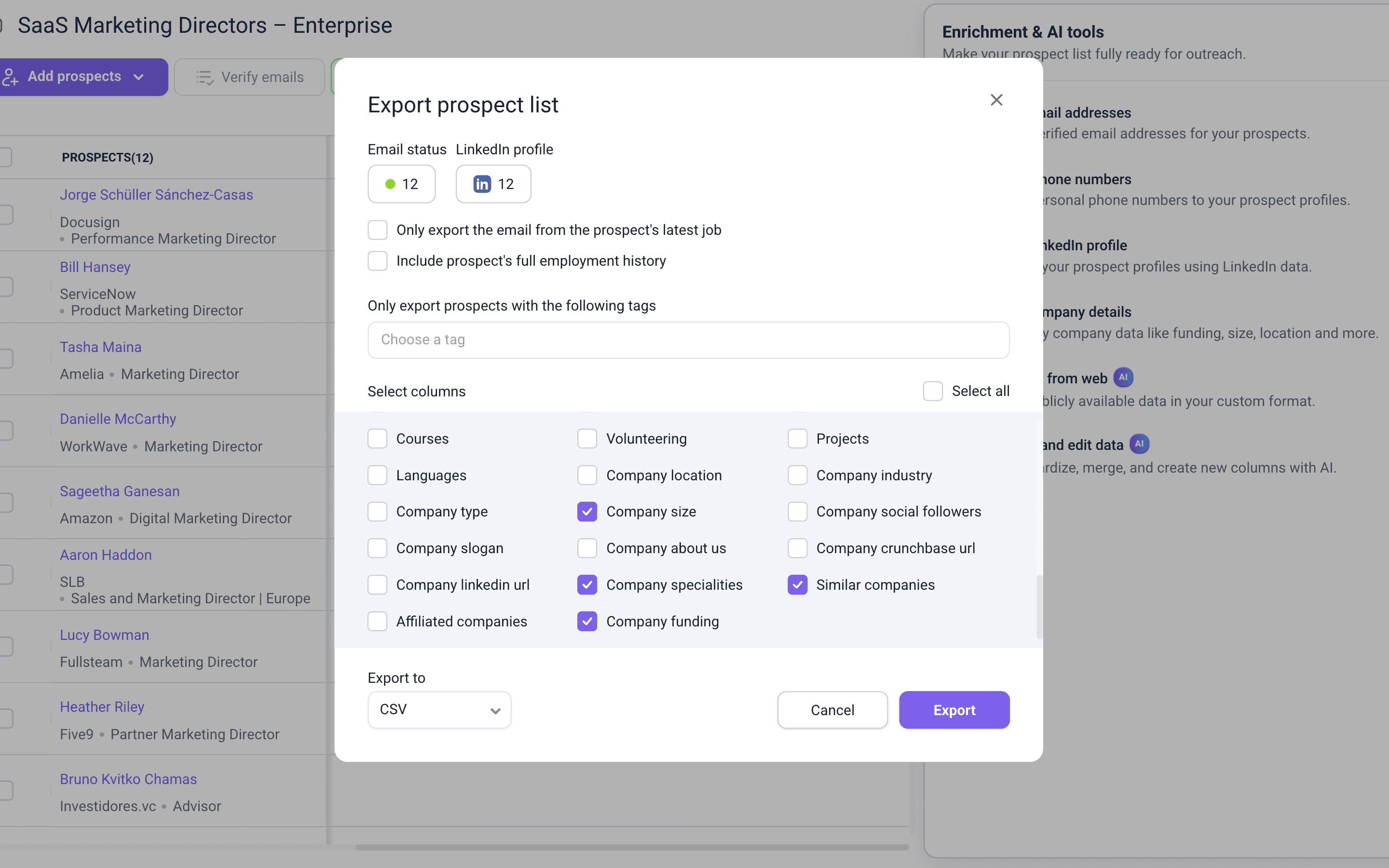
Download enriched prospects to a file. In your prospect list, click Export and select the enrichment fields you want to include.
Personalize campaigns with enriched data
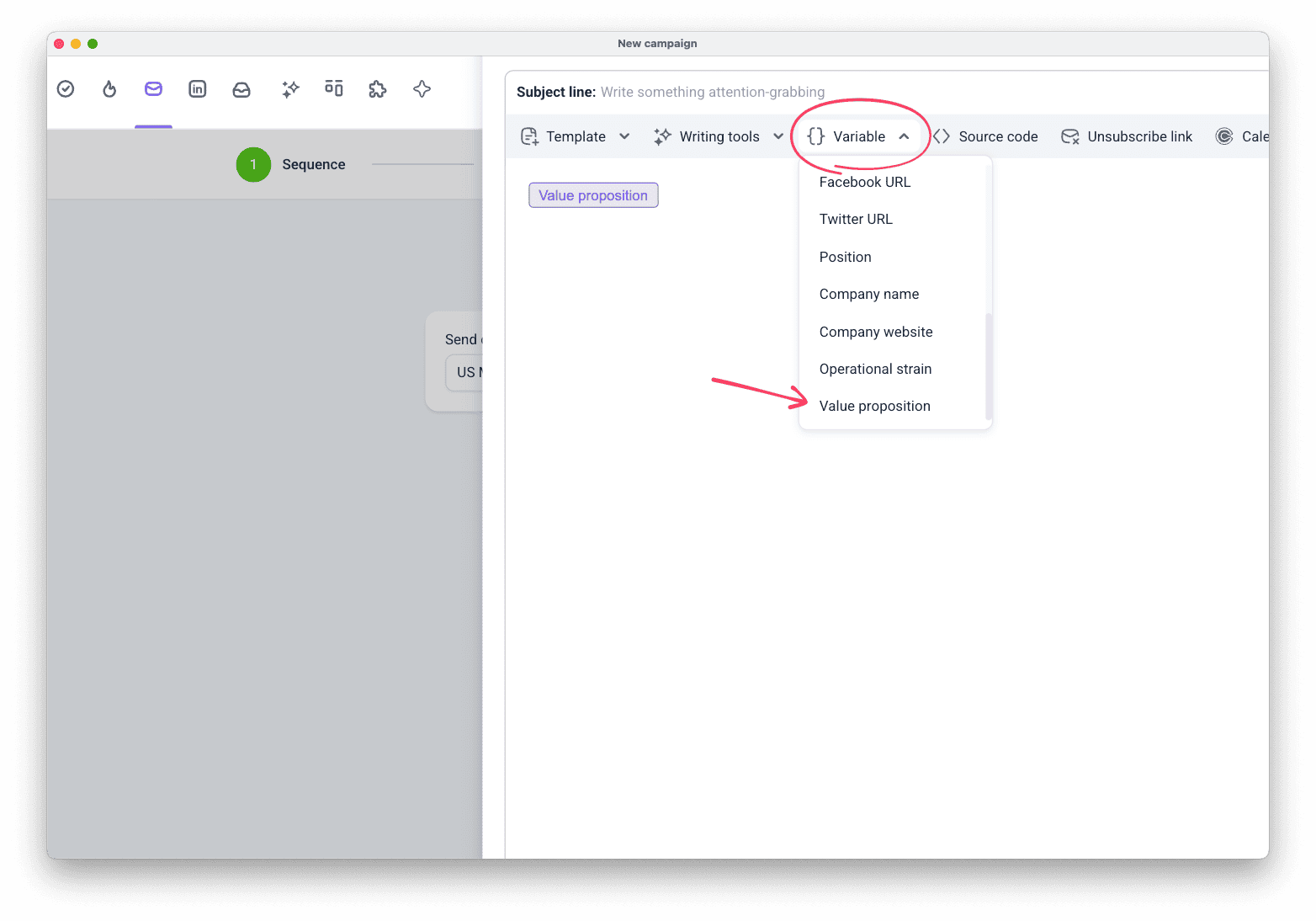
Use enriched columns as email variables to insert each prospect's data into their outreach.
In the Campaigns email step, click Variable and select any column for the subject line or body.


Sorry about that 😢
How can we improve it?