This guide explains how to find a prospect's work phone number from an email address, LinkedIn URL, or their name and company.
What data you need to find numbers
Find a number for one prospect
Phone number enrichment in Snov.io adds work phone numbers to the prospects in your lists, so you can reach them by phone alongside email and LinkedIn.

Before you start: what you need to find numbers
1) Tokens, the balance used for enrichment tools
2) Prospects to enrich. Add them to your list in advance. The Get number option appears inside lists with prospects, not in prospect search results.
What data you need
Start from any of your lists. If you already have some leads, try finding numbers for them. If you lists are empty, see where to get prospects for enrichment.
- a LinkedIn profile URL, or
- an email address, or
- a full name with a company name or domain
Ways to use phone enrichment
When your list is ready, you can find numbers one by one or for a whole list using the Enrich & AI tools menu.
Find a number for one prospect
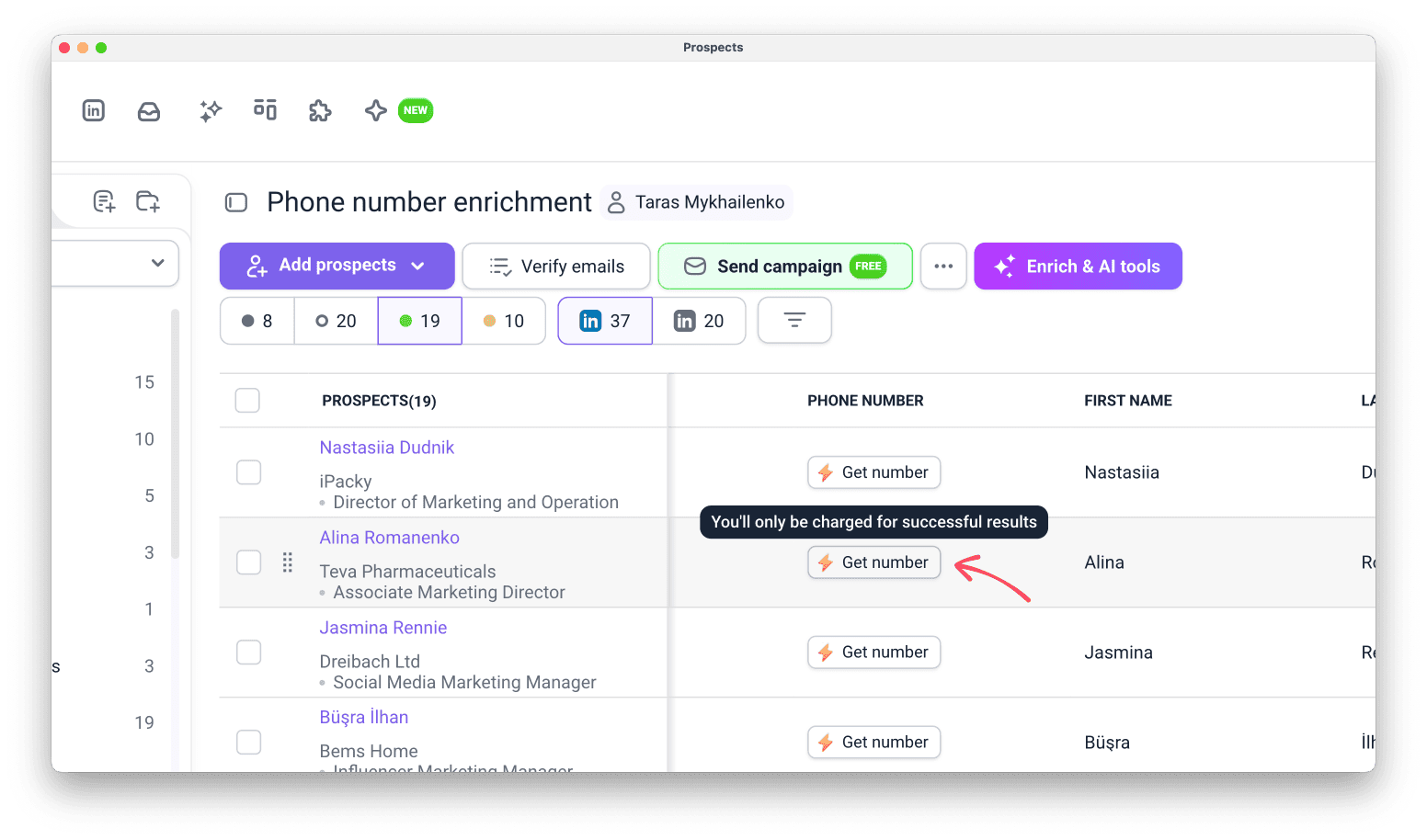
Open your prospects and click Get number next to the prospect you need.
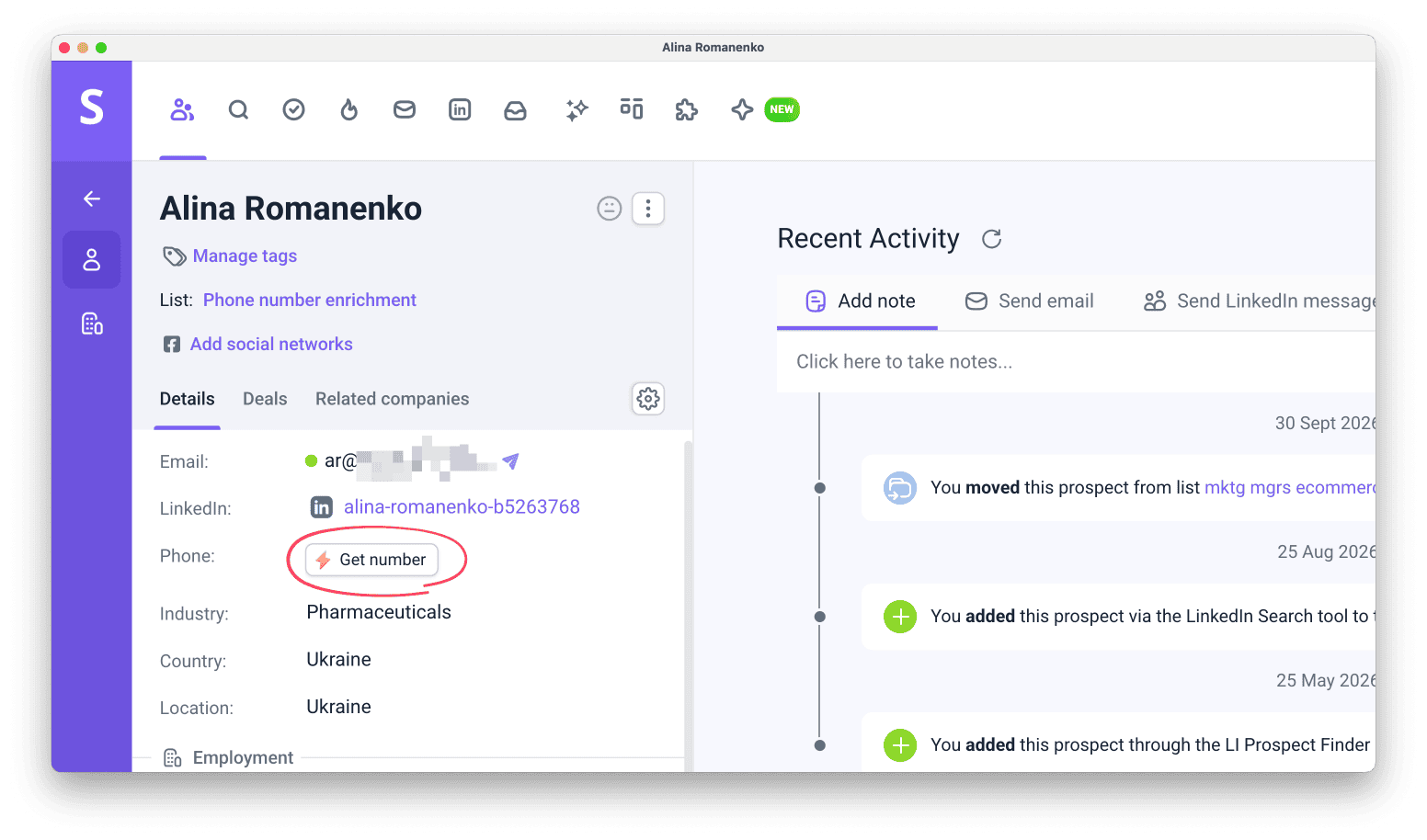
Or open a prospect's profile by clicking their name and find the same button there in the Phone field.
Find phone numbers in bulk
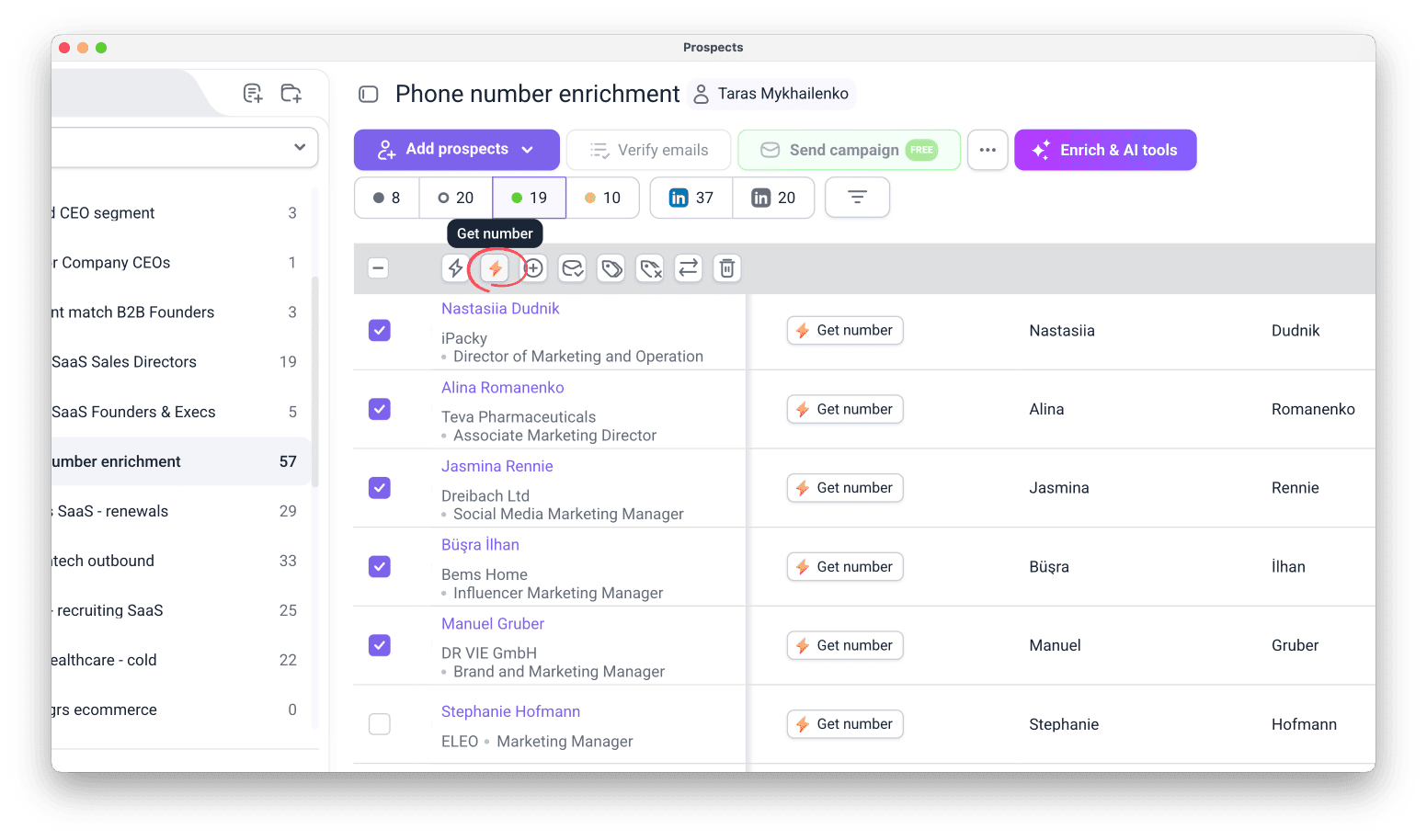
To find numbers for multiple prospects, select them using the checkbox on the right and click Get number in the top menu.
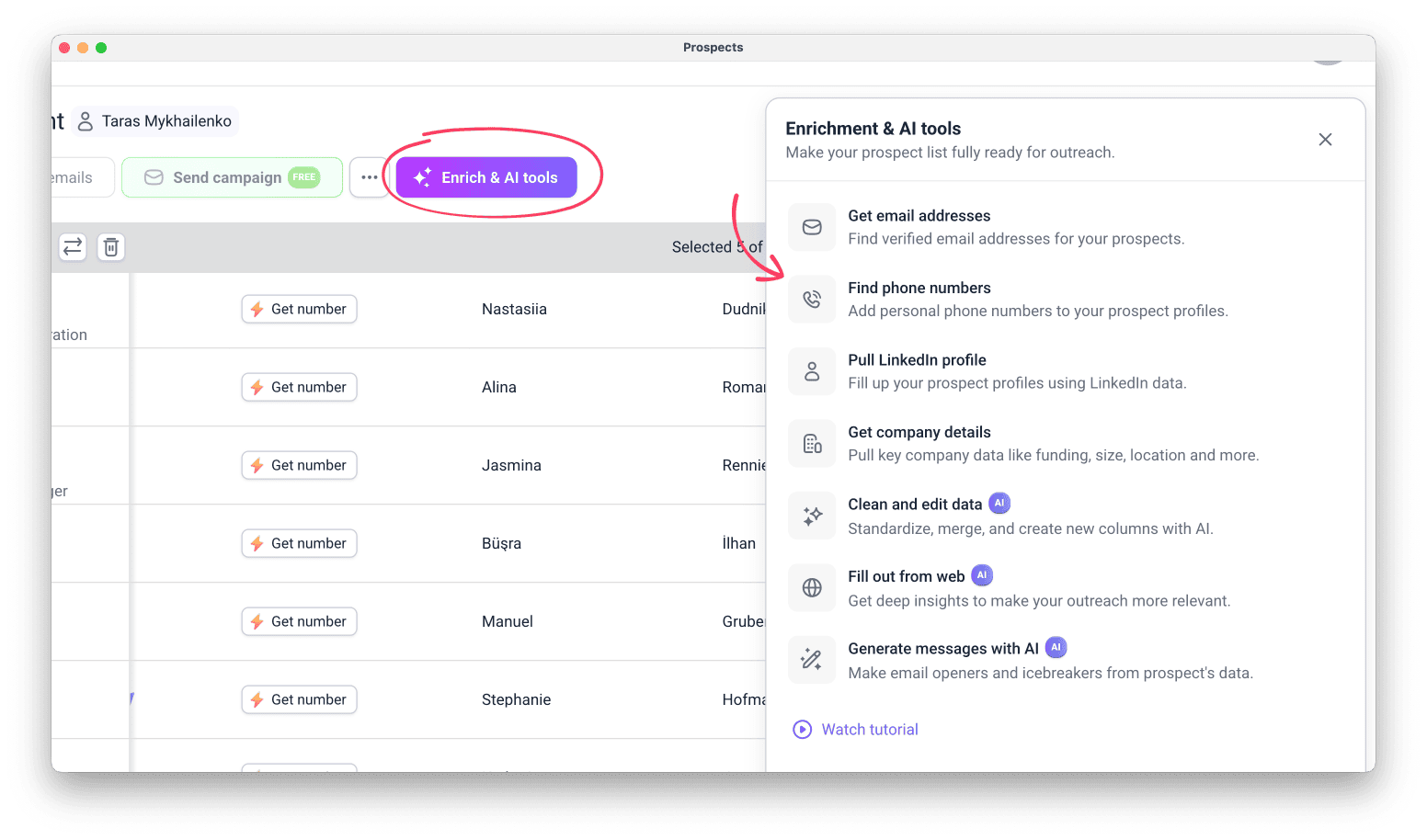
Or start from the enrichment tools.
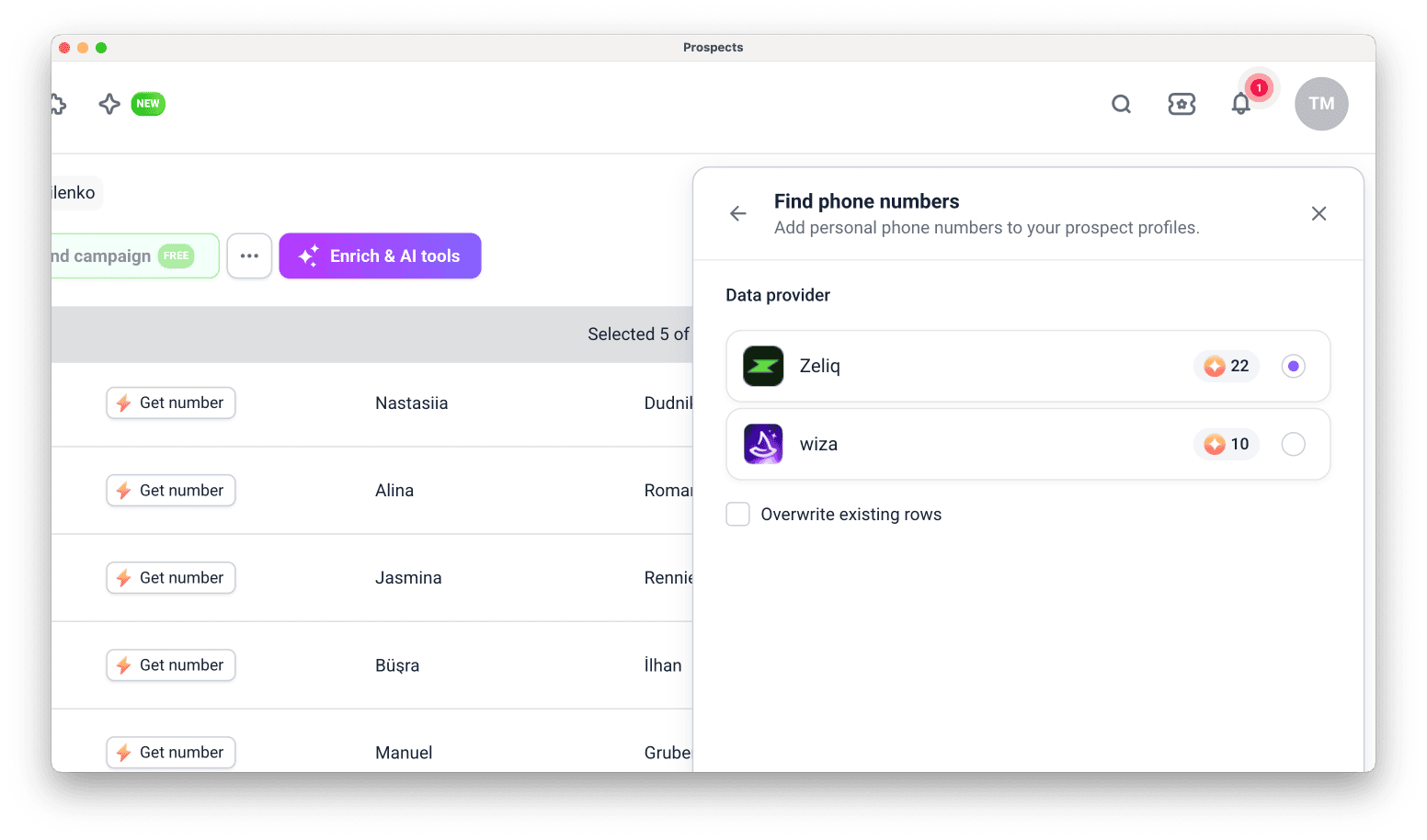
In a prospect list, click Enrich & AI tools, and select Find phone numbers.
Choose data provider
Snov.io finds phone numbers through data providers.
The providers currently available are Wiza and Zeliq, and we add new ones over time.
Token cost and coverage vary by provider. A higher token cost means the provider has wider coverage and a better chance of finding the correct number.
Here's how many tokens a found phone number costs:
- Wiza (10 tokens per number found)
- Zeliq (22 tokens per number found)
Results can also differ by region and industry, so a number one provider can't find may be available from another.
Choose prospects
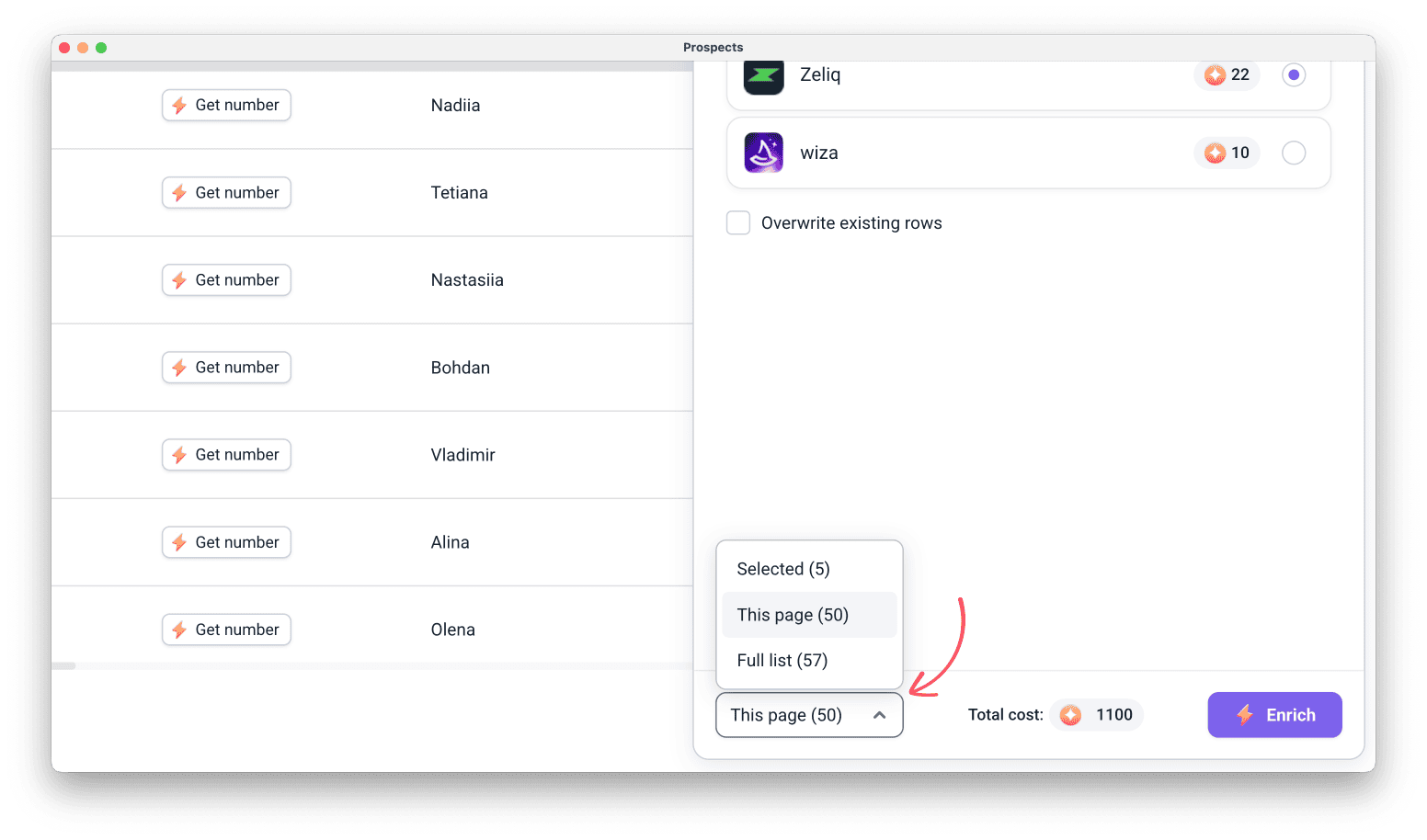
Make sure to check how many prospects you enrich, as the search cannot be cancelled once started.
Selected (the ones you chose on the right)
This page (up to 50 prospects)
Full list to enrich all prospects in the list
Check token balance
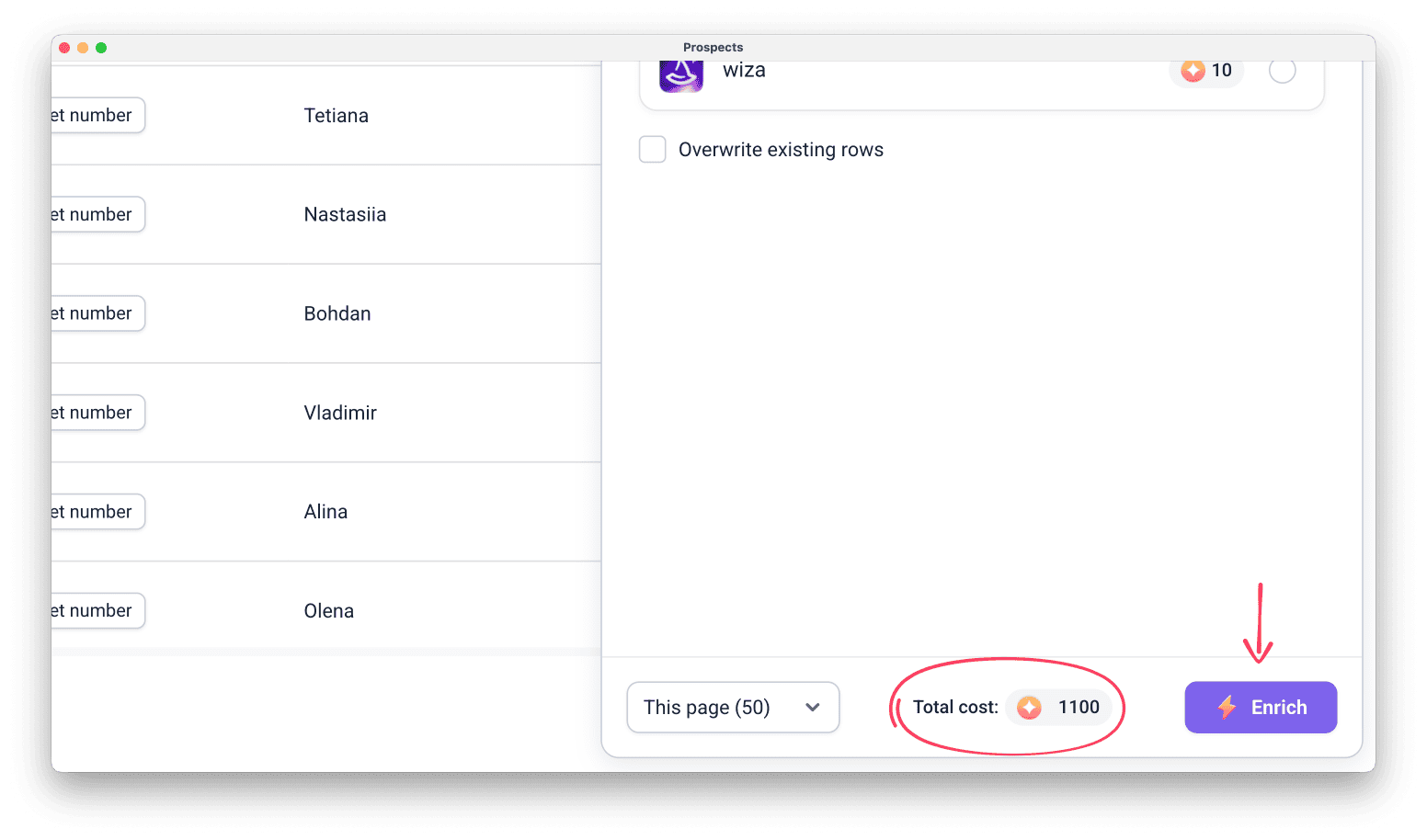
Phone enrichment uses tokens.
You spend tokens only when a number is found.
Next steps
After enrichment, the phone numbers are saved in the prospect's Phone number field.
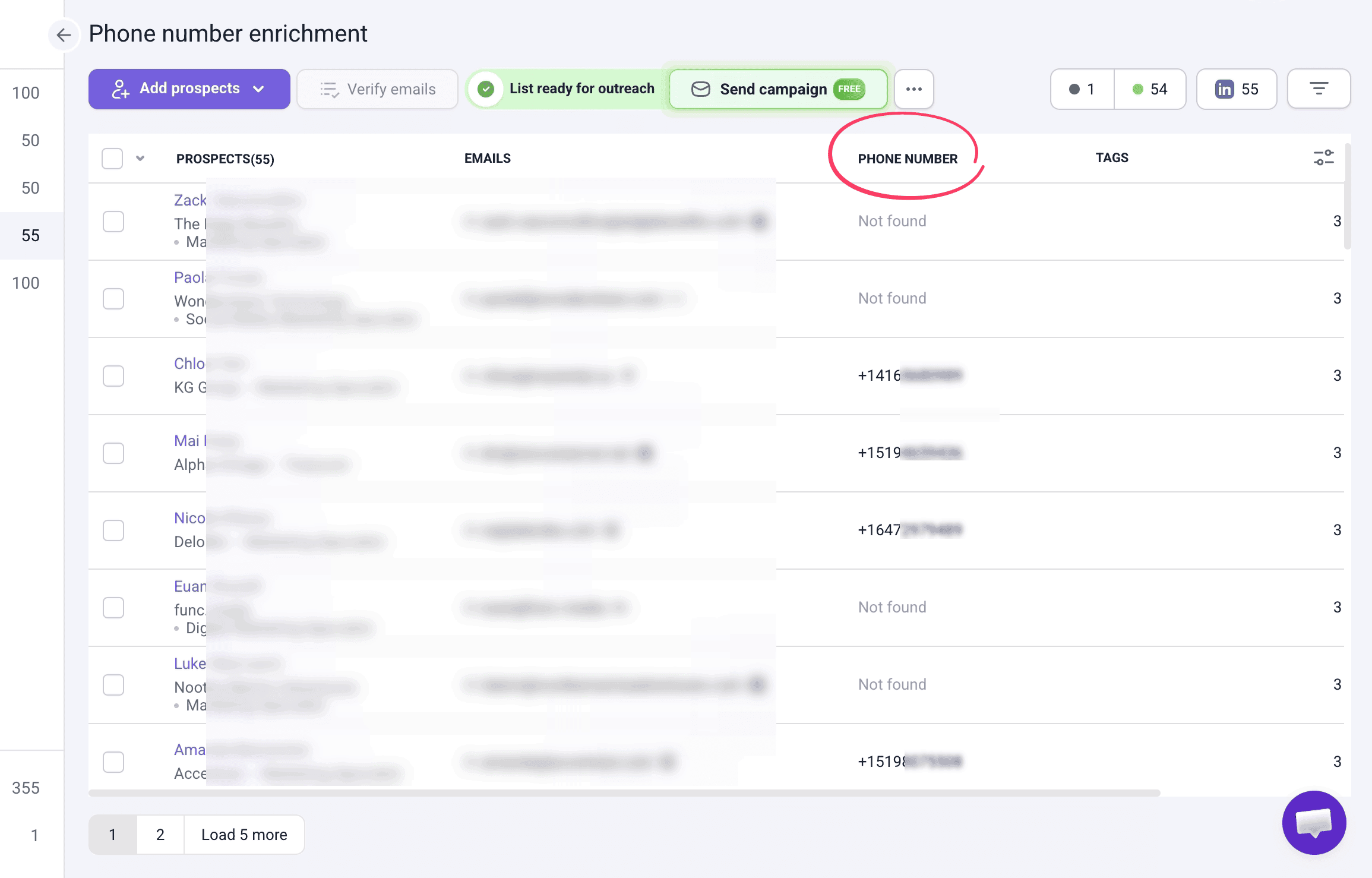
Here's what you can do next:
Sync contacts to your calling tool via integrations
Use Snov.io trigger in Zapier to synchronize lists whenever a new prospect is added to your phone-enriched list.
This sets up contact sync directly into your calling workflow without manual exports.
Read guide on how to set up Snov.io integration in Zapier.
Create deals in Snov.io CRM
Push prospects with phone numbers to Pipedrive, HubSpot, or a Snov.io CRM where you can also schedule calling tasks.
Learn more about deals and tasks in CRM.
Export prospects to CSV
After running enrichment, the numbers are stored directly in each prospect's profile, along with any other data you find or upload in Snov.io.
Select the data you want to export from the list, then download the file for further use.
Learn how to export data from Snov.io.
Have more questions? See the Phone Number Enrichment FAQ.


Sorry about that 😢
How can we improve it?