This guide explains how to re-verify outdated emails in your prospect list with the Email (re)verification enrichment tool.
Which lists need re-verification
How to verify or re-verify in Enrichment
Build the re-verification habit
A prospect list loses accuracy over time. Your prospects change jobs, companies deactivate old addresses, and an email verified as valid three months ago can bounce when your next sequence goes out.

Which lists need re-verification
Re-verify a list before you send if any of these points apply:
The list was last verified more than 30 days ago
A month is long enough for some emails to change. Re-check them before they bounce. 30 days a practical re-check point.
Reusing a list from an earlier campaign
Its emails were checked for that campaign, and some may have become invalid since.
Bounce rate is rising in your campaign reports
Outdated emails often cause this. Re-verifying finds potential bounces before you resume sending.
You imported the list
Imported contacts often have an unknown or outdated verification status, so a fresh check shows which emails are safe to send.
You built the list over several months
Its emails were verified at different times, so statuses vary in age. Re-verifying gives the whole list one current status.
You're about to send a large or important batch
A high bounce rate may damage your campaign results or even make it pause automatically, so check the list first.

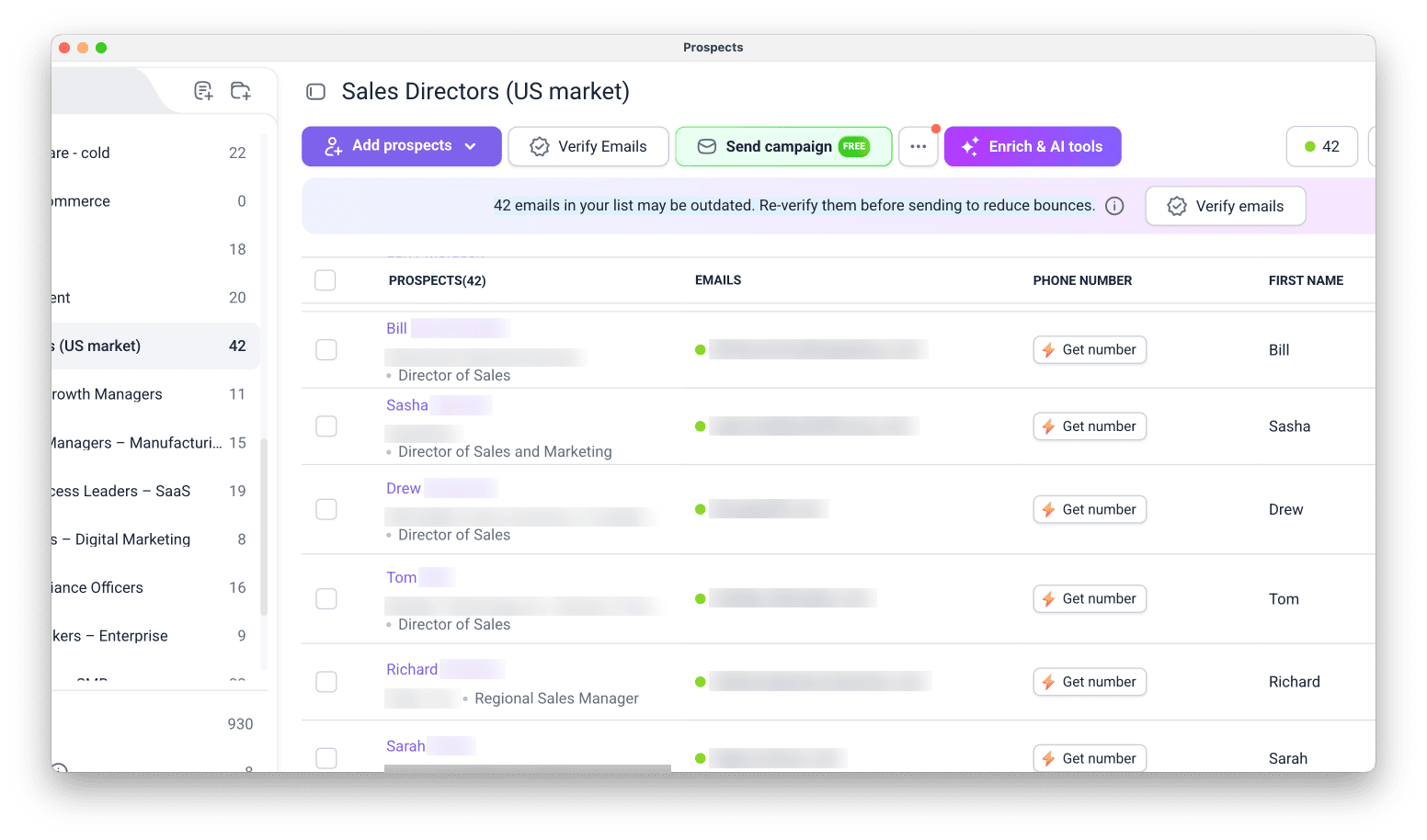
If you are unsure, check the list for an alert: Snov.io compares previous verification dates and shows a banner on lists that contain potentially outdated emails.
How to verify or re-verify in Enrichment
Go to the Prospect list with the prospects you want to check. Click Enrich & AI tools and select Verify email addresses.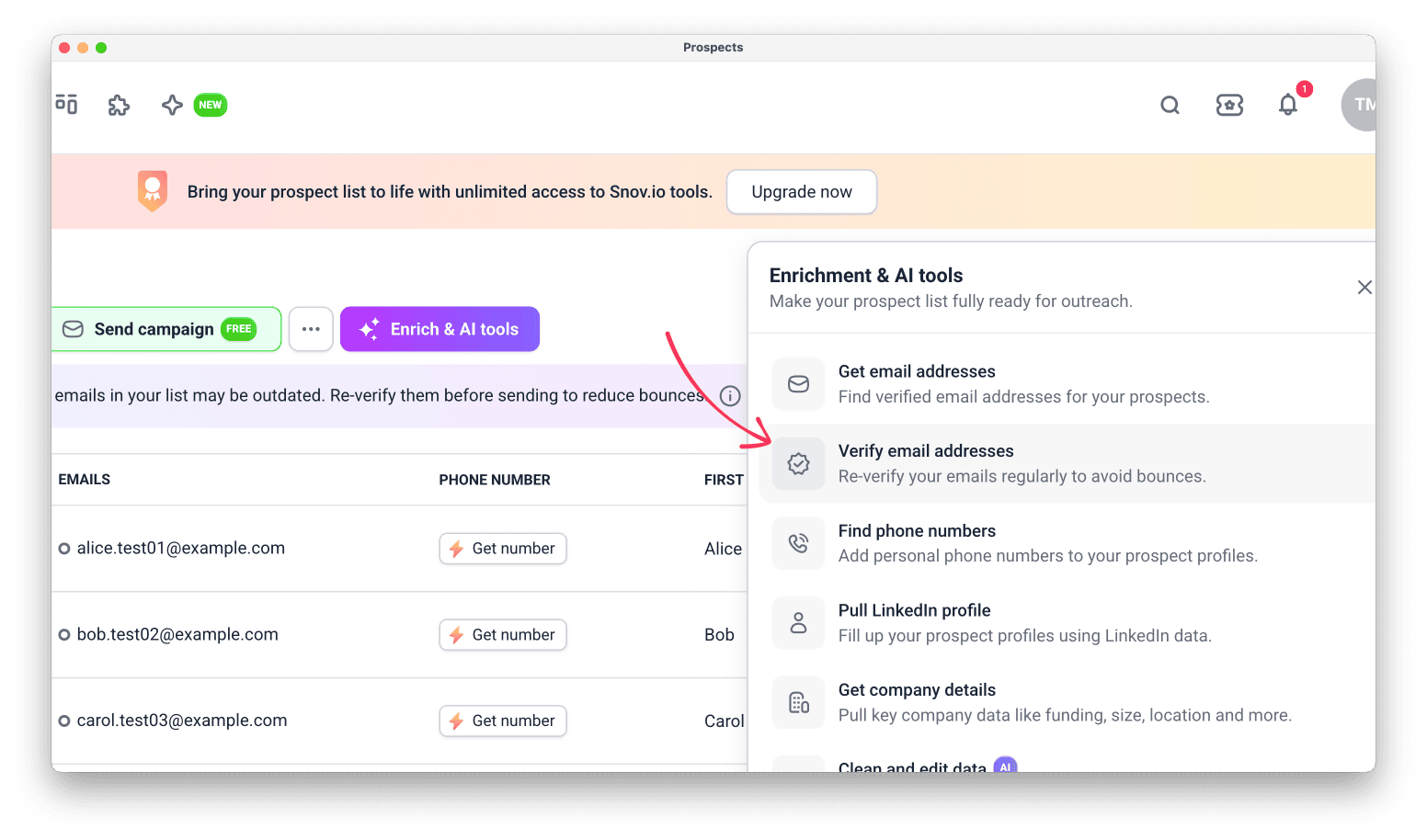
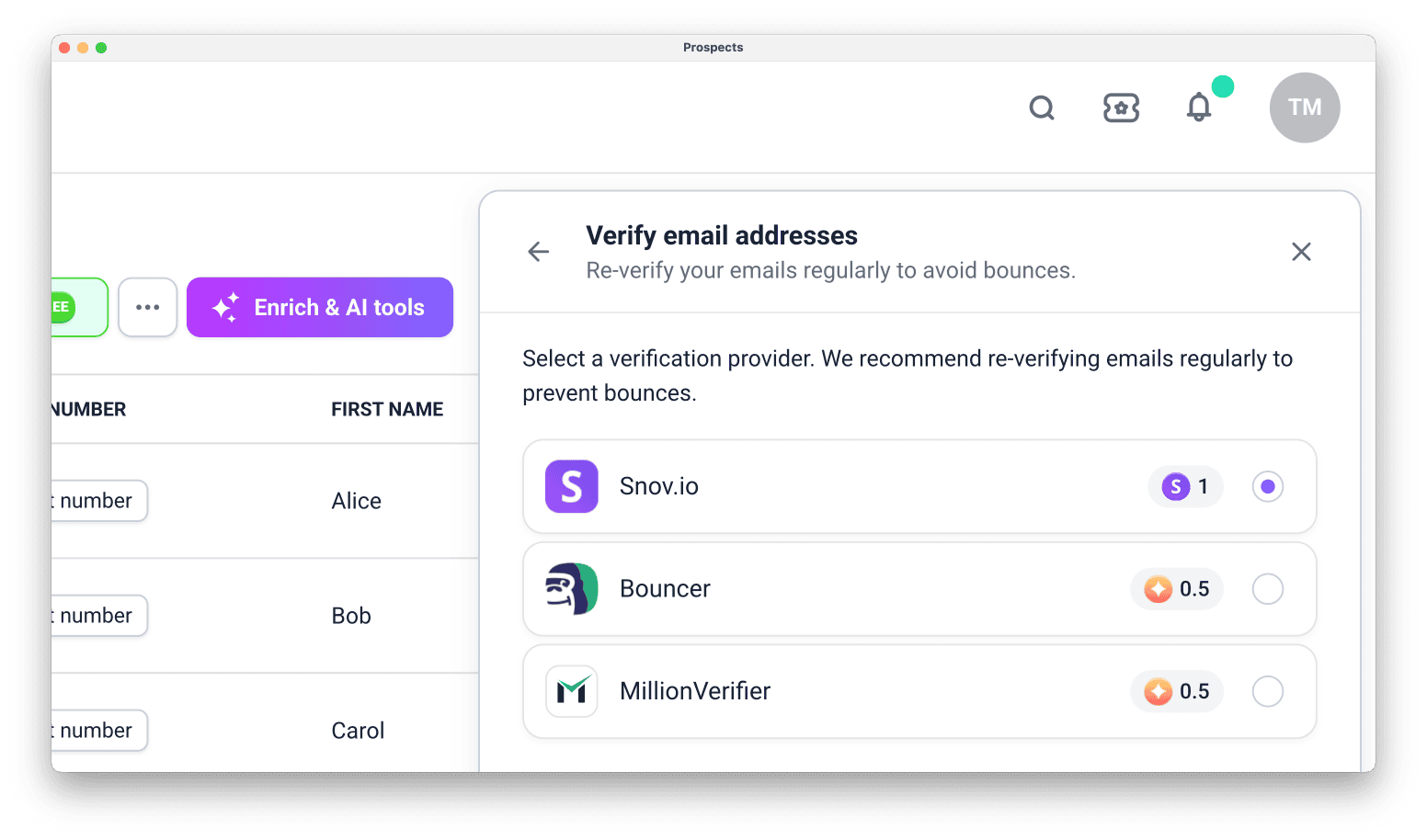
Step 1. Pick a provider
Verification is accurate with any provider. Choose a provider based on what quotas you have on your account balance:
- Snov.io uses credits. Each successful check costs 1 credit.
- Bouncer and Million Verifier use enrichment tokens. Each successful check costs 0.5 token.
Step 2. Choose which emails to verify
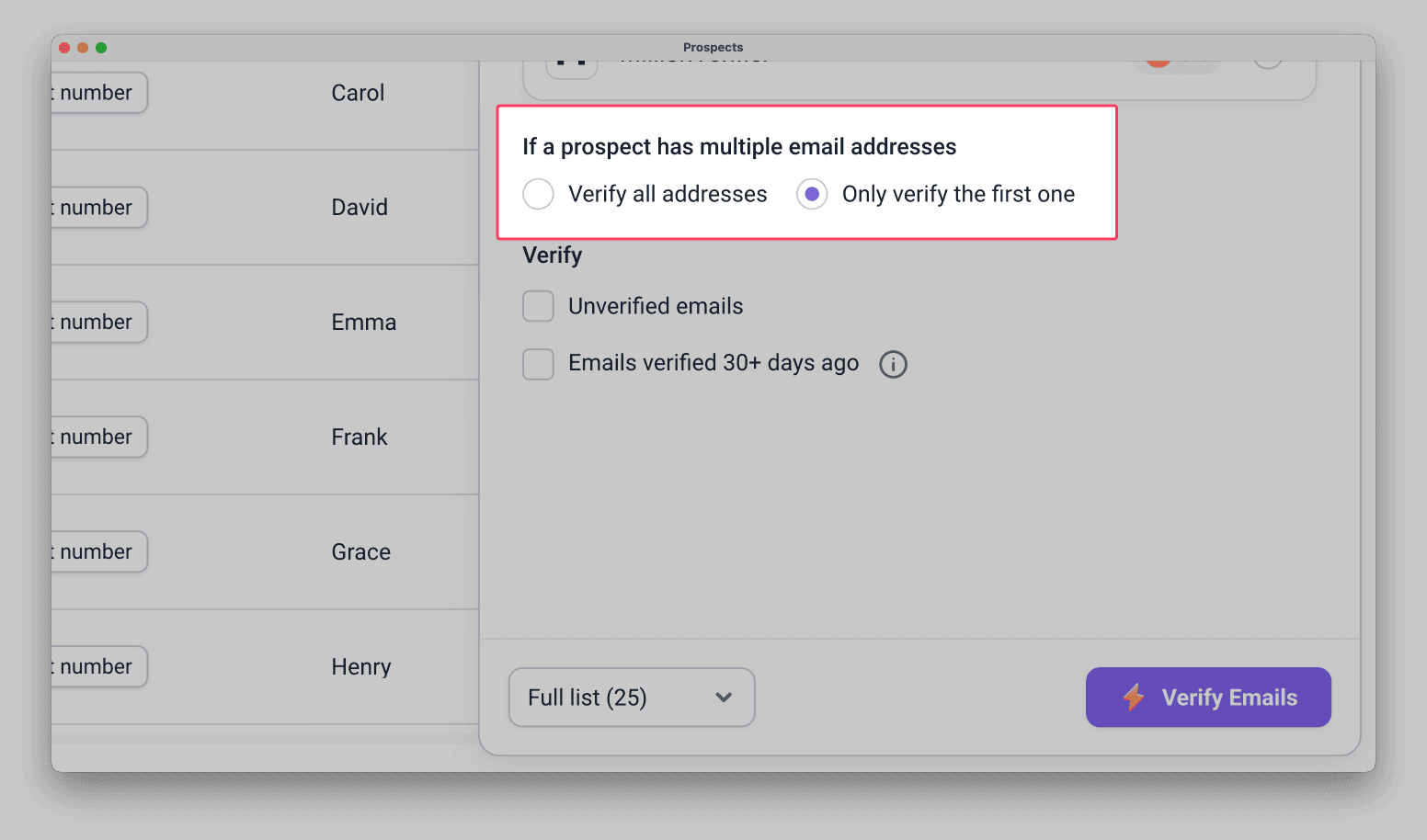
Choose which emails to include in this run.
All emails or primary emails
If a prospect has more than one email, select Only verify the first one or Verify all addresses.

If you set a campaign to contact all emails, verify all of them.
Snov.io selects the emails that need verification automatically, based on the filters you choose.
Unverified emails
Verifies emails that have never been checked. Use this option to verify only the prospects you added to an already verified list.
Emails verified 30+ days ago
Re-checks emails that were last verified in Snov.io more than 30 days ago.
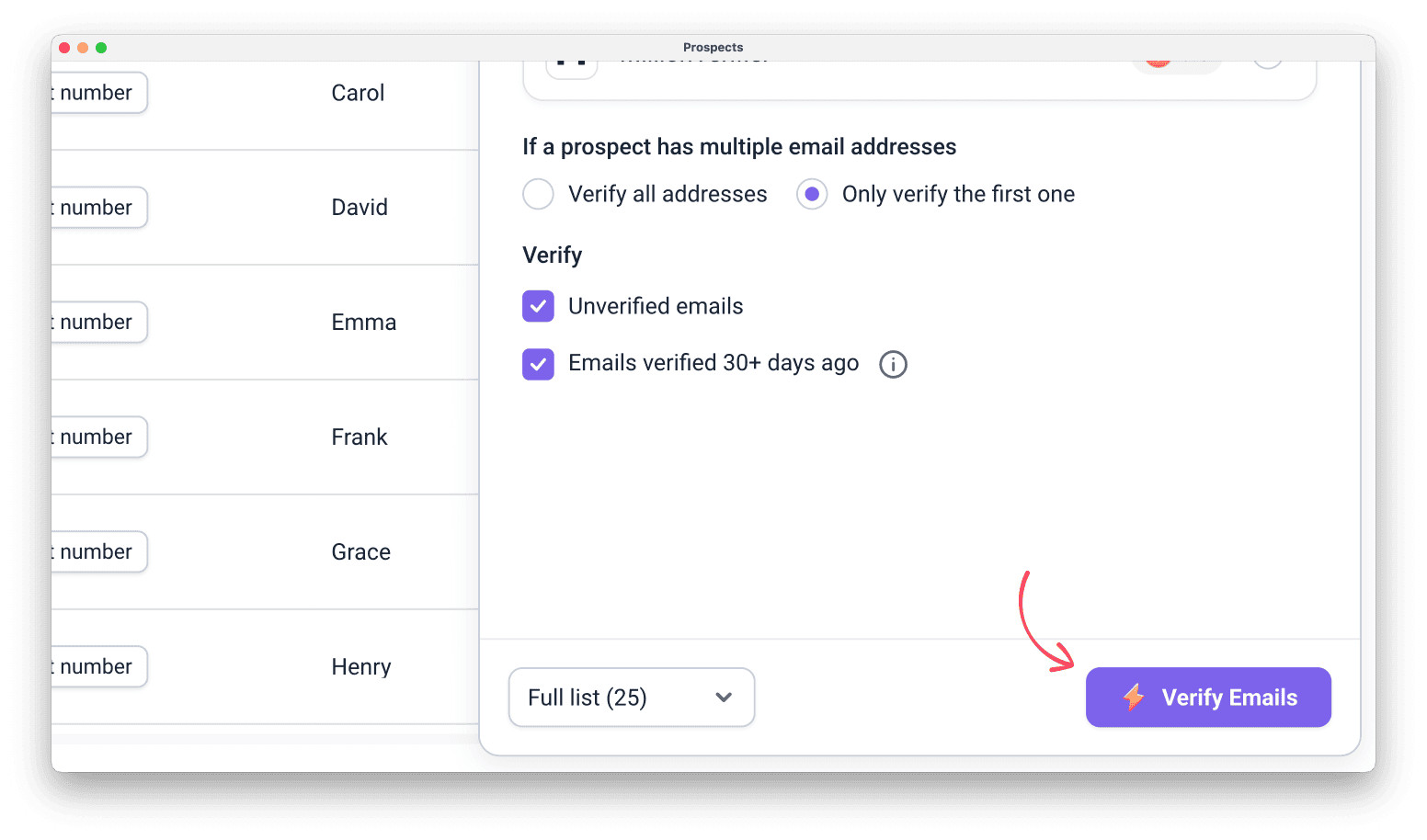
Step 3. Choose how many prospects to verify
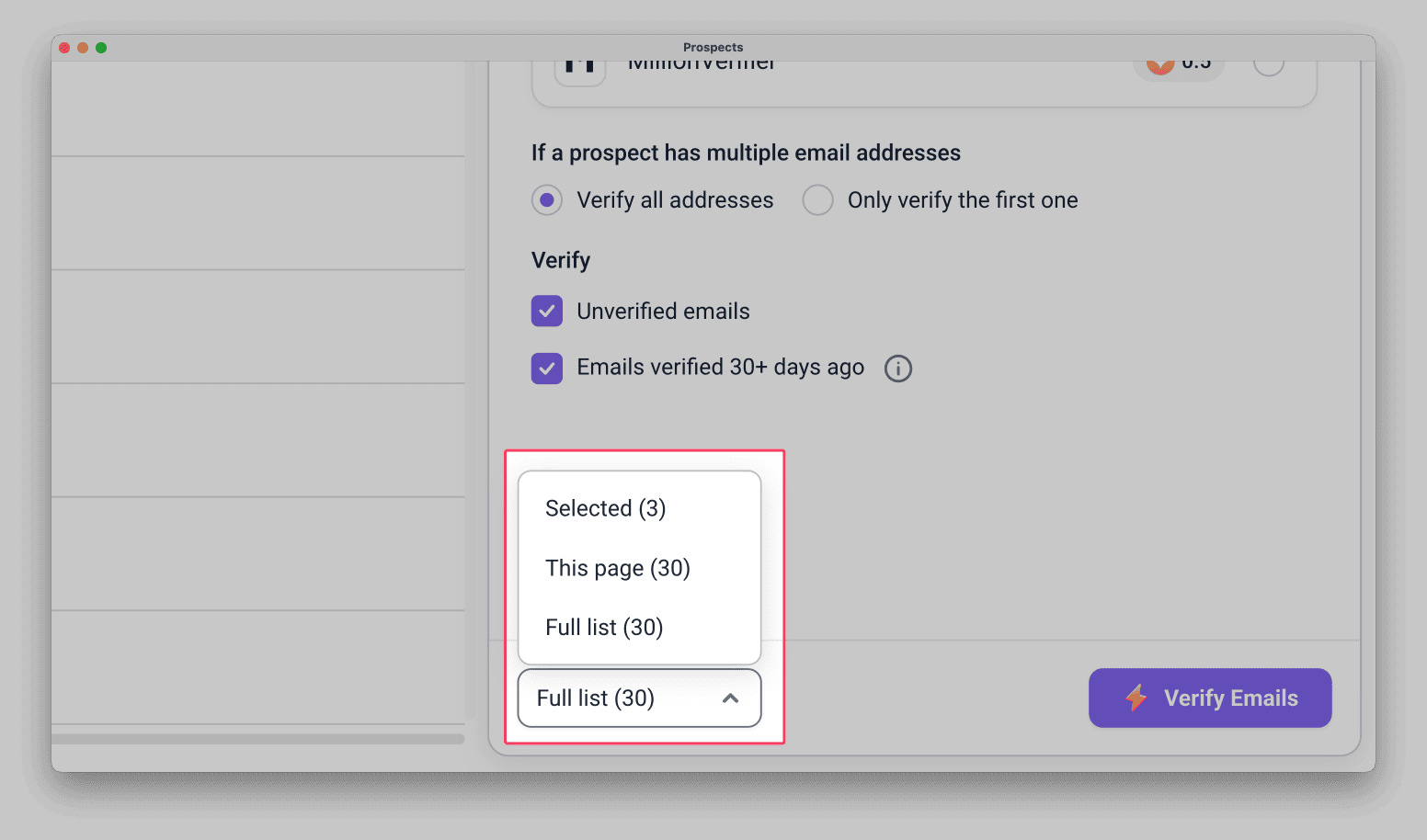
Open the dropdown below and choose how many prospects to verify.
The number in brackets shows how many prospects each option covers.
- Selected: verifies only the prospects you selected in the list. Use it to test the result on a few prospects first.
- This page: verifies the prospects on the page you're viewing.
- Full list: verifies every prospect in the list, including those on other pages.
Step 4. Start verification
Before you start, check your credit or token balance in Billing.
Click Verify emails when your settings are ready. Snov.io verifies only the emails that match the settings you chose in Steps 2 and 3.
Verification charges only when an email gets a definitive status: green (valid) or red (invalid).
Yellow statuses (catch-all or unknown) are not charged. Learn more about email statuses.
Step 5. Check verification results
Email addresses that were verified are marked with a status: green, yellow, or red. Learn more about what each status means.
If this was a re-verification, the status and the date verified update.
Each verified email keeps a record of the provider that verified it and the verification date, so you can plan future re-verifications.
Re-verified lists have lower bounce rates, but even a green email can bounce if the mailbox is full or the owner blocked your domain or address.
Build the re-verification habit
If an email was last verified 30 days ago or more, re-verify it before you send, because the earlier result may no longer be accurate.
Regular re-verification helps you avoid sending to emails that no longer exist and keeps your bounce rate low.
Make re-verification part of your pre-send routine for every campaign, not only after bounce rate rises.
Choose the way that fits what you're checking.
Re-verify important prospects
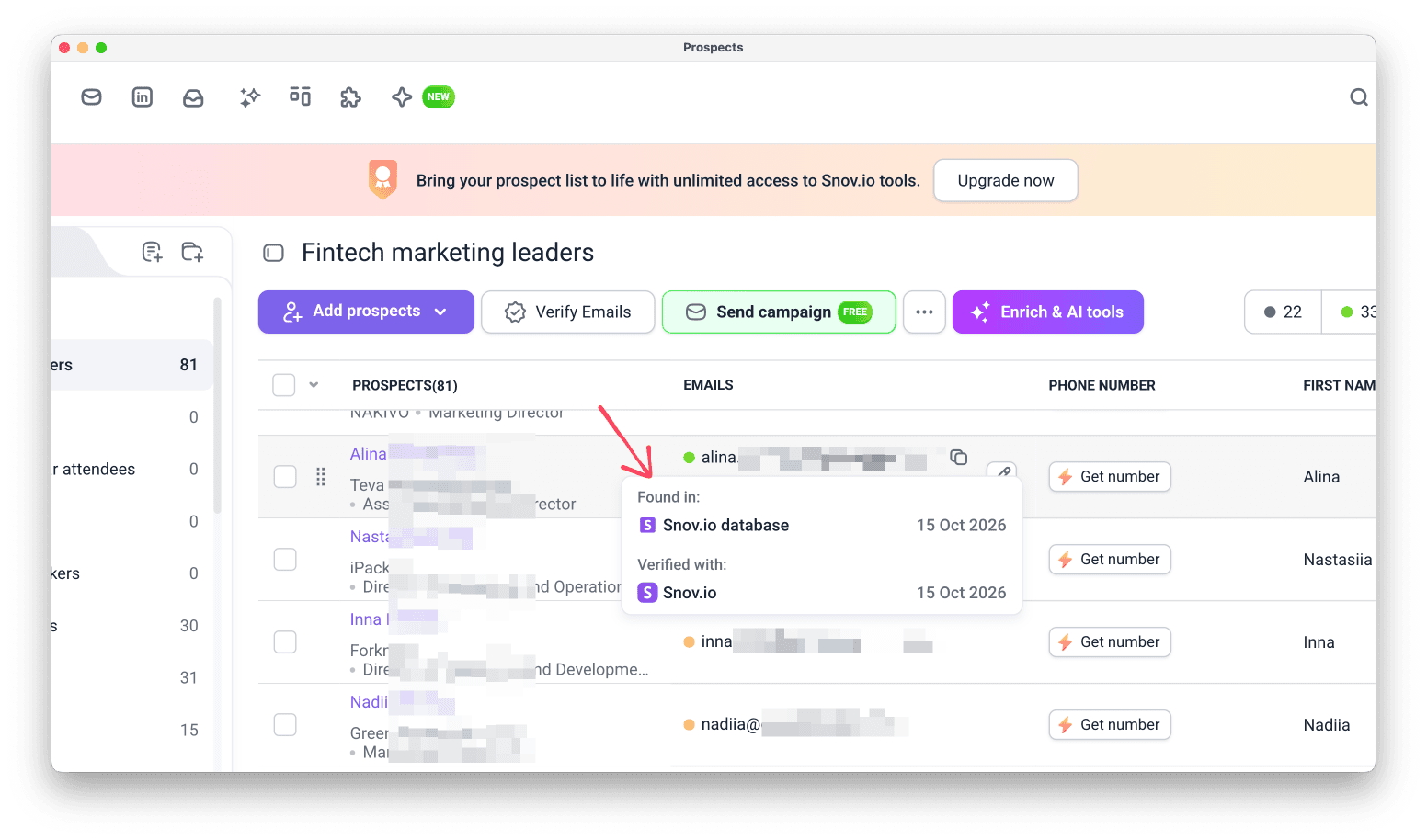
Hover over the status icon next to an email to see its last verification date and the provider.
If it's more than 30 days old, click the Verify email icon next to the address. This re-verifies that one email without opening the full sidebar.
Re-verify lists
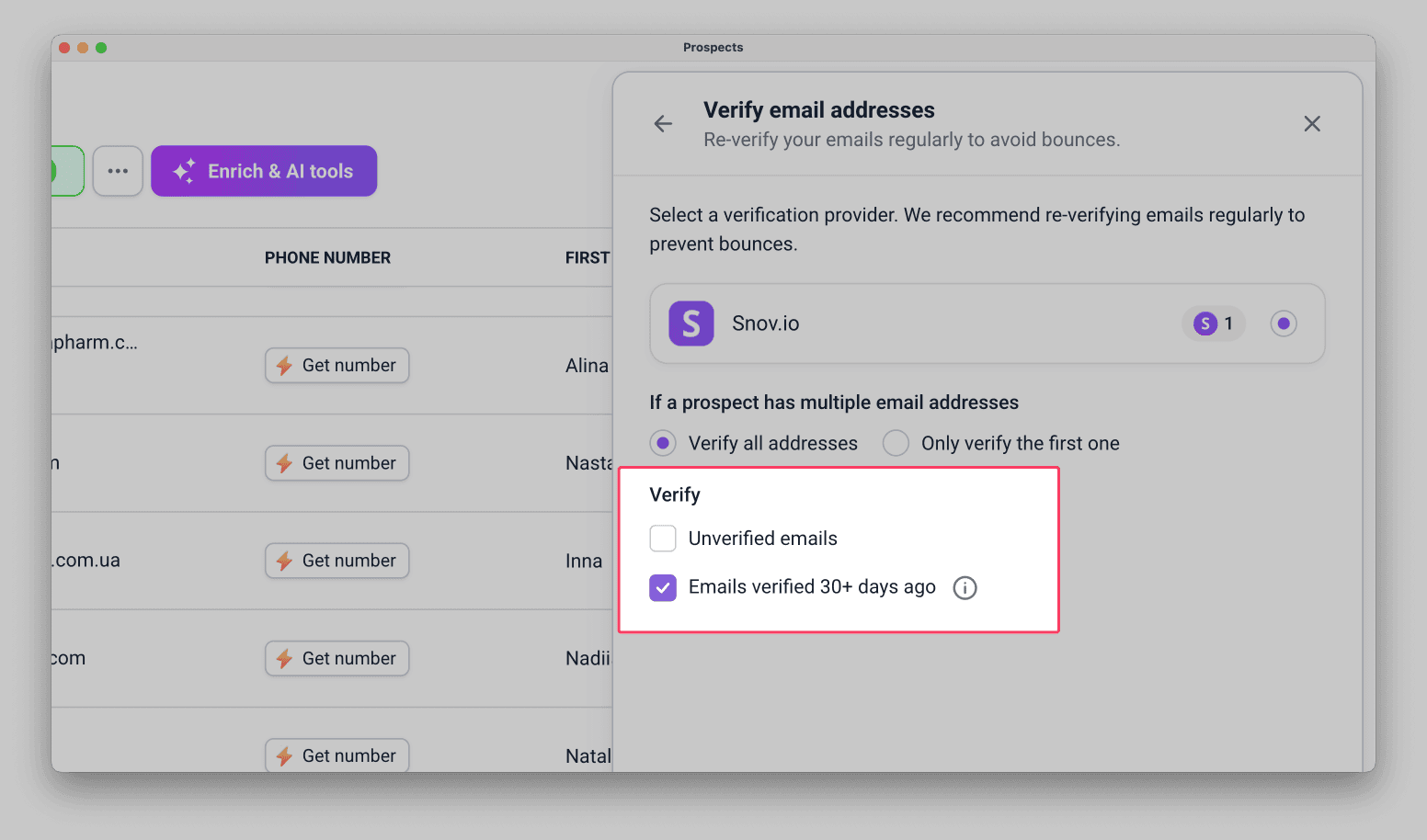
Use Verify email addresses tool and select the option Emails verified 30+ days ago.
This re-checks only the emails which fit that by last verification date and skips the rest.
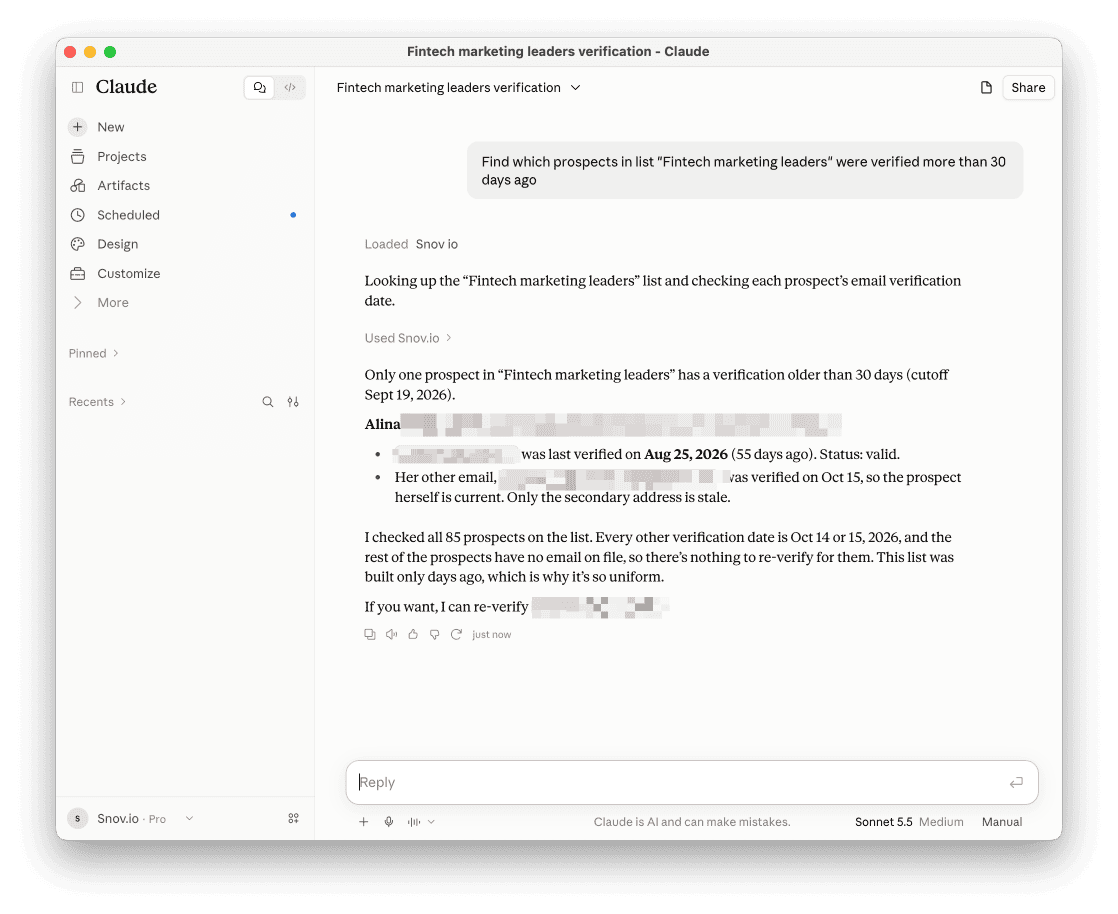
Filter prospects with MCP
You can work with prospect lists through Snov.io MCP to filter them by verification date and see which emails need re-verification.
MCP connects your Snov.io account to any AI tool, such as Claude or ChatGPT. Read the connection guide.
Ask your AI tool to show prospects by verification date, such as emails verified more than 30 days ago or within a date range you choose.
Decide what to do with the prospects you find:
- Re-verify their emails
- Move them to your backlog list
Next steps
Check list health
Check these two things before you launch a campaign:
Percentage of yellow emails
After verification, check the percentage of yellow (unverifiable) emails in your list. A high percentage raises the risk of bounces.
Learn how to read this number and what to do about it in our guide on verifying your email list before outreach.
Email age
We recommend re-verifying emails that were last verified more than 30 days ago.
If your team has its own rule for how many older emails are acceptable, follow that rule instead.
To find these emails quickly, filter your prospects by verification date with Snov.io MCP.
Start outreach
Launch a Campaign while your list is fresh.


Sorry about that 😢
How can we improve it?