This guide explains how to prepare your prospect lists for outreach using Snov.io, from email verification to cleaning and monitoring bounces.
You’ll learn how to reduce bounces, protect your sender reputation, and use only safe, high-quality contacts in your campaigns.
Verify your prospect list
Unverified emails are the main cause of bounces. Verification ensures you only contact valid and safe addresses.
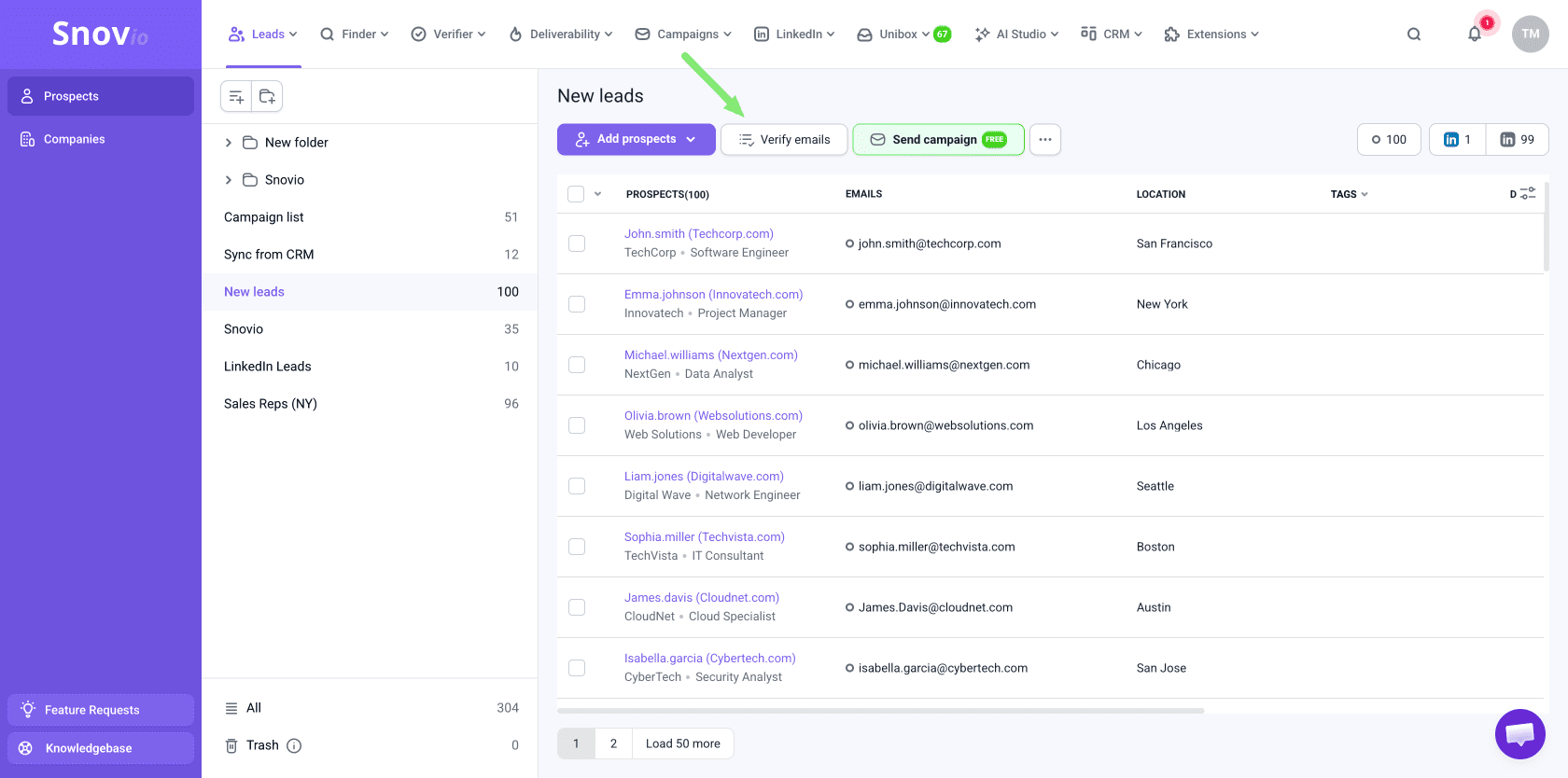
If you import your own email list, you can verify it using the built-in verification. Open the list and click Verify emails in the top toolbar.
If you import leads from another source (CSV files, integrations, CRMs), verify them using Bulk Email Verifier.

Check list health
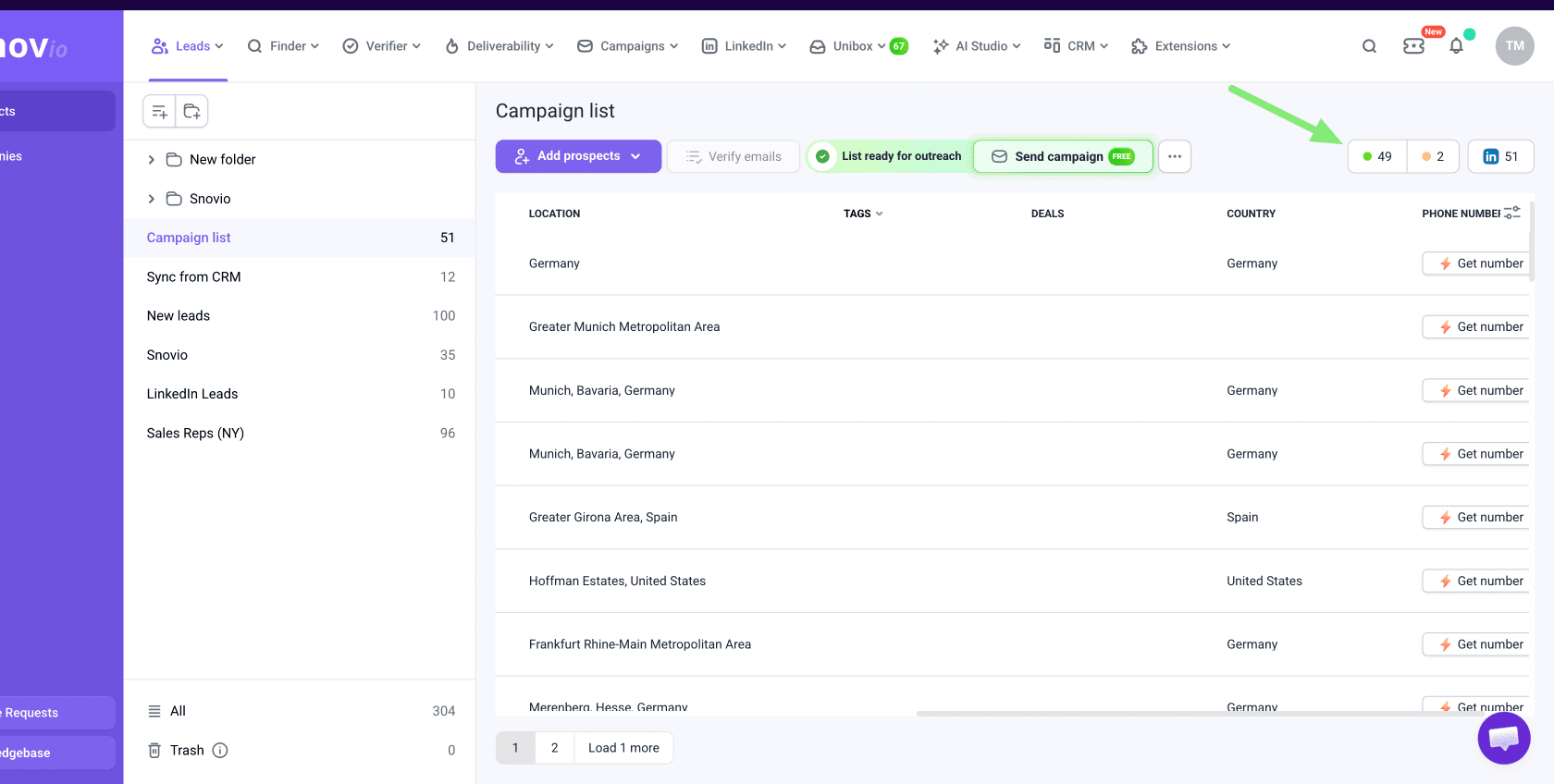
After verification, each email gets a status. Check how many yellow (unverifiable) emails are in the list. Yellow emails couldn’t be confirmed as valid and carry a higher bounce risk.
Open your prospect list and filter by email status in the top right corner. The numbers there show how many emails you have in each status.
- Valid (green): Safe to send, passed all checks
- Unverifiable (yellow): May work, but can’t be fully confirmed and requires careful usage
- Invalid (red): Doesn’t exist or won’t receive emails. These addresses are automatically excluded after verification and won’t be included in campaigns
Snov.io charges 1 credit for each email address checked that returns a valid (green) or invalid (red) result. Unverifiable (yellow) results aren’t charged.
Here's how we recommend evaluating your list health:
- Healthy list (5% or less yellow): Safe to launch
- Risky list (more than 5% yellow): Clean before sending — such lists are risky to use at full volume
Clean the list
Cleaning your list from the risky unverifiable emails helps reduce bounce risk.
Filter yellow emails in the top right corner, then remove those with the highest risk.
Hover over the status icon to see details and understand why an address is marked as yellow. We recommend removing catch-all addresses, since they usually produce most bounces.

Add yellow emails gradually, a few prospects at a time.
Test your domain health and inbox rate through deliverability checks.
Make sure your email accounts are warmed up before sending to any risky segments.
Create Do-not-contact list
Create a do-not-contact list to automatically exclude contacts that should never receive any campaigns.
Add it in campaign settings before launching your campaign. The following contact categories are suitable for a do-not-contact list:
- Unsubscribed or not interested
- Bounced contacts
- Duplicates
- Competitors or internal contacts
Monitor bounce rate
Bounce rate shows how clean and safe your list is after launch. Monitor it closely, especially when using yellow emails.
Monitor the overall bounce rate across all campaigns in the Reports dashboard. To view bounce rate for a specific campaign, open its Statistics on the Campaigns dashboard.
- 1–2%: Great result
- 3–5%: Acceptable, but list health needs attention
- 5% or more: Risky for sender reputation. Don’t add more yellow emails until the rate improves and list quality is reviewed.
Filter and exclude bounced prospects
Snov.io automatically detects most types of bounces. Recipients with a Bounced status won't receive follow-ups within the same campaign.
Go to the Recipients tab in your campaign. Use the Filter menu in the top left to show recipients with Bounced status.
Add them to your do-not-contact list to exclude them from any future outreach or campaigns.



Sorry about that 😢
How can we improve it?