This guide shows how to create email intros, icebreakers, and follow-ups from prospect's data.
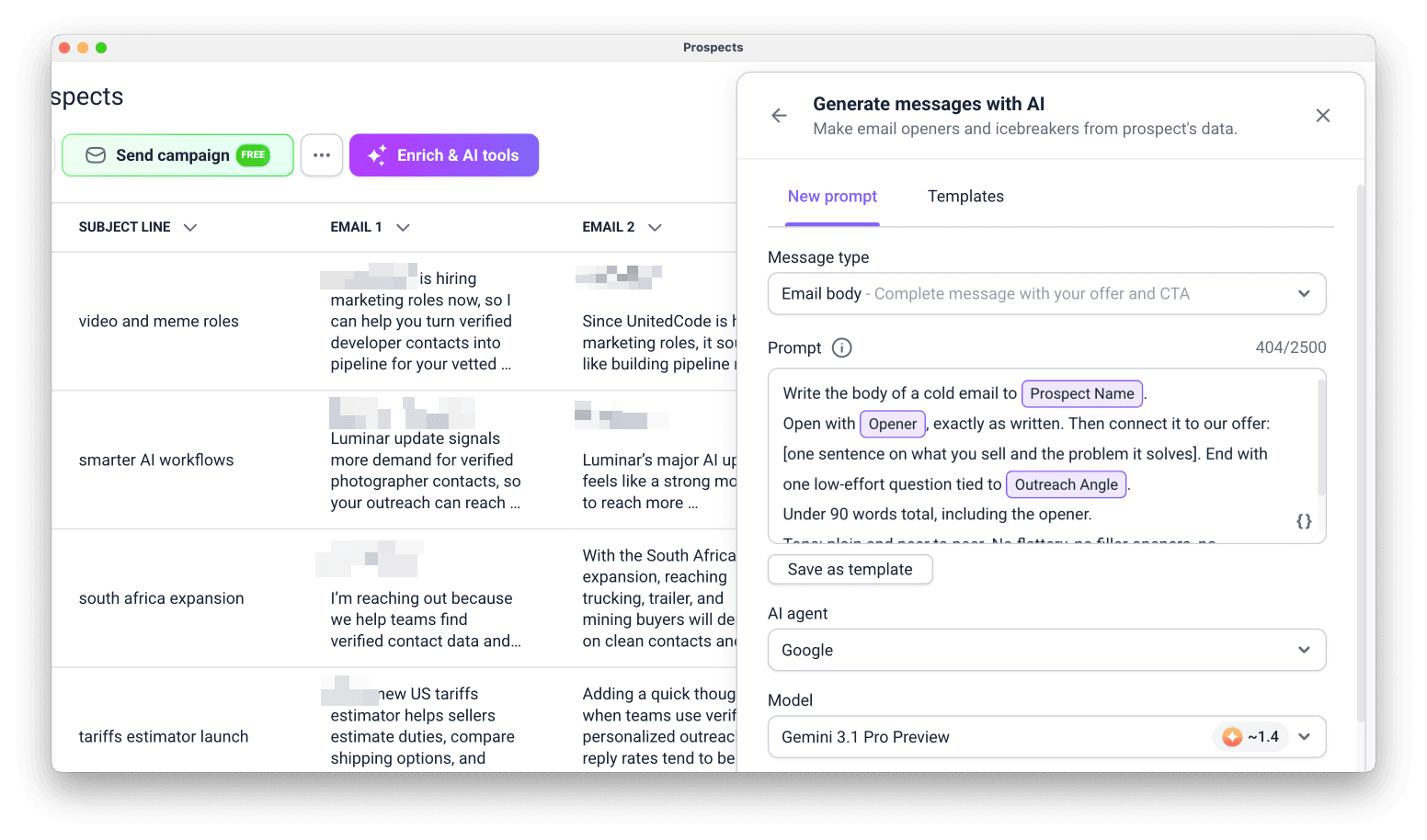
Start enrichment and view results
Use the messages in your campaigns

Before you start. To use AI Writer, make sure you have:
1) Prospects in a list. It uses existing prospect data as context, including custom fields and data from other enrichments
2) Enrichment tokens. Get token packages from Billing
AI Writer is an enrichment tool that writes outreach copy from your prospect's data. It can write any part of your outreach: subject lines, intros, icebreakers, email bodies, and LinkedIn messages.
Preparing copy that feels researched for hundreds of leads by hand takes hours. AI Writer does it for your whole list in minutes. Add the result to a campaign as a variable, and every prospect gets their own personalized message.
Here's how to use it:
Open Enrichment
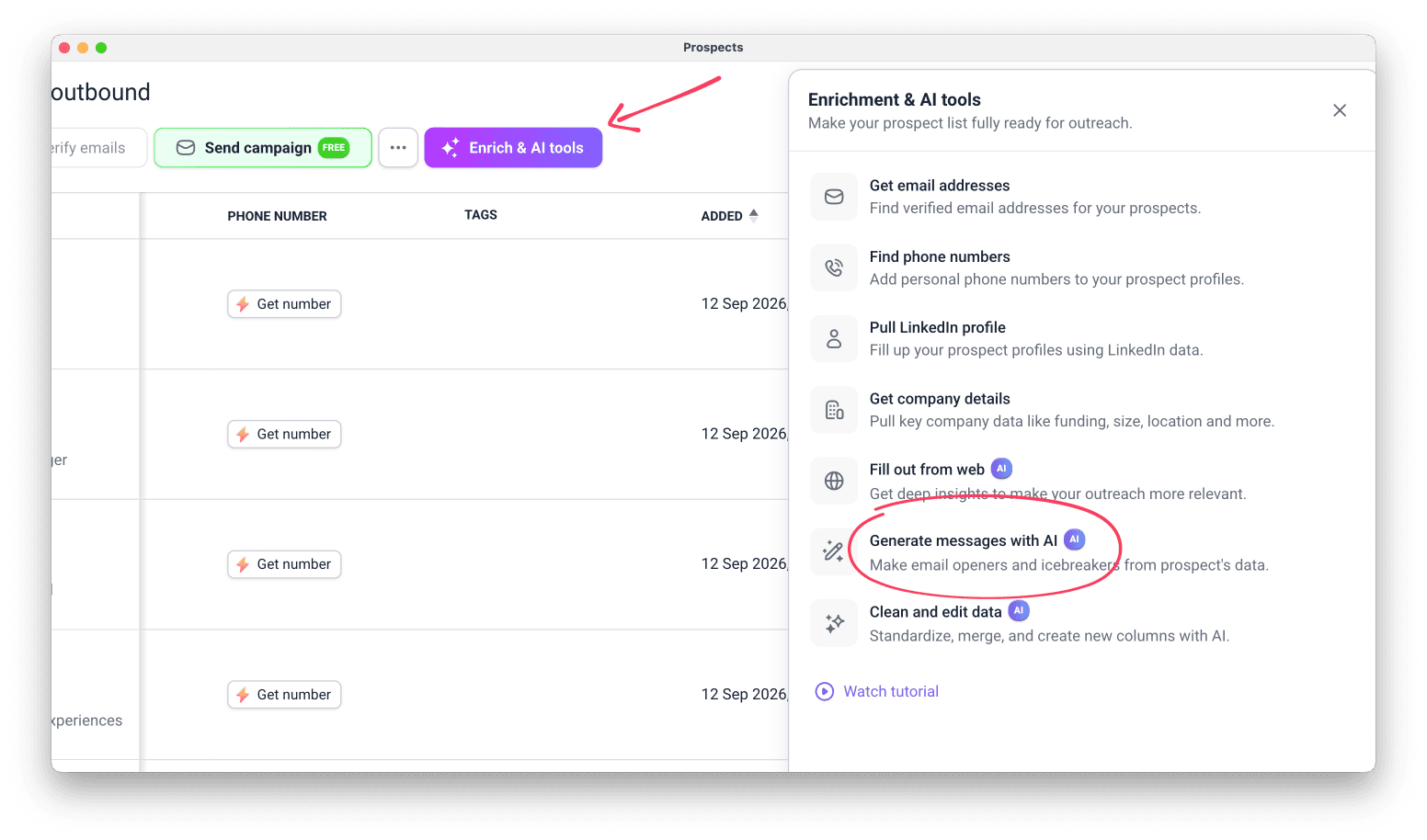
Open the prospect list you want to work with. Click Enrich & AI tools and select Generate messages with AI.
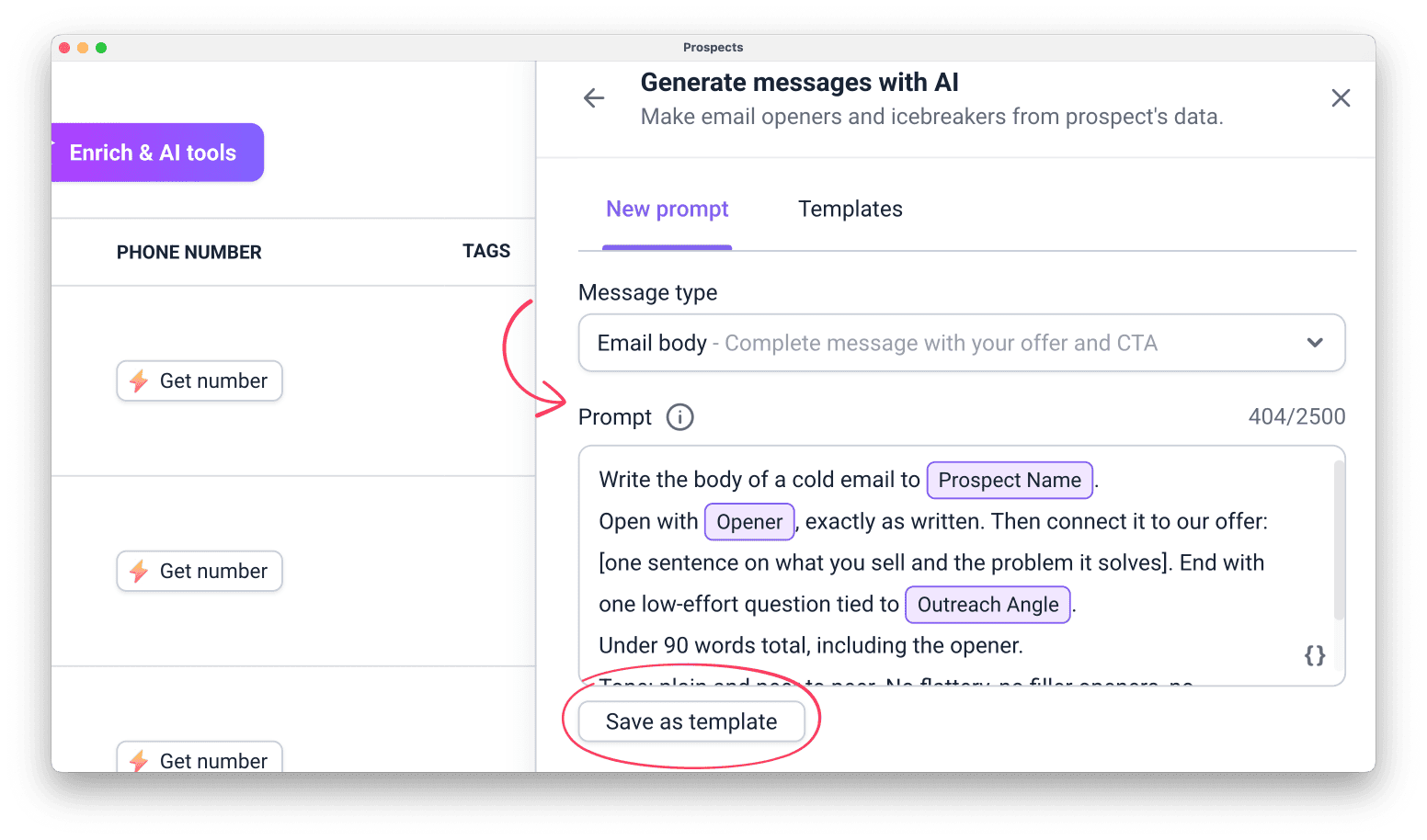
Pick a message type
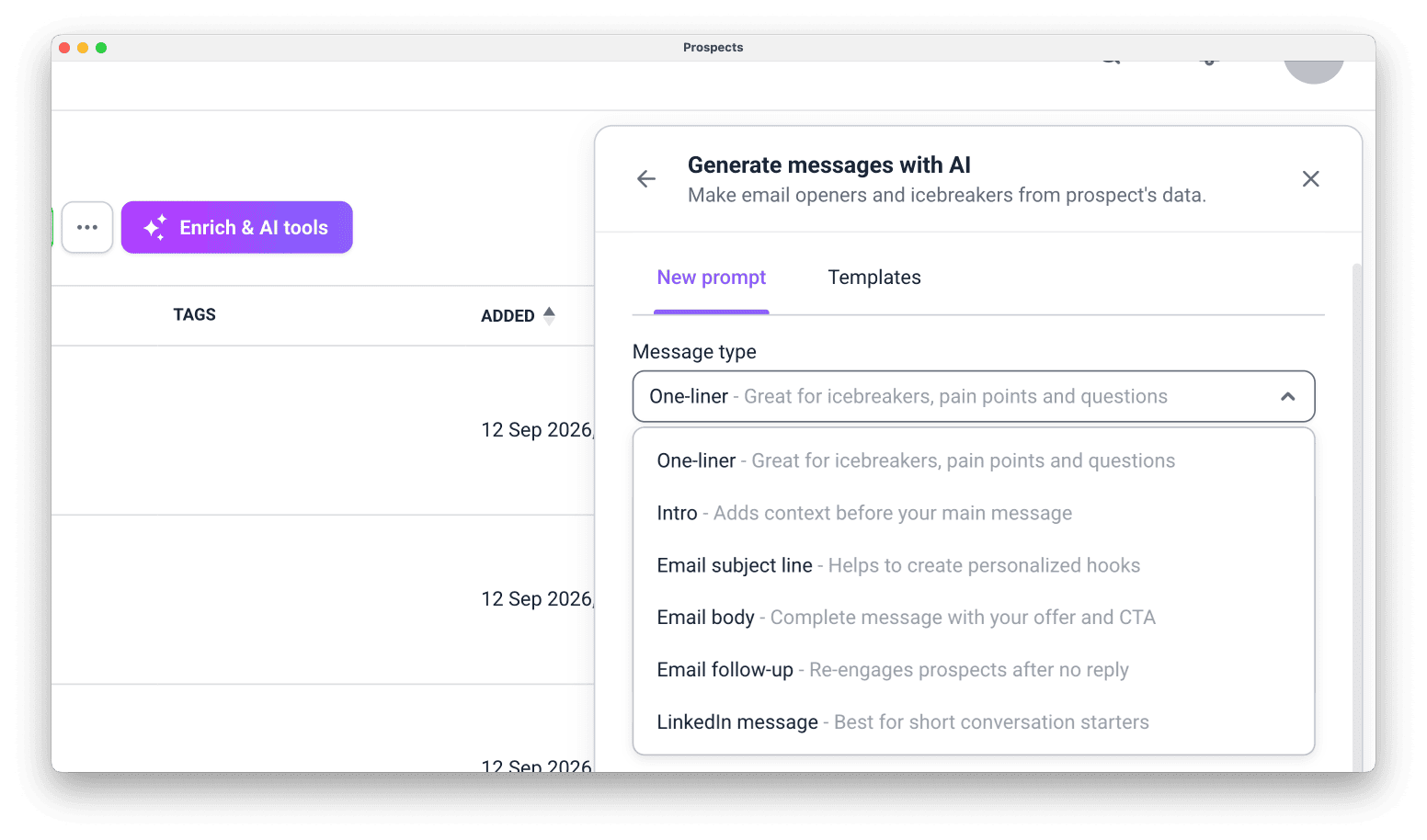
Choose the type of copy you need. Each type sets the goal and structure of the message:
- One-liner: icebreakers, pain points, and questions
- Intro: context before your main message
- Email subject line: a personalized opening for the subject field
- Email body: a complete message with your offer and call to action
- Email follow-up: a message for prospects who did not reply
- LinkedIn message: short conversation starters or notes for connection requests

Set up a prompt
The message type you select does part of the job, but it needs your prompt to understand the full context.
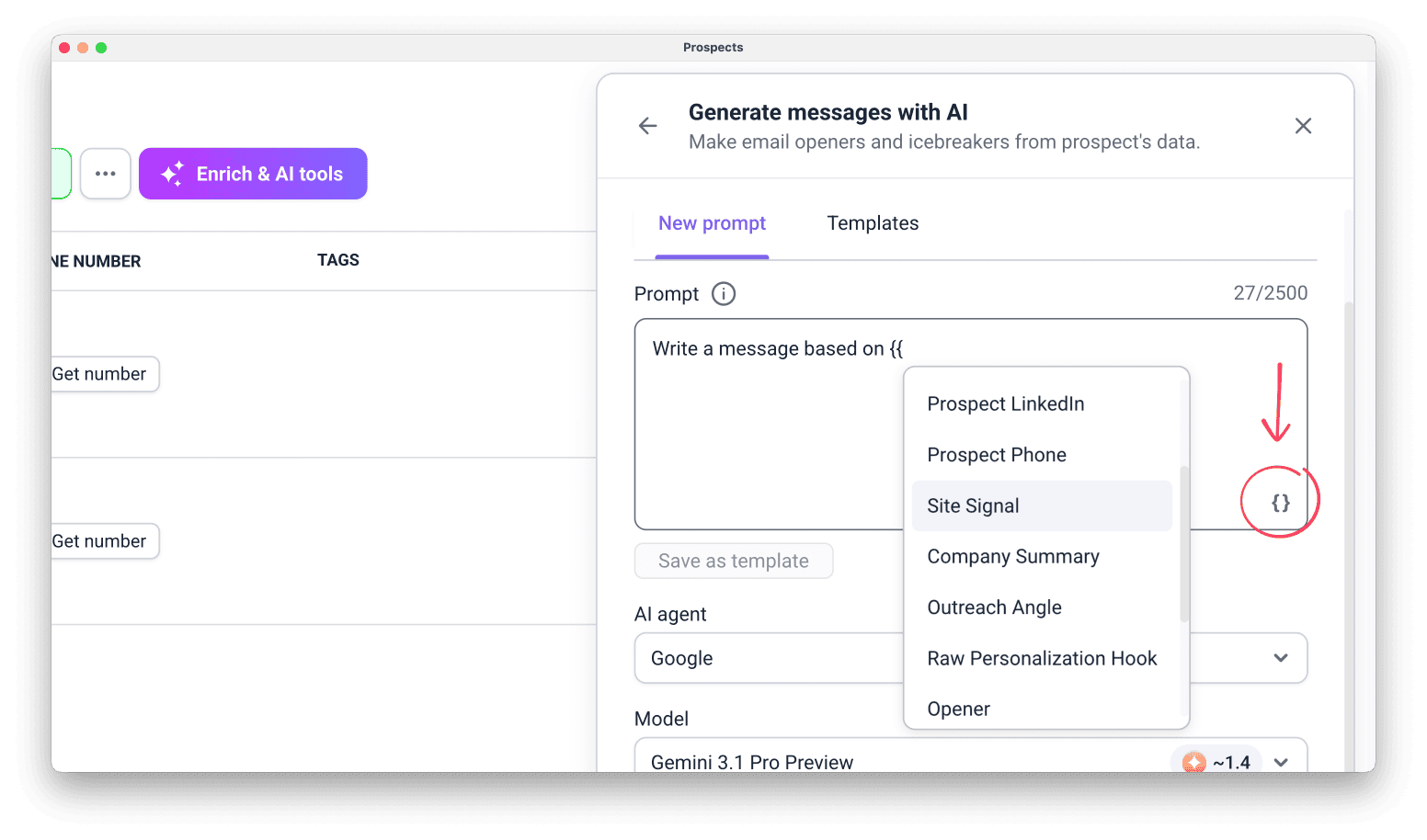
AI Writer uses prospect data you add to the prompt as variables. Add one or more variables to provide the context it needs to generate the message.
Choose the data used as context
To add a variable, click the { } icon in the prompt and select a column from the menu.
Each variable pulls data from the selected column. Insert only columns that contain data.

You can base the message on any custom or previously enriched data. This includes insights from other enrichments and Fill out from web.
Improve your prompt
Add these details to your prompt for better results:
- Your ideal customer profile (ICP): who you are writing to
- Your product: what you offer and your main selling points
- Tone: for example, conversational or formal
- Call to action: what you want the prospect to do next (for email bodies)
Earlier research gives AI Writer more context to work with. Use other Enrich & AI tools to find pain points or an outreach angle first, then use these insights as context for more personalized messages.
To reuse the prompt for your next list, click Save as template. Your saved prompts are on the Templates tab.
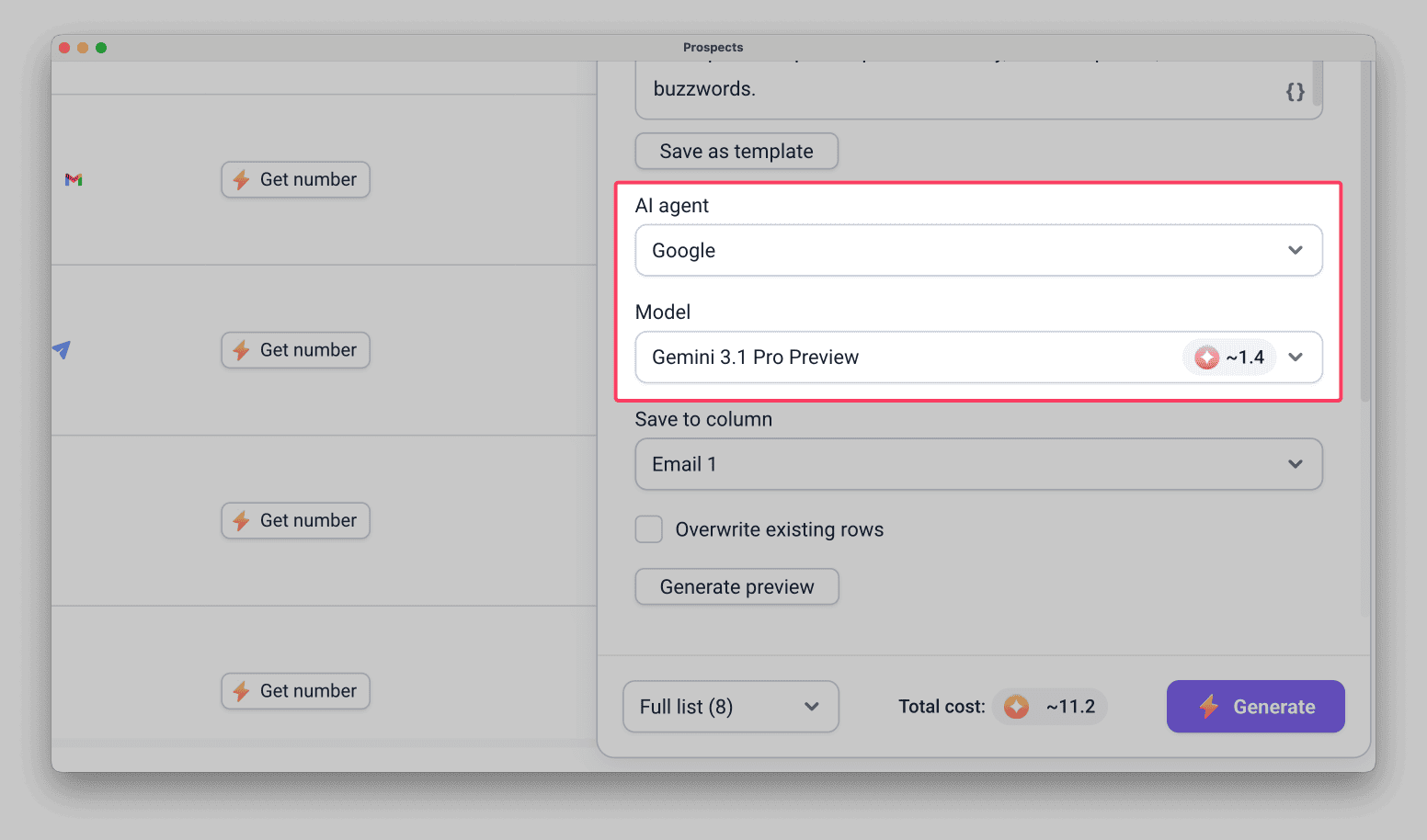
Pick an AI agent
Select Google or OpenAI as the AI agent.
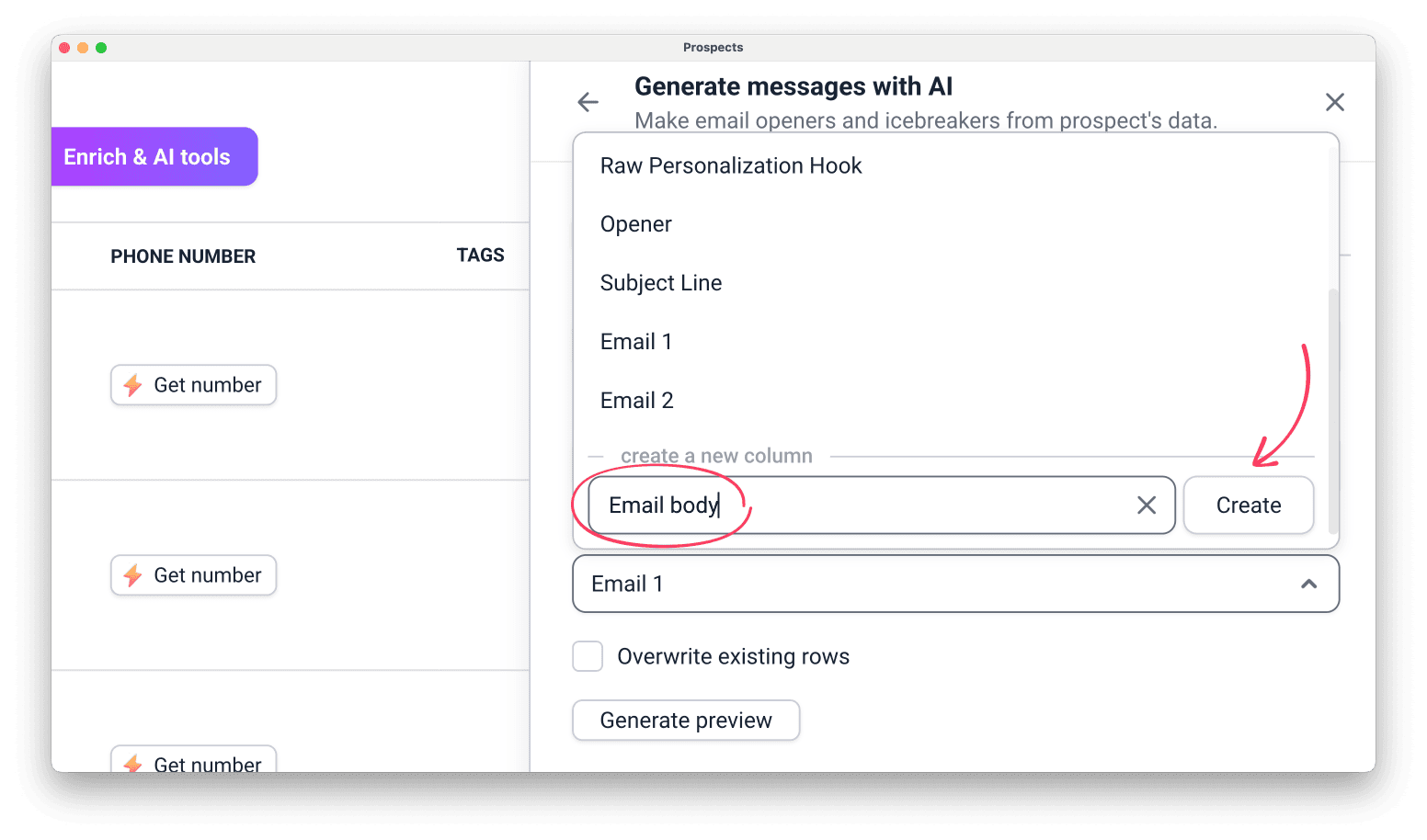
Choose a column for results
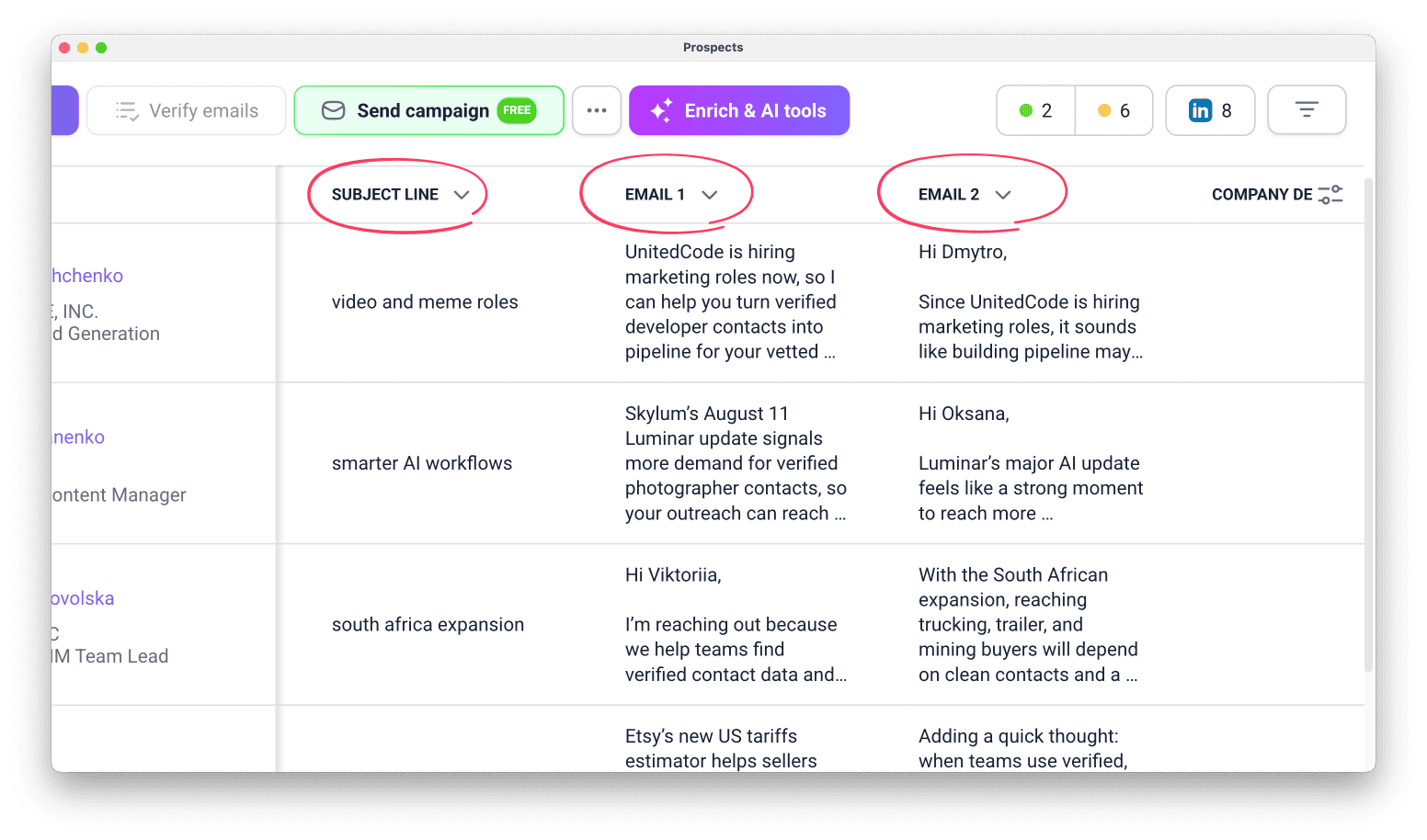
In Save to column, choose where to store the generated messages. You can save them to an existing column or create a new one.
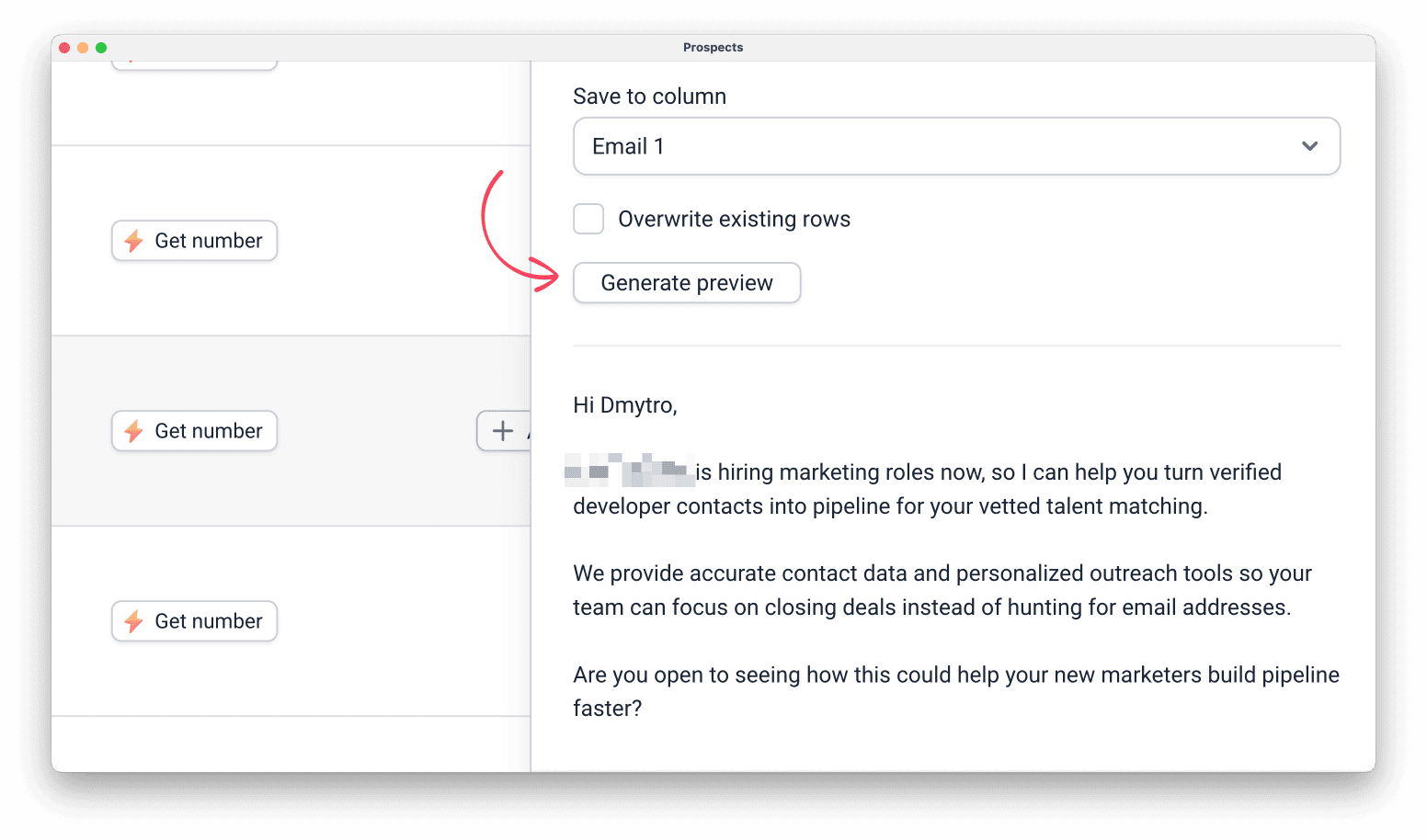
Generate a preview
Click Generate preview to see a sample message generated for one of the prospects using your prompt.
Check your token balance
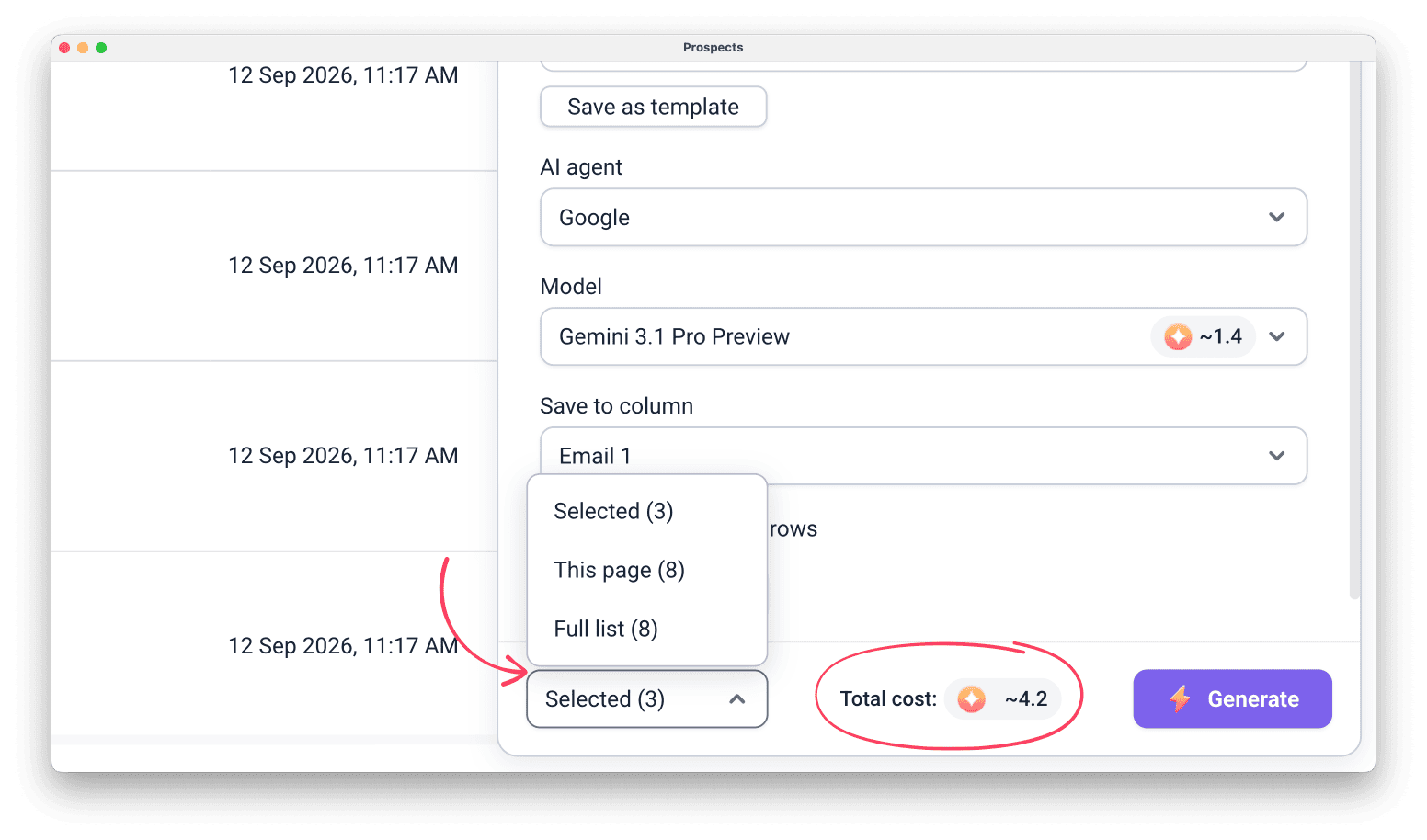
Before launching enrichment, make sure you have enough tokens by checking Total cost below.
Longer prompts with multiple variables use more tokens. After enrichment, check the tokens spent per prospect in the Token usage tab.
Start enrichment and view results
At the bottom of the sidebar, choose how many prospects to enrich: Selected, This page, or Full list.
Make sure you have enough tokens for the selected number, then click Generate.
The generated messages will appear in the column on the right for each prospect. Repeat the process with other message types to create a complete outreach sequence.
Use the messages in your campaigns
Messages created with AI Writer can be used as variables in Campaigns.
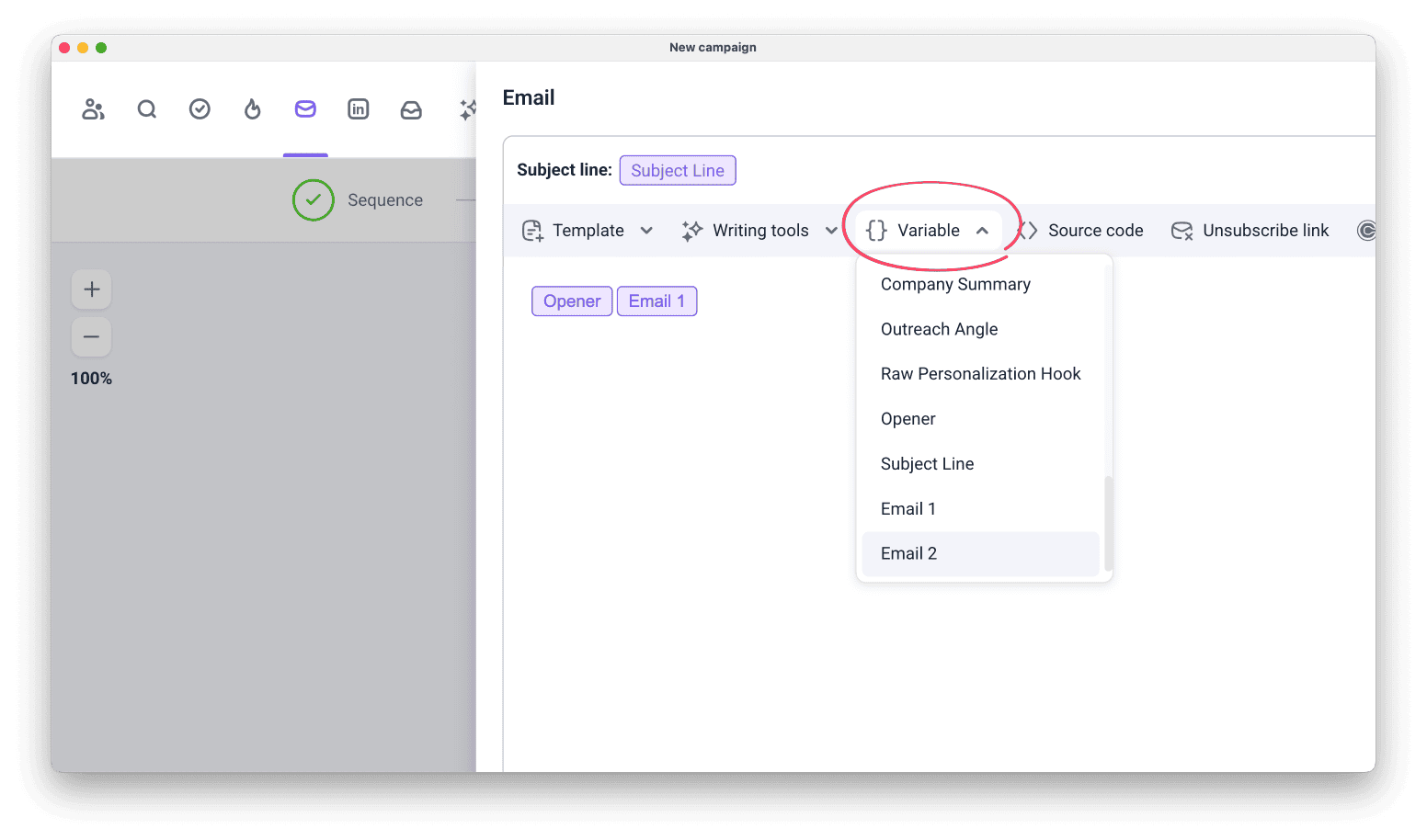
When setting up a sequence, click Variable in the email editor and select the column containing the message you want to use. You can combine AI Writer messages with other variables in the same email.
- Intro, one-liner, and email body messages go in the main message field
- Subject lines go in the subject line field
After you launch the campaign, each prospect receives their own version of the message.


Sorry about that 😢
How can we improve it?