This guide shows you how to research companies, qualify them for your ICP or segment, and collect prospects in one place.
Domain Search in Snov.io lets you look up a company by name or domain and access its full profile: company data to qualify and segment, and contacts to save for outreach.
Here’s how to use it in your workflow:
- Look up a company
- Review company profile
- Save companies and export data
- Find company leads
- Collect all domain emails
- Collect general company contacts
- Use company data for personalization

Start a Domain Search
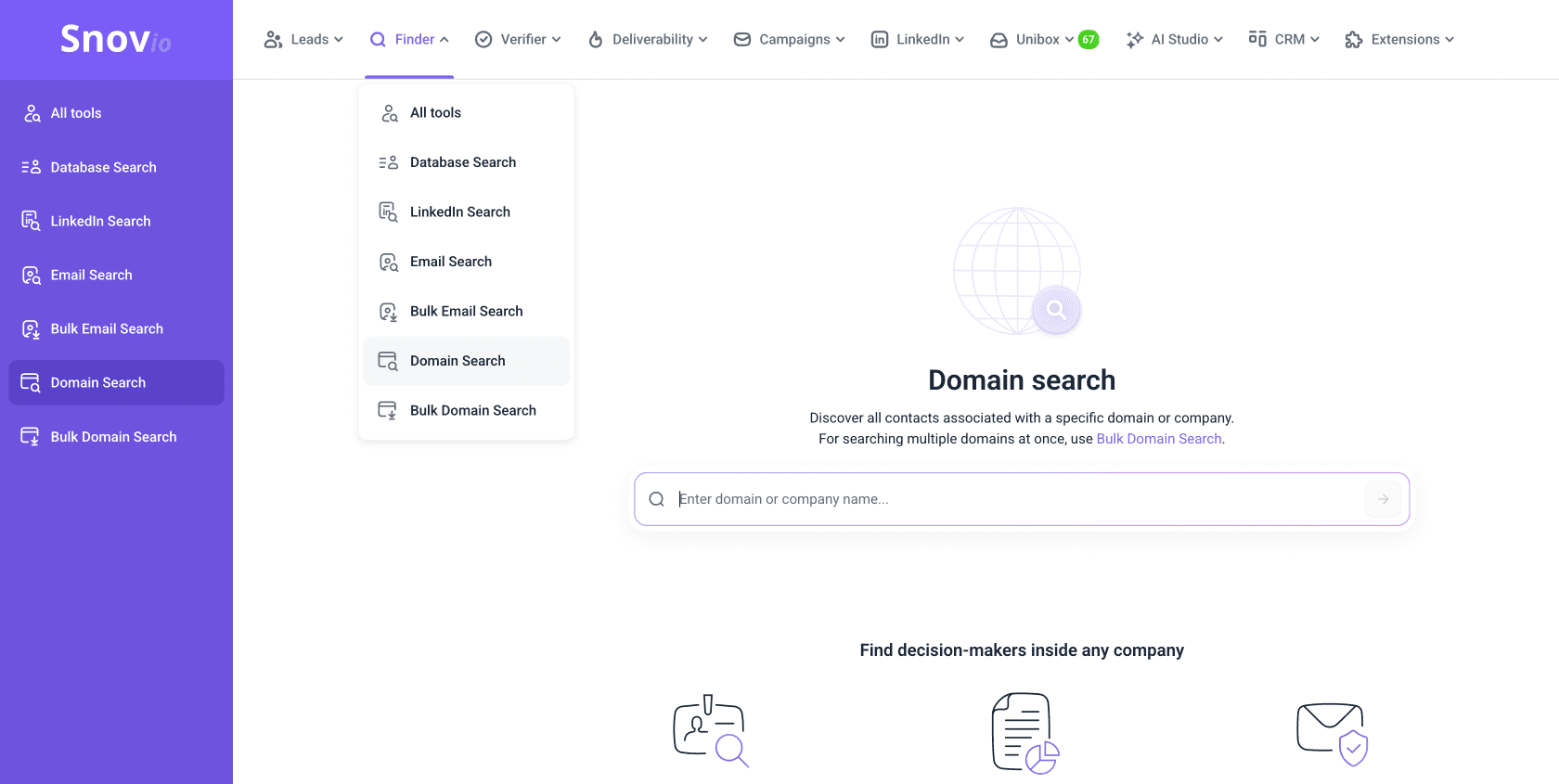
In the top menu, go to Finder and choose Domain Search.
Find out one company you want to look up. Enter its domain or company name, then click Search.
Review company profile
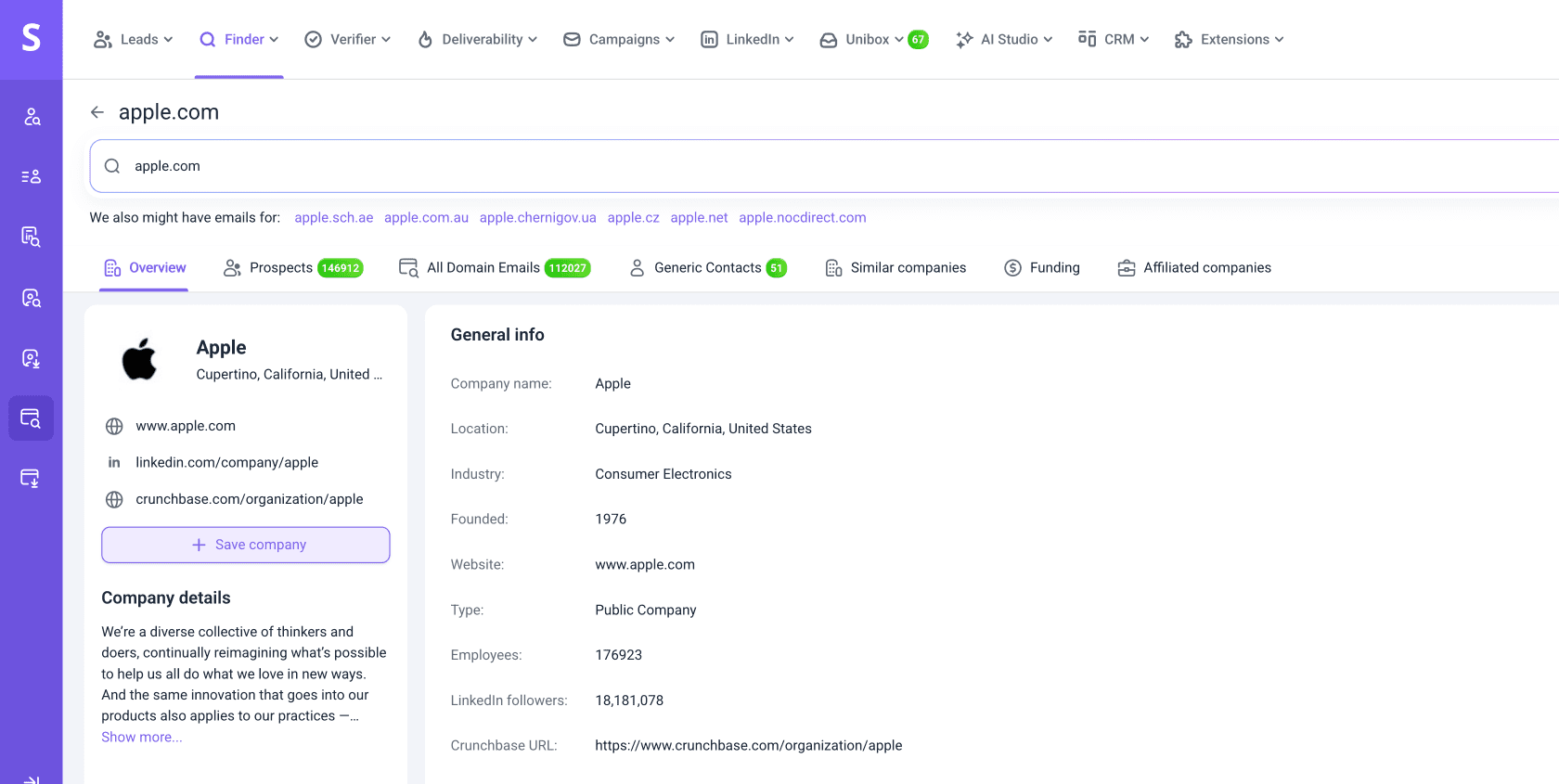
The results will show you a company profile, split into sections with insights and contacts. Here's what you can use each of the sections for:
Qualify company on your ICP
In the company Overview, view company details to check if it fits your ICP and decide whether the company is worth targeting.
- Industry and Specialties: Find out what the business does and what market it is in
- Description and Slogan: Understand how the company positions itself
- Employees and LinkedIn followers: Access company size and social proof
- Quick links: Go directly to the company website, LinkedIn page, and Crunchbase profile for deeper research
Save companies for data export and new searches
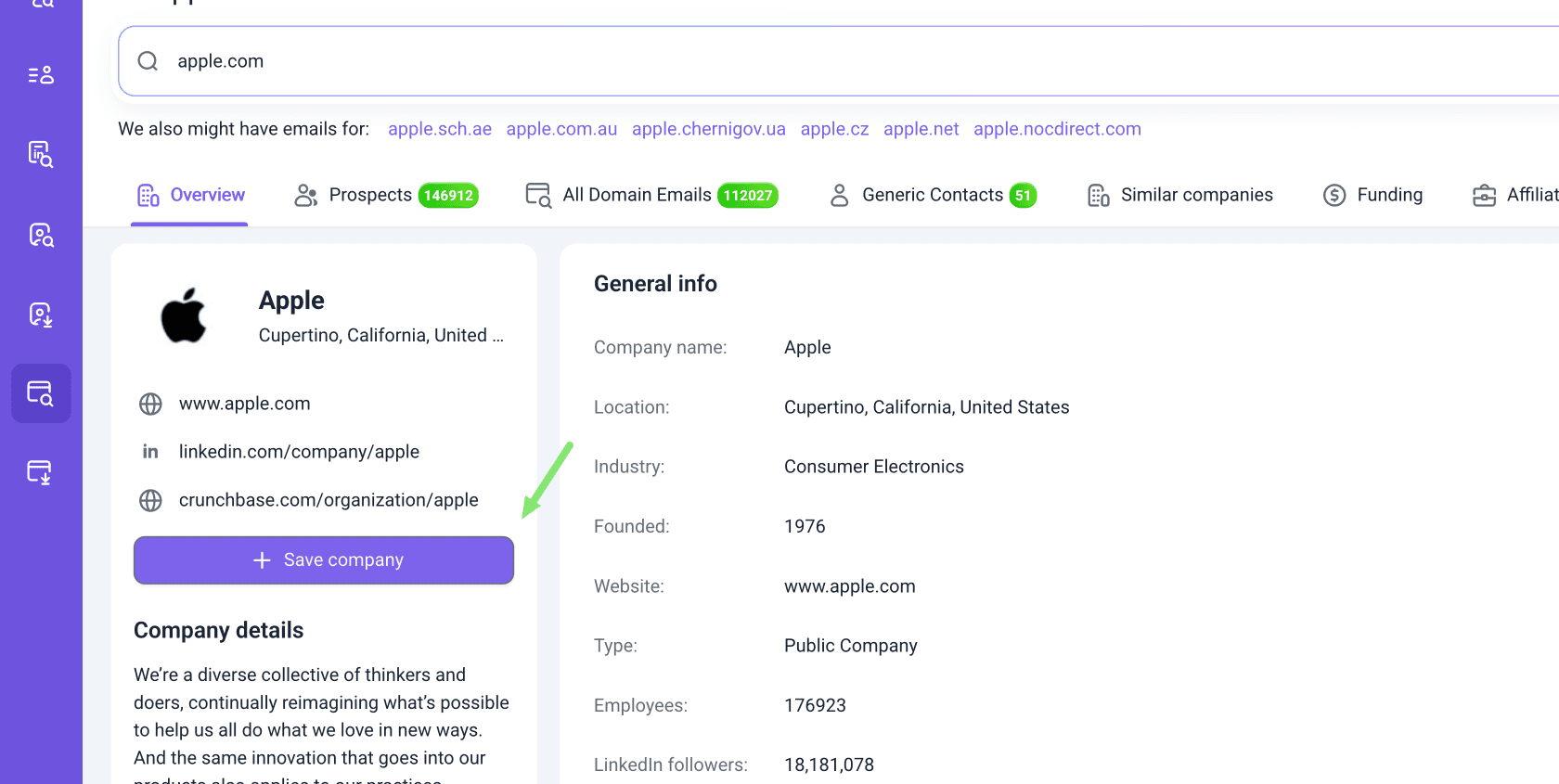
Click Save company to add it to your companies list.
You can then export the list as a CSV with key company details: name, website, industry, LinkedIn URL, location, size, and HQ phone number.
Use it in Bulk Domain Search to find prospects by company name.
Use the company insights you got in Domain Search as input for AI Prospect Search to find more prospects.
Find company leads
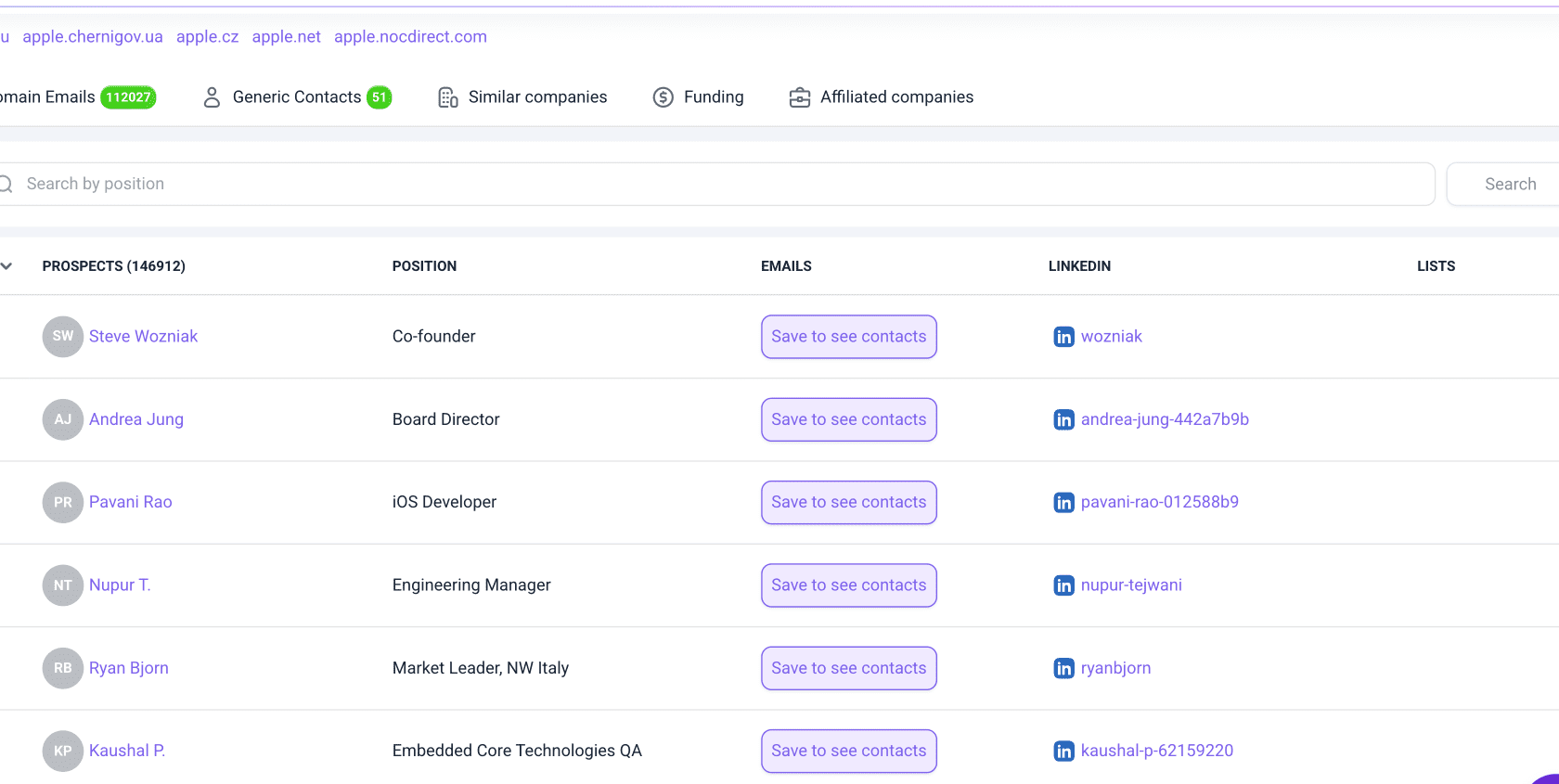
If a company fits you, use the Prospects tab to see leads.
The list includes prospects working at the company, with their job positions and a direct link to LinkedIn profiles.
Visit their LinkedIn profile to find an ice-breaker. Check their recent posts and topics they are interested in. A recent promotion suggests they may be rethinking tools in a new role.
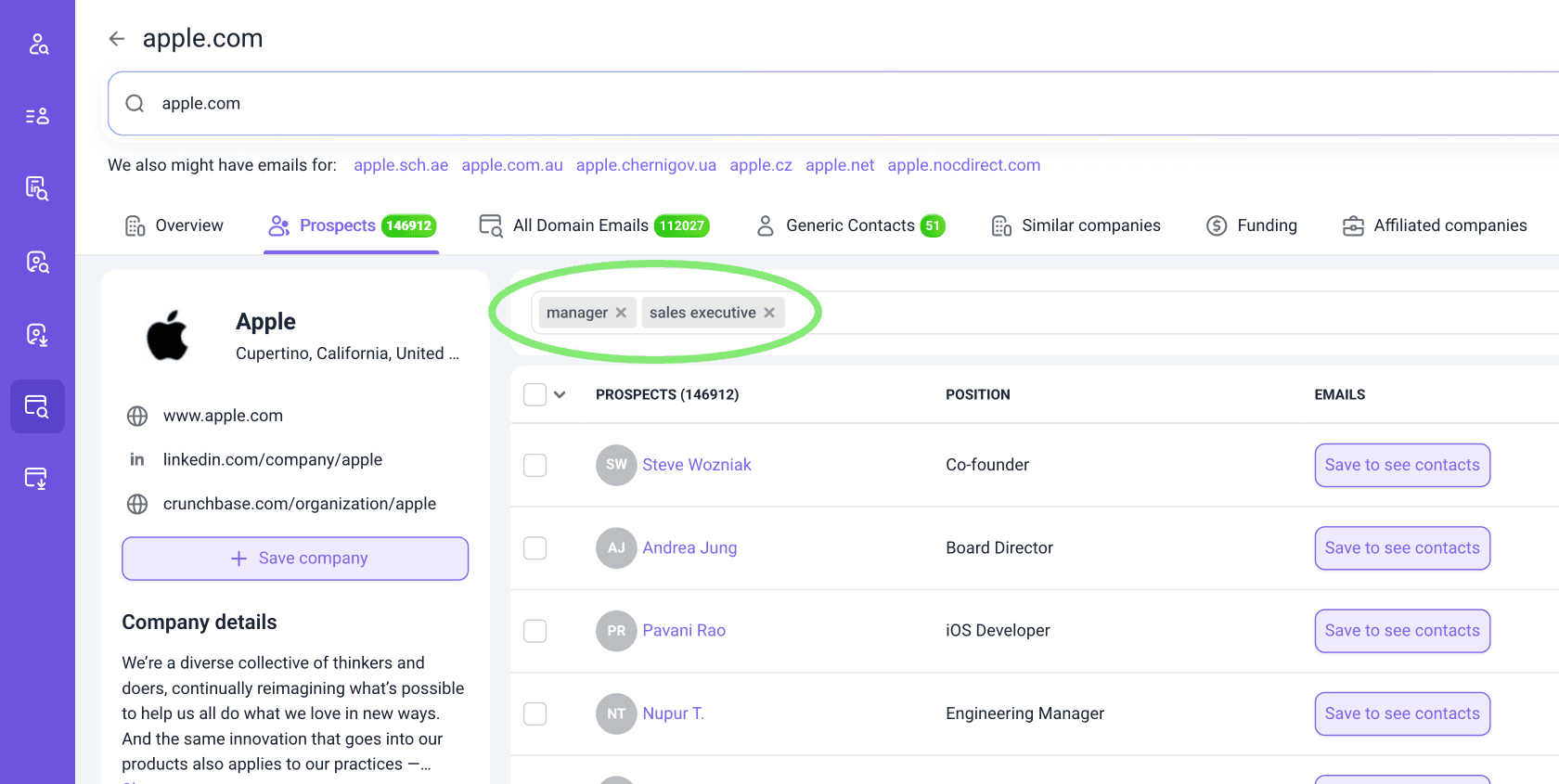
Search prospects by role
To find decision-makers or the right contact for your offer, use the position search at the top.
Enter job titles you need into the field and click Search on the right side. This supports multiple positions per search.
Save prospects to your list
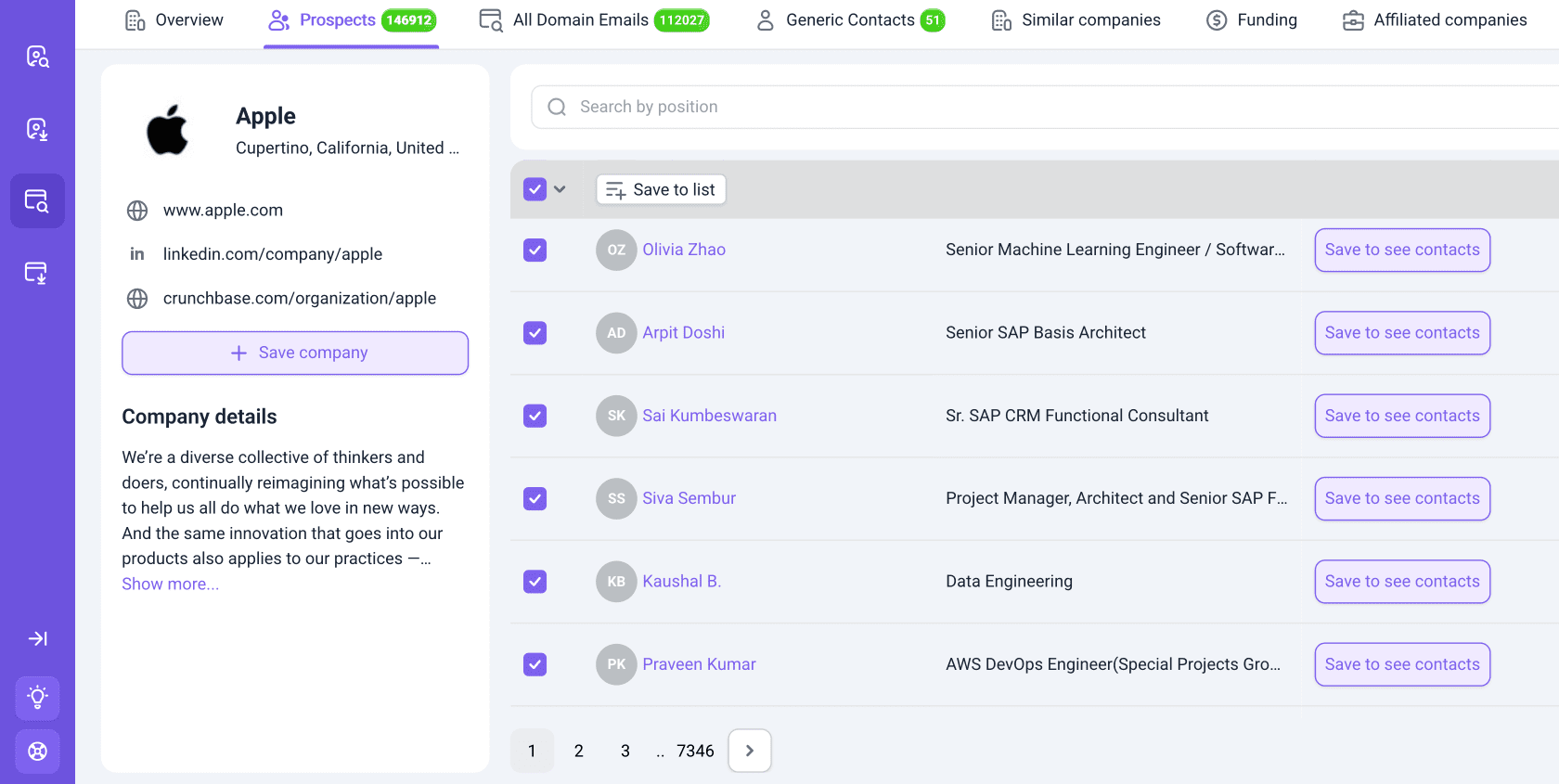
You can save prospects one by one or in bulk.
Click Save on the right to see a verified email and add it to your Snov.io list. We’ll also run email verification automatically to ensure correct email status.
If you don't know the right contact yet, select multiple prospects with checkboxes on the right or choose the All on page option to select 20 prospects at once.
After selection, click Save to list at the top.
Each page on the Prospects section contains 20 profiles. If you need more, scroll below and open the next page of results.
Each added prospect profile costs 1 credit from your account balance.
Collect all domain email addresses
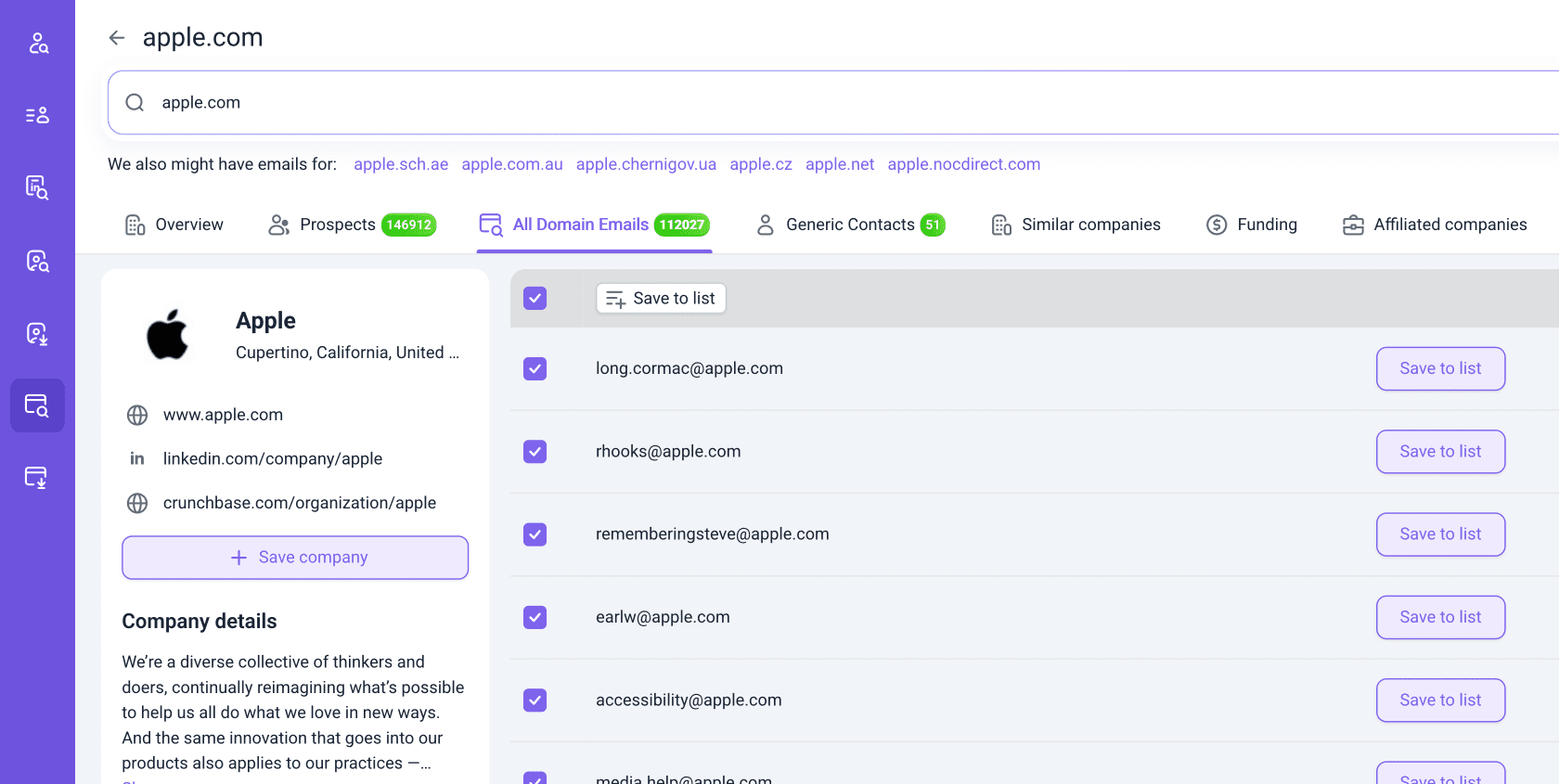
The All Domain Emails section helps you collect a broad contact list from a company or domain for account-based campaigns.
It includes all emails and contacts found under the company domain, including personal, department, and generic email addresses.
Click the checkbox in the top right for bulk selection. Then click Save to list at the top.
After saving to your list, domain emails need to go through verification. This cleans up inactive or risky addresses and reduces bounce rates.
Collect general company contacts
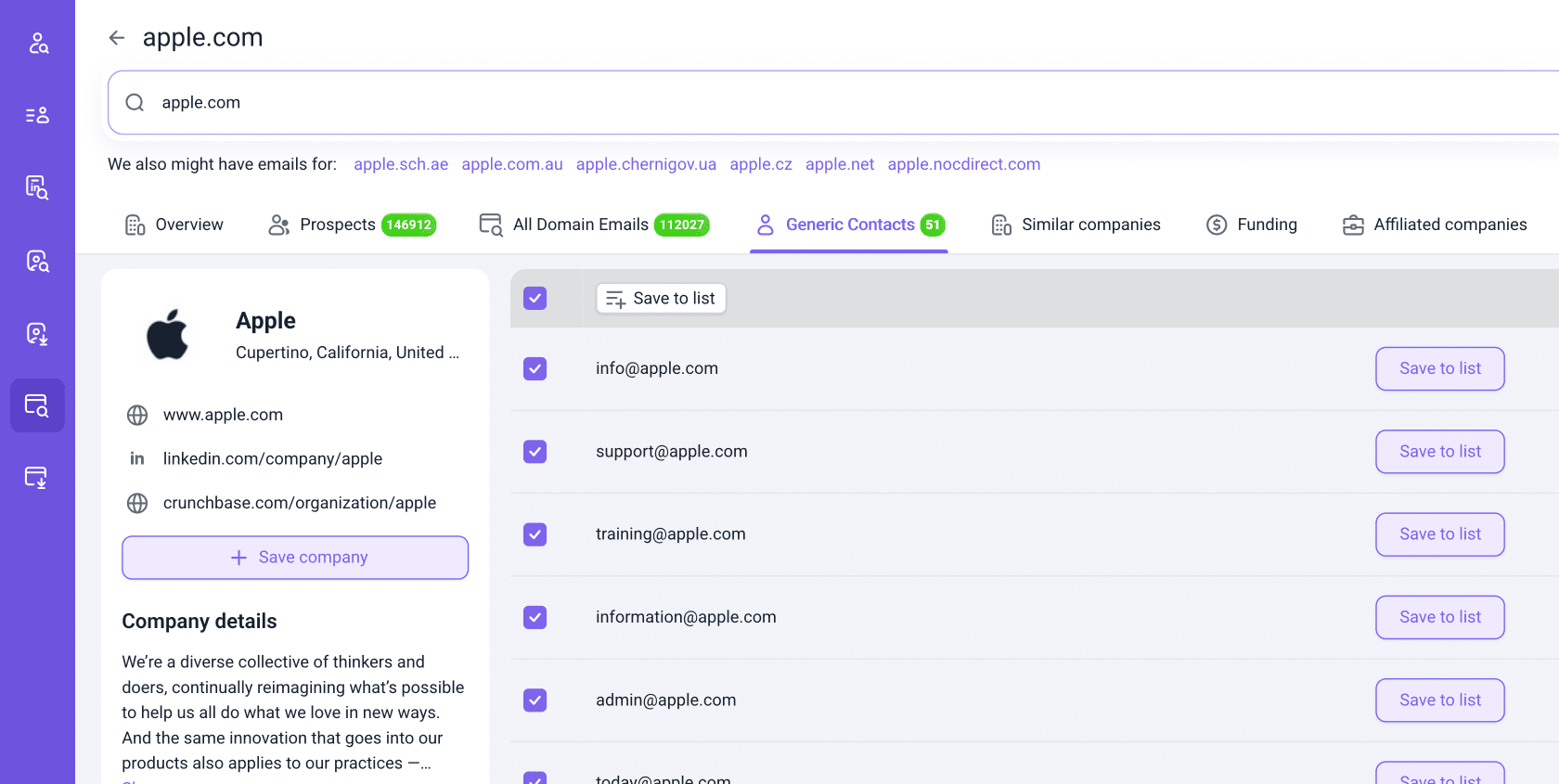
It includes general company email addresses: personal emails, department emails, and shared inboxes (e.g. info@, hello@).
Click the checkbox in the top right for bulk selection. Then click Save to list at the top.
After saving to your list, generic emails need to go through verification as well.
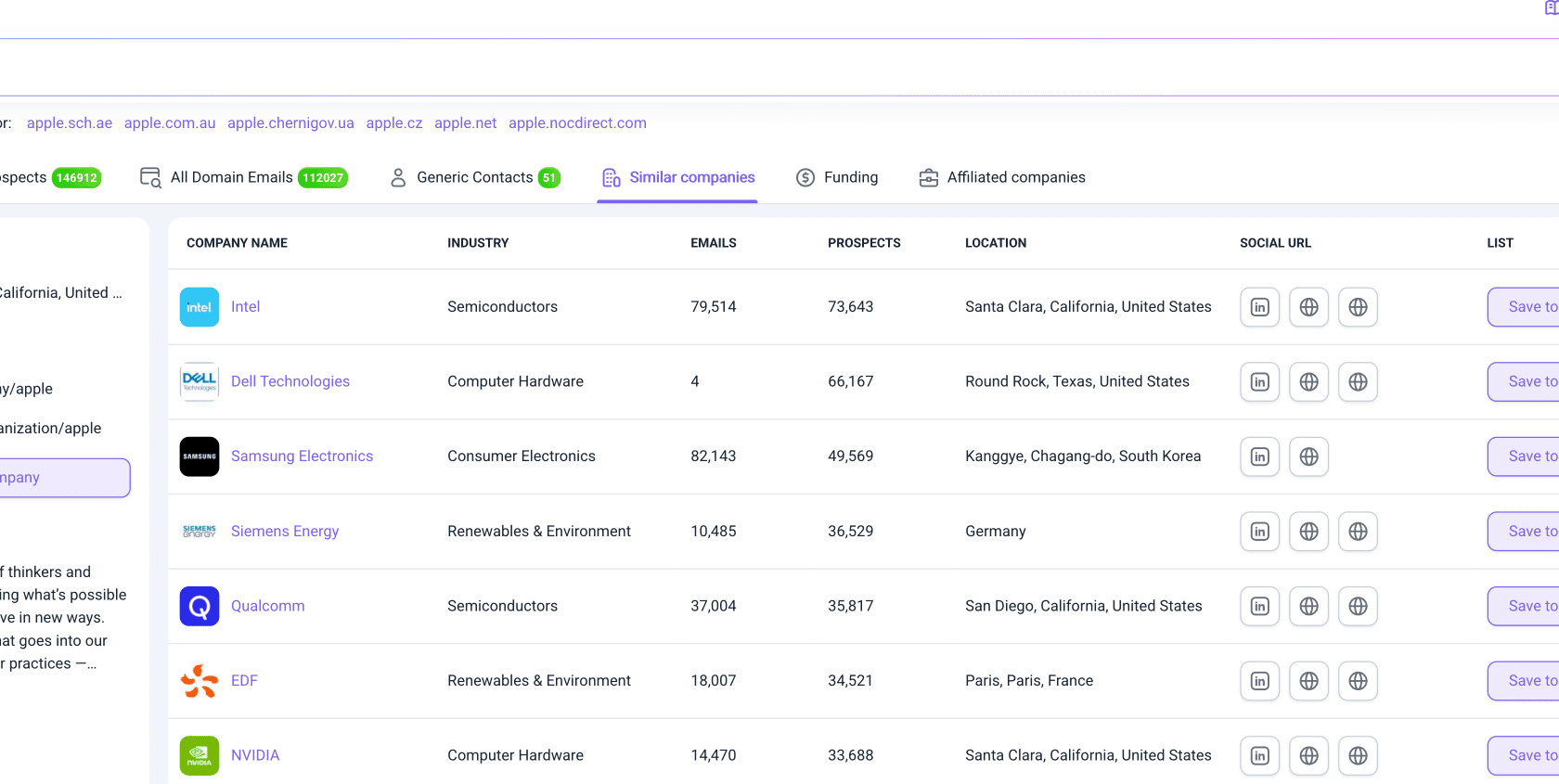
Look up similar companies
Expand your initial search to other companies that match the same industry or specialties as your target company.

For each company, you can see industry, location, number of available emails and prospects, plus direct links to LinkedIn, website, and Crunchbase.
Open any company to view its full profile and collect available prospects and domain emails.
Look up affiliated companies
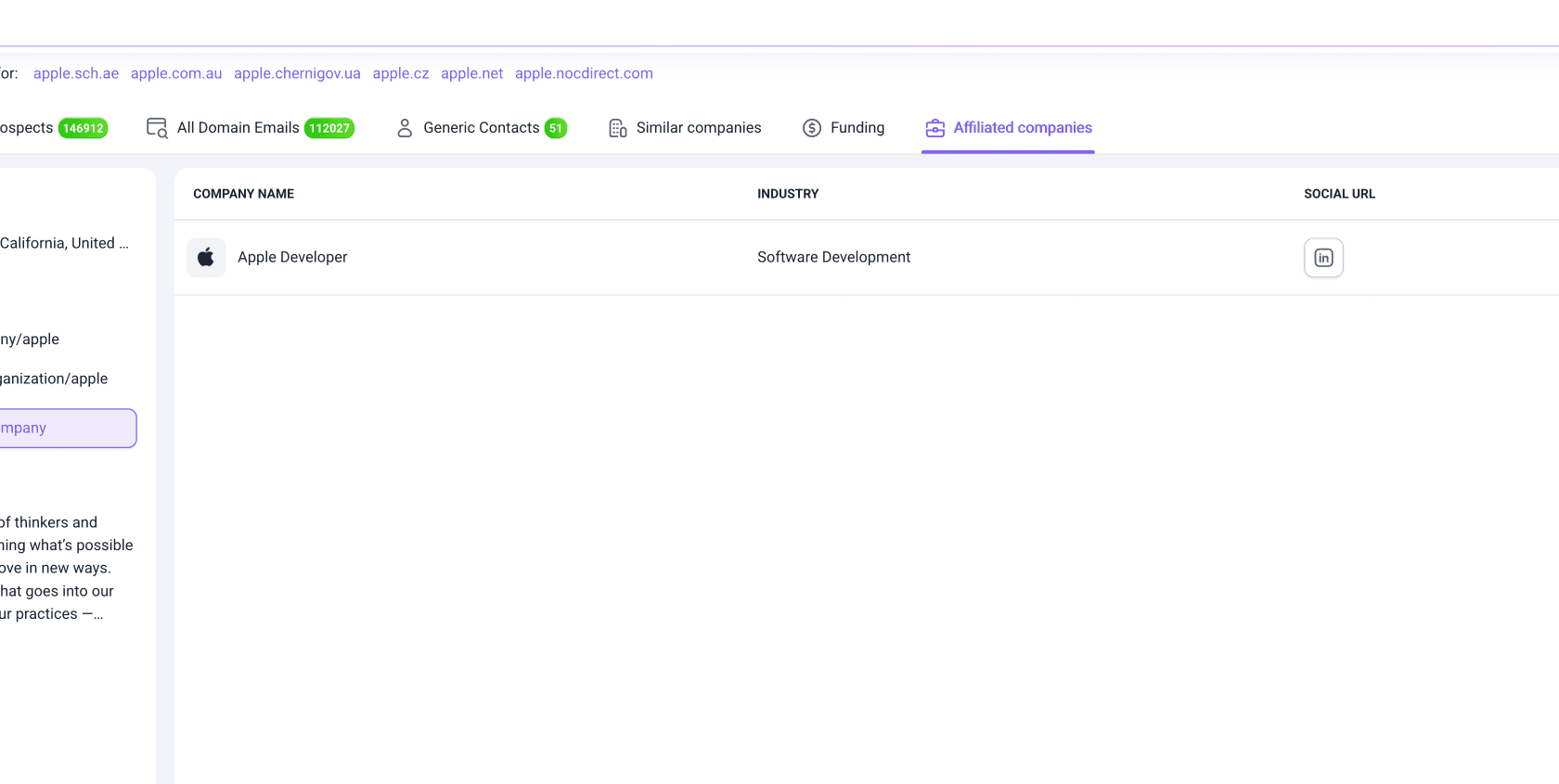
Affiliated companies show other businesses, brands, or projects related to or founded by the main company.
Use it to understand the full structure of a target account. It’s also helpful when you need to find the right business unit or branch to approach within a larger organization.
The preview shows the company or brand name, industry, and a direct URL to LinkedIn.
Review company funding
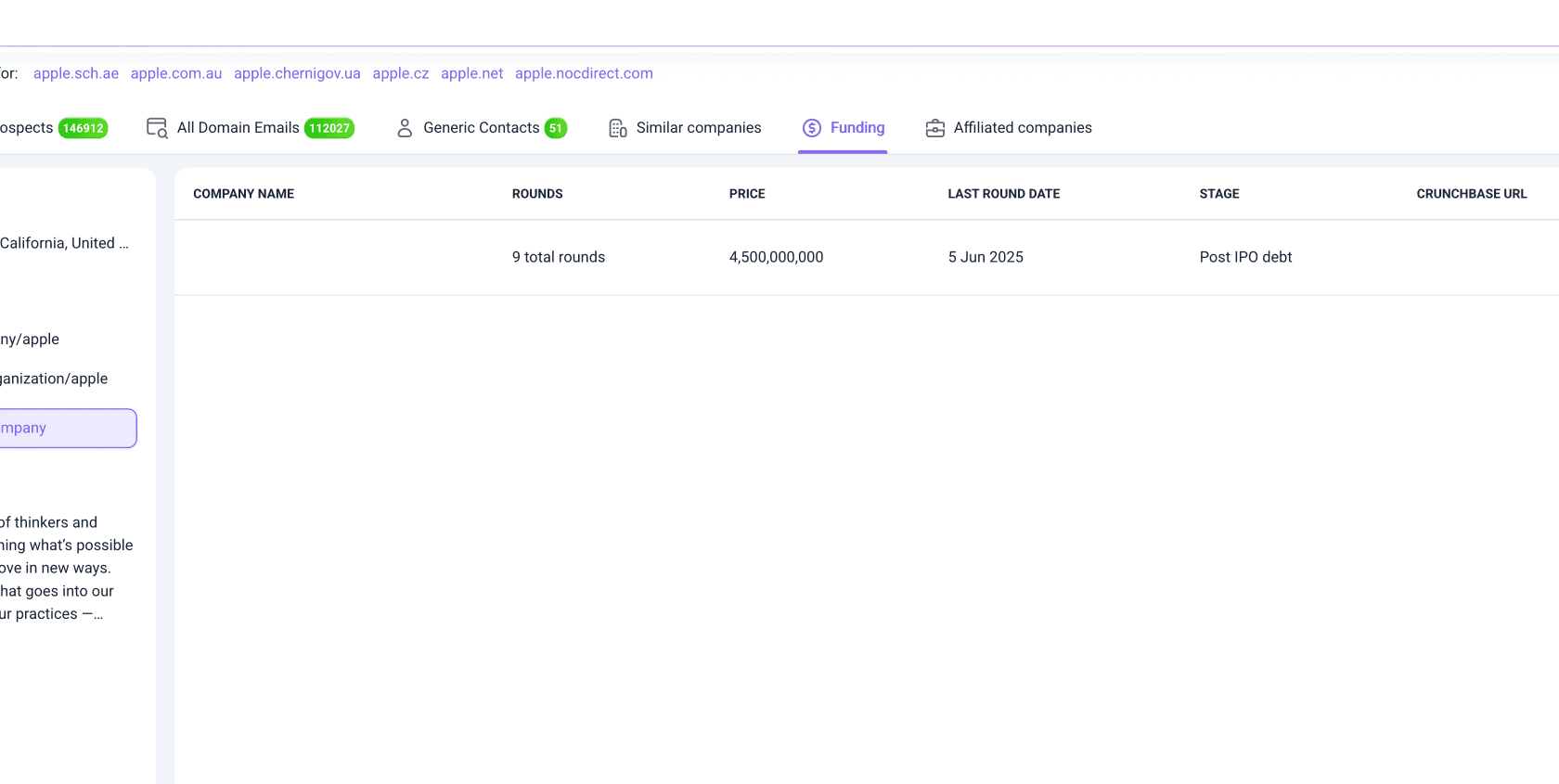
The Funding section in the company profile shows the company's key investors, funding rounds history, current stage and total amount raised.
Use this data to validate ICP fit, refine segmentation, and find signals for outreach context.
- Last funding round date: A recent funding round suggests they may be ready to scale or invest in new tools
- Total funding rounds and Price: The amount the company has raised helps estimate budget capacity and their growth potential
- Stage: The current funding stage helps you spot companies at the right growth stage for your offer
- Key investors: Investment funds or companies that invested
Use company data for personalization
The Company profile in Domain Search gives you context to personalize outreach. Instead of reaching out with general pain points, use the available data and company webpages to find trigger events that signal a specific need right now.
Here’s how to use the company data for helpful outreach context:
Look for signs of hiring or team growth
This may suggest a new function is being built and new pain points are coming. Check job listings or announcements on the company LinkedIn page.
Check for a new executive or leader
When leadership changes, priorities and tools may get reconsidered. Look up latest company news on LinkedIn.
Review recent funding activity
A funding round may signal readiness to scale or invest in new tools. Check the Funding section in company profile or go to Crunchbase profile.
Research expansion signals
Entering new markets often creates new needs. Use the Crunchbase quick link to review any info about expansion or growth.
Use the quick links in the company Overview to go directly to the company’s LinkedIn and Crunchbase pages for deeper research.



Sorry about that 😢
How can we improve it?