
This guide shows which payment methods you can use for your plan, how taxes apply, and how to update your billing details and card in the FastSpring customer portal.
Payment methods
Open the FastSpring customer portal
What you can change in the portal
Open the portal from the purchase email
Taxes and VAT
Next steps
Payment methods
You choose a payment method at checkout. The methods you see depend on your country.
In most countries, you can pay by card, PayPal, Google Pay, or Amazon Pay. Some countries have local options, such as Alipay in China.

Open the FastSpring customer portal
Snov.io uses FastSpring as its payment processor, so your payment and billing information is stored in your FastSpring customer account. You open this account in the FastSpring customer portal.
Open the portal sign-in page
Go to the FastSpring customer portal.
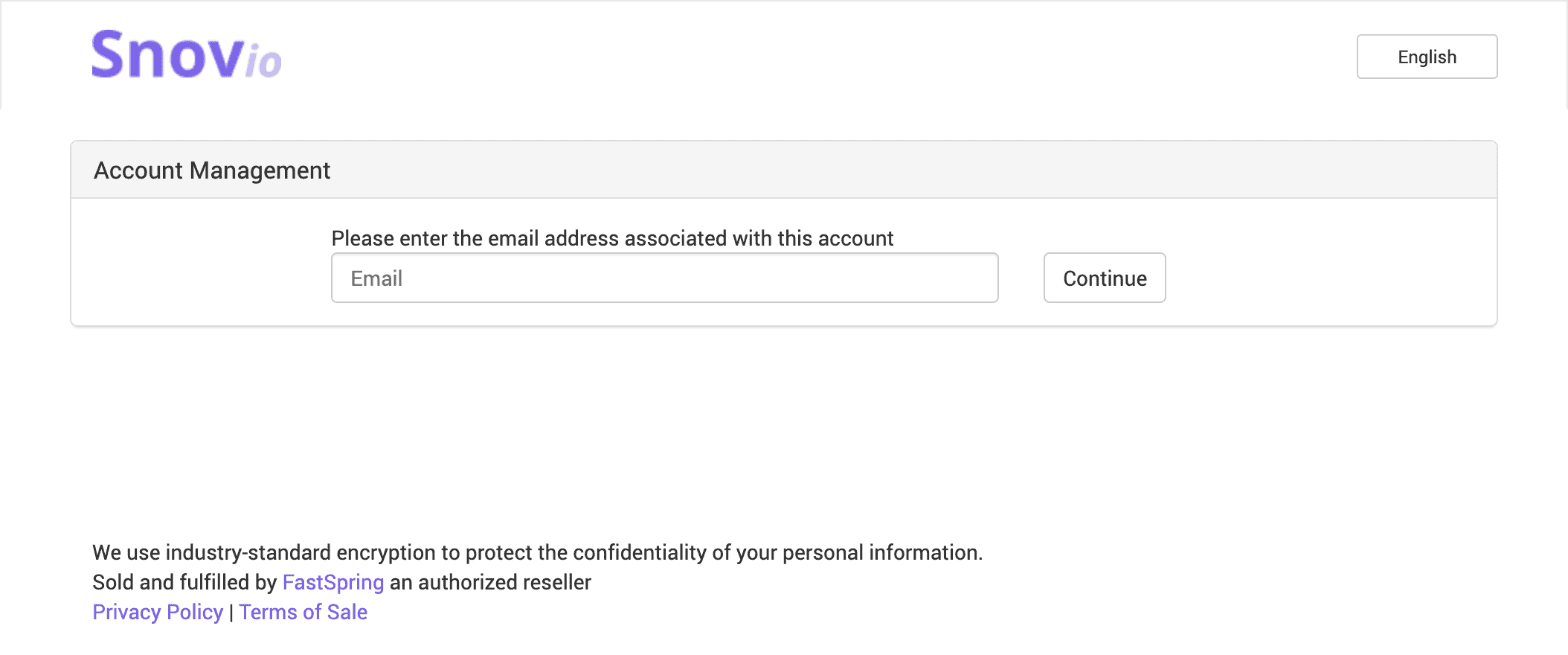
Enter your purchase email
Type the email address you used at checkout, then click Continue. Follow the on-screen instructions from FastSpring to finish signing in.
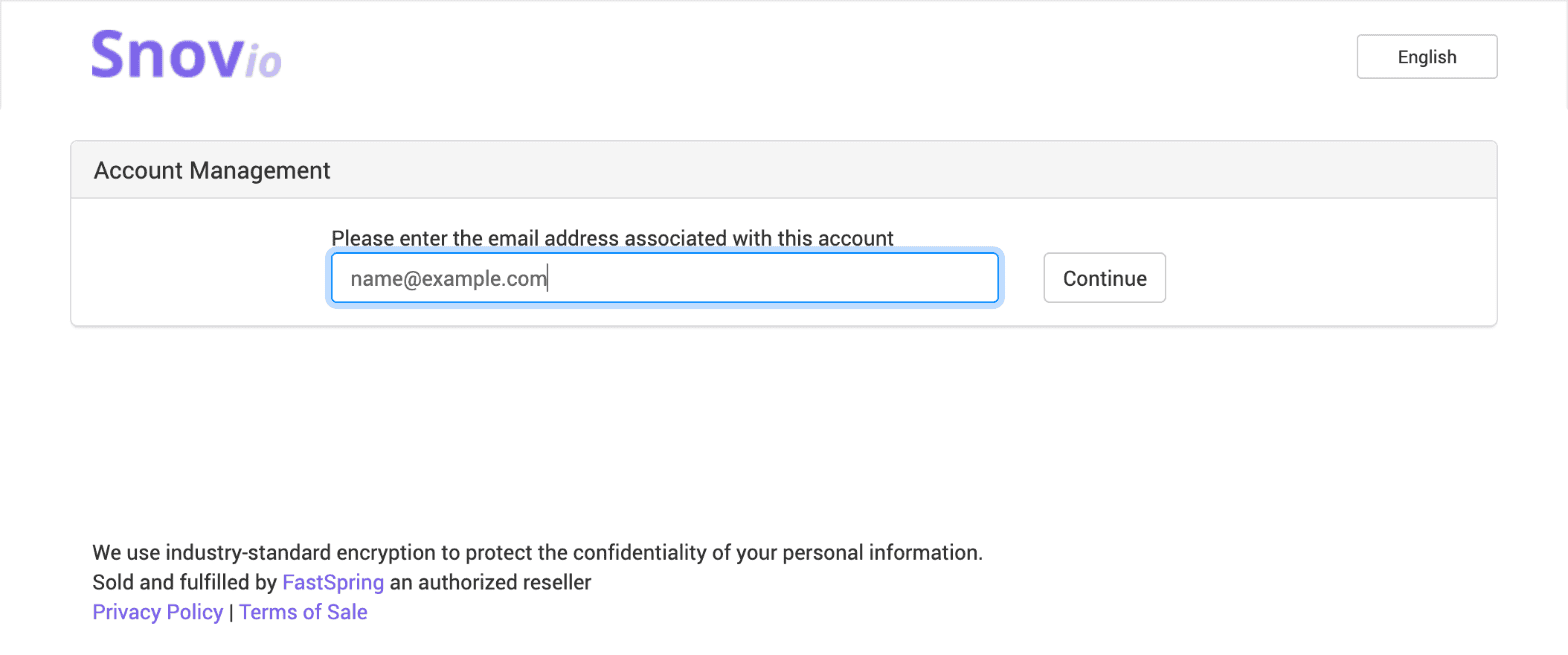
What you can change in the portal
In your FastSpring customer account, you can update:
- Company information. Edit the company details linked to your purchase.
- Billing details. Change the billing email and other billing information.
- Payment method. Replace the card used for future payments.
Open the portal from the purchase email
You can also reach your FastSpring account from the purchase email.
Open the email from FastSpring that confirms your Snov.io payment, then use the Manage Your Orders option in it to sign in.
Taxes and VAT
Taxes on your plan depend on the rules in your country. If you buy a plan for a company, enter your VAT ID at checkout to avoid tax charges where they apply.
To get a VAT refund, request it within 30 days of your payment. Contact support at help@snov.io or in live chat, or send the request through FastSpring.
Next steps
To get payment receipts for your Snov.io purchases, open Order history under Billing in Snov.io and read this guide for the download steps. To switch plans, see this guide.


Sorry about that 😢
How can we improve it?