This guide explains what to do when Snov.io warm-up emails appear in your inbox and how to remove them automatically using inbox filters in Gmail, Outlook, and other email clients.
Do you need the Email identifier?
How to enable the Email identifier
How to set up a filter in your email client
Add an inbox filter in Outlook (Microsoft 365 / Outlook.com)
Add an inbox filter in Zoho Mail
After you start Email Warm-up, your mailbox joins a warm-up network. It sends and receives emails with other real mailboxes, which builds your sender reputation.

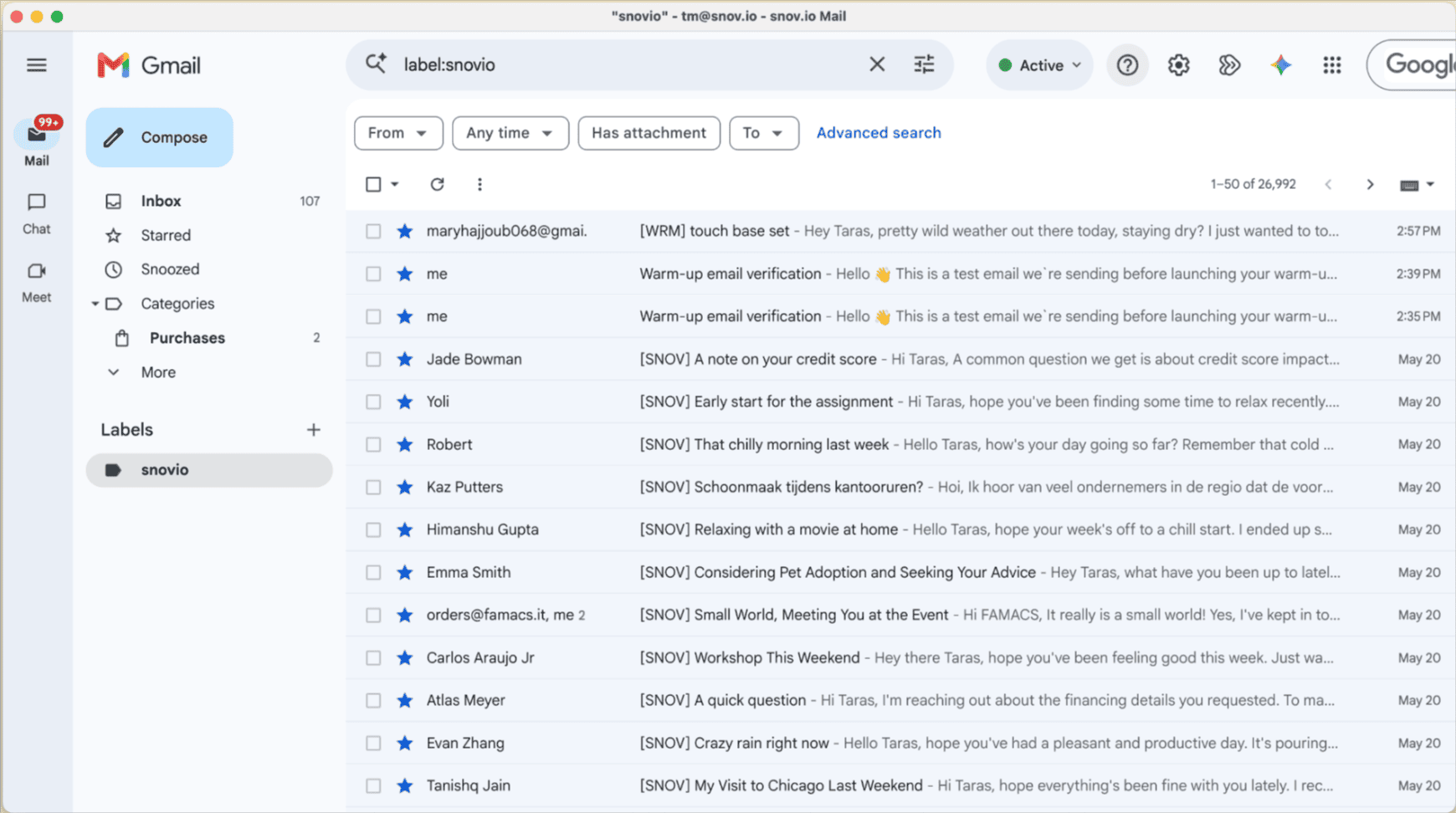
Snov.io moves warm-up emails out of your main inbox and applies the "snovio" label to them. This happens every 10-15 minutes, so a new warm-up email may stay in your inbox for a few minutes.
Do you need the Email identifier?
We recommend turning on the Email identifier if:
- You want warm-up emails sorted as soon as they arrive, without waiting for Snov.io to move them
- Your mailbox forwards emails to another mailbox. Snov.io moves emails only in the mailbox you connected, so warm-up emails still appear in the mailbox they're forwarded to
- You use automations or AI agents that read your inbox and need a reliable way to identify warm-up emails
How to enable the Email identifier
Go to Email Warm-up and open the settings for the email account you want to configure.
Find the Email identifier section. Set the dropdown to On.
Snov.io generates a unique phrase and adds it to the content of every email this account sends and receives during warm-up.

If you have multiple email accounts in warm-up, turn on the Email identifier for every account, so every account has a unique one.
What the phrase is for:
Copy this exact phrase and paste it into a filter or rule in your email client. The filter finds warm-up emails by this phrase and sorts them the way you set it up. See the steps in “How to set up a filter in your email client”.
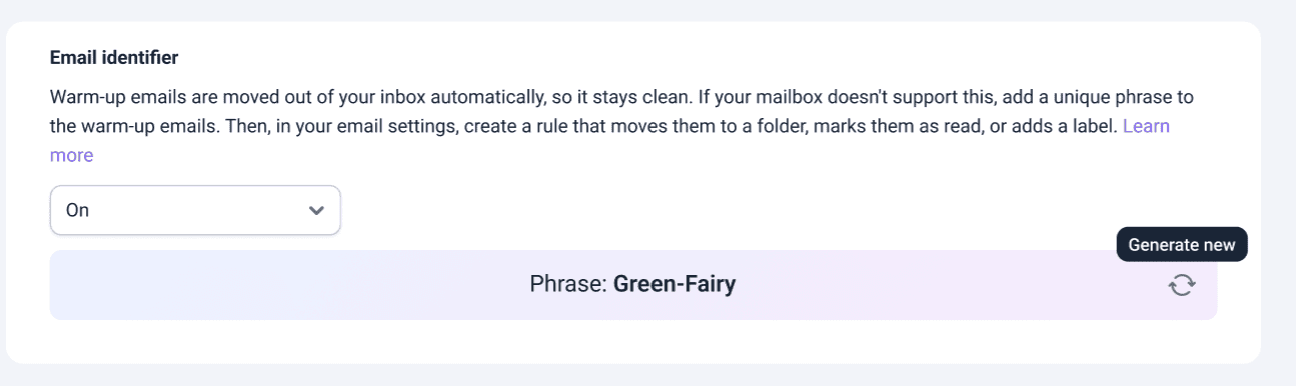 To use a different phrase, click the refresh icon (Generate new).
If you regenerate a phrase, it replaces the old one. Update your inbox filter settings with a new phrase. Otherwise, new warm-up emails will stay in your inbox.
How to set up a filter in your email client
After you turn on the Email identifier, create a filter or rule in your email client that finds emails with your phrase.
Set it to move these emails out of your inbox, either by archiving them or by moving them to a separate folder.
We also recommend adding a label, such as "Snovio warm-up", if your email client supports labels. You can then see all warm-up emails in one click.

Important: Don't set up a rule that deletes warm-up emails from your mailbox permanently. Snov.io needs these emails to track warm-up progress and show your statistics.
For Gmail, Outlook, and Zoho Mail, follow the steps below.
Add an inbox filter in Gmail
Open Gmail and click the Show search options icon at the right end of the search bar.
In the Has the words field, enter your Email identifier phrase (e.g., Green-Fairy).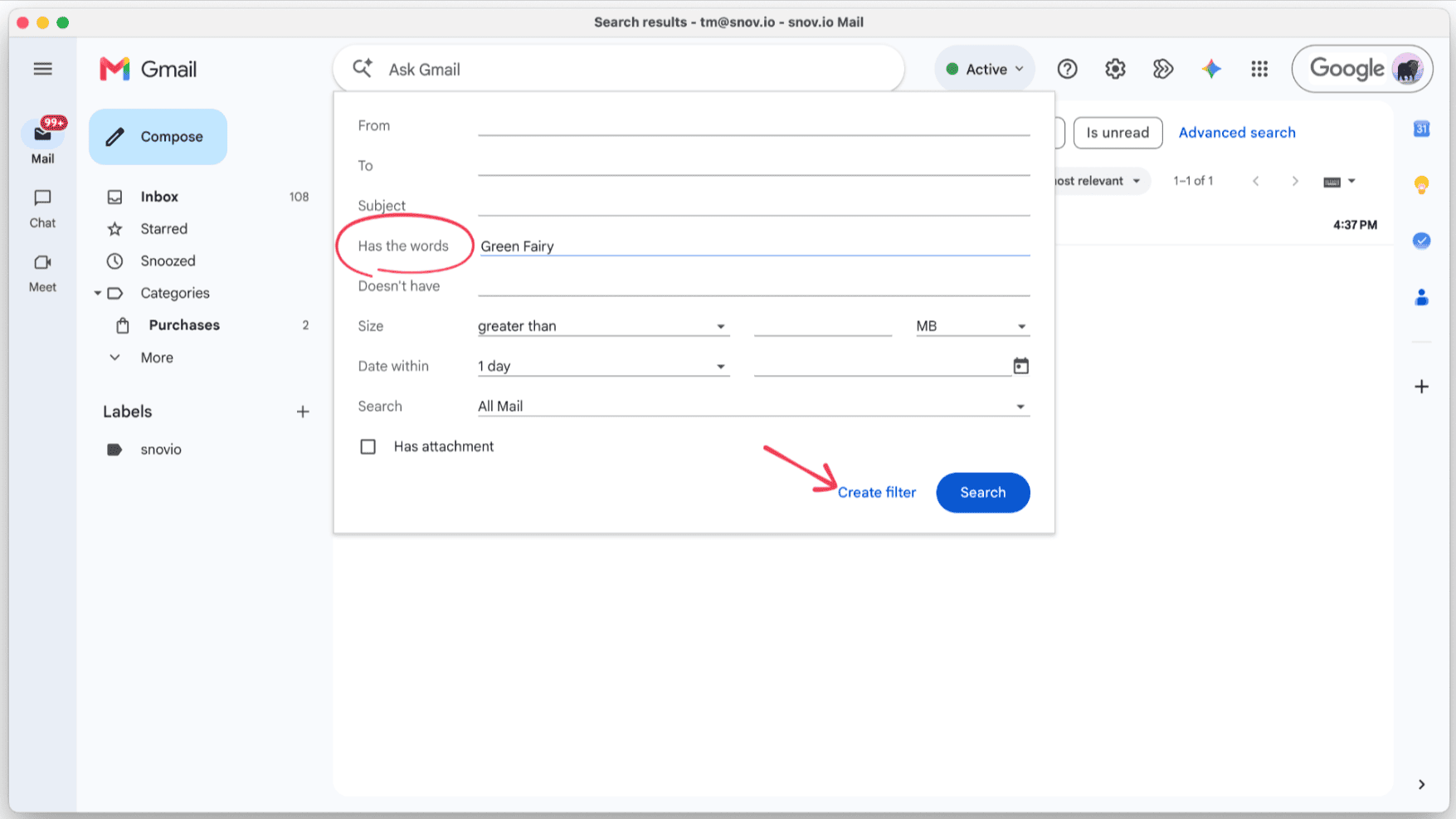 Click Create filter and choose Skip the Inbox.
To add a label, select Apply the label and create one, such as "Snovio warm-up". To see all warm-up emails, click the label under Labels in the Gmail sidebar.
Select Also apply filter to matching conversations to clean up warm-up emails already in your inbox.
Click Create filter again to apply these settings.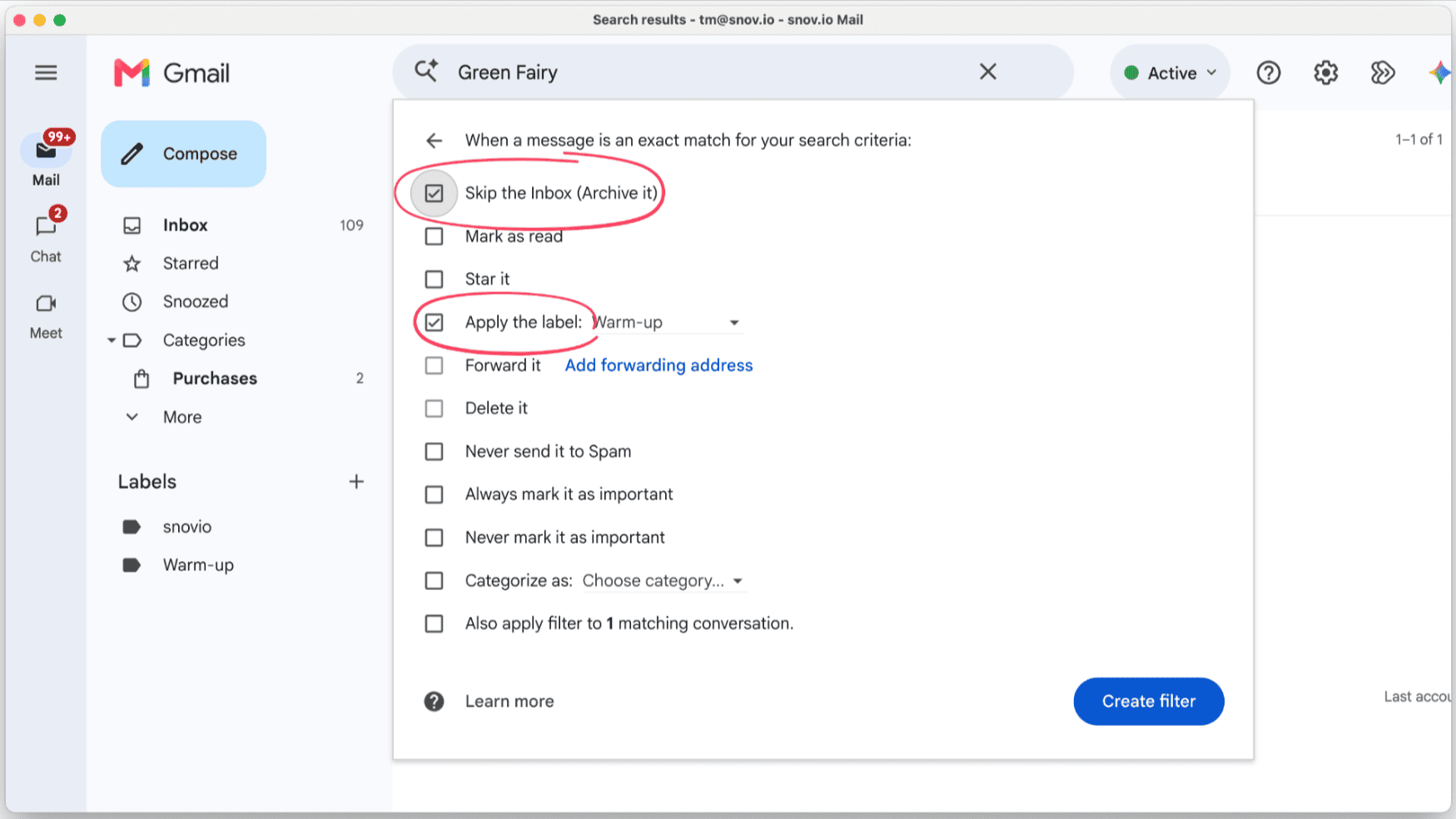
Add an inbox filter in Outlook (Microsoft 365 / Outlook.com)
Open Outlook and go to Settings → Mail → Rules. Click + Add rule.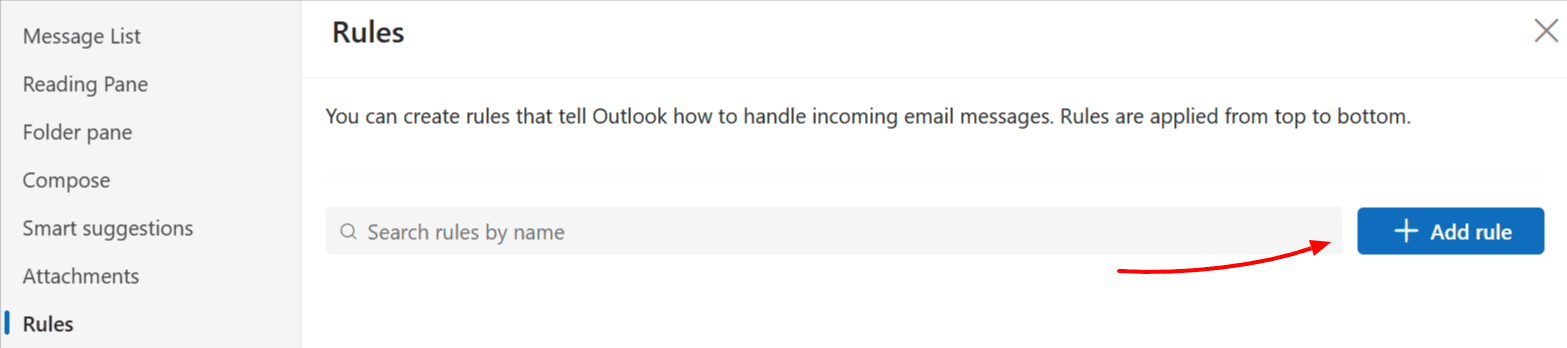 Name the rule (e.g., "Warm-up filter").
Under Add a condition, select Message body includes and enter your Email identifier phrase (e.g., Green-Fairy).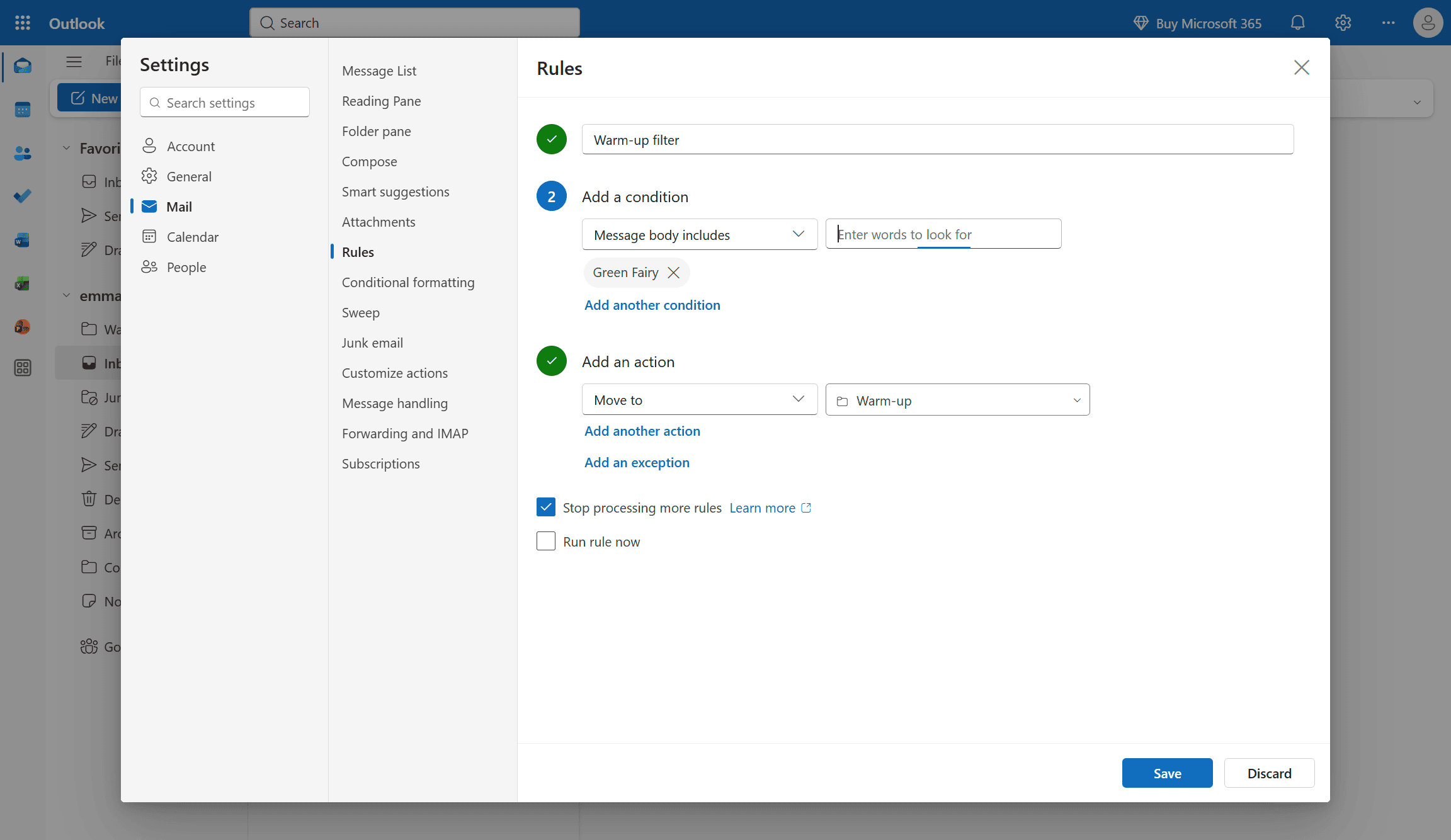 Under Add an action, choose one of the following:
-
- Move to → select or create a folder (e.g., "Warm-up")
- Mark as read
Click Save.
Add an inbox filter in Zoho Mail
Open Zoho Mail and go to Settings (⚙️gear icon) to find Filters.
Click + New filter and name it (e.g., "Warm-up filter").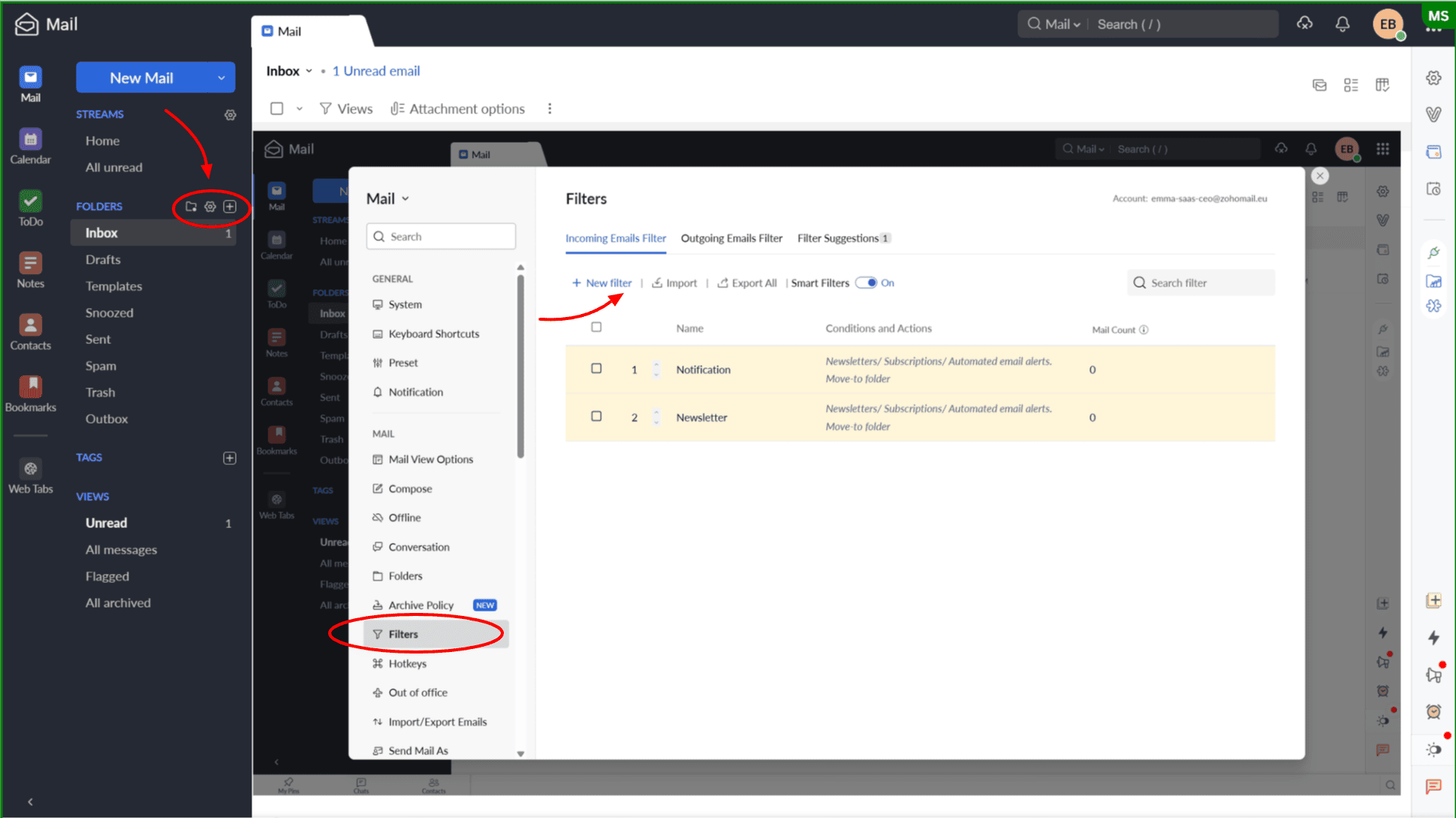 Under Conditions, set: Content → contains → your Email identifier phrase.
Under Actions, choose:
-
- Mark as read
- Move to folder
- Add label
Click Save.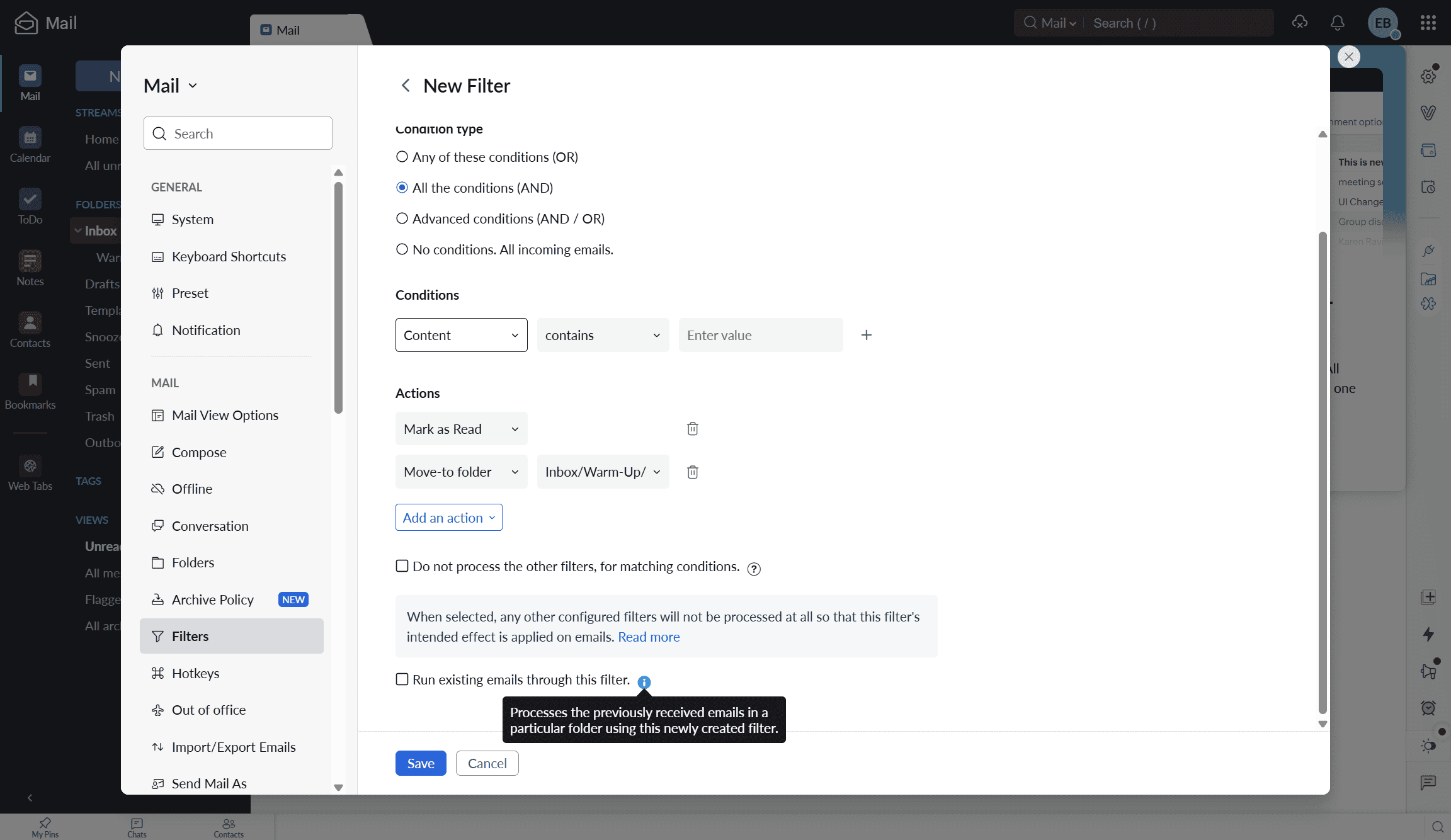
Select Run existing emails through this filter to clean up your inbox. If you read Zoho Mail in another app over IMAP, avoid tags and flags, because they may not appear there.
If you have a question that we haven't covered, feel free to reach out to our Customer Care team. You can contact us at help@snov.io or through live chat. We're here to assist you!


Sorry about that 😢
How can we improve it?