


Some tasks take longer than they should, and some workflows could use a fresh look.
That’s exactly what we had in mind this October, so we’ve rolled out a few updates to make your day-to-day work smoother.
Curious what’s new? Read on!
New releases:
- Redesigned LinkedIn prospecting
- More flexible email verification
- AI Assistant for everyday tasks
- Easier warm-up email filtering
A new LI Prospect Finder for Chrome
Good outreach starts with understanding who you’re contacting. LinkedIn reports that 62% of top-performing sales professionals research their prospects before reaching out.
With the redesigned LI Prospect Finder 4.0, you can now gather the information you need more easily, right from LinkedIn.
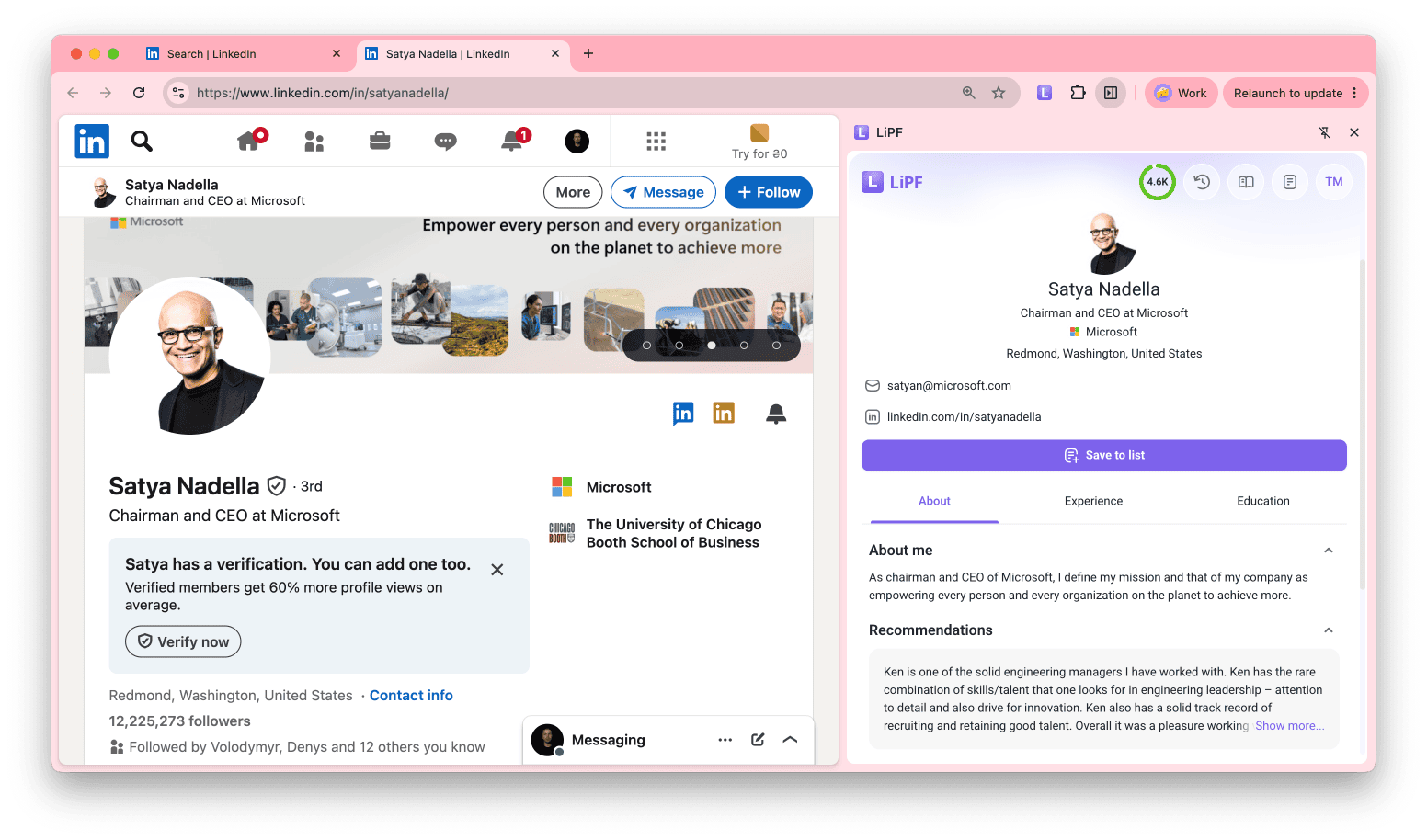
Here’s what’s changed:
- A sidebar instead of a pop-up: The extension now opens on the right side of Chrome and stays there as you browse LinkedIn. It automatically updates to show information from the page you’re viewing.
- More details on individual profiles: You can now see more profile information at a glance, including work experience, skills, and education.
- More company insights: Company pages now have dedicated tabs for Overview, Similar, Funding, and Affiliated companies, making it easier to explore relevant details.
What can you do with LI Prospect Finder?
- Find prospects: Save people from LinkedIn search results, individual profiles, company employee lists, and event attendee pages.
- Build lists in bulk: Collect prospects across multiple search pages and skip contacts you’ve already saved.
- Save detailed profile information: When adding prospects individually, collect available details such as work experience, education, skills, certifications, and languages.
- Explore company data: Save company profiles with details like industry, headquarters, employee count, specialties, and funding.
- Collect contact details: Find verified business emails or save LinkedIn URLs for prospects you want to reach.
Once your prospects are safely saved in Snov.io, what’s next?
Build a LinkedIn campaign that takes care of every touchpoint automatically. Start with a profile visit, follow up with a connection request, and send a message when it’s accepted.
No acceptance or reply? Your sequence can switch to email instead. Just decide the timing and conditions; Snov.io handles the execution.
Here’s how to update to version 4.0:
Installed from the Chrome Web Store? Updates are automatic. Open the extension and check that you’re using version 4.0. You can also install it directly from the Chrome Web Store.
Installed from a ZIP file? You’ll need to update it manually or switch to automatic updates.
Verify and re-verify emails in Enrichment
As you probably know, email lists go stale over time. If it’s been over 30 days since your last verification, you’re reusing an old or imported list, or your bounce rate is rising, it’s worth checking your contacts again.
You can now do this directly in Snov.io Enrichment tools.
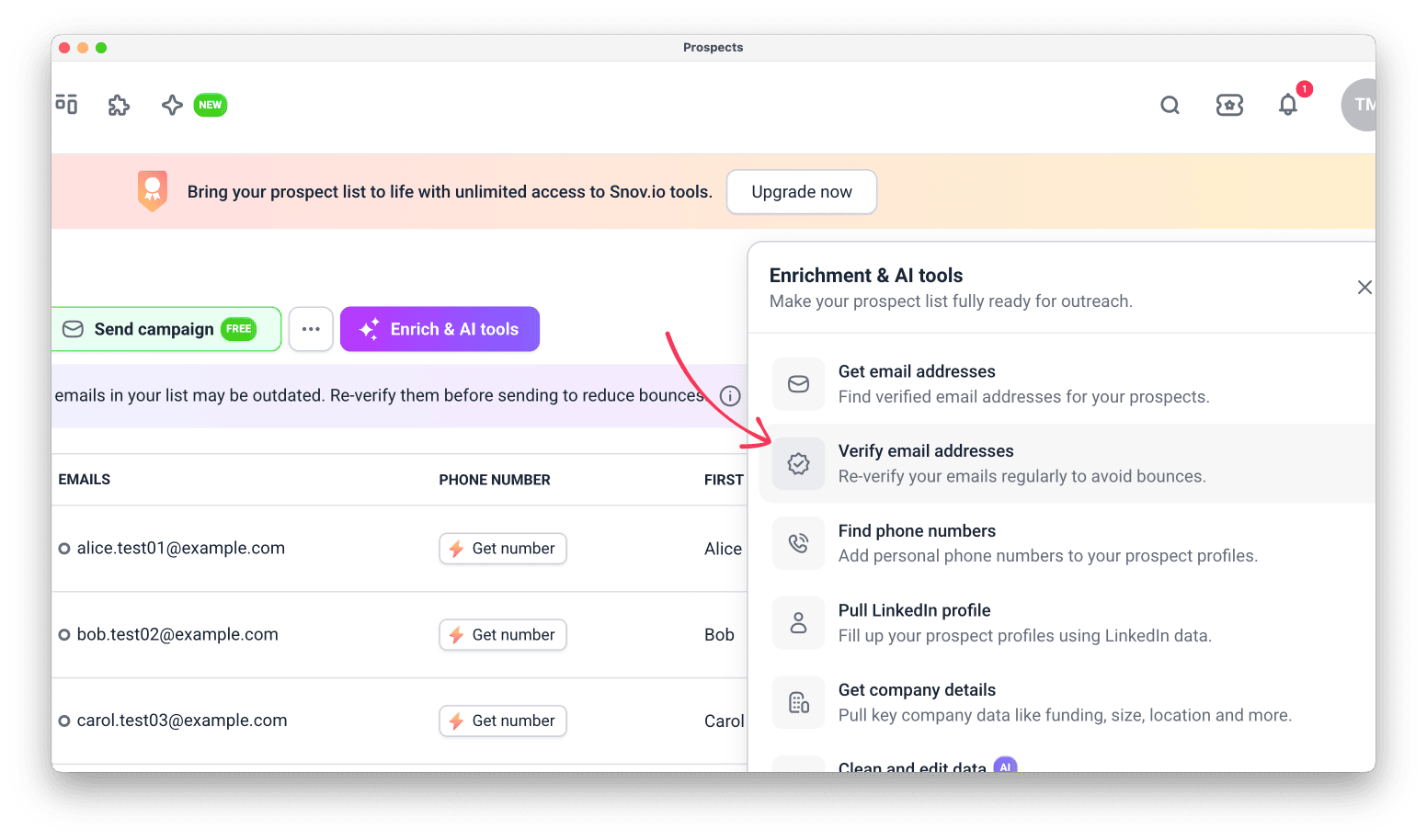 Here are some details:
- Verify in bulk with token packages: You can now bulk-verify email addresses using token packages. A Sales Suite plan is no longer required.
- Choose a verification provider: Use Snov.io, Bouncer, or MillionVerifier.
- Find older verification results: Filter for Emails verified 30+ days ago to identify addresses that may need another check.
- Check verification details: Hover over an email address to see when it was last verified and which provider was used.
To re-verify a list, open it under Prospects, go to Enrich & AI tools, and select Verify email addresses.
It’s natural that email lists decay. You can’t control it. What you can control, however, is how often you verify your email list to keep the number of invalid contacts to a minimum. I recommend that users clean their lists every 3-6 months to maintain strong email deliverability.
Email Deliverability Specialist

And while you’re there, explore the other options available in Enrich & AI tools. For example, you can use Snov.io and other data providers to find business emails and phone numbers, enrich LinkedIn profiles with additional data, run web research, etc.
👉 Learn more in our how to re-verify emails in Enrichment guide.
Snov.io AI Assistant
Some Snov.io tasks involve jumping between tools. With AI Assistant, you can skip much of that manual work by simply describing what you want to complete in a chat built right into your Snov.io account.
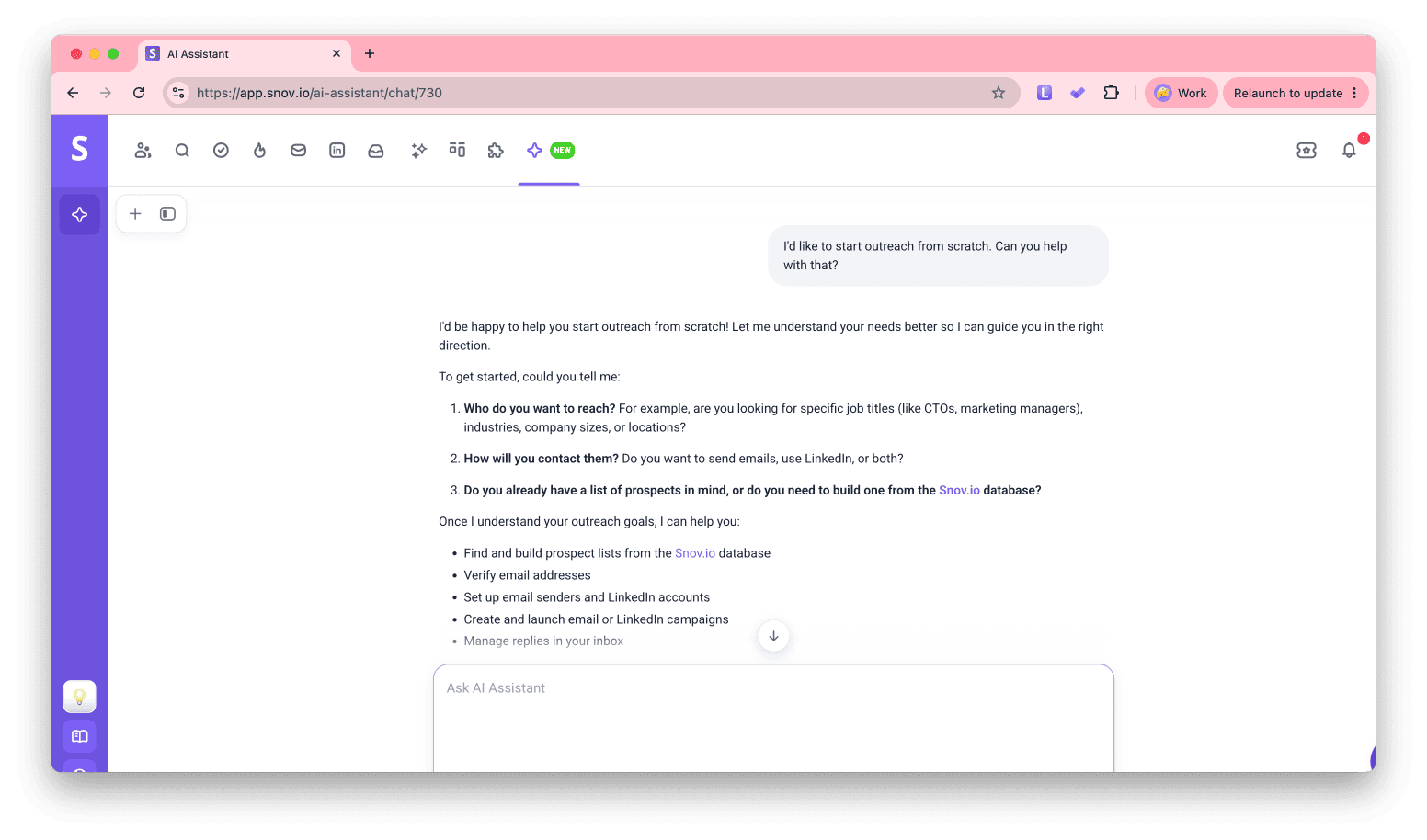
Ask it to:
- Find prospects: Search for companies and contacts that fit your target audience
- Clean up your lists: Verify email addresses, organize prospects, and segment contacts
- Set up campaigns: Create email and LinkedIn sequences, add recipients, and manage campaigns
- Check campaign results: Review metrics and compare performance
- Catch up on replies: Read incoming conversations and respond to prospects by email
- Manage LinkedIn activity: Send connection requests, visit profiles, and handle invitations
To get more out of Snov.io AI Assistant, name the exact list or campaign you’re referring to and explain what you’d like it to do. For example:
“Verify all emails in my list [list name], show me how many are valid, risky, and invalid, and save the valid ones to a new list called [new list name].”
For more ideas, check out our prompt-writing guide, which has practical tips and examples.
Ready to try it? Open AI Assistant and give it a task!
Email identifier for warm-up emails
Email warm-up helps you build or improve your sender reputation by exchanging emails with other real mailboxes. This makes your future campaigns more likely to reach inboxes and helps you safely increase your sending volume.
These warm-up conversations support your deliverability, but you probably don’t need them cluttering your regular inbox. With the new Email identifier, you can filter them as soon as they arrive.
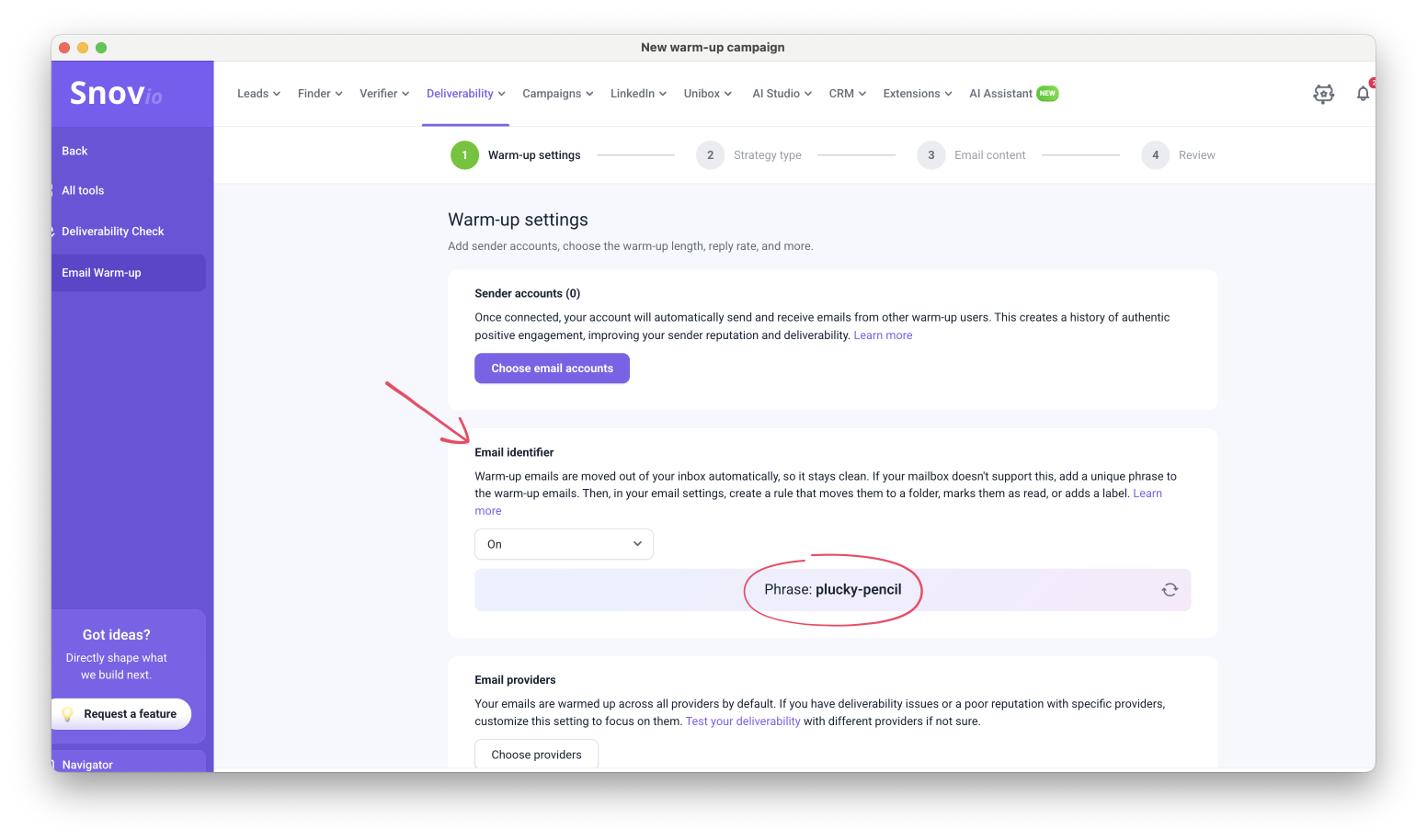
Getting started is simple:
- Go to Warm-up settings and turn on the Email identifier.
- Copy your unique phrase. Snov.io automatically adds it to the body of every warm-up email your mailboxes receive.
- Open your email client (Gmail, Outlook, or another one) and create a filter using this phrase.
- Choose what happens to matching emails: move them to a separate folder or archive them.
We’ve also removed the [WRM] tag from warm-up email subject lines because it made them look automated to spam filters. If you used the tag in an existing filter, replace it with your new Email identifier phrase.
Check whether any of these signs apply to your account:
- Low open rates: Your emails may not be reaching recipients’ inboxes
- High bounce rates: More messages are going to invalid or inactive addresses
- Low reply rates: Recipients aren’t engaging with your emails
- Declining inbox placement: More of your messages are landing in spam
New accounts should also be warmed up before launching cold email campaigns.
👉 Learn more in our email identifier guide.
That’s all from us this month! We hope these updates make your work with Snov.io smoother and give you a few new ways to get things done.
We’d love to hear what you think, so don’t hesitate to share your feedback.
Until next time! 💜