This guide shows how to install LI Prospect Finder from the Chrome Web Store, so the extension updates automatically when a new version comes out. If you installed it from a ZIP file earlier, you'll also learn how to switch to the Chrome Web Store version.

Installing from the Chrome Web Store takes a few clicks, and Chrome installs every new version for you.
If you prefer to install the extension from a ZIP file, we still support it. You'll need to update it manually (see this guide), and we'll let you know about new versions through browser notifications.
How to install LI Prospect Finder from the Chrome Web Store
How to switch from a ZIP installation to automatic updates
How to check your extension version
How to install LI Prospect Finder from the Chrome Web Store
Step 1. Add the extension to Chrome
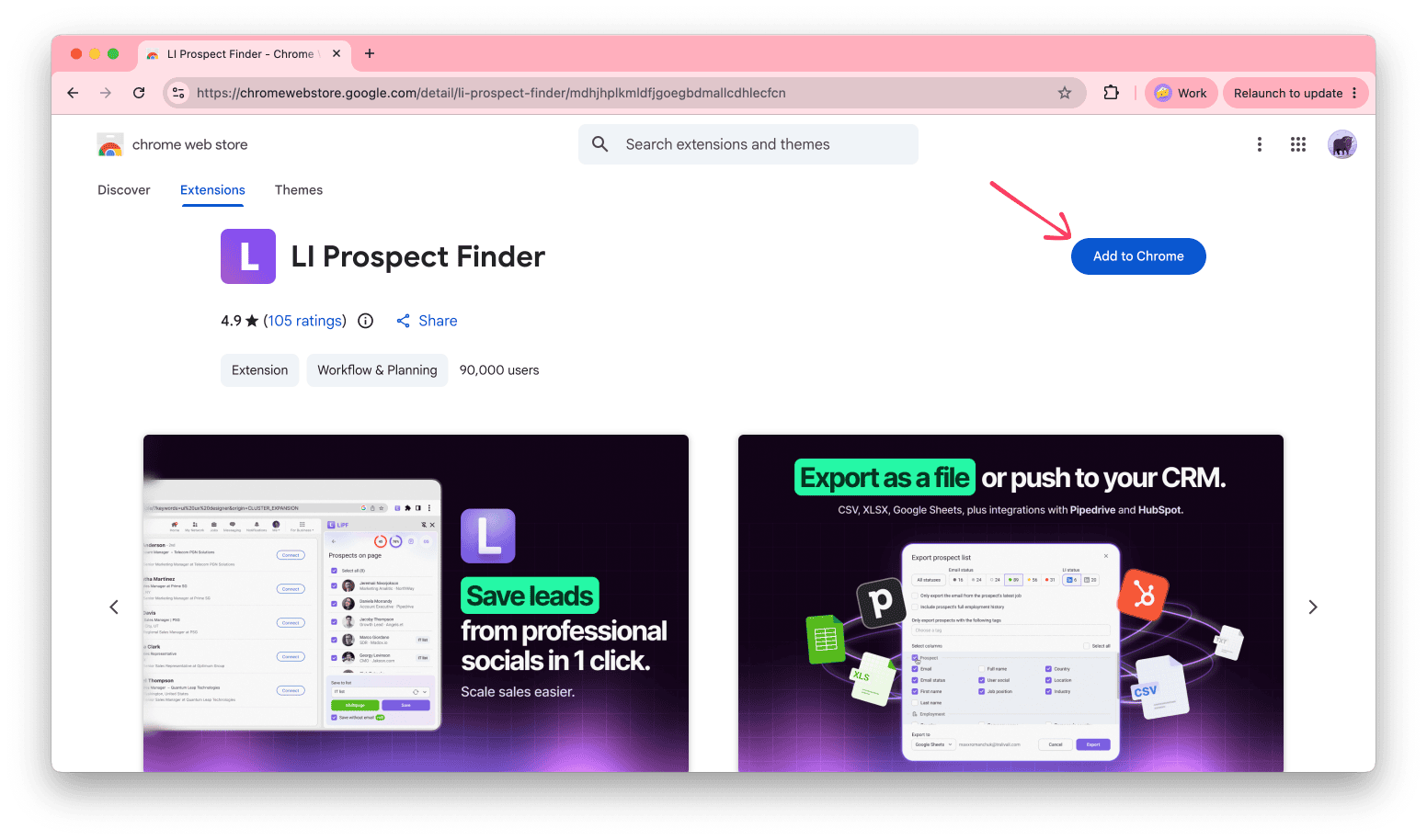
Open the LI Prospect Finder page in the Chrome Web Store and click Add to Chrome. Then click Add extension to confirm.
Step 2. Pin the extension
Click the Extensions icon (puzzle) in the Chrome toolbar, then click the pin icon next to LI Prospect Finder.
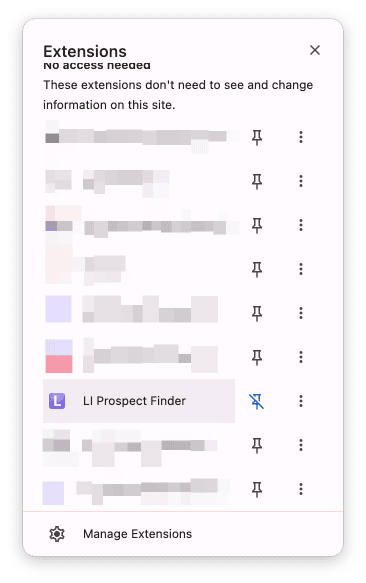
The LI Prospect Finder icon now stays in your toolbar, so you can open the extension in one click. To learn more, read this guide.
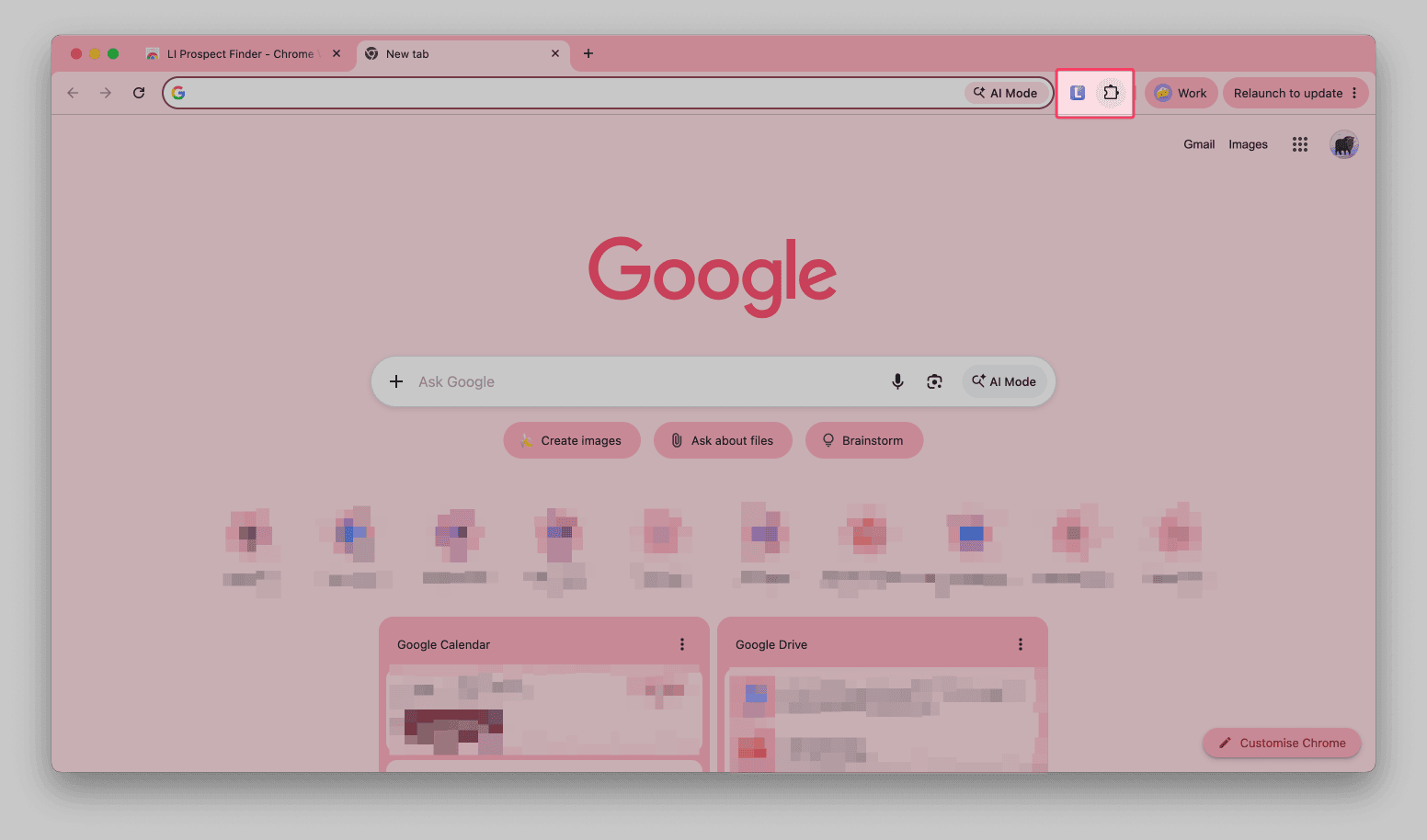
Step 3. Open the extension
Go to any LinkedIn page and click the LI Prospect Finder icon. The sidebar opens on the right side of your browser and shows what you can collect: people, companies, individual profiles, and event attendees.
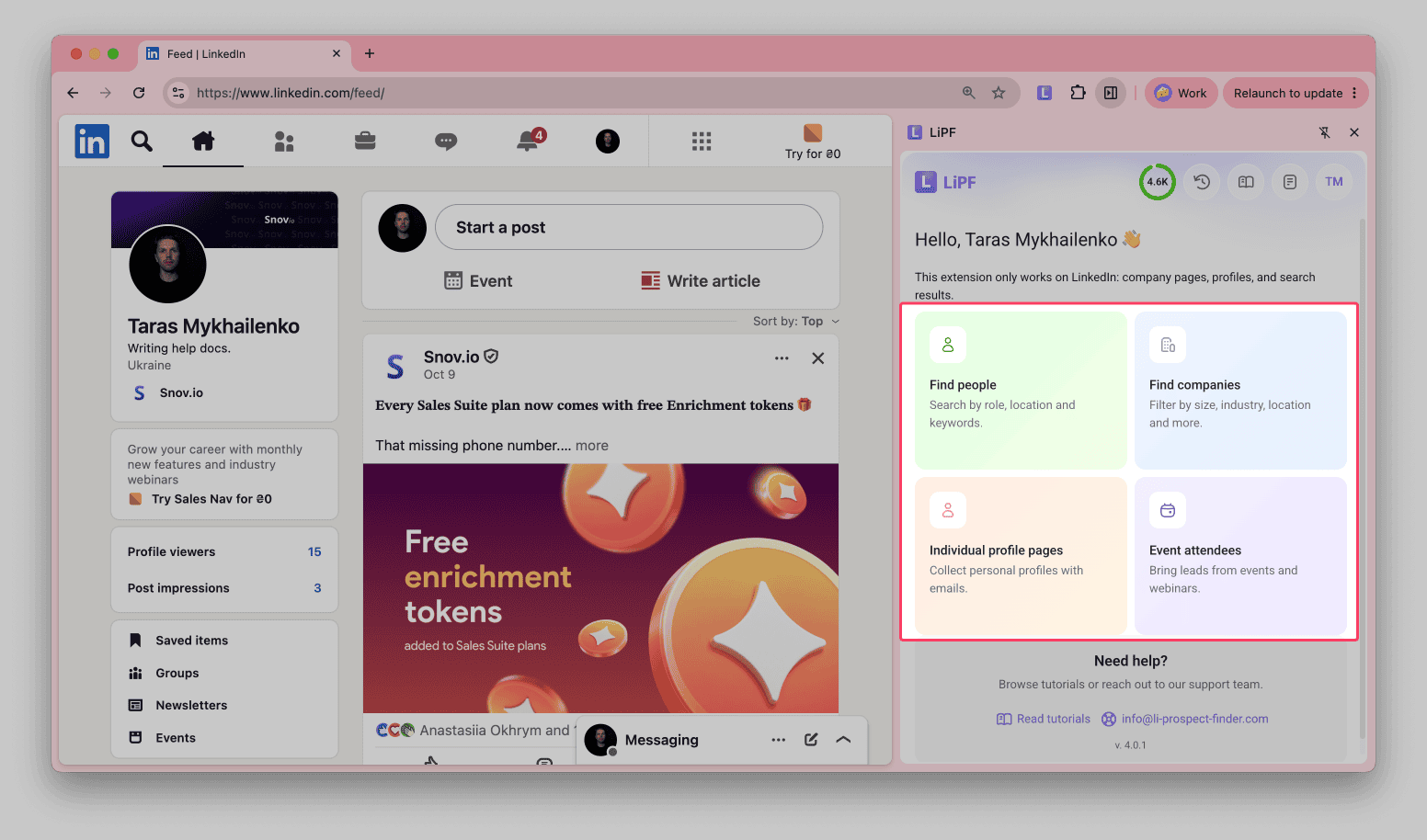
If you're not logged in to Snov.io, click Log in in the sidebar and sign in to your account.
To start saving leads, read this guide.
How to switch from a ZIP installation to automatic updates
If you installed LI Prospect Finder from a ZIP file, remove that version and install the extension from the Chrome Web Store.

Your saved prospects and lists stay in your Snov.io account.
Step 1. Remove the current version
Type chrome://extensions in the address bar, or click More > Extensions > Manage Extensions. Find LI Prospect Finder and click Remove.
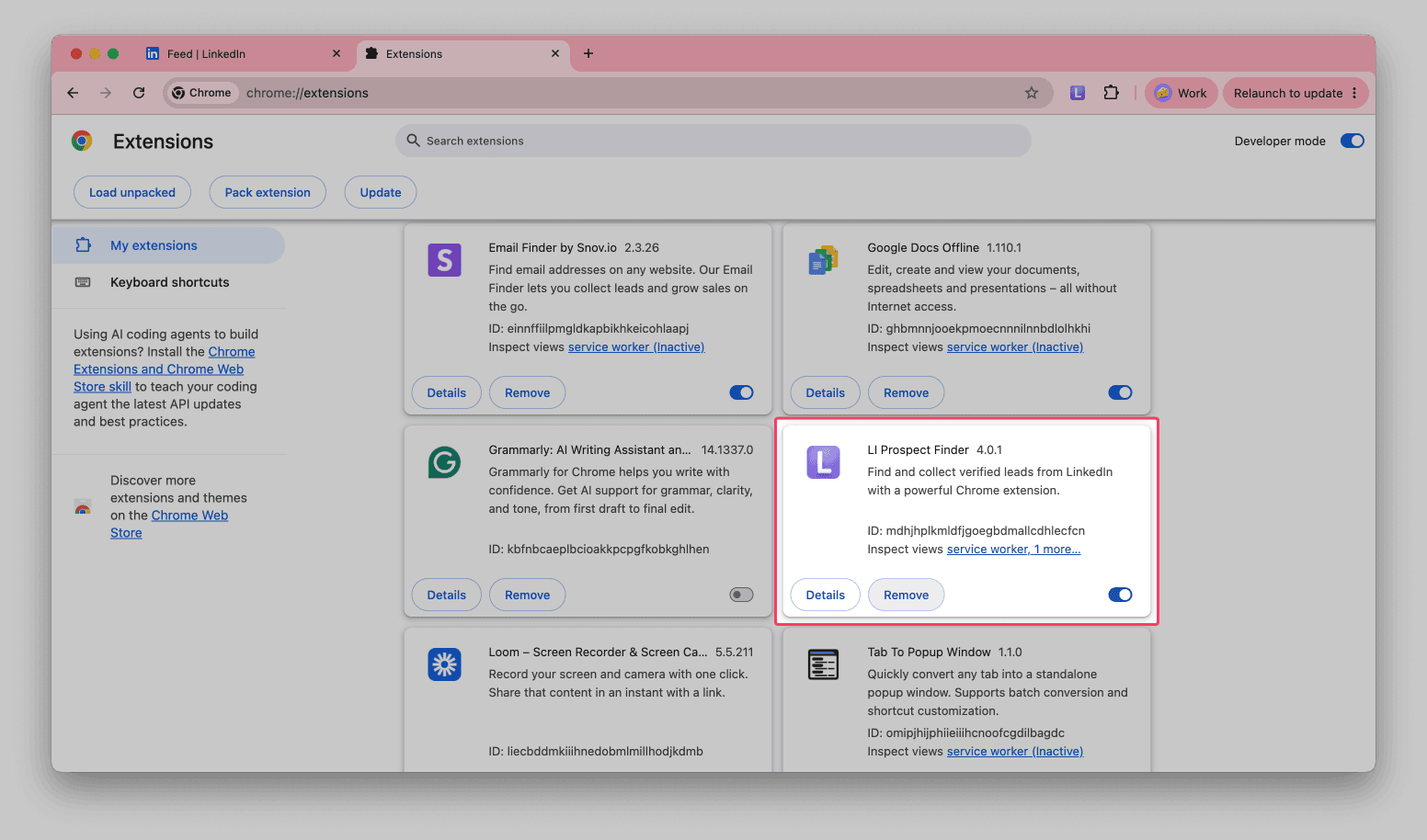
Step 2. Install the extension from the Chrome Web Store
Follow the steps in How to install LI Prospect Finder from the Chrome Web Store.
How to check your extension version
Open the sidebar on any LinkedIn page. The version number is shown at the bottom of the start screen, under Need help?
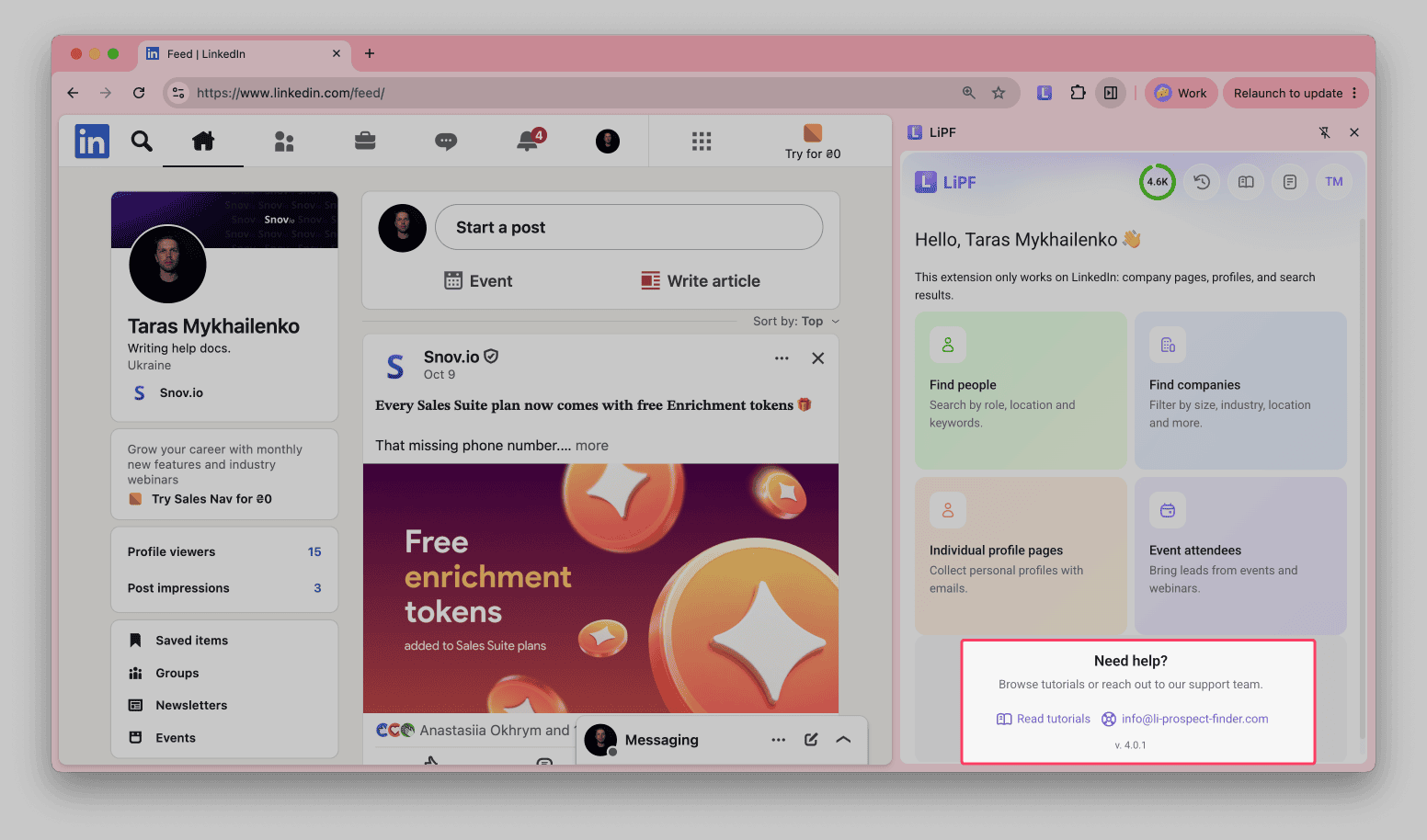
If a newer version is available, the sidebar shows its number.
Next steps
Once you save prospects with the extension, you can:
- Get more data: use Enrichment tools to find phone numbers, research prospects on the web in bulk, and add more personal and company insights to the default data, then use it all to generate outreach copy
- Start outreach: contact prospects with LinkedIn Automation, email campaigns, or multichannel sequences


Sorry about that 😢
How can we improve it?