This guide shows you how to connect the Jevu integration to Snov.io, so your call reports sync to your Snov.io prospects and deals.
What you get in Jevu with your Snov.io plan
How the Jevu and Snov.io integration works
Connect Jevu to Snov.io
Add Jevu to your meetings
Set up Jevu workspace for your Snov.io team
Update integration settings
Next steps
Jevu is an AI sales notetaker that joins your calls and provides summaries, key points, and action items after each call ends.
This lets you stay in the conversation instead of taking notes, and everything is saved in your Snov.io workspace.
Where this integration fits in your workflow
In Snov.io, you find and enrich leads, run outreach, and book meetings.
After the call, Jevu keeps your Snov.io deal up to date, so you move to the next step with the full context.

Before you start. To connect Jevu to Snov.io, you need:
1) A Jevu account. Sign in at app.jevu.ai with Google or email.
2) A prospect list in Snov.io. Jevu saves the contacts it syncs from your calls to this list. You choose it in the settings during setup.
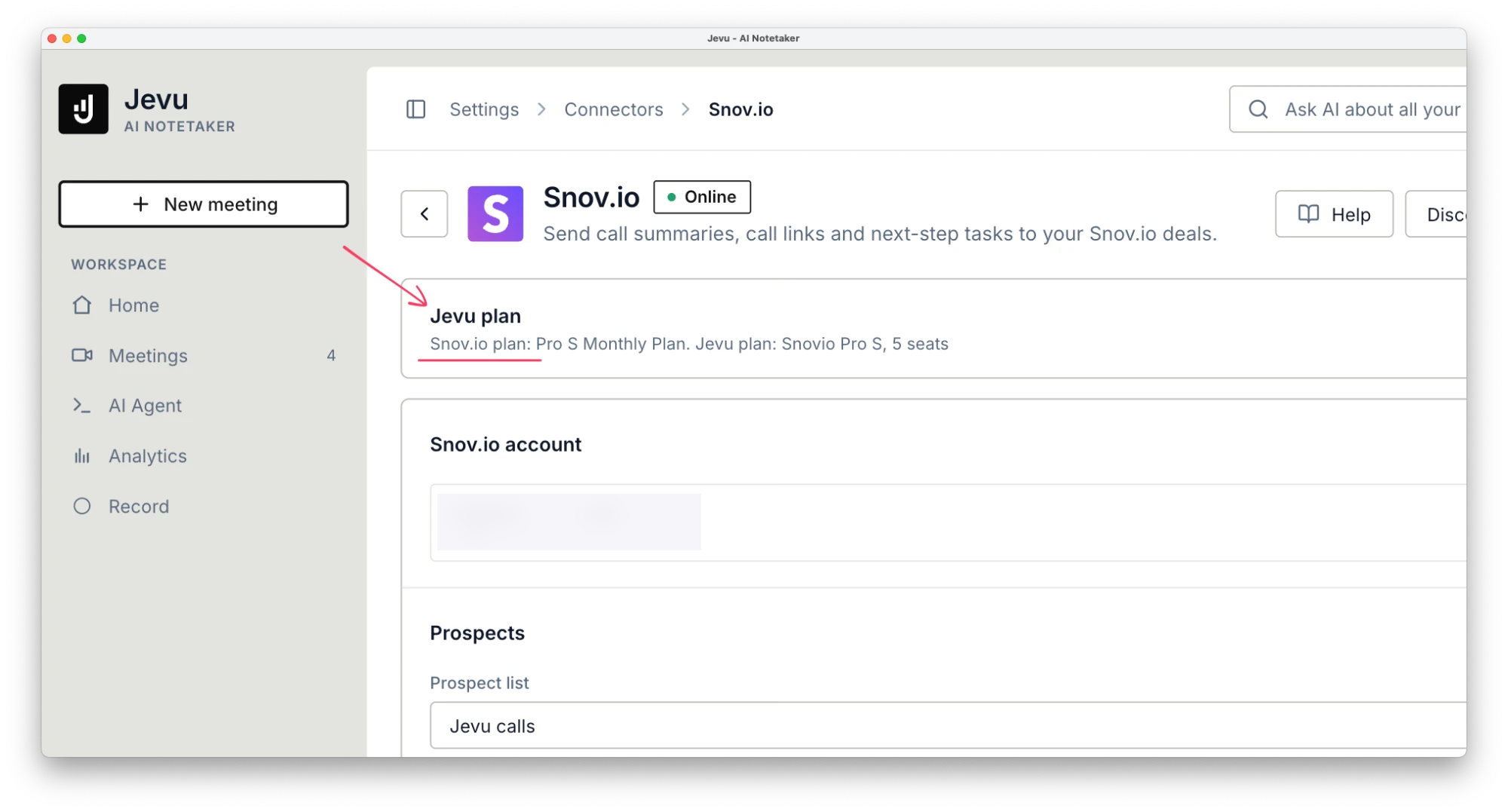
The integration works with any Snov.io account. A Snov.io plan adds free meeting minutes and, on paid plans, Jevu seats to your Jevu workspace.
What you get in Jevu with your Snov.io plan
Your Snov.io plan sets how many Jevu seats and meeting minutes your workspace gets. The minutes are shared by the whole workspace and renew every 30 days.
| Snov.io plan | Jevu seats | Meeting minutes per month |
|---|---|---|
| Free | 0 | 3,000 (50 hours) |
| Starter, $39 | 3 | 6,000 |
| Pro S, $99 | 5 | 12,000 |
| Pro M, $189 | 9 | 12,000 |
| Pro L, $369 | 12 | 18,000 |
| Ultra, $738 | 24 | 18,000 |
How the Jevu and Snov.io integration works
When connected, Jevu syncs the calls you choose to Snov.io. You decide which calls to sync: link a call to an existing deal, or send it to Snov.io to create a prospect and a deal. If a deal for the same email already exists, Jevu updates it.
Jevu also lets you ask AI about any call: what was discussed, what the next steps are, or how to follow up with the lead. This helps you finish post-call work faster.
From there, assign tasks for team members and let them see the deal context right away.
Connect Jevu to Snov.io
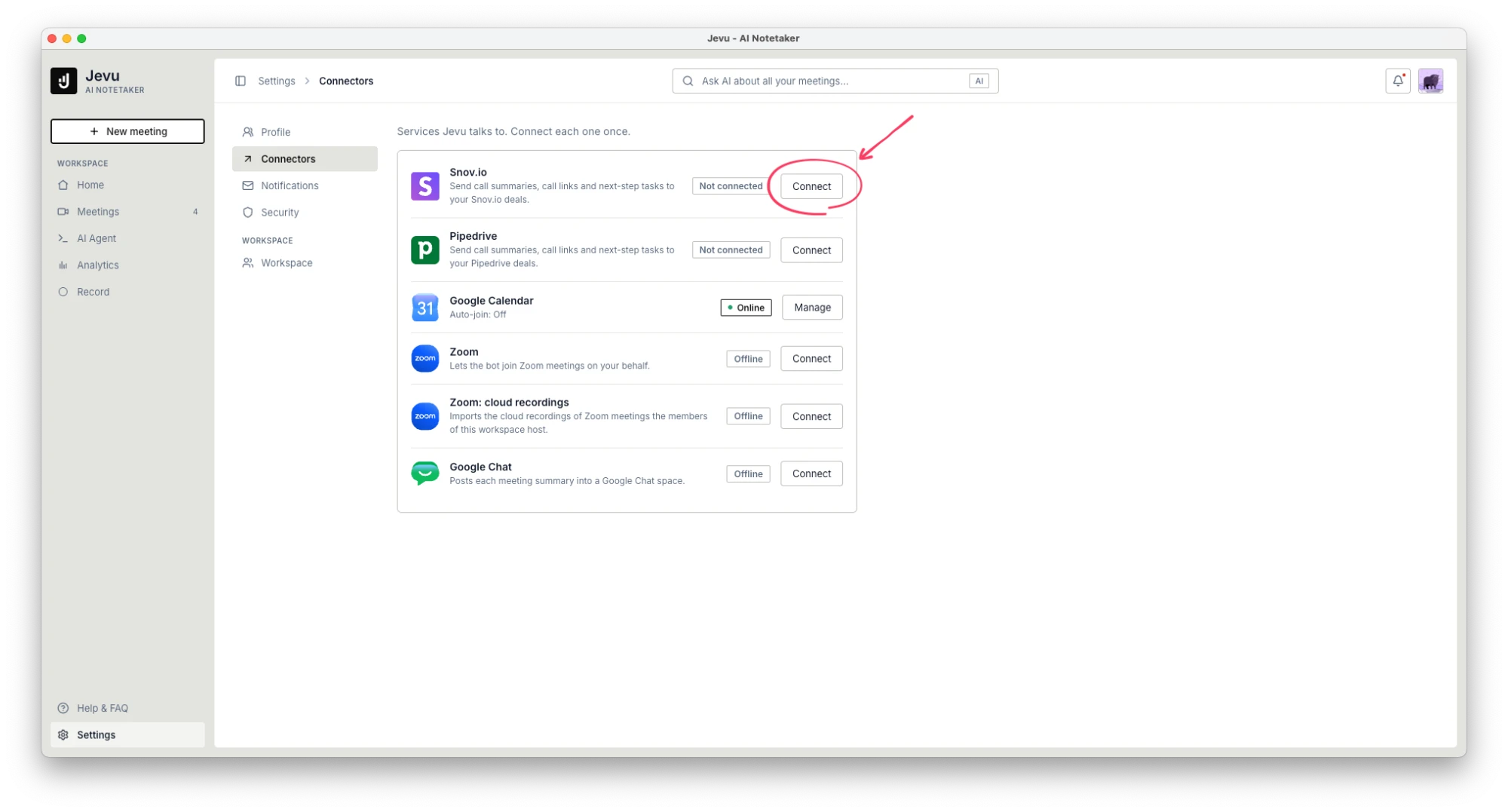
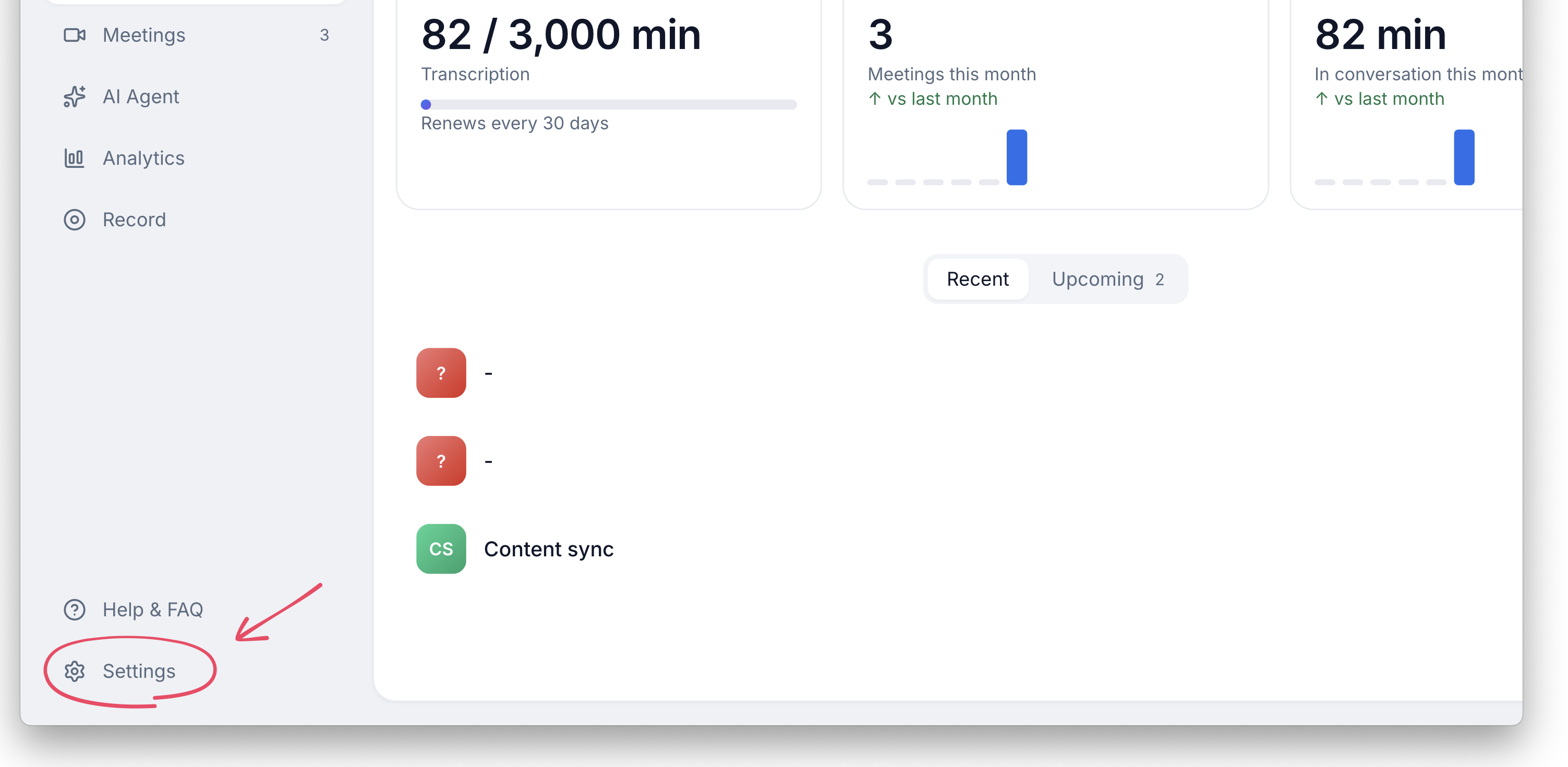
- In Jevu, open Settings and go to Connectors.
- Find Snov.io and click Connect.
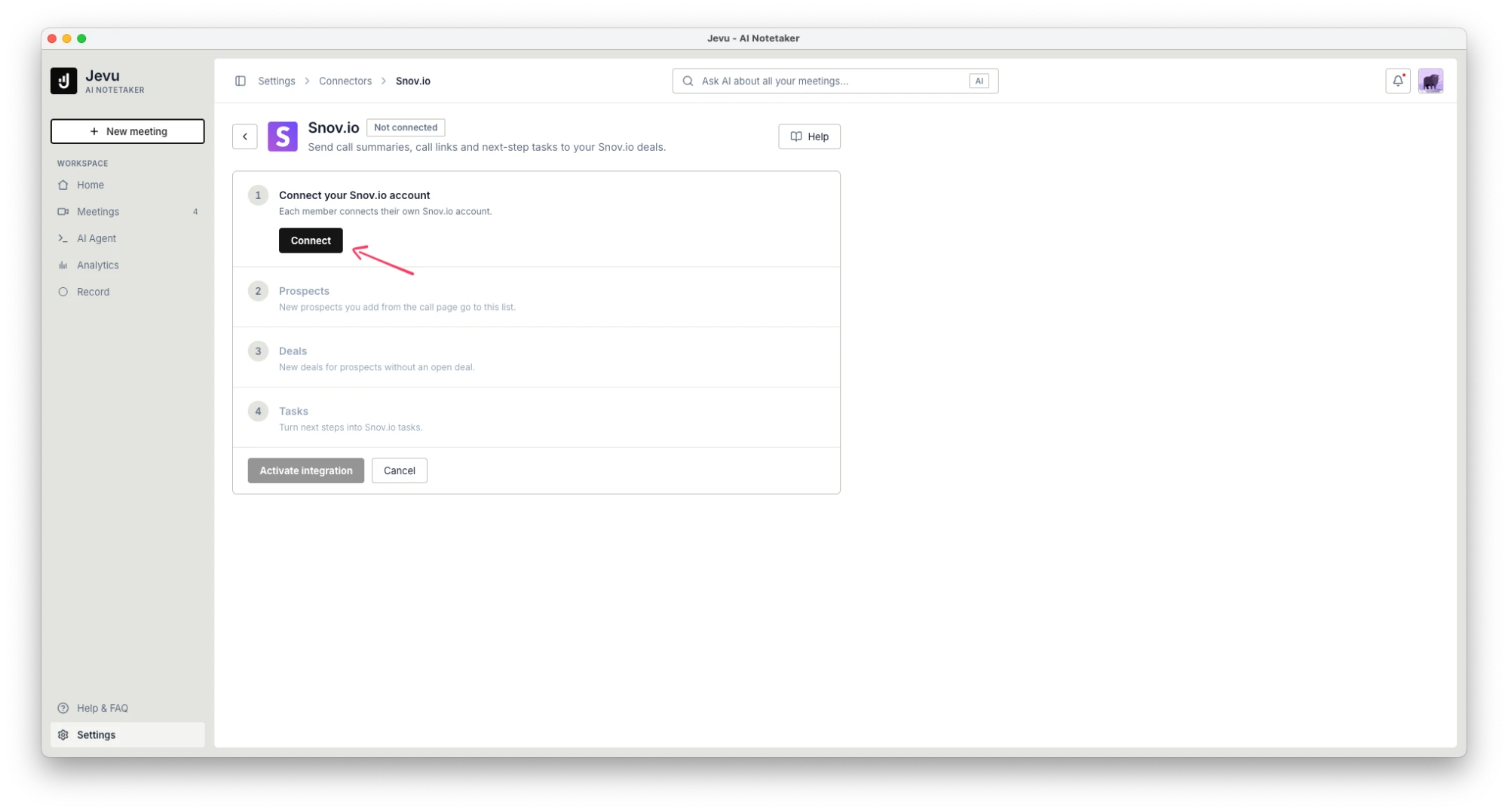
- On the next page, click Connect.
- Sign in to Snov.io if you aren't already, then click Approve.
You don't need to copy any API keys. The connection runs through the Snov.io approval screen.
Set up integration settings
Configure how Jevu syncs calls to Snov.io:
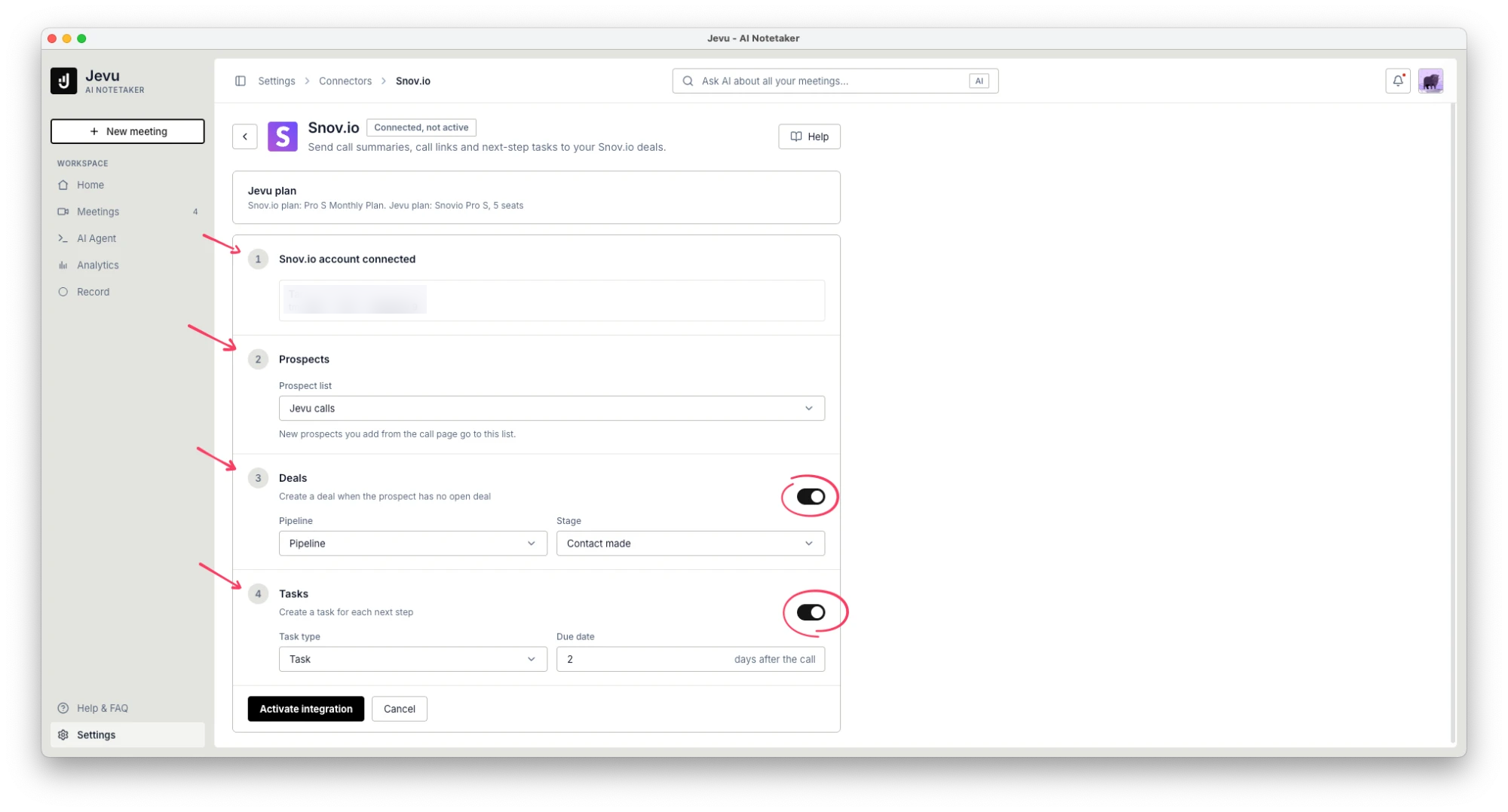
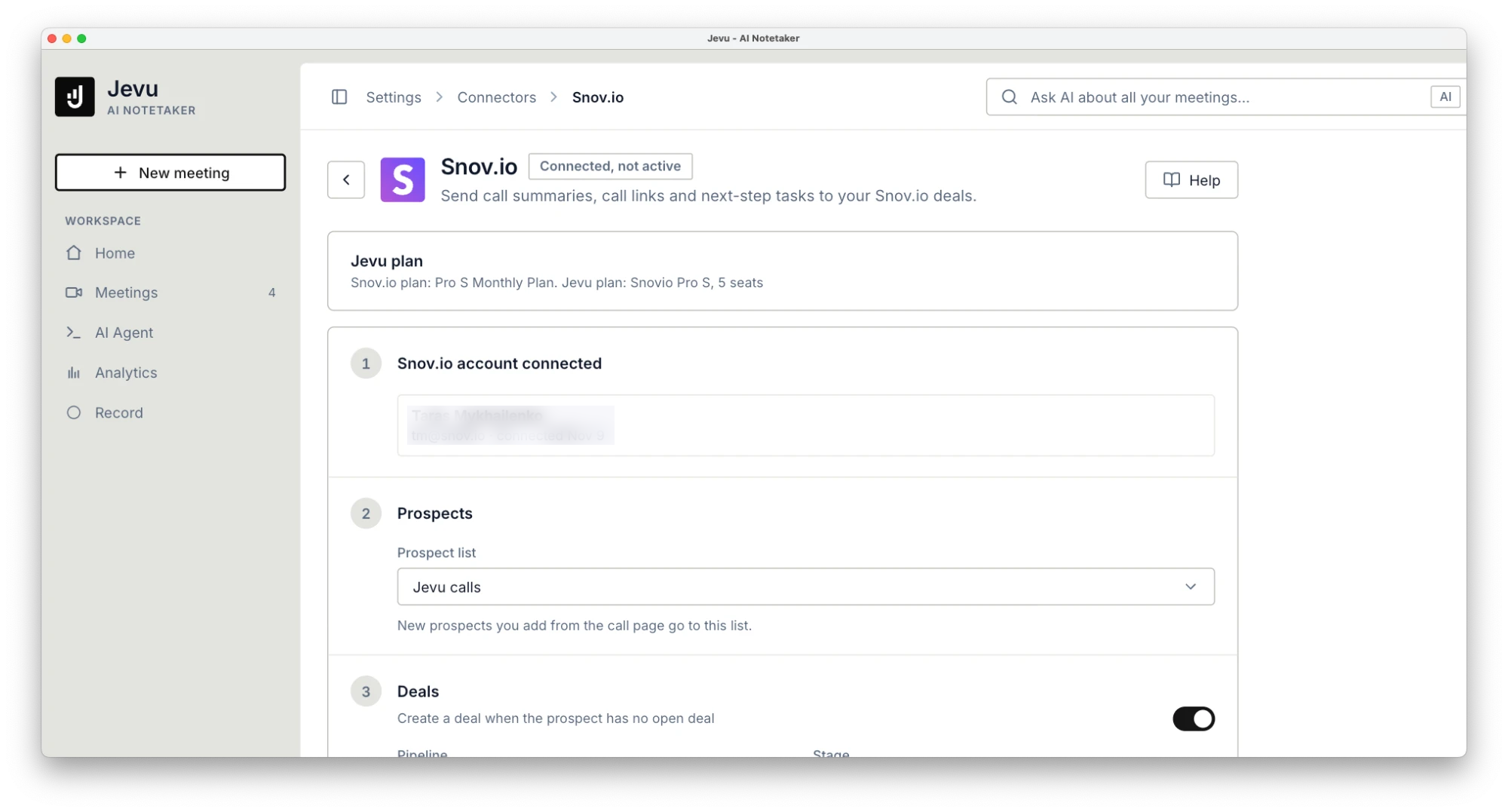
Prospects.
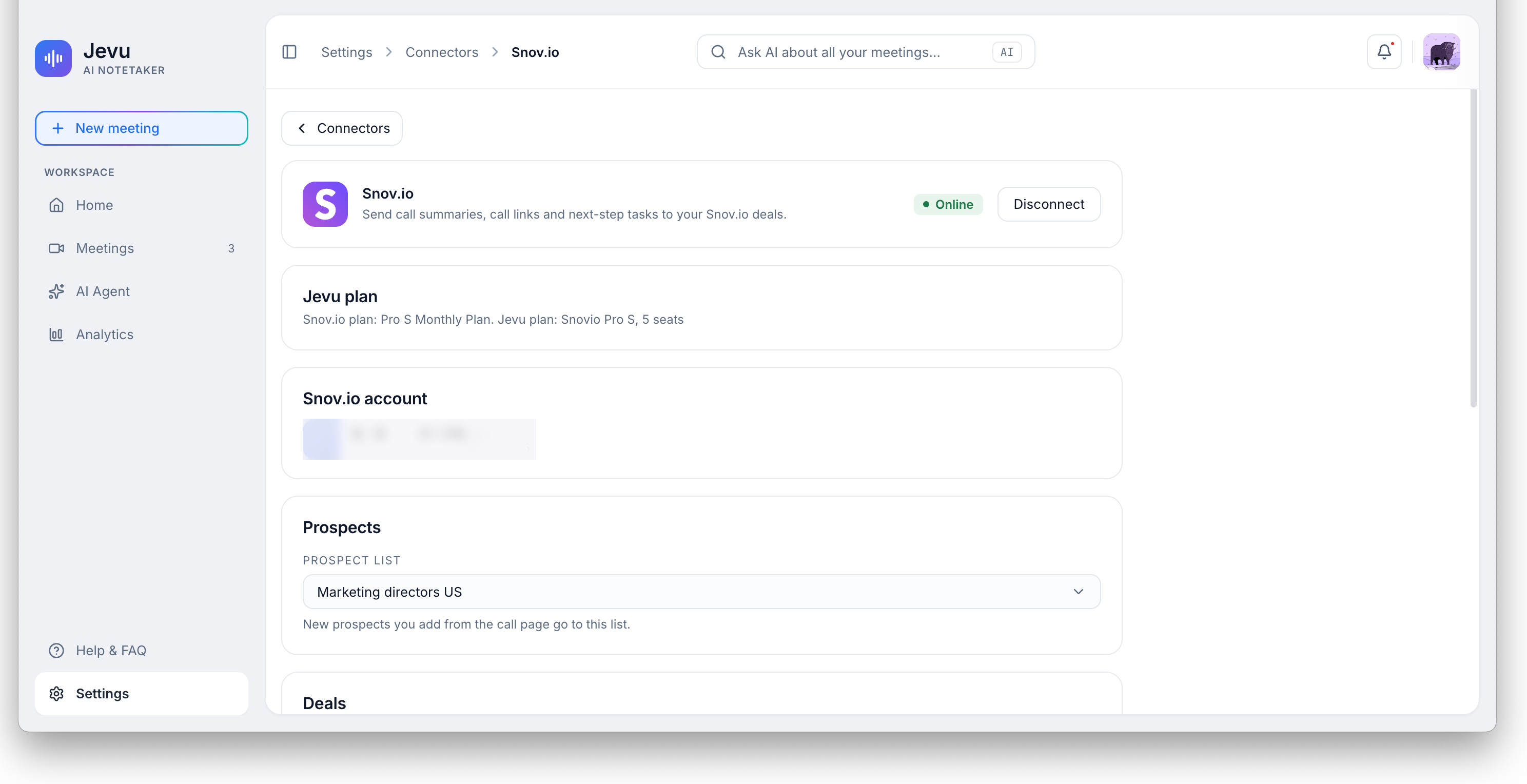
Pick a Prospect list. New contacts that Jevu adds from a call page go to this list.
Deals.
Turn on deal creation to let Jevu create a deal during sync when the prospect has none. Then choose:
- Pipeline. The pipeline for the new deal.
- Stage. The stage where the new deal starts.
If you leave this off, Jevu adds the note and tasks to the prospect profile instead.
Tasks.
Turn on task creation to let Jevu add each action item from the call as a task in Snov.io. Tasks are assigned to you and linked to the deal and the prospect. Then set the Due date, the number of days after the call. The default is 2.
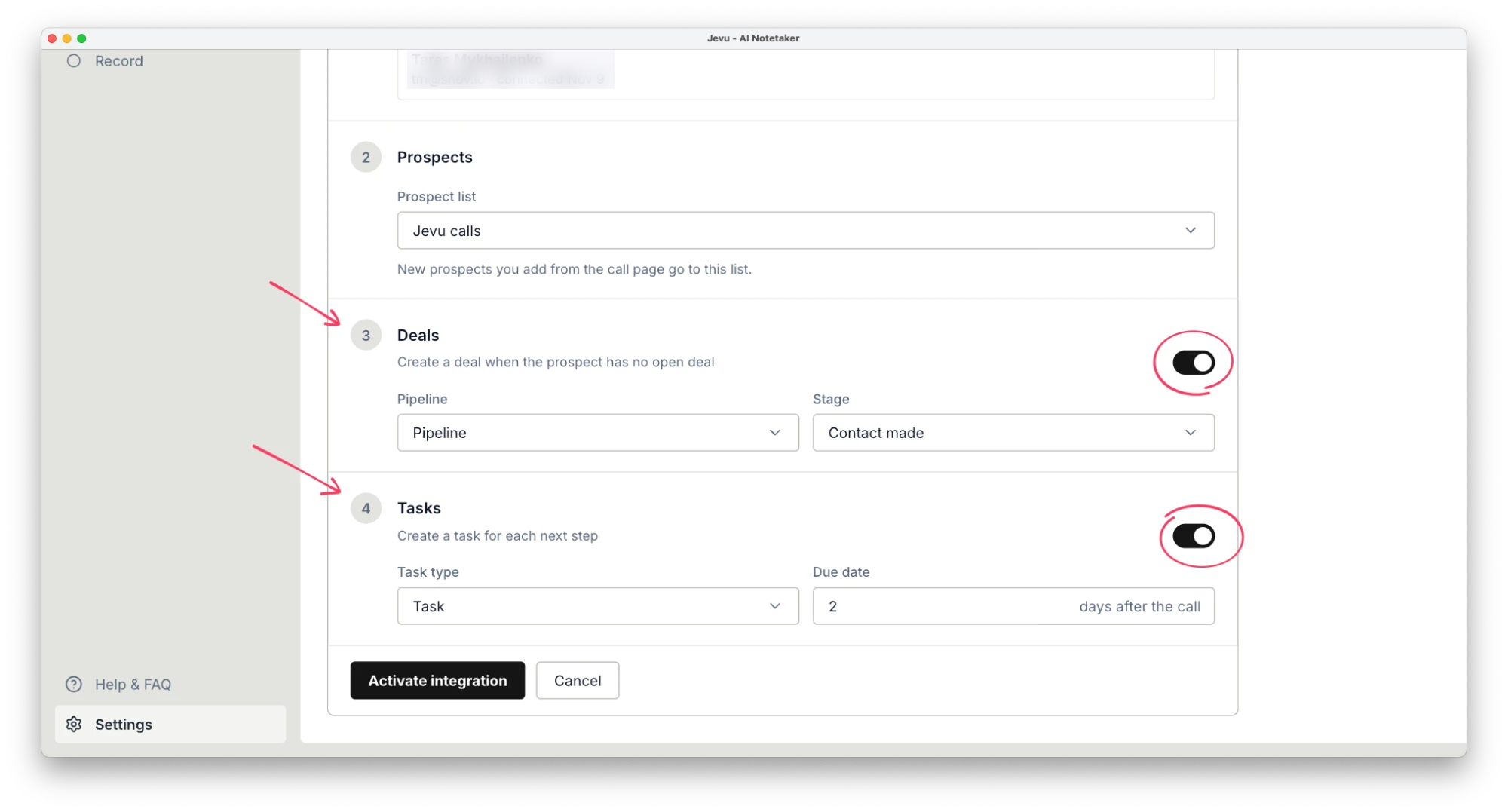
Activate the integration
Click Activate integration to finish the setup.
Add Jevu to your meetings
To get calls recorded, connect the tool you use for meetings on the same Connectors page:
- Google Calendar. Adds the bot to your Google Meet meetings automatically.
- Zoom. Lets the bot join Zoom calls.
- Zoom: cloud recordings. Imports your team's recordings.
To add the bot to a single meeting manually, see the Help & FAQ page inside Jevu.
Set up Jevu workspace for your Snov.io team
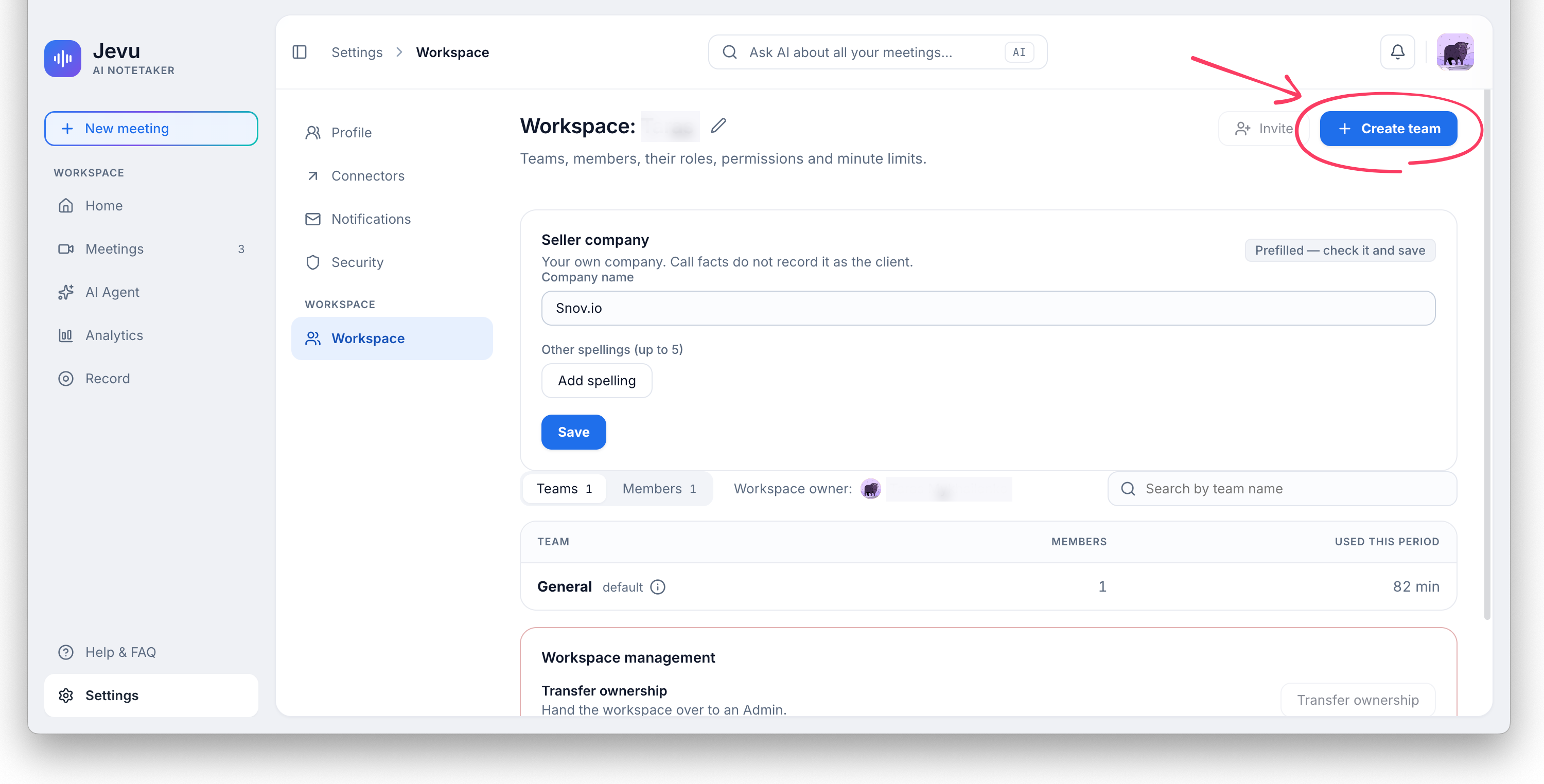
Teamwork is available when you connect Jevu from a paid Snov.io plan, or if you have a paid Jevu plan. To create teams and invite members, go to Settings → Workspace in Jevu.

To manage your team, use the Teams and Members tabs.
Update integration settings
To change the settings you chose during setup, go to Settings → Connectors and click Manage next to Snov.io.
Next steps
Once the integration is active, you can push Jevu call summaries to your deals in Snov.io.
Each time you push a call, Jevu adds this to your Snov.io workspace:
- A Note on the deal with the overview, key points, action items
- A deal and a prospect for contacts who aren't in your CRM yet. To get them, turn on deal creation in the integration settings.
- A task for each action item, assigned to you. To get tasks, turn on task creation in the integration settings.
To learn how to push a call to a deal, see this guide: How to sync Jevu calls to Snov.io deals


Sorry about that 😢
How can we improve it?