This guide shows you how to send a call recorded in Jevu to the deal in Snov.io, so your pipeline reflects full context of your meetings with leads.
Where Jevu fits in your Snov.io workflow
Set up a meeting in Jevu
What you get after a call
Sync a call summary to Snov.io
What data Jevu syncs to Snov.io
Use notes from Jevu in your sales workflow
Next steps
Jevu is an AI sales notetaker that joins your calls and gives you a summary, key points, and action items after each call.

Before you start. To sync calls to Snov.io, make sure you have:
1) The Snov.io & Jevu integration is active. Follow this guide if you haven't set it up.
2) At least one recorded call in Jevu.
Where Jevu fits in your Snov.io workflow
In Snov.io
Snov.io handles the steps up to the meeting: finding and enriching prospects, running outreach, and handling replies in Unibox.
- Find. Build a prospect list with Database Search or Domain Search.
- Enrich. Add emails, phone numbers, and company data to the list, research your prospects with AI, and write personalized messages.
- Reach out. Run an email or LinkedIn campaign to the list.
- Reply. A prospect answers in Unibox and agrees to a call.
- Follow up. The next person on the deal reads the note and continues from there.
In Jevu
The meeting itself is where most of the useful information appears, and it's usually the part that never reaches the CRM. Jevu records that part and syncs it to Snov.io.
- Analyze live conversations. Jevu's bot joins the call and records it.
- Sync to Snov.io. The summary and action items go to the deal in your CRM.
Set up a meeting in Jevu
Future meetings
If you connected Google Calendar or Zoom in the connector settings and the call comes from your calendar, Jevu picks it up on its own.
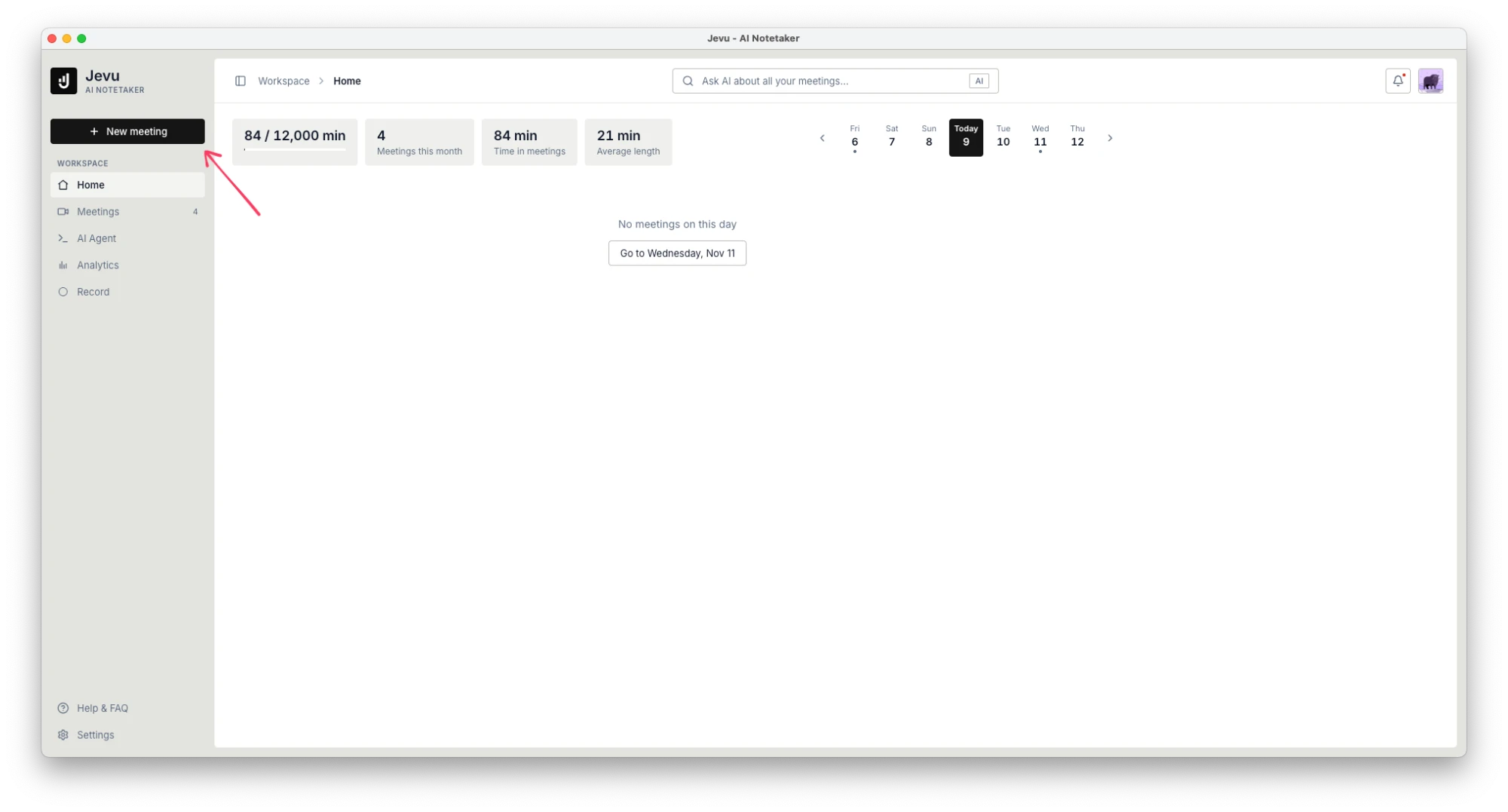
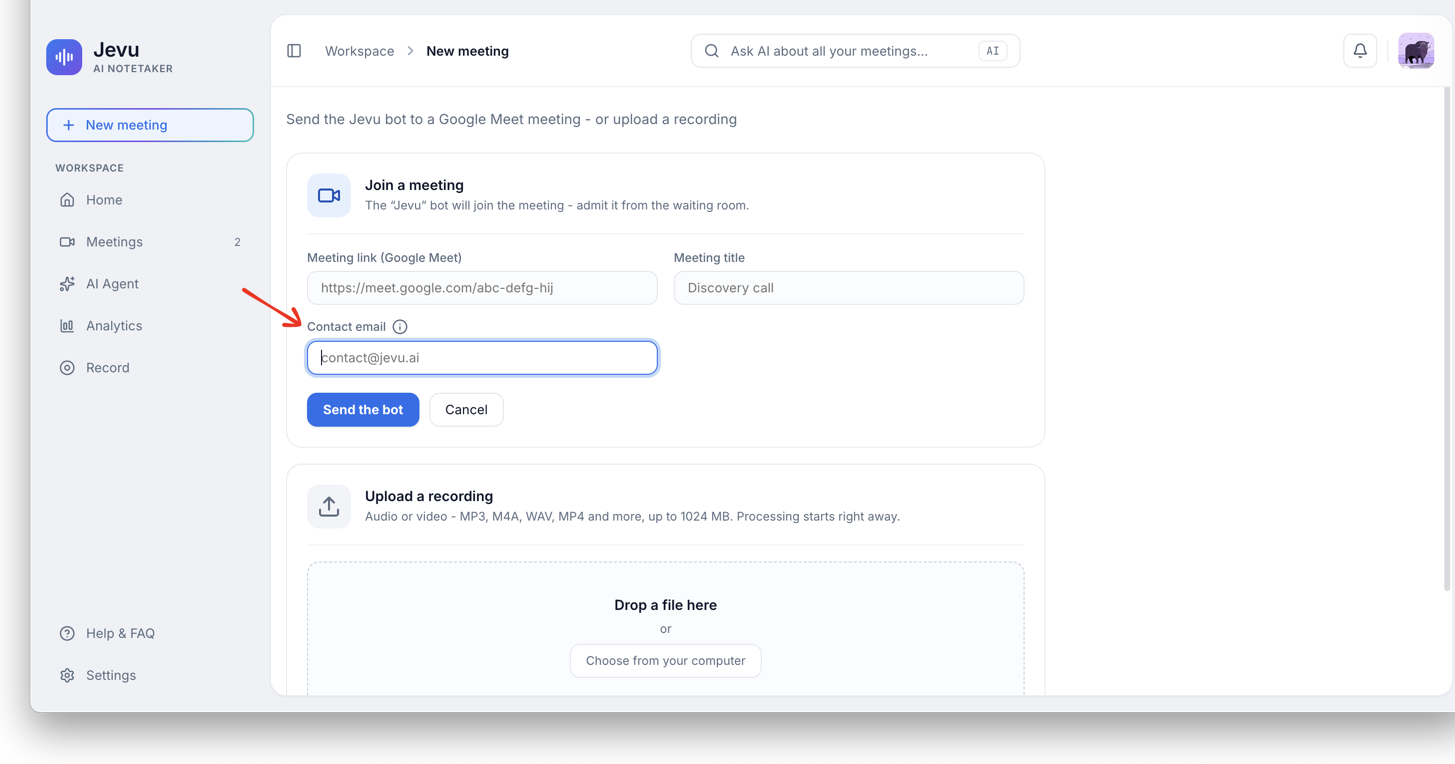
If you send the bot manually, click New meeting and fill in the form:
- Paste the Meeting link (Google Meet).
- Add a Meeting title, for example "Discovery call".
- Enter the prospect's address in Contact email.
- Click Send the bot, then admit it from the waiting room.
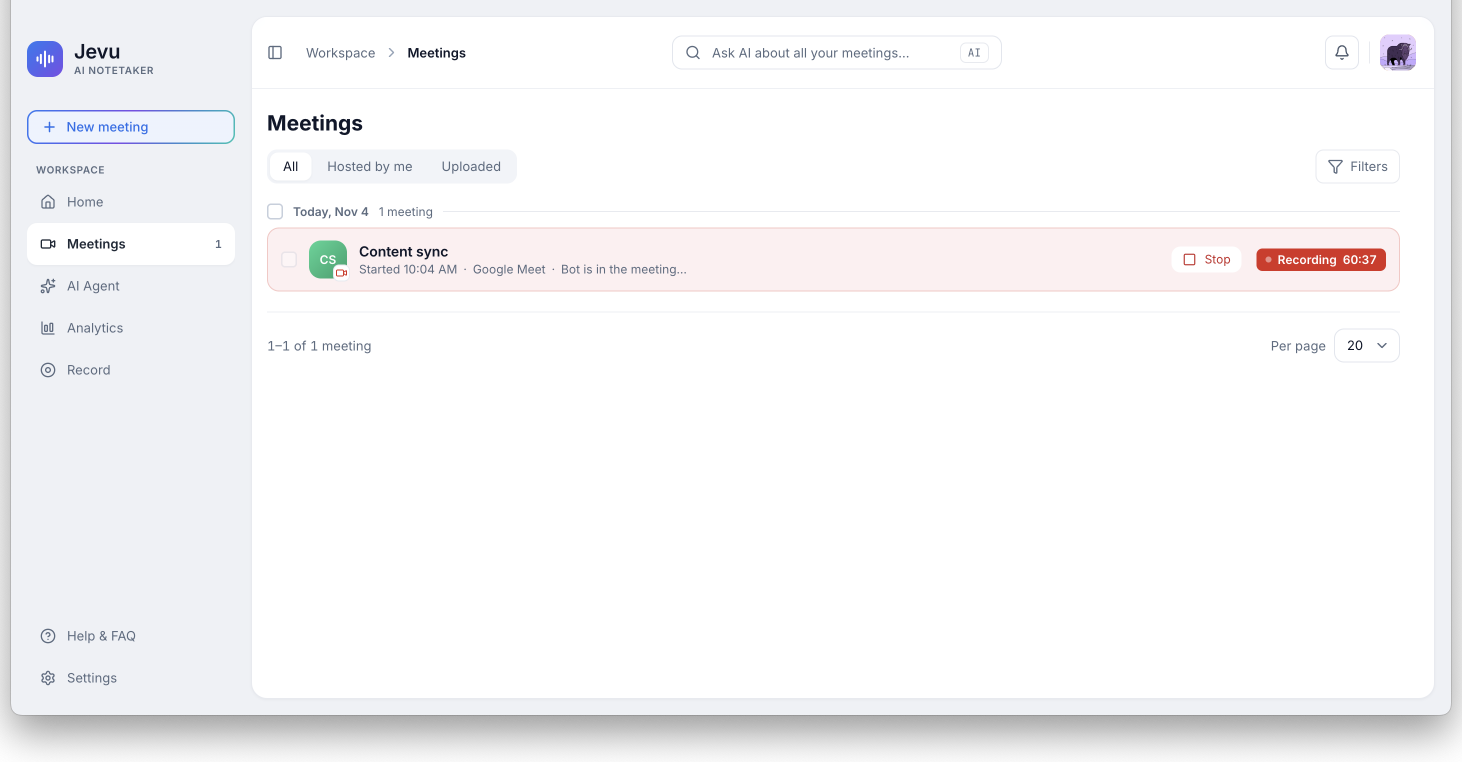
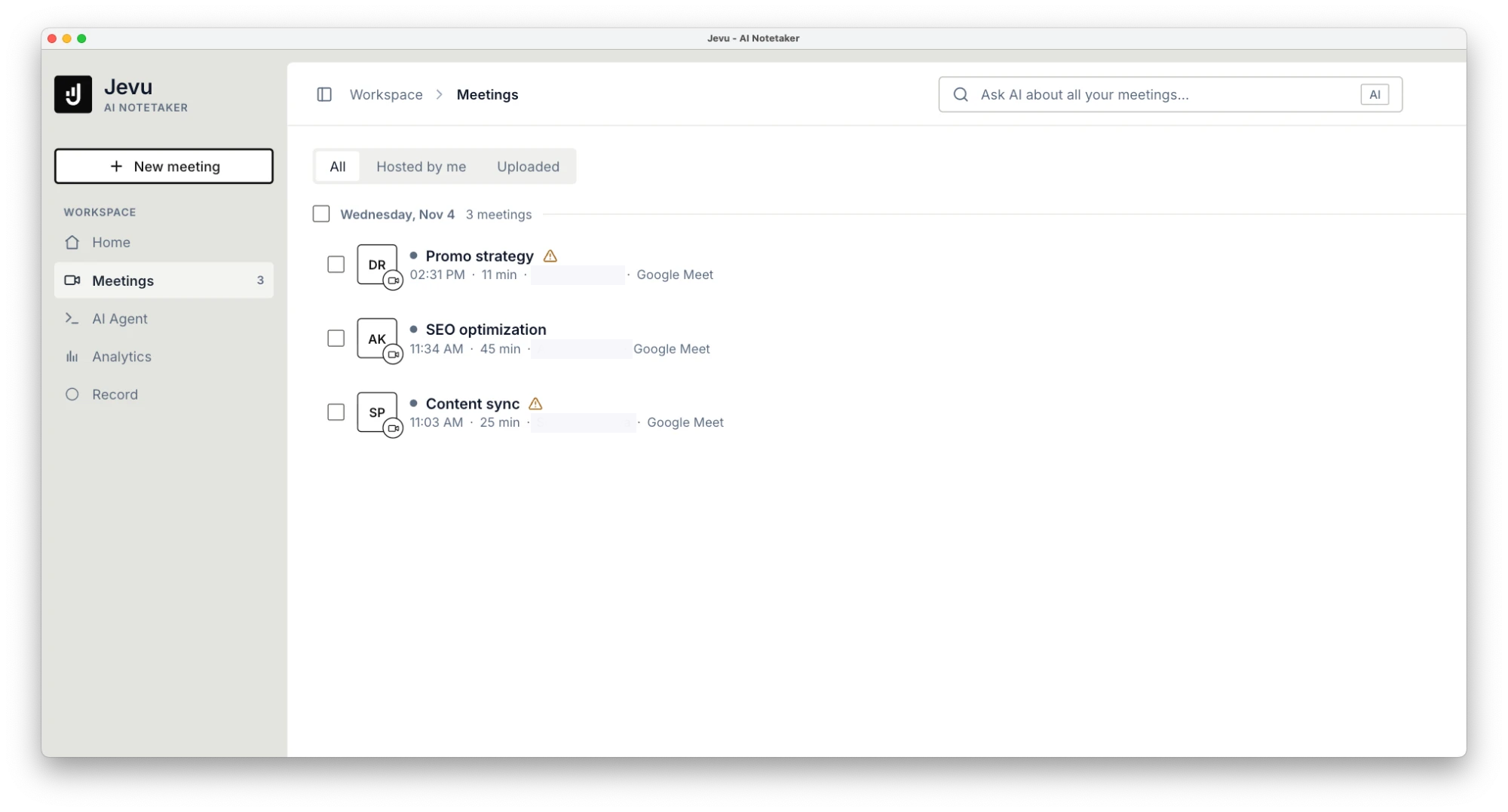
While the call runs, it appears in the Meetings list.
Past meetings
If you have past recorded meetings, you can upload them manually instead of sending the bot. The same form accepts audio or video files such as MP3, M4A, WAV and MP4, up to 1024 MB.
What you get after a call
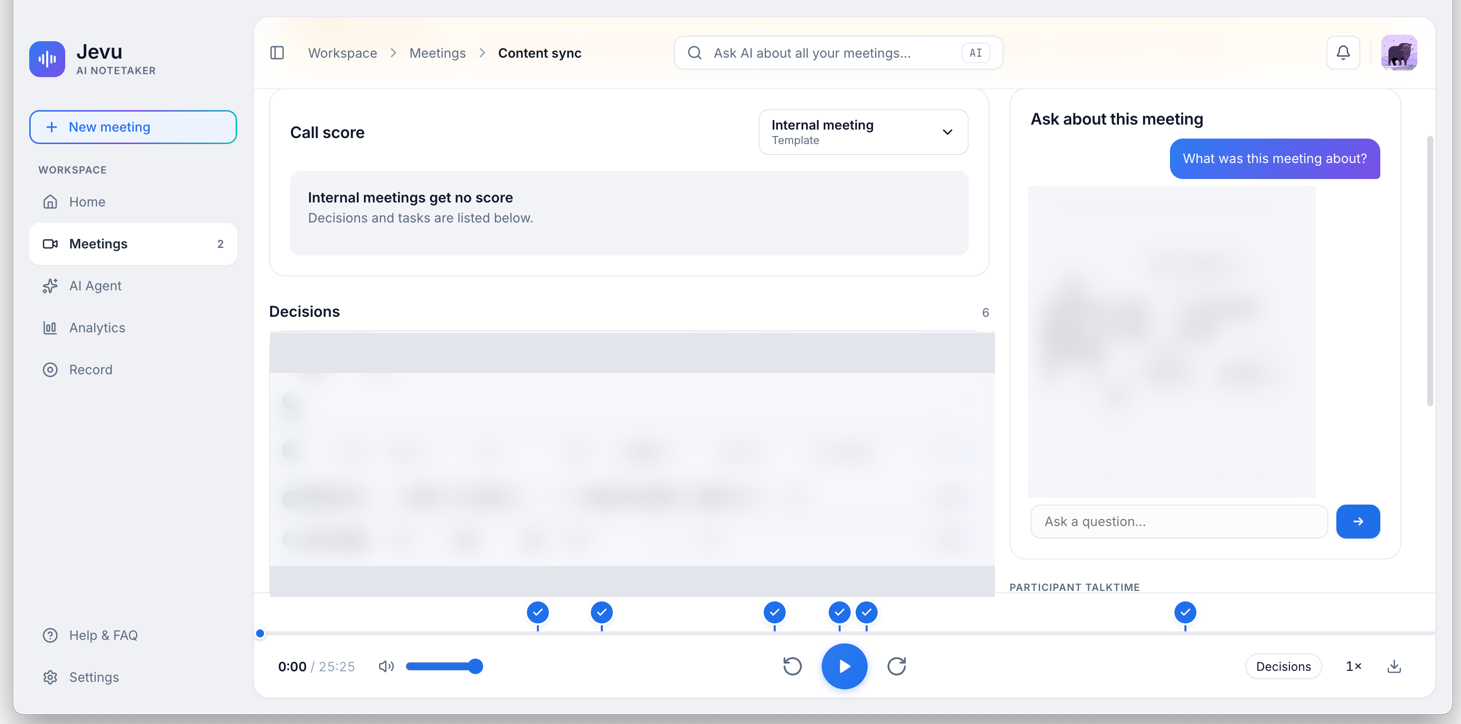
When a call ends, Jevu gives you a call analytics dashboard with three tabs:
- Summary. A written overview, in the language of the meeting, plus talk time for each participant.
- Transcript. The full text, linked to the recording.
- Analysis. Decisions and tasks from the call. For sales calls, a call score based on the template you choose. Internal meetings get no score.
All of this stays in Jevu. Snov.io receives only a note with the overview, key points, and action items, plus a link back to the call page.
You can also ask Jevu AI questions about the call, for example what was discussed, which next steps were agreed, or what to discuss in the follow-up. The answers help you complete post-call tasks faster.
Sync a call summary to Snov.io
A call stays in Jevu until you sync it manually.
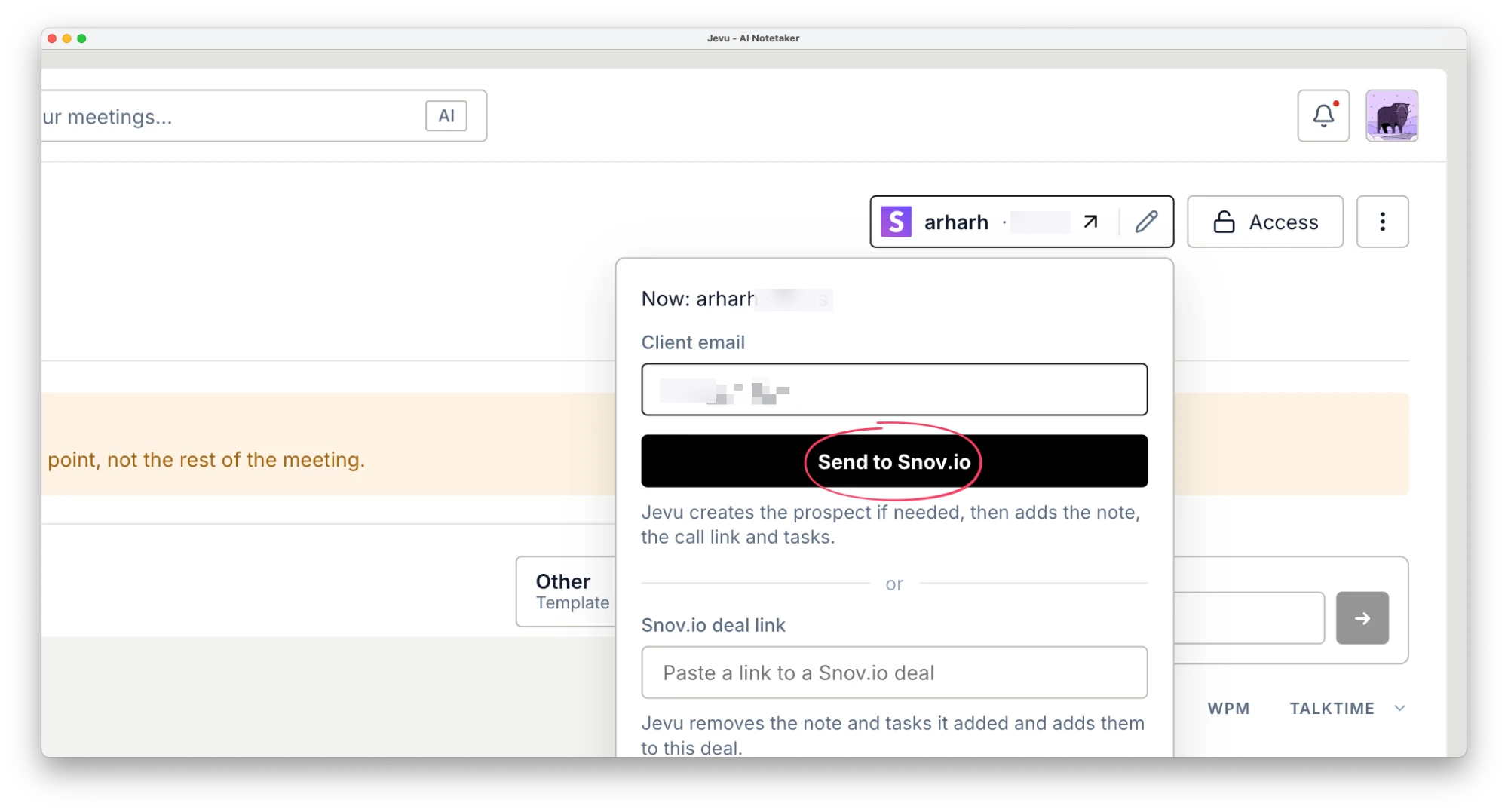
Go to Meetings and select the call you want to sync. Look for the Not in Snov.io chip in the top right corner. It means the call hasn't been synced yet. Click it to open the sync menu.
Choose the call sync option
The sync menu has two options. Pick the one that matches whether the lead already has a deal.
Send to Snov.io - create a new prospect and a new deal
Use it when the person is a new contact with no deal yet.
- In the sync menu, choose Send to Snov.io.
- In Client email, enter the prospect's email address.
The new prospect goes to the list you chose in the connector settings. The prospect profile is created with the email you entered, and a deal is created with the call note. If a deal for this email already exists, Jevu updates it instead.
To get the deal, turn on Create a deal when the prospect has no open deal in the connector settings.
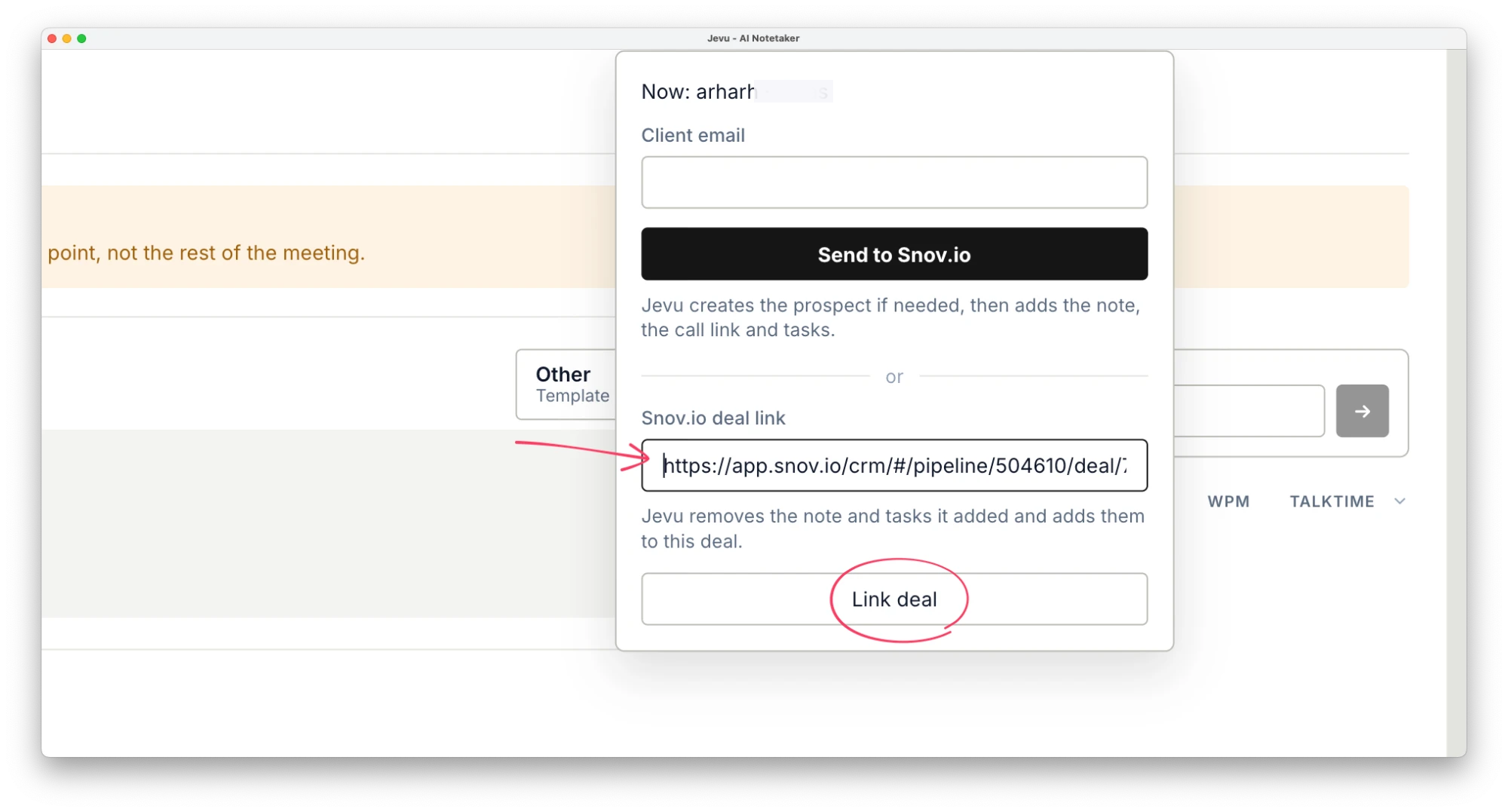
Link deal - add the call to an existing deal
Use it when the lead already has a deal.
- In Snov.io, go to your deals, open the deal, and copy its link from the browser address bar.
- In Jevu, go to Meetings and select the call related to that deal.
- In the sync menu, paste the link into Snov.io deal link and click Link deal.
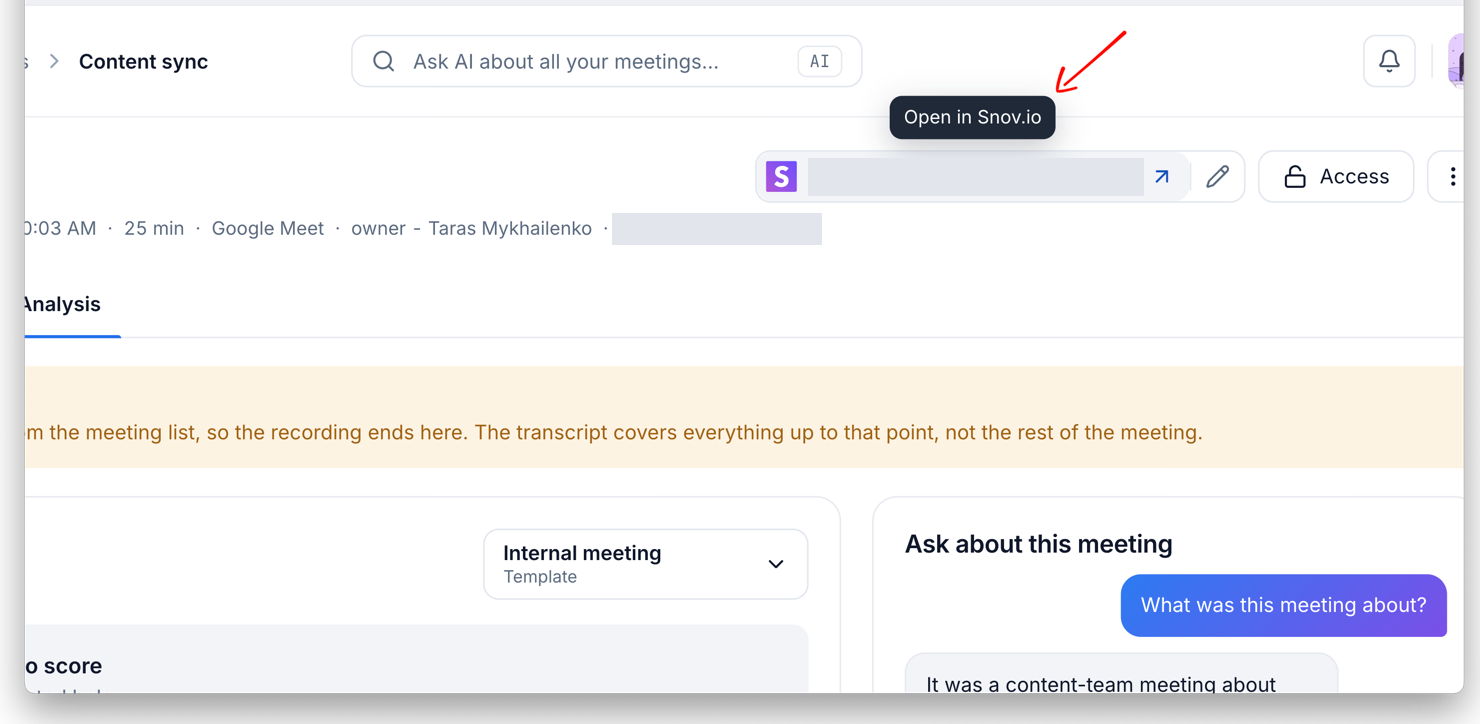
To move the call to a different deal, click the pencil icon next to the deal name on the call page and paste the link to the other deal. Jevu moves the note, and any tasks it added, from the first deal to the new one.


If the call already has a note in Snov.io, linking it again replaces that note instead of adding a second one.
What data Jevu syncs to Snov.io
Snov.io adds entries to a deal's timeline when you create or change the deal, or when certain activities happen. Jevu adds the call summary to the deal's notes.
Before the sync, the timeline holds only the entries Snov.io creates itself, and the Notes and Tasks counters show 0.
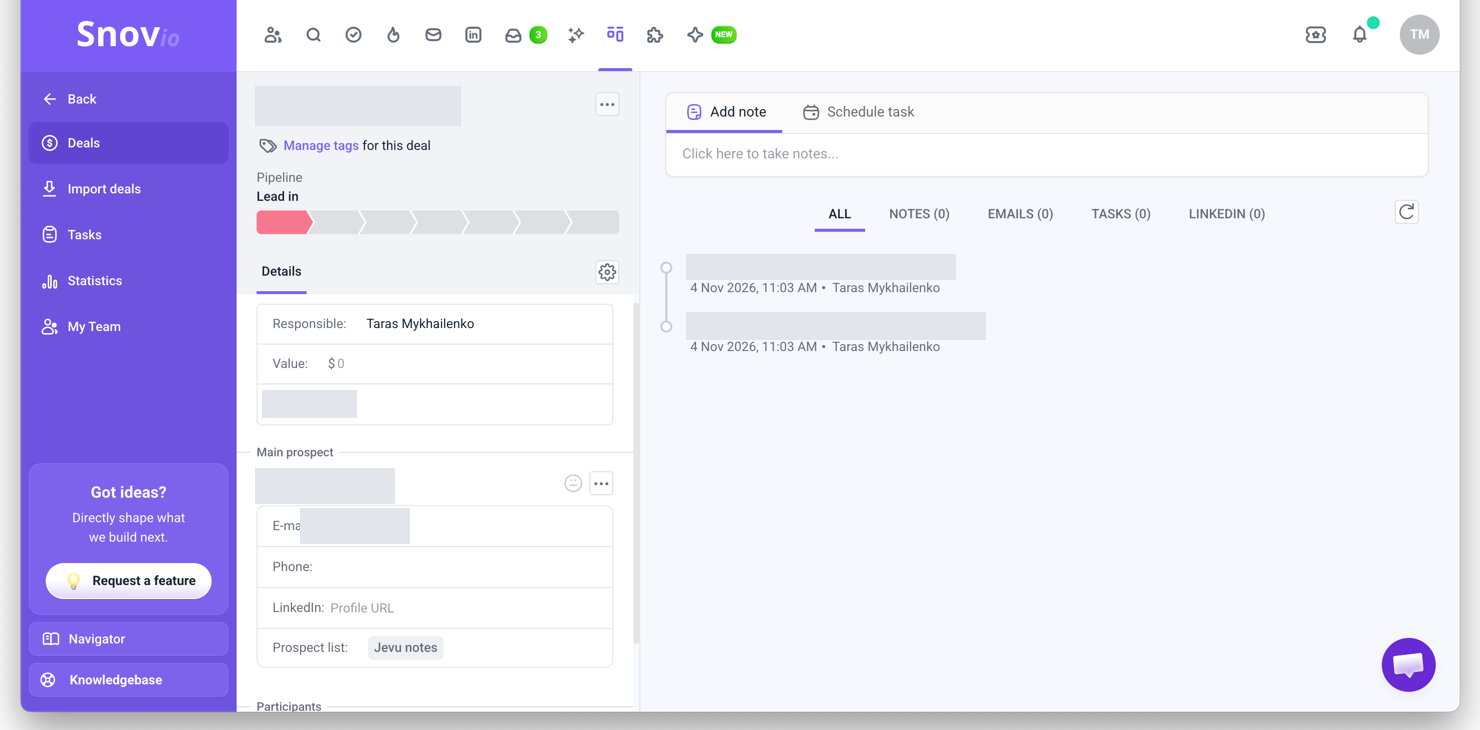
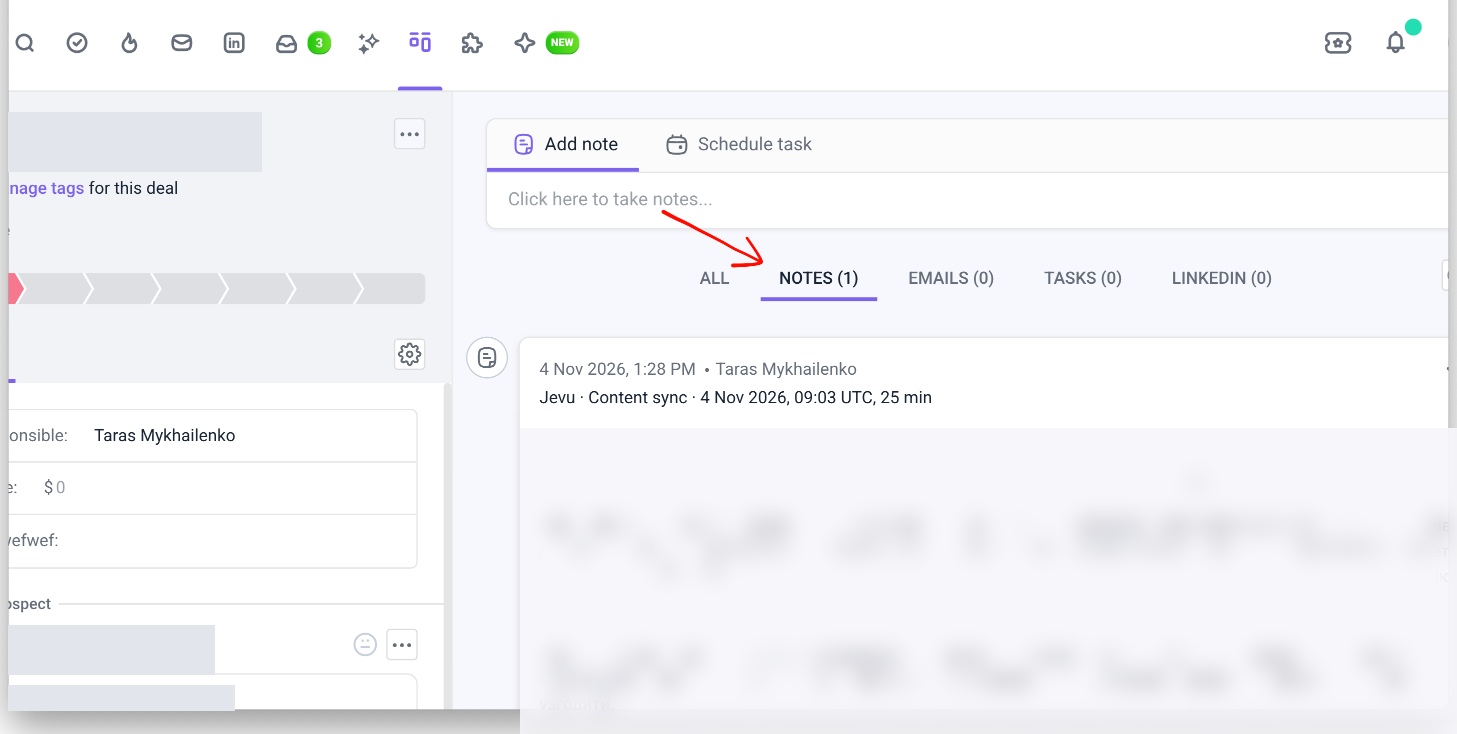
After the sync, open the deal in your CRM and go to the Notes tab.
Here's what Jevu syncs to Snov.io:
- Header. The call title, date, time, and length.
- Overview. A short summary of the call.
- Key points. The main topics and decisions.
- Action items. The tasks agreed on the call, each starting with the name of the person responsible.
Use notes from Jevu in your sales workflow
Two ways to use the synced note:
Hand a lead from SDR to account executive
An SDR links a discovery call to the deal. The account executive reads the note and starts the next call with full context.
Write a follow-up with a meeting context
Open the deal and use the note's action items to write your follow-up email.
Next steps
Now that the call context is in the deal, enrich your next leads and start outreach in Snov.io.


Sorry about that 😢
How can we improve it?