
Statista reports that 58% of marketers already choose email as the #1 channel they automate. Yet, it’s hard to imagine the tool that would solve all the email automation tasks impeccably. n8n is the service that solves this problem pretty well.
In this guide, you’ll learn how to build n8n email automation workflows step by step.
TL;DR:
n8n connects the tools you use for email outreach into a single workflow using nodes. Each node performs a specific task and passes its output to the next one, so data moves between your apps automatically, with manual work required on your end.
| How to build an effective n8n email automation workflow? | |
|---|---|
| Common n8n email automation use cases |
|
| n8n email automation examples |
|
| Some n8n email automation best practices |
|
| Key n8n limitations |
|
Keep reading to build your very first email automation workflow with n8n.
What n8n brings to email automation
n8n is a fair-code licensed automation tool that connects your platforms and lets data move between them on its own. The platform works through nodes (the individual building steps in an n8n workflow). Each node handles a specific task and passes its output to whatever comes next.
Take a lead generation platform like Snov.io, for example. Connected to n8n, it can find, verify, and enrich business contacts, then send that data straight into tools like Google Sheets, HubSpot, Salesforce, or Slack, with no manual entry involved.
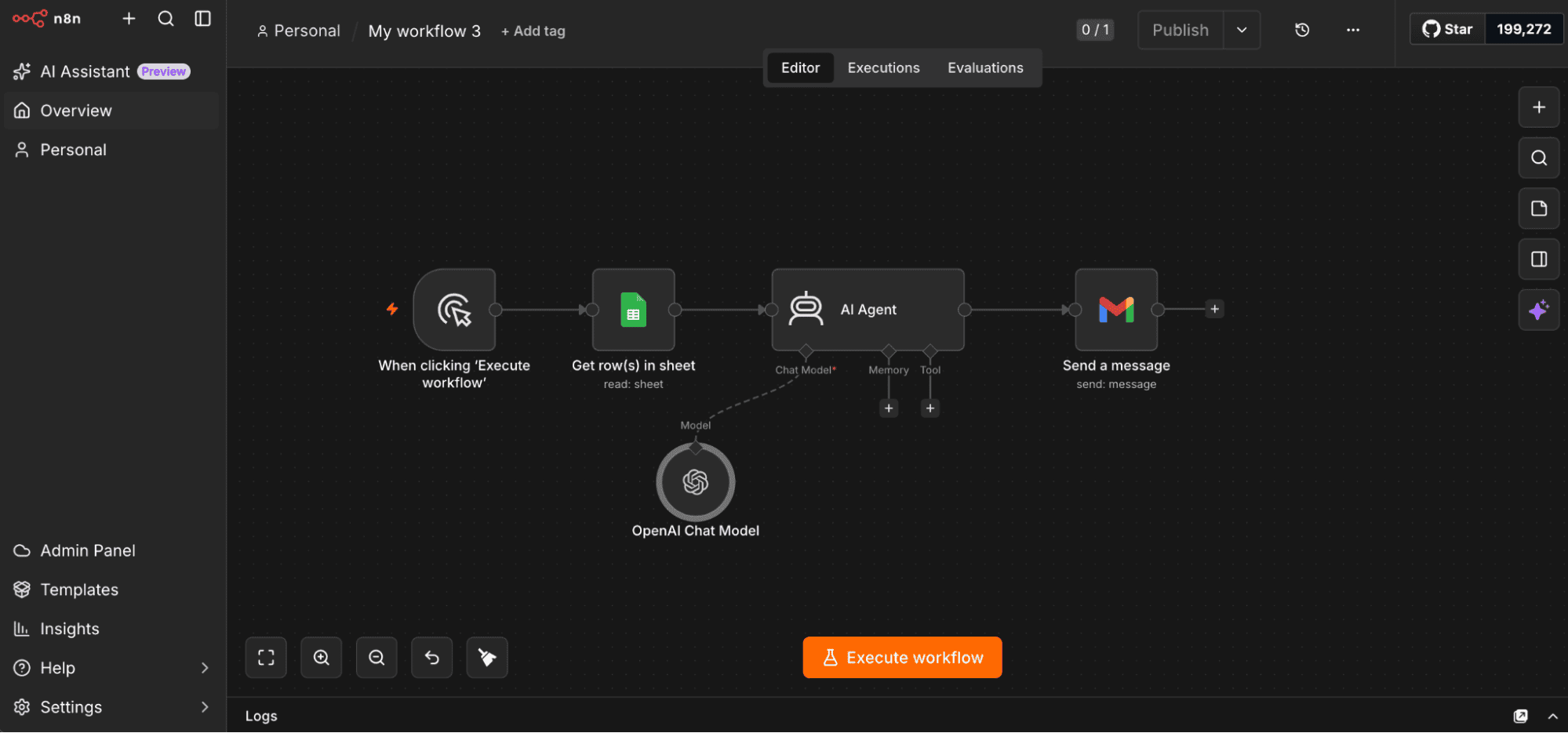
Or your n8n workflow might retrieve contacts from a spreadsheet, generate an email with AI, send it through Gmail, update a CRM, and notify your team in Slack. This all within the same automation.
Other useful n8n email automation capabilities include:
- Building lead pipelines with email verification and enrichment
- Syncing contacts with CRMs and spreadsheets
- Sending campaign updates to team chats
- Managing leads and retrieving campaign data for dashboards
So what makes n8n particularly well-suited for this kind of automation?
Here are a few core features:
- Visual building: Build workflows on a visual canvas using native nodes or custom code.
- Flexible triggers: Start workflows manually, on a schedule, or automatically through webhooks, form submissions, or CRM updates.
- AI nodes: Summarize content, answer questions, or generate personalized emails — easy to build and deploy.
- Conditional logic: Use If and Switch nodes to send data down different paths depending on what it receives.
If you’re ready to get started, n8n recommends n8n Cloud for new users, which includes a 14-day free trial with access to Pro features.
n8n vs traditional email platforms
Traditional email platforms are designed specifically for email automation. They’re intuitive, non-technical, and easy to get started with.
n8n, on the other hand, connects email tools like Snov.io with your CRM, spreadsheets, and the rest of your business applications into one automated workflow, with email sending as just one part of the chain.
Here’s a detailed overview of how n8n differs from traditional email tools:
| Criterion | Traditional email platforms | n8n |
|---|---|---|
| Primary purpose | Email sending is the core feature | Email sending is part of a workflow |
| Built-in functionality | As a rule, built-in campaign builders, templates, lists, scheduling, and analytics | Custom workflows connecting email sending with CRMs, databases, APIs, AI, spreadsheets, etc. |
| Email sending | Email infrastructure and campaign management are usually included | Relies on an external email provider or service for actual sending |
| Workflow logic | Typical: Trigger → Send email → Follow-up | Richer: Trigger → Fetch data → Enrich → Qualify → Generate copy → Send → Update CRM → Notify team |
| Customization | Mostly configured through predefined features | Highly customizable with nodes, conditions, branching, loops, webhooks, and code |
| Best for | Straightforward email campaigns | Complex or custom automation workflows |
Although n8n offers more customization and richer workflow logic than traditional email platforms, it isn’t built to replace them. It just extends your possibilities when you need more complex automation scenarios.
How to set up n8n for email workflows
Before your first workflow, it helps to know how you’ll run n8n, how connections between nodes work, and what to plan in advance. Sorting these out first makes everything that follows easier.
Choose between n8n Cloud and self-hosting
The first decision is how you’d like to run n8n: through n8n Cloud or by self-hosting it.
If you’re new to the platform, n8n Cloud is the easiest option. It’s a managed environment where n8n hosts your instance for you. That means you can start building workflows immediately without setting up or maintaining any infrastructure.
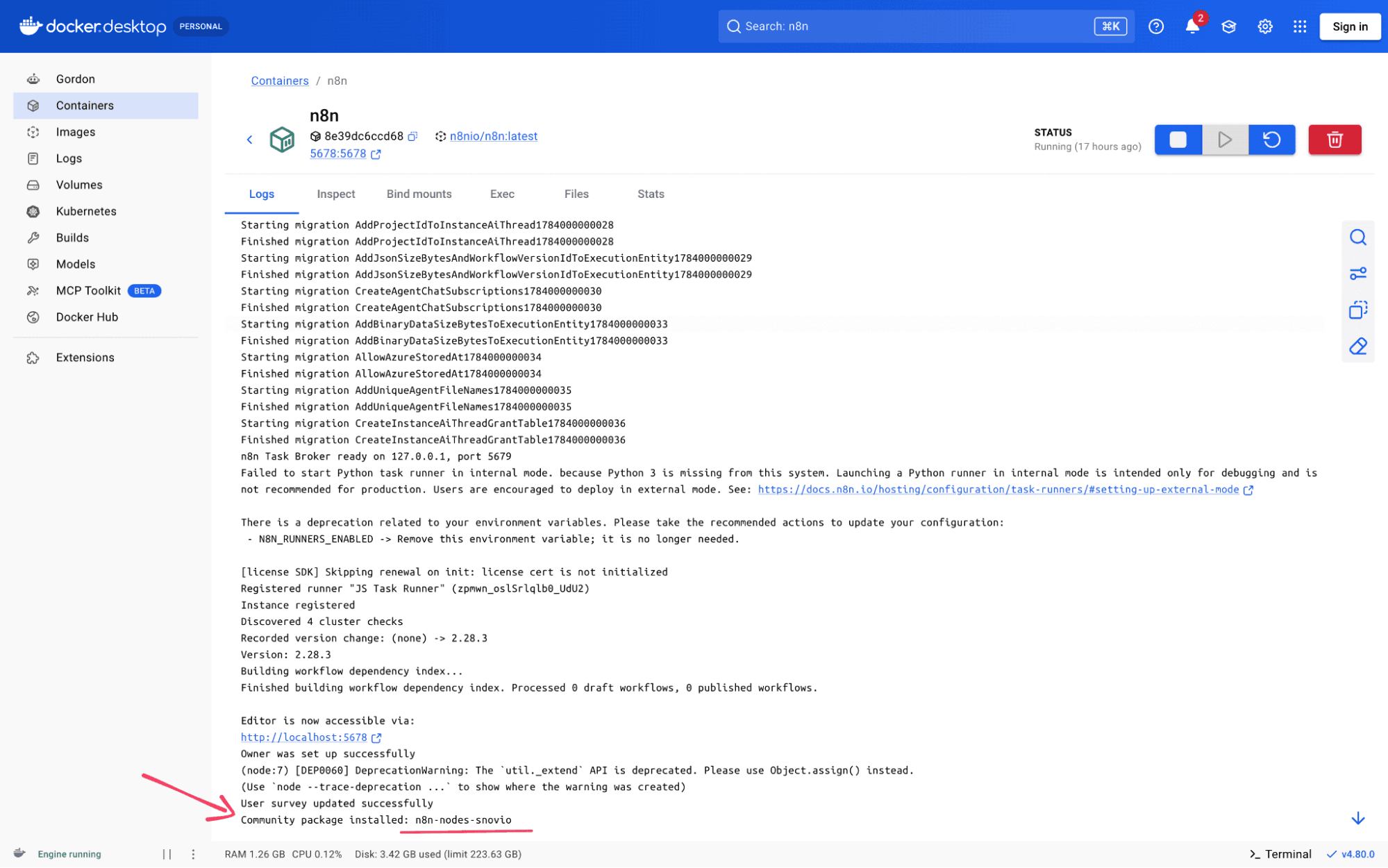
But if you need greater control over deployment, security, or data storage, you can self-host n8n instead. This typically means running it using Docker on your own server or cloud infrastructure.
📍Important:
Self-hosting gives you more flexibility, but it comes with ongoing responsibility. You’ll need to update regularly (at least monthly, per n8n’s recommendation), back up your database and credentials, and monitor the instance. It’s an ongoing commitment worth factoring in.
Connect your services
As you build your workflow, you’ll eventually need to connect the services it uses. The good news is that n8n handles this step as you go, prompting you to create credentials the first time a node requires them.
For example, when you add a Google Sheets or Gmail node, you’ll be asked to authorize your account. Once saved, the credentials can be reused across other workflows.
If your email provider doesn’t have a dedicated n8n node, you can usually connect it through SMTP or the HTTP Request node. It’s a good idea to check this before you build around a provider, just so there are no surprises partway through.
Plan your workflow before building it
I recommend planning your workflow in advance. Think through how you want the automation to run from beginning to end and identify the tools you’ll use along the way.
As you plan, ask yourself these simple questions:
- What should trigger the workflow?
- Where will the contact data come from?
- Does the data need to be processed before an email is sent?
- What should happen after the email is generated or delivered?
Having a clear plan in mind makes it ten times easier to build, test, and eventually expand your automation.
How to create your first n8n email automation workflow
In this part, I’ll show you how to create a simple n8n outreach automation workflow that retrieves contact data from Google Sheets, uses an AI model to generate emails, and sends them through Gmail.
Step 1. Create a workflow and add a trigger
Start by creating a new workflow and giving it a descriptive name. This takes you to the workflow canvas.
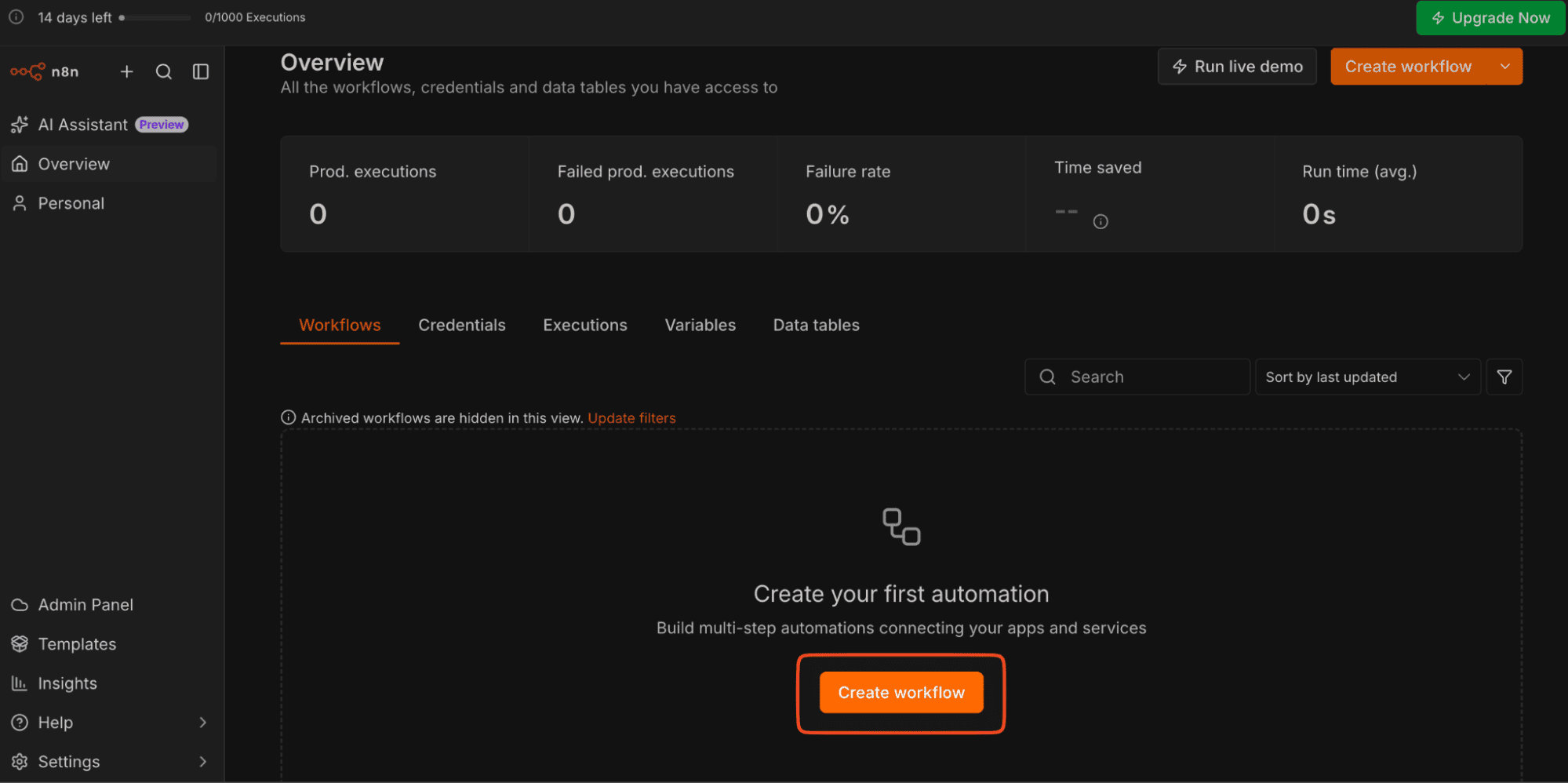
The first node you’ll add is a trigger. Its job is simple: it tells n8n when to start the workflow.
For now, choose Trigger manually. Since you’ll be building the workflow step by step, it’s the most convenient option because you can test everything with a single click.
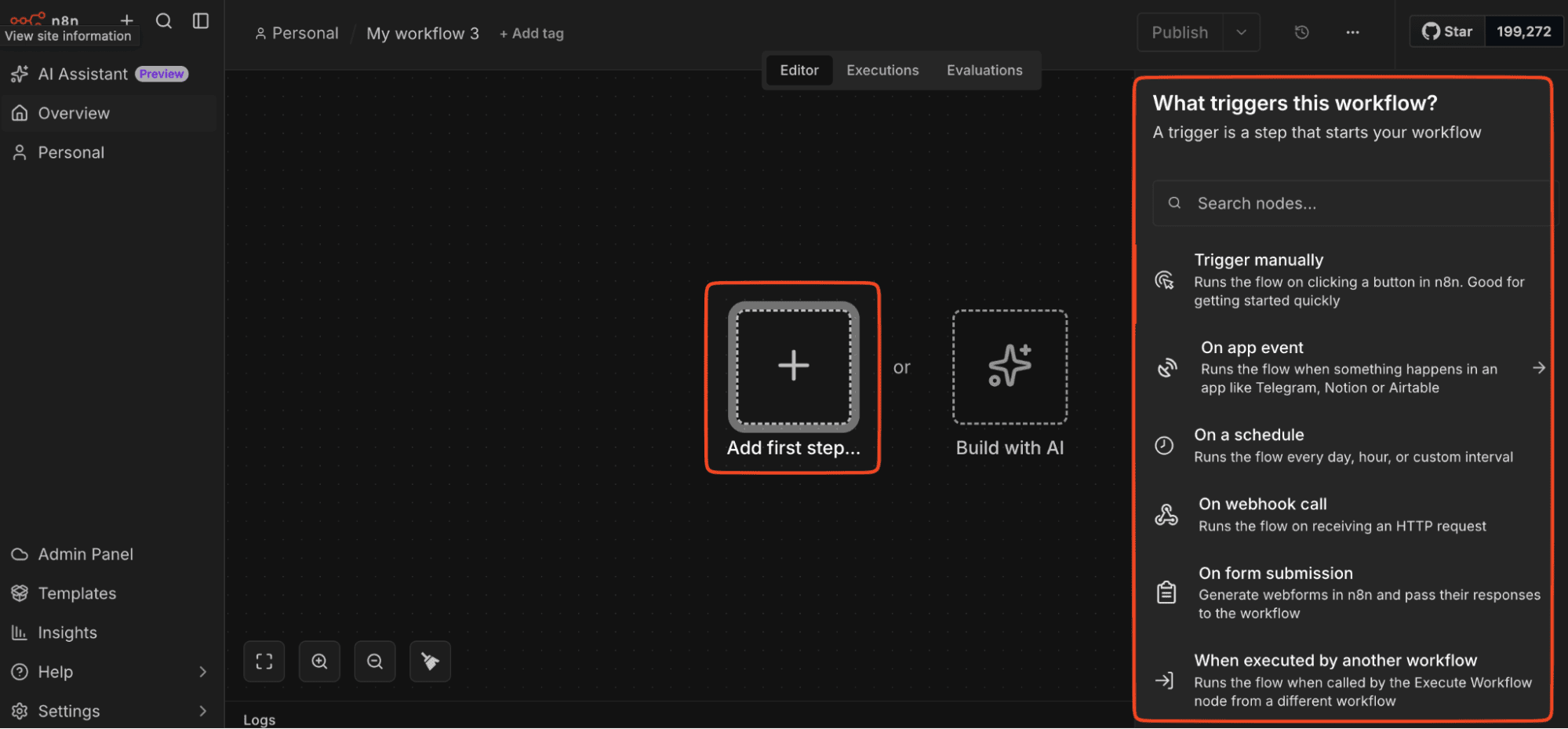
Eventually, you can switch to another trigger, such as a schedule, a form submission, an app event, or a webhook. This depends on what better fits your automation.
Step 2. Retrieve your data
Click the + icon next to your Trigger manually node, search for Google Sheets, and choose Get Rows.
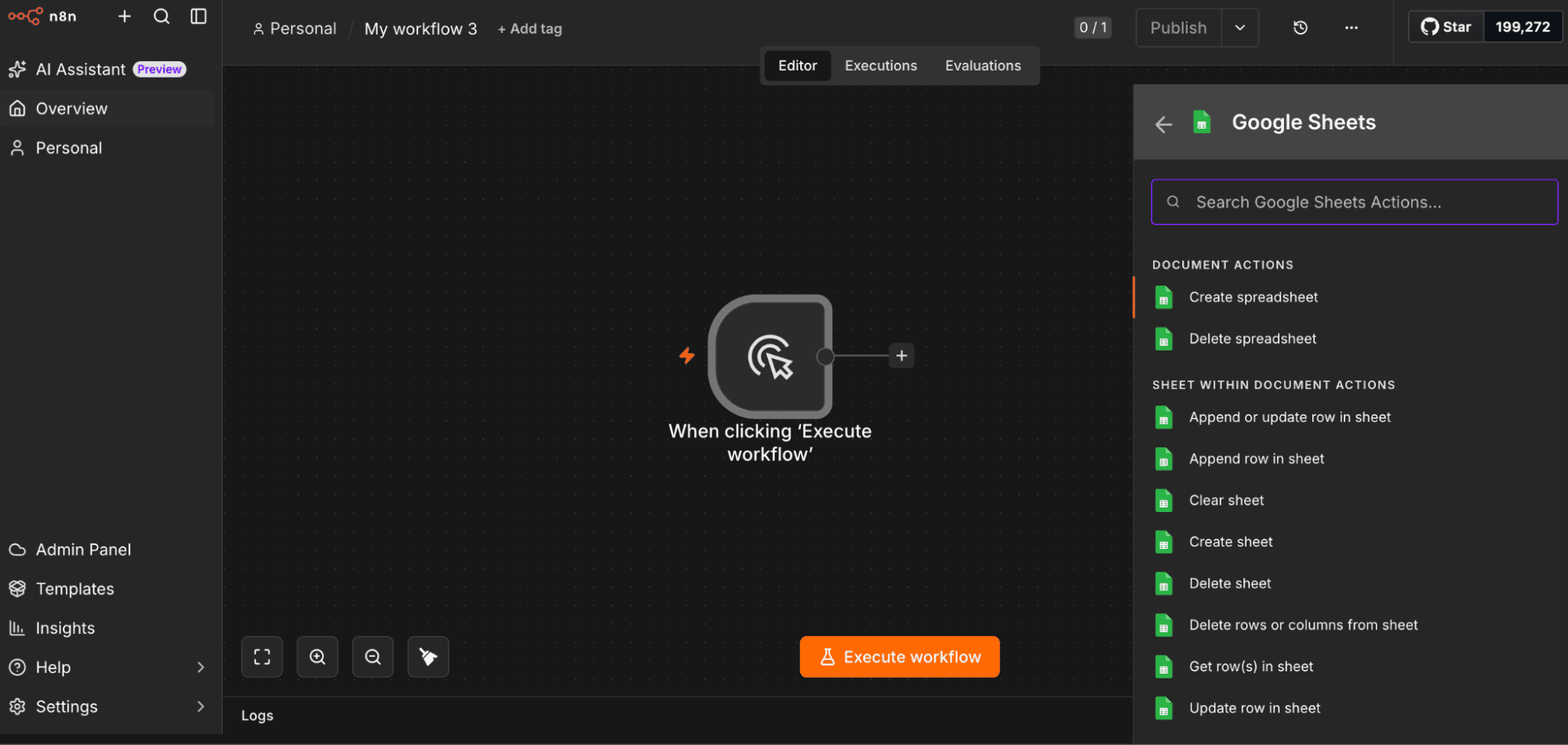
Then connect your Google account and select the spreadsheet you’ll use for your workflow. If you haven’t created one yet, do that first. To keep things simple, you can start with just 2 columns: Name and Email Address.
Click Execute step to make sure your data loads correctly. If everything is set up properly, you’ll see all the rows in the output panel.
Step 3. Generate the emails with AI
Now add an AI Agent node and configure it.
Start by choosing the language model you’d like to use. n8n supports multiple providers, including OpenAI, Anthropic, Google Gemini, and other compatible LLMs.
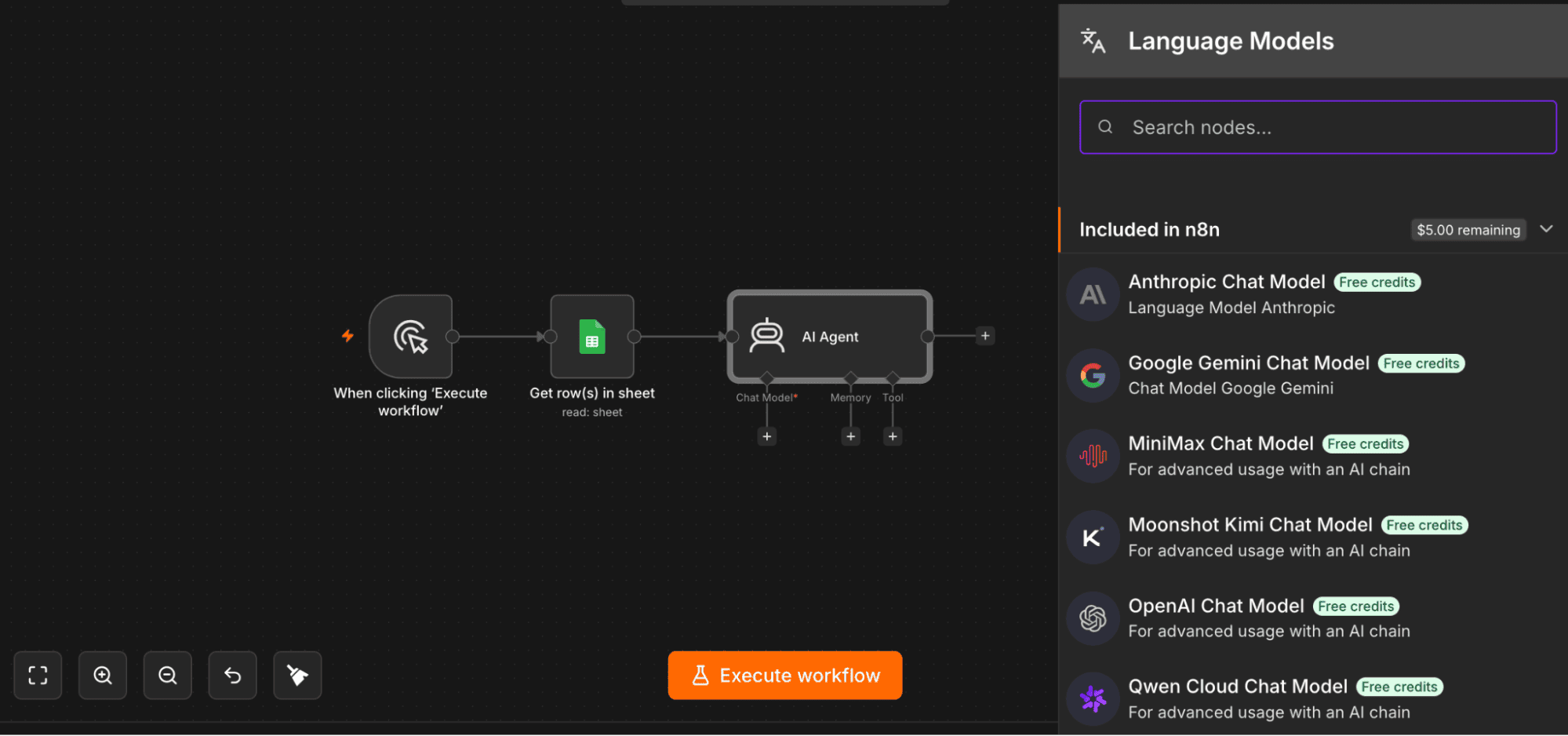
Next, configure the Prompt (User Message) by mapping the fields from your Google Sheets node. This passes the data from each row to the AI.
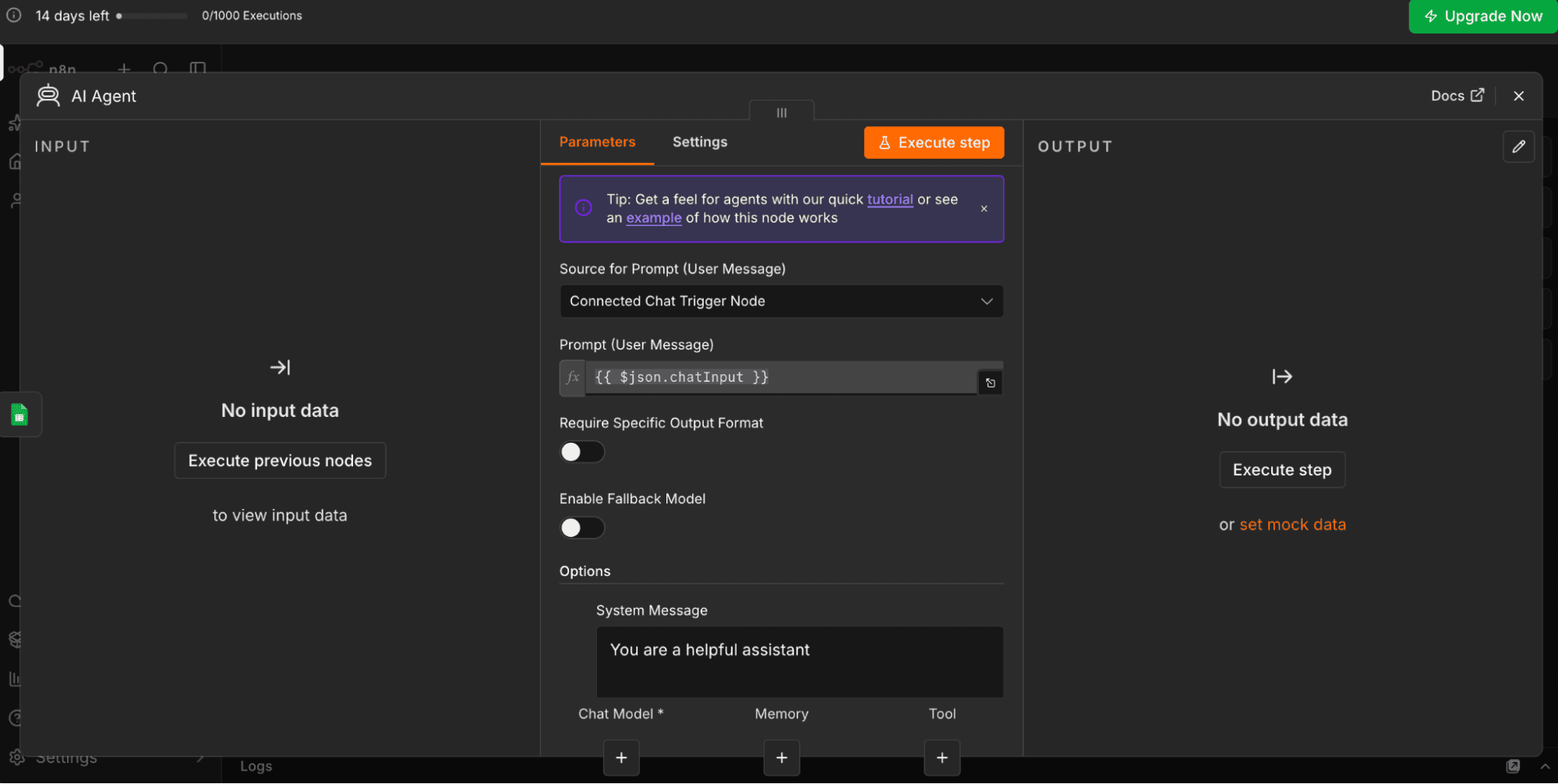
Then add a System Message with instructions describing what the AI should do with that information and the type of email it should generate.
Step 4. Send the email
Now it’s time to send your actual emails.
Add a Gmail node and choose the Send a message operation.
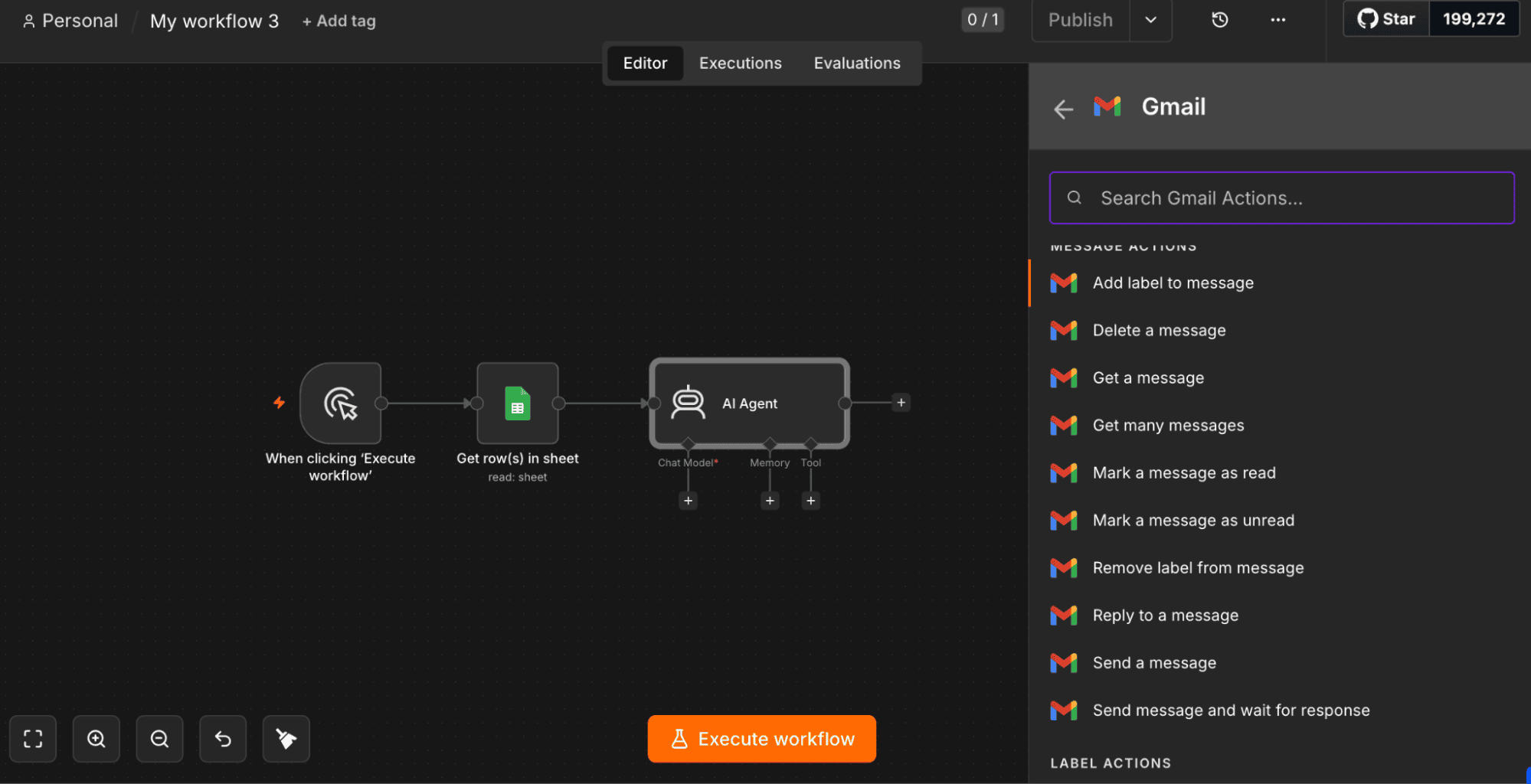
Connect your Google account, then map the recipient’s email address along with the AI-generated subject and body into the Gmail node.
Before sending emails to your entire list, test the workflow with a single contact to make sure everything works as expected.
How to build an n8n cold email automation workflow: step-by-step guidelines
So far, this n8n workflow email automation tutorial has focused on email marketing in general.
Now let’s talk about n8n cold outreach. Since the overall structure stays the same, I won’t cover every step again. But I’ll highlight the parts that matter most for cold email campaigns — accurate prospect data, verified emails, strong deliverability, and consistent follow-ups.
Step 1. Import your prospect list
Start by importing your prospect list into n8n. As in the previous example, you can use a Google Sheets node to retrieve your contacts.
For cold outreach, it’s useful to include extra information such as the prospect’s company, job title, or business description. You’ll use this information to personalize your emails later.
Step 2. Verify your contacts
Before generating any emails, verify your contacts using the Snov.io node. This helps filter out invalid email addresses, reduce bounce rates, and improve deliverability before your campaign starts.

Format
Type
Server status
Auto-generated
Catch-all
You can also use the Snov.io node to build a qualified prospect list from scratch. The workflow finds emails from a target company domain, verifies them, enriches the valid ones, and adds these contacts to a Snov.io list.
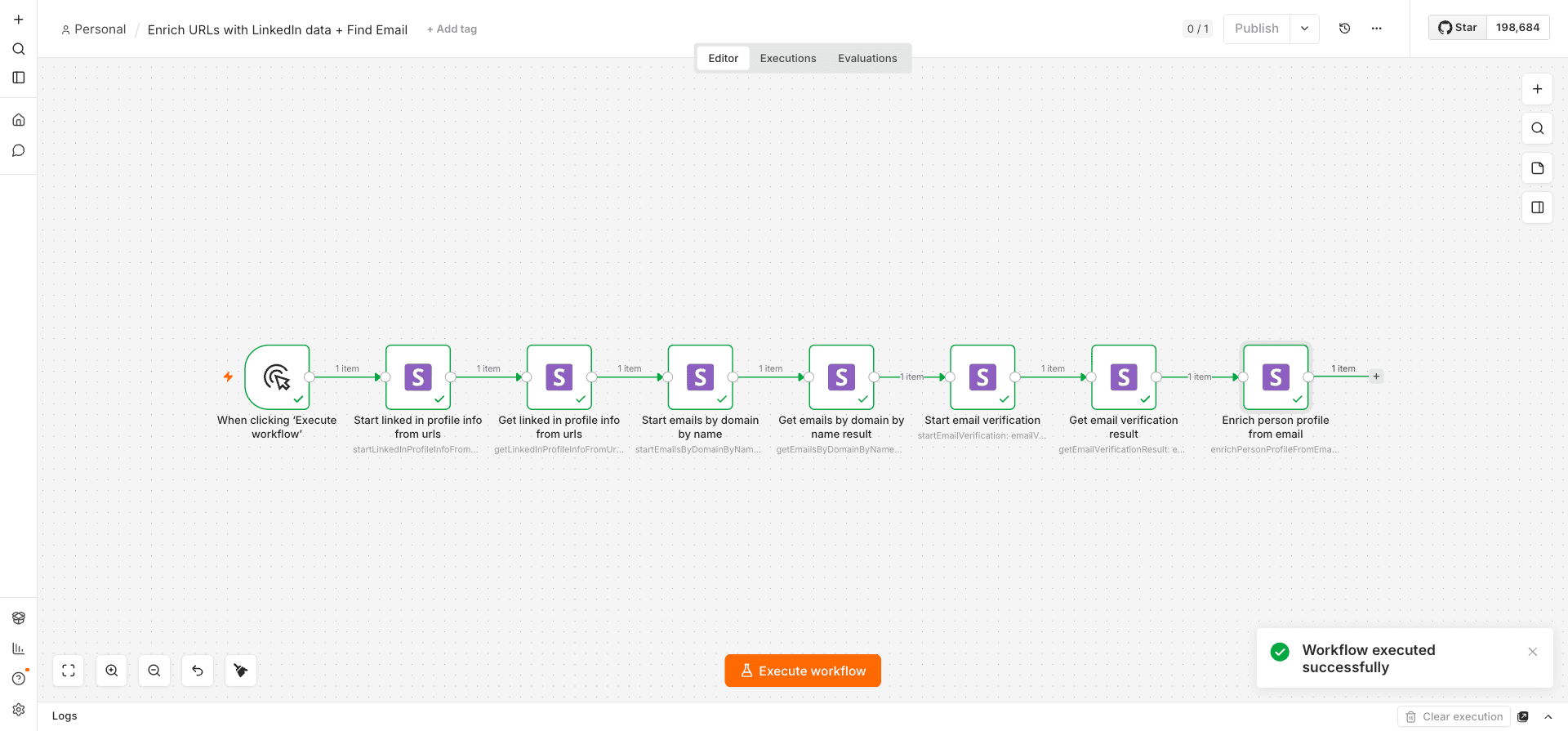
Step 3. Generate personalized outreach emails
Next, configure your AI Agent to generate personalized emails using your prospect data.
Keep in mind that personalization isn’t just a nice-to-have in cold outreach. According to Snov.io’s analysis of over 10 million emails, personalized cold emails get meaningfully higher open rates than non-personalized ones, 20.79% versus 14.96%.
Step 4. Send your outreach emails
Connect your preferred email provider to send the outreach emails. And just as before, test with a few contacts first to make sure everything works correctly before launching the full campaign.
Step 5. Automate your follow-up sequence
One email is rarely the end of the story in cold outreach. Belkins’ research found that response rates peak at 6.9% with a two-email sequence, just one follow-up beyond the first message.
At this stage, you can use Wait and If nodes to delay the next email, check whether the prospect has replied, and stop the sequence if they have.


How to use Snov.io for your n8n email workflow
You can automate a big part of your n8n email automation with Snov.io. Here are a few common use cases:
- Lead generation and prospecting: Build a workflow that finds contacts at a company, enriches their profiles, and saves qualified leads to a Snov.io list or CRM.
- Cold outreach preparation: Verify emails and enrich missing data before launching a campaign, for cleaner data and fewer bounces.
- CRM synchronization: Sync prospect data between your CRM, spreadsheets, and Snov.io lists automatically; no copying the same contact everywhere.
- Campaign reporting: Pull metrics like opens, clicks, replies, and campaign progress, then send them to Google Sheets, Slack, or another tool.
All you need is to connect your Snov.io account and add the Snov.io node to your workflow.
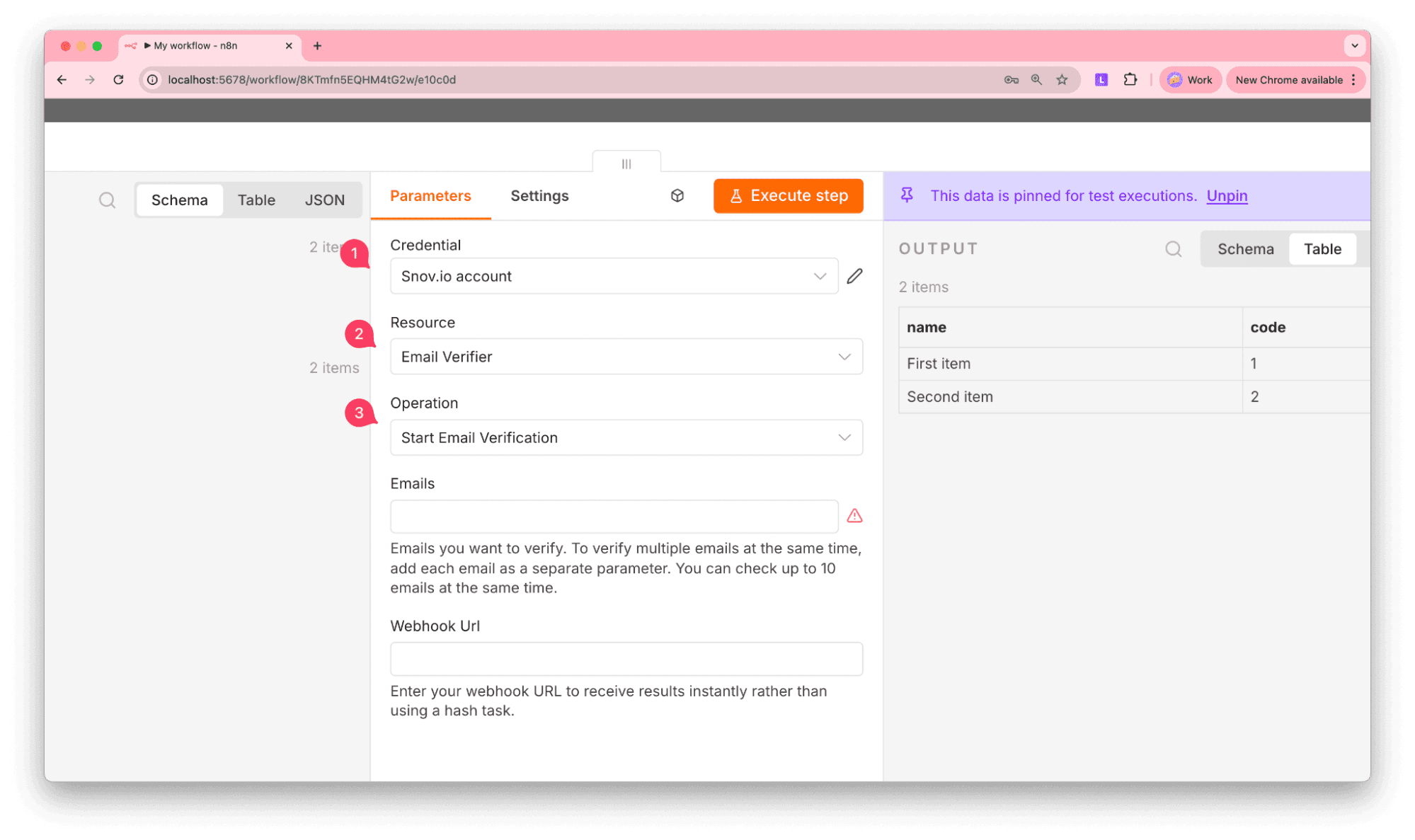
→ Read this quick n8n email automation setup guide to learn more about how to integrate Snov.io with n8n.
Most Snov.io actions rely on data generated by earlier nodes in your workflow. For example, one node might find an email address. The next can verify it, enrich the contact, or add it to a prospect list. To make that happen, you’ll map the output from one node to the input of the next.
Run each node once before referencing its output elsewhere. This generates the available output fields, making them much easier to map in the next step.
Some Snov.io actions work in 2 stages. First, you start the process, which returns a task_hash. Then you use that value in a second action to retrieve the completed results. You’ll encounter this pattern when using Email Finder and Email Verifier actions.
The Snov.io node is currently available only for self-hosted n8n. If you’re already running a self-hosted instance, you’re ready to continue. If not, you’ll need to set one up first. Docker is the quickest way to do that, and you’ll find plenty of beginner-friendly tutorials online that walk you through the installation.

n8n email automation best practices
In this part of my n8n email automation tutorial, I’ll share some tactics that can help you steer clear of common issues and keep maintenance from becoming a burden.
Start with a simple workflow
Don’t rush going all-in from the beginning. Start with a basic workflow that solves one problem, then gradually add new steps as your needs evolve. That’s how you find out if every connection works correctly, data is mapped properly between nodes, conditions behave as expected, etc.
Small issues are easy to deal with when you catch them early. And I bet you’d agree, they’re a lot less fun to untangle after your workflow has processed hundreds of records.
Verify contacts before sending emails
I’ll say this again because it matters: for cold outreach, verifying emails before sending a campaign is one of the most valuable improvements you can make. This step helps reduce bounce rates, keep your contact lists cleaner, and improve email deliverability.
Handle long-running actions correctly
Not every API action returns results instantly. Because processing takes a few seconds, it’s a good idea to add a short Wait node between these steps. Otherwise, your workflow may try to retrieve results before they’re ready.
Process large lists in batches
Processing hundreds or thousands of contacts in one go tends to slow things down or cause you to exceed API limits. Break the dataset into smaller batches instead; it’s more stable, and recovering from an error becomes a lot less painful.
Snov.io’s Email Verifier is a case in point; it only takes 10 emails per request per verification request. This means that larger lists should be processed in smaller groups before continuing the workflow.
Keep an eye on API limits
Every service you connect has a ceiling. For Snov.io, the API allows up to 60 requests per minute. If your workflow processes large datasets, consider adding delays between requests or using batch processing to stay within those limits.
Use AI Agents
I’ve already touched on the AI Agent in earlier sections, one of n8n’s AI nodes and arguably the most powerful. Unlike standard nodes that follow a fixed sequence, it can actually reason through a task, deciding which tools to use and in what order.
In an email workflow, an AI Agent can:
- Generate email subjects and bodies
- Summarize feedback or past conversations before drafting a reply
- Classify incoming emails so your workflow handles each type differently
- Pull in context from other tools before generating an email
- Decide the next step, like drafting an email, updating a CRM, or calling another tool
In addition, since email communication is often customer-facing, n8n also lets you add an approval step before the AI Agent sends an email. Approvals can be routed through Chat, Slack, or Telegram.
Monitor your workflows
Even workflows that have run fine for months need the occasional check-in.
Keep an eye on failed executions, check the logs periodically, and confirm connected services are still authenticated. It’s often something very small that interrupts a workflow long before anyone notices.
Common n8n limitations to know before scaling email outreach
As your workflows get more advanced, there are a few n8n limitations you’ll want to plan for.
Workflow complexity increases over time
With time, you’ll become more comfortable with n8n email automation features, so you’ll likely start combining multiple workflows, adding AI nodes, integrating CRMs, etc.
Keep workflows organized and group related actions together.
Email deliverability isn’t managed automatically
n8n automates your workflow, but it doesn’t check whether your emails are likely to reach the inbox. Things like domain health, sender reputation, DNS records, and email content all affect deliverability, so it’s worth testing your deliverability before launching a campaign.
One easy way to do that is by addressing the Snov.io Deliverability Check. It analyzes the factors mentioned above and provides recommendations to help improve your inbox placement.
Some actions are asynchronous
Not every task finishes immediately. For example, some Snov.io operations first start a background task and then require a second action to retrieve the results. This means your workflow needs to account for processing time before moving to the next step.
Compliance is your responsibility
n8n won’t automatically ensure your outreach complies with regulations such as GDPR or CAN-SPAM. It’s your responsibility to build workflows that respect consent requirements, unsubscribe requests, and local regulations.
API limits affect large workflows
Most services protect their infrastructure with request limits. Ignoring these limits can lead to temporary errors or incomplete workflows.
If your automation processes thousands of contacts, you’ll need to design around these restrictions by using delays, batching, or scheduled executions.
Automation still needs human oversight
Even the best automated workflows still need a few manual tweaks.
Check in on your workflows periodically, especially after adding new integrations. A quick review can help you spot failed executions, outdated credentials, or workflow bottlenecks before they affect your team.
Key takeaways
n8n is a highly customizable and flexible solution for email automation. Yet, you still need to use it smartly. Whether you’re building a simple flow or running a complete n8n cold outreach automation scenario, start small and proceed step by step.
If you need a reliable solution for email verification, data enrichment, and campaign management, integrate n8n with Snov.io to automate this part of outreach efficiently.