This guide explains how to set up the Snov.io and n8n integration, including installation, API credential setup, available actions, and how to build your first workflow.

Use it on its own for Snov.io-specific tasks. Connect it with tools like Google Sheets, Slack, HubSpot, or Salesforce to move data between platforms automatically. Or add it as a tool in the AI Agent node so your agent can find emails or verify contacts on its own.
What you can automate:
- Build lead pipelines with email verification and enrichment
- Sync contacts with CRMs and spreadsheets
- Send campaign updates to your team chats
- Manage leads and retrieve campaign data for dashboards
What you need to use Snov.io in n8n
- A self-hosted n8n instance (Docker or npm)
- Snov.io API credentials: get API access in your account
Set up a self-hosted n8n instance
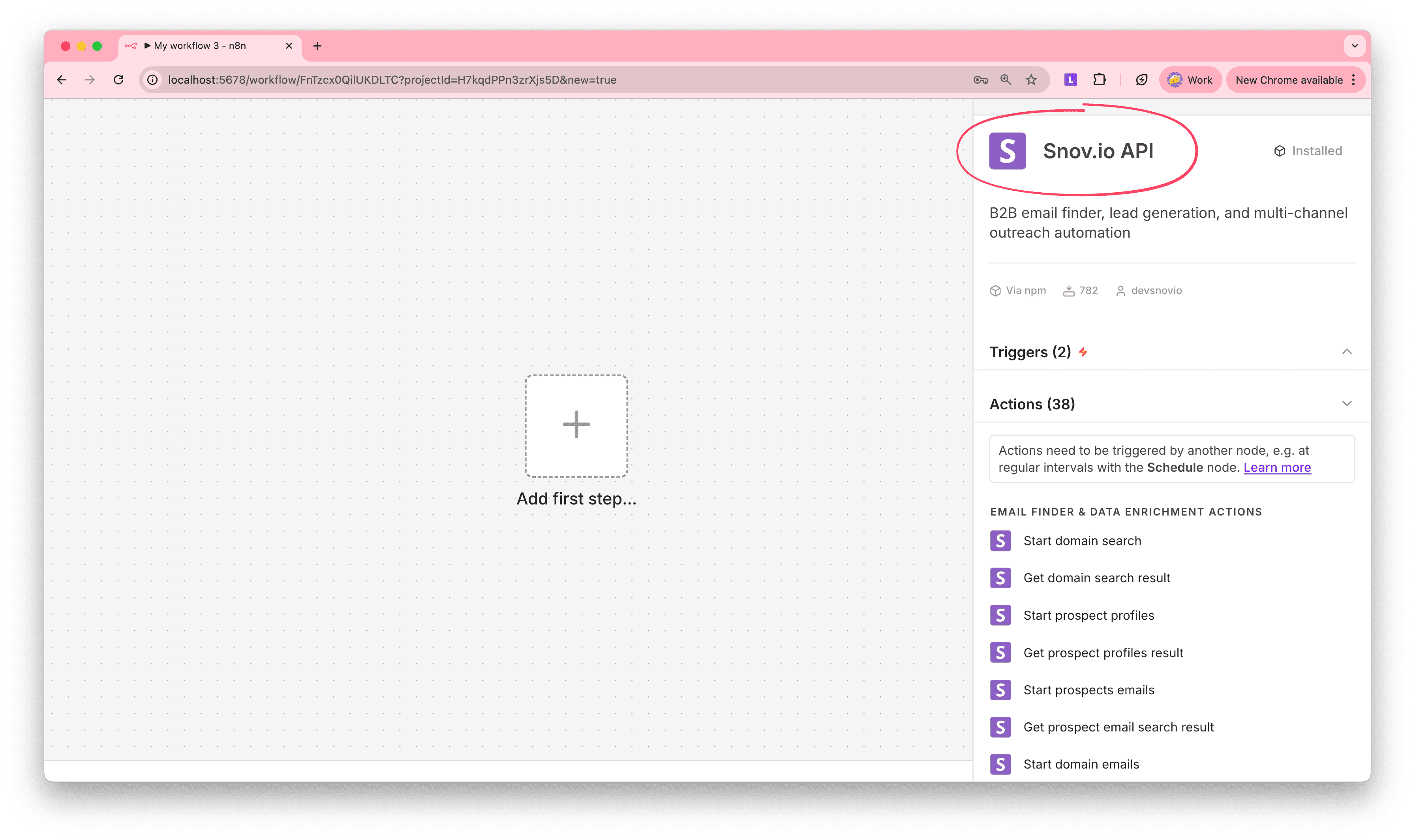
Before you can install the Snov.io node, you need a running self-hosted n8n instance. The fastest way to get started is with Docker.
Once your n8n instance is active, open your browser and go to http://localhost:5678.
You'll see the n8n dashboard where you can install the Snov.io node and start building workflows.
If you're new to self-hosted n8n setups, YouTube has many of beginner-friendly walkthroughs. Search "how to install n8n locally with Docker".
Install the Snov.io node
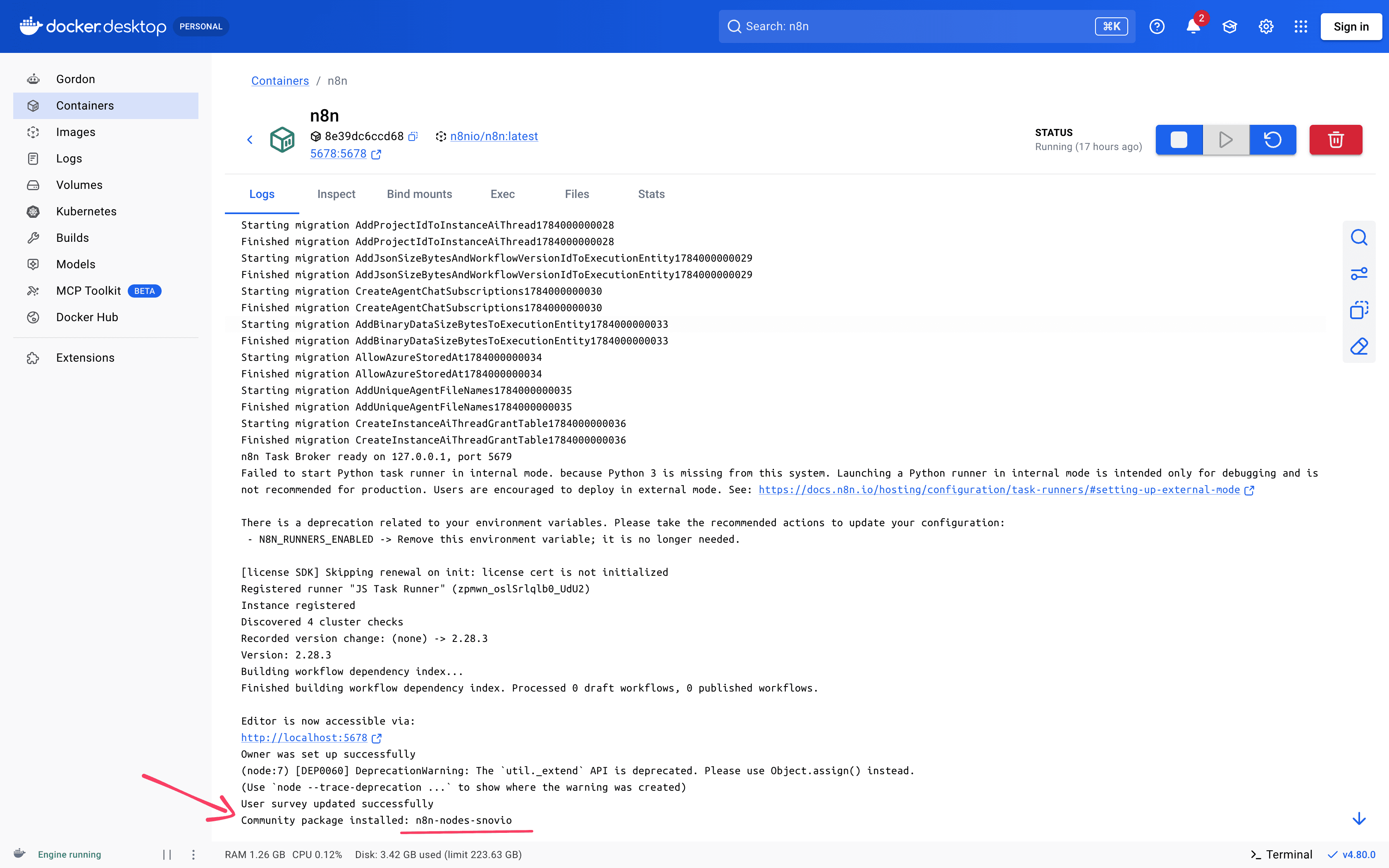
In n8n's main view, go to Settings → Community nodes → Install.

Self-hosted only:
The Snov.io node is currently available for self-hosted n8n instances only. In n8n Cloud, you can connect to Snov.io using manually configured API requests.
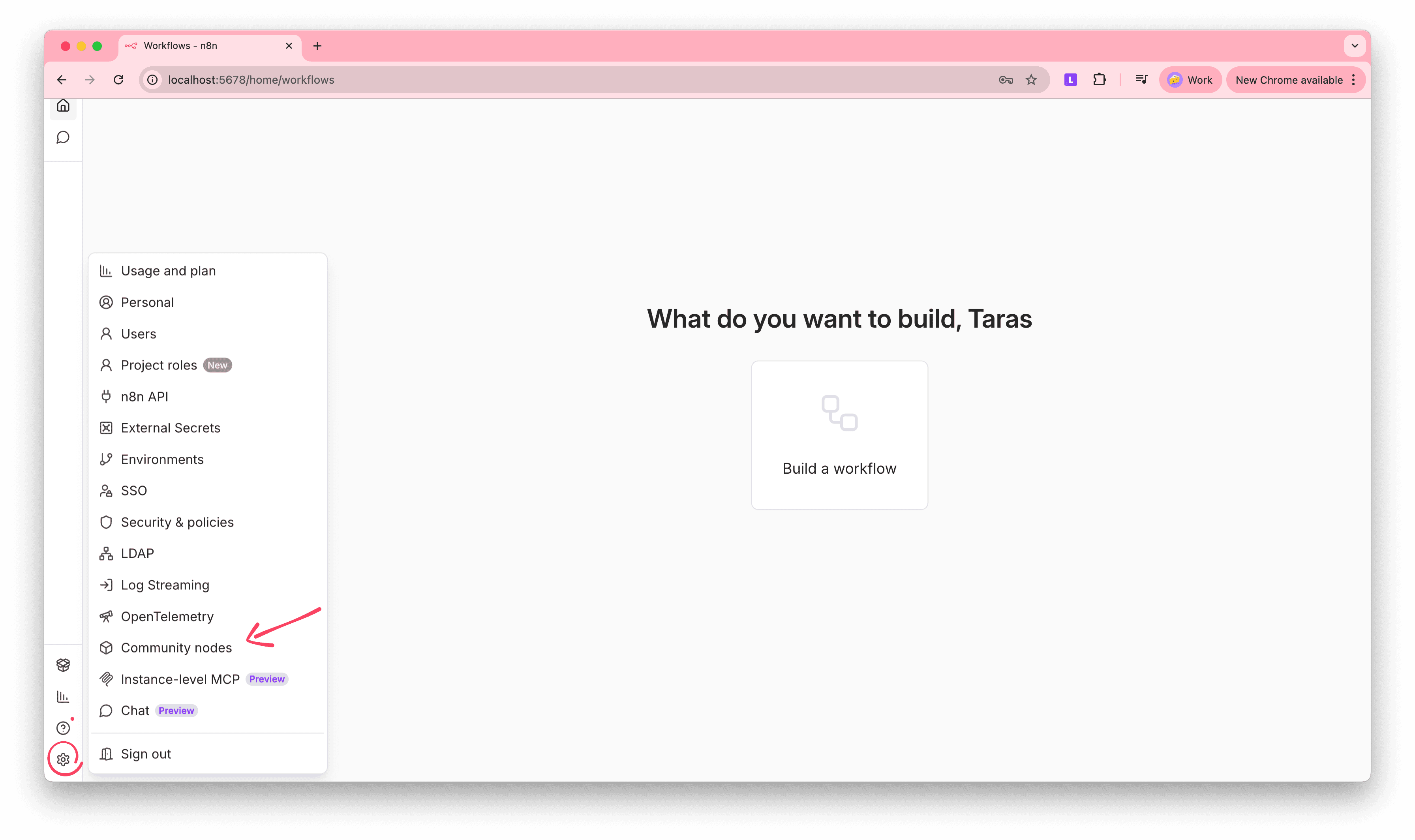
Enter “n8n-nodes-snovio” in the Npm Package Name.
Add API credentials
The integration uses API connection with your Snov.io account.
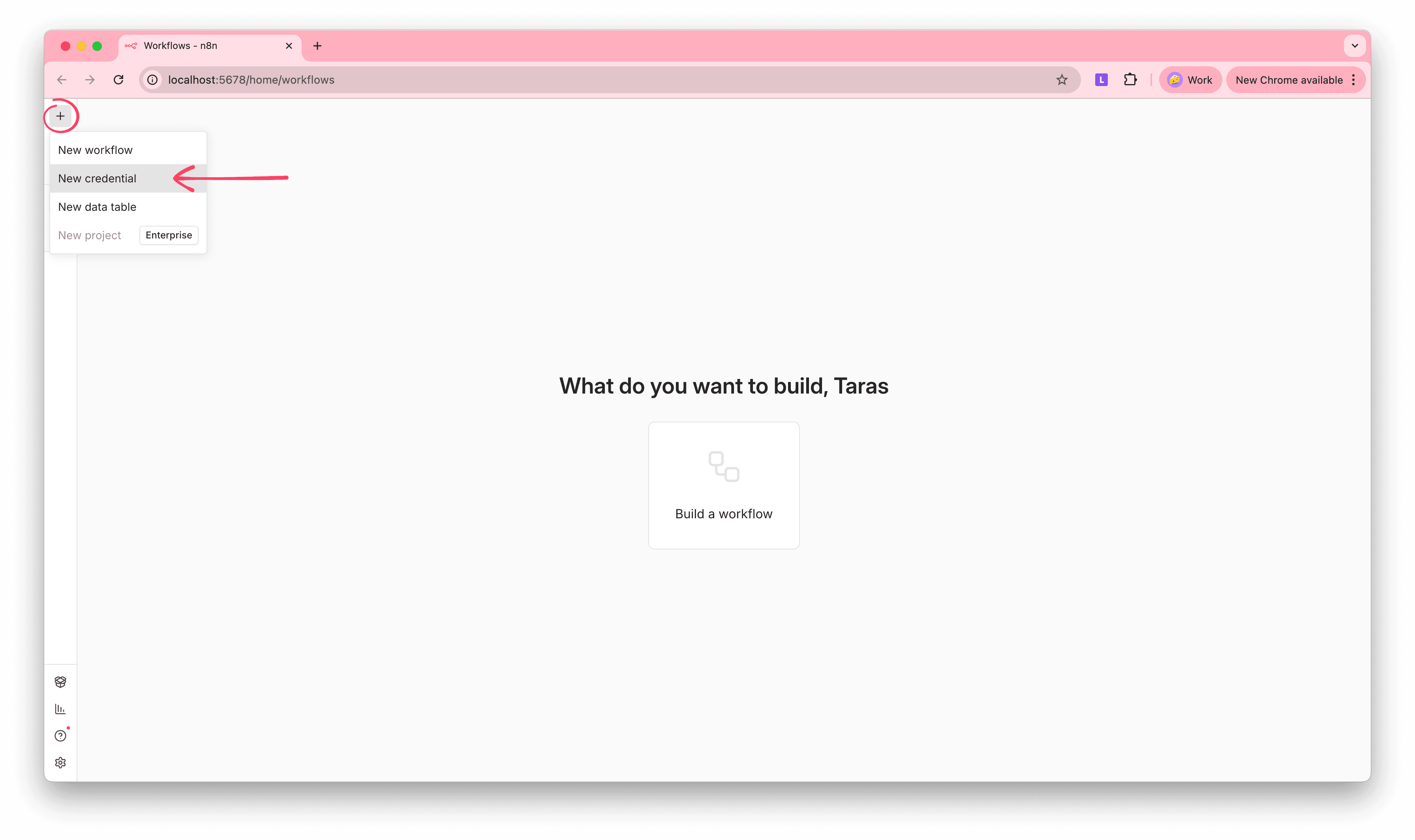
In the n8n's main view, click + at the top left → select New credential. Search for Snov.io API and click Continue.
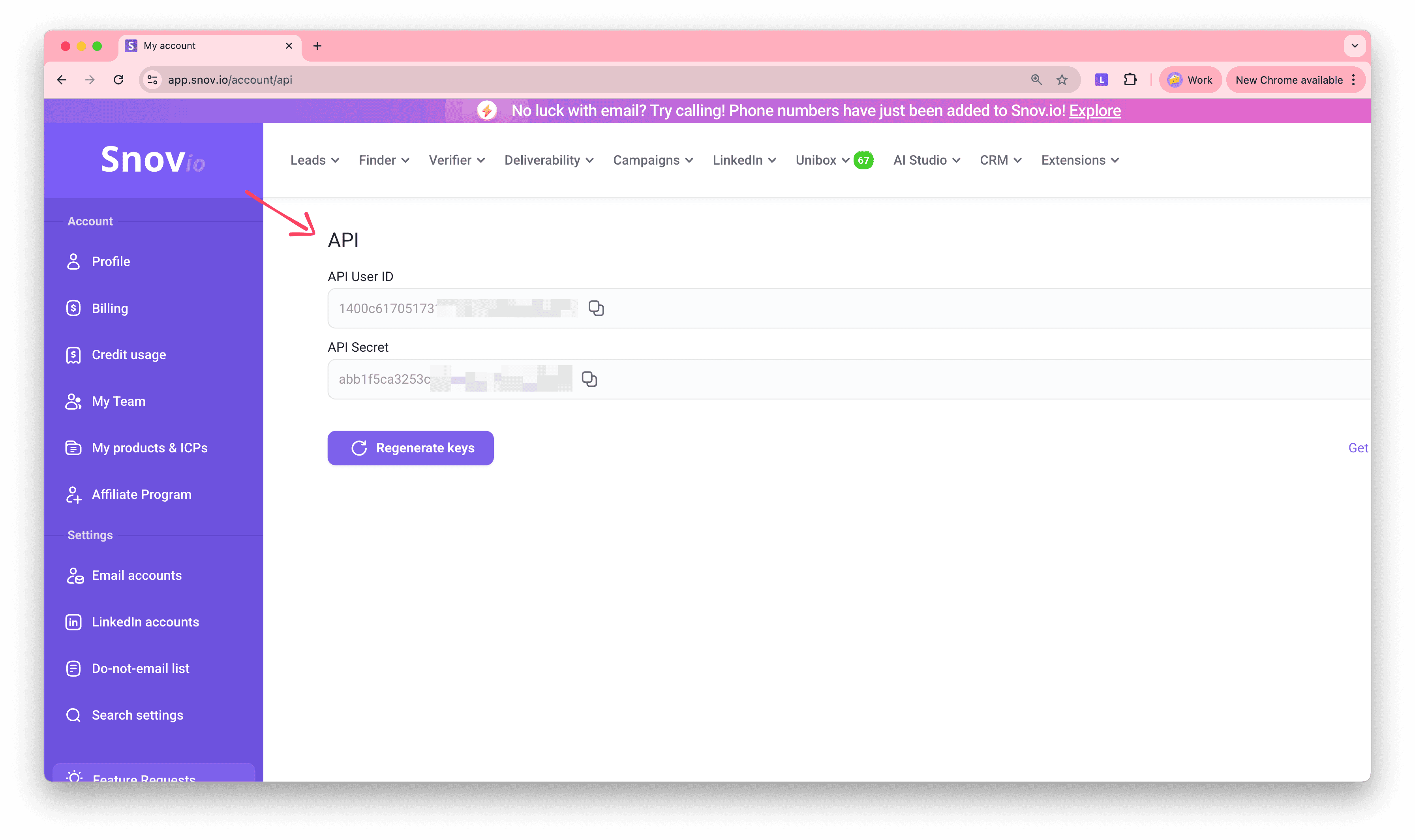
To get your Snov.io API credentials, go to Account settings → API tab. Copy your User ID and API Secret and paste them into the corresponding fields in n8n.
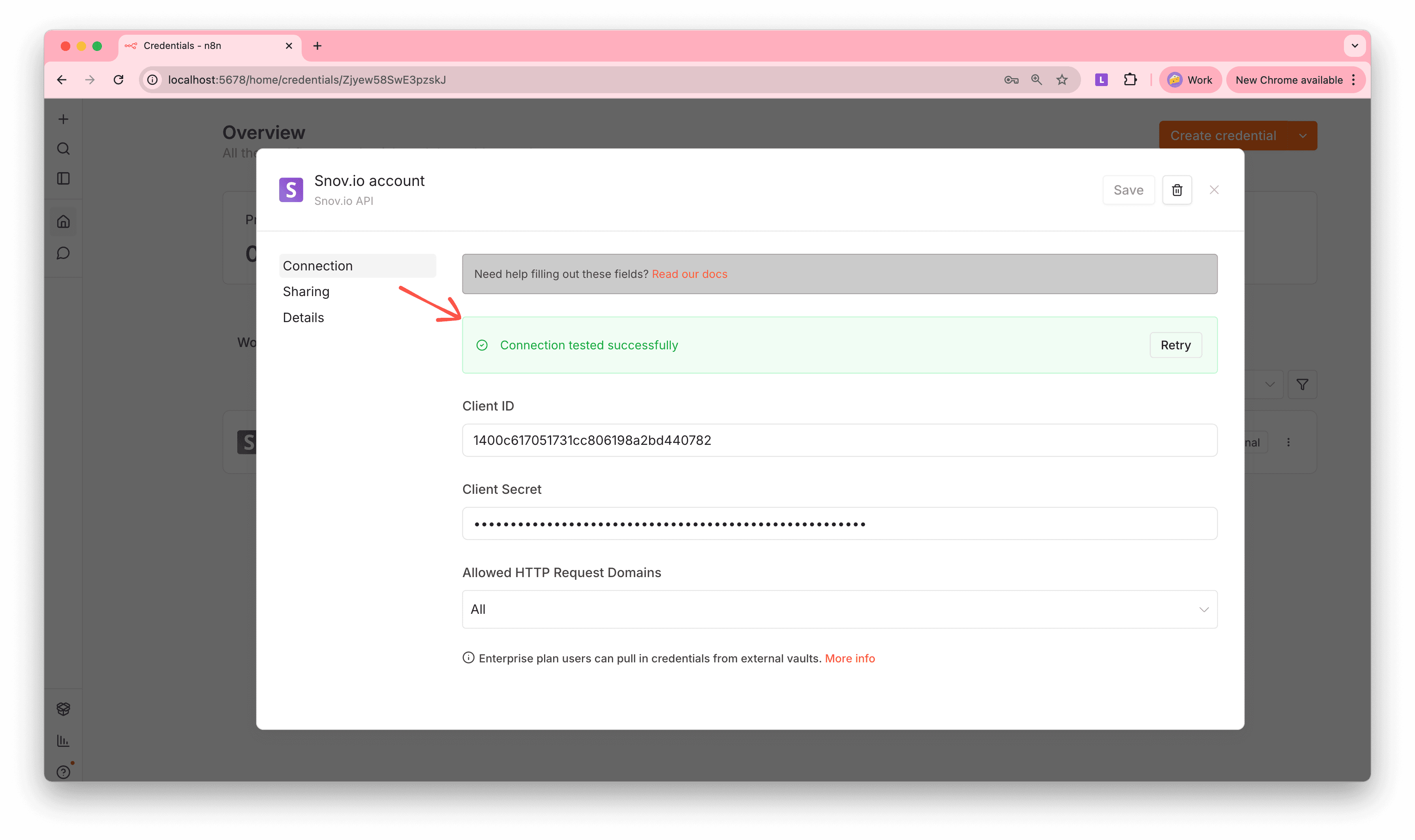
Once the connection is successful, you can use this Snov.io account in your workflows.
Add Snov.io to your workflow
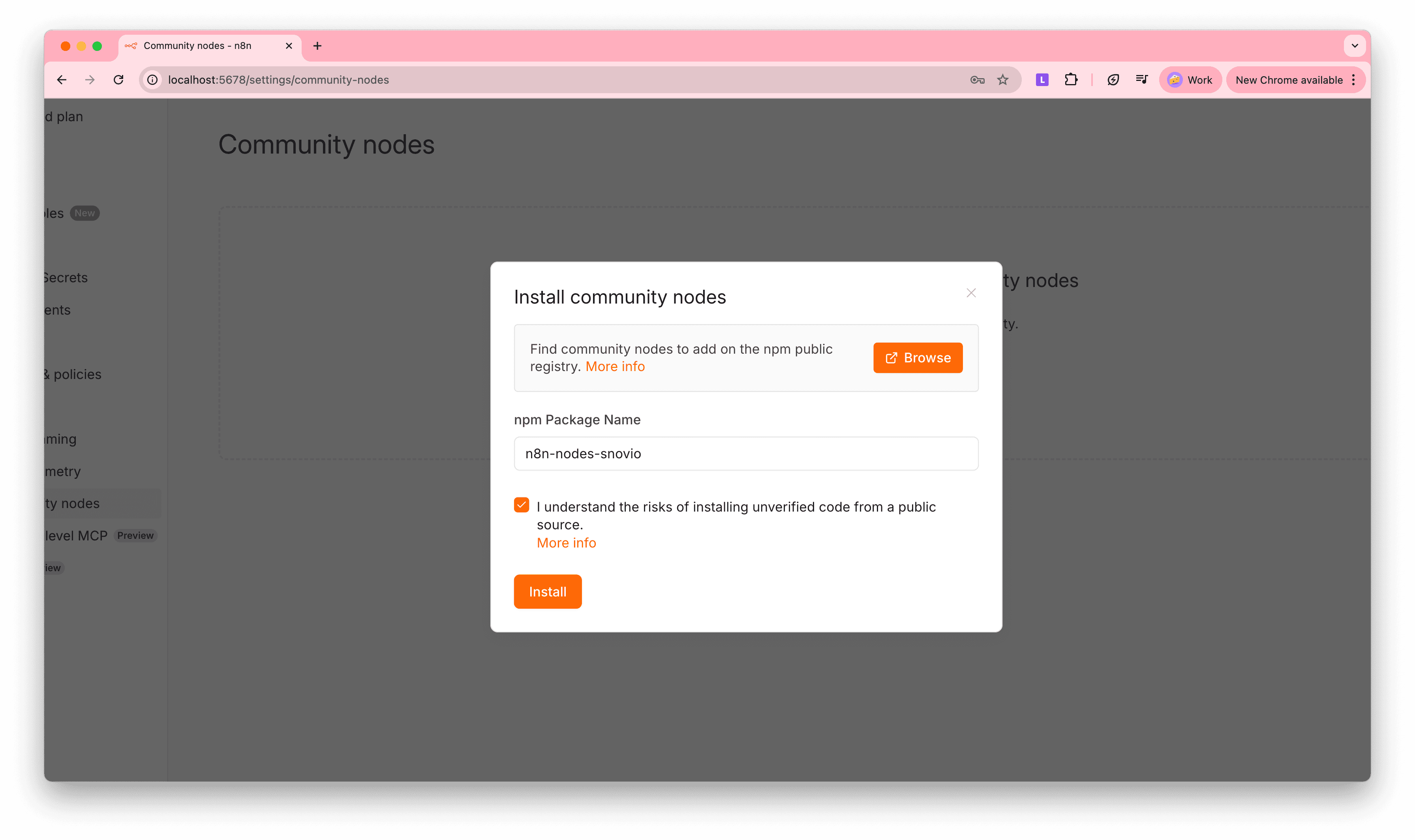
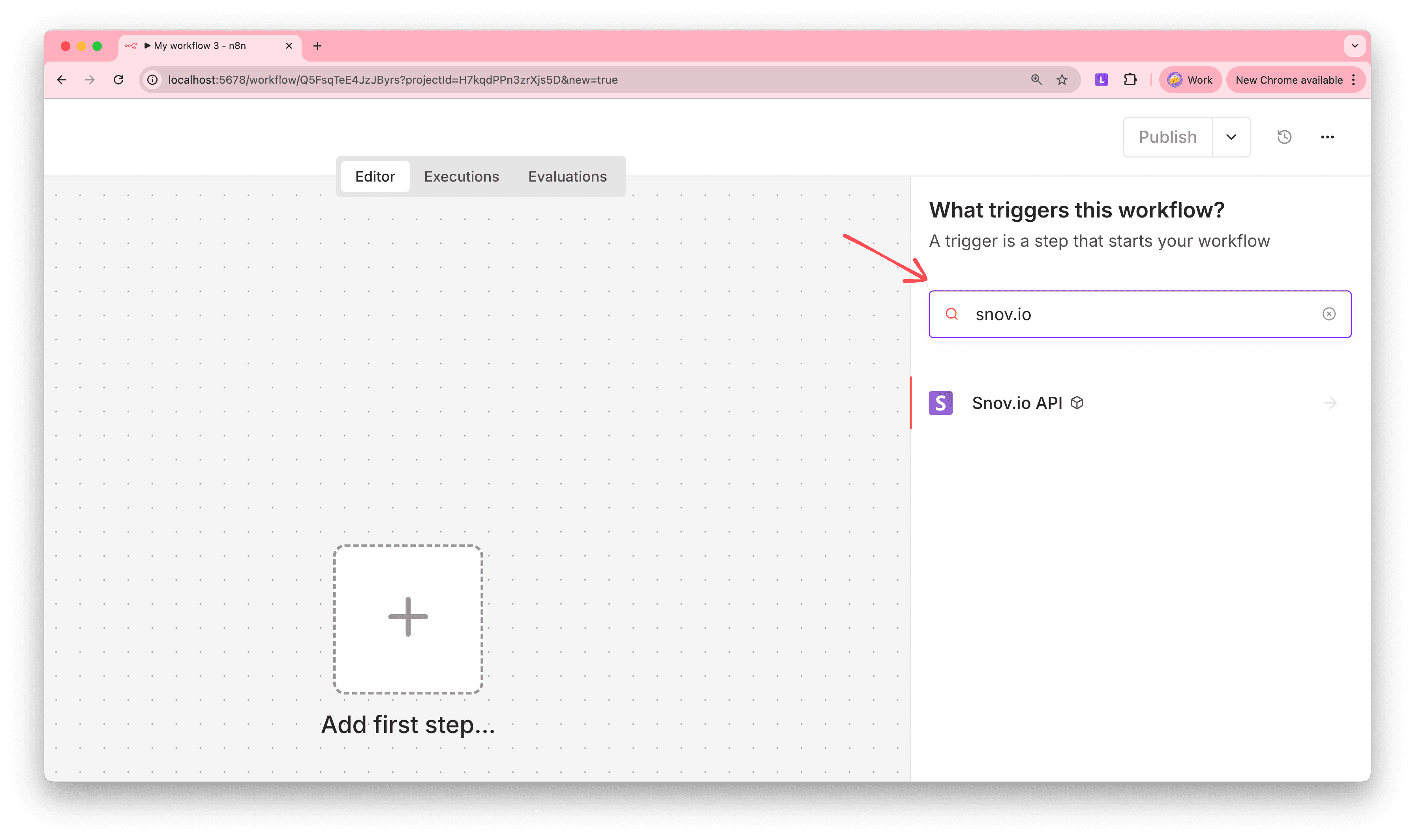
In the workflow editor, add a new step. Search for Snov.io in the sidebar and select Snov.io API. If it doesn't appear, restart your n8n instance.
The available actions cover all our tools: Email Finder, Data Enrichment, Campaigns, Prospect Management, etc. See the full list of actions at the bottom of this guide.
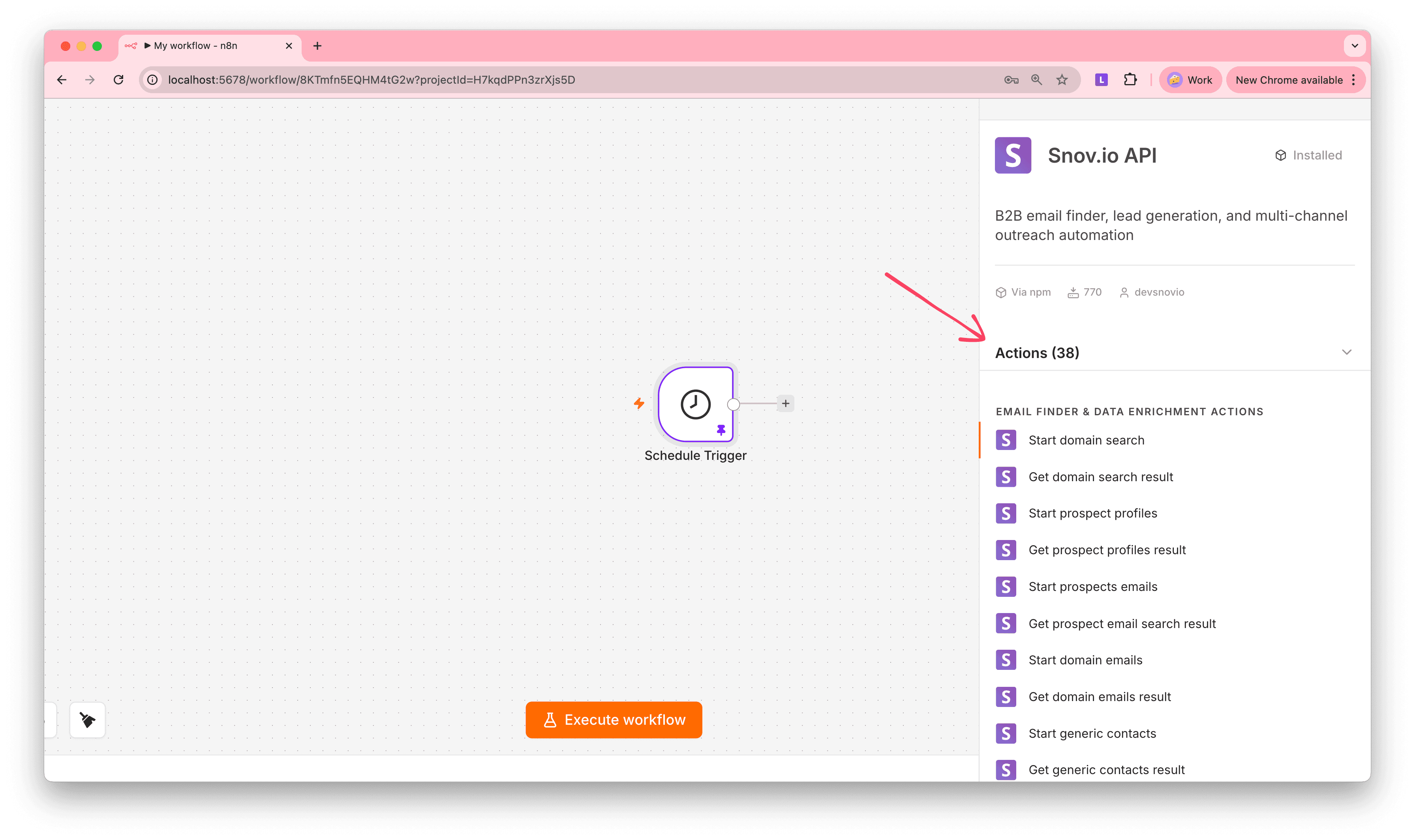
Action settings
After adding an action step, check its parameters.
Node parameters:
- Credential: Snov.io account used in this step (connected via API)
- Resource (This is a tool you want to use. For example, Email Finder & Enrichment, Verifier)
- Operation (This is an API action executed at this step; each tool has its own actions)
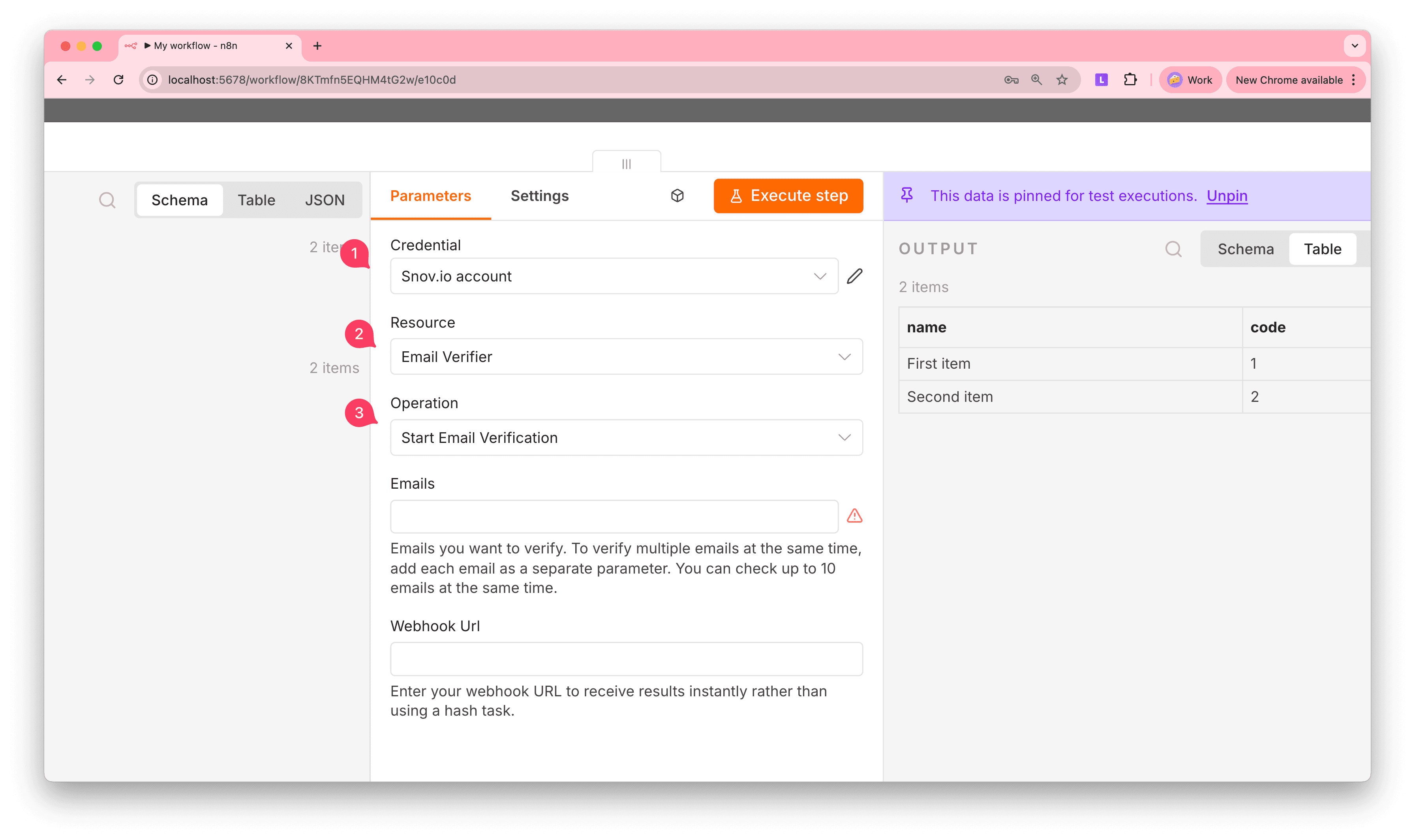
Add input
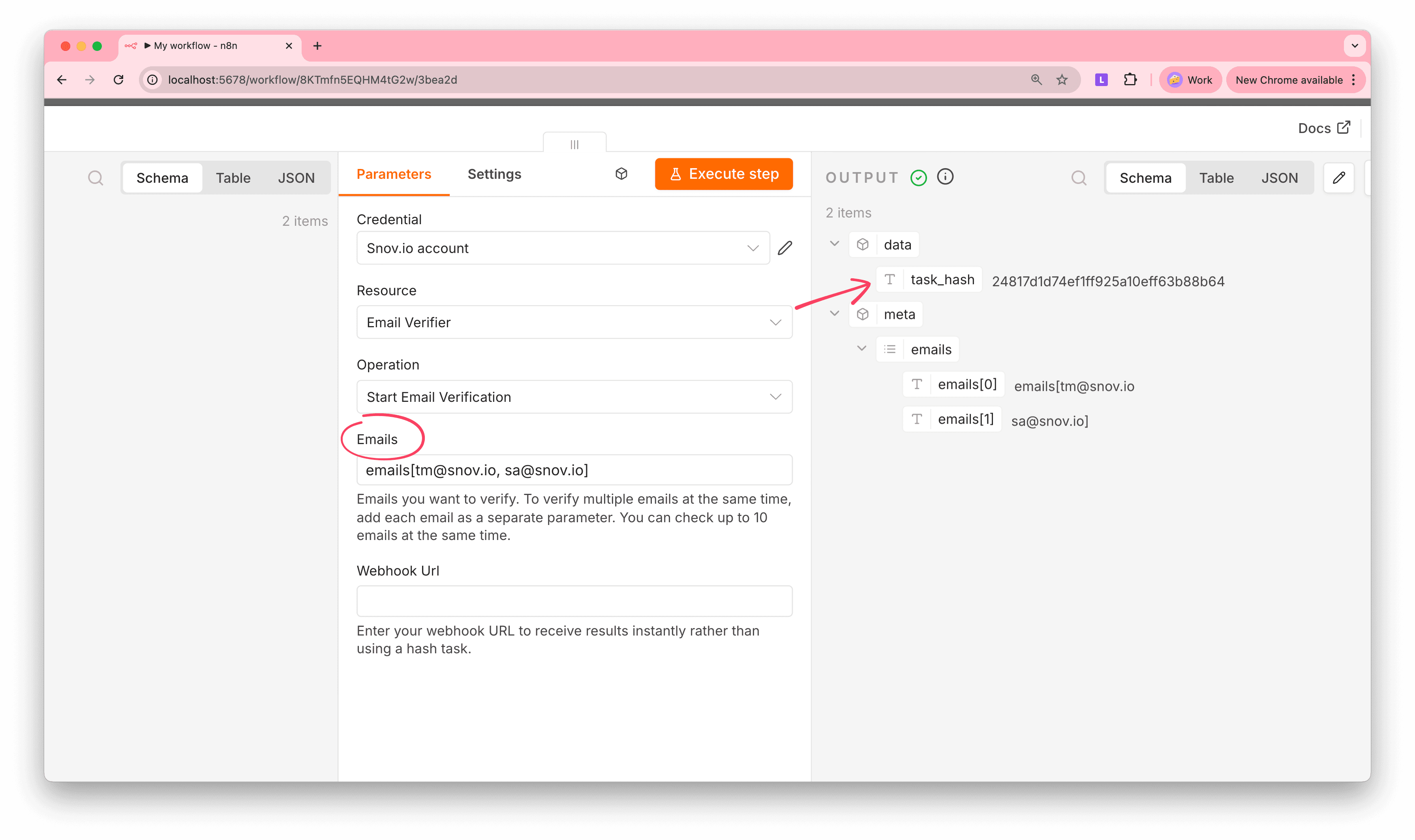
Get output
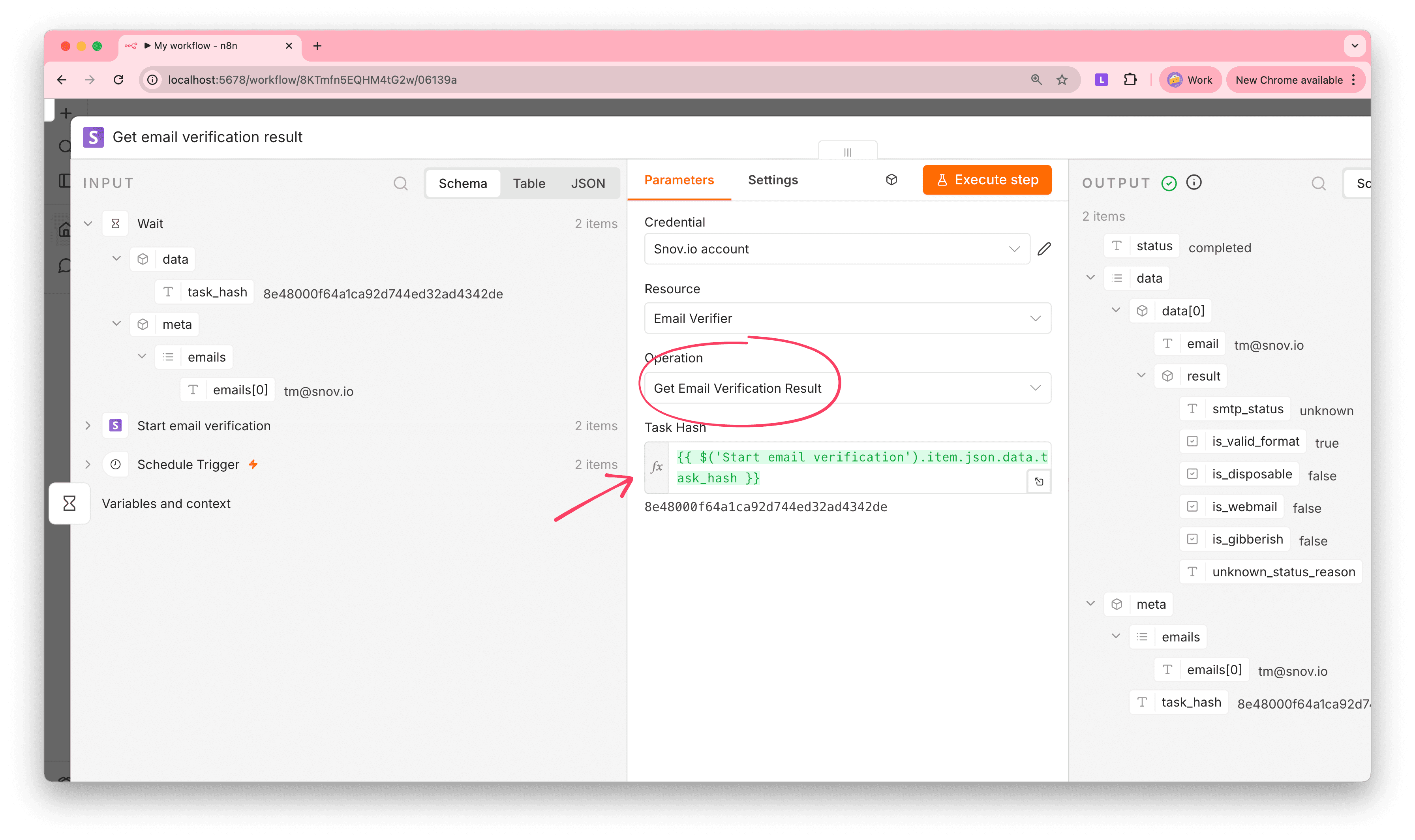
Use case examples
Here is an example workflow you can build with Snov.io in n8n. More examples are coming soon.
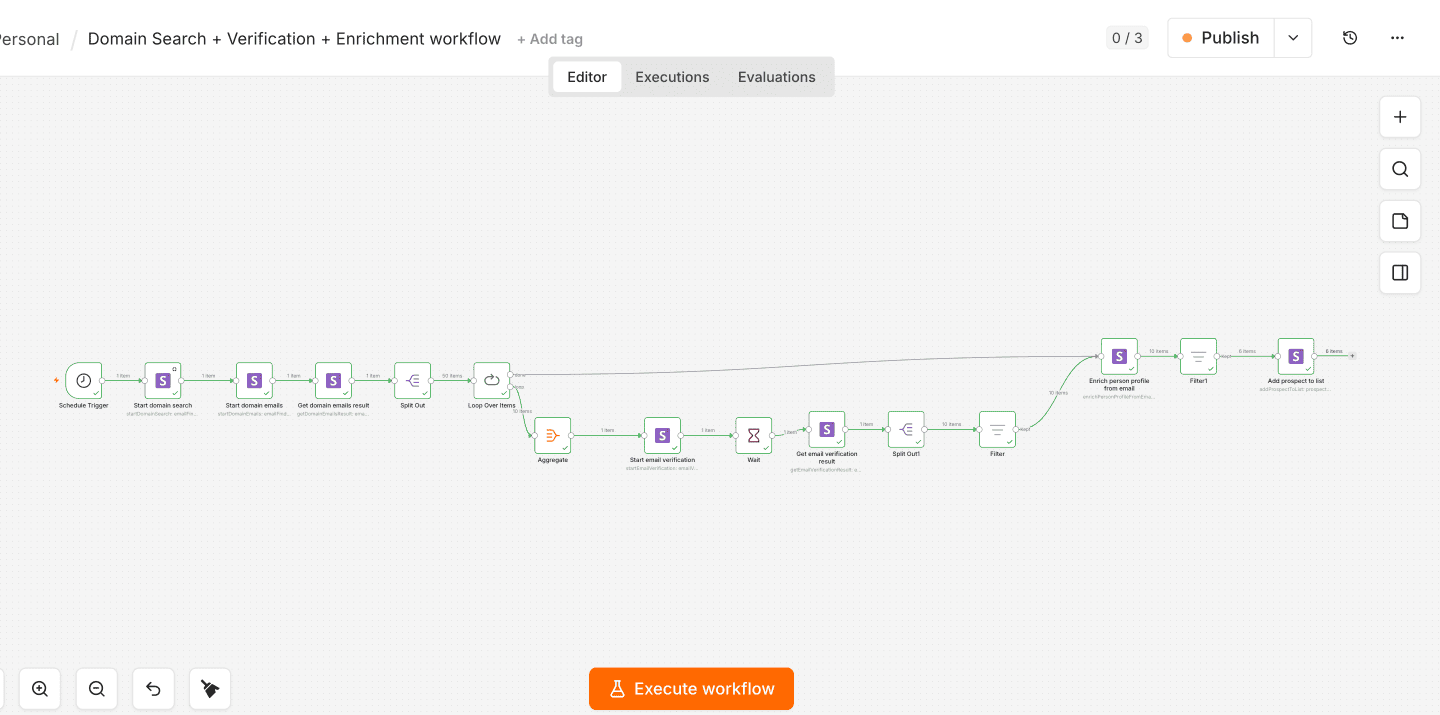
Domain Search + Verification + Enrichment workflow
Use this to build a qualified prospect list from a target company domain. The workflow finds emails, verifies deliverability, enriches the valid ones, and adds them to a Snov.io list.
Import this workflow directly into n8n. Download the JSON file below and use n8n's Import from File option (Workflows menu → Import from File) to load it into your instance.
Before running it, you'll need to:
- Connect your own Snov.io API credentials to each Snov.io node in the workflow
- Replace the listId value in the Add prospect to list node with the ID of the list you want prospects saved to
- Update the domain in Start domain search to the company you want to search
n8n workflow:
- Schedule Trigger: Runs weekly or triggered manually
- Snov.io: Start domain search: Enter the target company domain
- Snov.io: Start domain emails: Retrieve emails found for that domain
- Snov.io: Get domain emails result: Collect the full email list
- Snov.io: Start email verification: Check deliverability for each email
- Wait node: 5–10 seconds
- Snov.io: Get email verification result: Retrieve verification status
- Filter: Keep only emails with "valid" status
- Snov.io: Enrich person profile from email: Add company, title, and location for valid emails
- Filter: Keep only successfully enriched profiles
- Snov.io: Add prospect to list: Save enriched prospects to a Snov.io list
Workflow tips and best practices
Some tools use two actions: Start and Get.
One action starts a task and returns a task_hash. Another action retrieves the results using that task_hash.
For tools like Email Finder and Verifier, your workflow should follow this pattern:
Trigger → Snov.io action (Start) → Wait node → Snov.io action (Get Result) → Next step
- Snov.io API has a limit of 60 requests per minute. For large batch operations, add delays or use n8n's Split in Batches node
- Make sure you have enough credits before running actions. Use action Check credit balance before execution
- Snov.io's Email Verifier accepts up to 10 emails per verification request. If your domain search returns more than 10, use Split Out and Loop Over Items nodes to process them in batches, with an Aggregate node before each verification call to group emails back into a single batch request
- Use Wait nodes (5–10 seconds) between Start and Get actions. Snov.io needs a few seconds to process each batch before results are ready. If the Get result action comes back empty, try increasing the wait time
- When using Add Prospect to List action, turn on updateContact in the settings if you expect to update prospects you've already added earlier. Otherwise Snov.io treats them as duplicates and skips them
Snov.io node actions
These are the available actions you can combine in any order to build custom workflows. See Snov.io API documentation for request parameters and full technical details.
Email Finder & Enrichment
- Domain search: Identify prospect contacts and email addresses associated with a specific company domain
- Get prospect profile: Retrieve detailed prospect data to enrich your outreach lists with comprehensive background information
- Get all emails by domain: Bulk-collect email addresses from a domain for list building and research
- LinkedIn URL enrichment: Extract prospect details from LinkedIn profiles to enhance your existing data
- Enrich person by email: Add missing prospect information (company, title, location) by looking up their email address
Email Verifier
- Start email verification: Initiate bulk or single email validation to check deliverability before sending
- Get verification result: Retrieve the status of email verification checks to confirm which addresses are active
Campaigns
- Get campaign analytics: Pull performance metrics to track outreach effectiveness in your automations
- Replies, opens, clicks: Monitor engagement metrics to identify responsive prospects automatically
- Sent emails: Track which messages were delivered as part of campaign monitoring
- Campaign progress: Check overall campaign status to trigger conditional workflows based on performance
Prospect Management
- Add prospect to list: Programmatically add contacts discovered or enriched by automations into Snov.io lists
- Find prospect by email: Look up existing prospect data by email to avoid duplicates and sync information
- Create prospect list: Auto-generate organized prospect lists from automation results
- View prospects in list: Retrieve list contents to review or process prospects in downstream workflow steps
User Account
- Check credit balance: Monitor your remaining API credits to prevent automation failures due to insufficient balance


Sorry about that 😢
How can we improve it?