Once your campaign is live, the next step is staying on top of replies and engagement. Snov.io gives you two tools that work together to keep you updated:
- Unibox collects all your campaign replies in one place, both email and LinkedIn, so you always have a clear view of who responded and what they said.
- Browser Notifications let you know the moment a prospect opens your email, clicks a link, or replies, so you can reach out while the conversation is fresh.
This guide walks you through both. You'll learn how to manage conversations in Unibox and how to set up notifications to stay informed as prospects engage.
Managing replies in Unibox
Unibox is your central inbox for all outreach replies. It syncs emails and LinkedIn messages from all connected accounts in one place, so you don’t have to check multiple inboxes to see who responded.
How to navigate Unibox and use filters
When you open Unibox, you'll see familiar folders on the left:
- Inbox: all incoming messages from connected accounts, including campaign replies and LinkedIn
- Sent: every email and LinkedIn message sent from Snov.io, including campaign emails
- Starred: threads you've marked as important for quick access
- Bounced: threads with delivery failures
Each thread in the list shows:
- The message type (campaign email, one-off email, or LinkedIn)
- Recipient name
- Number of unread messages
- Subject line and email preview
- Campaign label and date of the last message
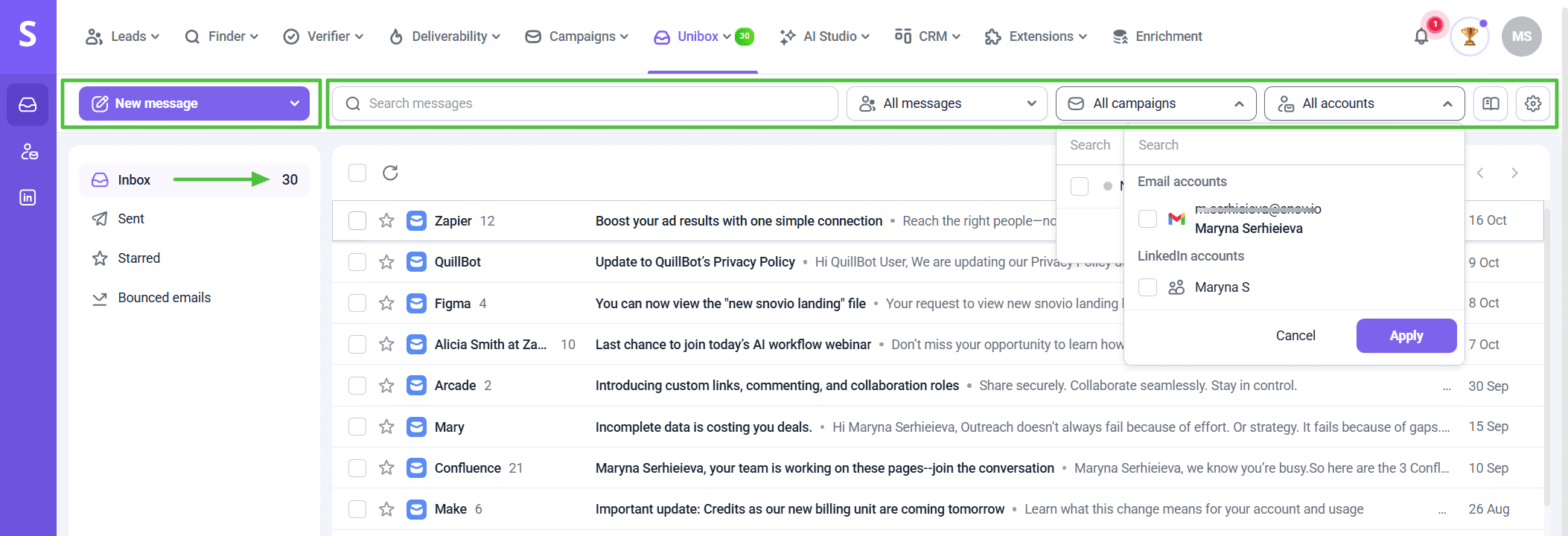 The unread counter in your top nav bar updates in real time across all connected accounts.
Use the filters above the message list to narrow things down:
- All messages / Prospects only: toggle between all synced messages or just those with linked Snov.io prospects
- All campaigns: filter to see replies from a specific campaign
- All accounts: filter by email or LinkedIn account
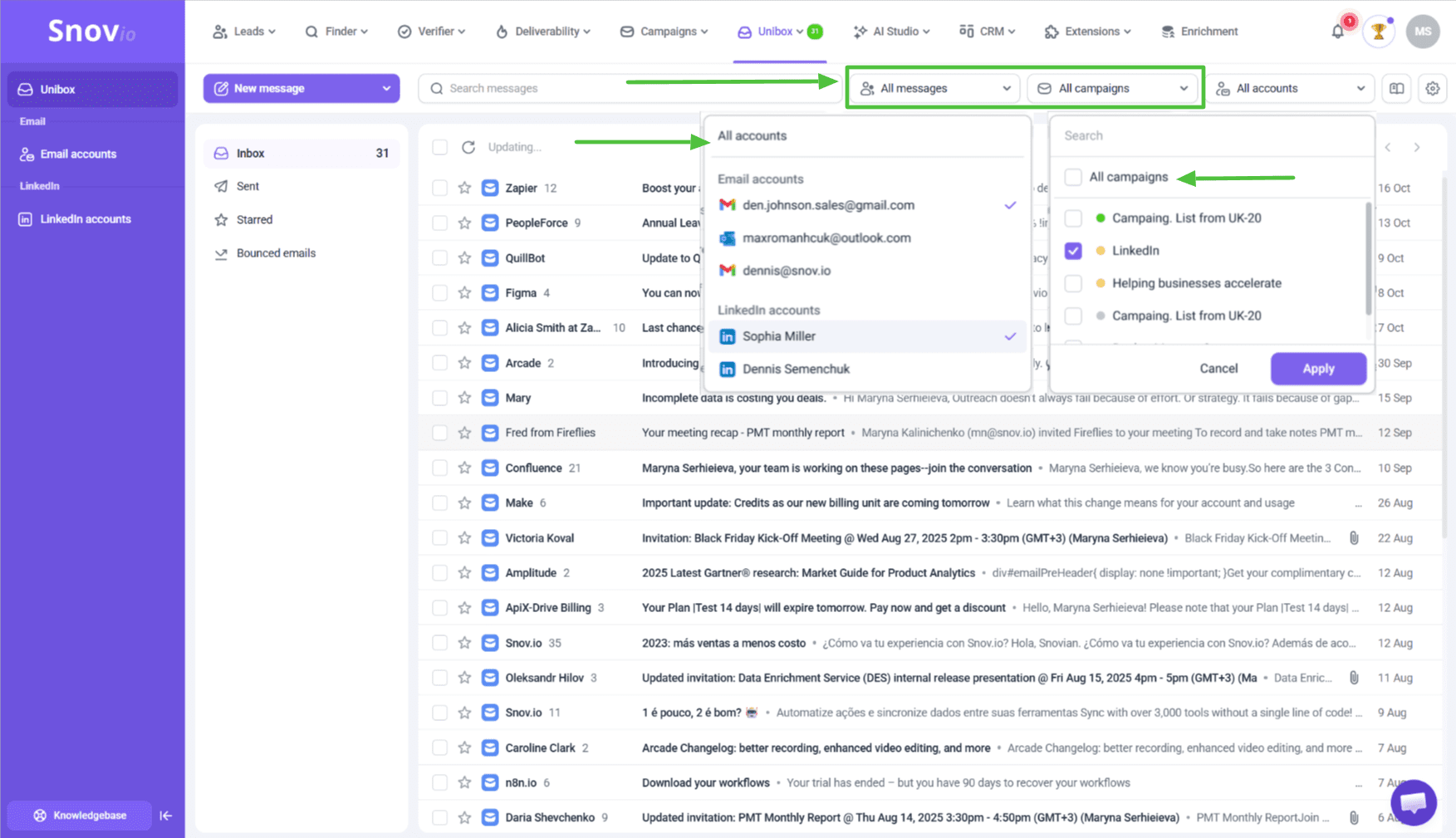
The settings icon in the top right corner shows all connected accounts. You can check their status or pause syncing from there.
Bulk actions
Select multiple threads to perform bulk actions:
- Mark as read or unread
- Add or remove a star
- Delete
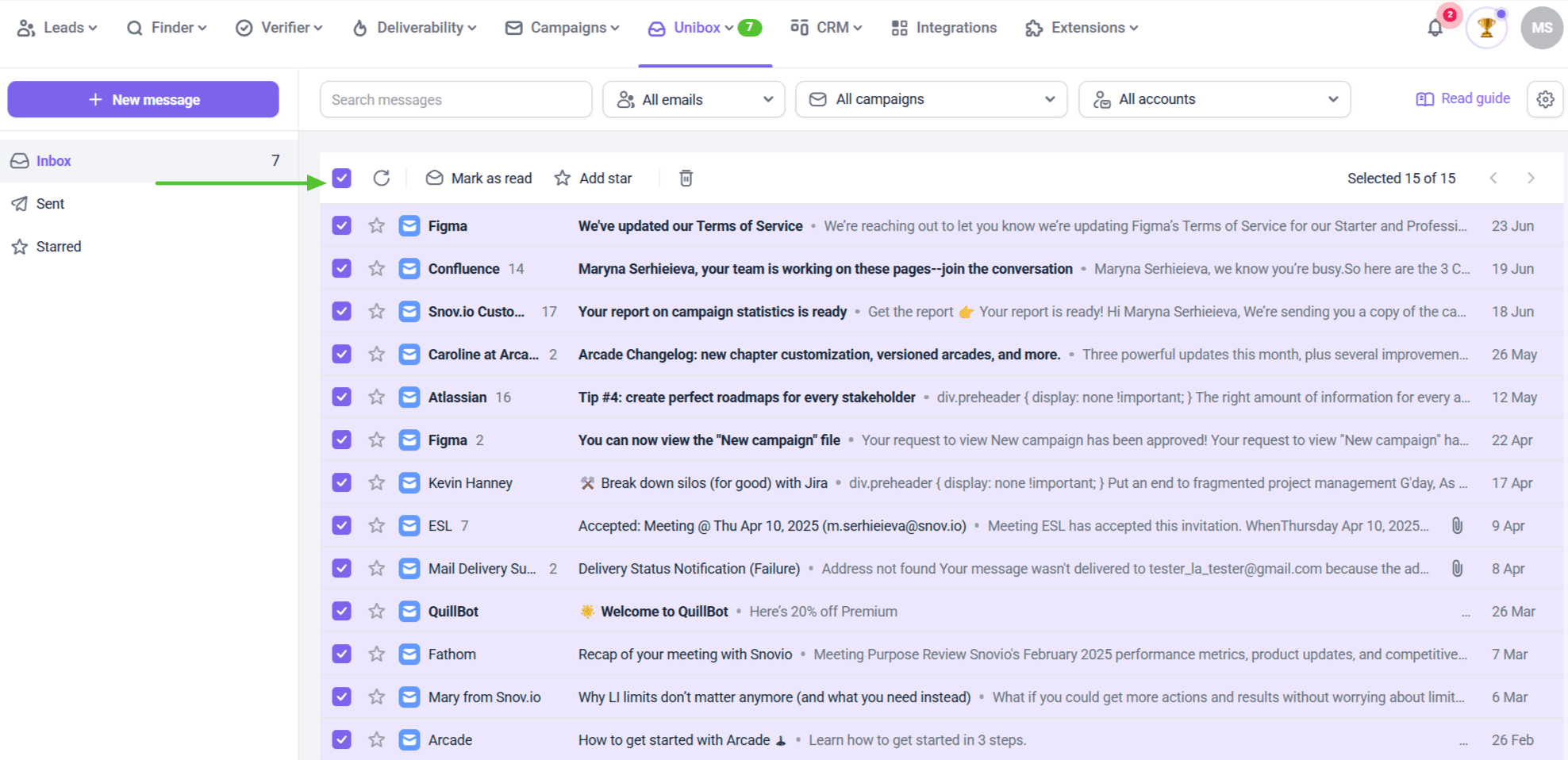

Unibox syncs the read/unread status only during the initial sync when you connect your inbox. After that, it won't update automatically.
Starring conversations
Use stars to mark replies that need your attention. Hover over a thread and click the Star icon 🟊 to add or remove it. All starred threads go to the Starred folder.
You can also filter your inbox by starred threads to focus on priority conversations first.

Stars work only inside Unibox. They won't sync with Gmail or Outlook.
How to search in Unibox
Use the search bar on the upper left to find a specific thread fast. You can search by contact name, email address, subject line, or keywords from the email or LinkedIn message.
Click All messages to view the full list of matching results.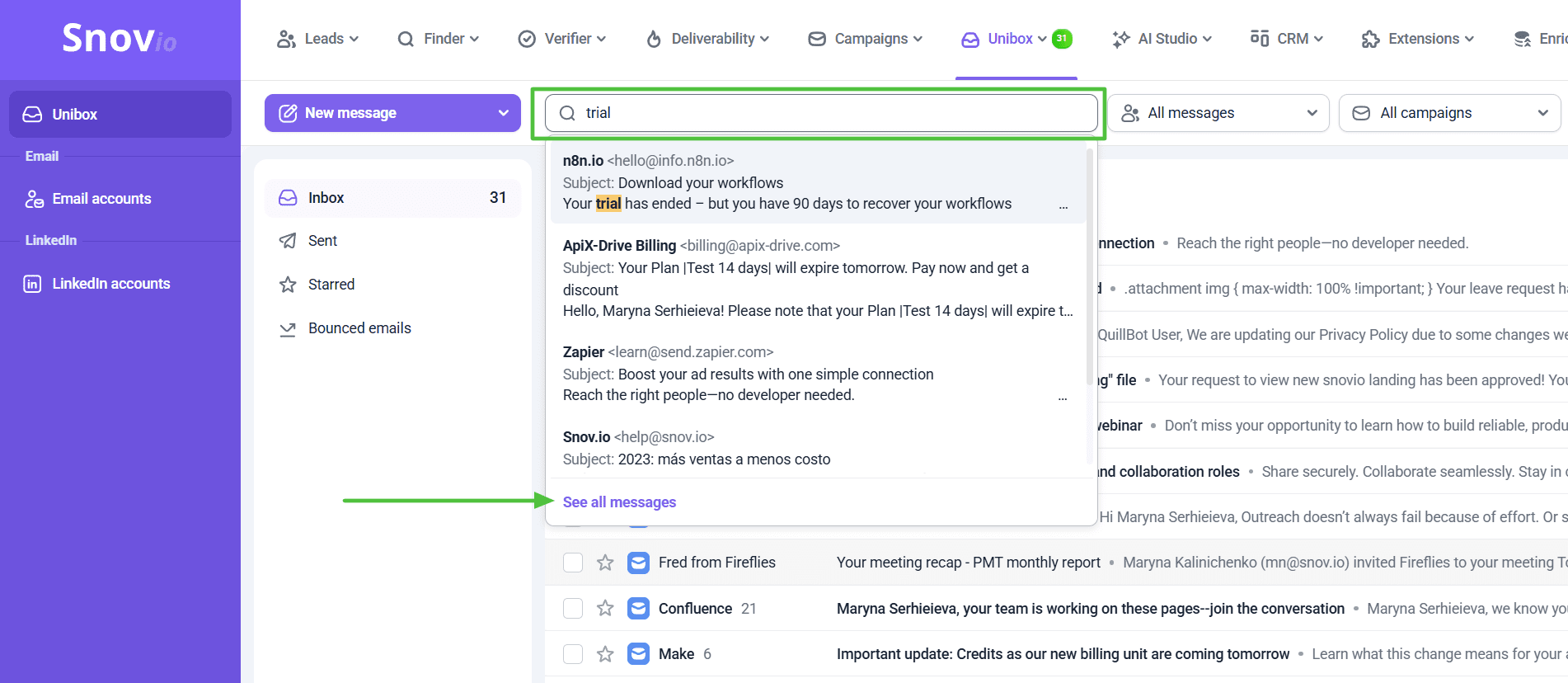
How to send new messages from Unibox
You can send a new email directly from Unibox without leaving your inbox.
Click the New message button on the left. In the editor window, you can:
- Choose the sender account
- Set the email subject
- Add recipients: Unibox checks your prospect lists and suggests matches as you type
- Use CC and BCC to keep teammates informed or add hidden recipients
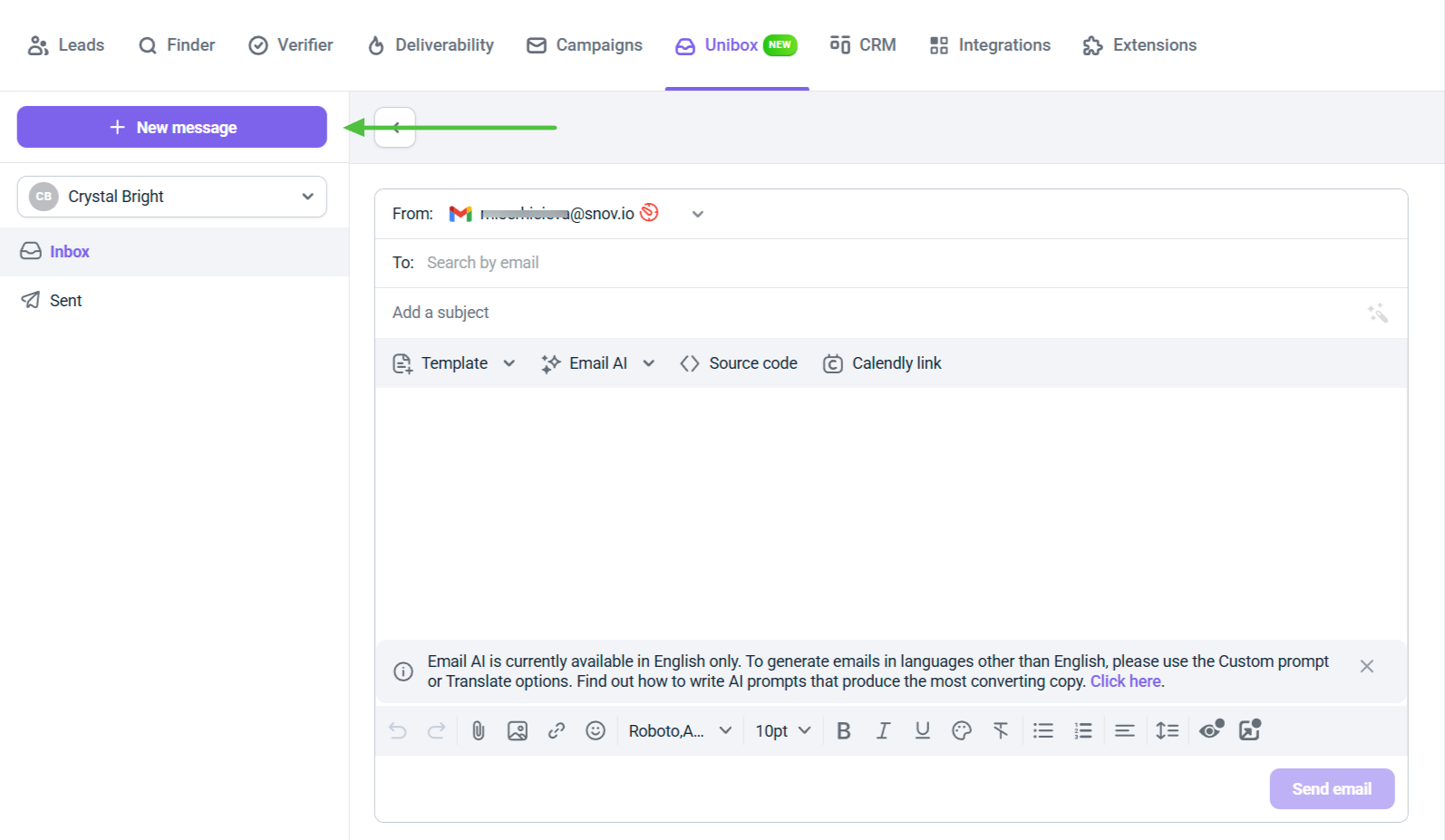 If you type an email address not yet in your prospects, you can still send. You can add them to a prospect list later directly from Unibox.
To forward a message, open the thread and click Forward in the top-right corner.

Add your CRM's BCC address in email settings to automatically log all Snov.io emails in your CRM.
How to send LinkedIn messages and InMail
Click New message, then choose LinkedIn message or InMail from the drop-down.
LinkedIn message: Use when you're already connected with the prospect or share a LinkedIn group.
LinkedIn InMail: Use to reach prospects outside your network. A subject line is required. The character limit is 1,700.
For InMail, you can also enter a profile URL if you're not yet connected. If you and the prospect are already connected, use a regular LinkedIn message instead. InMail credits are limited by your LinkedIn plan.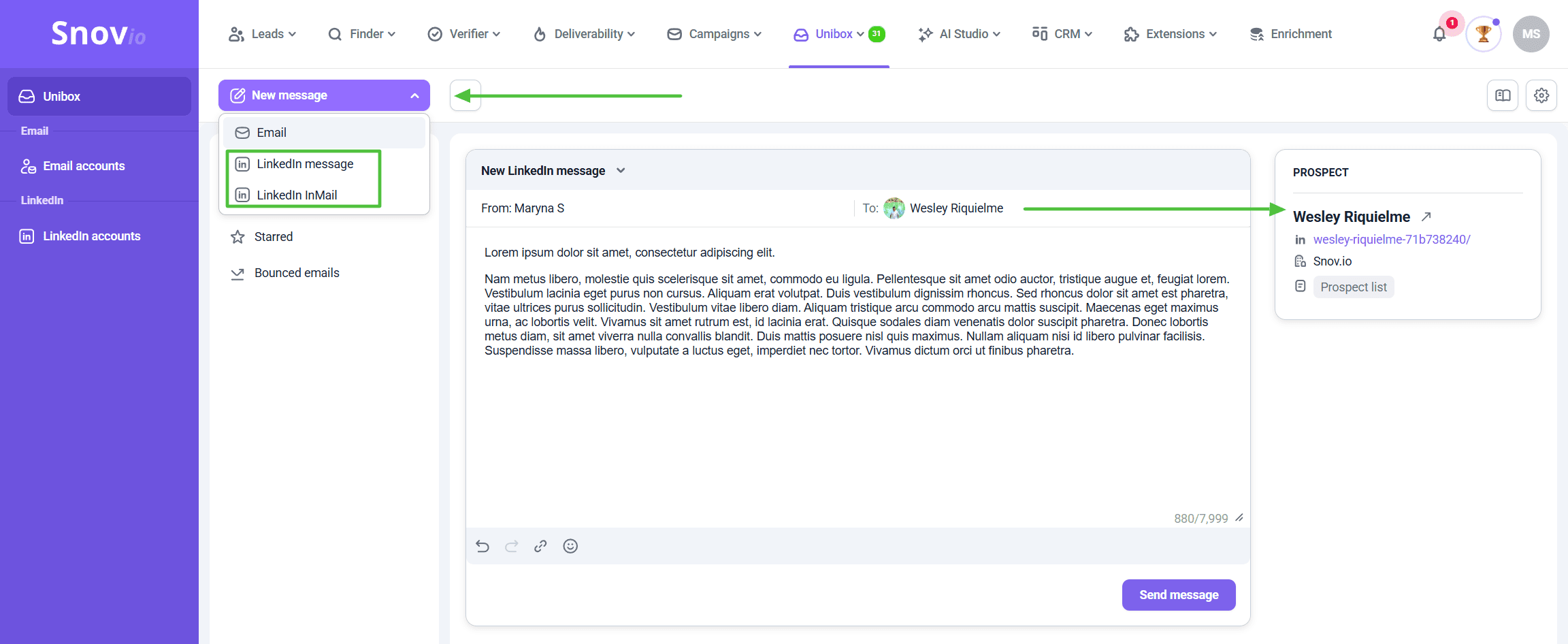
Fixing LinkedIn messaging errors
If a LinkedIn message fails to send, the most common reasons are:
- Invalid LinkedIn profile URL
- No existing connection with the prospect
- Messaging restrictions set by the recipient
InMail delivery can also fail if:
- The URL is incorrect
- You're using a free LinkedIn plan or have no InMail credits left
- You've exceeded your monthly InMail quota
- The recipient has restricted InMail messages
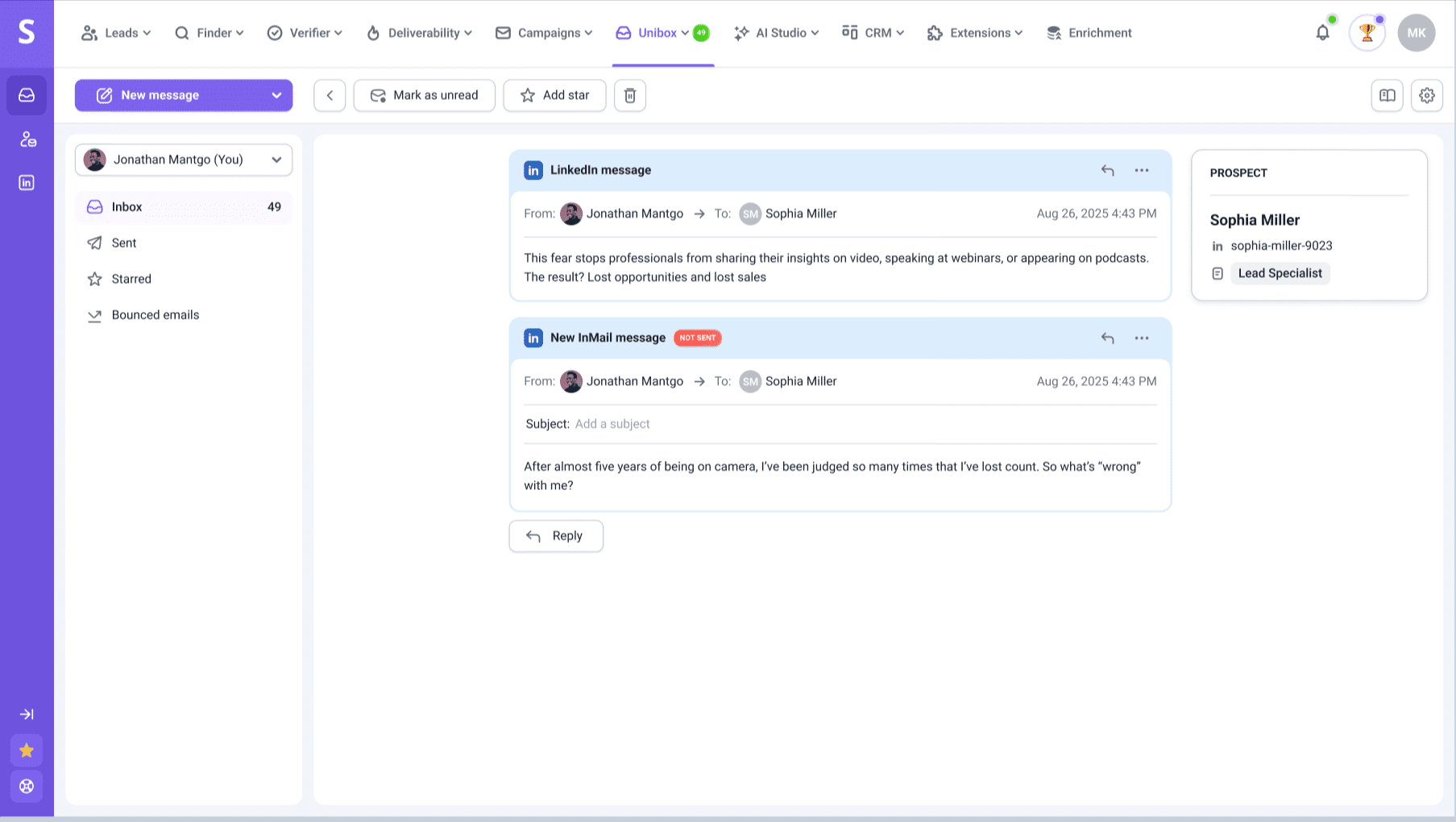 To fix errors:
- Check the LinkedIn profile URL: open the profile and copy the full URL directly.
- If you're not connected yet: send a connection request first. Wait for acceptance before messaging.
- If you're out of InMail credits: check your LinkedIn plan, wait for the monthly reset, or switch to a regular message if connected.
- If the recipient has messaging restrictions: try a connection request, or reach out via email if available.
How to handle bounced emails
Click Bounced emails in the left sidebar to see all threads with delivery failures. Any thread with at least one bounced message appears here.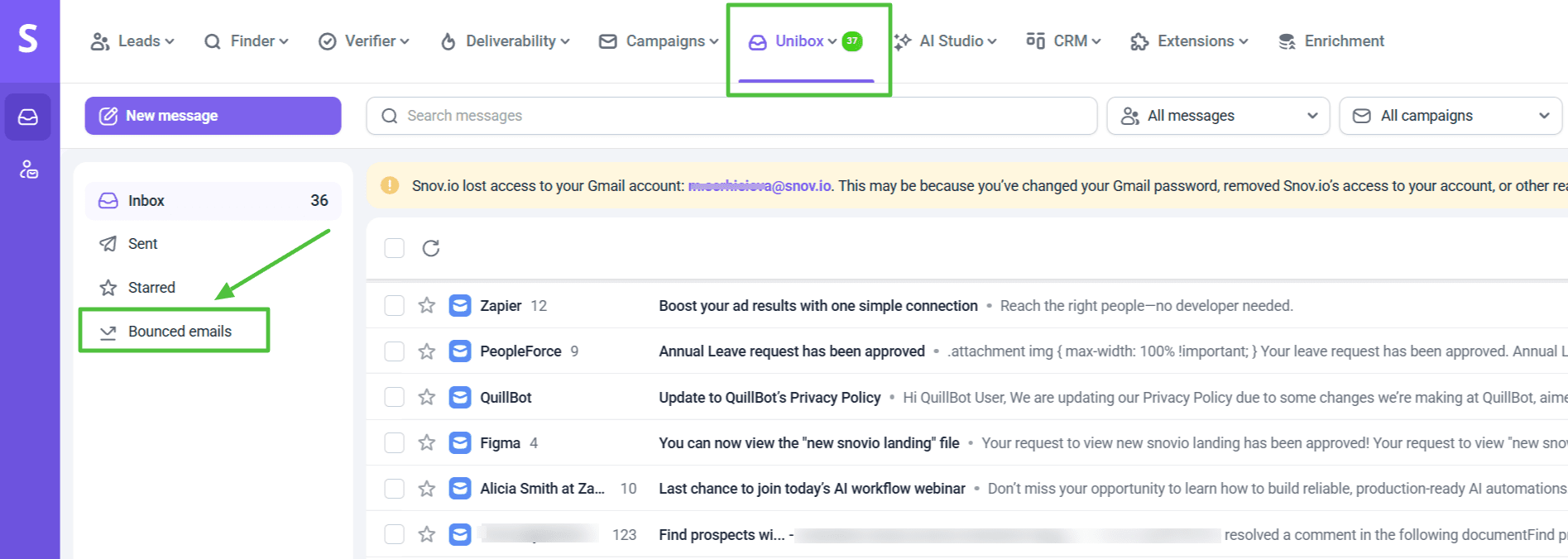
Remove bounced emails from a thread
- Select one or more threads in the Bounced emails section.
- Click the trash bin icon in the bulk actions toolbar.
- Confirm the action.
Bounced messages are deleted, but successfully delivered messages stay in the thread. If a thread has only bounced messages with no successful deliveries, the entire thread is deleted.
Add bounced contacts to your Do-not-email list
To stop sending to addresses that bounced:
- In the Bounced emails section, select the threads you want to block.
- Click Add to do-not-list in the bulk actions toolbar.
- Choose the do-not-email list, then confirm.
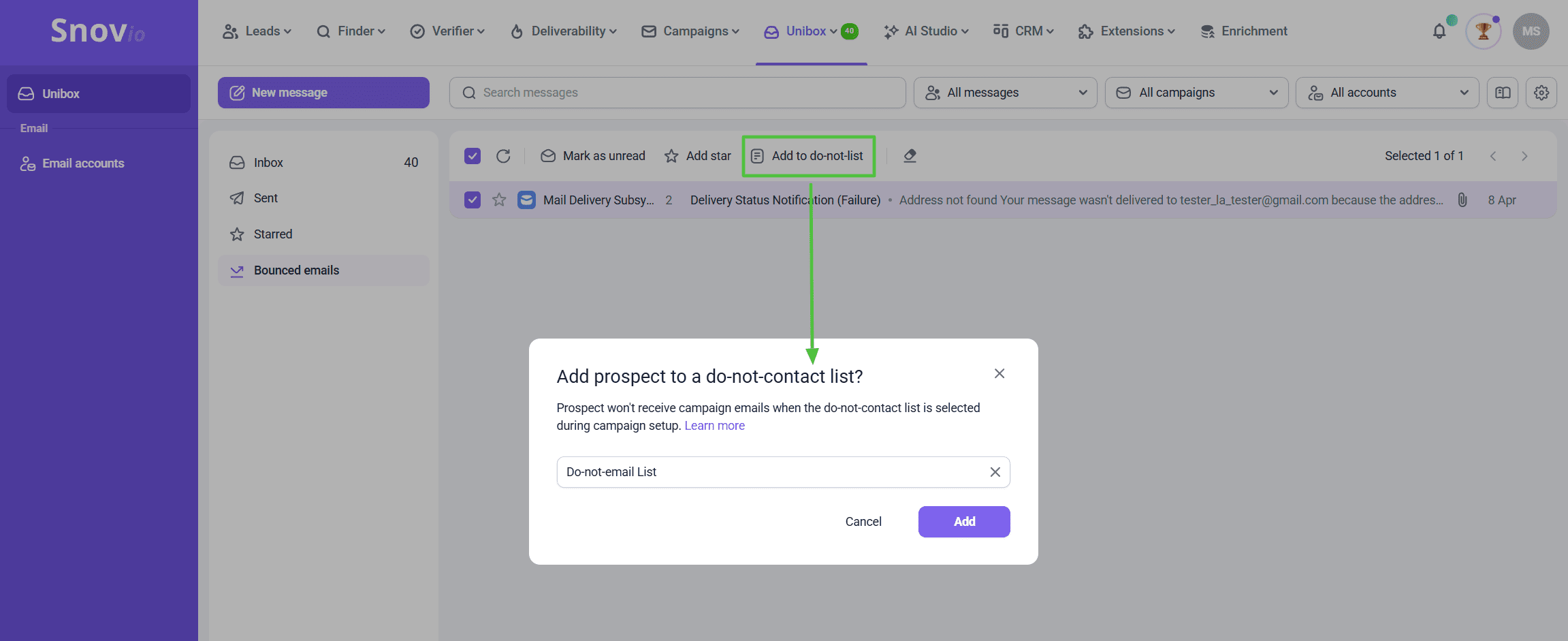
Only the bounced email address is added, not all emails for that prospect. If they have another active address, you can still email it.
How to manage prospects from Unibox
The right sidebar in each thread shows details about the prospect: the campaigns they're in, active deals, and their contact info.
Unibox links prospects to threads automatically during sync. If a prospect isn't linked, you can add one manually.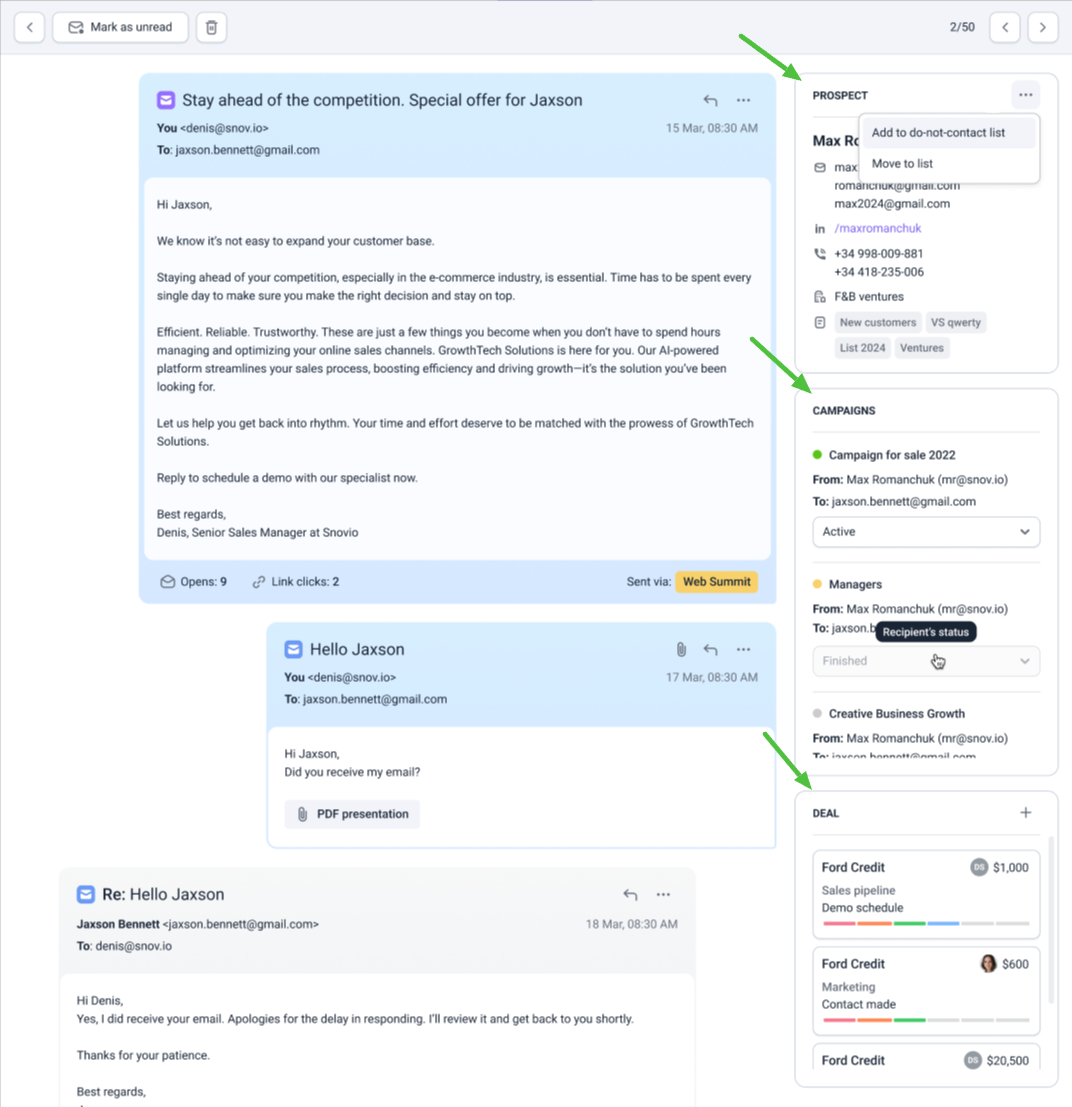
In the sidebar, you can:
- View and edit prospect details: click the prospect's name to go to their full profile
- See which campaigns they're in and change their campaign status
- Create or update a deal: add the deal name, budget, currency, and status
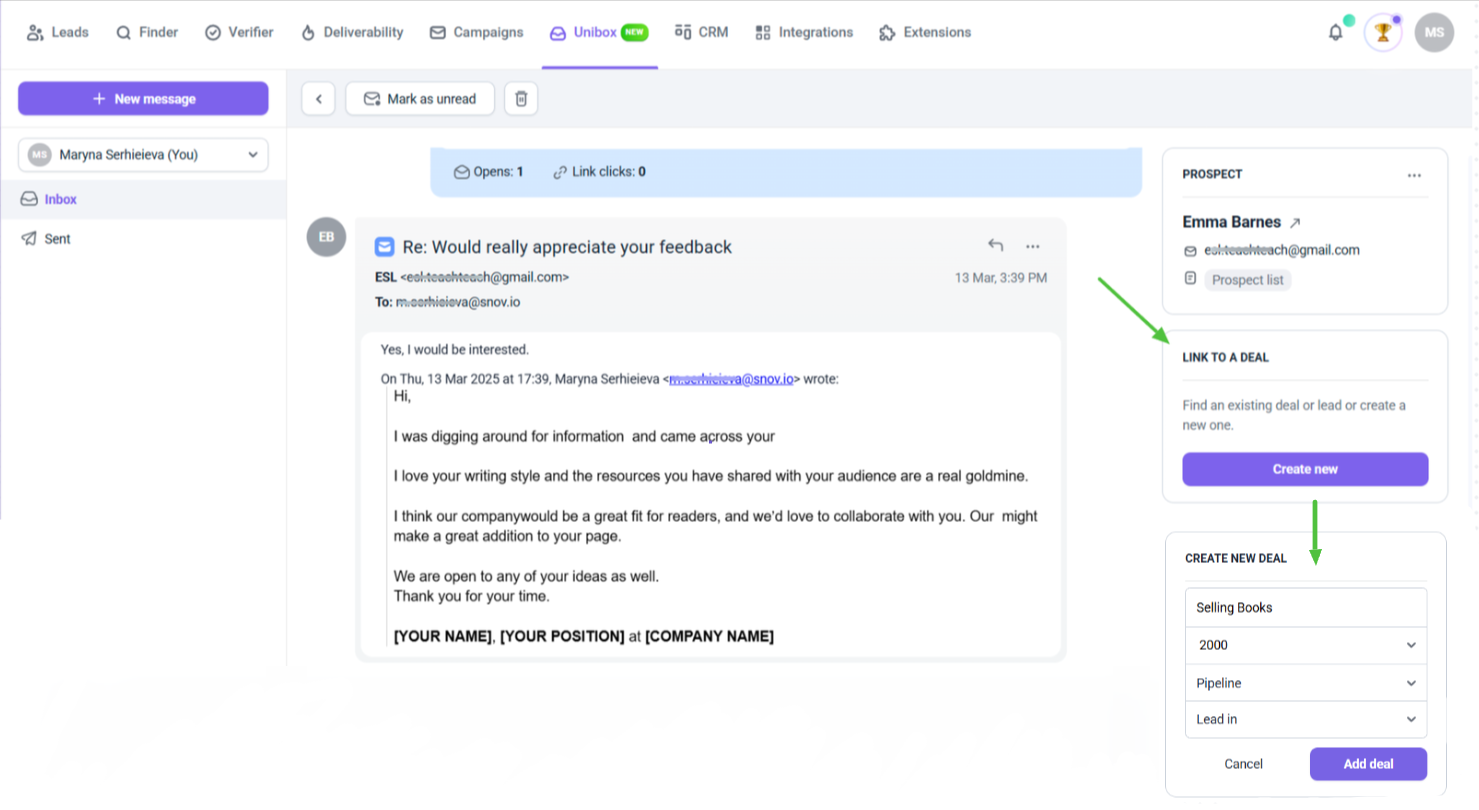
For more detailed deal management, open Snov.io CRM directly. The sidebar is great for quick updates, but CRM gives you the full picture.
Add or update a prospect in a thread
If no prospect is linked, you'll see two buttons in the sidebar:
Add to existing: find an existing prospect by email or name and attach them to the thread. If the thread already has a different email, both will be merged into one.
Create new: enter a first and last name, select a prospect list. The email address is added automatically.
If you delete an email from a prospect profile later, all messages from that address move to a separate thread.
Add a prospect to your Do-not-contact list
From any thread, click the three dots (...) in the prospect card. You can add one or more of their emails to an existing Do-not-contact list, or create a new one.
Snov.io won't send campaigns to addresses on your Do-not-contact list when that list is selected during campaign setup.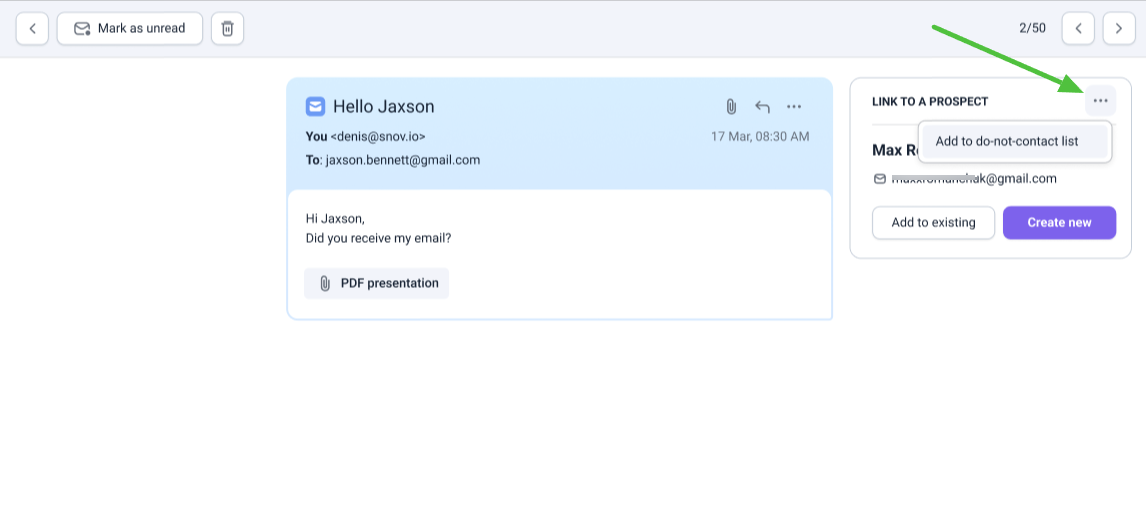
Real-time notifications for prospect engagement
Beyond replies, Snov.io also tracks how prospects interact with your emails before they respond. When someone opens your message, clicks a link, or accepts your LinkedIn request, you'll know about it right away.
Browser notifications give you that visibility in real time. You can set them up to alert you on the exact actions that matter most to you, and then follow up at exactly the right moment.
Why it helps: Following up shortly after a prospect engages tends to get much better results. Notifications make it easy to build that habit without manually checking your stats.
How to set up notifications
Go to your Account settings and select Notifications from the left menu.
Choose which actions trigger a notification. Every time a selected action happens in any of your active campaigns, you'll get an alert.
1. Email opens
Get notified when a recipient opens your email. You can choose:
- After first open: notify me the first time they open it
- After every open: notify me each time they open it
- After X opens: set a threshold (e.g., notify me after 5 opens total)
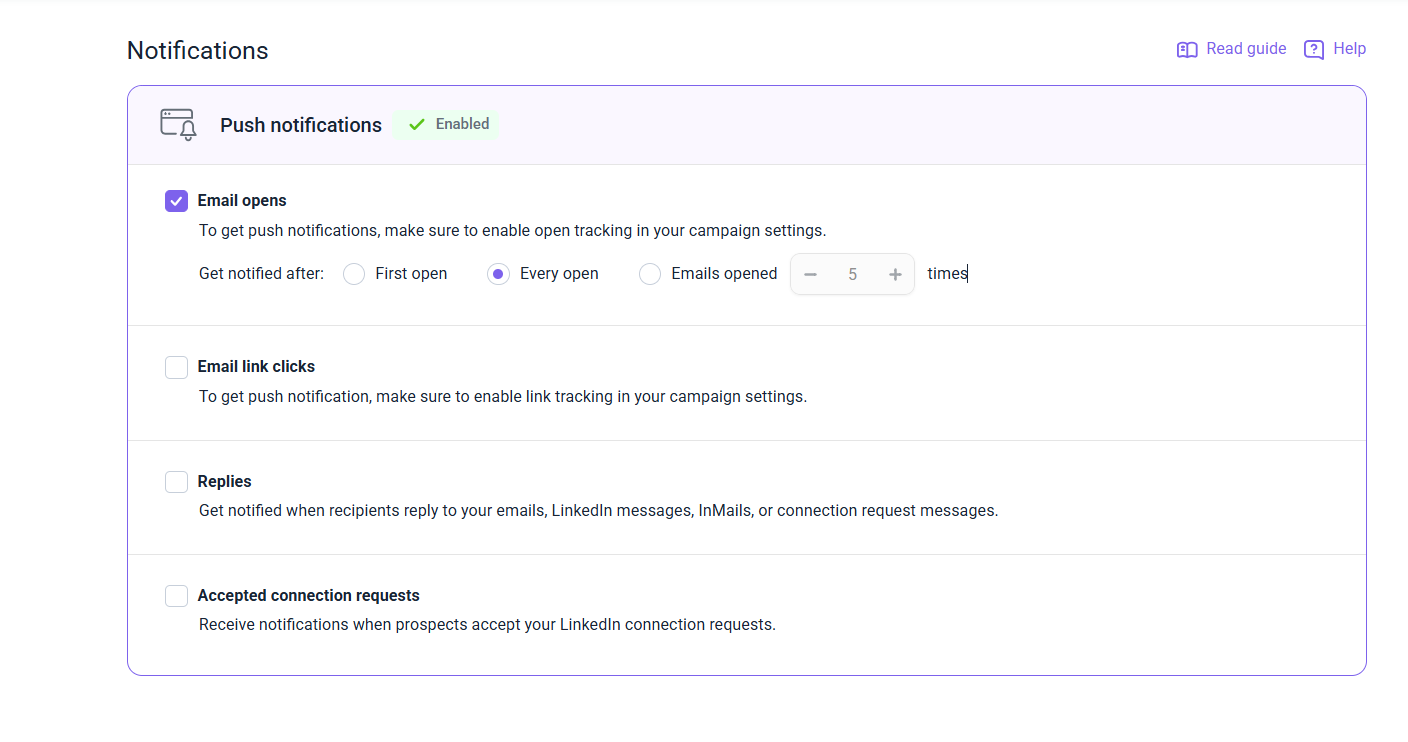 Open notifications only work if open tracking is enabled in your campaign settings. Check your campaign settings to confirm.
2. Link clicks in emails
Get notified when a recipient clicks a link in your email. For tracking to work, the link must be properly inserted into the email content, not just pasted as plain text.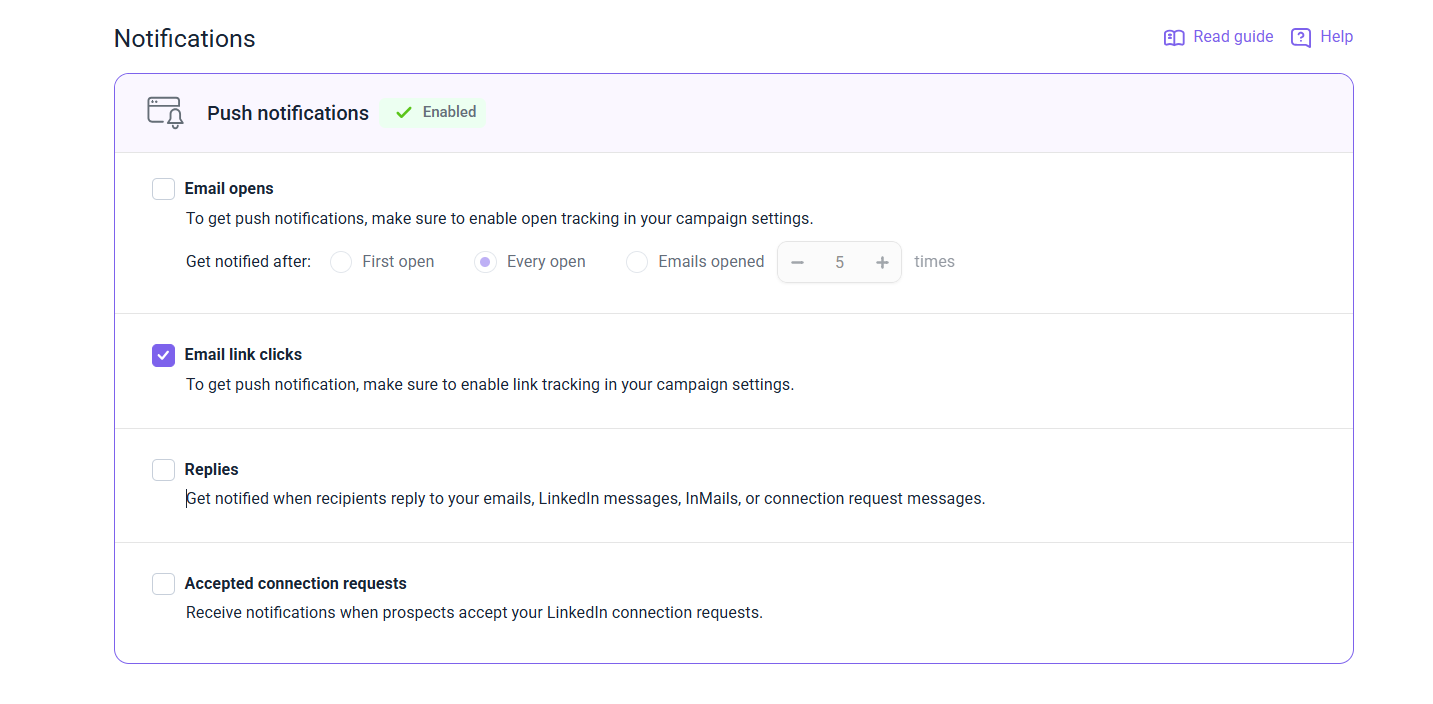
Note that link click notifications only work if link tracking is enabled in your campaign settings.
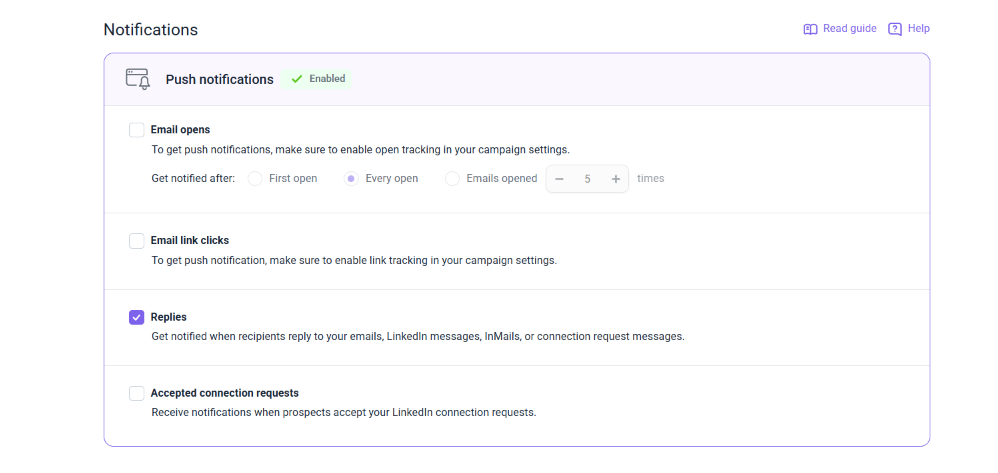
3. Replies (email and LinkedIn)
Get notified when a prospect replies to an email or a LinkedIn message, including InMails and connection request replies.
For LinkedIn reply notifications, your campaign sequence must include a LinkedIn Message action.
Email reply tracking is on by default. If your email account has IMAP errors, replies can't be tracked. Check that your IMAP connection is active.
4. Accepted LinkedIn connection requests
Get notified when a prospect accepts your LinkedIn connection request. For this to work, your campaign sequence must include a Send connection request action.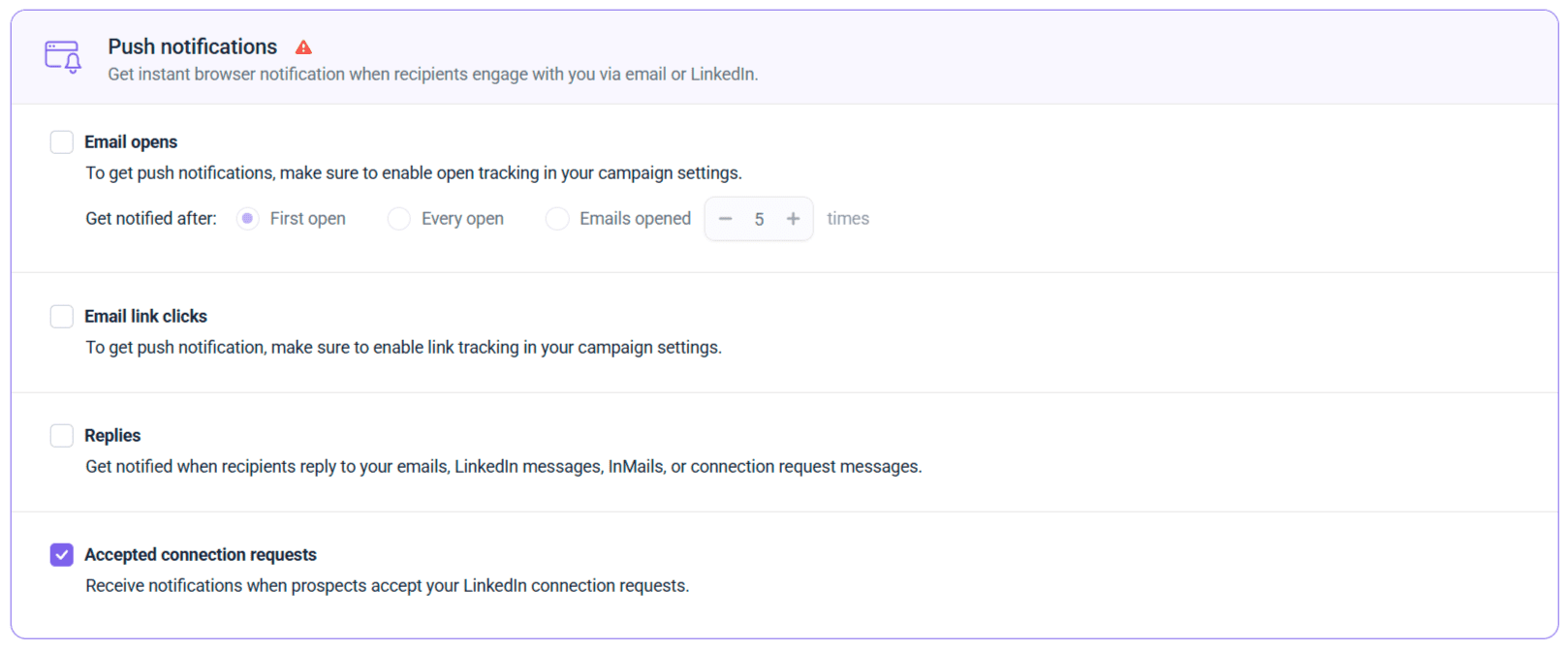
How to allow notifications in your browser
After choosing your triggers, click Save at the bottom of the page. Then allow Snov.io to send notifications in your browser.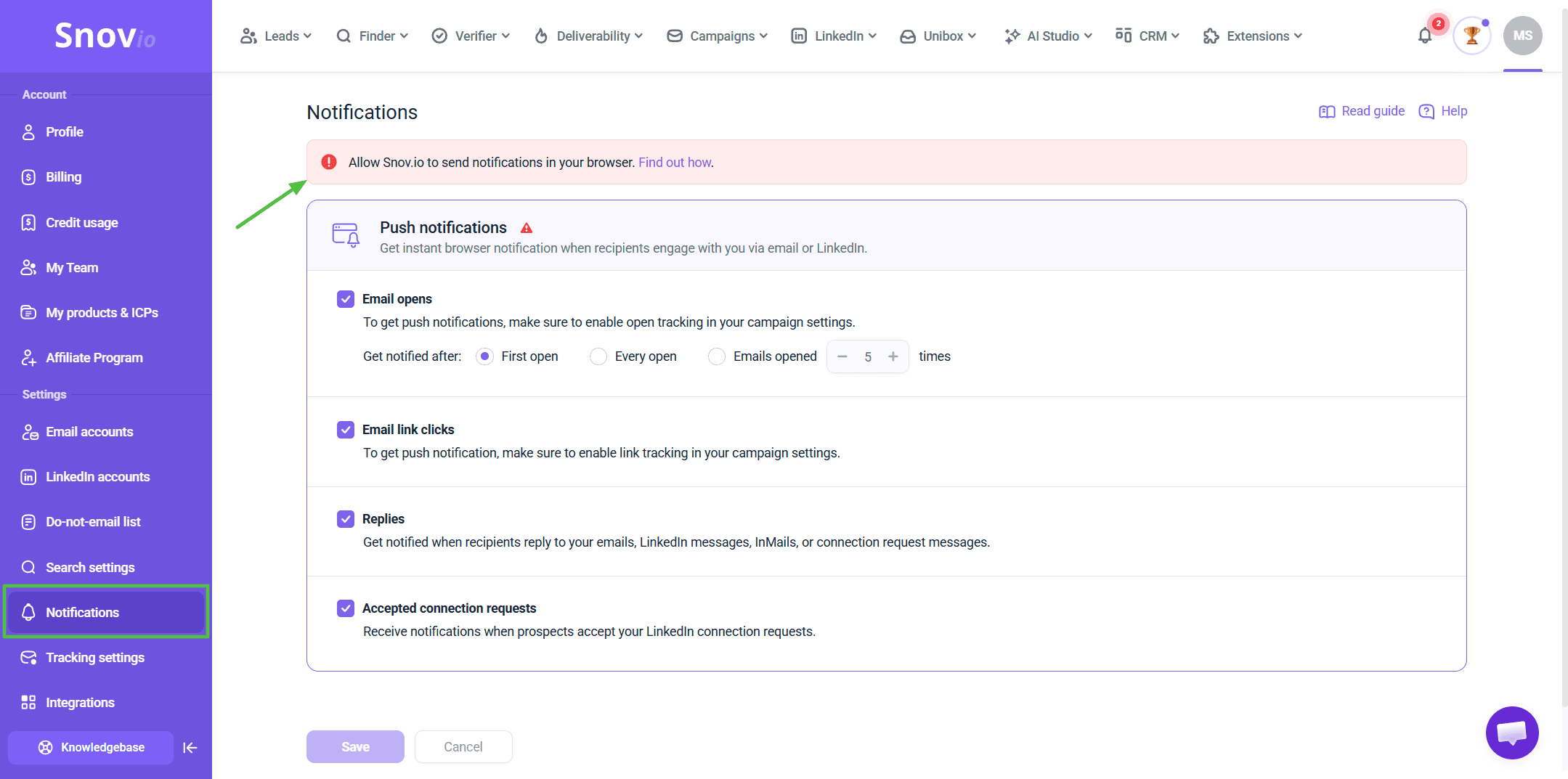 If your browser asks for permission, click Allow. If no prompt appears:
- Click the icon in your browser's address bar (top right).
- Open site settings.
- Switch the Notifications toggle to enabled.
- Reload the page.
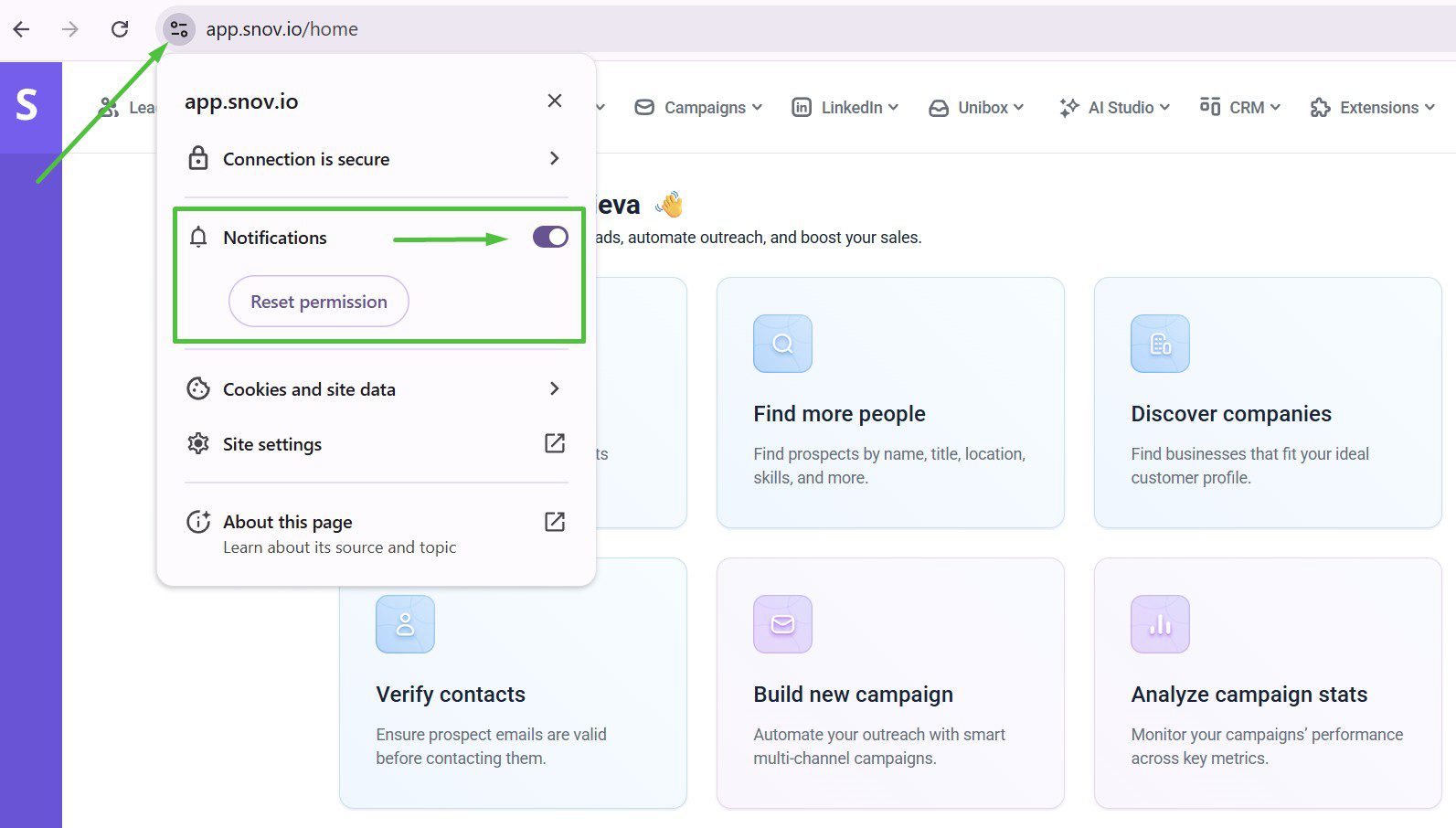 For step-by-step instructions for Chrome and Safari, see our guide on allowing browser notifications.
If you use Snov.io in more than one browser, you'll need to enable notifications in each one separately.
What happens after you set it up
Once notifications are enabled, you'll see Enabled at the top of the notifications page. That means you're all set.
Notifications will pop up in your browser even when the Snov.io tab is in the background. Click any notification to go straight to the relevant activity in your account.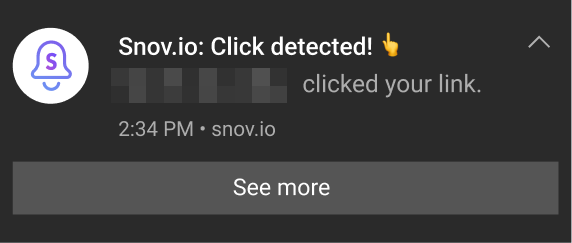
Not seeing notifications? Check our troubleshooting guide. The most common fix is re-enabling browser permissions.
If you feel that this article doesn't address your question, please don't hesitate to reach out to our support via help@snov.io or live chat.


Sorry about that 😢
How can we improve it?