This guide teaches you how to update, organize and clean information in your lists using Clean and edit, an AI enrichment that transforms prospect data in bulk.

Update existing data into a format ready for outreach, or generate new insights based on what your list already contains.
Snov.io's enrichment tool Clean and edit data handles data tasks automatically using AI.
Here's how to use it:
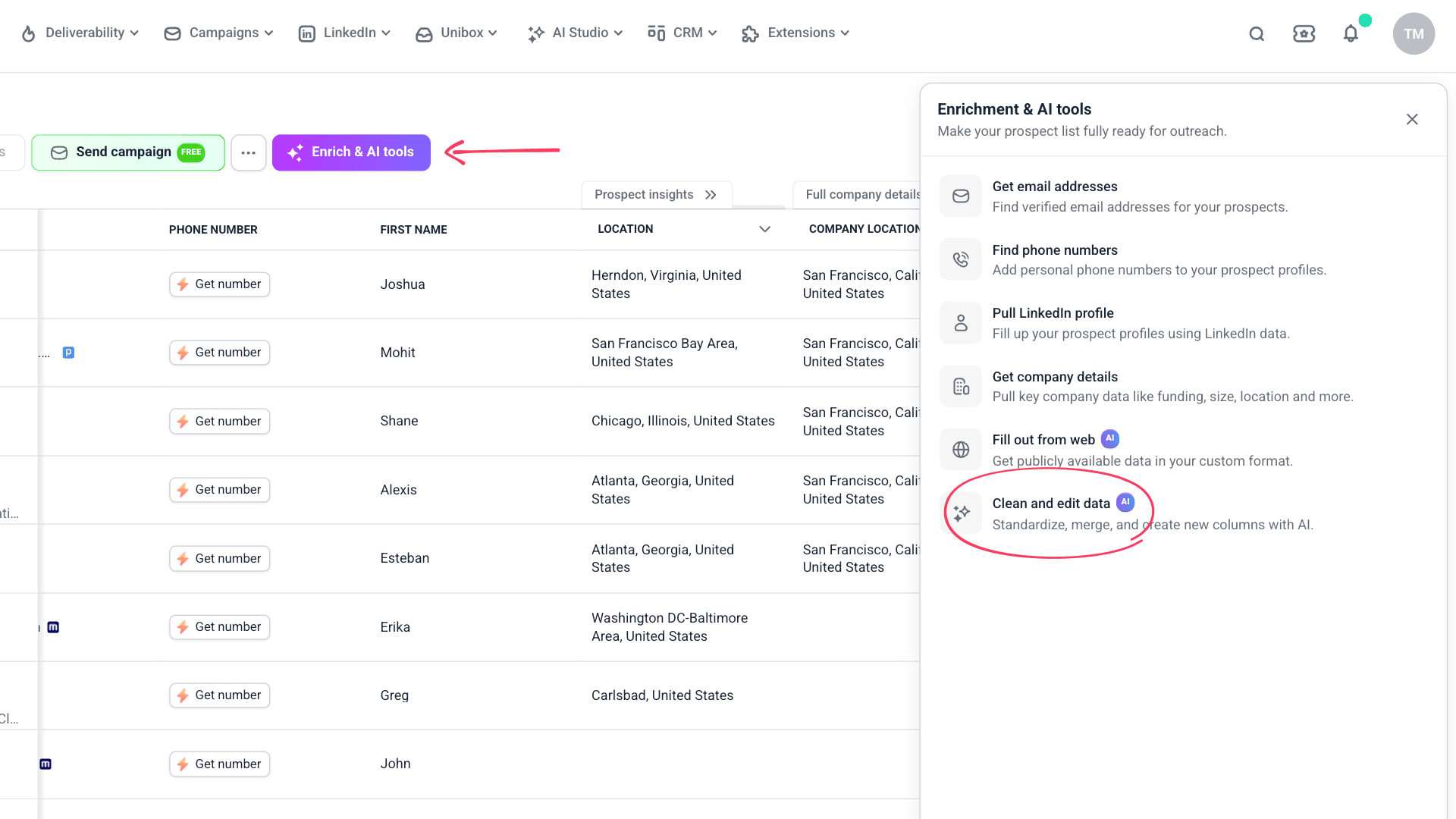
Open Enrich & AI tools
Go to your Prospects and choose the list you want to enrich. Click Enrich & AI tools and choose Clean and edit data.
You can start enrichment on selected prospects, a segment filtered by tags, or your entire list.

Write your prompt
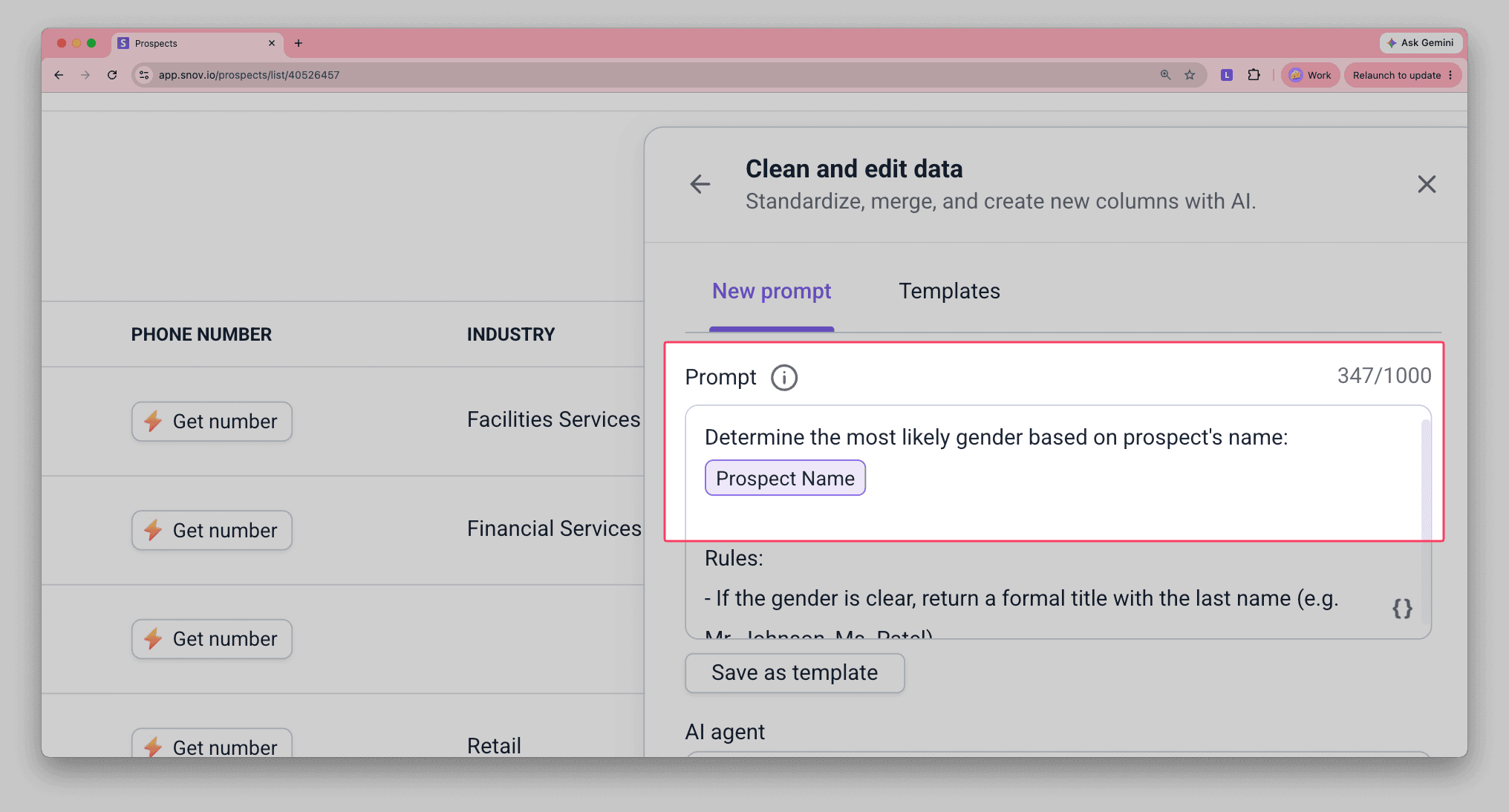
Describe what you want to do with the data or how you want to update it.
Add data variables
Variables in Clean and edit data action refer to existing columns and pull the data you want to manage.
You can reference any data stored in your list, including previously enriched or generated fields. For example, results from Fill out from web.
To insert a variable, click the { } icon or type {{}}. Your prompt should contain at least one. Correctly added variables appear as colored tags.

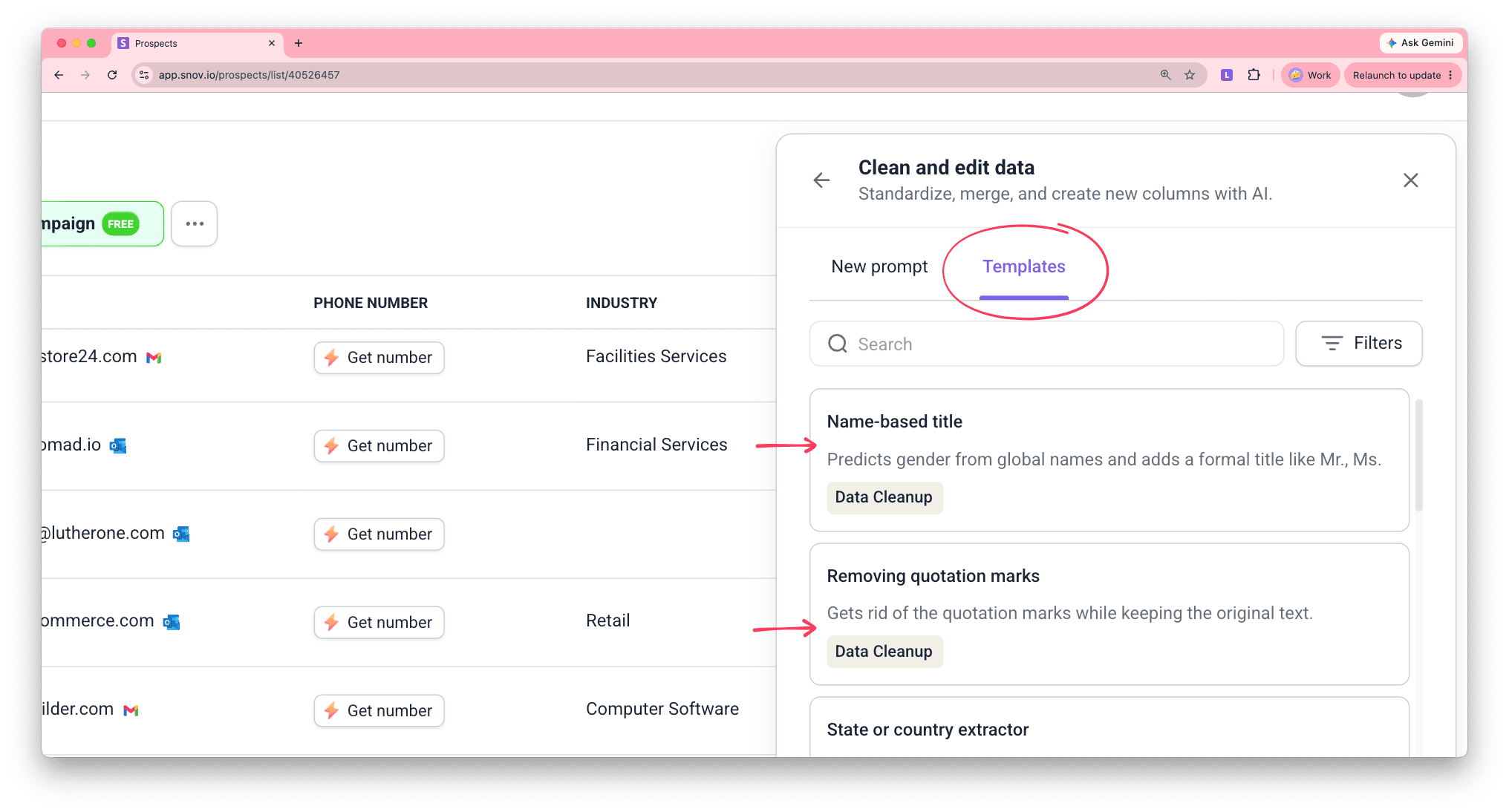
Data tasks you can do
Here are some common tasks and use cases:
- Extract specific data from a larger field:
Get a company name from {{Website URL}}, or the last funding round and sum from {{Company Funding}}
- Convert one data type into another:
Get a website URL from {{Company Name}}
- Clean up data to a usable format:
Remove extra suffixes from {{Company Name}} and {{Prospect Name}}
- Summarize data from multiple columns:
Extract a company's core value proposition from {{About Us}} and {{Slogan}} or combine {{Experience}} and {{Education}} into a general background summary
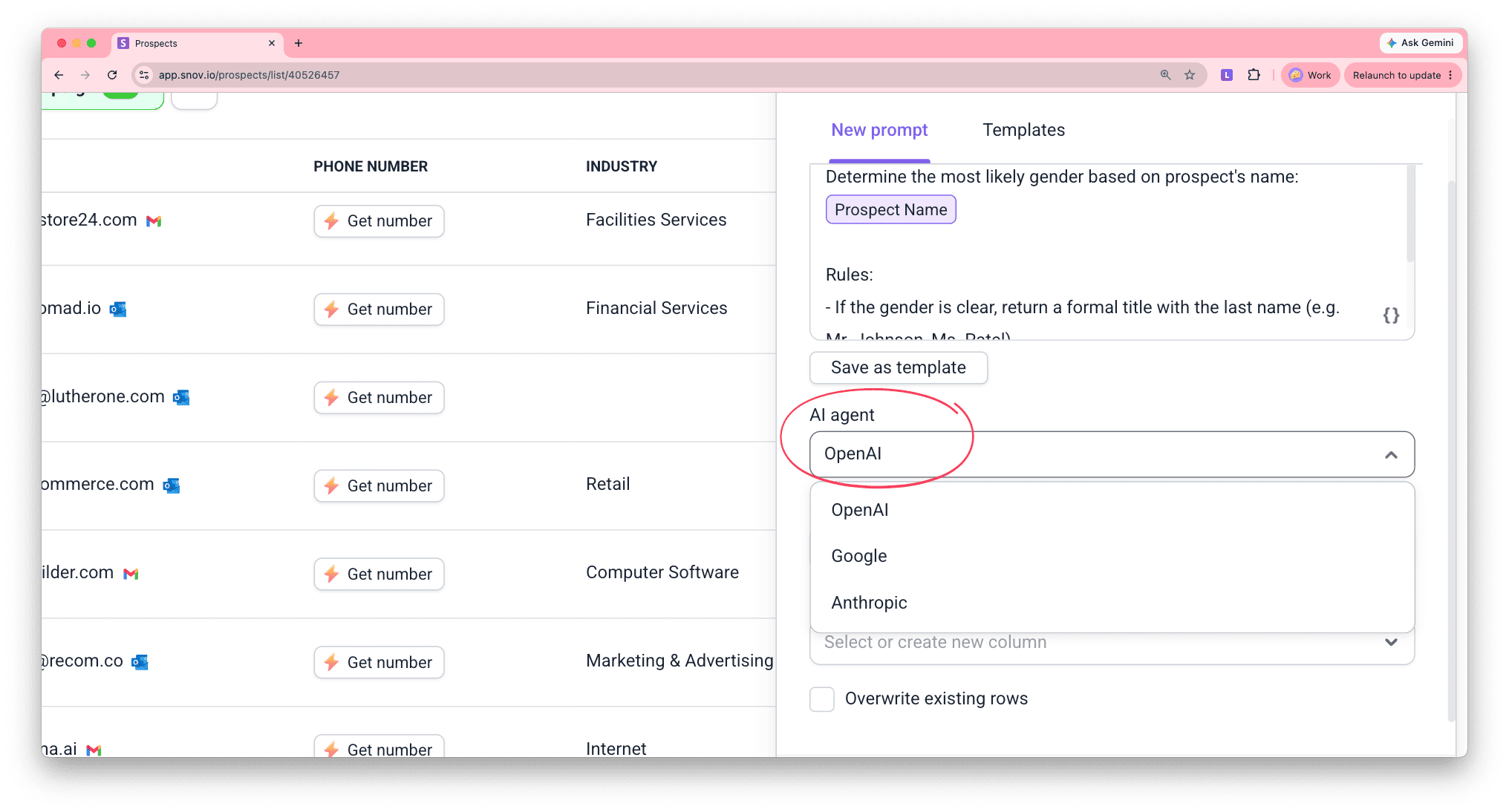
Choose an AI model
Each model has a different cost per prospect.
- Pricier models are more capable for complex tasks (standardizing, synthesizing, analyzing)
- Cheaper models are best for simple tasks (extracting names or cleaning extra symbols)
Create a column for results
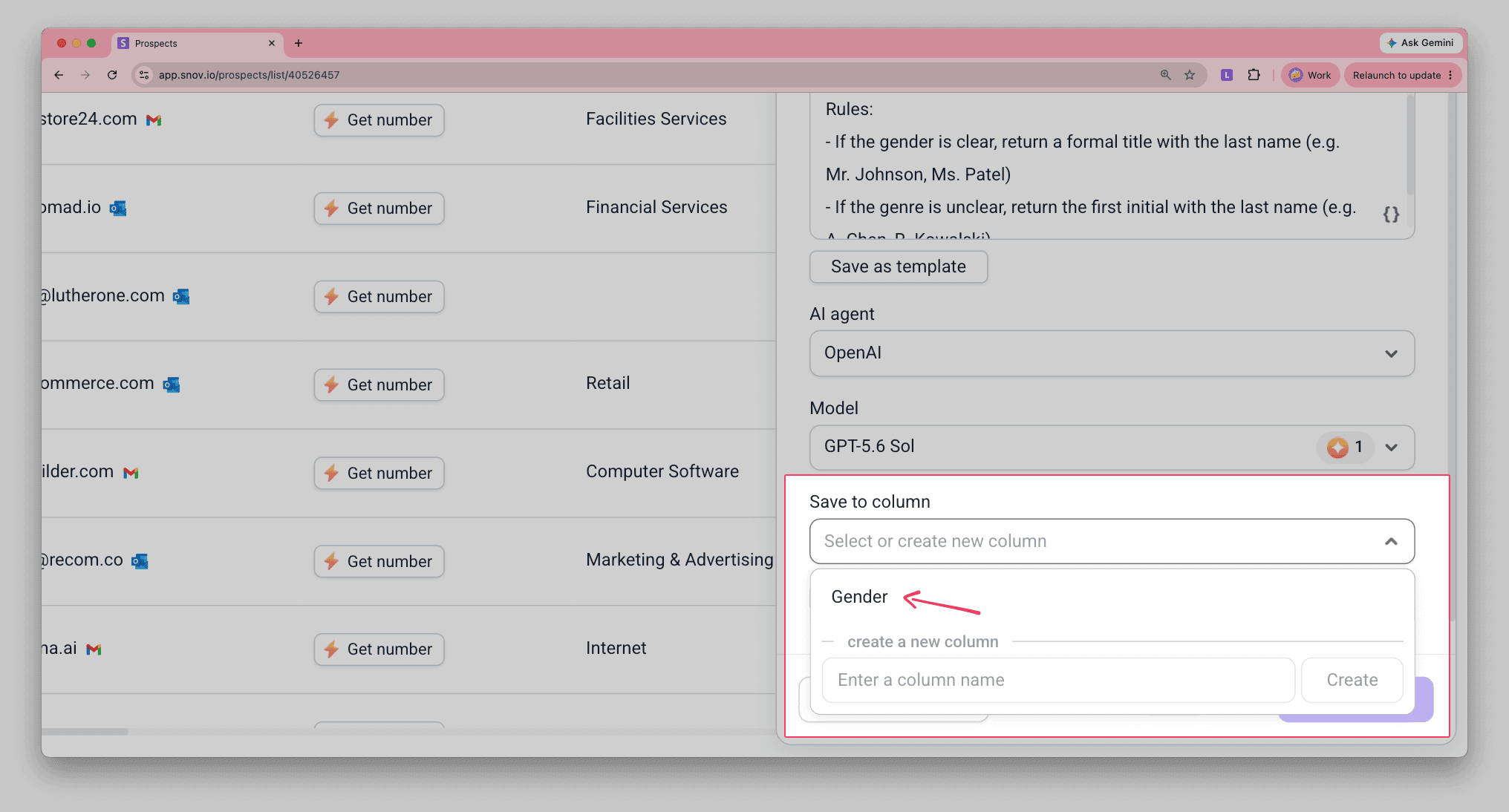
Select a column where processed data will appear.
- Save results to a new column
Your original data stays in the list, and you can remove the redundant column later.
- Save results to an existing column
The original data can stay in the list or be updated using the overwrite option.
Manage data overwrite
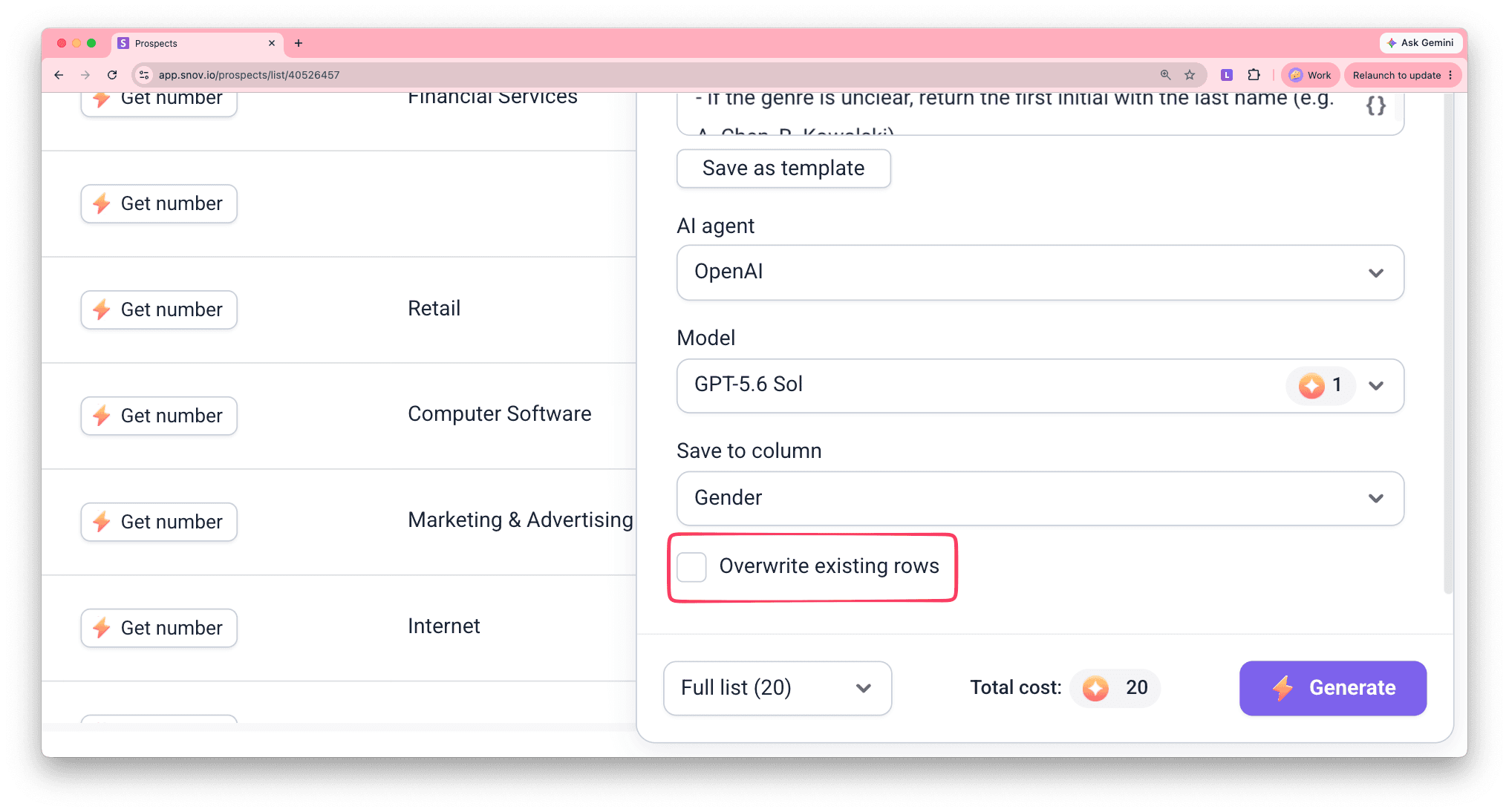
When selecting a column that already has values for some prospects, you can choose whether to overwrite them.
- Overwrite existing rows OFF — skips prospects that already have data filled from previous enrichments
- Overwrite existing rows ON — replaces existing data with new results
Check your tokens
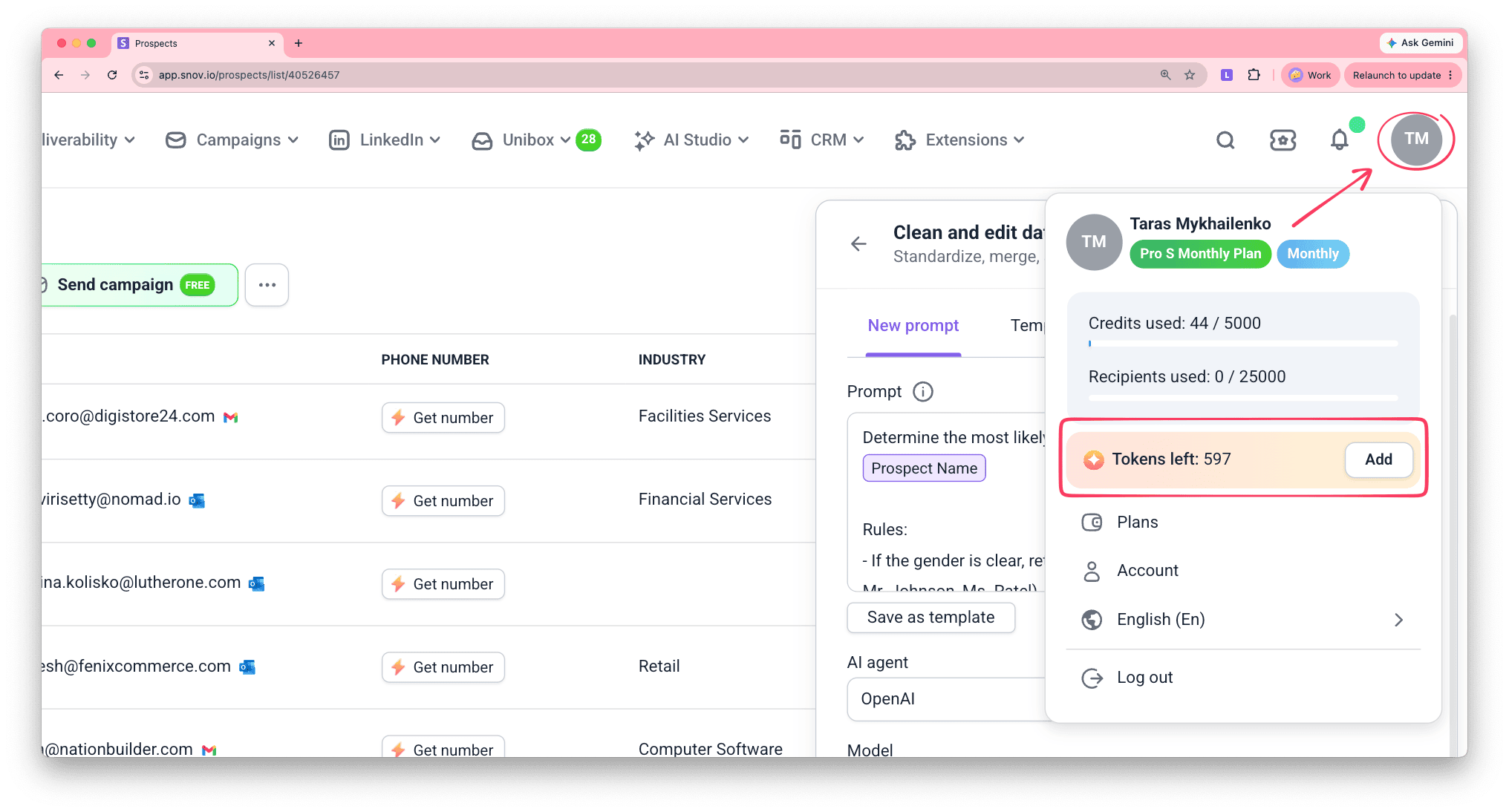
The token cost depends on the AI model you select and the size of your list.
Before starting, make sure you have enough tokens. Get more tokens from Billing settings.
Start processing
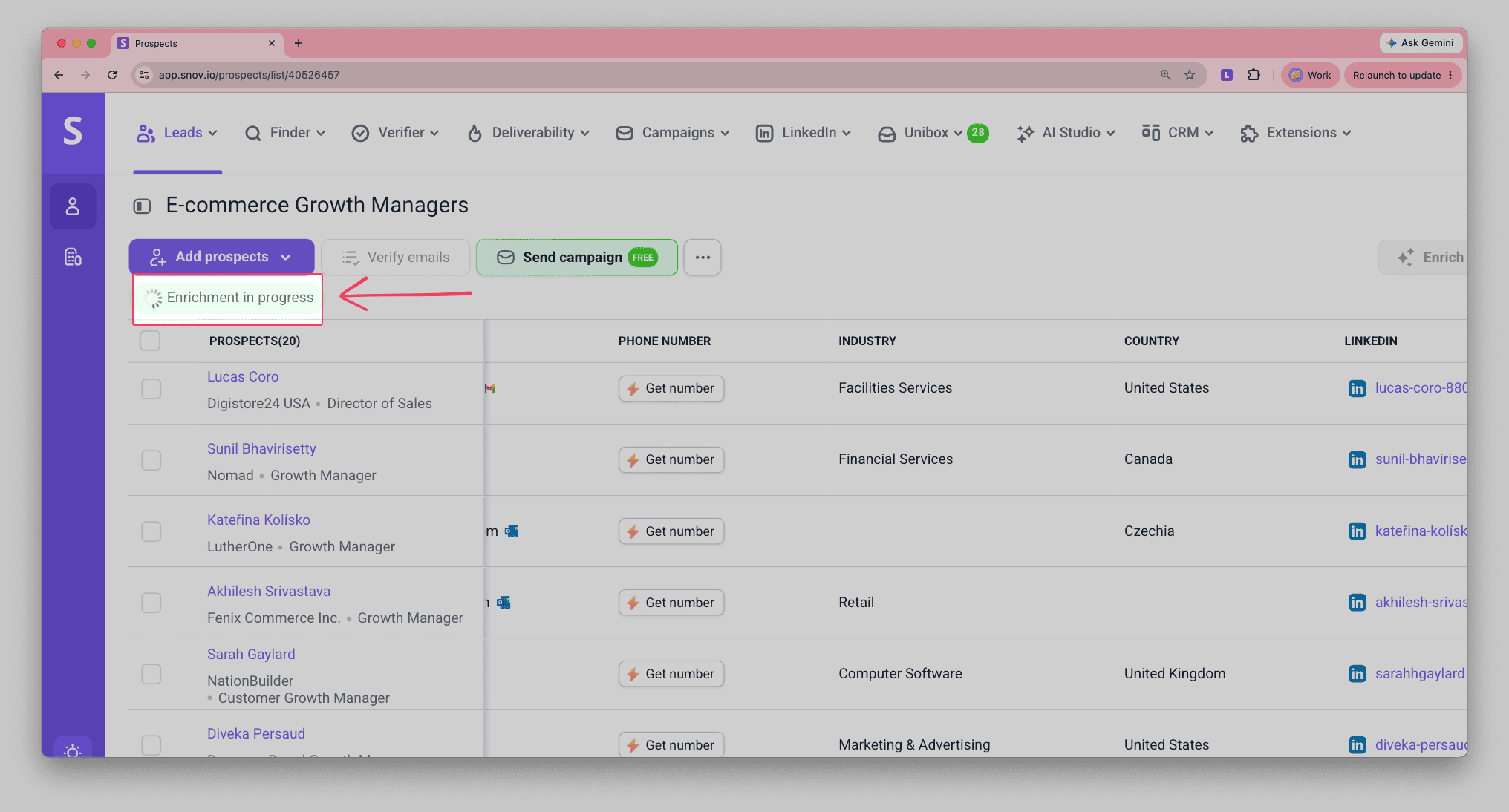
Click Generate to start processing your request. When the "in progress" icon disappears, your data is ready.
View and use your results
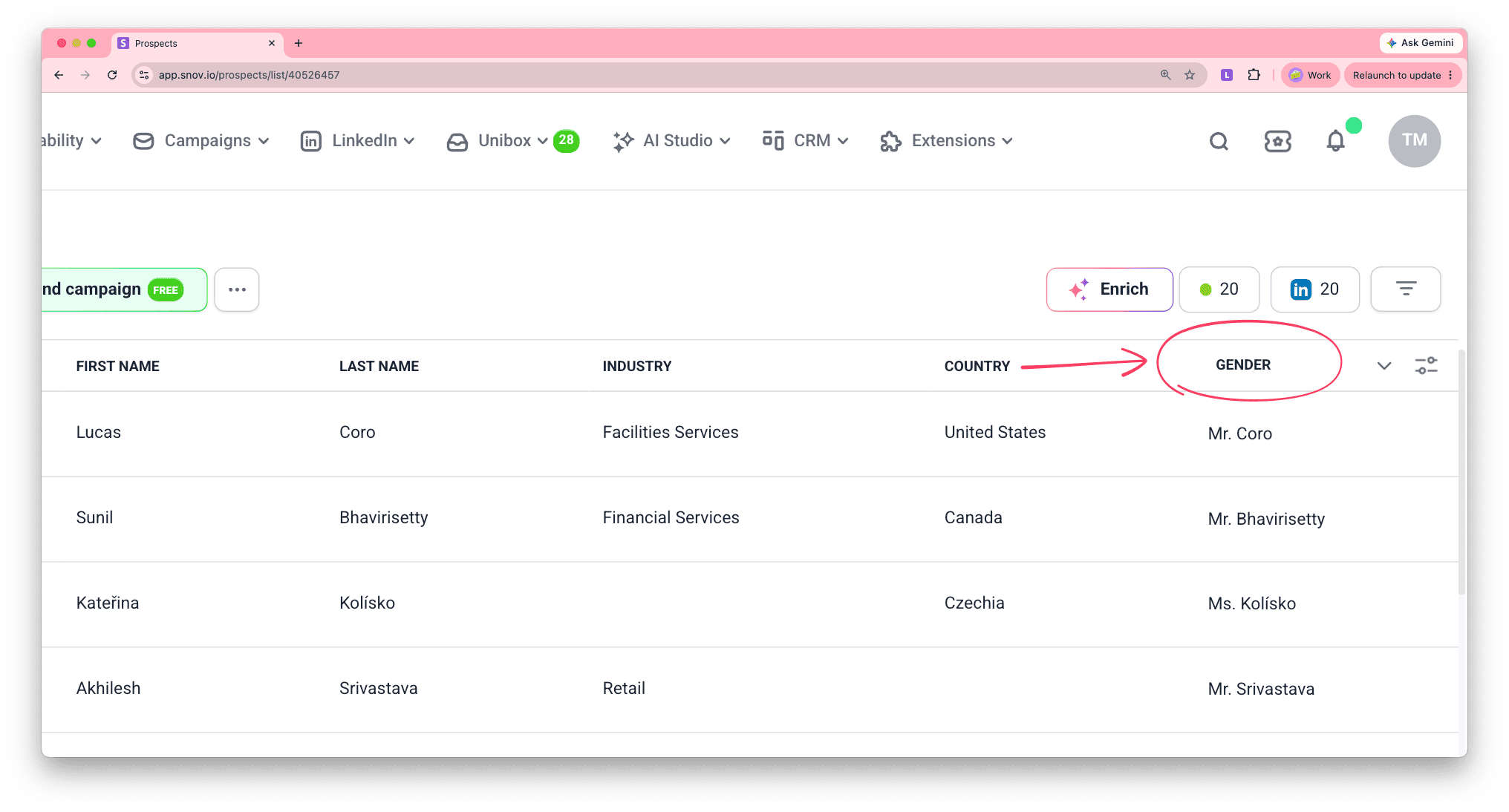
Updated data appears in the prospect list, in the column you selected for results. Adjust which columns to show or hide through column display settings.
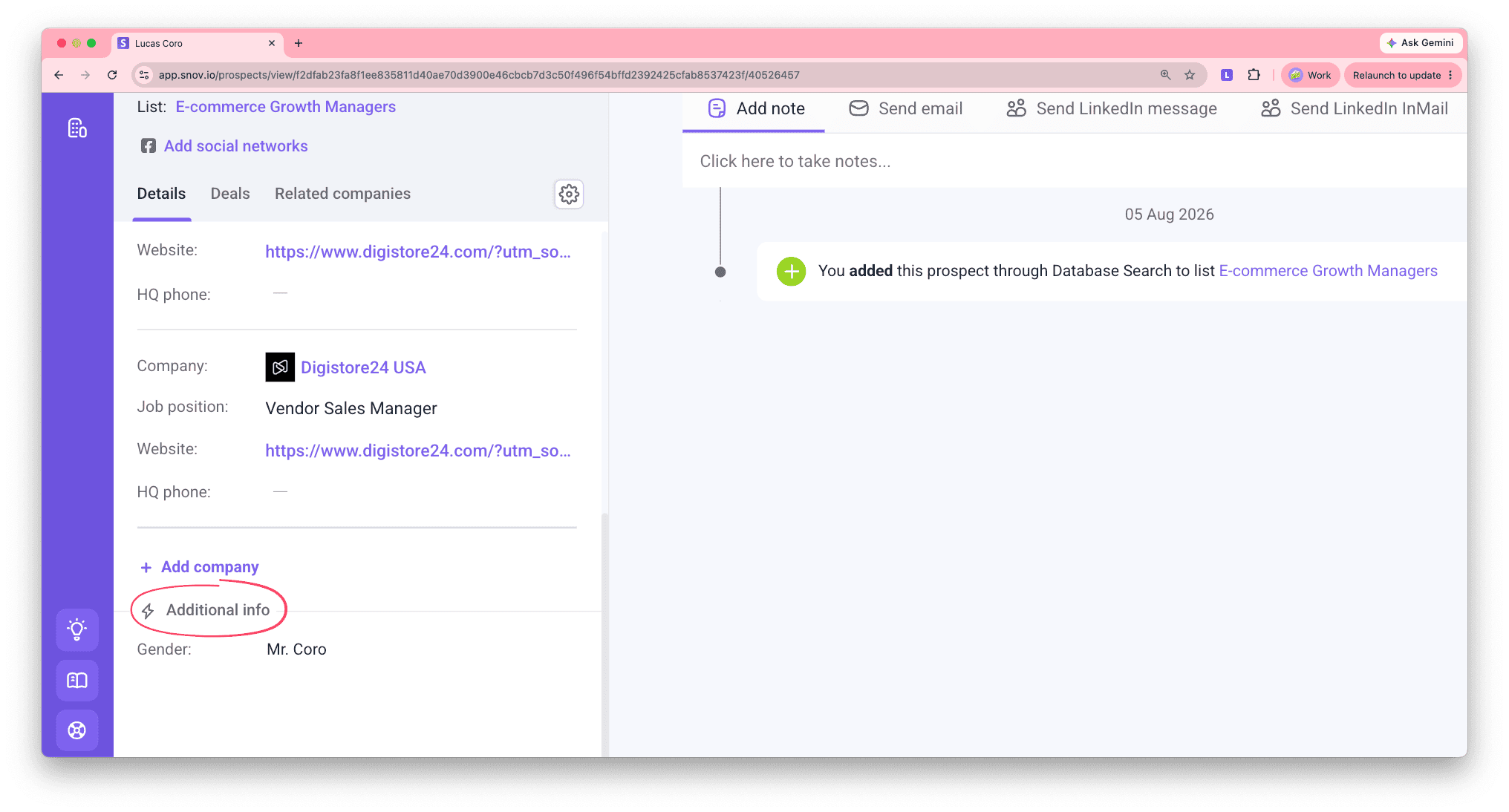
Open any prospect's profile to see the newly generated data under Additional info.
Next steps
Once your data is cleaned, here's how to use it:
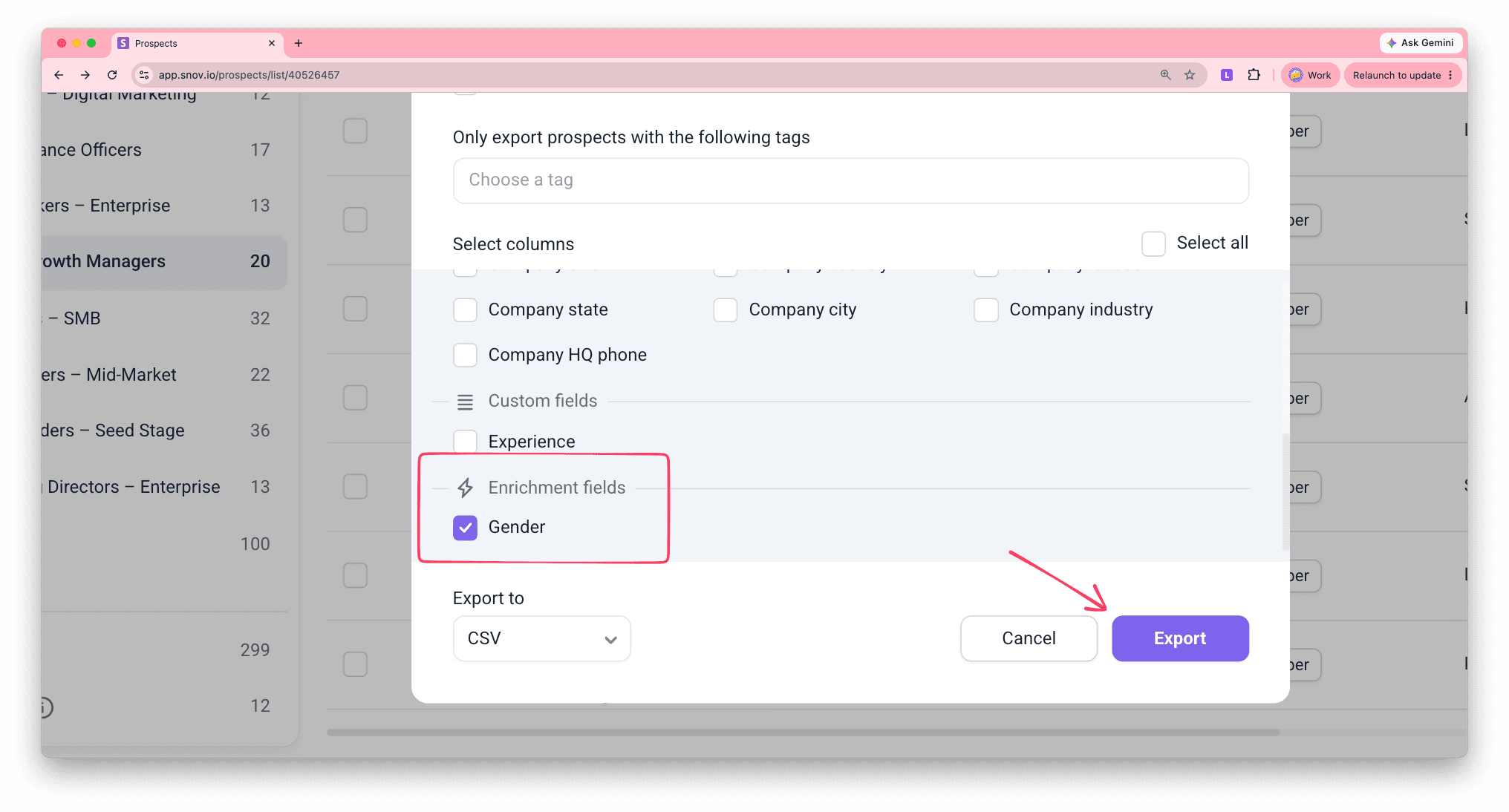
Export to CSV
In your prospect list, click Export and select the data you want to download.
Use results as data variables
Reference the results as variables in other actions, like Fill out from web. Learn more about using variables in enrichment.
You can also use it in the Campaigns email step: click Variable and select the column with your cleaned data. Learn more about different types of variables for campaign personalization.
Cleaned data makes a field usable as a personalization variable in the first place. A raw result, a full address, a messy job title, or a bulk field with several values, can come across oddly in a sentence. Once it's cleaned or extracted into its own column here, it fits into an email or LinkedIn message the way a native field would.


Sorry about that 😢
How can we improve it?