TL;DR: What you need for n8n LinkedIn Sales Navigator automation
To integrate n8n with Sales Navigator, you need a third-party tool like PhantomBuster, Apify, Evaboot, or any other dedicated LinkedIn scraper. The following table demonstrates several integration scenarios for different needs.
| Integration scenario | Best for | What it does | Setup requirements | Other recommended nodes |
|---|---|---|---|---|
| Basic n8n Sales Navigator integration | Solo users or lead-gen agencies exporting raw, unverified data automatically | Retrieves leads from a Sales Navigator search and stores them in a chosen destination | Sales Navigator, n8n account, a scraping API/actor (e.g., Apify or PhantomBuster) connected via a Webhook or HTTP Request node, and a destination place (e.g., Google Sheet or CRM) node | Set/Edit Fields node for cleaning/mapping data; Remove Duplicates node for deduplication; Wait node (if needed) for rate-limit delay |
| Basic + data verification tool | Sales teams or reps that need accurate contact information before outreach | Adds an email/phone verifier step after scraping | Everything from the basic setup + verification API key | Split Out node to convert an array field into individual items; IF node to filter valid from invalid contacts |
| Basic + data enrichment tool | Those who need complete profiles of enriched leads for segmentation and personalization | Enriches each prospect with behavioral signals, technographic, or other details | Everything from the basic setup + enrichment API key | Merge node to combine enriched fields into one record |
| Basic + AI agent + human in the loop | High-volume outbound teams interested in AI-assisted lead qualification and personalized messages but want to approve them manually | Here, AI qualifies leads (if needed) and drafts personalized messages | Everything from the basic setup + agentic AI’s API node (OpenAI/Anthropic) | AI Agent node to generate messages; Human Review or Wait node to send for review or pause for human response |
| Basic + Snov.io for data enrichment, email verification, and prospect management | Solo users or teams looking to generate verified leads and enrich prospect data and/or those already using Snov.io for outreach campaigns | Finds and verifies email addresses, extracts prospect details from LinkedIn profiles, monitors Snov.io Campaigns, and manages prospects in Snov.io lists | Everything from the basic setup + official community node (n8n-nodes-snovio) on self-hosted n8n or manually configured API requests on n8n Cloud | Wait node (5–10 seconds) between Start and Get actions; Split in Batches node for large batch operations; Filter node to keep only emails with “valid” statuses or only successfully enriched profiles |
Read on to see how you can build a simple n8n LinkedIn Sales Navigator workflow or add one layer on top of the other: verify + enrich + use an AI agent with human review. Also, beware of several critical risks and explore alternatives.

Did you know that LinkedIn Sales Navigator users can make 3.6 times more connections with decision-makers than those who don’t use the platform? Not a surprise: over 176K companies and 700K salespeople are already leveraging its features to find new leads and add them to the sales funnel.
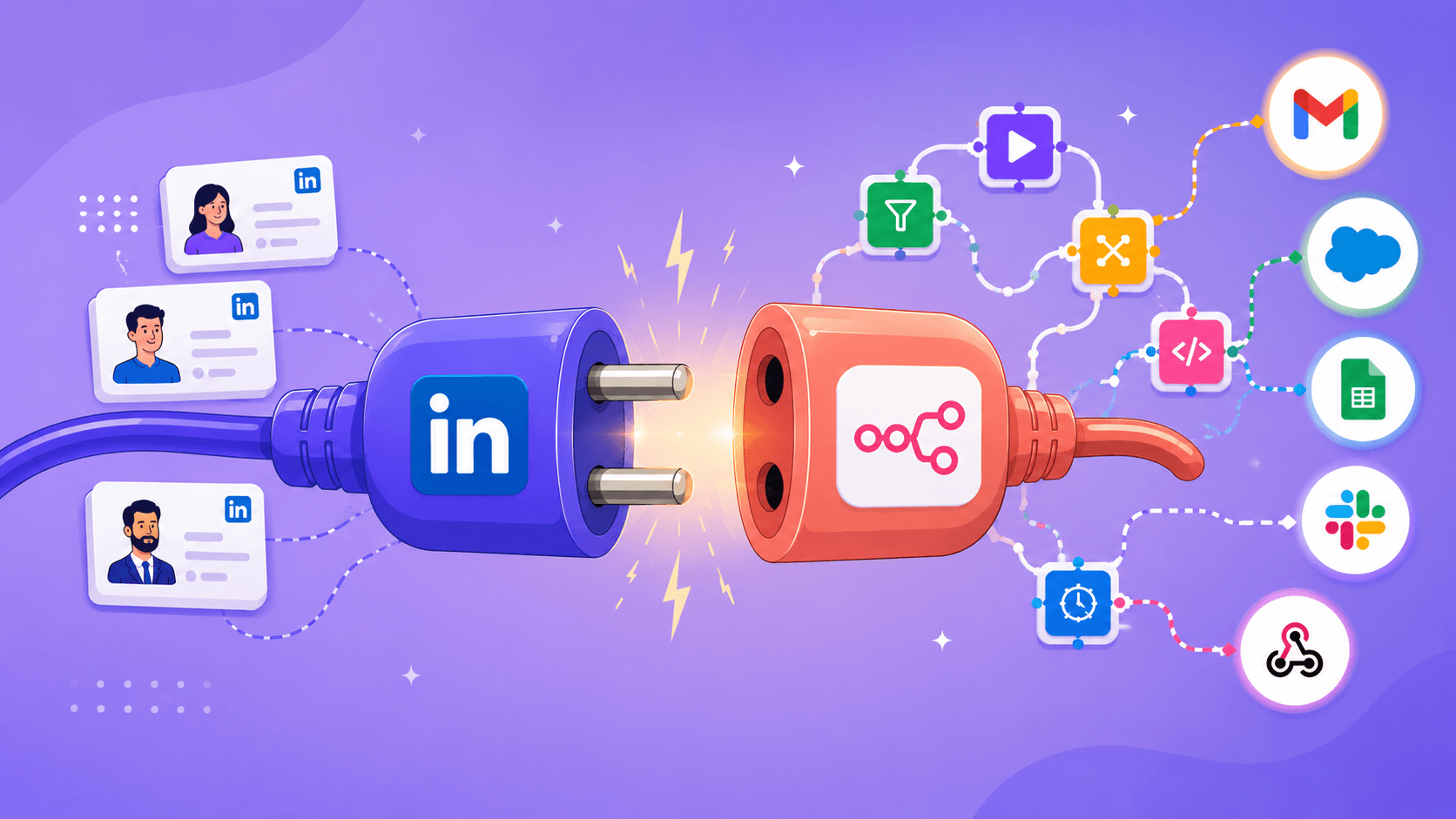
Teams that need more automation are already seeking efficient integration of workflow automation platforms like n8n and LinkedIn Sales Navigator. By syncing both, you can automate lead generation, sync prospect data across your tech stack, and avoid manual copy-pasting.
Not without challenges and risks, however.
In this guide, I’ll uncover all the nuances of n8n and LinkedIn Sales Navigator integration so you learn how to gain the most out of this combo.
Why sync Sales Navigator with n8n for lead generation?
LinkedIn Sales Navigator is a go-to solution for prospecting in 2026. But once you find ideal prospects, you need to export their data and proceed with the outreach. By doing all steps manually, you risk turning the process into a tiresome routine.
n8n is a platform designed to help you automate the repetitive tasks. If you connect it with your Sales Navigator account, you can:
- Save time by automatically transferring your prospect data to your sales tools.
- Minimize the risk of human error when entering data manually.
- Enrich prospect data with the help of the tools you rely on.
- Build custom workflows that match your sales goals.
- Launch automated personalized outreach once you gather leads that meet your ICP.
- Keep your CRM up to date so that none of the opportunities slip away.
The key challenge, however, comes when you decide to integrate n8n and Sales Navigator.
Is there a native n8n LinkedIn Sales Navigator integration?
No, unfortunately, n8n doesn’t have an official, native integration or a Sales Navigator node for connection.
As for the API connection, it officially exists, but you’ll most likely meet the following Sales Navigator limitations:
- Enterprise-only (not for solo developers or SMBs): The Sales Navigator API is solely for pre-approved enterprises that have demonstrated their use case to get approval.
- SNAP partner approval: Direct access is exclusively available through the gated Sales Navigator Application Platform (SNAP) program. In 2025, LinkedIn paused accepting new applications to the SNAP program indefinitely.
- Custom pricing: The Sales Navigator Advanced Plus plan with an enterprise-level price is required.
- Data usage limits: LinkedIn prohibits scraping/selling data, merging it with an external database, or automating mass outreach.
- Data storage limits: The LinkedIn Sales Navigator API provides restricted access to store data — 24 hours for profiles, 48 hours for social activity, and 6 weeks for organization data.
With that in mind, a realistic option for a smooth n8n LinkedIn Sales Navigator integration for lead generation and cold outreach automation is to use third-party data extraction tools that connect n8n to Sales Navigator.
What do you need to connect n8n and LinkedIn Sales Navigator for lead gen?
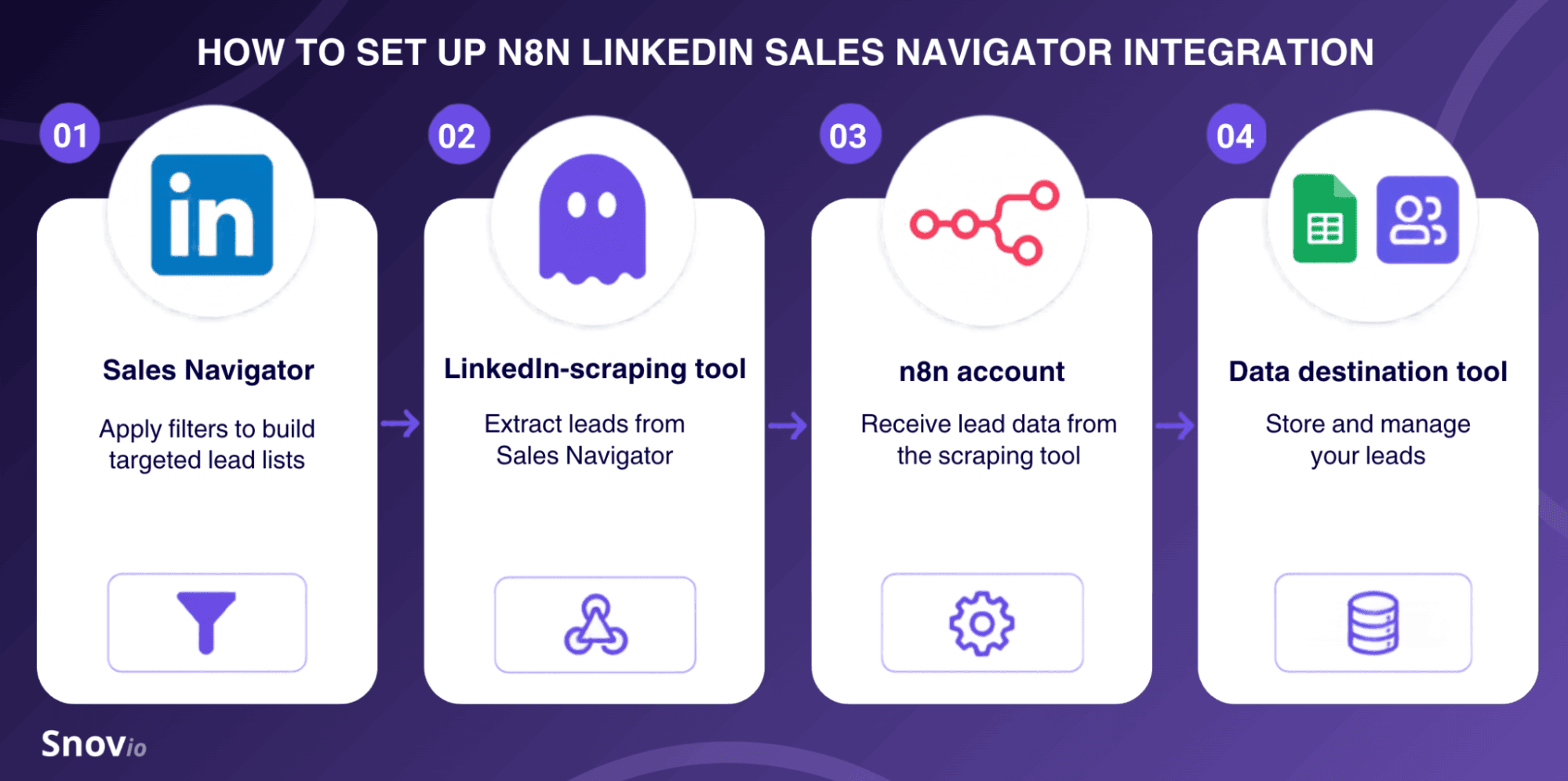
Here’s the basic setup you need for n8n LinkedIn lead generation with Sales Navigator:
- LinkedIn Sales Navigator account
- Dedicated LinkedIn-scraping tool
- n8n account
- Data destination tool (HubSpot, Google Sheets, Airtable, etc.)
Once connected, the n8n workflow pulls new leads from LinkedIn Sales Navigator into their preferred digital spot (e.g., a Google Sheet or Leads/Prospects dashboard in a CRM system).
⚠️ Important:
Connections between these elements can break if LinkedIn changes its structure, and the whole setup requires ongoing maintenance. This isn’t set-and-forget automation.
LinkedIn Sales Navigator account
If you’re already using LinkedIn Sales Navigator, no additional setup is needed. You can access it directly from your LinkedIn profile. If not, test the waters with a 1-month free trial (credit card required) or go with a paid Core, Advanced, or Advanced Plus plan.
The Sales Navigator search will actually lay the foundation of your automated n8n workflow for lead generation. You’ll learn how to build one in a couple of paragraphs.


Dedicated LinkedIn scraper
Now, you need a connector between your Sales Navigator and n8n accounts. Which third-party scraping tool is the best to connect LinkedIn Sales Navigator to n8n?
It depends on your technical background, budget, and needs. For convenience, I’ve reviewed and compared the top 5 LinkedIn-scraping tools in the following table.
| Tool | Best for | Pricing model | Useful scraping features | Key strengths | Limitations |
|---|---|---|---|---|---|
| PhantomBuster | Beginners and no-code users | Free trial (14 days); paid from €69/month* | Sales Navigator Search Export; Profile Scraper; Profile Viewers Export | 15+ Phantoms for Sales Navigator specifically; unlimited users; beginner-friendly, easy setup | Limited execution hours/month; only 5 Phantom slots in Trial and Start plans |
| Apify | Tech-savvy users who want deeper customization | Free plan; paid from $29/month + pay as you go | Sales Navigator Search Scraper; LinkedIn Profile Scraper; Company Scraper | Numerous ready-made n8n workflow templates; highly customizable Actors | Requires Actor configuration; some Actors aren’t official (community-maintained) |
| Bright Data | Enterprises and large sales teams interested in high-volume lead generation | Free trial (7 days); custom price | LinkedIn Profiles Scraper; LinkedIn Company Information; LinkedIn People Search | No LinkedIn login required; ready-to-use LinkedIn datasets (896M+ records); CAPTCHA/bot block bypasses | Too costly for individual users and SMBs; steeper learning curve for non-techies |
| Evaboot | Startups or small teams looking for clean, deduplicated LinkedIn lead lists | 1 free month with 100 credits; paid from $9/month | Sales Navigator Scraper; LinkedIn URL Enrichment | Specifically built for exporting Sales Navigator searches; cleans and deduplicates exported leads automatically; unlimited seats; low entry price | Chrome-only; poor customization; credit-based pricing makes it expensive for high-volume scraping |
| Vayne.io | Lead-gen freelancers or growth marketers scheduling exports in advance | Free plan with 200 leads/month; paid from $29/month | Sales Navigator Scraper; LinkedIn Profile & Company Scraper | Automatic detection of duplicates; cleaned data (typos, emojis, capital letters); supports scheduled exports | Slow scraping speed; no direct contact details (to get prospects’ emails or phone numbers, you’ll need to pay extra for separate add-ons) |
*Always double-check prices on the providers’ official pages, as they may change over time.
Cloud or self-hosted n8n account
The next component is n8n itself. Basically, you have two deployment options:
- Cloud-based n8n account: It runs and hosts the n8n workflow for you. No servers to manage, and it’s much quicker to set up LinkedIn Sales Navigator integration. Yet, community nodes and custom scraping credentials can be more limited depending on your plan.
- Self-hosted n8n account: You have full control over n8n and run it yourself (typically via Docker). This gives you more flexibility. On the other hand, the setup is tech-heavy and time-consuming, and overall maintenance lies on your shoulders.
So, if you want to start automating LinkedIn lead generation faster, n8n Cloud is absolutely enough. It’s a great choice for beginners and non-technical users.
But if you have several interconnected tools in your tech stack and need a highly flexible, scalable, and controllable environment, self-hosting makes more sense. A self-hosted n8n account is a better choice for developers or sales teams running advanced sales automation projects at scale.
Data destination point: a Google Sheet, Notion, or others
Once the scraper extracts LinkedIn leads, you need to store them somewhere. Again, depending on your needs and requirements, you can pick an n8n-compatible destination and add a corresponding credential to connect it to n8n:
- Google Sheets — Best for quick solo testing and lightweight lead lists
- Airtable — Best for maintaining a flexible prospect database
- Notion — Best for collaborative lead management
- CRMs — Best for smooth data synchronization with Salesforce, HubSpot, or others
- PostgreSQL/MySQL — Best for custom applications
- Slack or Microsoft Teams — Best for notifying your team about newly collected leads
For first-timers, a Google Sheet is the most straightforward starting point. However, once your lead generation process matures and scales, you’ll need a more reliable data export tool.
If you’re building serious workflows with n8n, Airtable is the better foundation. Google Sheets is fine…until your automation becomes complex.
Automation Engineer at Mode Mobile

But if you’re already using a CRM, it would definitely be a go-to destination for pulling the leads extracted via n8n and Sales Navigator. Not to mention that some CRMs, such as HubSpot and Pipedrive, have native n8n nodes (e.g., the n8n HubSpot node).
How to build a LinkedIn Sales Navigator + n8n workflow to generate new leads (basic setup)
First, you need to establish a seamless connection between the Sales Navigator, your preferred third-party scraping tool, n8n, and your chosen place to store and manage prospect data.
As an example, I will demonstrate how I did it with PhantomBuster, n8n Cloud, Sales Navigator, and Google Sheets.
I found PhantomBuster the easiest and most convenient LinkedIn-scraping tool. It took me less than 5 minutes to connect it to my LinkedIn account.
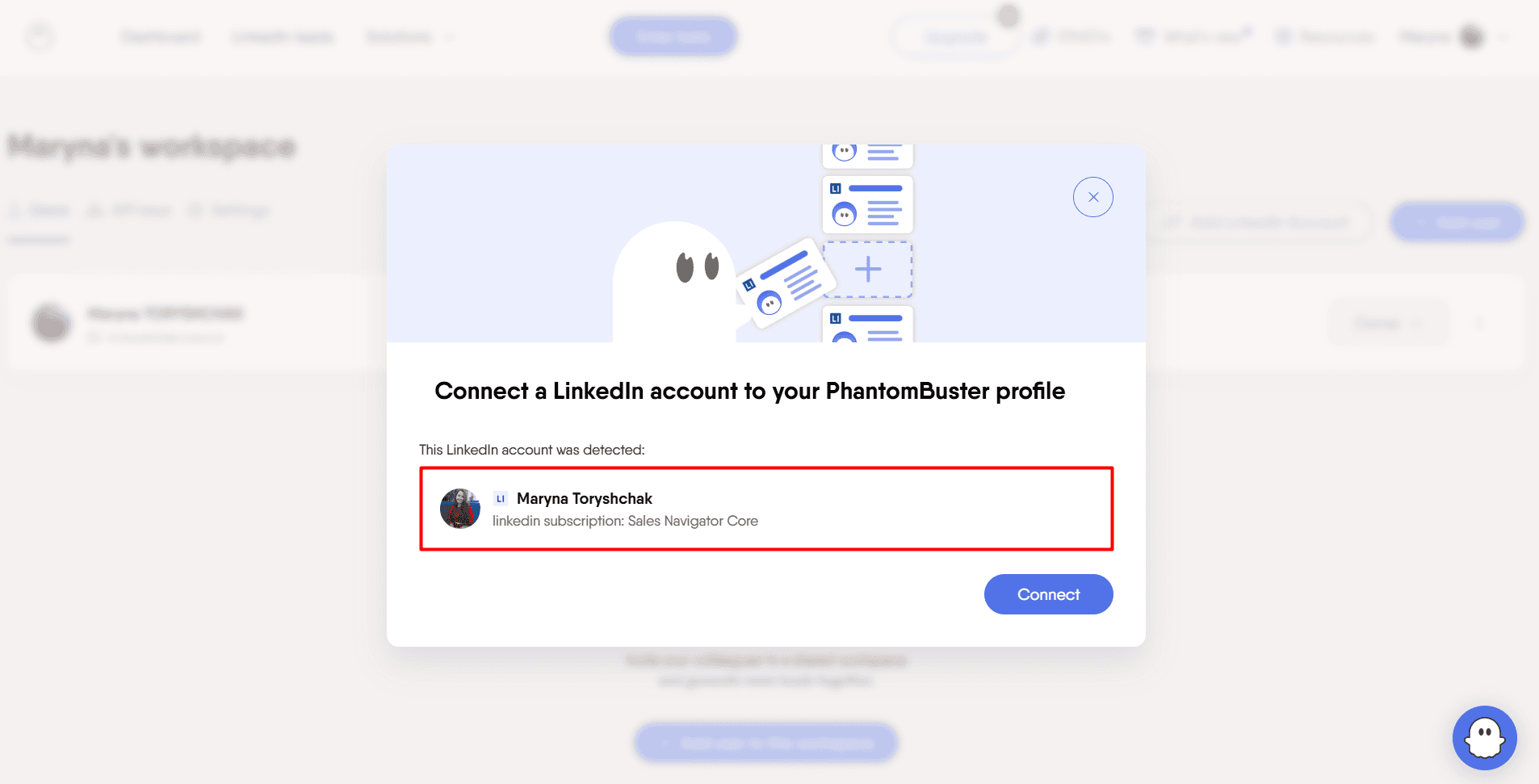
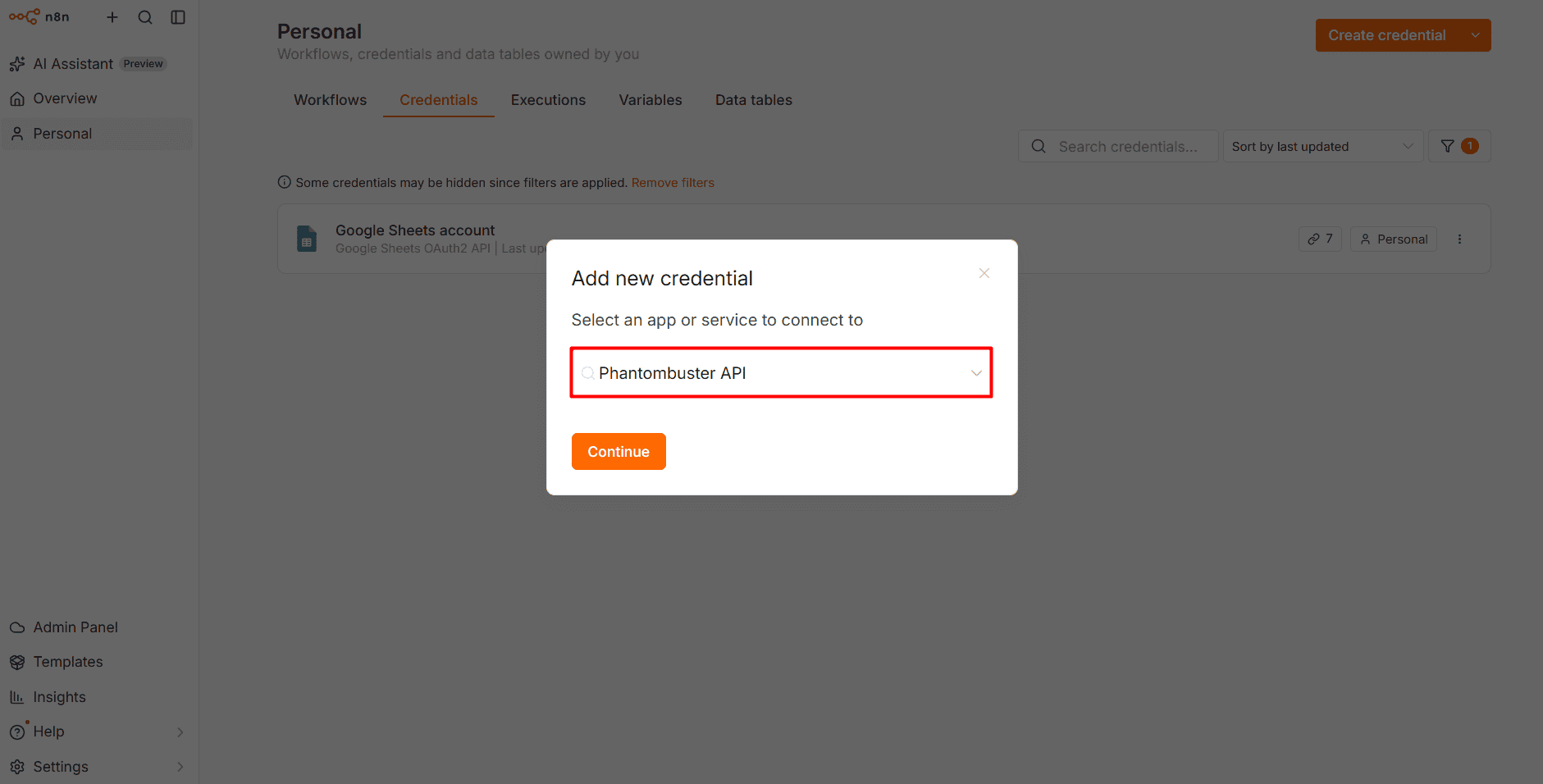
Then, I connected PhantomBuster with n8n Cloud via my API key in about 10 minutes: Credentials → Create credential → Add new credential → Choose “PhantomBuster API” from the dropdown menu → Insert the API key → Click “Save.”
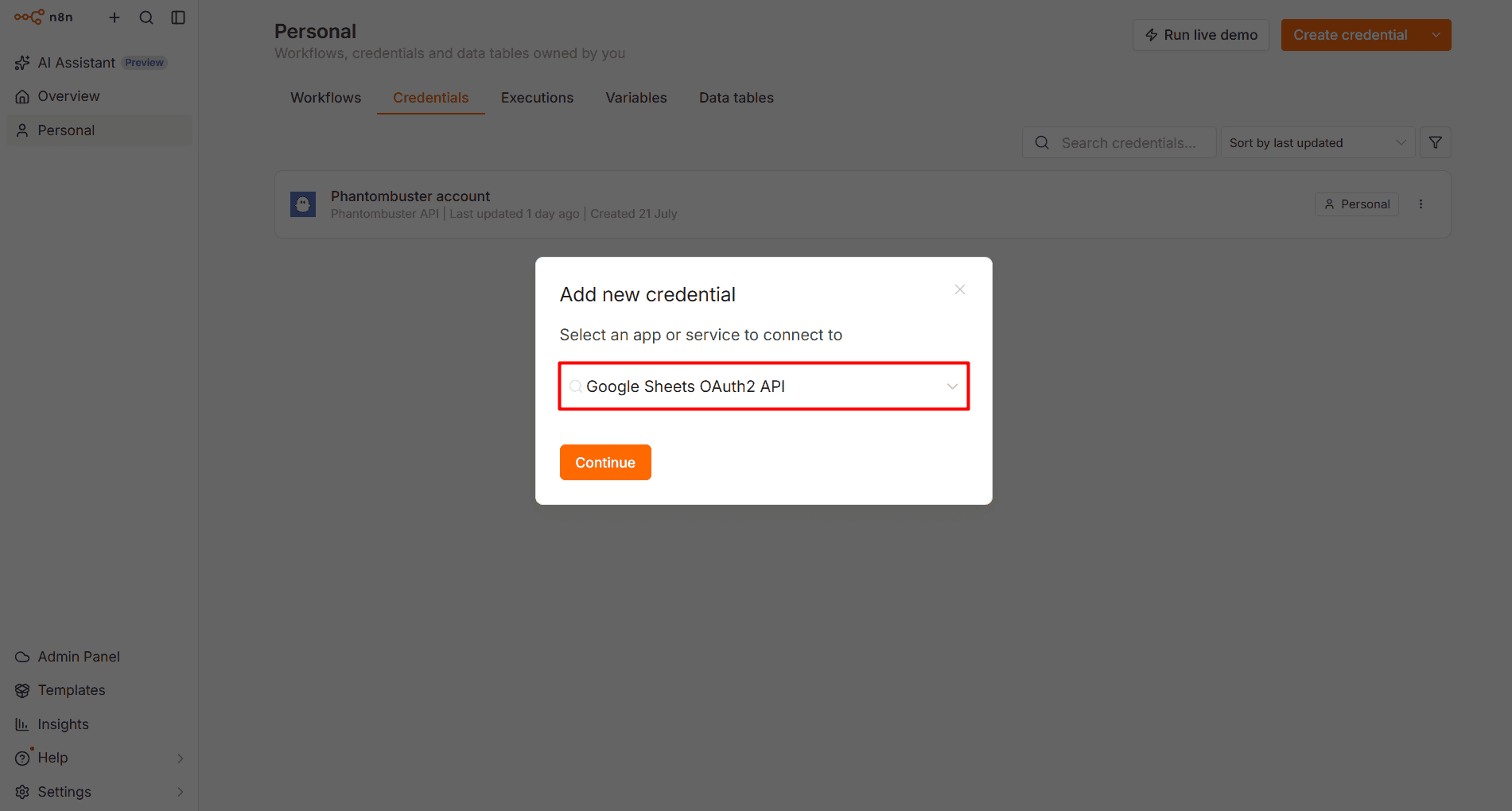
For the data destination, I selected the Google Sheets OAuth2 API from the dropdown list when adding it as a new credential in n8n Cloud.
Now, let’s see how to build a simple n8n LinkedIn scraper workflow.
🗒️ Note:
This is the “bare-bones” workflow — no data verification or enrichment layered on yet. Those come later in the next section, which explains a richer setup with the “meat” of it if you aim at successful cold outreach automation afterward.
Apply granular Sales Navigator search criteria
The quality of your lead generation process will largely depend on how granular and precise your search is, not on n8n LinkedIn Sales Navigator automation itself. Too broad — and it will get you irrelevant, mistargeted prospects.
Specify exactly what leads you need to find based on your ICP (Ideal Customer Profile) using 50+ advanced search filters categorized into groups as follows:
- Company (company headcount, type, headquarters location, etc.)
- Personal (first/last name, profile language, school, etc.)
- Role (current job title, seniority level, years in current position, etc.)
- Best path in (connection, shared experiences, etc.)
- Buyer intent (category interest, viewed your profile recently, following your company)
- Recent updates (posted on LinkedIn, changed jobs)
- Workflow (persona, people you interacted with, lead lists, etc.)
The more details, the more relevant the extracted lead lists will be.
For example:
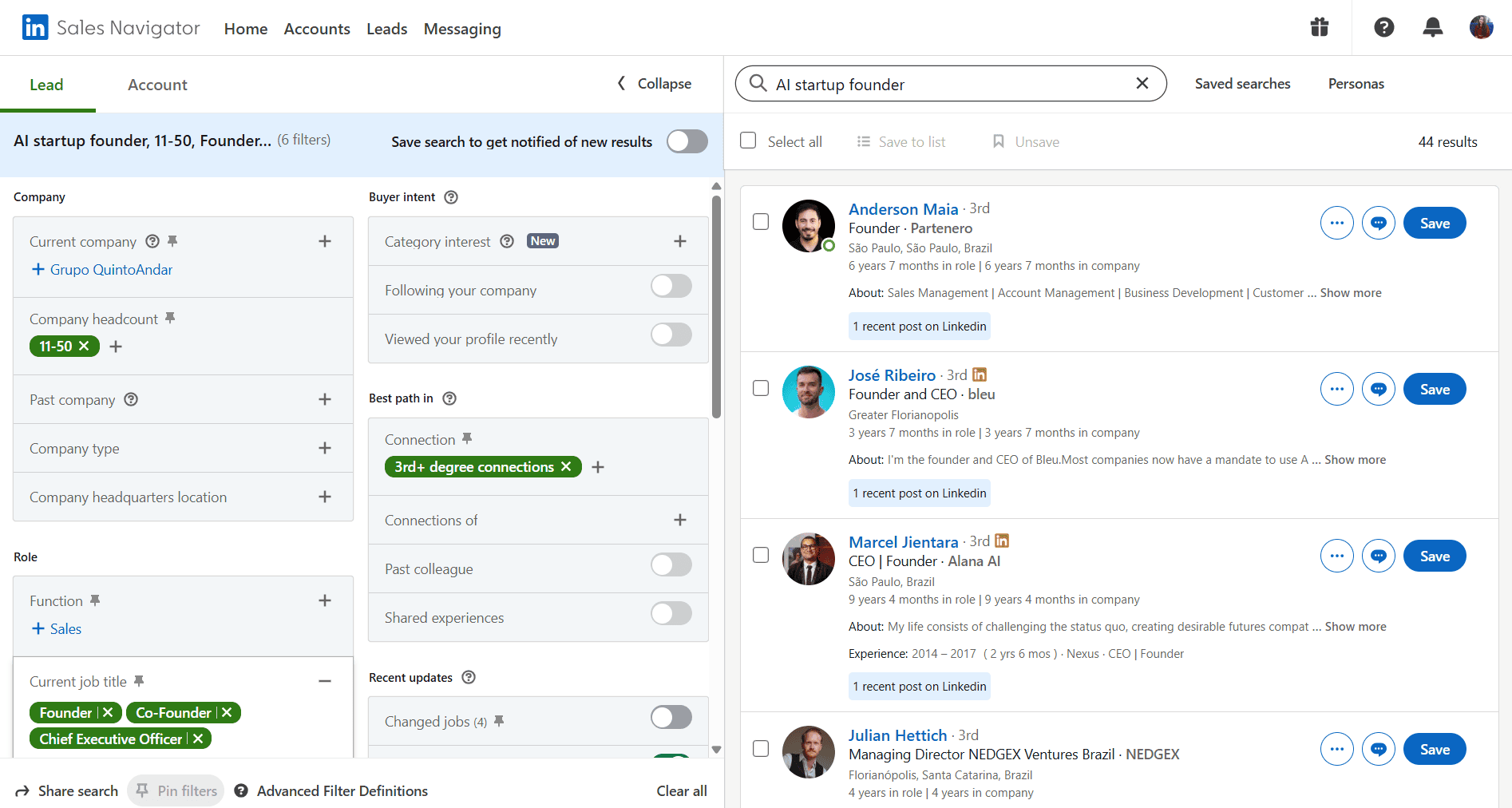
For my Sales Navigator search, I used the “AI startup founder” keyword, applied specific filters (job title — Founder, Co-Founder, Chief Executive Officer; industry — Artificial Intelligence, Software Development; and so on), and obtained the following results:
🔷 Pro tip:
Run several searches if you have several ICPs. This tactic will help you later create segmented workflows and personalize your cold outreach — whether outbound emails or LinkedIn messages — to improve response rates.
Extract LinkedIn lead data
Now, let the LinkedIn-scraping tool do the job and pull the found leads from the Sales Navigator.
Here’s how:
- Paste the saved search URL (or enter your search parameters/keywords directly into the scraper if it’s possible) into the scraper’s input settings
- Set the extraction limit — how many leads to scrape per session
- Choose frequency (e.g., in PhantomBuster, it’s Once, Repeatedly, After another Phantom, or Advanced with particular months, days of the week, and hours)
- Let the tool perform lead extraction
For example:
After performing a search, I picked the Sales Navigator Search Export Phantom and synced it with my Sales Navigator account.
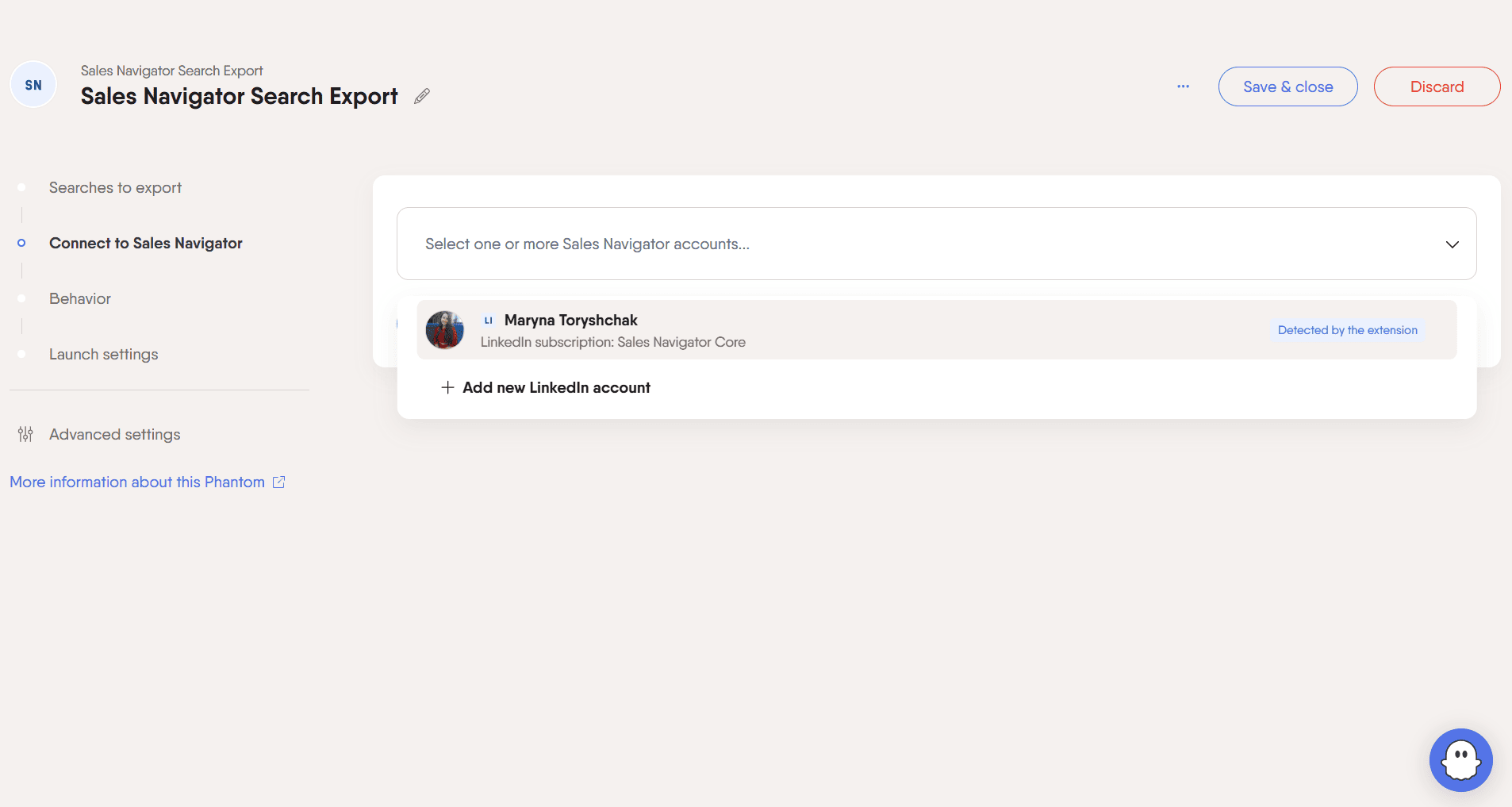
After that, I pasted the search URL into PhantomBuster’s Searches to export, chose the extraction limit (100 results per launch), and frequency (Once).
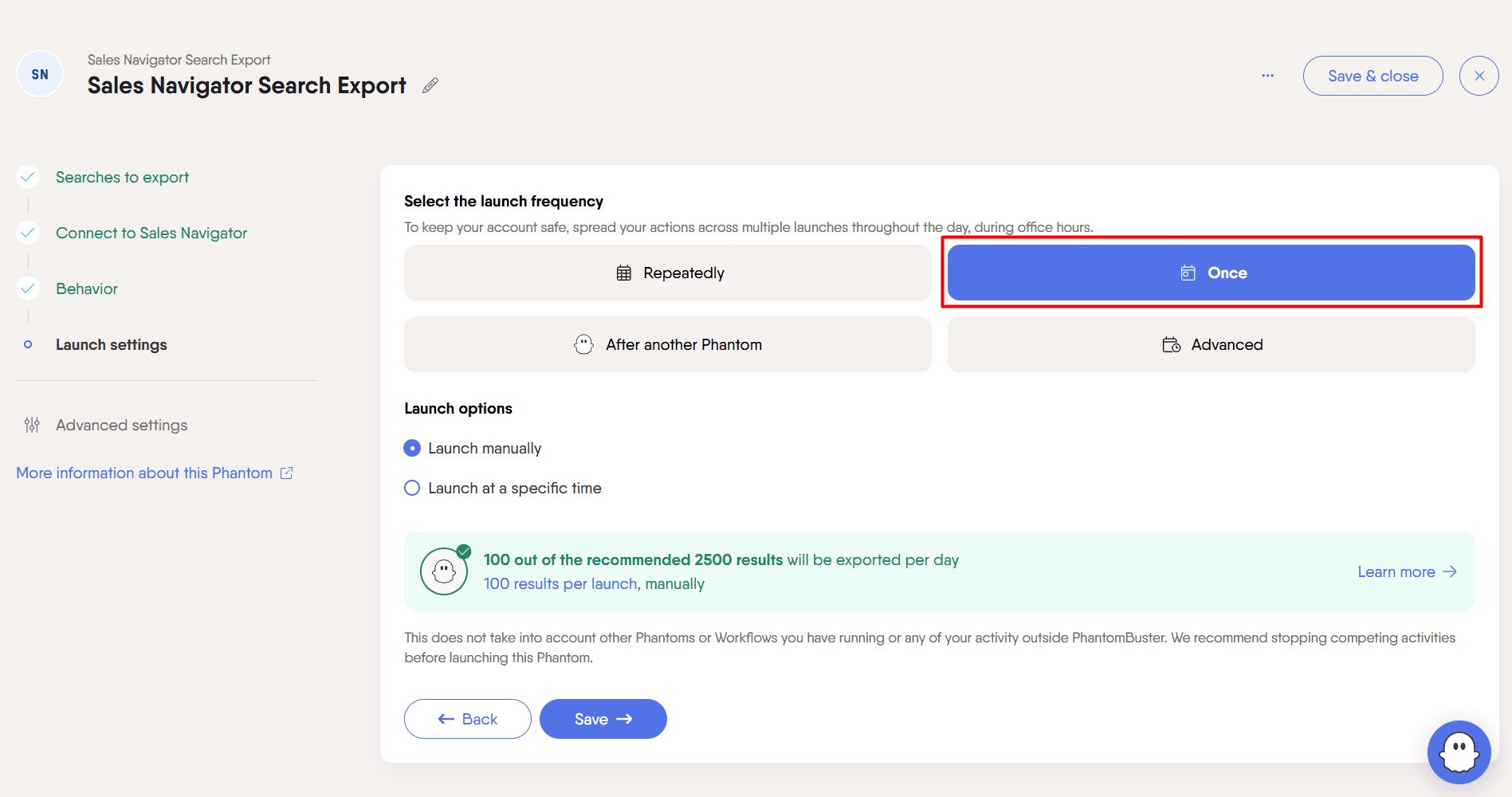
Then, I clicked “Save” and “Launch” to initiate the extraction process. In a few seconds, I saw the “Search successfully processed” result.
🔷 Pro tip:
Test it the first time to thoroughly check the output. Later, you may run it on a schedule once you’re sure everything works properly.
Send the extracted data into n8n
There are two options to do this, depending on whether you want to automatically add/push your LinkedIn Sales Navigator data to n8n right upon extraction or get it pulled by n8n whenever needed:
- Option 1. Webhook node
If your scraping tool supports a webhook or callback output, you may use a Webhook node so that the scraper can send the results to your webhook endpoint once it’s done. The moment the scrape job finishes, the tool POSTs the full JSON result straight to your n8n workflow.
But remember to add a Production URL generated in n8n (e.g., https://your-n8n-url/webhook/linkedin-leads) into the LinkedIn scraper’s webhook settings before using this node.
Workflow example with a Webhook node:
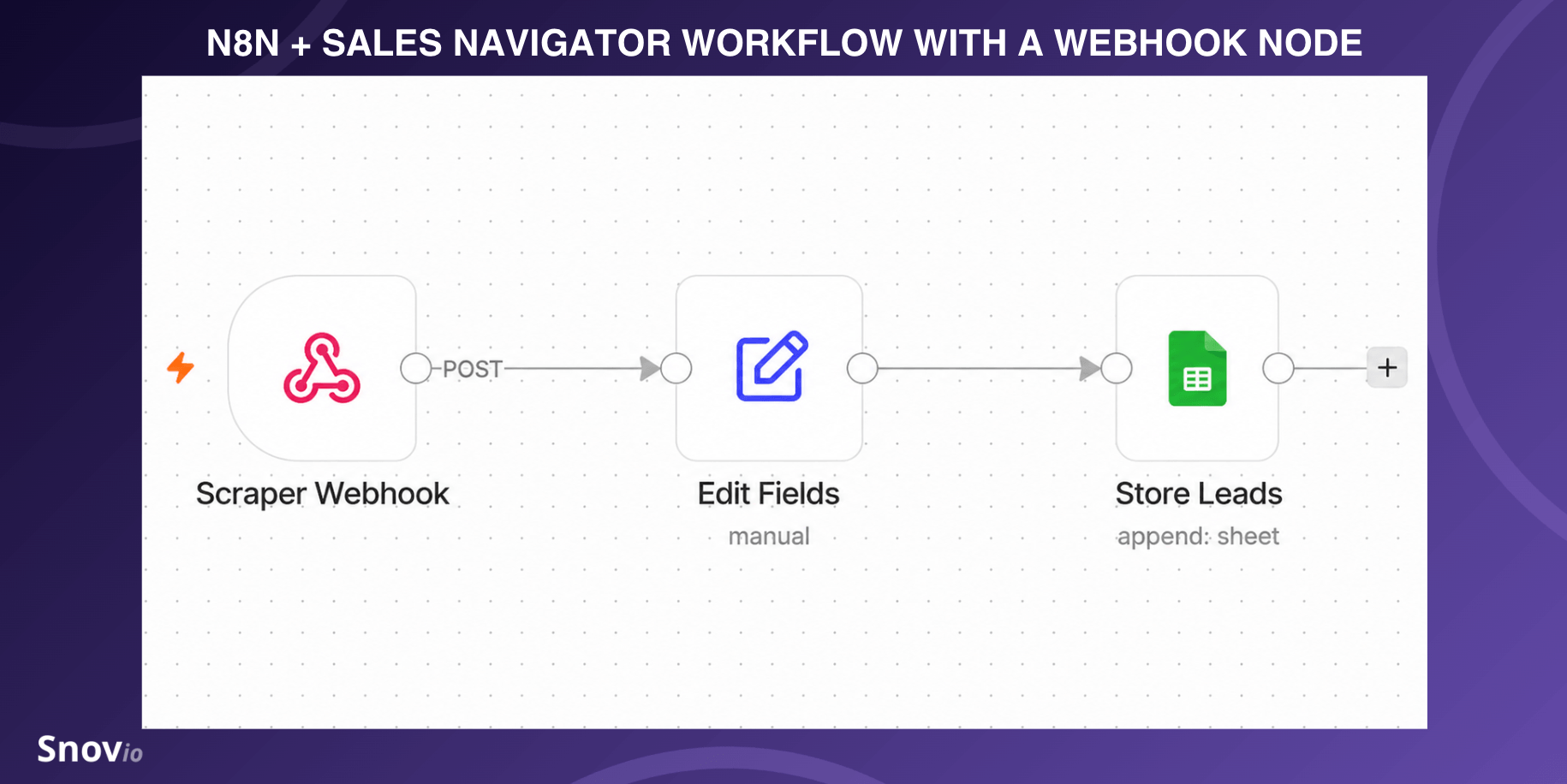
Webhook Trigger → Edit Fields (rename/reshape fields) → Store Leads (Google Sheets)
- Option 2. HTTP Request node
If you’d prefer n8n to check for results on its own schedule, put a Schedule Trigger first, followed by an HTTP Request node (alternatively, set a Manual Trigger). This is a better fit if you’re launching the scrape separately and just want n8n to grab whatever is ready.
Workflow example with an HTTP Request node:
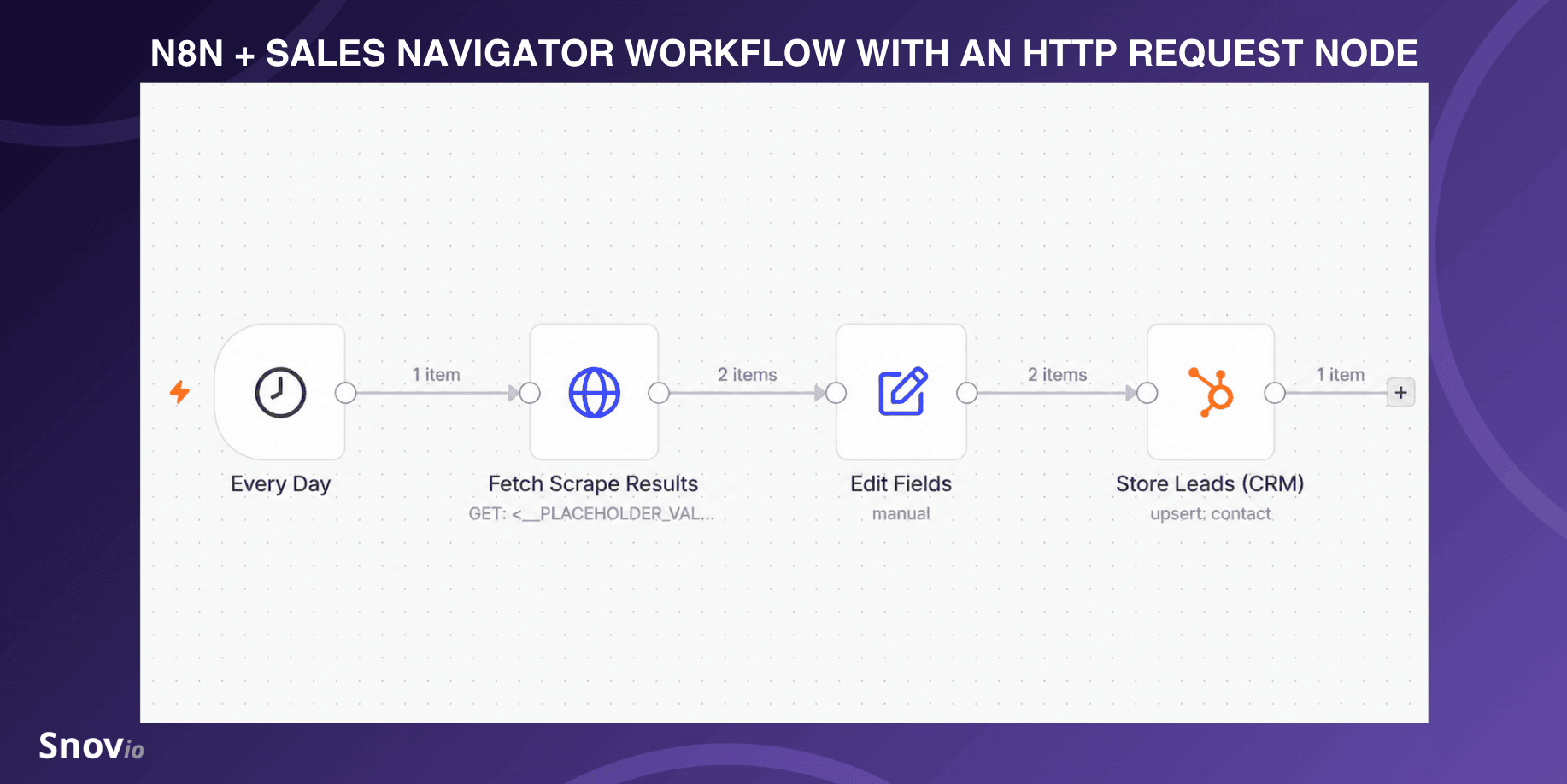
Schedule Trigger (e.g., daily at 8 a.m.) → HTTP Request (fetch results) → Edit Fields (rename/reshape fields) → Store Leads (CRM)
So, which option should you choose?
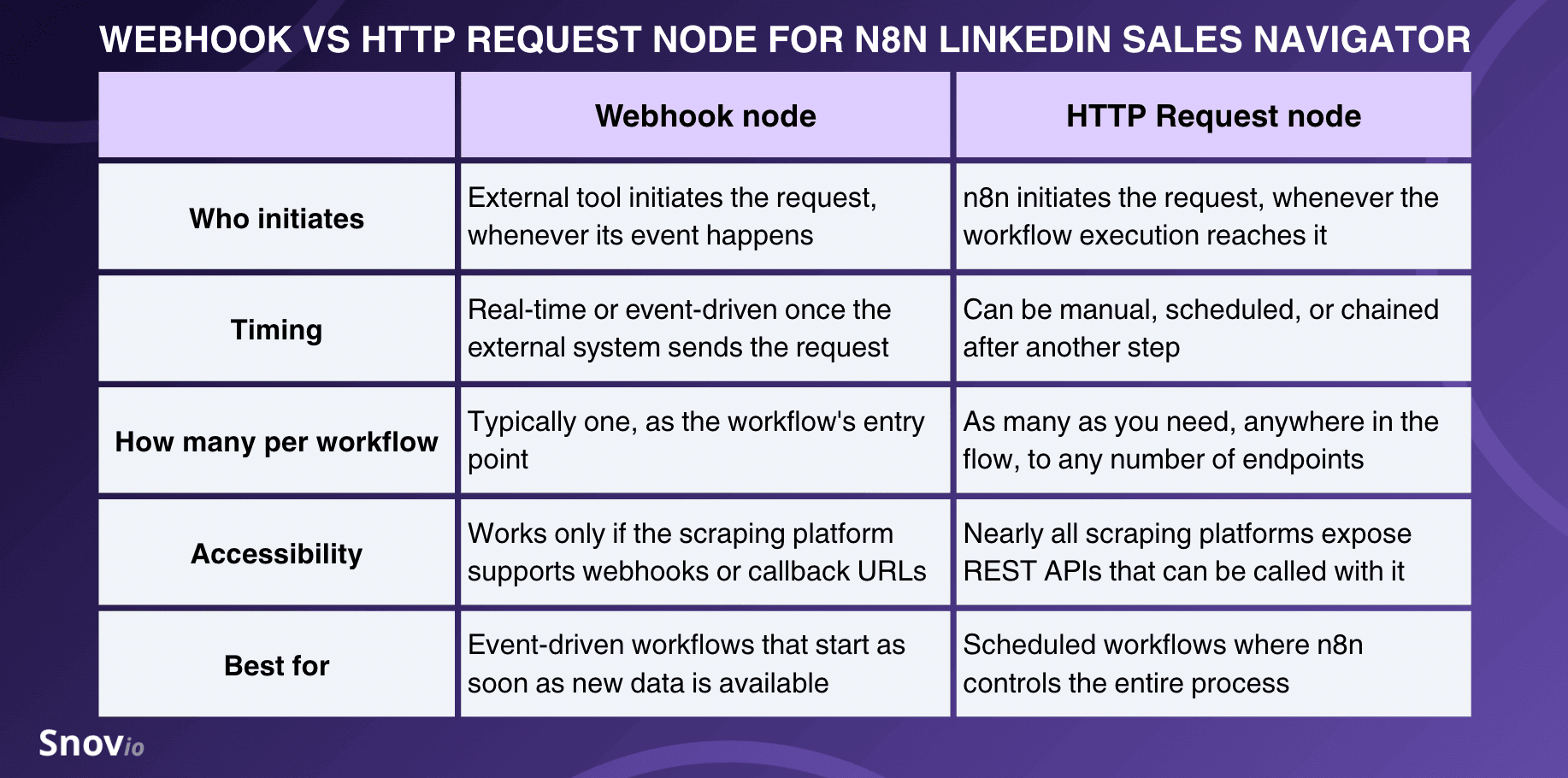
Opt for a Webhook node if you want to push the results to n8n instantly once extracted. Use an HTTP Request node if you want more control over when the LinkedIn scraper starts and when the leads are retrieved.
Look more closely at the following comparison between the Webhook and HTTP Request nodes to make a final decision.
🔷 Pro tip:
If your scraper doesn’t support webhooks, add a Wait node before n8n requests the export results from Sales Navigator. It will help you avoid API errors in case the job status is checked too early.
Direct the collected leads to your preferred destination
Here, you first need to decide what exact fields you want to fill out (e.g., full name, job title, company name, location, LinkedIn profile URL) in your Google Sheet, CRM, or any other destination point.
One important caveat: The destination fields must align with what the n8n node sends. For instance, when choosing Google Sheets, the header names must match the node’s field mapping exactly (check spelling, upper/lowercase casing, and spacing). For CRMs: Check whether the field already exists in your CRM or create a custom one first if needed.
For example:
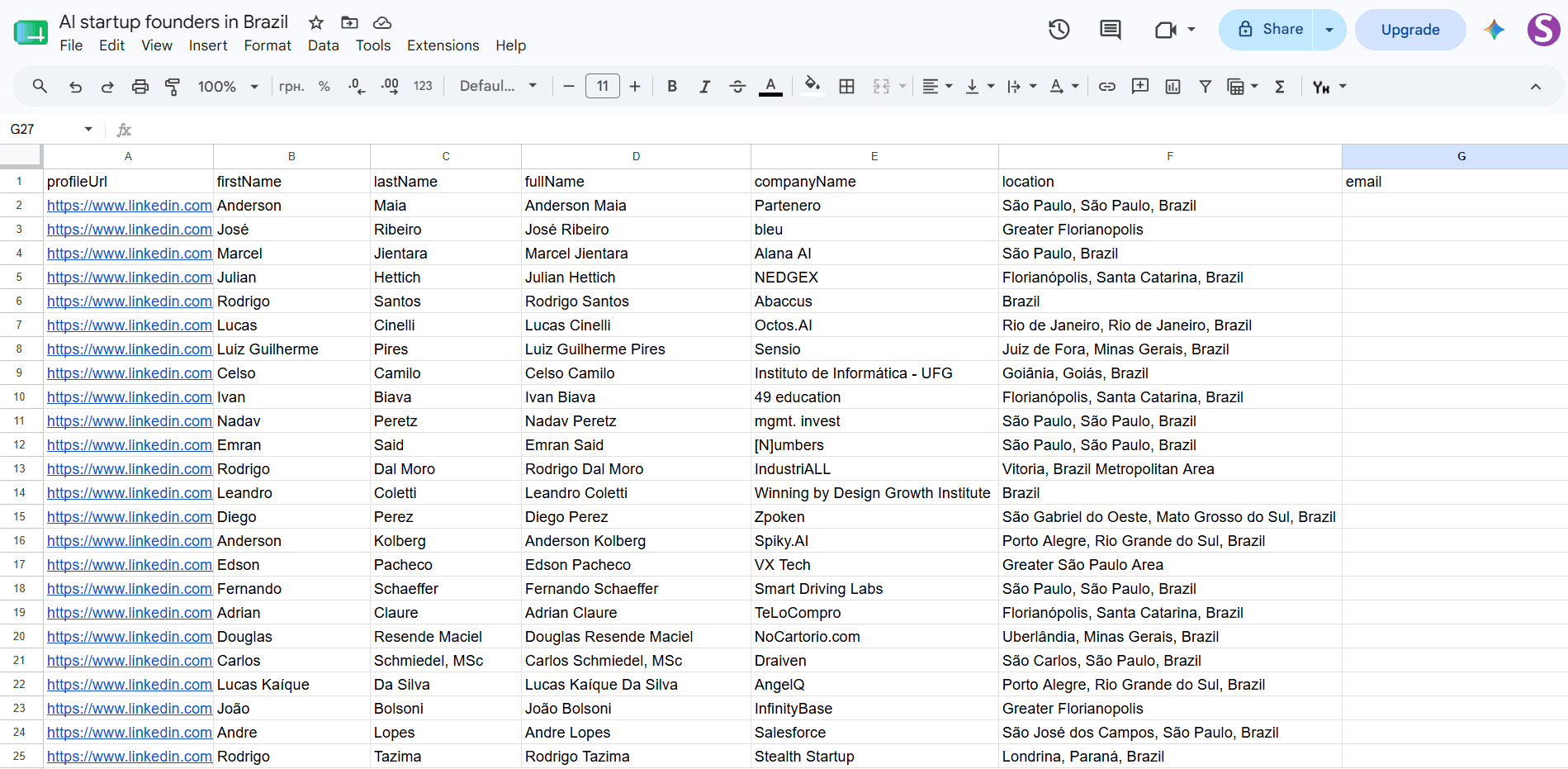
First, I inserted the headers in my Google Sheet manually, but you can auto-create them with the Mapping Column Mode → “Map Automatically”.
Then I executed my n8n LinkedIn scraper workflow to send leads from Sales Navigator to n8n via PhantomBuster (Webhook node) and got the following prospect list:
🔷 Pro tip:
If you aren’t sure how to start automating n8n LinkedIn lead generation for your unique use case, you may turn to n8n’s AI Assistant and let it orchestrate the whole process end-to-end with full or partial automation. Just give it a prompt:
Create a workflow that pulls new leads from LinkedIn Sales Navigator via [your setup peculiarities, schedule, and other instructions].
Alternatively, find a ready-made template from 10K+ n8n workflow automation templates (or customize it with AI or manually): e.g., “Extract LinkedIn Sales Navigator contacts to Google Sheets with auto pagination.”
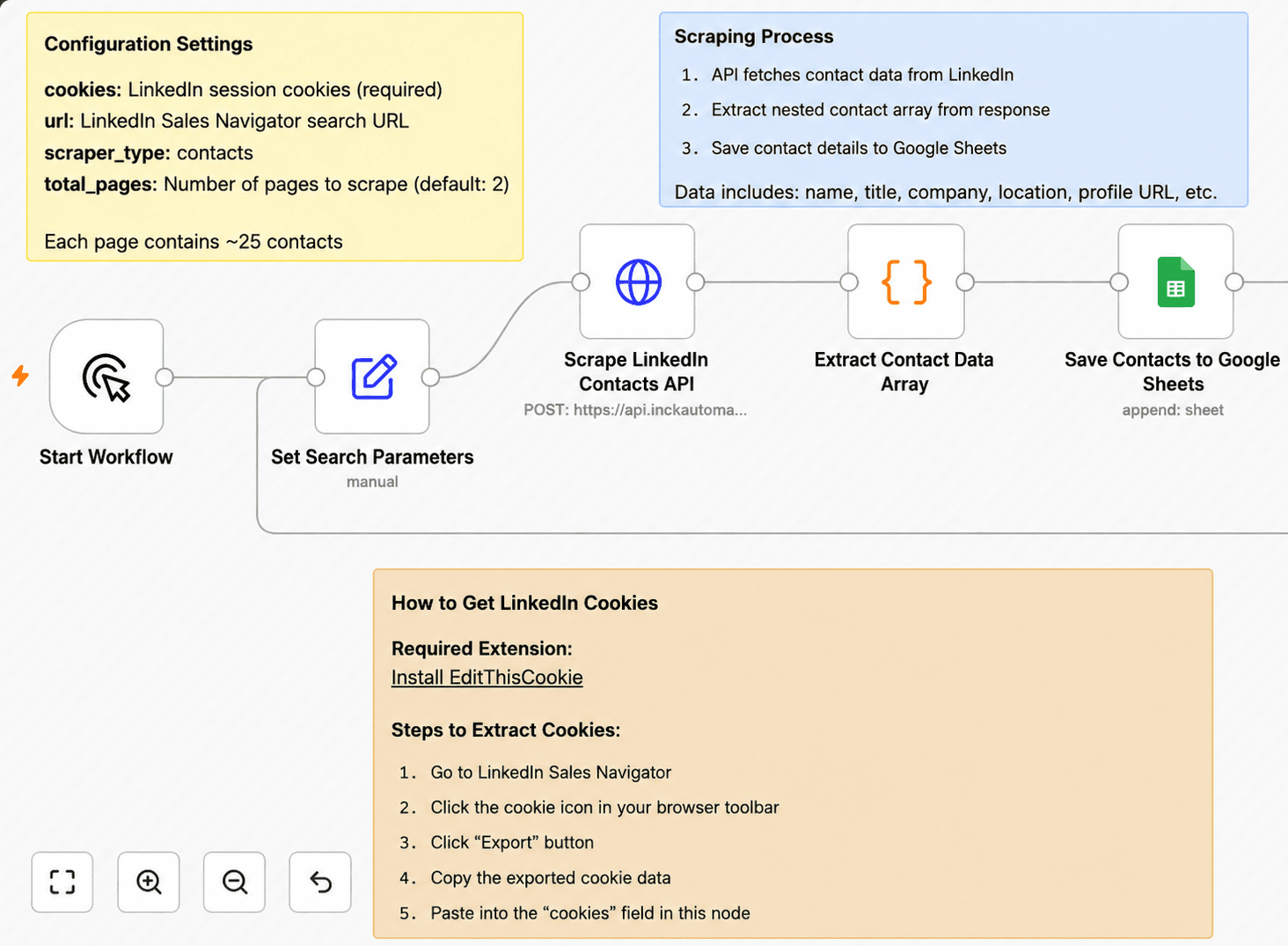
You can also browse the n8n user community for custom workflows, tried and tested by users.
For example:
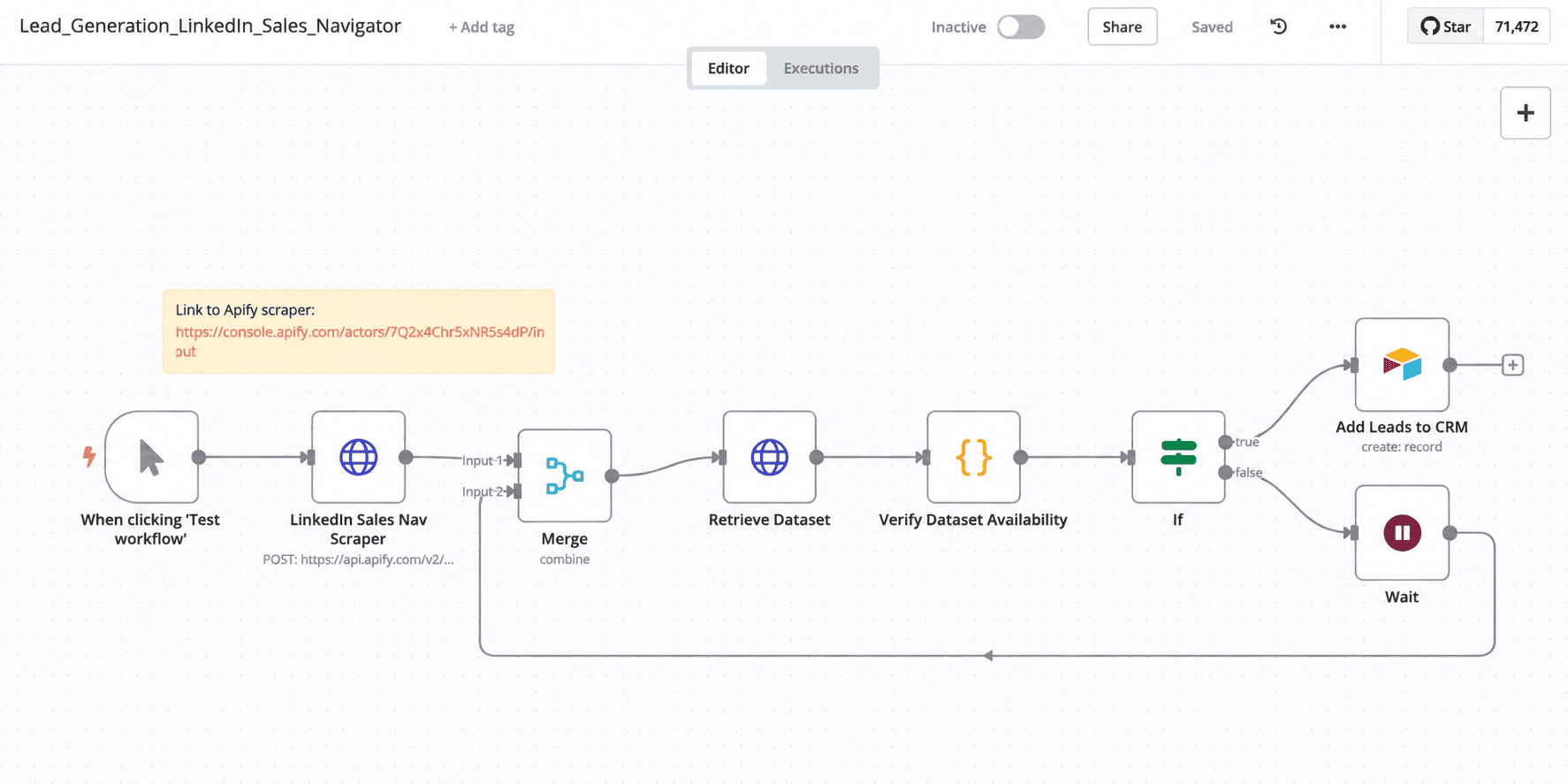
Look at this one, which includes a duplicate-checking step to deduplicate leads before adding them to Airtable.
A basic LinkedIn scraper-to-spreadsheet/CRM roadmap lives up to its name — it simply generates raw data: unverified, unenriched, unqualified, and this list could go on.
If you want to build a more robust n8n workflow that lets you verify, enrich, and qualify leads, or even personalize outreach messages with AI, you’ll need a more advanced setup.
How to build a LinkedIn Sales Navigator + n8n automated workflow for cold outreach (advanced setup)
The following workflow steps will help you to proceed with leads you’ve generated from Sales Navigator to n8n LinkedIn outreach or multichannel campaigns (LinkedIn + email).
Data verification
Where to add it: Right after Sales Navigator data scraping
What you need to set it up: A phone/email verification API (or a built-in feature, if any, in your scraping tool)
Plus, you’ll need a filtering step that cleans or filters invalid contacts before they go down your sales funnel. This measure will help clean your lead lists once you want to move on to cold email outreach or cold calling.
Workflow example with data verification:
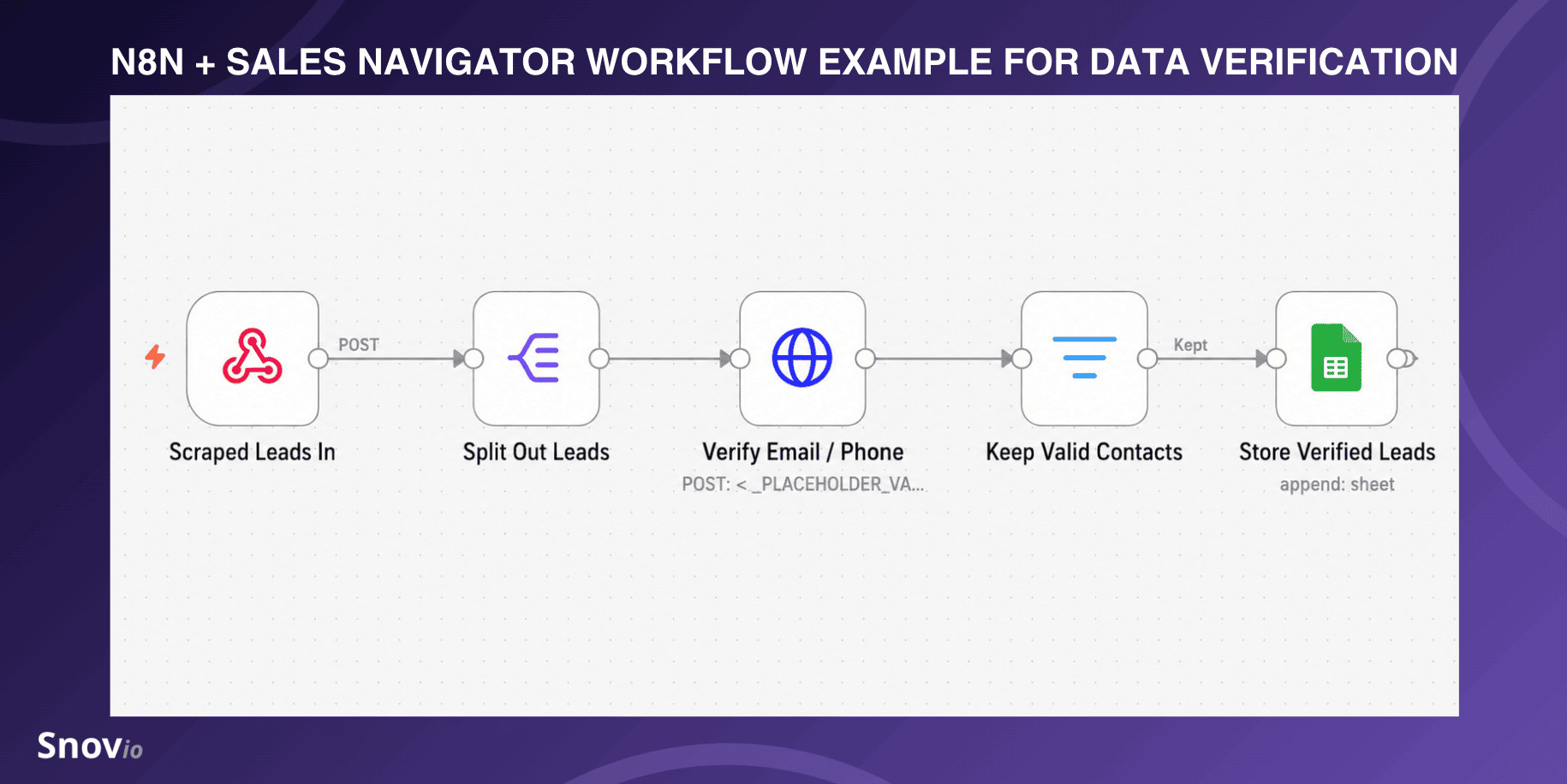
Scraped Leads In → Split Out Leads → Verify Email/Phone (HTTP) → Filter (keep valid) → Store Verified Leads
As an option, you can integrate Snov.io with n8n and use its node verification node to validate email addresses extracted from Sales Navigator before sending emails.
The n8n workflow may look like this:
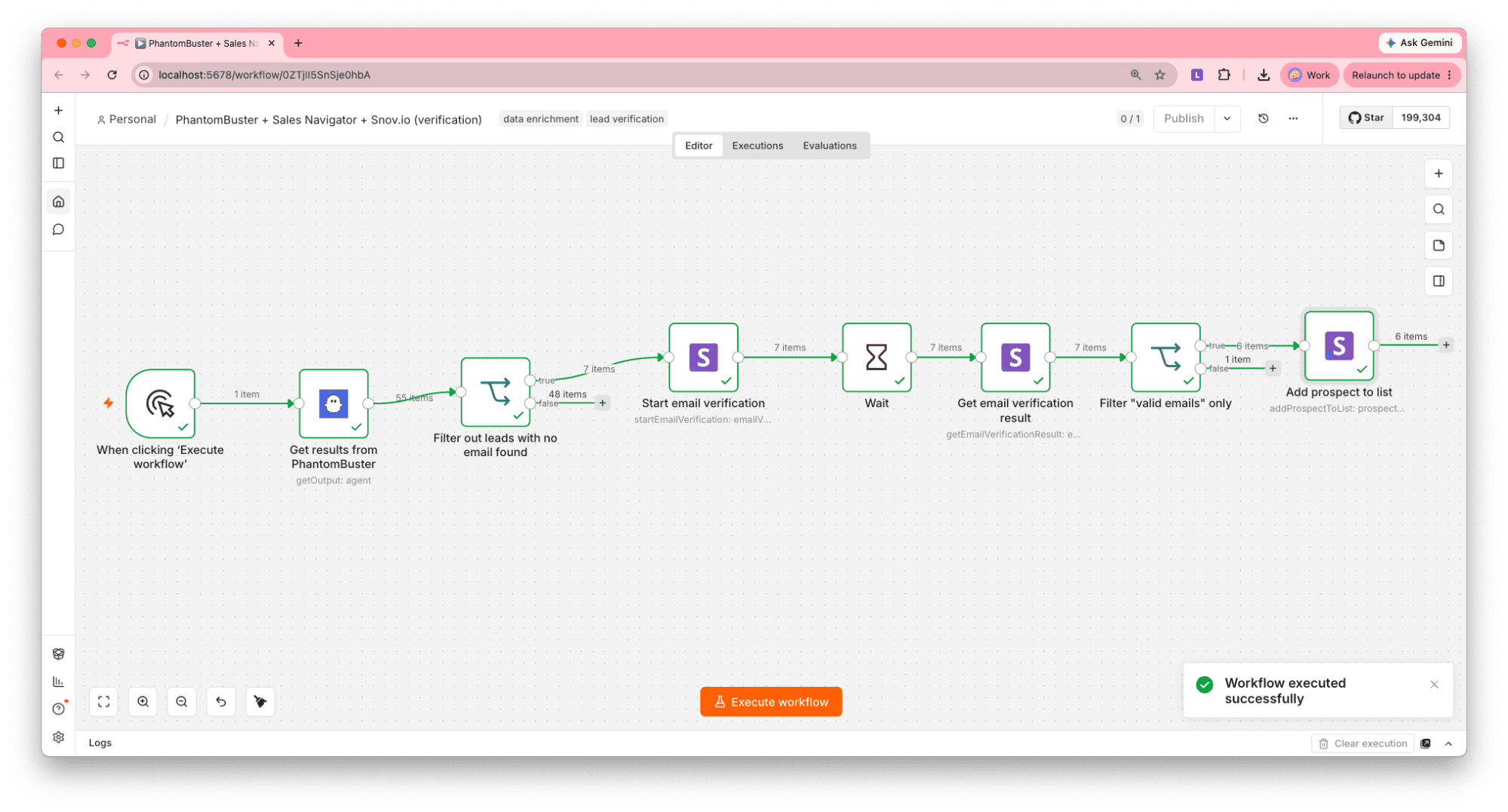
Get results from PhantomBuster → Filter out leads with no email found → Start email verification → Wait → Get email verification result → Filter “valid emails” only → Add prospect to list (within the Snov.io account)


Data enrichment
Where to add it: Right after verifying contacts or in a separate workflow
What you need to set it up: An enrichment API from one of the data enrichment tools
Plus, you’ll need a merge step in n8n that appends additional data (e.g., the tech stack used, aka technographics) to each LinkedIn profile record. In the output, you’ll get a list of enriched leads with missing details, often essential for outreach personalization.
Workflow example with data enrichment after verification:
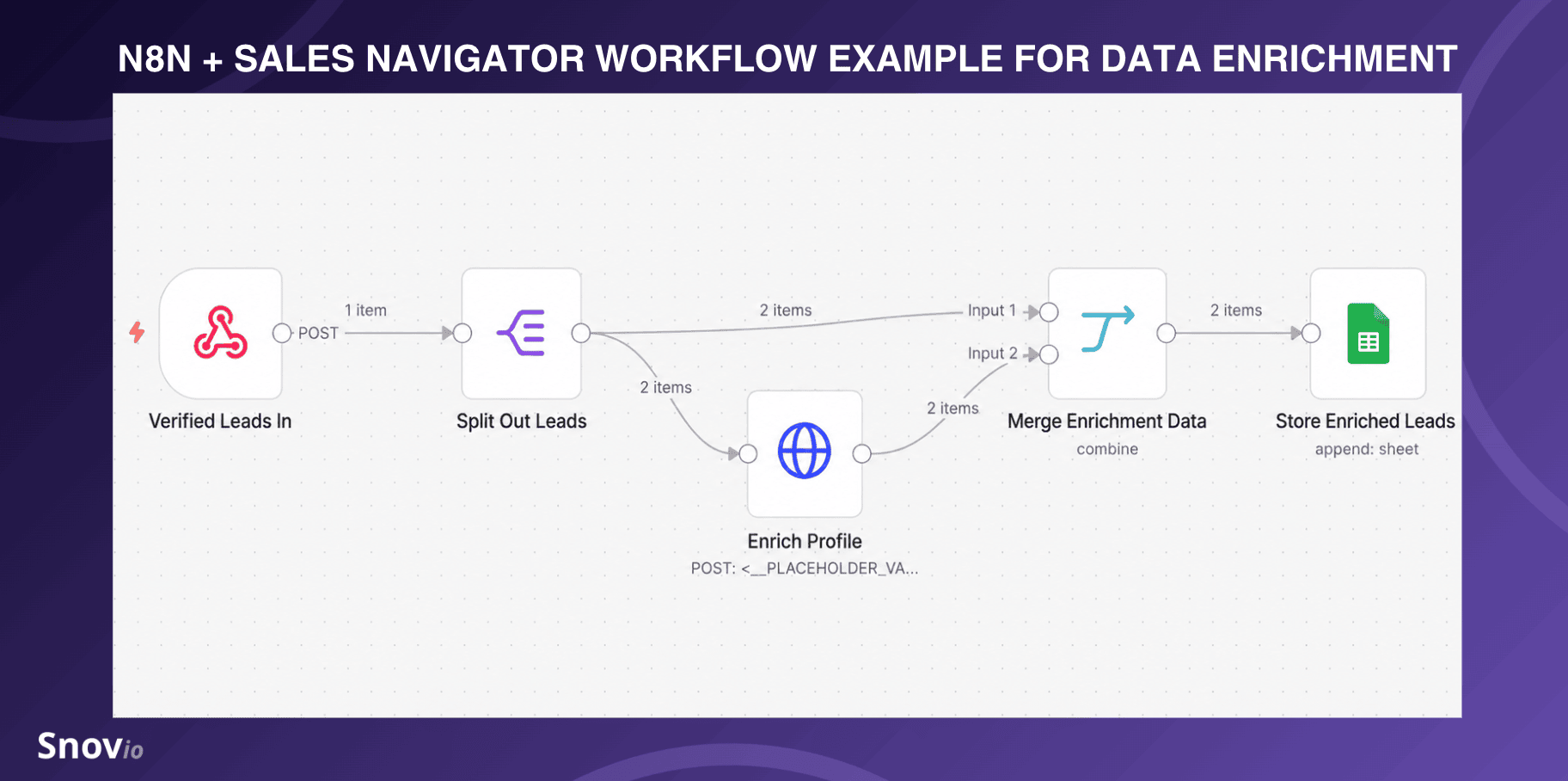
Verified Leads In → Split Out Leads → (branch) Enrich Profile (HTTP) → Merge (combine by email) → Store Enriched Leads
Alternatively, here’s another enrichment scenario with Snov.io’s LinkedIn URL enrichment, email finding, and email verification nodes to save enriched leads to the Snov.io prospect list. The recommended enrichment logic may look like this:
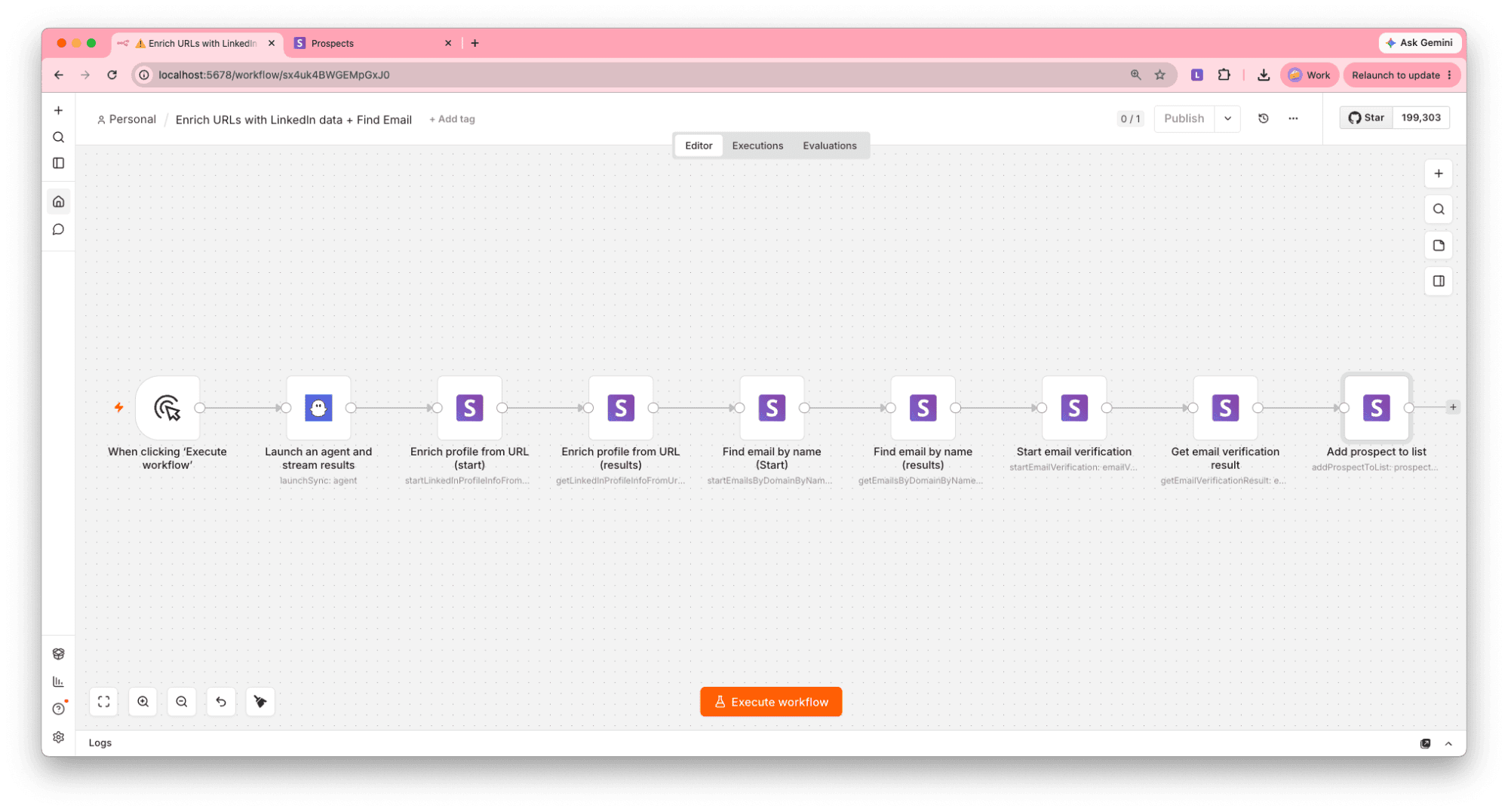
Launch an agent and stream results (PhantomBuster) → Enrich profile from URL (start) → Enrich profile from URL (results) → Find email by name (start) → Find email by name (results) → Start email verification → Get email verification result → Add prospect to list (within the Snov.io account)
🗒️ Note:
The Snov.io nodes are currently available for self-hosted n8n accounts. If you’re using n8n Cloud, you should manually configure API requests to connect to Snov.io.
AI-powered outreach with an AI agent and human in the loop
Where to add it: As the final step (with human approval of AI-generated outreach messages or connection requests)
What you need to set it up: An AI agent node (or an API call)
When integrated into your n8n workflow, agentic AI (Gemini, ChatGPT, Claude AI, etc.) can qualify leads or even personalize cold outreach based on the extracted and enriched insights.
I built a system that uses an AI Agent and Claude to write hyper-personalized outbound messages for 1,000s of prospects based on their LinkedIn data and online activity. […] Each message references details about the prospect’s role, work history, and company challenges. Because Claude has all their data points, every follow-up stays relevant to who they are and what they care about — not generic templates with just a name/company name swapped in.
Founder of Corebits

Workflow example with an AI agent and human review after enrichment:
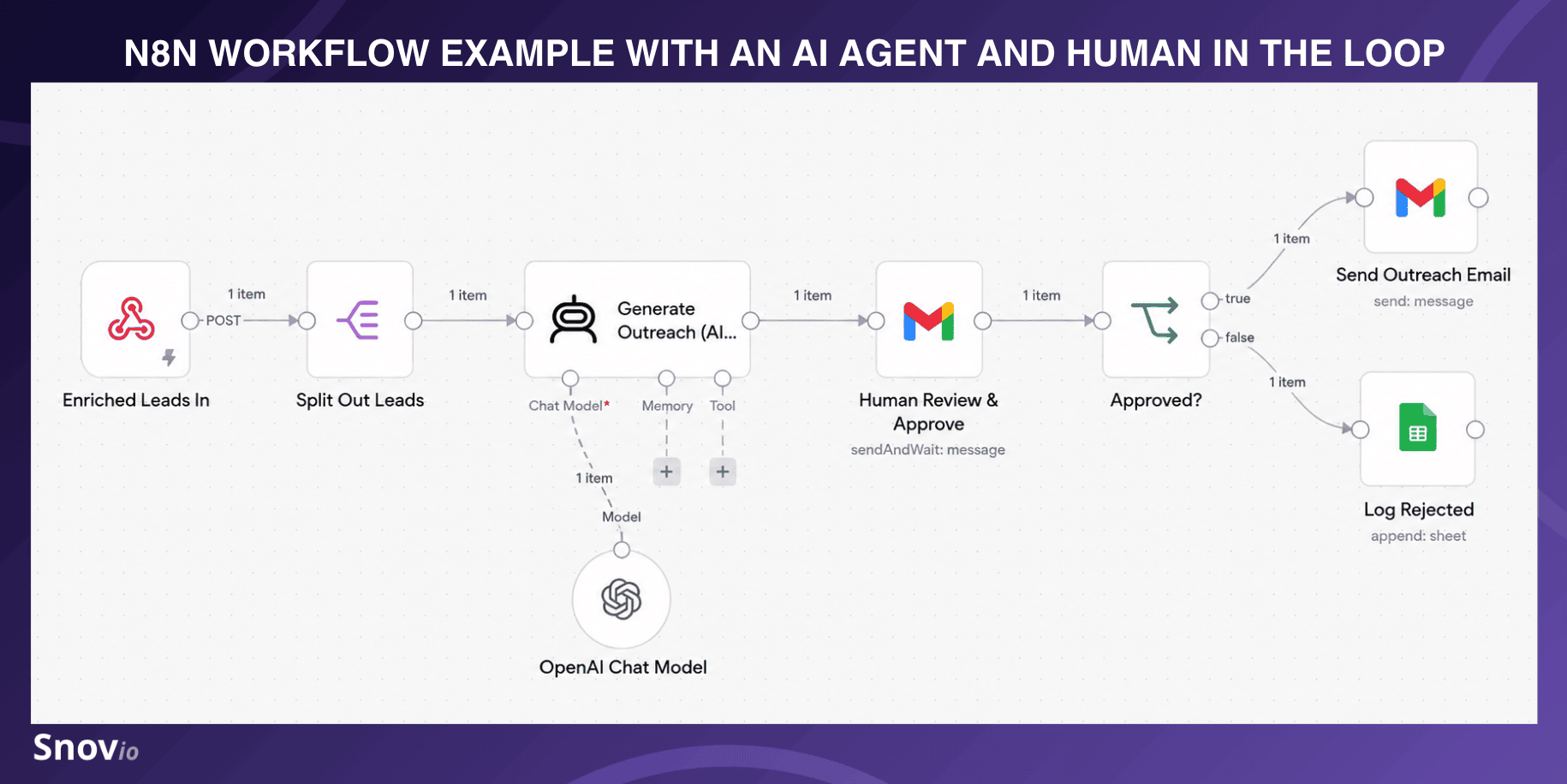
Enriched Leads In → Split Out Leads → AI Agent (OpenAI for message drafting) → Human Review & Approve (send-and-wait) → IF Approved? → true: Send Outreach Email / false: Log Rejected


Risks of n8n LinkedIn Sales Navigator automation (and expert tips on avoiding them)
So, as you’ve seen, connecting n8n and LinkedIn Sales Navigator for both lead generation and outreach purposes is real. But is it completely safe?
Well, the answer is “it depends on how you use it.” LinkedIn strictly forbids any “third-party software, including ‘crawlers,’ bots, browser plug-ins, or browser extensions that scrape, modify the appearance of, or automate activity on LinkedIn’s website,” because they violate the User Agreement.
This means that any LinkedIn automation, including Sales Navigator and n8n automation, can be risky with a few nuances worth calling out. Let’s approach these risks carefully with professional recommendations and “never-do” tips.
Risk 1. LinkedIn account restriction or permanent ban
LinkedIn’s algorithms watch out for anything that looks automated, whether it’s about too many searches, profile views, connection requests, or messages/InMails. And once this pattern is detected in your scraping behavior using the n8n LinkedIn Sales Navigator integration, your account may be restricted or even permanently banned.
✔️ How to avoid it:
- Even though you’re officially allowed to access 2,500 lead results per search, experts recommend setting a safer scraping volume of 50–100 daily profile extracts for a start and 500–1,000 profiles/day if your account is warmed up
- Randomize extraction pacing and delays between steps in your n8n system
- Create several accounts, spread the scrapes equally, and rotate them
❌ What you should never do: Never run the same Sales Navigator account with 2 or more scraping tools.
Risk 2. Data compliance exposure
Even if LinkedIn information is publicly accessible, it is still considered personal for data privacy protection laws like GDPR. Plus, a separate legal risk layer adds on top once you move from collecting LinkedIn leads to messaging them.
✔️ How to avoid it:
- Ensure your LinkedIn-scraping tool complies with the region-relevant data protection regulations: e.g., GDPR or the ePrivacy Directive for the EU markets or LGPD for Brazil
- Store only the fields you actually need for the outreach and sales process — don’t keep irrelevant details about prospects “just in case”
- Respect people’s right to privacy and accept personal data removal requests, if any
❌ What you should never do: Never purchase already scraped data from LinkedIn to merge it with your existing lead lists.
Risk 3. Low-quality, spammy LinkedIn outreach messages/invites
Yeah, I know, it’s so tempting to outsource every LinkedIn message or invite to artificial intelligence. But remember that AI can make mistakes and generate low-quality content that people immediately recognize as “AI-ish.” That’s what may trigger spam complaints and, in turn, result in a LinkedIn warning or even an instant ban.
✔️ How to avoid it:
- Fact-check data after enrichment
- Customize AI prompts and give more precise details based on your ICP(s)
- Set n8n’s send-and-wait approval node (via Gmail) or human-in-the-loop node (e.g., via gotoHuman) to review and approve (or edit if needed) every AI-generated connection request or message
- Monitor acceptance/response rates and refine your prompts based on the results
❌ What you should never do: Never leave your n8n LinkedIn outreach system with agentic AI without supervision if you want to automate LinkedIn messages safely and don’t sound like a bot in your connection requests.
Alternatives to n8n LinkedIn lead generation and cold outreach
If you don’t mind trading customization for much easier setup and maintenance, consider alternative ways to generate leads and reach out to them.
| Alternative to n8n LinkedIn lead generation | Alternative to n8n LinkedIn outreach | |
|---|---|---|
| Examples of tools | LinkedIn Chrome extensions like Snov.io’s LinkedIn Email Finder, Kaspr, Lusha, Wiza, Skrapp, GetProspect | LinkedIn automation tools like Snov.io, Dripify, HeyReach, Expandi, Dux-Soup, We-Connect |
| Best for | Solo salespeople or marketers who need rapid one-off lead scraping while browsing | Sales teams and lead-gen agencies running outbound campaigns at scale |
| Use case | Prospect capturing for automatic lead generation on the go | Automatic profile views, follow, post likes, connection requests, skill endorsements, and message/InMail sequences with follow-ups |
| Pricing structure | Free tier is common; paid plans range between $30 and $50/mo | Usually a per-seat pricing model, roughly from $50 to $100/mo per user |
| What makes them good alternatives | You don’t have to build any workflows; a contact verification feature is often already included | You can use built-in delays and human-like pacing features; some of these tools offer AI-powered features to generate connection request notes and LinkedIn messages |
| Main advantages | In-browser capture; one-click sync with spreadsheets/CRMs; practically zero learning curve; cheap to try (many offer free tiers); more control of what leads exactly get captured | Typically run in the cloud 24/7; implement safety measures like a daily limits randomizer, LinkedIn account rotation, or others; offer campaign analytics; may be paired with n8n rather than replacing it entirely |
| Limitations | Requires your browser to be open and active; limited to what’s on the current page; mostly only exports to CSV/CRM; dependent on LinkedIn’s structure and exposed to automation detection risk | Less customizable than n8n + LinkedIn Sales Navigator workflows; dependent on LinkedIn’s structure and exposed to automation detection risk; per-seat cost adds up for larger teams |
| Implementation effort in comparison to n8n | Very low (install-and-go setup in a few minutes) | Low-to-medium (typically a no-code dashboard with a drag-and-drop sequence builder) |
If your goal is quick Sales-Navigator-to-CRM lead extraction, a reliable LinkedIn Chrome extension is a go-to alternative to n8n.
But if it extends to visiting profiles, following, liking posts, endorsing skills, and sending connection requests, messages, or InMails, a compliant LinkedIn automation tool can fully satisfy this need without any technical background or time-consuming setup.
🗒️ Note:
Some tools, like Snov.io or Dux-Soup, actually straddle both LinkedIn lead generation via a dedicated browser extension and cold outreach. So, you don’t have to decide between the two and can get everything in one place.
Here’s one of my go-to workflows with Snov.io. I search for leads via Sales Navigator, then use the LinkedIn extension to scrape data and import it into the Snov.io prospect list. After that, I connect the list to email and LinkedIn campaigns, and when I receive replies, I start tracking deals in the native CRM.
General Manager at Salestech

Key takeaways: Is n8n LinkedIn Sales Navigator integration worth it?
Yes, it is definitely worth considering if you have a large tech stack and plan to customize your n8n workflows with Sales Navigator. Although n8n doesn’t offer a native LinkedIn Sales Navigator integration, you can build powerful workflows by using a third-party scraper and extracting leads directly to your chosen destination (e.g., a spreadsheet or CRM).
From basic to advanced, choose the scenario that better fits your needs:
- Best for simple automatic extraction (raw, unverified lead lists): Sales Navigator + scraping tool + n8n + destination tool (e.g., a spreadsheet or CRM)
- Best for n8n LinkedIn lead generation and data verification: Sales Navigator + scraping tool + n8n + phone/email verifier + destination tool
- Best for n8n LinkedIn lead generation and data enrichment: Sales Navigator + scraping tool + n8n + enrichment tool + destination tool
- Best for n8n LinkedIn outreach: Sales Navigator + scraping tool + n8n + generative AI agent + outreach tool
Alternatively, you may combine them all in a single n8n workflow.
But if you prefer a “lighter,” no-hassle setup to capture already verified leads on the fly from Sales Navigator, enrich and organize them, and schedule LinkedIn touches with automated messages/InMails and follow-ups, try sweet-spot alternatives like Snov.io, which smoothly syncs with n8n.