LI Prospect Finder helps you find emails and save prospects from LinkedIn. This guide shows how to install the extension from a ZIP file: download it, extract it, and load it into Chrome.

For a faster installation with automatic updates, use the Chrome Web Store (see this guide).
Step 1. Download the ZIP file
Step 2. Extract the ZIP file
Step 3. Enable Developer mode
Step 4. Load the unpacked extension
Step 5. Pin the extension to the toolbar
Step 6. Check the version
FAQs
Next steps
Step 1. Download the ZIP file
Download LI Prospect Finder zip file (ver.: 4.0.1 from 13.10.2026)Click the link above to save the ZIP file to your computer. Chrome saves it to your Downloads folder by default.
Step 2. Extract the ZIP file
Find the ZIP file on your computer. To open its folder quickly, press Ctrl+J (Cmd+Shift+J on Mac) in Chrome, then click the folder icon next to the file.
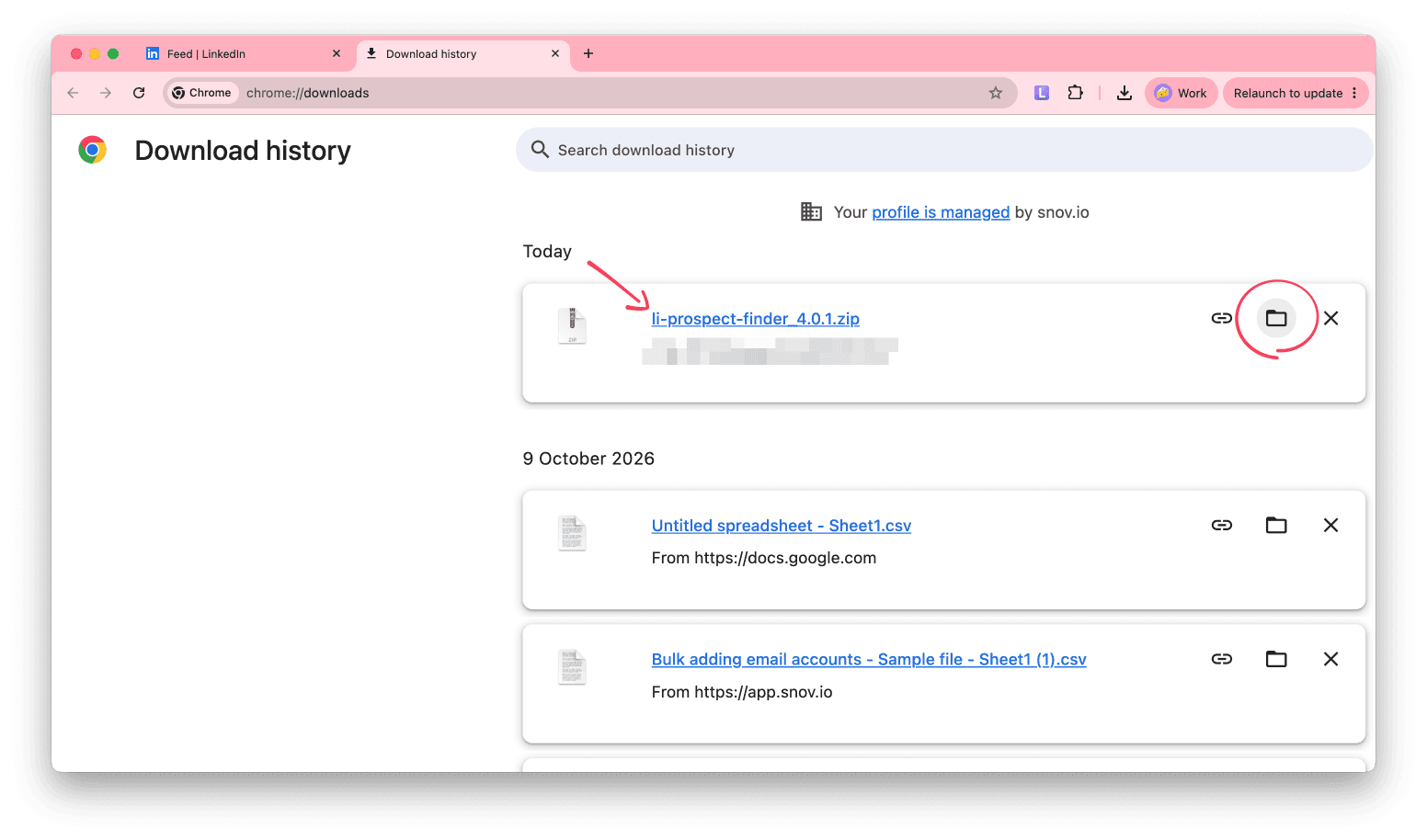
Then extract the files to a new folder:
- On Windows, right-click the ZIP file and select Extract All (see this guide)
- On Mac, double-click the ZIP file, and macOS creates a folder with the same name (see this guide)
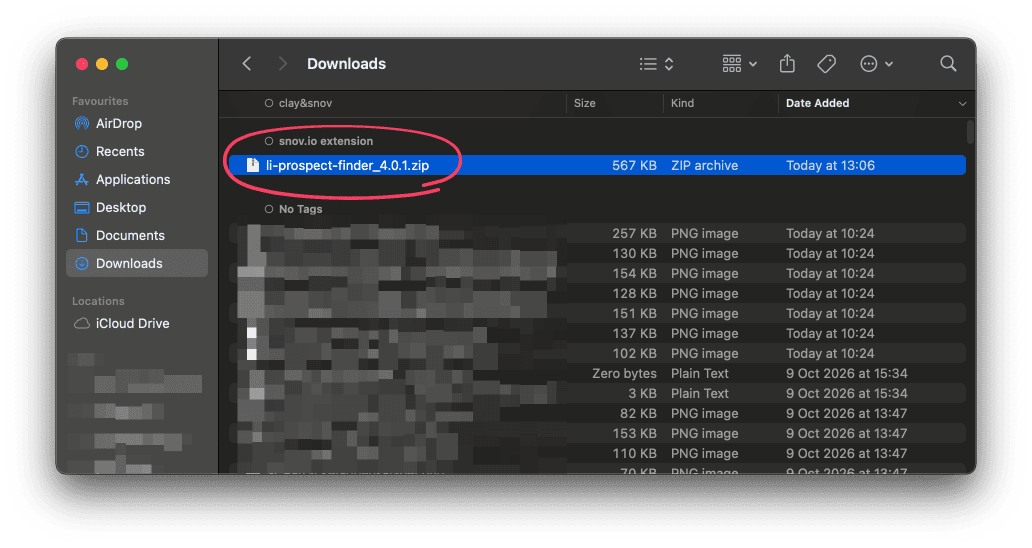
Keep the extracted folder in a permanent location, and avoid Downloads if you clean it often, because Chrome loads the extension directly from this folder.
Step 3. Enable Developer mode
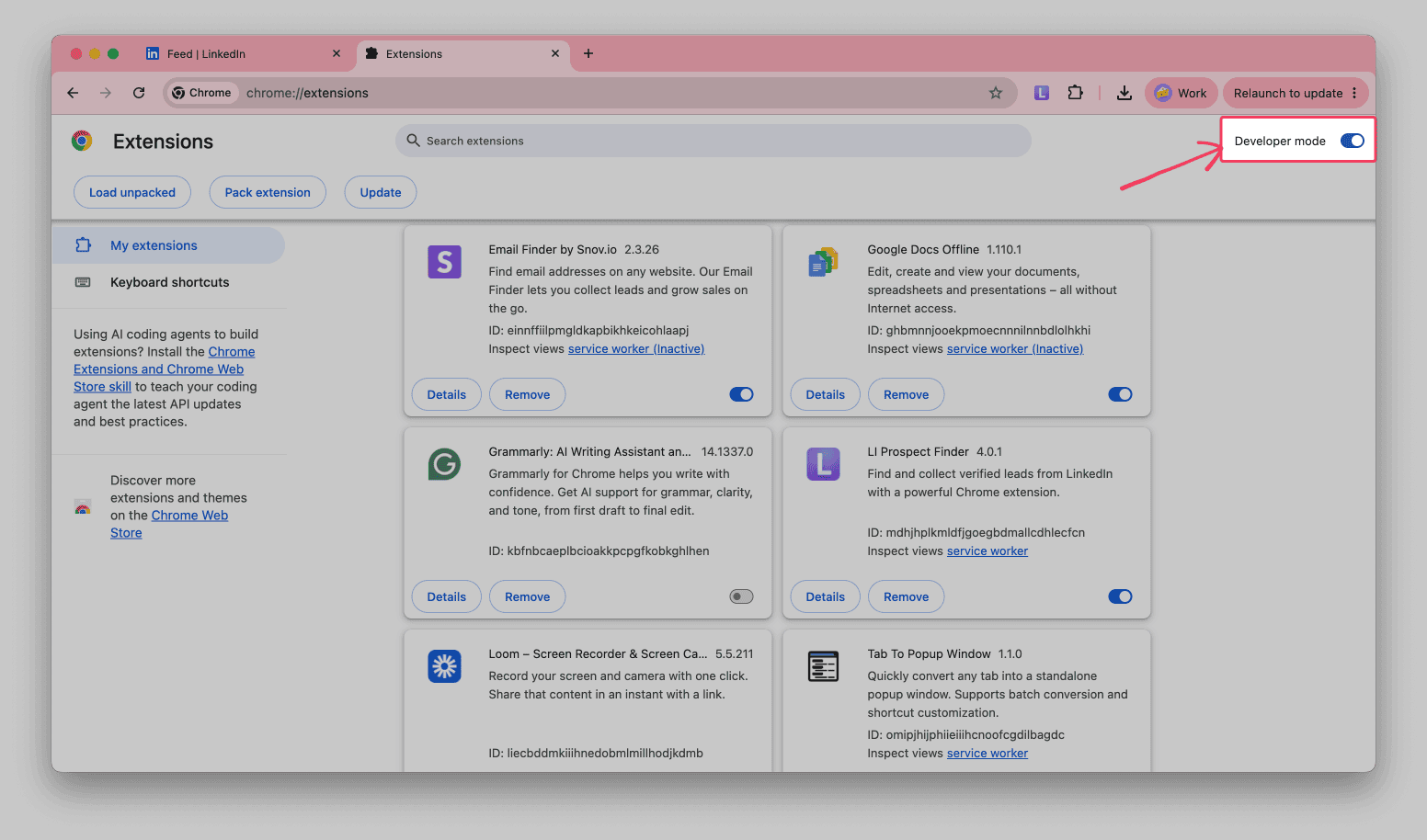
Type chrome://extensions in the address bar, or click More > Extensions > Manage Extensions. Then turn on the Developer mode switch in the top right corner.
Step 4. Load the unpacked extension
Click Load unpacked in the top left corner.
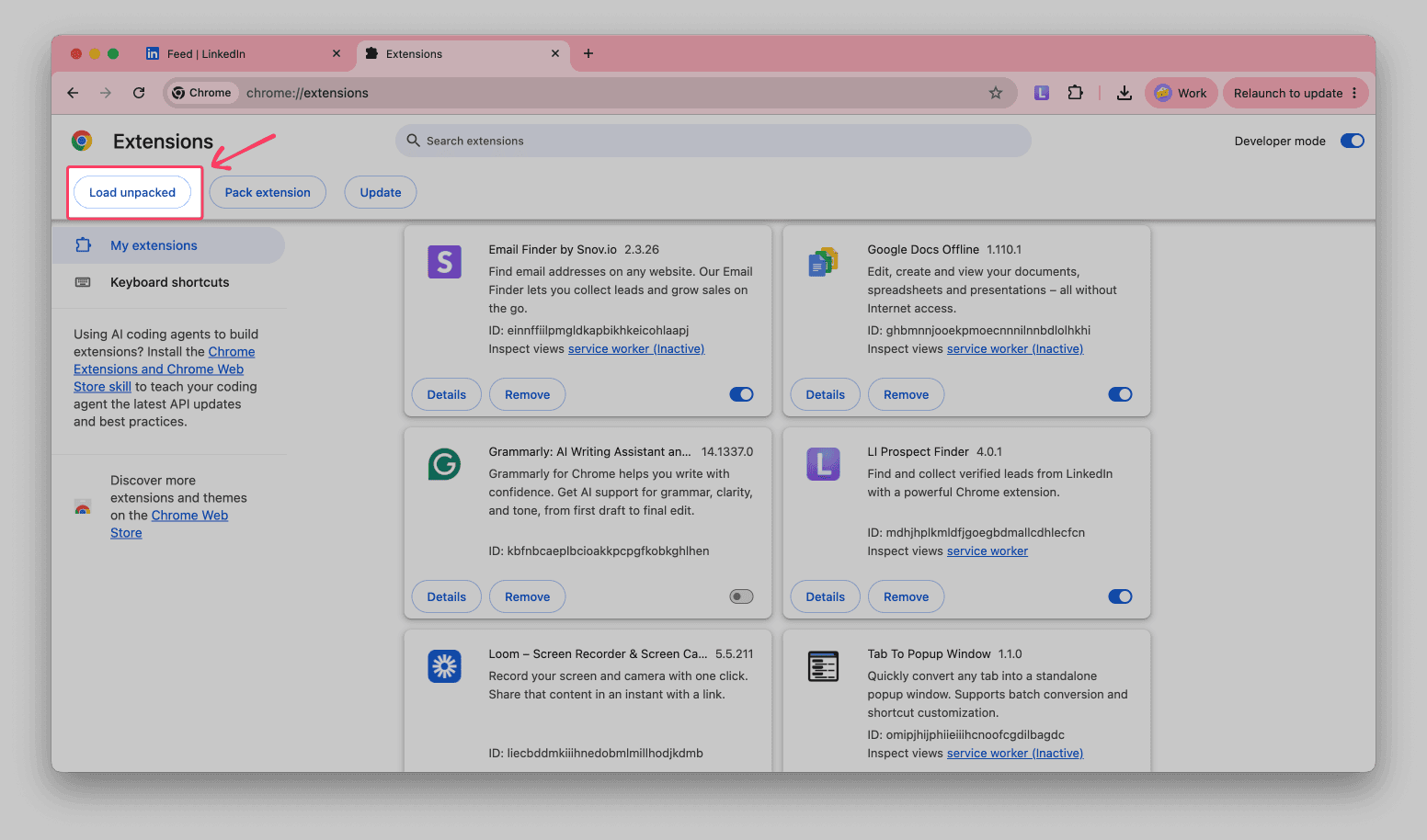
Select the folder you extracted in step 2 and click Select. Chrome installs the extension and adds it to the list.
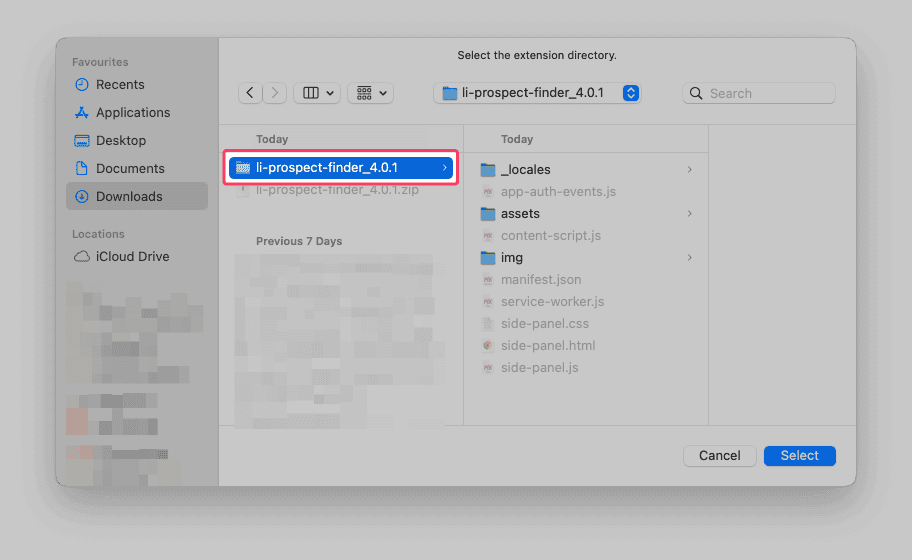
Select the folder that contains the manifest.json file, or Chrome shows an installation error.
Step 5. Pin the extension to the toolbar
Click the puzzle icon in the top right corner of Chrome, then click Pin next to LI Prospect Finder. If you need more details, see this guide.
Step 6. Check the version
On the Extensions page, find the LI Prospect Finder card and check the version number. It should match the version in step 1.
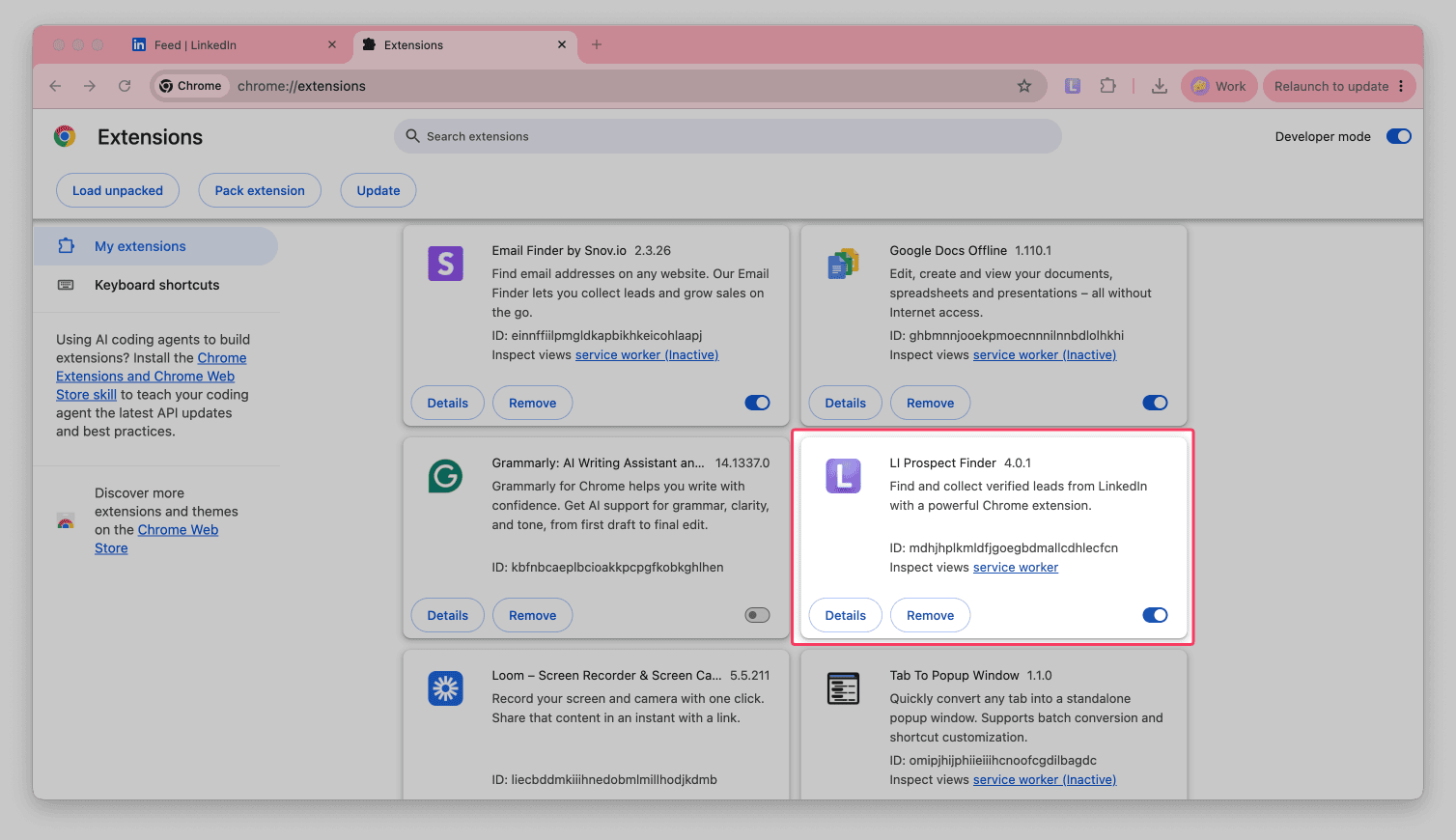
Then open LinkedIn and click the LI Prospect Finder icon to open the sidebar.
FAQs
Chrome shows "Manifest file is missing" during installation
This error appears when you select the wrong folder in step 4. Open the folder and check that it contains the manifest.json file. If you see another folder inside, select that folder instead.
Can I install LI Prospect Finder in another browser?
We built LI Prospect Finder for Google Chrome, and we cannot guarantee that it works correctly in other browsers such as Opera, Microsoft Edge, or Safari. Use it only in Google Chrome.
Can I delete the extension folder after installation?
No. Chrome loads the extension from this folder, so keep it in the same place. If you delete or move the folder, the extension stops working.
How do I update the extension?
When a newer version is available, the sidebar shows its number. To update, follow the steps in this guide. You can also switch to automatic updates (see this guide).
Next steps
Once you save prospects with the extension, you can:
- Get more data: use Enrichment tools to find phone numbers, research prospects on the web in bulk, and add more personal and company insights to the default data, then use it all to generate outreach copy
- Start outreach: contact prospects with LinkedIn Automation, email campaigns, or multichannel sequences



Sorry about that 😢
How can we improve it?