TL;DR: How can I build lead-nurturing flows with n8n right away?
If you need lightning-fast instructions, here’s a short, step-by-step n8n lead-nurturing automation tutorial.
Start with a preparatory step — define lead nurture stages with entry and exit conditions: when prospects enter and exit the sequence. Then, move on to the actual steps for building a workflow as described in the following table:
| Steps | What to do | Node(s) needed |
|---|---|---|
| Step 1. Choose the trigger | Start the workflow based on an event, manually, or on a schedule | Webhook, Manual, or Schedule Trigger |
| Step 2. Retrieve information about leads | Pull the current lead data into the system | HTTP Request node or a chosen data storage node: e.g., a Google Sheets or a dedicated CRM node |
| Step 3. Check prospect status and behavior | Check your prospects’ statuses and behaviors | Code node for deeper customization |
| Step 4. Decide on the nurture action | Route leads based on the obtained data | If or Switch node |
| Step 5. Create one or several touchpoints across channels | Create personalized outreach (e.g., send an SMS, email, and/or LinkedIn message) | Communication channel node: e.g., a Gmail node |
| Step 6. Update your records | Update the CRM record, Google Sheet row, or any other data storage place | Data storage (CRM/database/Google Sheets) node |
| Step 7. Wait, re-check, and continue or exit | Create the interval for a change (e.g., wait for 5 days), re-fetch contacts, check status and behavior, ask if sales-ready now | Wait node, a data storage node or an HTTP Request node, Code node, If node, and others depending on conditions |
Have another 5–10 minutes for a deeper dive? Explore detailed steps further and stay for tried-and-tested n8n lead-nurturing workflow examples and common mistakes to avoid, as they can ruin even the best-built systems.
Since lead nurturing really pays off in 2026 – according to numerous reports, nurture emails typically hit 4-10 times higher response rates! However, 33% of companies still struggle to build successful nurturing campaign workflows.
I’ve tackled this challenge for n8n users. If you’re one of them, in this n8n lead-nurturing automation guide, you’ll learn how to build a successful flow by yourself.
What is a lead-nurturing flow in n8n?
A lead-nurturing flow that you build in n8n is an automated sequence of interconnected nodes that brings already generated and qualified leads towards conversion via targeted email touchpoints.
When looking for a hands-on n8n lead-nurturing automation tutorial or guide, you may come across several real-life demos that give you a hint of what it looks like in practice.
Here’s a basic n8n lead-nurturing workflow example with personalized welcome emails:
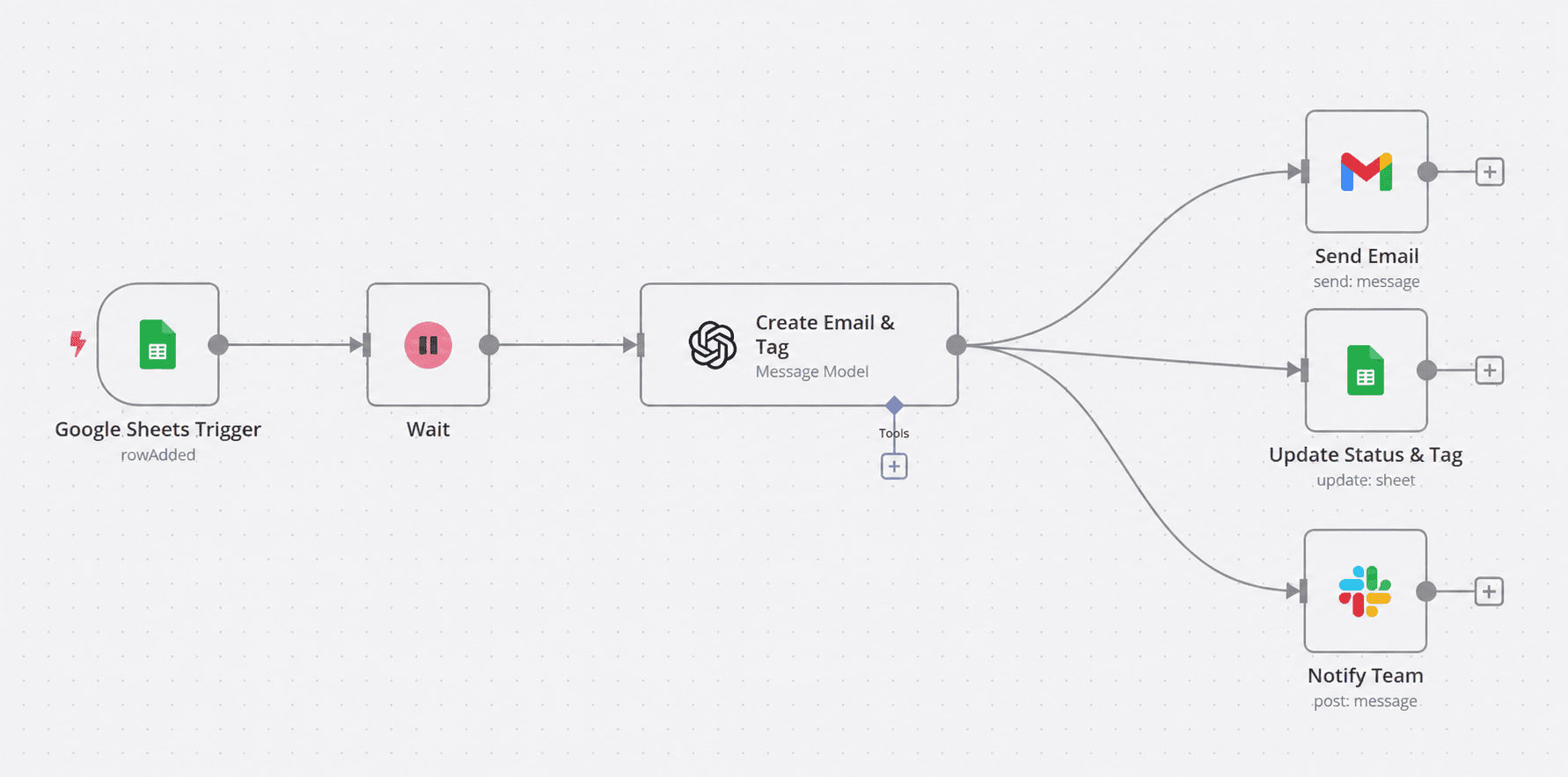
As you can see, it contains the following steps: Google Sheets Trigger → Wait → Create Email & Tag (with GPT-4o) → Send Email (Gmail)→ Update Status & Tag (Google Sheets) → Notify Team (Slack notifications) → Add another nurture email (optional).
Why I call this flow example basic is that it skips the decision layer after the particular prospect behavior. It doesn’t depict next steps: What if the prospect replies? Or which leads should get escalated to sales and which should exit the workflow if, say, they unsubscribe or ask not to be contacted anymore?
Below, I’ll share step-by-step instructions on how to create custom n8n lead-nurturing flows from the ground up based on your strategic approach, lead status changes, and other significant factors.
How to build lead-nurturing flows with n8n step by step
Before you even open your n8n account to start building an n8n lead-nurturing workflow, you should understand how the incoming leads behave and whether they’re ready to move down the sales pipeline to close a deal.
Step 1. Lay out a roadmap of your leads’ status transitions
Not all leads behave the same way. Some may reply right after the first touch. Others may keep silent for weeks or disqualify themselves. You can’t simply push everyone through a rigid n8n lead nurturing workflow like:
New lead → Nurture action → Inactive → Engaged → Sales-ready → Sales handoff.
Instead, determine exactly which actions to take depending on their behavior:
- When leads enter: Qualified → Nurture action
- When to continue nurturing: Nurture action → Mildly engaged → Another nurture action needed → Highly engaged
- When to escalate: Sales-ready → Sales handoff
- When leads exit: Converted/Unsubscribed/Disqualified/Not interested
This is a more flexible model that will let you nurture leads most effectively.
Suppose your potential client shows strong buying intent and is “sales-ready” at the very beginning. You don’t necessarily have to push them through the whole workflow. Let them skip all the other steps and go instantly to a sales rep.
Step 2. Choose the trigger
It’s at this step that you actually start to build lead-nurturing flows with n8n. Here, you have 2 options to choose from: a Webhook node or a Manual/Schedule Trigger node (followed by an HTTP Request node or your CRM’s dedicated node, if one exists).
When to use a Webhook node:
Use n8n’s Webhook node for an automatically triggered, event-based entry in the following cases:
- A person submits a lead-gen form
- A sales rep changes the lead status to “Nurturing” (or any other, depending on your CRM software features) after lead qualification
- A lead clicks a relevant link
- A previous sequence ends (e.g., an automated lead-generation and cold outreach system you’ve built with n8n)
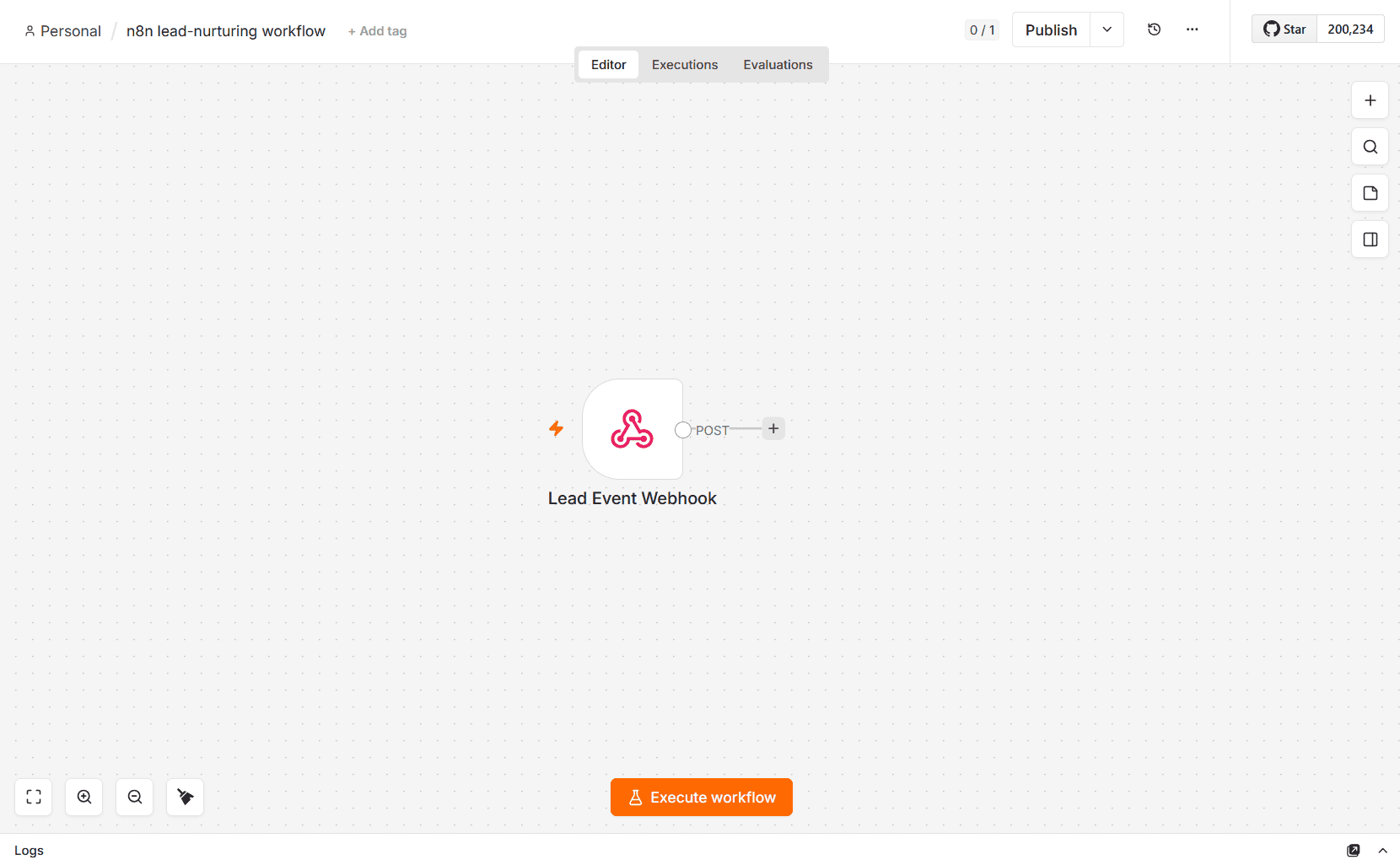
So, your first step can be a Lead Event Webhook node.
When to use a Manual or Schedule Trigger node:
Alternatively, use a Manual Trigger node if you prefer to launch your n8n lead-nurturing flow manually on demand, or a Schedule Trigger when you want to launch it based on a set schedule. They are particularly useful for time-based scans (e.g., leads that have gone quiet for X days) or regular checks for incoming leads ready to be nurtured.
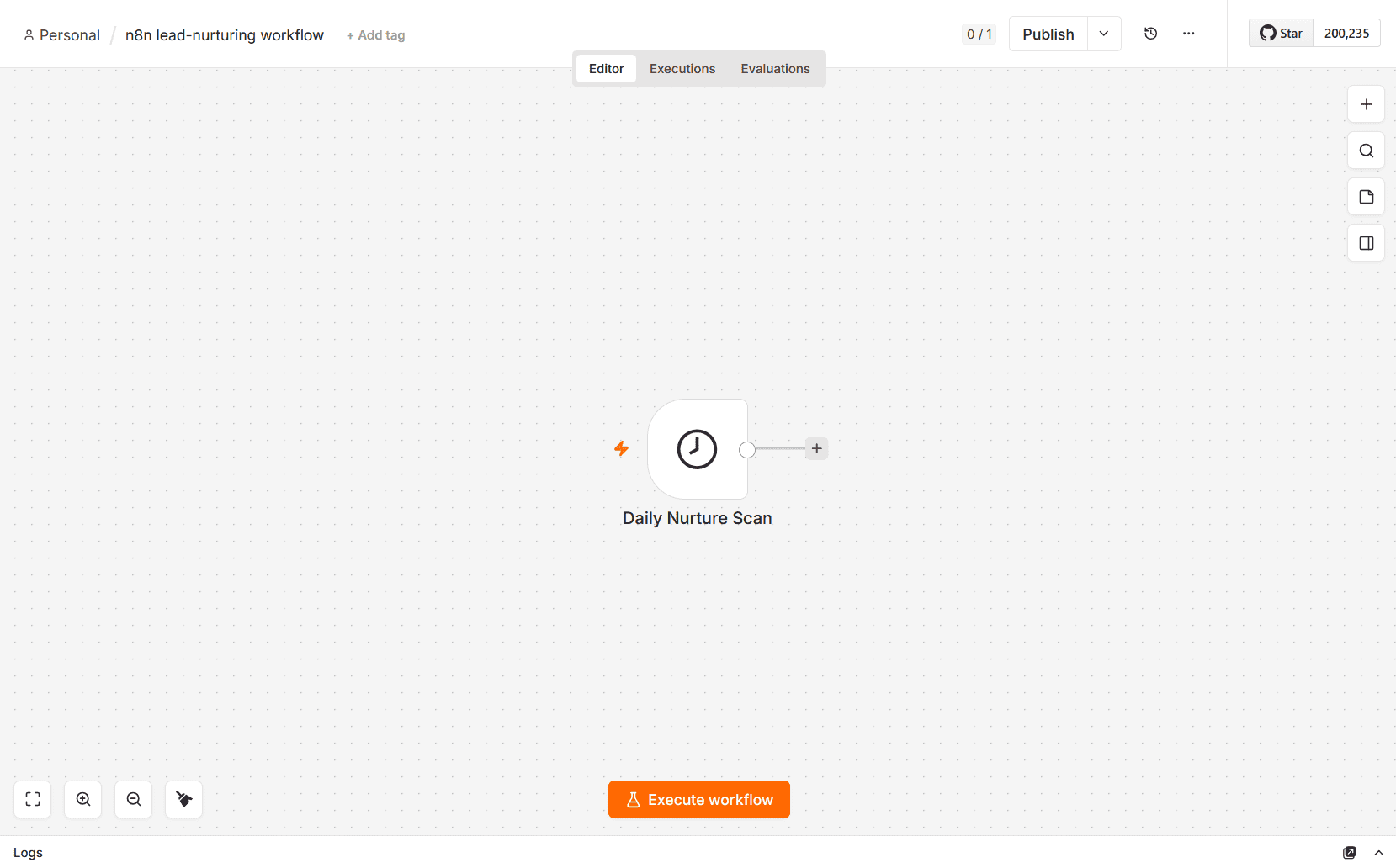
For example, set a Daily Nurture Scan to pull leads into the workflow with a Schedule Trigger node.
Step 3. Retrieve the necessary lead data
Depending on where you keep and manage it, the setup usually requires an HTTP Request node against an API (e.g., a custom sales lead database), a CRM node, or a Google Sheets node if you’re managing leads in a spreadsheet.
Once triggered, the system needs specific contact information to proceed.
Consider retrieving the following data:
- Personal lead data: First and last name, job title, email address, phone number (e.g., if you’re planning automatic voice calls), LinkedIn URL, etc.
- Company data: Company size (employee count), website, location, industry, etc.
Pull only the fields you need for the next steps, or clean the data if needed. Extra fields will simply clutter your n8n lead-nurturing workflow and add unnecessary noise (and API calls).
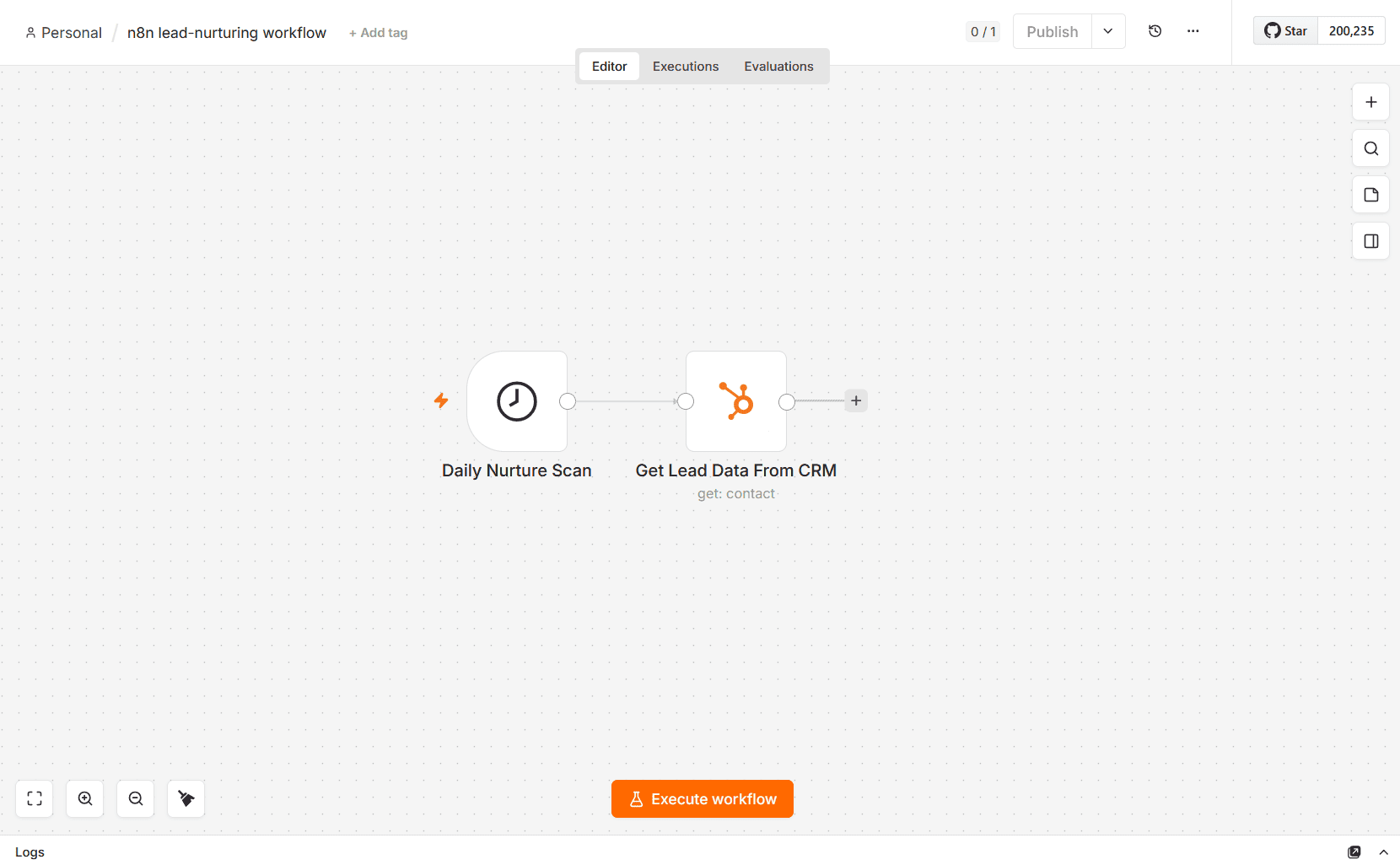
If you’re using a dedicated sales CRM, retrieve contact details from it with a native CRM node or an HTTP Request node against your CRM’s API.
Step 4. Check lead status and behavior
With clean data at hand to build lead-nurturing flows with n8n, you need to ask a few questions before deciding on the proper nurture action for each prospect:
- Have any of the leads engaged? (e.g., opened your email, clicked the link, visited your website, etc.)
- Have any of the leads replied?
- Have any of the leads gone inactive for days/weeks?
- Have any of the leads reached a sales-ready score for the final stage in your sales pipeline?
- Have any of the leads unsubscribed?
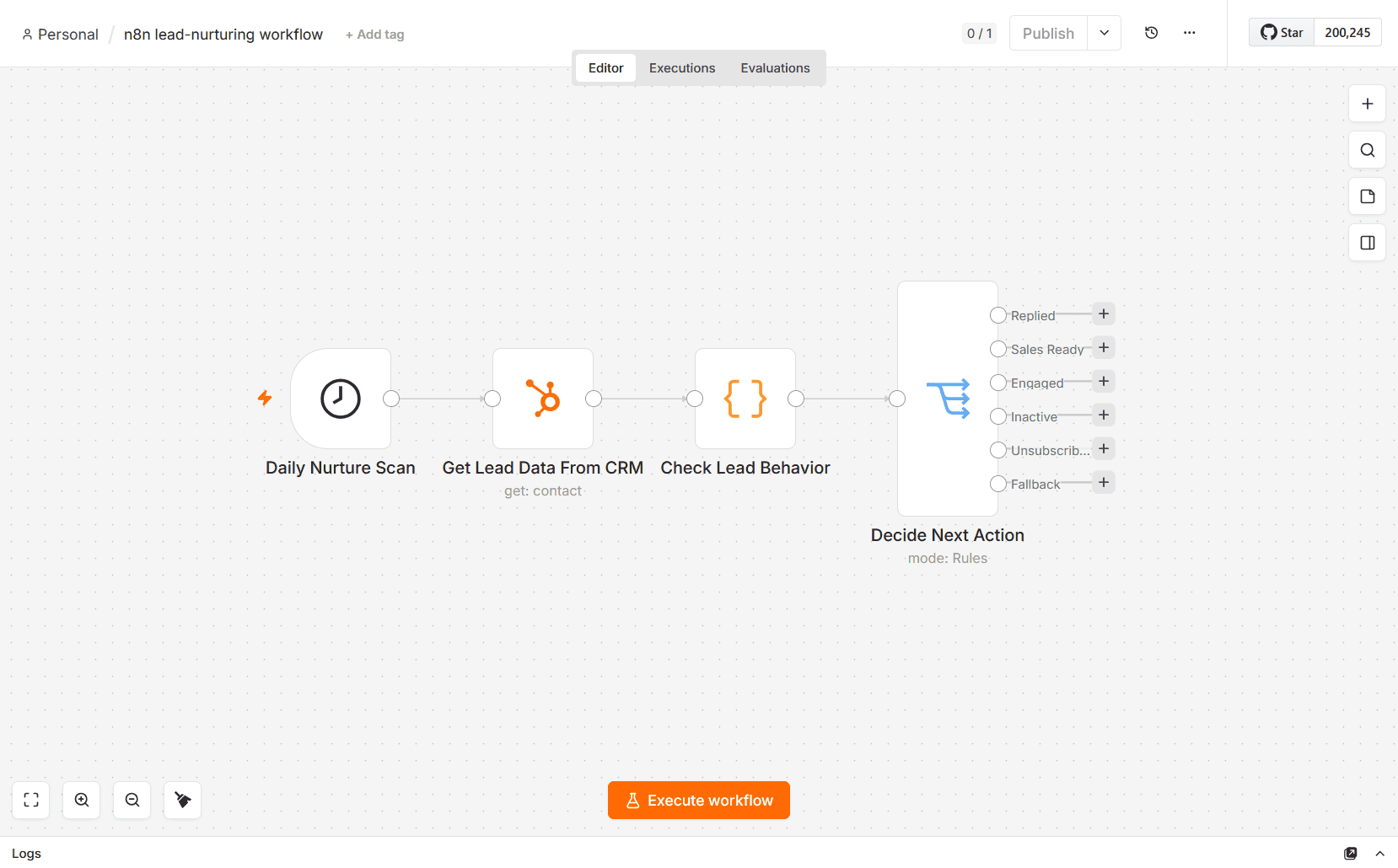
For customization, use a Code node to normalize signals based on answers. Let’s take these as an example: Engaged, Replied, Inactive, Sales-Ready (lead score ≥75), Unsubscribed, and Fallback.
Why do you need the latter? A safe fallback helps you capture leads that don’t match any rule and later update the CRM record, routing them back to nurturing so they don’t get lost.
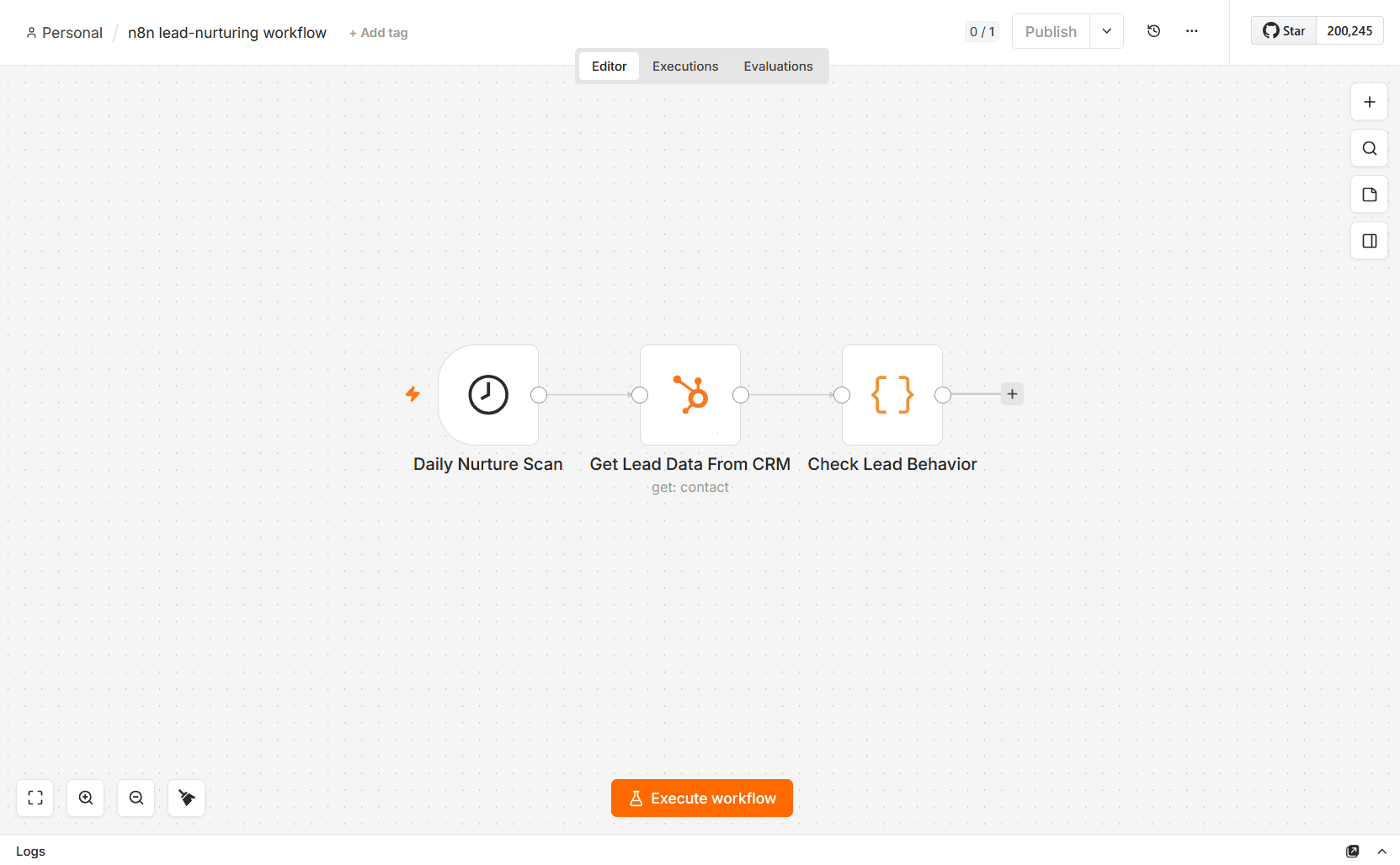
Later, the next action will be triggered based on those signals.
Step 5. Decide on the next nurture action
At this point, you need to use either Switch or If logic (Switch or If node, respectively) to decide what to do next with leads based on their behavior in Step 3.
Compare the If and Switch nodes in the following table and pick the one that suits your needs.
| If node | Switch node | |
|---|---|---|
| What it does | Evaluates a specific condition and splits the data into true/false branches | Tests a single field’s value and routes the lead down one of several determined paths |
| Number of outputs | 2 (True or False) | Up to 4 by default or 50 when using Dynamic Switch as a community-created alternative |
| Key benefit | Can combine multiple conditions with AND/OR for one decision | Easier to audit and handle multiple branches in one node |
| Key limitation | Only 2 outputs; anything more forces you to chain nodes, which gets the workflow too messy | Not suitable for combining unrelated conditions |
| Best for | Simple Yes/No checkpoint (e.g. “Has this lead replied?”) | Branching the workflow into 3 or more paths based on different statuses |
Some n8n lead-nurturing flows may actually lean on both: a Switch node as the main router, and an If node as a quick gate. But if you need to do “heavier lifting” like routing 5 or 6 lead statuses, a Switch node might be a more dependable choice.
Step 6. Pick a communication channel to create a personalized touchpoint
Now that your system knows how to branch your leads, you need to create a point of interaction to nurture them and personalize your outreach.
Your chosen communication channel can be one of these:
- Email (the most preferred way among B2B buyers to hear from sellers, according to Sopro)
- LinkedIn touch (also remains dominant in B2B communications)
- SMS (less popular but still used)
- Phone call (best for pre-recorded voice calls)
- WhatsApp message (great for content sharing or voice notes)
- Or others
For example, if you opt for email automation via Gmail, you can automate your nurture messages based on the retrieved data about each contact (e.g., job title or industry) and recent activity (e.g., previous interactions or responses).
Did the prospect engage with your previous email content? Send an educational piece on the topic of their interest. The warm lead has gone quiet for 10 days? Send a re-engagement email. Sales-ready? Notify a sales rep (e.g., via Slack) for human handoff to seal the deal.
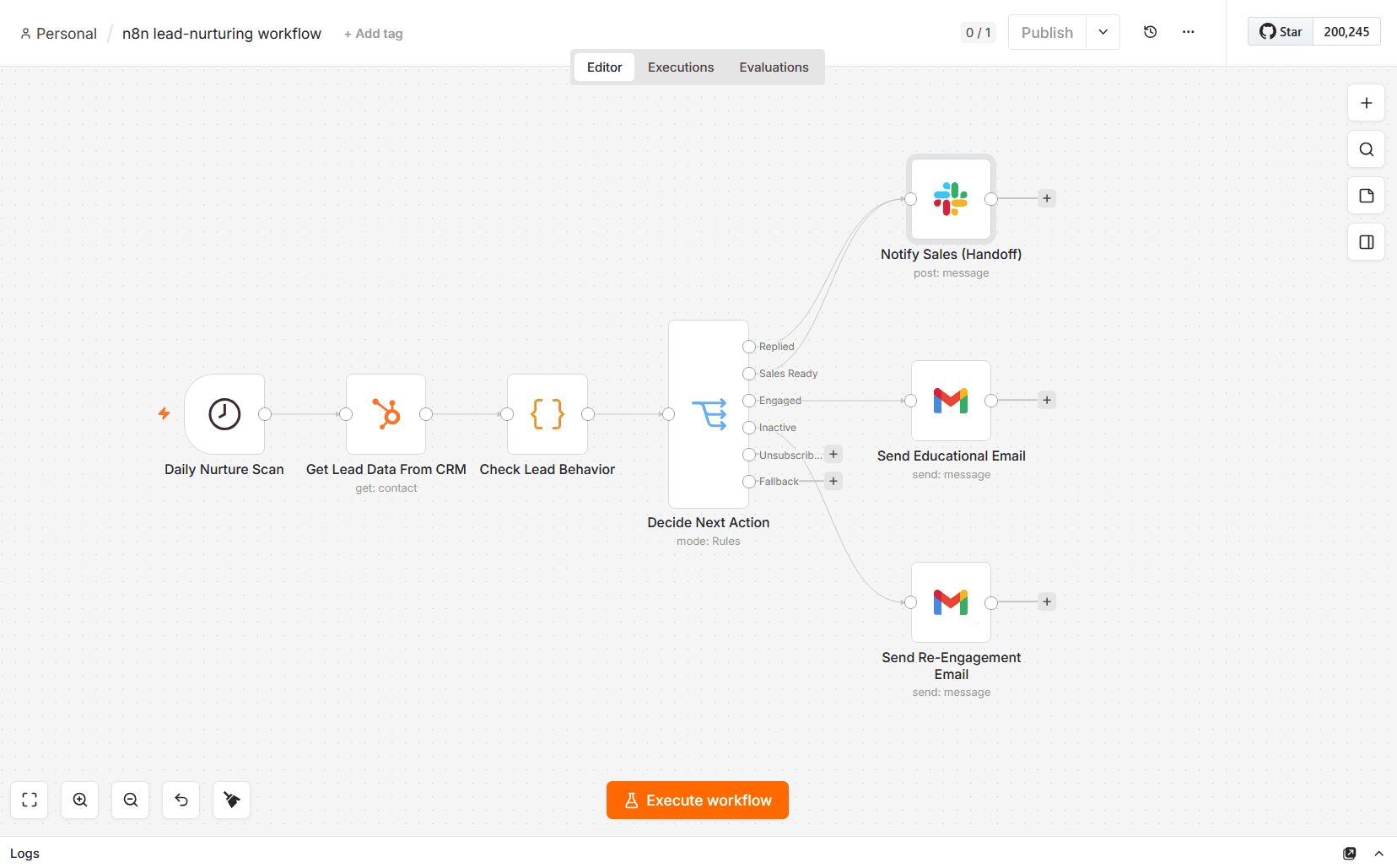
Create personalized touchpoints across multiple channels for multichannel nurturing campaigns (e.g., fall back to LinkedIn when email goes cold). Remember that 80% of recipients are more likely to engage if you contact them on their preferred channel. They typically choose up to 3 channels for outreach.

Step 7. Update the CRM record or any other chosen data destination
At this stage, the system writes the outcome back to your chosen source. For instance, these can be CRM updates as follows:
- Nurture stage → Engaged
- Last touch → Date
- Last action → Email sent
- Engagement → Link clicked
- Next follow-up → Date
- Lead score → 68
Important: If you set separate actions for different leads based on their behavior, update the CRM record, Google Sheets, or your preferred data destination after each action is completed to prevent duplicate outreach automation.
If needed, notify your sales team (e.g., Slack notifications).
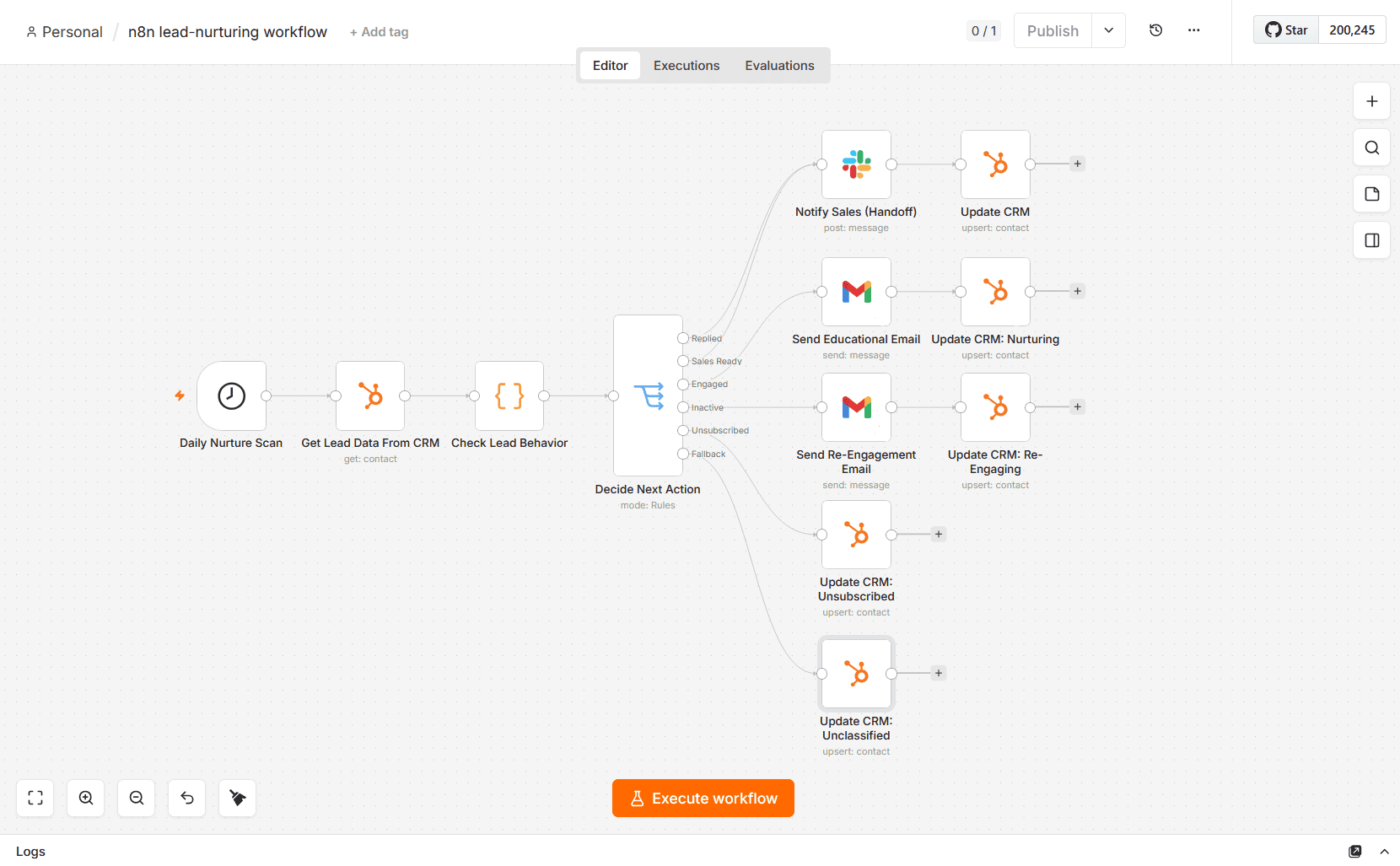
If you don’t update the record in your n8n lead-nurturing workflow, the next run will rely on stale data.
For example, the lead might have already received and opened an email, but their status in the CRM remains “Not contacted.” Or, you’re contacting the same lead (with the same message) again after they asked not to.
Step 8. Wait, re-check, and continue or exit
This final step is essential for nurturing leads that were inactive or engaged but weren’t quite ready for a sales handoff yet.
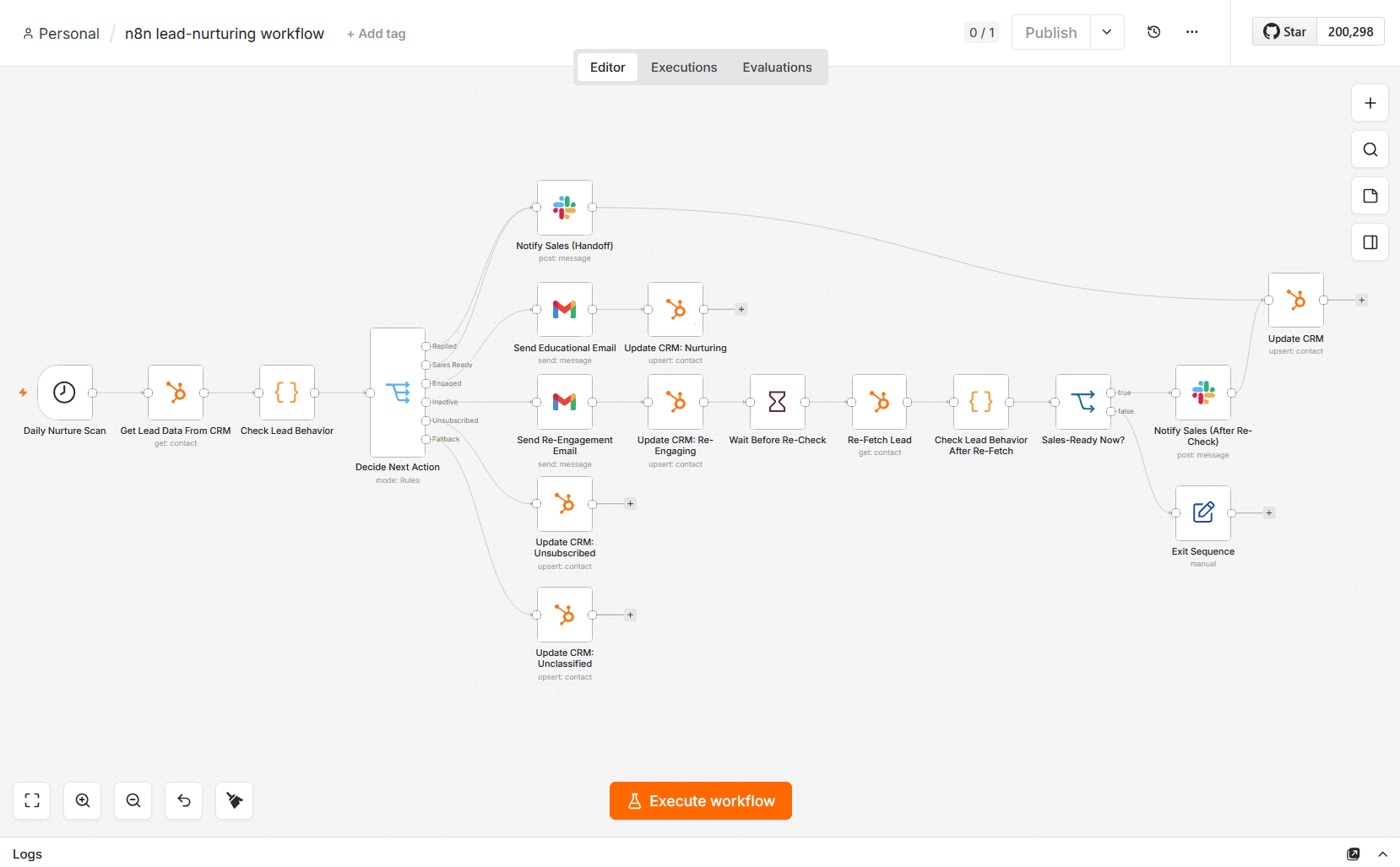
For that, follow this logic to proceed with building the sequence, re-evaluate the leads’ current state, and create a feedback loop:
- Wait: Add a Wait node before re-check to create the window for a change (e.g., the lead opens your email and replies, or the sales rep manually updates the field)
- Re-fetch lead data: For CRMs, use an HTTP Request node against your CRM’s API or a native CRM node to re-fetch leads
- Check lead behavior after re-fetching: Use a Code node to re-check their status and behavior once again
- “Sales-ready now?”: Use an If node to check the status of leads.
What follows may have two outcomes:
If false → Exit Sequence (Edit Fields node); If true → Notify sales (e.g, Slack notifications) and update your records (e.g., CRM updates).
If you’re not tracking nurture attempts anywhere else (e.g., in your CRM) already, use an Edit Fields node to set a last_checked_at field and increment a nurture_attempts counter, and feed that info into CRM updates afterward.
Real n8n lead-nurturing workflow examples
Let’s review several possible use cases with different setups and scenarios for n8n lead-nurturing automation.
SMS nurturing with Google Sheets, Typeform, and Twilio
Scenario: Send a welcome SMS instantly as soon as a form submission (via Typeform) arrives. Log prospects to a Google Sheet for follow-up tracking. Send up to 2 SMS follow-ups every 24 hours if the lead doesn’t reply. Stop nudging as soon as you get responses or hit the 2-nudge limit.
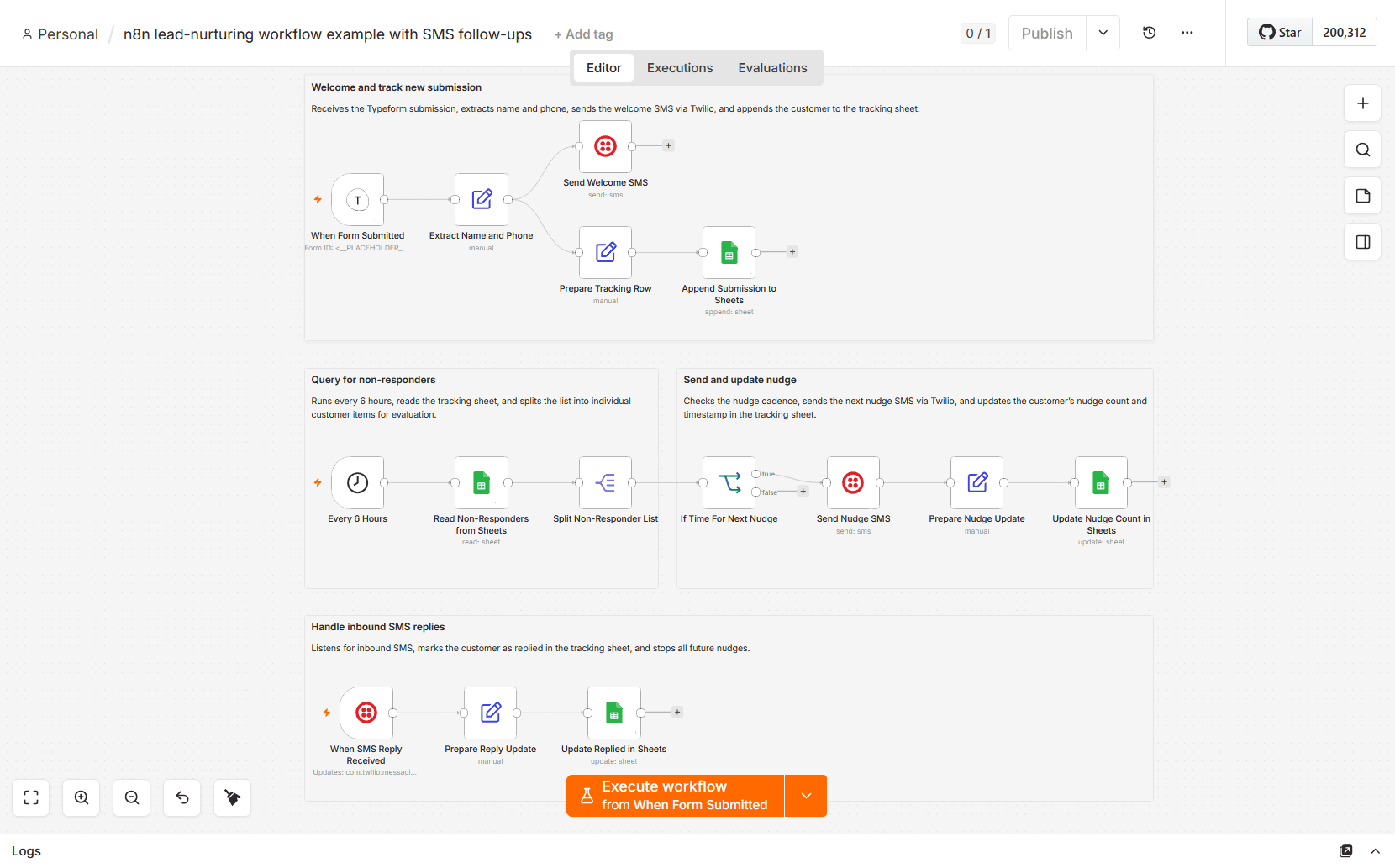
Setup requirements: Active n8n instance, Google Sheets, Typeform, and Twilio
Pre-meeting email nurturing sequence with Gmail and Cal.com
Scenario: Warm up and nurture your leads with an email sequence between booking and the actual meeting day. Pull in new bookings (from Cal.com), check the number of days until the meeting, and send nurturing emails spaced over time. Each message is triggered at a specific time interval (e.g., instantly, 3 days before, 1 day before).
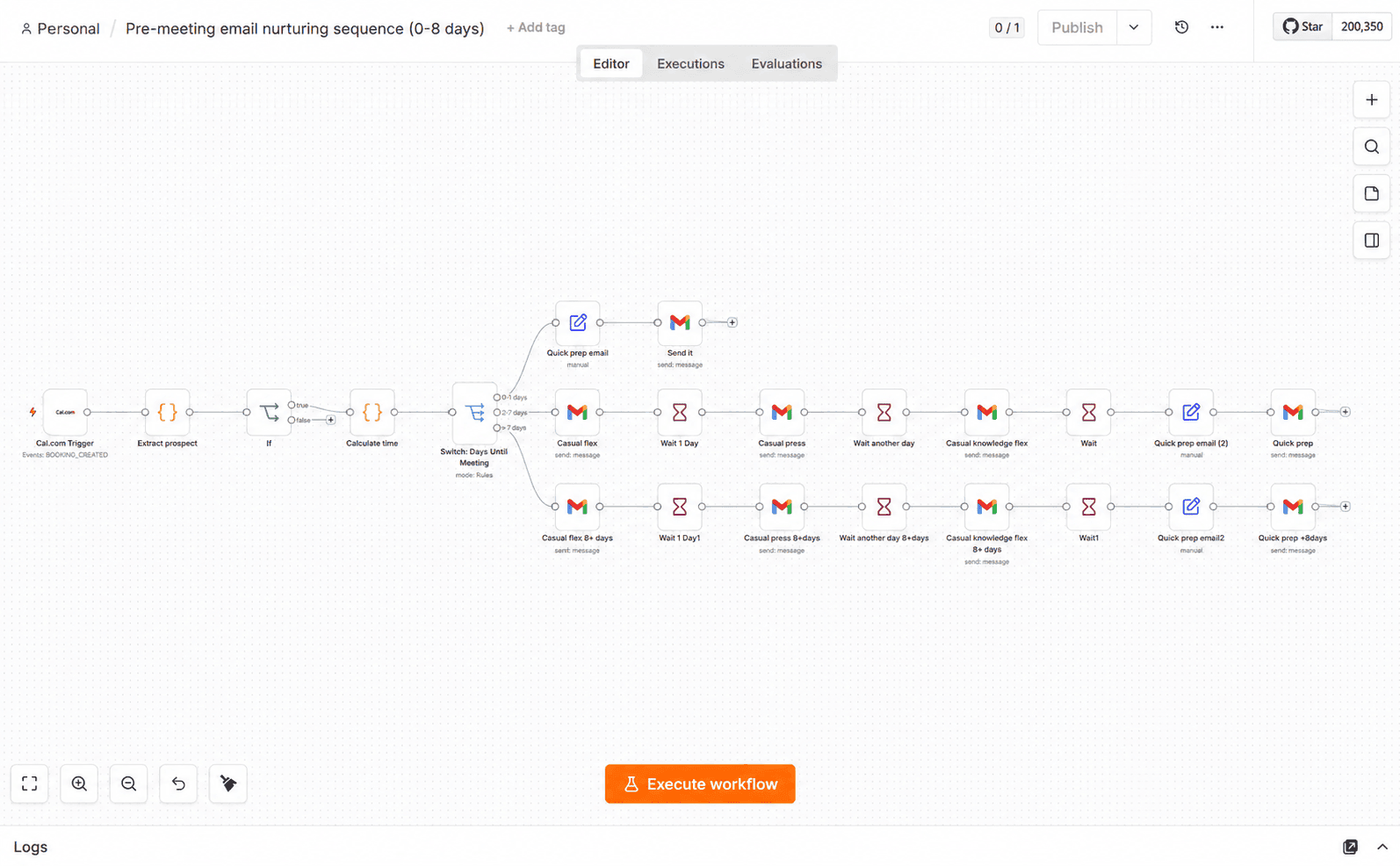
Setup requirements: Active n8n instance, Cal.com, and Gmail
Multichannel post-event nurturing with an AI agent across LinkedIn, email, and Slack
Scenario: Pull attendees’ contact information from the chosen event platform and enrich it with LinkedIn insights. Use AI (GPT-4) to analyze the collected data, generate hyper-personalized follow-up messages, and send them via a preferred communication channel (LinkedIn, email, or Slack). Get HubSpot CRM updates. Log all actions and track performance.
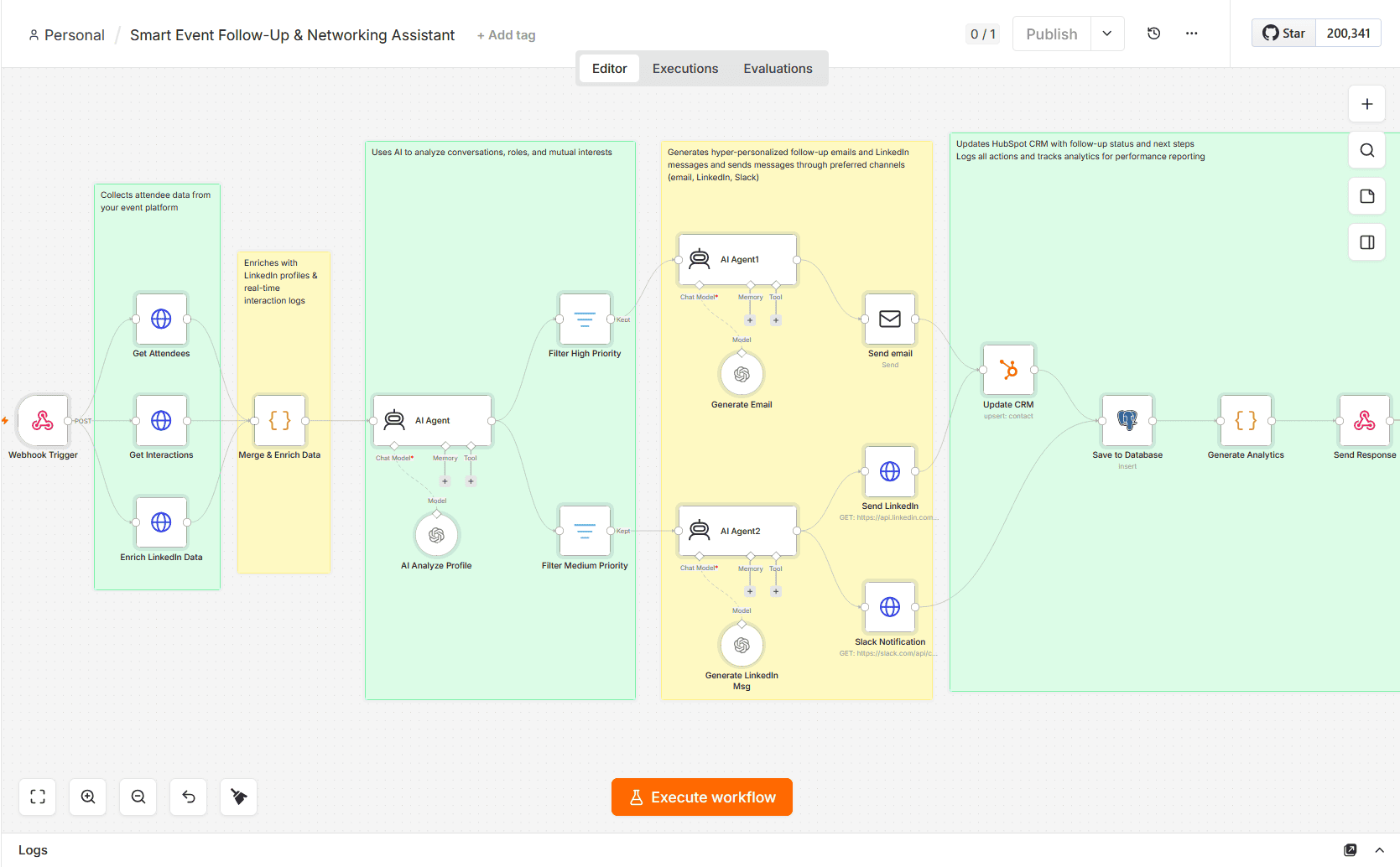
Setup requirements: Active n8n instance, event platform, HubSpot, email service or SMTP, LinkedIn API (OAuth2), Slack, PostgreSQL database, OpenAI (GPT-4)
Instead of the LinkedIn API, you can alternatively use a LinkedIn automation tool with a dedicated node or HTTP call in your workflow to automatically visit profiles, send connection requests and messages, endorse skills, and more from your n8n system.
Explore n8n lead-nurturing templates (free and paid) created and uploaded by users to the template library on the official n8n website. Built with different setups (Google Sheets, Calendly, Gmail, WhatsApp, Gemini AI, etc.), they demonstrate unique use cases, from sending automatic Outlook emails to personalized LinkedIn messages to incoming leads.
Typical n8n lead-nurturing workflow mistakes and best practices
This n8n lead-nurturing automation guide wouldn’t be complete unless I shared the most common mistakes users make when building an n8n lead-nurturing workflow and expert solutions.
Mistake 1. Letting invalid contacts enter email nurture sequences
According to recent research by Zerobounce, nearly a quarter of your leads’ emails (23%) become invalid within just a year.
People may change career paths, or an email domain may expire, causing invalid contacts to silently root in your email nurturing sequences and trigger unwanted bounces.
Solution:
Treat email verification as a must-do before launching an n8n lead-nurturing workflow and mid-sequence if the interval between emails is 2 weeks or more.
Email list decay is a natural thing — even a clean list loses 2–3% of its accuracy every month. That’s why my general rule of thumb is to verify emails before launching every new nurturing sequence and re-verify each time the wait step between touches is 14+ days.
Email Deliverability Specialist at Snov.io

Email validation is actually a no-skip step at earlier stages, too, when you generate leads and reach out to them for the first time. Let’s take lead-generation and outreach-automation software like Snov.io, which integrates smoothly with n8n.
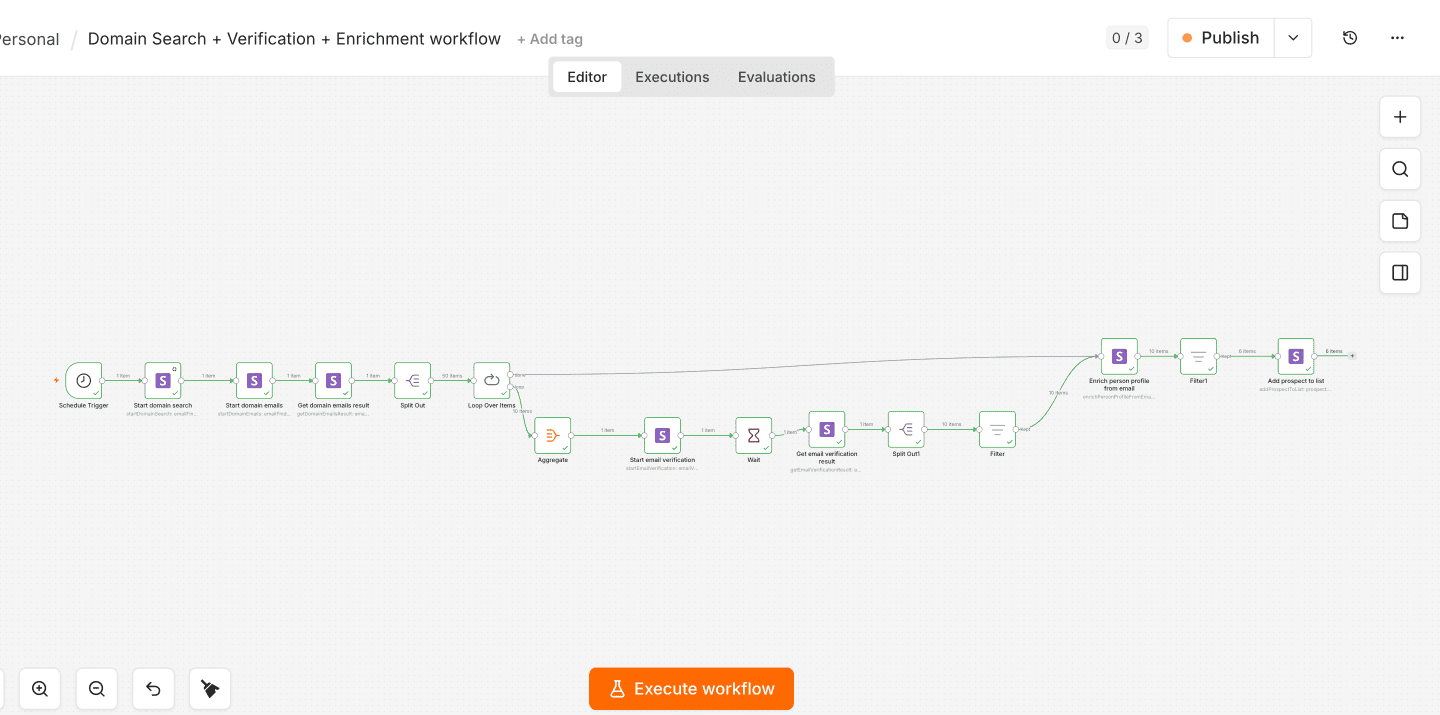
You can use Snov.io nodes in your n8n lead-generation workflow to automatically find, verify, enrich, and add leads to the prospect list, as illustrated in the example above.
→ Discover how to set up workflows with Snov.io and n8n using action nodes
Mistake 2. Building one gigantic workflow for lead-gen, cold outreach, and nurturing
If you merge these workflows, it becomes much harder to maintain, scale, and debug a complicated system when it breaks.
The table below shows that they perform different jobs and have different n8n logic:
| Lead-generation automation with n8n | Cold outreach automation with n8n | Lead-nurturing automation with n8n | |
|---|---|---|---|
| Main goal | Find and capture leads | Initiate first contact with collected prospects | Build relationships with existing leads |
| Common actions | Search, enrich, verify | Send outreach, follow up | Personalize, score (e.g., AI scoring), re-verify contact data |
| Lead qualification | Typically happens here | Often pre-qualified before sending and further qualified by responses | Re-qualify leads if needed |
| n8n logic | Capture → enrich → qualify → save | Send a cold outreach message → wait → follow up → check reply → wait → follow up once again or stop | Check lead status and behavior → decide → act → wait → re-check → decide → act → update |
| Output | New prospects (qualified) | Interested prospects | More engaged and sales-ready leads |
| Key difference | Runs in quick bursts | Runs in scheduled sequences with fixed delays between follow-ups | Runs longer (may be in wait states for days or even weeks between nurture actions) |
Solution:
Create separate sequences. First, set up an automated lead-generation workflow with n8n. Once it ends, let it “pass the torch” to the next one: e.g., a lead-gen system saves qualified leads to the CRM, and the cold outreach system is triggered as soon as the CRM updates. Finally, the nurturing system gets triggered after the previous one ends.
For example, here’s a possible workflow to kick off your n8n lead-generation automation using LinkedIn Sales Navigator, PhantomBuster, and Snov.io for email verification.
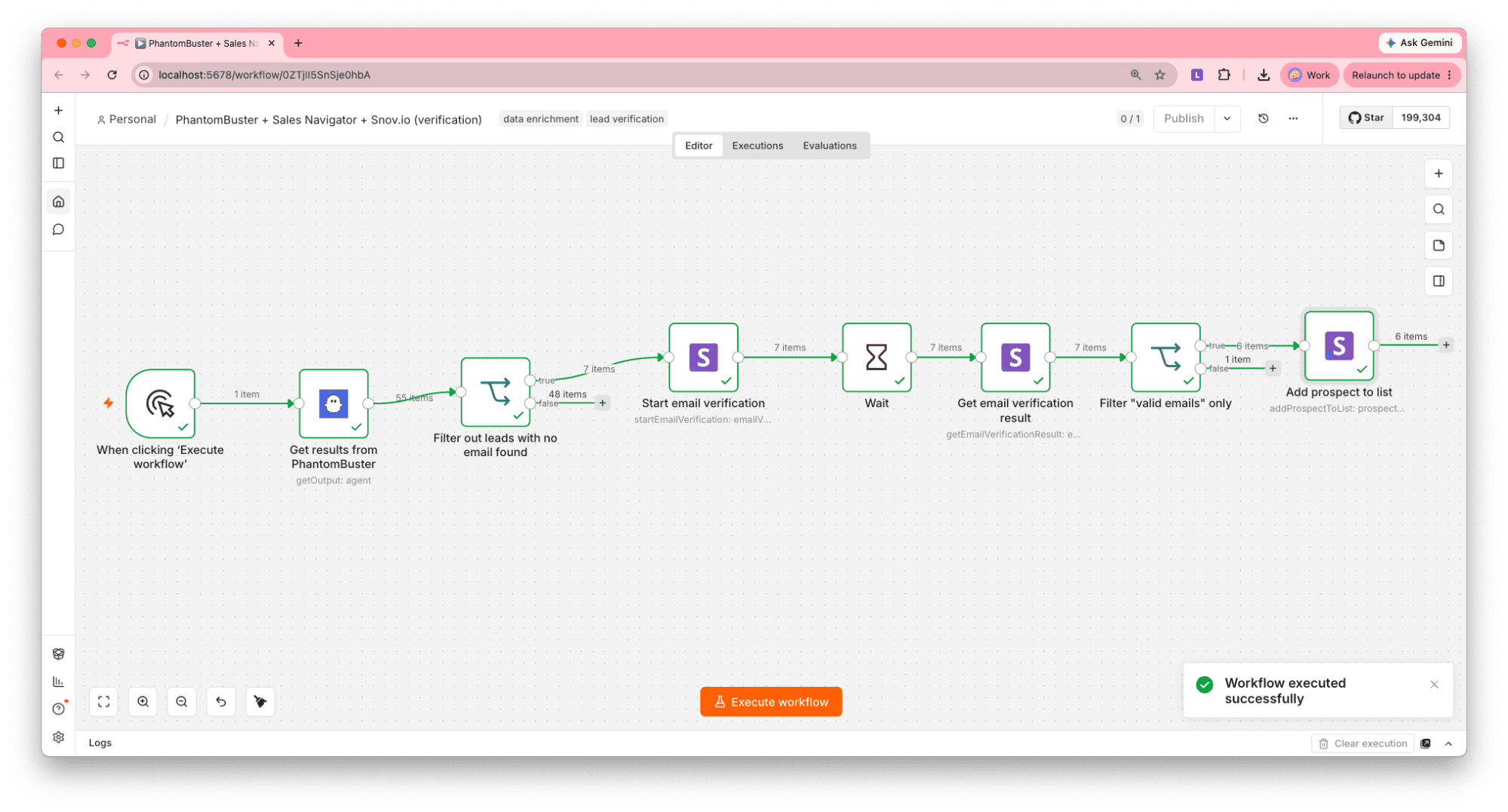
It scrapes leads from Sales Navigator (via PhantomBuster) and then uses Snov.io nodes to validate emails (Start email verification and Get email verification result) and add them to a lead list (Add prospect to list).

Mistake 3. Ignoring API call limits and “silent” failures
When building lead-nurturing flows with n8n, you typically rely on at least 3–4 external services at once (CRM, email/SMS, data enrichment tools, etc.). Each service provider sets its own rate limits.
Let’s take a look at several examples of such limits imposed on API calls:
- HubSpot API → Publicly distributed OAuth apps allow 110 requests per 10 seconds per installing account.
- Google Sheets API → Both read and write requests are capped at 60 per minute/user/project, and 300 per minute/project
- Slack API → Standard Web API tiers range from 1+ per minute (Tier 1) up to 100+ per minute (Tier 4), with stricter limits for non-Marketplace apps (since 2025): 1 request/minute with a maximum of 15 objects/request. This matters greatly if your workflow doesn’t batch Slack notifications but pings a channel for every lead event.
- Snov.io API → 60 requests per minute
So, if your n8n workflow loops through hundreds of incoming leads and fires off tons of requests, you’ll start hitting 429 (Too many requests) errors.
To make things worse, your system may face so-called “silent” failures that don’t announce themselves but create an unnoticeable gap. Your prospects can be duplicated, get stuck somewhere mid-sequence, or even lost forever.
How to avoid it:
Always clarify providers’ API limits and double-check them regularly, as they can change. Use Split in Batches and Wait nodes to avoid exceeding those.
Also, set error triggers and alerts, and log failures to prevent “silent” ones from breaking your n8n lead-nurturing automation system.
Most automation failures don’t announce themselves. They just… stop doing part of their job. One missed lead. One skipped invoice. One customer who never receives an email. That’s what makes silent failures far more dangerous than loud ones. Over time, I’ve realized that building a workflow is only half the job. The other half is making sure you know the moment something goes wrong. That’s why every production workflow I build includes: Error Trigger notifications; Logging for failed items; Input vs. output validation; Alerts that make failures impossible to ignore.
Co-Founder & CEO of Techdome

Mistake 4. Leaving nurturing campaigns untracked
Is your lead-nurturing campaign actually working (and ideally engaging and converting leads to sales), or is it just quietly running in your n8n account? What are the results?
Let’s be honest — you can’t properly answer those questions without tracking opens, clicks, responses, unsubscribes, and other metrics.
How to avoid it:
Use a Code node to customize performance evaluation and generate analytics. You don’t necessarily need it, though, if your CRM system or other automation platform offers dedicated features to monitor campaign performance.
Example:
If you’re already using Snov.io, its Campaigns actions can help you create a separate tracking layer in n8n with:
- Get campaign analytics: Pull overall performance metrics for a campaign (useful for the top-line “is this working” numbers)
- Sent emails: Track the number of actually delivered messages
- Opens, clicks, replies: Monitor each engagement metric
- Campaign progress: Get updated on the campaign’s status
Just keep in mind that Snov.io doesn’t have n8n nodes for creating or configuring campaigns, so campaign setup should still happen within the Snov.io app. What those nodes do is give you a way to pull performance data out of an already-running email drip campaign and feed it into your n8n workflow.
Bottom line
From this n8n lead nurturing workflow tutorial, you’ve learned the framework on how to build flows for nurturing leads automatically:
Trigger → Retrieve → Check → Decide → Touch → Update → Wait and re-check.
To make your lead-nurturing flows more efficient, remember to:
- Verify contacts before launching email sequences
- Never merge lead generation, cold outreach, and nurturing into one giant workflow
- Consider the API limits of the tools or services you’re calling
- Track your nurture campaigns once they’re live
Integrate Snov.io with n8n for lead generation, verification, and sequence monitoring, or use its automation features to run lead-nurturing campaigns all within a single platform.