TL;DR: Which Gmail email automation method is right for you?
For those wondering how to automate sending emails in Gmail in 2026, I’ve collected all the methods for every specific need, from a one-time scheduled message to custom workflows and drip campaigns. Discover them in the table below.
| Automation method | Native feature | Best for | Use case | Key limitations |
|---|---|---|---|---|
| Schedule send feature | ✅ Yes (but limited) | Individual users and professionals interested in scheduling messages | Auto-send a message on a chosen day and at a set time | Max 100 scheduled emails at a time; no follow-ups in threads; manual personalization only |
| Vacation responder feature | ✅ Yes | Employees or freelancers going on leave | Set automatic replies like away or out-of-office emails | No personalization; can’t queue multiple auto-replies for different dates |
| Gmail Templates + filters | ✅ Yes | Support agents or sales reps handling repeat inquiries | Auto-send saved email templates when senders or keywords match specific filter criteria | No multi-step sequences; personalization is limited to Google Workspace’s mail merge feature |
| Gmail add-ons (Boomerang, Recurring emails for Gmail) | ❌ No | Users sending recurring messages (e.g., regular meeting or webinar reminders) | Resend the same email message on a repeating schedule | Low free-plan caps; zero personalization; no conditional logic; no option to add an unsubscribe link |
| Email automation software (Snov.io, Instantly, Mailchimp, etc.) | ❌ No | Sales teams and marketers looking to automate outreach and newsletter marketing | Build email drip campaigns with trigger-based, personalized follow-ups and built-in analytics or auto-send newsletters and promotional emails | Paid plans needed for higher volume; less flexible for non-email-related Gmail automation tasks |
| Google Apps Script | ❌ No (but Google’s native) | Developers and tech-savvy users with a decent JavaScript background | Script different types of Gmail automations, not solely emails — anything that Gmail’s API allows | Requires solid coding skills; no UI or built-in analytics; daily sending quotas besides Gmail’s |
| Workflow automation platforms (Zapier, Make, n8n) | ❌ No | Ops teams and no-code users | Connect to other apps and build custom Gmail workflows with branching logic and delays | Steeper learning curve; usage-based pricing; easy-to-break workflows |
| LLMs (Claude, ChatGPT) | ❌ No | LLM-first users | Draft and auto-send messages via natural-language prompts | Claude’s native Gmail connector drafts only — MCP server is necessary for auto-send; ChatGPT sends only one email at a time |
If you want to launch your first email campaign right away, you may use Snov.io’s cold outreach tool to automate trigger-based follow-ups without limits.
According to Statista, Gmail has been dominating the email communications market with 1.8 billion users. Sales reps and marketers alike have been heavily relying on it for cold outreach and promotional emails.
The good news: Gmail lets you automate basic actions (e.g., Gmail auto-reply or scheduled send) natively. The less good news: it hits several roadblocks when moving further to recurring sends or condition-driven follow-ups, which is where external tools take over.
In this blog article, I explain how to automate emails in Gmail step by step — natively or otherwise — so you can pick the right method for your needs.
What is Gmail automation?
Gmail automation is any setup that allows you to automatically send emails, reply to incoming messages, schedule, or organize them by filtering, archiving, deleting, etc. Depending on the task you need to automate, you can use either a built-in Gmail feature, a Google tool, or a third-party platform or software.
For example, you can automate the following repetitive tasks in Gmail:
- Schedule emails to be delivered to your recipients on a particular date and at a particular hour
- Sort all incoming messages with Gmail filters
- Prepare a Gmail out-of-office reply or “I’m-vacationing” message
- Reuse email templates with filters to send an email to multiple recipients once triggered by a particular filter (e.g., a meeting/webinar reminder or an FAQ answer)
- Organize your Gmail inbox by applying custom labels
- Archive specific messages or forward them to another Gmail account
- Filter and delete too salesy or spam emails
- And so on.
In the table below, consider different Gmail automations and see what you can automate natively with Gmail and when you may need another Google tool or an entirely external app.
| Automation type | Gmail’s native/non-native feature |
|---|---|
| Scheduling emails | ⚠️ Limited native — Schedule send (up to 100 pending) |
| Sending automatic replies like Gmail away message or out-of-office email (OOO) | ✅ Native — Gmail Vacation responder |
| Filtering emails or blocking users | ✅ Native — Filters and Blocked Addresses |
| Forwarding emails | ✅ Native — Forwarding and POP/IMAP |
| Reusing Gmail templates with filters | ✅ Native — Templates (formerly Canned Responses) + Filters and Blocked Addresses |
| Sending personalized emails in bulk | ⚠️ Limited native — Mail merge for Google Workspace only; another typical setup is Gmail Templates + Google Sheets + Google Apps Script |
| Saving email attachments to Google Drive | ❌ Not native (e.g., Gmail + Zapier + Google Drive) |
| Sending recurring emails (weekly, bi-weekly, monthly) | ❌ Not native (e.g., Gmail + Recurring emails for Gmail add-on) |
| Building condition-based sequences with follow-ups | ❌ Not native (e.g., Gmail + Snov.io) |
Now, let’s focus on sending automated emails from Gmail first natively and then via Google’s or third-party tools that help them land right in people’s inboxes, not spam or Promotions.
How to schedule emails in Gmail with native features
Gmail allows scheduling emails via a native “Schedule send” feature on both personal and Google Workspace accounts.
⚠️ Key limitations:
- Only up to 100 scheduled emails can be pending to be sent simultaneously
- Gmail relies on your Google Calendar’s primary time zone, so you need to calculate and adjust the date and time to align it with that of your recipients/clients
- You can’t schedule follow-ups in threads
- Only manual personalization is possible for each scheduled message
You can automate Gmail email scheduling on both your computer and mobile device.
For example, here is how to schedule an email in Gmail from your PC/laptop step by step:
Step 1. Open your Gmail account and click Compose.
Step 2. Add the recipient and subject line, and write an email body as usual.
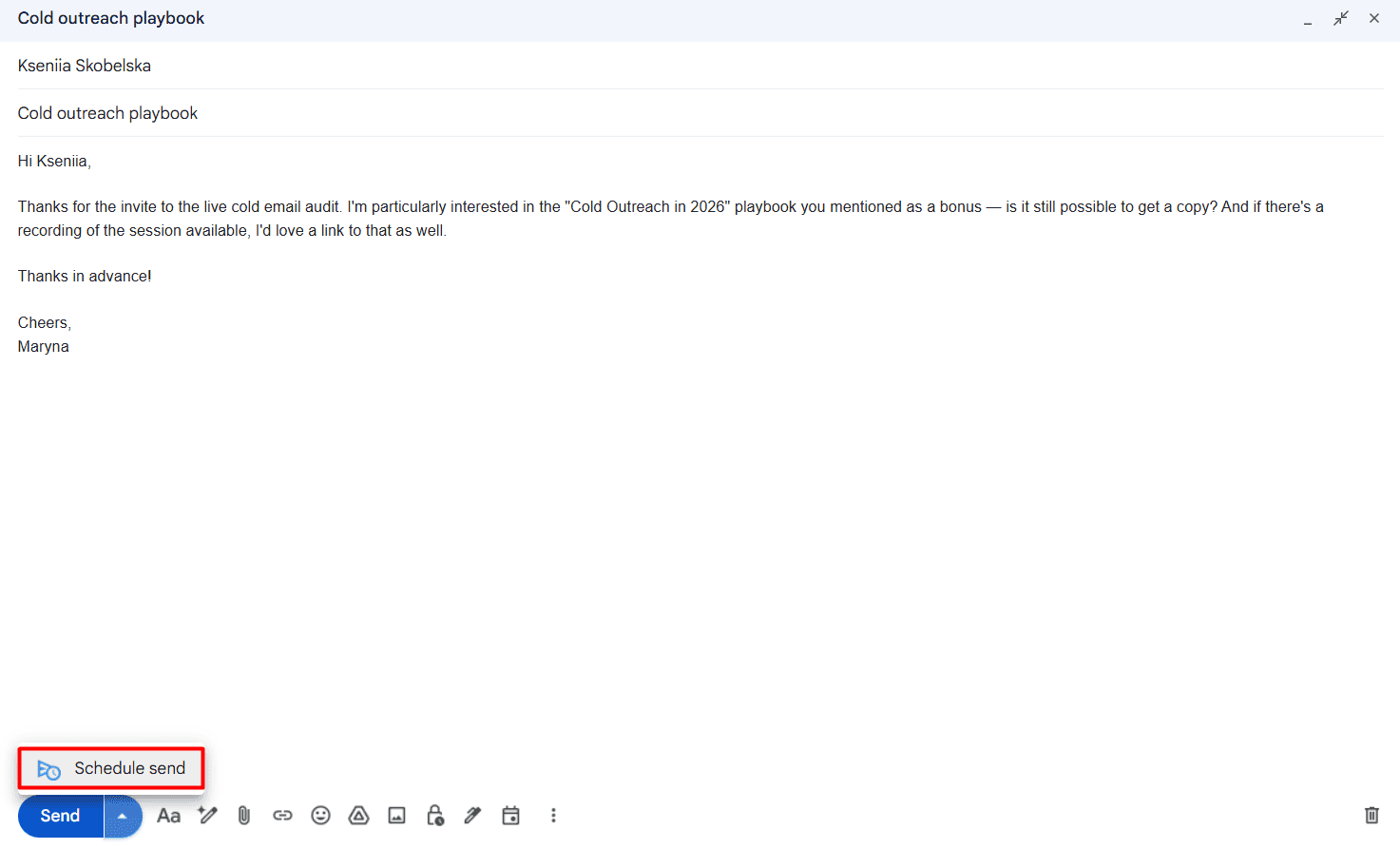
Step 3. Click the small arrow (More send options) in the bottom-left corner of your Compose window near Send and choose Schedule send.
Step 4. Pick a suggested time, or set your preferred date & time.
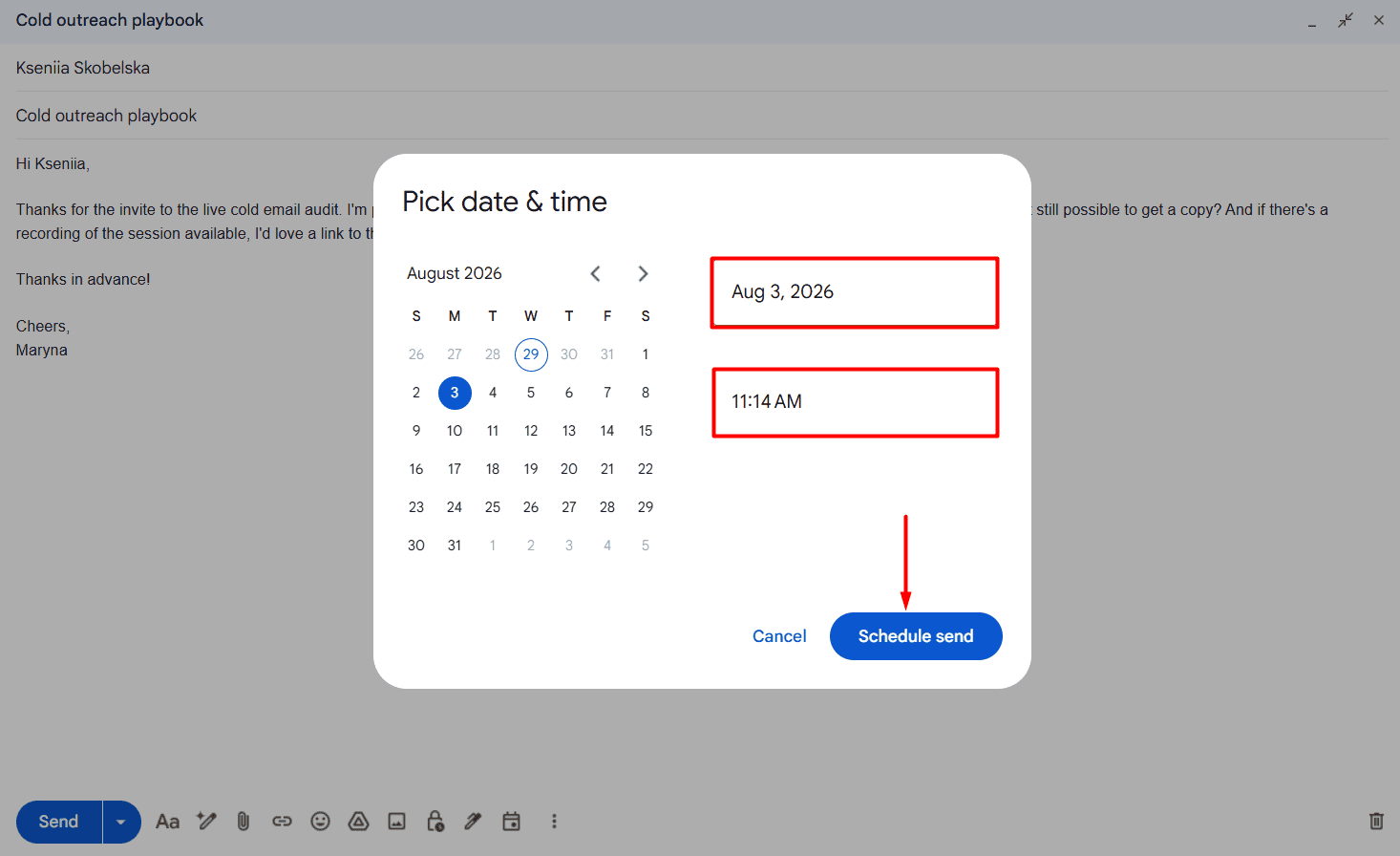
Step 5. Confirm by clicking Schedule send.
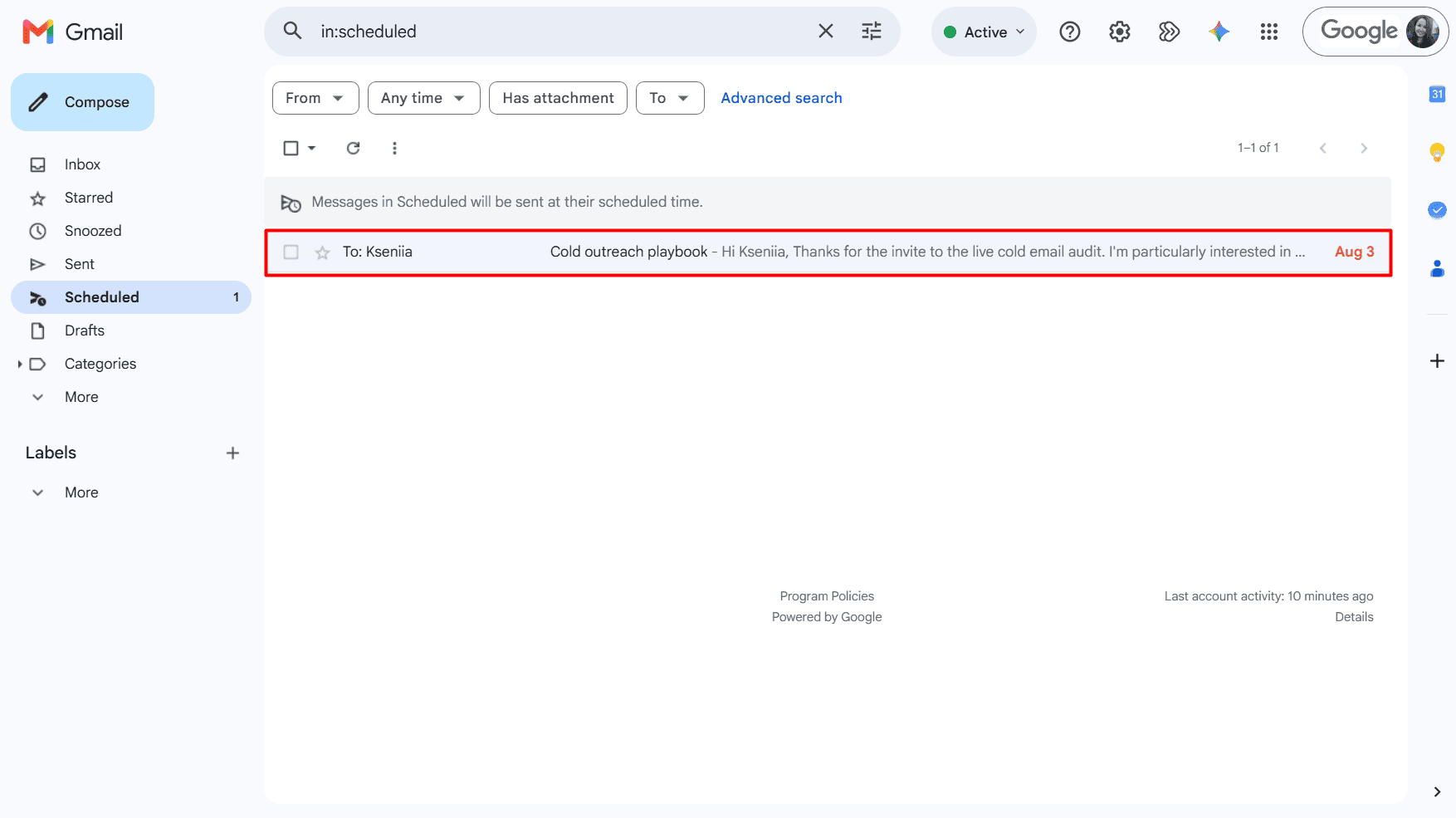
After scheduling your message, you may find it in the Scheduled folder. It will sit there until it goes out on the chosen date and time.
You can easily cancel your scheduled emails if needed. Go to the Scheduled folder, open the message, and click Cancel send.
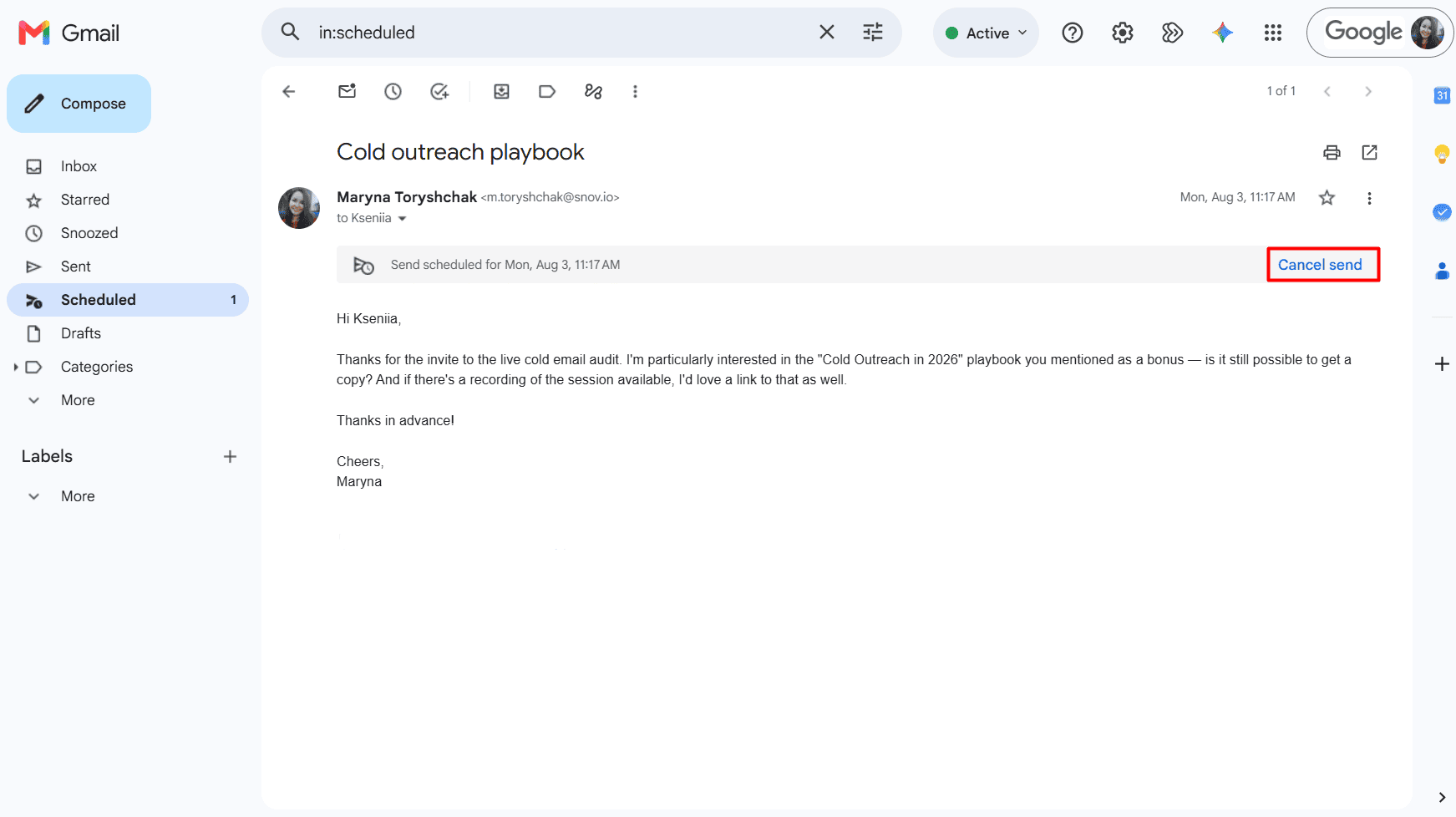
It will drop back into your Drafts folder.
💡Quick hack:
To speed up the process, you can use email outreach templates to send cold emails and marketing templates for promotional emails to potential or existing clients on a schedule. Just don’t forget to personalize each of them.

How to create automatic replies in Gmail with native features
Natively, you can choose one of these scenarios for automating an email reply in Gmail:
- Option 1. Vacation responder (or Gmail auto-reply)
- Option 2. Templates (or Canned Responses — previous name) with filters
Compare their possibilities and limitations in the following table.
| Auto-reply feature | What it can do | Key limitations |
|---|---|---|
| Vacation responder | It can automatically send a fixed message to everyone who emails you during a specific period (First-to-Last date) | ⚠️ It doesn’t personalize auto-replies
⚠️ You can’t schedule several away/OOO messages in advance for different dates |
| Templates + filters | It can send a reusable (canned) template to auto-respond to specific emails based on the set filter: the sender(s) or keyword(s) | ⚠️ Gmail filters can’t create multi-step follow-up sequences or send another email days later
⚠️ Personalization is only possible with mail merge for Google Workspace or via external tools |
Explore how to use Vacation responder in Gmail, then move on to creating email templates and applying filters.
How to use Gmail auto-reply (Vacation responder) for automating responses
Whether you need a Gmail away message, OOO email, or any other automatic response, take the following steps:
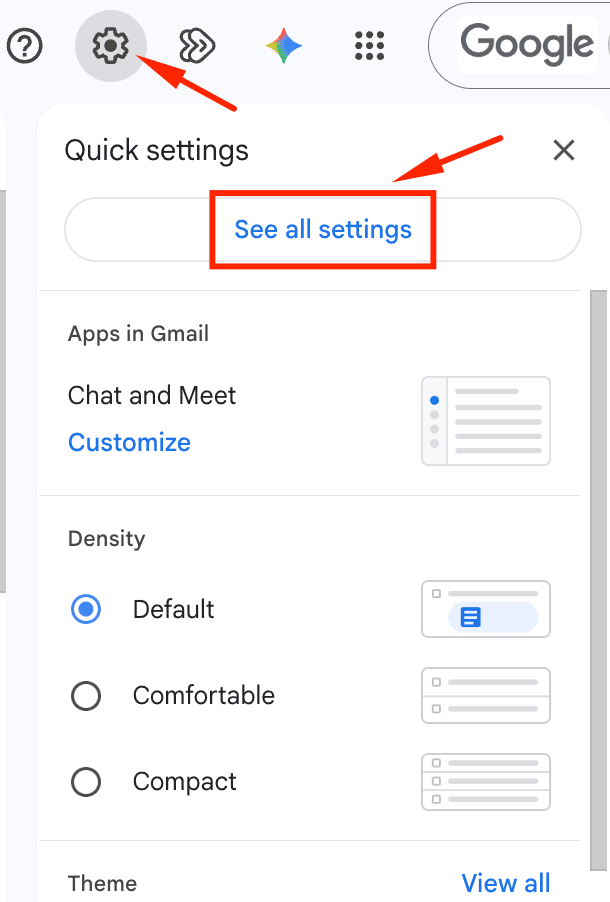
Step 1. Go to your Gmail account → Settings (the gear icon in the top-right corner) → See all settings.
Step 2. Scroll down to the bottom of the General tab, find Vacation responder (after Snippets), and enable it.
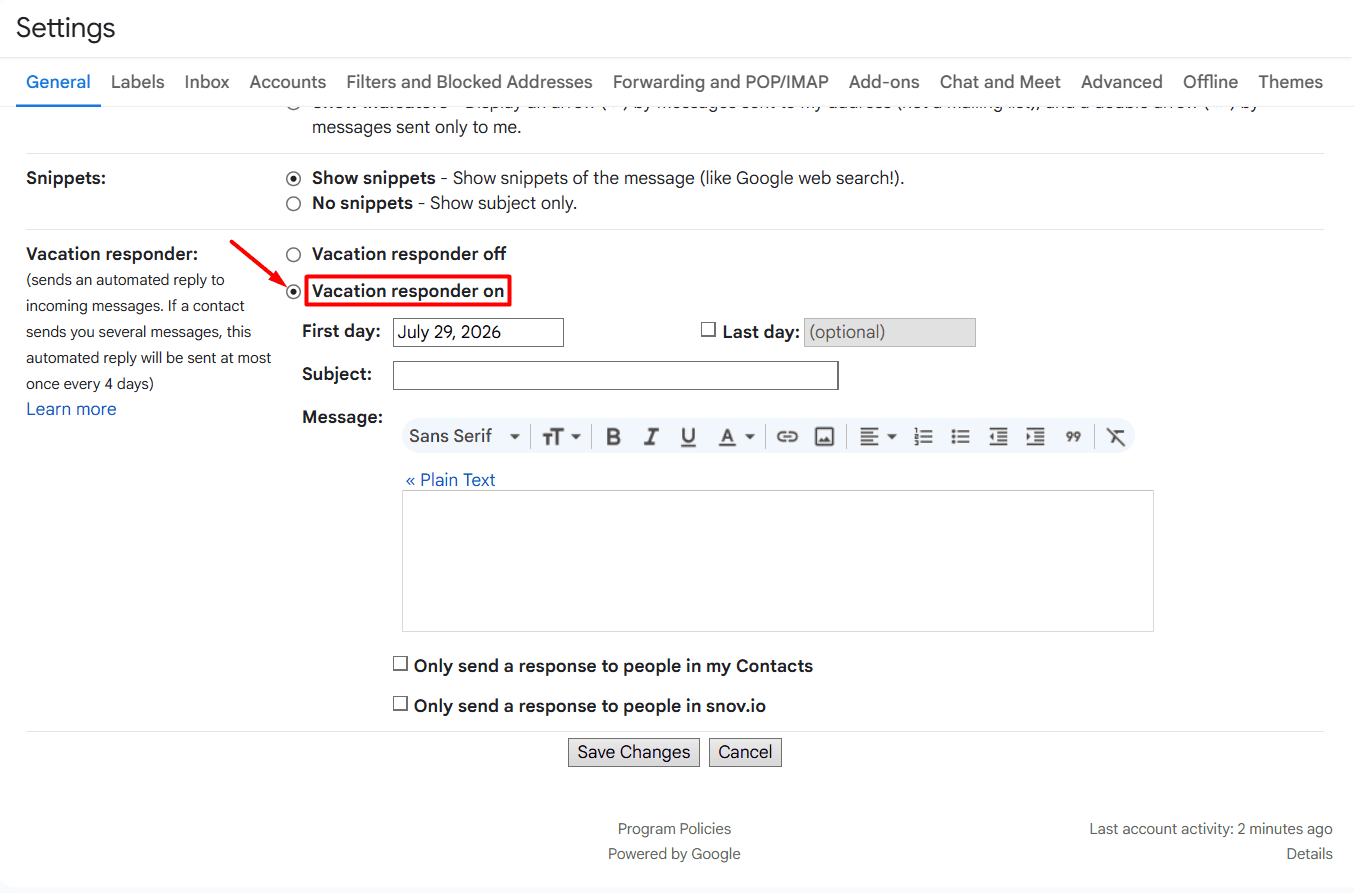
Step 3. Set the date range: First day and Last day (alternatively, leave Last day blank to keep the feature active until you turn it off).
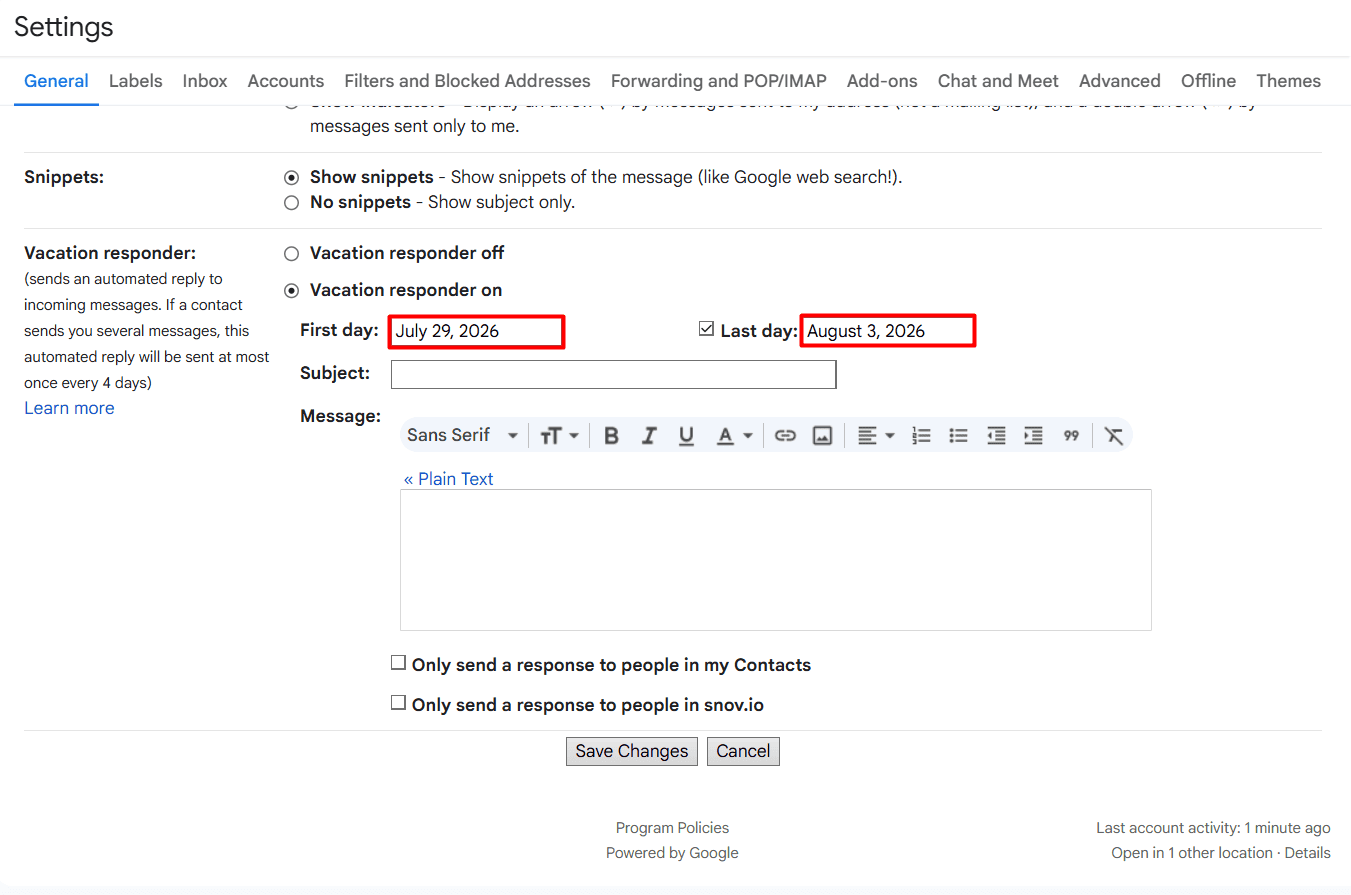
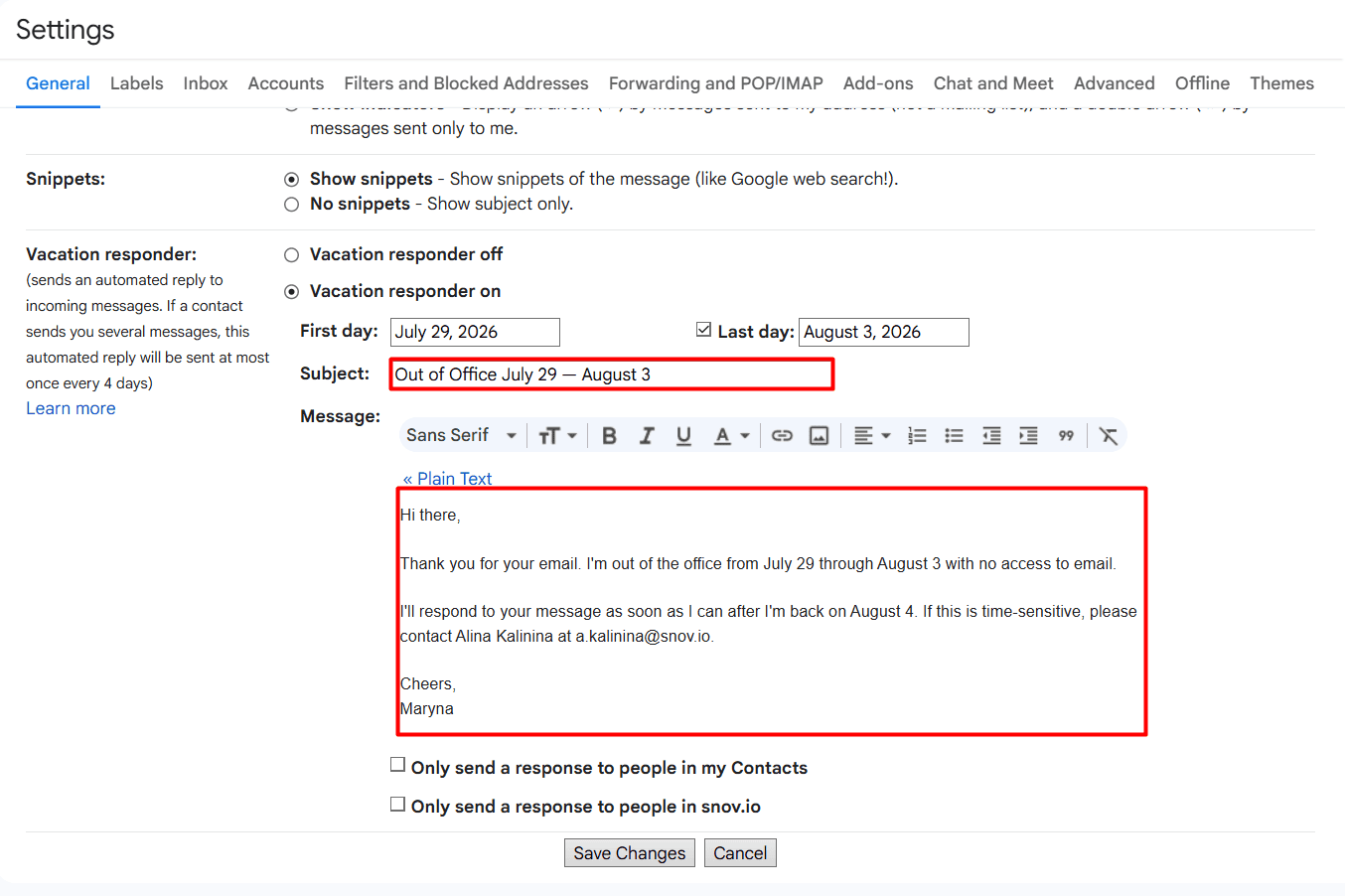
Step 4. Add the subject line and the auto-reply text (choose plain or rich email content).
Step 5 (Optional). If needed, put a tick near “Only send a response to people in my Contacts,” and/or “Only send a response to people in [Your Company]” for Google Workspace accounts.
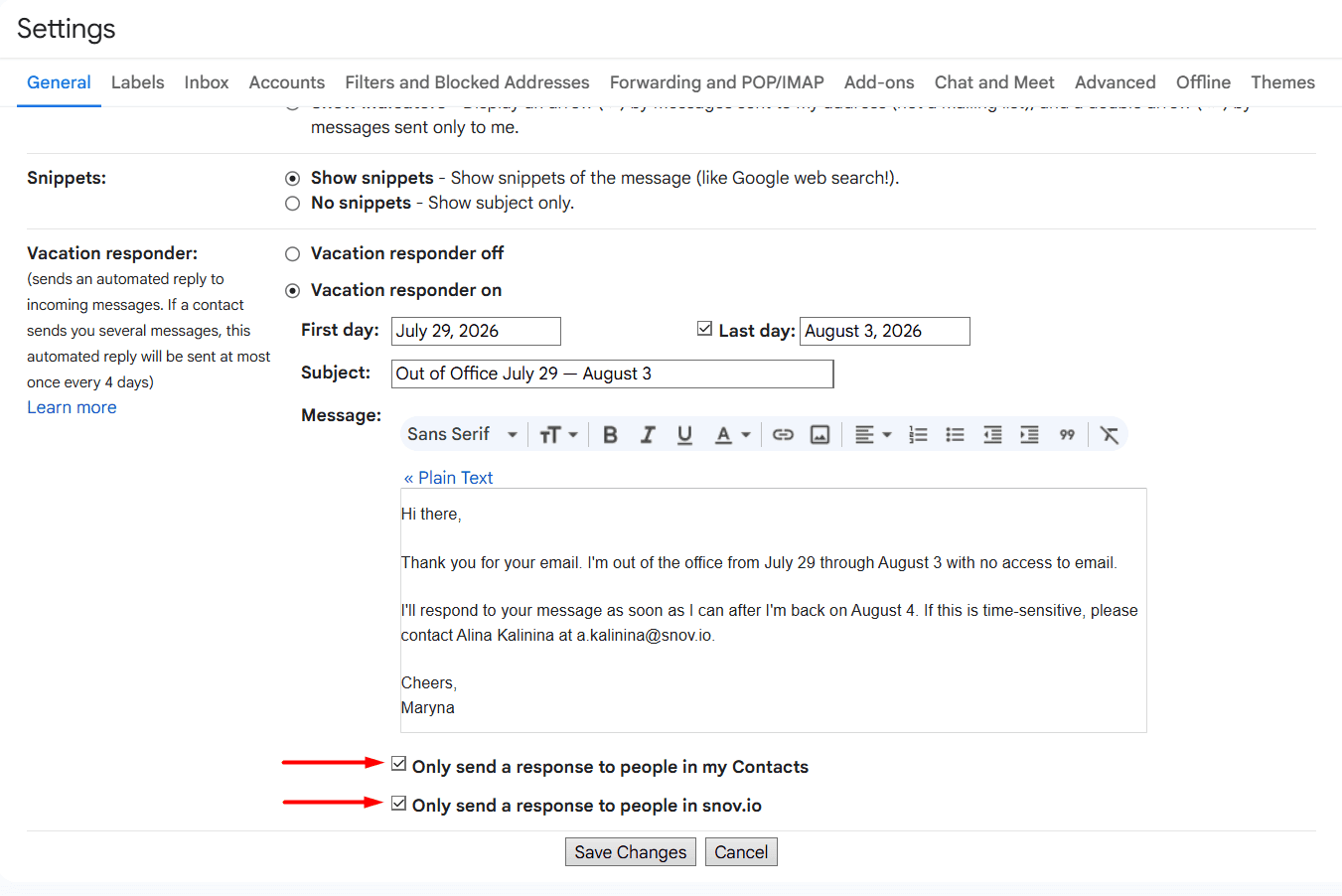
Step 6. Click Save Changes.
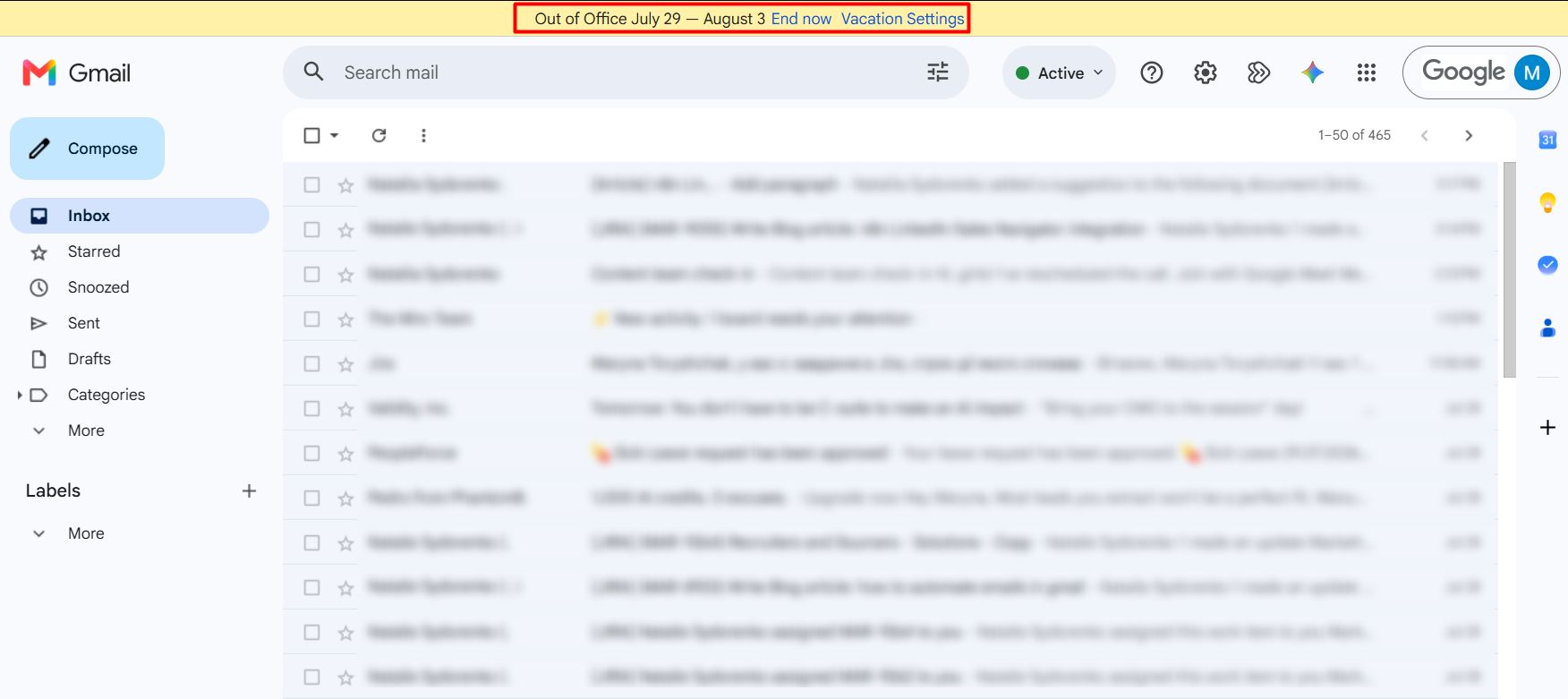
While it’s active, you will see a yellow banner at the top of your Gmail inbox with “End now” (to turn it off in one click) and “Vacation Settings” (to change the first and last date or other details).
There is another approach for setting auto-replies in Gmail.
How to set up an automatic reply in Gmail via Templates (Canned Responses) and filters
Start by enabling Templates, then create a template, and after that set a new filter.
Here’s how to do it step by step.
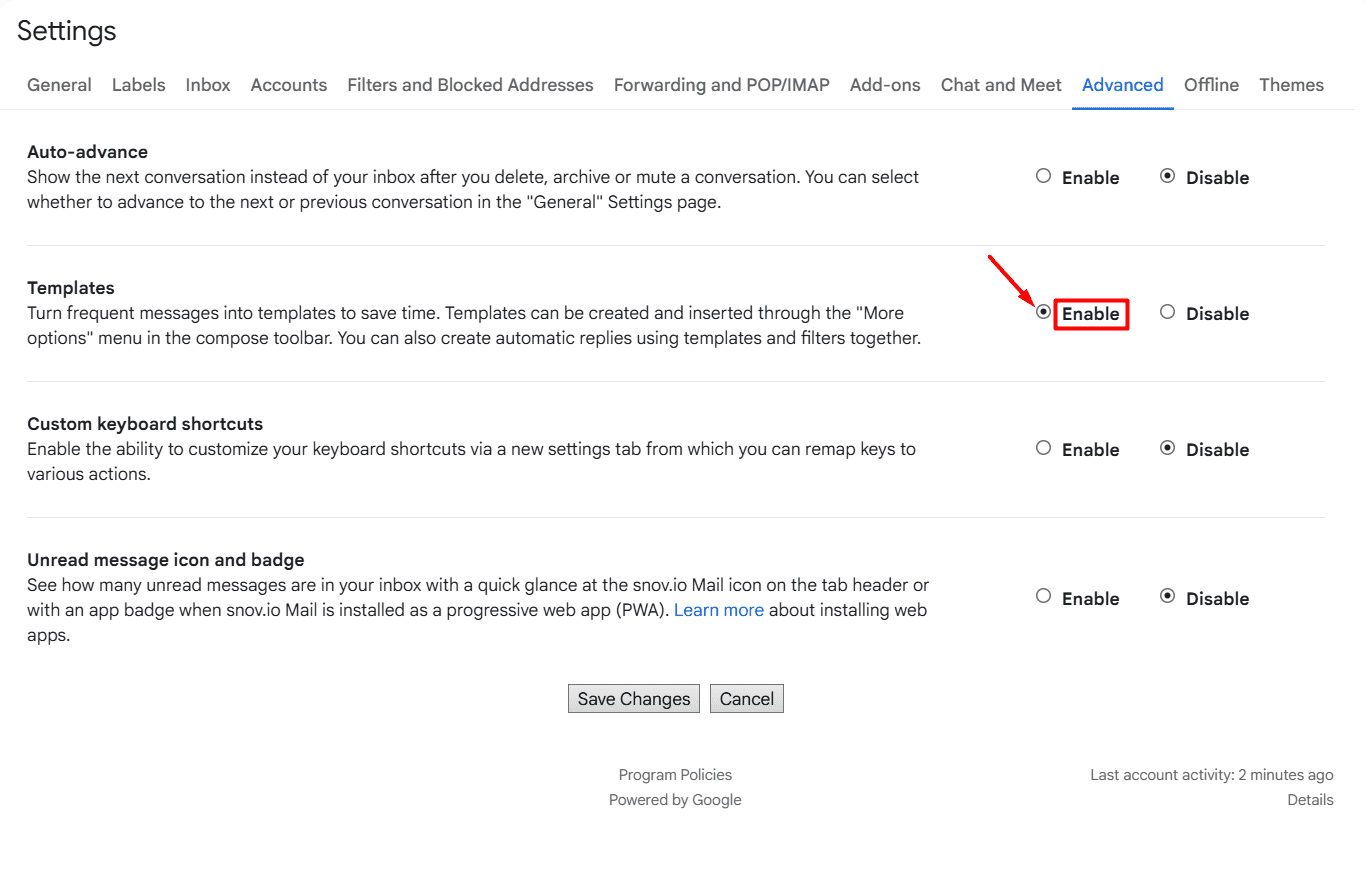
Step 1. Enable Templates:
- In your Gmail account, click the gear icon (Settings) → See all settings.
- Go to the Advanced tab and find Templates.
- Select Enable and Save Changes (Note: Gmail will reload).
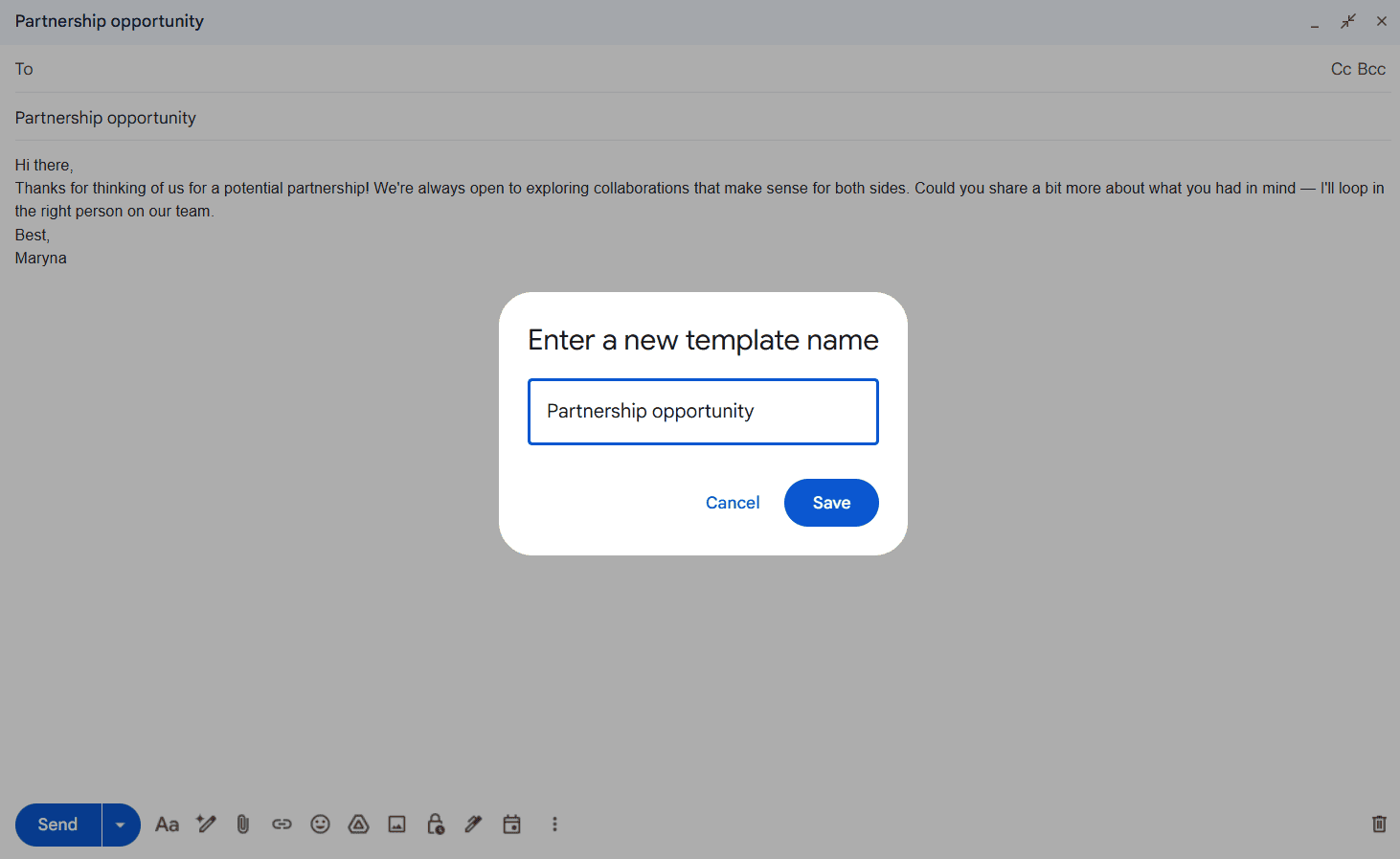
Step 2. Create templates:
- Click Compose and write or copy and paste your template text.
- Click the three dots (More options) at the bottom of your Compose window.
- Point to Templates → Save draft as template → Save as new template.
- Name it and click Save.
Repeat the same steps to create the next canned email template.
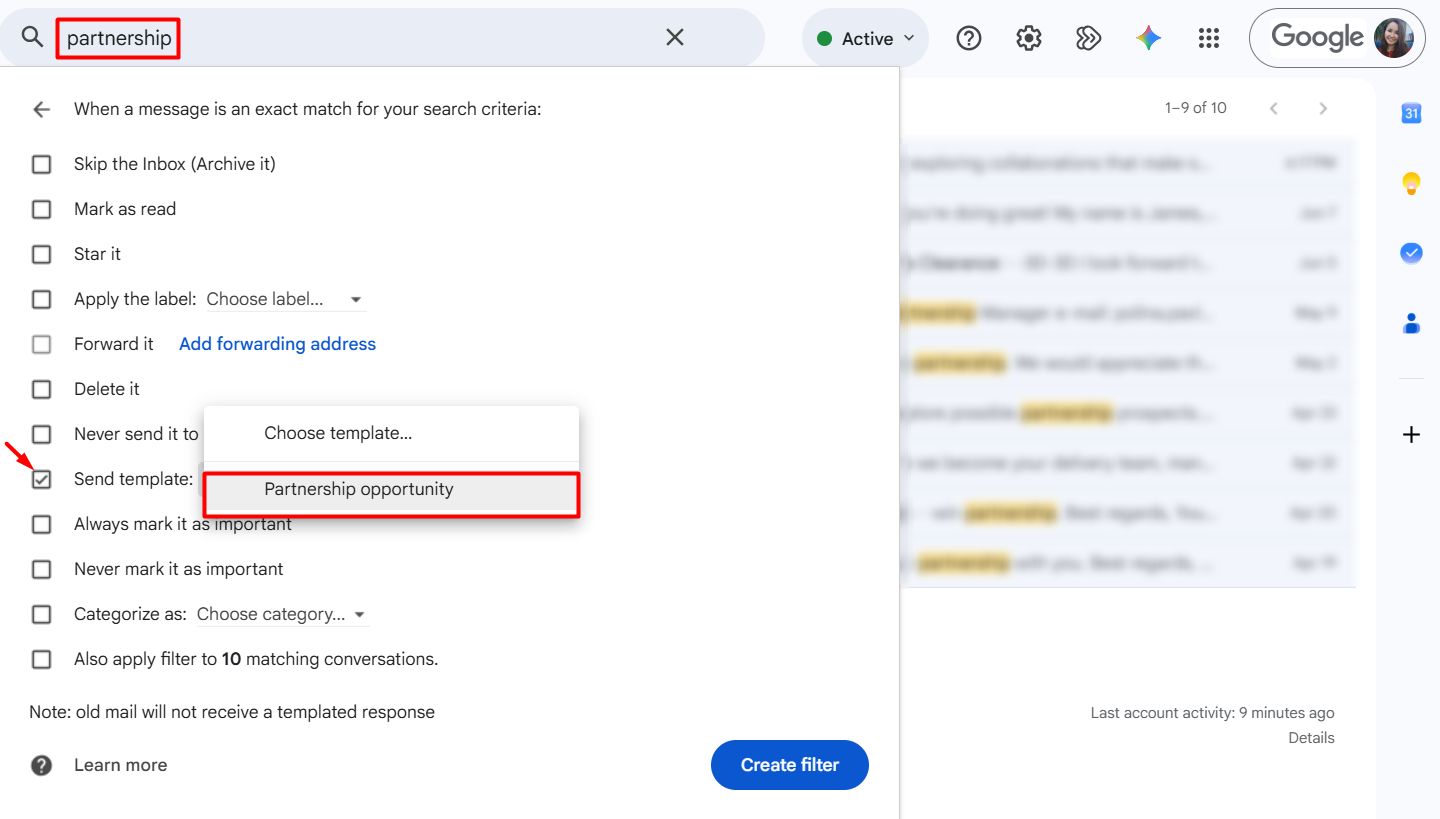
Step 3. Add a filter and combine it with Templates to automate Gmail replies:
- In the right corner of Gmail’s search bar, click Show search options.
- Enter your filtering criteria (e.g., Has the words: “partnership”).
- Click Create filter.
- Put a tick in the box next to Send template and choose the template you wish to be triggered by this filter.
- Confirm your choice by clicking Create filter.
Another way to do that is via Settings → Filters and Blocked Addresses → Create a new filter, indicate your criteria, tick Send template, and choose your saved template.
Ready-made templates for Gmail auto-reply messages
You can use the following ready-made auto-reply templates for Gmail Vacation responder and adjust them as needed.
Example 1. General Gmail out-of-office email template
|
Subject line: Out of Office: [Start Date] — [End Date] Hi there, Thanks for reaching out. I’m out of the office from [Start Date] to [End Date] with no access to my inbox. I’ll respond as soon as I’m back. If this is a time-sensitive matter, please contact [Full Name] at [Email/Phone Number]. Cheers, [Your Name] |
Example 2. ‘Today’ Gmail away message template
|
Subject line: Away from my Gmail inbox today Hey, Thanks for emailing me. I’m away from my Gmail inbox today and will get back to you by [Date/Time]. For anything urgent in the meantime, please reach [Full Name] at [Phone Numer/Email]. Best, [Your Name] |
For canned responses, you can use the following two templates.
Example 3. Email template for the “Schedule a call” filter
|
Subject line: Happy to find a time! Hey there, I’d be glad to jump on a call. Here’s my calendar so you can pick a date and time that work for you: [Your Scheduling Link]. Let me know if none of those slots fit, and we’ll figure something out. Talk to you soon, [Your Name] |
Example 4. Email template for the “Demo request” filter
|
Subject line: Let’s get you a demo, shall we? Hey there, Thanks for your interest in [Your Product/Service]! Here’s a link to our demo so you can dive right in: [Link] It will briefly walk you through [Key Features] in about [X Minutes]. If you’d prefer a live, personalized demo after watching, feel free to grab any available time slot on my calendar here: [Scheduling Link]. Best, [Your Name] |
Below I’ll share how to automate emails in Gmail using additional tools if you want to go beyond its simple scheduling or auto-replies.
How to send automatic emails in Gmail with external tools
Here’s a brief comparison of Gmail automation tools for different use cases with their key capabilities and limitations.
| Tool | Best for | Implementation effort | What you can do | Key limitations |
|---|---|---|---|---|
| Gmail add-on or extension | Recurring emails | Zero-to-minimal | Resend a message on a set schedule (daily, weekly, bi-weekly, monthly) | Limited number of sends/month in free plans; you can’t personalize messages for each recipient, use conditional logic, or include an unsubscribe link |
| Email automation platforms | Cold outreach and email marketing | Minimal-to-low | Build email sequences with follow-ups based on specific conditions, personalize emails, send in bulk, track opens, clicks, replies, and use deliverability tools — all in one place | Paid subscription is needed for high-volume outreach; limited customization if you want to build unique workflows with other Gmail tasks |
| Google Apps Script | Programmatic email workflows | High | Anything the Gmail API allows | Requires solid coding skills; you need to run and maintain the script yourself |
| Workflow automation tools | Workflow customization with interconnected apps | Medium | Connect Gmail to other apps, customize Gmail workflows, and trigger actions automatically | Steeper learning curve; easily breakable workflows; may be too expensive for action-packed workflows |
| Language-learning models (LLMs) | One-off emails generated and sent with AI | Low-to-medium | Summarize, draft, and send emails based on prompts | Write/send permissions vary by plan; not built for bulk or scheduled email sequences |
Now, let’s drill down into each category.
Gmail add-ons/extensions — best for recurring emails in Gmail
Choose one of the best Gmail add-ons or extensions, which plug directly into your Compose window to automate repetitive messages.
For example, let’s take a look at the two most popular ones among Gmail users:
Boomerang
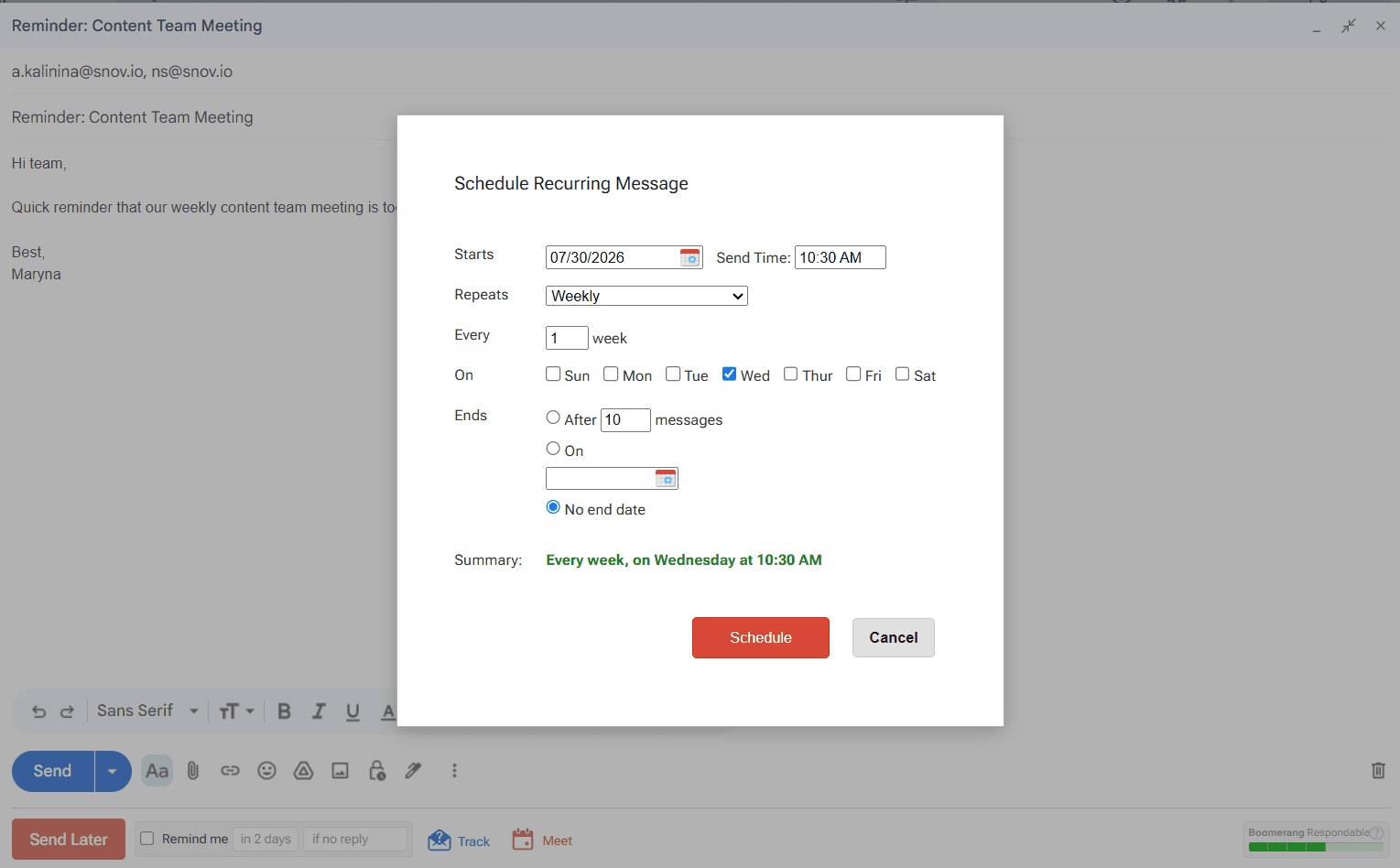
It’s a Chrome/Firefox extension with the dedicated “Schedule recurring message” feature. Here’s how to use Boomerang for Gmail once added to your Chrome browser and synced with your Gmail account:
Type the message in your Compose window → Click Send Later at the bottom, below Send → Choose Schedule recurring message → Decide on Send Time and Repeats (daily, weekly, every weekday, monthly on the same date or week, or yearly) → Pick the end date if needed → Click Schedule.
Pretty easy, isn’t it?
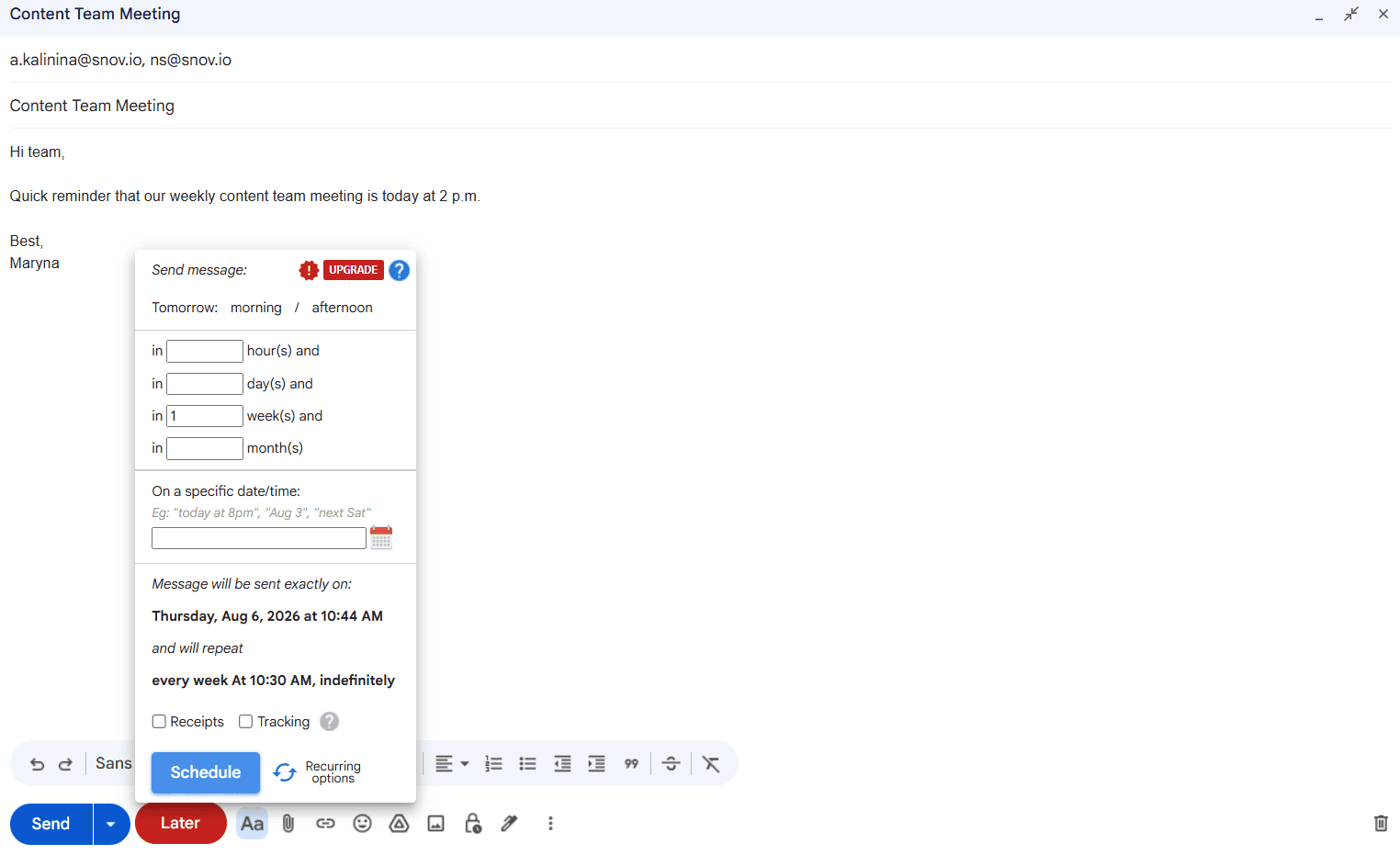
Recurring emails
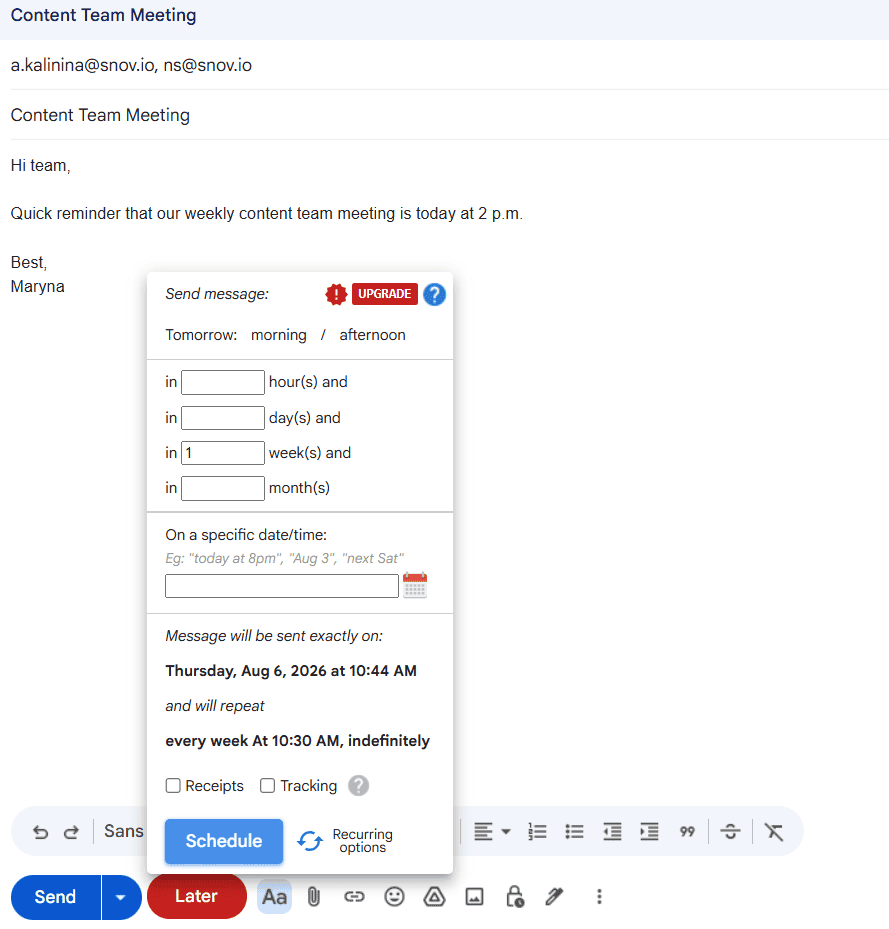
It’s another Chrome/Firefox extension that can automatically send emails on your preferred recurring schedule.
Here’s how to use Recurring emails for Gmail once added to your Chrome browser and synced with your Gmail account:
Write your email message in the Compose window → Click Later at the bottom, next to Send → Choose Recurring options → Set frequency (hourly, daily, weekly, monthly, or on specific weekdays) → Add the repeat number or set Indefinitely → Click the arrow (Save and go back) → Schedule.
After testing both add-ons, I can confirm that each is a dependable choice if your Gmail automation needs boil down to recurring emails (e.g., meeting reminders) alone. However, Boomerang’s UI seems more user-friendly and intuitive to me.
Email automation platforms — best for cold outreach and email marketing
Whether you want to reach out to potentially new customers with cold emails or send promotional emails to your existing clients, you can find the right platform that suits you best.
I’ve rounded up the following list based on user feedback on how they help automate Gmail emails:
- Best for founders, SMBs, and agencies interested in automated email drip campaigns: Snov.io (free trial available; paid from $39/month)
- Best for larger teams ready to invest more in AI features for outreach: Instantly (free 14-day trial; paid from $47/month)
- Best for newsletter automation at scale: Mailchimp (free plan with up to 500 contacts; paid from $13/month)
- Best for behavior-based marketing emails with deep conditional logic → ActiveCampaign (free trial for 14 days; paid from $15/month, billed annually)
- Best for enterprise teams looking for all-in-one sales and marketing email automation → HubSpot (the free tier allows only one follow-up message triggered from a submitted form; paid from $10/mo/seat)
*As prices may change over time, visit the provider’s website for real-time pricing information.


Google Apps Script — best for programmatic email workflows
As Google’s free scripting tool, it’s the most flexible yet tech-heavy option if you’re comfortable writing or copying JavaScript. With Google Apps Script, you can pull recipient data from Google Sheets, trigger a script, and send personalized emails to several recipients.
You can browse ready-to-use Google Apps Script samples and filter them by use case (e.g., Automation, Email & Communication) and product (e.g., Gmail). Then, make a copy or save the chosen Apps Script file to Google Drive for your specific needs.
For example:
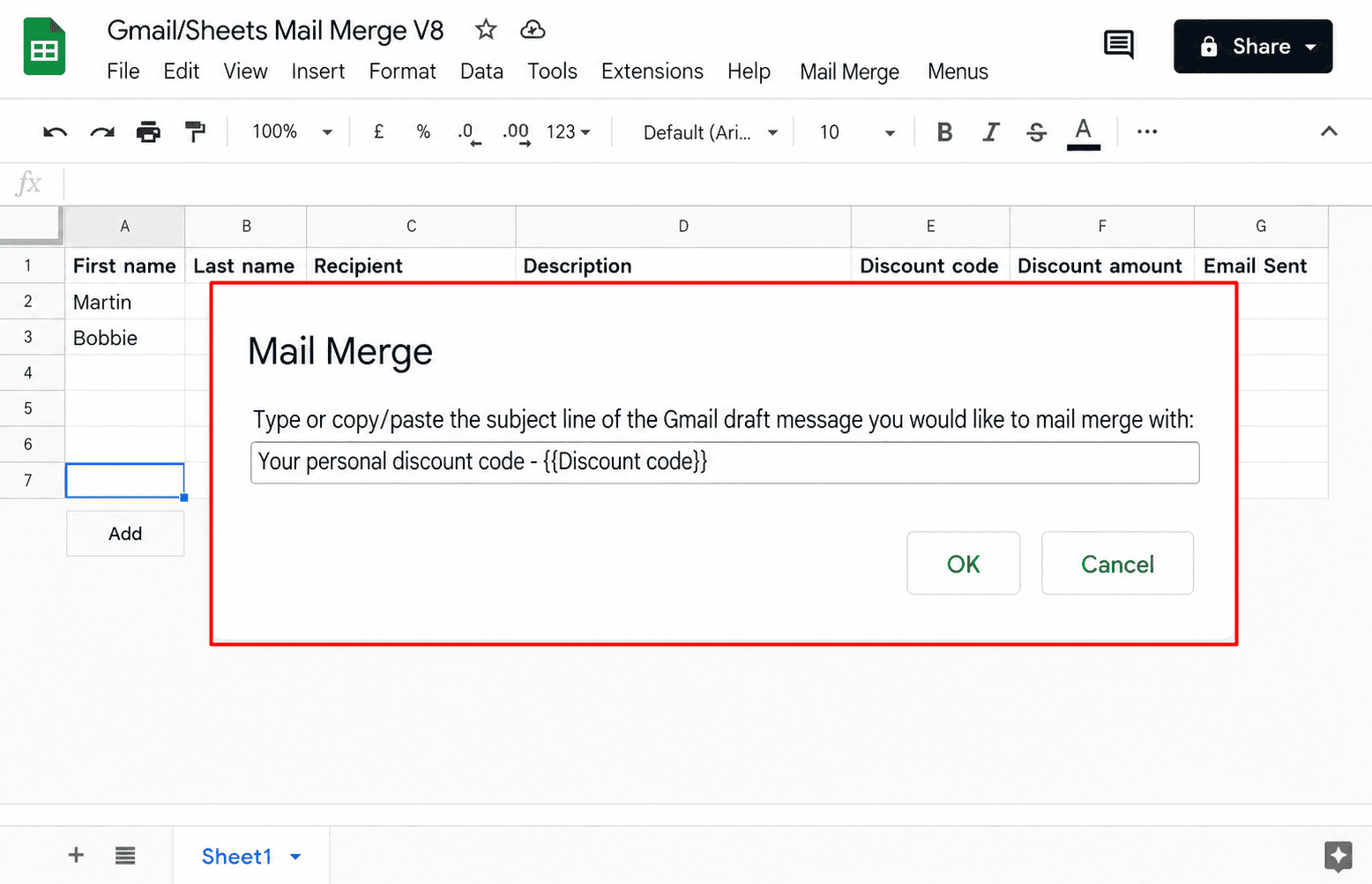
Here’s the one for using mail merge with Gmail and Google Sheets to create templates with placeholder tags, such as {{First name}} or {{Job title}}, that correspond to the data in the spreadsheet.
First, copy the Gmail-Google Sheets mail merge sample spreadsheet to create your Apps Script project, then draft an email template, and run the script.
Honestly, the setup is not that straightforward for non-technical users. From my viewpoint, Google Apps Script is more of a developer-oriented tool for Gmail email automation.
Workflow automation tools — best workflow customization with interconnected apps
Tools like Zapier, Make, or n8n are often chosen for customized Gmail workflow automation. They can connect your Gmail account to hundreds of other apps and trigger actions across your whole stack.
For example:
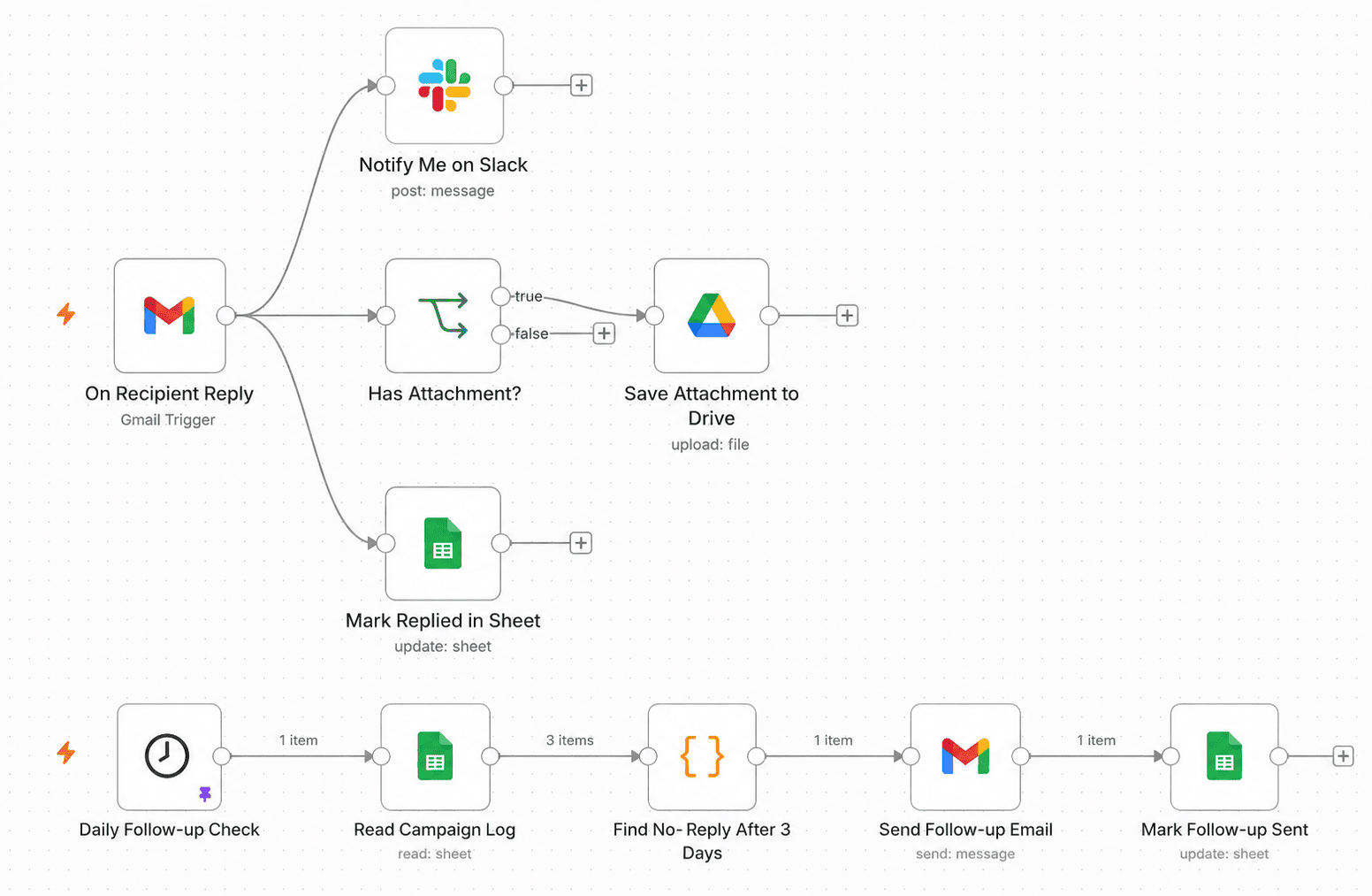
The triggered actions may unfold like this: send a follow-up message if no reply arrives in 3 days, notify you in Slack when the recipient responds, save an email attachment (if any) to Google Drive, and log the email and its status in Google Sheets (or your CRM).
Look at this n8n email workflow with 2 independent trigger paths, including all those actions.
I actually found n8n’s AI Assistant extremely helpful. It built several Gmail workflows to automate emails and other repetitive tasks based on my prompts.
💡 Quick hack:
You can integrate Snov.io with n8n, Make, or Zapier to automate lead-gen and outreach workflows across thousands of apps. For instance, use Snov.io node actions in n8n for email finding & verification and data enrichment, or set triggers like New Prospect Added or Campaign Email Sent in Zapier.
LLMs — best for generating and sending one-off emails with AI
Some LLMs already use native Gmail connectors or Model Context Protocol (MCP) servers for connection. When one is enabled (or added if it’s an MCP server), you can create automated emails for Gmail to be sent instantly with just a text/voice prompt.
Let’s compare the differences between Gmail native connectors in Claude and ChatGPT, as the most recognized LLMs on everyone’s lips:
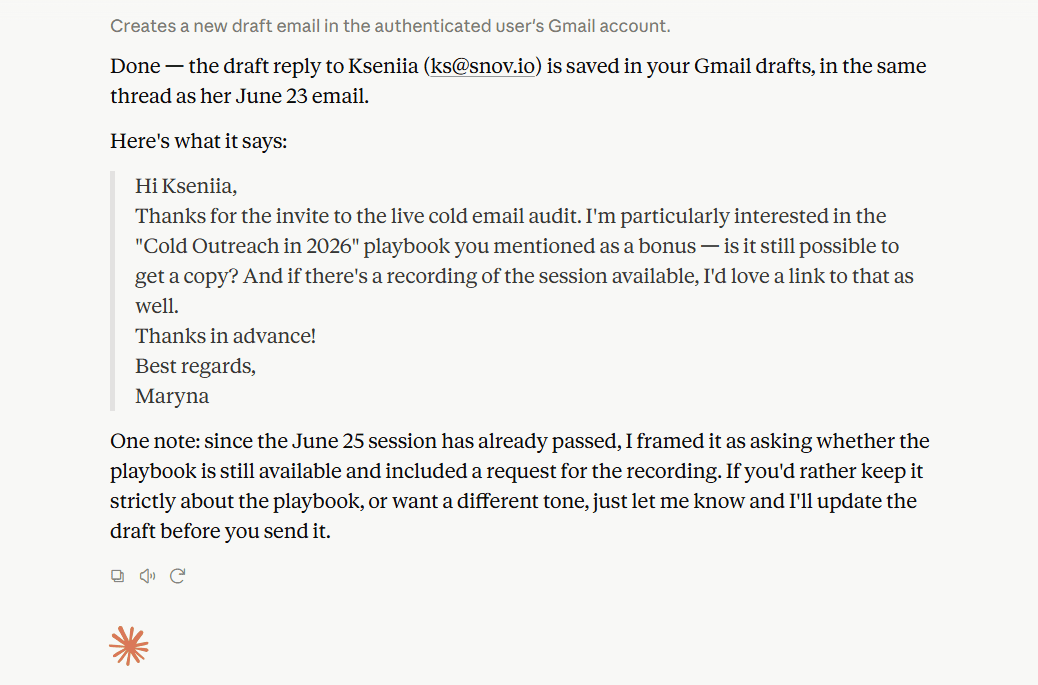
- Claude’s Gmail connector: It is draft-only. You need a third-party MCP server to auto-send Gmail messages with Claude.
- ChatGPT’s native Gmail connector: It does both drafting and sending with your prompts. However, it can send only 1 email message at a time with your approval. Another limitation: It’s only available on paid plans.
For example:
When I connected my Gmail account to Claude via a native connector, it drafted an email reply and saved it to my Drafts folder for manual send.
💡 Quick hack:
Connect your favorite LLM/AI assistant with the Snov.io MCP to find verified contacts and build prospect lists for cold outreach on autopilot. It already offers 100+ MCP actions, and email campaigns are coming soon.


Gmail email automation limits and solutions
Gmail’s native features are great for low-volume scheduling (up to 100 scheduled emails pending), auto-replies, and templates.
But they hit the same 4 walls:
- no follow-up sequences with conditional logic and delays,
- lack of personalization,
- limited sends/day, and
- no performance monitoring and analytics.
All these issues complicate effective bulk email automation in Gmail.
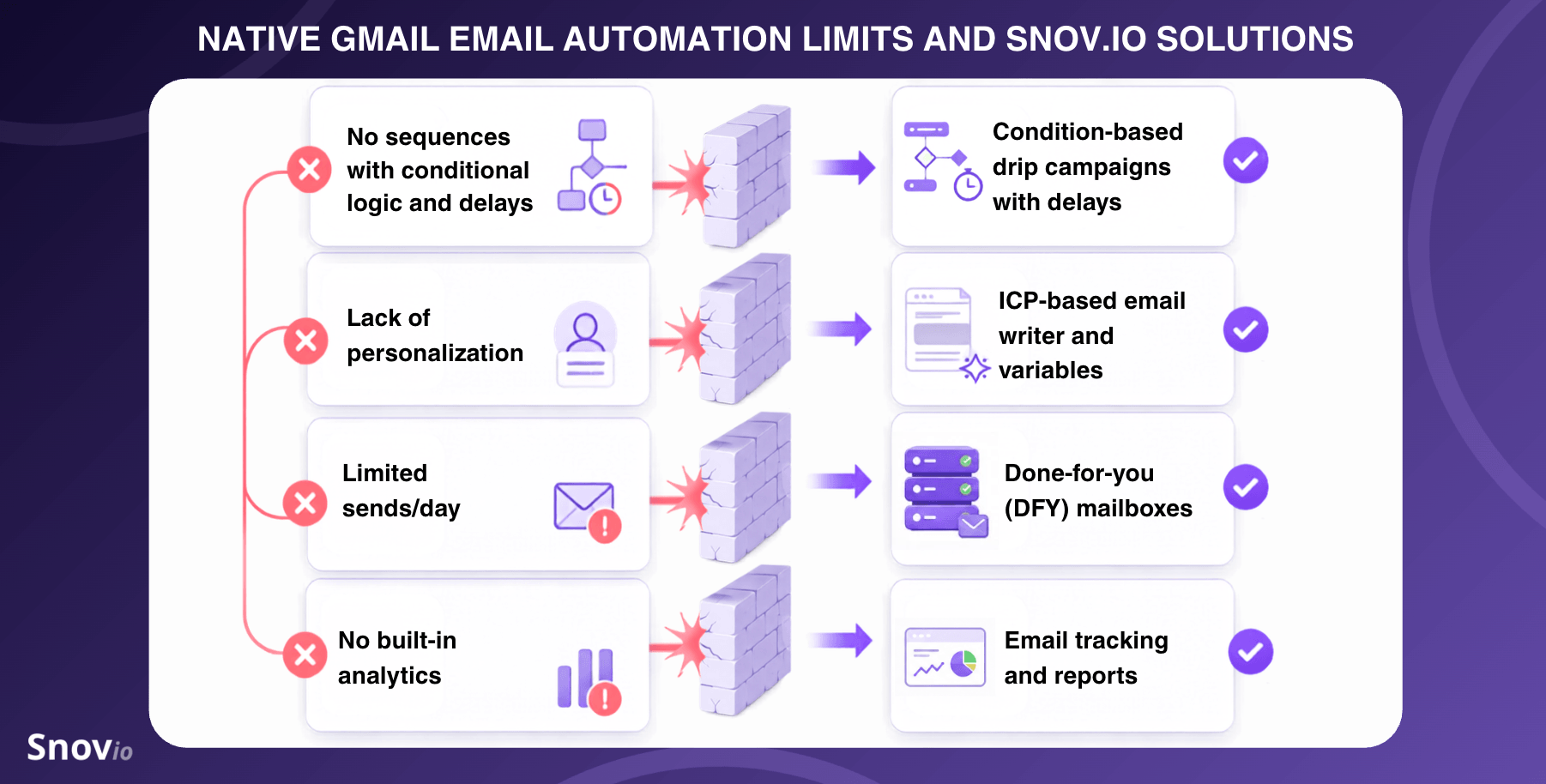
In this final chapter, I’ll describe these limitations in detail and share how to automate emails in Gmail with Snov.io to overcome them.
No sequences with delayed follow-ups and conditional logic
You can’t natively send an email in Gmail, wait 2 days to automatically follow up based on a specific condition (e.g., if the recipient didn’t open your initial message), and then wait another 5 days before sending another follow-up.
Solution: Email drip campaigns with conditions and delays
You can easily build Snov.io’s Email Drip Campaigns with a drag-and-drop editor. Just connect your Gmail account and create a campaign with as many follow-ups as you wish based on a variety of conditions (e.g., a recipient opened an email, clicked on a link, connected on LinkedIn, booked a meeting)
Moreover, you can also set a waiting time (minutes, hours, or days) to delay your follow-up email and create a natural pause in communication with your prospects or clients.
Semi-automated, limited personalization
Natively, you can personalize emails only with the mail merge feature if you have a Google Workspace account. Yet, you still need to manually add column headers to your spreadsheets and corresponding placeholders when creating Gmail templates.
Solution: ICP-based email builder in AI Studio + personalization variables
Create your ideal customer profile(s) with Snov.io’s ICP and Buyer Persona Generator and build an ICP-based email message template in just a few seconds. You can regenerate it, save, or add it to your cold outreach campaign straight away.
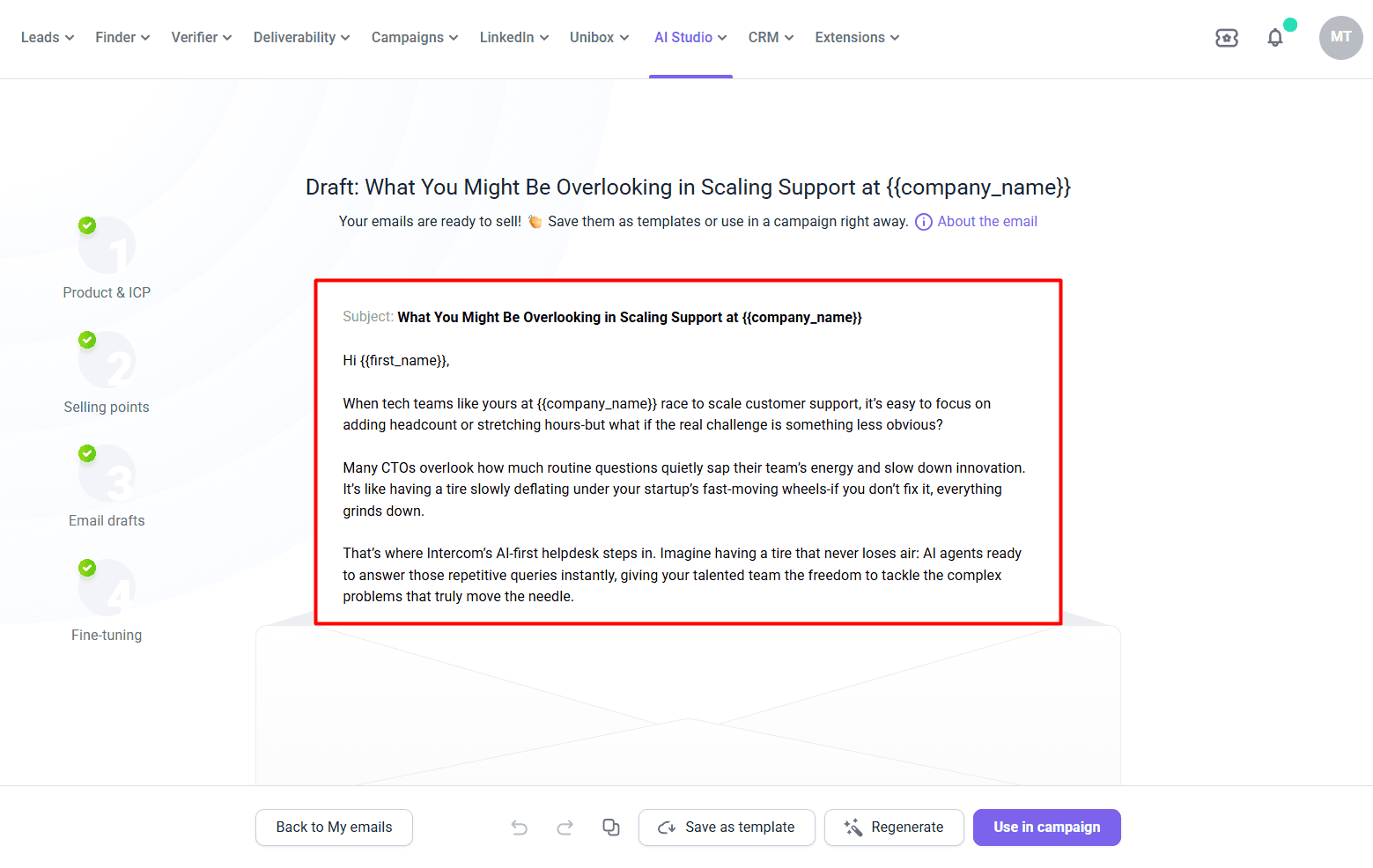
When adding an email step to your campaign, apply more variables for personalization:
- Default: e.g., {{company_name}}, {{location}}, {{position}}, etc.
- Dynamic: Personalized text variations based on the following conditional logic: If [Prospect field] is [Condition], then: [Custom text]
- Custom: e.g., {{contract_type}} or {{loyalty_program}}
You can add up to 30 custom variables to customize your Gmail messages with deeply personal nuances about your leads/clients, beyond just their names.
We gave a shot to Snov.io’s Email Finder and Drip Campaigns. And it was a game changer! […] We have 200+ emails sent at once with an attention-grabbing pitch relevant to the website. With properly prepared campaigns, the response rate is incredible, usually at 75-80%. Add to this countless hours saved that we usually wasted searching for correct emails.
CTO at Neadoo

Restricted number of messages per day
Gmail’s sending limits are up to 500/day on any free Gmail account, 2,000/day on Google Workspace accounts, and 1,500/day when using the mail merge feature specifically.
Solution: Done-for-you (DFY) mailboxes
With Snov.io’s DFY mailboxes, you can easily tackle this problem and never have to worry about exceeding Gmail’s daily email limit.
Connect your email account, get a domain, and create multiple Gmail mailboxes (up to 5 per domain; but you can buy additional domains if needed).
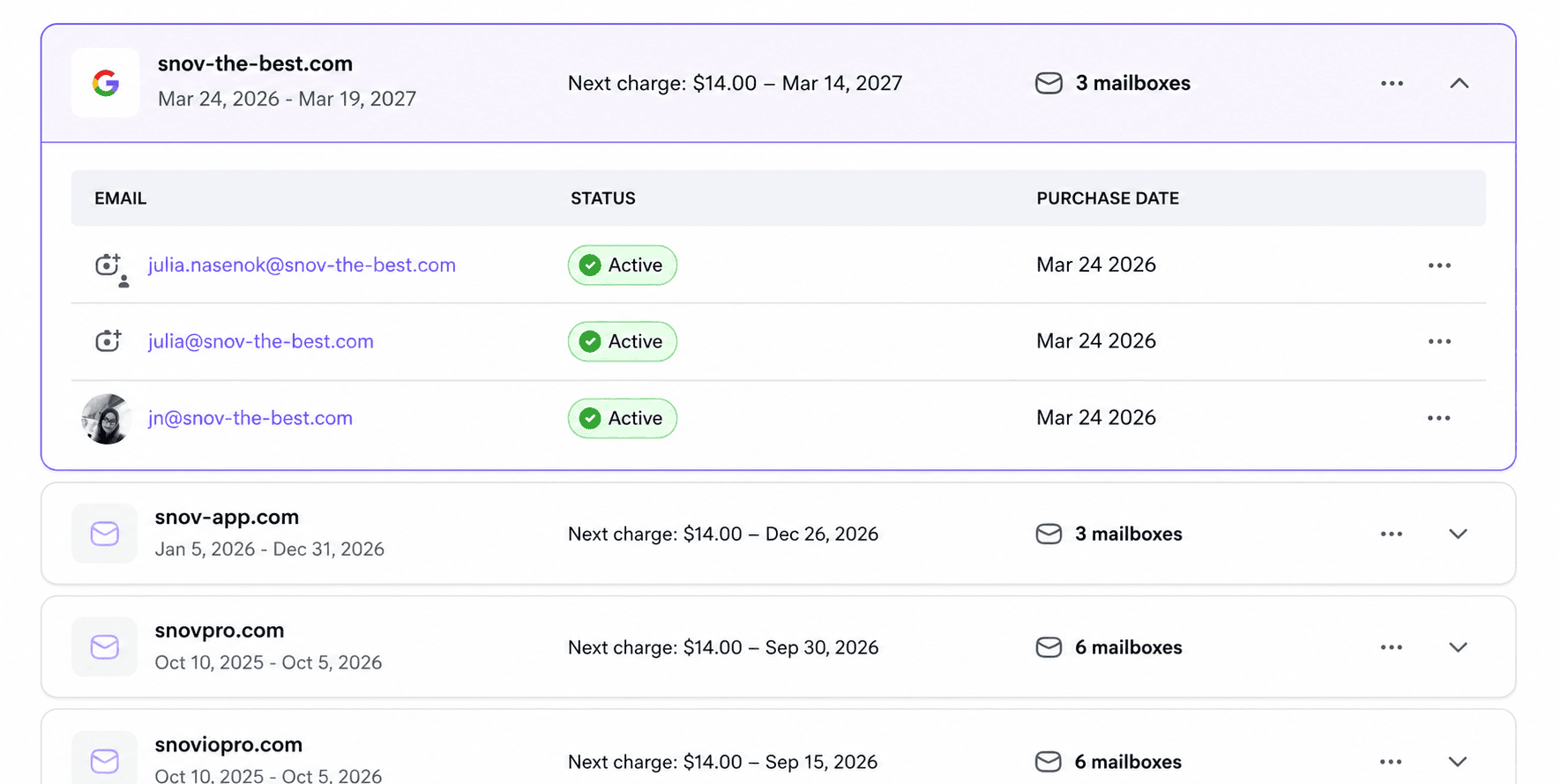
Then, spread your email volume equally across them, or set a unique daily sending limit for each.
⚠️ Note:
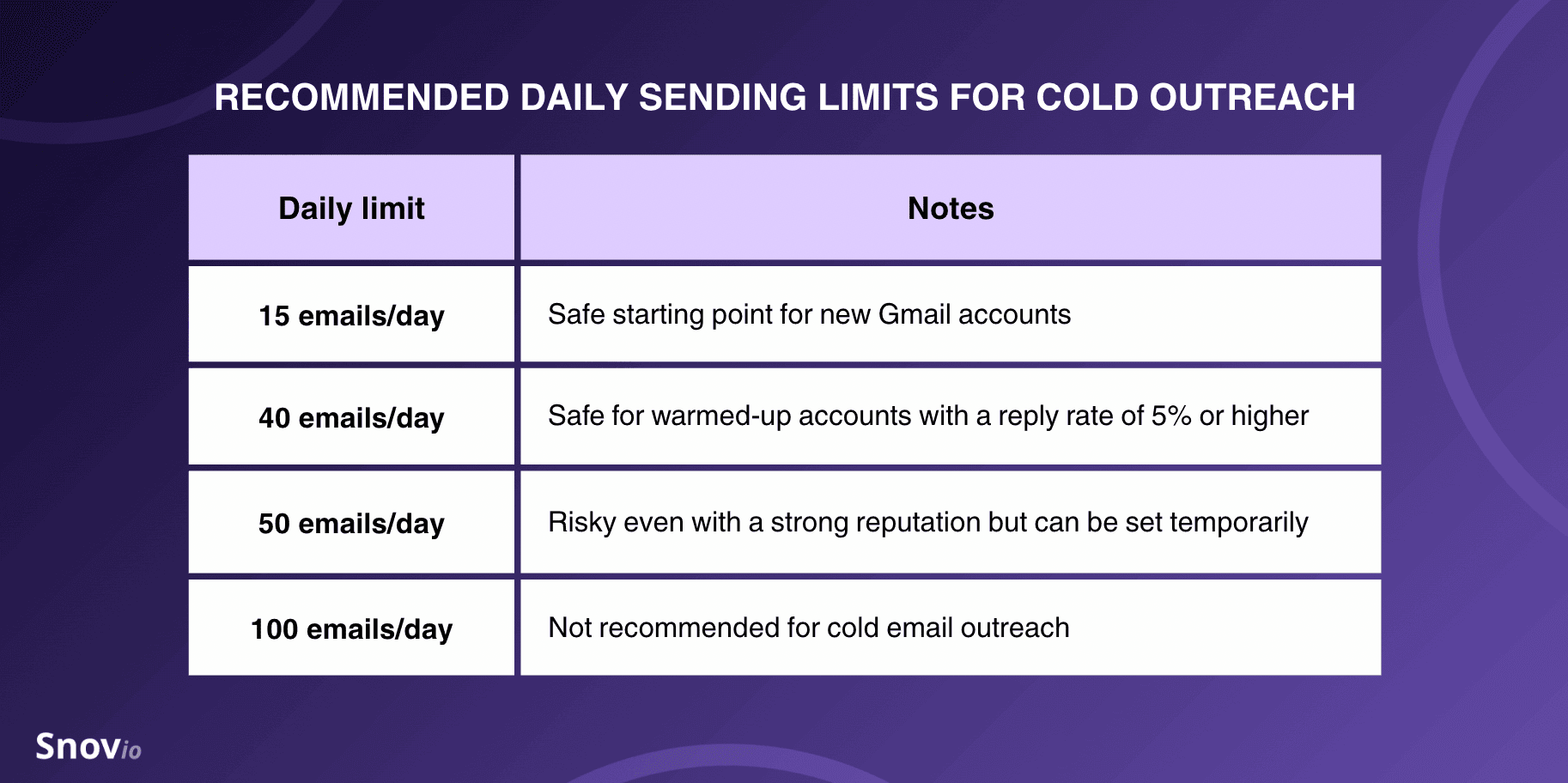
For cold outreach in particular, follow expert recommendations and set 15 emails/day as a safe limit for newly created Gmail accounts. Once you warm them up, you can raise the bar.
→ Wish to send thousands of emails safely? Read the post on how to send 10K cold emails in 2026.
No built-in tracking and analytics
Gmail can’t tell you whether someone opened your email message, clicked a link, replied, or how the entire campaign (or all campaigns) performed.
Running email drip campaigns without tracking is like running blind. Your metrics tell you what’s working, what’s not, and (most importantly) why some prospects reply while others don’t. This analytics lets you optimize your outreach using real data.
Outbound Outreach Expert at Snov.io

Solution: Email tracking and reports
Snov.io tracks every open/click/reply and other metrics, letting you export stats and share them with your team members.
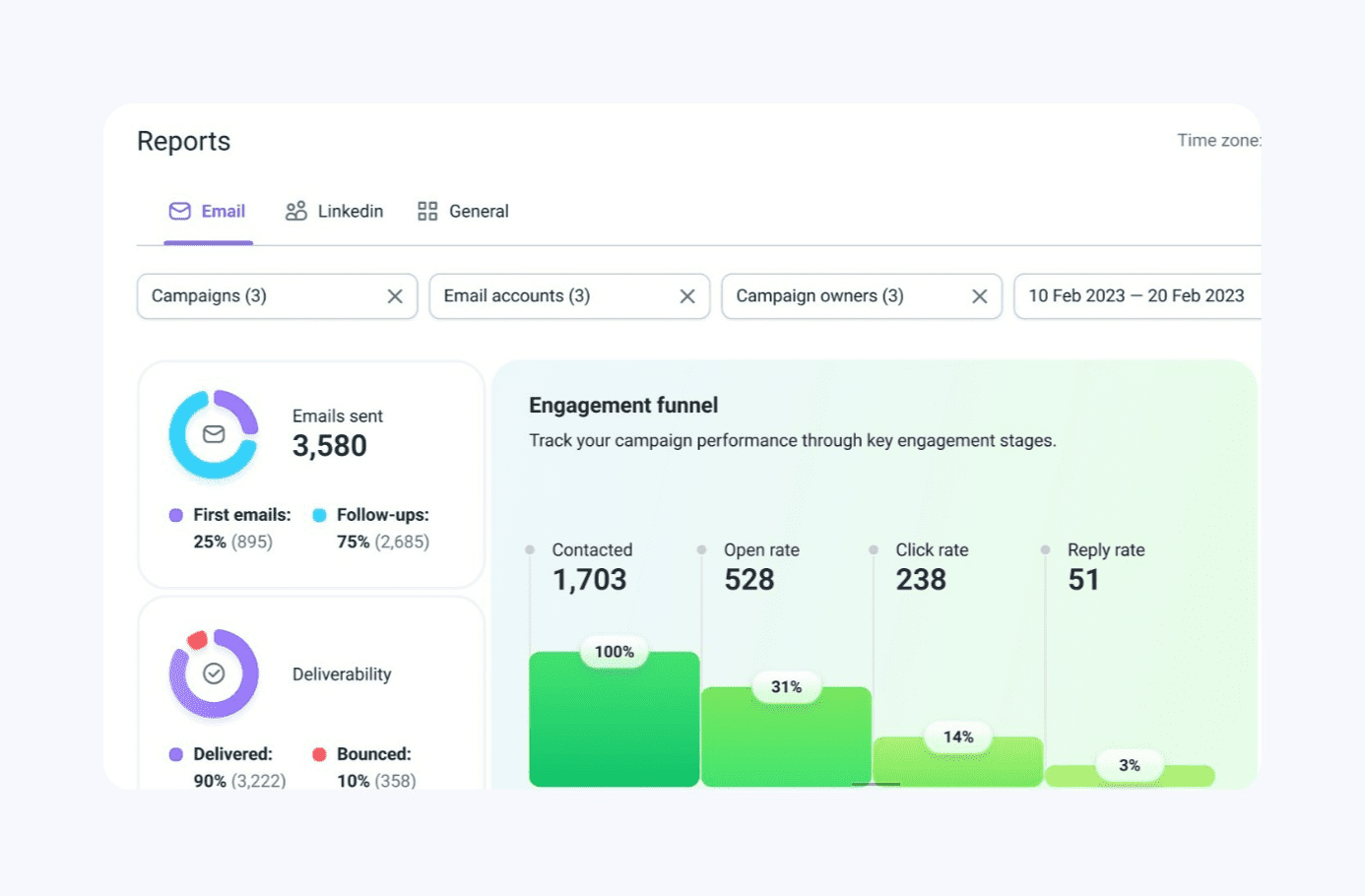
Once you open Reports (in the Campaigns tab) in your Snov.io account, you can check the following metrics:
- Volume: Emails sent, First emails, Follow-ups
- Deliverability: Delivered, Bounced
- Engagement: Contacted, Open rate, Click rate, Reply rate
- Not reached: Auto-replied, Unsubscribed
These numbers can be tracked across one or all email campaigns.
You can also use Snov.io’s Email Tracker extension to monitor engagement metrics (opens and clicks) without leaving your Gmail inbox. Alternatively, receive desktop notifications when your emails are read and links are clicked.
Plus, you can set reminders to follow up with the Remind Me feature and schedule emails up to 3 months in advance with the Send Later feature.
Key takeaways on sending automated emails from Gmail
Here’s the roundup of how to automate Gmail emails, each way best suited for a specific need:
- Best for scheduled emails: Gmail’s native feature (Schedule send) — just remember the 100-pending limit
- Best for auto-replies: Gmail’s native feature (Vacation responder)
- Best for canned replies to common questions: Gmail’s native feature (Templates + filters)
- Best for simple recurring reminders: A Gmail add-on like Boomerang or Recurring Emails for Gmail
- Best for email drip campaigns with conditions and delays: Platforms like Snov.io or Instantly
- Best for newsletters or marketing messages: Tools like ActiveCampaign or Mailchimp
- Best for code-driven email workflows: Google Apps Script
- Best for custom Gmail workflows integrated into your broader tech stack: Workflow automation tools like Make, Zapier, or n8n
- Best for AI-drafted emails with manual approval: LLMs like ChatGPT or Claude
Gmail’s native features give you only the essentials like scheduling, auto-replies, and filter-triggered templates.
The moment you need more, it’s time to bring in outreach automation software like Snov.io to implement conditional logic and delays in your follow-up sequences, generate ICP-based personalized emails at scale, and monitor your campaign performance.