This guide explains prospect data in Snov.io: what you can find, enrich, and import, how it's stored, and how to use it in outreach.

To follow along with this guide, open your prospect lists and add some prospects from Database Search.
Types of data in Snov.io
All of the prospect data is organized into fields and displayed in columns on your prospect list.
- Native fields: default data points Snov.io provides
- Custom fields: your own fields, for your own data
- Enrichment fields: data added automatically with Enrich & AI tools
A single column stores one value per prospect. A bulk column stores multiple values. You can extract any data point from a bulk column into its own single column.
Data field types
Here's how each data type works.
Native fields
Native fields give you the base data to contact prospects via email and LinkedIn, personalize with general details, and enrich further.
1) Add using Finder tools
Native fields fill in automatically when you find prospects using Database Search, LinkedIn Search, or other Finder tools.
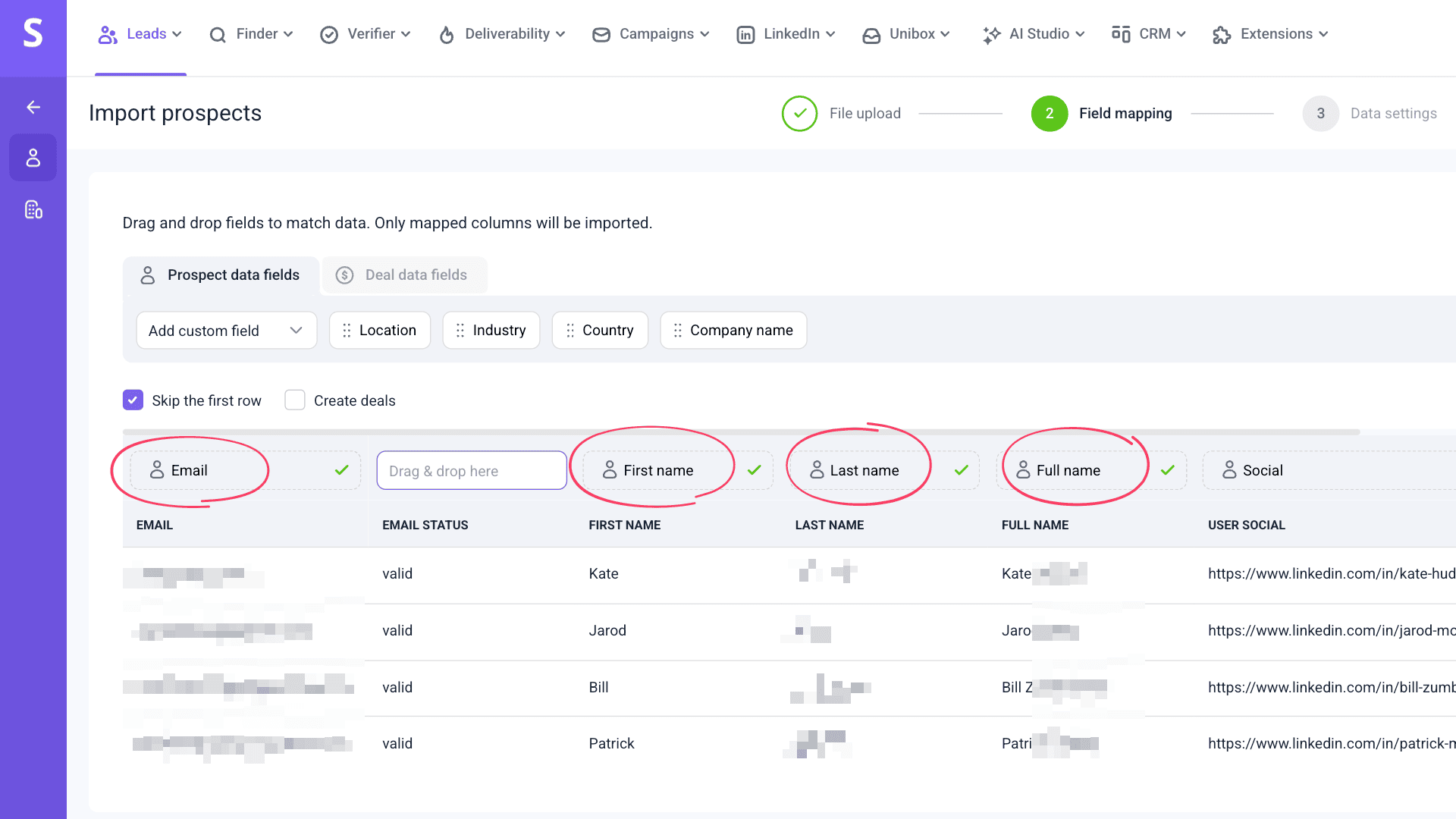
2) Import from file
Fields map directly from your CSV columns during import.
3) Create manually
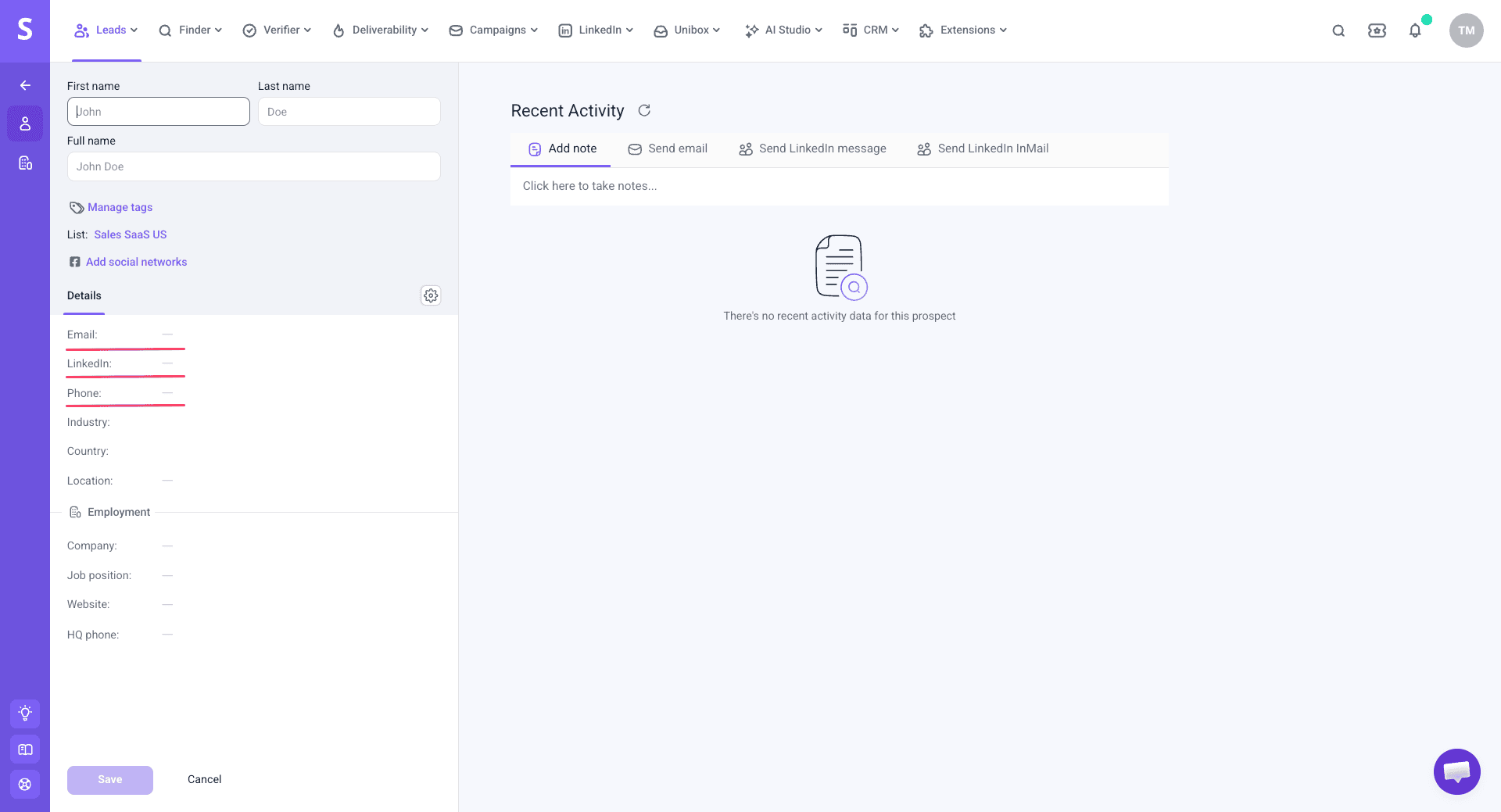
You can create a prospect manually and edit native fields on individual prospect profiles.
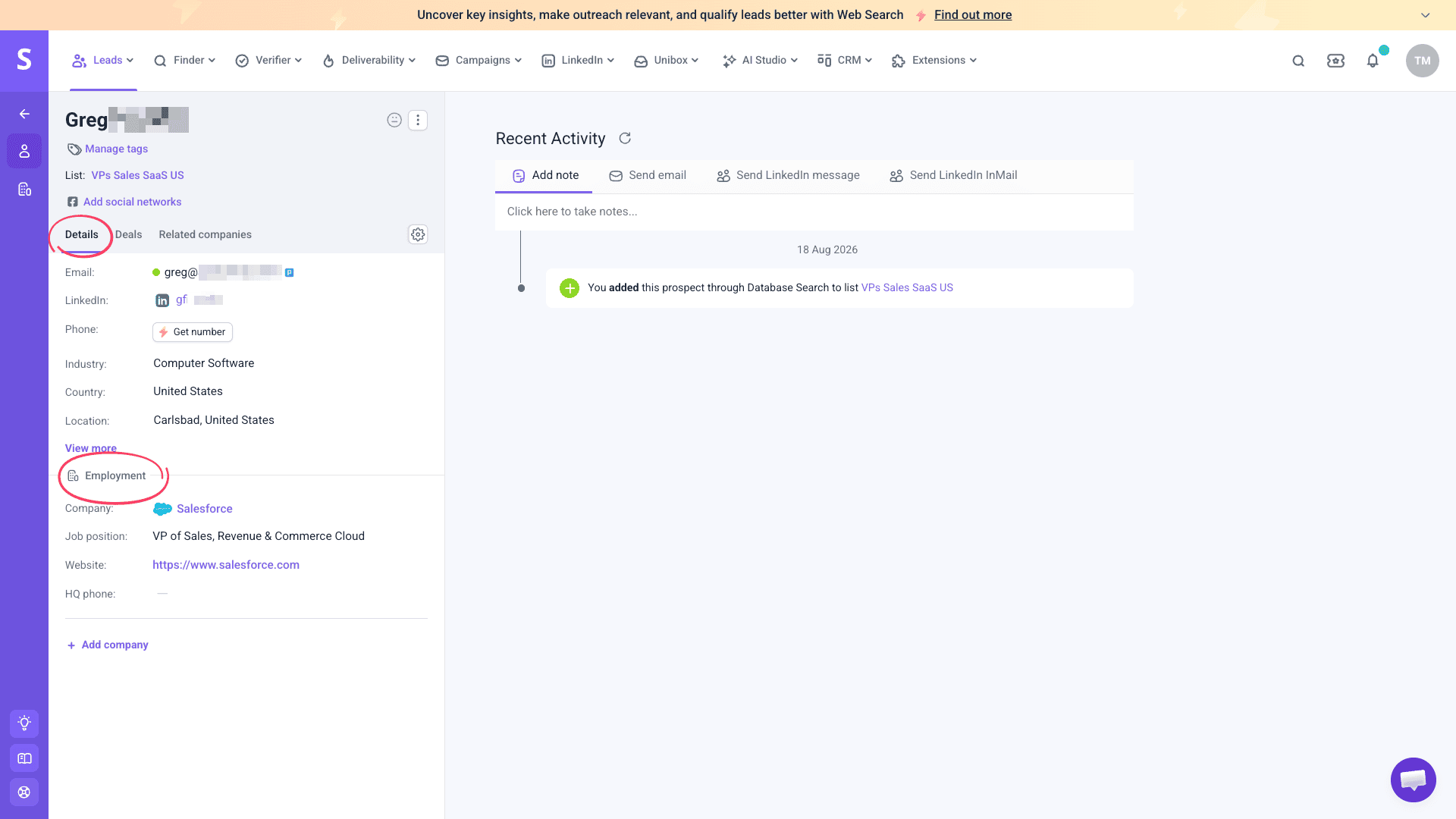
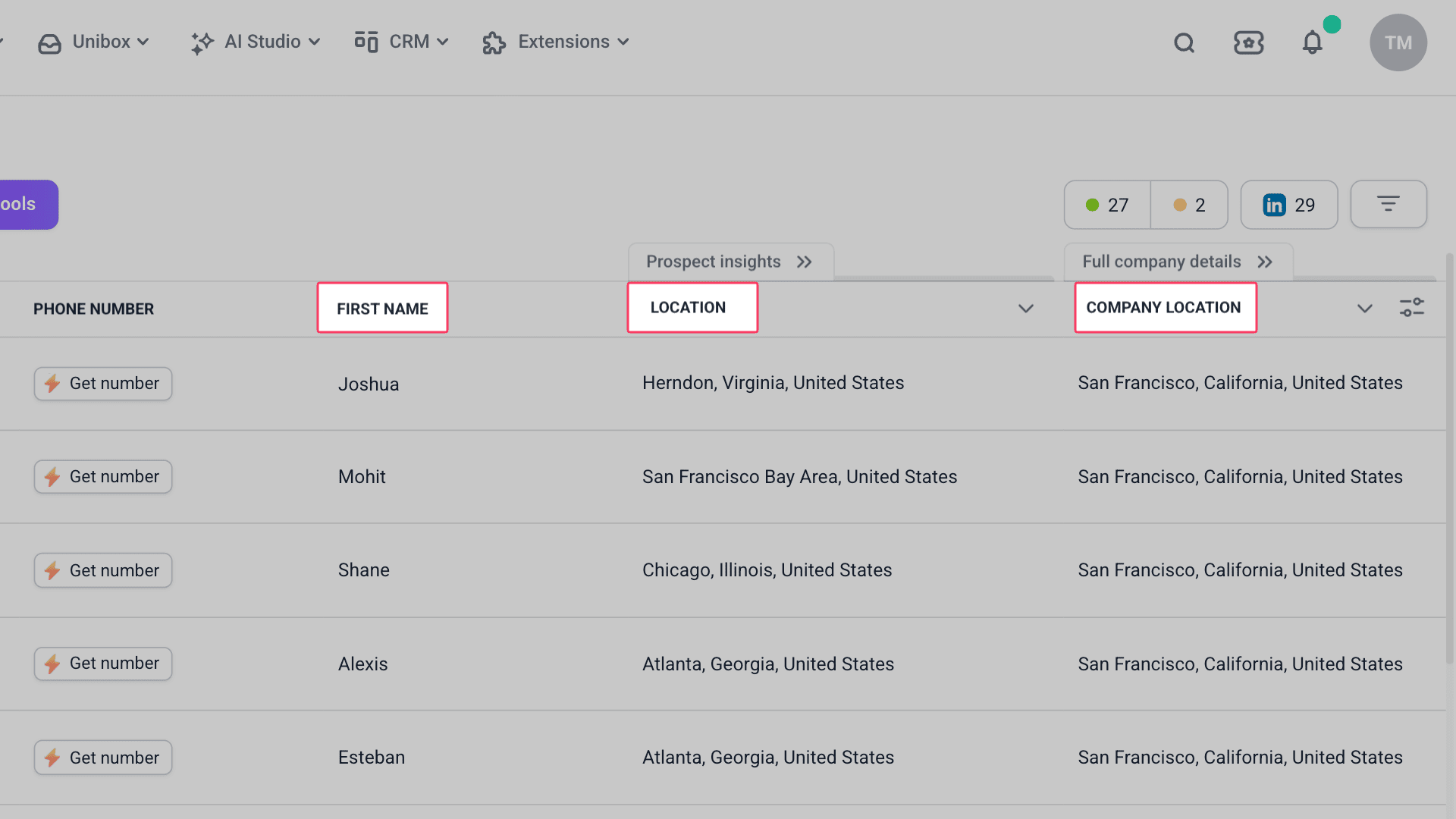
Native fields are organized into two categories: prospect data fields and Employment (company data) fields.
Prospect data fields
These store general information about the prospect.
- Full name: the prospect's complete name (auto-combined from first and last name)
- First name: the prospect's first name
- Last name: the prospect's last name
- Email: the prospect's email address; can also be added through enrichment
- LinkedIn: personal LinkedIn profile URL
- Phone: a native field, but its data is provided separately, through enrichment
- Industry: professional industry
- Country: country of residence or work
- Location: general location
Company data fields
These store information about the prospect's company.
- Position: current job title or role
- Company name: name of the prospect's company
- Company website: company domain or website URL
- HQ phone (when available): company headquarters phone number
Using native data
Here are the ways you can use native prospect data fields in your workflow:
- Insert them into emails and LinkedIn messages using personalization variables
- Reference them in enrichment variables for AI tools
- Export them to CSV or Google Sheets
Custom fields
Custom fields store your own data and insights. This can be anything you need for your workflow: details for personalization, or info your team needs.
Create custom fields
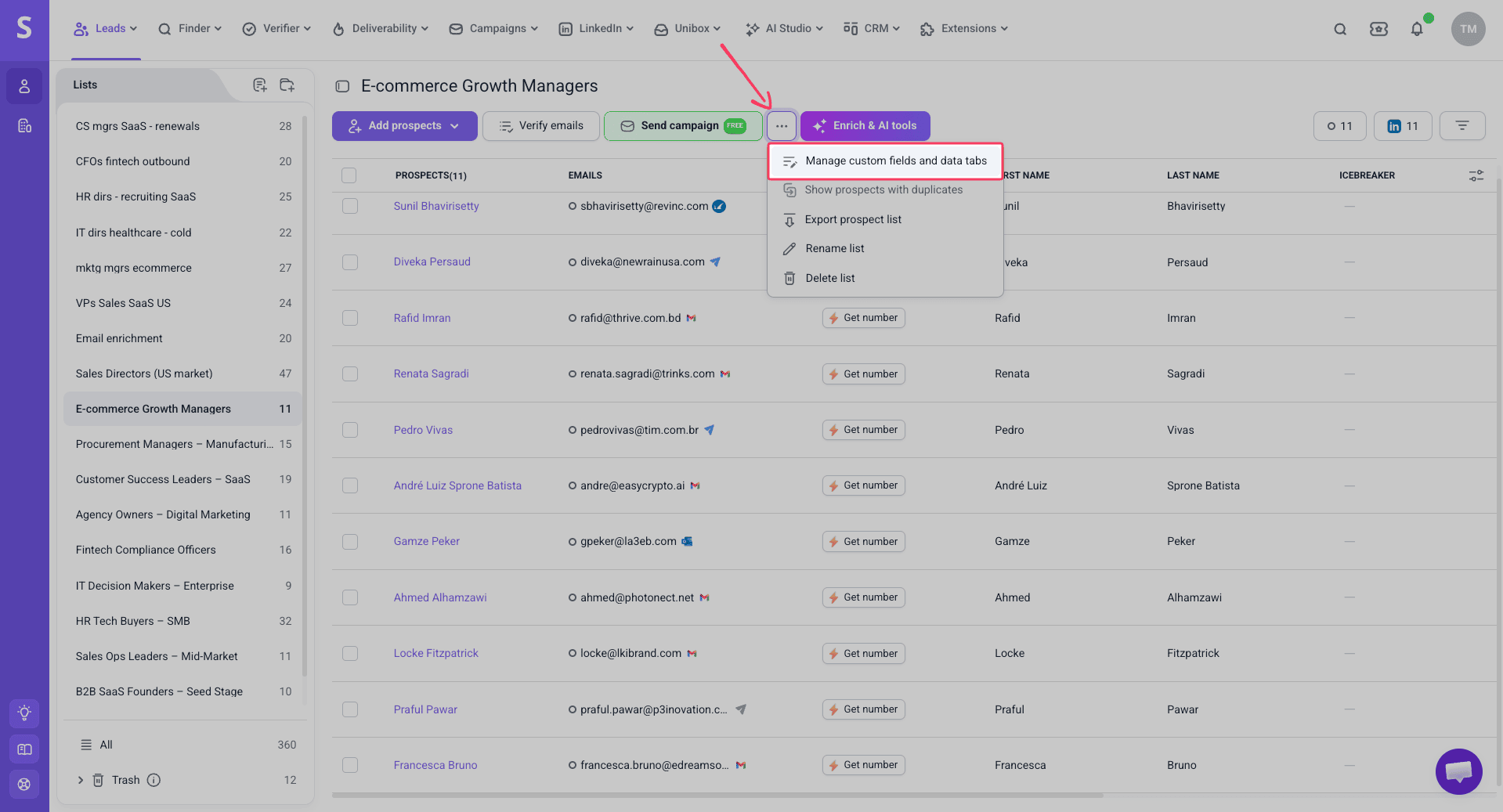
To create a custom field, open a prospect list and click Manage custom fields and data tabs, then Add field.
Custom fields are account-wide. The field you add in one list is created automatically across all other lists in your account.
What custom data you can add
Add any kind of information that helps your process.

Add or update data
Add custom data for prospects using these methods.
- Manual entry: edit a prospect and fill in the field
- CSV import: after creating a custom field, map it to the matching column in your import file
- Integrations: map custom fields to transfer data from automations or your CRM
Using custom data
Here are the ways you can use custom fields in your workflow:
- Group them into data tabs for quick access in a prospect's profile
- Reference them in enrichment variables for AI tools
- Insert them into campaigns (emails and LinkedIn messages) using personalization variables
Enrichment fields
Enrichment fields provide data that isn't available in native fields, giving you special insights for relevant outreach.
Create enrichment fields
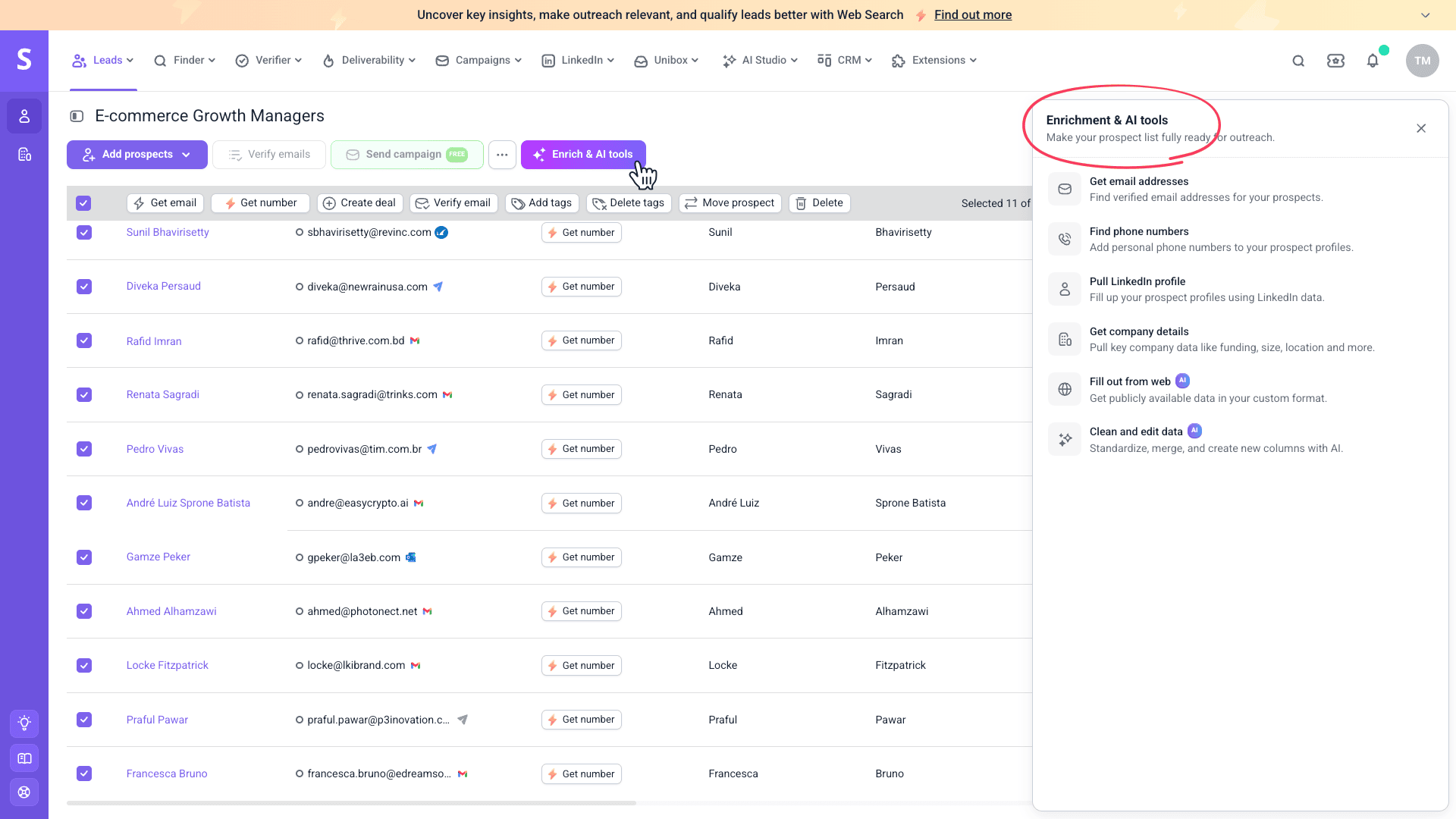
For most enrichment tools, like Get company details, Snov.io automatically adds new columns to store the results.
For AI-based tools, like Fill out from web, you choose or create the results column yourself.
Enrichment fields are per-list. The columns with data appear in the prospect list where you ran the tool.
Add or update data
Enrichment fields populate through enrichment tools.
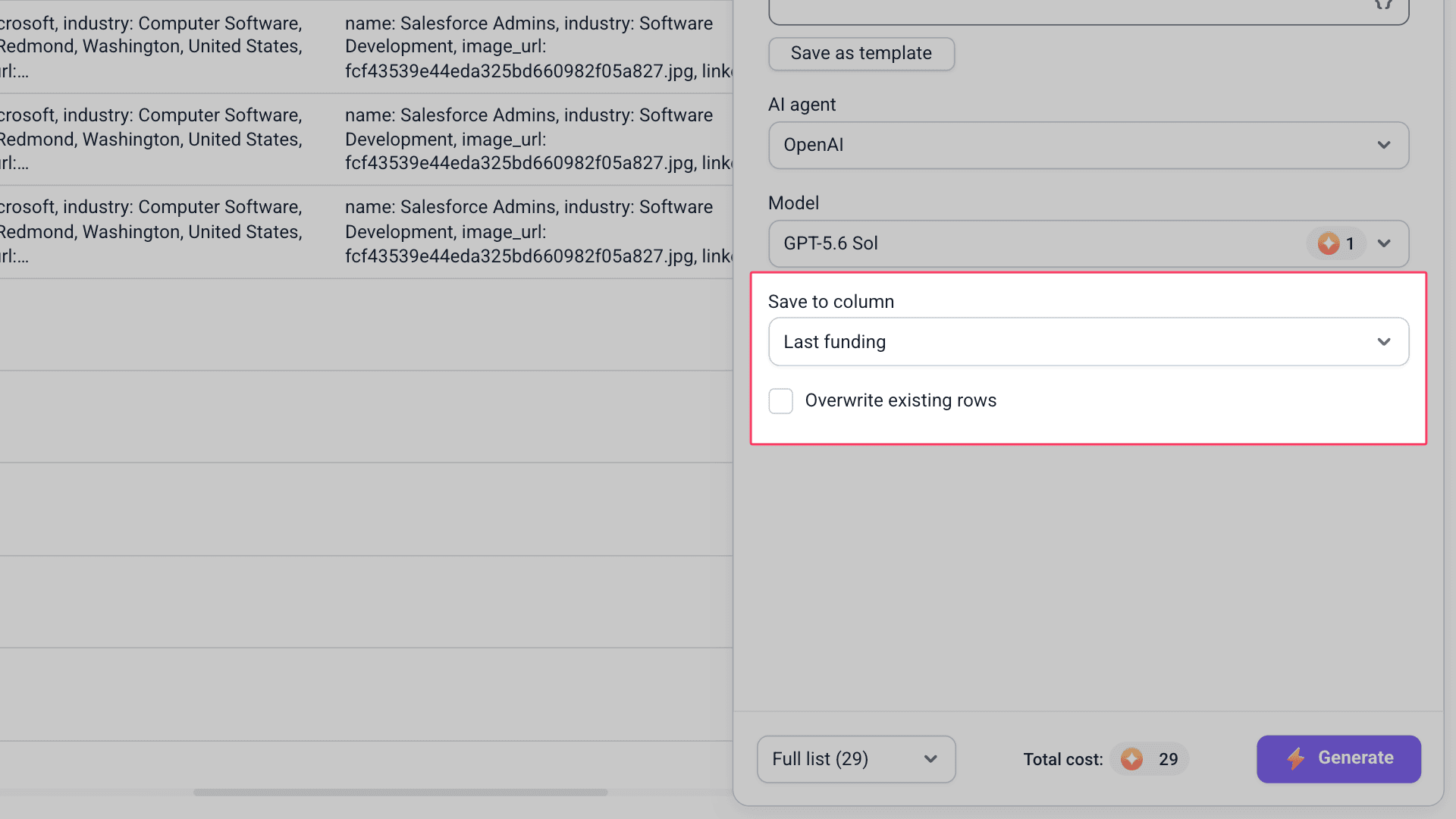
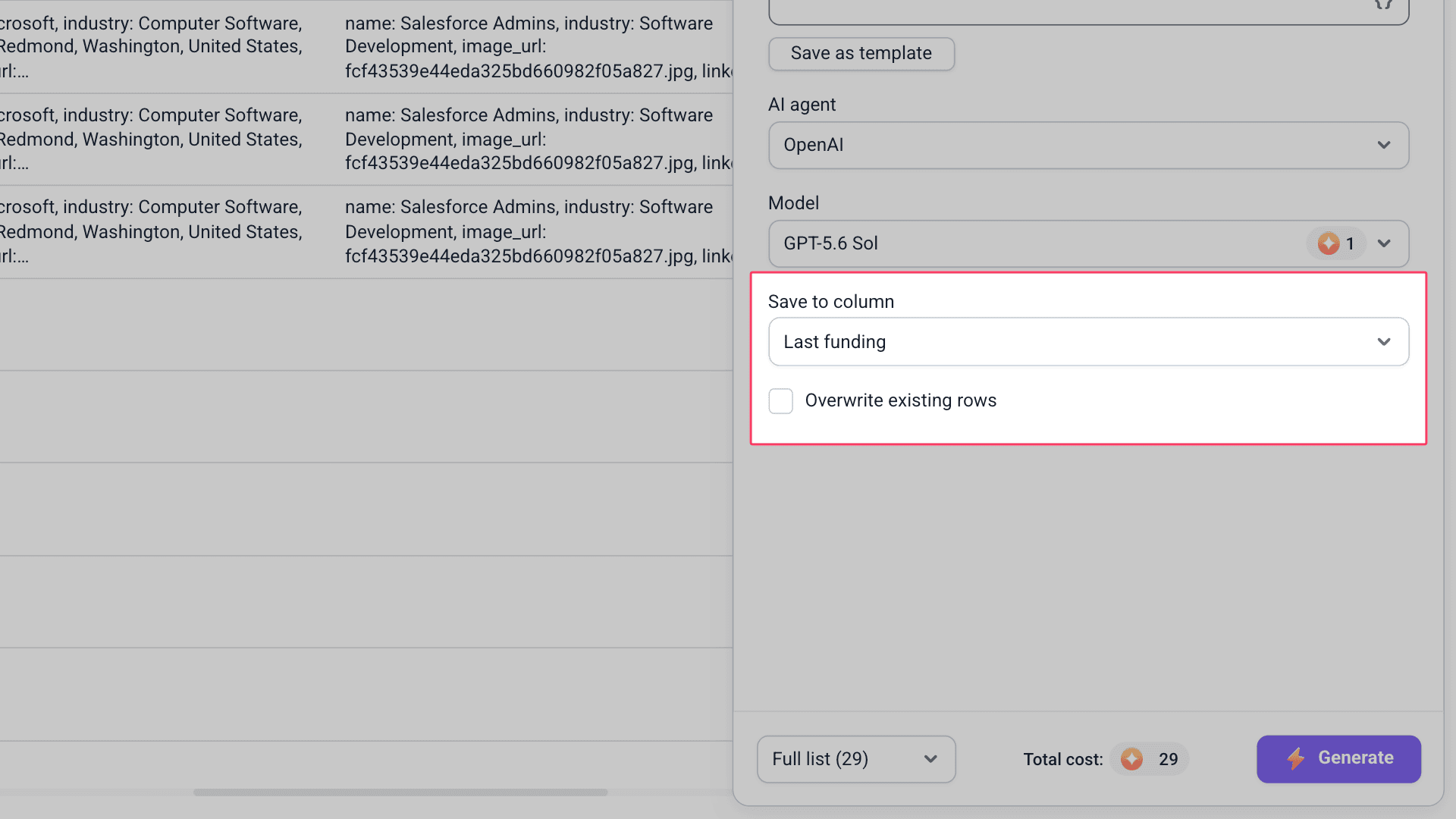
To update previously enriched data, select the same column for results and enable Overwrite existing rows. This replaces the existing data with fresh results.
You can also change values in enriched columns manually. To edit a field for a specific prospect, click Edit icon under the column you need in your prospect list.
What you can enrich
Enrichment fields can contain a wide range of data, depending on the tool:
- Email addresses: verified addresses from our data providers
- Phone numbers: direct numbers from our data providers
- LinkedIn profile: bio, department, experience, and other professional insights
- Company details: description, location, industry, employee count, and more
- Web search: insights from public data like news, events, or interviews
- Clean and edit: improved source data
Using enriched data
Enriched data appears in each prospect's profile and in your lists. Here's how you can work with this data next:
- Insert them into emails and LinkedIn messages using personalization variables
- Export them to CSV or Google Sheets
- Reference them in enrichment variables for AI tools
Data column types
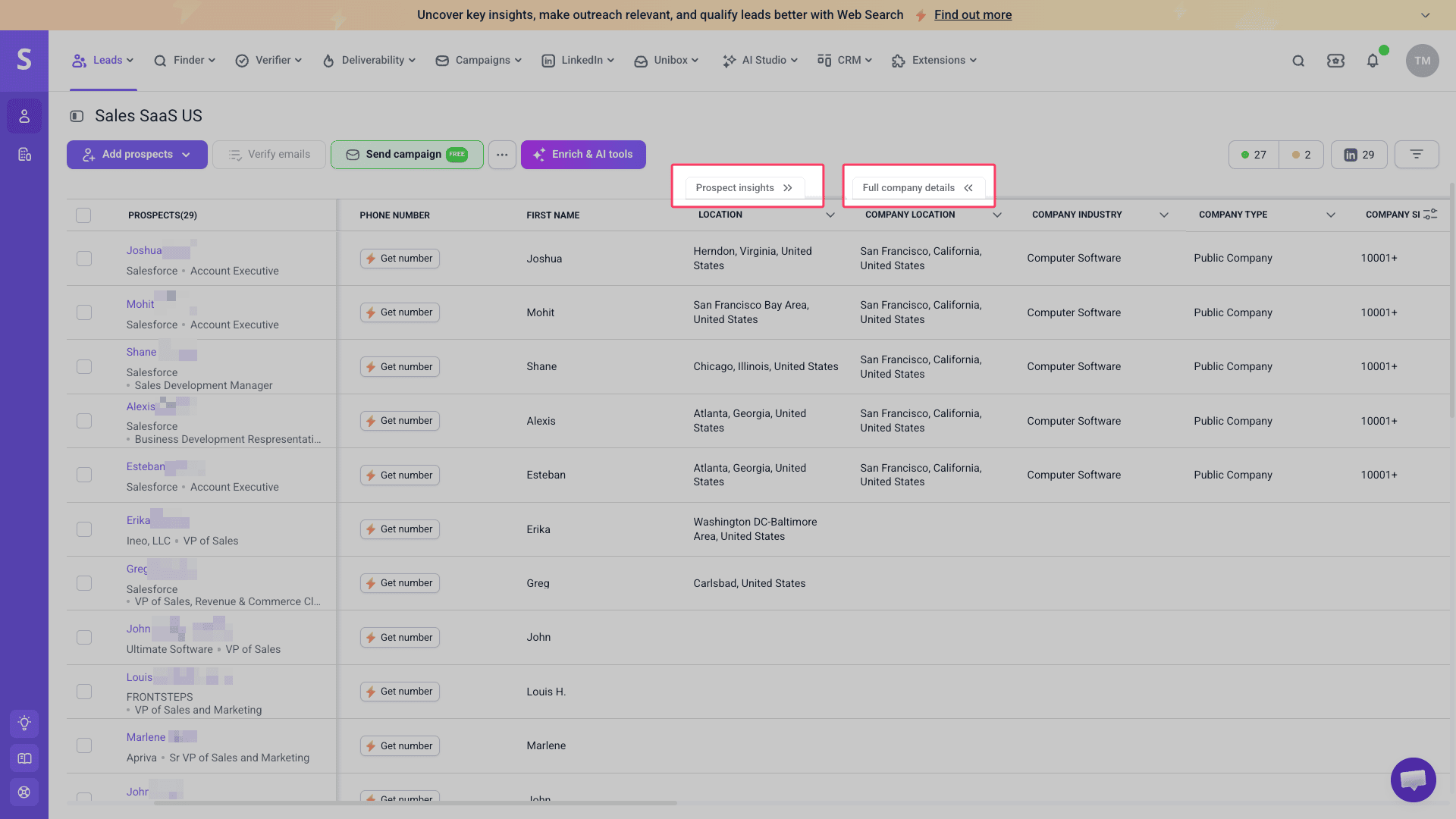
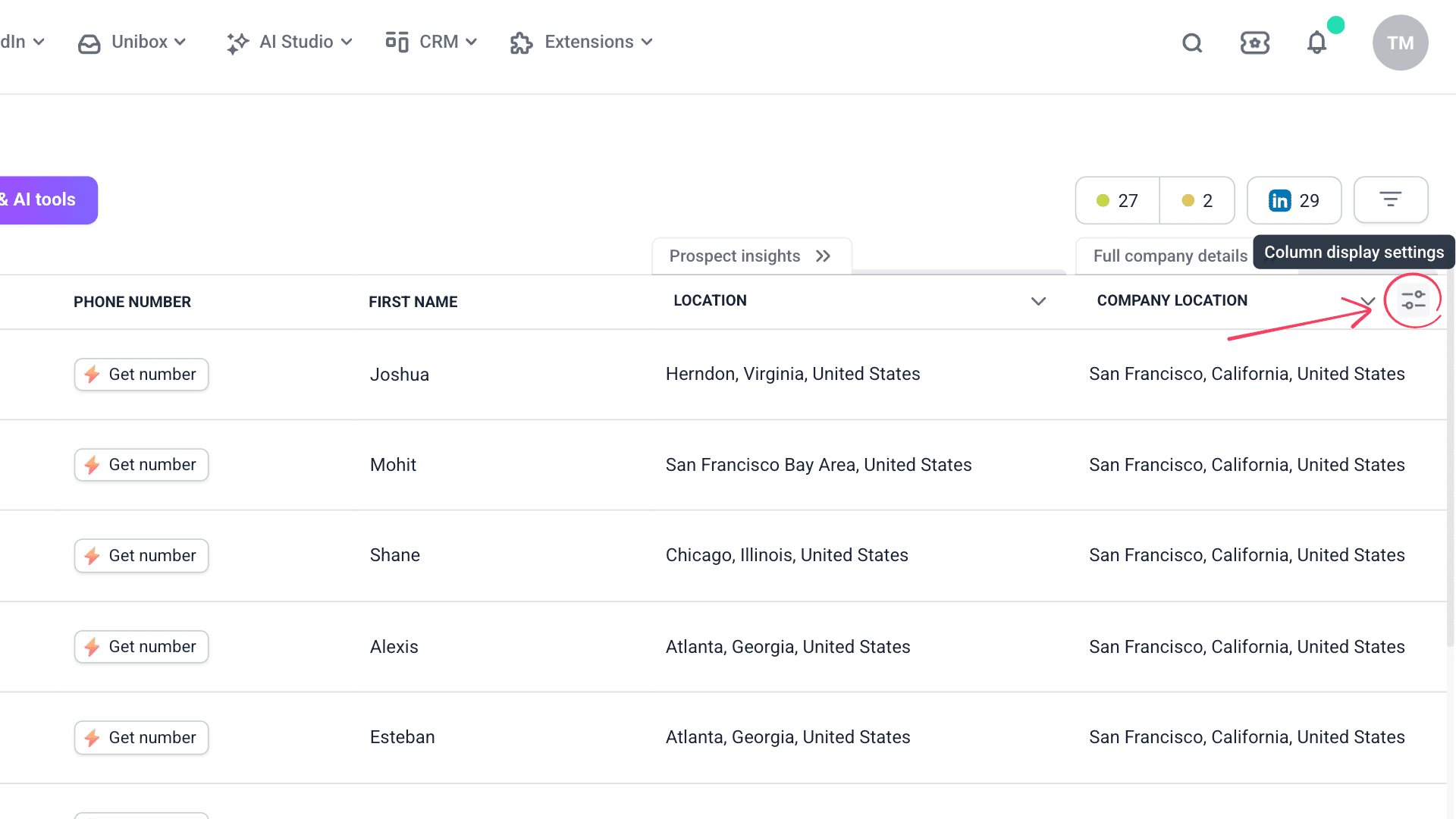
The prospect list displays data in columns, like a spreadsheet. Each column maps to a field type: native, custom, or enrichment.
Columns are classified as single or bulk, based on how many values they store per prospect.

Other column types
Not all columns store prospect data. Some are informative, used to organize and manage your list.
- Date added: when the prospect was added to your list. Useful for sorting by recency
- Tags: custom labels you create to categorize prospects by priority or campaign. Use tags to filter and segment your list
- Deals: shows if the prospect is linked to a CRM deal, so you can track their stage in your sales pipeline
Single columns
A single column stores one value per prospect. Native or custom fields are always stored in single columns. Some enrichment results are too.
- Native fields: Full name, Email, Phone number, Job title, Location
- Custom fields: any value you add manually or import
- Enrichment fields: Department, Company size (employee range), and results from running AI tools
Bulk columns
A bulk column stores multiple values per prospect.
Enrichment fields often contain a list of records, each with its own set of fields, rather than just one value. For example, a full work history with multiple positions.
- LinkedIn profile data: Experience, Education, Certifications, Courses, Volunteering, Projects, Languages
- Company details: Similar companies, Affiliated companies, Company funding
To view full data from a bulk column, click Show more to expand it.
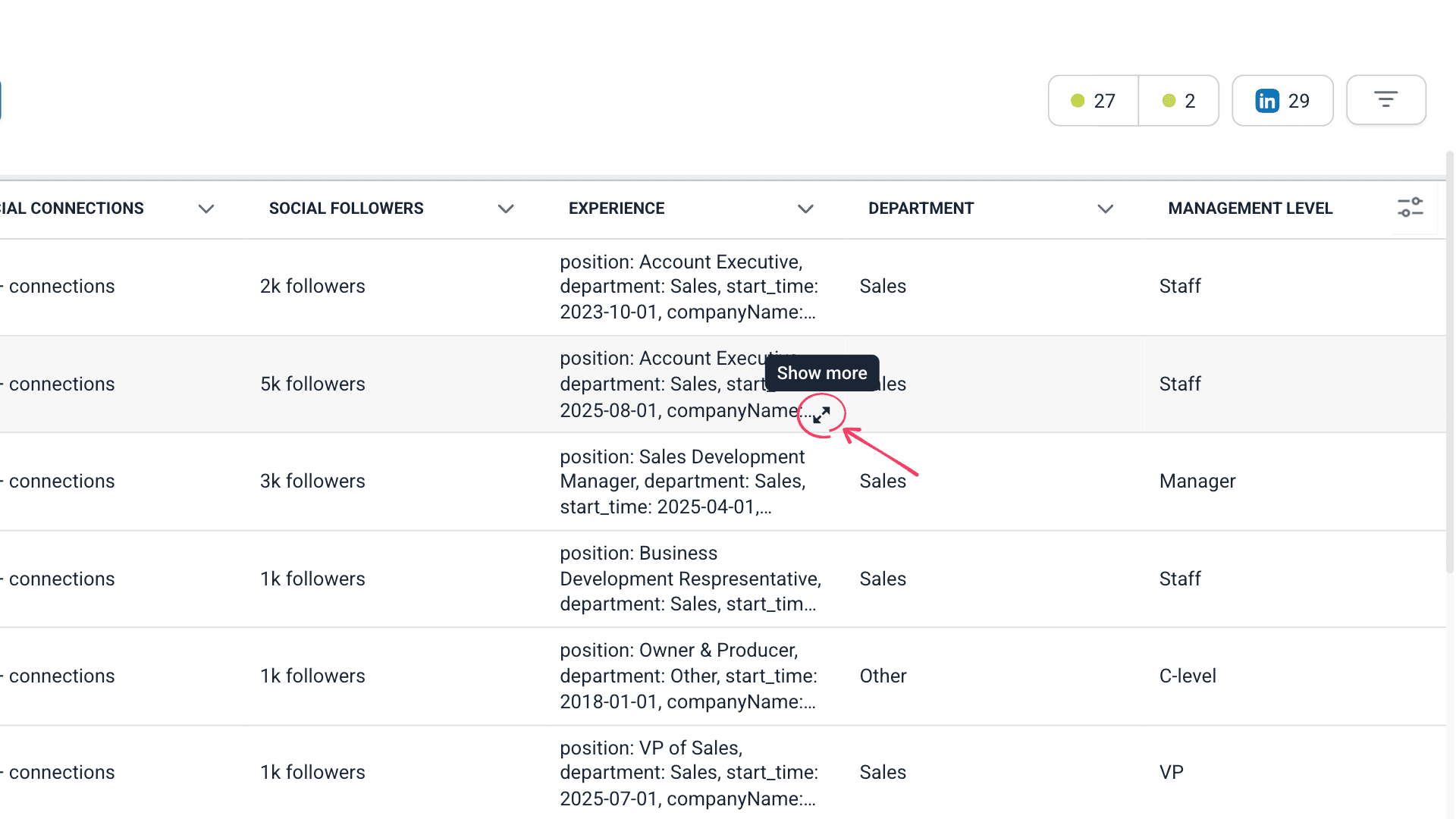
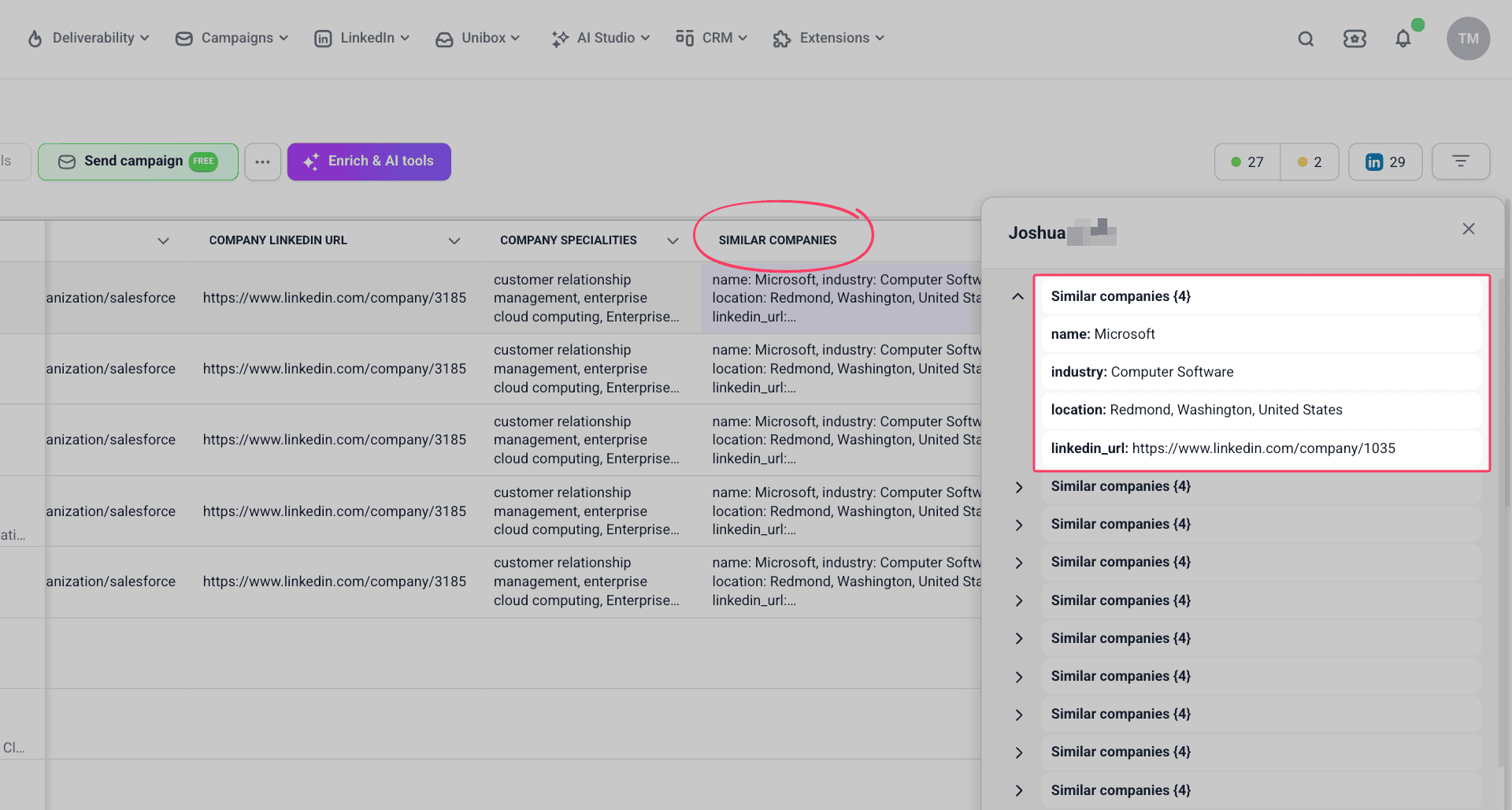
Let's break down these examples.
Experience is a bulk column that contains multiple values (employment history). Each value (work record) contains its own fields, like position and company name.
Similar companies is a bulk column that contains multiple values (multiple companies). Each value (company) contains its own fields, like name, industry, and location.
How column type affects usage
You can use data from both bulk and single columns in:
- Enrichment variables in AI tools
- Personalization variables in email or message templates
Extract data from bulk columns
Using a bulk column directly in a variable isn't always necessary or efficient.
Manual way: Create a new column using the prospect list interface
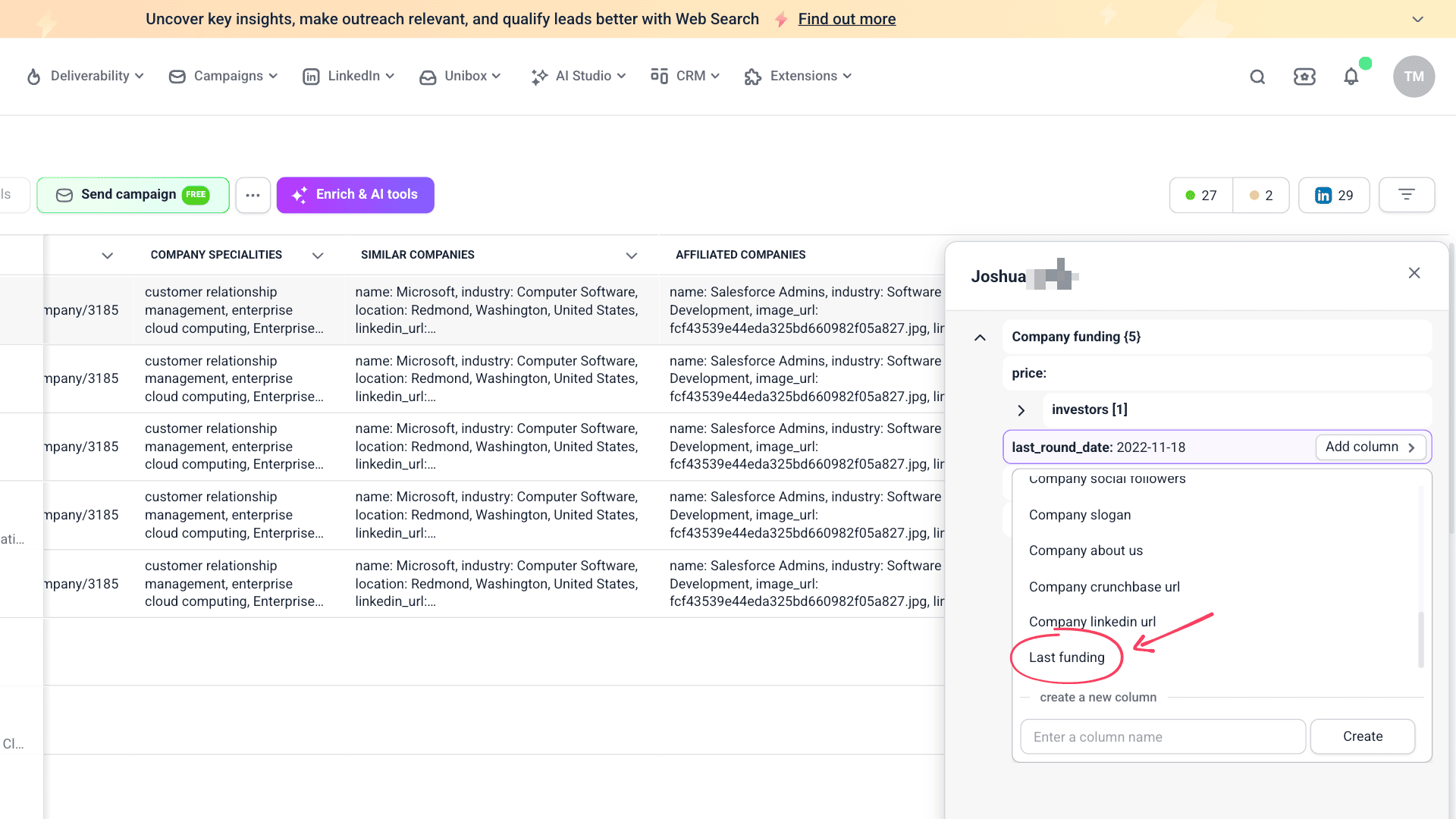
Go to your prospect list and find the column you need on the right. Click Show more to open its full data.
Any value it contains can be moved into a separate column. Hover over the value and click Add column.
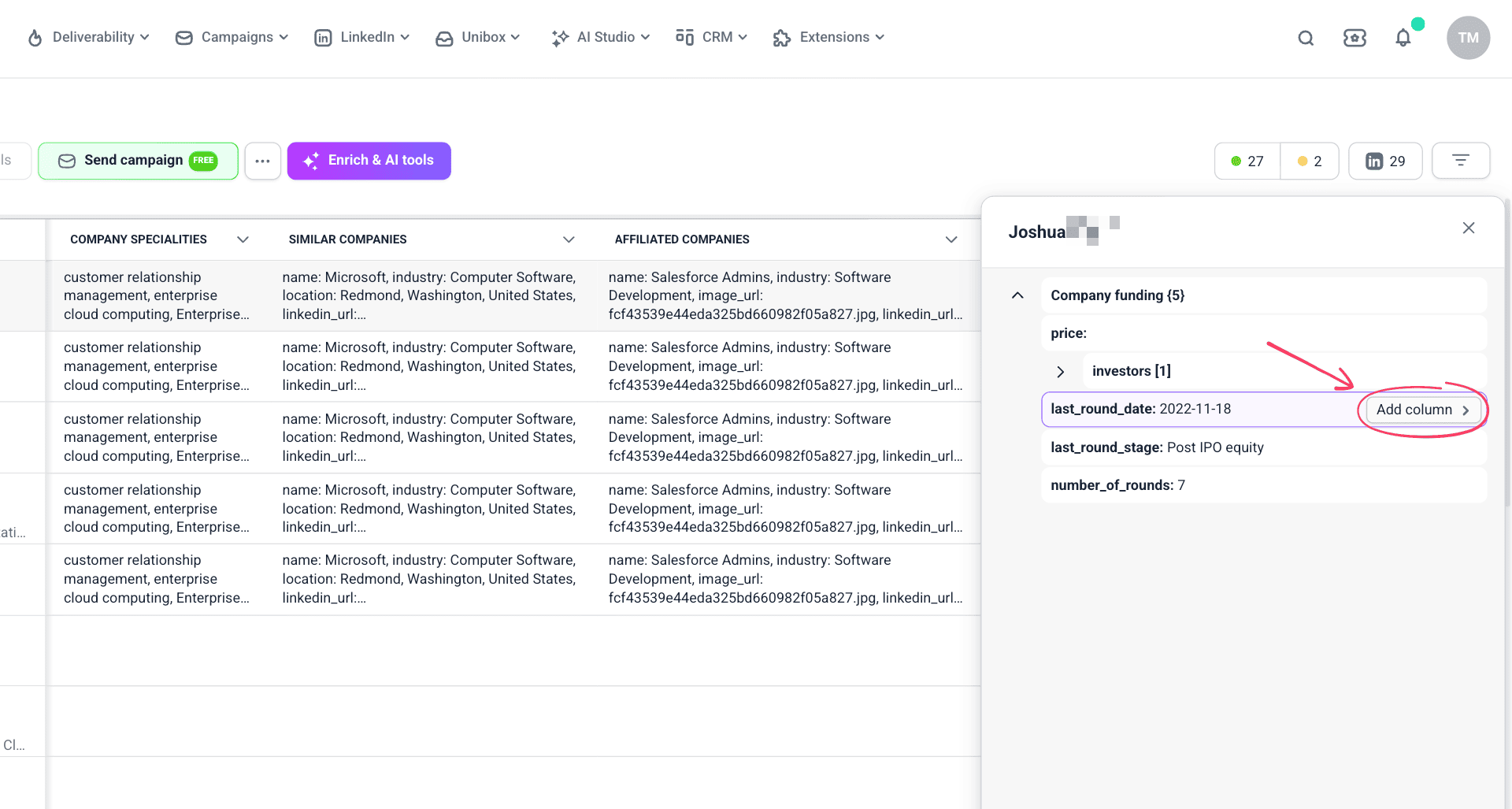
Create a new column to store this data, then select it from the list to fill it in.
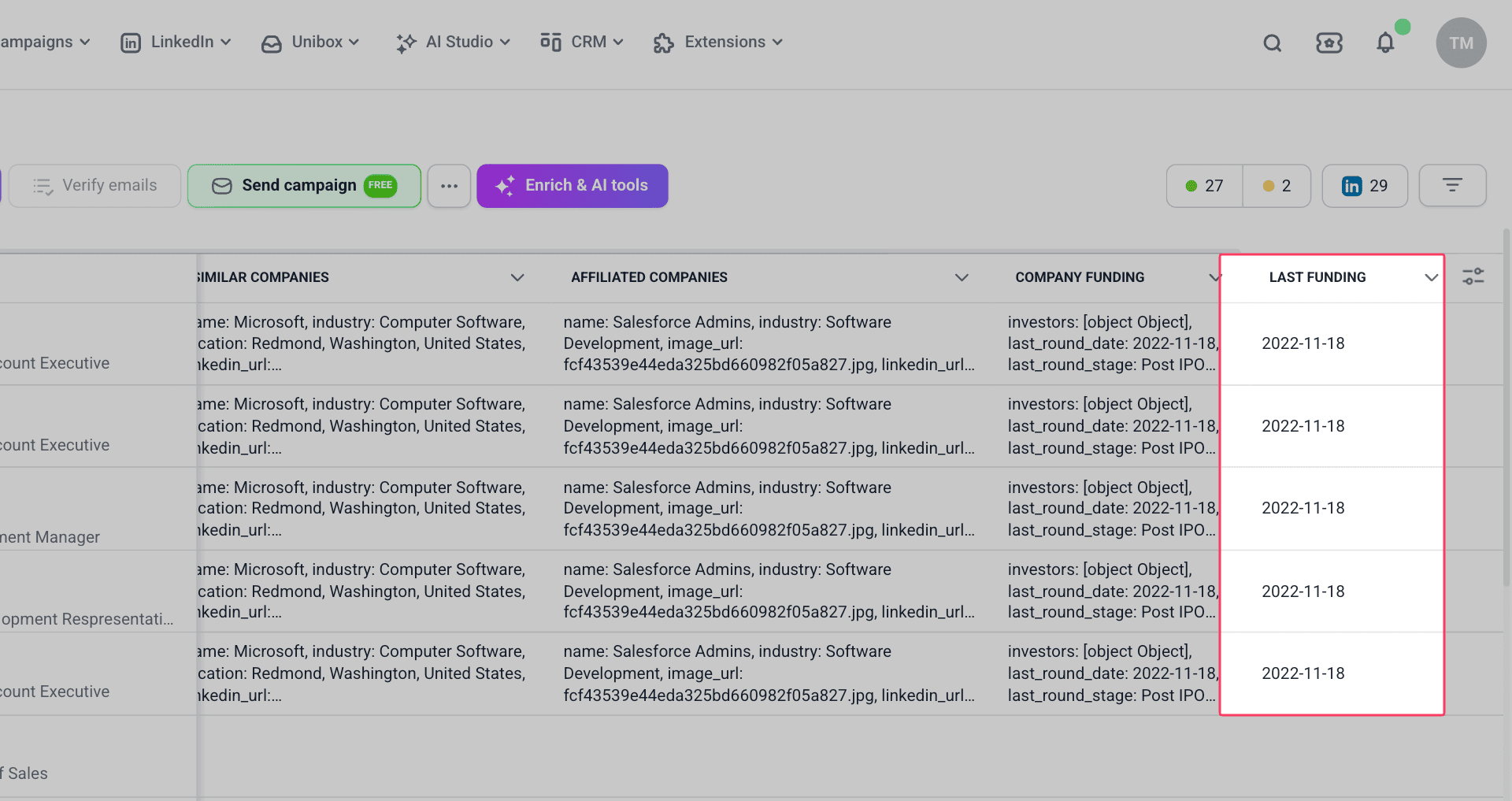
Data moves to this separate column for all prospects automatically. Find it in your list on the right.
Automatic way: Use the Clean and edit enrichment tool
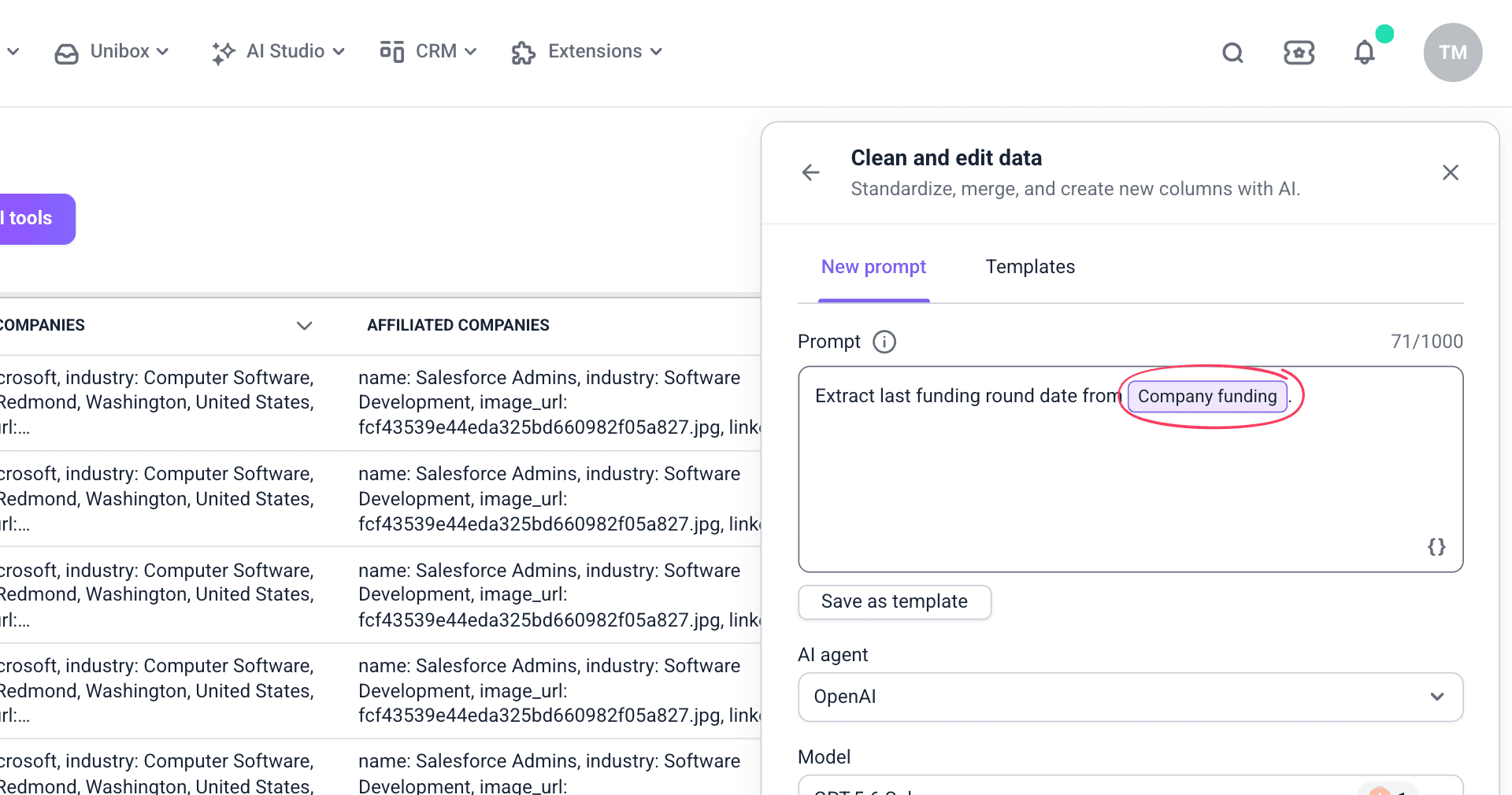
Go to your prospect list and click Enrich & AI tools → Clean and edit.
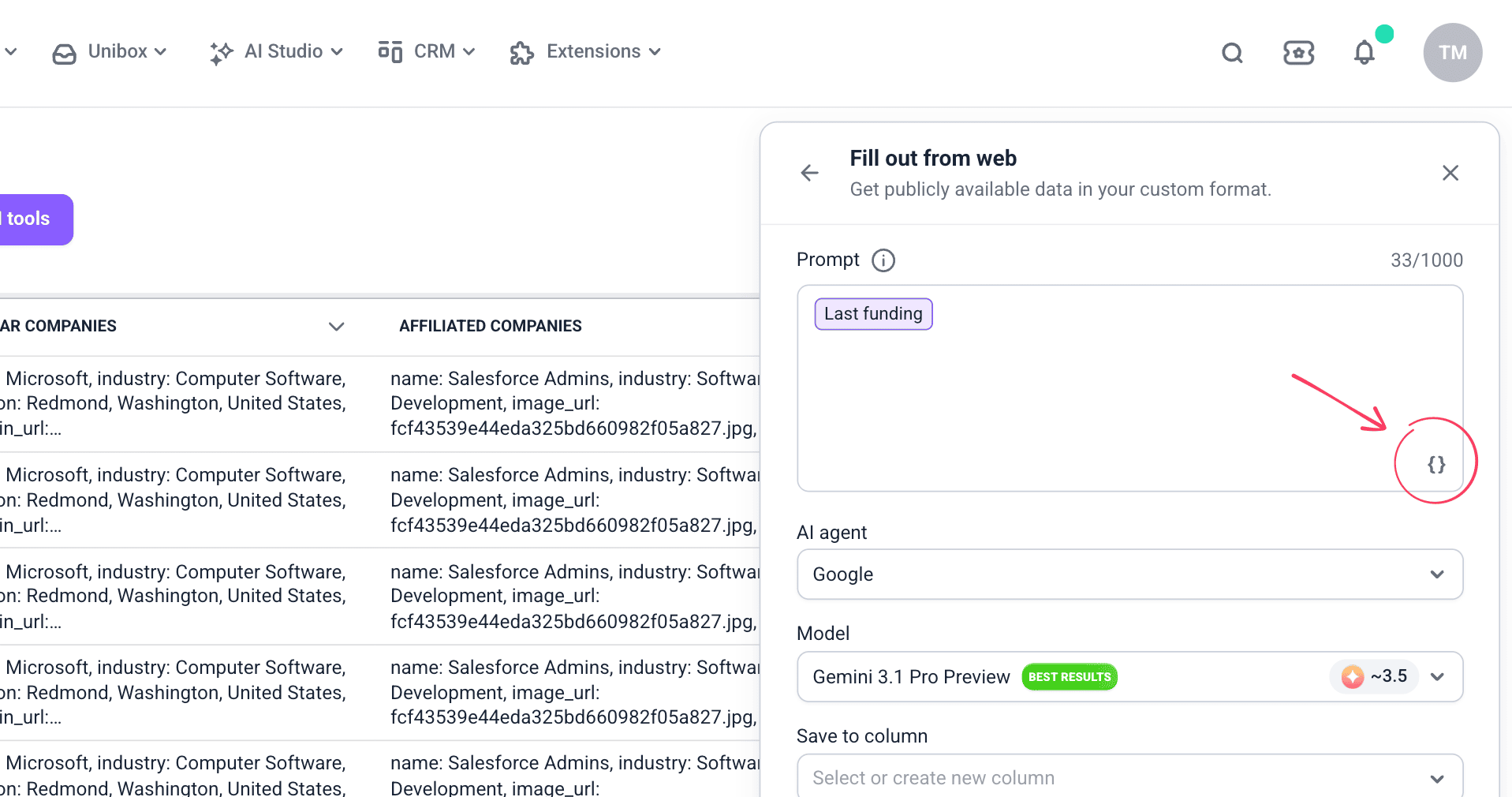
Describe what data to extract. Type {{ }} or click the {} icon to add the bulk column you need as a variable, for example, {{Company funding}}.
Under Save to column, create a new column to store the extracted data.
Data moves to this separate column for all prospects automatically. Find it in your list on the right.
Next steps with extracted data
Here's what you can do with this data:
Use it in enrichment variables
Reference this column as a variable in other enrichments to access its value directly.


Sorry about that 😢
How can we improve it?