Use this checklist to find out why your active campaign isn't sending emails and how to fix it.
What a campaign needs to send emails
Check the email account connection
Check the schedule and timezone
Check the mailbox sending limit
Check the campaign daily limits
Check campaign priority and shared mailboxes
Check your plan recipient limit
When to wait and when to contact support

Before you start. Keep these pages open while you go through the checklist:
1) The campaign. Its status and the Sending options step in the campaign editor
2) Email accounts. The sender accounts the campaign uses
3) Billing. Your plan's recipient usage
What a campaign needs to send emails
The Active status means the campaign is running. It doesn't mean an email goes out right away. Each email is sent only when all of these conditions are true at the same time:
- The campaign status is Active
- The sender email account is connected and works
- The current time is inside the campaign schedule
- The mailbox hasn't reached its daily sending limit
- The campaign hasn't reached its own daily limits
- No higher-priority campaign is using the same mailbox's limit
- Your plan has recipients left
For example, a campaign launched at 8 PM with a 9 AM to 5 PM schedule stays on hold until 9 AM the next working day. If one condition isn't met, the campaign waits. The checks below follow the same order.
Quick checklist
Use this table to go through each check fast. Each row links to a detailed section below.
| Check | Where to look | What blocks sending |
|---|---|---|
| Campaign status | Campaign list, Status column | The campaign is Active (On hold), Scheduled, Paused, or Automatically paused |
| Email account connection | Email accounts | The account is disconnected or shows a connection error |
| Schedule and timezone | Campaign editor > Sending options > Schedule | The current time in the schedule's timezone is outside the active days or hours |
| Mailbox sending limit | Email accounts > Sent column, or Edit > Daily sending limit | The mailbox already sent its daily number of emails |
| Campaign daily limits | Campaign editor > Sending options > Advanced settings | The campaign or its new recipients reached the daily limit |
| Priority and shared mailboxes | Campaign editor > Sending options > Advanced settings | Other campaigns on the same mailbox have higher priority or used the limit first |
| Plan recipient limit | Billing | No recipients are left in the current billing period |
1. Check the campaign status
Start with the campaign status in your campaign list. It often shows the reason right away.
- Active. The campaign is sending within its schedule; if no emails go out, continue with the checks below
- Active (On hold). The campaign is waiting for its sending window to open; it starts sending when the schedule allows, so check the schedule and timezone
- Scheduled. The campaign is set to start at a later date or time and turns Active then
- Paused. Someone paused the campaign manually; change its status to Active to resume sending
- Automatically paused. Snov.io paused the campaign because its bounce rate went over 15%
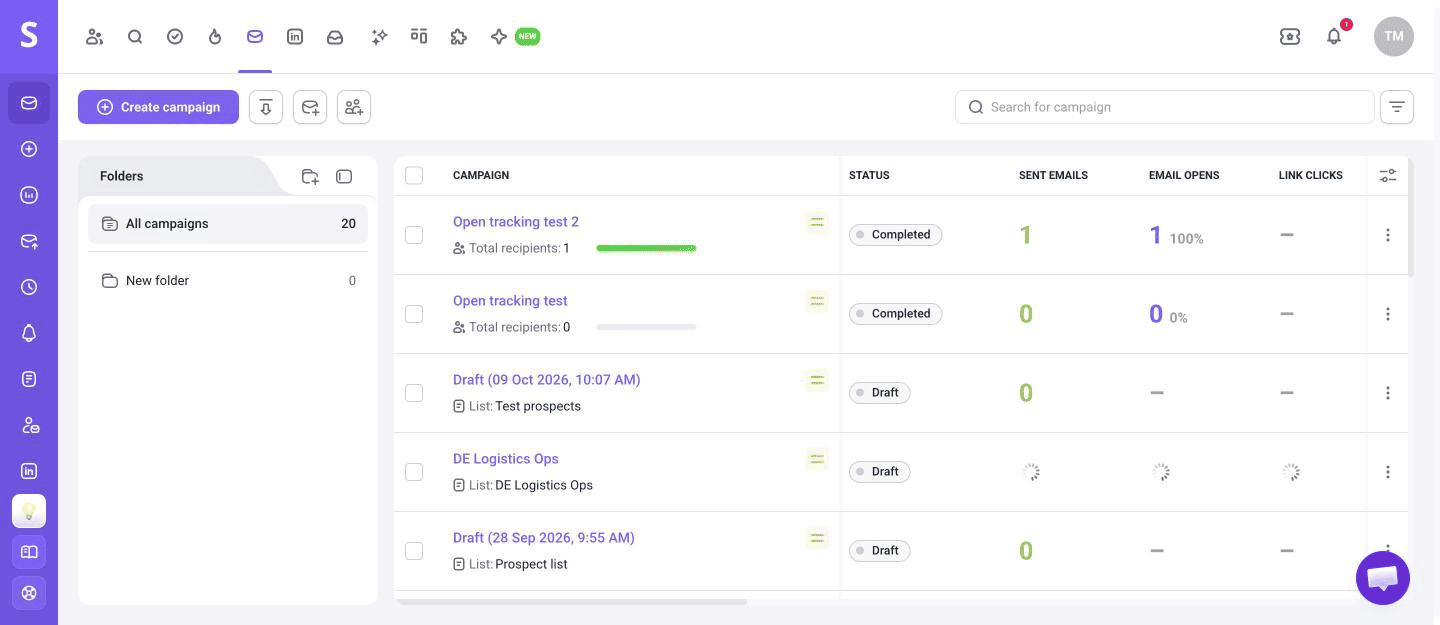

First, fix the cause of the high bounce rate, as described in this guide. Then ask the Customer Care team in the live chat to reactivate the campaign. To learn what each status means, read this guide.
2. Check the email account connection
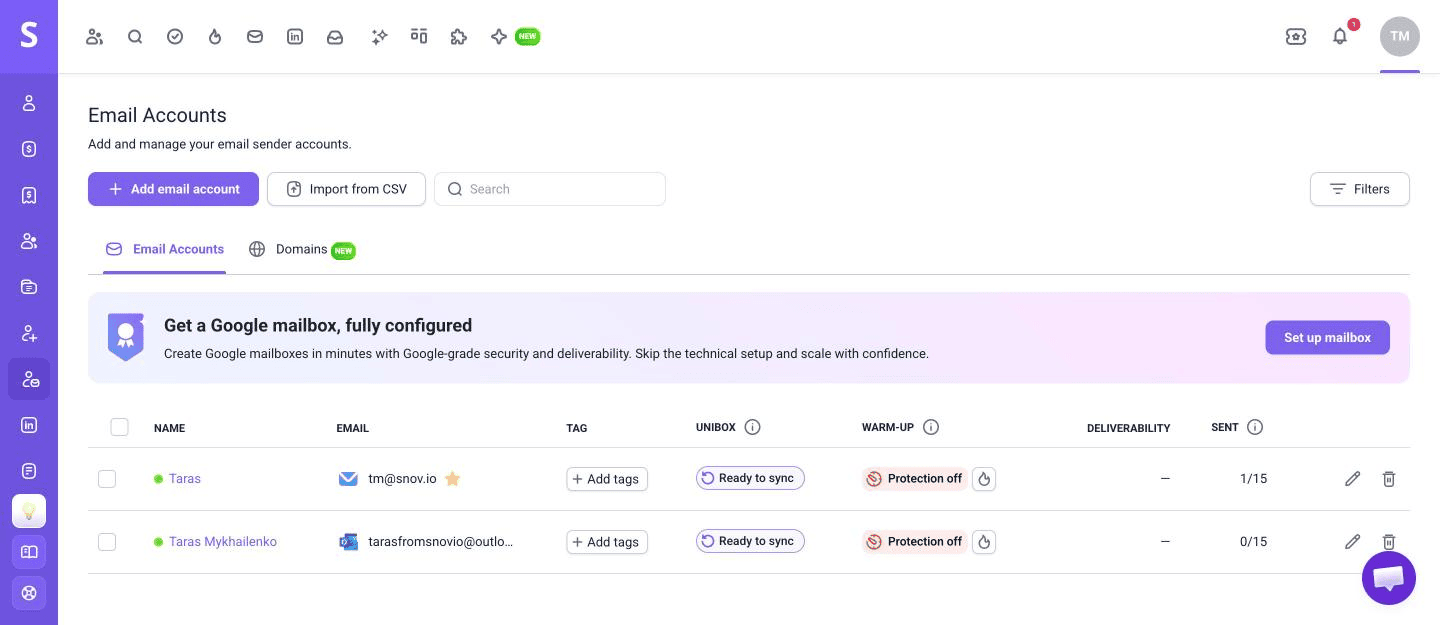
A campaign can only send from an email account that is connected and works. If the connection breaks, for example after a password change or an expired authorization, the campaign stops sending from that account.
Open Email accounts and find the sender account the campaign uses. A green dot next to the account name means the account is connected. If it shows a connection error, reconnect the account and the campaign resumes sending from it.
Also check that the campaign has at least one sender account. Open the campaign editor, go to Sending options, and look at the Email accounts section.
3. Check the schedule and timezone
A campaign sends emails only during the days and hours set in its schedule. If you launch it outside these hours, the campaign gets the Active (On hold) status and starts when the next active window opens.
The schedule uses its own timezone, not your computer's time. For example, a schedule set to 9 AM to 5 PM in New York time won't start sending until 4 PM in Kyiv.
To check the schedule:
- Open the campaign editor and go to Sending options
- In the Schedule section, see which schedule the campaign uses
- Check the Time zone of that schedule and the active days and hours
- Compare them with the current time in that timezone
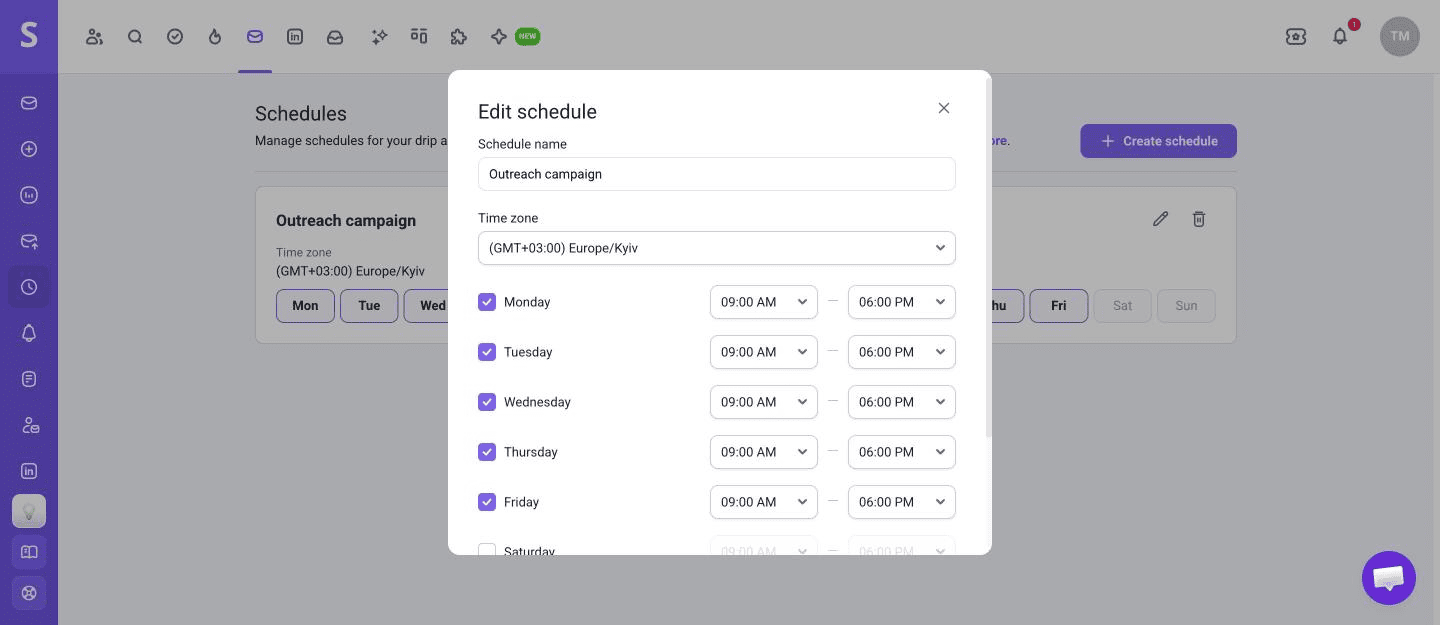
If the schedule needs a change, edit it on the Schedules page. Changes to a schedule apply to every campaign that uses it. To learn how to create or change a schedule, read this guide.
4. Check the mailbox sending limit
Each email account has a daily sending limit set in Messages per day. When the mailbox reaches it, all campaigns that use this mailbox pause until the limit resets. The limit counts emails sent from campaigns and from prospect profiles.
To check the limit, open Email accounts, click the Edit icon next to the account, and expand Daily sending limit under Optional settings. The Sent column on the Email accounts page also shows how many emails the account sent today out of its limit.
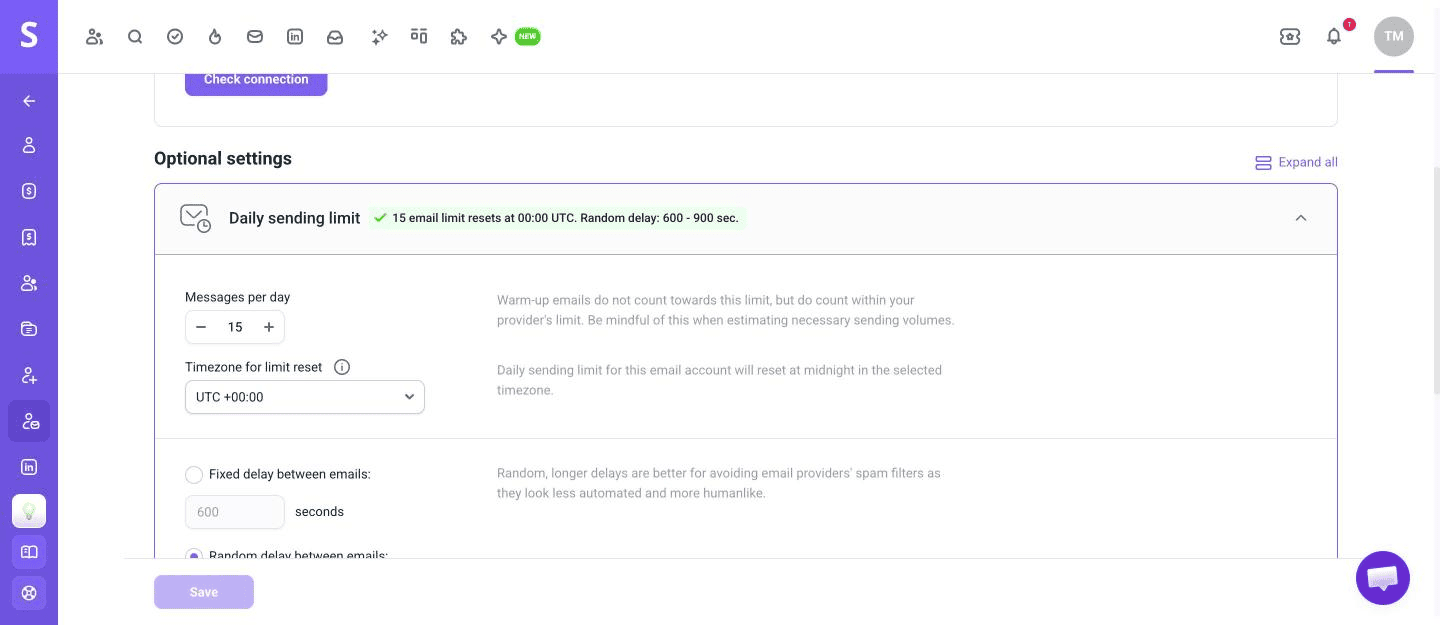
Look at these settings:
- Messages per day. If the mailbox already sent this number of emails today, sending continues after the reset
- Timezone for limit reset. The limit resets once a day, at 00:00 UTC by default, so a reset late in your schedule can leave little time to send
- Fixed delay between emails or Random delay between emails. The delay is 600 to 900 seconds (10 to 15 minutes) by default, so a short schedule window may end before the mailbox sends its full limit
For example, with the default interval, 30 emails take about 6 hours to send. If the schedule allows only 2 hours a day, the mailbox sends about 10 emails.
5. Check the campaign daily limits
Besides the mailbox limit, each campaign can have its own daily limits. They are in the campaign editor, in the Sending options step, under Advanced settings.
- Campaign daily sending limit. Caps how many emails this campaign sends per day from the shared mailbox limit; once reached, the campaign waits until the next day
- New recipients daily limit. Caps how many new leads get the first email each day; once reached, the rest of the daily limit goes to follow-ups and other new leads wait until the next day
If a campaign sends a few emails and then stops for the day, a low campaign limit is a common reason. Raise the limit or wait for the next day.
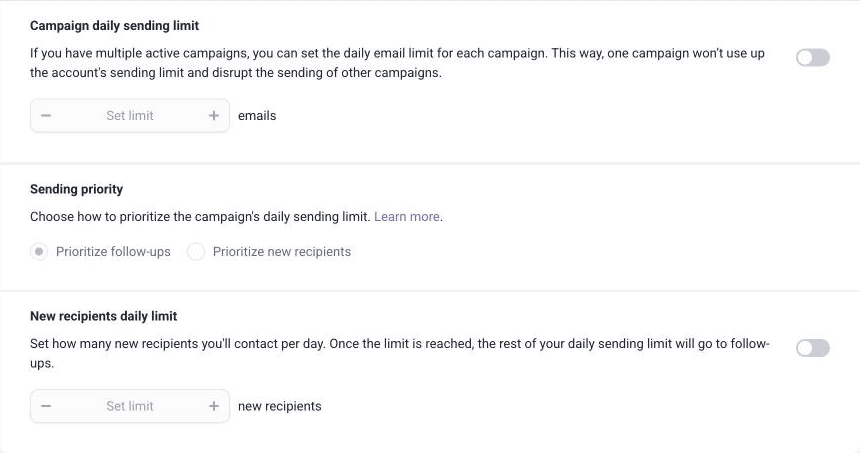

If new recipients don't get their first email, check this setting in the same section. Follow-ups may be using the whole daily limit.
6. Check campaign priority and shared mailboxes
All campaigns that send from the same email account share its daily sending limit. If another campaign uses this mailbox, it may use the whole limit before your campaign gets a turn.
Campaign priority decides which campaign sends first. You can set it to High, Medium, or Low in Advanced settings. A campaign with Low priority starts sending only after campaigns with higher priority finish.
To check it:
- Find all active campaigns that use the same sender account
- Compare their priority settings
- Raise the priority of the campaign that needs to send first, or lower the others
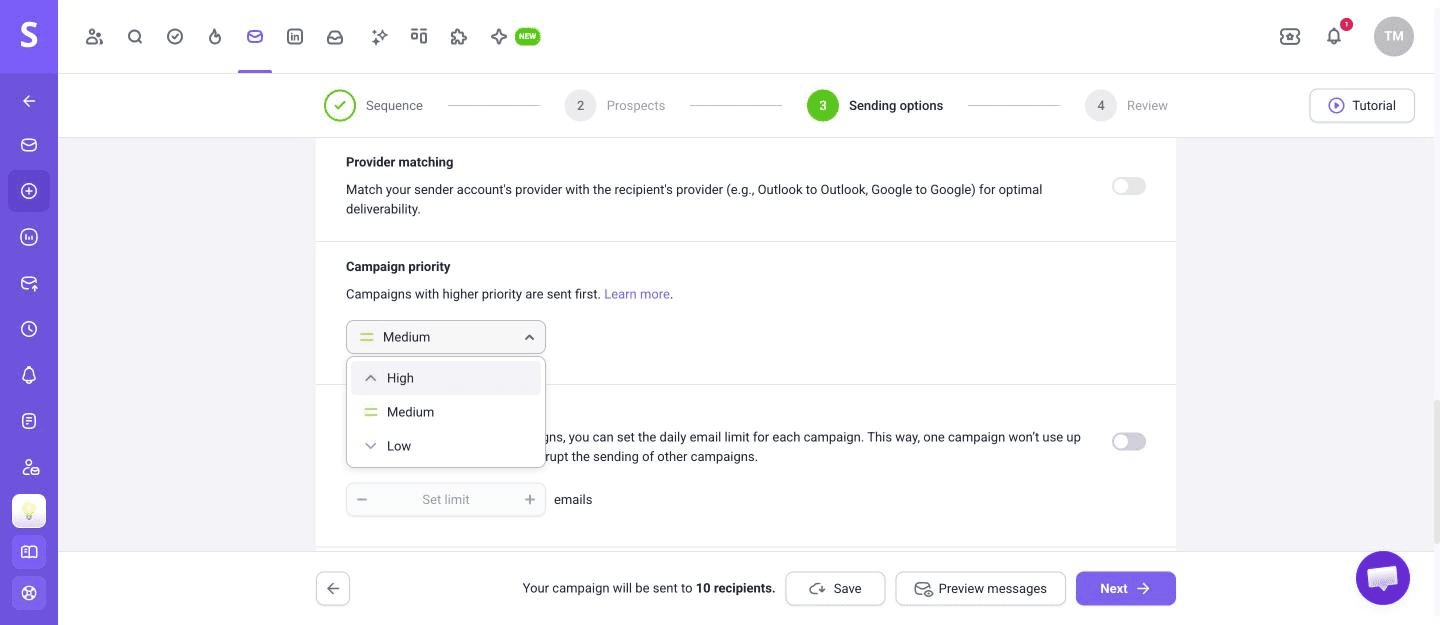
All campaigns have Medium priority by default, so they share the limit equally. To learn more about priority settings, read this guide.
7. Check your plan recipient limit
Your plan includes a set number of recipients per billing period. One recipient is used when you contact a prospect for the first time. If your account runs out of recipients, the whole campaign pauses until the limit resets or you upgrade your plan.
Open Billing and check Recipients used to see how many recipients you have left. Limits reset in shows how many days are left until the limit resets.
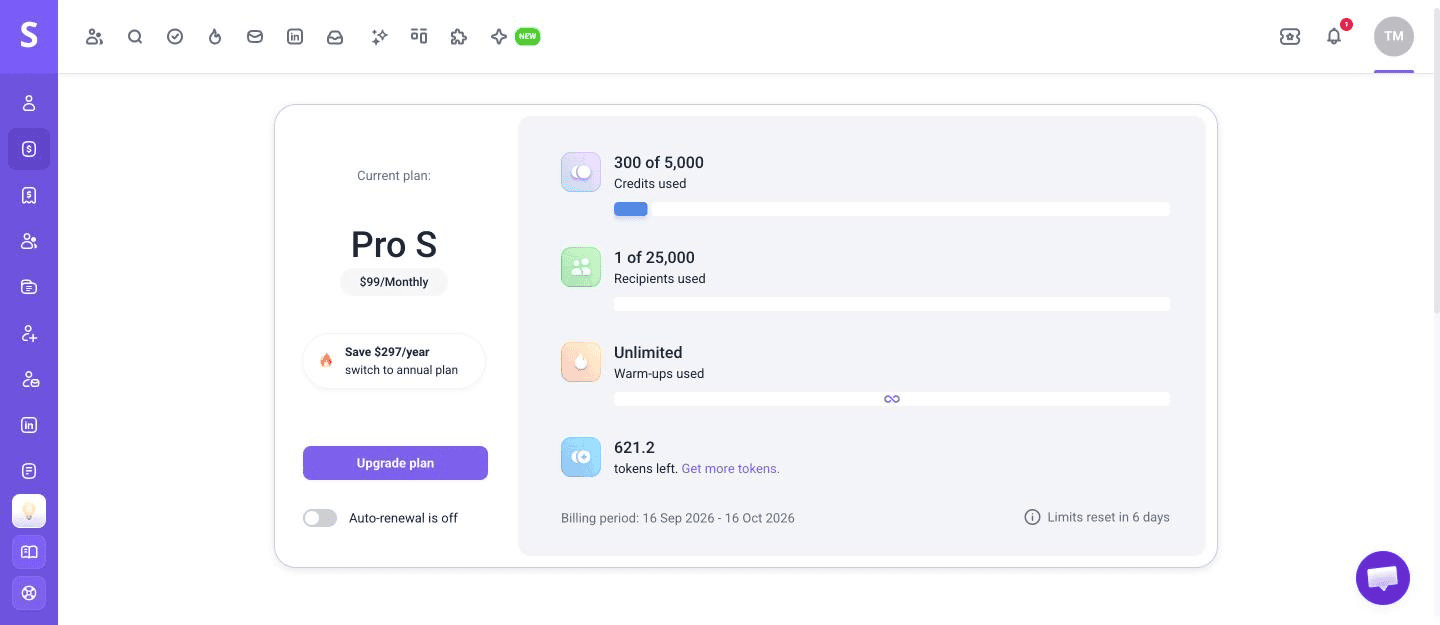
To learn how recipients are counted, see this guide.
When to wait and when to contact support
Emails don't go out right when a campaign starts or a schedule window opens. The first email can take up to one sending interval to go out. With the default settings, that's 10 to 15 minutes.
Wait if:
- The campaign has the Active (On hold) or Scheduled status
- The schedule window opened less than one sending interval ago
- The mailbox, campaign, or new recipients limit is reached for today
- A higher-priority campaign is still sending from the same mailbox
Contact support if all of these are true and the campaign still hasn't sent a single email:
- The campaign has the Active status
- The email account is connected without errors
- The current time is inside the schedule window
- More than one sending interval has passed since the window opened
- No mailbox or campaign limits are reached
- Your plan has recipients left
Write to help@snov.io or use the live chat. Include the campaign name, the sender email address, and a screenshot of the campaign status. This helps the team find the cause faster.


Sorry about that 😢
How can we improve it?