This guide explains how to add LinkedIn to your outreach safely using LinkedIn Automation in Snov.io. You’ll learn how to prepare your LinkedIn profile, set safe automation limits, build a campaign sequence, and monitor results.
Snov.io Campaigns let you combine email and LinkedIn actions in one sequence to reach your audience through both channels.
Do not skip the safety steps, especially if this is your first time using automated LinkedIn outreach.
Step 1. Prepare your accounts
Prepare your LinkedIn profile and connect the sender accounts you’ll use for outreach.
Optimize your LinkedIn profile
Before starting automation, make sure your LinkedIn profile looks complete.
New or empty profiles need extra preparation to avoid blocks or restrictions from LinkedIn. Fill in your profile, add a headline, include relevant experience, and update your About section.
If your account has been inactive for a while, do some manual activity first: publish and comment on posts, and connect with people from your industry.

Improve your SSI score
Social Selling Index (SSI) is one of LinkedIn’s key metrics. It reflects how well your profile is positioned for building professional relationships.
Snov.io automatically tracks the SSI of each connected account. Check your current score in your LinkedIn account settings. As you run outreach, monitor your SSI to know when it’s safe to raise your daily limits.
Connect LinkedIn accounts
Snov.io supports LinkedIn accounts of any type: free, Premium, or Sales Navigator. Automation can work with a basic free account, while Sales Navigator gives you more advanced search filters for finding relevant contacts.
Snov.io adds a location-based proxy to each LinkedIn account you connect. To set up your LinkedIn account safely, follow this guide.
If you’re just starting out or sending small campaigns, one account is enough. If your planned volume is around 100 requests per week, one profile should be enough. If you plan to send 200–300 requests per week, you may need two or three profiles to distribute the activity.
Step 2. Build your contact list
For LinkedIn outreach to stay safe and effective, your audience should be relevant to the profile doing the outreach. Sending requests to unrelated contacts can be seen as spamming.
Collect contacts for LinkedIn outreach
Group contacts based on your campaign goal. There are a few tools in Snov.io you can use to collect and segment contact list:
- My Network: add contacts from your existing LinkedIn connections
- LinkedIn Prospect Finder extension: find and save contacts directly from pages like company employees or event attendees
- LinkedIn Search: search for contacts by filters like job title, industry, company size, location, and connection degree.
Add a do-not-contact list
Add a Do-not-contact list to automatically exclude specific contacts from the campaign. If a contact’s email address, LinkedIn URL or company website matches an entry on the list, they will be removed from the sequence.
This is useful for excluding unsubscribed contacts, existing customers, duplicate outreach, or competitor employees.
Step 3. Configure safe automation settings
Configure these settings to reduce detection risk and make your outreach safer and more natural.
Set LinkedIn action limits
Connection requests and messages are higher-risk actions because they directly contact people. Profile views, post likes, follows, and endorsements are lower-risk, but they should still stay within safe daily limits.
Recommended LinkedIn limits
Warmed-up, active profiles perform better, but they can still be restricted if you ignore the limits. These limits are our recommendations, not LinkedIn’s official numbers. As a general safety guideline, we recommend:
- Connection requests: up to 30 per day
- Messages: up to 30 per day
- Profile views and likes: up to 30 per day
- Follows: up to 30 per day
Set your LinkedIn action limits and track SSI score in LinkedIn account settings. Keep your daily actions in line with your SSI score to reduce the risk of detection.
As your score grows, increase your limits gradually. Increase one action type at a time instead of scaling connection requests, messages, profile views, likes, and follows all at once.
Read more about safe LinkedIn automation limits in this guide.
Enable profile warm-up
LinkedIn can detect sudden changes in account activity. A warm-up period helps you add automation without causing suspicion.
Enable warm-up mode for connected LinkedIn accounts. Snov.io will gradually increase the number of daily requests so your activity grows at a safer pace.
Use flexible limits
Fixed limit is the default setting for all connected LinkedIn accounts. In this mode, your account performs the same number of actions every day according to your set limit.
If that number exceeds what’s safe for your SSI score, the risk of account restriction increases. LinkedIn can also flag repetitive, predictable activity patterns.
To make your activity look more natural, switch to Flexible limit mode. This randomizes the number of daily actions within the range you set.

To activate flexible limits, use the toggle in your LinkedIn account settings, then set a minimum and maximum range for each action type.
Each day, your account will perform a random number of actions within that range.
See our recommended flexible limits by SSI score.
Step 4. Set up your campaign
Build a multichannel sequence, personalize messages, and configure campaign settings. Combine email and LinkedIn throughout the sequence.
Build your campaign sequence
Create your sequence in the campaign editor. Use LinkedIn actions to build familiarity before sending a direct message or connection request.
Prior engagement flow:
Start your sequence with light engagement actions before direct outreach. This helps the contact recognize your name before you contact them.
View profile: Your name appears in their Who viewed your profile notifications, building familiarity before you reach out.
Like posts: Warm up the prospect by liking their posts. Set it to 2–3 likes per prospect, as it shows you spent some time on their profile. Snov.io likes posts in random order, not one after another, so the activity looks more natural.
For better results, leave a manual comment from their LinkedIn page in Snov.io as well.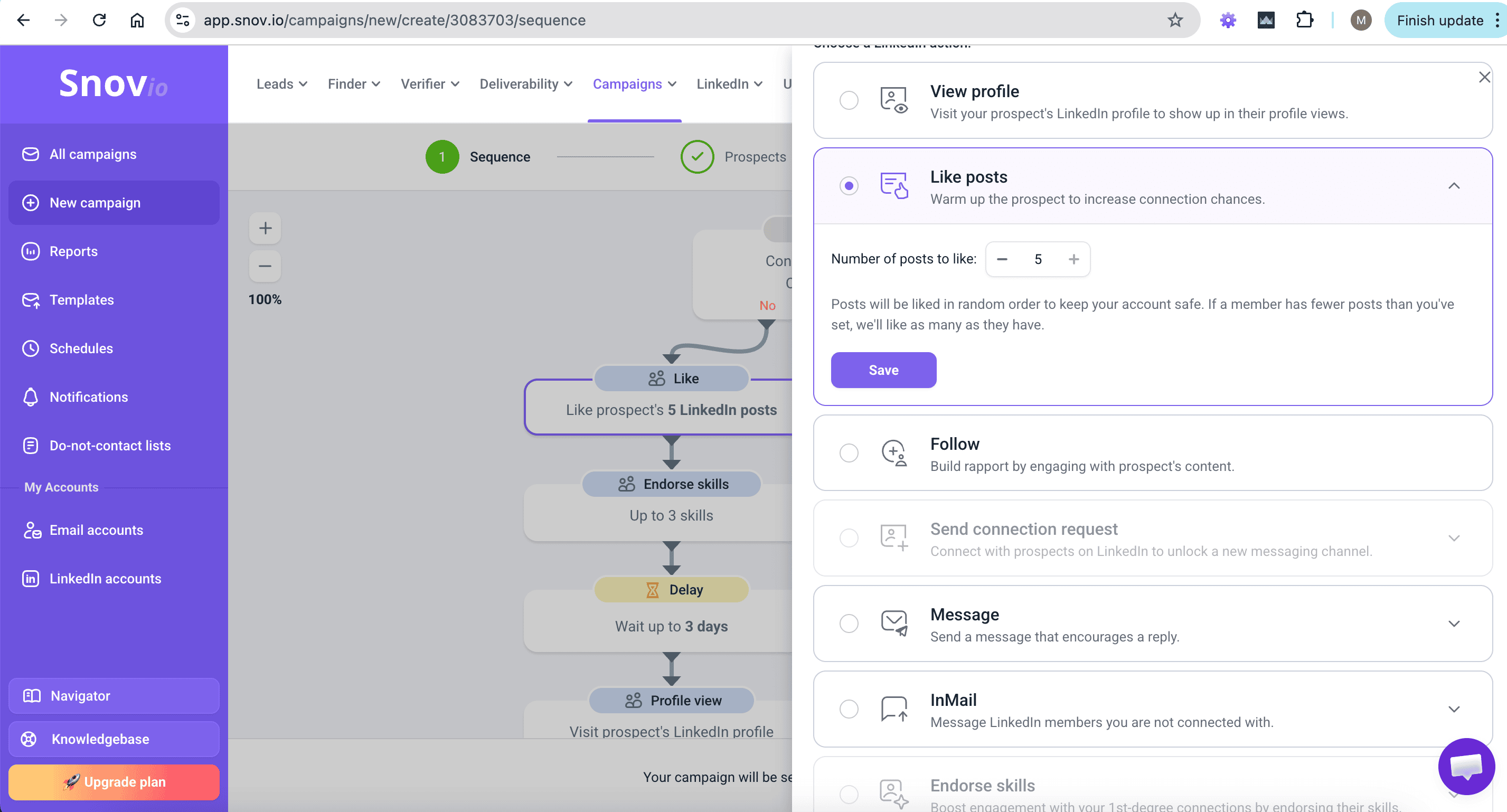
Follow profile: Following keeps you updated on their activity, so you can reach out at the right moment.
Add delays between steps
A sequence without delays looks automated. Add a Delay step between every LinkedIn action or email to pace your activity, stay within safe limits, and keep your outreach natural.
Outreach flow:
By this point, the contact is more likely to recognize you when they receive your request.
Add conditions
Use conditions to route contacts based on their behavior — opens, clicks, connection status, or connection degree. This lets each contact follow the most relevant path instead of receiving a one-size-fits-all sequence.
Learn how to add conditions to your sequence.
Flow Yes – Accepted:
LinkedIn message → Delay 2–4 days → LinkedIn follow-up message
Reach high-priority contacts with InMail
For high-priority contacts who haven’t accepted your connection request, InMail lets you contact people outside your network.
LinkedIn limits the number of InMails based on your account type, so save them for your highest-priority contacts or time-sensitive campaigns.
Flow No – Not accepted:
Send email or InMail → Delay 2–3 days → Follow-up message → Delay 2–3 days → Final follow-up
Sort contacts by connection degree
Sorting by connection degree keeps your outreach safer and more targeted, since LinkedIn treats messages to 1st-, 2nd-, and 3rd-degree connections differently.
You can collect contacts by connection degree upfront or add a Connection degree condition to your sequence to check each contact’s degree before they move to the next step.
- 1st-degree: Already connected. Message them directly without a connection request — they’re the most likely to respond
- 2nd-degree: Not yet connected, but you share at least one mutual connection. Use that common ground to personalize your connection request
- 3rd-degree: No shared connections. Sending cold connection requests here can trigger LinkedIn’s spam filters. The safest approach is to remove them from the campaign or warm them up first with profile views or post likes. If the contact is important, use InMail with a soft, value-driven intro
See example flows with LinkedIn conditions.
Add LinkedIn accounts to rotation
On the Sending options step in campaign settings, choose the LinkedIn sender accounts for the LinkedIn steps in your sequence.
As your audience list grows, one LinkedIn account may not be enough to keep your outreach moving and contact everyone within the planned timeline.
In campaign settings, you can add up to 5 LinkedIn sender accounts. Snov.io will rotate them automatically and distribute contacts evenly between accounts.
Set the campaign schedule
Select your schedule in the Schedule section in campaign settings. Choose a timezone based on your recipients’ location and working hours. Snov.io will perform LinkedIn actions only within the time you set.
Personalize your messages
Generic messages are one of the easiest ways to get ignored or flagged. Different audience segments need different messages.
Use variables and Dynamic content to personalize connection requests and LinkedIn messages at scale without writing each one manually.
Snov.io campaigns support basic variables, Dynamic content, and Spintax. Learn how to use them to personalize your LinkedIn outreach.
LinkedIn’s algorithms can flag identical messages sent to many people in quick succession. Even small variations reduce detection risk.
Use Spintax to rotate greetings, CTAs, and phrasing automatically, so no two messages look exactly the same.
Step 5. Next steps while your campaign runs
Review performance metrics and manage engaged contacts.
Sync communication to Unibox
As replies start coming in, managing responses across multiple mailboxes and LinkedIn accounts can get messy. Unibox brings all incoming messages from connected accounts into one inbox, helping your team organize follow-ups and keep conversations moving without losing context.
This is useful when replies come from different channels or when you need to track engaged contacts after the campaign.
Save engaged contacts to CRM
Use this step if your team manages replies in a CRM or needs to pass engaged contacts to another workflow.
Snov.io can create a record in the built-in CRM or your CRM via native integrations when contacts reply, including replies to LinkedIn messages.
This can help you pass interested contacts to the right next step: event follow-up, partner review, recruiting pipeline, community invite, customer interview, or sales handoff.
Read how to create CRM records from campaign activity.
Review campaign performance
Snov.io automatically tracks your campaign performance and key engagement metrics.
The Reports dashboard gives you engagement data for each campaign and LinkedIn profile you use for outreach.
Before scaling, check your acceptance rate, SSI score, pending requests, and LinkedIn warnings. If engagement is low, improve your targeting or messaging before increasing volume.
Manage pending requests
Snov.io tracks accepted and pending connection requests to help you manage them inside the platform.
Too many unanswered pending requests may negatively affect your LinkedIn account health. It can signal that you’re sending invitations to people who don’t expect or want them.
As a safety practice, withdraw requests that stay pending for more than 14 days. You can enable automatic request withdrawal in Snov.io and monitor requests on the Connection requests page.



Sorry about that 😢
How can we improve it?