This guide shows how to schedule one-time outreach emails to prospects in Snov.io so they send at the date and time you choose.
Write the email now and send it when your prospect is likely to read it, such as the start of their workday.
The Schedule email feature in prospect lists lets you do this.
Schedule an email from a prospect profile
What to do if a scheduled email fails to send

Before you start.
1) Connect an email account. See this guide for SMTP accounts or this guide for Gmail.
2) Add prospects with the Prospect Finder extension, Database Search, a CRM sync, or by importing a prospect list from a file.
Where to use it
Use Schedule email from a prospect profile or from Unibox.
To start from a prospect profile, open it and go to the Send email tab.
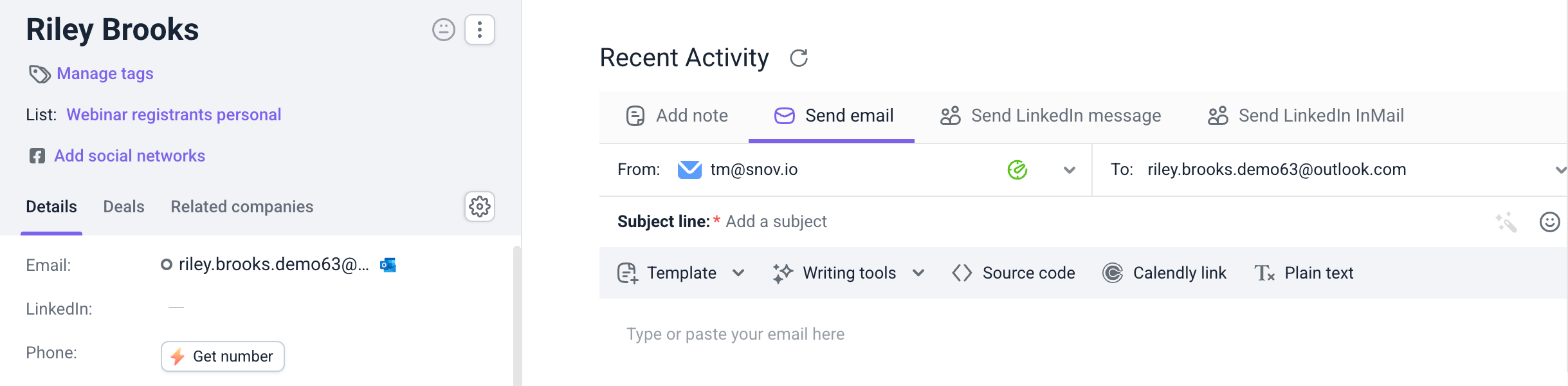
It works for one-time emails that you write yourself. To schedule sequences of emails or LinkedIn actions, use Campaigns.
Schedule an email from a prospect profile
Step 1. Write your email
Open the profile from your prospect lists and go to the Send email tab. Choose the sender in the From field, add a subject line, and write your message.
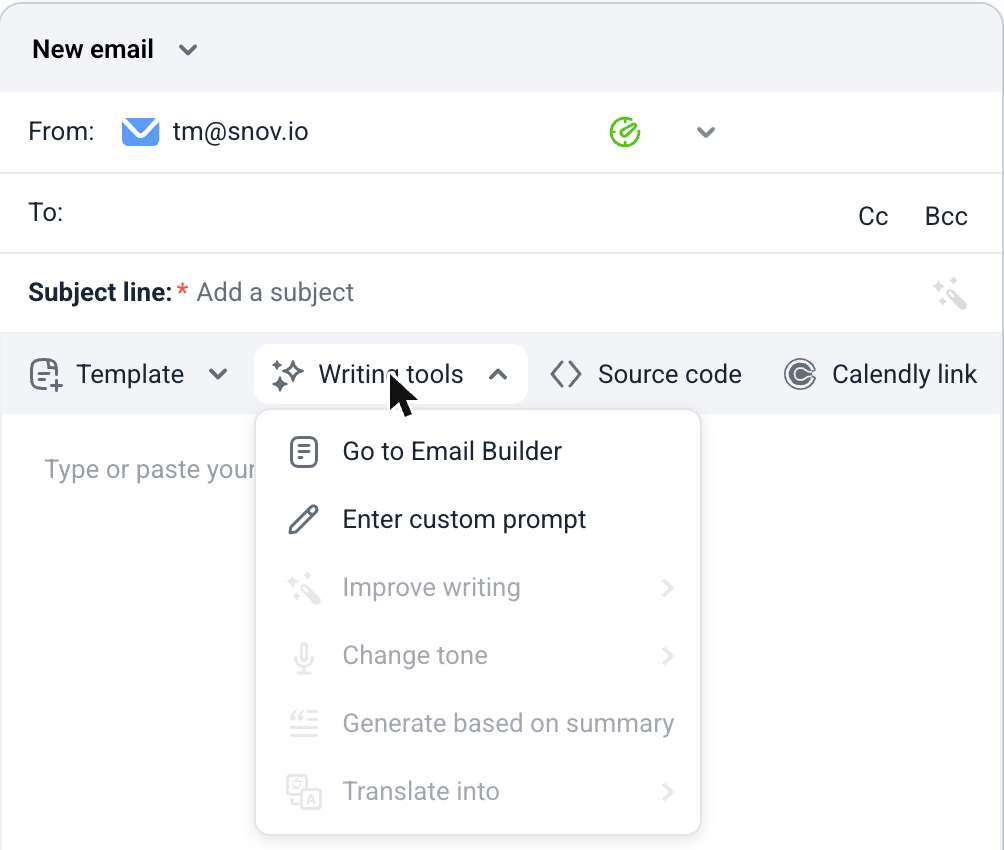
Draft your email with AI before you schedule it. Open Writing tools in the composer and choose Go to Email Builder to build it in AI Studio. See this guide for details.
For personalized copy across a list, generate messages with AI Writer in Enrich & AI tools.
Step 2. Open the send options
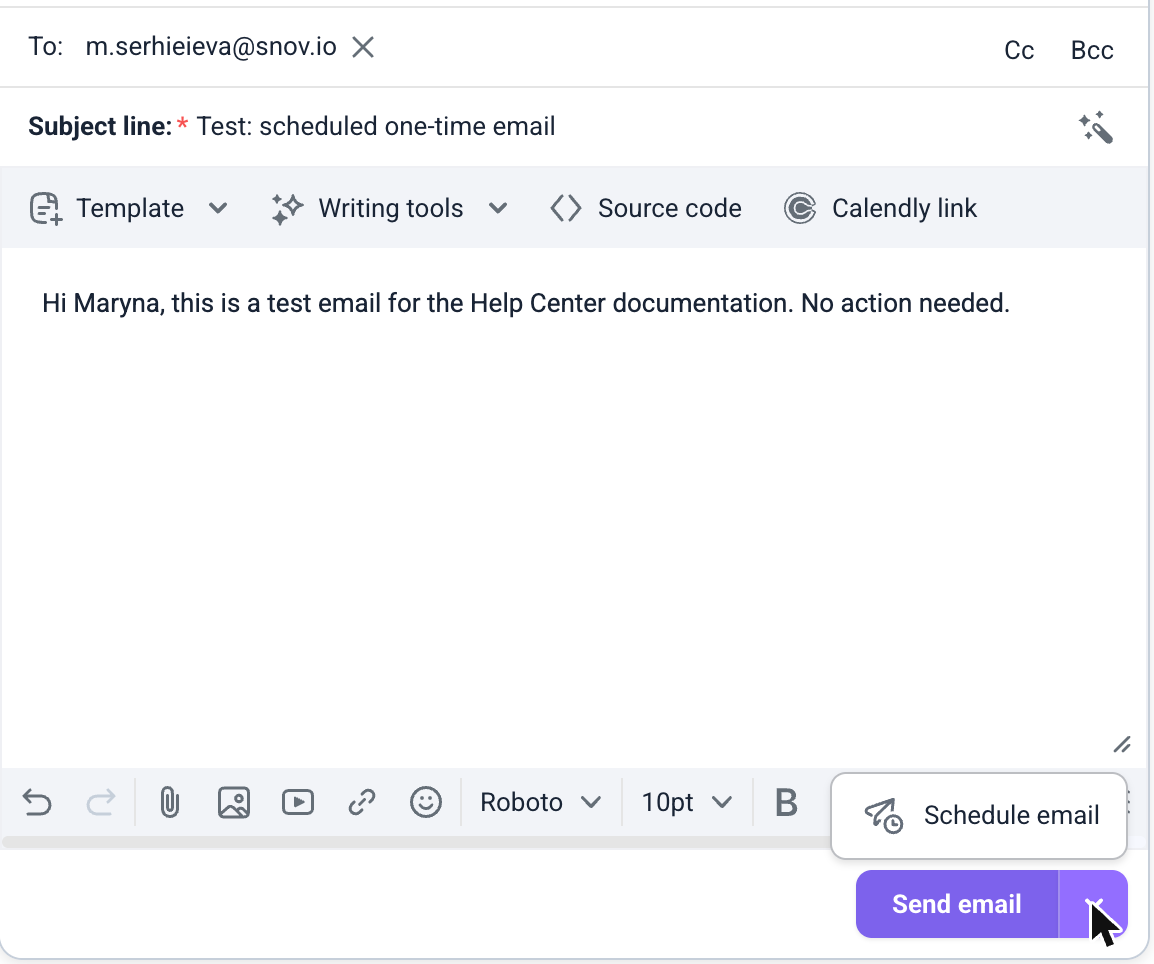
Click the arrow next to the Send email button. Then click Schedule email.
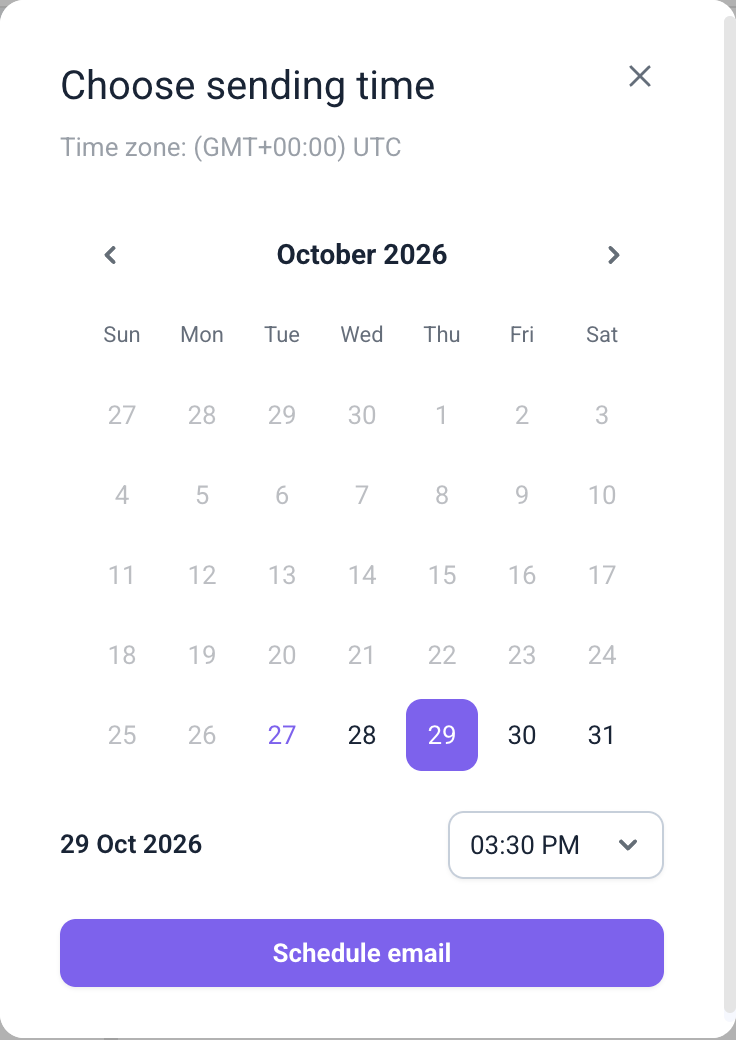
Step 3. Pick the date and time
The Schedule email window opens.
It shows your account time zone and three quick options: Later today, Tomorrow, and the next Monday.
Each option has a time you can change in the drop-down list.
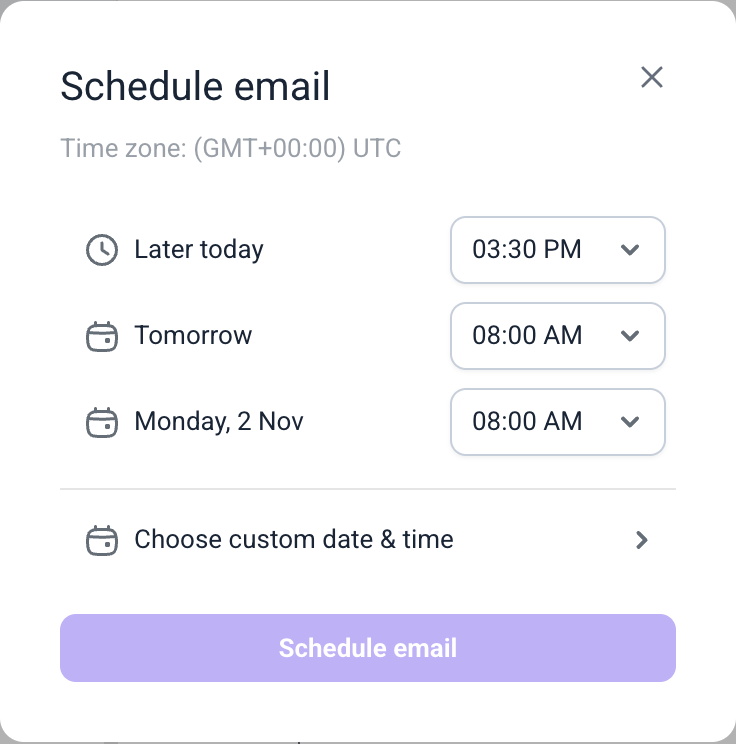
To pick another day, click Choose custom date & time. Select a date in the calendar, choose the time, and click Schedule email.
Step 4. Confirm the schedule
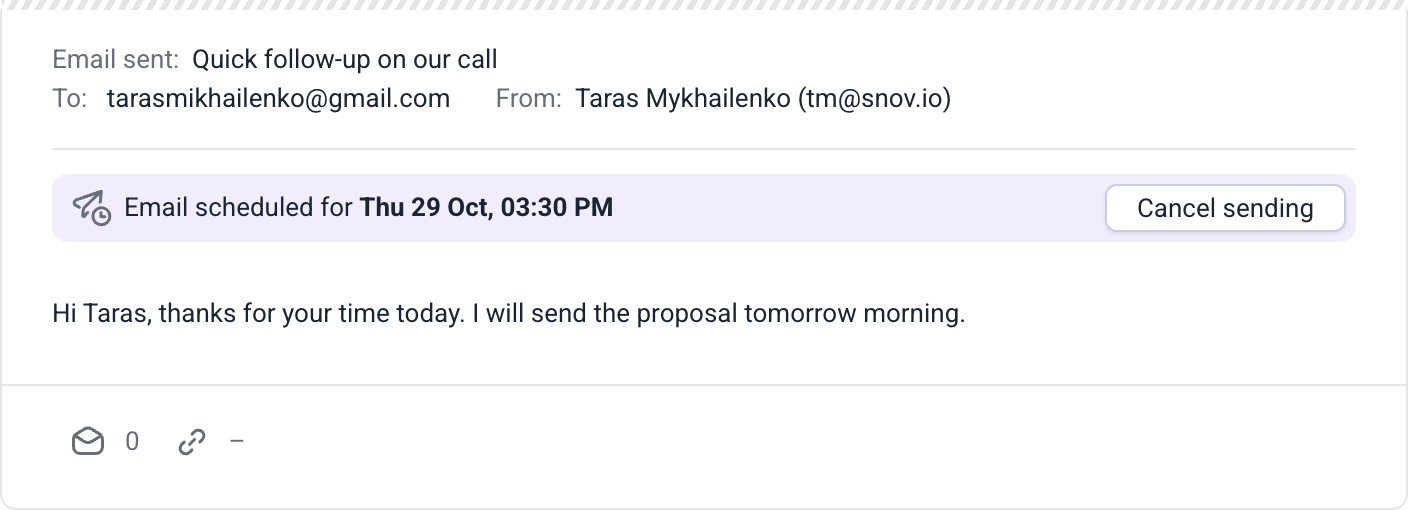
A message at the bottom of the page confirms the date and time.
Snov.io also adds a record to the prospect timeline with the scheduled date and time.
Schedule an email from Unibox
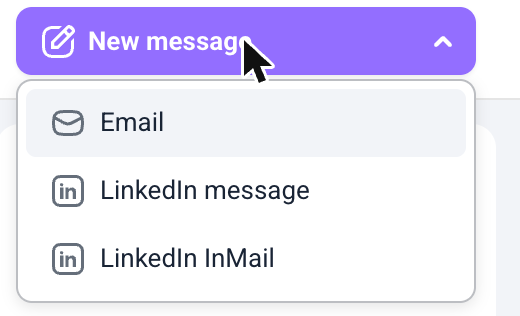
Open Unibox and click New message and choose Email, or open a thread and click Reply.
Write the email, click the arrow next to Send email, and click Schedule email. Then pick the date and time as described above.
How scheduled emails are sent
Snov.io sends a scheduled email from the sender you chose, at the time you set.
Scheduled emails count toward the sending limit of the email account you send from.
If you schedule several emails for the same time, or a campaign is sending at that moment, Snov.io adds a short delay between emails. They do not go out all at once.
Find your scheduled emails
In the prospect timeline
The timeline record uses the scheduled date and time.
Because that time is in the future, scheduled emails always appear at the top of the timeline.
In a Unibox thread
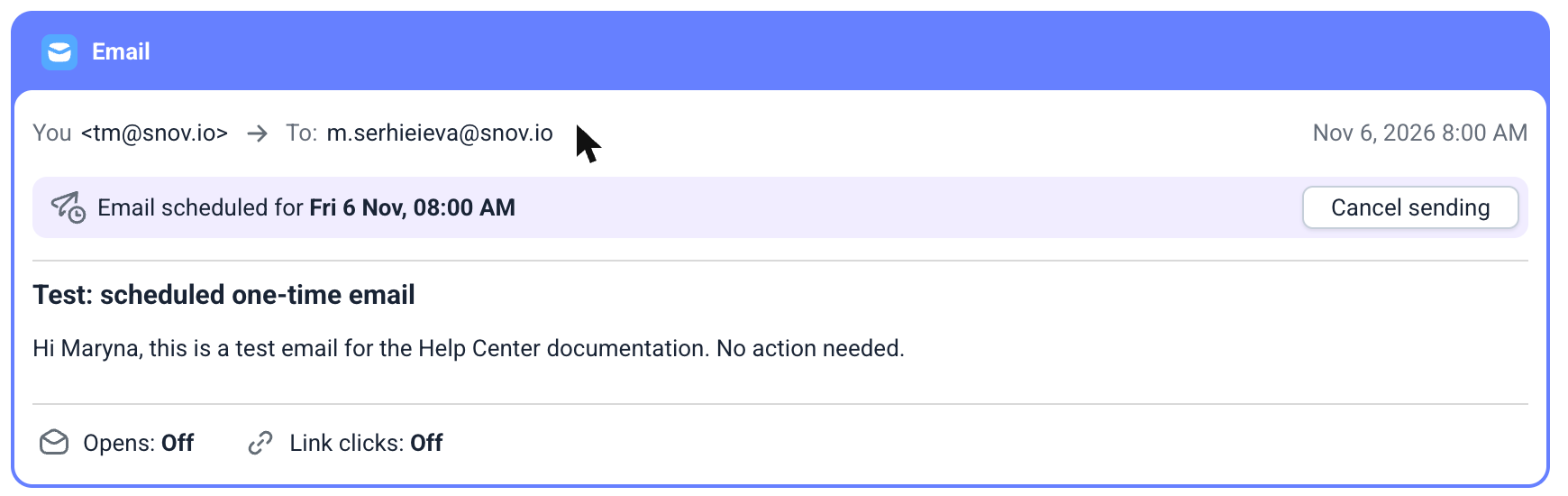
A scheduled email appears at the bottom of its thread with a label that shows it is scheduled.
The date and time on the email match the schedule.
In the Schedule section
Open Schedule in the Unibox sidebar to see every scheduled email, including emails scheduled from a prospect timeline.
The counter next to the section name shows how many emails are waiting.

Cancel a scheduled email
Click Cancel sending on the scheduled email, in the timeline or in the Unibox thread.
Snov.io removes the record and does not send the email.
You cannot change the date or time of a scheduled email. To reschedule it, cancel it and schedule the email again.
What to do if a scheduled email fails to send
If sending fails, Snov.io retries automatically.
If it still fails, the scheduled email shows a Failed to send error and you need to reconnect the sender account.
The error includes the View details and Resend manually links.
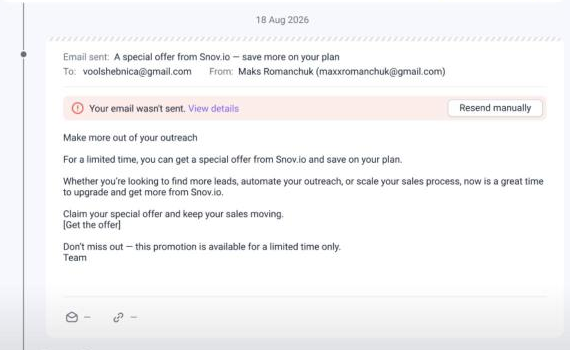
Step 1. Check the error
Click View details. The window shows the error message from your email provider.
Click Ok to close it, or Reconnect account if that button appears for your account type. You can also check the connection on the Email accounts page.
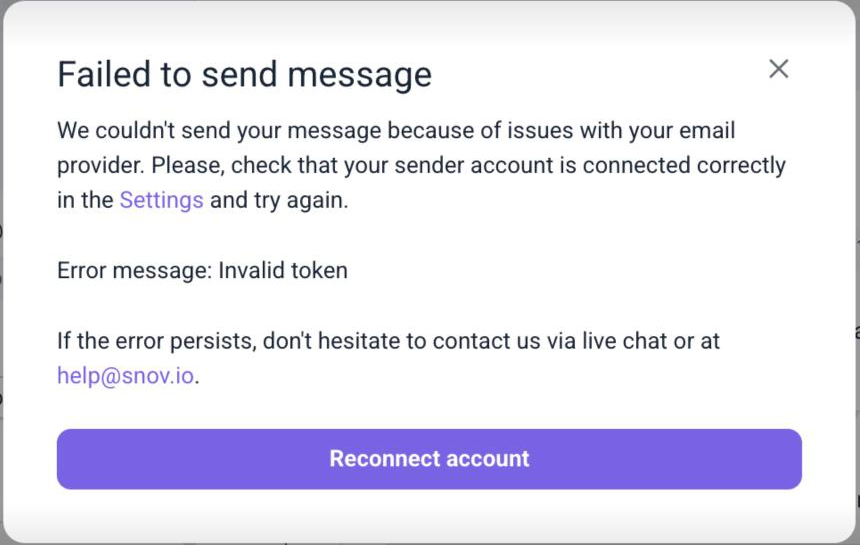
Step 2. Resend the email
After you fix the connection, click Resend manually.
Snov.io tries to send the email again and removes the scheduled copy, so the same email is not sent twice.
Next steps
Open a prospect profile and schedule your first email, then follow replies in Unibox.
See this guide for managing conversations in Unibox, and this guide for syncing your accounts.


Sorry about that 😢
How can we improve it?