Most marketing teams don't have a tool problem. They have a fragmentation problem: leads in one place, outreach in another, replies somewhere else, and no clear picture of what's working.
This guide is organized around what you're actually trying to do, not around features. Find your goal, follow the steps, and go deeper with linked articles where you need more detail.
- I want to grow my contact list
- I want to launch an email campaign
- My emails get low engagement: I need more touchpoints
- My emails land in spam and promotional folders
- I want to track results and improve
- I want to manage communications across campaigns
- I can’t connect my tools into one workflow without manual work
I want to grow my contact list
Building a quality list takes time, and most shortcuts create problems later: purchased lists have bad data, manually gathered contacts become outdated fast, and generic databases return too many irrelevant results. A bad list results in bounces, sender reputation damage, and ineffective campaigns. Snov.io's tools help you skip these problems and build clean lists faster. Here's the process that prevents these issues.
Step 1. Find contacts at specific companies with Domain Search
If you're running account-based campaigns and already know which companies you want to target, Domain Search finds verified contacts there without manual research. Enter a domain and get a list of people with their emails, job titles, and LinkedIn profiles.
Go to Domain Search → Enter the target domain → Filter by department or role → Save to a list.
Filter before saving. Adding everyone from a company creates noise. Focus on the department or seniority level your campaign is actually relevant to.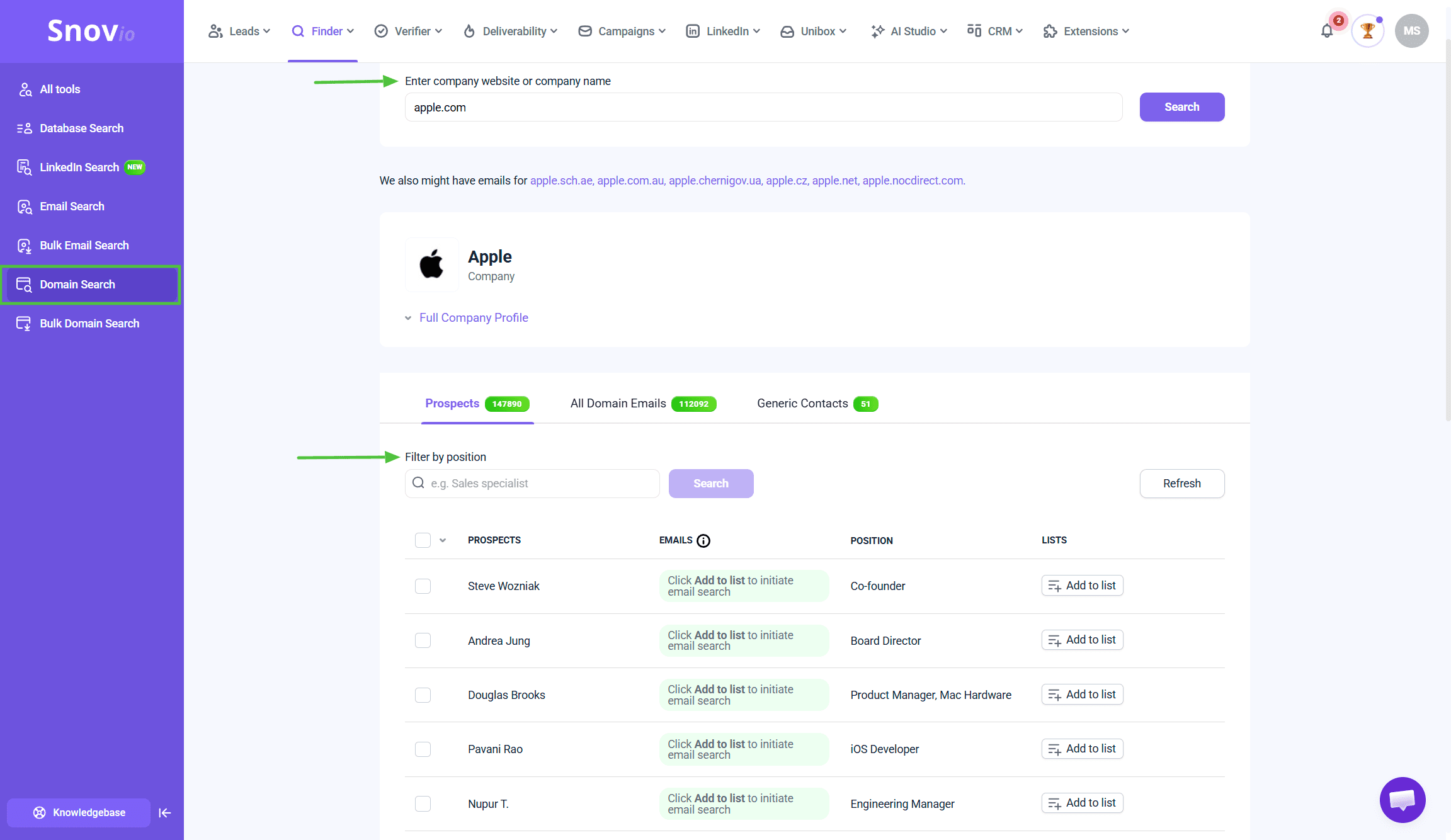
Step 2. Build targeted lists by audience profile with Database Search
When you're targeting a type of company or persona rather than specific accounts, Database Search lets you filter by industry, company size, location, job title, and seniority; and pull verified contacts that match. This is how you build campaign-ready lists at scale without buying data of uncertain quality.
Go to Finder → Database Search → Set your filters → Preview results → Add to a list.
Be specific with filters. A list of 400 well-matched contacts outperforms 4,000 loosely matched ones every time.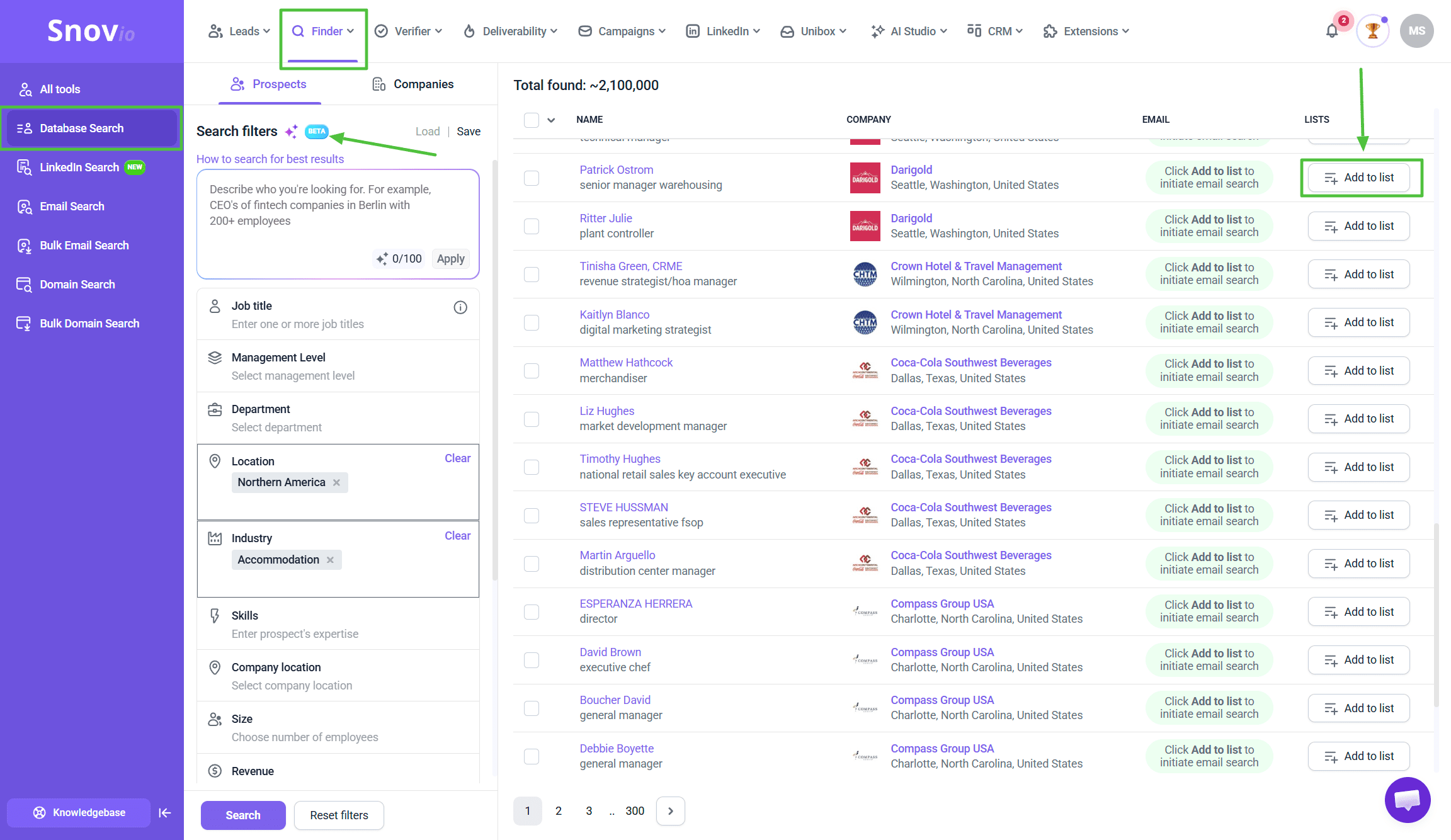
Step 3. Capture leads while you browse with the browser extensions
Snov.io has two extensions that work together for lead capture on the go:
- The Email Finder extension works on any website: go to a company page, a blog, a directory, or a Google search result, open the extension, and it pulls email addresses along with names and job titles directly from the page.
Useful when you're researching specific companies or publications, building a media or blogger outreach list, or capturing contacts from any site that isn't LinkedIn.
- The LinkedIn Prospect Finder is built specifically for LinkedIn profiles and search results. Open a profile, click the extension, and it captures the contact's email and professional details, like company, role, location, and saves them directly to a Snovio list. It works across individual profiles and bulk LinkedIn searches, which makes it faster for prospecting at scale within the platform.
Install both from the Chrome Web Store → Browse to any website or LinkedIn profile → Click the relevant extension → Contacts save directly to your Snovio list, ready to verify and use in campaigns.
Before you send: verify every list
Contact data doesn't stay fresh forever, and lists need regular cleaning. Over time, people change jobs, domains expire, inboxes get abandoned.
Sending to an unverified list means higher bounces, and a bounce rate above 5% damages your sender reputation in ways that affect every campaign after. Verify before every send, not just the first one.
Go to Email Verifier → Upload your list → Run verification → Remove invalid and risky contacts before importing into any campaign.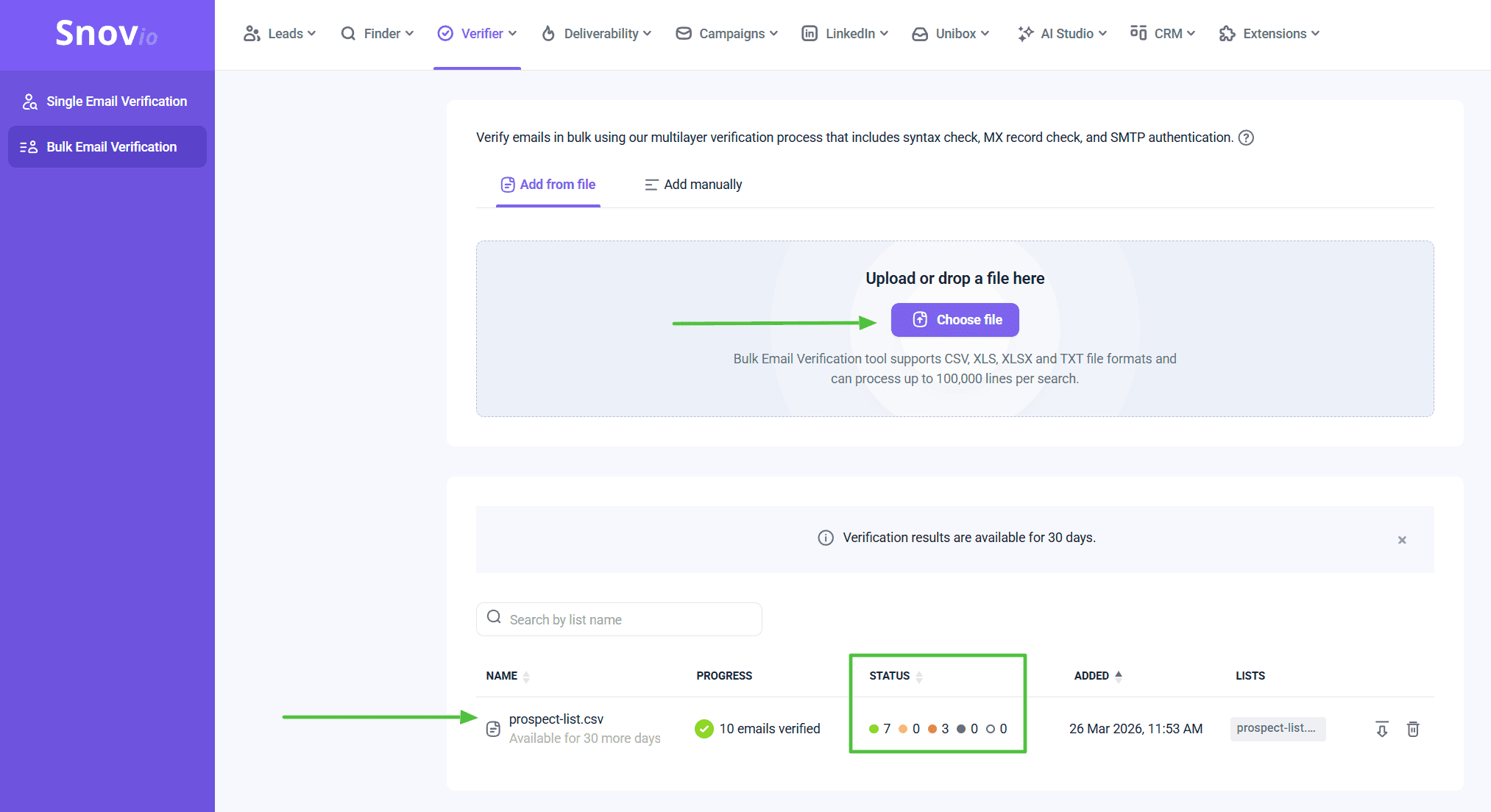 Re-verify lists older than 3 months, anything exported from a CRM, and any list you didn't build yourself.
Enrich your prospects with more data
Once your list is verified, personalization can go further: the more you know about a prospect, the more specific your outreach can be.
Snov.io Enrichment adds phone numbers, LinkedIn background, and company details straight to prospects' profiles.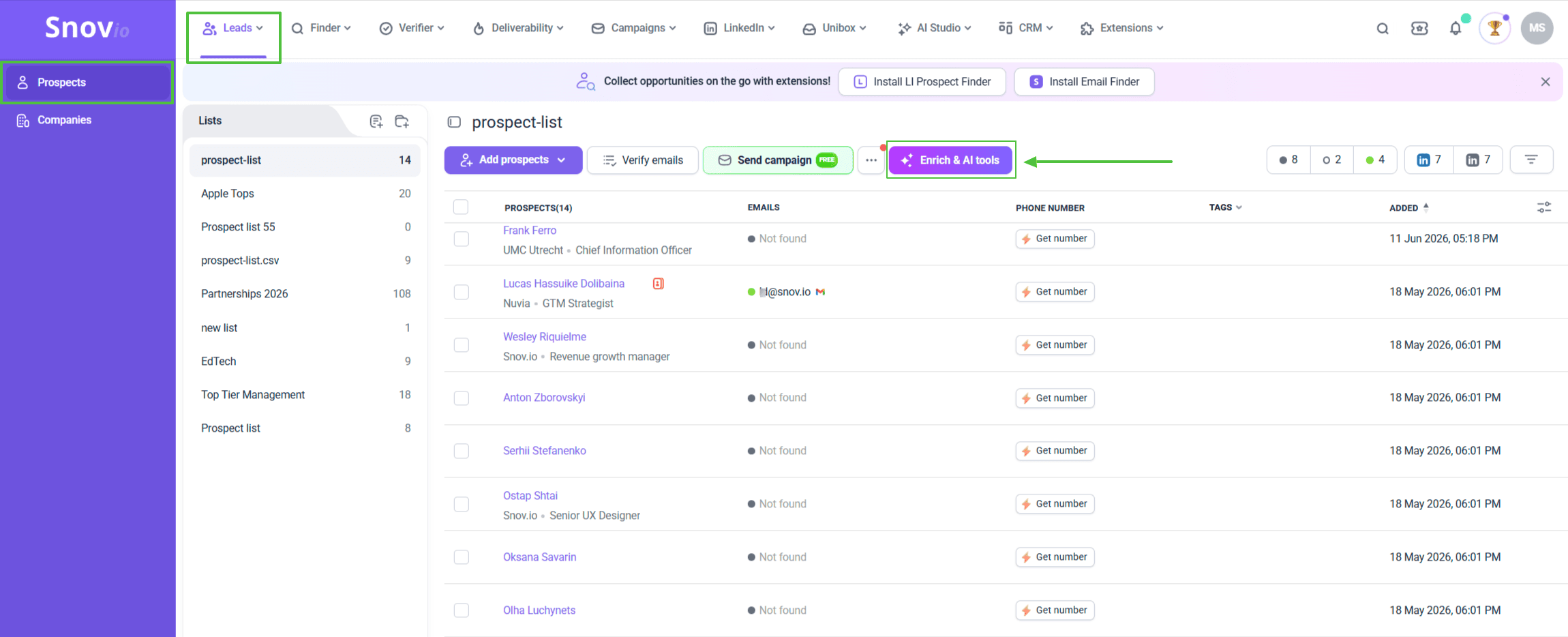 Go to your Prospect list → select prospects → click Enrich & AI tools → choose an action.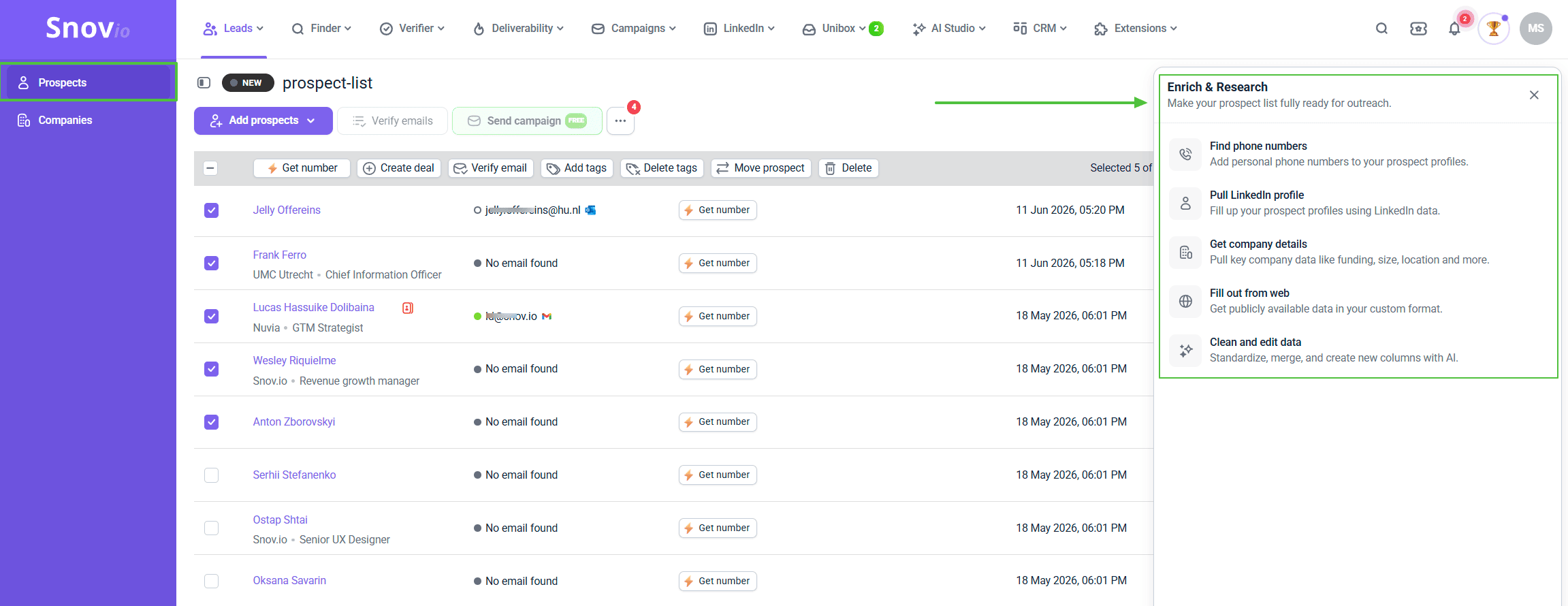
Enrich prospects with phone numbers
You can add phone numbers to prospect profiles directly from your list without manual research.
Click Get number next to any prospect, or select multiple and use Get number from the Quick Actions menu to run bulk enrichment.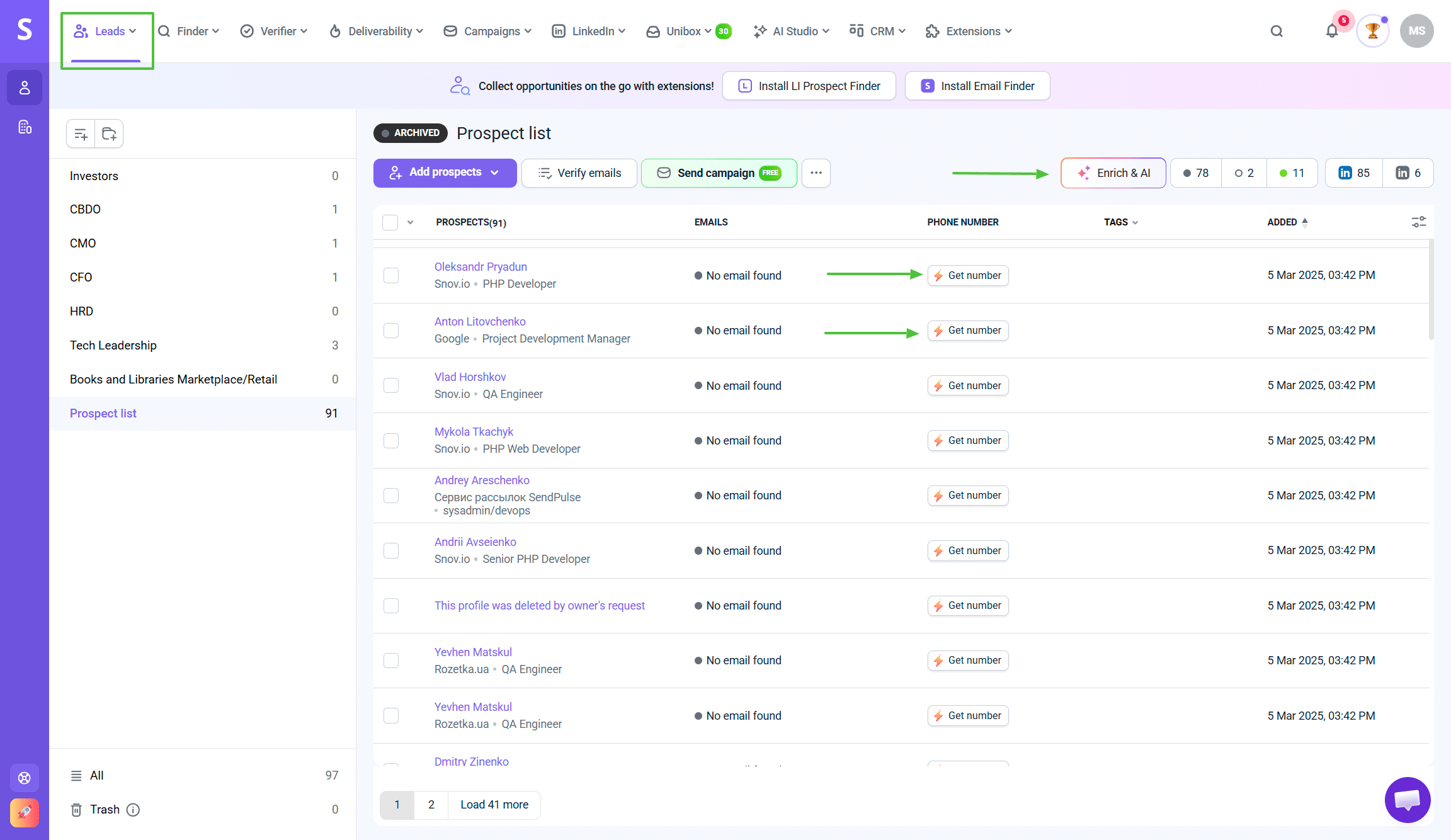 10 tokens are charged per prospect if the phone number is found.

Phone numbers are useful for following up with prospects who opened your emails but didn't reply: it's not cold calling, you're just following up on a warm signal.
→ Learn more about phone number enrichment.
Pull LinkedIn profile
The action adds professional background: bio, work experience, education, certifications, courses, volunteering, projects, languages, and more.
Useful for referencing something specific about a prospect's background in your outreach. It also saves you from opening each prospect's LinkedIn profile yourself to find something worth mentioning.
 You need at least one of these fields on prospect’s profile:
- first name + last name + company domain
- first name + last name + email
- or a LinkedIn URL
The prospects missing these fields are skipped.
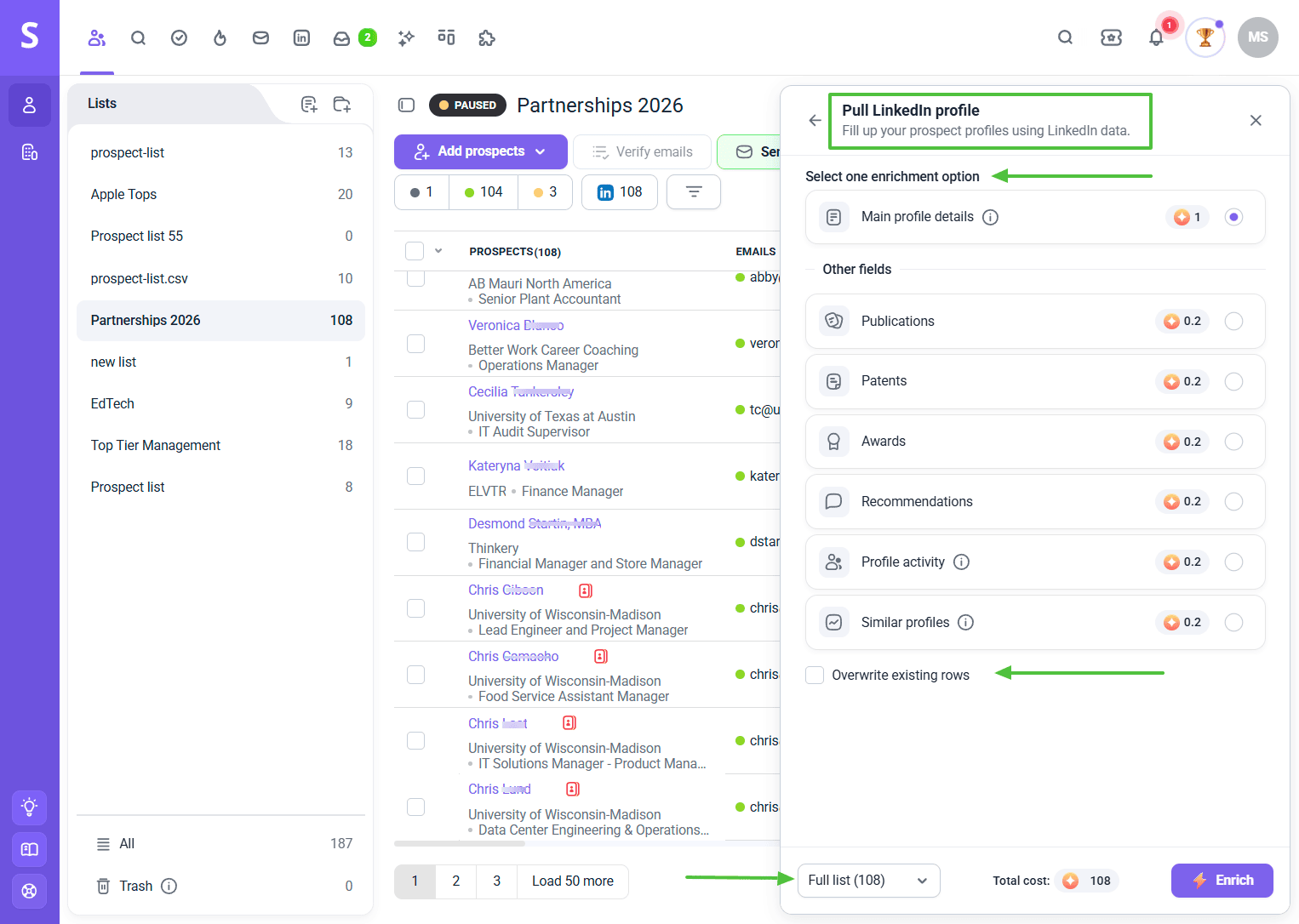
Main profile details cost 1 token per prospect. Optional extras (publications, patents, awards, recommendations, profile activity, similar profiles) cost 0.2 tokens each.
Get company details
The action adds a full company profile: industry, headquarters, size, funding history, specialties, and similar or affiliated companies.
Use it for checking whether a company matches your ICP before adding them to a campaign.
On the prospect's profile you need to have at least one of these:
- company domain
- company name
- or company LinkedIn URL
A prospect can’t be enriched if these fields are missing.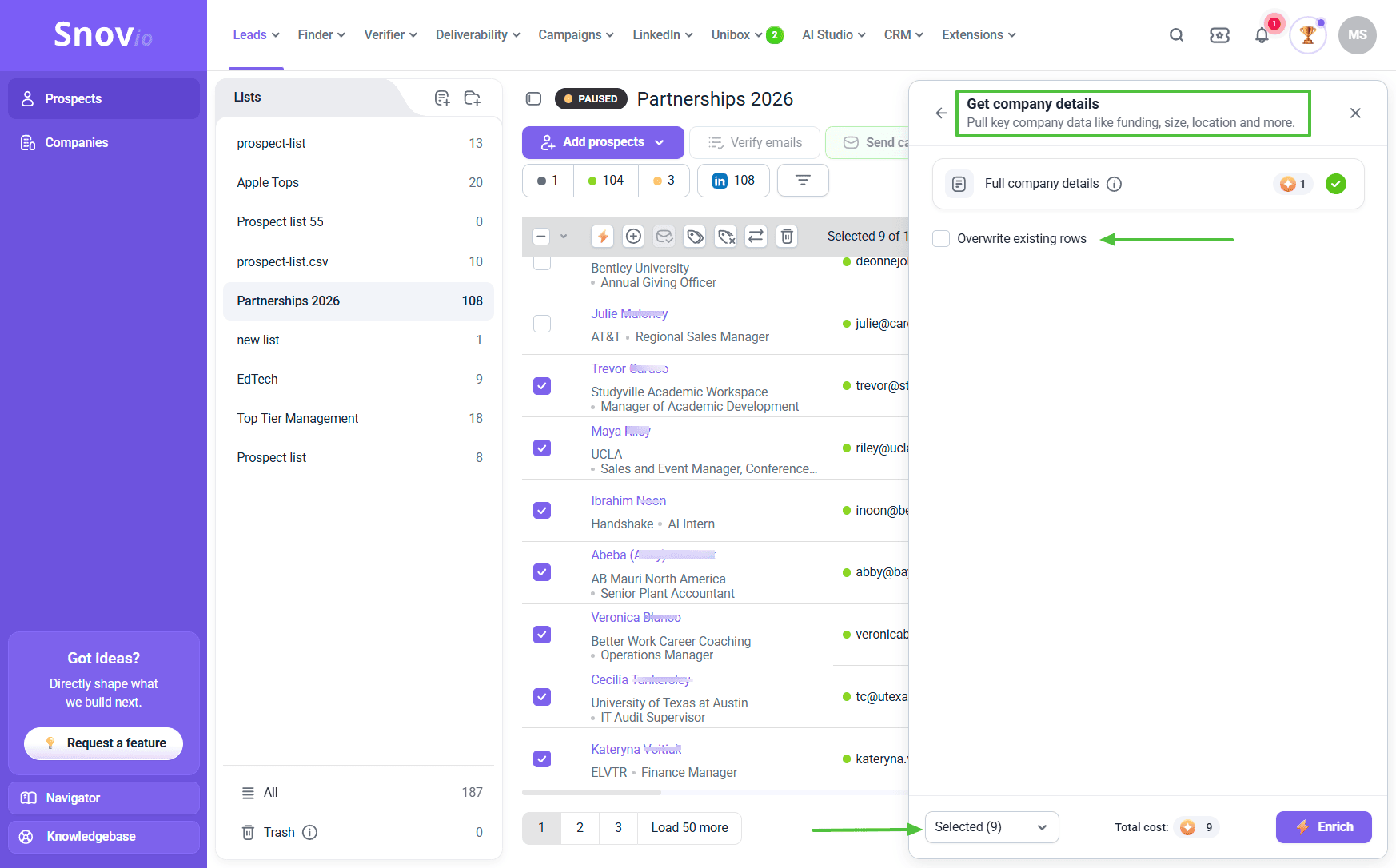 It costs 1 token per prospect for the full set, and saves you from researching each prospect's company separately before deciding how to contact them.
Turn on Overwrite existing rows for any enrichment action if you want the result to replace what's already there instead of only filling blanks. You can keep it off when enriching the list for the first time.
Check your token balance
Before starting, make sure you have enough tokens. Your token balance and purchase options are in Billing settings.
→ Learn how to use tokens for enrichment actions.

Tokens are only charged for prospects where enrichment finds data. If nothing's found, no tokens are spent.
Check full guides about enrichment in Snov.io:
→ How to enrich prospect data in your list
→ What data each enrichment action pulls
I want to launch an email campaign
Setting up a campaign in Snov.io involves more than writing an email. You need sender setup, domain health, warm-up, sequence structure, personalization, and scheduling. All of this affects whether your emails reach inboxes and get engagement.
The full guide covers everything step by step - from connecting your first sender account to reading results after launch:
→ How to set up your first automated email campaign
Keep your campaign focused on one clear goal. Product launches, event invitations, content distribution, seasonal campaigns - whatever you're promoting, stick to one action per campaign.
Don't ask prospects to do three things at once. Pick one: register, download, or book a call. Campaigns with multiple CTAs convert worse than campaigns with one clear ask.
Save the second goal for a separate campaign or follow-up sequence.
My emails get low engagement: I need more touchpoints
Email alone misses people who check LinkedIn more than their inbox. Adding LinkedIn actions to your outreach increases your chances of getting seen.
For marketing teams, it also keeps your brand visible on a channel where your audience is already active.
Snov.io lets you add LinkedIn actions directly inside email sequences. You run multichannel outreach from one place instead of two tools.
What you can automate:
- Profile visits (creates awareness before an email lands)
- Connection requests (with or without a note)
- Direct messages (to first-degree connections)
How to add LinkedIn steps:
Go to Campaigns → New campaign → Add LinkedIn step → Choose LinkedIn action → Select action type → Set delay.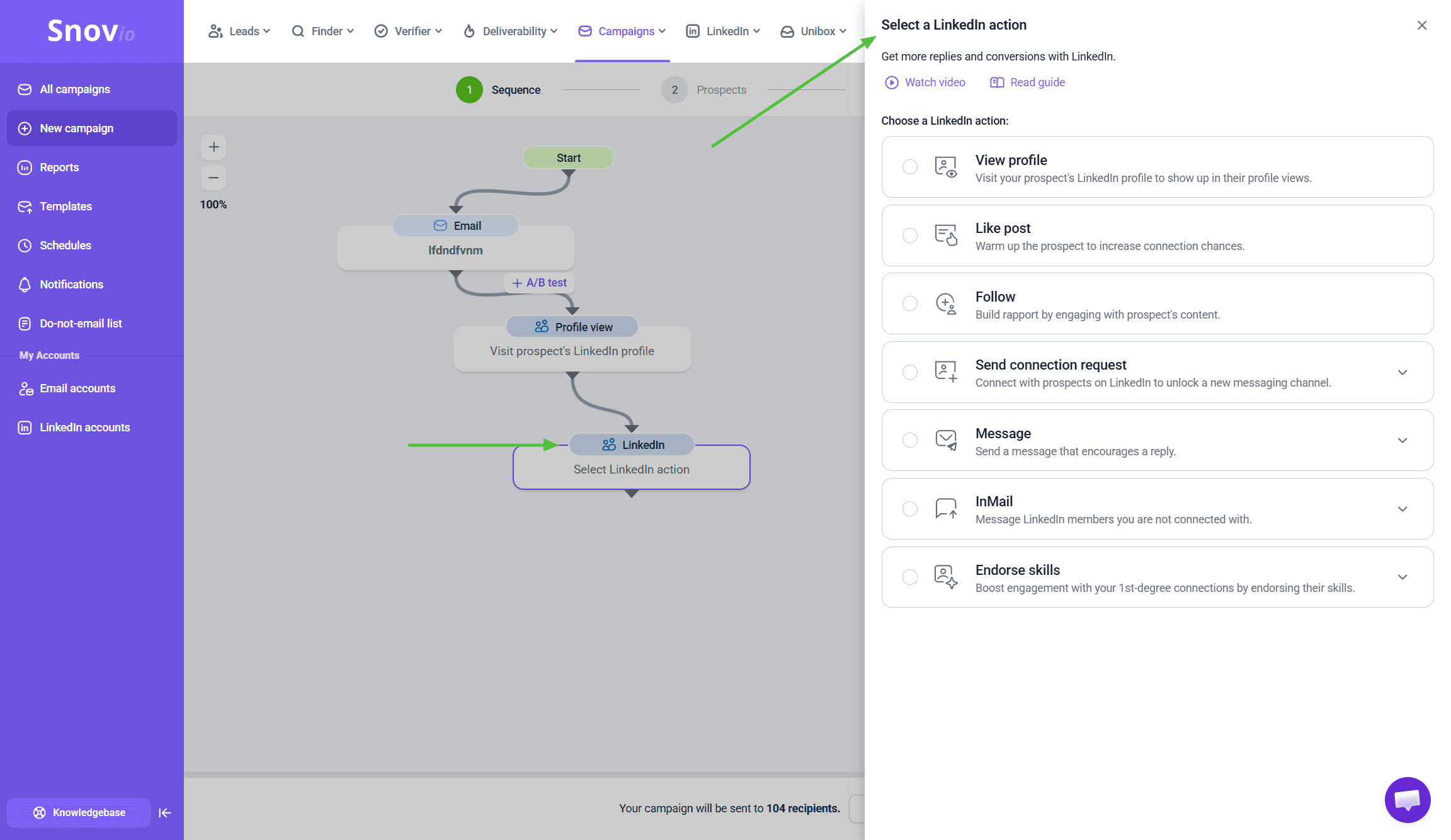 Common pattern for marketing:
LinkedIn profile visit → 2-day delay → Email → 3-day delay → LinkedIn message or follow-up email.
The profile visit creates a soft first impression before the email arrives.
Stay within safe limits:
LinkedIn monitors automation. If you go too high, then accounts get restricted.
Snov.io applies conservative defaults, but keep these rules:
- LinkedIn actions under 30-40 per day per account
- Don't send connection requests to strangers without context
- Always add a personalized note to connection requests (never send blank ones)
For marketing outreach, profile visits and messages to existing connections work better than cold connection requests at scale.
I have LinkedIn connections but don't know how to use them for campaigns
My Network syncs your LinkedIn connections to Snov.io. View your network, message contacts, and turn connections into prospects without switching platforms.
Go to My Network (LinkedIn button in top menu).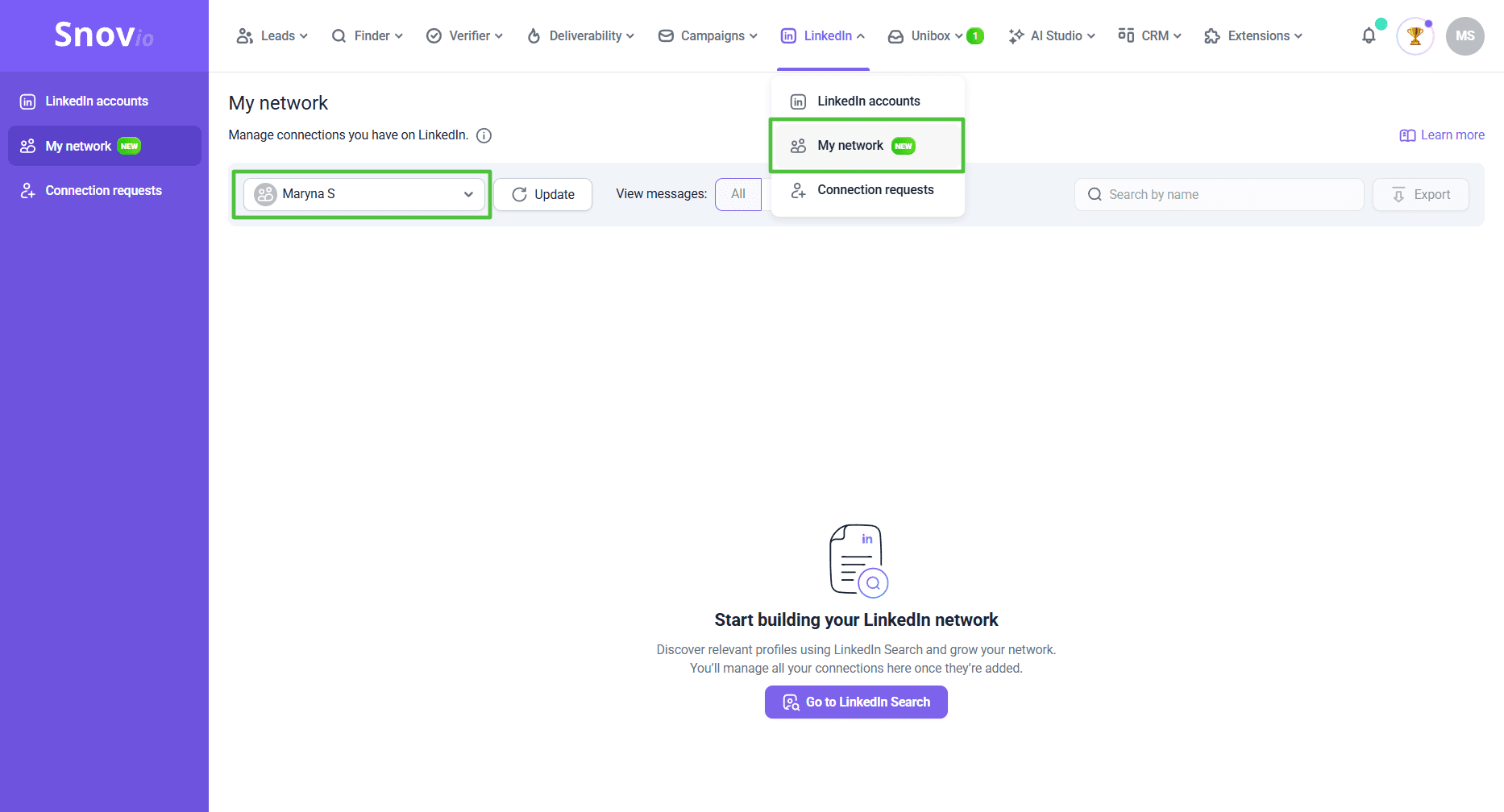 What you can do:
- View all LinkedIn connections in one list
- Message contacts directly from Snov.io
- Add connections to prospect lists for campaigns
- Search and export your connection list
- Remove connections you no longer need
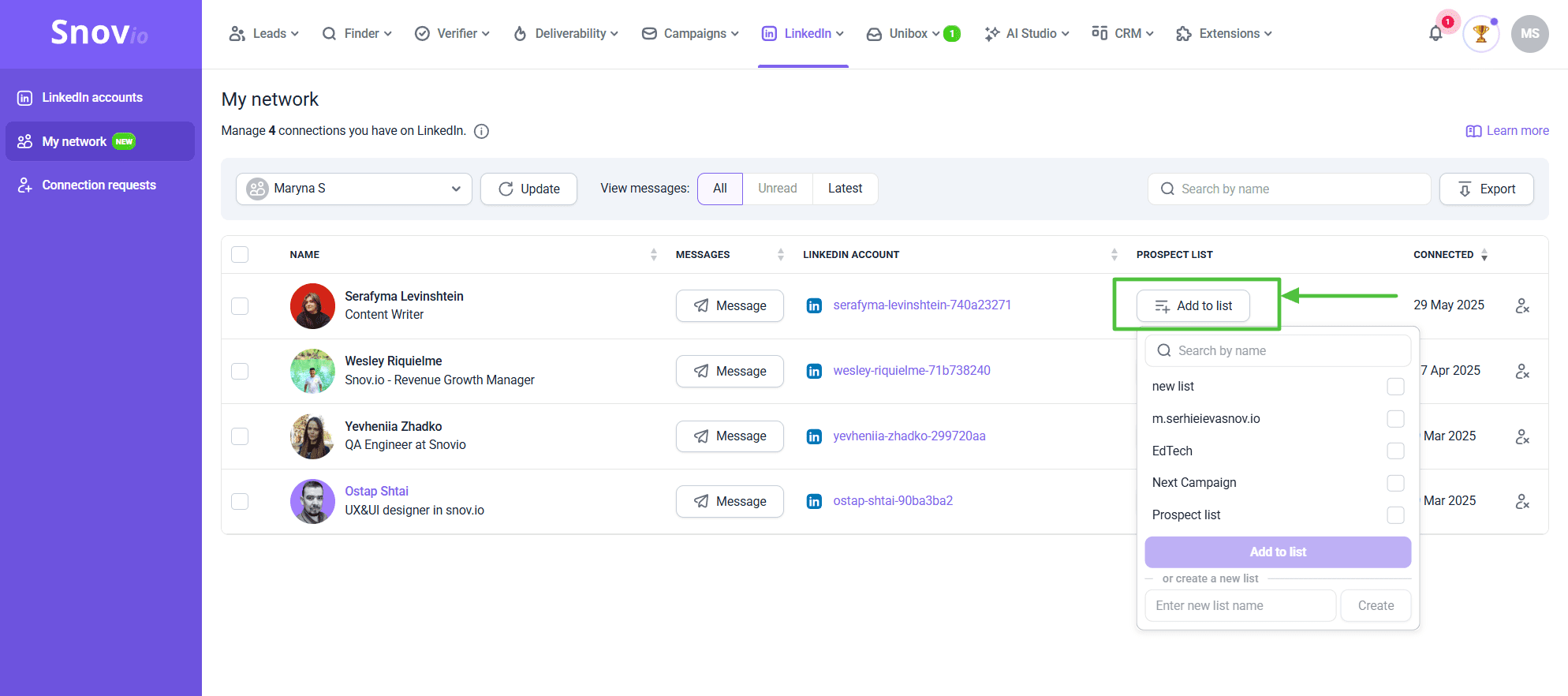 For marketing teams:
My Network is useful when you want to turn your existing LinkedIn network into campaign prospects. Instead of manually searching for connections, add them to prospect lists directly from My Network, then include them in your email sequences.
→ How to manage your LinkedIn network in Snov.io
My emails land in spam and promotional folders
Low open rates aren't always a subject line problem. Often emails land in spam before anyone sees them.
Step 1. Check domain health before every campaign
DNS records (SPF, DKIM, DMARC) tell receiving servers your emails are properly authenticated. Missing or broken records can affect deliverability of your emails .
Go to Email Accounts → Select sender → Domain health → Fix flagged issues.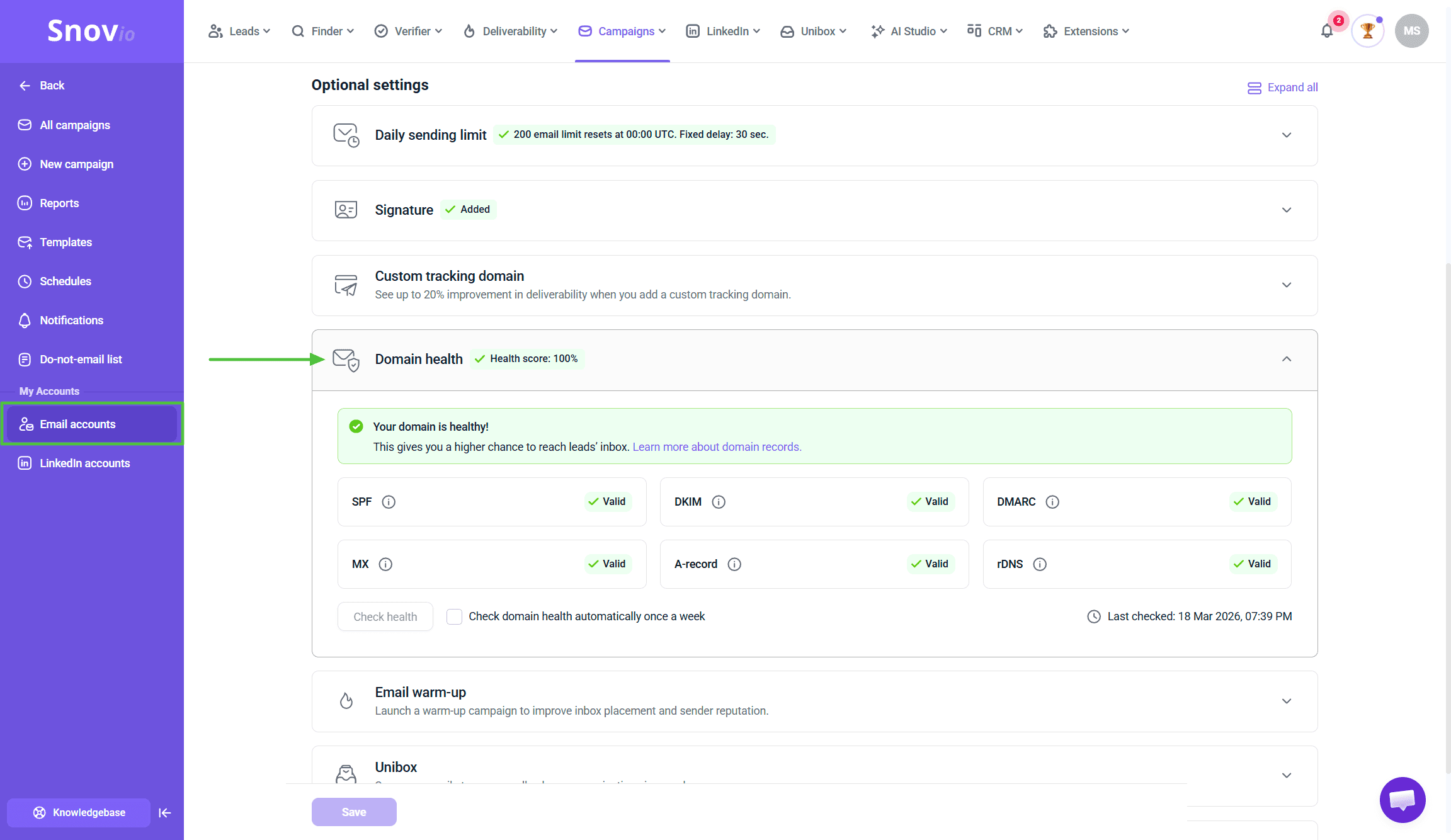 Enable automatic check-ups once a week to let Snov.io monitor your domain health in the background and catch any DNS issues before they affect your campaigns.
Step 2. Warm up new sender accounts
New accounts that suddenly send high volumes look like spam sources. Warming-up gradually builds sending history and trust with email providers.
Go to Email Warm-up → Add mailbox → Select your accounts → Choose a warm-up strategy → Run for 2-4 weeks before campaigns.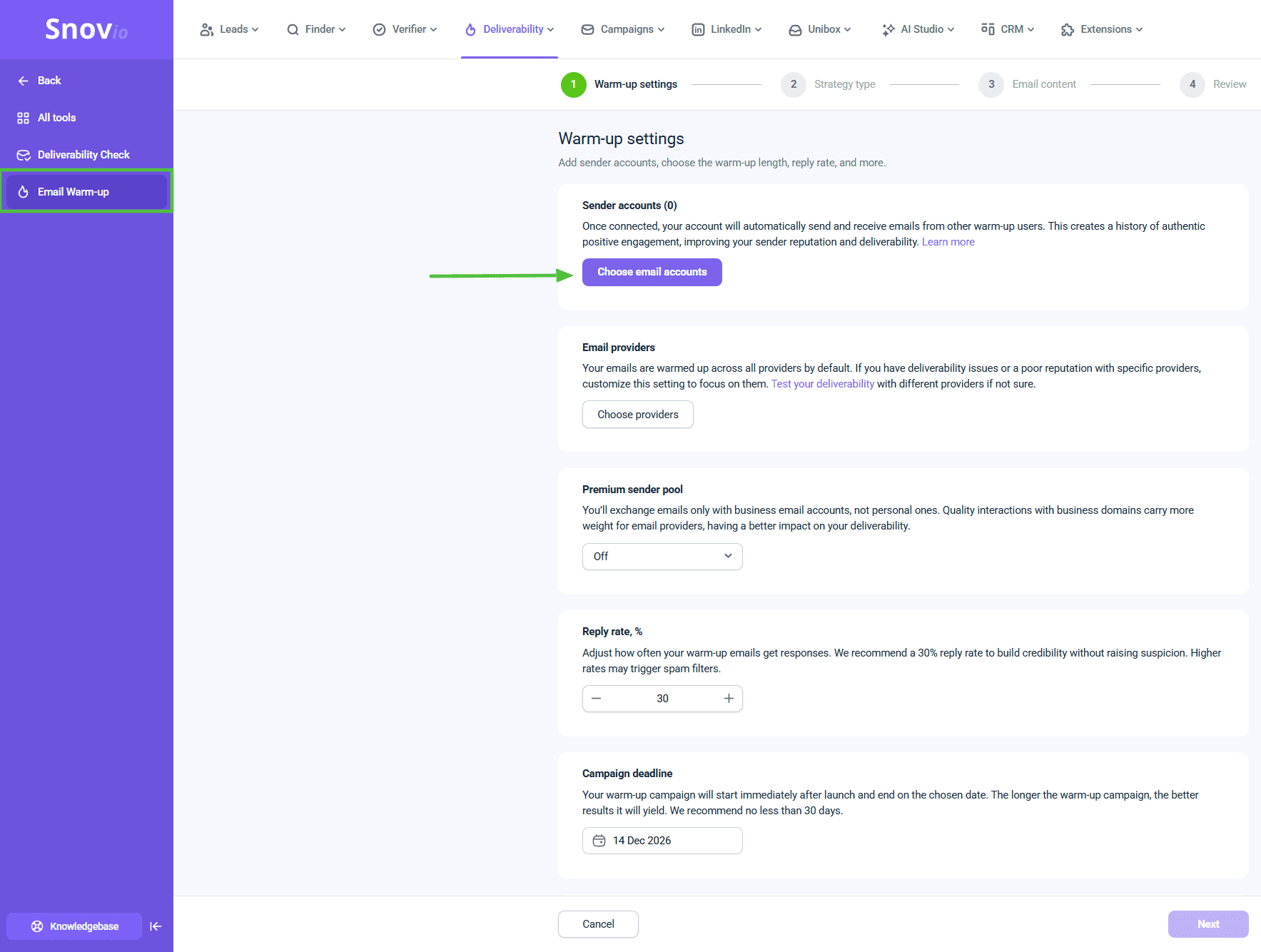 Keep warm-up running at low volume at all times. It maintains the reputation, and improves inbox rate while your campaigns run.
Step 3. Run a deliverability check when something feels off
If open rates drop suddenly, or you see high bounce rates despite a clean list, run a deliverability check.
It simulates sending to real inboxes across Gmail, Outlook, and others. Shows you exactly where emails land.
Go to Deliverability Check → Run test → Review inbox placement by provider.
→ Full deliverability guide: verification + warm-up
I want to track results and improve
Numbers only matter if you know what to do with them. Here's what to look at and what each metric tells you.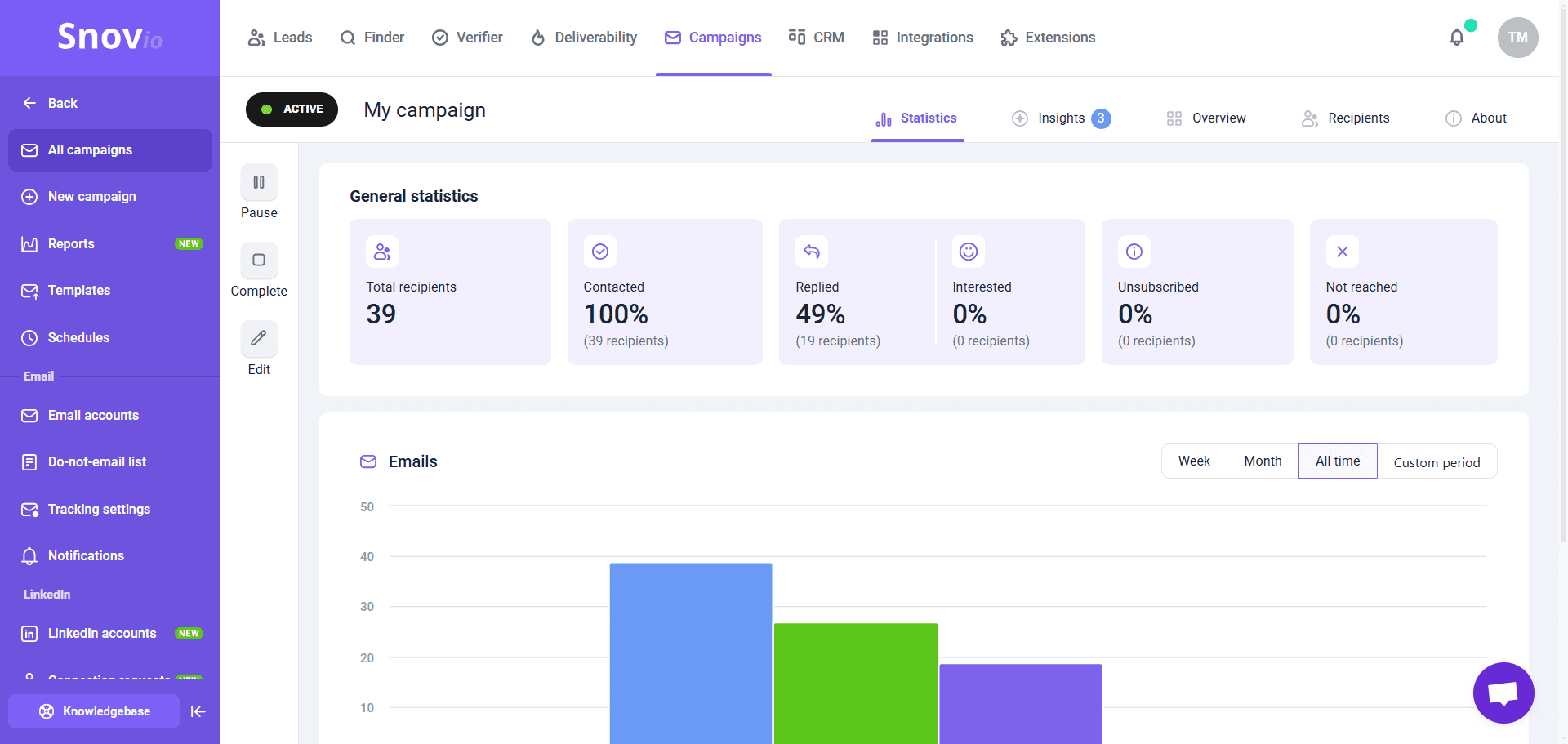 Where to find stats: Go to Campaigns → Select campaign → Statistics tab.
| Metric | What it tells you | When to act |
|---|---|---|
| Open rate | Whether subject line and sender name work | Under 20% — check deliverability first, then subject line |
| Click rate | Whether message and CTA are compelling | Low clicks with good opens — CTA or offer needs work |
| Reply rate | Real engagement is most valuable signal | Benchmark against your segment, not generic averages |
| Bounce rate | List quality and sender reputation health | Over 5% — stop, verify list, investigate sender |
Don't judge a campaign in the first 24 hours. With multi-day delays, meaningful data takes 3-5 days minimum. Early numbers are incomplete.
I want to manage communications across campaigns
When campaigns run across multiple sender accounts, replies come into different inboxes. Unibox centralizes them in one place so nothing gets missed.
Go to Unibox → See all replies → Filter by campaign, sender, or status → Respond directly.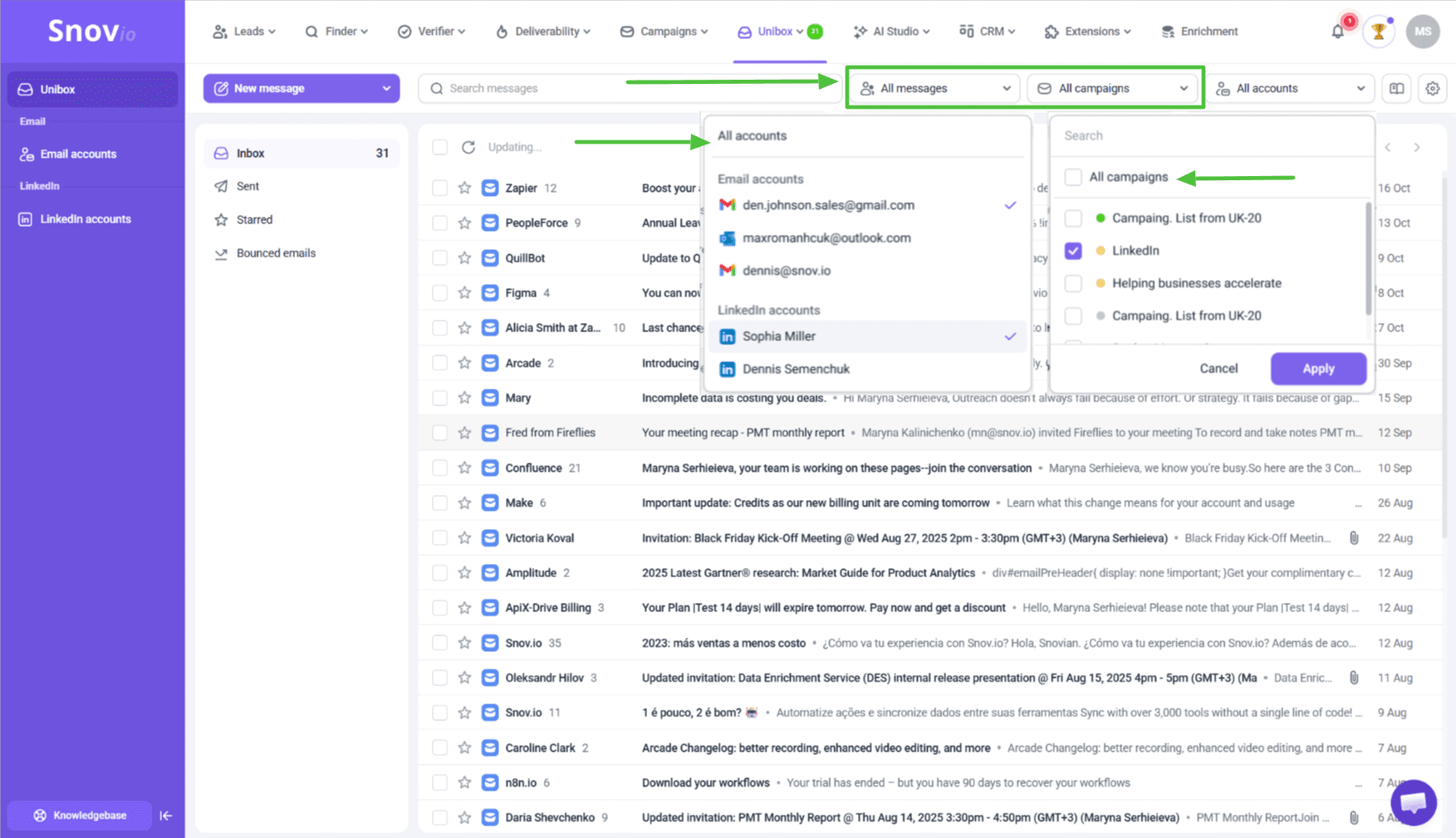 For marketing teams, Unibox is useful during event campaigns or product launches when reply volume spikes.
Label replies by intent (interested, not now, wrong person) to see how the campaign actually performed beyond opens and clicks.
→ How to manage inboxes and conversations in Unibox
Test one thing at a time
After your first campaign, don't change everything at once. Pick the weakest metric, choose what to fix, change one variable, run the next campaign to test it.
Set up A/B tests for each email in a sequence. Subject line, send timing, email variations, sequence length, CTA: test them separately so you know what moved the number.
I can’t connect my tools into one workflow without manual work
Leads found and engaged in Snov.io can flow automatically into the tools your team already uses.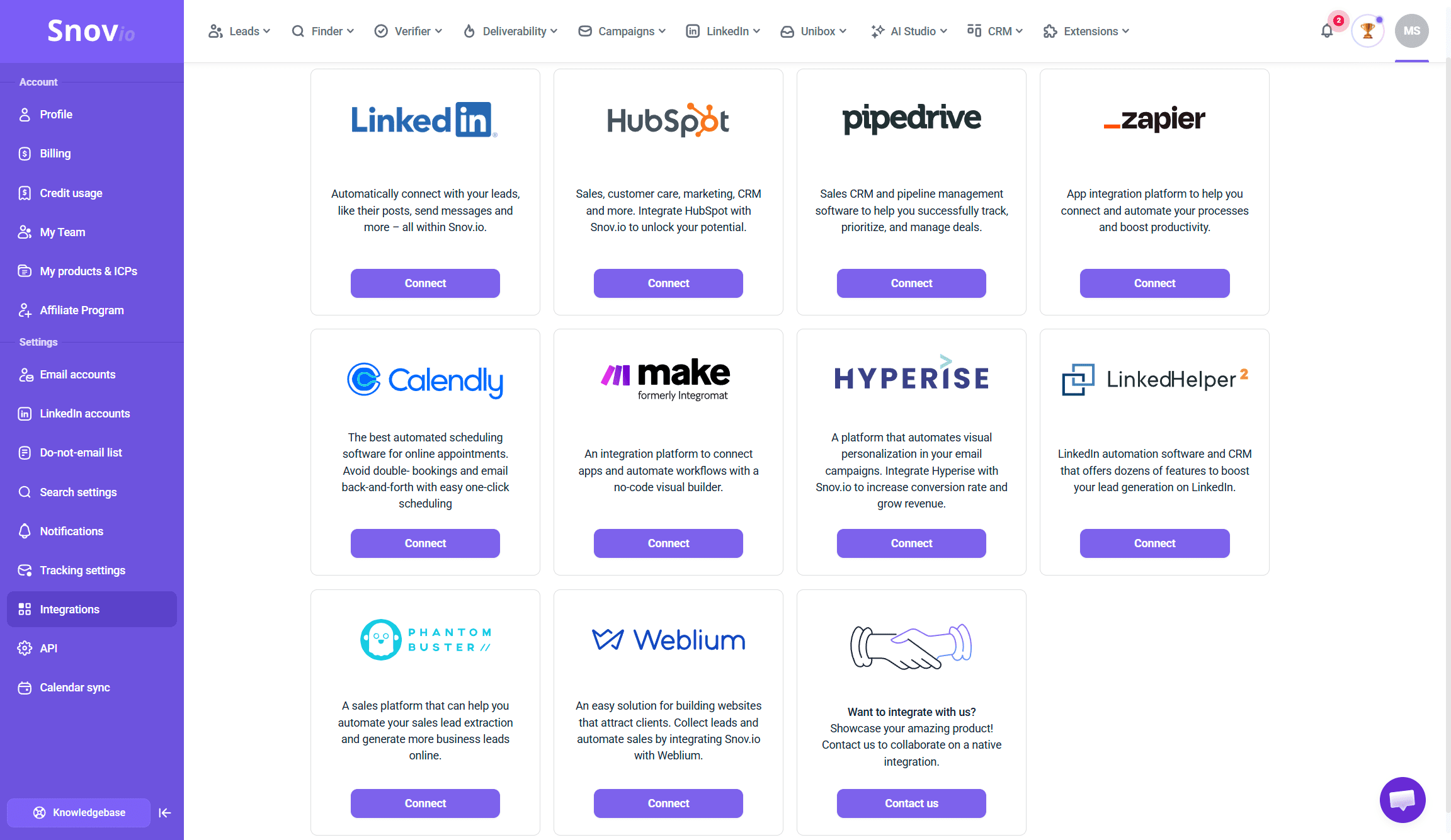 Popular integrations:
- HubSpot — sync contacts, update deal stages, trigger Snov.io sequences from HubSpot workflows
- Pipedrive — simplify how you manage your leads
- Zapier — connect Snov.io to 5,000+ tools without code
What syncs:
Contact data, email verification status, campaign activity (opened, clicked, replied), and sequence enrollment status.
The exact sync depends on the integration. Check the setup guide for the tool you're connecting.
Go to Integrations → Select tool → Follow connection steps.
For marketing teams:
The most common setup is Snov.io for prospecting and outreach + HubSpot or Salesforce for pipeline management and nurture.
Using Snov.io as your CRM
Snov.io includes a built-in CRM to manage your deals, pipelines, and meetings.
You can:
- create and manage deals
- build custom pipelines
- track lead progress from first contact to close
- schedule and manage meetings
This works well if you want to keep prospecting, outreach, and deal tracking in one place. Go to CRM in the main menu to access it.
→ How to create and manage deals in Snov.io CRM
→ How to create and edit pipelines
→ How to manage your calendar and meetings
Quick-start checklist
Before your first campaign:
Ongoing:
If you have any other questions, don’t hesitate to contact our Customer Care team via live chat or at help@snov.io. We’re always here to help!


Sorry about that 😢
How can we improve it?