This guide walks you through Snov.io as a complete system: from finding leads to tracking results. Each section is organized around what you're actually dealing with, not around features. Find your pain point, follow the steps, and go deeper with linked articles where you need more detail.
- I can’t afford to waste money on bad data or failed campaigns
- I don't have time to manually research potential clients
- I need to reach people but don't have a sales team
- My emails land in spam folders
- I can't tell if outreach is working
- My tools don’t connect, and I’m wasting time instead of growing the business
- Common mistakes and how to avoid them
- Quick-start checklist
I can’t afford to waste money on bad data or failed campaigns
Most tools charge per seat, per verification, or per email account. With Snov.io, one plan includes all the tools you need:
Unlimited email accounts
Connect as many sender accounts as you need. It’s useful when you need mailbox rotation to scale volume safely.
Automatic email verification
Any lead you find through Snov.io tools gets verified automatically. You don't pay extra for verification. You don't send to bad email addresses.
Unlimited prospect storage
Upload and store as many contact lists as needed without storage limits. You build your database over time without worrying about hitting limits.
Unlimited campaigns
Run as many campaigns as you want simultaneously. You can test different messages, audiences, and offers at the same time.
Built-in deliverability tools
Email warm-up, deliverability checks, and domain health monitoring are all included in your plan.
I don't have time to manually research potential clients
Manual research takes a lot of time: you search LinkedIn, copy names into spreadsheets, hunt for emails, then verify they work. The process is fragmented and hard to maintain.

Snov.io offers a structured workflow: find contacts, verify emails, store them, segment by criteria, and add them to campaigns.
The Leads page is your workspace to:
- find and store all contacts
- import existing lists
- verify emails
- segment and filter leads
- prepare them for campaigns
There is no storage limit, so you can build your database over time instead of constantly deleting or exporting data.
Upload and use your existing data properly
If you already have leads from past work, events, or partnerships, upload them instead of rebuilding from scratch.
Go to Leads → Add prospects → Import from file→ Upload .csv or .xls file (up to 100,000 rows).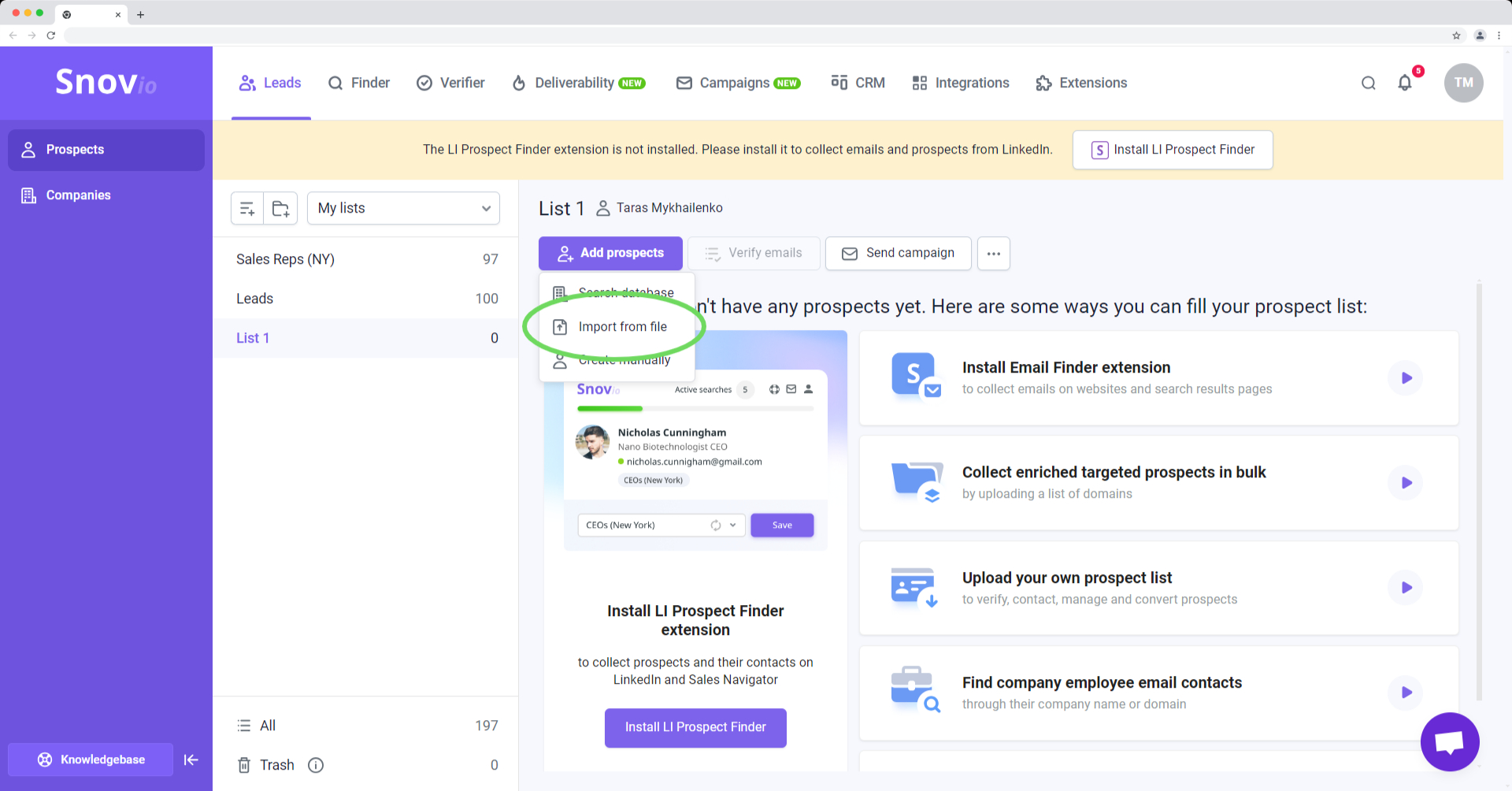 When you upload a list, you can also prepare it for outreach at the same time.
You can add extra columns in your file (industry, product used, source, notes) and map them as custom fields. 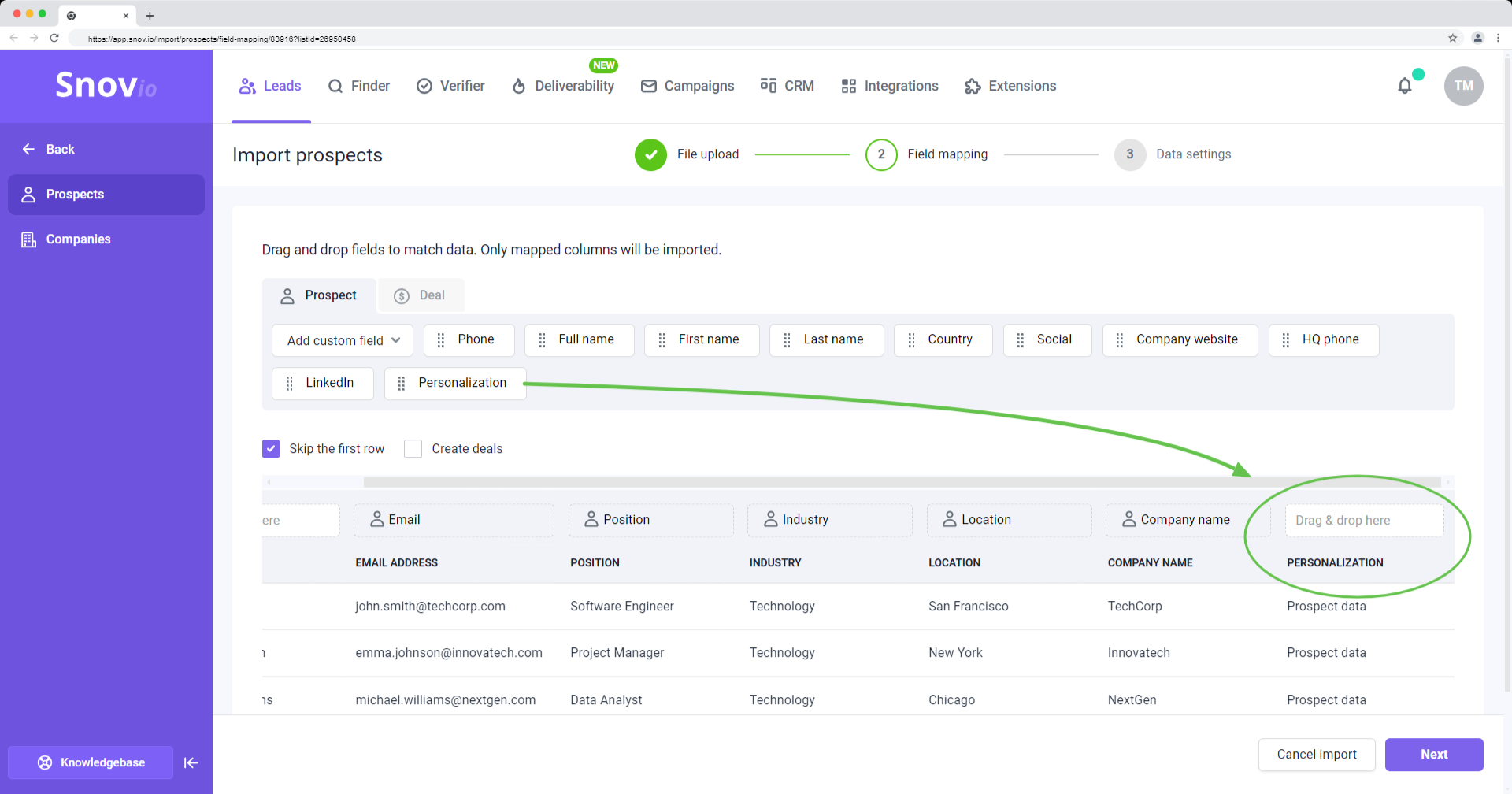 These fields become variables you can use in emails to personalize at scale.
Find verified contacts at companies you already know
If you have someone's first name, last name, and company domain but not their email address, Email Search finds it.
For single searches:
Go to Email Search → Enter first name, last name, company domain → Get a verified email.
For bulk searches:
Upload a CSV file with columns for first name, last name, and domain. Snov.io processes the entire list and returns verified emails for each entry.
If you know which companies you want, use Domain Search.
Go to Domain Search → Enter company domain → Filter by department or role → Save to list.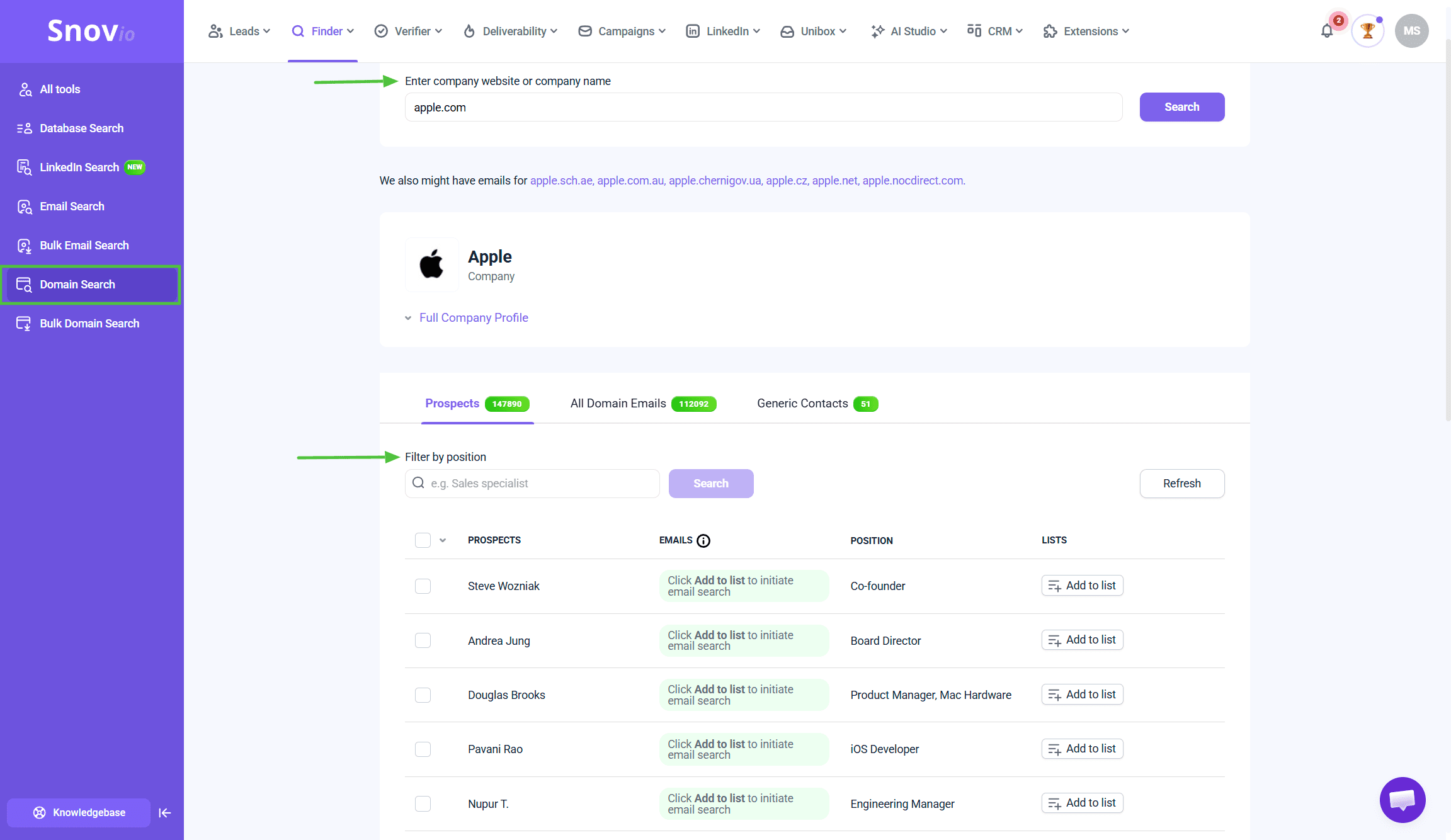

Important: filter before saving. Save only the contacts that are relevant to your offer.
Example: Selling accounting software? Filter for finance/accounting departments. Focus on the department your service is intended for. Do not pull marketing, HR, or unrelated contacts just to increase list size. Skip them unless they're decision-makers.
For each contact, you get a name, verified email, job title, and LinkedIn profile in one step. There’s no need to look anything up or double-check it separately.
Build targeted lists based on your ICP
If you don’t have specific companies in mind, use Database Search.
Go to Finder → Database Search → Set filters → Preview results → Export to list.
Be specific with filters to improve the list quality: a smaller, well-filtered list gets better results.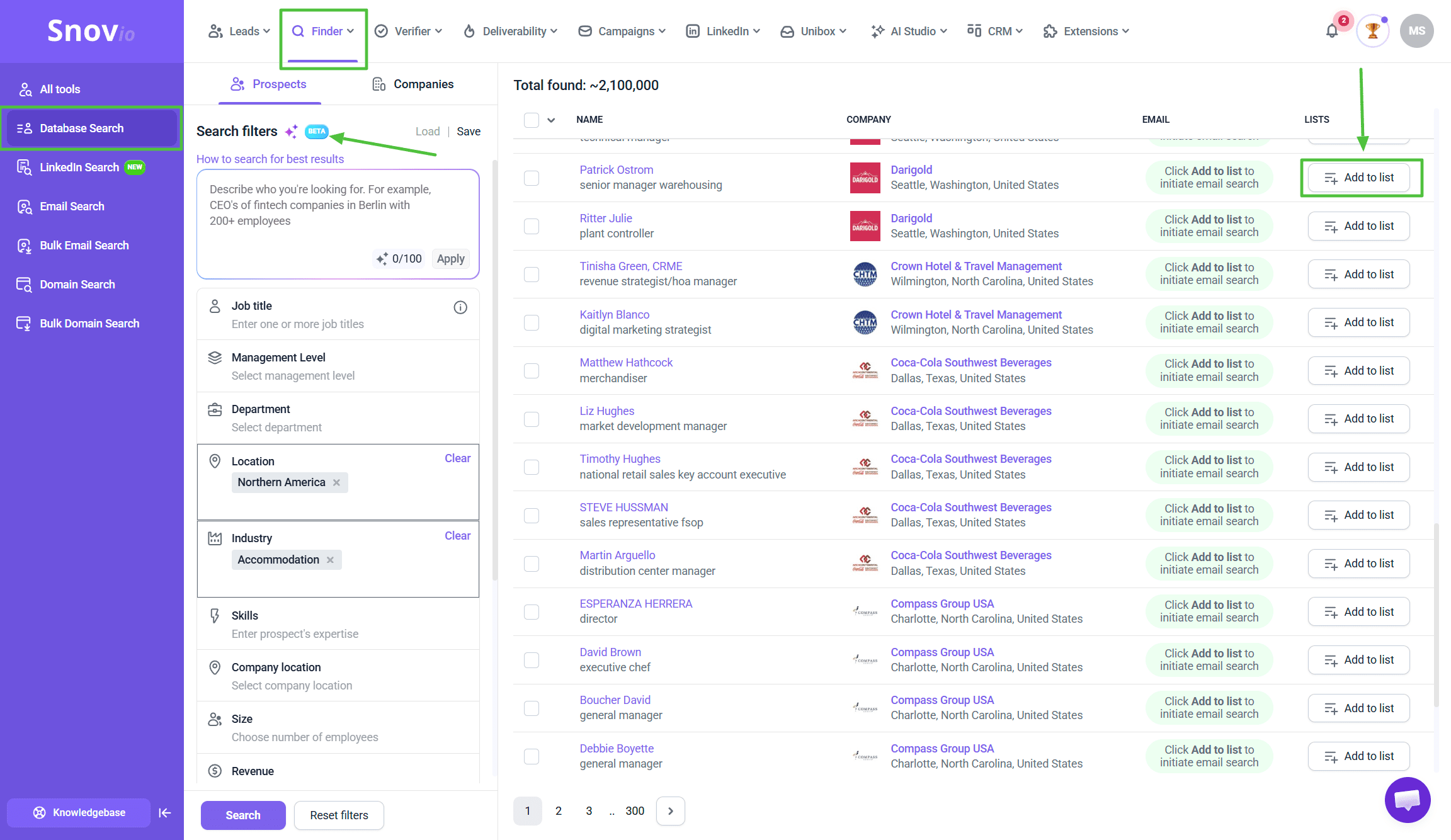 Available filters:
- Location (country, state, city)
- Job title and seniority level
- Skills (specific expertise)
- Company industry
- Company size (employee count)
- Company specialty/niche
- Revenue range
All contacts come pre-verified. Email verification happens automatically when you save leads.
Capture leads while browsing with Chrome extensions
Not all leads come from databases. Sometimes you find them while browsing.
Snov.io has Chrome extensions for this:
Email Finder extension works on any website. Company pages, blogs, directories, Google search results.
Open extension → It pulls emails with names and job titles from the page.
Useful for: researching specific companies, building media lists, capturing contacts from non-LinkedIn sites.
LinkedIn Prospect Finder works on LinkedIn profiles and search results.
Log into LinkedIn → Use search bar → Apply filters (position, location, industry, company size, connections). Filter to match your customer profile.
Click LinkedIn Prospect Finder icon  in browser toolbar (top-right). You'll see a preview of prospects found on the current page. Save them to your prospect list.
 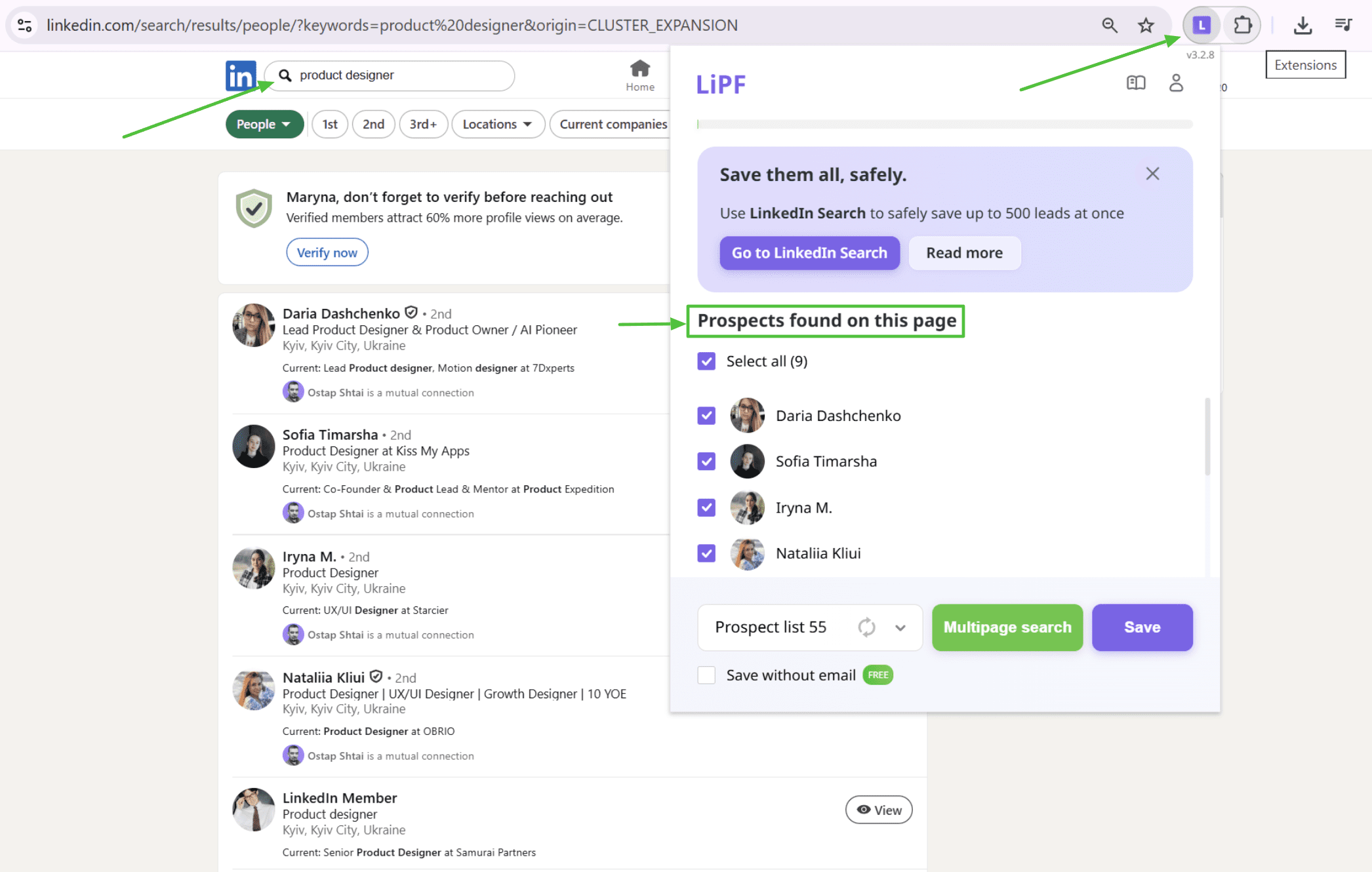 It also works on individual profiles and bulk searches, and supports Sales Navigator links too.
Install both from Chrome Web Store → Browse to any site or LinkedIn → Click extension → Save contacts to Snov.io.
Safety limits for LinkedIn collection:
Stay within daily limits to protect your account:
- Free LinkedIn: ~150 prospects/day
- Premium LinkedIn: ~500 prospects/day
- Sales Navigator: Up to 1,000 prospects/day
Extension adds random delays (7-14 seconds) between saves to look human.
Find emails from LinkedIn profile URLs
LinkedIn Search complements LI Prospect Finder and Database Search, giving you advanced options to find leads from LinkedIn directly in your Snov.io account. It offers three different ways to find prospects:
- by the URL of a specific profile
- by LinkedIn filters
- by the URL with search results
It’s useful when you've already identified prospects through LinkedIn but need their emails for outreach campaigns.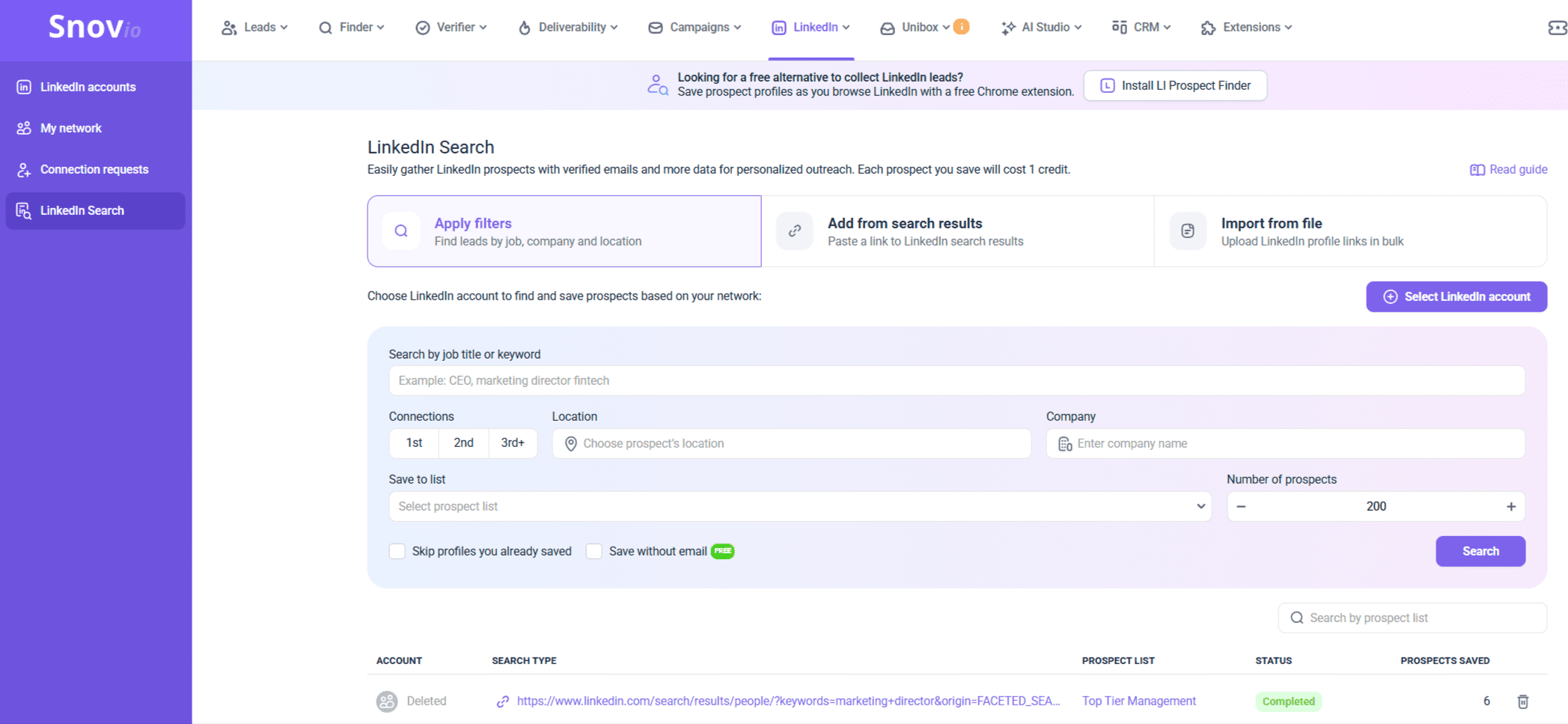

To get the most out of LinkedIn Search, you'll need a LinkedIn Automation. It will give access to advanced search options, such as LinkedIn filters and the ability to search for URLs within search results.
Go to LinkedIn Search and try different options to find leads: apply filters, add a link from LinkedIn search results or upload CSV with LinkedIn profile links. Snov.io finds and verifies emails. It supports standard LinkedIn profiles and Sales Navigator URLs.
Verify every list before sending
Even fresh lists might have bad addresses: people change jobs, domains expire, and inboxes get abandoned.
Bounce rate above 5% damages sender reputation. Future campaigns will land in spam, regardless of content quality.
Go to Email Verifier → Upload list → Run verification → Remove invalid and risky contacts.
Snov.io’s verification uses a 7-step validation process. Results show:
- Valid (green): Safe to send. Mailbox exists and accepts email.
- Risky (yellow): Catch-all domains, role-based emails, or uncertain factors. Decide based on your risk tolerance.
- Invalid (red): Bounce guaranteed. Remove immediately.
- Greylisted (gray): Server uses anti-spam blocking that prevents verification. Email likely deliverable, but we couldn't confirm. Usually safe to include.
- Not verified (white): Hasn't been checked yet. Click Verify emails to run verification.
When to verify:
- Before every campaign launch
- Lists older than 3 months
- Lists exported from CRM
- Any list you didn't build yourself through Snov.io tools
Lists built through Snov.io's Database Search, Domain Search, or extensions come pre-verified. But if you're importing external lists, verification is mandatory before sending.
→ How to verify email addresses
Enrich your prospects with more data
Once your list is verified, personalization can go further: the more you know about a prospect, the more specific your outreach can be.
Snov.io Enrichment adds phone numbers, LinkedIn background, and company details straight to prospects' profiles. 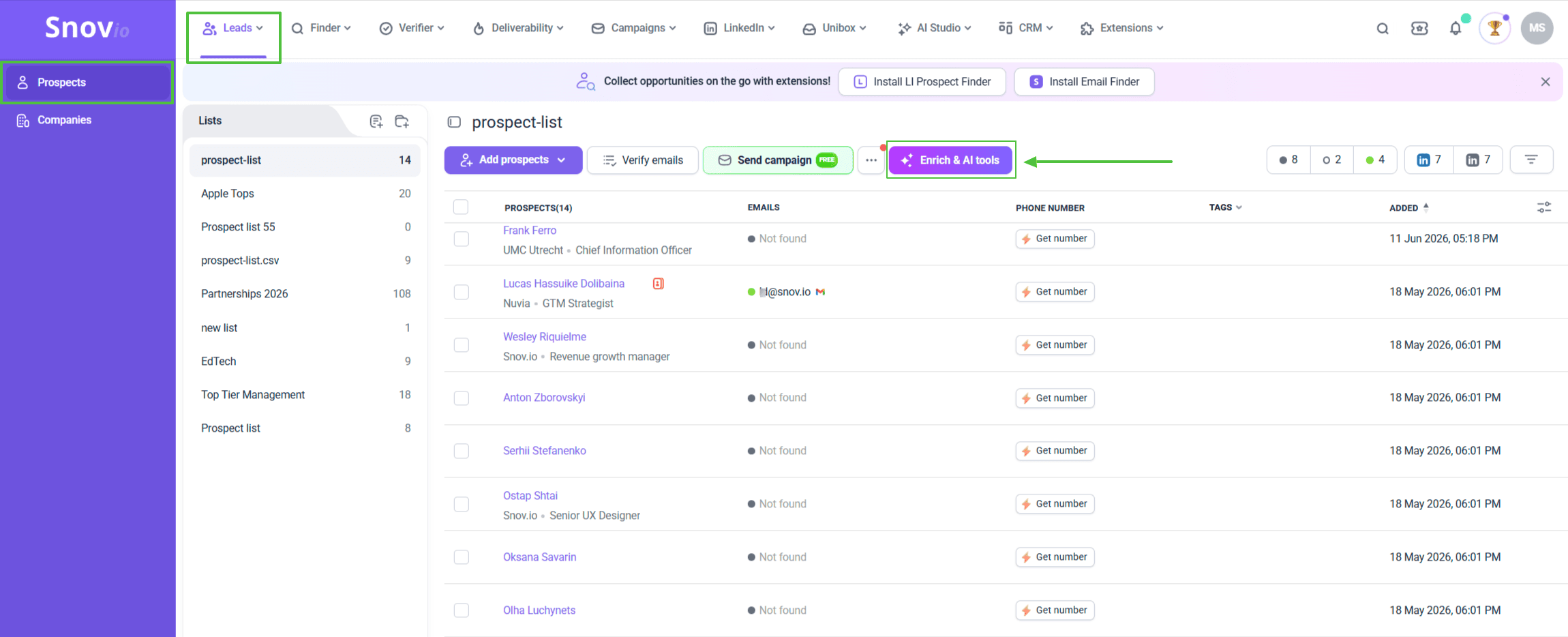 Go to your Prospect list → select prospects → click Enrich & AI tools → choose an action.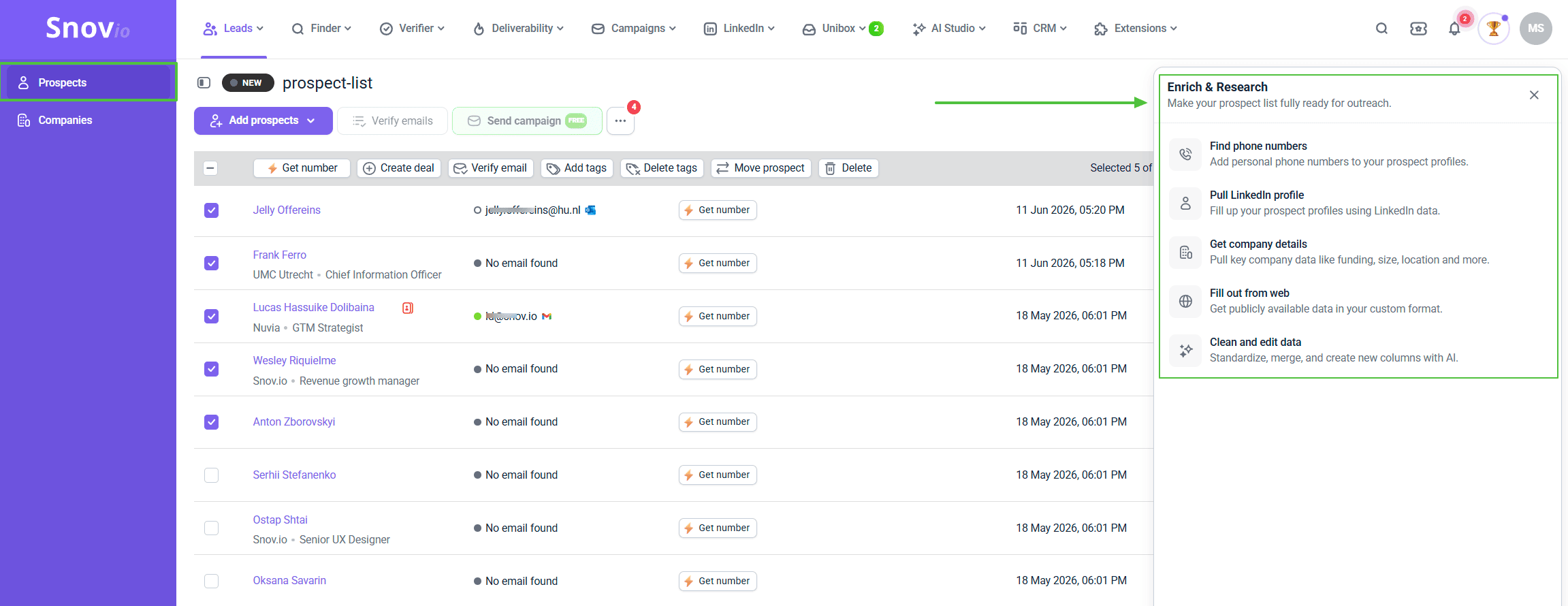
Enrich prospects with phone numbers
You can add phone numbers to prospect profiles directly from your list without manual research.
Click Get number next to any prospect, or select multiple and use Get number from the Quick Actions menu to run bulk enrichment.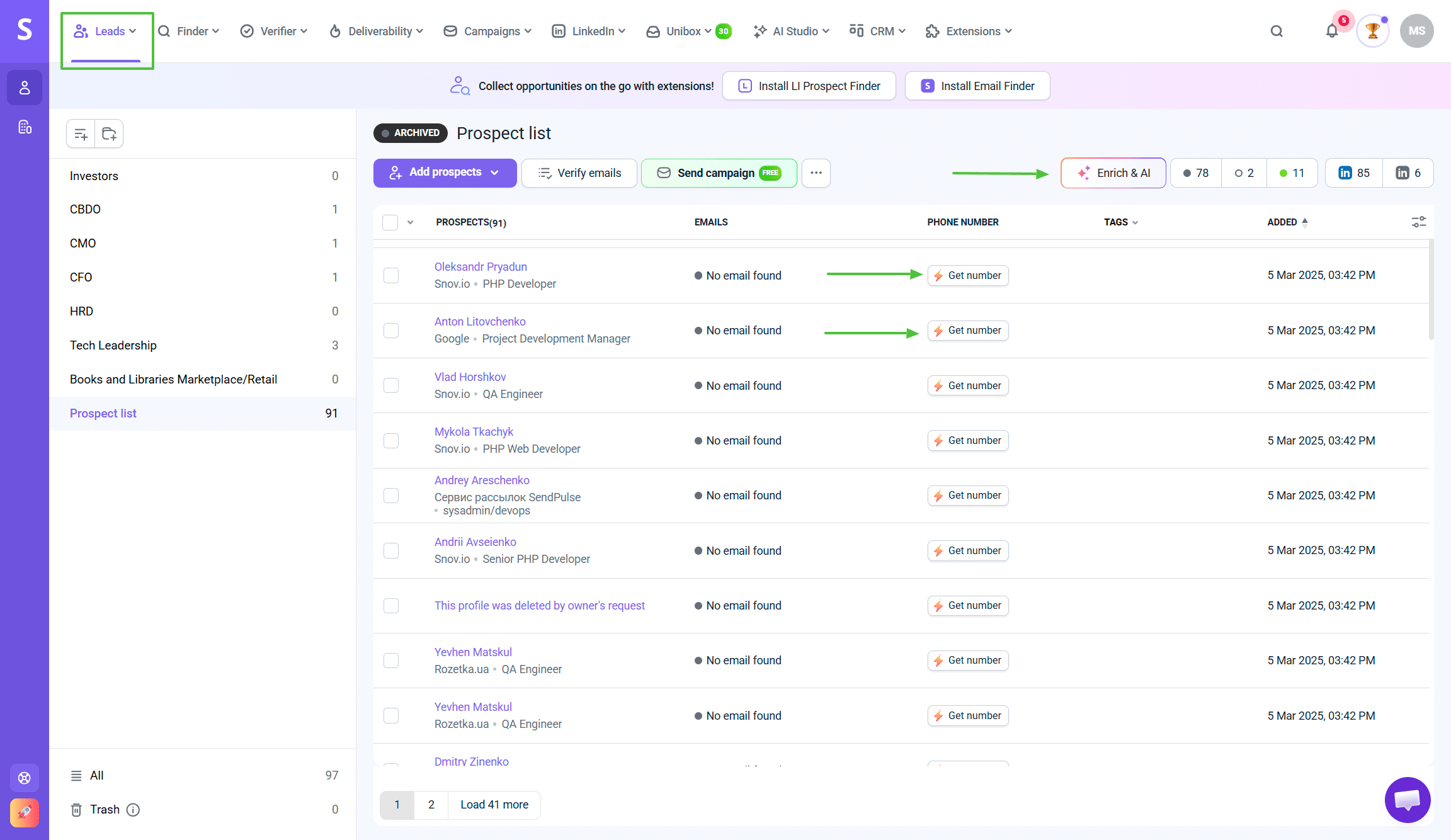 10 tokens are charged per prospect if the phone number is found.
Phone numbers are useful for following up with prospects who opened your emails but didn't reply: it's not cold calling, you're just following up on a warm signal.
→ Learn more about phone number enrichment.
Pull LinkedIn profile
The action adds professional background: bio, work experience, education, certifications, courses, volunteering, projects, languages, and more.
Useful for referencing something specific about a prospect's background in your outreach. It also saves you from opening each prospect's LinkedIn profile yourself to find something worth mentioning.
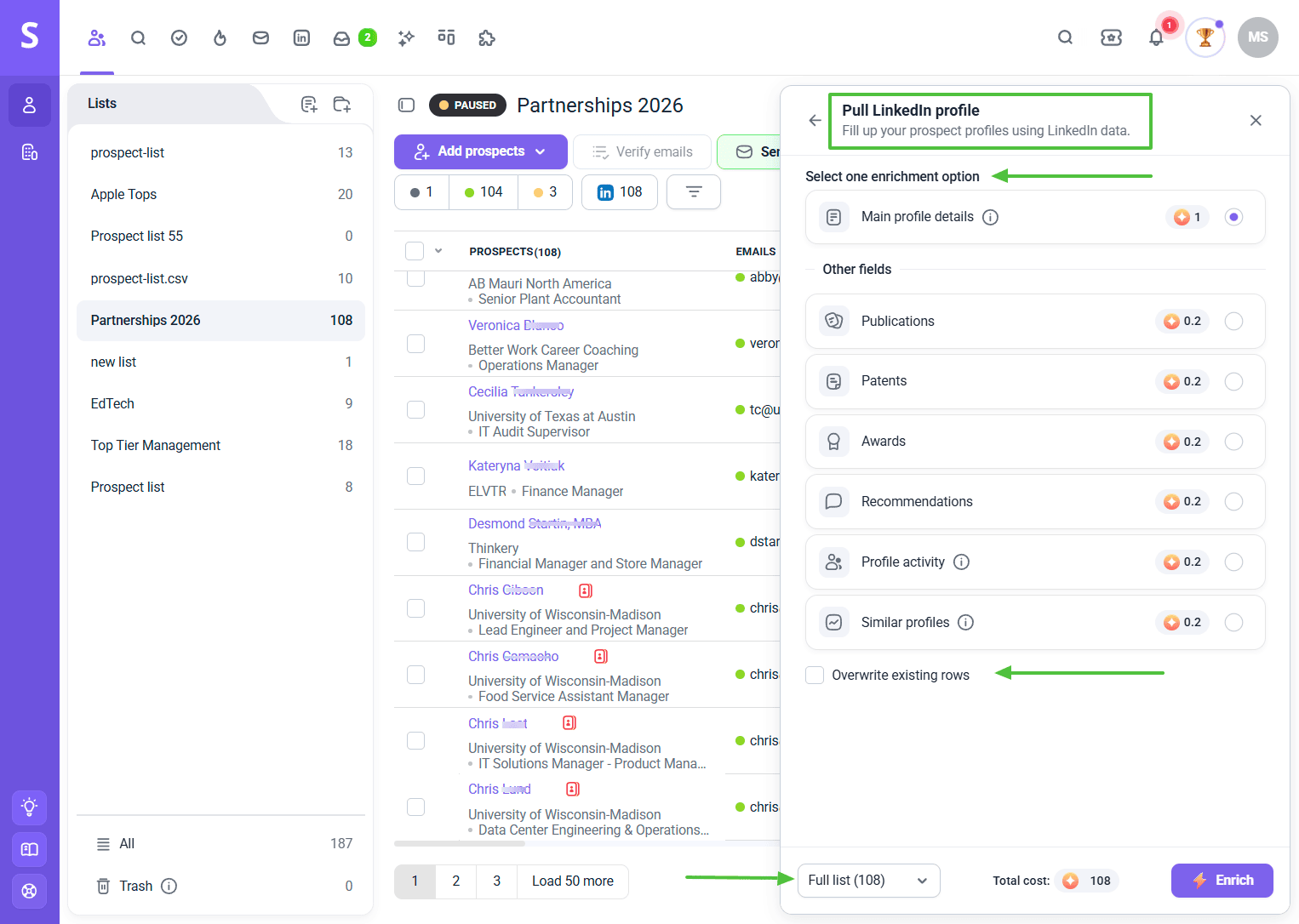 You need at least one of these fields on prospect’s profile:
- first name + last name + company domain
- first name + last name + email
- or a LinkedIn URL
The prospects missing these fields are skipped.
Main profile details cost 1 token per prospect. Optional extras (publications, patents, awards, recommendations, profile activity, similar profiles) cost 0.2 tokens each.
Get company details
The action adds a full company profile: industry, headquarters, size, funding history, specialties, and similar or affiliated companies.
Use it for checking whether a company matches your ICP before adding them to a campaign.
On the prospect's profile you need to have at least one of these:
- company domain
- company name
- or company LinkedIn URL
A prospect can’t be enriched if these fields are missing.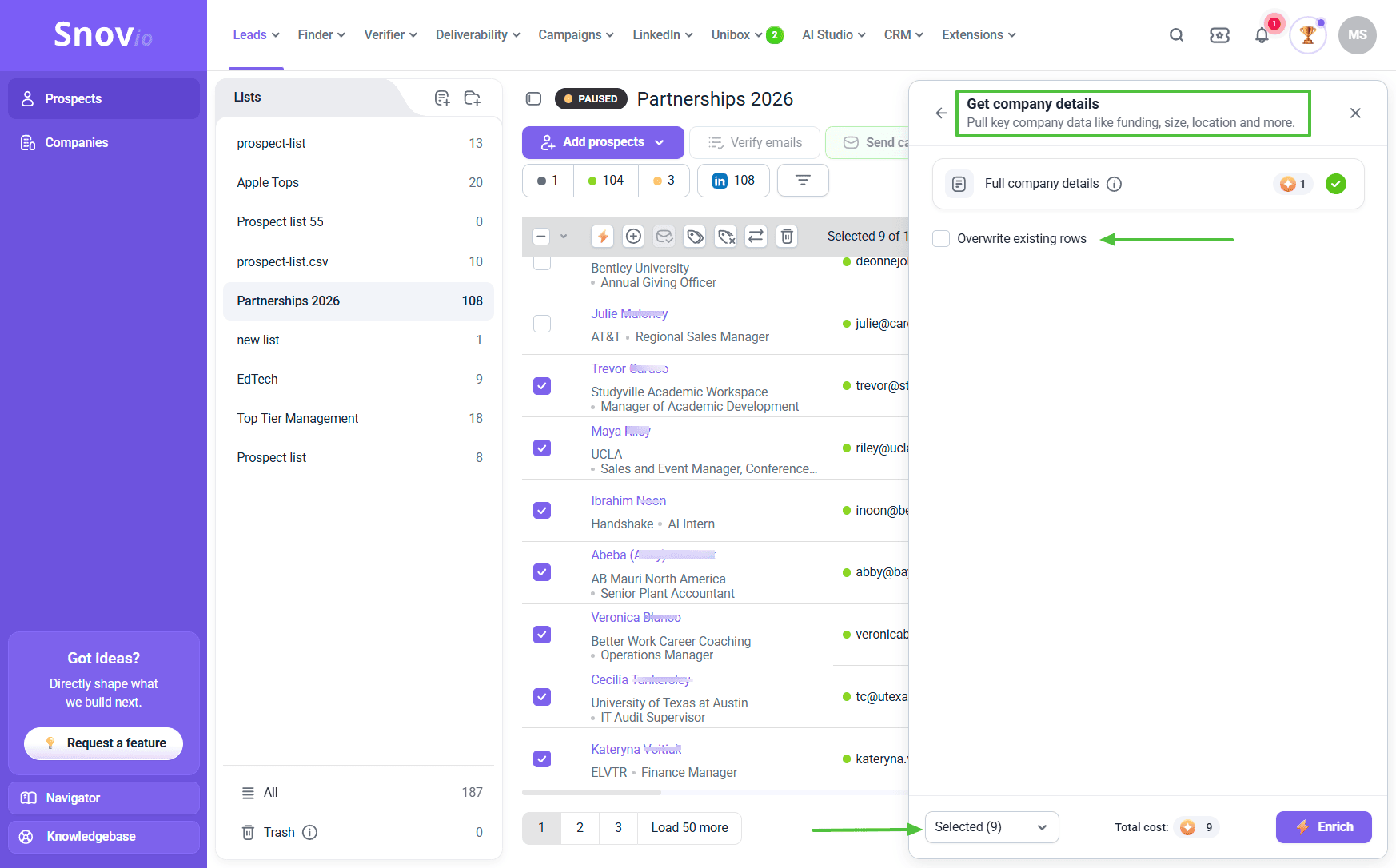 It costs 1 token per prospect for the full set, and saves you from researching each prospect's company separately before deciding how to contact them.
Turn on Overwrite existing rows for any enrichment action if you want the result to replace what's already there instead of only filling blanks. You can keep it off when enriching the list for the first time.
Check your token balance
Before starting, make sure you have enough tokens. Your token balance and purchase options are in Billing settings.
→ Learn how to use tokens for enrichment actions.
Tokens are only charged for prospects where enrichment finds data. If nothing's found, no tokens are spent.
Check full guides about enrichment in Snov.io:
→ How to enrich prospect data in your list
→ What data each enrichment action pulls
Automate lead generation with integrations
Snov.io connects to other services through webhooks. An event in one app triggers an action in Snov.io, and the other way around.
Connect Snov.io to Zapier or Make to automate prospecting tasks:
| Snov.io trigger (what starts the automation) | Snov.io action (what follows the event in another app) |
|---|---|
| Campaign email opened | Add email for verification |
| Campaign email sent | Create/Update prospect |
| Campaign link clicked | Search for email |
| Campaign prospect replied | Update recipient’s status |
| New prospect added | |
| Prospect completed campaign |
→ How to connect Snov.io with your existing tools
I need to reach people but don't have a sales team
Sending emails one by one and tracking replies manually takes time most business owners do not have. But cold outreach works when done right.
Run automated email sequences
Snov.io lets you set up email sequences that run automatically. Write emails once, set delays between them, add follow-ups. Snov.io sends them based on your schedule.
How it works:
Email 1 sends Monday morning. If no reply in 3 days, Email 2 sends Thursday. Still no reply? Email 3 sends the following Tuesday.
If a prospect replies to Email 1, the sequence stops automatically. You see the reply in your inbox, respond normally.
Go to Campaigns → New campaign → Add email steps → Set delays → Choose recipient list → Launch.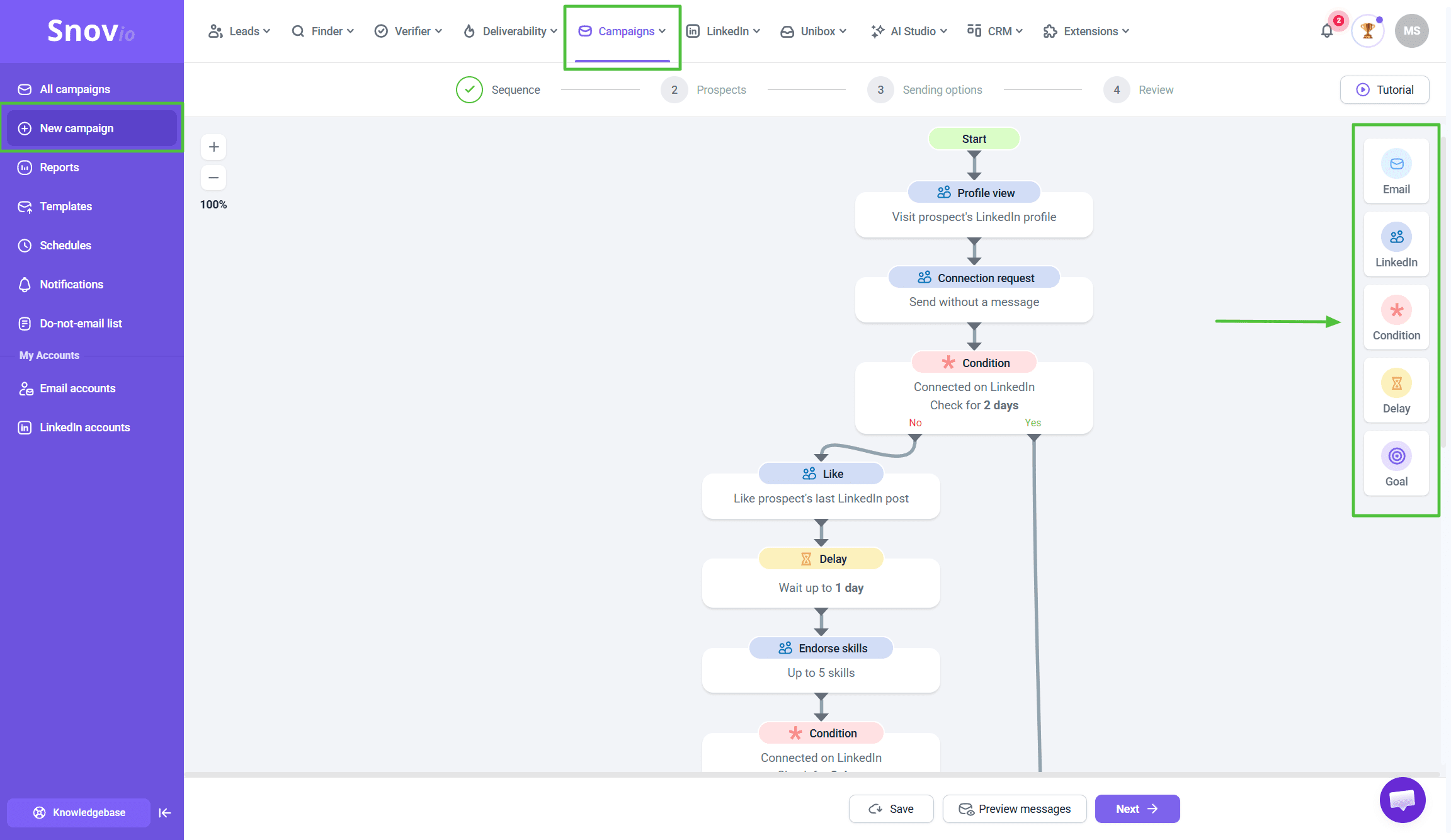 Tip: Keep sequences simple. Start with 2-3 emails total. Monitor what works, adjust for the next batch.
One campaign should have one clear goal: schedule a demo, download a guide, register for an event, book a call.
Don't ask prospects to do three things at once. Pick one action. Campaigns with one clear request convert better than campaigns offering multiple options.
→ How to set up your first automated email campaign
Add LinkedIn touchpoints without extra tools
Email alone misses people who check LinkedIn more than their inbox.
Combining email and LinkedIn gives you multiple touchpoints across channels. This increases the chances your message is seen and gets a reply.
Snov.io lets you add LinkedIn actions directly inside email sequences: profile visits, connection requests, and direct messages.
Example sequence:
LinkedIn profile visit → 2-day delay → Email → 3-day delay → LinkedIn message or follow-up email.
When you visit a profile before sending an email, the recipient is more likely to recognize your name.
Go to Campaigns → New campaign → Add step → LinkedIn action → Set delay.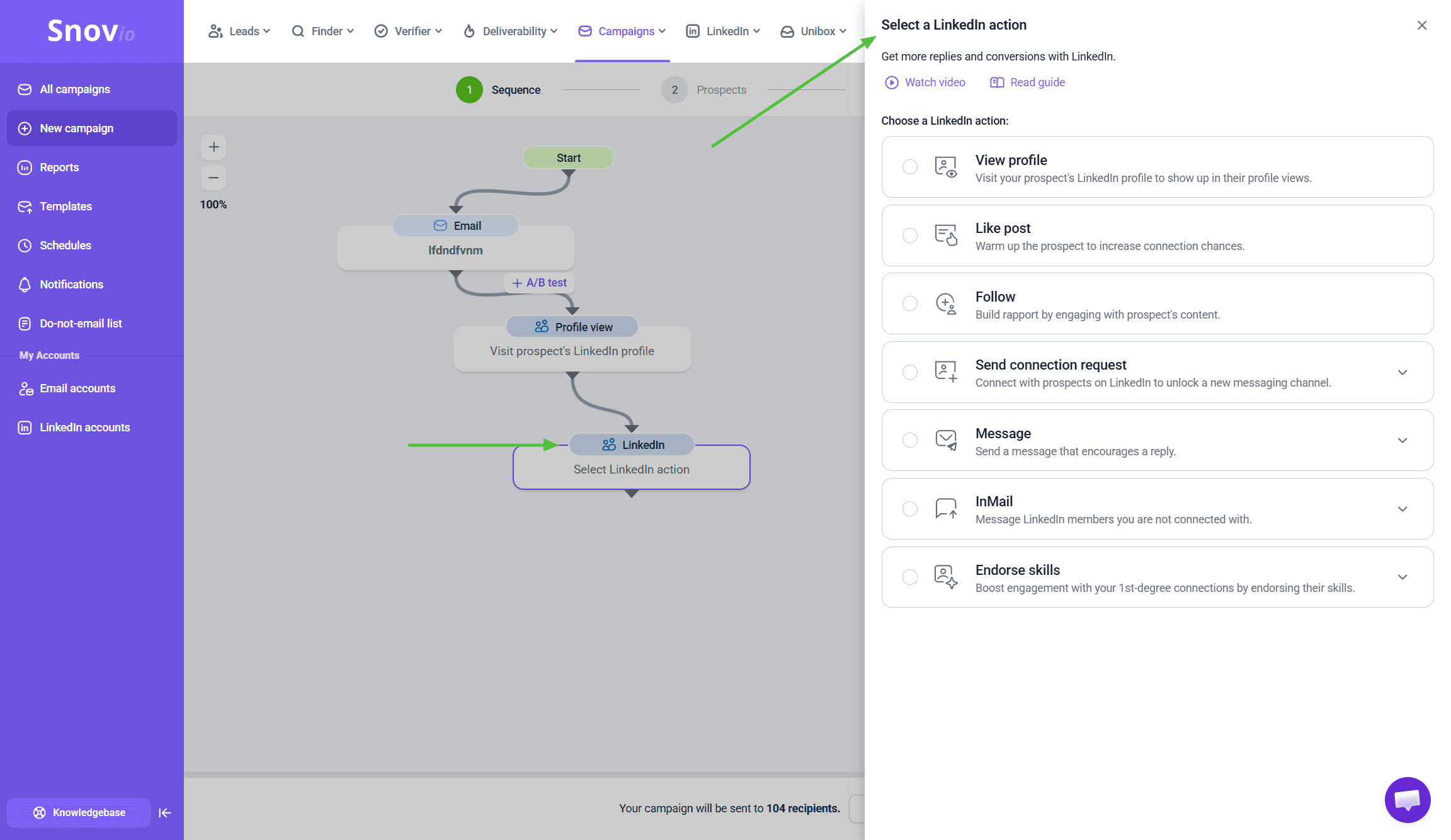 Stay within safe limits:
- LinkedIn actions under 30-40 per day per account
- Don't send connection requests to strangers without context
- Always personalize connection request notes
What works best:
Profile visits and messages to existing connections tend to get better responses than sending connection requests to people who do not know you. Use LinkedIn automation to stay visible and engaged with people already in your network rather than cold outreach to strangers.
Build your LinkedIn network organically through groups, content, and real engagement. Then use automation to stay in touch and nurture those relationships.
→ How to use LinkedIn automation
Manage your LinkedIn network
My Network syncs your LinkedIn connections to Snov.io. You can view all connections in one place, message them directly, search and filter, and turn them into campaign prospects without switching between platforms. 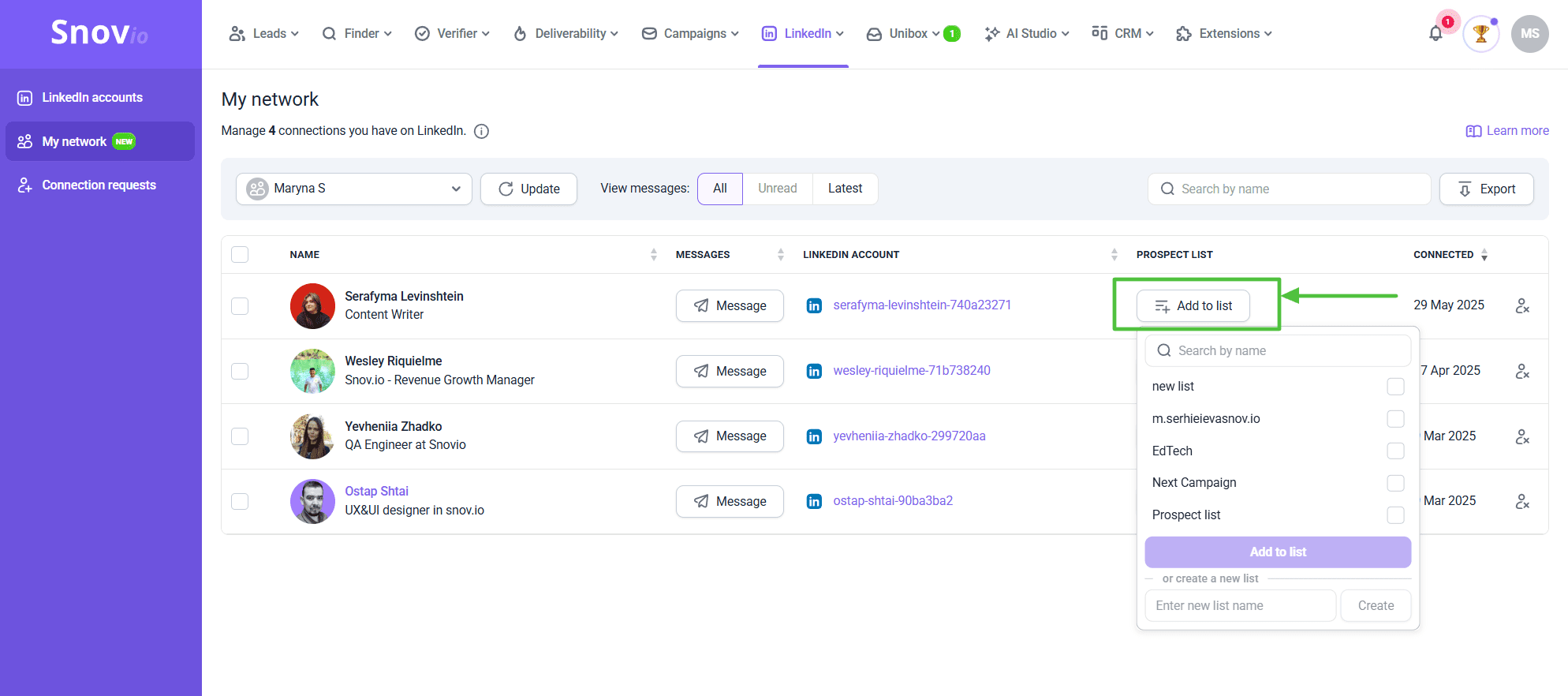 From My Network, you can add connections directly to a campaign list.
Manage all replies in one place
When you run campaigns from multiple email accounts, replies arrive in different inboxes. Unibox collects them all in one place.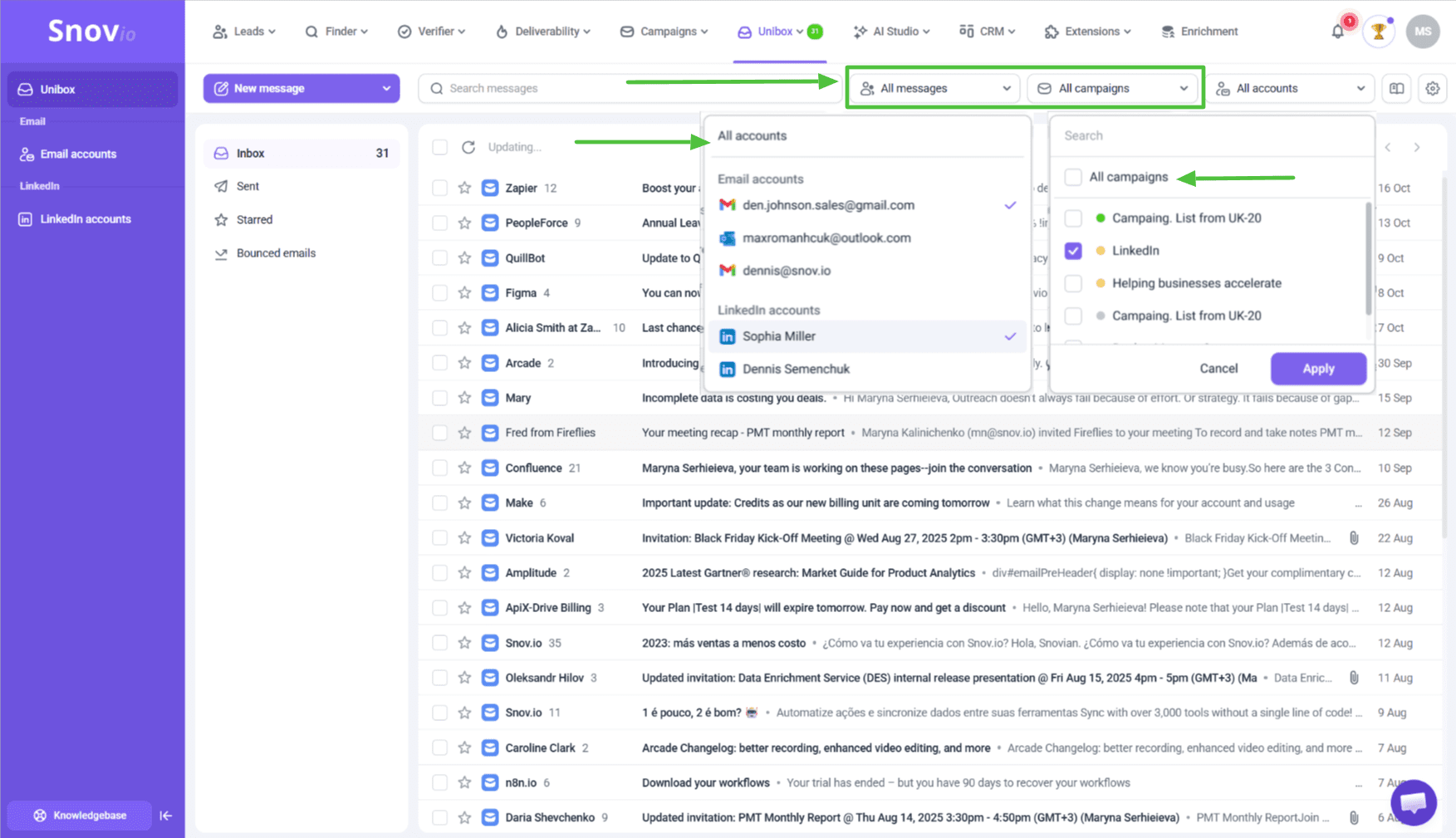 Go to Unibox → See all replies → Filter by campaign, sender, or status → Respond directly.
→ How to manage inboxes and conversations in Unibox
My emails land in spam folders
Low open rates aren't always a subject line problem. Often emails land in spam before anyone sees them.
Snov.io includes a complete deliverability check that covers warm-up, DNS checks, and inbox placement testing, all in one place.
Fix DNS records before every campaign
DNS records (SPF, DKIM, DMARC) tell receiving servers you're authorized to send from your domain. Missing or broken records are the most common reason emails land in spam.
Three critical records:
SPF (Sender Policy Framework): Lists which IP addresses are allowed to send email from your domain.
DKIM (DomainKeys Identified Mail): Adds a digital signature to your emails that receiving servers can verify.
DMARC (Domain-based Message Authentication): Tells receiving servers what to do when SPF or DKIM checks fail.
Go to Email Accounts → Select sender → Domain health → Fix flagged issues.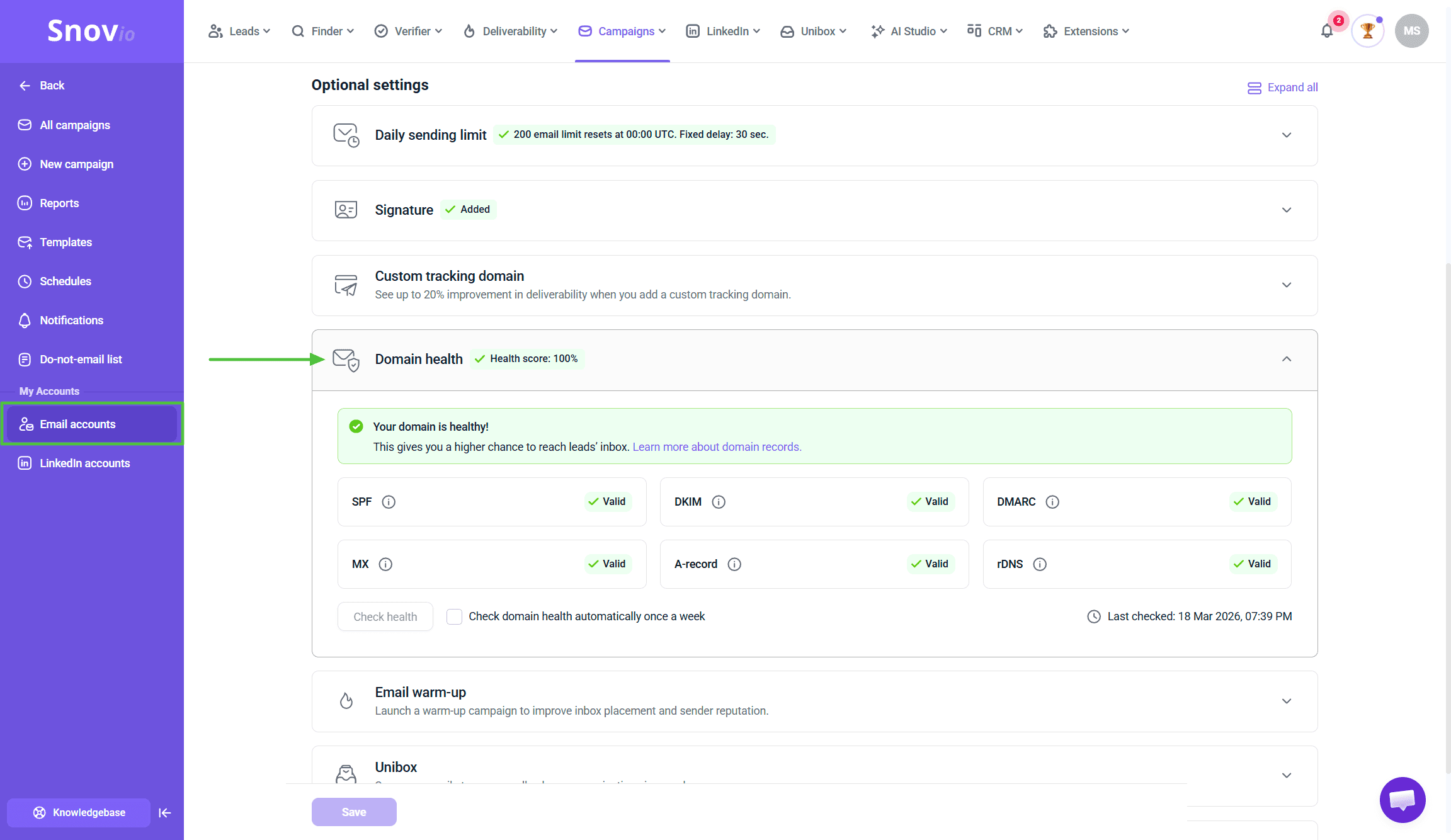 Snov.io shows you exactly which records are missing or broken and provides the exact DNS entries you need to add. Most issues are quick to fix.
Do this before every new campaign, not just your first one. Domain configurations change, DNS records expire, settings get modified, and checking regularly prevents problems.
Gmail and Outlook check these records before deciding inbox or spam. If records are missing or broken, your email goes to spam regardless of the content.
Done-for-you mailboxes
Buy domains with pre-configured SPF, DKIM and DMARC directly in Snov.io, then create new accounts in bulk.
For DFY mailboxes, we use Google as the provider to ensure stability and high deliverability.
→ Add a custom tracking domain to improve inbox placement
Warm up new email accounts before sending
New email accounts that suddenly start sending high volumes look like spam sources. Email providers may block them before your emails reach anyone.
Warm-up gradually builds sending history and trust with email providers.
Go to Email Warm-up → Add mailbox → Select accounts → Choose warm-up strategy → Run for 2-4 weeks before campaigns.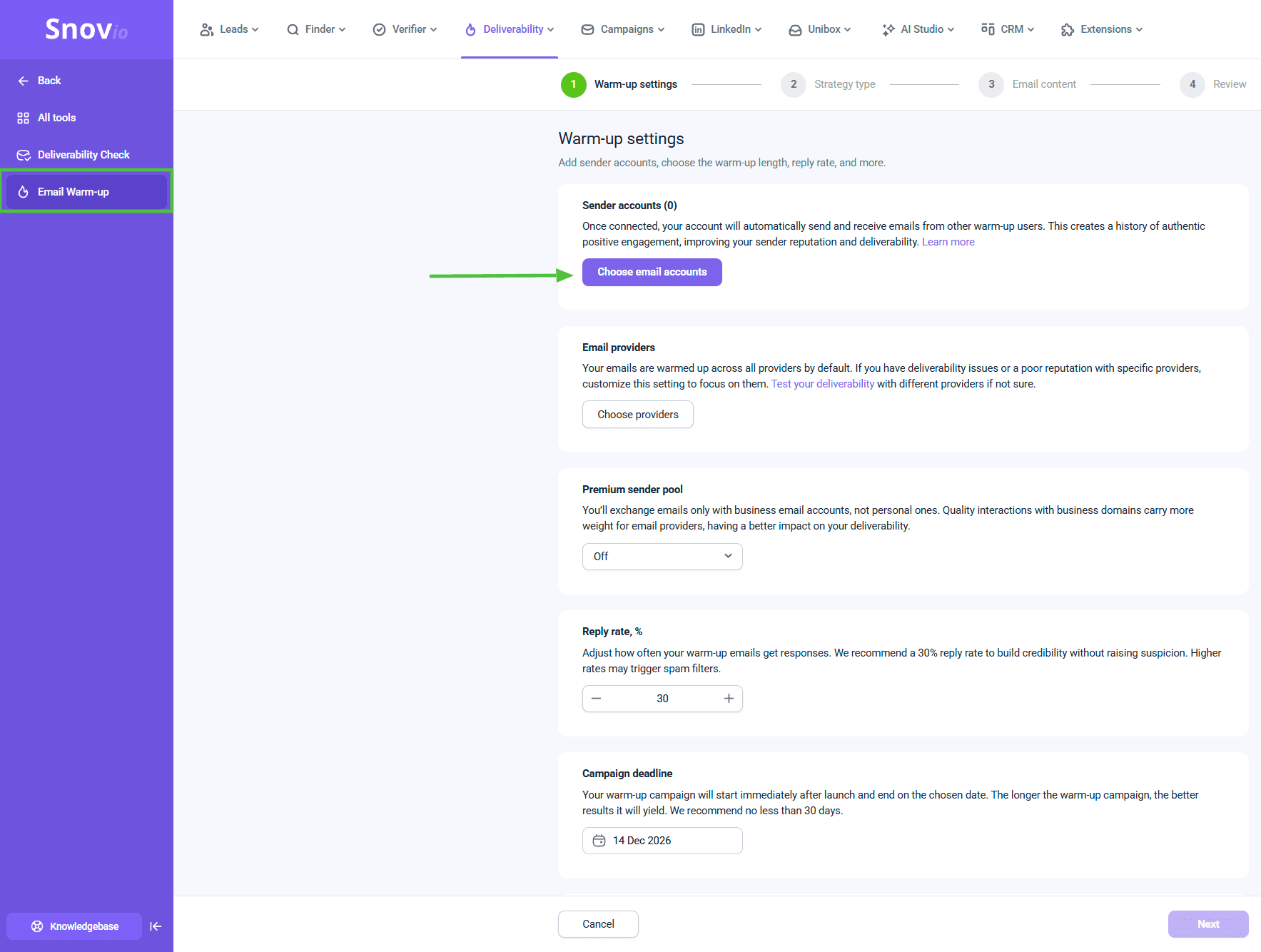 For new accounts: Run warm-up for 2-4 weeks before sending campaigns. Starting campaigns too early reduces warm-up effectiveness and can get your account flagged.
For existing accounts: Run 1-2 weeks to strengthen reputation, especially if the account was inactive.
Keep warm-up running at low volume even after campaigns start. It maintains reputation between sends.
Run deliverability checks when something feels off
If open rates drop suddenly, or you see high bounce rates despite a clean list, run a deliverability check.
It simulates sending to real inboxes across Gmail, Outlook, and others; then, shows exactly where emails land.
Go to Deliverability Check → Run test → Review inbox placement by provider.
When to run these tests:
- before launching your first campaign
- after making design or content changes to email templates
- after increasing sending volume or daily limits
- when seeing sudden drop in open rates
- at least monthly for ongoing active campaigns
Use test results strategically:
If the test shows 60% inbox and 40% spam, start with your DNS setup, warm-up progress, and sending volume. Get those right before rewriting your subject lines or copy.
Common mistakes that kill deliverability:
- Launching campaigns from new accounts without warming up
- Sending to unverified lists and exceeding 5% bounce rate
- Using image-heavy designs that trigger spam filters
- Tracking opens/clicks without a custom tracking domain
- Skipping domain health checks when switching sender accounts
I can't tell if outreach is working
When you send a campaign, the first results come in fast: opens, clicks, and replies. Snov.io gives you the data you need to understand what's working and what to do next.
Go to Campaigns → Select campaign → Statistics tab.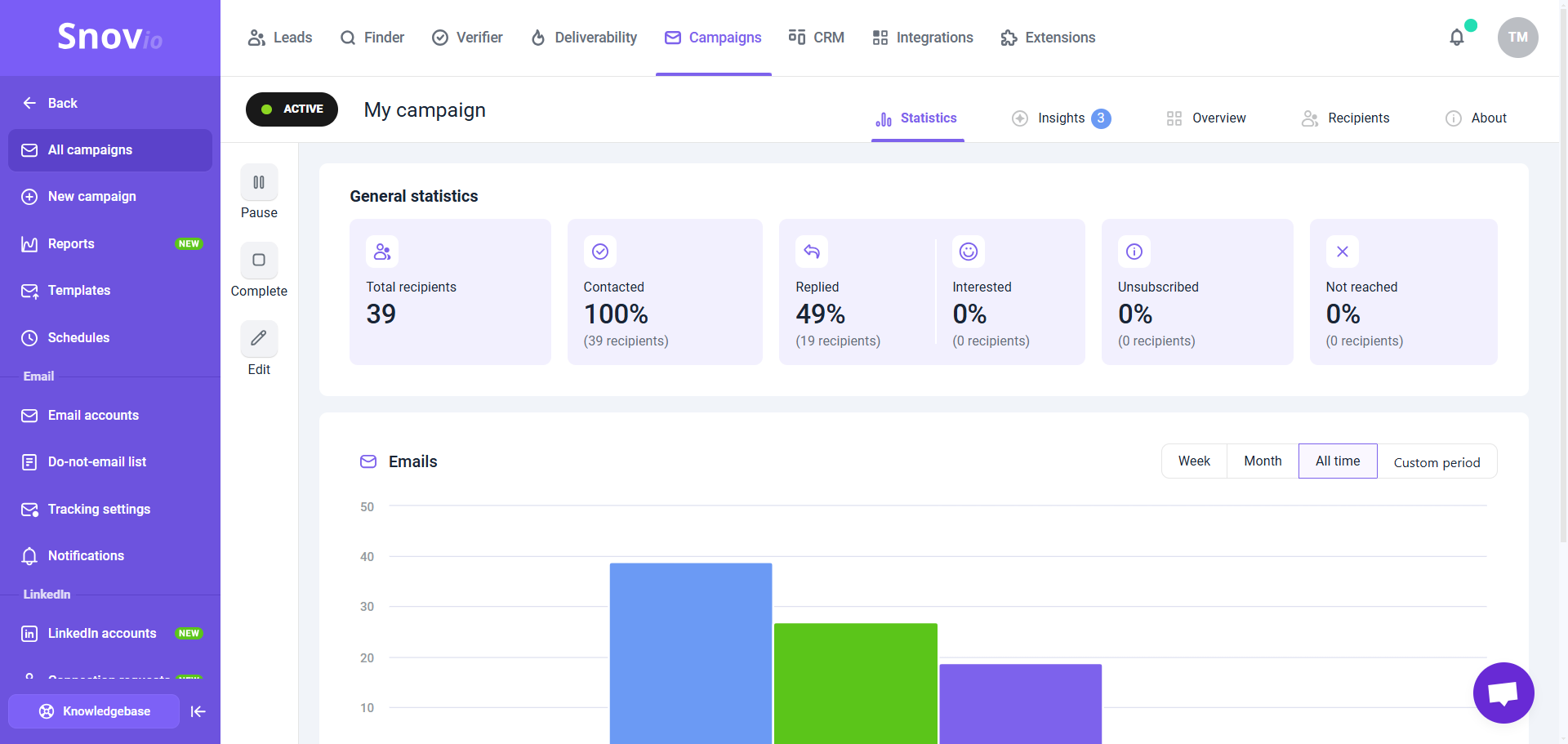
| Metric | What it tells you | When to act |
|---|---|---|
| Open rate | Whether subject line and sender name work | Under 20%: check deliverability first, then subject line |
| Click rate | Whether message and CTA are compelling | Low clicks with good opens: CTA or offer needs work |
| Reply rate | Real engagement is most valuable signal | Benchmark in your segment, not generic averages |
| Bounce rate | List quality and sender reputation health | Over 5%: stop, verify list, investigate sender |
Wait at least 3 to 5 days before reviewing results. With multi-day delays between emails, early numbers are incomplete.
Test one thing at a time
After running your first campaign, you'll want to improve results:
Step 1. Review your first campaign results. Identify the weakest metric (open rate, click rate, reply rate).
Step 2. Think of a possible reason why that metric is weak. Low opens? Maybe the subject line is too vague. Low clicks? Maybe CTA is buried in text. Low replies? Maybe targeting is off.
Step 3. Change one thing based on your theory, and keep everything else exactly the same.
Step 4. Run the next campaign to test it.
Subject line, send timing, sequence length, CTA: test them separately so you know what moved the number.
Example:
Campaign 1: 15% open rate, 2% reply rate
Hypothesis: Subject line too vague
Test: Write specific, benefit-driven subject line
Campaign 2: 28% open rate, 2% reply rate
Result: the subject line needed improvement. The message content was not the issue.
→ How to view campaign statistics
→ How to review campaign reports
→ Sentiment analysis: how to determine prospect’s interest level
My tools don’t connect, I’m wasting time instead of growing the business
Moving data between tools manually takes time and often leads to errors or outdated information.
Use Snov.io's built-in CRM
Snov.io includes a CRM where you manage deals, pipelines, and meetings without switching tools.
Go to CRM in the main menu.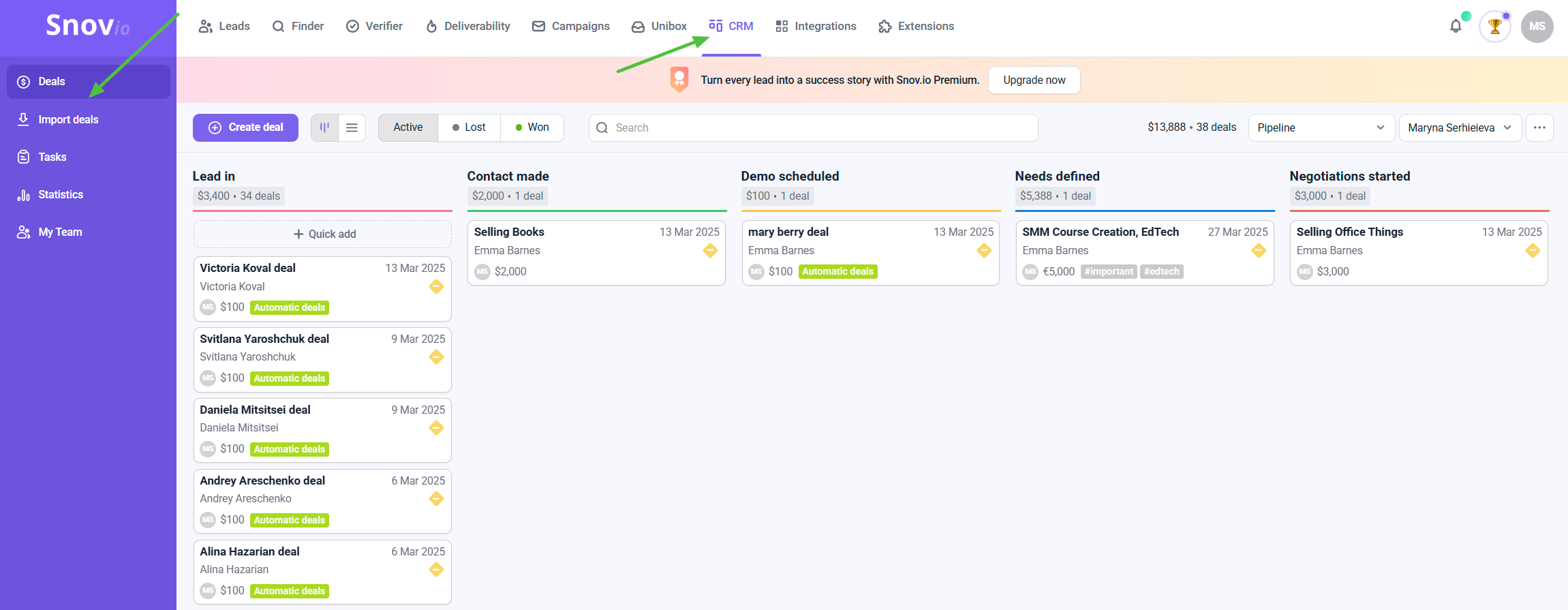 What you can do:
- Create deals from prospects
- Build custom pipelines
- Track lead progress from first contact to close
- Schedule and manage meetings
- View prospect activity and history
Everything stays in one place: lead activity, email opens, clicks, and replies are all visible in your Snov.io account.
→ How to create and manage deals in Snov.io CRM
→ How to create and edit pipelines
→ How to manage calendar and meetings
Connect to your existing CRM if you prefer
If you already use HubSpot, Pipedrive, or another CRM, Snov.io connects to it.
Available integrations:
- HubSpot — sync contacts, update deal stages, trigger Snov.io sequences from HubSpot workflows
- Pipedrive — simplify lead management
- Zapier — connect Snov.io to 5,000+ tools without code
Go to Integrations → Select tool → Follow connection steps.
What syncs:
Prospects data, email verification status, campaign activity (opened, clicked, replied), sequence enrollment status.
Find leads and run outreach in Snov.io, then move contacts who replied or clicked to your CRM for further follow-up.
Common mistakes and how to avoid them
| Mistake | What happens | Cost | Fix |
|---|---|---|---|
| Skipping warm-up or cutting it short | If your account isn't warmed up, emails may go to spam. Campaign results look worse than they actually are. | Lost leads, poor visibility and long-term reputation damage. | Run warm-up for 2–4 weeks before launching campaigns. Keep it active at low volume after launch. |
| Starting with too much volume | Sending too many emails too early can trigger spam filters or account blocks. | Lost account access, burned domain and failed campaigns. | Start with 20–30 emails per day and scale gradually. |
| Using image-heavy emails | Large images can trigger spam filters or cause Gmail clipping. | Lower inbox placement and reduced engagement. | Use plain text or light HTML. Keep images minimal and email size under 102KB. |
| Ignoring domain health checks | Broken or missing DNS records can send emails straight to spam. | Zero inbox rate and wasted campaign effort. | Check domain health before each launch and fix issues immediately. |
| No sending schedule | Random sending times can look automated and reduce engagement. | Lower open rates and higher spam risk. | Send during business hours and use timezone-based scheduling. |
| No testing before launch | Broken links or formatting issues reach real contacts. | Damaged credibility and lost trust. | Always send test emails first. Check links, variables and formatting. |
| Sending to unverified lists | High bounce rates signal poor list quality to providers. | Deliverability issues and wasted credits. | Verify every list and re-check older contacts regularly. |
| Changing everything at once | Results change, but you can't tell what caused the improvement. | No clear learnings and harder scaling. | Test one variable at a time and keep the rest stable. |
Quick-start checklist
Before your first campaign:
Ongoing:
Still have questions? Contact support at help@snov.io or via live chat.


Sorry about that 😢
How can we improve it?