This guide explains what changed in LI Prospect Finder 4.0 and how it affects the way you collect LinkedIn leads.
LI Prospect Finder 4.0 is a redesigned Chrome extension, and it is where your LinkedIn lead generation starts. Collect leads here, then move them to enrichment and LinkedIn Automation.
The extension is now a Chrome sidebar
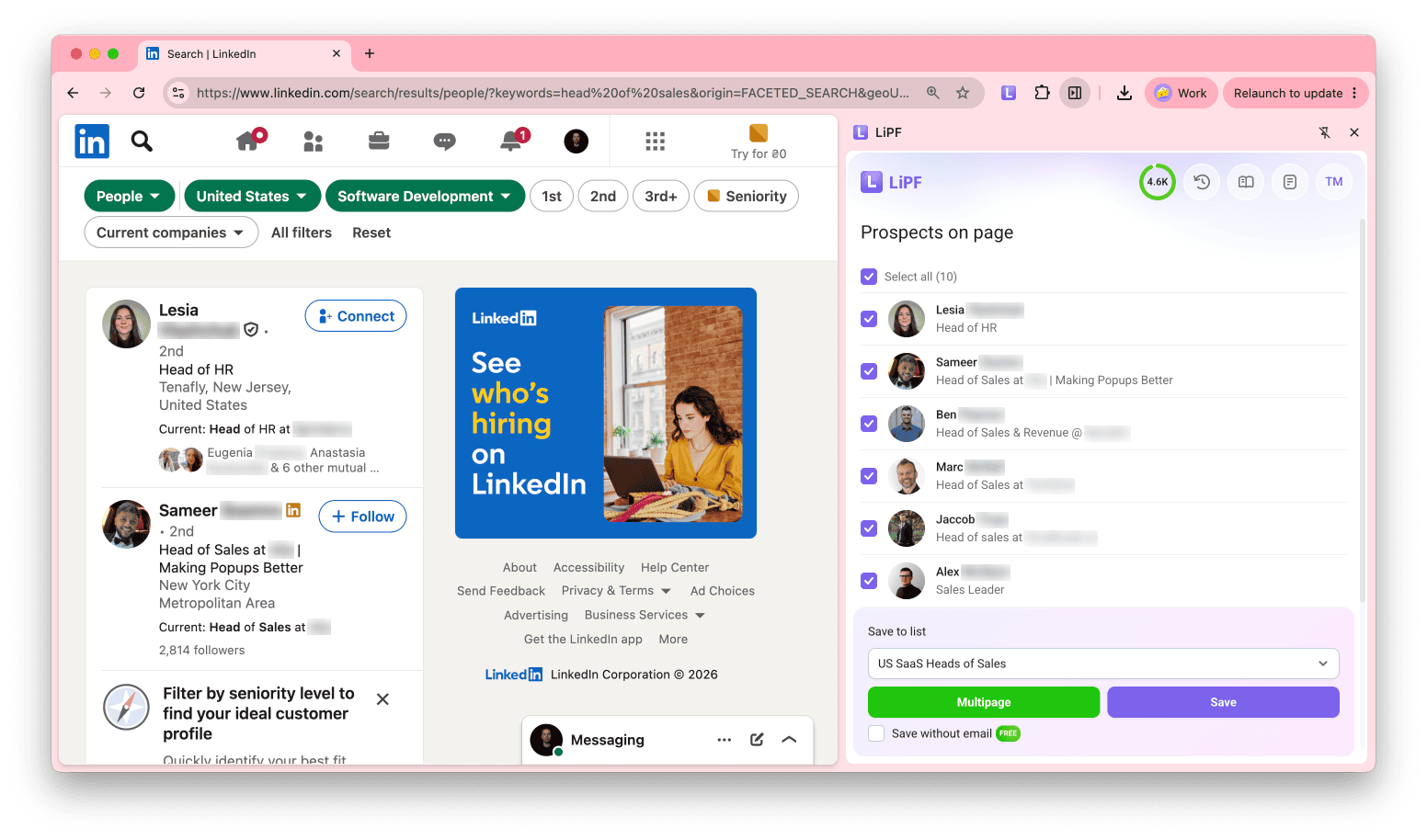
The extension opens as a sidebar in Chrome instead of a pop-up that closes when you click outside it. Open it once, then move between profiles, people searches, and company pages. It scans the page you are on, so you can save what you need and go to the next page.
Switch between prospect and company tabs
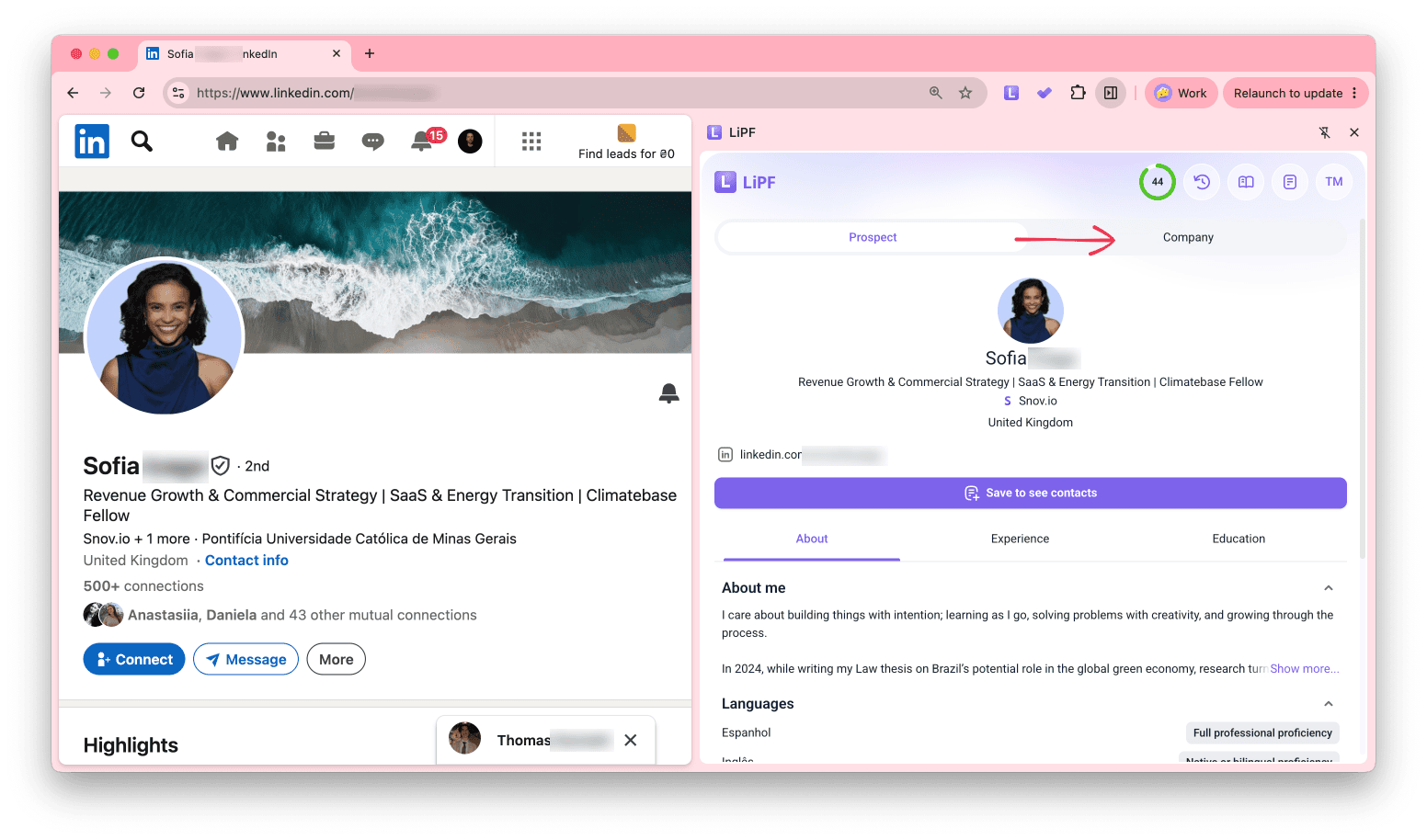
The sidebar has Prospect and Company tabs. On a profile, click Company to see the details of the prospect's company without leaving the page.
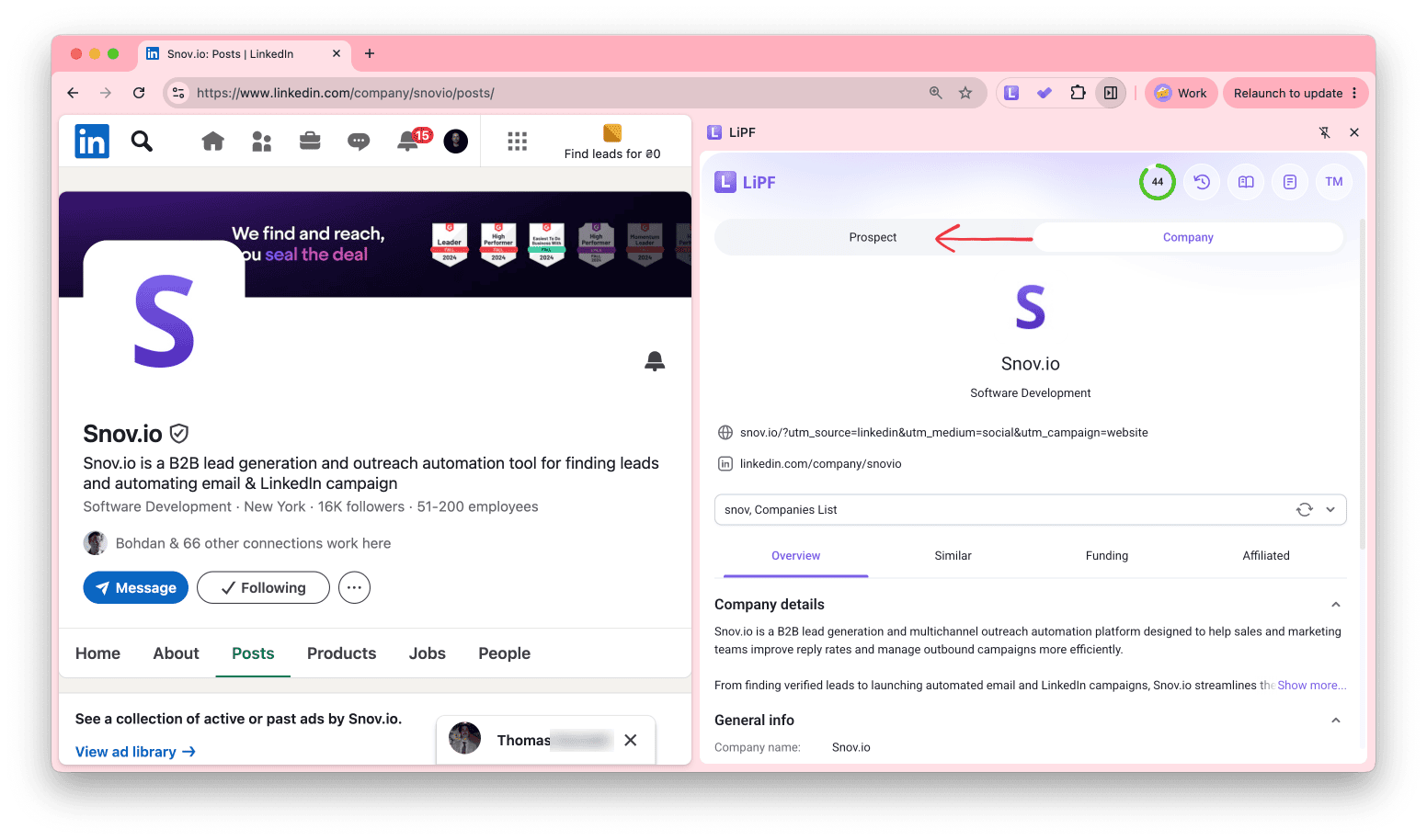
On a company page, click Prospect to see a preview list of prospects who work there. To see the full list of employees, open it in LinkedIn.
Save prospects with more data
The data you save depends on how you save.
One by one
The sidebar shows a full prospect preview with the personal profile and company details. Everything in the preview is saved when you add the prospect to a list:
- Bio (About) shows the prospect's own description
- Skills shows the skills listed on the profile
- Experience shows the current role and previous companies
- Education shows degrees
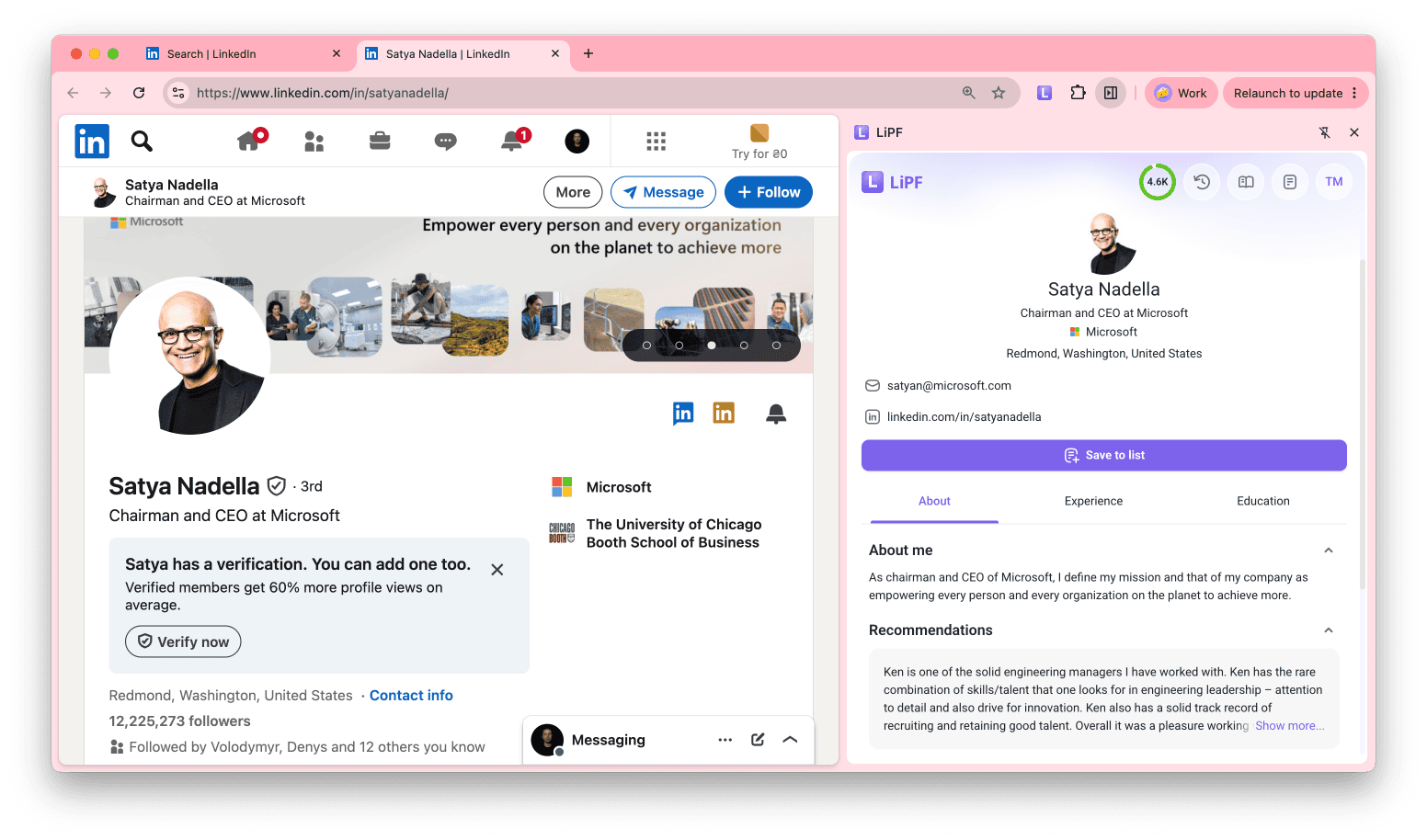
These additional fields are saved when they are available for the prospect: Volunteering, Projects, Courses, Certifications, and Languages. Use this data to qualify leads and to write icebreakers and messages with AI Writer.
In bulk
Multipage search saves general fields: name, job position, company name, and website. It also saves a verified email, unless you turn on the option to save without an email address.
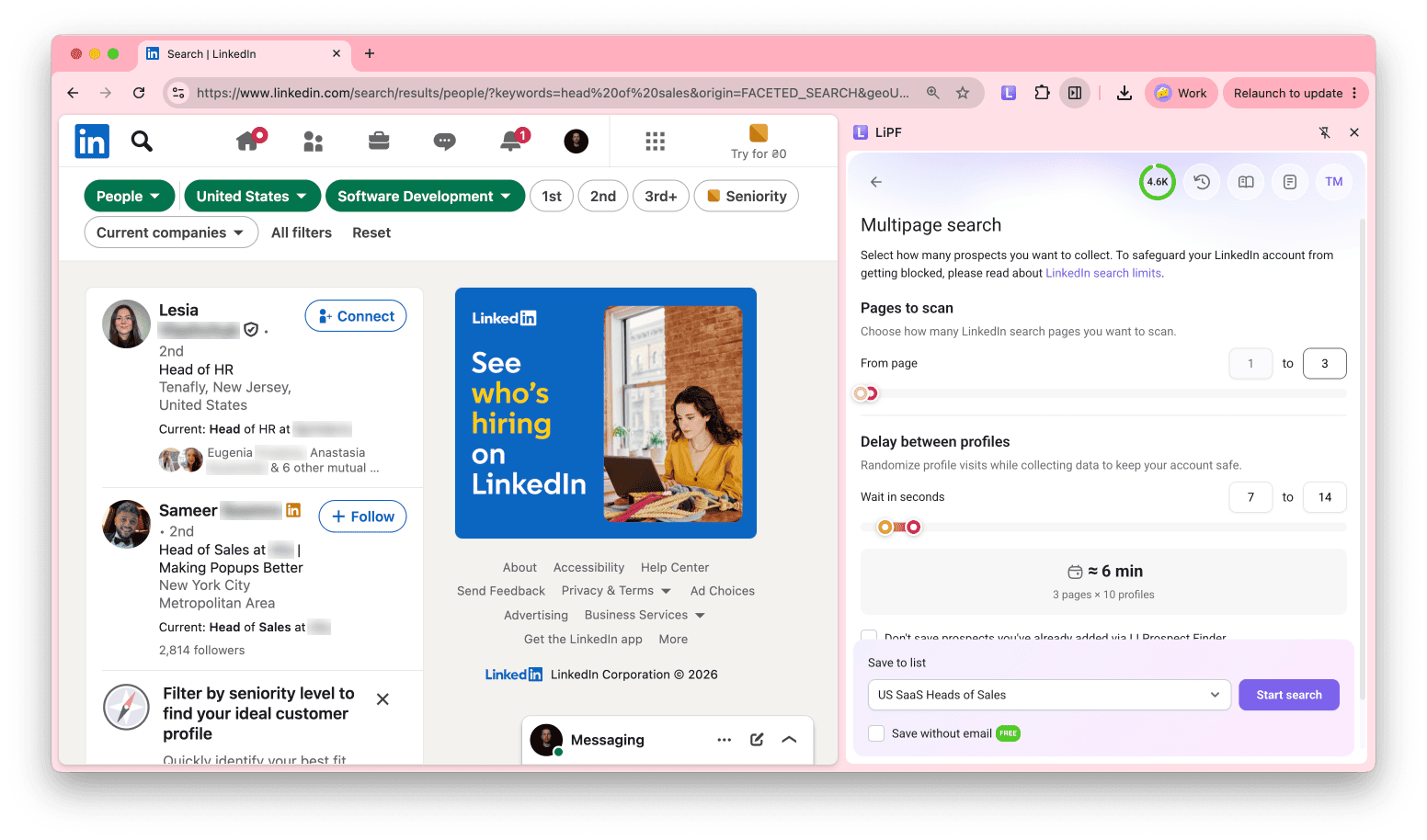
- If you plan email outreach, save leads with email addresses
- If you don't need emails, save the LinkedIn URL and starting fields for enrichment and LinkedIn Automation. Most enrichment tools work with a LinkedIn URL as input
To add all profile data after saving in bulk, use Pull LinkedIn profile enrichment.
More company data in the sidebar
On company pages, the sidebar shows a full company preview:
- Industry and company type
- Headquarters location
- Number of employees
- Company description and specialties
- Social followers
- Funding, including rounds, stage, and investors
- Similar and affiliated companies
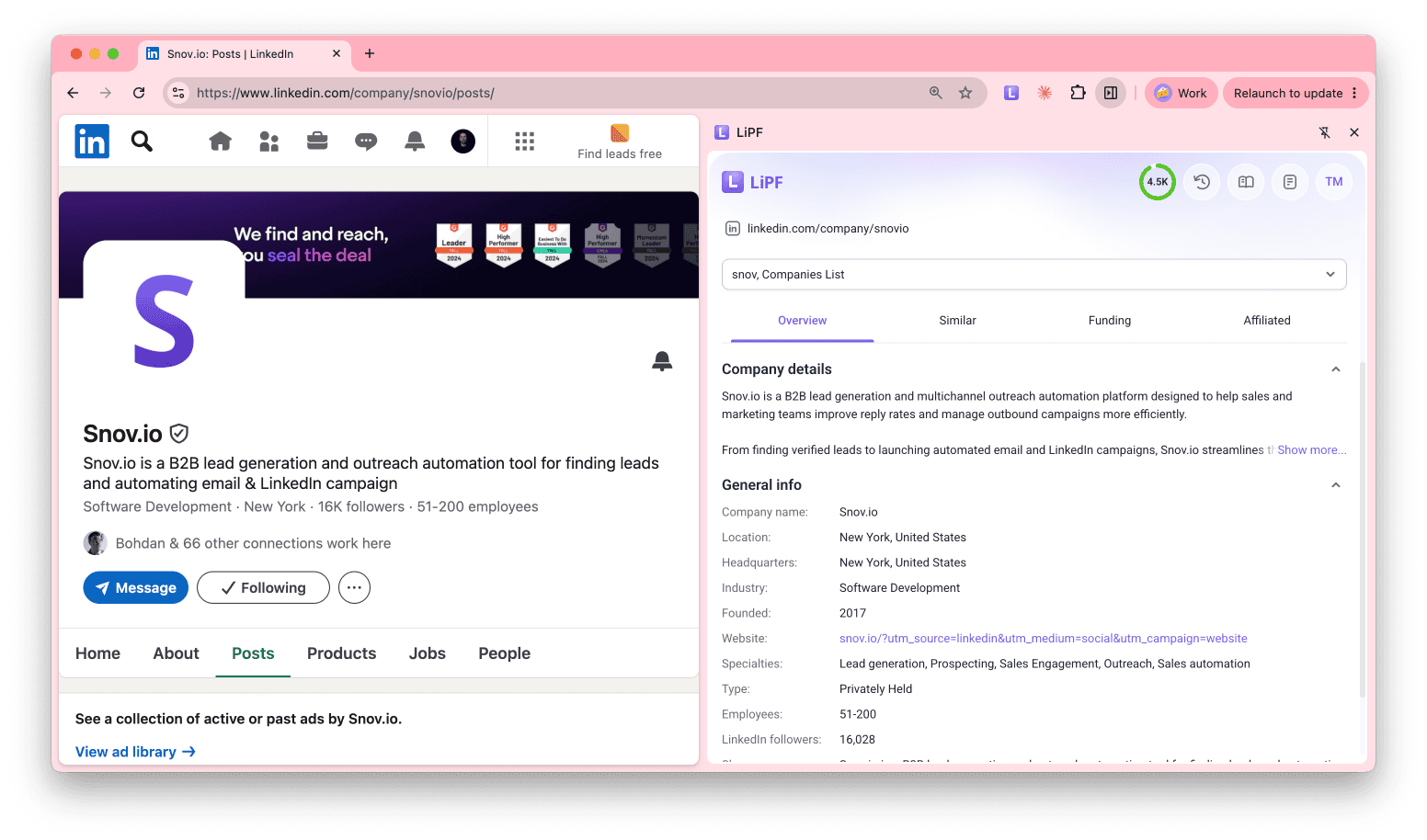
Use it to check whether a company fits your ICP, then save it to a company list. The full company profile saves to your list, whether you save one company or many. You can view it in Snov.io.
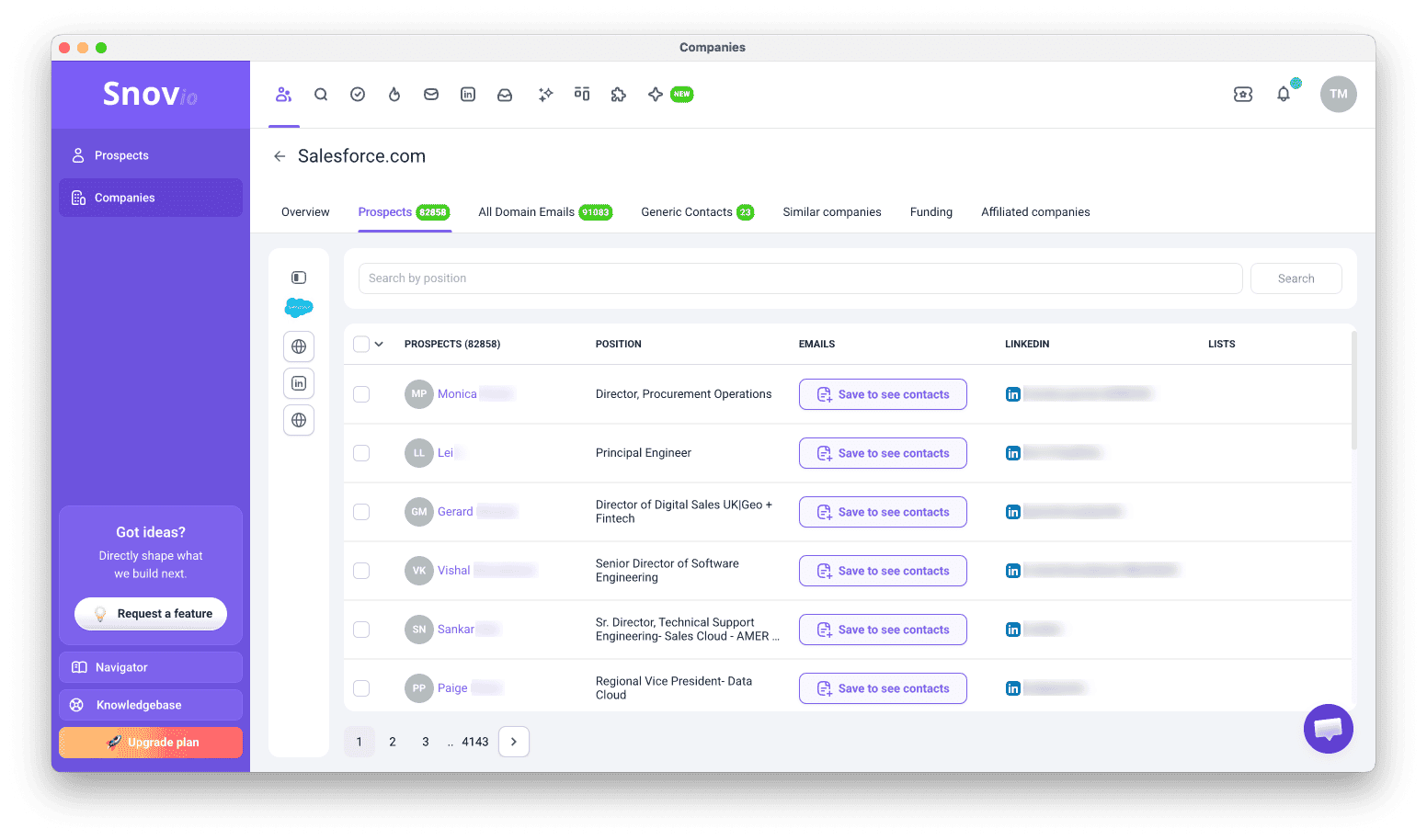
To enrich prospects with this data and use it as context in other AI tools, add prospects from that company, then use Get company details enrichment. After that, you can also export this data.
Pricing has not changed
LI Prospect Finder 4.0 works with your existing Sales Suite plan or LinkedIn Automation subscription. Credits work as before:
- Each prospect saved with a valid or unknown email costs 1 credit
- Previewing and saving companies with the extension is free. Opening a saved company profile in Snov.io costs 1 credit
- Prospects saved without emails through Multipage search do not use credits
To find a phone number for a prospect saved from LinkedIn, use a phone enrichment tool. It requires tokens.
How to start using LI Prospect Finder 4.0
- Chrome Web Store installs update automatically. Open the extension to check that you have 4.0
- ZIP installs: update manually with this guide, or switch to automatic updates
- New users: install from the Chrome Web Store
To see all use cases and flows, read this guide.


Sorry about that 😢
How can we improve it?