This guide shows how to prepare your contact lists and email accounts before cold outreach in Snov.io. Proper setup helps you avoid spam folders, reduce bounces, and get more replies from your campaigns.
Verify your contact list
To send safely, start by verifying your contact list and removing risky emails.
If you're using contacts from your own database or another platform, check individual emails, upload a file for bulk verification, or verify imported lists inside your account.

Verify emails in bulk
If you already have a list, upload it and verify it in bulk. This is the fastest and most common option.
Open Bulk Email Verification, upload your file, map the email column, and start verification. It supports CSV or TXT files and can verify up to 100,000 emails per upload.
Verify emails one by one
Use Single Email Verification to check individual contacts. If the email is valid, you can add it to your list.
Import a contact list and verify it
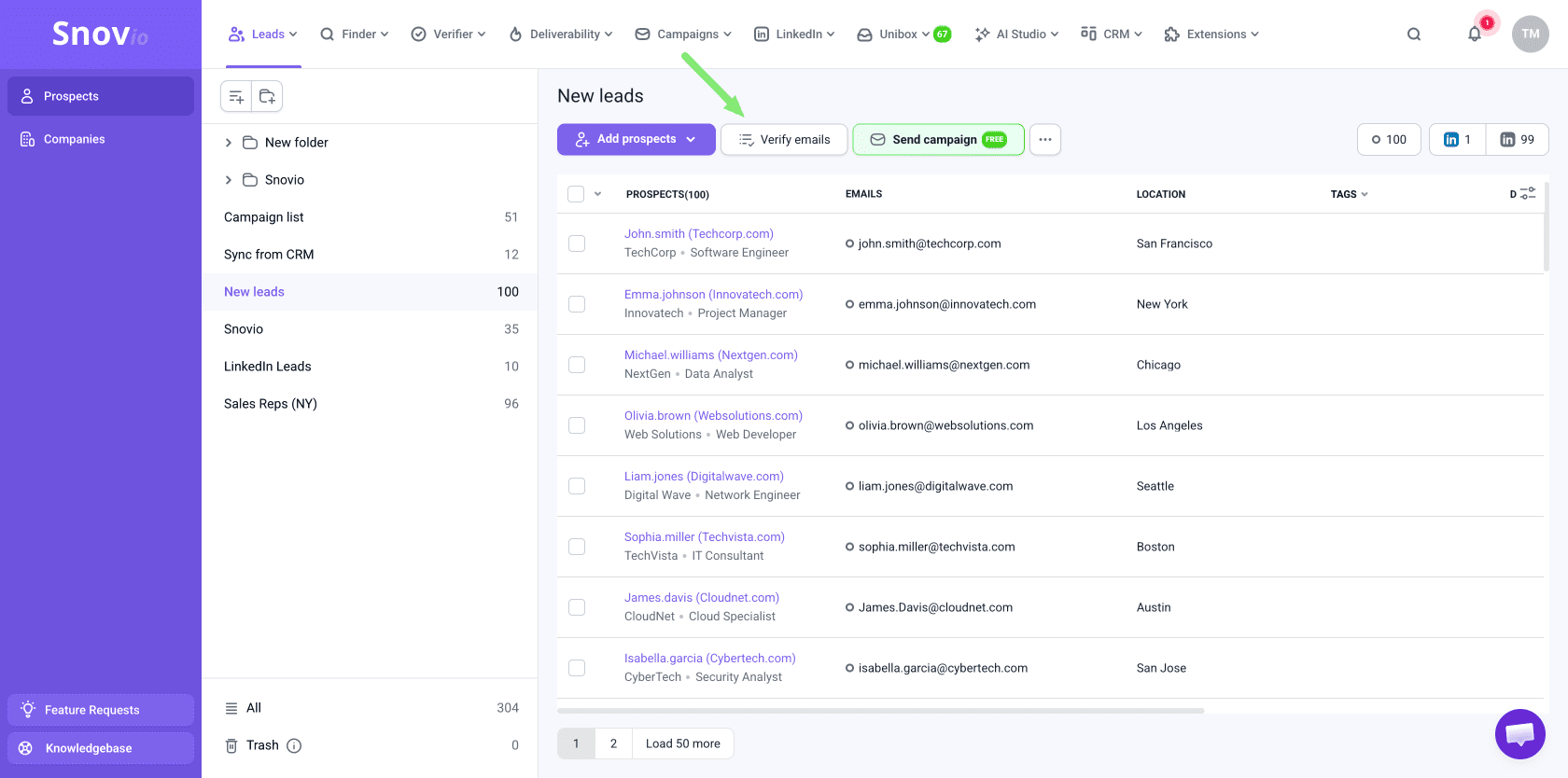
On the Prospects page, click Add prospects and choose Import from file.
Upload your file and map the columns to the correct fields. For email sending, include at least the contact’s name and email address.
After the import is complete, open the list and click Verify emails.
Clean the list
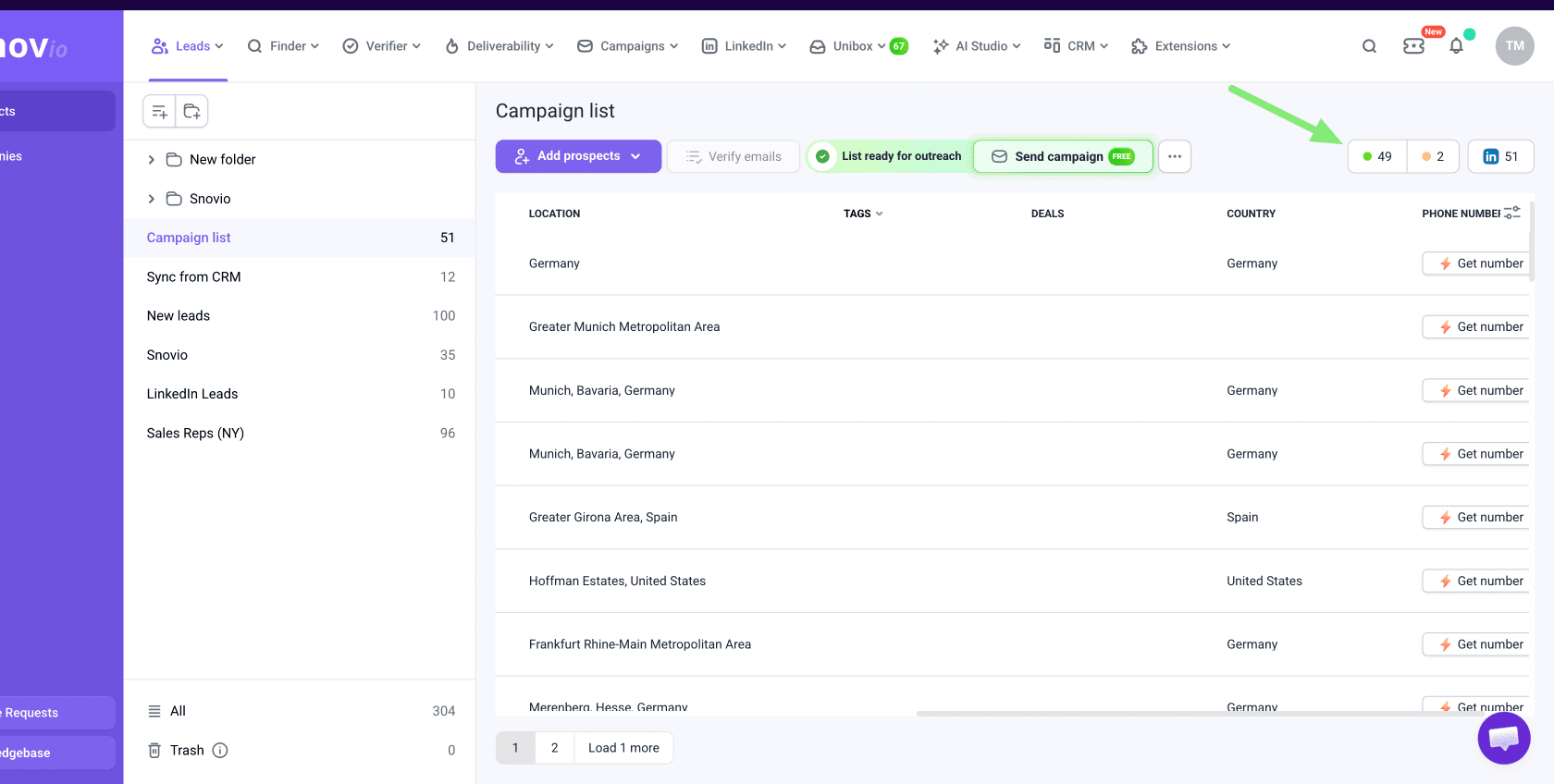
After verification, review your list using email statuses:
- Valid (green): safe to send
- Unverifiable (yellow): may work but carries higher risk
- Invalid (red): excluded automatically and won’t be included in your campaigns
Check how many unverifiable emails you have:
- 5% or less: safe to send
- More than 5%: clean your list before launch

Set up email sender accounts
Once your list is ready, prepare the sender accounts you will use for sending. Using properly set up accounts helps you avoid spam filters and scale outreach safely.
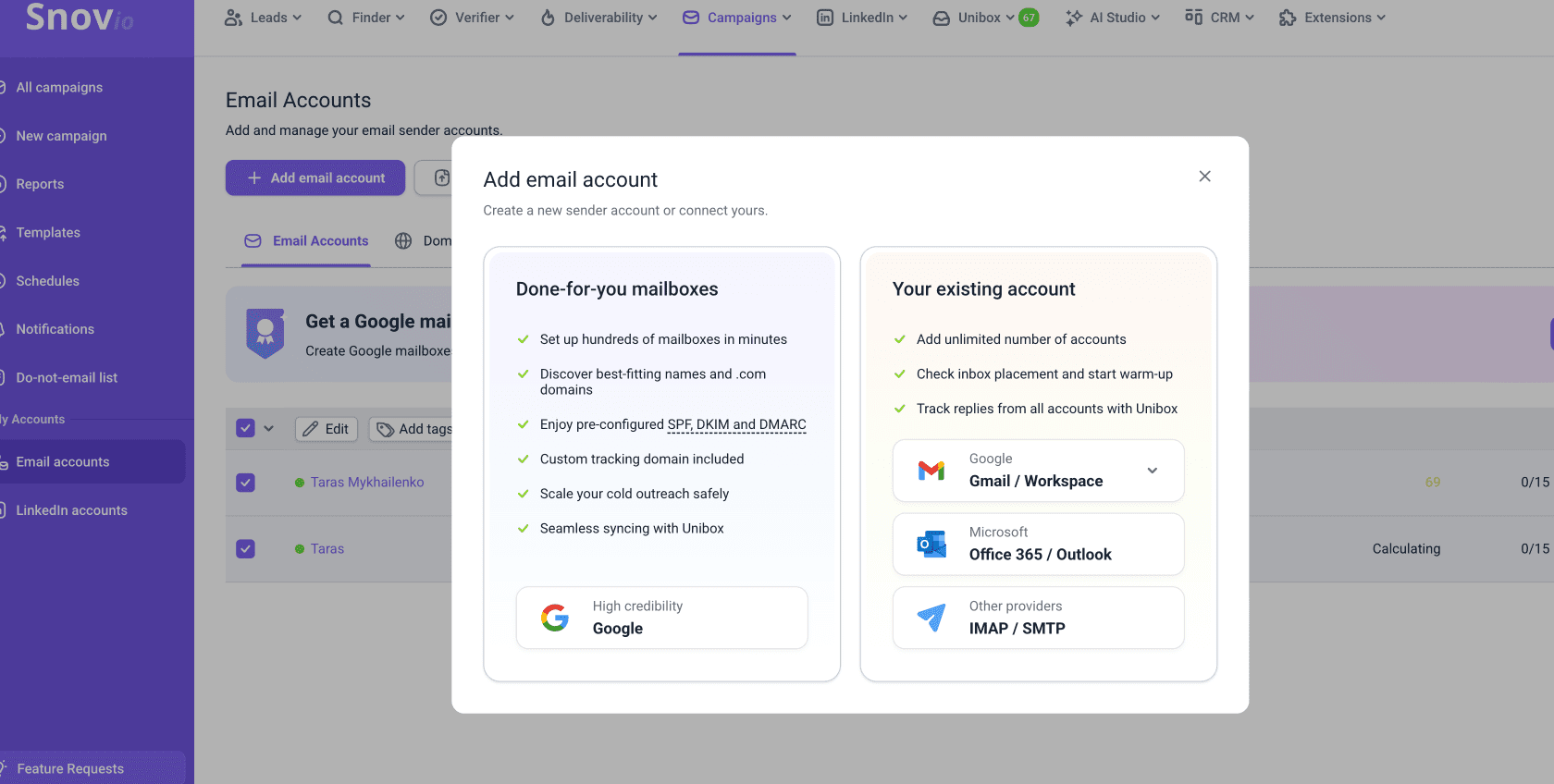
Go to Email Accounts to connect or create your sending mailboxes.
- connect your own Gmail or Outlook accounts with one-click sign-in
- connect other providers using SMTP/IMAP
- import multiple accounts at once using CSV
- add done-for-you domains and mailboxes
Add multiple sender accounts from CSV
Use Import from CSV to connect multiple sender accounts at once.
Upload a CSV file with account credentials and provider settings, and Snov.io will set up the accounts automatically.
CSV import supports accounts that use SMTP/IMAP settings and lets you add up to 100 email accounts per import. If you use Gmail or Outlook accounts, connect them with direct sign-in instead of CSV import. Read the guide on connecting accounts.
Done-for-you mailboxes
Besides connecting your existing accounts, Snov.io also offers done-for-you domains and mailboxes. With this option, you can buy domains and create new email sender accounts directly from your dashboard.
This option is useful if you don’t have existing sender accounts or want to scale outreach faster without manual setup.
Every account comes fully configured with SPF, DKIM, DMARC, and tracking domains — no setup required on the provider’s side.
Add accounts to warm-up
Before sending any campaign, warm up your email accounts to improve deliverability. During warm-up, your accounts send and receive emails with other real mailboxes, helping build sender reputation and improve inbox placement.
You can start warm-up in two ways: automatic (quick launch) or manual setup with advanced settings.
Quick warm-up launch
Quick launch automatically selects the optimal preset for each account: gradual ramp-up or fixed daily warm-up.
Go to Email Accounts and click Quick launch under Warm-up.
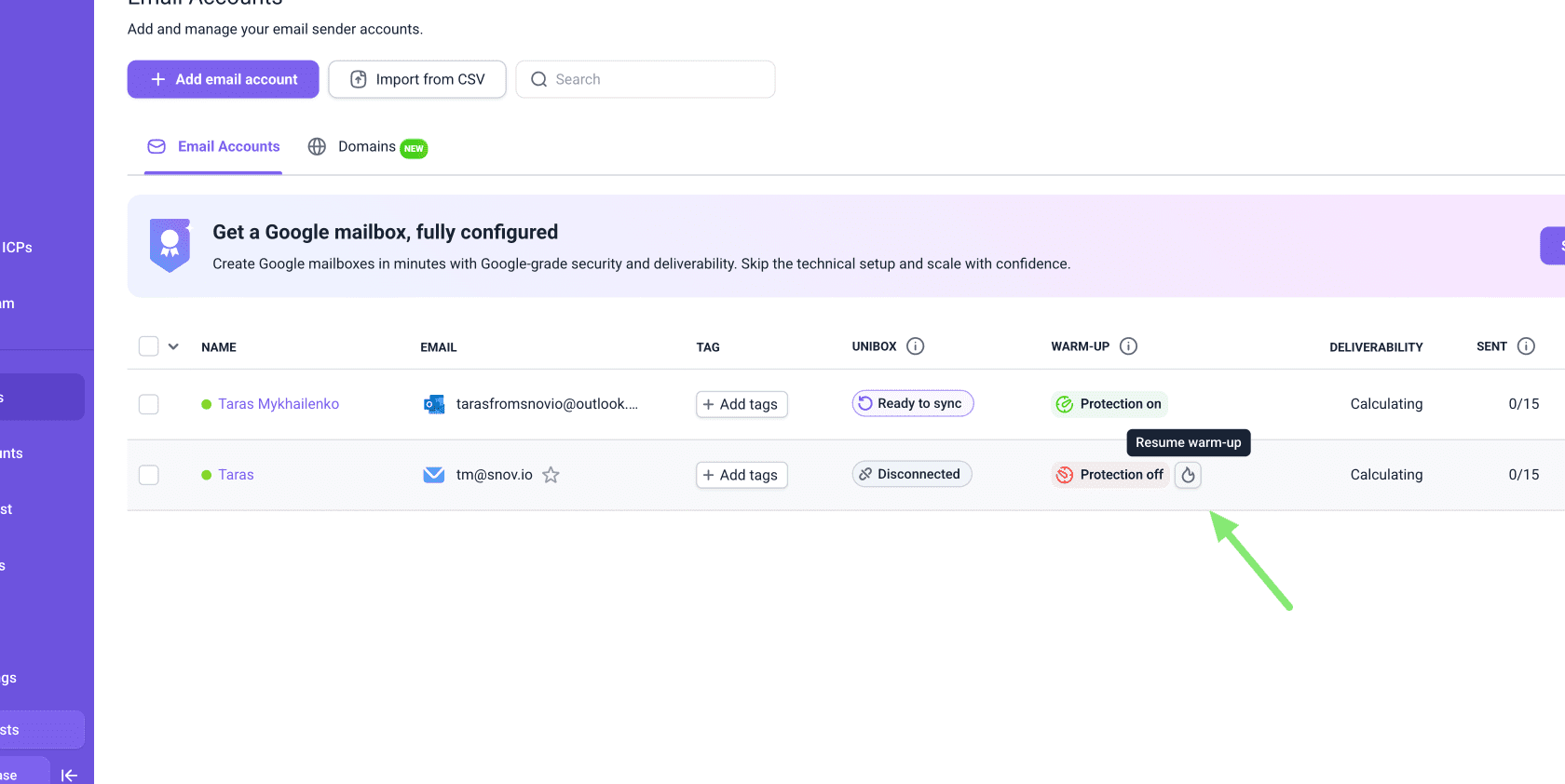
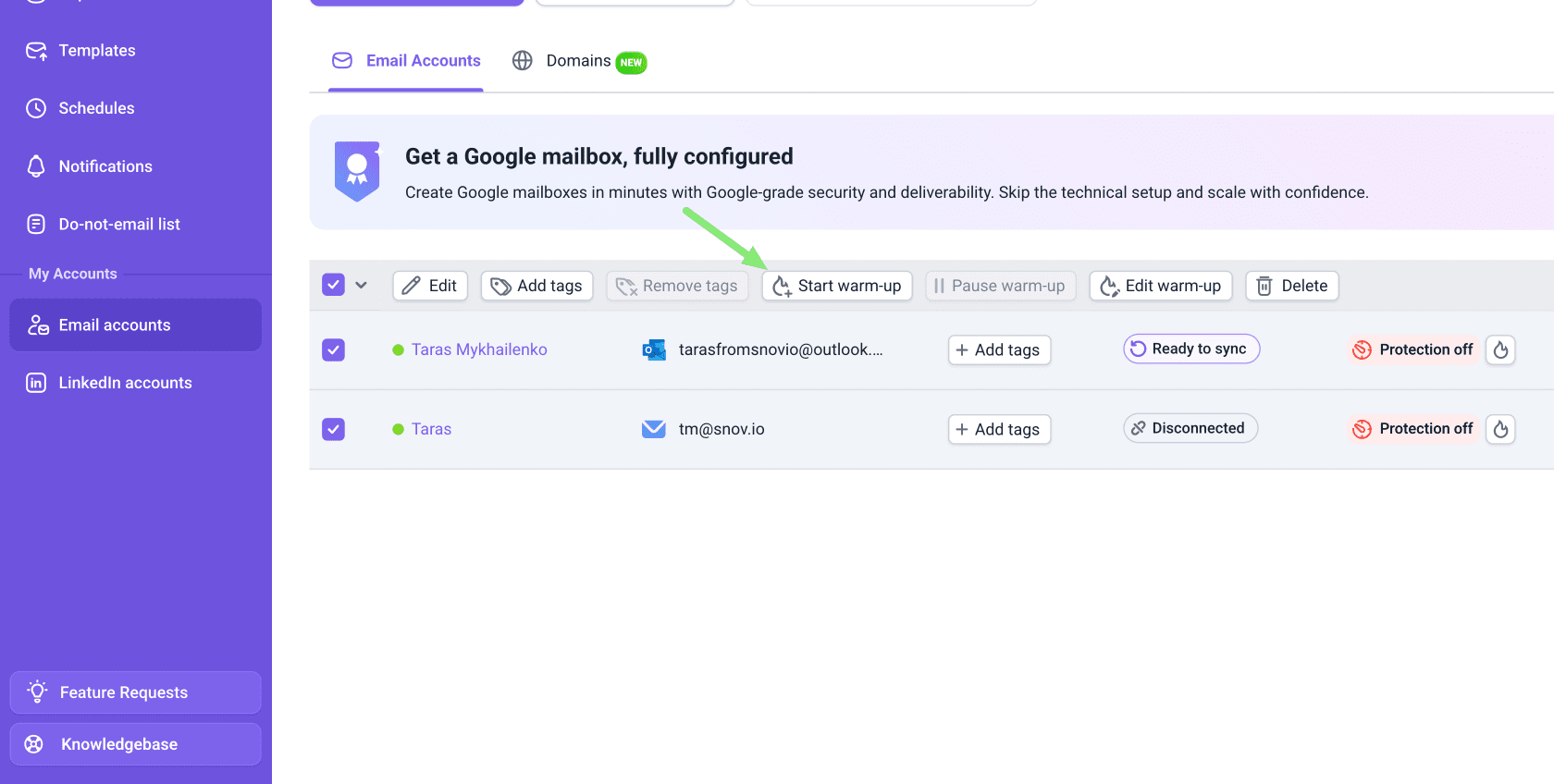
To launch warm-up in bulk, select accounts in the Email Accounts list and click Start warm-up in the top panel.
Make sure you have available warm-up slots in your plan. The number of accounts you can warm up at the same time depends on your plan.
Check how deliverability improves on the warm-up dashboard.
Daily sending limits
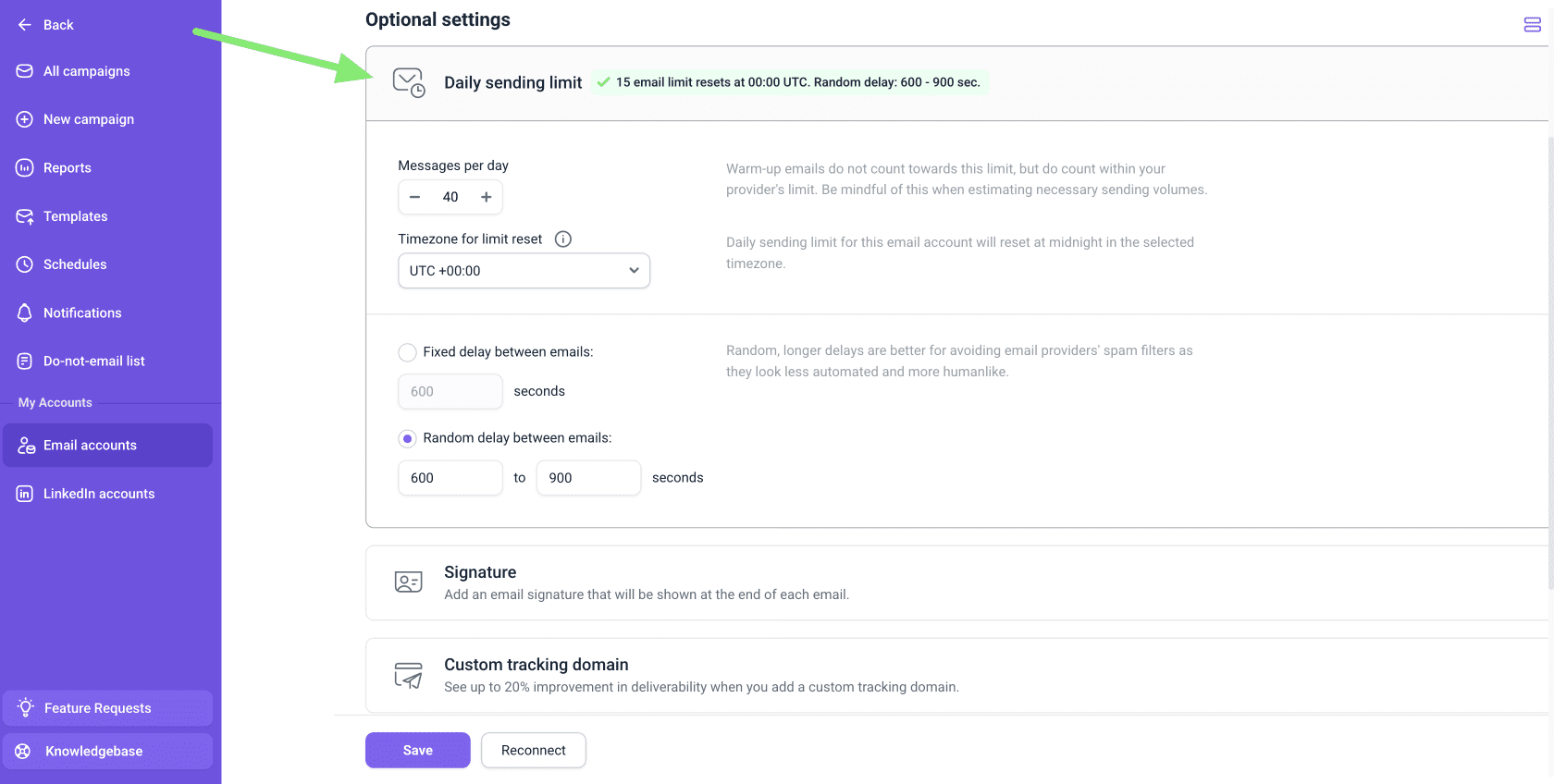
Snov.io applies safe default limits automatically, but you can adjust them in email account settings.
Recommended limit is up to 50 emails per day per account (campaign emails + warm-up combined).
Warm-up emails do not count toward the limit in your account settings, but they do count toward the total volume your mailbox sends per day.
Read more about managing account limits.



Sorry about that 😢
How can we improve it?