TL;DR:
LinkedIn Sales Navigator Smart Links are designed to share content with prospects and track their engagement. This feature lets you package resources into a single clean link and analyze viewing behavior.
- LinkedIn Smart Links are available within Sales Navigator Advanced or Advanced Plus.
- You can include various types of content in your Smart Links, such as PDFs, slide decks, images, videos, and website URLs.
- Smart Link analytics help you identify warmer prospects based on real engagement and personalize the next step.
- You can include LinkedIn Smart Links in direct messages, InMails, posts, cold emails, and other touchpoints to extend the reach of your sales content.
When combined with Snov.io, Smart Links can help you turn content engagement into real sales opportunities and boost outreach results with targeted follow-up campaigns.

When it comes to LinkedIn outreach, getting a prospect to open your message is only the first step. According to Belkin’s report, 5 nurturing actions may bring you a 5.26% reply rate, compared to 1 action, which yields only a 1.07% reply rate.
But how do you know which recipients are interested enough to take the next action?
That’s where LinkedIn Sales Navigator Smart Links can be handy. Using them strategically, you can identify warmer leads, effectively prioritize follow-ups, and make every next step more personalized.
In this guide, we’ll break down how LinkedIn Smart Links work and how they can support your lead generation efforts. Plus, you’ll learn how to combine Smart Links with outreach automation tools like Snov.io to streamline prospecting and drive better results.
Key points you’ll learn:
What are LinkedIn Sales Navigator Smart Links?
LinkedIn Smart Links are a Sales Navigator feature that lets you package and share content with your prospects using unique, trackable links. In simple terms, you can add presentations, videos, website URLs, and other sales materials to a single link, send it to potential customers, and track their viewing behavior.
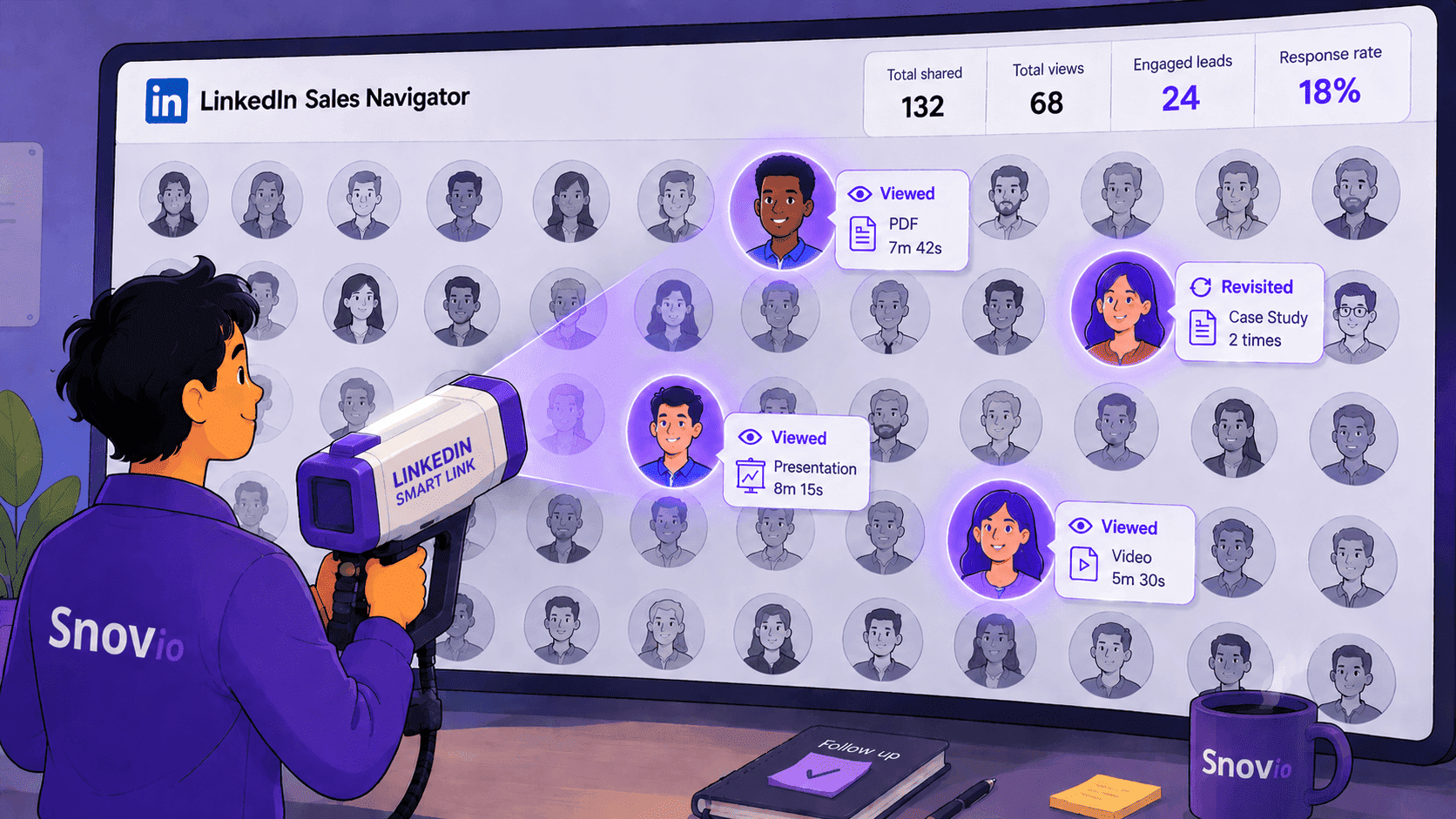
The best part of LinkedIn Sales Navigator Smart Links is deeper engagement tracking. You can see who clicks your link and how they interact with different parts of your content. These insights help identify interested prospects and plan more effective, relevant follow-ups.
With Smart Links, every follow-up is a response. You are reaching out because you know something specific: what they looked at, how long they spent, and whether they came back. That specificity changes the tone of the conversation from pursuit to relevance.
CEO at Social Sales Link

Think of Smart Links as a mini content hub inside your Sales Navigator workflow for different outreach scenarios. Instead of attaching several files or sending multiple separate links every time you reach out, you can combine a product page, a demo video, and a recent case study into one clean link.
How to set up and use Smart Links
Before diving into advanced tips for LinkedIn outreach and Sales Navigator prospecting, let’s cover the essentials: how to create, customize, share, and track your Smart Links.
How to create Smart Links
To create a Smart Link, sign in to your Sales Navigator account, open the Smart Links section from the top menu, and click “+ New Smart Link”.

Then you’ll see a pop-up on the right where you can add a title and select the type of content you want to include from the dropdown menu.
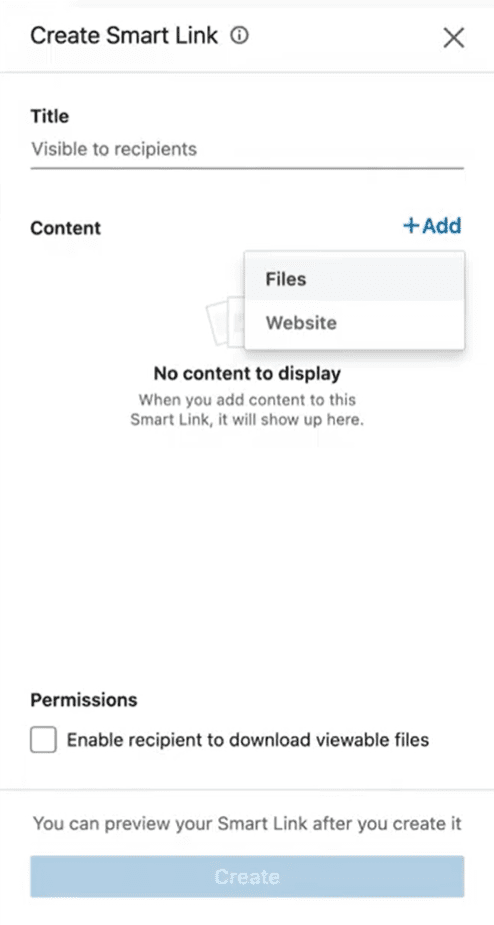
At this step, you can also adjust viewer permissions, including whether recipients can download your materials.
|
⚠️ Before you start, make sure you have a Sales Navigator Advanced or Advanced Plus account. LinkedIn Smart Links are not available on the Sales Navigator Core plan. |
Experts recommend avoiding generic names like “Sales materials” or “Demo presentations”. The clearer and more specific a Smart Link title is, the easier it will be for you and your teammates to find the right resources for outreach. Descriptive titles also help quickly understand the context of each link when reviewing analytics.
For example, specify the content and a buyer persona or target industry:
Case study – Operations Consulting
Product overview – SaaS Startups and SMBs
You can also name your LinkedIn Smart Links by the content type and specific outreach channel or campaign. For example:
B2B Advertising Case Studies – Ad Webinar Follow-up
Testimonials – Cold Email Sequence
If you plan to use Smart Links for LinkedIn ABM (Account-Based Marketing), mention the target account in the title. For example:
Industry report – Snov.io
Healthcare Case Study – Universum Corp
Note that the title of your Smart Link is also visible to the recipient and appears at the top of the content viewing page when they click your link. So, make sure it sounds professional and compelling, too.
You can also create a Smart Link directly when composing an InMail. Choose “Add Smart Link” at the bottom of your message, enter the title, add files in the panel, and click “Insert”. This link will also be automatically saved to your LinkedIn Sales Navigator Smart Links tab.
How to add content to Smart Links
Let’s take a closer look at what you can upload to Smart Links.
LinkedIn allows you to include up to 15 files per Smart Link, with each file up to 200 MB. You can add images, videos, documents, slides, and other types of content. Some formats are viewable and trackable inside the Smart Links viewer, while others are available only for download.
Here is a quick infographic to help you understand what content you can add to LinkedIn Sales Navigator Smart Links and how different file types are supported:
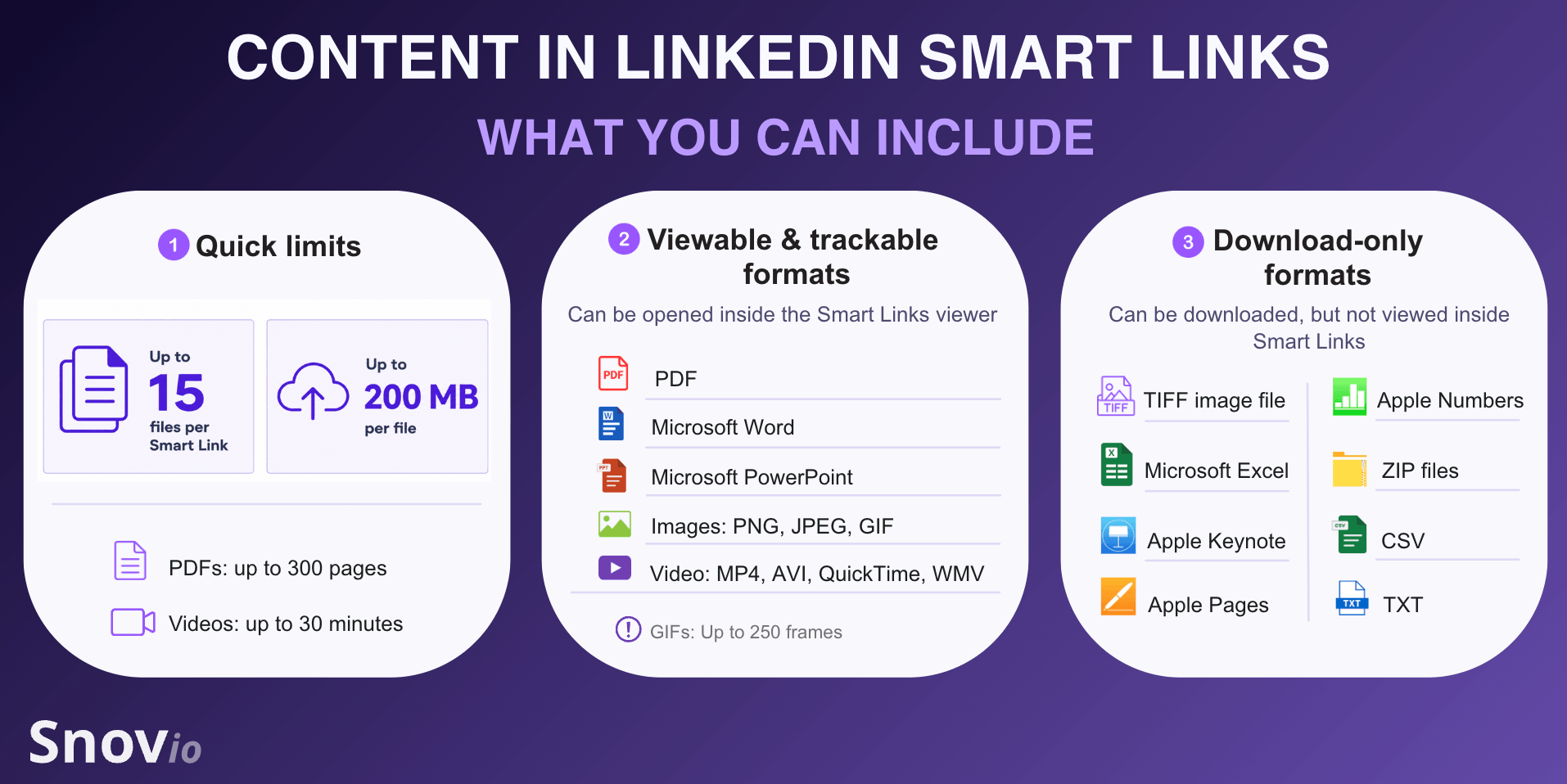
For some file formats, there are also limits to keep in mind. PDF documents have a page limit of 300, while videos should not exceed 30 minutes.
✍️ Practical tips from my experience:
Although you can upload up to 15 files to a LinkedIn Smart Link, it doesn’t mean you should. Too much content can create friction and feel overwhelming, especially for cold prospects who are not ready to spend a lot of time reviewing your materials.
A good rule of thumb is to include only the files that support the next step. For example, if your goal is to get a reply, use content that helps keep the conversation going. If you want to move a prospect further down the sales funnel, add materials that clarify value or answer common objections.
How to use Smart Links analytics
One of the most valuable aspects of this LinkedIn Sales Navigator feature is engagement tracking. Smart Links analytics show how recipients interact with your content, helping you not only identify engaged prospects but also understand which topics catch their attention.
How it works: LinkedIn creates a unique trackable link for your Smart Link content. Once a recipient opens it, you can track their behavior on that attachment.
To access Smart Links analytics, go to the Sales Navigator Smart Links section, find the link you want to analyze, hover over it, and click “Analytics”.
With Smart Link tracking options, you can see how many times a prospect clicked the link, how much time they spent with your content, and when they accessed it. If the recipient is signed in to LinkedIn, you may also see basic profile information, such as their name, title, company, and profile picture.
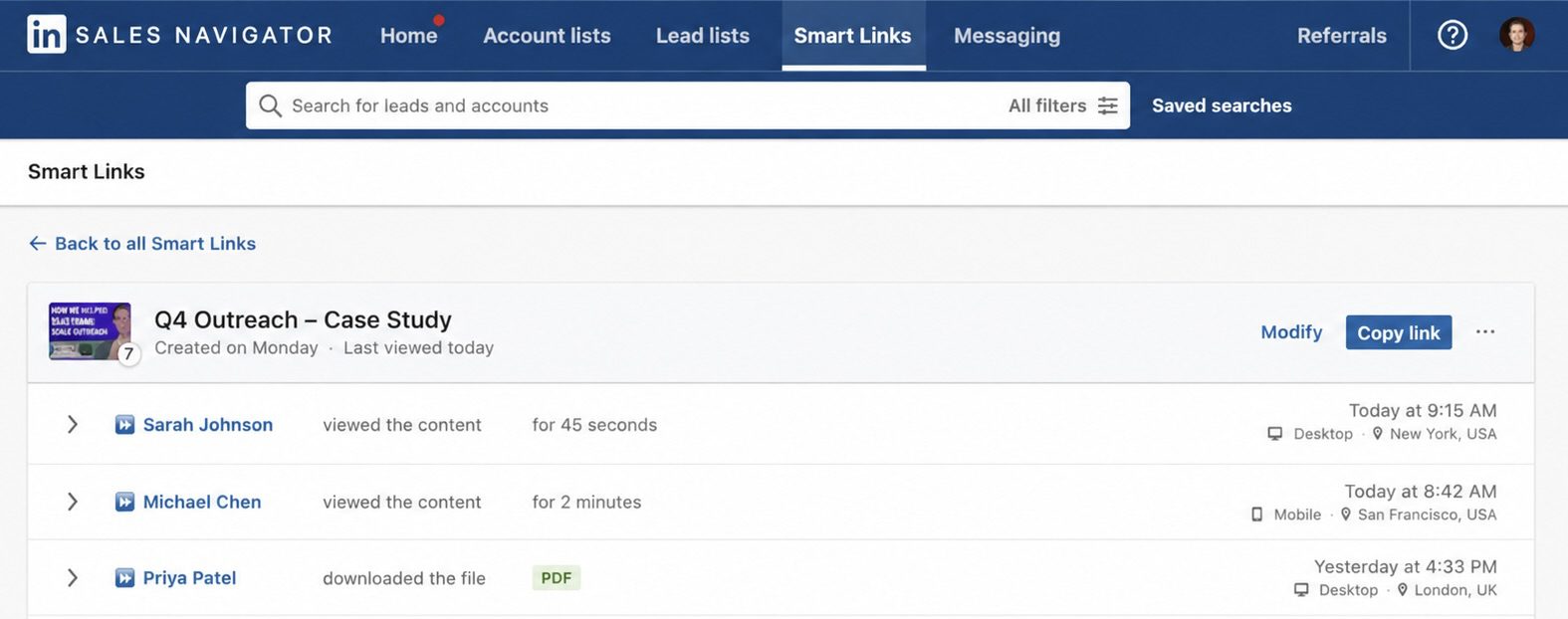
These insights make Smart Links especially useful for outreach. You don’t have to rely solely on vague signals like opens or replies when deciding whether to follow up. Smart Links analytics provides engagement data, so you can identify high-value opportunities and guide your efforts accordingly.
For example:
A prospect who ignores your message is not the same as someone who opens your Smart Link twice and spends a few minutes on your case study. Neither recipient may reply immediately, but the second one gives you a stronger reason to follow up.
⮕ Find the best LinkedIn analytics tools to measure performance and optimize outreach
How to use Smart Links for lead generation
To make things clear, LinkedIn Sales Navigator Smart Links don’t generate leads by themselves. What they give you is engagement signals you can act on. In other words, Smart Links support your lead generation efforts by helping you identify prospects who show real interest in your content.
Here’s how LinkedIn Smart Links can benefit your lead generation workflow:
Used strategically, LinkedIn Smart Links become more than just an easy and convenient content-sharing feature. They help you create a smoother path from first touch to sales pitch by providing more context and nurturing relationships more effectively.
For example:
Instead of sending the same resource to everyone, you can create separate Smart Links for different segments. One link may focus on SaaS startup challenges, another on agency use cases, and a third may reflect enterprise goals.
A Smart Link also lets your prospect explore your brand or proposal without pressure or the need to commit to a meeting right away. And at the same time, it gives your sales team more information to continue the conversation. You can refer to the relevant content angle, use case, or business challenge and increase the likelihood of getting a response.
Case-study: Using Snov.io and Smart Links for smarter outreach
To build a stronger workflow, you can pair Smart Links with sales prospecting tools or lead generation platforms like Snov.io.
The idea is simple: Smart Links help you spot interest while Snov.io turns the engagement into a scalable outreach process that still feels personal.
Let’s explore what this process may look like in practice.
Step 1: Build a targeted lead list in Sales Navigator
Let’s say, you’re targeting Head of Sales, SDR Managers, or Revenue Operations leaders in SaaS companies with 50-500 employees to offer them one of your SaaS products – a sales CRM.
Use Sales Navigator filters to find prospects that match your Ideal Customer Profile (ICP).
⮕ Not sure who is the right ICP for your solution? This video will help:
Step 2: Create a Smart Link for this segment
Think about what content would interest your target audience, and create a respective Smart Link. Add only the most relevant assets. If your goal is to offer a CRM to sales teams, this can serve as a case study on increasing productivity through automated deal management.
Step 3: Send a personalized message or InMail
Write a short message explaining why this resource is relevant to your recipient. Keep it concise, polite, and respectful, and avoid asking for too much too soon.
For example:
“Hi [First name],
Came across your profile and thought this might be relevant to your team. We recently shared a short case study on how sales teams improved productivity with automated deal management and smarter follow-up workflows.
If you’re interested, feel free to view this quick video: [Smart Link]
Hope you find a few actionable ideas in it.
Best regards,
[Your name]
Step 4. Find emails of engaged prospects with LinkedIn Prospect Finder
After a few days, review Smart Link analytics. Prioritize prospects who spent more time on your content, then use LinkedIn email finder to save their emails to a dedicated list in Snov.io.
Start with the prospects who have already shown interest by interacting with your content. Open your Smart Link analytics, review the viewers, and shortlist those who look most relevant to your outreach goal. These can be recipients who clicked your link several times over a certain period, spent more time with your content, or engaged with the resource that matches your offer.
Then, move to their LinkedIn profile and use Snov.io’s LinkedIn Email Finder to find their email address. You can also save engaged leads into a separate list in your Sales Navigator account and apply the extension there to gather contacts in bulk.
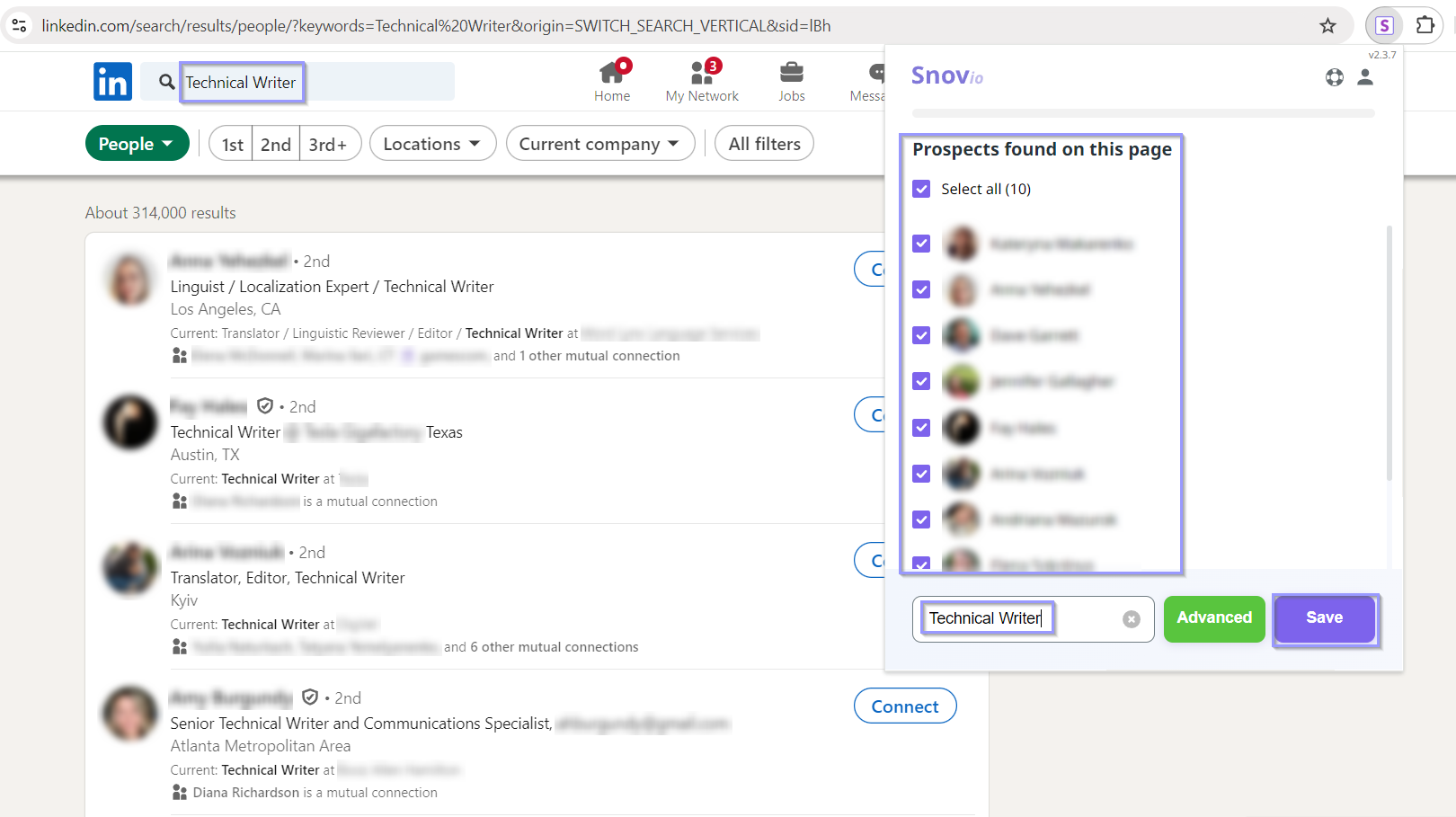
Specify which prospects you want to collect or select them all, name your list, and access verified email addresses in Snov.io in a few seconds.
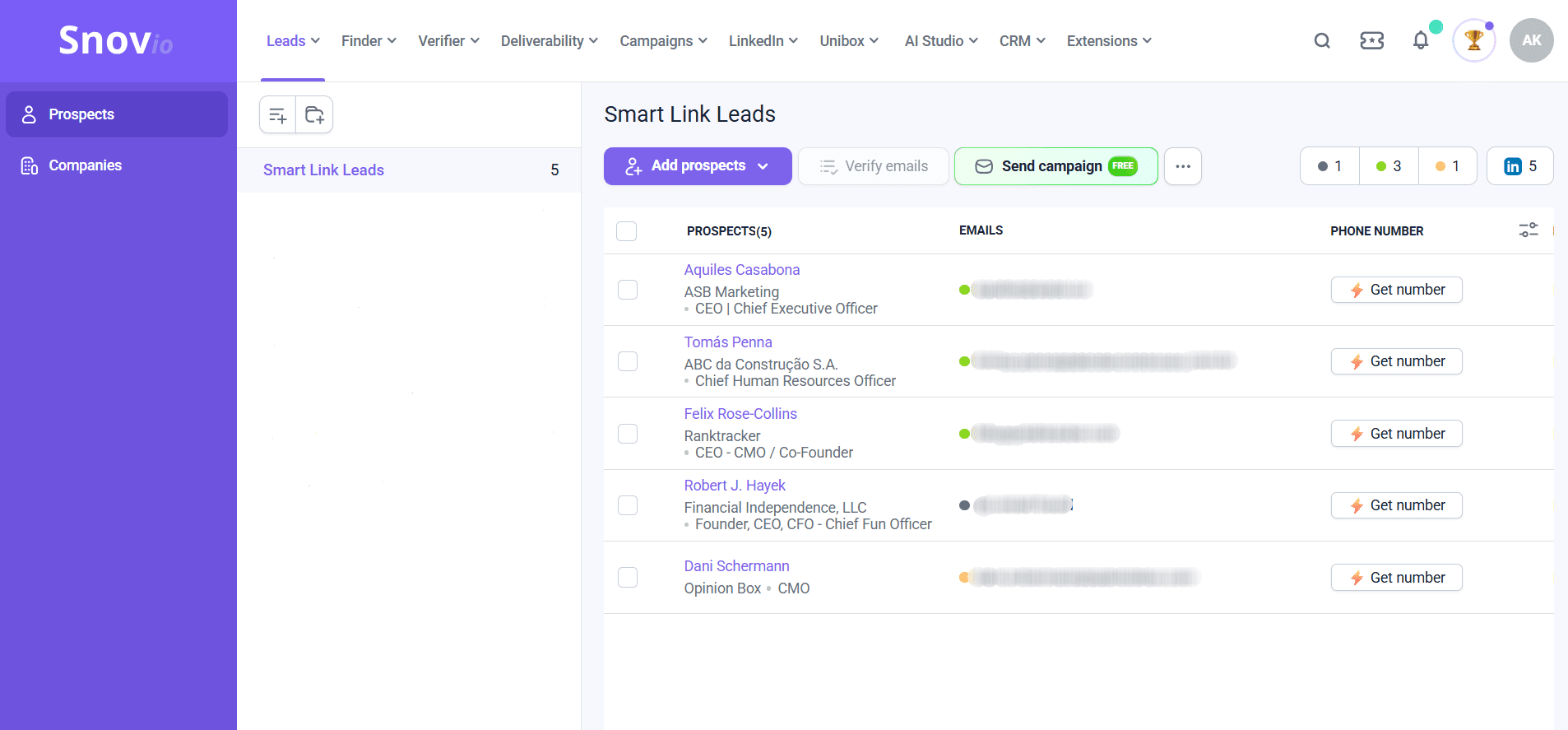
For better organization, create separate lists of engaged prospects by content type or persona. For example, you can name them “Smart Link viewers – SaaS case study” or “Enageged leads – Enterprise deck”. This will help you plan more relevant touchpoints for further outreach.
Step 5. Enroll Smart Link clickers into a warm follow-up campaign
Once you’ve collected email addresses with LinkedIn Prospect Finder, you can use them as an additional channel for outreach. And that can make a real difference.
Recent data backs this up: according to Sopro’s study, businesses running multichannel campaigns saw a 31% uplift in leads compared to single-channel outreach. That means combining email and LinkedIn touchpoints can help you create more opportunities from the same prospecting effort.
With multichannel outreach, you can increase visibility, reach prospects where they’re most responsive, and nurture them with more context to move them closer to conversion. So, after saving engaged prospects with email addresses, enroll them in a multichannel sequence you can set up with Snov.io.


Start with an email that references the content your recipient viewed.
For example:
“Hi [First name],
I noticed you had a chance to review our case study on how to grow productivity with automated deal management. Thought I’d send over a quick summary of how teams usually apply this workflow in practice with an AI-powered CRM tool.”
Since the leads collected with Snov.io’s LinkedIn email finder include profile details, you can easily tailor your email for each recipient. In Snov.io email builder, you can add variables like name, job title, industry, or company to automatically personalize messages, even in bulk.
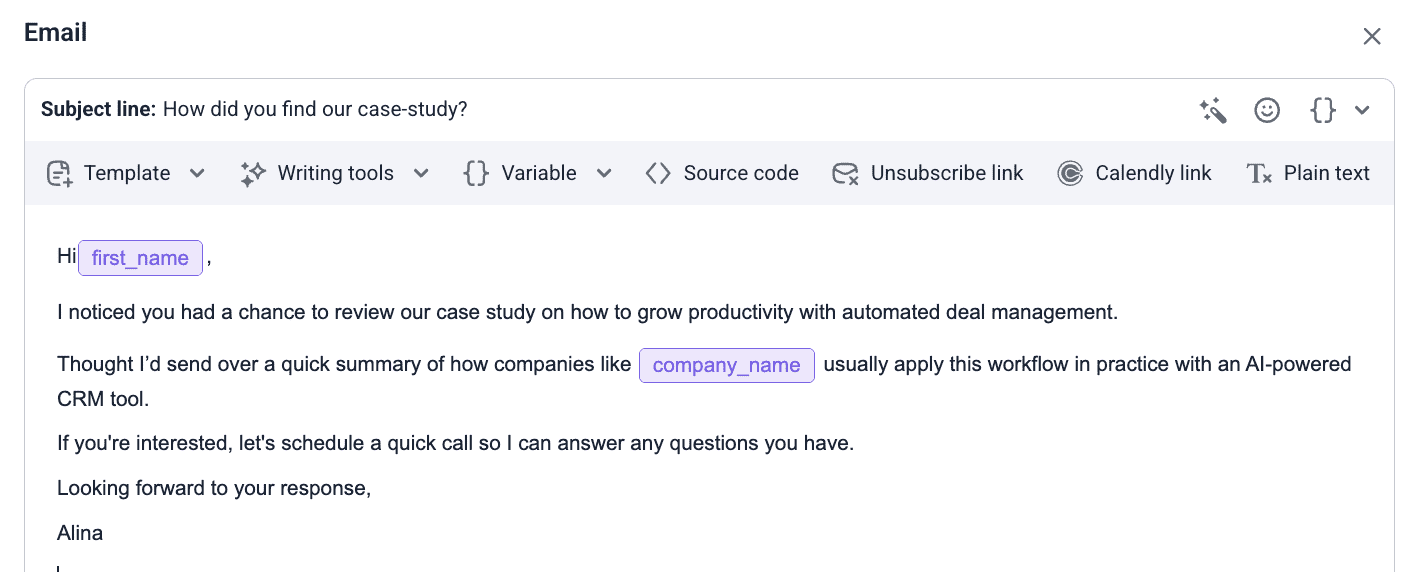
Or you can draft your message with Snov.io AI Email Writer. Give the AI writing assistant your context and generate a tailored message based on your buyer persona, the Smart Link content they engaged with, and the desired tone.
The next steps can depend on your campaign logic. In Snov.io, you can set custom delays between actions and specify conditions to create different outreach flows based on your recipients’ behavior. This way, you ensure that each prospect receives the right message at the right time.
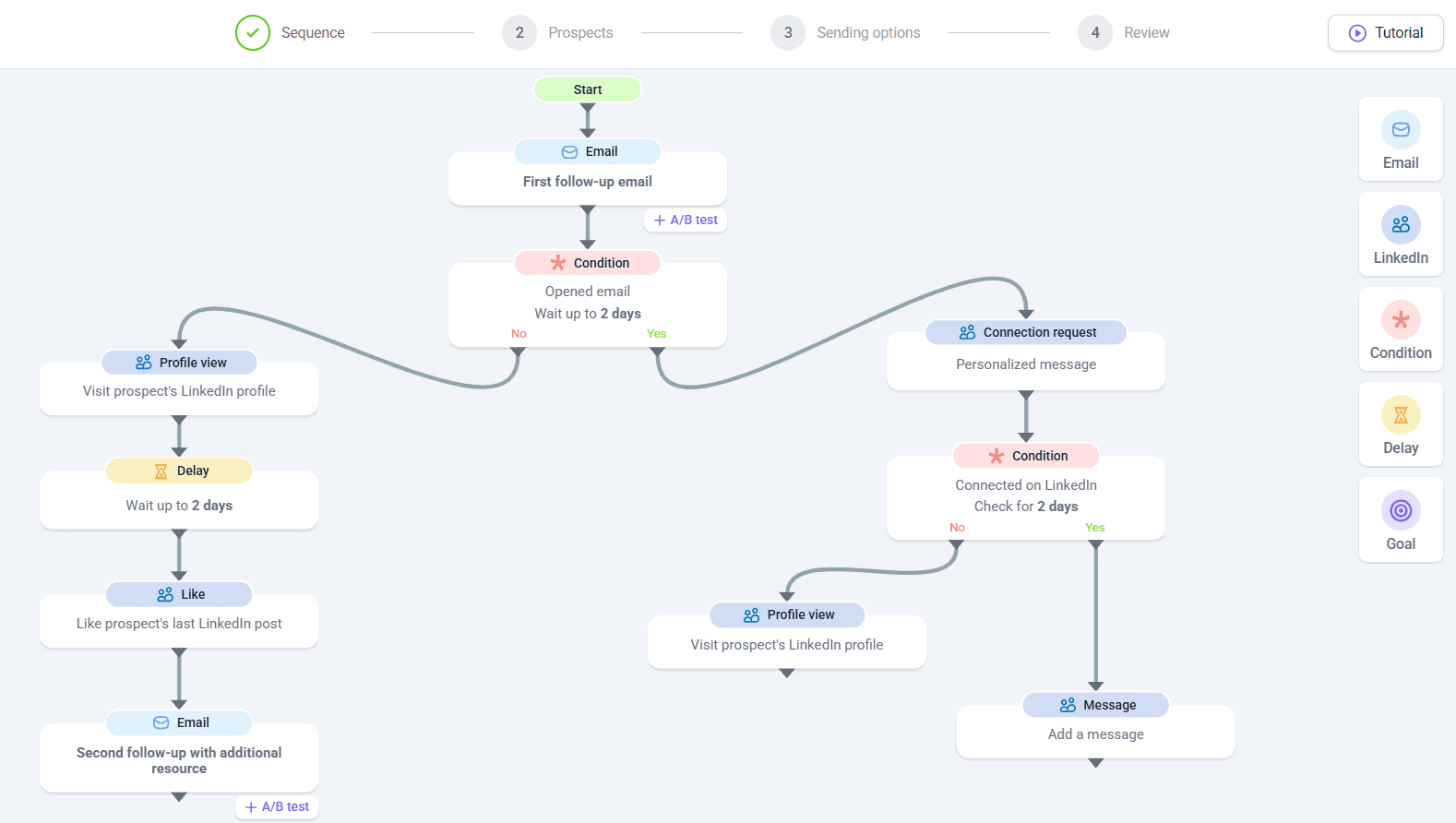
Consider the flow if a prospect replies and what you’ll send if there is no response. You can combine emails with LinkedIn touchpoints, such as profile views, post likes, connection requests, skill endorsements, messages, and InMails, to stay on the prospect’s radar.
However, don’t overwhelm prospects with follow-up steps. Your goal is to make the campaign feel like a natural continuation of the Smart Link interaction.
This way, you use Smart Links as the starting point for a more targeted drip campaign based on real interest.
Snov.io transformed our LinkedIn prospecting workflow and let us automate warm outreach at scale without sacrificing a personal approach. As a result, our reply rate increased by 20%, and we tripled both ROI and the number of meetings booked per week
Chief Growth Officer at Anderson Digital Growth

How to enhance outreach with LinkedIn Smart Links: expert recommendations
Below are a few more practical tips from Dmytro Krasiuk, Snov.io’s Oubound Outreach Specialist, on how you can use LinkedIn Smart Links to drive better outreach results.
Match the content to the prospect’s stage
For cold outreach, I recommend keeping your Smart Link content short and easy to consume. Add a concise case study, a relevant benchmark report, or a short product overview rather than a folder with too many assets.
For warmer leads, you can include more specific content, such as pricing explainers, ROI materials, comparison pages, or customer testimonials relevant to your prospect’s industry or challenge. Just remember that your Smart Link pieces should be helpful, not overwhelming.
Use Smart Links analytics to personalize follow-ups
Don’t treat every interaction the same. A prospect who briefly opened your link may need a softer follow-up, while a recipient who spent a good deal of time viewing your content may be ready for a more direct next step.
Use LinkedIn Smart Links analytics to understand what topic caught the prospect’s attention and then connect your follow-up to that context. For example, if someone showed greater interest in a case study, mention the challenge it describes. If they explored a product overview, ask whether this workflow is relevant to their current process.
Insert Smart Links into your LinkedIn outreach messages
Smart Links are great for LinkedIn outreach, especially when you want to share more context without making your message too long. Instead of explaining everything in one InMail or DM, you can briefly introduce the resource and let the prospect explore it when they’re ready.
Just don’t forget to explain why you’re sharing this content and what your recipient will find inside.


Use Smart Links beyond DMs
Don’t limit Smart Links usage to direct messages or emails only. You prepared quality content, so why not share it across other touchpoints where prospects can engage with it? For example, you can add Smart Links to your LinkedIn posts to increase profile engagement, showcase your expertise, and position yourself as a useful industry resource.
It’s also a good idea to add LinkedIn Smart Links to your landing pages. This way, you can discover new leads outside your usual outreach flow.
Include LinkedIn Smart Links in your cold emails
Our recent analysis of 44+ million emails revealed that plain-text cold messages outperform those with images and attachments, with an average reply rate of 1.30% vs. 1.08%.
LinkedIn Smart Links can help you share content more safely. Instead of attaching a PDF case study, an industry report deck, or a product overview video, you can package the most relevant resources into a single link. Just make sure the Smart Link has a clear reason to be included in your cold email.
And remember: the more channels you use to engage with your potential leads, the more chances you’ll convert them into customers.

Key takeaways
LinkedIn Sales Navigator Smart Links are useful because they give visibility into real-time content engagement. With these signals, sales teams can identify warmer prospects and plan more personalized follow-ups. To make things work, here are the key takeaways to remember:
- Smart Links work best when they are focused and relevant. Add only resources that match the prospect’s stage, feel genuinely useful to them, and support the next step.
- Use Smart Link analytics not only to identify engaged leads but also to see which topics or assets interest them and reach out with a more tailored follow-up.
- Include Smart Links across other channels to extend the reach and track content engagement across multiple touchpoints.
To drive even more results, combine LinkedIn Smart Links with Snov.io. Together, they can help you ensure timely, personalized outreach to interested prospects and turn content engagement into real business opportunities.