
TL;DR: How to send emails from Claude manually and automatically
“Can Claude send emails?” is one of the most typical questions people ask these days when using AI for email marketing or cold outreach. The honest answer for 2026 is: it depends on which of Claude’s products and connection types you prefer.
In the following rable, I compared several options, ranging from a manual tap-to-send experience to full Claude AI email automation:
| Claude product and connection type | Best for | Email automation level | Key possibilities | Key limitations |
|---|---|---|---|---|
| Claude’s Gmail connector (native) | Individual Gmail users looking for quick replies with manual sending | Draft-only mode; manual tap is required | Search/read/summarize; access email and attachment metadata (without attachment content); label messages; draft replies and save them in the Drafts folder | No auto-send permission; no event triggers; attachments aren’t readable; can’t attach files |
| Claude for Outlook add-in | Individual Outlook users getting emails with attachments but choosing to send messages manually | Draft-only mode; manual tap is required | Triage unread emails into 3 action buckets; summarize threads; read attached files (Word/Excel/PDF/PPT); draft replies, reply-alls, and forwards and save them in the Drafts folder | No auto-send permission; no event triggers; can’t attach files; currently in beta, available only on paid plans |
| Claude’s Microsoft 365 connector (native) | Large teams and enterprises using Microsoft 365 for email outreach | Fully automatic with Write tools | Read emails and metadata; send and forward messages; create/update/delete drafts; label and move emails; manage inbox categories and auto-replies | Requires an Entra ID tenant in the Microsoft Business plan; doesn’t allow personal accounts; can’t attach files; limited number of writes/sends/recipients per user; can be expensive for small teams |
| Claude Cowork + Native connector | Solo users and teams that prefer scheduling email tasks | Depending on connector (draft-only with Gmail or Claude for Outlook or fully automated via the Microsoft 365 connector) | Chain multi-step instructions in one prompt and run them on a schedule with actions depending on the connector | Attachment-reading and labels depend on the connector type; no auto-attach; requires a paid plan |
| Claude Cowork + MCP server | Teams with multi-task projects and high-volume outreach who want a full-loop automation level from drafting to sending | Fully automatic | Send automatically; attach files; organize by labels; bulk-personalize; mass-send to a contact list; run on a set schedule (hourly/daily/weekly/etc.) | Requires a paid subscription; more time-consuming workflow setup |
| Claude Code + MCP server | Developers or heavily technical users launching custom, large-scale email automation campaigns | Fully automatic | Send/attach/bulk automation (same as Cowork + MCP); more complex and customized workflows | Requires one of the paid plans (Pro/Max/Team/Enterprise); “heavier” setup; steeper learning curve for non-tech users |
If you have a couple of minutes, keep reading to explore each method in action.

From copy generation to sequence automation — 76% of email marketers use AI tools like Claude either moderately or extensively for over half of their workflow. If you’re not in this cohort, it’s high time you started.
In this article, I’ve thoroughly reviewed and analyzed the best methods of sending emails from Claude for both email marketing and cold outreach automation. Read on and choose the right path to Claude email automation.
Can Claude AI send emails?
Yes, Claude can send emails for you with the proper setup. Today, it’s possible even natively, not only via integration with a third-party tool or MCP (Model Context Protocol).
Follow the thread of changes to understand how Claude AI email integration and automation evolved from 2025 up till now:
- May 2025 → Claude Code becomes generally available and works in tandem with MCP (introduced earlier). Together, they make a major shift, transforming Claude from an AI email generator via a chatbox to a programmable tool that calls APIs and directly reaches inboxes and CRMs.
- July 2025 → A mobile drafting feature is added. The Claude iOS/Android app now drafts a message and hands it over to Gmail, WhatsApp, Slack, or other messaging apps already pre-filled. Mobile users only have to click “Send.”
- January 2026 → Anthropic ships Claude Cowork. It lets people sort inbox emails by labels, auto-draft replies for human approval, schedule custom tasks, and more. By its native setup, it’s still a draft-and-approve tool, but it now supports multi-step, scheduled tasks. Alternatively, Claude Cowork connects via MCPs or third parties to fully automate email sending.
- February 2026 → Google Workspace connectors (Gmail, Drive, and Calendar) become accessible to standard (not only paid) users. The Gmail connector, in particular, helps search/read/draft emails, access email metadata, organize messages by labels, and list saved Gmail drafts. Yet, it doesn’t send emails from Claude natively.
- May 2026 → The Claude for Outlook add-in is launched in public beta to paid users. Just like Gmail’s connector, it cannot automatically send emails from Claude. However, it can triage your unread emails, write replies/reply-alls/forwards, summarize threads, read attachments without even opening them, and more for Outlook email automation.
- July 2026 → Write tools are added to the Microsoft 365 connector, making it possible to send automatic Outlook messages natively.
📝 Note: Personal Microsoft accounts (e.g., @hotmail.com or @outlook.com) aren’t allowed. You must also have a Microsoft 365 Business plan with an Entra ID tenant to connect.
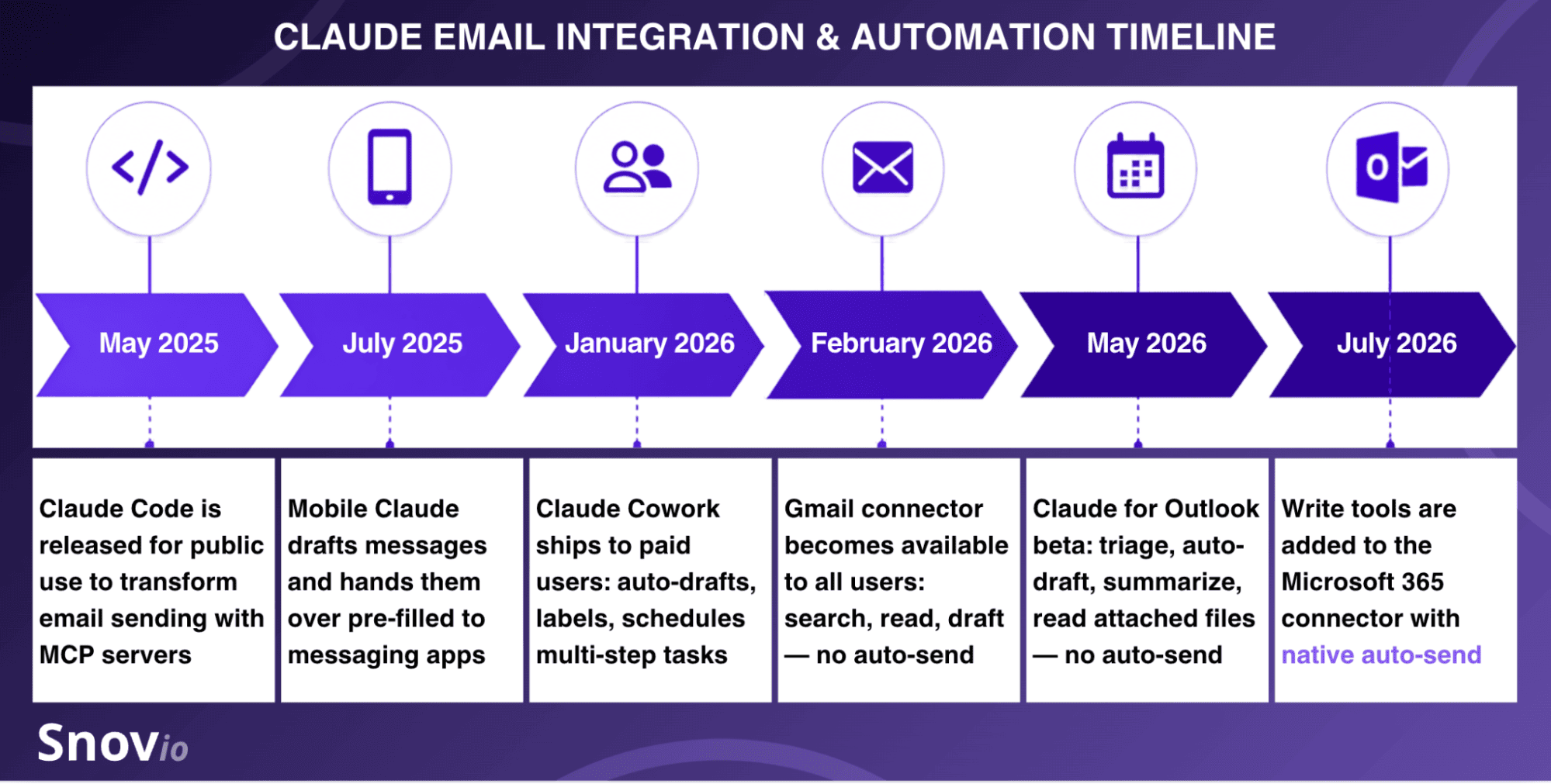
As you can see, for most of 2025 and partially of 2026, the native send action has been kept manual by Claude AI. The latest release, on the other hand, did actually bring inherent automation into play (although only for Microsoft 365 users) to send automated email messages from Claude natively.
How to send emails from Claude via native connectors (manual sending)
Depending on your email service provider (ESP), you need to have a corresponding native connector enabled. You can enable it in your browser via Claude AI or by opening your Claude Desktop app.
See how I connected Claude to my Gmail and Outlook accounts to draft emails automatically, but tap “Send” manually.
How to set up a Gmail connector in Claude for manual email sending
Follow the setup instructions for connecting Claude to your Gmail account via a native connector:
Step 1. In your free or paid Claude account, go to Settings → Connectors.
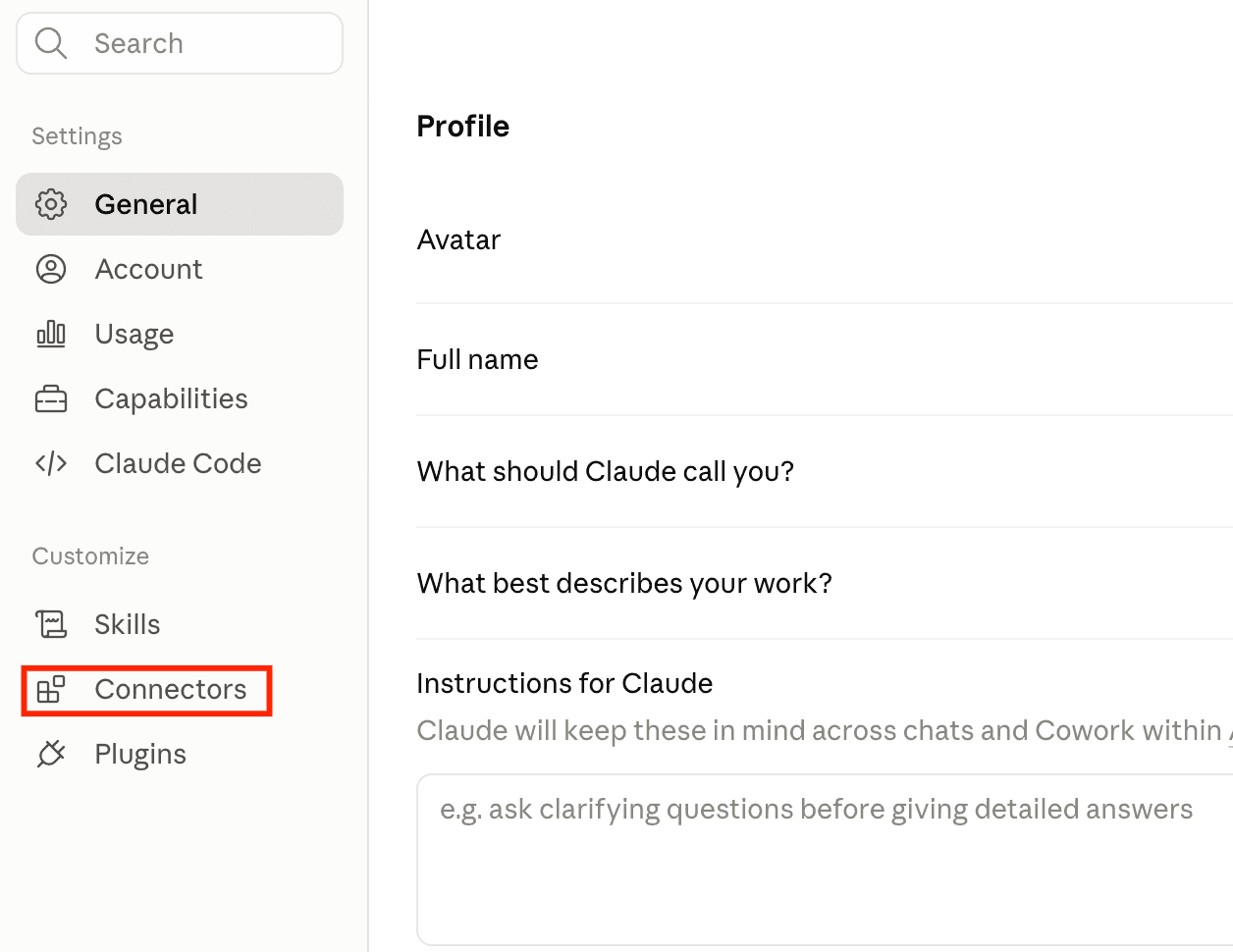
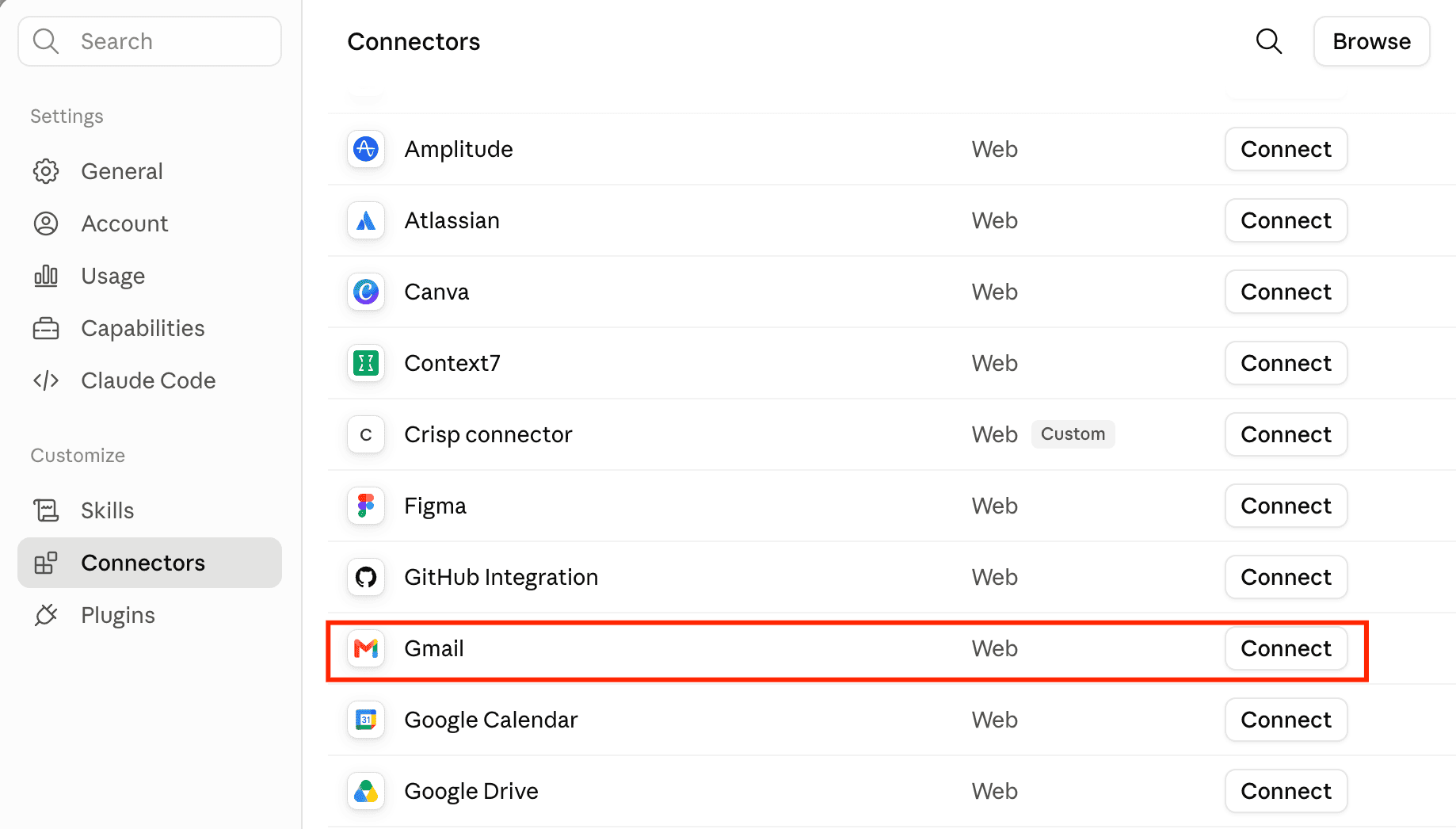
Step 2. Browse all connectors, find Gmail, and click “Connect.”
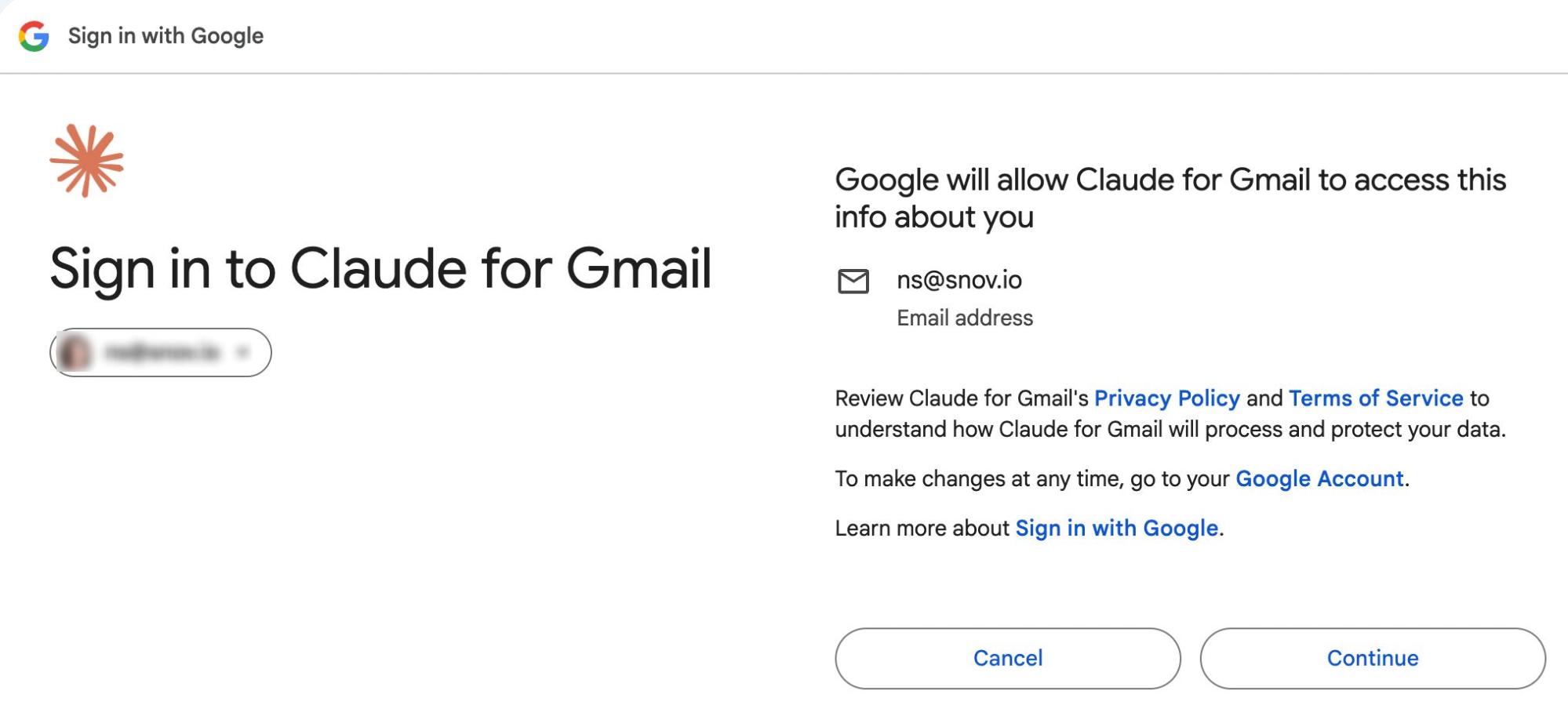
Step 3. Sign in with your Gmail account and approve the requested permissions on Google’s consent screen.
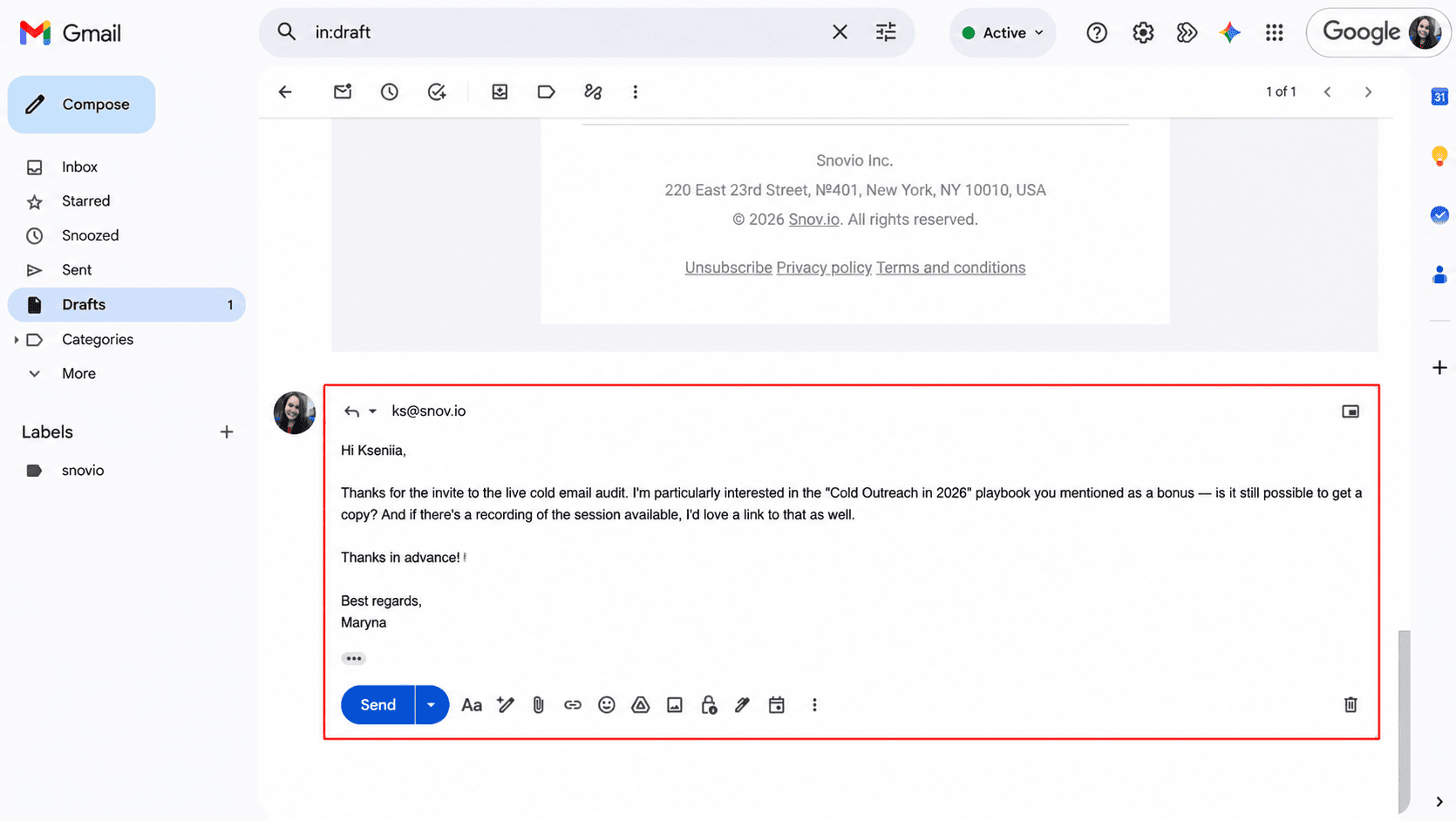
Step 4. Back in your Claude chat, just type what you need. It will automatically generate an email draft and send it to your Drafts folder.
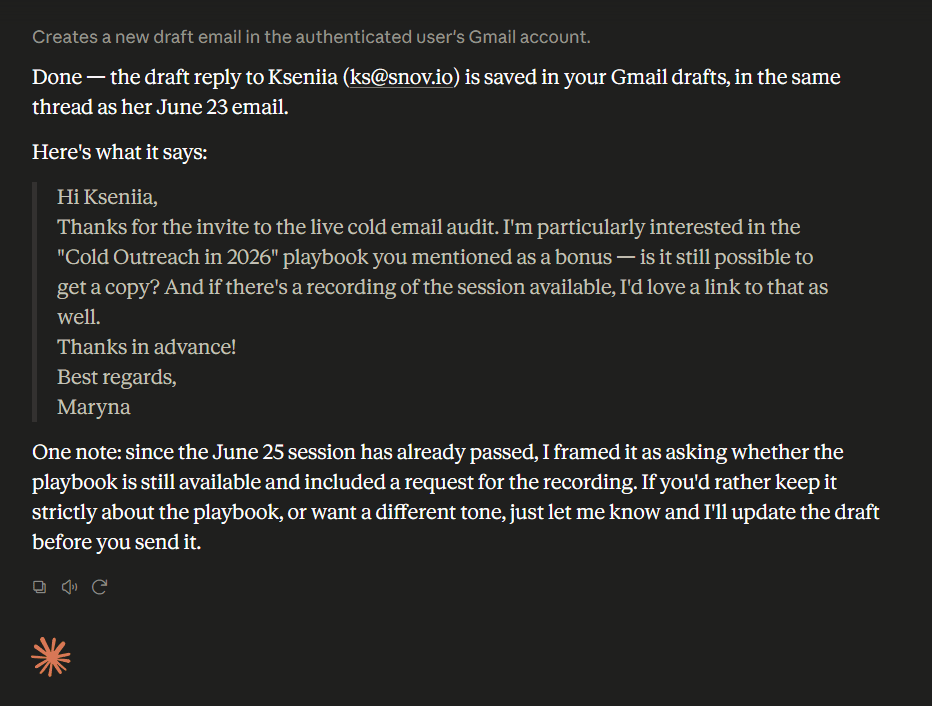
For example, once I connected it to my Gmail account, I asked Claude: “Draft a reply to Kseniia from Snov.io, letting her know that I’m interested in the ‘Cold Outreach in 2026’ playbook.” In up to 10 seconds, I received the following output.
Step 5. Open your Drafts folder and click “Send” yourself.
📝 Note: You may want to change the default security configuration for Write/delete tools from “Needs Approval” to “Always Allow.” Otherwise, Claude will stop and ask you for permission every time.
Also, if you’re on a Team or Enterprise plan, an Owner or Primary Owner needs to enable the Gmail connector for your organization first.


How to set up Claude for Outlook for manual email sending
Unlike the Gmail connector, it’s not on the free tier, so you need a paid plan (Pro, Max, Team, or Enterprise) to start using it.
Follow the setup instructions for connecting the Claude for Outlook add-in to your sender account:
- Step 1. Install Claude for Outlook.
- Step 2. Open Outlook and select the email you want to respond to.
- Step 3. Find the Claude button in the message ribbon or in the Apps section.
- Step 4. Sign in with your Claude account. Claude reads the open thread automatically. Ask it to reply.
- Step 5. Click the “Open” button, and the drafted email (unsent) will be accessible in the Drafts folder for you to review. Tap “Send” manually.
For example:
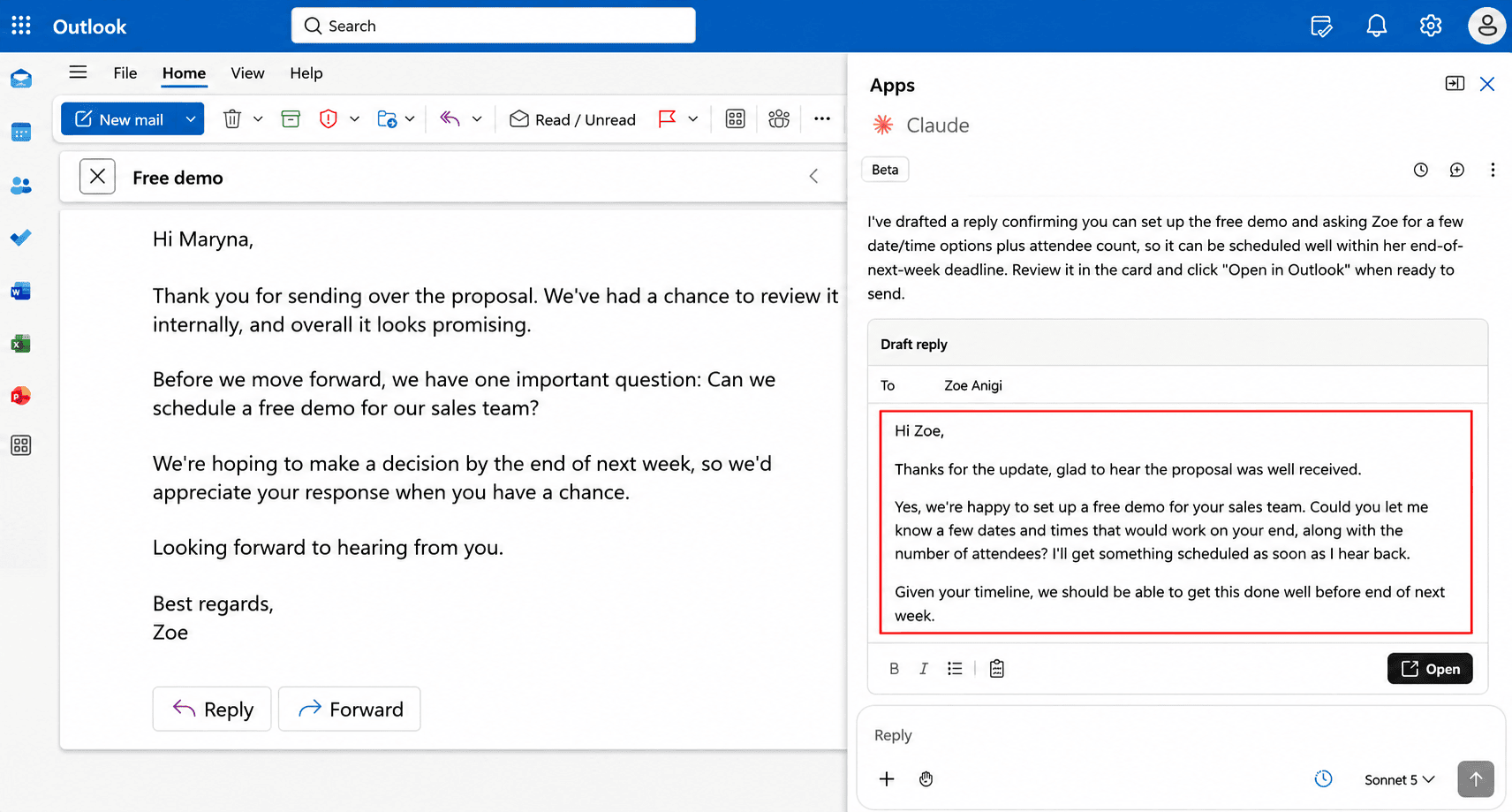
I opened one particular message in my Outlook account and asked Claude: “Draft a professional reply to this email, confirming that we can schedule a free demo.” Here’s the result I received in just a couple of seconds, although the installation process took a bit longer than with Gmail’s connector.
📝 Note: If you go solo and want Claude to help you draft one-off messages for manual sending, opt for the add-in, which is designed specifically for individual users.
For larger teams that want Claude to access data across Outlook, OneDrive, SharePoint, and Teams, and send Outlook emails either manually or automatically, the Microsoft 365 connector is the best option.
How to send emails with Claude Cowork (manual and automated modes)
The good news is that since July 7, 2026, Claude Cowork has become available on mobile and web versions, running remotely. So, you don’t necessarily have to install Claude Desktop to send emails and keep your laptop or PC always on (as required before the update).
Still, you need a paid subscription (Pro, Max, Team, or Enterprise) to start sending emails with Claude Cowork, whether manually or automatically. Let’s take a closer look at both options.
Manual email sending with Claude Cowork
For manual mode, follow these 5 steps:
- Step 1. Open Claude Cowork and go to Settings → Connectors. Find the needed connector (or install the add-in for Microsoft Outlook).
- Step 2. Authenticate with your ESP when prompted.
- Step 3. Change Claude Cowork’s default security configurations if needed: choose between “Needs Approval,” “Always Allow,” or “Block.”
- Step 4. Ask Cowork to draft an email. It performs your task autonomously — searches, reads, and drafts — and reports back when it’s done.
- Step 5. Review and send the draft.
The key difference here is that Claude Cowork can also handle multi-step instructions like this: “Scan my inbox for unanswered emails from this week, draft a follow-up for each, and put them all in my Drafts folder.”
I gave Claude [Cowork] one instruction — go through my inbox, find everything that needs a reply, and draft responses for me. In under a minute, it read 23 emails, identified 7 that needed responses, and wrote drafts in my tone. No code. No workflow. Just a prompt.
Co-Creator of Ryan & Matt Data Science

Based on the analysis of 1.2M sessions, content creation and copywriting accounted for 16.4% in Claude Cowork. But on top of that, this Claude product can also schedule tasks or even work across several connected projects and tasks. This feature makes it a particularly good fit for teams managing multi-task projects or running high-volume email campaigns.
Automatic email sending with Claude Cowork
Cowork can actually gain auto-send control via a native Microsoft 365 connector or a third-party MCP server or platform. However, the entire preparation and setup process may seem quite complicated and time-consuming, especially if you plan to create custom agent Skills and use the scheduling feature.
Choose the Microsoft 365 connector (if relevant) or follow the setup instructions for an MCP server:
- Step 1. Go to Settings → Connectors → Select “Add custom connector.”
- Step 2. Give it a name. Insert the MCP server URL or add local config (API key, OAuth client ID, etc., depending on the server).
- Step 3. Start a Cowork task and reference the tool (“use the [MCP Name] to draft and send an email to…“).
- Step 4. Give permission the first time Cowork calls a new tool in a session.
- Step 5. Create Skills and Scheduled Tasks based on those to run it all unattended (e.g., every morning).
Case study:
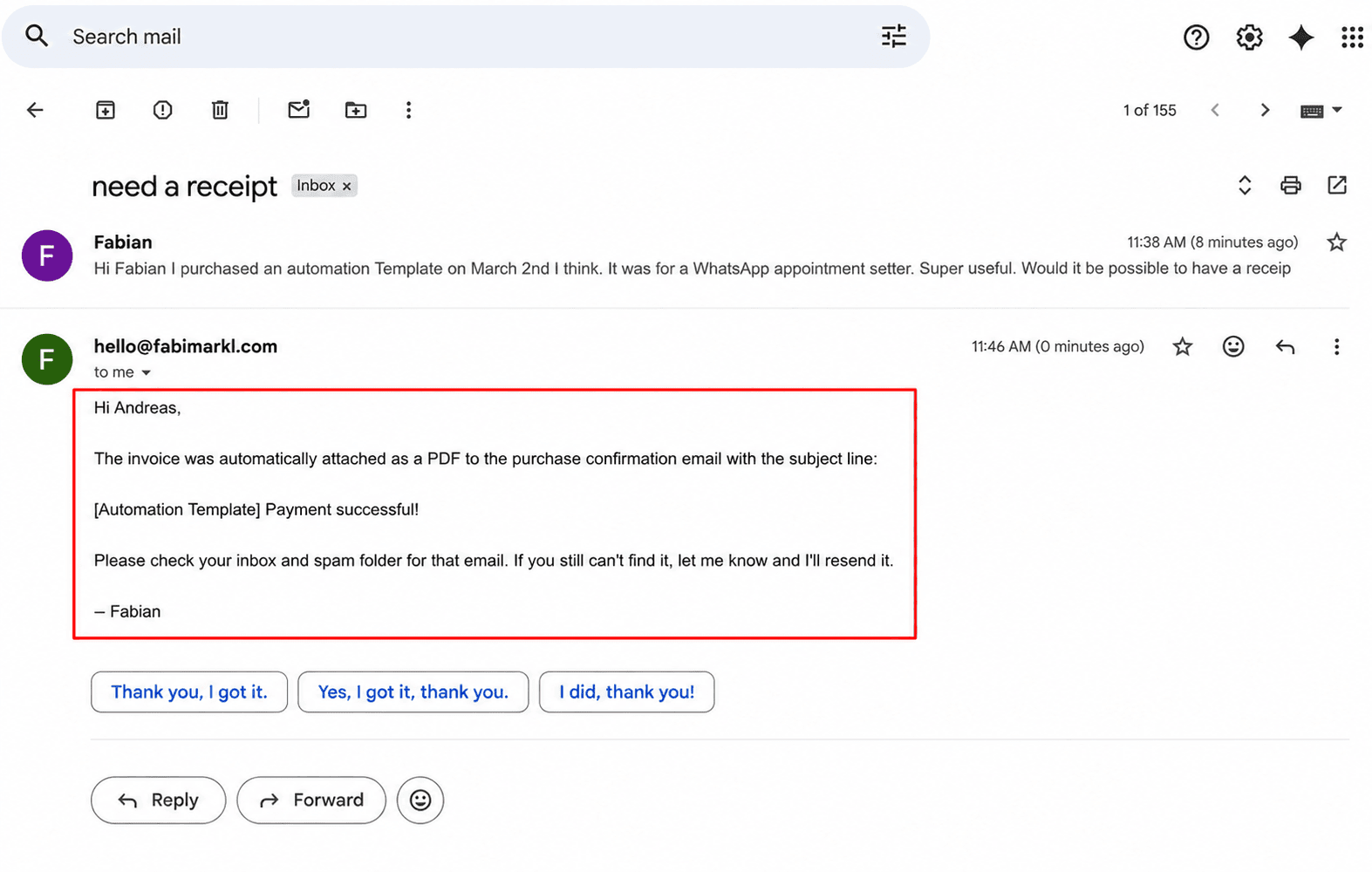
A well-known IT specialist, Fabian Markl, has adjusted to using Claude Cowork to send emails automatically. Here’s a tried-and-tested prompt example he provides the AI with:
After running the above-mentioned prompt, he could see the AI-generated, already-mailed reply in the Sent folder.
Pro tip: Experts who’ve already tapped into Claude Cowork email automation still recommend a “human handoff,” that is, a human-in-the-loop confirmation step, especially for critically important conversations when you have to step in (e.g., send an invoice or solve a client’s problem).
Here’s the exact prompt to add to auto-replies:
How to send emails with Claude Code via an MCP server (fully automated)
Similar to Claude Cowork, it’s also available only to paid users. So, you need a paid account to start automating emails with Claude Code + MCP. Plus, a decent technical background (e.g., sysadmin or dev) would be a nice-to-have — it’s quite tough for non-tech people to grasp.
Generally, the step-by-step setup instructions for Claude Code and MCP for full email automation are as follows:
- Step 1. Pick the server with an MCP tool for automatic email sending (e.g., send_email or send_draft).
- Step 2. Check its auth method (API key, OAuth, or none) and gather any required credentials upfront.
- Step 3. Add the server: claude mcp add –transport http <name> <url> for remote, or claude mcp add <name> — npx <package> for local stdio.
- Step 4. Verify and authenticate: claude mcp list or /mcp in a session (complete any pending OAuth login here).
- Step 5. Prompt it in natural language to call the server’s tools and automatically send emails with Claude Code.
Yet, the setup may differ from server to server. Discover how to send an email in Claude Code by connecting to the most popular MCPs in the table below.
| MCP server | Best for | How to set it up | Notes and limitations |
|---|---|---|---|
| Google Workspace MCP server | Teams preferring Gmail + Docs + Sheets + Calendar + Drive in one package | Run via uvx workspace-mcp --tool-tier core locally, or add as a remote MCP server; authenticate with Google OAuth 2.0 in-browser |
Broader integration scope, not solely Gmail |
| Gmail MCP server | Users focused on Gmail-centric Claude Code email automation | Add server config with OAuth credentials tied to your Google Cloud project; authorize scopes for Gmail API | Only for Gmail users, but a great variety of Gmail MCP code repositories on GitHub |
| Outlook MCP server | Outlook/Microsoft 365 users | Register an Azure AD app; grant Microsoft Graph Mail.Send permissions; add the server with those Azure credentials | Azure app registration is mandatory; also requires admin consent in some tenants |
| AgentMail MCP server | Users who opt for autonomous AI agents to run dedicated, programmatic inboxes, not their personal ones | Sign up for AgentMail; generate an API key; add the server with that key | Great for isolating AI agent’s activity, yet less useful if you prefer to send messages as “you” |
| Resend MCP server | Developers who want to automate transactional emails and marketing newsletters at scale | Create a Resend account; verify a sending domain; generate an API key; add the resend/mcp-send-email server with the key |
It’s send-only with no inbox reading options |
Case study:
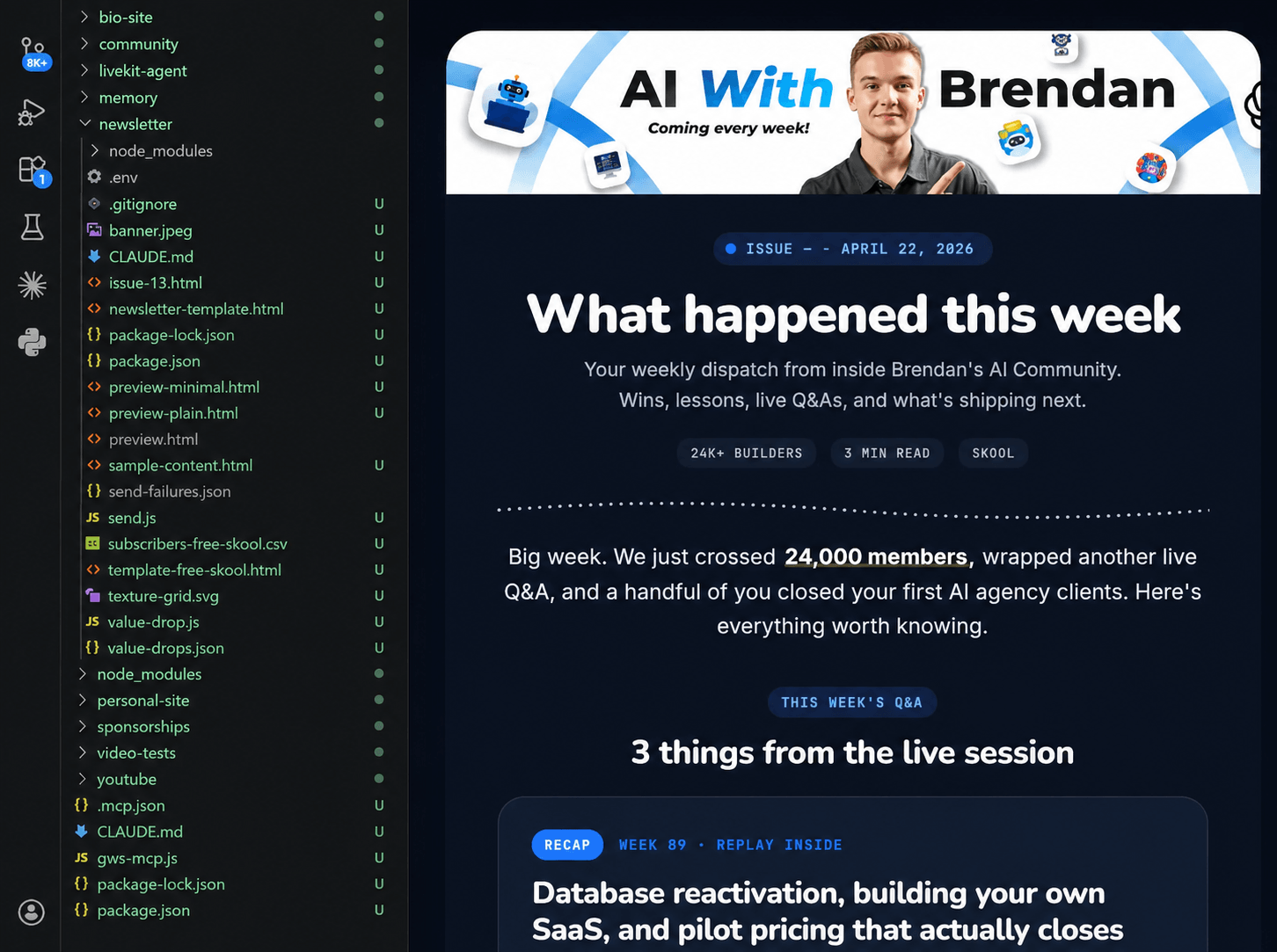
Brendan Jowett, the founder of Inflate AI, fully automated newsletter creation and sending with Resend MCP when using Claude Code for email marketing.
You can sync Claude Code with any custom MCPs from your preferred cold email software and go beyond drafting and sending to build actual sales automation workflows. But remember that the free Claude plan allows only 1 custom connector.
Сlaude Code is basically Claude AI that can actually build things. For cold email, the potential is basically this: instead of manually researching prospects, writing personalized angles, pulling analytics from your platform, and tracking results across email and LinkedIn, you can automate most of it.
Feed Claude Code your lead list — it researches them, generates personalized sequences, pulls weekly performance breakdowns, and coordinates timing across channels, saving 10–15 hours a week just on the research and email generation part alone.
Outbound Outreach Expert at Snov.io

📝 Note: When using Claude Code, the key concern is rooted in the AI agent’s autonomy. In fact, newer users rely on full auto-approval of actions only 20% of the time, but interrupt it at least 5% of turns to get feedback. Experienced users both auto-approve and interrupt Claude Code more frequently to check the status.
Claude email automation by product: What you can and can’t do with this AI
Let’s compare what is possible/impossible when using different Claude products and connection methods.
| Capability | Native Gmail connector | Claude for Outlook add-in | Native Microsoft 365 connector | Claude Cowork + native connectors | Claude Cowork + third-party MCP | Claude Code + third-party MCP |
|---|---|---|---|---|---|---|
| Search and summarize emails | ✅ Yes | ✅ Yes | ✅ Yes | ✅ Yes | ✅ Yes | ✅ Yes |
| Draft a reply | ✅ Yes | ✅ Yes | ✅ Yes | ✅ Yes | ✅ Yes | ✅ Yes |
| Send a drafted message automatically | ❌ No | ❌ No | ✅ Yes | Via the Microsoft 365 connector | ✅ Yes | ✅ Yes |
| Read attachments | ❌ No (only metadata) | ✅ Yes (.xlsx, .docx, .pdf, and .pptx) | ❌ No | Depending on connector | ✅ Yes | ✅ Yes |
| Attach files automatically | ❌ No | ❌ No | ❌ No | ❌ No | ✅ Yes | ✅ Yes |
| Organize emails by labels | ✅ Yes | ❌ No | ✅ Yes | Depending on connector | ✅ Yes | ✅ Yes |
| Run on a schedule | ❌ No (no triggers) | ❌ No (no triggers) | ❌ No (no triggers) | ✅ Yes (via Scheduled Tasks) | ✅ Yes (via Scheduled Tasks) | Depending on your commands |
| Bulk-personalize and send to a list of contacts | ❌ No | ❌ No | ✅ Yes (with limits per user) | Depending on connector | ✅ Yes | ✅ Yes |
Key takeaway:
The read-summarize-draft trio is a universal ability of any Claude product. However, to execute email automation to the fullest, you still need third-party MCP servers or integrations that unlock additional capabilities, such as attaching files and high-volume sending with the limits set by the ESP rather than the connector itself.
Expert tips for sending emails with Claude
Now, let’s look at how founders and cold outreach specialists use Claude AI email automation and what they recommend (or not) while doing so.
Run Claude and ChatGPT side by side
Is there a way to make ChatGPT and Claude communicate directly?
Yes, there is! You can connect them via Zapier, Make, or n8n and let them double-check and correct each other’s mistakes or inconsistencies.
Here’s how you can make Claude AI and ChatGPT work “shoulder to shoulder”:
- Feed both AI tools with the same email prompt (ICP, pain point, offer, CTA, tone of voice, etc.)
- Ask each to generate 3–5 variants, then pick the best subject line, opener, CTA, etc. for your final version
- Use Claude to criticize ChatGPT’s draft, and vice versa: Ask, “What would you improve in this cold email/follow-up?” or “How can I change this newsletter to make it more appealing for email marketing?”
- Test ChatGPT prompts in Claude and vice versa
So, you don’t necessarily have to stick to only a single AI model and discard others. Why not benefit from 2 simultaneously: ChatGPT and Claude?

Always proofread your Claude copy
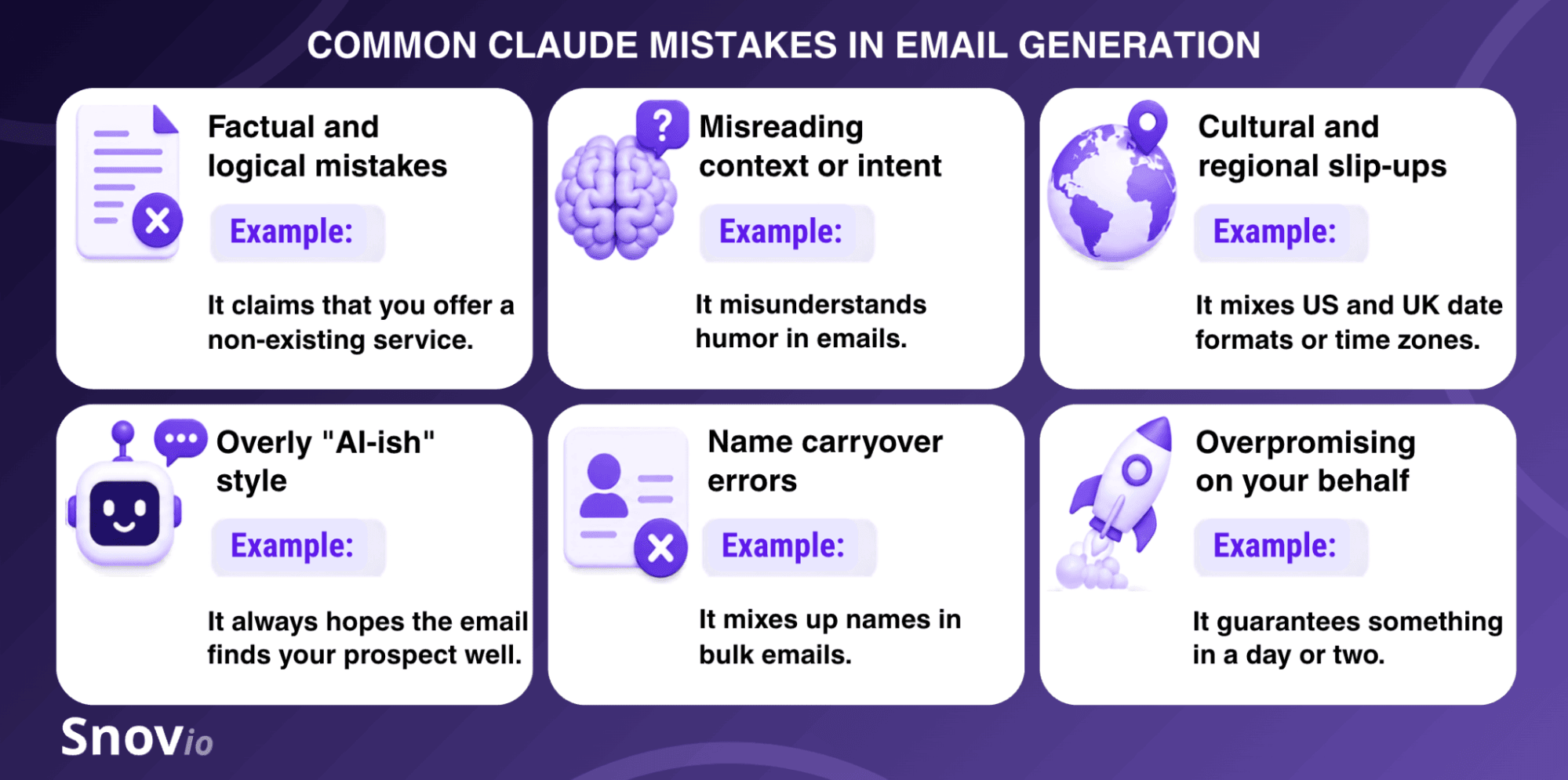
Here’s why. I asked Claude what mistakes it can make, and here’s what the AI agent cited:
- Factual and logical errors
- Made-up details (especially if the prompt was vague)
- Cultural/regional slip-ups (e.g., US vs UK date formats (does 03/04 mean March 4 or April 3?) or time zone nuances)
- “AI-ish” tone, lacking your brand voice (unless you give ultra-specific tone/voice instructions)
- Mixed up recipients’ names or other individual details between emails when drafting several messages at once
- False guarantee or promise (which can ruin your client’s trust and your reputation)
So, before tapping “Send,” read it carefully and correct any mistakes, contradictions, or other flops.
As I’ve mentioned, a “human handoff” is highly recommended by those who’ve already tested Claude for email automation.
Never, ever, EVER take the AI output as the final version. Read through each one and make as many edits as necessary to make it sound like you. […] Remember, this is AI. It does make mistakes, hallucinates, and needs to be reminded of what to do.
Founder & CEO of SHFT Agency

Be extra careful when automating bulk sending
Say, you may have a spreadsheet of contacts for Claude to loop through, personalize each message, and then send one by one via an MCP server. Alternatively, you may want to send email copies in bulk to a list of CC/BCC addresses.
In either case, you need more thorough preparation. Here’s what you should do before sending emails in bulk with Claude:
- Check your SPF, DKIM, and DMARC first: This is an obligatory prep step to avoid deliverability failures. Note: Gmail, Yahoo Mail, and Outlook require bulk senders to have all three email authentication protocols valid.
- Warm up your email domain: New or low-volume mailboxes don’t have a solid sender reputation yet, and mass sending from them may seem suspicious. Don’t start with full volume. Increase it gradually or use email warm-up software to establish a positive sender reputation before sending.
- Personalize beyond names: Give Claude a prompt to reference something very specific, a small nuance about each recipient (e.g., a recent achievement or activity). Otherwise, spam filters and recipients alike will notice the AI template.
- Stick to the right pacing: Don’t blast your entire list at once, especially from a single mailbox. It’s a sure-fire way to get blocked by ESPs. Send on a well-paced schedule and use several mailboxes to distribute your emails equally.
- Respect providers’ sending limits: These largely depend on ESPs and their unique rules.
Important: Both Gmail (in 2024) and Microsoft (in 2025) set stricter authentication and formatting requirements for every bulk sender — anyone sending 5,000+ messages/day.


Scale your outreach with Claude + Snov.io MCP
There’s no need to hop between a cold outreach tool and Claude anymore. You can automate and scale both lead generation and outreach by using the Snov.io MCP with Claude AI.
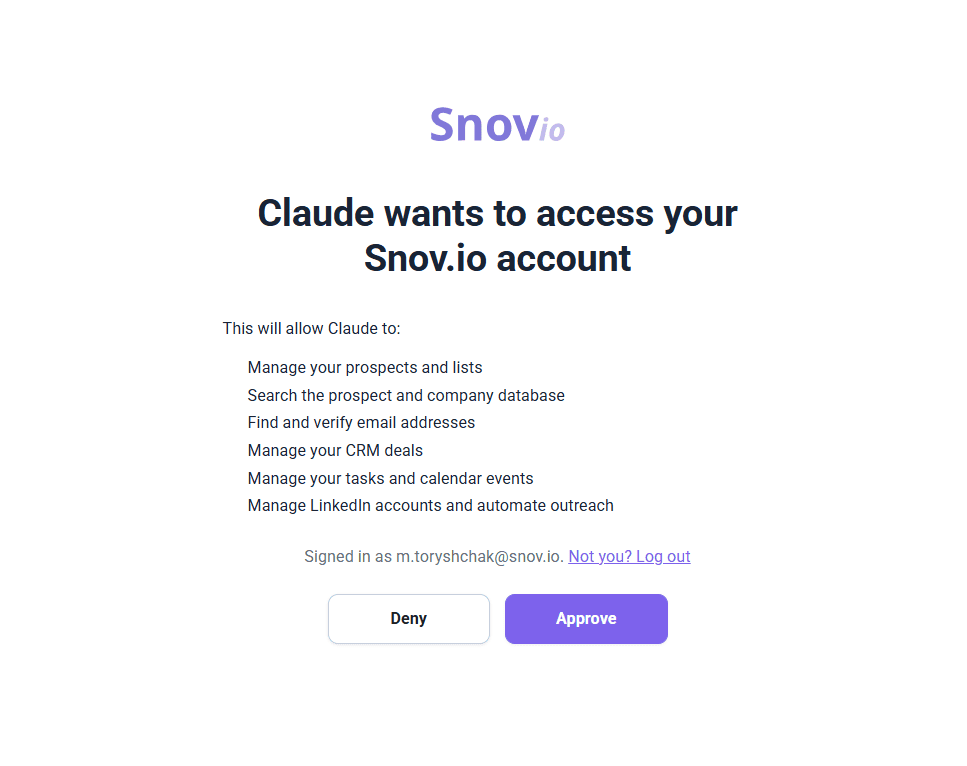
Although Claude can’t (yet) automatically send your emails from the Snov.io app, here’s what it can do for you via this MCP server so that you don’t even have to visit your Snov.io account:
- Search for people and companies
- Find and verify email addresses
- Access your contact lists and draft personalized messages to each prospect
- Manage your CRM deals (pipelines, deals, stages, notes, etc.)
- Organize your calendar tasks (calls, meetings, and so on)
- Automate LinkedIn actions (profile views, invites, follows, post likes, skill endorsements, messages, and InMails)
Currently, you can assess 139 MCP tools for various actions, with more coming soon for automating Email Drip Campaigns. So, keep your finger on the pulse for new releases.
Meanwhile, follow the straightforward setup instructions to connect Claude with the Snov.io MCP and start automating your prospecting and outreach:
- Step 1. In Claude, go to Settings → Connectors.
- Step 2. Add new connector → Insert the name (Snov.io MCP) and URL: https://mcp.snov.io/mcp.
- Step 3. Log in to your Snov.io account.
As you do, you’ll get a message asking you to approve Claude’s access to your Snov.io account:
For example:
When I approved Claude’s access to my account, I ran the following prompt: “Use Snov.io MCP to draft cold emails offering phone number enrichment to all prospects in my ‘FinTech CEOs’ list.”
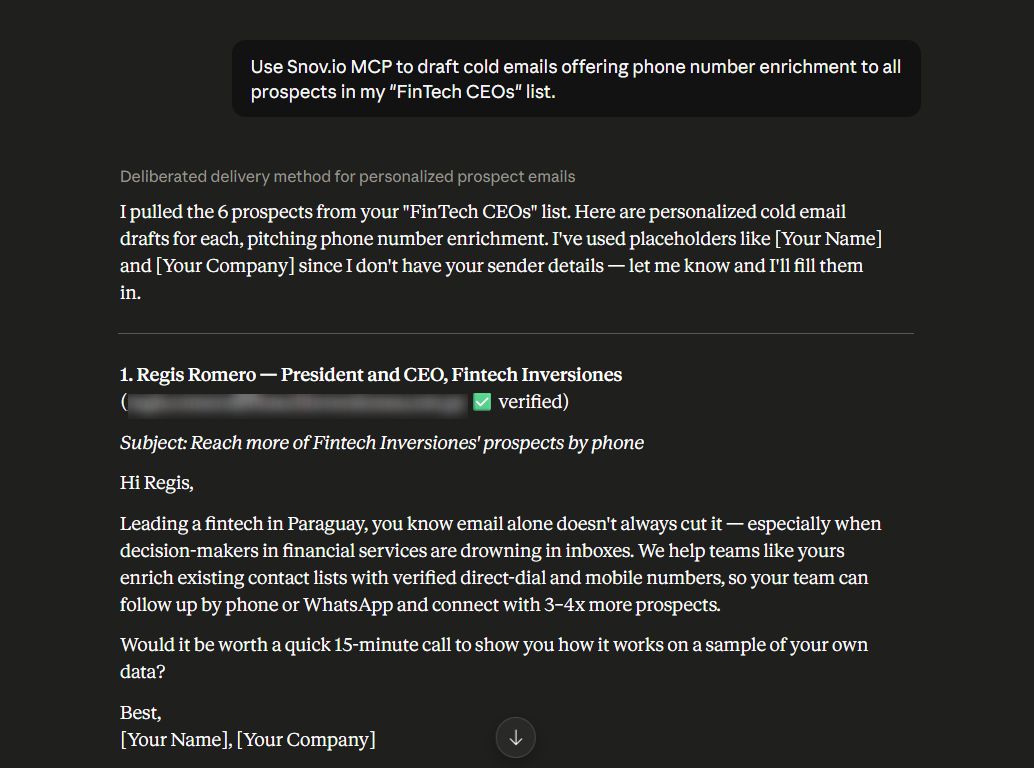
As a result, Claude automatically pulled the 6 leads from my prospect list and drafted personalized cold emails for each, pitching phone number enrichment as instructed.
Ready-to-use Claude prompts for email generation
As a bonus section, I’ve prepared a couple of Claude email prompts. They can be effective for both cold outreach specialists and marketers using Claude to do email marketing tasks.
Claude prompts for plain emails in cold outreach
From first-touch introductions to follow-ups, these Claude prompts cover the most common cold outreach scenarios.
#1. Claude prompt for introducing a new product/service:
#2. Claude prompt for offering a free product demo:
#3. Claude prompt for an event invitation:
#4. Claude prompt for a follow-up message:

#5. Claude prompt for an email with attachment:
Important: Emails with attachments require custom MCP setups. No native connector can currently attach a file to an email draft.
Also, keep in mind that attached files are associated with higher bounce rates and lower performance, based on our analysis of 10M+ emails. Use them moderately, or better replace them with links.
Claude prompts for HTML emails
And if you’d like to use Claude for email marketing, I’ve prepared an example of the HTML email prompt.
#6. Claude prompt for a newsletter:
→ Read more about plain-text vs HTML email differences, pros, and cons.
Key takeaways: Which Claude AI email integration path is right for you?
Here’s a full breakdown of manual and automatic setups best suited for different needs:
- Best for Gmail users looking for fast Claude AI email drafts: Claude’s native Gmail connector (manual mode only)
- Best for Outlook users dealing with attachment-heavy threads: Claude for Outlook add-in (manual mode only)
- Best for mid-to-large businesses and enterprises using Microsoft 365: Claude’s native Microsoft 365 connector (fully automated mode)
- Best for solo users or SMBs scheduling multi-step inbox tasks: Claude Cowork + native connector (manual or fully automated mode depending on the connector)
- Best for high-volume teams without coding skills: Claude Cowork + MCP server (fully automated mode)
- Best for developers or tech-savvy teams building custom campaigns: Claude Code + MCP server (fully automated mode)
Claude email automation ranges from drafting to a comprehensive schedule-and-send process, depending on the product and setup method. But whatever you choose, there’s a caveat worth remembering: Claude AI is prone to mistakes. So, my final note would be this: Keep a sharp eye and a controlling grip on emails when automating cold outreach or email marketing with Claude.