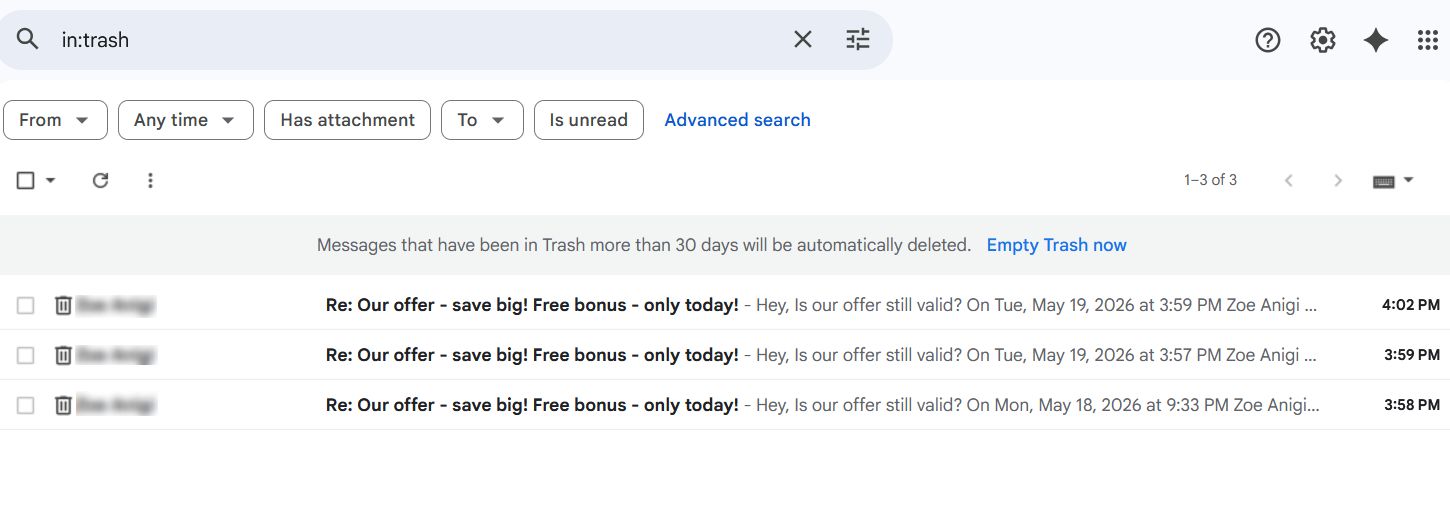
TL;DR: How can you tell if you’re blocked on Gmail?
I ran several tests and sorted the actual vs outdated signs in the table below. So, here’s how to know if someone blocked you on Gmail:
Learn more about it and get expert advice on how to avoid being blocked by both the recipient and email provider.
Did you know that one in six marketing messages fails to reach the inbox? One reason it happens is that Gmail’s spam filters flag your messages or hide them in the so-called “Shadow Spam Box.” Another reason is that users may simply block you.
And yes, it hurts.
I’ve dived deeper into what happens when someone blocks you on Gmail and learned how to check if someone has blocked you on Gmail to detect archaic tricks and provide you only with the most effective hacks.
Key points of this article:
- How Gmail account blocking works
- How to find out if someone blocked you on Gmail — real signals
- How to see if you are blocked on Gmail: hacks that no longer work
- Why Gmail may block emails from you
- What to do when the email provider or someone has blocked you on Gmail
- 5 tips to prevent Gmail blocking and boost email deliverability
- How to know if someone blocked you on Gmail: Key takeaways
How Gmail account blocking works
Here’s what happens if someone blocked you on Gmail:
- All your blocked emails land right in their Spam folder.
- They stay there for 30 days (the system will automatically delete them afterward).
- Gmail doesn’t notify you of this. No pop-up notifications. No errors. You may keep sending emails.
Behind the scenes, though, there may be other blocking types with emails going to spam or other Gmail folders (e.g., Promotions or Trash). They can be filtered, auto-deleted, or flagged.
Let’s see how.
- Custom-filtered messages
Your recipients can easily block you from the Filters and Blocked Addresses tab by setting a custom filter based on the “Subject,” “Has the words,” “Has attachment,” “Size,” or other criteria.
For example:
They can apply the label “Overpromotion” for aggressive email marketing campaigns or “Pushy sales rep” for cold emails. Labeled so, messages will sit in Spam folders for 30 days before auto-removal.
Alternatively, a person may pick a category from the “Categorize as” menu. In this case, your emails will be automatically sent to Promotions, Purchases, Social, Travel, or other folders, depending on the chosen category.
- Auto-deleted messages
Another custom filter set via Filters and Blocked Addresses can automatically delete your emails. And in this situation, they never actually end up in Spam folders, but in Trash.
For example:
Look at these spammy messages that landed in Trash due to the keywords that triggered my custom filters: “save big,” “free,” and bonus.”
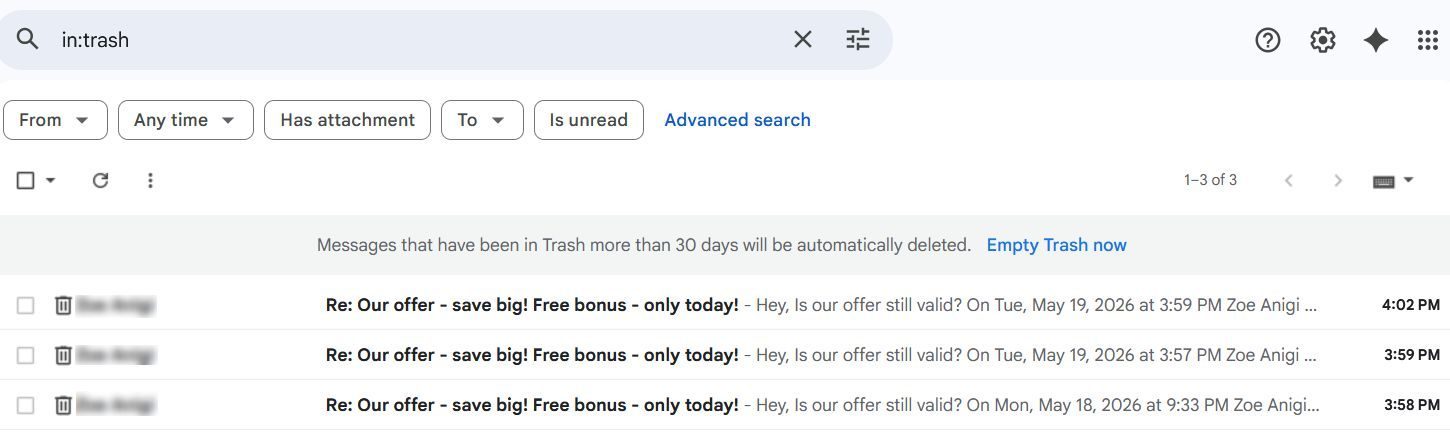
And just like Spam, the Trash folder will be emptied in 30 days.
- Flagged messages
If Gmail decides your email is suspicious or potentially harmful, it flags it and warns the recipient. When this happens, a person may receive a yellow or red security warning banner: “Be careful with this message” or “This message seems dangerous.”
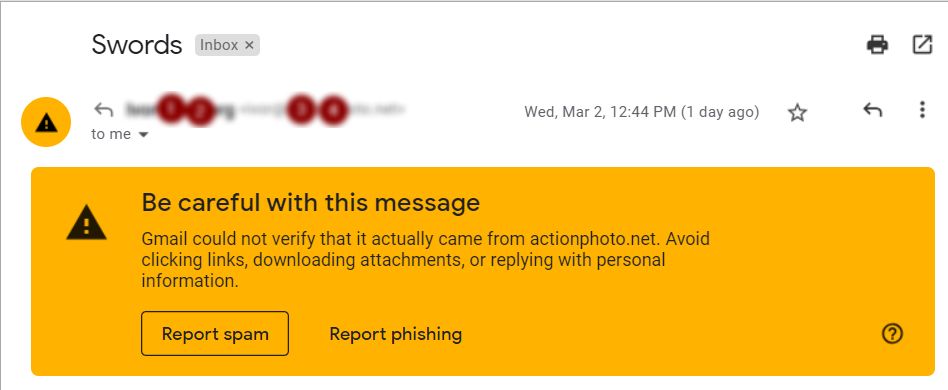
After getting one of those, recipients may click “Report phishing” or “Report spam” and block you.
Key takeaway:
So, if someone blocked you on Gmail, will you know?
No. Blocking is unnoticeable to the specific sender. This process may involve:
- Automatic redirection to the recipient’s Spam folder (your messages will be automatically deleted after 30 days)
- Custom filtering
- Auto-deletion (also driven by custom filters) that moves your emails to Trash
- Flagging (by the email provider) that eventually leads to blocking
Gmail won’t notify you about any of these procedures. And it would be better to track email deliverability regularly to understand how many emails land in spam rather than in Gmail inboxes.
How to find out if someone blocked you on Gmail — real signals
Now, let’s review the biggest signs that your cold messages or email marketing campaigns may be landing directly in spam due to blocking.
#1. You stop getting responses to your emails
If the person isn’t responding to your messages over time, blocking is quite a possible scenario. Yet, before assuming the worst, think about these factors:
- People may have abandoned their email addresses, switching to temporary ones, for instance
- Your emails are just getting buried in the “Gmail graveyard” due to inbox overload
- Your messages may accidentally go to Spam or Promotions
Now, consider this. In email marketing, the average reply rate is merely 5.8%. In cold outreach, it’s even lower — 3.43%. So, remember that silence alone isn’t a straightforward sign of being blocked on Gmail.
#2. Your engagement metrics collapse overall with bulk blocking
If you use an email tracker for Gmail, you may notice sudden engagement drops with low or zero:
- Replies
- Opens
- Read-throughs
- Clicks
- Conversions
That’s actually one of the best strategies for checking whether someone has blocked you on Gmail, especially if many recipients did.
#3. You don’t receive bounce notifications
This may sound weird, but not getting bounce-back emails is another clue that something might be wrong.
A bounced message isn’t pleasant, per se, as it damages your sender reputation and decreases email deliverability. But when you send yet another email and receive a bounce, it may at least confirm other reasons for not responding to your messages or engaging with them.
These reasons may coincide with the following notifications of deliverability issues in hard or soft bounces:
- “Address not found” (because of a deactivated or invalid email address)
- “Message not delivered” (because of a temporary server error or connection timeout)
- “Recipient inbox full” (self-explanatory)
- Or others
When such bounces occur, you typically get emails with subject lines: “Delivery Status Notification (Failure), just like in the example below.
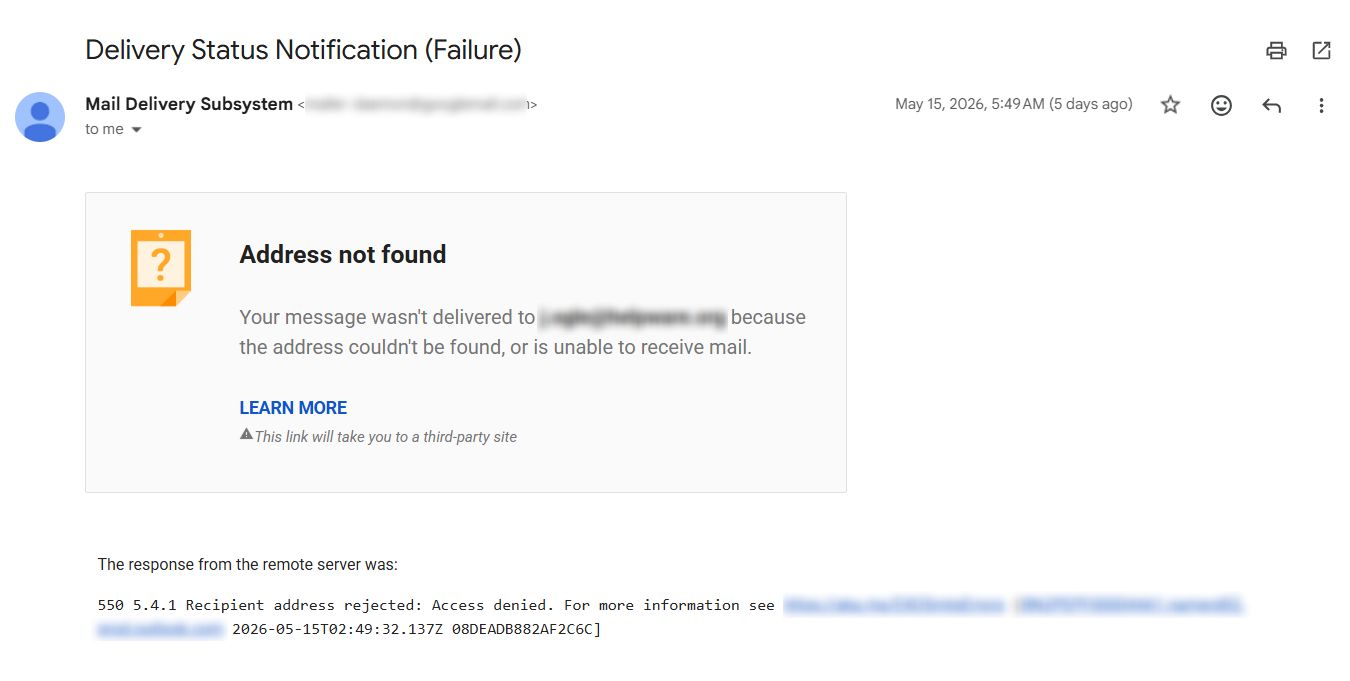
When someone blocks you, on the other hand, you receive nothing: no delivery status notification or alert.
→ Learn how to fix the problem of hard and soft bounces.
#4. You send a test email and get an active response
This is a much stronger signal than those I mentioned previously, yet not a sure-fire one.
For example:
Let’s say you’re used to launching email marketing campaigns or cold emails from one Gmail account. Now, you switch to another account. Suddenly, the person is actively responding.
That doesn’t guarantee you were blocked, but it may hint that the recipient treats your previous sender identity differently.

#5. You reach out and confirm or refute it via another communication channel
Honestly? To me, it looks like the best advice on how to find out if someone blocked you on Gmail without guessing. It’s a guaranteed way to obtain feedback (an affirmative answer or denial) because you simply ask the person via:
- Phone call
- Messaging apps like WhatsApp or Facebook Messenger
- SMS
- Social platforms (primarily, LinkedIn for B2B or Instagram for B2C)
Here’s a short template to make it easier for you:
Look at the takeaway infographic on how to know if someone blocked you on Gmail (or not).
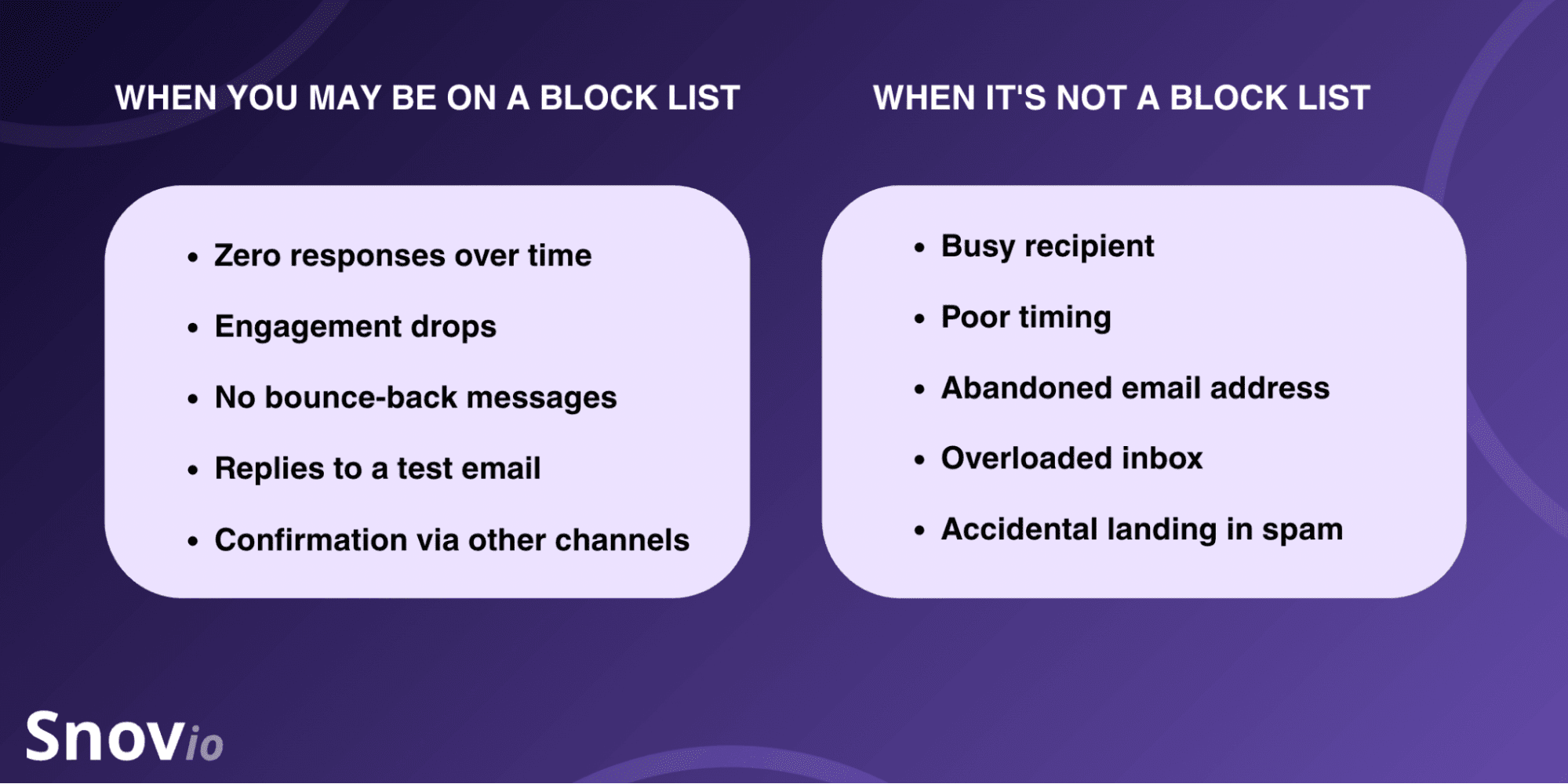
Needless to say, when I researched how to check if someone has blocked you on Gmail, I came across many more tips, yet my test has proven that lots of them no longer work.
How to see if you are blocked on Gmail: hacks that no longer work
I decided to include the out-of-date tricks on how to check if someone has blocked you on Gmail here as well, so you don’t waste your time.
I’ve listed them in this quick table:
None of the above is true, as my test confirmed.
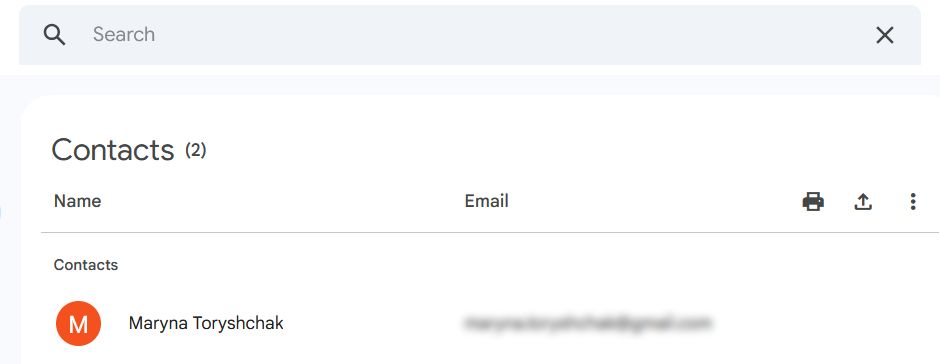
The above example shows that my blocked address was still in the Contacts list.
Why Gmail may block emails from you
Sometimes, it’s not the recipient who blocks you manually, but Gmail’s spam filters that do it automatically.
This can happen if:
- People marked your previous emails as spam (even without blocking you)
- You increased your sending volume too abruptly
- Your subject lines look too spammy or over-promotional
- Your messages contain too many suspicious elements (links, heavy HTML, attachments, etc.)
- Your content resembles typical phishing patterns
- Your email authentication records (SPF, DKIM, or DMARC) are missing or misconfigured
- Your IP or domain reputation decreased
- You’re on one of the email blacklists (aka blocklists)
For example:
If you set your digital foot on any blacklist, whether it’s SpamCop, Barracuda, Spamhaus, or any other, Gmail can block you or redirect your messages to Spam folders.
⚠️ Note: Now that Google largely relies on AI for spam detection, cold outreach experts recommend watching out for the so-called “Shadow Spam Box,” a hidden Gmail inbox, where your messages disappear after being filtered by AI algorithms.
The Shadow Spam Box is a black hole. You can’t access it, and you won’t even know your emails are going there. […] The fix? Custom infrastructure.
CEO at Galadon Gold

👉 Want to avoid the Shadow Spam Box? Pick one of the best email infrastructure tools from our listicle — all thoroughly compared and tested.
What to do when the email provider or someone has blocked you on Gmail
Suppose you’ve confirmed blocking. Don’t panic. The good news is that it doesn’t always mean irreversible damage to your sender reputation and email deliverability. Depending on the block list (whether it’s the recipient’s or Gmail’s), there are two practical ways to pull your email address out of it.
Politely ask people to unblock emails from you and whitelist you
If it’s a recipient’s block list, send a polite request to unblock and add you to their whitelist or safe senders list (with a custom filter).
Keep your message brief and non-pushy with the following ideas:
- If my message was blocked by mistake, I’d appreciate it if you could unblock it and add me to your safe sender list.
- Would you mind checking if my address was accidentally blocked or filtered and unblocking me for future communication?
- Please add my email address to your whitelist if you’d still like to stay in touch.
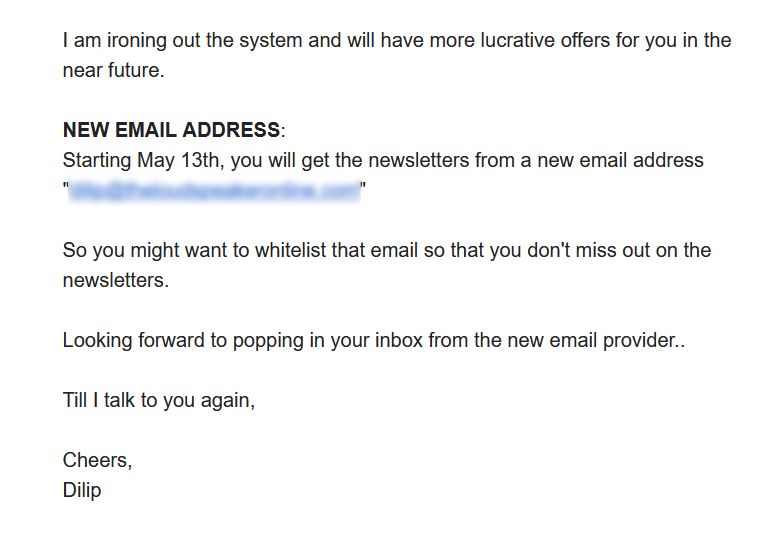
For example:
Look at this email marketing case. While “ironing out the system,” the sender changed the email provider for newsletters and asked for whitelisting.
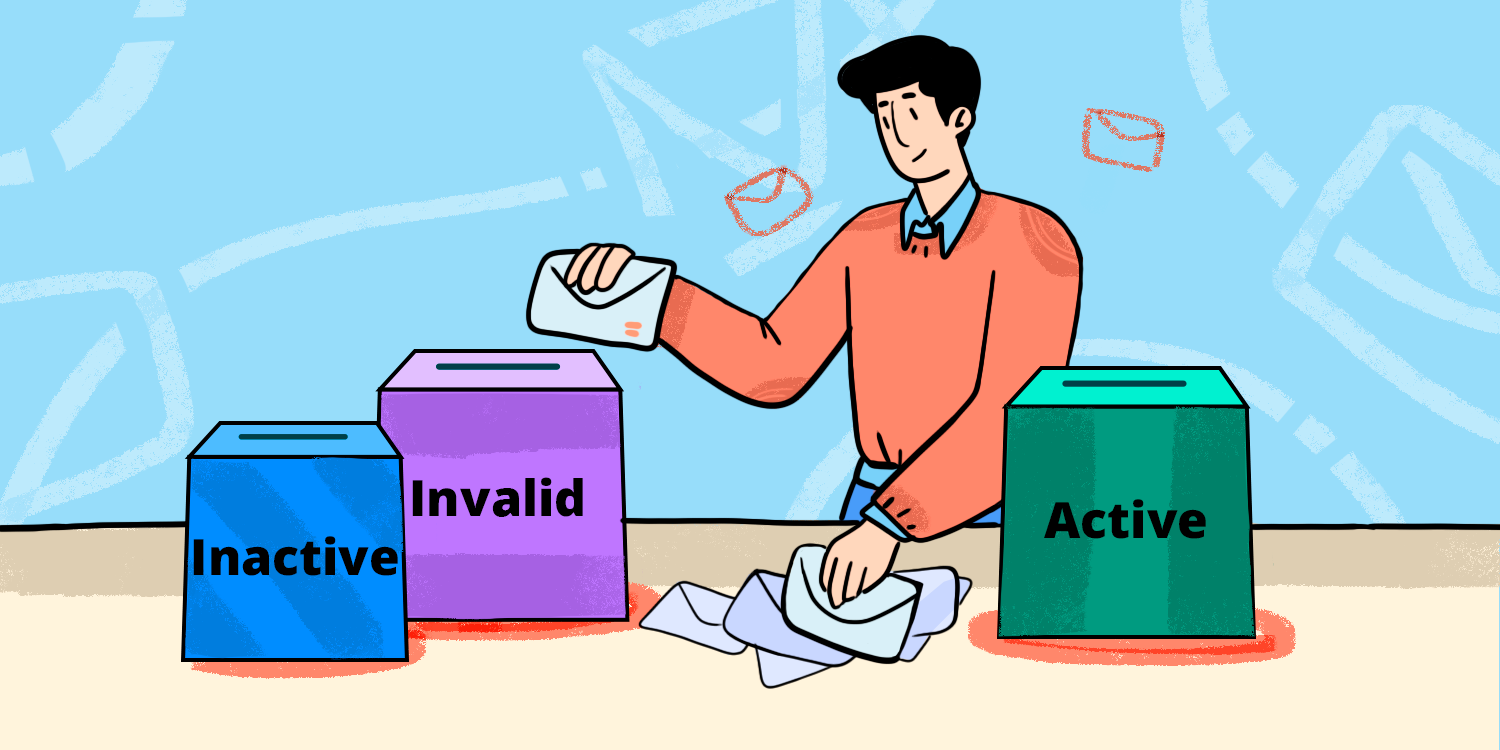
⚠️ Note: If people continue to remain silent or refuse to unblock you, respect their choice. Be ready to move on and clean your email list by deleting inactive recipients.
Send an official request to Gmail to remove you from their blacklist
If you believe Gmail flagged your sending domain mistakenly or due to an algorithmic glitch, you can submit an official request to Google to investigate your deliverability issues.
Basically, there are two ways to do that: either fill out the Sender Contact Form in Google Help Center or the Report delivery issue form in Postmaster Tools. See them explained in the table below.
⚠️ Note: You must ensure that your messages comply with all the email regulations before submitting a block list removal request to Gmail.
5 tips to prevent Gmail blocking and boost email deliverability
Let’s admit it — preventing deliverability issues is always much easier than fixing them. So, follow these five tips to avoid getting blocked on Gmail and improve your delivery rate.
Strictly follow the Sender Guidelines from Gmail
As you may already know, Google updated email sender guidelines in 2024. Since then, it has implemented even fiercer policies specifically for bulk senders (over 5,000 emails/day).
Several of the most critical Gmail rules relate to the following aspects:
- Email authentication: SPF, DKIM, and DMARC
- User subscription: Double opt-in and one-click unsubscribe (the latter is required only for promotional messages sent in bulk)
- Spam rate: Ideally, it should be below 0.1% and never hit more than 0.3%
- Display names: Clear and not impersonated
- Formatting and content: Proper HTML structure, visible and understandable links, non-deceptive subject lines, etc.
- Sending volume and frequency: Gmail severely forbids sudden volume spikes or sending emails in bursts
Remember that messages sent in bulk all of a sudden can look suspicious to Gmail. You should gradually increase your sending activity. Experts particularly advise doing an email warm-up for newly created accounts to prepare them for mass sending.
You can check your DKIM record with Snov.io for free.
To detect protection issues, try the DMARC free checker.
Make it easy for subscribers to opt in and out
That’s a very important practice for email marketing, which every sender should follow. Here’s how to properly set opt-in and opt-out processes.
When you send messages to recipients who actually expect them, they won’t report spam or get you blocked on Gmail entirely. Plus, people have more freedom to decide whether to get your emails and stop receiving them.
⚠️ Note: If you’re a cold outreach specialist or sales rep, you should be extra careful and avoid mass-marketing patterns when offering unsubscription. Even such a phrase as “Reply STOP to unsubscribe” may trigger spam filters and get you blocked on Gmail.
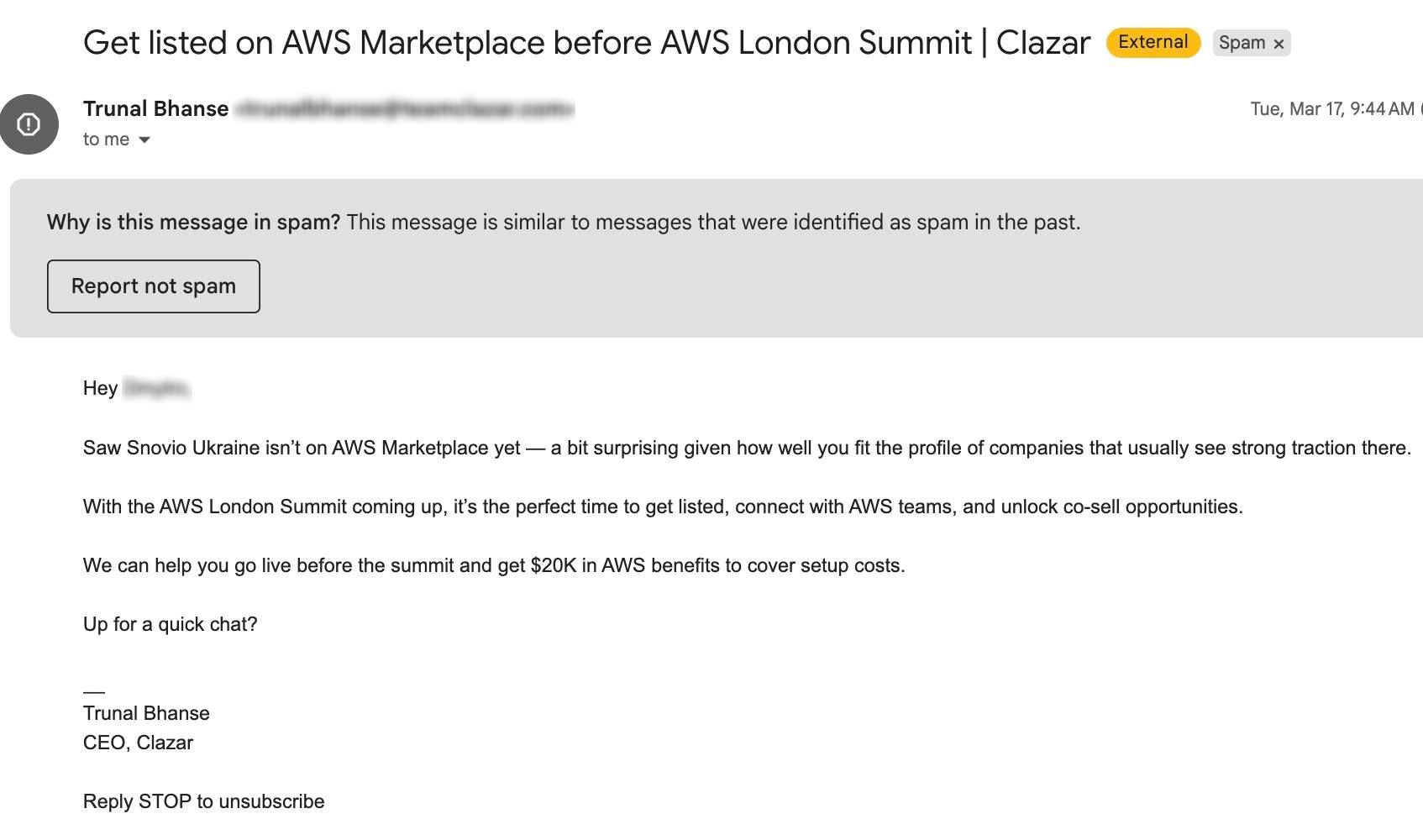
Instead, use phrases that sound more natural and human-like: “Let me know, and I won’t follow up if it isn’t relevant.”
Avoid writing spam-trigger emails
Below, I’ve listed the rules experts advise following if you want to avoid getting blocked by either recipients or Gmail’s spam-filtering system:
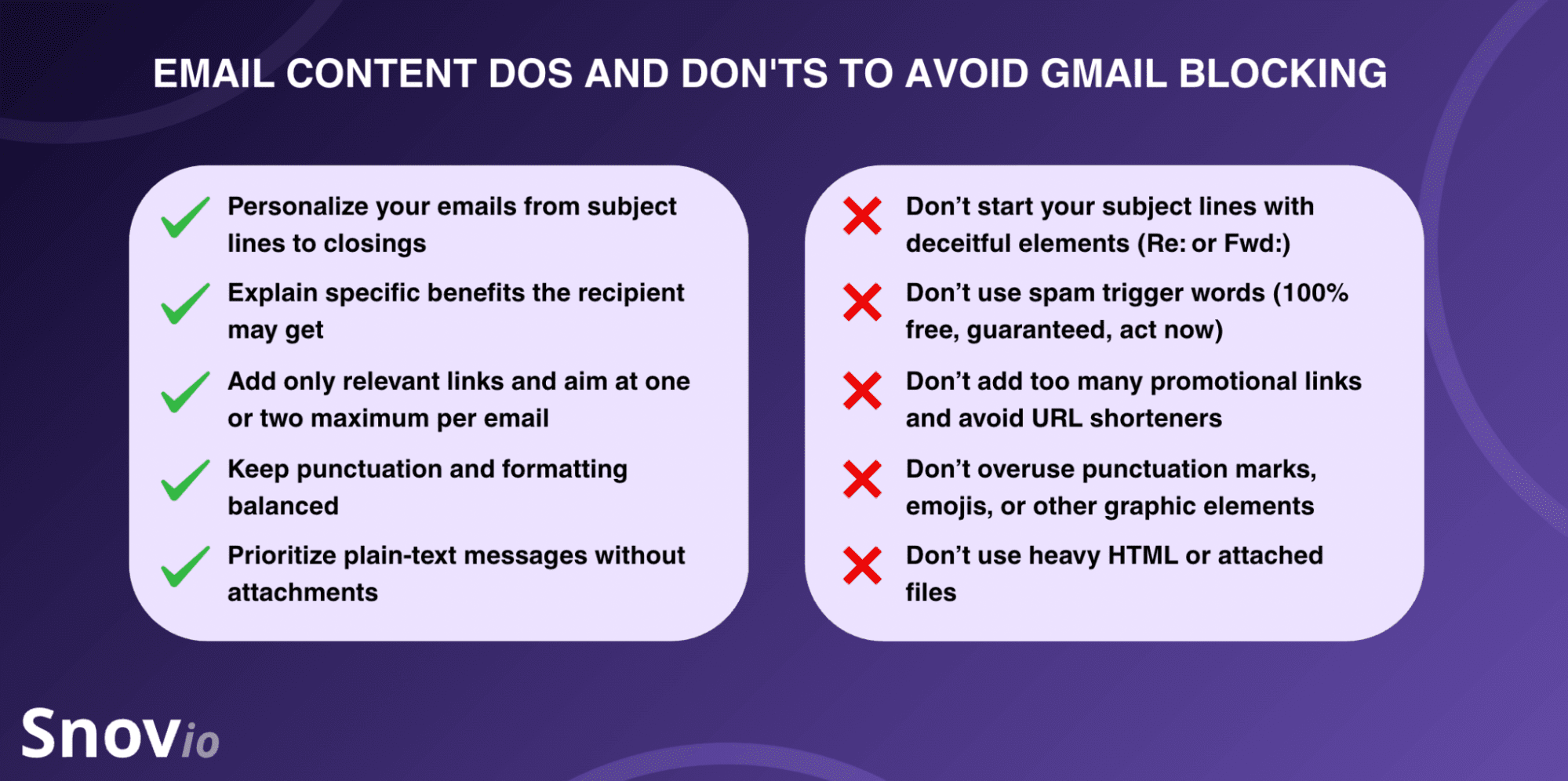
Here are the most critical of them:
- Never start your email subject lines with “Fwd:” or “Re:” unless your message is an actual forward or response
- Stay away from spam trigger words in your email content (e.g., “cash bonus” or “100% risk-free”)
- Don’t add too many promotional links, especially hidden in signatures (no URL shorteners!)
- Don’t overuse punctuation marks, emojis, or other graphic elements that may exaggerate the offer and deceive the recipient (e.g., “LAST WARNING — Open immediately!!!!!!!!!”)
- Don’t use heavy HTML elements or attached files.
⚠️ Note: Snov.io’s analysis of 44+ million emails has shown that plain text performs better in terms of reply rates: 1.30% vs 1.08%.
Stick to an email list hygiene routine
When we discussed how to know if someone blocked you on Gmail, I mentioned that people may abandon their addresses or switch to temporary ones.
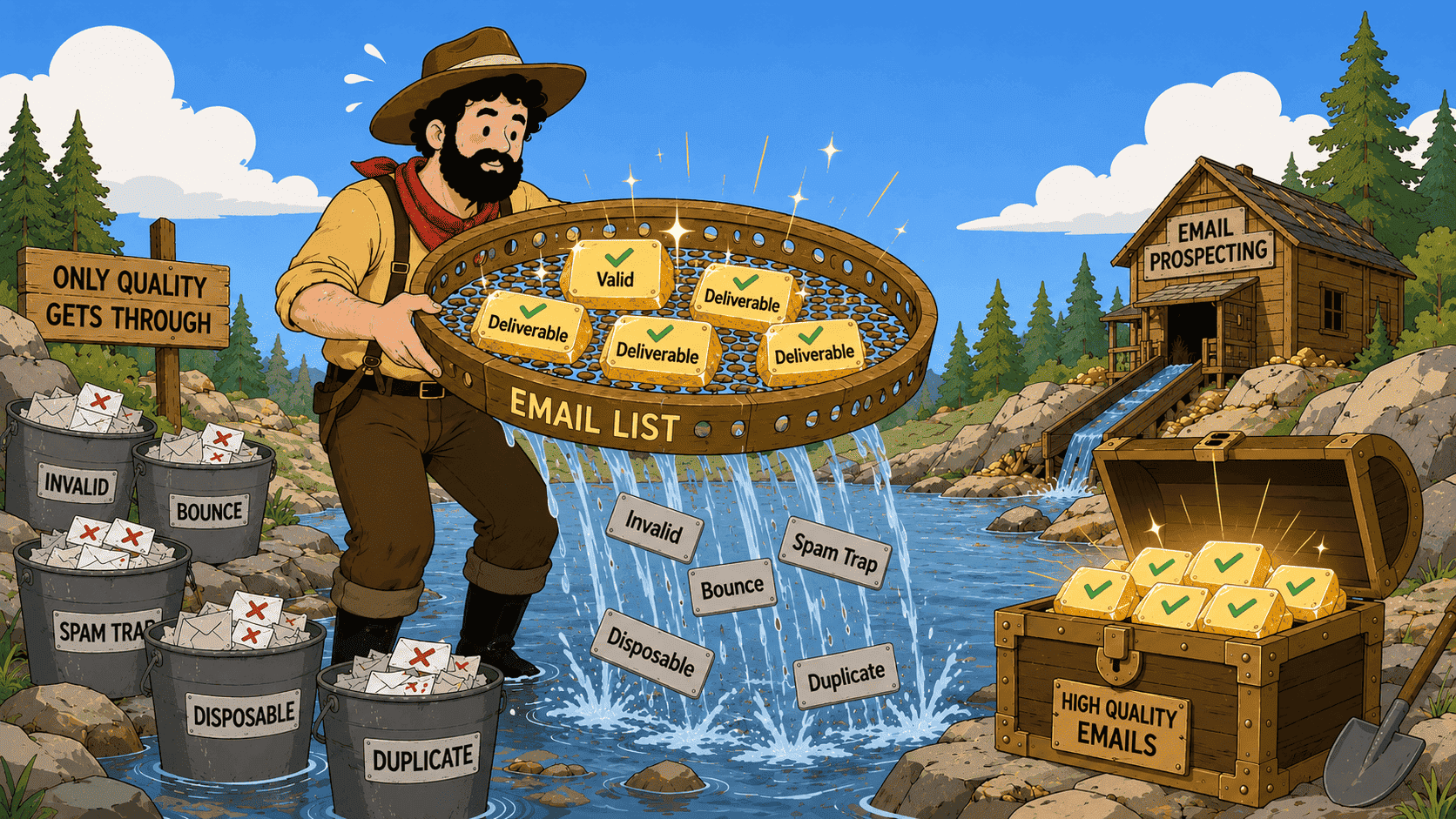
So, before sending, always check if an email address is valid. Alternatively, if you have a large contact list, perform bulk verification to protect your sender reputation and remove:
- Inactive
- Bounced
- Disposable
- Role-based
- Catch-all
- Abuse
- Spam traps or other risky addresses
For example:
Okisam turned to the Email Verifier from Snov.io to validate email addresses and keep contact lists clean. The results? The open rates for verified emails went from 25% to 73%. The agency also saw a 35% increase in the lead conversion rate. And that’s in just one month.
Monitor your email deliverability consistently
Arm yourself with one of the reliable email deliverability tools to always know how many of your messages are landing in Spam folders, skipping Gmail Inboxes, and what you can do about it.
Regular deliverability checks help you monitor your domain health and inbox placement score, and obtain recommendations on what to improve, whether it’s a missing DMARC record, a spam-triggering word, or a blacklisted domain or IP.
I’d recommend checking your email deliverability at least once every 15–30 days to keep your finger on the pulse. Things change quickly, and deliverability issues can pop up out of nowhere. It’s important to identify and address them as soon as possible.
Email Deliverability Expert at Snov.io

How to know if someone blocked you on Gmail: Key takeaways
Gmail doesn’t send any notifications when someone blocks you, so there is no direct way to know for sure. However, you can look for a few indirect clues:
- Long-term lack of replies
- Declining engagement (low open rates, no clicks or conversions)
- Absence of bounced emails
- Active response to your alternative Gmail account
- Affirmative answer via other communication channels (phone, SMS, social platforms, etc.)
But don’t jump to conclusions based on a single sign (unless the person confirmed it) and monitor and fix your deliverability issues regularly. To avoid getting blocked on Gmail, use Snov.io’s free deliverability toolkit for testing your inbox placement and warming up your account if needed.