This guide shows how to use LI Prospect Finder to save prospects and companies from LinkedIn, find verified emails, and preview full profile and company data in a sidebar in Chrome.

With LinkedIn Prospect Finder, you can collect prospects and find emails on different LinkedIn pages: search results, personal profiles, company pages, and event attendee lists.
The extension opens as a sidebar on the right side of your browser and stays open while you browse LinkedIn, so you can save leads from page to page.

Saved leads are ready for enrichment and outreach through email campaigns or LinkedIn Automation.
What prospect data the extension saves
Each saved prospect includes general personal and company details and a contact: a verified email or a LinkedIn URL.
To enrich leads in bulk, save the starting LinkedIn data with the extension, then use the LinkedIn enrichment tool to fill in profile fields, such as work experience, skills, and education.
What company data the extension saves
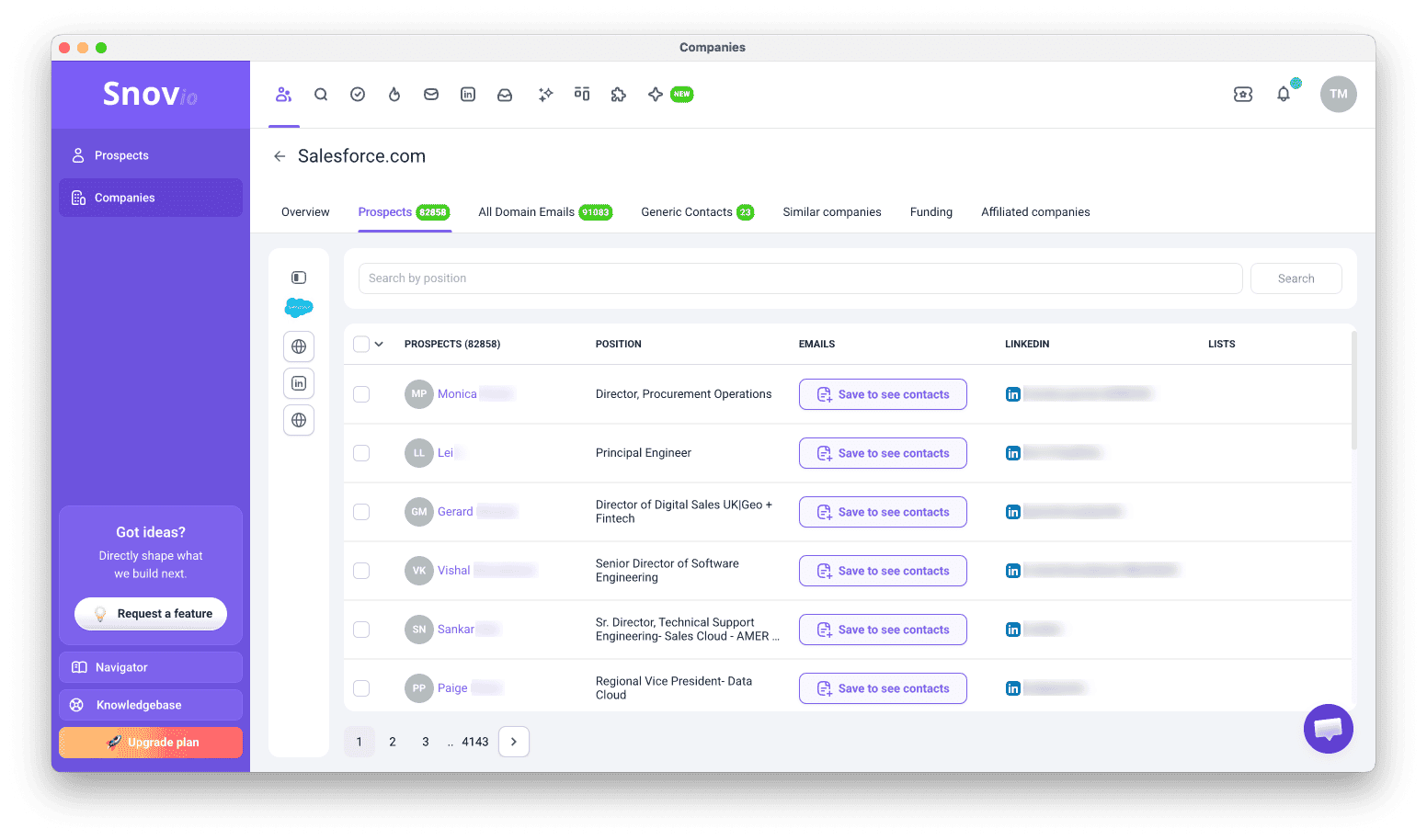
On company pages, the sidebar previews full company details, such as industry, headquarters, employee count, specialties, and funding. The full company profile saves to your company list, whether you save one company or many. You can view it in Snov.io, and opening a company profile there costs 1 credit.
To enrich prospects with this data and use it as context in other AI tools, add prospects from that company, then use Get company details enrichment. After that, you can also export this data.
On company employee lists, the extension saves the people who work there.
Ways to use the extension on LinkedIn:
Personal profiles
Search results
Company employee lists
Event attendee lists
Prospects without emails (for Enrichment and LinkedIn Automation)
Company pages
Company search results
Save prospects individually
Collect prospects from personal profiles
Best when you have a specific person in mind, such as a decision-maker you found through search, a referral, or a post.
Step 1. Open the profile
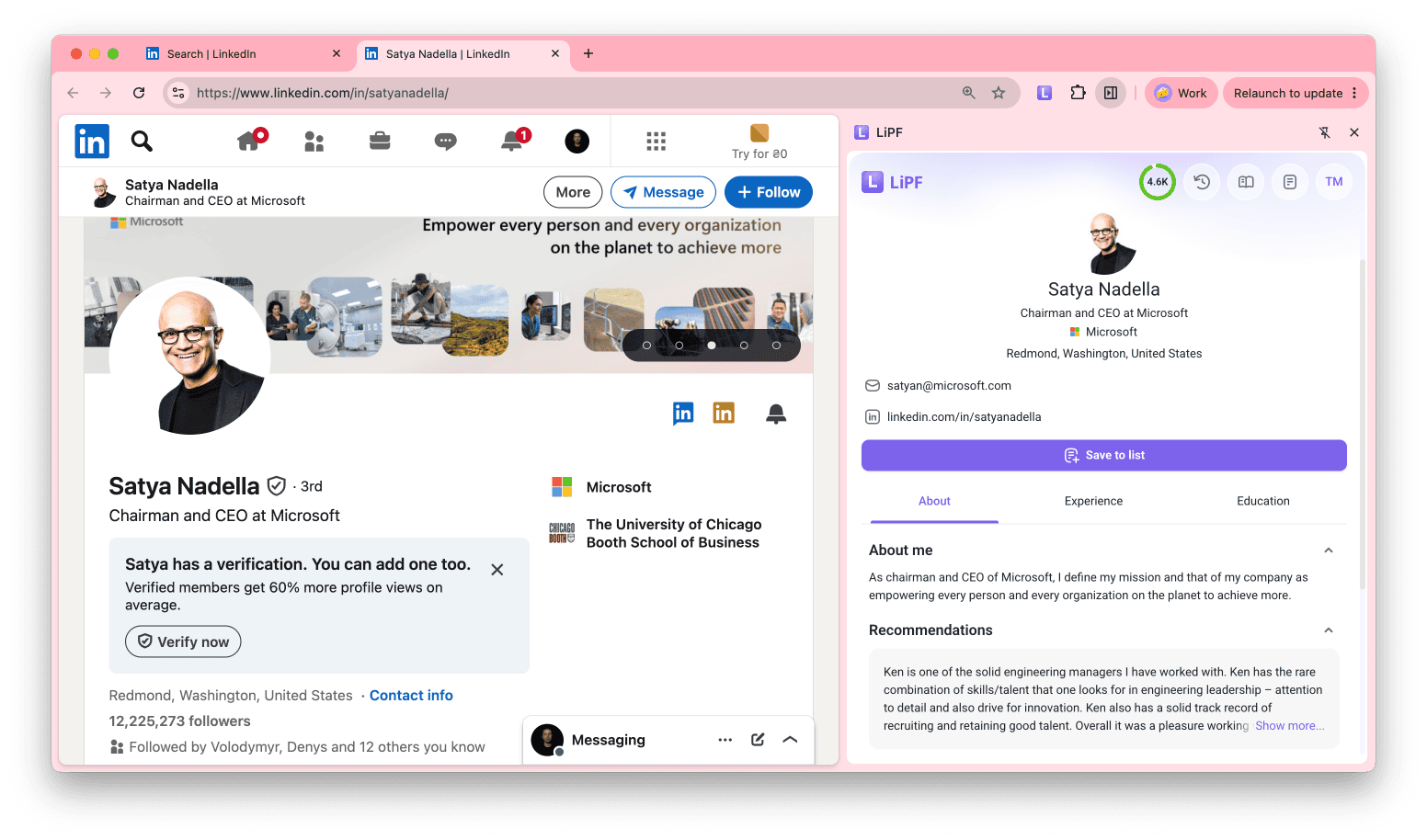
Open the person's LinkedIn profile and click the extension icon. The sidebar shows the prospect's position, company, location, email, and LinkedIn URL. The About, Experience, and Education tabs show the rest of the profile. These additional fields are saved when they are available: Volunteering, Projects, Courses, Certifications, and Languages.

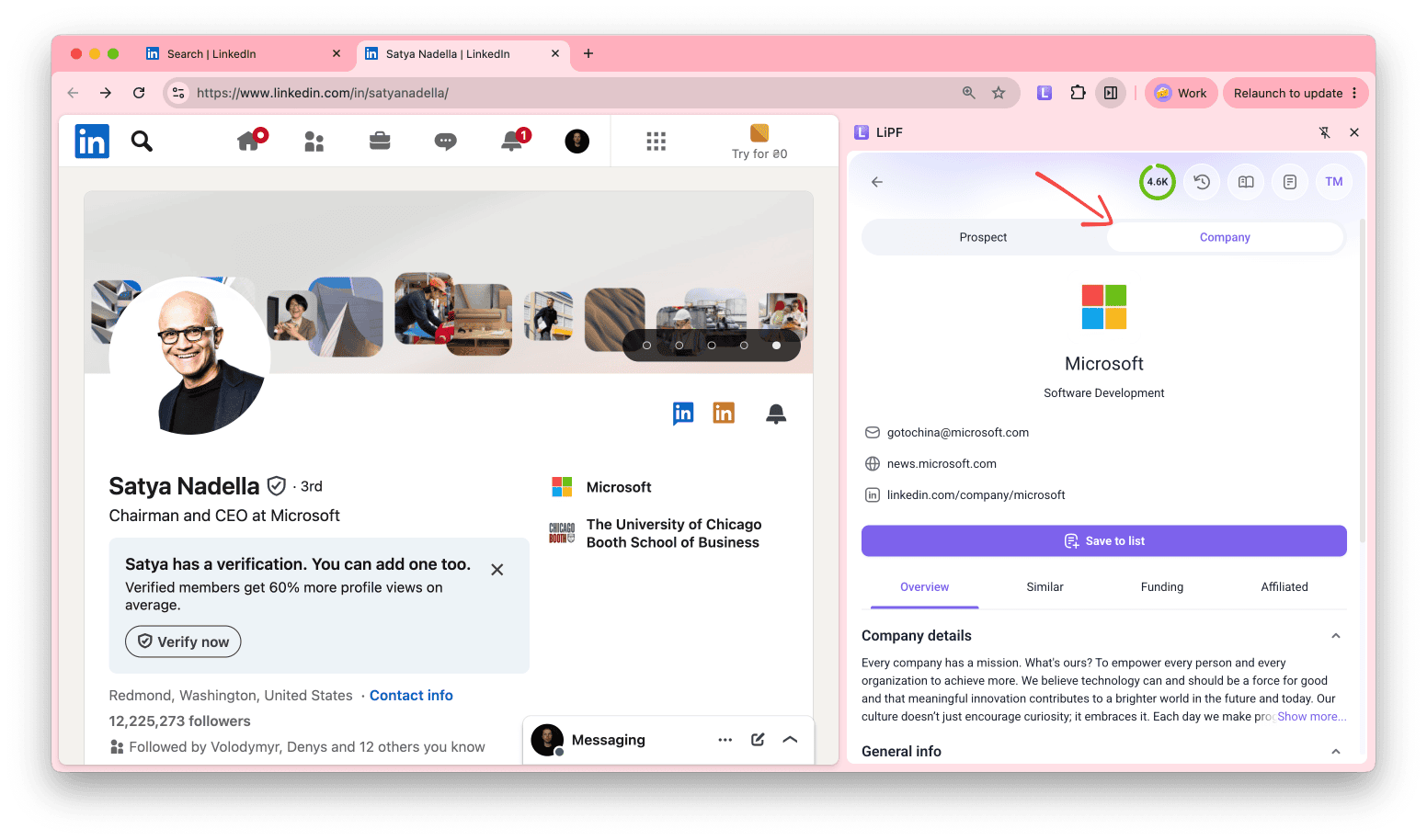
Click Company at the top of the sidebar to view the prospect's company details without visiting the company page, and save it as described in this section.
Step 2. Save the prospect
Click Save to list, select one or more lists, and click Add to list.
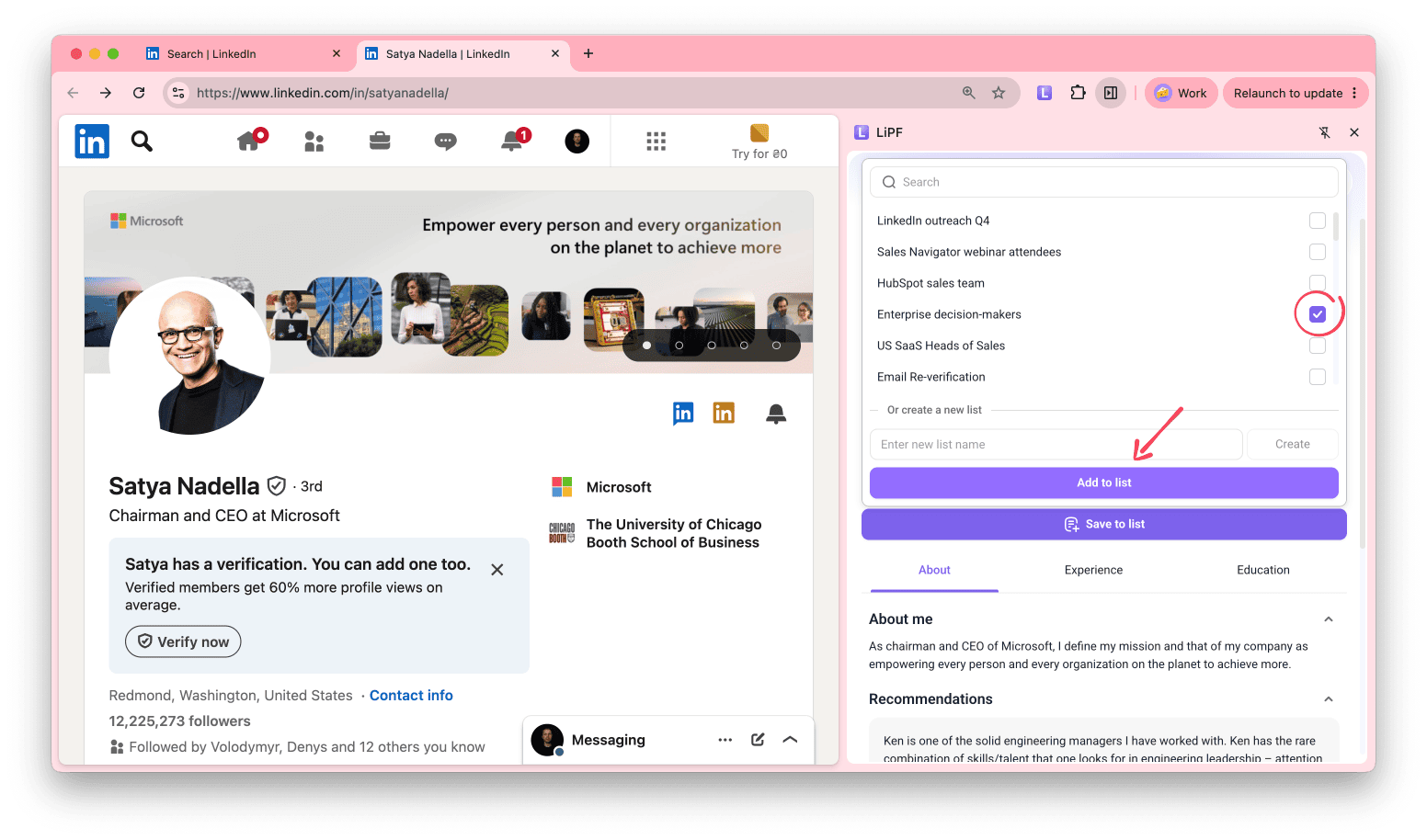
Saving prospects one by one saves full profile data, including work experience, skills, and education.
They save to your list as Main profile details. You can use this data as context in AI tools to generate prospect summaries or extract specific insights, and for writing icebreakers and messages with AI Writer.
Save prospects in bulk (Multipage search)
Multipage search saves prospects from several pages in one run. It works on search results, company employee lists, and event attendee lists.
Bulk saving saves only general details, such as name, current role, company name, and website.
To get a fully enriched profile, save the prospect one by one, as described in this section, or use Pull LinkedIn profile enrichment after saving from Multipage search.
Collect prospects from search results
Best for building targeted lists when you know your Ideal Customer Profile. You can collect contacts for sales outreach, partnerships, content promotion, or recruiting.
Step 1. Set up your search
Log in to LinkedIn, type a keyword in the search bar, and select People. Apply filters such as location, industry, current company, and connections. The tighter your filters, the better your results.
Step 2. Open the extension
Click the LI Prospect Finder icon in your browser toolbar. The sidebar opens and shows the Prospects on page list.
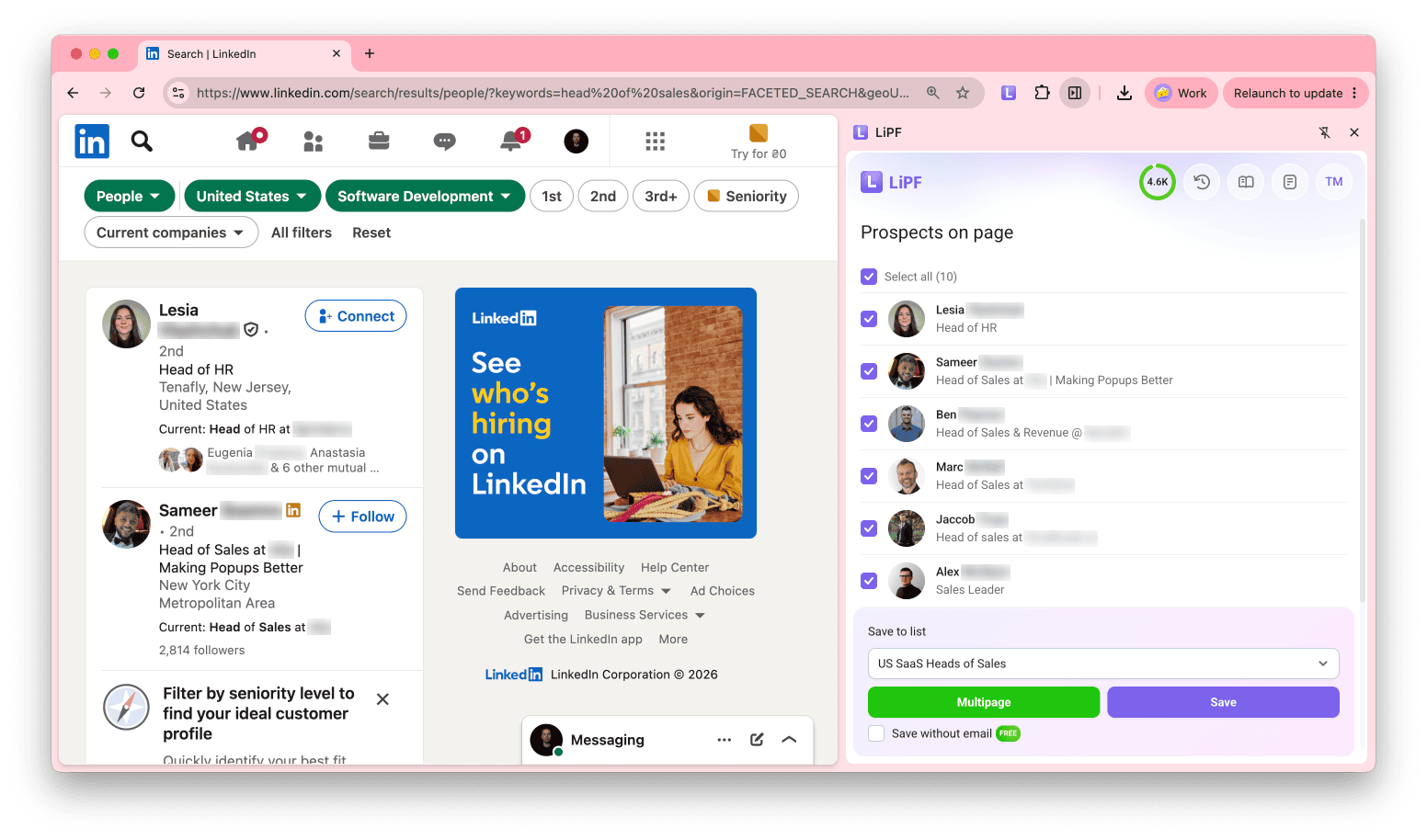
The sidebar stays open when you click links or move to another LinkedIn page. It updates to show the data from each new page.
Step 3. Select prospects and choose a list
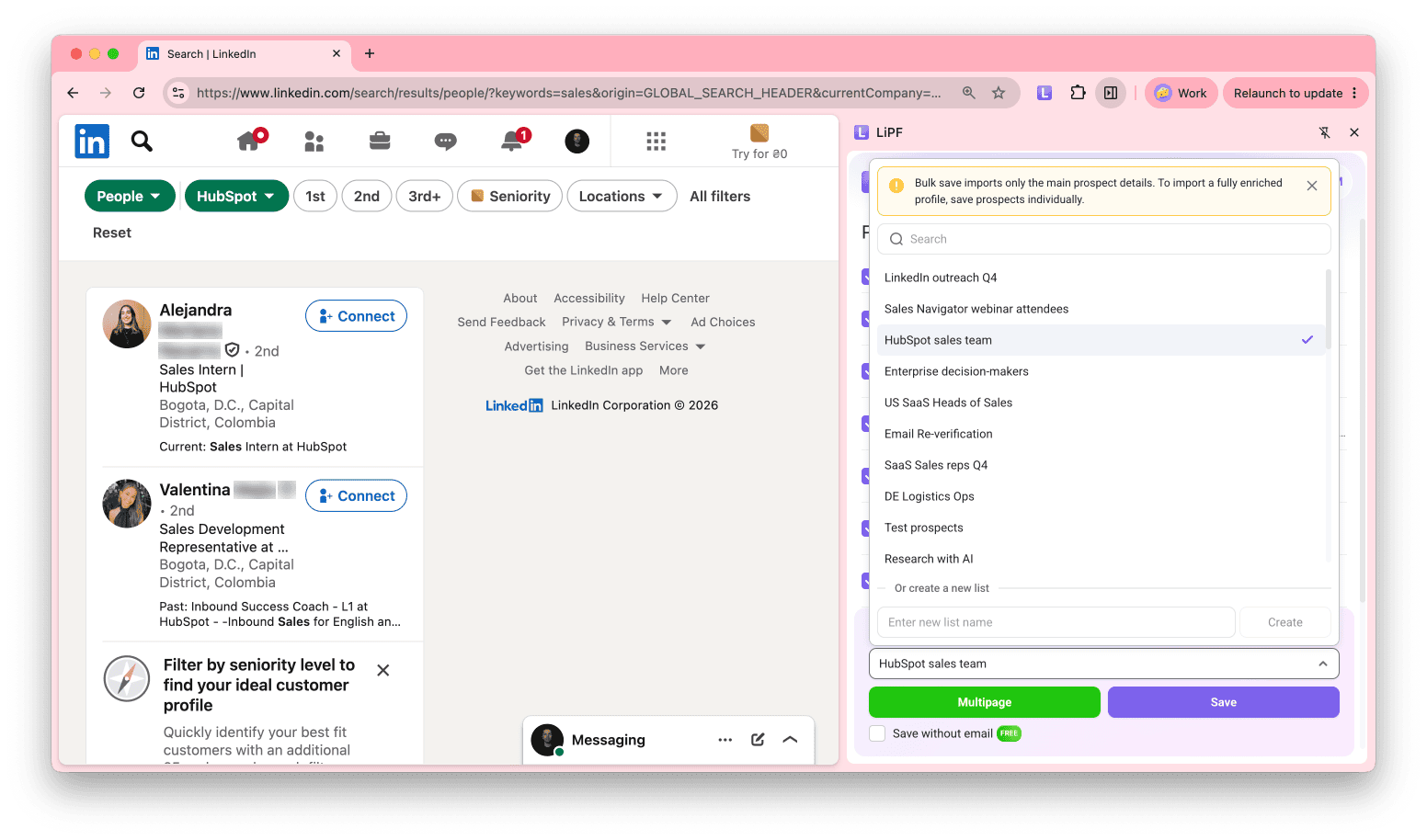
Select the prospects you want to save, or use Select all. Under Save to list, choose a list from the menu. To create a new list, enter its name under Or create a new list and click Create. Then click Save.
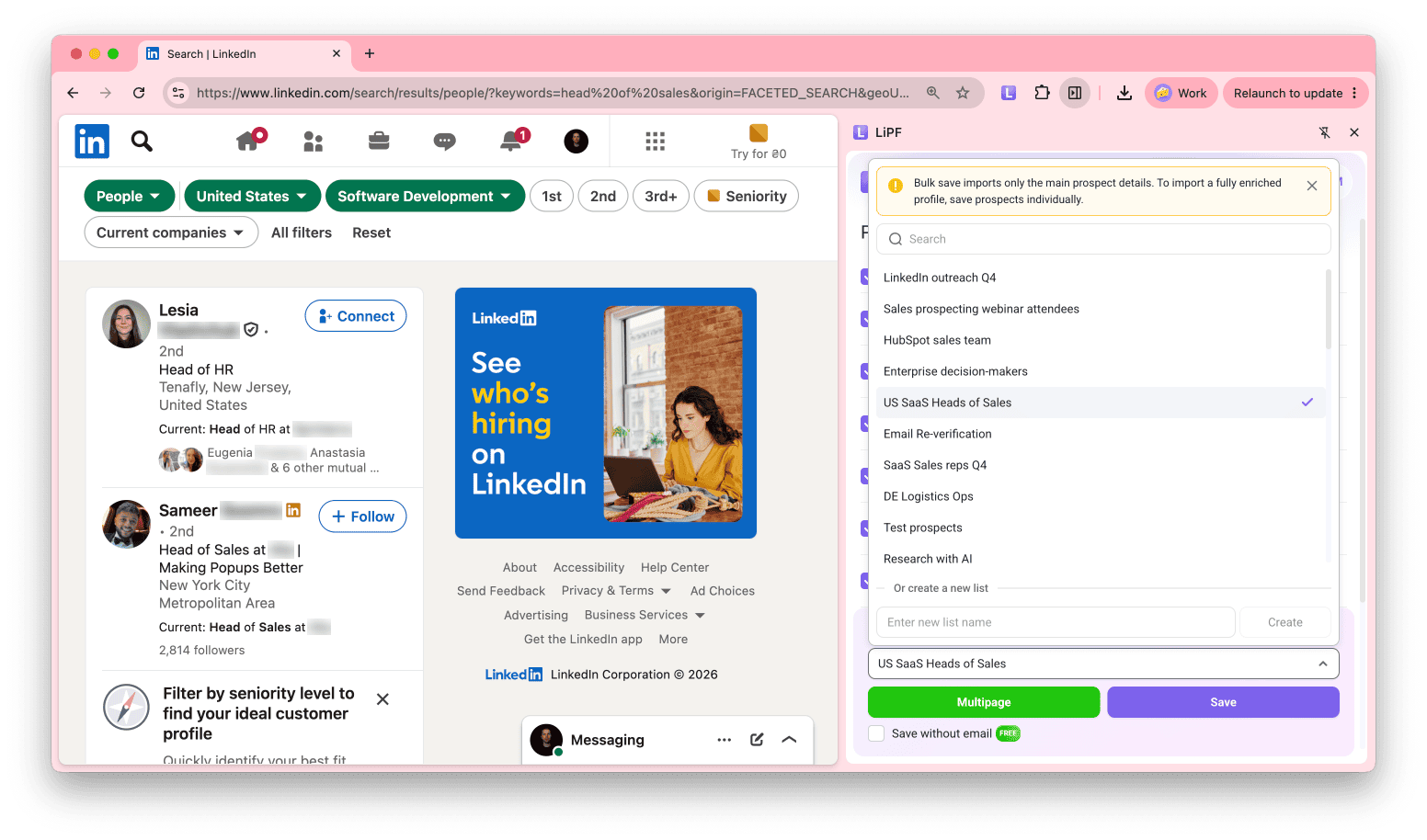
Step 4. Configure multipage search
To save prospects from more than one results page, click Multipage and set up the search:
- Pages to scan: choose the first and last page to process. LinkedIn shows 10 profiles per page
- Delay between profiles: the extension waits a random number of seconds before visiting each profile (7 to 14 seconds by default). This makes your activity look human and lowers the risk of a LinkedIn restriction. Set longer delays for extra caution
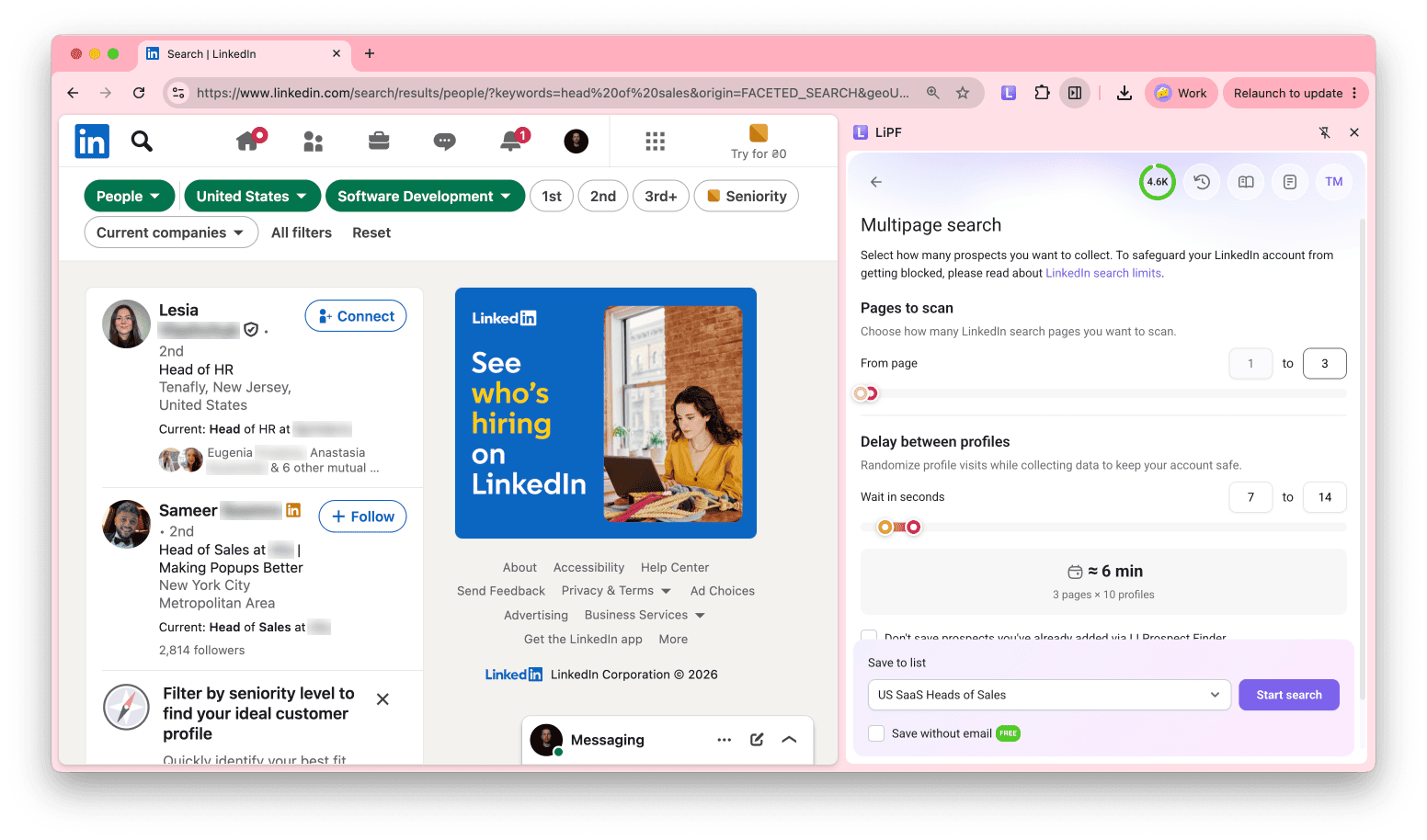
The extension shows how long the search will take.
Step 5. Skip duplicates
You can skip prospects that were already saved with LI Prospect Finder, so your list has no duplicates. Both options are off by default:
- Personal account: select Don't save prospects you've already added via LI Prospect Finder to skip the prospects you saved before
- Team member: you also see Don't save prospects your team has added via LI Prospect Finder. Select it to skip the prospects your teammates saved
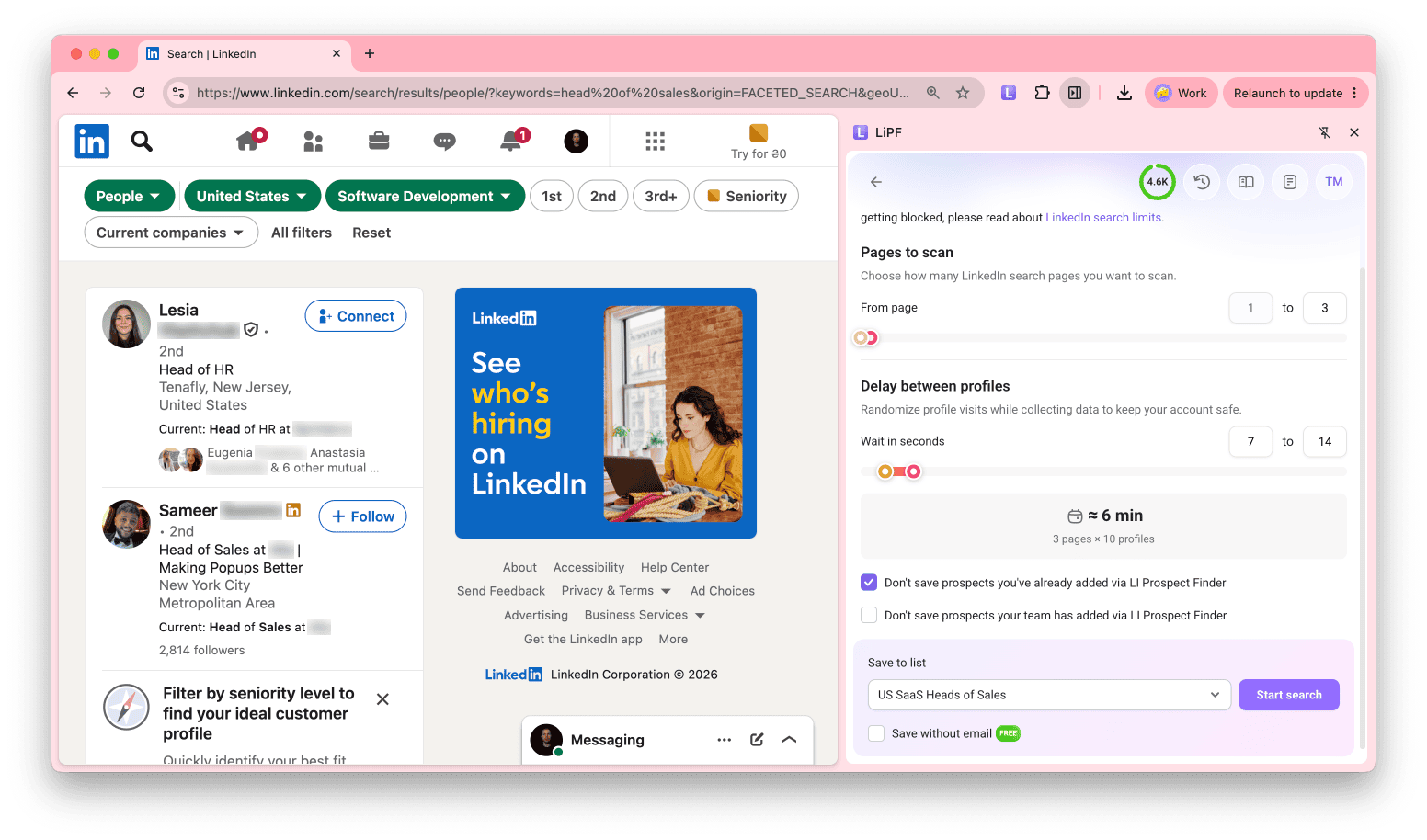
Step 6. Start the search
Choose a list and click Start search.
Step 7. Track the search
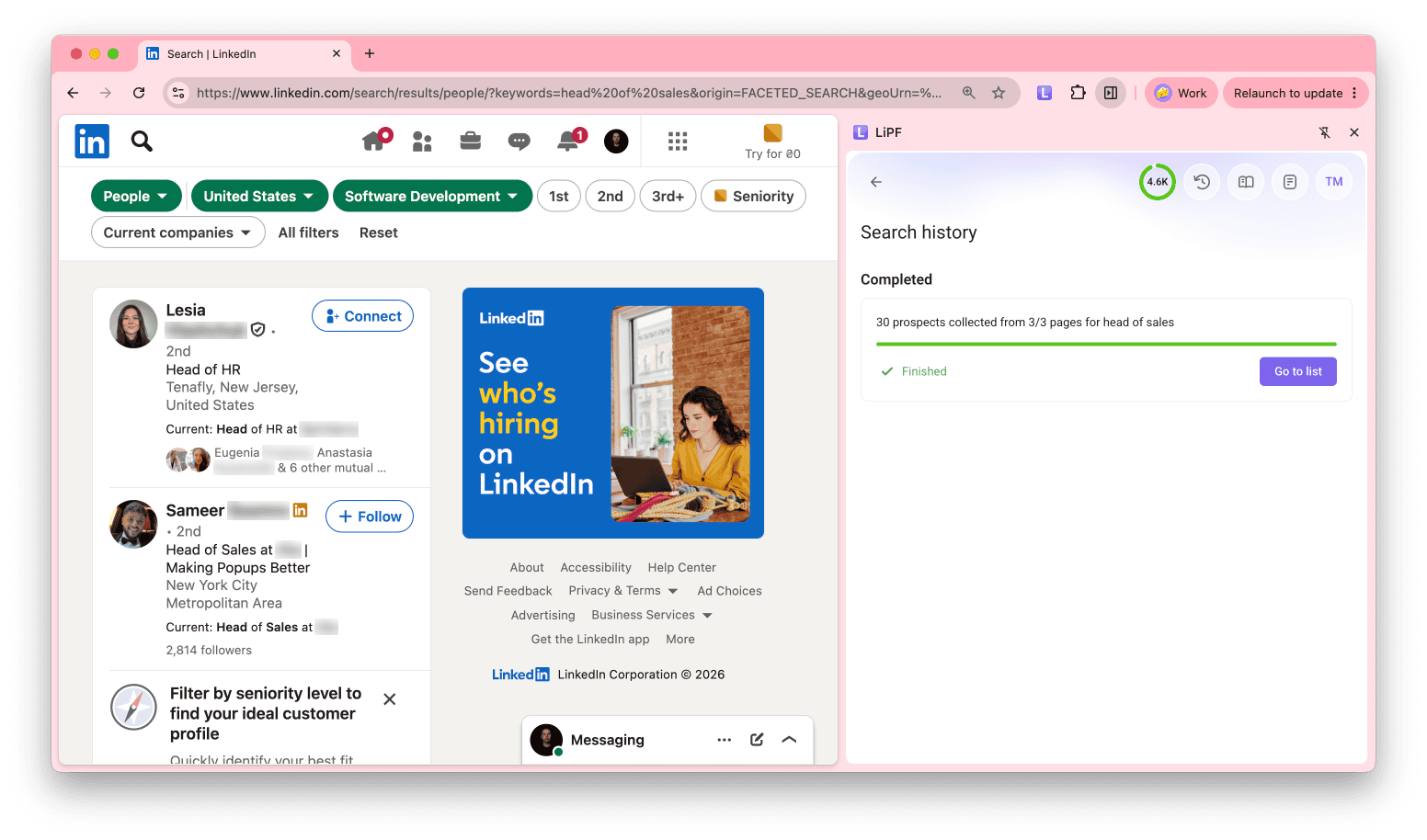
The extension opens Search history, where you can see the progress and pause or stop the search.
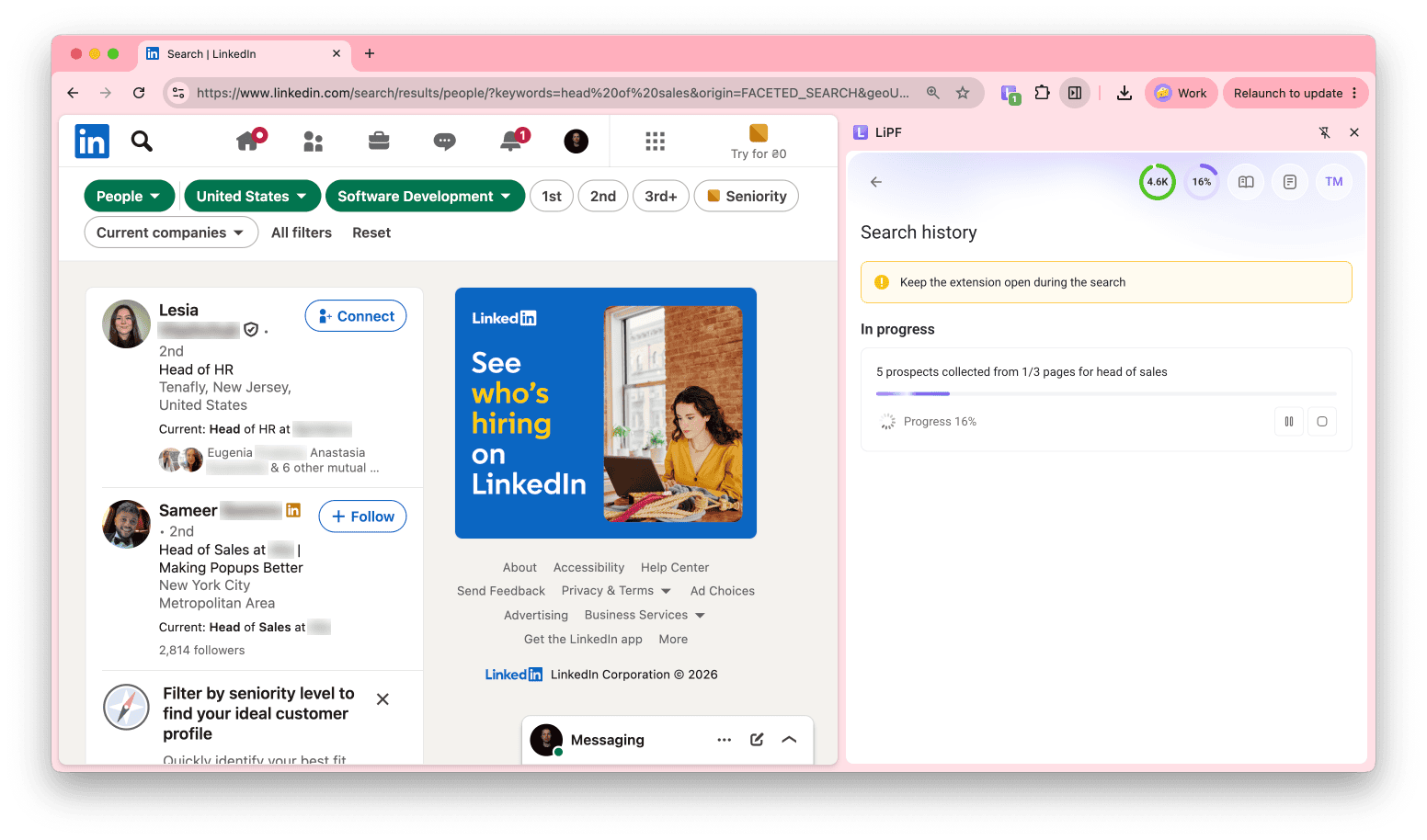

Keep the extension open until the search is complete.
When the search is finished, click Go to list to open the saved prospects in Snov.io.
Collect prospects from company employee lists
Best for finding contacts at specific companies and saving company data, such as decision-makers across departments, before you start account-based outreach.
Step 1. Find the company
Search for the company name on LinkedIn and open the company page.
Step 2. Open the employee list
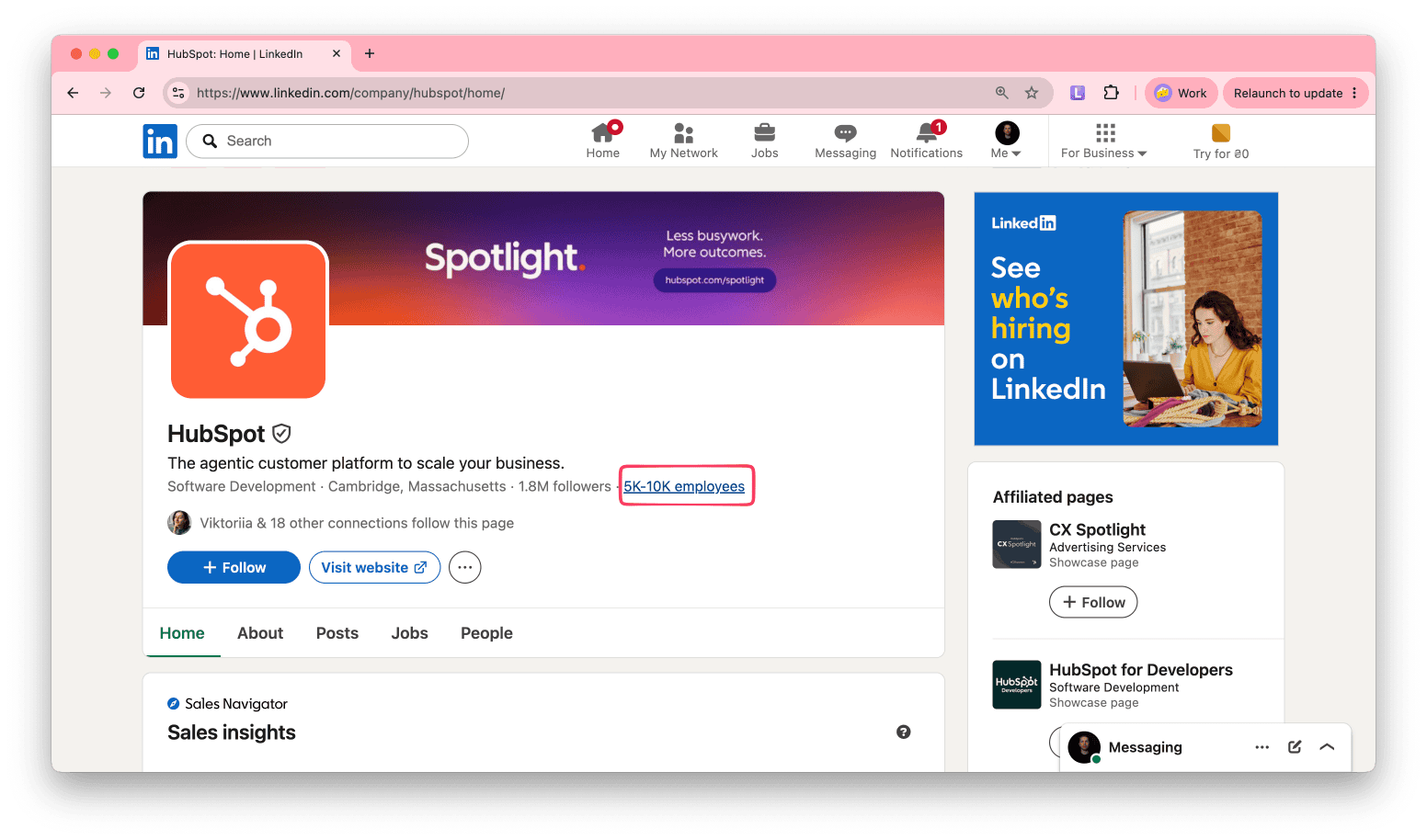
Click the number of employees on the company page. LinkedIn opens a search page with the company's current employees.
To narrow the list, enter a keyword such as a job title or department in the LinkedIn search bar.
Step 3. Select and save
Open the extension and select the people who match your criteria.
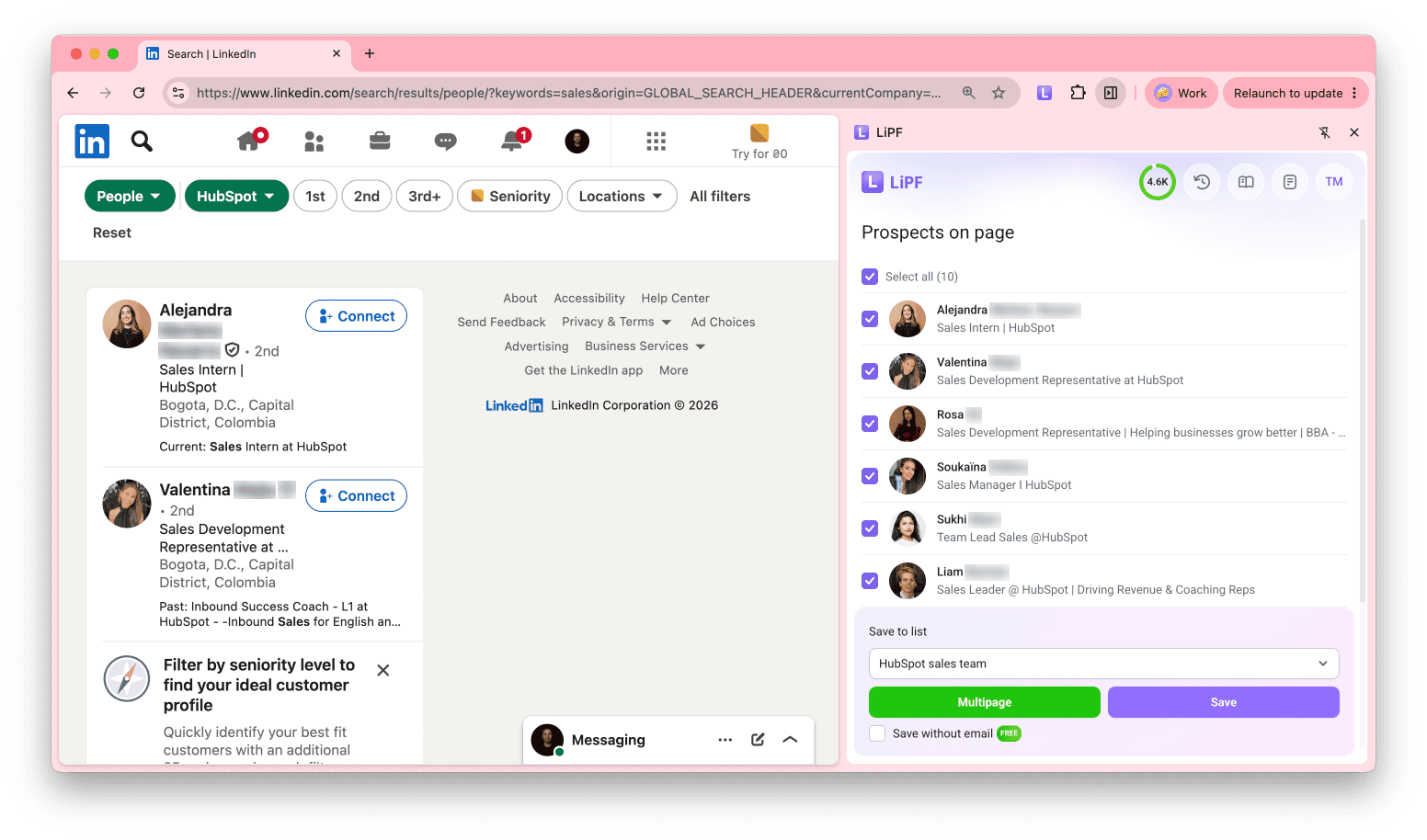
Choose a list under Save to list and click Save. To save people from several pages, click Multipage and set it up as described in this section.
Collect prospects from event attendee lists
Find leads among people attending LinkedIn events and webinars. These prospects have already shown interest in your field, so your outreach is more relevant to them.
Step 1. Find events
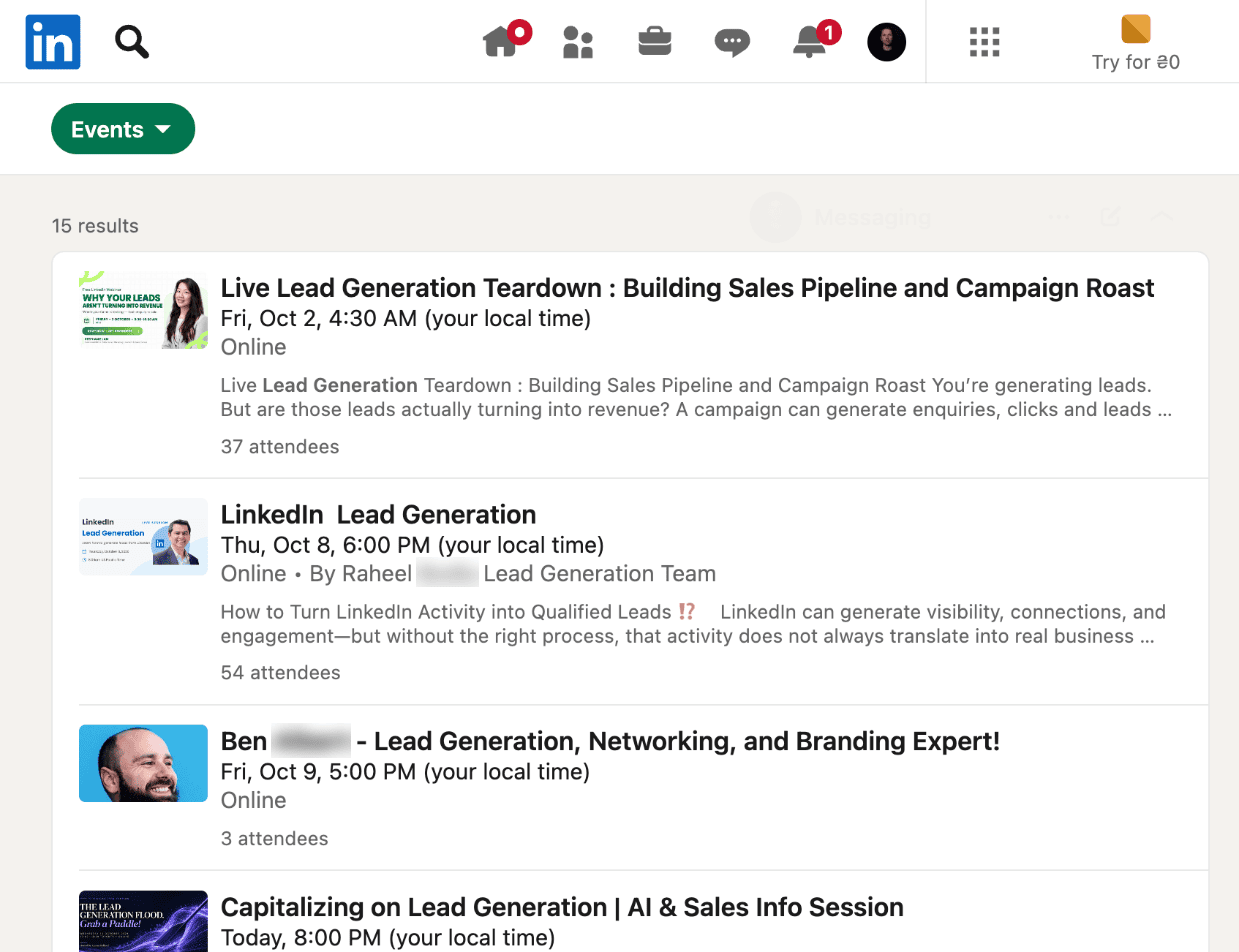
Enter keywords related to your product or service in the LinkedIn search bar. For example, if you offer lead generation services, search for "lead generation."
Step 2. Filter by events
Select the Events filter at the top of the results page and pick an upcoming event that matches your keyword.
Step 3. Join the event
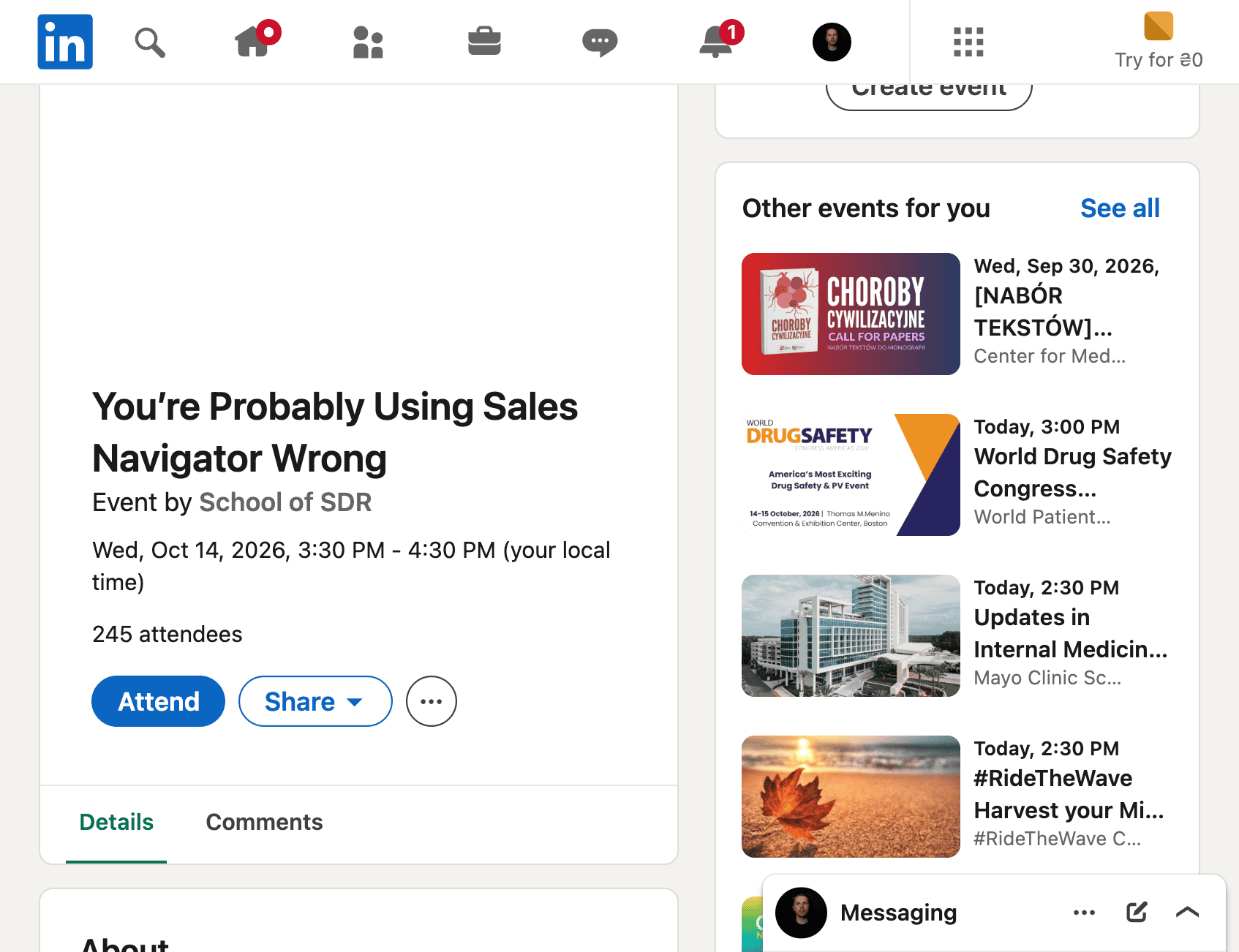
Open the event and click Attend. LinkedIn shows the attendee list only to people who attend.
Step 4. Open the attendee list
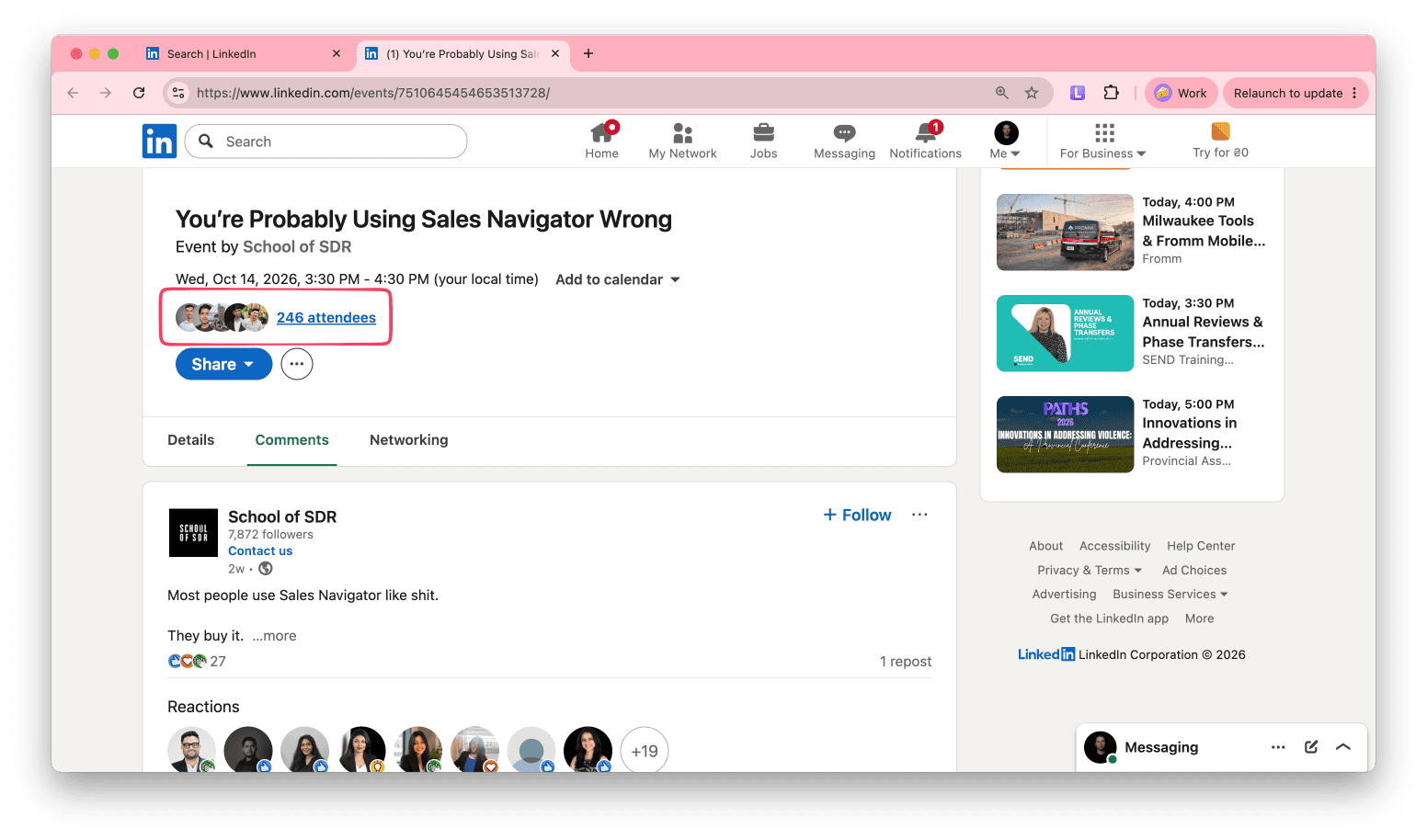
Click the number of attendees under the event date. LinkedIn opens a search page with everyone attending the event.
Step 5. Save attendees
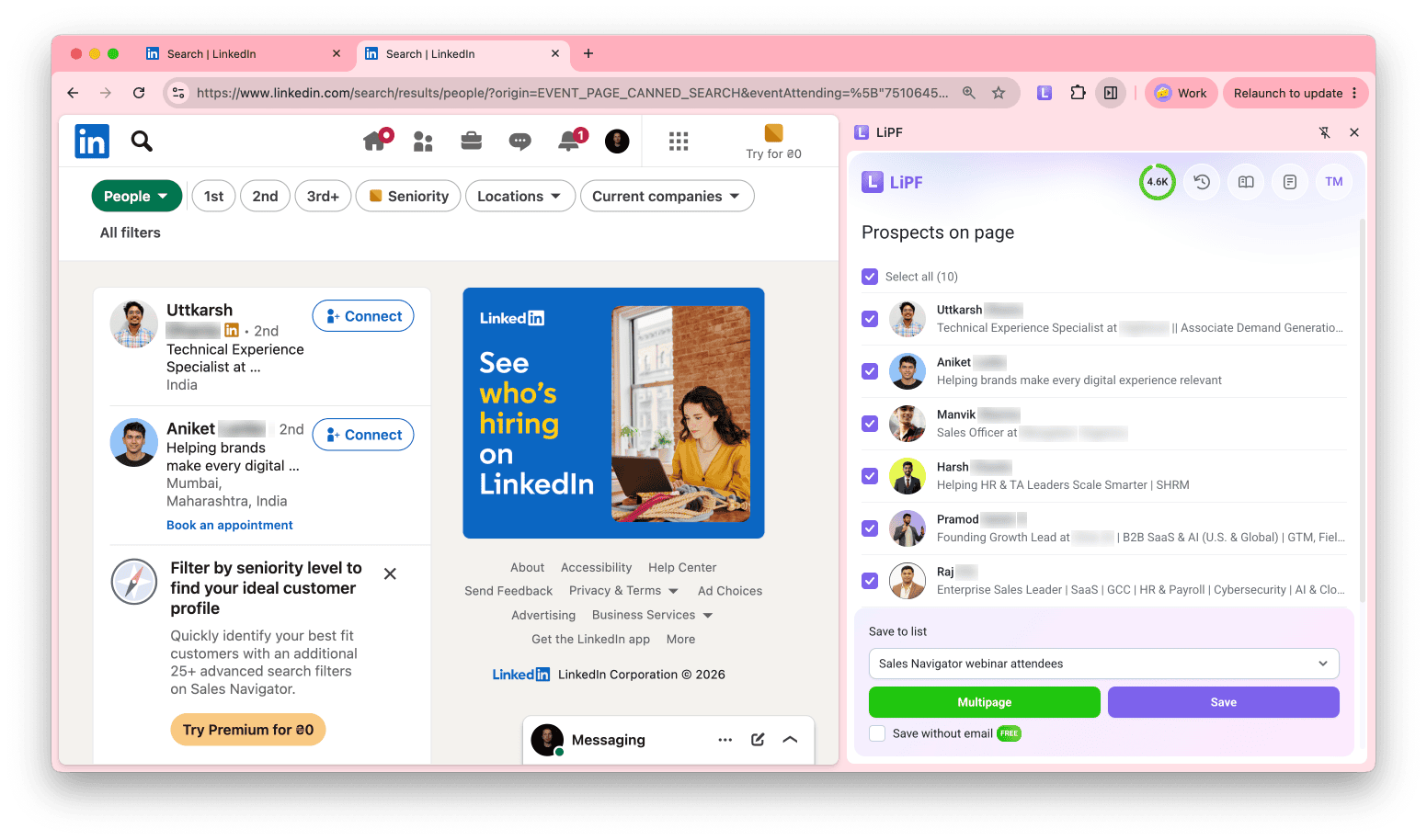
Open the extension, select attendees, choose a list, and click Save. To save people from several pages, click Multipage and set it up as described in this section.
Collect prospects without emails (for Enrichment and LinkedIn Automation)
To contact prospects on LinkedIn only, you need their LinkedIn profile URLs, not emails.
On any LinkedIn page with prospects (search results, company employees, or events), select the Save without email checkbox, choose a list, and click Save.
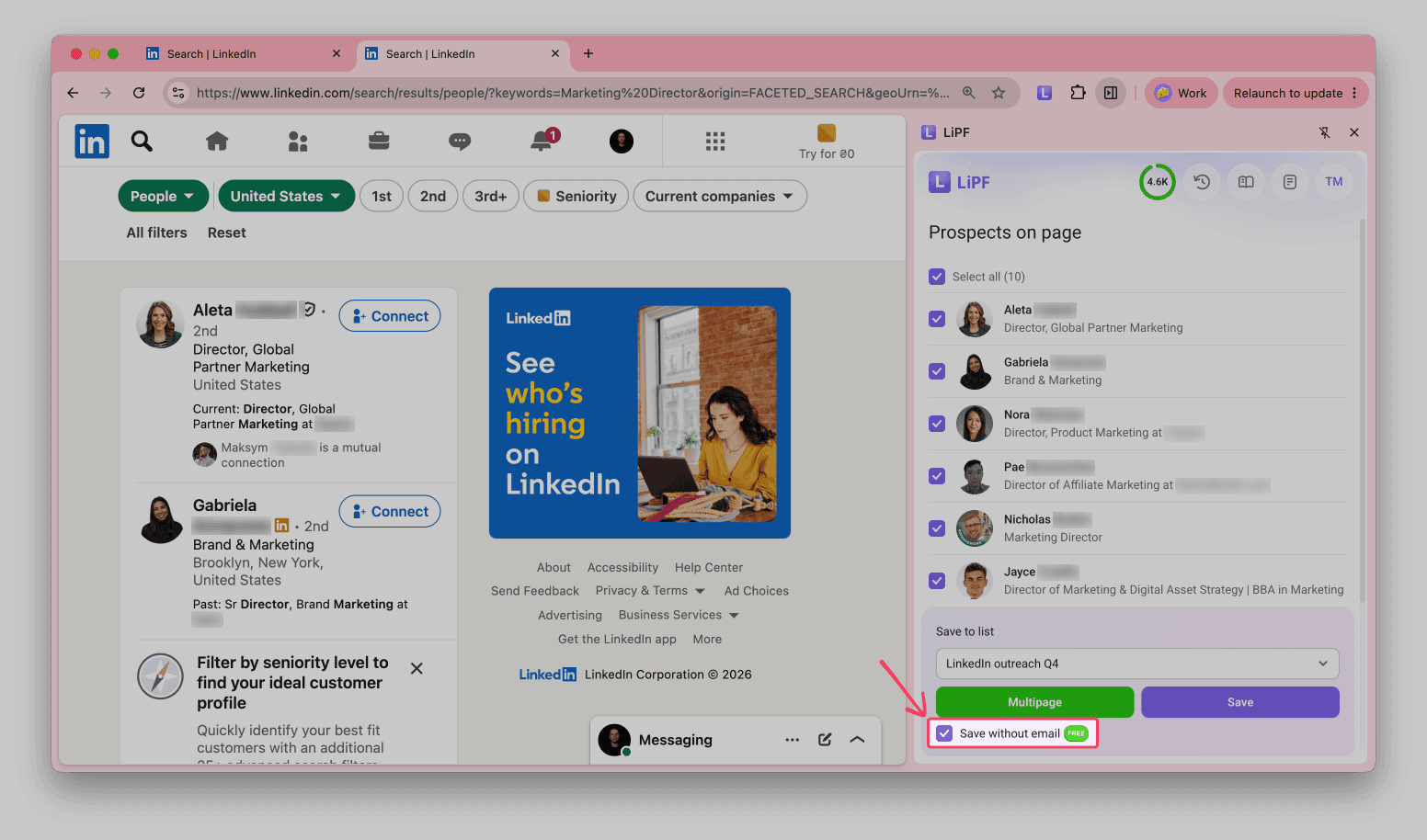
The prospects are saved with their LinkedIn URLs, which are required for LinkedIn Automation. You can then engage them with a sequence of LinkedIn actions.
Prospects saved without emails are also a good basis for enrichment. The saved LinkedIn URL, name, and company are enough for Enrichment tools to start from.
This method works best with LinkedIn Automation as a separate subscription, where LinkedIn prospecting and outreach are unlimited.
- Prospects saved without email don't use credits
- Prospects contacted with LinkedIn actions only don't use recipients
To run multichannel campaigns with email and LinkedIn steps, LinkedIn Automation also includes 50 credits and 100 recipients for finding emails and sending email follow-ups.
Save companies and their data
You can save companies to your Snov.io company lists one by one or in bulk.
The extension saves the full company profile whether you save companies one by one or in bulk.
Collect companies from company pages
Best when you want to review a specific company in detail, for example before account-based outreach.
Step 1. Open the company page
Open the company's LinkedIn page and click the LI Prospect Finder icon in your browser toolbar.
Step 2. Review the company profile
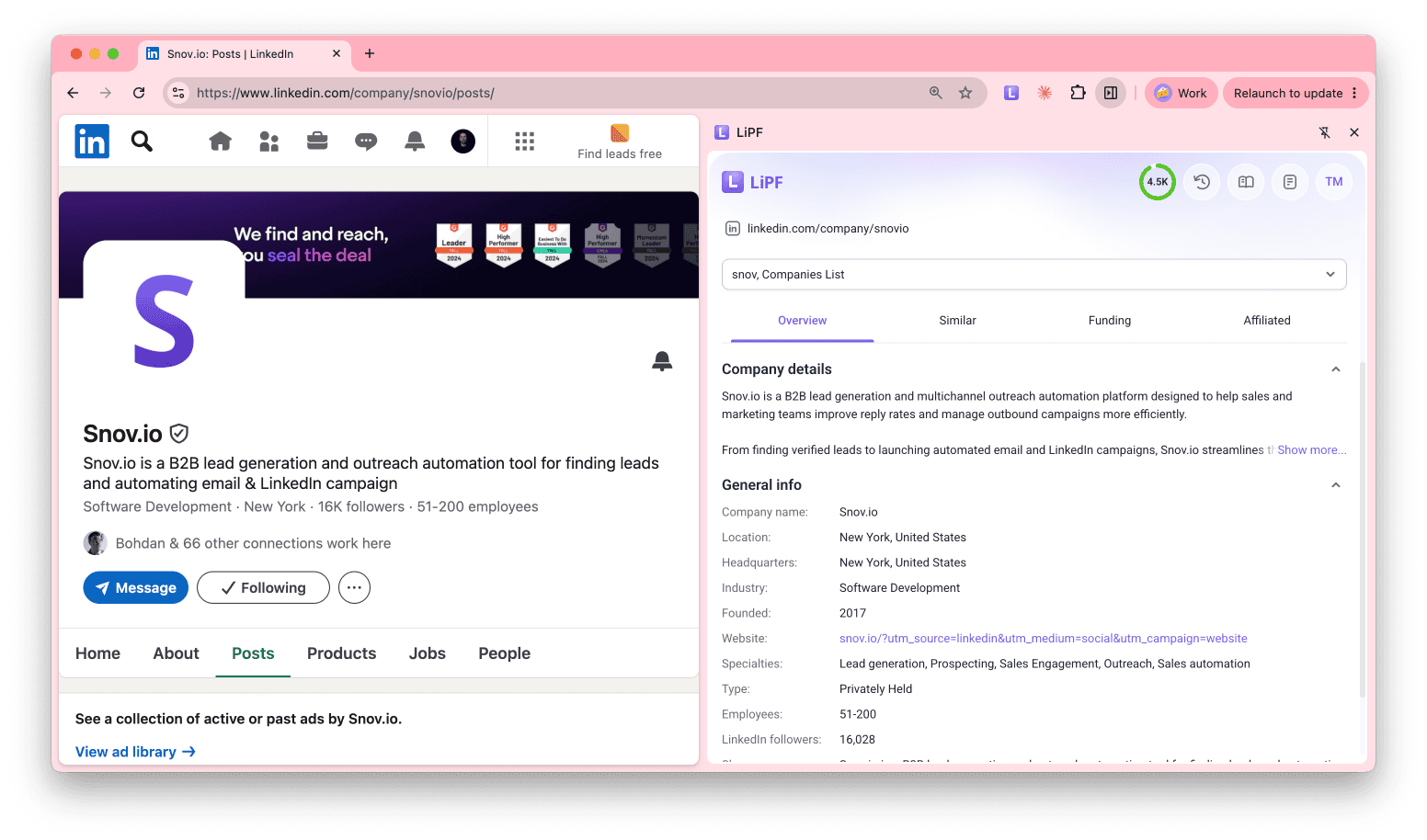
The sidebar shows Company details and General info, such as location, headquarters, industry, founding year, website, specialties, type, employees, and LinkedIn followers. The Overview, Similar, Funding, and Affiliated tabs show more.
Click Prospect to see a preview list of prospects who work at the company. To see the full list of employees, open it in LinkedIn.
Step 3. Save the company
Select a company list and click Add to list. Saved companies appear in your company lists in Snov.io with the full company profile.
Collect companies from search results
Best for building account lists by industry, size, or location before you look for contacts.
Step 1. Search LinkedIn and select the Companies filter. Apply filters such as location, company size, and industry.
Step 2. Open the extension. The sidebar shows the Companies on page list. Companies that are already in your lists show the list name.
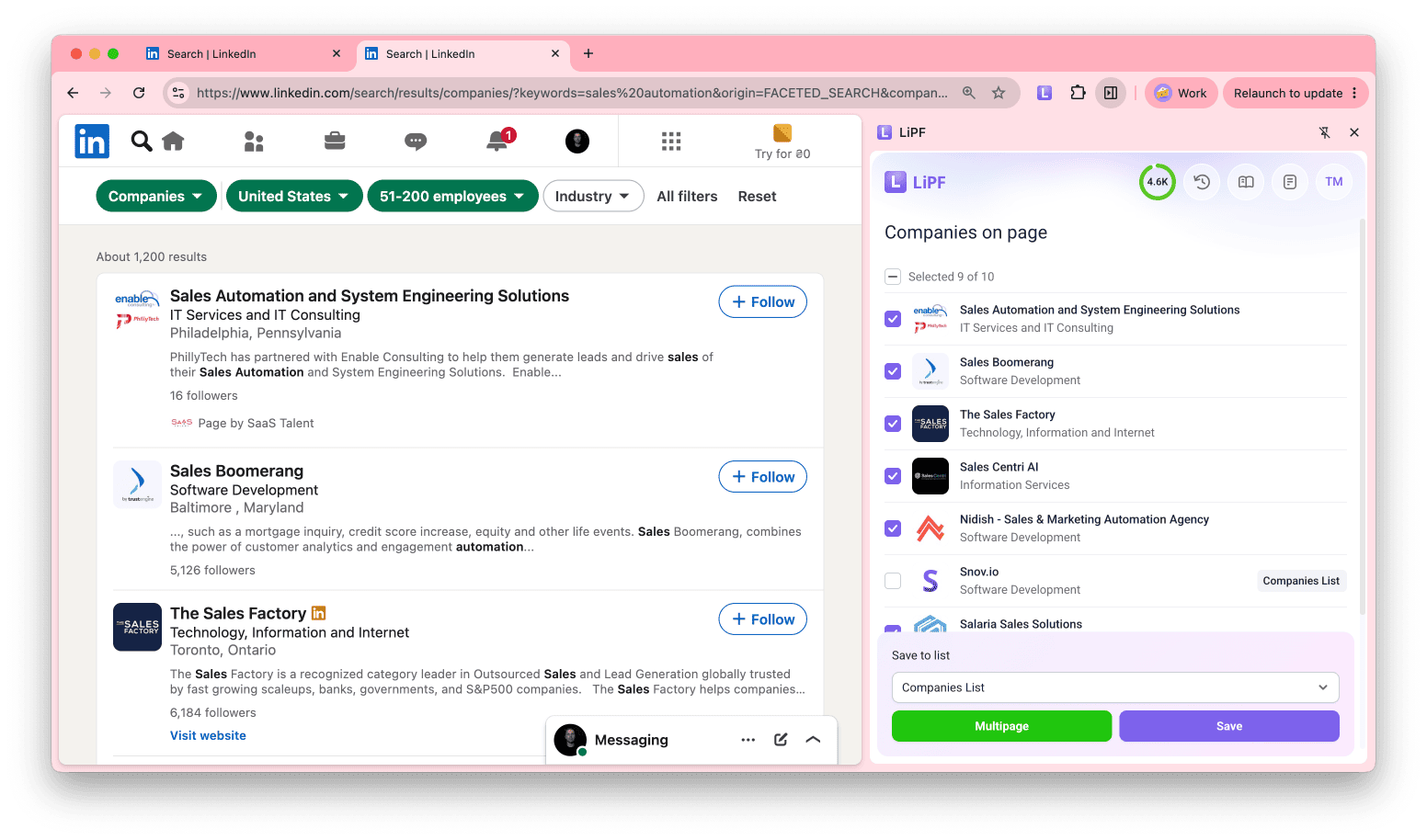
Step 3. Select companies, choose a company list under Save to list, and click Save.
Saved companies appear in your company lists in Snov.io.
FAQs
1. How many leads per day can I find on LinkedIn without being blocked?
Each saved prospect counts as a profile view on LinkedIn. LinkedIn does not publish official limits, so safe daily volumes depend on your account type and activity. The extension warns you when your account approaches its daily profile viewing limit.
For recommended volumes by account type, see this guide.
2. Why can't I save some prospects?
LinkedIn hides the names of people outside your network and shows them as "LinkedIn Member." The extension can only read profiles available to your LinkedIn account, so it skips these people. Some profile owners have also asked us not to process their data, and the extension marks them as Restricted.
3. My LI Prospect Finder doesn't work. How do I fix it?
The most common reason is that the extension needs to be updated. If you have the latest version, try these basic troubleshooting steps.
If they don't help, contact our support team via live chat or at help@snov.io.
4. Does it collect business or personal emails?
LI Prospect Finder finds business emails. It builds possible addresses from profile data and common email patterns, such as firstname.lastname@domain.com, then confirms them with email verification.
5. What data do I get besides emails?
It depends on how you save prospects:
- One by one from a profile: the full profile shown in the sidebar, including job history, education, skills, languages, certifications, and company details
- In bulk from search results: the main prospect data (full name, country, industry, and current job title) and basic company data (website, location, and HQ phone number)
To add more details to prospects saved in bulk, use Enrichment once they're in your list. You can pull more from LinkedIn, get full company details, or add a phone number. Enrichment uses tokens.
6. How do I get emails from LinkedIn?
Open a LinkedIn search results page, a personal profile, a company page, or an event attendee list. Then open LI Prospect Finder and click Save. Snov.io looks for a verified email for each saved prospect, and the sidebar shows the LinkedIn URL when it finds no email. Each page type has its own steps, so use the matching use case above.
Next steps
Once your prospects are in a list, you can:
- Get more data: use Enrichment tools to find phone numbers, research prospects on the web in bulk, and add more personal and company insights to the default data, then use it all to generate outreach copy
- Start outreach: contact prospects with LinkedIn Automation, email campaigns, or multichannel sequences


Sorry about that 😢
How can we improve it?