TL;DR: LinkedIn account restrictions
LinkedIn restrictions occur when the platform detects suspicious activity, spam-like behavior, or violation of its Community Policies.
- Common reasons for getting a LinkedIn account restricted include creating fake profiles, having a low acceptance rate, exceeding safe limits for connection requests, or engaging in unsafe automation practices.
- LinkedIn restrictions can be temporary (can be fixed after adjusting detection patterns) and permanent, which are often irreversible.
- To avoid LinkedIn restrictions, always use safe automation tools and don’t exceed the recommended action limits provided in the article.
- Snov.io ensures secure LinkedIn outreach automation thanks to cloud-based operation, dedicated proxies, human-like behavior simulation, account warm-up, and smart scheduling.
Bottom line: LinkedIn restrictions usually happen when your activity looks unnatural or spammy. Fix the trigger, recover calmly, and prevent future blocks by keeping outreach human, paced, and compliant—especially if you automate.
If you ever get your LinkedIn account restricted, you know that disappointing feeling. Yesterday, you were on a roll, growing your network, sending messages, and building momentum. But today, you log in and, instead of seeing new opportunities, get the dreaded LinkedIn account restricted message.
Frustrating? Absolutely. The thing is, LinkedIn restrictions happen to the most active users, especially when you push the limits (literally).
The good news is, they’re often temporary and fixable. In this post, we’ll walk you through what may trigger LinkedIn restrictions<, how you can recover an account, and how to avoid ever seeing that dreaded message again.
Outline:
What does “LinkedIn account restricted” mean?
“LinkedIn account restricted” means that the platform has temporarily or permanently limited your account’s functionality because it detected activity that may violate its rules. Such activity can include sending too many invitations, using unsafe automation tools, or triggering security checks.
What happens when your LinkedIn account is blocked?
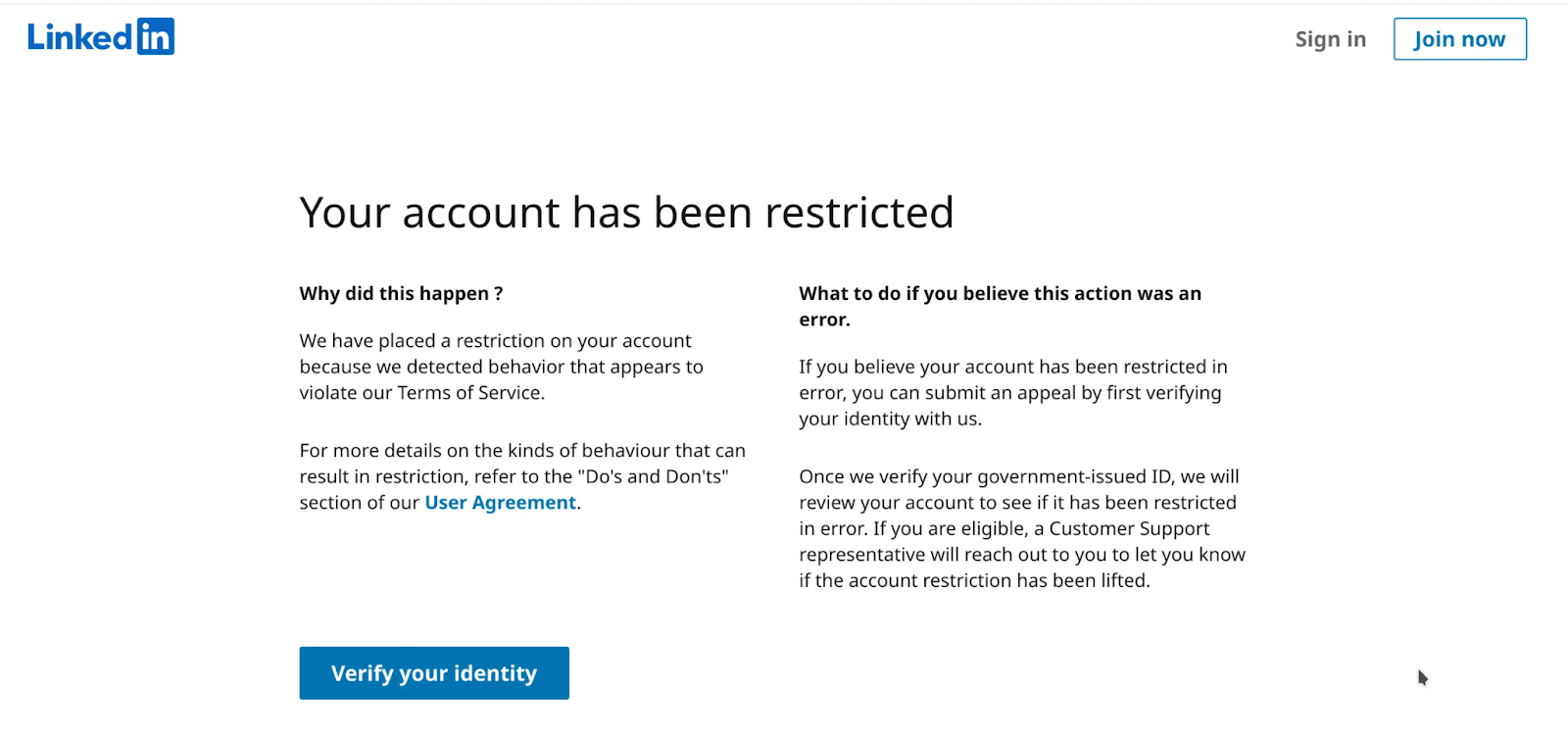
While logging in, you receive a message saying that your account has been restricted. It informs that the platform has detected some behavior in your account that violates its Terms of Service. In the User Agreement, LinkedIn explains that by restricting suspicious accounts, it protects users’ integrity from spammy or malicious behavior.
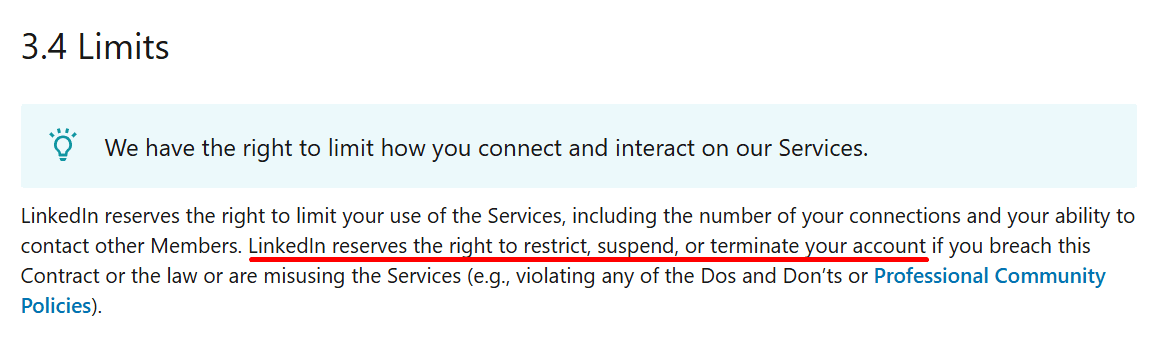
In simple terms, when LinkedIn restricts your account, it puts you in a time-out. You lose access to critical features, such as sending messages and connecting with new people, and sometimes even logging in. It all depends on how serious your violation is.
Let’s start by exploring the types of LinkedIn restrictions that can occur and how they differ.
LinkedIn restriction types
The restrictions can range from a temporary block to a permanent ban. Each type affects your account differently, limiting certain features and impacting your visibility on the platform.
Temporary LinkedIn restriction
A temporary restriction is a mild form of punishment. Your LinkedIn account can be banned for a short period, typically lasting from a few hours to a few days. During this time, you won’t be able to send invitations to connect and message users. Neither will you be able to view profiles outside your current connections.
Permanent LinkedIn restriction
This type of restriction is the most severe form of LinkedIn limitation. In fact, this is a permanent account ban. Once applied, you can’t use your account or any feature associated with it, including messaging, connecting, or posting. This restriction is indefinite and usually irreversible.
However, such a permanent suspension happens very rarely and occurs only in cases of serious violations of LinkedIn compliance or repeated actions that break platform policies.
Shadowban
This type is sometimes considered a part of temporary suspension and is also called “soft restriction”. Shadowban lies in reduced visibility or reach. Although LinkedIn doesn’t notify you directly about the restriction, you may notice it when your posts start to receive fewer views or your profile becomes harder to find in searches.
Essentially, shadowbans don’t limit your access to LinkedIn features, but make your account less visible to other users. So, adjusting your behavior is important to restore full engagement and avoid a significant drop in reach.
💡 Expert tip
I don’t recommend creating a new LinkedIn account if your current one is blocked. Doing so can result in being flagged for fraudulent activity and, if multiple restrictions occur, a permanent ban.
It’s important to note that LinkedIn constantly updates its safety policies and guidelines to protect users and maintain platform integrity. This means that restrictions and their triggers can change over time. Therefore, to keep your account safe, you should stay tuned to the latest updates and best practices.
Luckily, we’ve got you covered with practical recommendations and expert tips. Scroll down – we’ll break down all the recent updates (including those relevant for automation users), explain the main causes of restrictions, and provide clear guidance on how to avoid them while staying active on LinkedIn.
Why is your LinkedIn account temporarily restricted?
Behind hundreds of sobbing, “LinkedIn restricted my account for no reason,” there may be real causes why the block occurs:
- #1. You’ve created a fake LinkedIn profile
- #2. You’ve been sending too many connection requests
- #3. Your acceptance rate is very low
- #4. You’ve posted spammy or inappropriate content
- #5. You’ve been using unsafe LinkedIn automation tools
Let’s take a closer look at each reason that can trigger restrictions and the behavioral patterns that signal LinkedIn algorithms about suspicious activity.
#1. You’ve created a fake LinkedIn profile
LinkedIn takes authenticity very seriously, protecting its users from potential threats. These may include identity theft, phishing scams, and spammy practices. So, if the platform suspects that your account is fake, it could be permanently banned.
Detection triggers:
- Profile inconsistencies (fake photo, incomplete profile, suspicious background)
- Frequent reports from other users
No jokes here! Always use real information in your profile, and focus on building genuine connections. LinkedIn algorithms flag incomplete or inconsistent profiles as potential spam, which can lead to permanent account restrictions if detected.
→ Everything you should know about LinkedIn algorithms to keep your outreach safe and efficient
#2. You’ve been sending too many connection requests
LinkedIn algorithms monitor the frequency of connection requests and flag the accounts that exceed typical usage patterns. Therefore, sending too many invites in a short period can result in getting your LinkedIn account restricted.
Detection patterns:
- Rapidly sending multiple requests in a short period
- Sending invitations in bulk from a new account
We recommend following a safe limit of 100 requests per week to connect on LinkedIn. This means you can send 10-25 daily invitations. However, my expertise shows that these limits work best for established accounts. If your account is new, I advise starting with 5 connection requests per week and then gradually increasing the number of invitations by week.
|
EXAMPLE: John, a sales pro, used to send 200 invitations to connect daily. After the platform had updated its policies, John continued his routine, only to find that his LinkedIn account was temporarily banned. What should John do? John needs to pause all LinkedIn activities and wait out the restriction. Once he gets back, he should reduce connection invites to the recommended limits and personalize his outreach to avoid further issues. |

#3. Your acceptance rate is very low
Sometimes, even when you stay within the recommended limits for connection requests, you can still get your LinkedIn account restricted. The thing is that, according to the latest LinkedIn compliance guidelines, a temporary block can also occur if many of your invitations are ignored or left pending.
If you’ve got too many pending connection requests, the platform might interpret this as spammy behavior. When recipients ignore your invitations, they may mark them as “I don’t know this person.” Accumulating too many of these responses damages your Social Selling Index and overall reputation on the platform, potentially leading to a block.
Detection triggers:
- High volume of unaccepted or pending invitations
- Multiple recipients marked your invitation as “I don’t know this person” within a short period
- Low acceptance rate from target accounts
Once you’ve deleted a request, avoid reaching out to the same prospect immediately. I strongly recommend waiting up to 3 weeks before making a second attempt if you don’t want to get your LinkedIn account restricted due to spammy behavior.
|
Emma sent out dozens of generic invites to connect with people outside her industry. After several ‘I don’t know this person’ responses, her account was flagged and temporarily banned. She learned the hard way that quality matters more than quantity. What should Emma do? Emma needs to focus on connecting with people relevant to her industry or those who share similar professional interests. She should use LinkedIn’s advanced search filters to find prospects more likely to engage. Emma should interact with a prospect’s posts or comment on their content before sending a connection request. This warms up the interaction and increases their chances of accepting her request. In her invitation message, Emma needs to mention why she wants to connect specifically with this prospect. These can be a mutual connection or interest, a recent post the prospect made, etc. |
 EXAMPLE:
💡 Expert tip
To avoid restrictions, I recommend monitoring pending requests and withdrawing them regularly. You can do it manually or let Snov.io optimize this process for you.
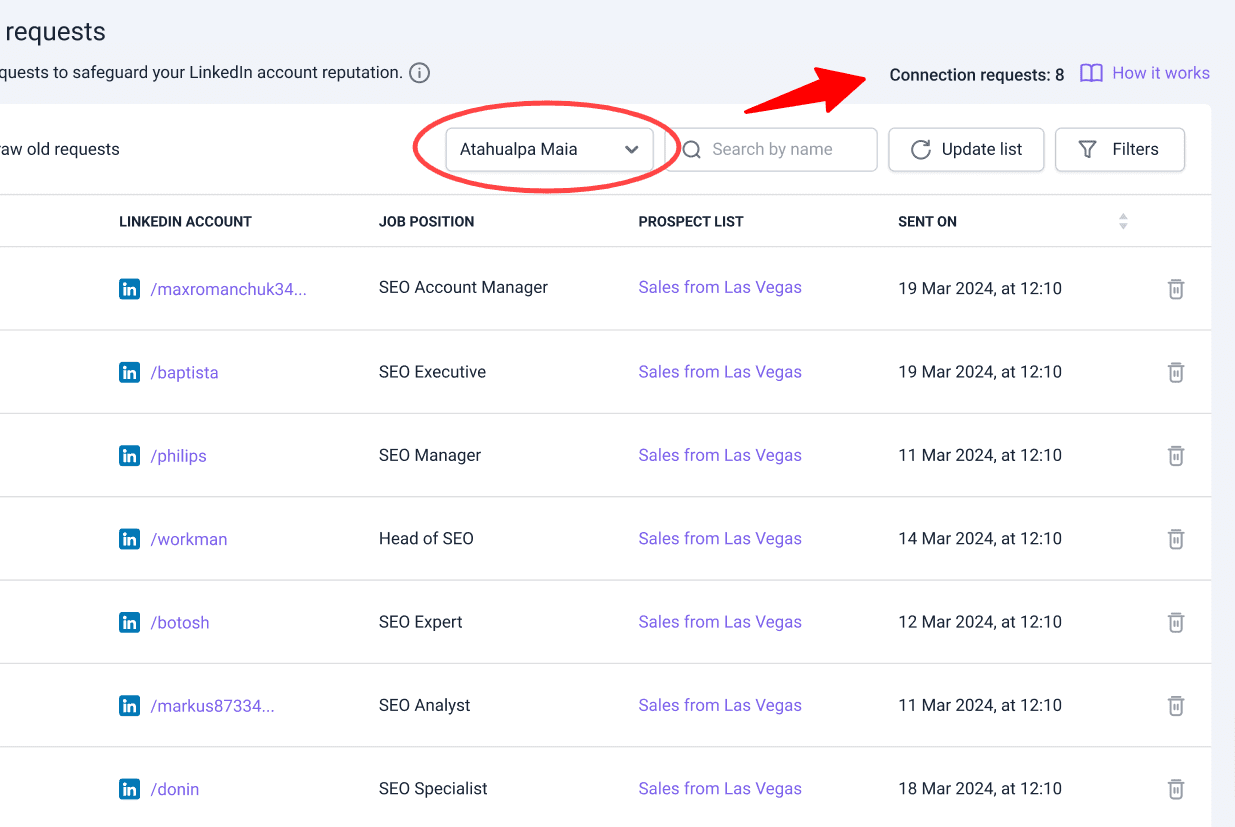
In Snov.io, you can view all pending connections in a single dashboard and withdraw them individually or in bulk. Moreover, when automated mode is enabled, such requests are automatically deleted daily to ensure you never exceed safe limits.
#4. You’ve posted spammy or inappropriate content
LinkedIn monitors your posts to ensure they align with professional standards and community guidelines. If your content is overpromotional, contains misinformation, or violates the platform’s rules, your account may be restricted.
Detection triggers:
- Multiple posts flagged by users for spam or inappropriate content
- Other members reported that your content was offensive
- Overuse of repetitive or promotional hashtags
- Sharing misleading or non-factual information that gets flagged
- High-frequency posting of low-quality content
Also, if you regularly post low-quality content, such as irrelevant links, excessive hashtags, or repetitive self-promotion, LinkedIn algorithms may flag your account for spammy behavior. This can potentially lead to shadowbans and temporary restrictions on posting or messaging.
Watch this video to learn how to make LinkedIn algorithms love your posts:
This short guide will help you keep your LinkedIn account safe.
#5. You’ve been using unsafe LinkedIn automation tools
The professional platform strictly prohibits using tools that scrape data, bypass the LinkedIn safety measures, or automate too many actions in a row. This can result in severe penalties, including having your LinkedIn account temporarily restricted. And if you don’t take measures, the platform may ban you for good.

Automate LinkedIn Messages: How To Do It Safely In 2026
March 17 2026

LinkedIn Outreach Strategy (Ultimate Guide for 2026)
March 3 2026
Although LinkedIn doesn’t officially endorse automated activity, with a reliable tool, you can give a real boost to your outreach and networking efforts. The key is to ensure this tool won’t put your account at risk, letting you follow safe automation practices.
Safe vs. unsafe LinkedIn automation
✅ Following daily and weekly limits: With a good tool, you can set action limits to automatically stay within safe LinkedIn thresholds.
❌ Exceeding action limits: Tools that ignore recommended safe limitations or allow you to set unlimited actions put your account at risk of temporary or permanent bans.
✅ Using human-like behavior: To avoid looking robotic to LinkedIn algorithms, it’s crucial to include natural delays and randomize timing, and a good tool should support this.
❌ Using robotic patterns: Automation that performs identical actions at fixed time intervals or repeats the same sequences too quickly can easily trigger the platform’s spam detection.
✅ Personalizing messages: Using a tool that supports dynamic personalization by inserting details like name, job title, and more, you make your messages more relevant and human-like, decreasing the risk of being flagged as spam.
❌ Leveraging a generic one-size-fits-all approach: Sending the same message to many prospects, especially during a short period, can be detected as spam behavior and lead to a temporary LinkedIn restriction.
✅ Monitoring pending requests: To keep your account safe, leverage automation tools that provide dashboards to track and withdraw pending invitations.
❌ Ignoring pending requests: Sending automated connection requests without proper management of pending invites can increase the risk of temporary restrictions or a shadowban.
✅ Gradual scaling of activity: Safe automation practices include ramping up actions slowly over time, especially for new accounts, to avoid sudden spikes of activity.
❌ Rapid massive outreach: Automation that suddenly performs dozens of actions per day (even within safety limits) can be easily detected by LinkedIn algorithms.
✅ Data protection and privacy: Consider automation tools that comply with GDPR and other privacy regulations, safeguarding personal data and avoiding scraping sensitive information.
❌ Ignoring data compliance: Using insecure, non-compliant, and poorly coded tools that collect, store, or share LinkedIn data without security measures can lead to even permanent restrictions.
Key takeaways:
Safe automation practices include mimicking natural human activity, following safety limits, respecting LinkedIn compliance, and managing pending requests to protect your account.
So, if you’re using (or about to use) a tool that automates networking and lead generation on LinkedIn, be cautious! Search for tools that can help you stay compliant while efficiently managing your outreach.
⭐ Keep your LinkedIn account secure with safe automation
Snov.io LinkedIn Automation Tool is tailored to comply with the platform’s rules.
The entire toolkit is specifically designed to mimic natural human behavior with smart delays between actions and adhering to LinkedIn limits. You can view profiles, follow users, like posts, and send connection requests and InMails automatically while staying within a safe amount of activities.
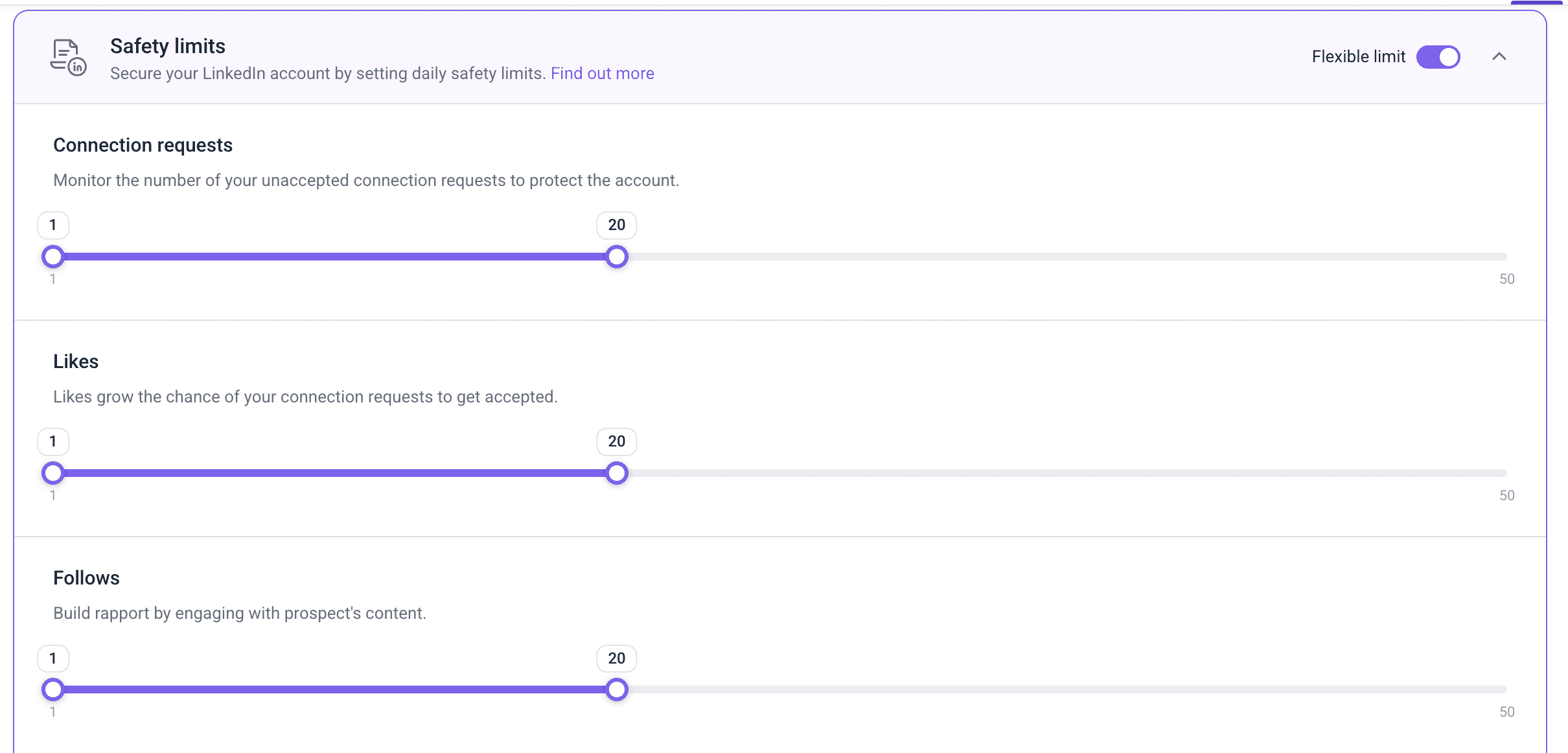
You can also automatically boost your Social Selling Index (SSI), directly impacting the health of your account on the platform.
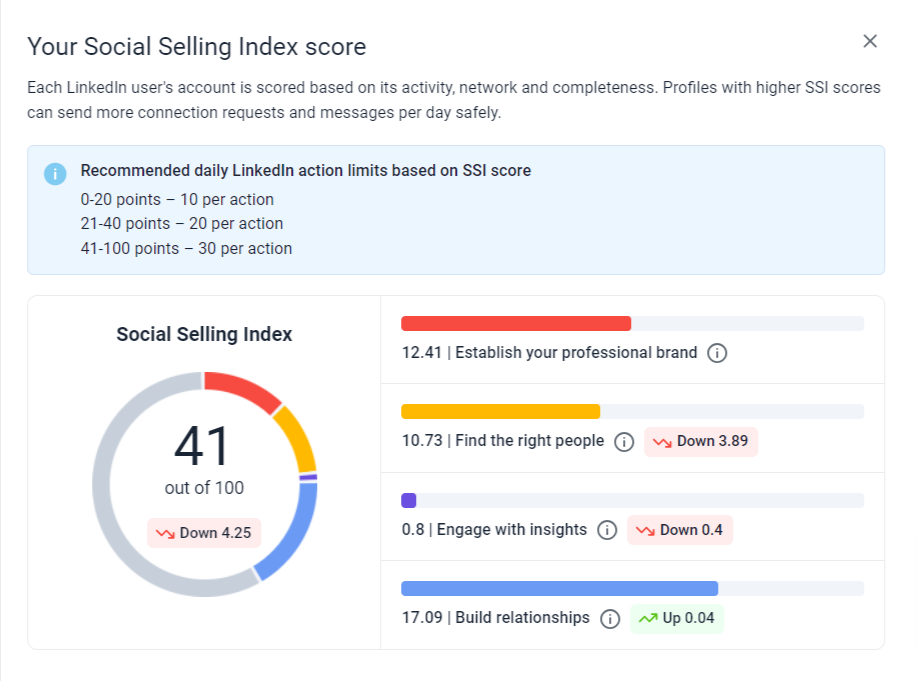
When your SSI is high, the platform considers your actions as legitimate and in line with its community policies. This means you can increase your activity without the risk of getting your LinkedIn account restricted.
What are the steps to recover your restricted LinkedIn account?
Once you’ve got your LinkedIn account restricted, you need to take the following steps:
- Understand the reasons
- Contact LinkedIn support
- Verify your identity promptly
- Wait patiently and check your status
- Analyze your recent activity and learn
But before moving on to the LinkedIn account recovery steps, let’s clarify how to understand if your account is restricted.
You have your LinkedIn account restricted if any of the following occur:
- You’ve received a notification from LinkedIn alerting you about the restriction.
- You’ve found that some features are unavailable. For example, you can’t send connection requests or messages, add new posts, or share content.
- You see a sudden decrease or unusually low visibility and engagement rate for your posts.
- You can’t log in to your account at all.
💡 Expert note
Before getting your LinkedIn account restricted, you may notice some signs that this could happen very soon. These signs may include extra CAPTCHA, sudden verification requests, temporary action blocks, or slower response when performing usual activities.
Important: if you notice any of these, it is an immediate signal to review your LinkedIn activity. Reduce the number of daily actions for a while, check pending requests (withdraw if necessary), and ensure your content and messaging patterns align with LinkedIn compliance.
LinkedIn account recovery: a step-by-step guide
Once you’ve found your LinkedIn account restricted, it’s time to act.
Step 1. Understand the reasons.
Check your email. As a rule, you get a message explaining why your LinkedIn account was restricted from the platform. That will be your first clue to understanding what went wrong. Then, follow the on-screen instructions to log in, including further steps.
Important note: pause all LinkedIn activity once you’ve found that your account is restricted. Thus, you’ll prevent escalating the issue, avoid new flags, and provide enough time for the platform to review and restore access.
Step 2. Inquire Help Center
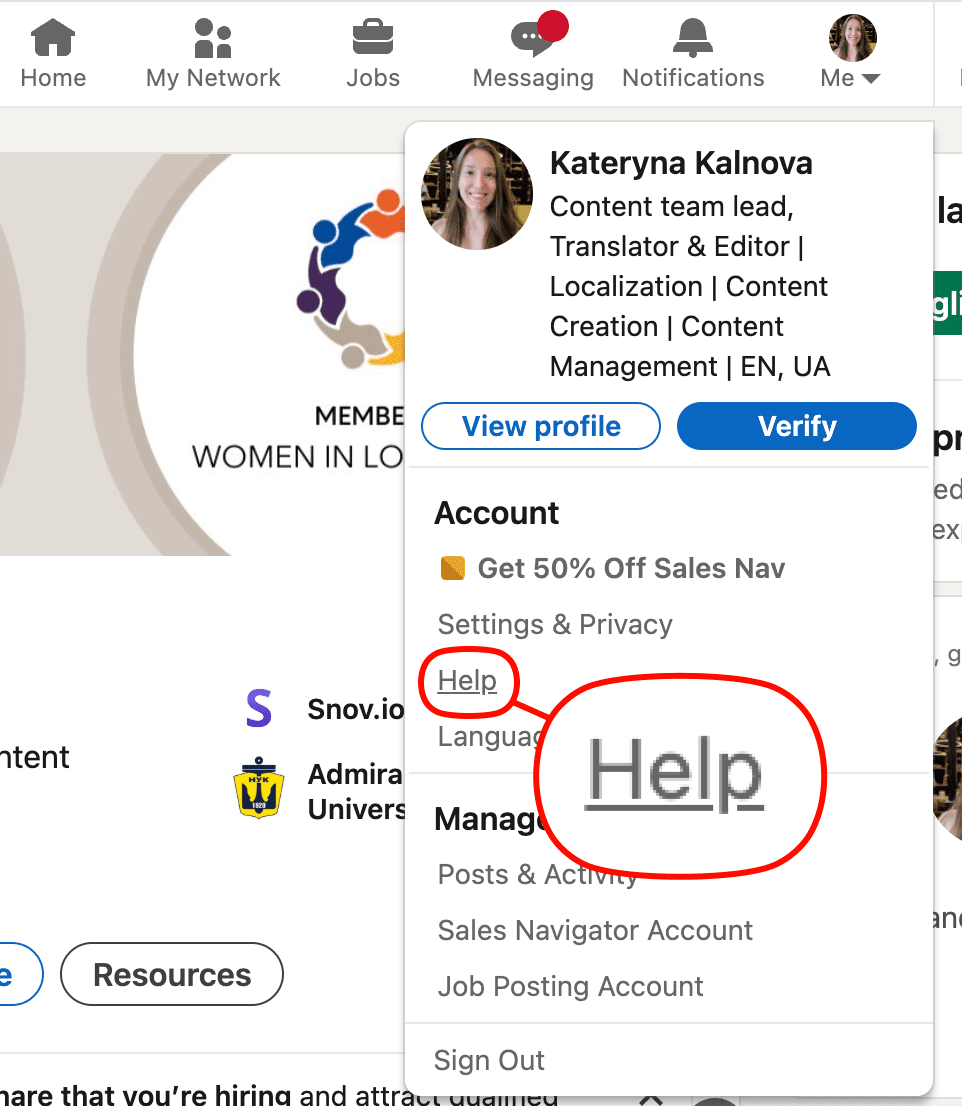
To access the Help Center, click on the Me icon at the top of your LinkedIn page. Then, select Help.
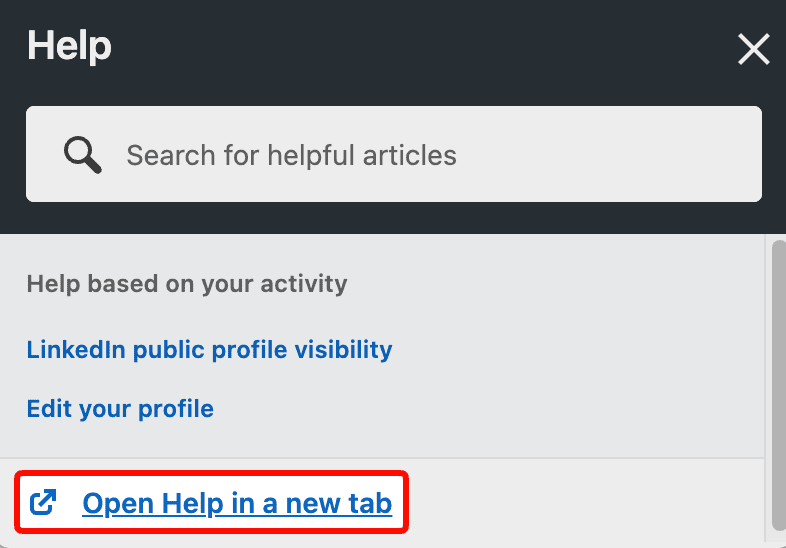
You will see a pop-up window with a search bar. Click on Open Help in a new tab to access full functionality.
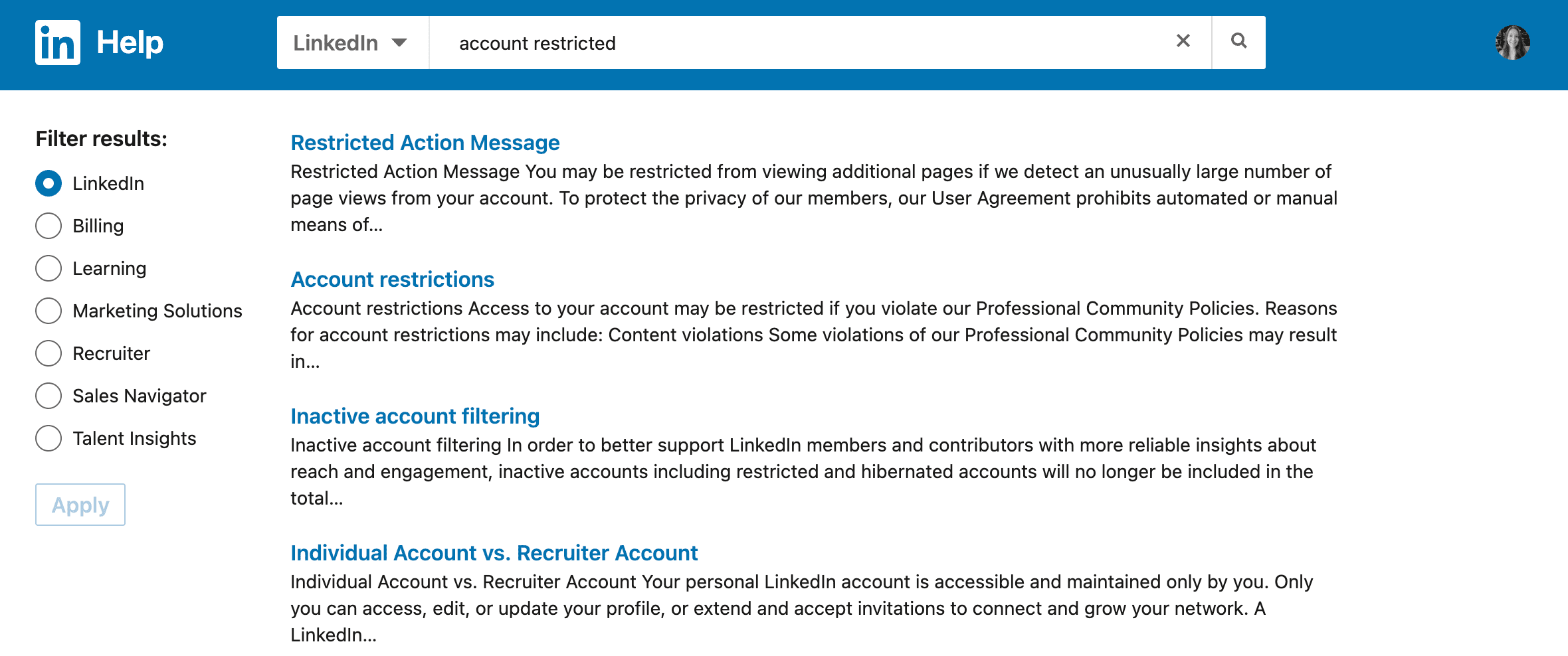
Type your request in the search bar to find the section where LinkedIn provides explanations, possible reasons for restrictions, and guidance on how to resolve them.
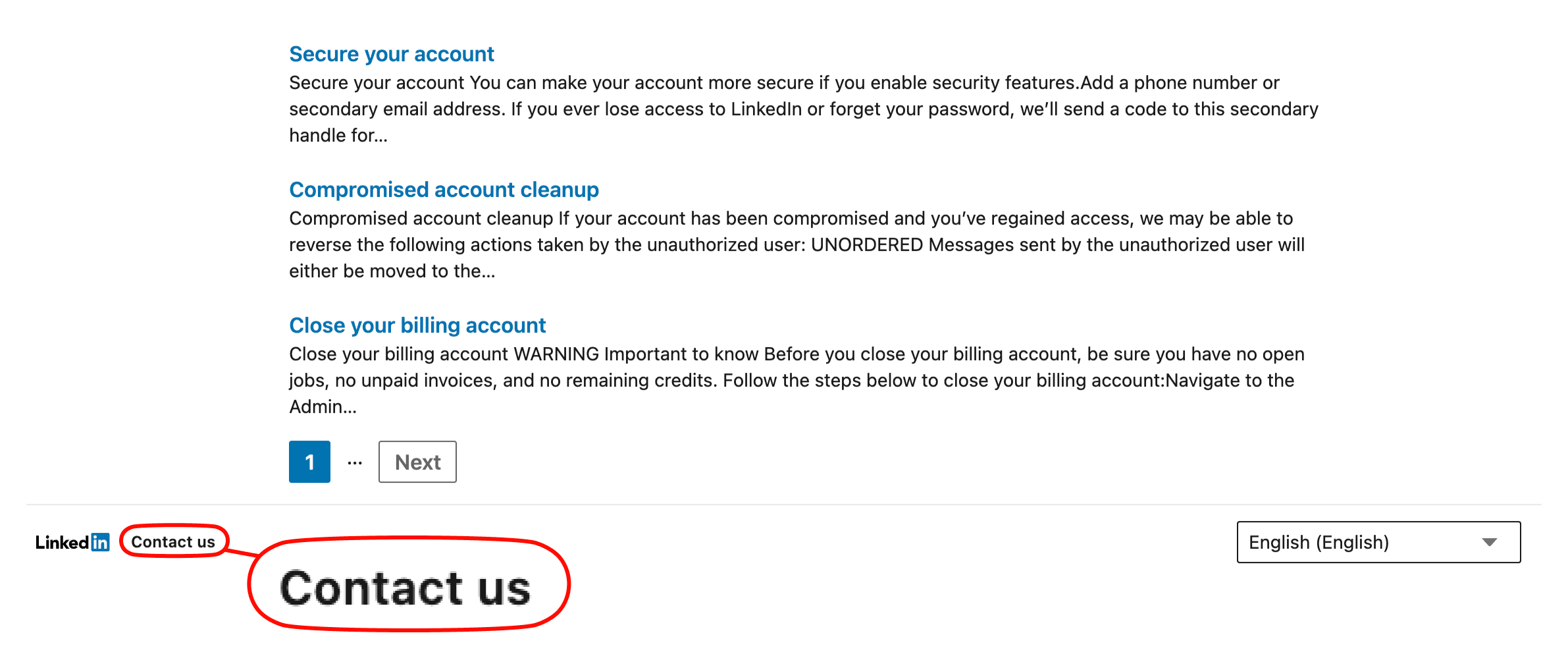
If the cause remains unclear and you need further assistance, contact the LinkedIn support team.
Step 3. Verify your identity promptly
Typically, the platform may ask you to confirm your phone number or email address. You’ll also probably have to upload an ID or other verification documents to prove you are a legitimate account owner.
Step 4. Follow LinkedIn account recovery instructions
Log in to your account and follow the recovery instructions provided by the platform to request a recheck of your profile.
If the restriction is related to missing information or a non-compliant profile picture, make the necessary edits to your profile to meet the platform’s guidelines. In case your restriction is caused by using LinkedIn automation tools, disconnect any third-party services immediately. To do so:
- Click on “Me” at the top right corner and choose “Settings & Privacy” in the drop-down menu.
- Click “Data privacy” and scroll down to the “Other applications” section.
- You’ll find all tools connected to your account in “Permitted services.”
Click on the Remove option to disconnect the
Restrictions can last a few hours to several days, depending on your violation. I recommend avoiding any actions while waiting to prevent things from getting even worse. Important note: DO NOT create a new account!
Just keep a watchful eye on the situation, and if you don’t hear back within a stated time, follow up with LinkedIn support. Find out if your request is being processed and ask how long the resolution will take.
Step 6. Resume your activity gradually
Once you’ve restored your account, I recommend resuming your manual or automated activity slowly. Begin with 10-20 actions daily, keep this limit for at least one week, and then gradually increase it to the maximum recommended for your SSI score.
Step 7. Analyze your recent activity and learn
Reflect on your recent actions that may have triggered the restriction. What did you do wrong? Were you sending too many invites to connect or using non-compliant tools? Identifying why you’ve been blocked helps avoid repeating the mistake.
Key takeaways:
If your restriction is temporary, it is usually reversible once you fix the trigger (e.g., too many invites, missing profile image, low acceptance rate, etc.) and follow the necessary recovery steps. After restoration, increase your activity gradually to avoid repeated restriction.
To sum up, here is a quick checklist on LinkedIn account recovery:
Feel free to bookmark this post and come back to this checklist any time!
How to avoid getting your LinkedIn account restricted: Snov.io advanced safety protocol
Here are a few tips to stay on LinkedIn’s good side and avoid those pesky restrictions:
- Respect the Terms of Use
- Choose relevant connections
- Stay within safety limits
- Warm up your account
- Customize connection requests
- Actively engage on the platform
- Schedule your activity
- Use a safe LinkedIn automation tool
Taking these steps will help you keep your LinkedIn account safe:
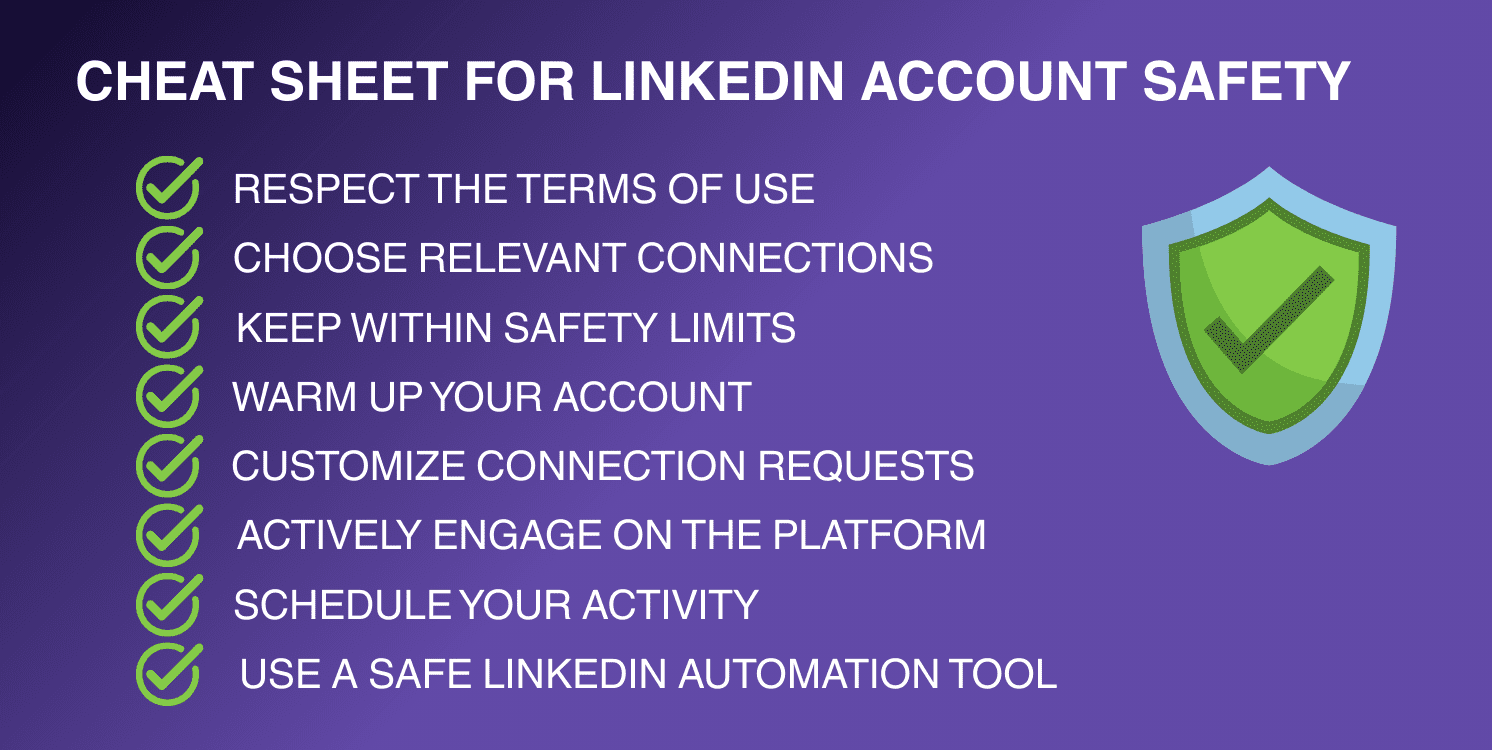
Now, let’s review each step in detail.
-
Respect the Terms of Use
It might sound trivial, but our first piece of advice is to read and follow the User Agreement carefully. Following the authorized practices will most likely save you from the headache of having your LinkedIn account restricted.
Carefully study LinkedIn’s guidelines and see if your actions align with them. Review their Community Policies to better understand the dos and don’ts.
-
Choose relevant connections
It’s natural that you’d like to get as many contacts as possible, but it may be counterproductive – and risky. Imagine you’re selling SaaS products.
Are there any reasons to connect with someone like a fashion or travel blogger? While they might be influential in their fields, do they indeed need your product?
Well, our John is already more experienced in LinkedIn outreach. He understands that sending connections to irrelevant prospects won’t advance your sales goals.
Instead, your efforts should be better put into connecting with IT managers, CTOs, or business development professionals. These roles are more prone to making tech-related purchasing decisions.

-
Stay within safety limits
The platform’s safety measures monitor the volume and patterns of your actions (connection requests, profile views, messages). To avoid LinkedIn restrictions, it’s essential to keep activity moderate and consistent. I recommend avoiding sudden spikes of activity because it may trigger automation detection algorithms.
One of the most crucial ways to avoid getting your LinkedIn account restricted is to keep your outreach within safety limits. Here are recommended limits for different actions provided by our outreach experts:
- For profile views: 10-20 per day
- For likes: 10-20 per day
- For connection requests: 5-10 per day
- For messages: 10-20 per day.
Please note that the lower your SSI score is, the fewer daily actions you can perform safely. So, ensure your daily activity volume aligns with your Social Selling Index.
-
Warm up your account
To scale your outreach safely, you should warm up your account, especially if it’s new. The best option is to start with low volumes and gradually increase your action limits once your account’s reputation (SSI score) improves. I recommend adding 1-2 points per week to avoid triggering LinkedIn safety measures.
For accounts with SSI lower than 20, I advise starting with no more than 10 connection requests and messages per day. Gradually increase the limit every time your SSI increases by 5 points. For example, when it reaches 25, you can set the limit at 15-20 actions.
-
Customize connection requests
Our Emma has also optimized her approach to sending invites to connect on LinkedIn. Now she knows the key rule: personalization!
Personalization is vital. A tailored message increases the chances of your invitation being accepted and reduces the likelihood of your account being restricted because of the low acceptance rate.
💡 Expert tip
It’s understandable that manual personalization in bulky outreach campaigns seems daunting and requires too much effort. However, LinkedIn outreach automation tools can eliminate this problem.
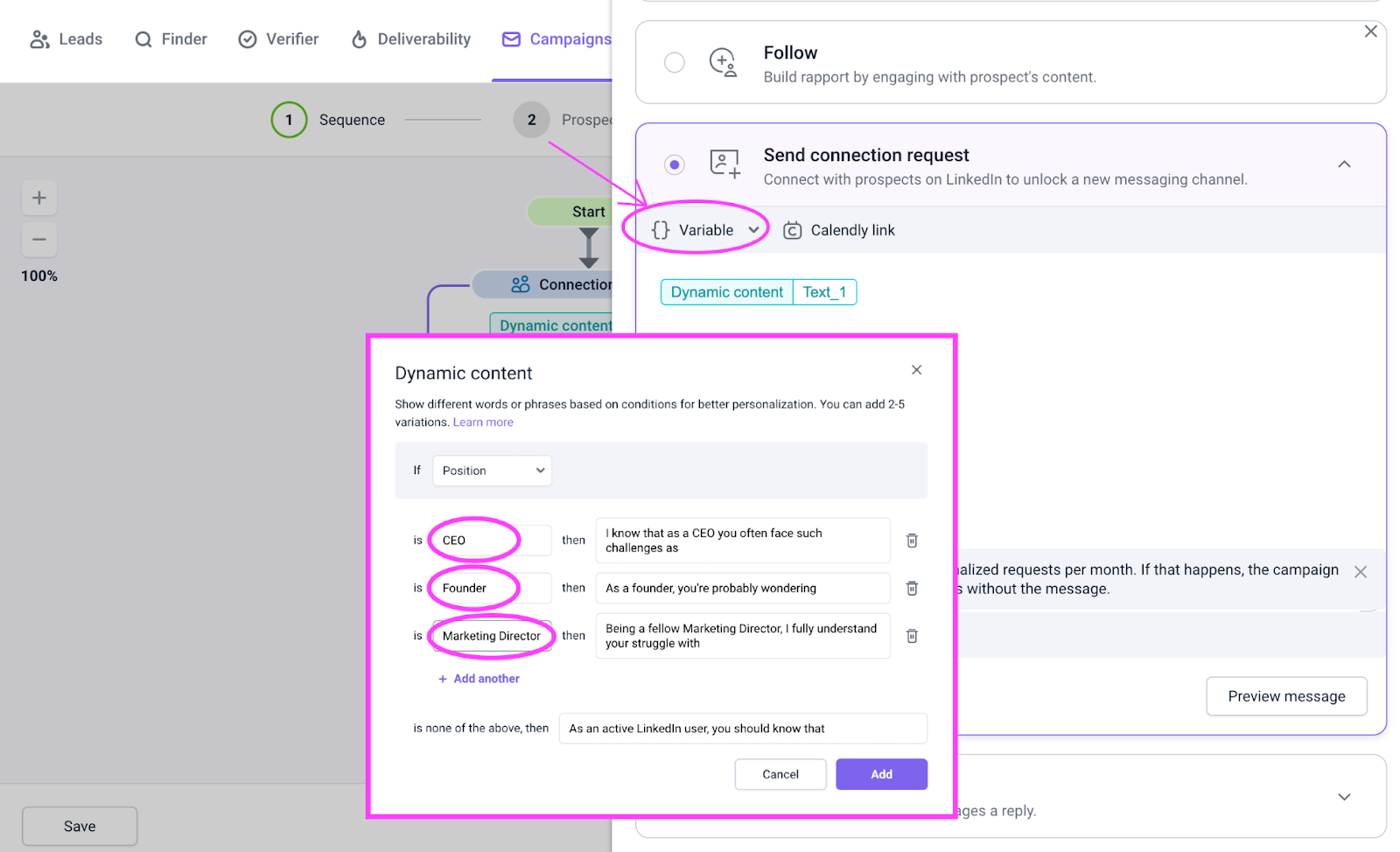
For example, Snov.io’s lead gen automation software solution offers personalization variables to make your messages unique. With their help, you can adjust messages to each prospect based on information you’ve gathered about them.
Advanced Dynamic content variables automatically create message variations based on the recipient’s information. This way, you can send targeted messages in bulk to different segments of your audience.

-
Actively engage on the platform
A strong LinkedIn presence means contributing to the community. The more actively you engage on the platform, the more users will consider you a trusted voice in the industry.
This will boost your Social Selling Index (SSI) and signal to LinkedIn algorithms that your account is trustworthy, risk-free, and popular.
Invest time in liking and commenting on others’ posts. Also, remember to share insightful content that would interest your audience and provide real value. These can be industry news, thought leadership, or helpful tips.
-
Schedule your activity
“I use a reliable LinkedIn tool, but why does my account keep getting restricted?” a sales rep, Gina, asks.
She doesn’t yet grasp what Emma and John are already confident about. They know that even the best solution for automated outreach may send messages excessively outside regular business hours. Such an activity may become a red flag for LinkedIn algorithms.
A way out? Gina (and you) should schedule your automated activity so your tool engages on LinkedIn just like you would. Not on Saturday at 9 p.m. Not during a Christmas Eve festivity.
Your well-timed activity shows the platform that you’re a real user, which prevents you from having your LinkedIn account restricted. It also makes sense practically, as your messages will reach prospects when they’re most likely to be online.
-
Use a safe LinkedIn automation tool
It’s the main thing about safe LinkedIn outreach automation – a truly reliable tool. A secure solution should protect your data, perform human-like automated actions, and provide reporting tools for tracking activity.
Carefully explore how the tools you’re choosing from guarantee data security. Learn what technologies they use to mimic human behavioral patterns. Plus, always check if the solution complies with the LinkedIn safety measures.
Snov.io’s unique safety architecture
LinkedIn algorithms get stricter every year, adding more rules around outreach and automation. The major update of 2025 introduced AI-powered pattern recognition, which performs comprehensive behavioral analysis to flag non-human activity.
The updated LinkedIn algorithms now consider from where you access the platform, how often you change your location, and whether your activity follows not only natural volume but also rhythm.
With these stricter detection mechanisms, you need a smarter and more secure tool to automate outreach and avoid account restrictions.
Here is where Snov.io comes in. Let’s take a closer look at how our platform adapts to LinkedIn’s evolving detection systems and protects your account while automating your activity.
Cloud-based operation
This means that all tasks run on Snov.io’s secure servers. This setup safeguards your account data, eliminates browser fingerprinting, and ensures that LinkedIn outreach automation continues running even when your computer is off.
Dedicated IP address
As the updated LinkedIn algorithms pay significant attention to IP addresses, this setup is extremely helpful. In Snov.io, you can assign a dedicated location-based proxy to each account. This prevents the LinkedIn safety features from detecting suspicious IP changes or sudden location jumps that often trigger restrictions.
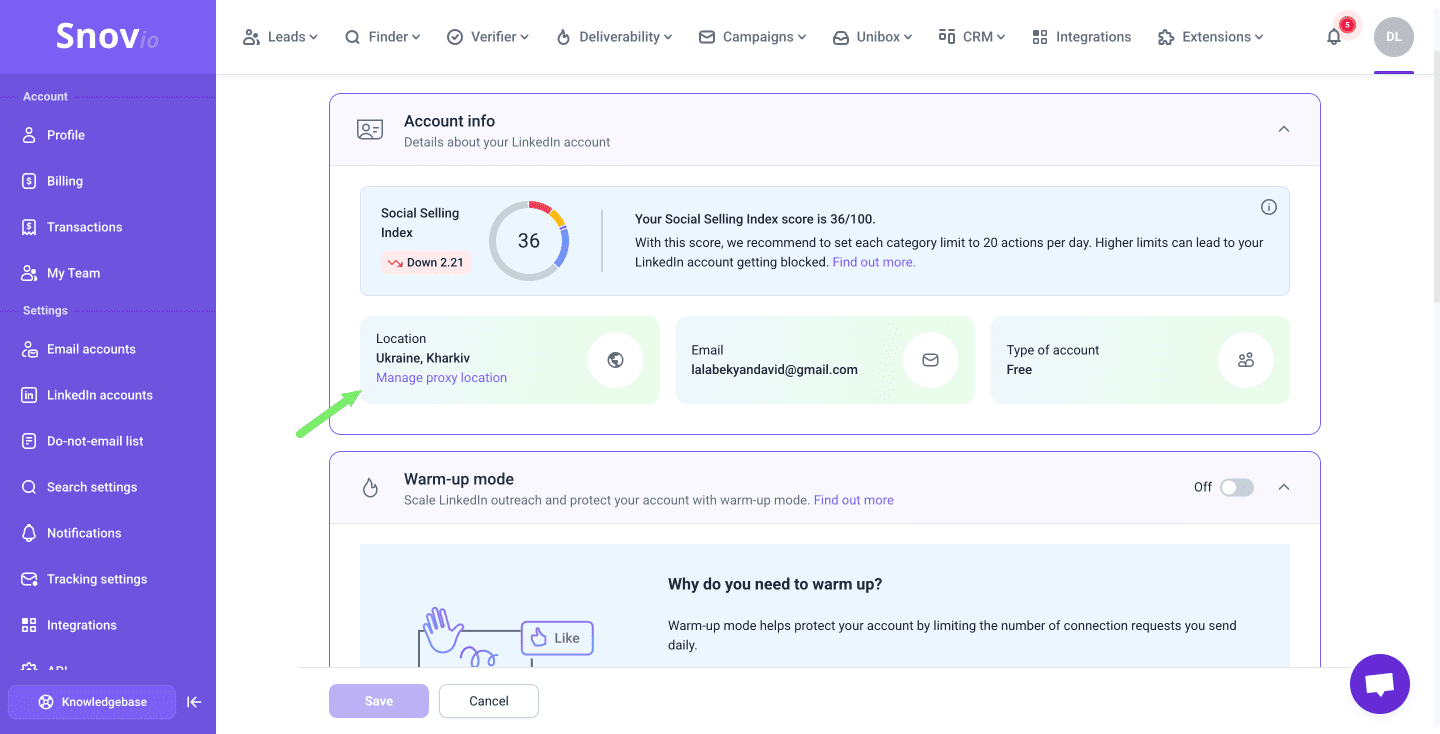
You can adjust the settings up to 3 times per month to match your current location. Snov.io also handles all the configuration for built-in proxies, so you don’t have to worry about manual setup.
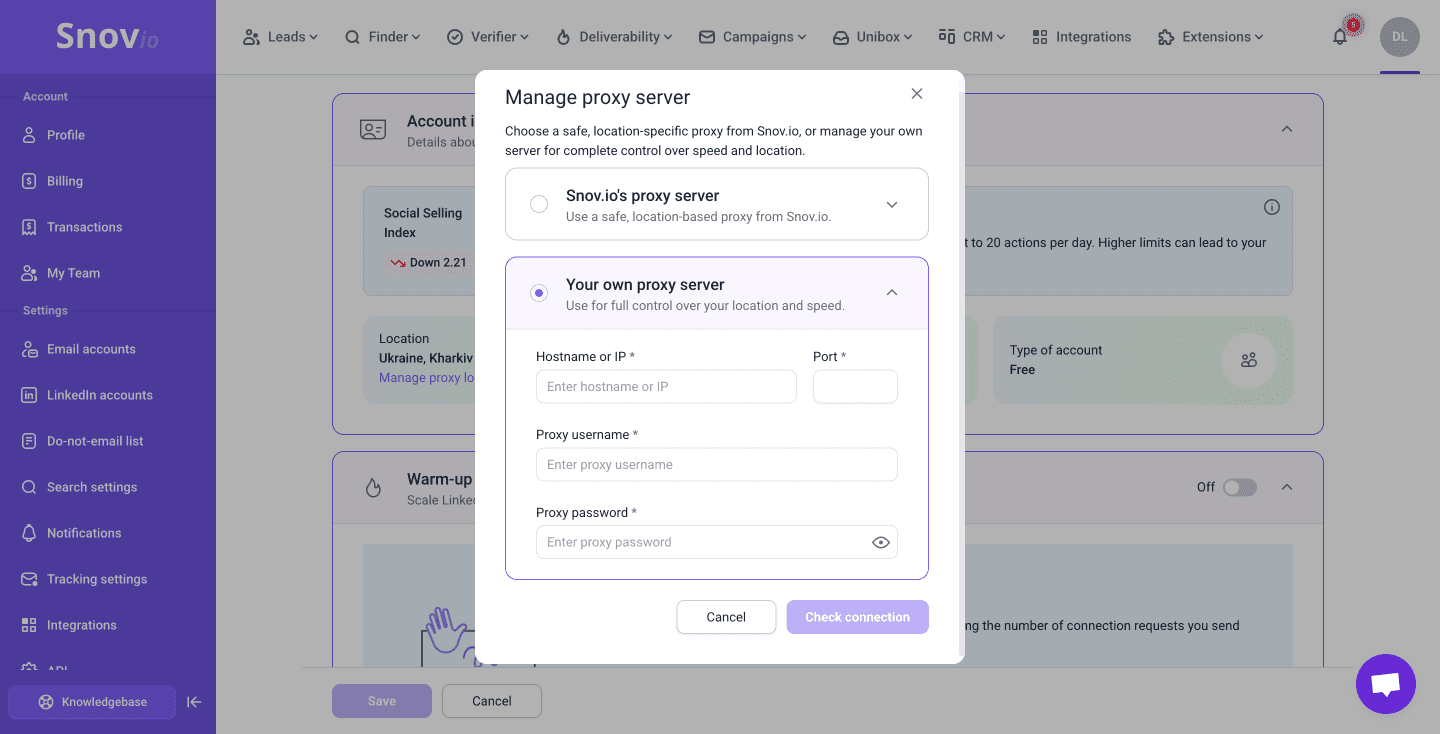
Besides, to get even more control over automation, you can use your own proxy server for the account.
Human behavior simulation
Snov.io’s LinkedIn automation tool is designed to imitate natural human activity. The tool simulates human behaviour by making smart delays between automated actions, just like if a real person performed this activity manually.
Automatic safety limits
When you connect your LinkedIn account to Snov.io, the tool automatically detects your SSI score and applies safety limits based on it. Once the limit for the action is reached, the platform pauses this activity until the next day.
This way, you ensure you won’t get your LinkedIn account restricted because of exceeding safe limits or performing too fast for a human.
LinkedIn account warm-up mode
To scale your outreach activity without risking your account, you can use automatic LinkedIn warm-up in Snov.io. This feature gradually increases your daily limit for connection requests by a safe amount.
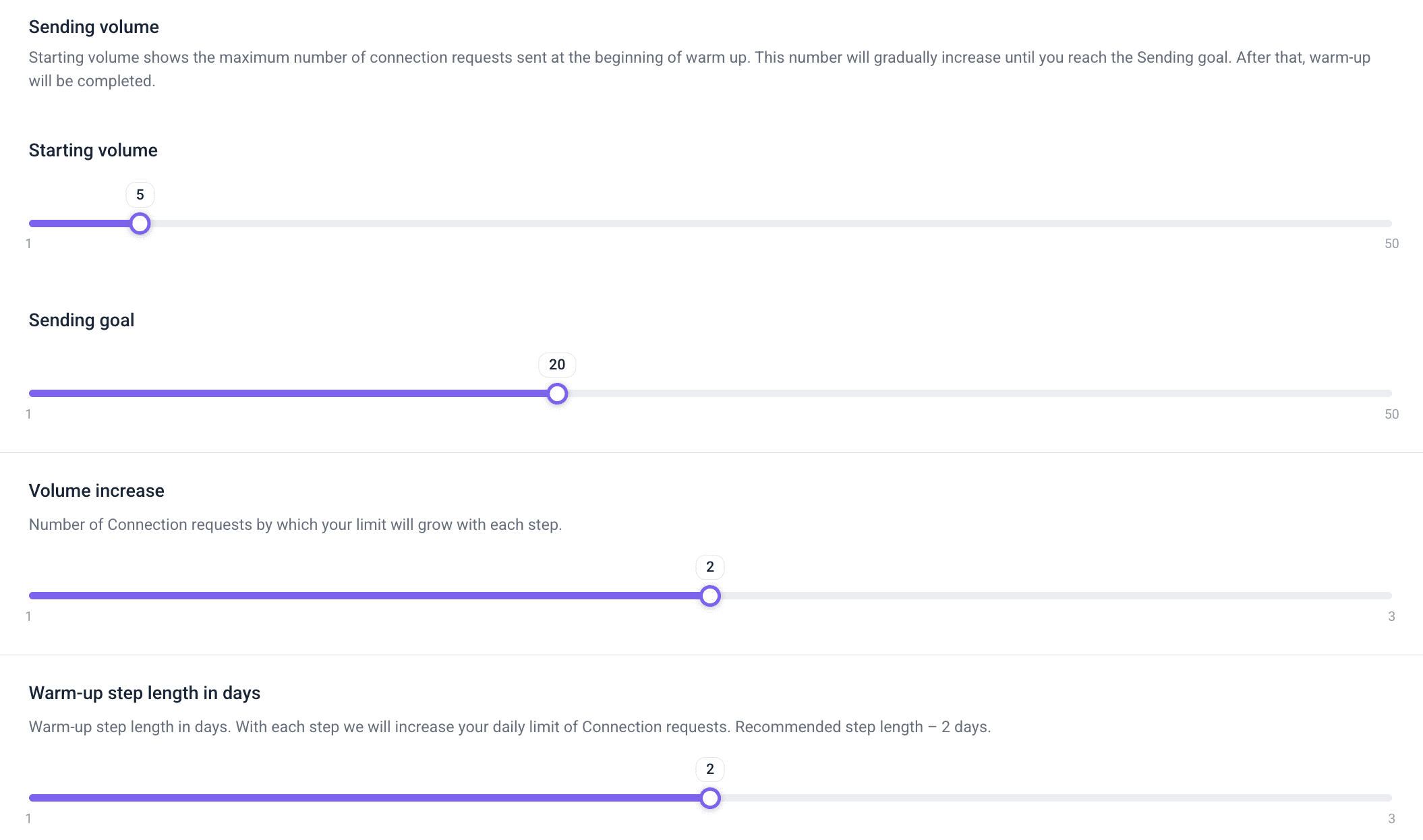
The warm-up is done automatically. You only set the starting volume, desired warm-up step length, and define the number of daily requests you want to reach for this account.
Sequence scheduling
In Snov.io, you decide when exactly your campaigns will run. Schedule automated activities to run when you’re usually online or when your leads are most active.
You can also add custom delays between actions. This keeps your outreach looking realistic, preventing it from being flagged by automation detection algorithms.
LinkedIn rotation
In Snov.io, you can connect and rotate multiple LinkedIn accounts to scale your outreach efforts safely.
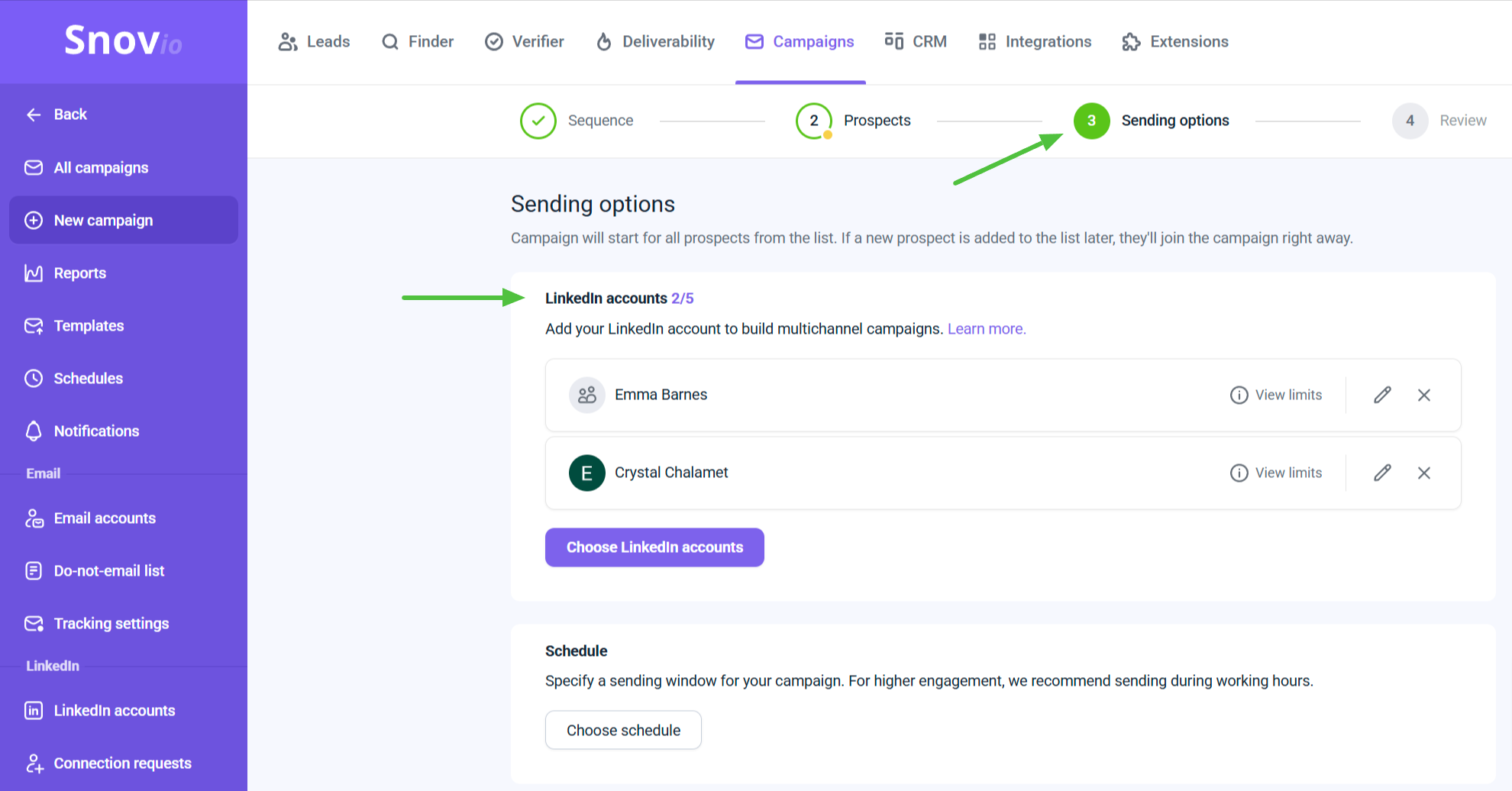
Thus, you can send one campaign from several profiles, protecting each account by following the recommended limits while reaching more prospects.
Personalization features
Build lead lists enriched with data in Snov.io and customize your requests with details like first name, job title, industry, and many more.
This simulates natural writing and helps avoid repetitive patterns, which often lead to LinkedIn restrictions.
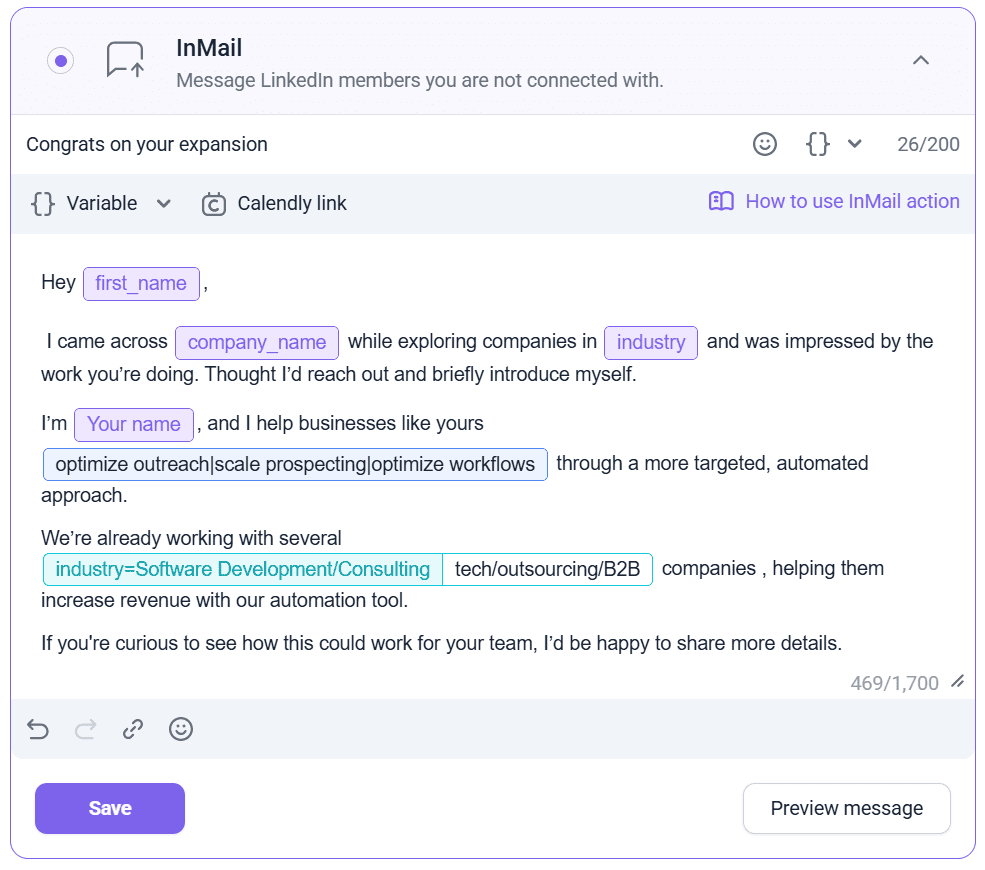
Personalize messages by using Variables, Dynamic content, and Spintax, and increase acceptance rate.
Monitoring tools
Snov.io provides clear insights into your LinkedIn activity, including daily limits, campaign metrics, and SSI score. Thus, you always know how your automated sequences perform and when it’s safe to scale them.
Monitor acceptance rate and pending requests in one place and make quick adjustments if necessary to keep your account protected.
Key takeaways
We can’t deny it—speed is crucial for successful sales. Losing momentum during the outreach phase can seriously impact your campaign’s success. And surely, the last thing you want after you’ve kick-started your LinkedIn cold outreach campaign is an unexpected roadblock.
To avoid this, follow the actionable tips and safe automation practices provided in the article. If it suddenly happens that you’ve got your LinkedIn account restricted, use our recovery guide to overcome restrictions as soon as possible.
Last but not least, leverage only reliable LinkedIn automation tools for outreach, which protect your account data and simulate natural behavior.
Try out Snov.io to boost your outreach while staying within safe limits and avoiding restrictions due to its unique safety architecture.